

Input Switching
Max Display Output

Recommended Setup

Display Stability
Control Options

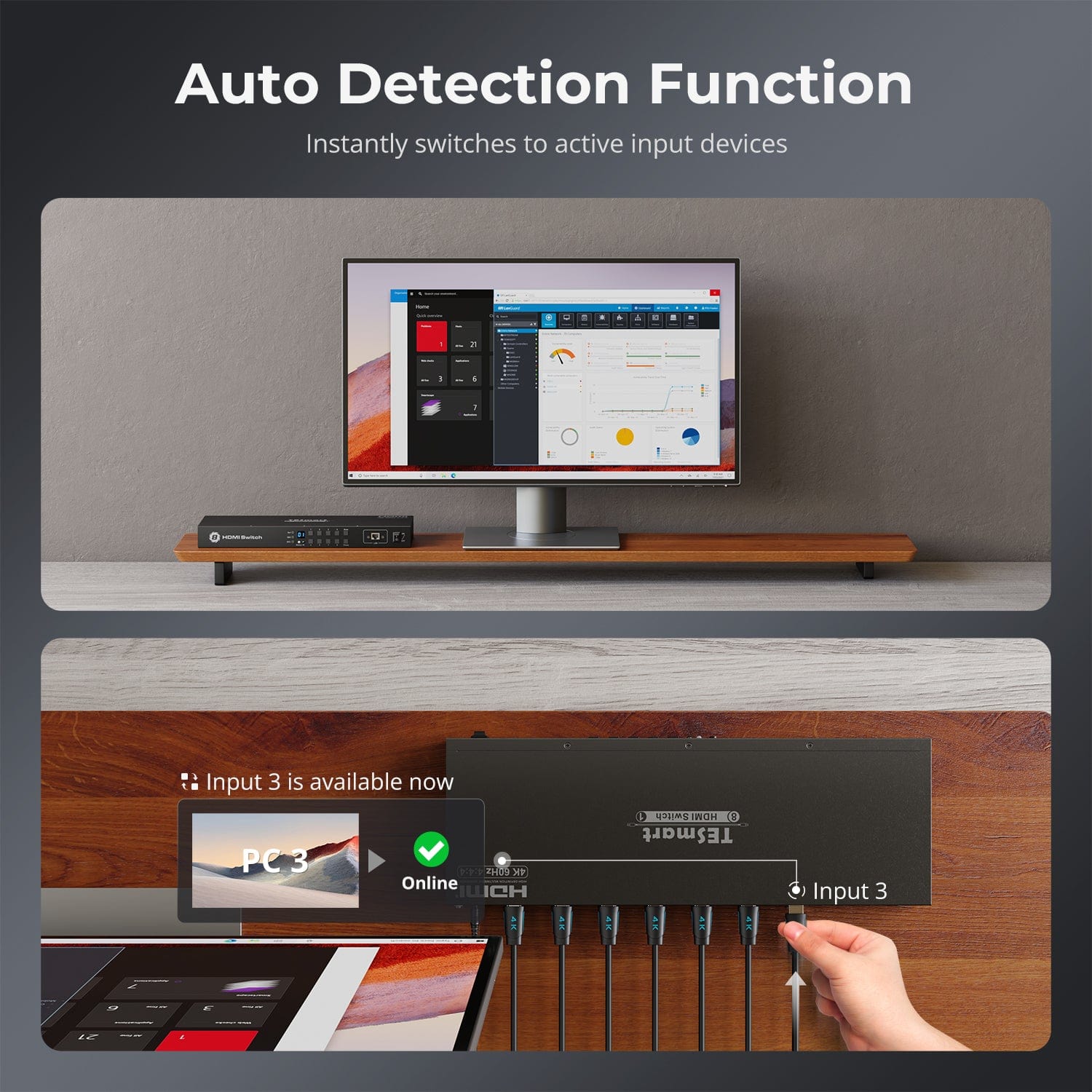
Automatic input scanning

Content Protection
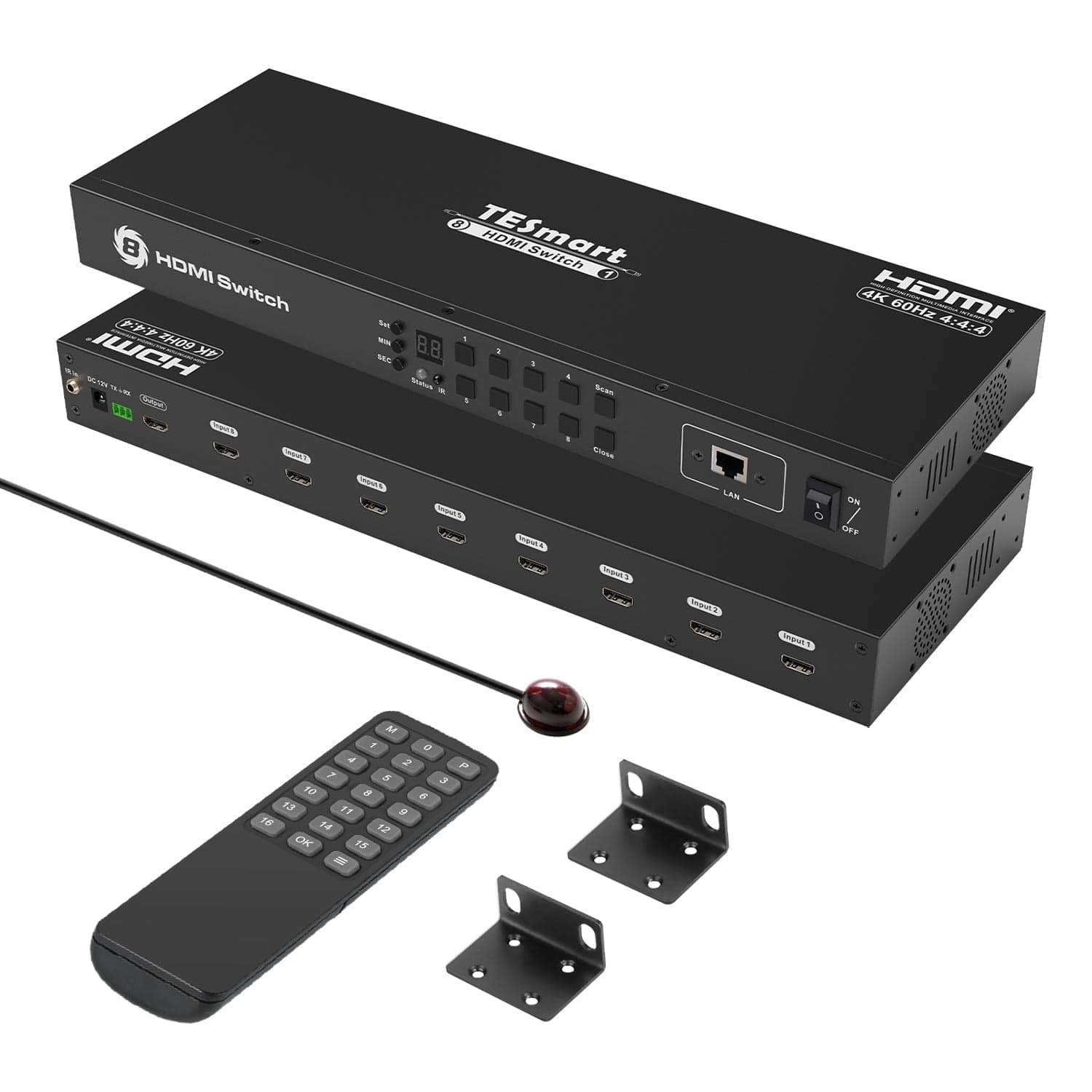
8 Port Rackmount HDMI Switch 4K@60Hz with RS232/LAN
Share two Apple Studio Displays, one keyboard and mouse between two computers—or show one computer on each display when you need both systems at once.
Input Switching
Max Display Output
Recommended Setup
Display Stability
Control Options
Automatic input scanning
Content Protection
8 Port Rackmount HDMI Switch 4K@60Hz with RS232/LAN
Why Choose HSW801-E23
Overview
01
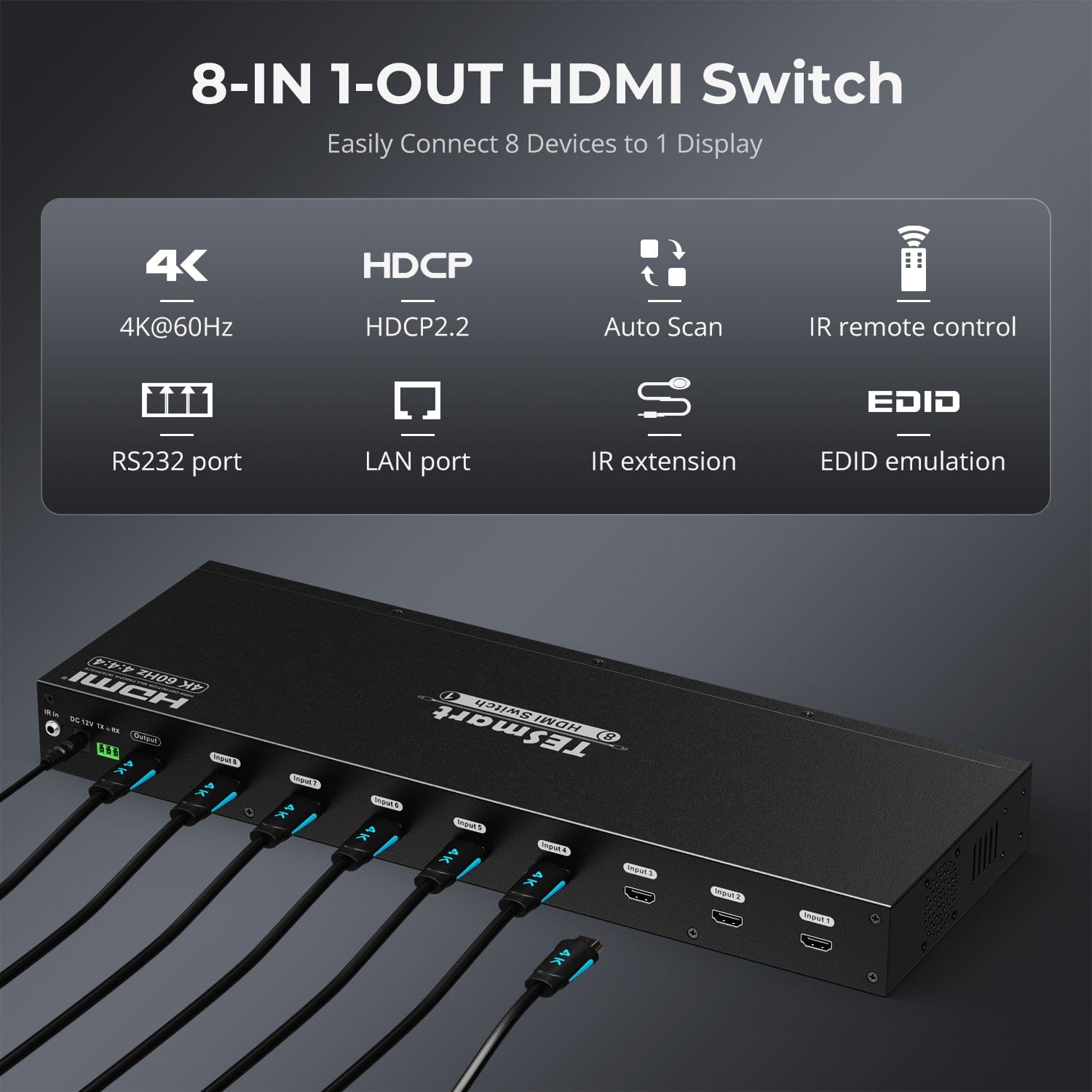
Connect 8 HDMI Sources to One Display
Bring computers, game consoles, streaming devices and other HDMI sources into one organized 8-input system. Select the source you need without repeatedly moving cables at the display.
02
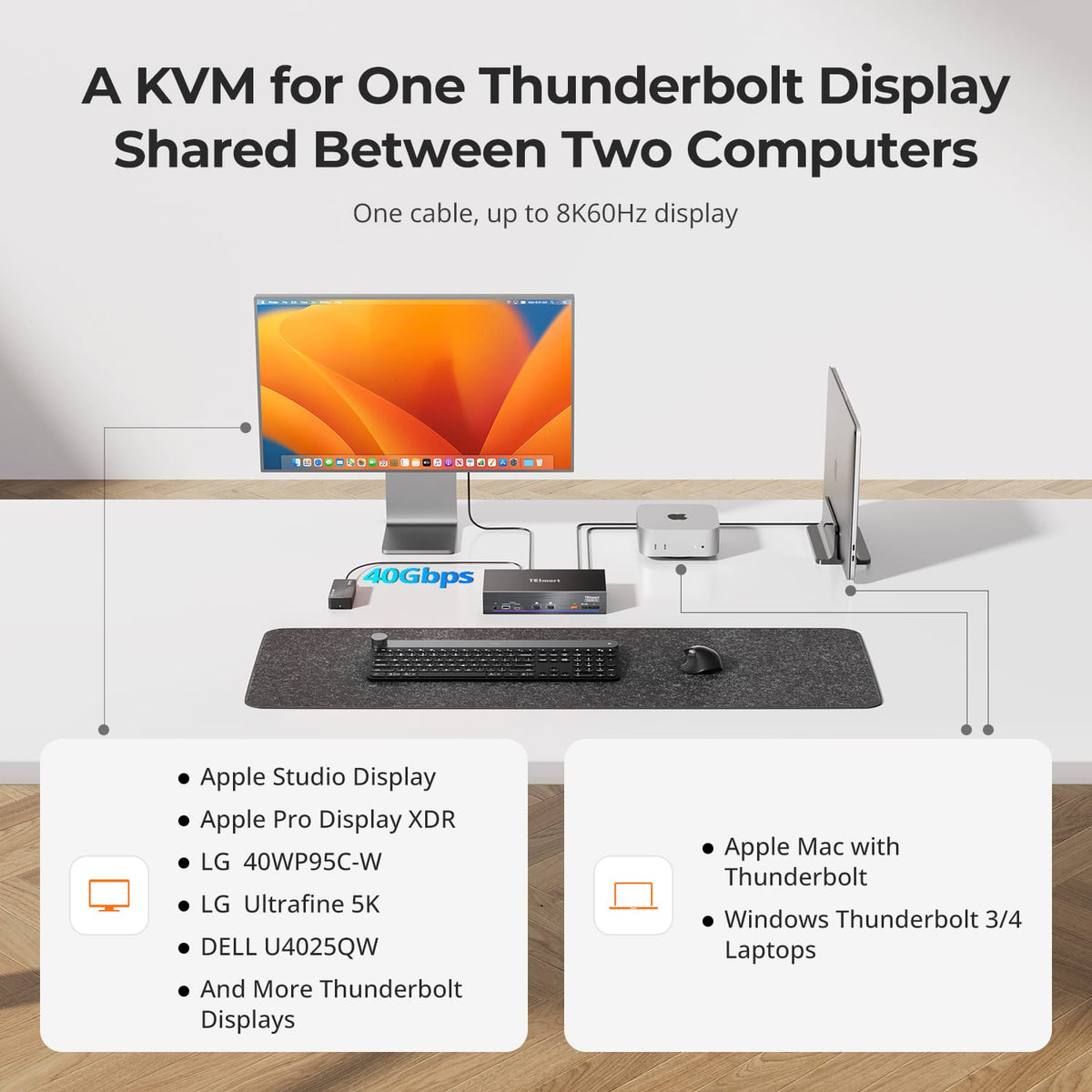
Two Macs + One Thunderbolt Display
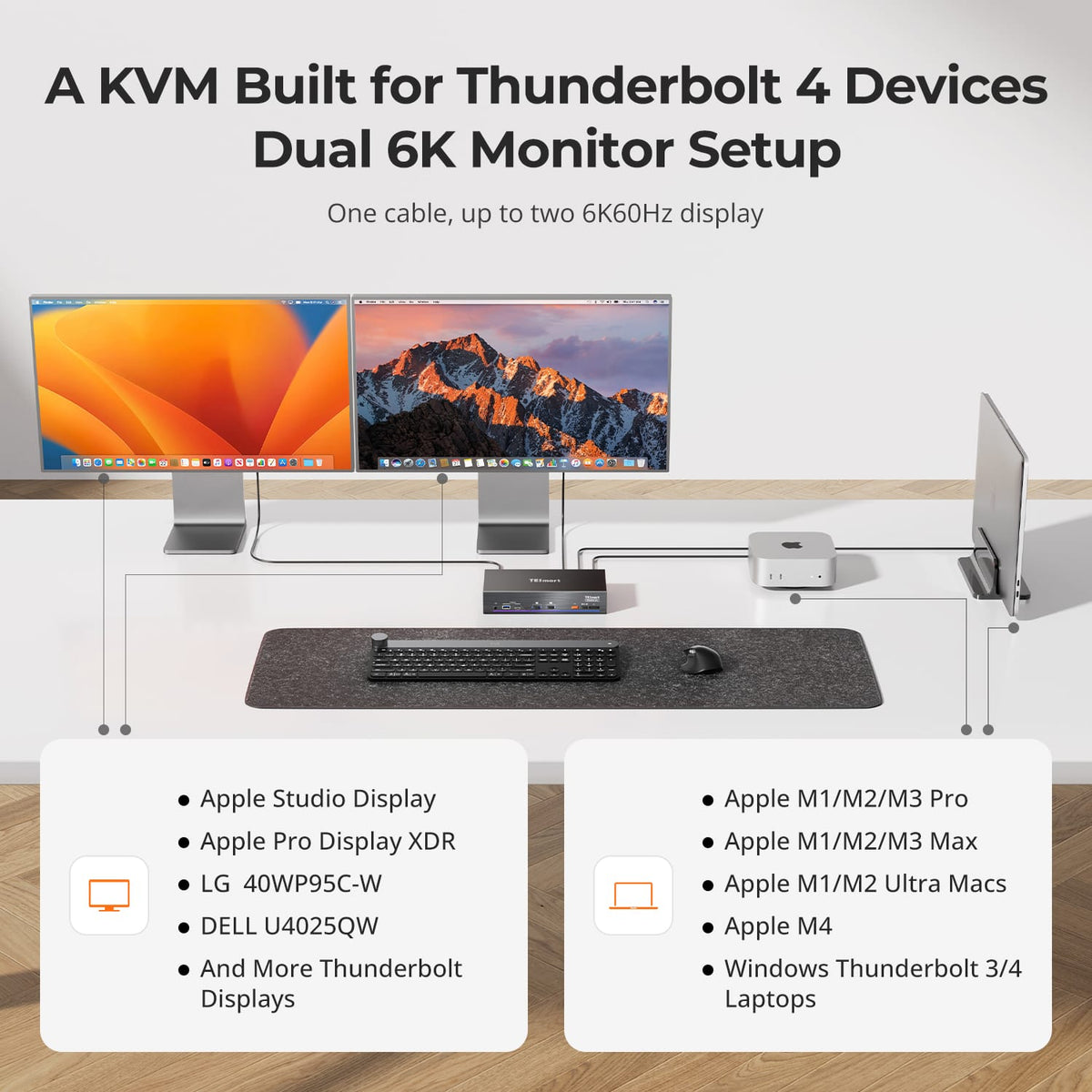
Share one Thunderbolt display at up to 5K@120 or 6K@60Hz between a Mac and a second computer. One cable per host—display, keyboard and mouse switch instantly, no unplugging or re-plugging.
03
Two Display Modes. One Keyboard & Mouse.
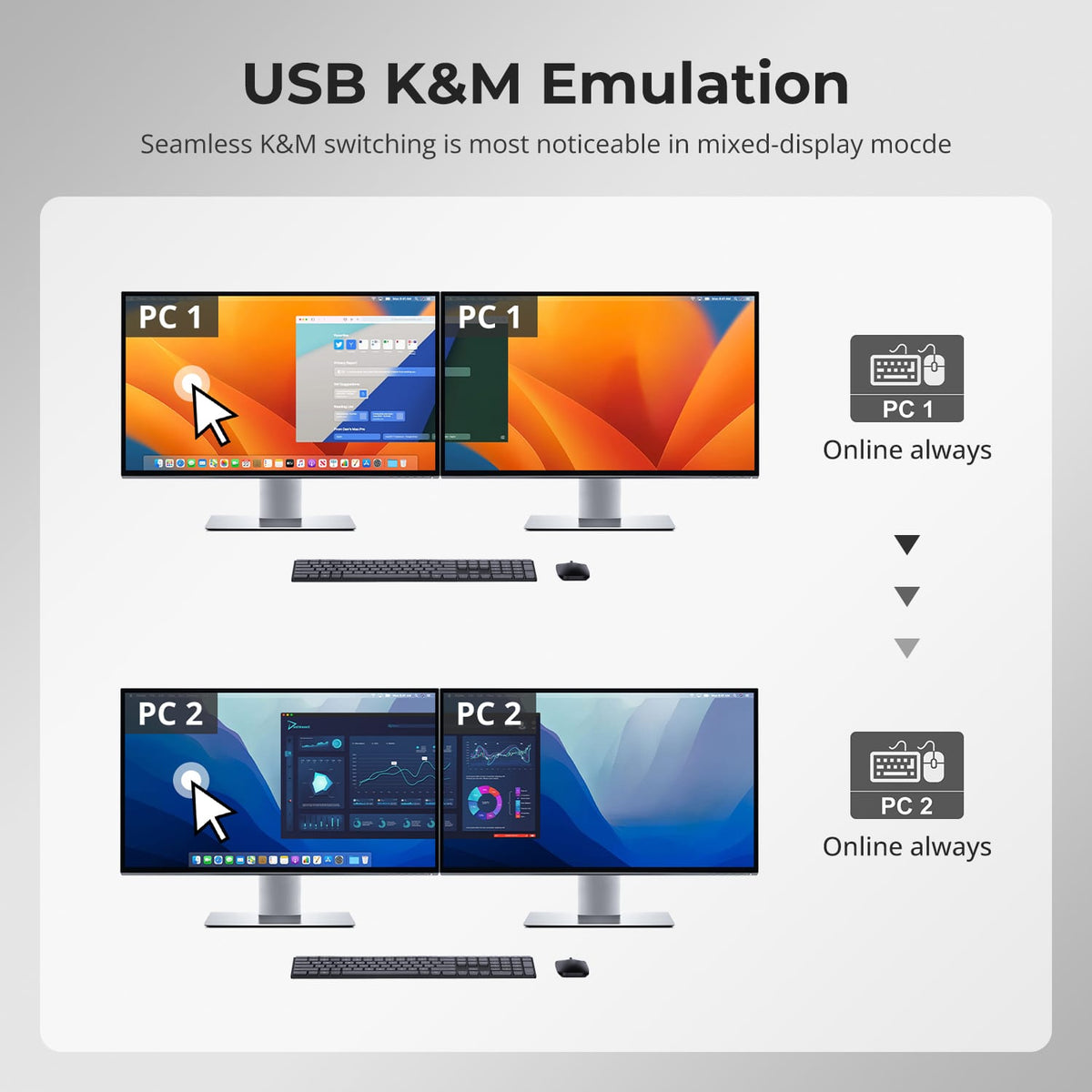
Use both displays with one computer, or assign one display to each computer—and switch keyboard and mouse control between the two systems when working side by side.
04
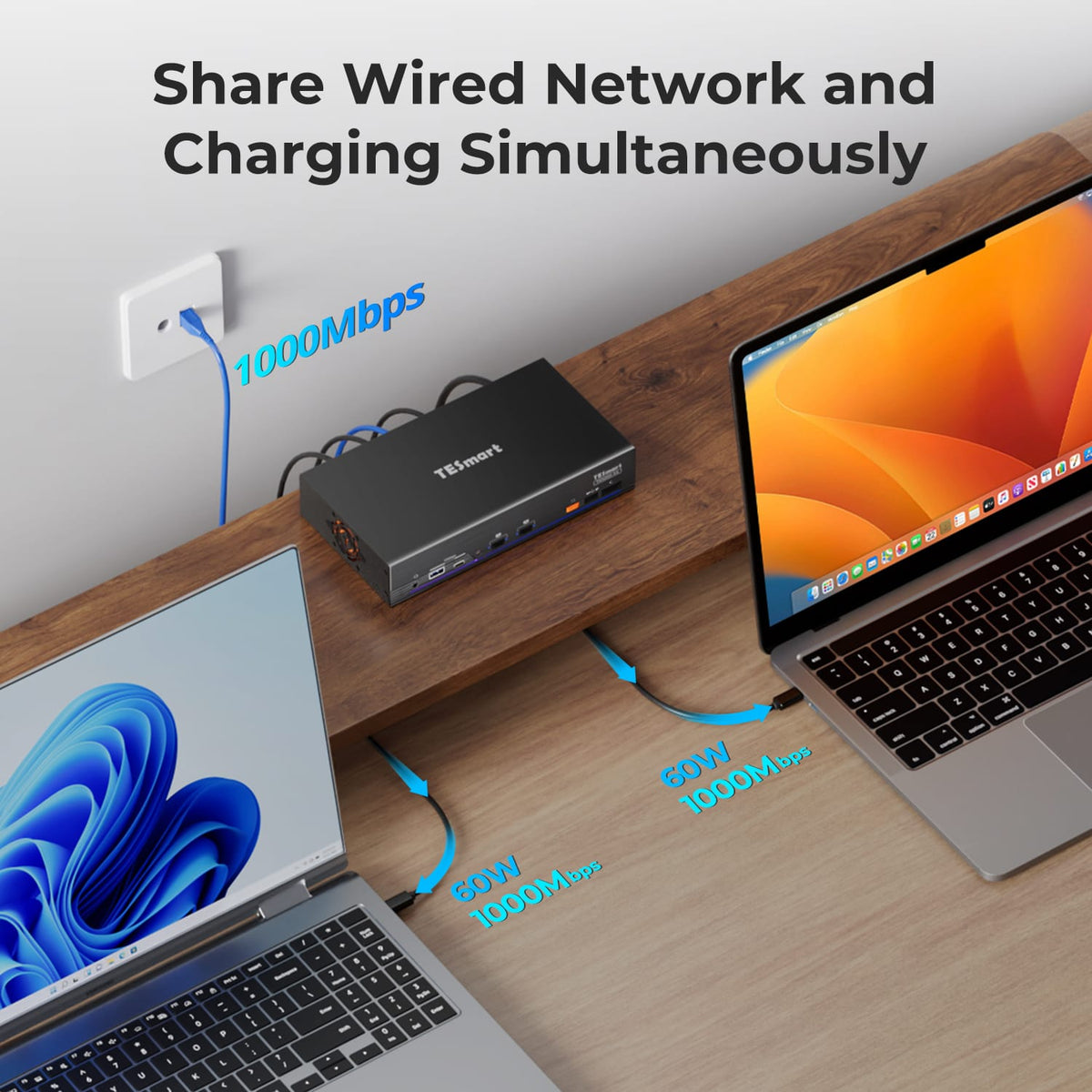
Charge Both Computers. Share Gigabit Ethernet.
Keep both compatible computers powered with up to 60W charging each, while they stay connected to the same Gigabit Ethernet network through the KVM. Fewer chargers and network adapters mean a cleaner, simpler dual-computer desk.
05
Keep USB & Audio on the Computer You Choose
Switching displays doesn’t have to move every connected device with them. Keep supported USB devices and audio assigned to one computer while switching displays or keyboard and mouse control independently—useful when a headset, meeting or USB device needs to stay active on one system.
06
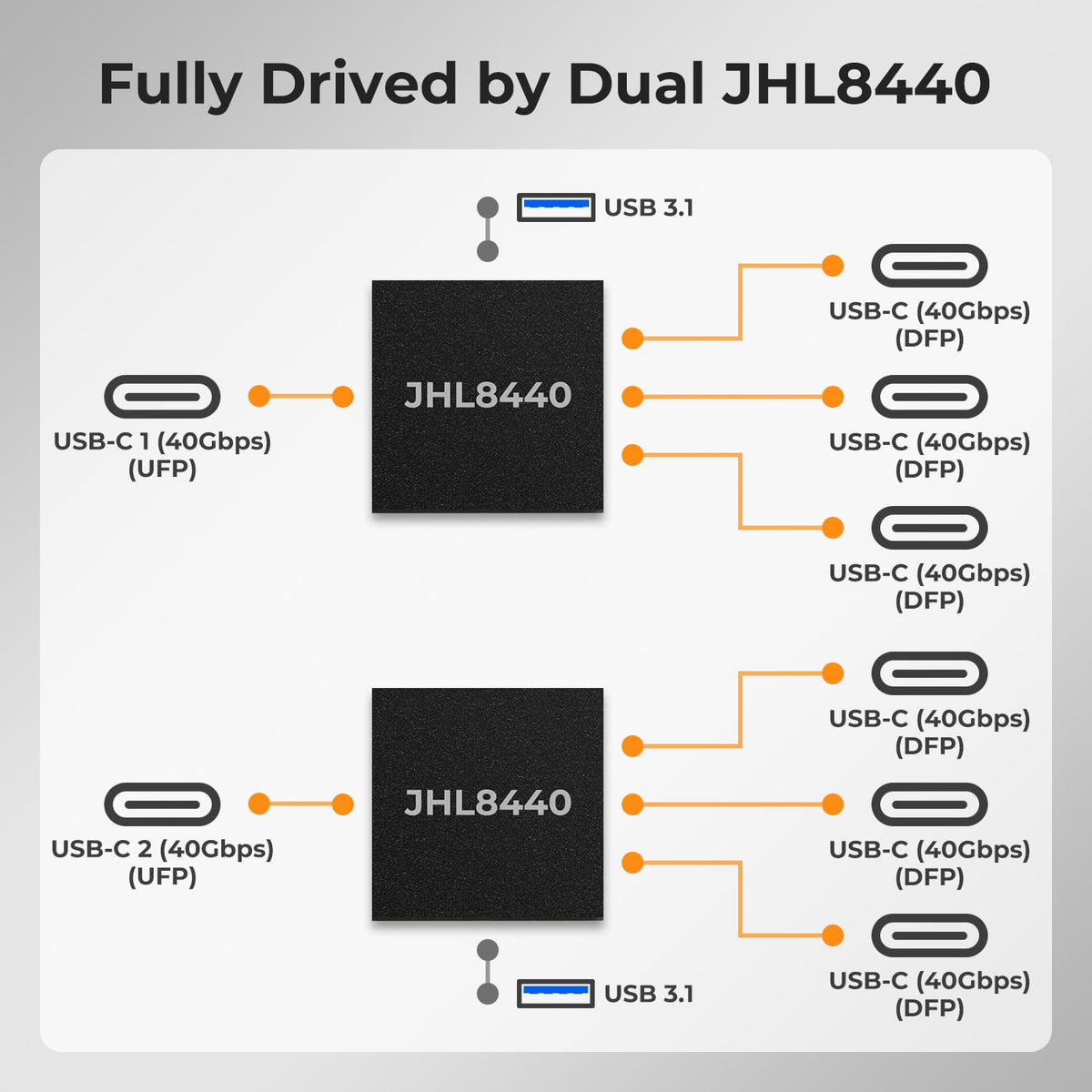
Powered by Dual Intel JHL8440
The TKS202-X4 features dual Intel JHL8440 controllers, building independent Thunderbolt paths for each computer—rather than forcing both systems to compete for shared resources. This triple-isolated architecture ensures stability in complex workstation setups:
· Resource Isolation — Dedicated bandwidth per computer, no contention.
· Domain Isolation — Independent Thunderbolt domains, no cross-interference during switching.
· Topology Isolation — A fault on one path won't affect the other.
07
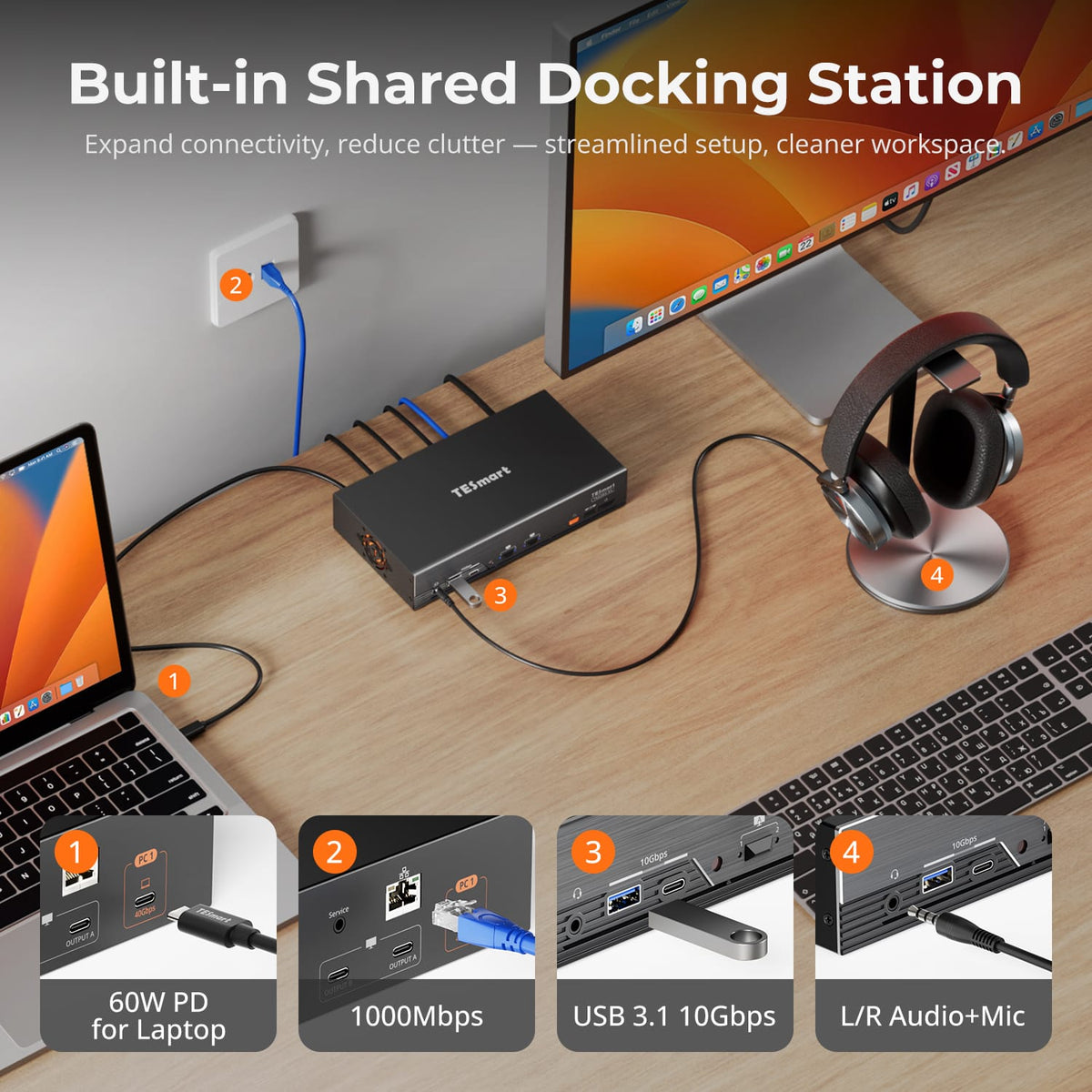
More than a KVM. A Shared Dock for Your Desk.
TKS202-X4 does more than switch displays and keyboard and mouse control. Connect high-speed USB devices, Gigabit Ethernet, audio and other shared peripherals in one place, then use them across your two-computer workspace—reducing the need for a separate dock, USB switch and network adapter.
08
09
10
Specifications & Support
Compatibility & Input Guide
Technical Specifications
Manuals & Downloads
Included in the Box
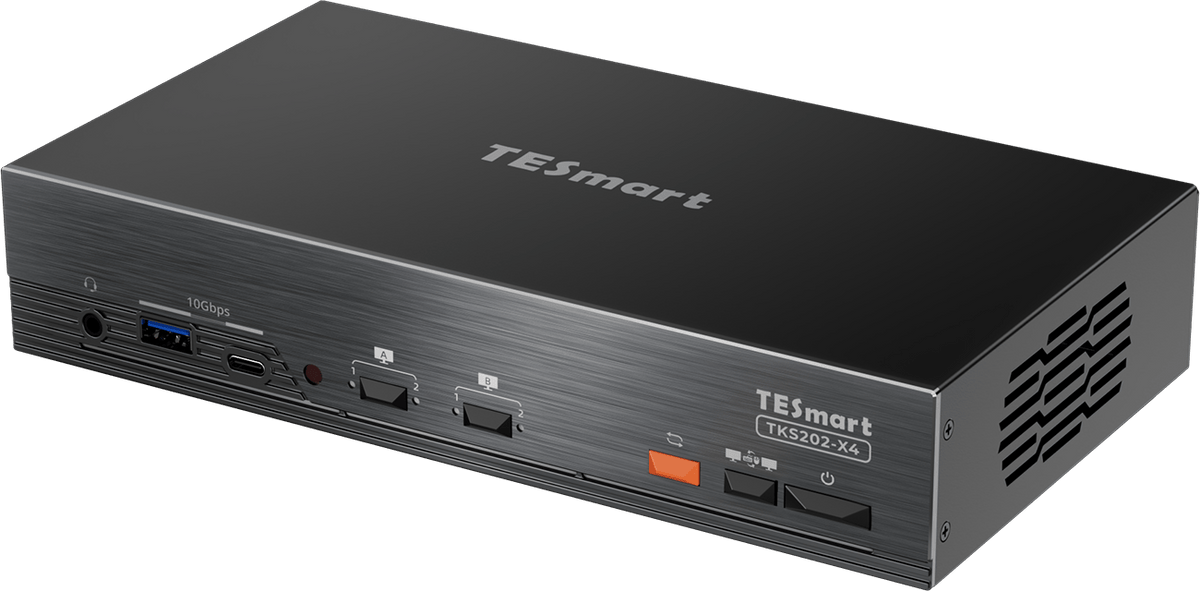
1 × TKS202-X4 KVM Switch
2 × 40Gbps USB-C Cables
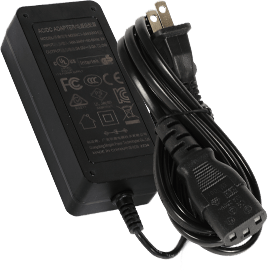
1 × DC 20V Power Adapter
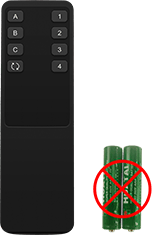
1 × IR Remote Control
1 × User Manual
FAQs
Visit our Help Center for more answers.
[Compatibility] What devices can I connect to TKS202-X4?
TKS202-X4 is designed for two compatible computers sharing one or two Apple Studio Displays or other supported Thunderbolt™ displays. Supported computers include selected MacBook Air, MacBook Pro, Mac mini, Mac Studio and Mac Pro models, as well as compatible Windows systems. For dual-display setups, make sure your computer itself supports the required external display configuration before purchase.
[Compatibility] How do I know if my computer is compatible with TKS202-X4?
Check that your computer has a compatible full-function Thunderbolt™ connection. Supported configurations may include Thunderbolt™ 3, 4 or 5 computers, as well as validated USB4 systems listed in our compatibility guide. A USB-C connector alone does not guarantee compatibility. Ports limited to data transfer, charging or partial video output may not provide full display, USB and KVM functionality. If you are unsure about your computer, please check the compatibility list or contact TESmart Support before purchase.
[Compatibility] Can TKS202-X4 work with displays other than Apple Studio Display?
Yes. TKS202-X4 is primarily designed for Apple Studio Display and also supports selected Thunderbolt™ displays. Compatible models include Apple Studio Display, Apple Pro Display XDR and selected LG and Dell Thunderbolt displays listed in our compatibility guide. Compatibility with standard USB-C displays may vary by model and is not guaranteed. HDMI or DisplayPort monitors may also work through compatible third-party USB-C video adapters, but stability can vary depending on the adapter, display and source computer. If your setup is not listed, please contact TESmart Support before purchase.
[Compatibility] Should I choose TKS202-X4 or THK401-X4?
Choose TKS202-X4 when two compatible computers need to share a dual-display workstation, especially a setup built around two Apple Studio Displays. Choose THK401-X4 when one Apple Studio Display needs to be shared between two computers plus two additional HDMI source devices, such as a gaming console or media player.
[Compatibility] Is TKS202-X4 Intel® certified for Thunderbolt™?
TKS202-X4 is not yet Intel® certified for Thunderbolt™. It is designed for use with computers compatible with Thunderbolt™ 4 and has been tested across common real-world setups for display output, data connectivity and peripheral switching. Intel® certification for Thunderbolt™ is currently in progress.
[Features & Connections] What is the maximum supported resolution?
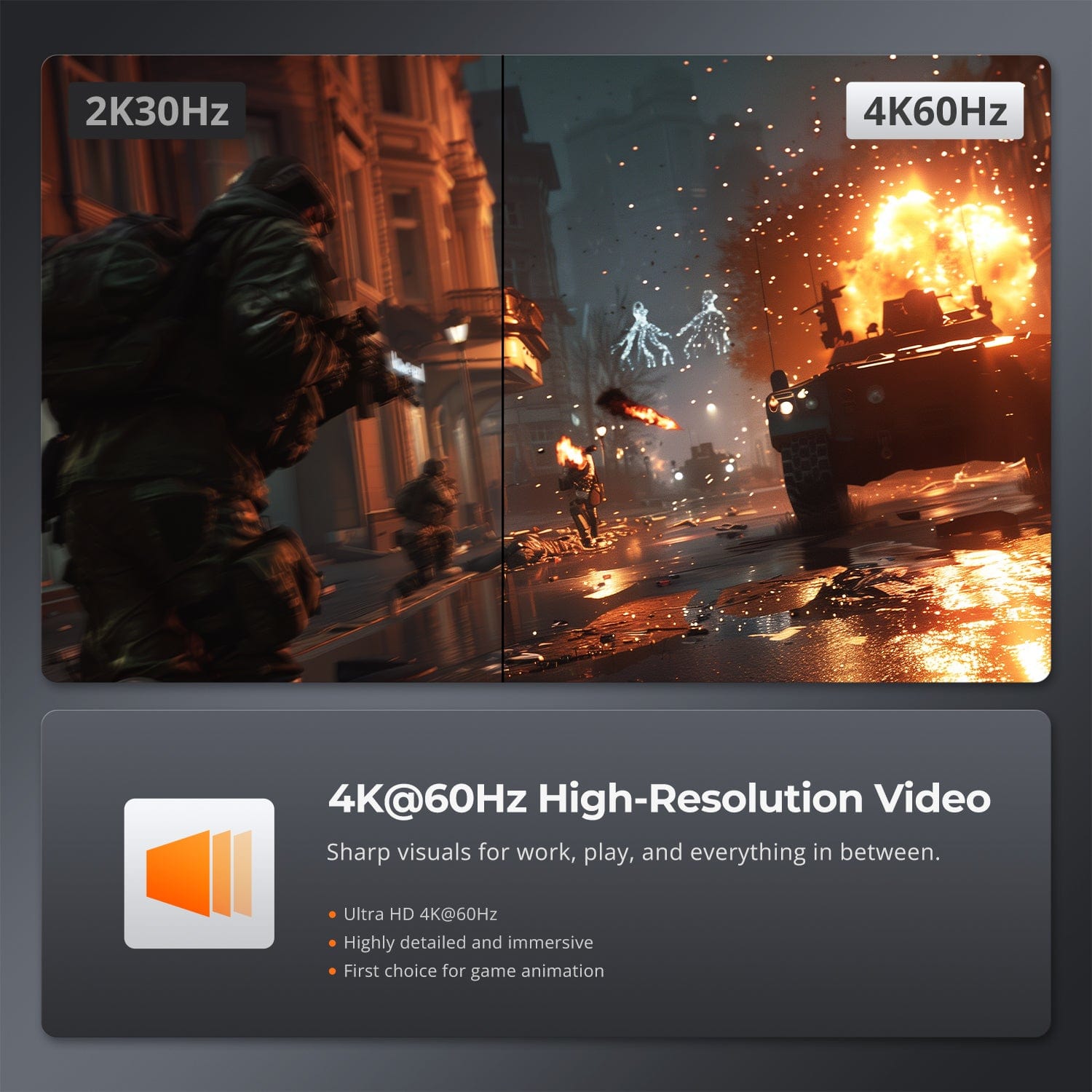
TKS202-X4 supports dual high-resolution display workflows at up to 5K@120Hz or 6K@60Hz. Actual resolution and refresh rate depend on the connected computers, displays, operating systems, cables and selected display mode.
[Features & Connections] How can I use the two display outputs?
TKS202-X4 supports several display workflows: One display — Share a single compatible Thunderbolt™ display between two computers. Two displays with one computer — Use both displays with the same computer in extended or mirrored mode, depending on your operating system settings. One display per computer — Display PC1 on one monitor and PC2 on the other, then switch keyboard and mouse focus between the two systems while keeping both visible.
[Features & Connections] Can both computers share the keyboard, mouse and USB devices?
Yes. PC1 and PC2 can share one keyboard and mouse as well as supported USB peripherals connected to the KVM. You can switch control between the two computers without repeatedly disconnecting and reconnecting your peripherals.
[Features & Connections] Do USB and audio have to follow the display when I switch?
No. You can choose how they behave. With Follow Mode enabled, supported USB and audio devices follow the active computer when switching. With USB & Audio Focus Lock, you can keep supported USB devices and audio connected to one computer while switching displays or keyboard and mouse control separately. This is useful when a headset, meeting or USB device needs to stay active on one system.
[Features & Connections] Can both connected computers receive charging and use Gigabit Ethernet?
Yes. Each compatible computer can receive up to 60W Power Delivery, while both systems can access the KVM's Gigabit Ethernet connection up to 1000Mbps. Charging and wired network access can remain available at the same time, helping reduce separate chargers and network adapters on the desk.
[Setup & Switching] How can I switch between the two computers?
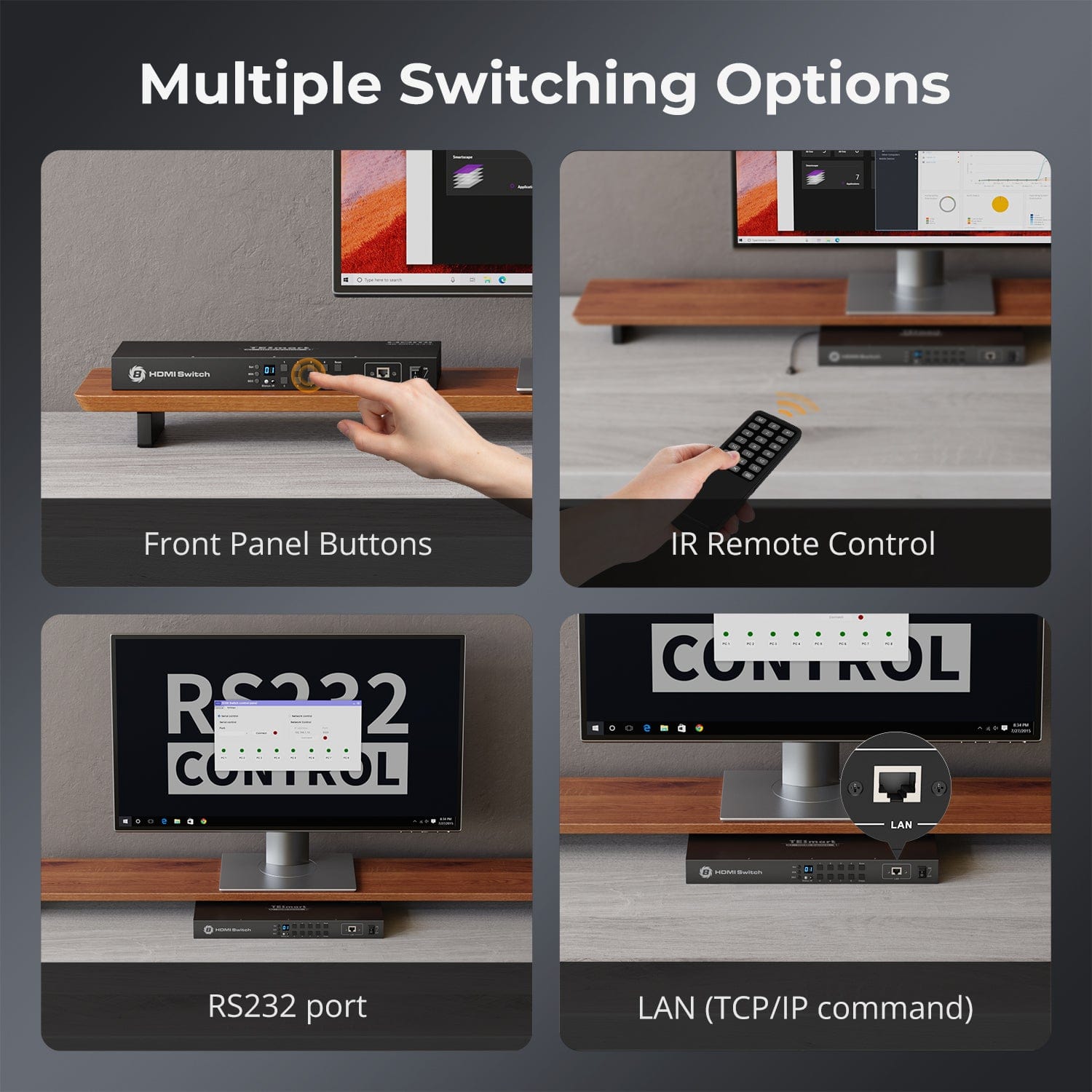
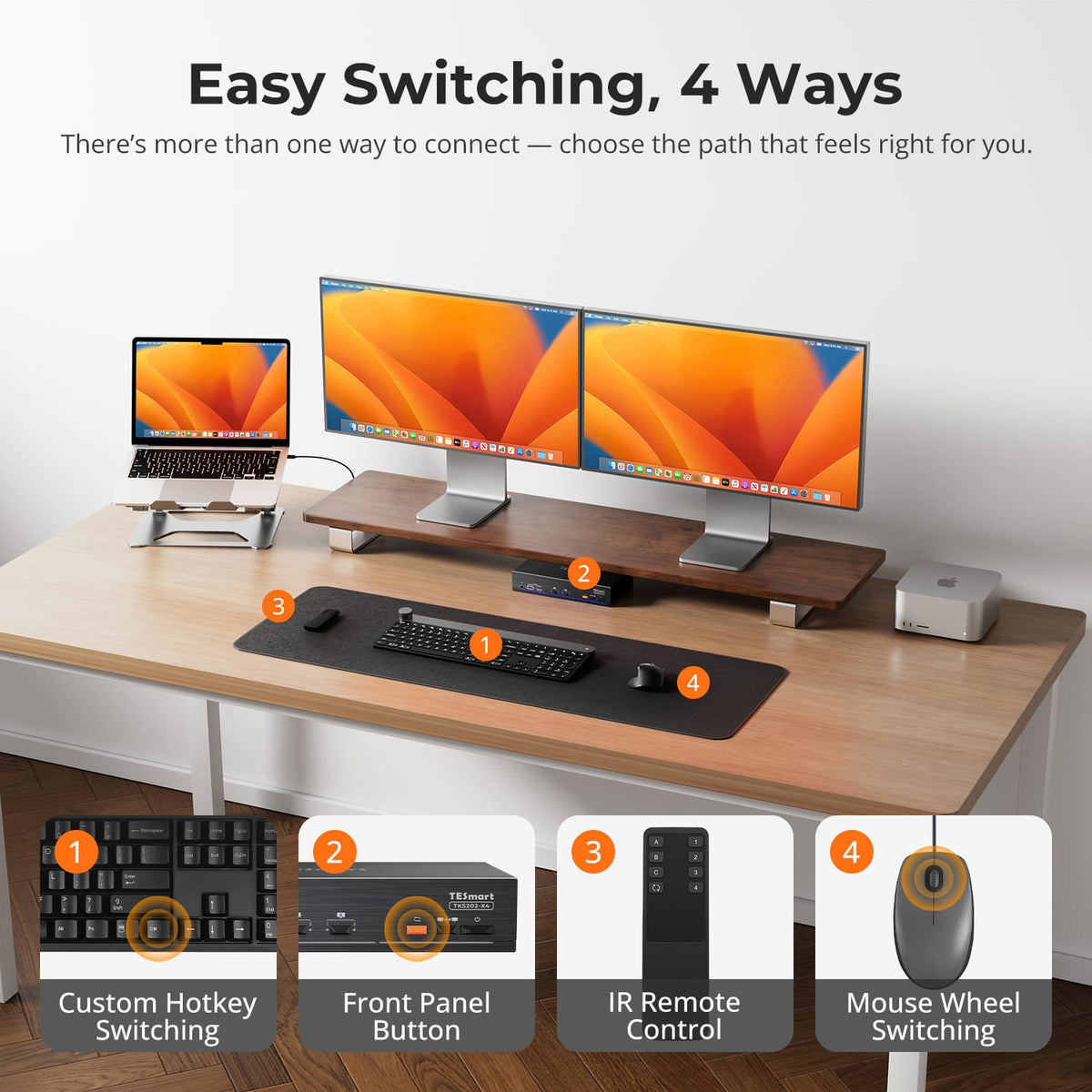
TKS202-X4 provides four switching methods: Front-panel controls, IR remote control, Keyboard hotkeys, Mouse-wheel switching. Mouse-wheel switching must be enabled before use.
[Setup & Switching] Does TKS202-X4 support keyboard hotkeys?
Yes. Connect a compatible wired USB keyboard to the dedicated keyboard port to use hotkey controls. Hotkey functions may not work through Bluetooth keyboards, general USB hubs or some wireless receivers.
[Setup & Switching] What are Pass-Through Mode and Legacy Emulation Mode?
Pass-Through Mode is recommended for most modern keyboards and mice. It provides more direct communication with the computer and supports many advanced peripheral functions. Legacy Emulation Mode provides an alternative compatibility mode for basic keyboard, mouse and hotkey operation when a device does not work correctly in Pass-Through Mode. Some driver-based, programmable or advanced keyboard and mouse functions may be unavailable in Legacy Emulation Mode.
[Setup & Switching] Do I need to install drivers or switching software?
No dedicated switching software is required for normal display switching, keyboard and mouse control, or the primary KVM functions. Some connected keyboards, mice, USB devices or other peripherals may still require their own drivers or applications.