

Display Setup
Max Display Output

Display Stability

USB Speed
Automatic input detection

Automatic input scanning
RJ45 network control
Upgraded 16 Port HDMI KVM Switch with USB 3.0 (5Gbps), 4K60Hz, and RS232/LAN Control
Share two Apple Studio Displays, one keyboard and mouse between two computers—or show one computer on each display when you need both systems at once.
Display Setup
Max Display Output
Display Stability
USB Speed
Automatic input detection
Automatic input scanning
RJ45 network control
Upgraded 16 Port HDMI KVM Switch with USB 3.0 (5Gbps), 4K60Hz, and RS232/LAN Control
Why Choose HKS1601-P23
Overview
01
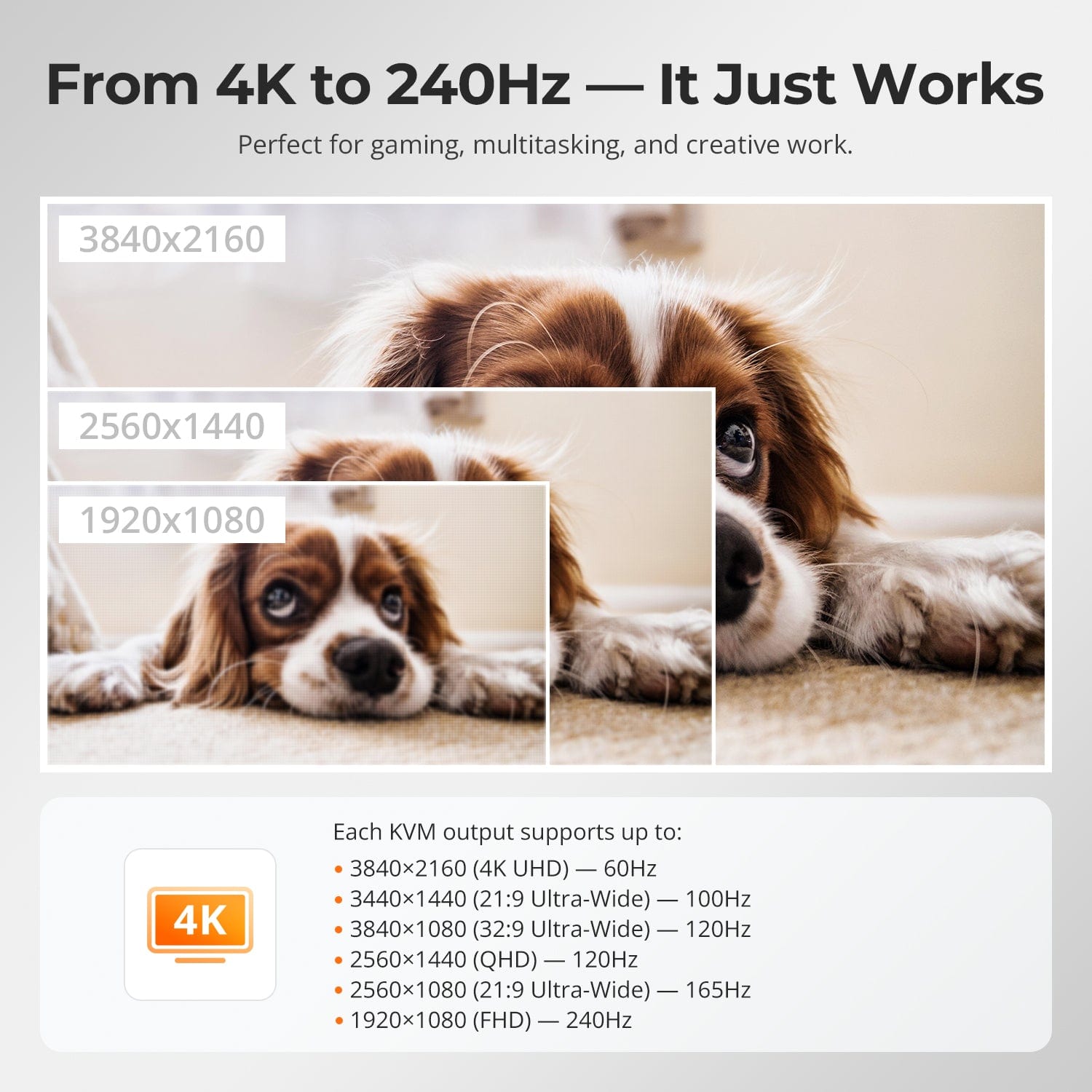
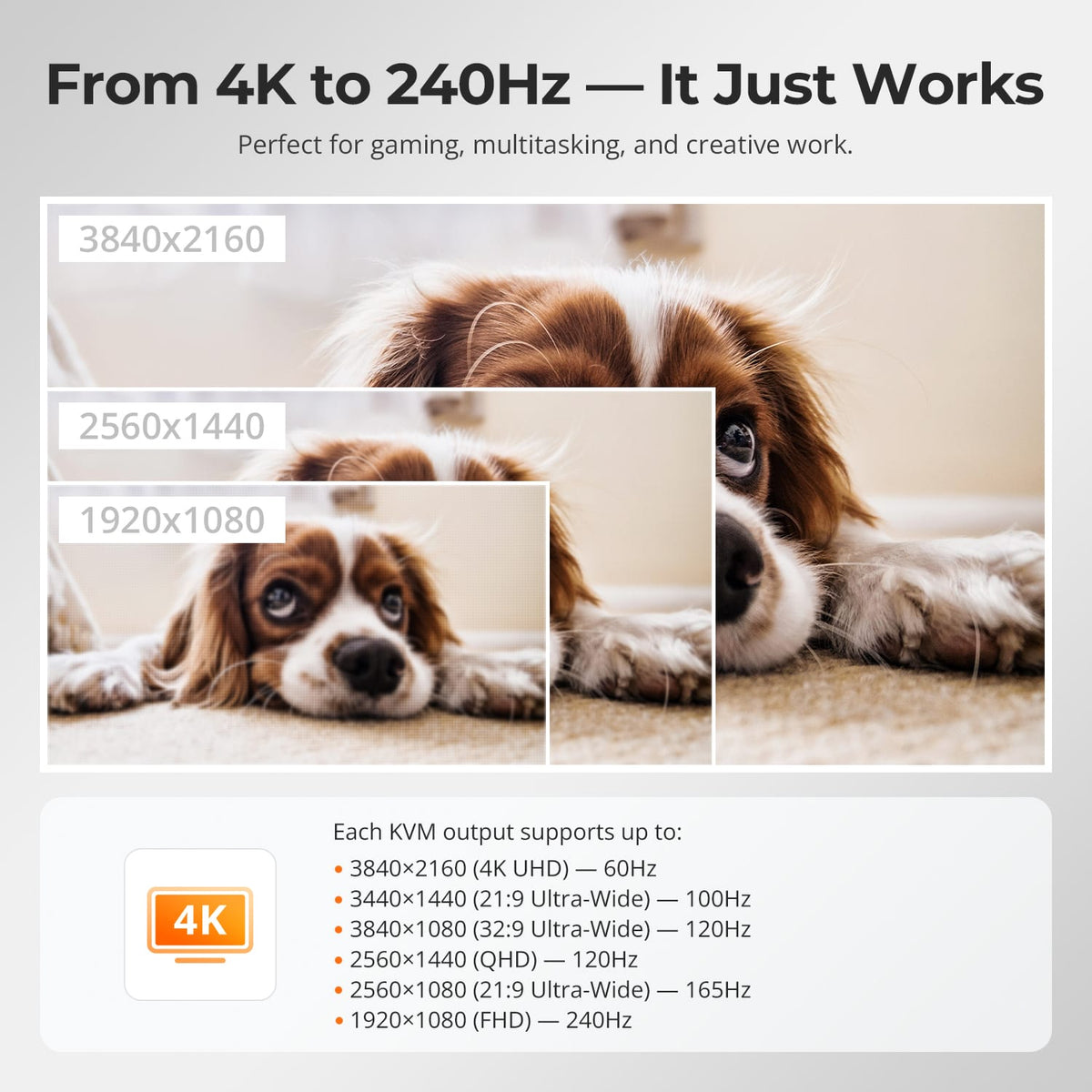
From 4K60 to High-Refresh Full HD
Run a 4K display at up to 60Hz, or use supported lower-resolution high-refresh formats including 1440p at 120Hz and 1080p at 240Hz. Actual results depend on the source, display and cable capabilities.
02
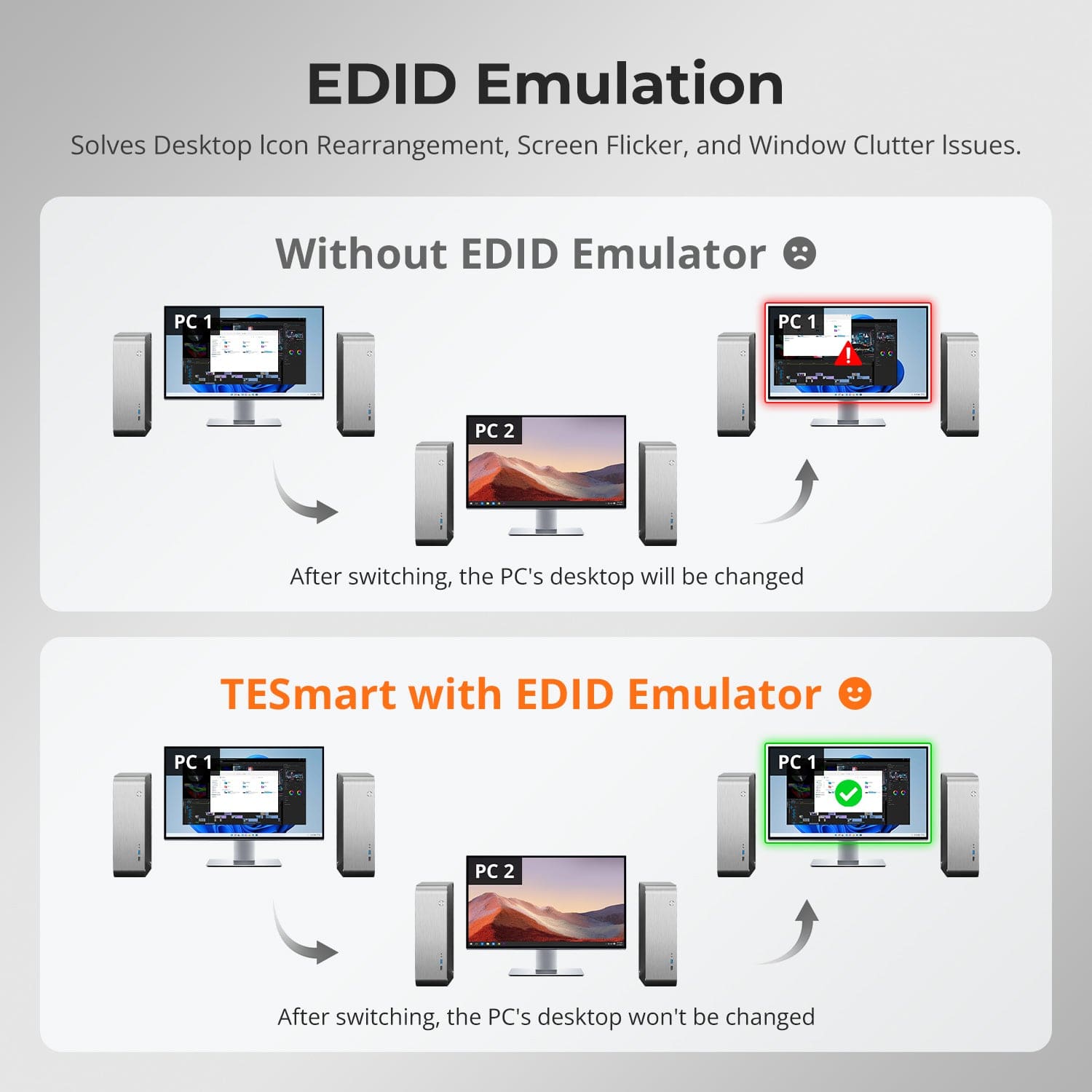
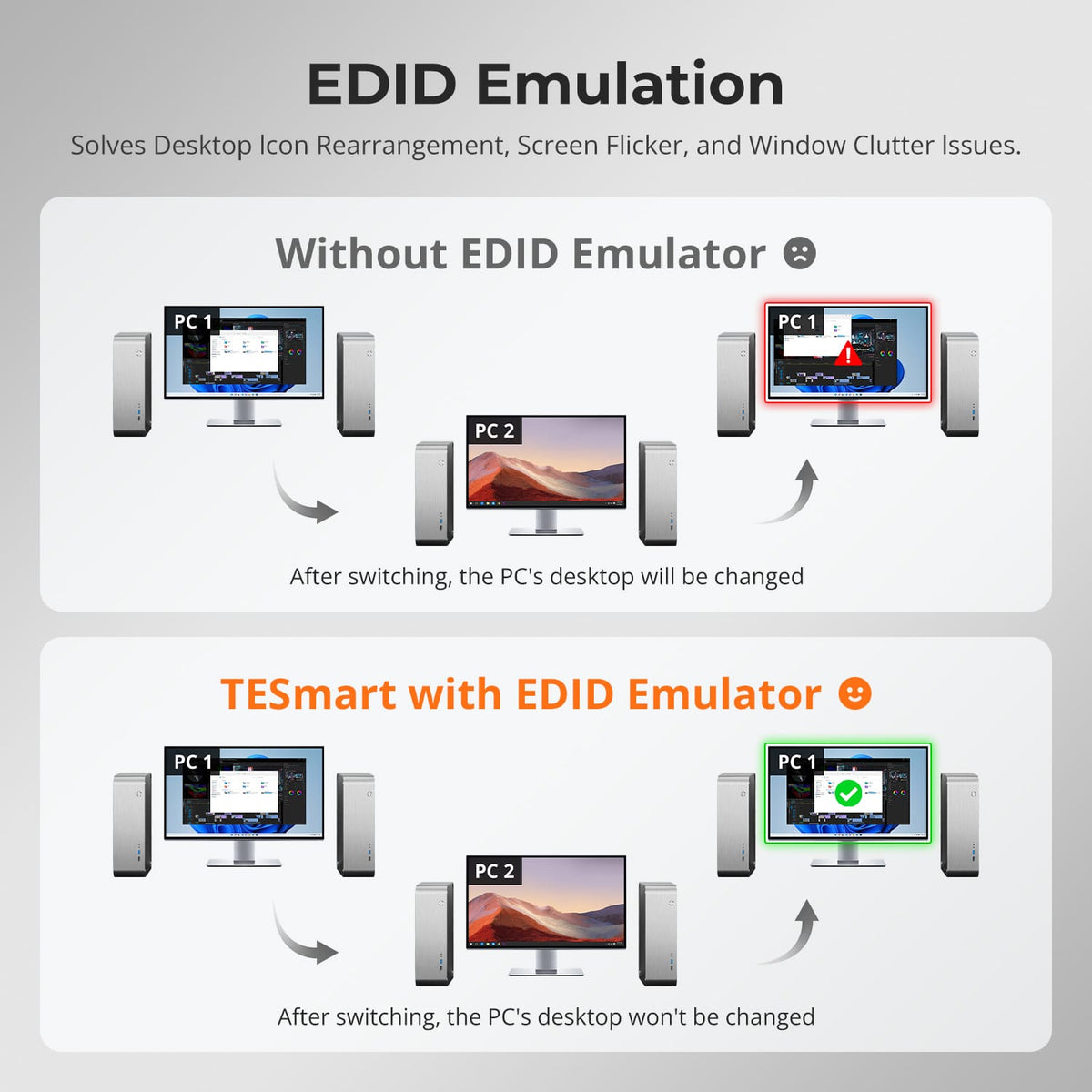
Keep Every Desktop Where You Left It
EDID emulation on every input keeps display information available to connected computers. This helps preserve window positions and reduces display reinitialization, flicker and desktop rearrangement when switching systems.
03
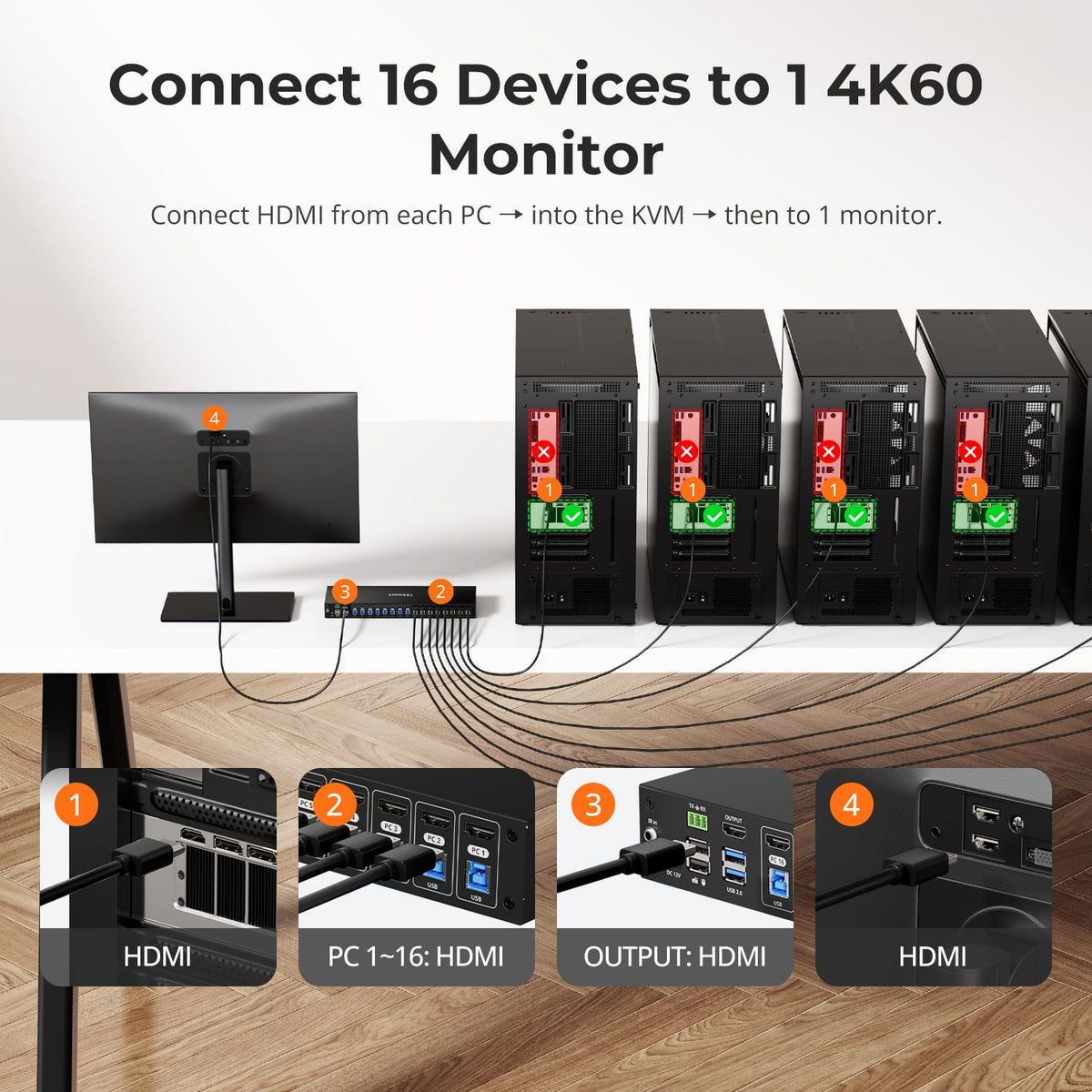
16 Computers. One 4K60 Console.
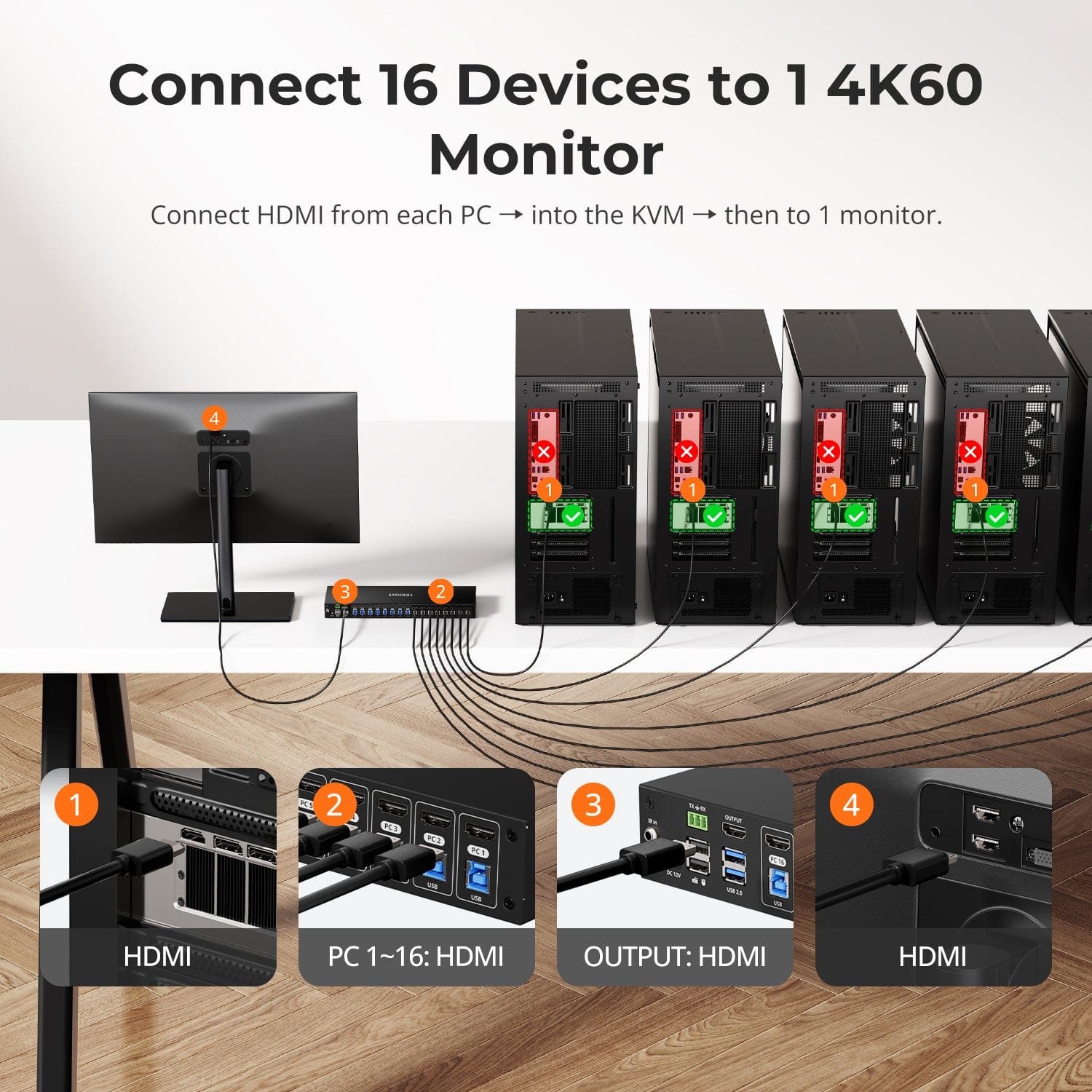
Connect up to 16 HDMI computers to one monitor and control the selected system with a single keyboard and mouse. Each computer uses one HDMI connection and one USB connection to the matching KVM input group.
04
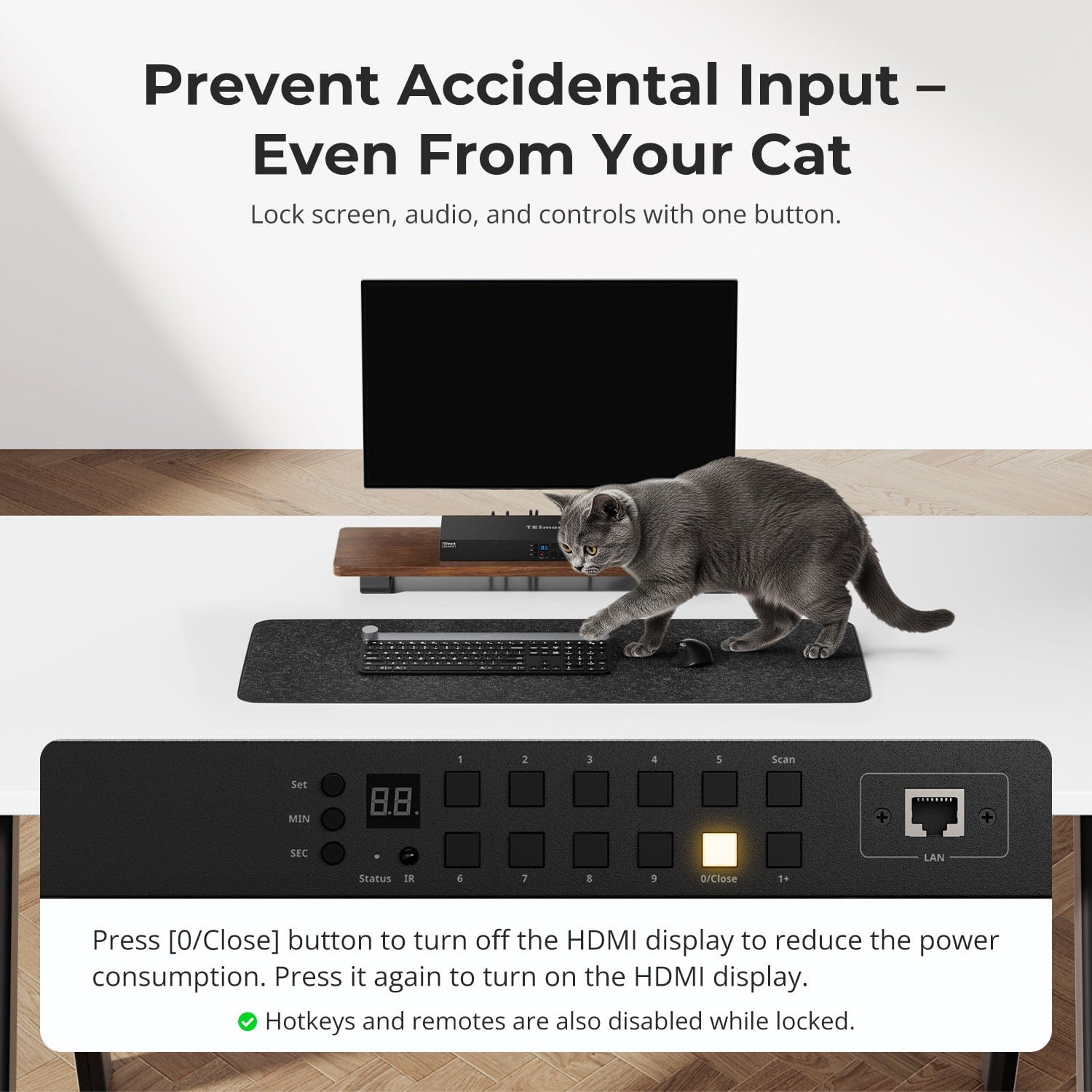
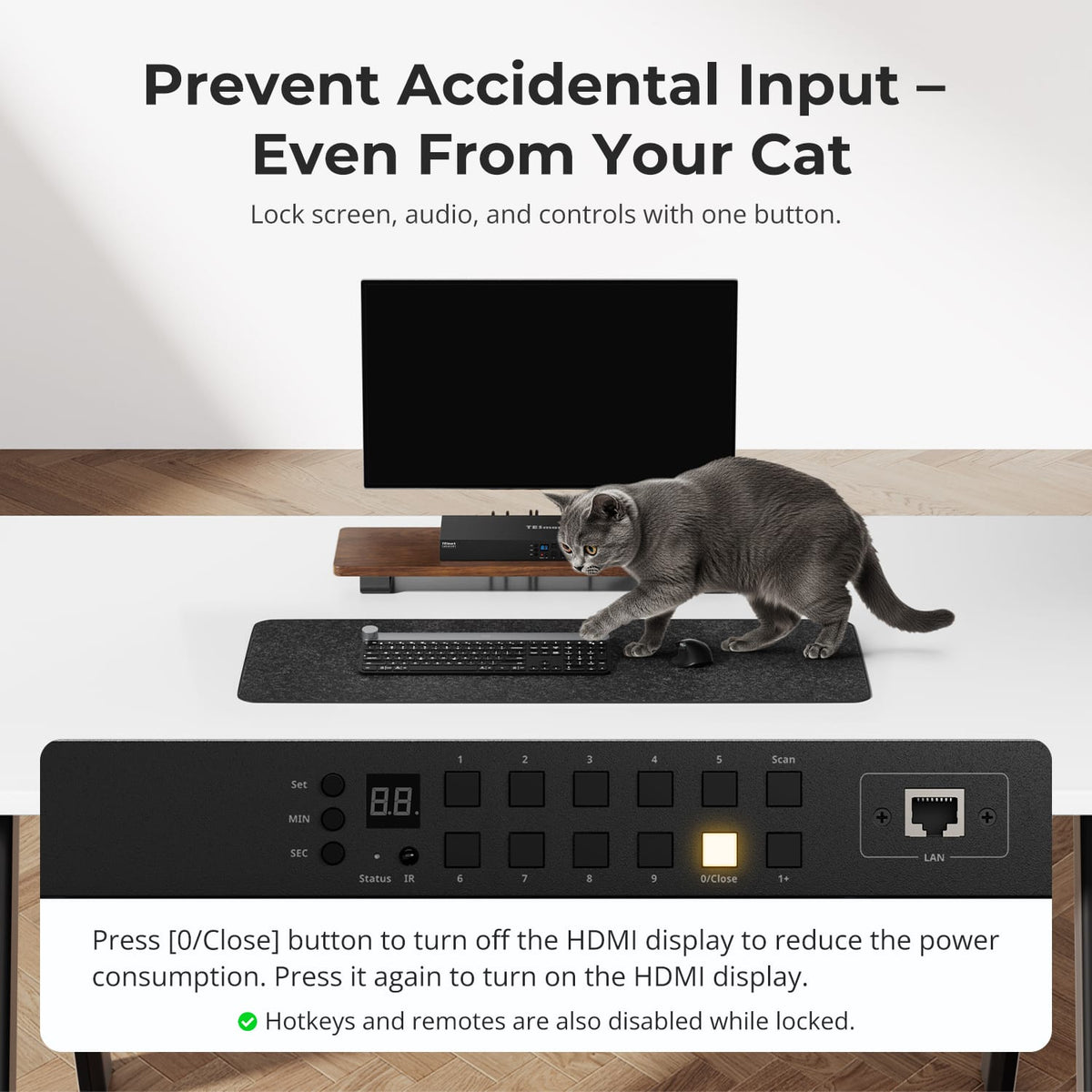
Turn Off the Display Without Powering Down
Press the 0/Close button to turn off the HDMI display output and reduce power consumption. Press it again to restore the display when you are ready to continue.
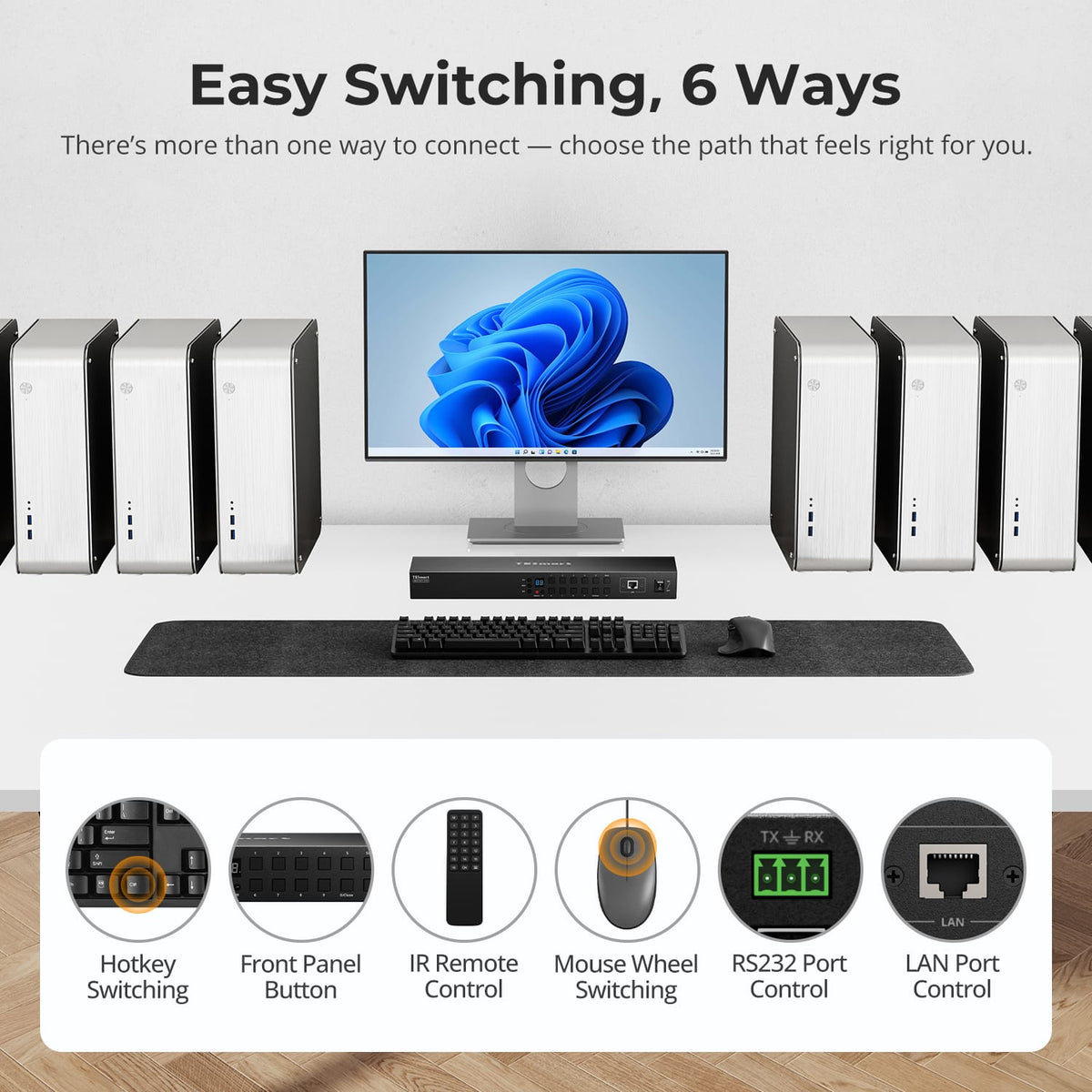
05
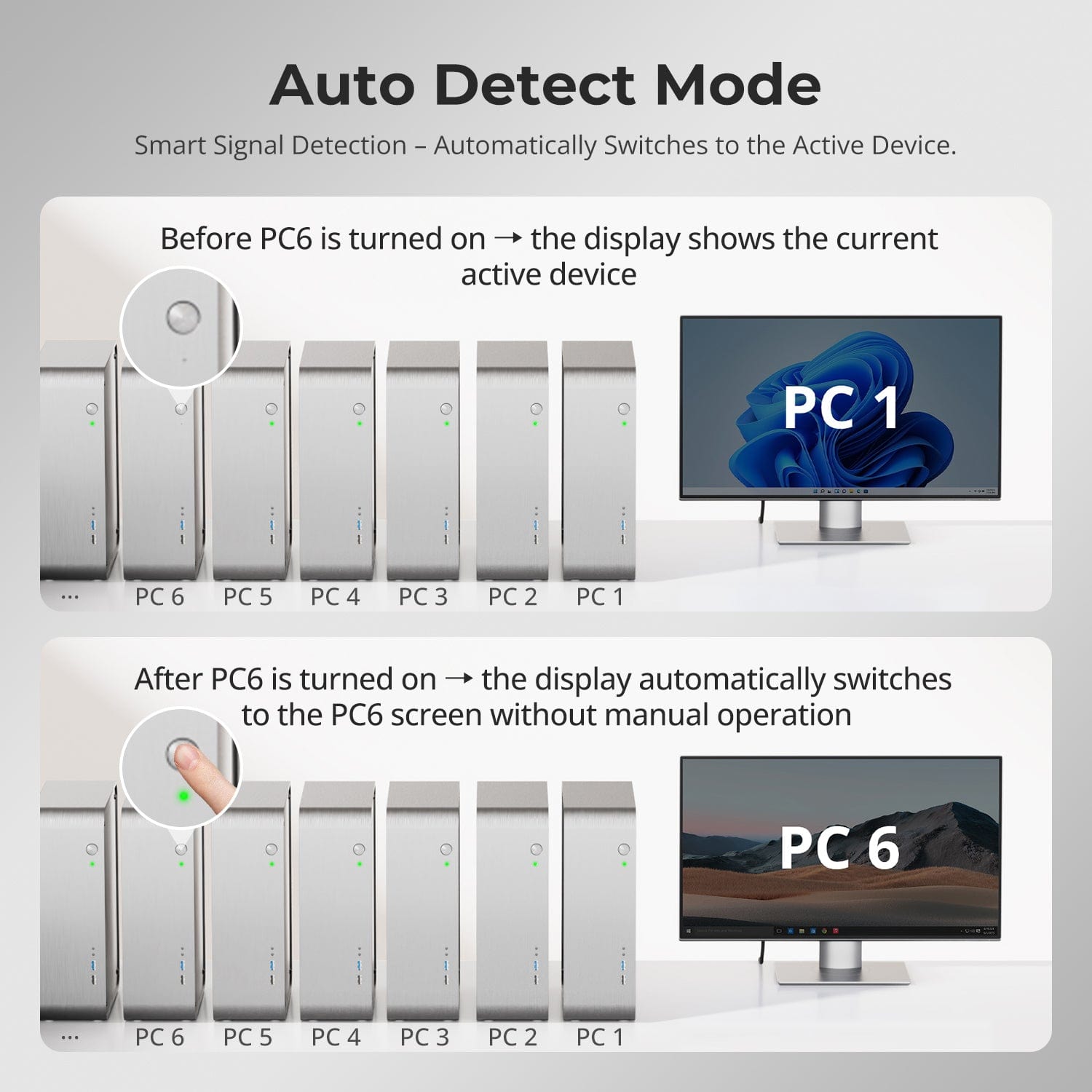
Automatically Follow a New Active Computer
Auto Detect Mode can switch to a newly connected or powered-on computer and move to another active input when a source is removed. The mode is enabled by default and can be toggled from the IR remote.
06
07
Specifications & Support
Compatibility & Input Guide
Technical Specifications
Manuals & Downloads
Included in the Box
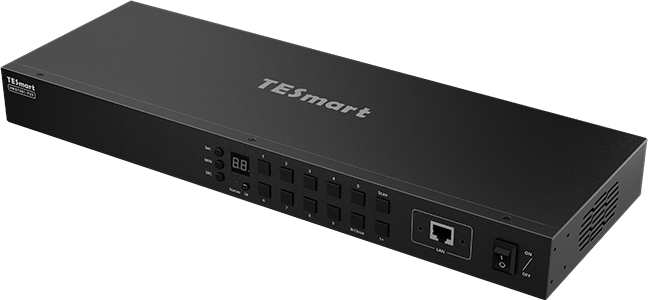
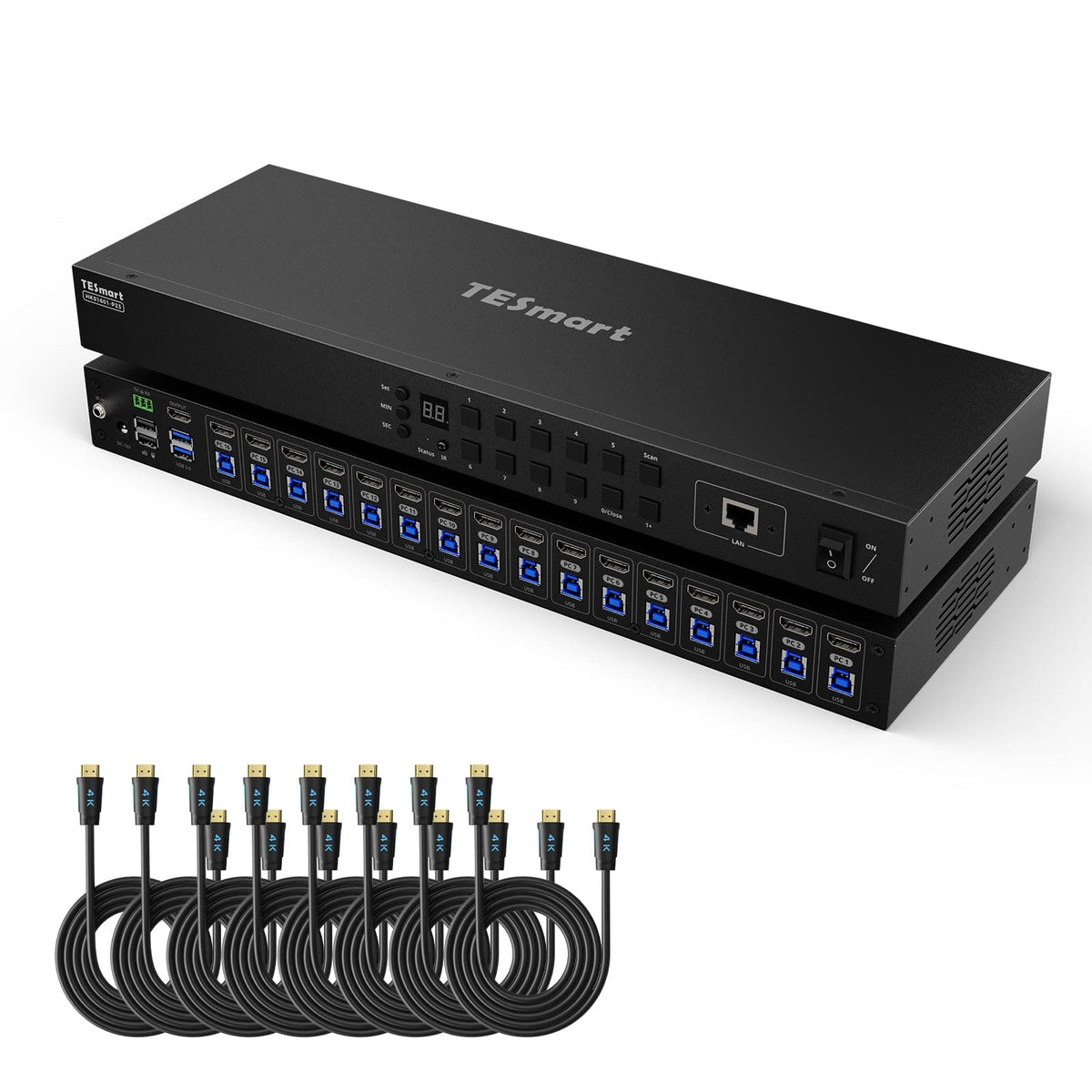
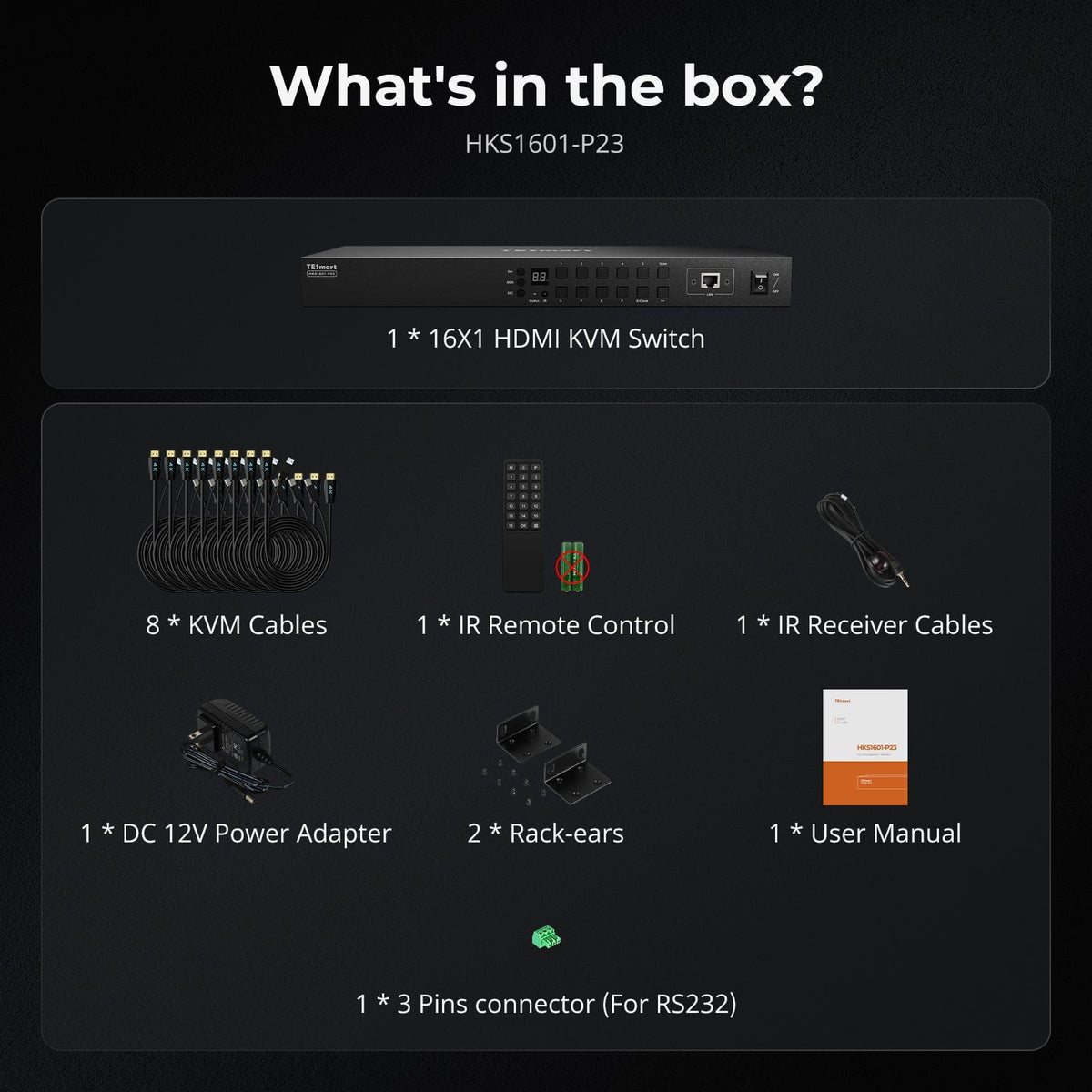
1 × HKS1601-P23 KVM Switch
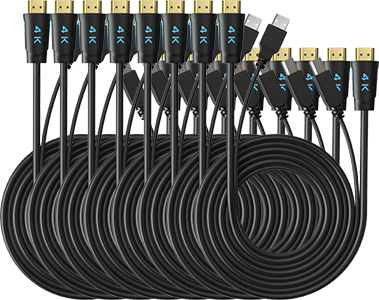
8 × KVM Cables (HDMI + USB)
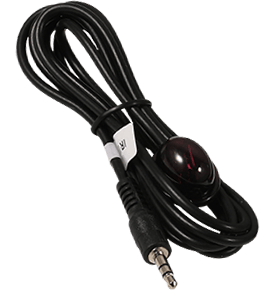
1 × IR Receiver Cable
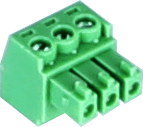
1 × 3-Pin RS232 Connector

2 × Rack Ears

1 × DC 12V Power Adapter
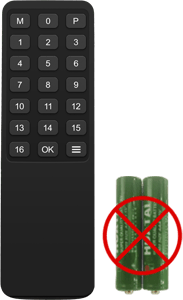
1 × IR Remote Control
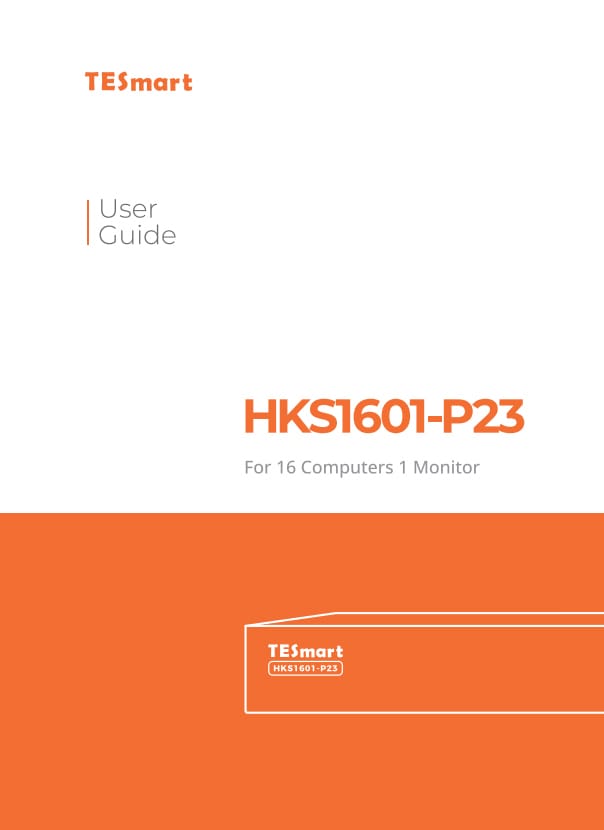
1 × User Manual

FAQs
Visit our Help Center for more answers.
[Compatibility] What computers and monitor can I connect to HKS1601-P23?
Connect up to 16 HDMI computers and one HDMI monitor. Each computer also needs a USB connection to the matching KVM input group for keyboard, mouse and shared USB functions.
[Compatibility] What resolutions and refresh rates are supported?
The maximum listed resolution is 3840×2160 at 60Hz 4:4:4. The current page also lists 3440×1440 at 100Hz, 3840×1080 and 2560×1440 at 120Hz, 2560×1080 at 165Hz and 1920×1080 at 240Hz; the source, display and cables must support the selected format.
[Compatibility] Which operating systems are supported?
The manual lists Unix, Windows, macOS and Linux-based systems including Debian, Ubuntu, Fedora and Raspbian for Raspberry Pi.
[Compatibility] Can I use DVI equipment with this KVM?
Yes. The manual supports DVI-D single-link sources and displays when suitable HDMI-to-DVI adapters are used.
[Features & Connections] What does EDID emulation do?
An EDID emulator on every input keeps monitor information available to each computer, helping preserve window positions and reduce display reinitialization or flicker during switching.
[Features & Connections] Can the computers share USB 3.0 devices?
Yes. Connect compatible peripherals to the USB 3.2 Gen 1 device ports so they follow the selected computer.
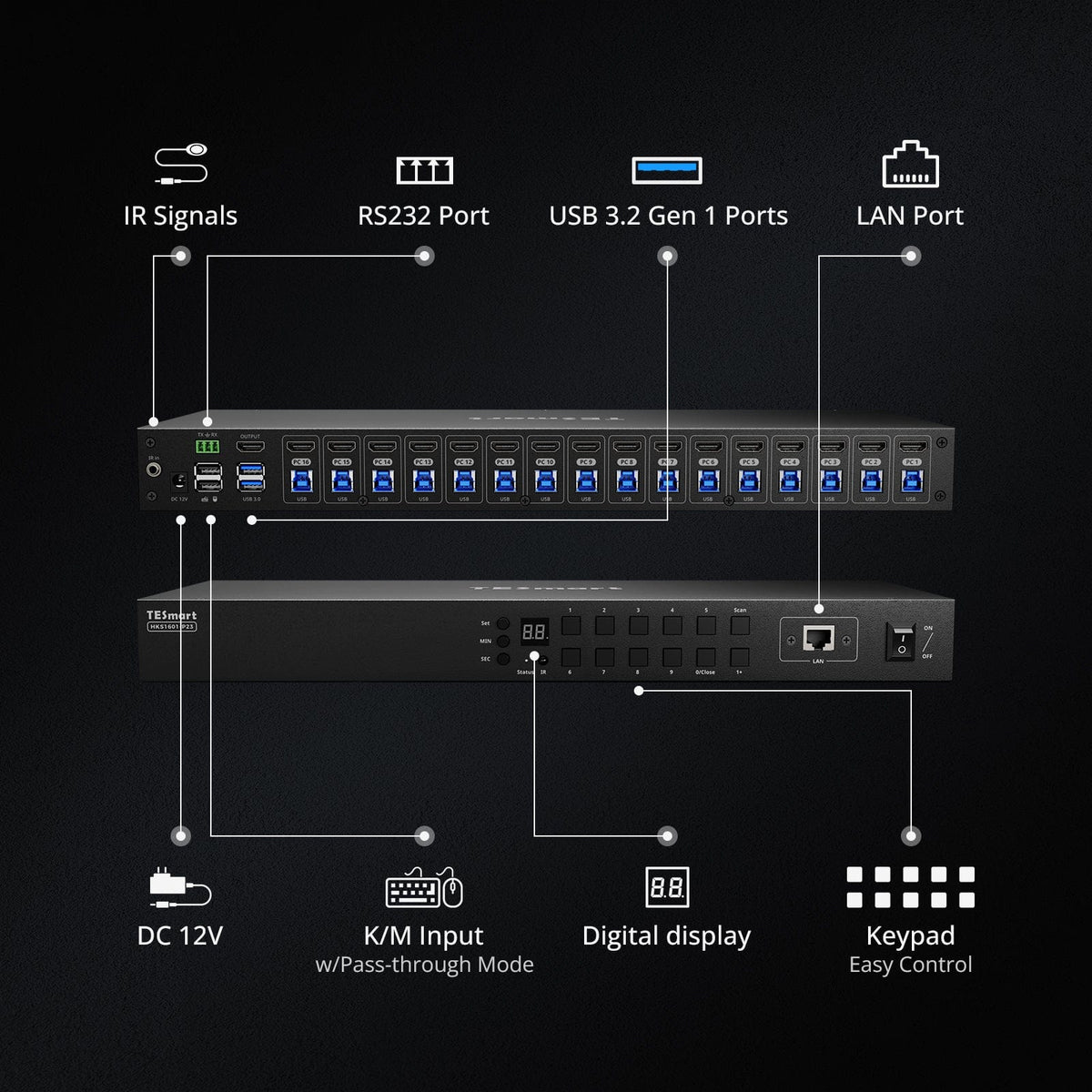
[Features & Connections] What are the LAN and RS232 ports used for?
They provide external KVM control. The LAN port accepts TCP/IP commands, while the RS232 port uses the documented serial protocol; the LAN port does not share network access with the connected computers.
[Features & Connections] What are Auto Scan and Auto Detect modes?
Auto Scan cycles through powered and connected inputs at a set interval. Auto Detect selects a newly active input or moves to another active input when a source is removed; Auto Detect is enabled by default.
[Features & Connections] Can I turn off the monitor output without powering down the KVM?
Yes. Press the front-panel 0/Close button to turn off HDMI output and reduce power consumption, then press it again to restore the display.
[Setup & Switching] How do I connect each computer?
Connect one HDMI cable and one USB cable from each computer to the matching input group. Then connect the HDMI monitor, keyboard, mouse, any shared USB devices, the IR receiver if needed and DC 12V power.
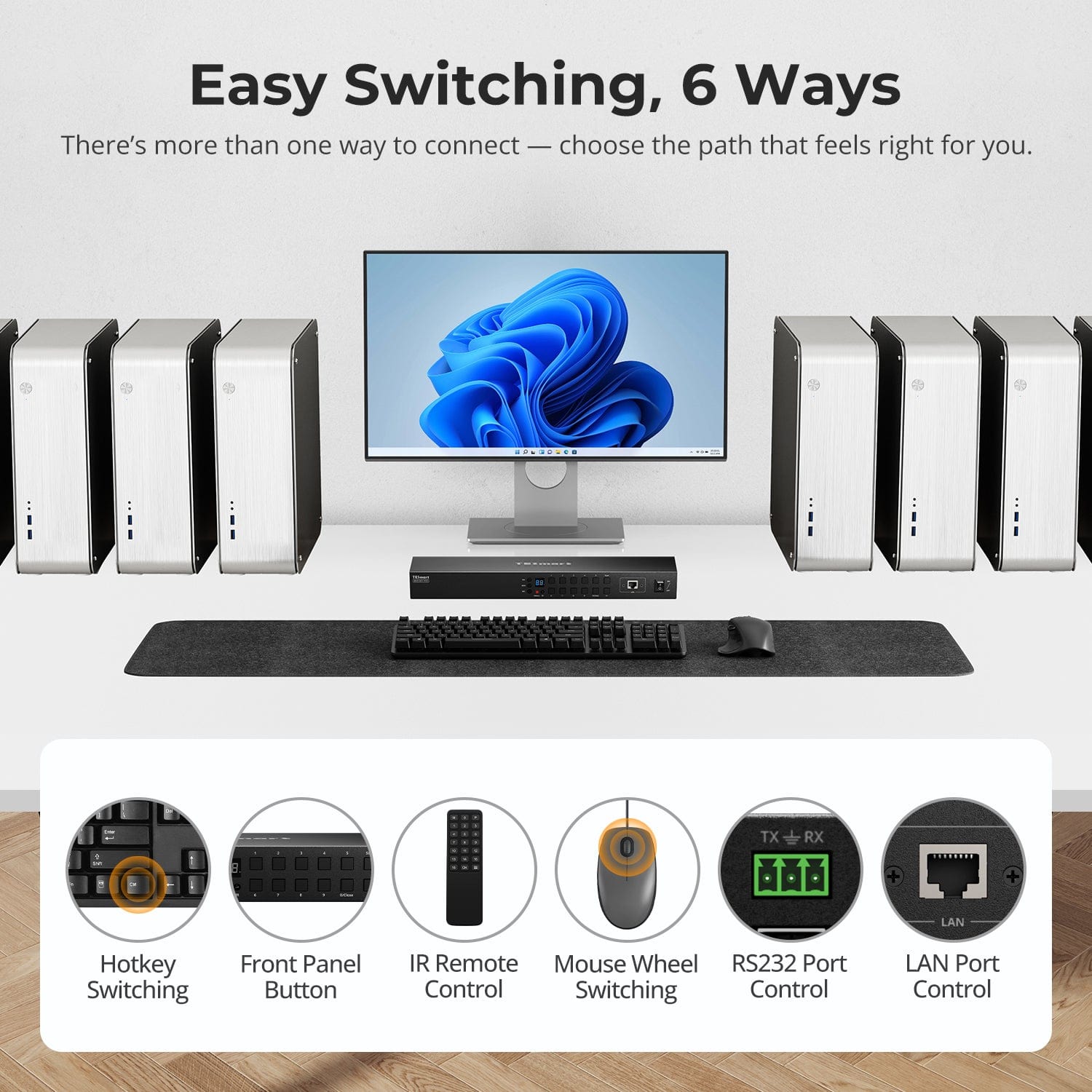
[Setup & Switching] How can I switch between computers?
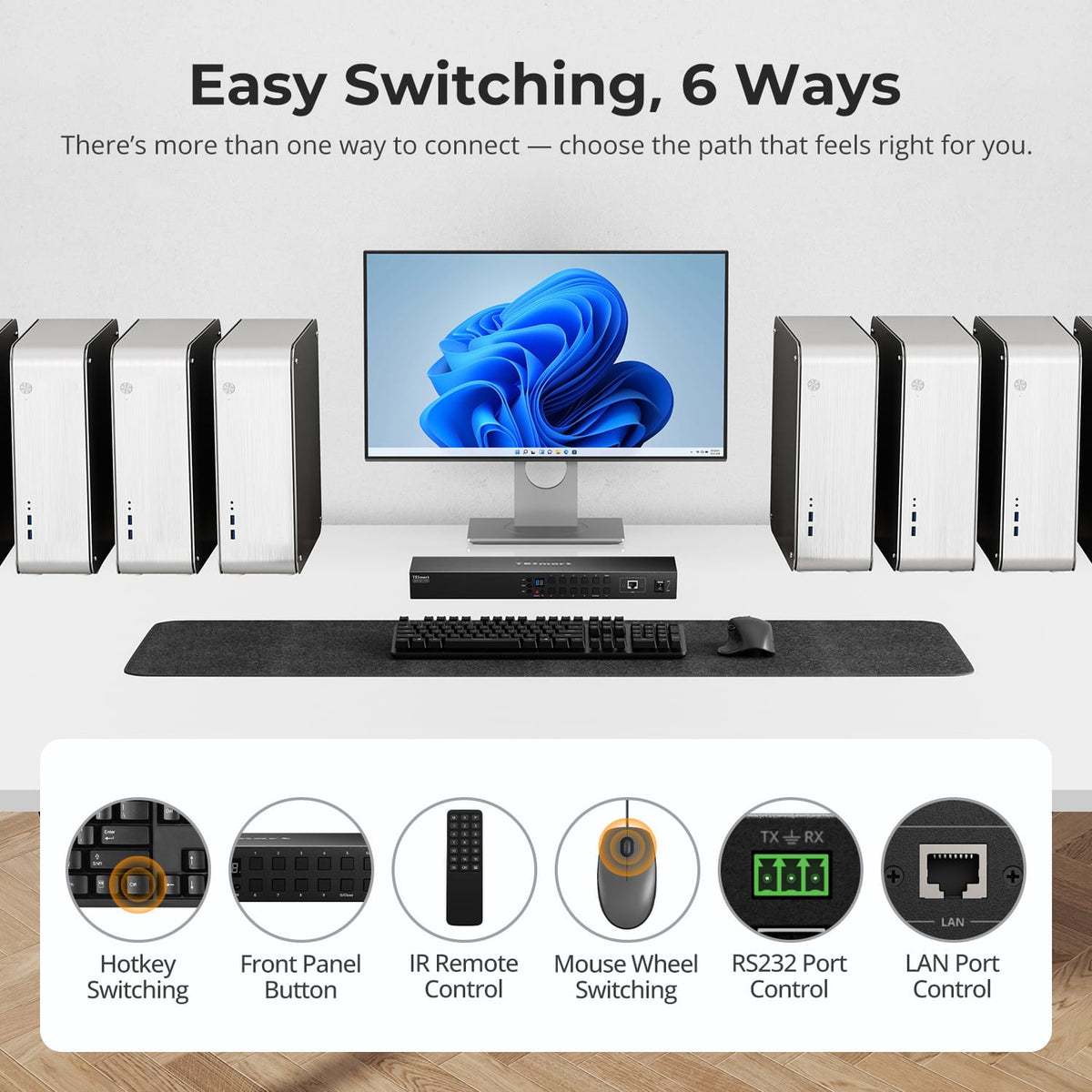
Use the front-panel keypad, IR remote, keyboard hotkeys, mouse wheel, RS232 commands or TCP/IP commands through the LAN port. Mouse-wheel switching must be enabled before use.
[Setup & Switching] What keyboard is recommended for hotkeys?
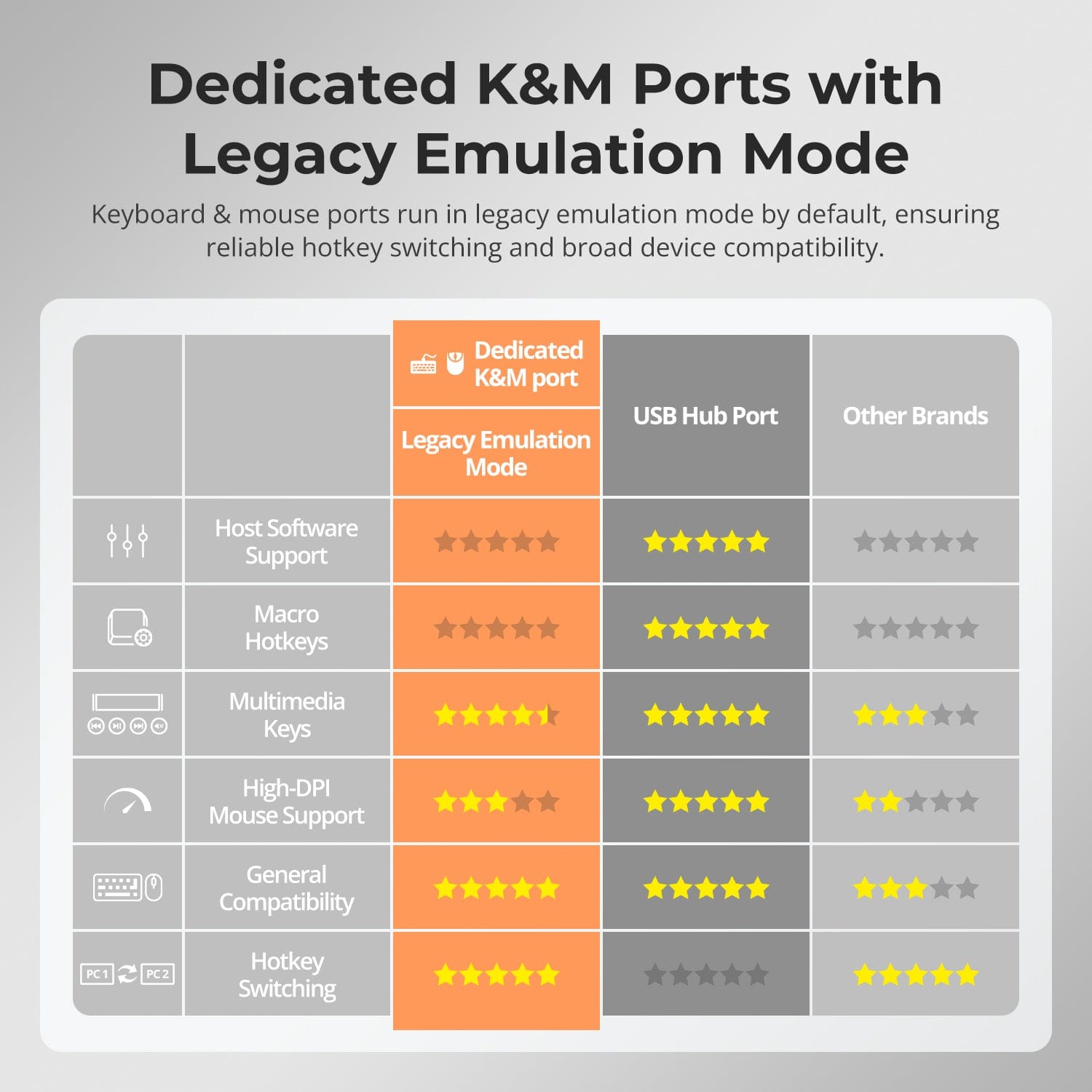
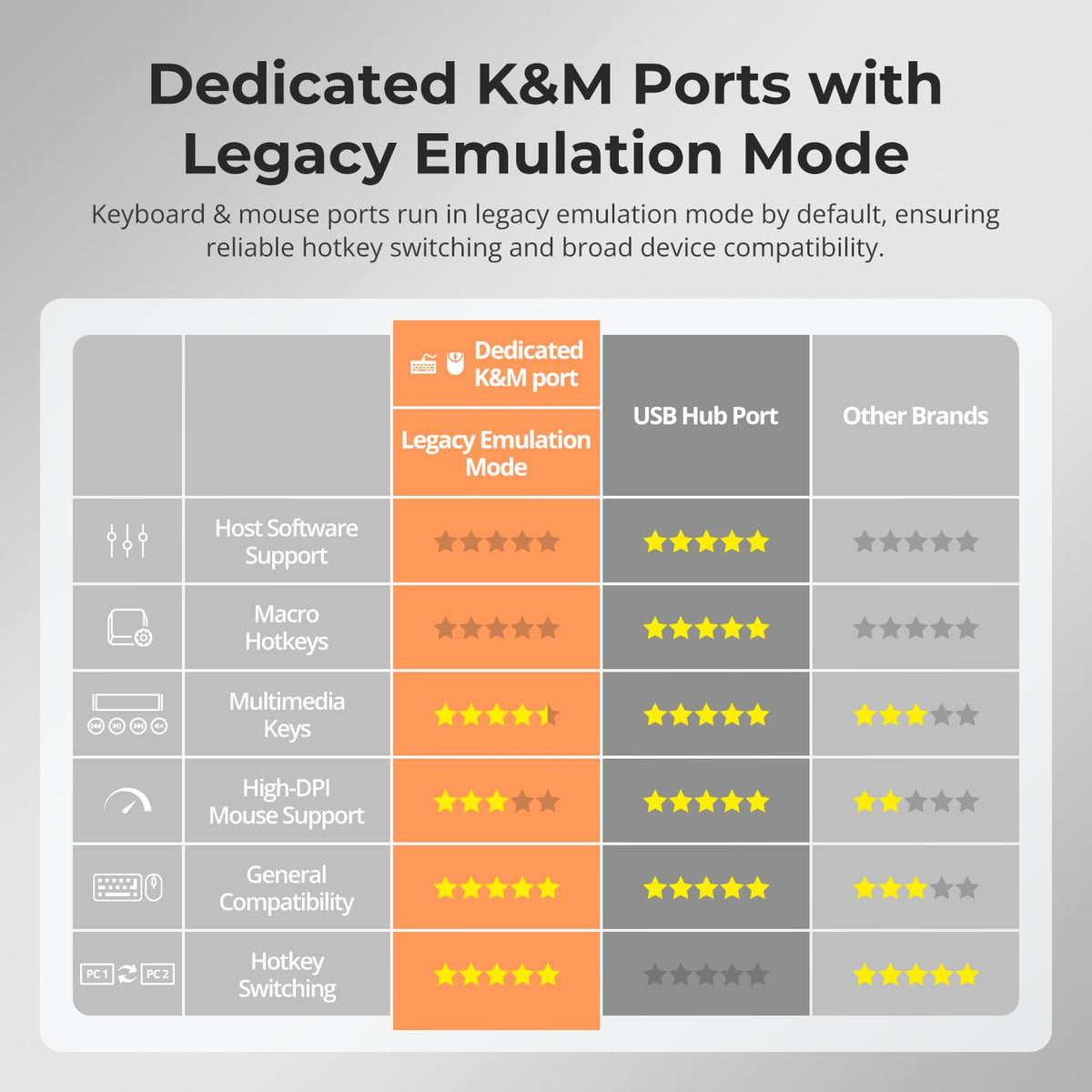
Use a full-size external keyboard with a separate Scroll Lock key and connect it to the dedicated keyboard and mouse port. The default hotkey trigger is Right-Ctrl, with Scroll Lock available as an alternative.
[Setup & Switching] How do I enable mouse-wheel switching?
Press the hotkey trigger twice, then F6. Mouse-wheel switching is disabled by default; once enabled, double-click the mouse wheel to move to the next input.
[Setup & Switching] How do I select inputs 10 through 16?
On the front panel, press 1+ and then 0 through 6 within two seconds. With the default hotkey trigger, press Right-Ctrl twice, then 1, followed by 0 through 6.