



Display Setup
Max Display Output

Display Color

Gaming Display

Display Stability
Gigabit LAN sharing

Laptop Charging
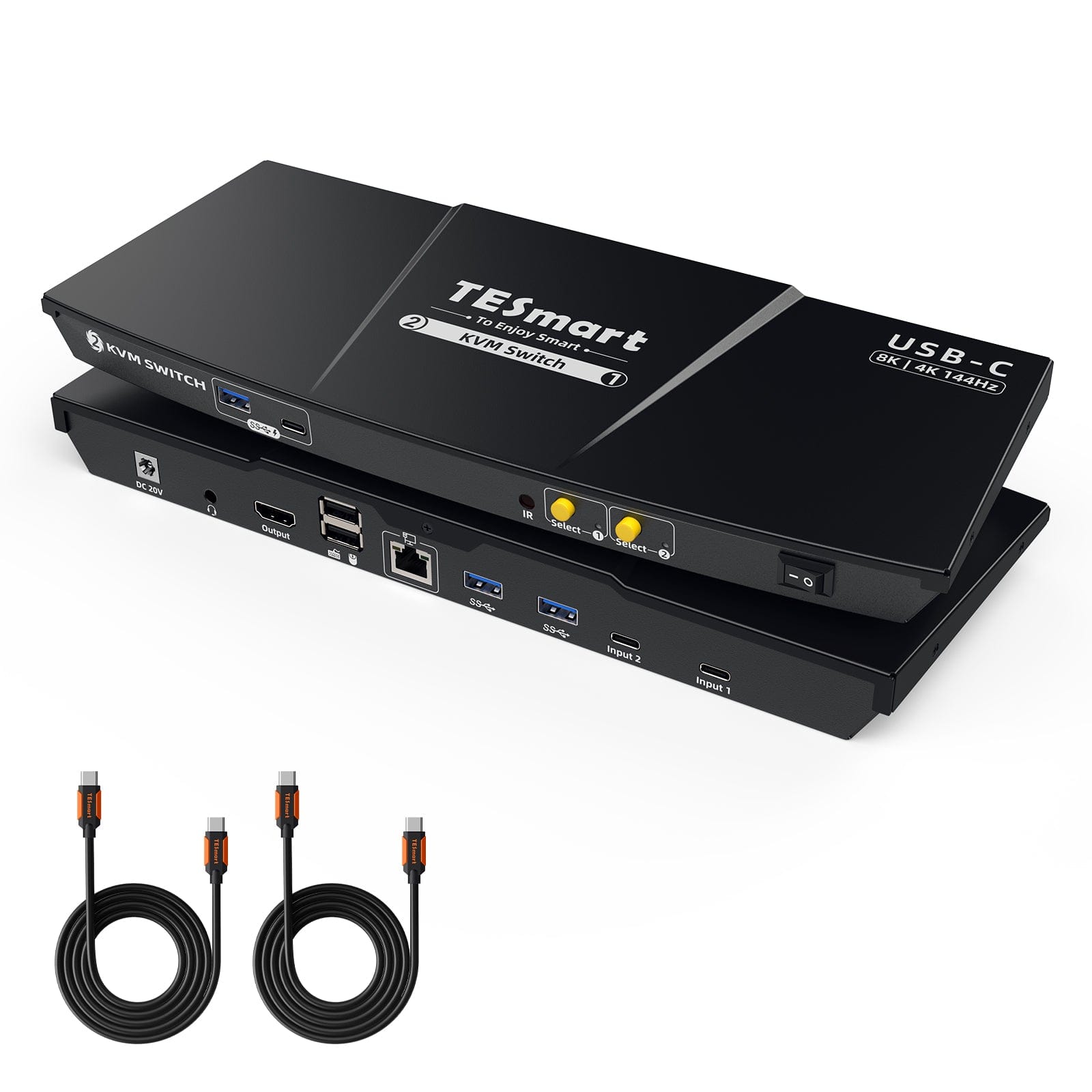
2-Port 8K60Hz USB-C KVM Switch Gaming Dock w/ ADI Chip, EDID, 4K144Hz for Gaming, 2 Laptops 1 Monitor
Share two Apple Studio Displays, one keyboard and mouse between two computers—or show one computer on each display when you need both systems at once.
Display Setup
Max Display Output
Display Color
Gaming Display
Display Stability
Gigabit LAN sharing
Laptop Charging
2-Port 8K60Hz USB-C KVM Switch Gaming Dock w/ ADI Chip, EDID, 4K144Hz for Gaming, 2 Laptops 1 Monitor
Why Choose CKS201-M23
Overview
01
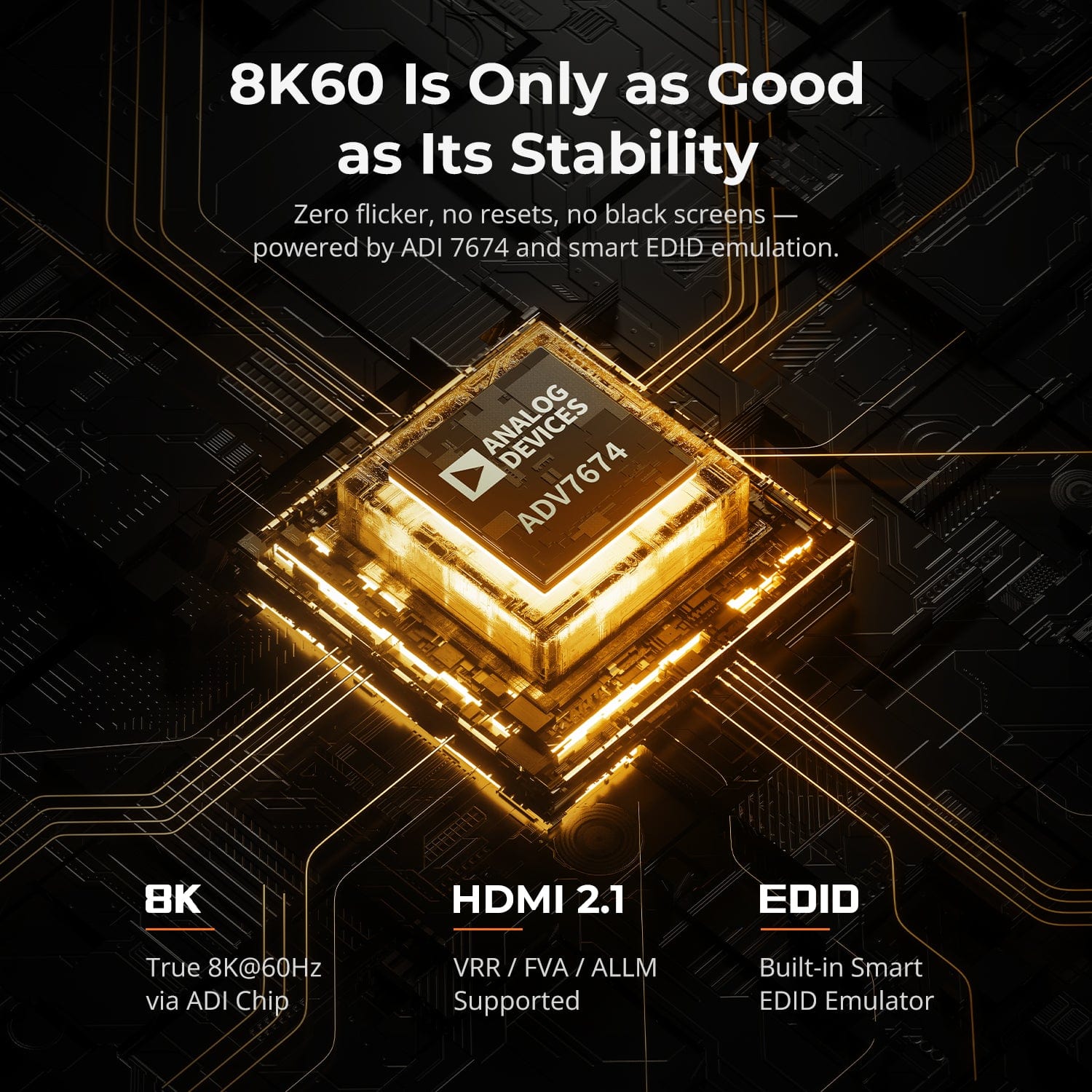
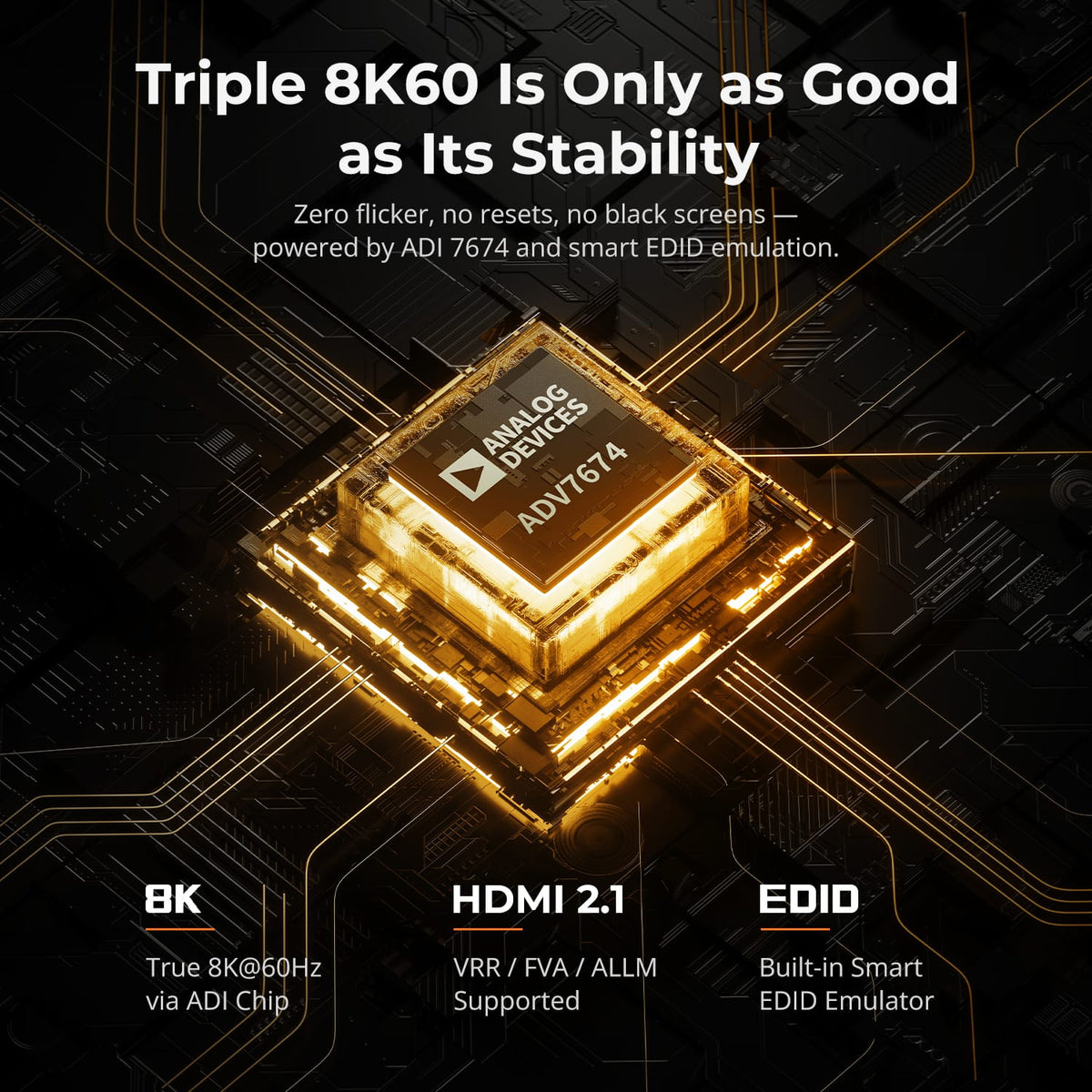
8K60 Performance Built for Stability
ADV 7674 decoding and EDID emulation are designed to maintain a stable HDMI 2.1 output under high bandwidth. This supports a more consistent experience for 8K viewing, detailed production work and high-refresh gaming.
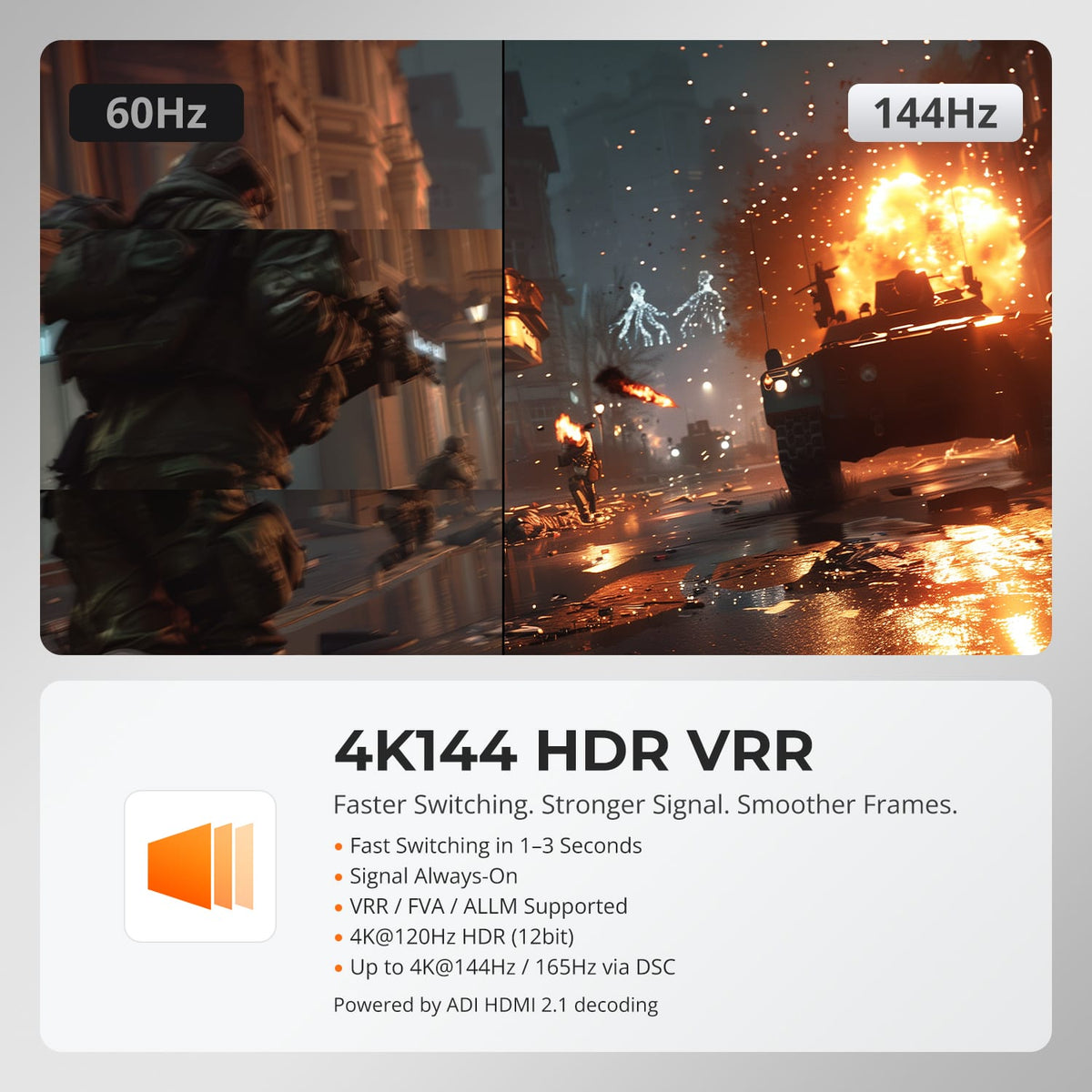
02
High-Refresh 4K for Fast, Detailed Work
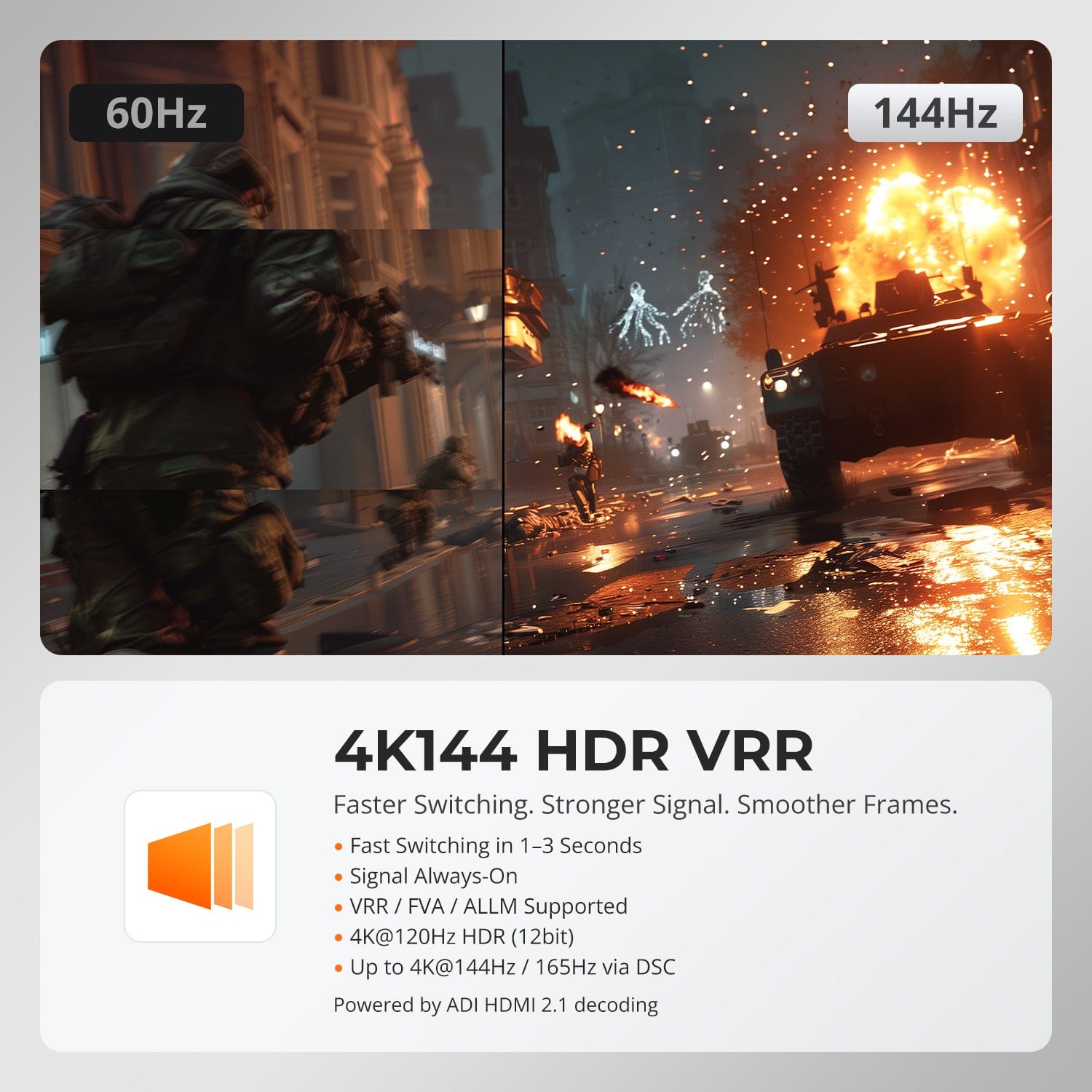
The current page lists 4K120 HDR at 12-bit and up to 4K144/165 through DSC, with VRR, FVA and ALLM support for smoother motion and lower latency. The laptop, monitor and cables must all support the selected format.
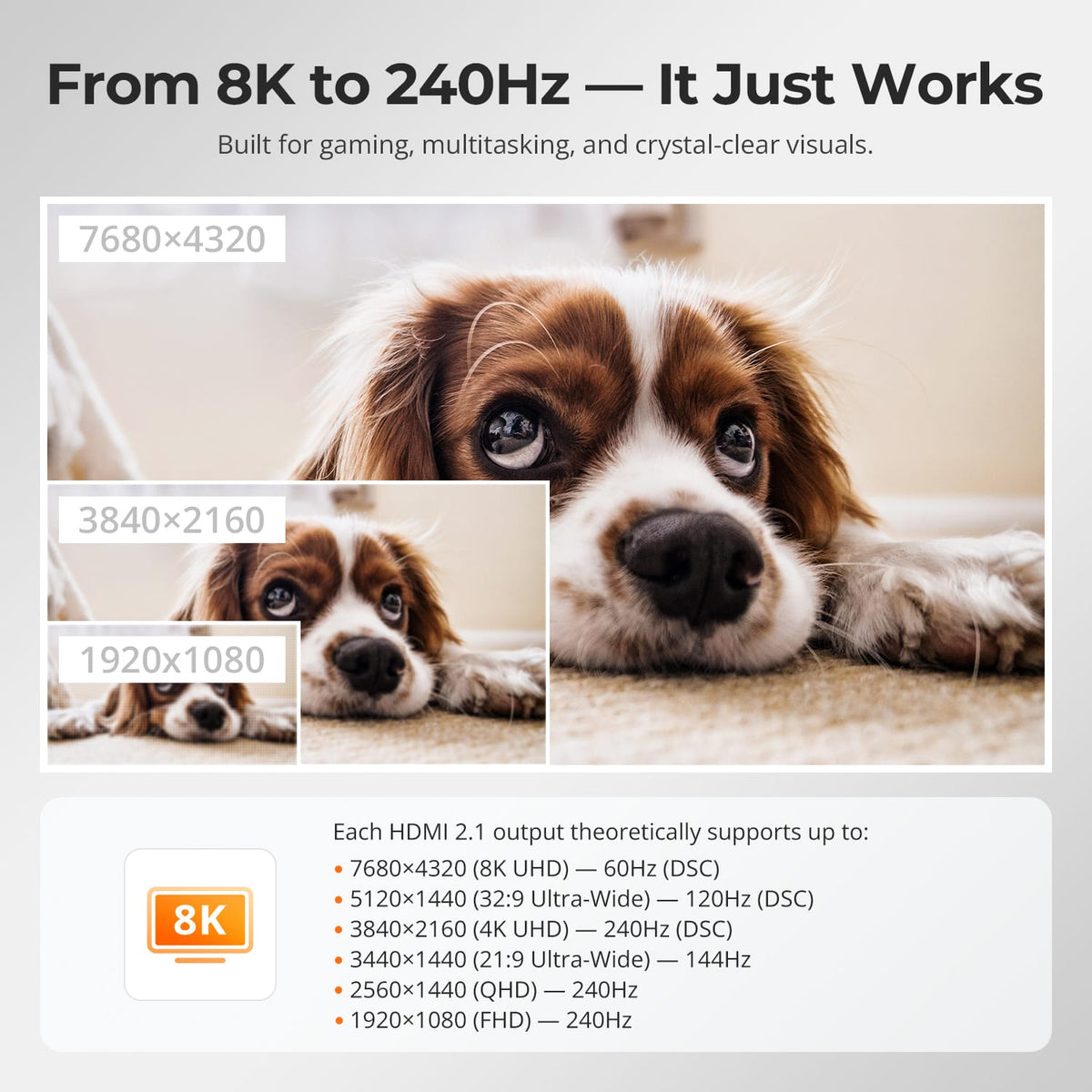
03
Resolution Options for Detail and Speed
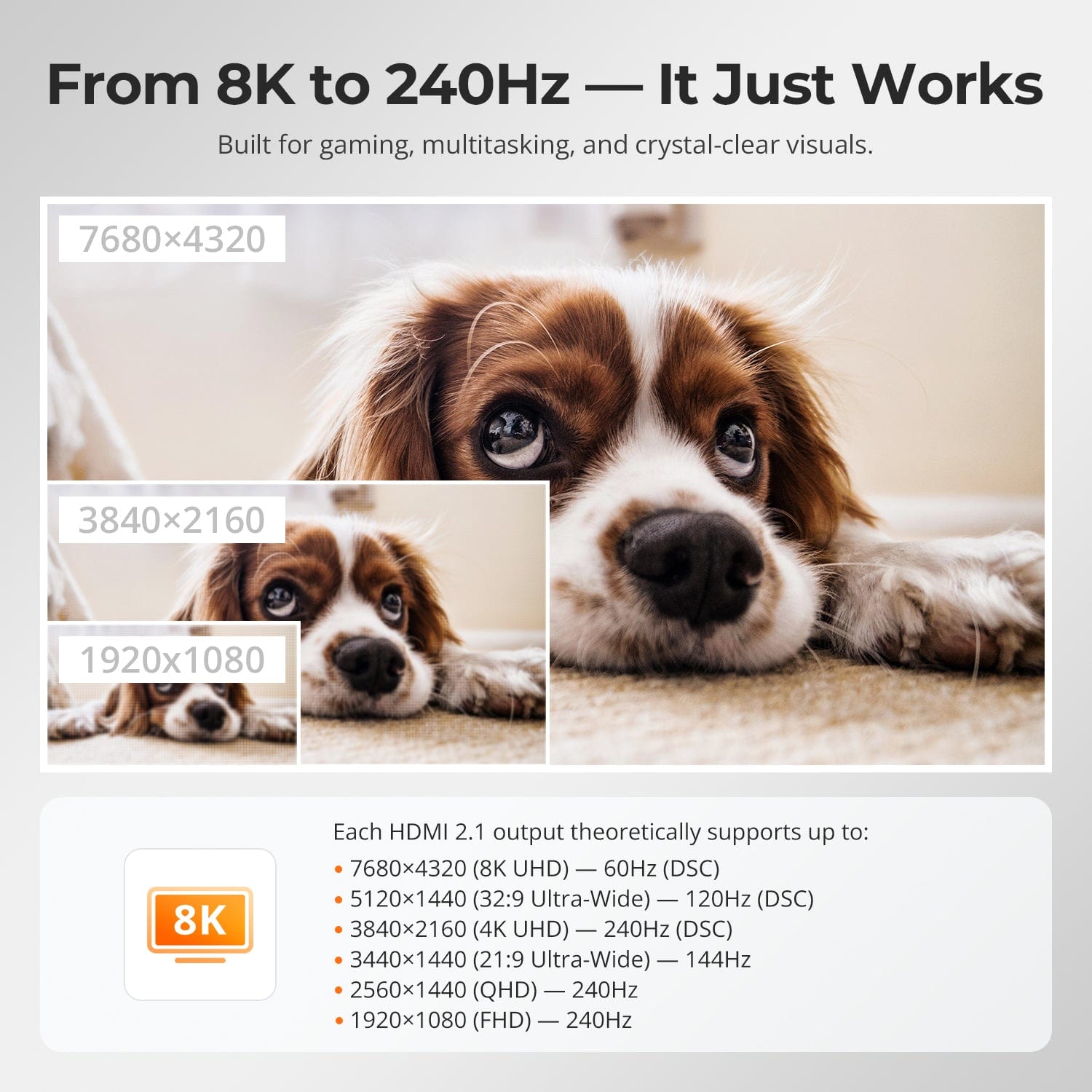
The current page lists formats up to 8K60, 5120×1440 at 120Hz, 4K240 through DSC, 3440×1440 at 144Hz and 1440p or 1080p at 240Hz. Actual results depend on the computer, USB-C video capability, display and cables.
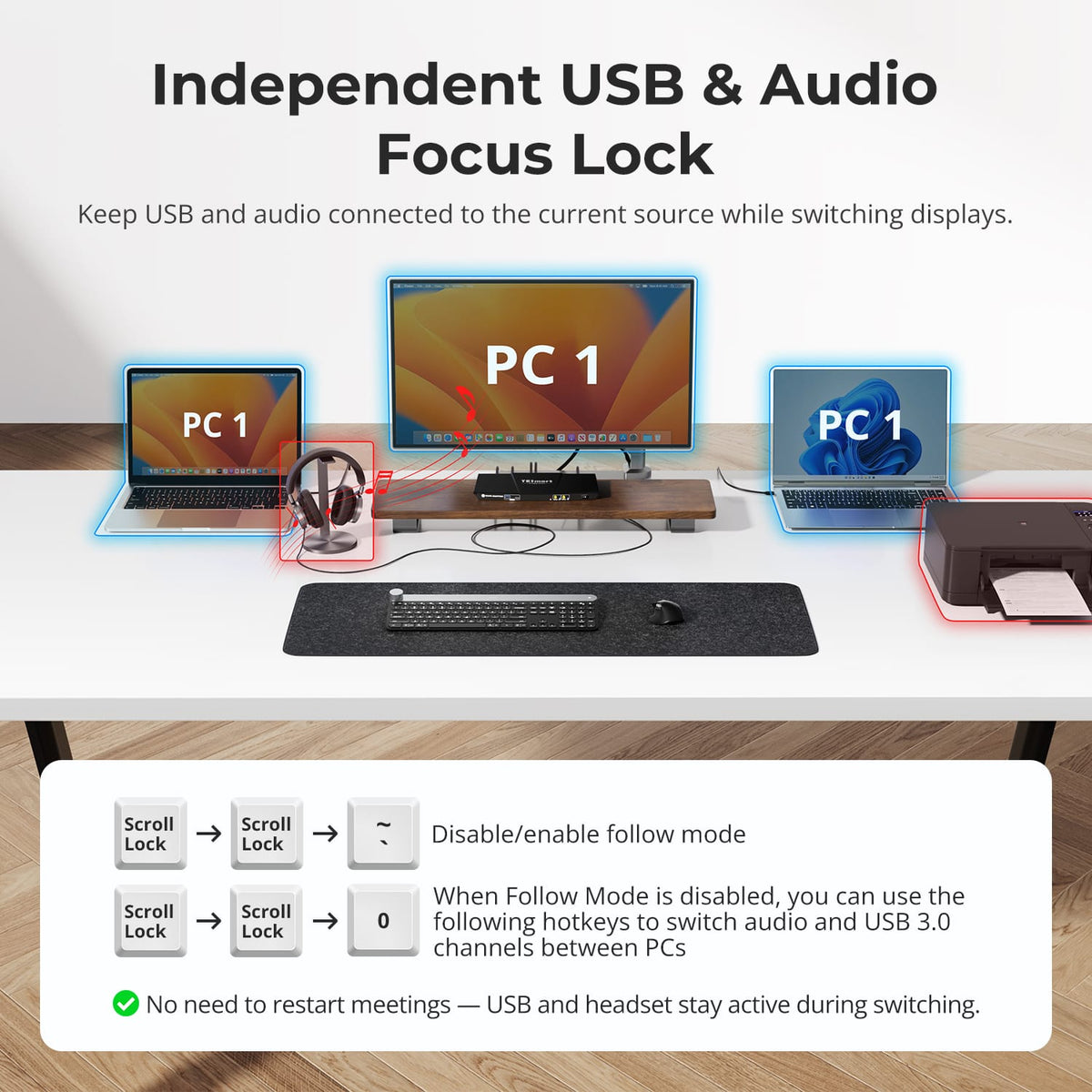
04
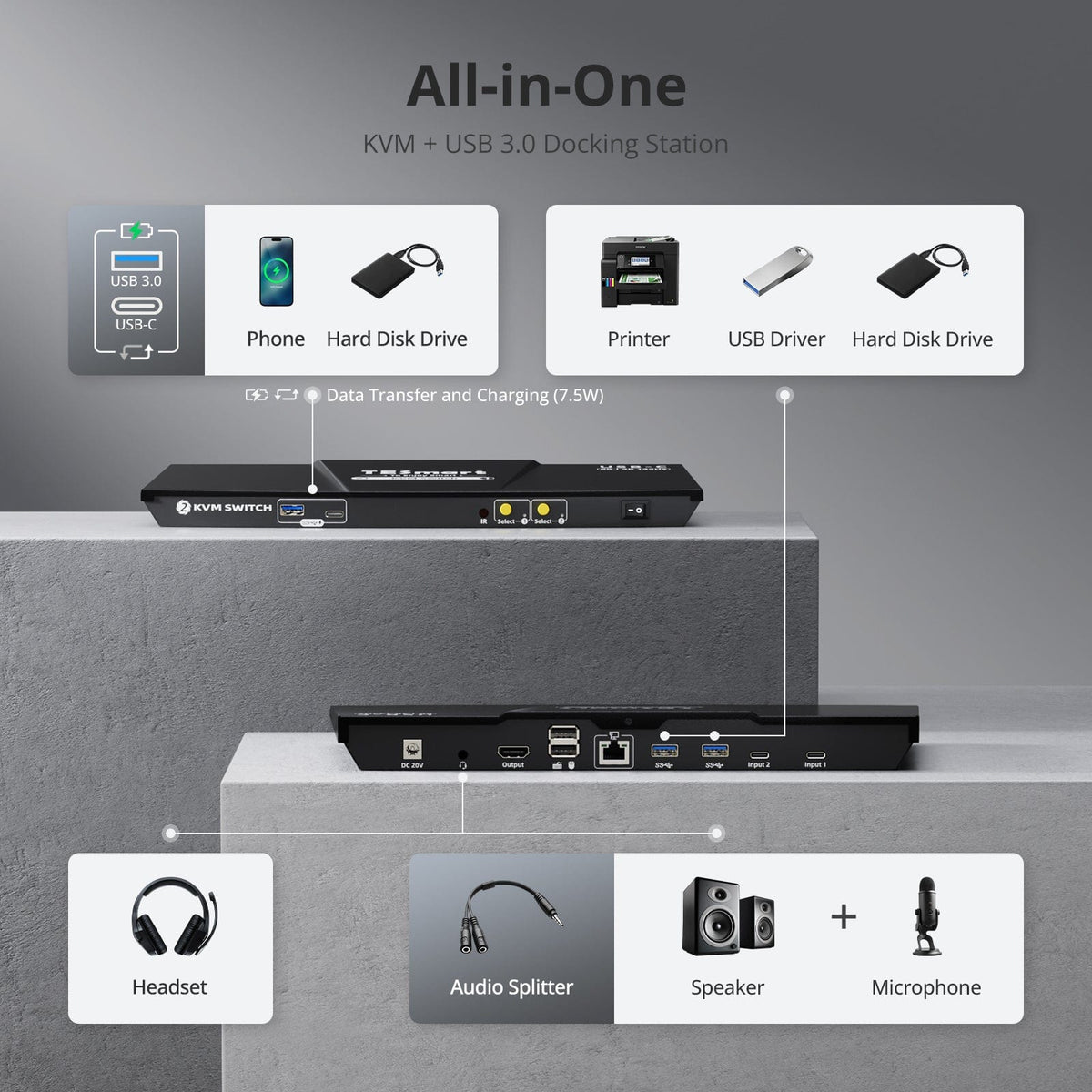
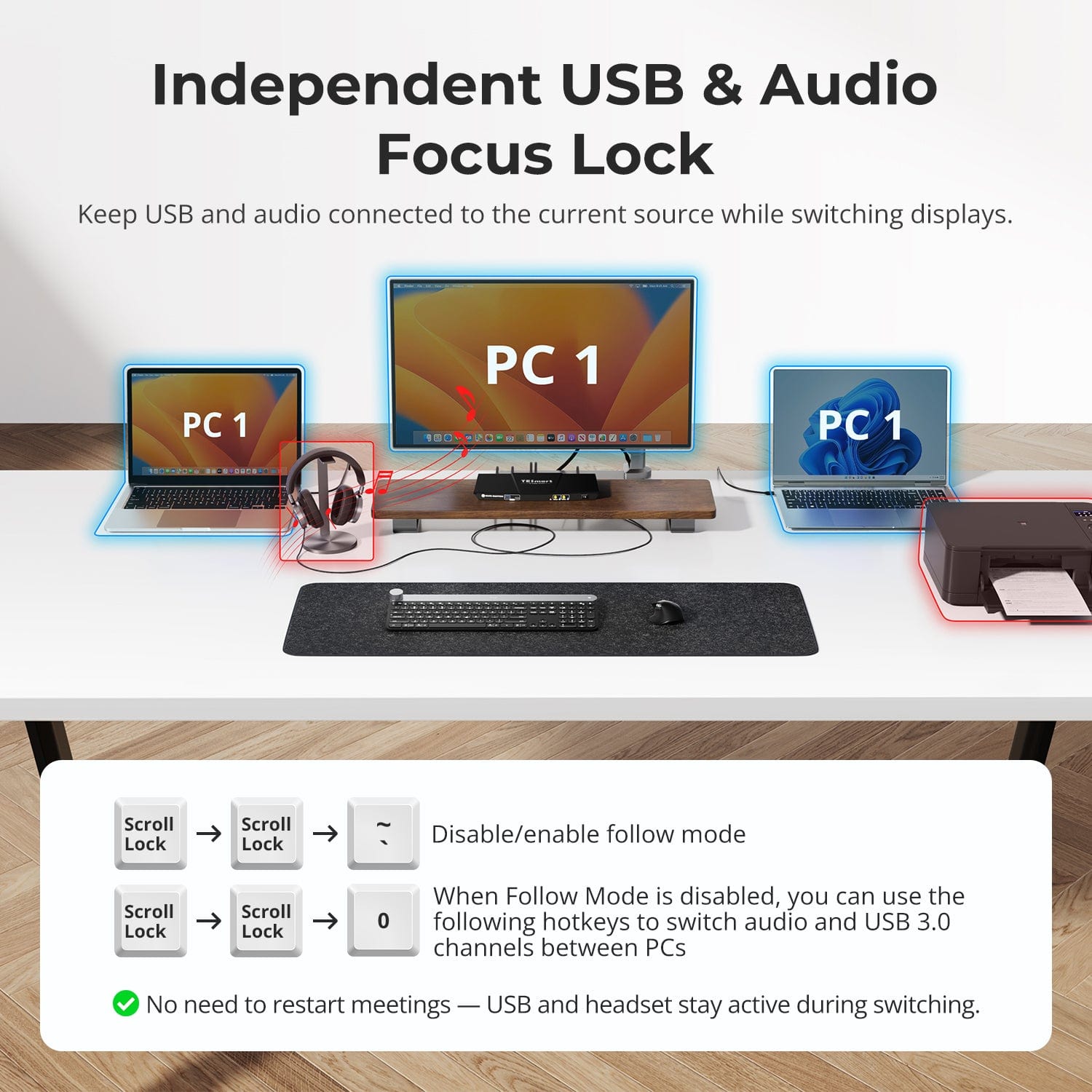
Keep USB and Audio with the Computer That Needs Them
Disable Follow Mode when a drive, headset or other shared device should stay assigned to one computer while the display and keyboard or mouse control switch to the other system.
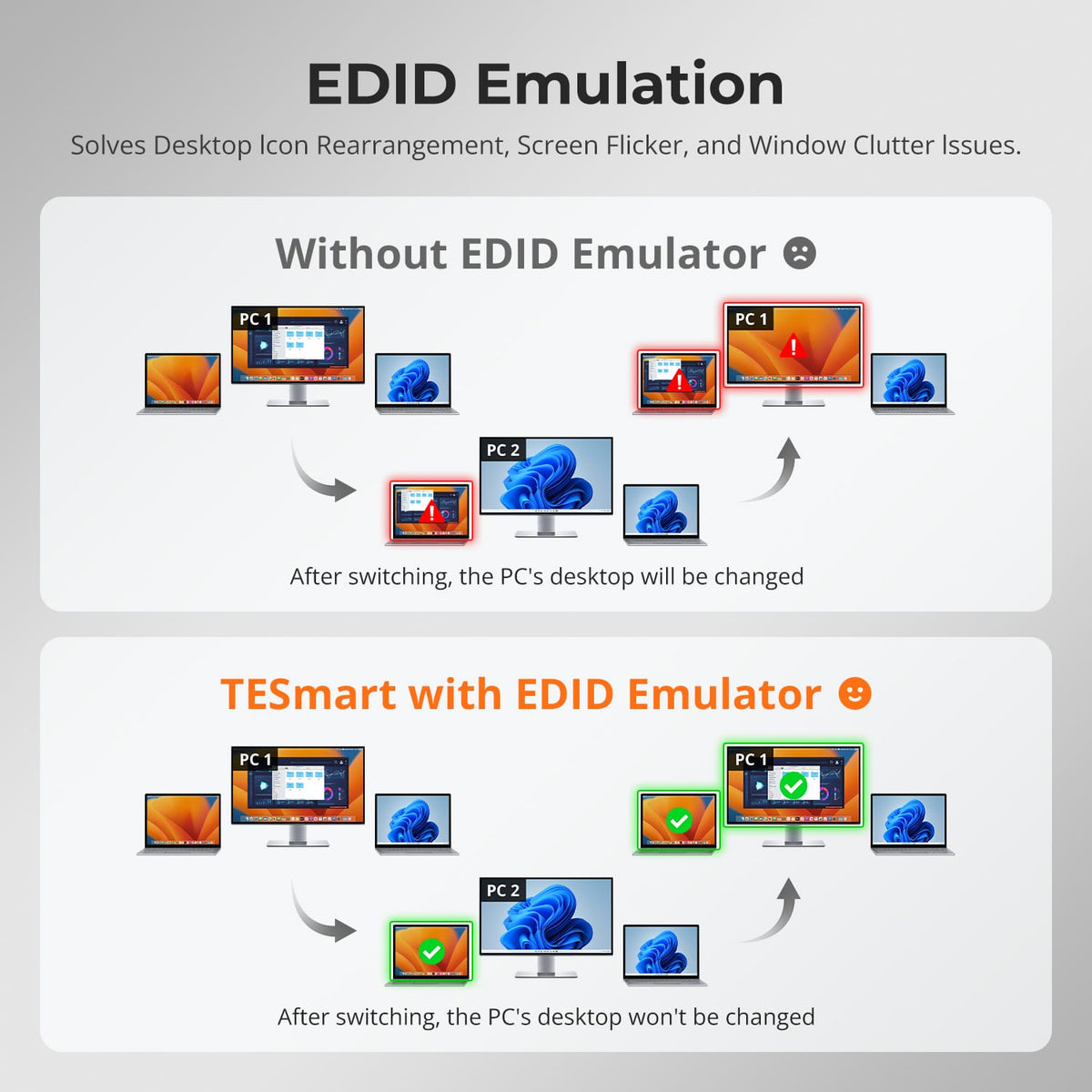
05
Keep Your Desktop Where You Left It
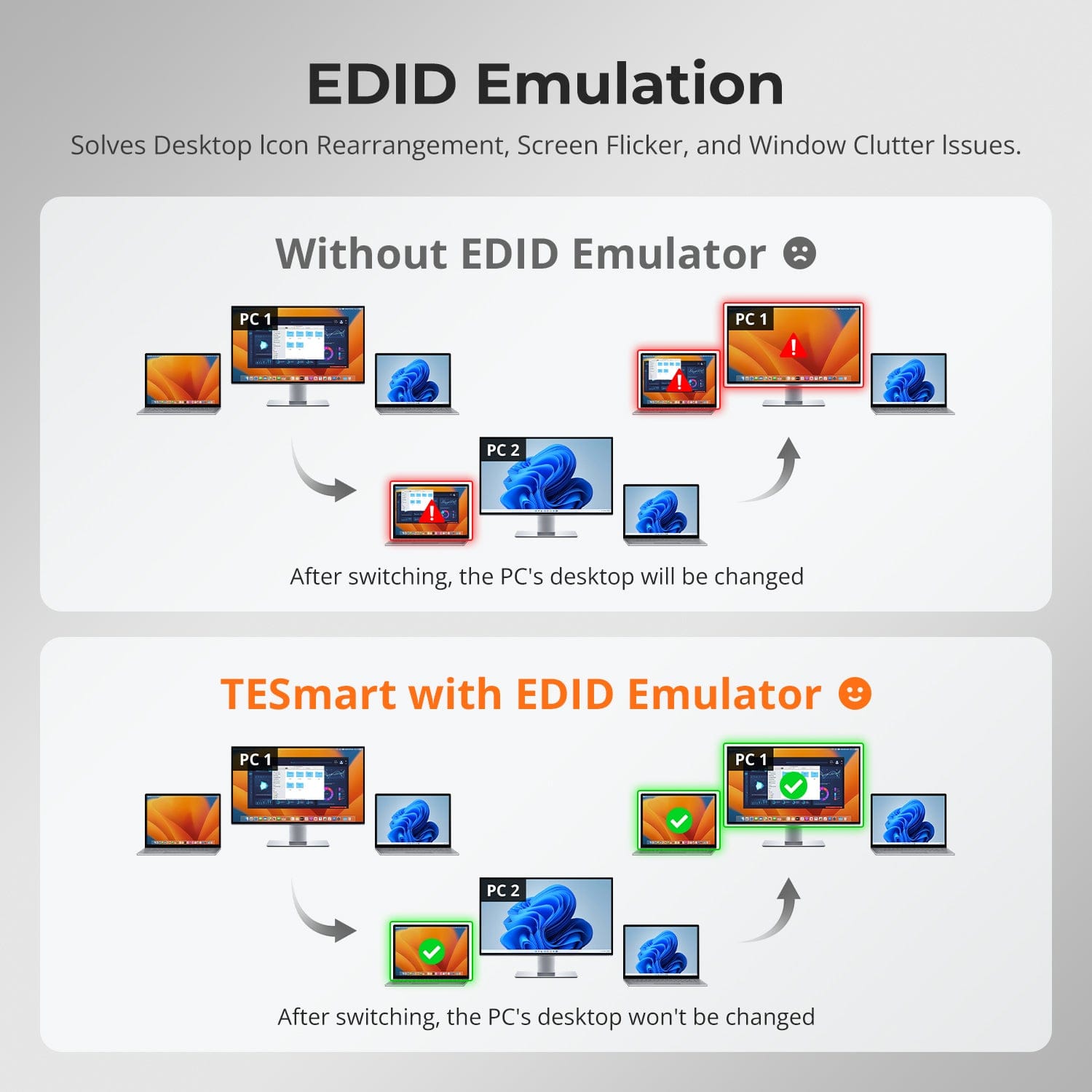
EDID emulation keeps display information available to both computers, helping preserve window positions and reduce flicker, black screens and desktop rearrangement when switching.
06
07
08
Specifications & Support
Compatibility & Input Guide
Technical Specifications
Manuals & Downloads
Included in the Box
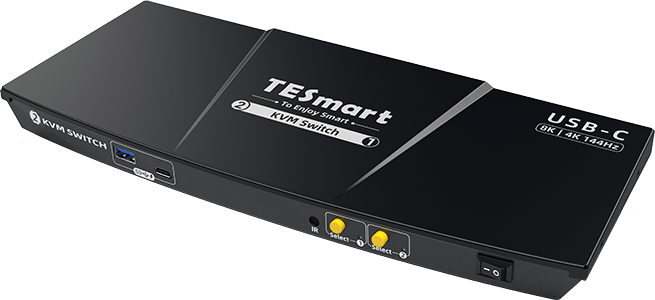
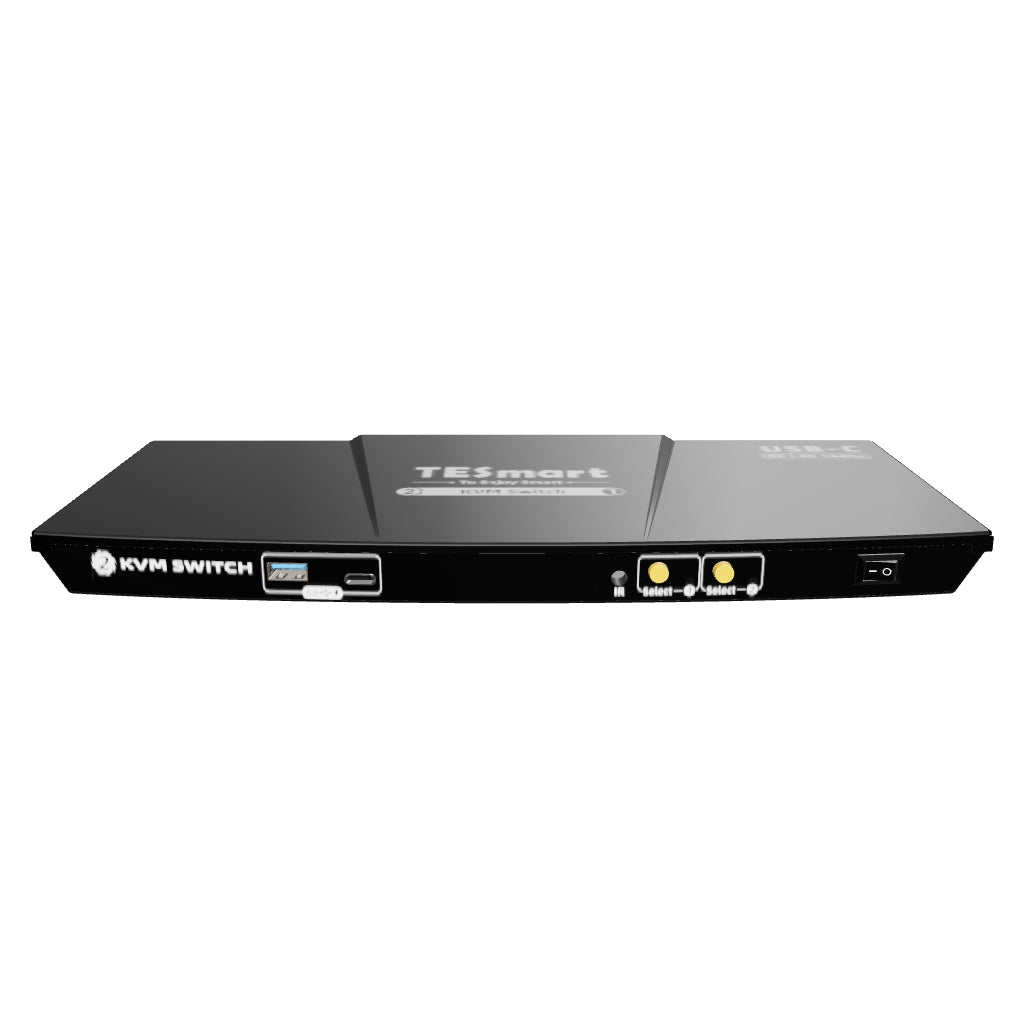
1 × CKS201-M23 KVM Switch
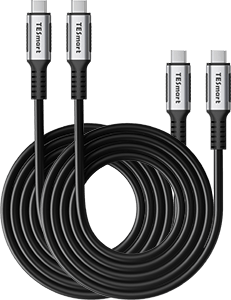
2 × USB-C Cables
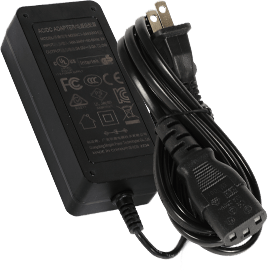
1 × DC 20V Power Adapter
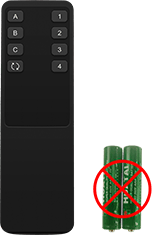
1 × IR Remote Control
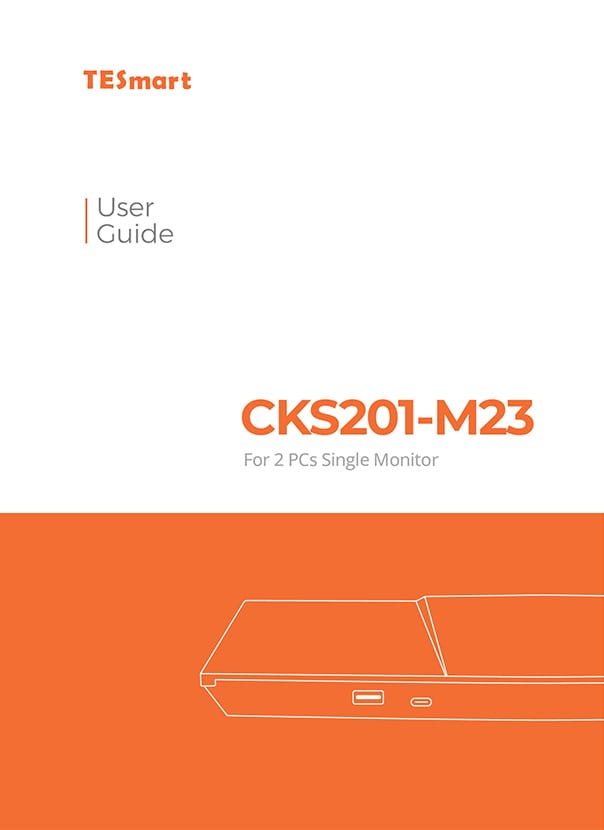
1 × User Manual
FAQs
Visit our Help Center for more answers.
[Compatibility] What computers and monitor can I connect to CKS201-M23?
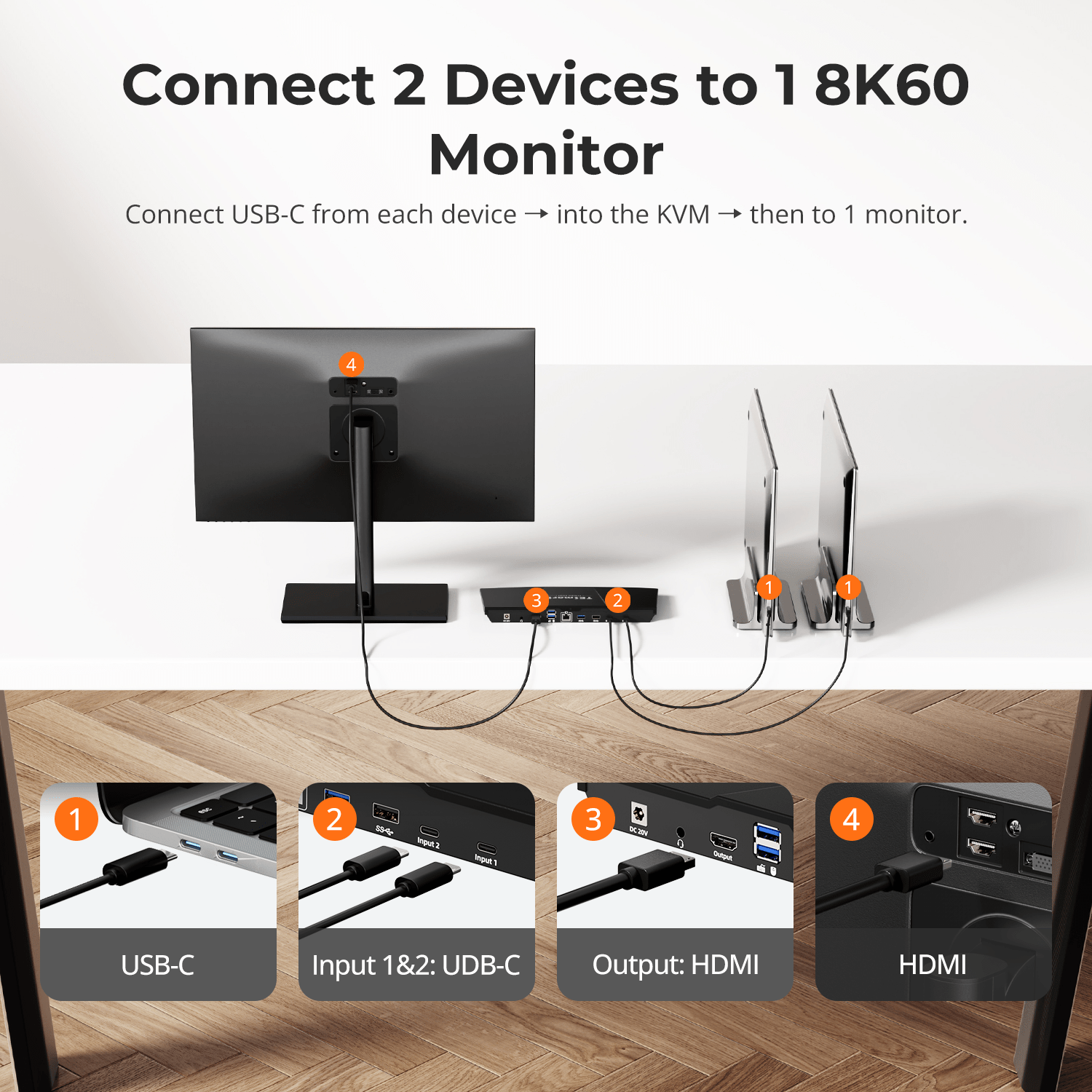
Connect two USB-C laptops or computers and one HDMI monitor. Each computer uses one rear USB-C input for video, USB data and charging.
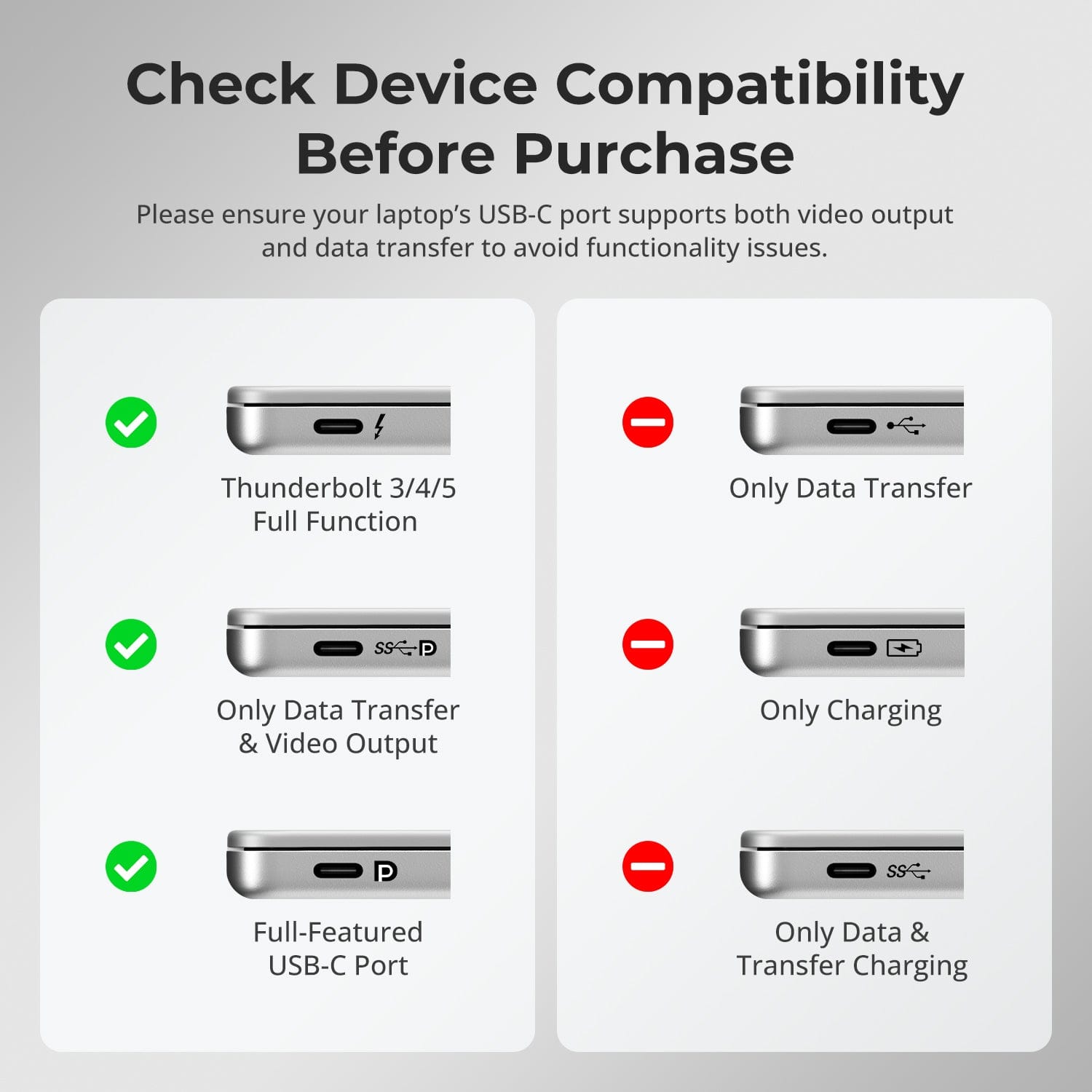
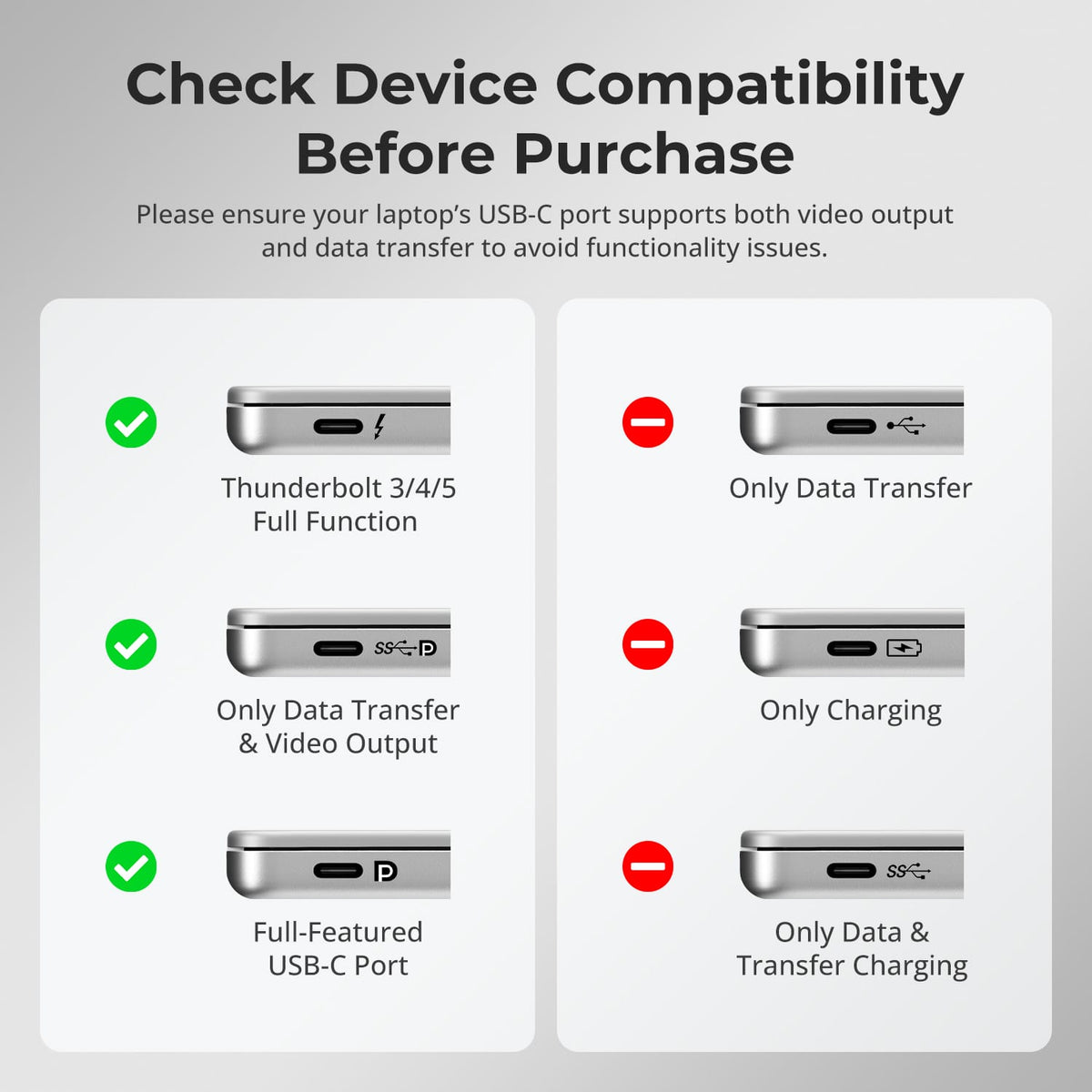
[Compatibility] What must each computer USB-C port support?
It must support DisplayPort Alt Mode for video and USB data transfer. Full-featured USB-C or Thunderbolt ports are suitable; charge-only or data-only USB-C ports cannot provide full KVM operation.
[Compatibility] Which operating systems are supported?
The manual lists Unix, Windows, macOS and Linux-based systems including Debian, Ubuntu, Fedora and Raspbian for Raspberry Pi.
[Compatibility] What resolutions and refresh rates are supported?
The current page lists up to 8K60 and high-refresh formats including 4K120, 4K144 and up to 4K165 through DSC. The computer, USB-C port, monitor and cable must all support the selected format.
[Features & Connections] What does EDID emulation do?
EDID emulation keeps display information available to both computers, helping preserve window positions and reduce flicker, black screens and desktop rearrangement during switching.
[Features & Connections] What video and gaming features are supported?
The current page lists HDMI 2.1 output, DSC, VRR, FVA and ALLM. Support for each feature depends on the laptop graphics hardware, USB-C video output, monitor and cable.
[Features & Connections] What peripherals can the computers share?
Use the USB 3.2 Gen 1 ports for compatible storage, printers and other peripherals at up to 5Gbps. Both computers can also share the 3.5mm audio/microphone connection and Gigabit Ethernet.
[Features & Connections] Can both laptops charge through the rear USB-C inputs?
Yes. The current CKS201-M23 FAQ states that both rear inputs support up to 60W USB-C PD. The laptop must support the required charging protocol; incompatible 20V charging may fall back to 7.5W.
[Features & Connections] Can the front USB ports charge a connected computer?
No. The front USB-A and USB-C ports are for data and charging phones, tablets and other mobile devices, with a maximum charging output of 7.5W under BC 1.2.
[Features & Connections] Can both computers share one wired network connection?
Yes. Connect the LAN port to a router or network switch so both connected computers can use Gigabit Ethernet through their USB-C connections.
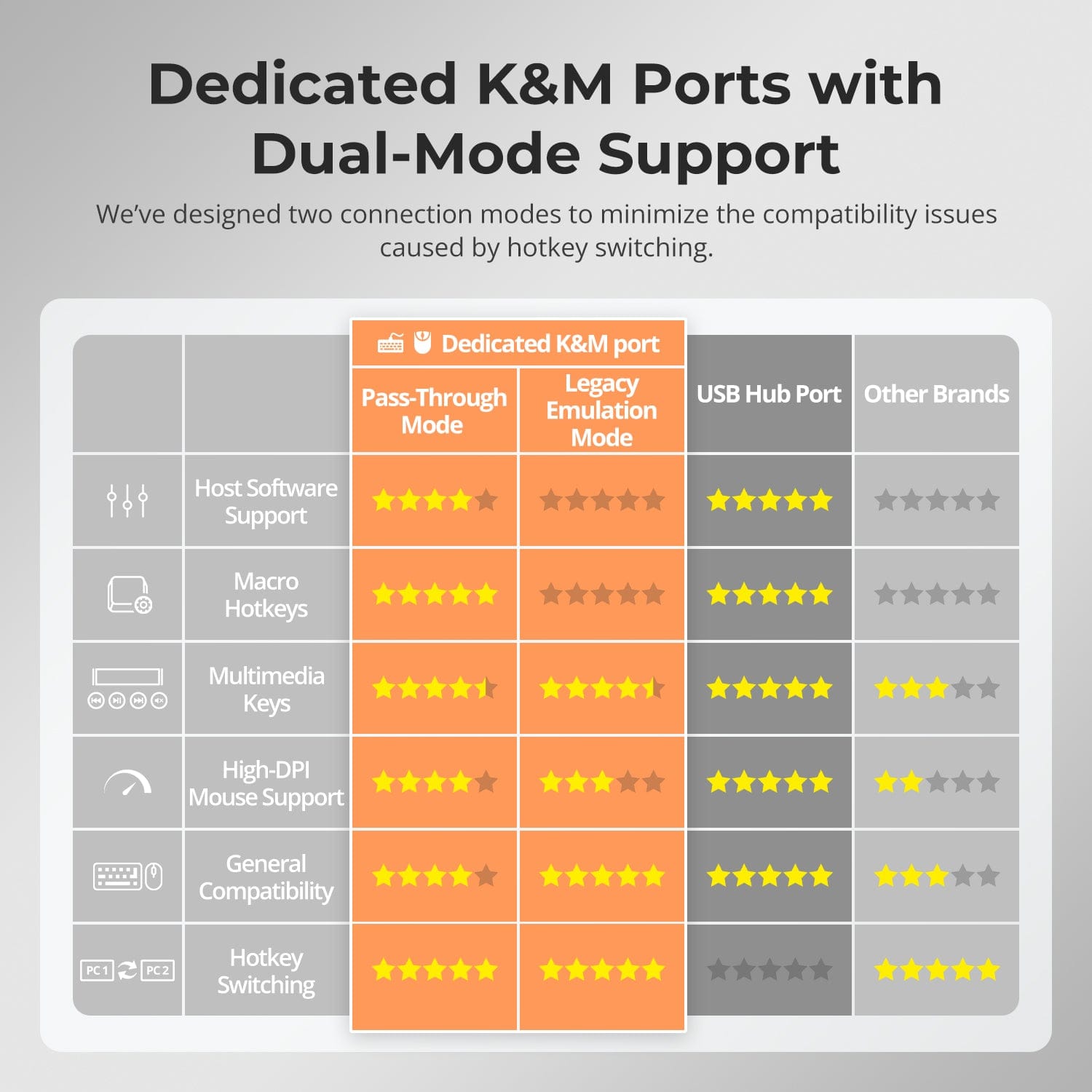
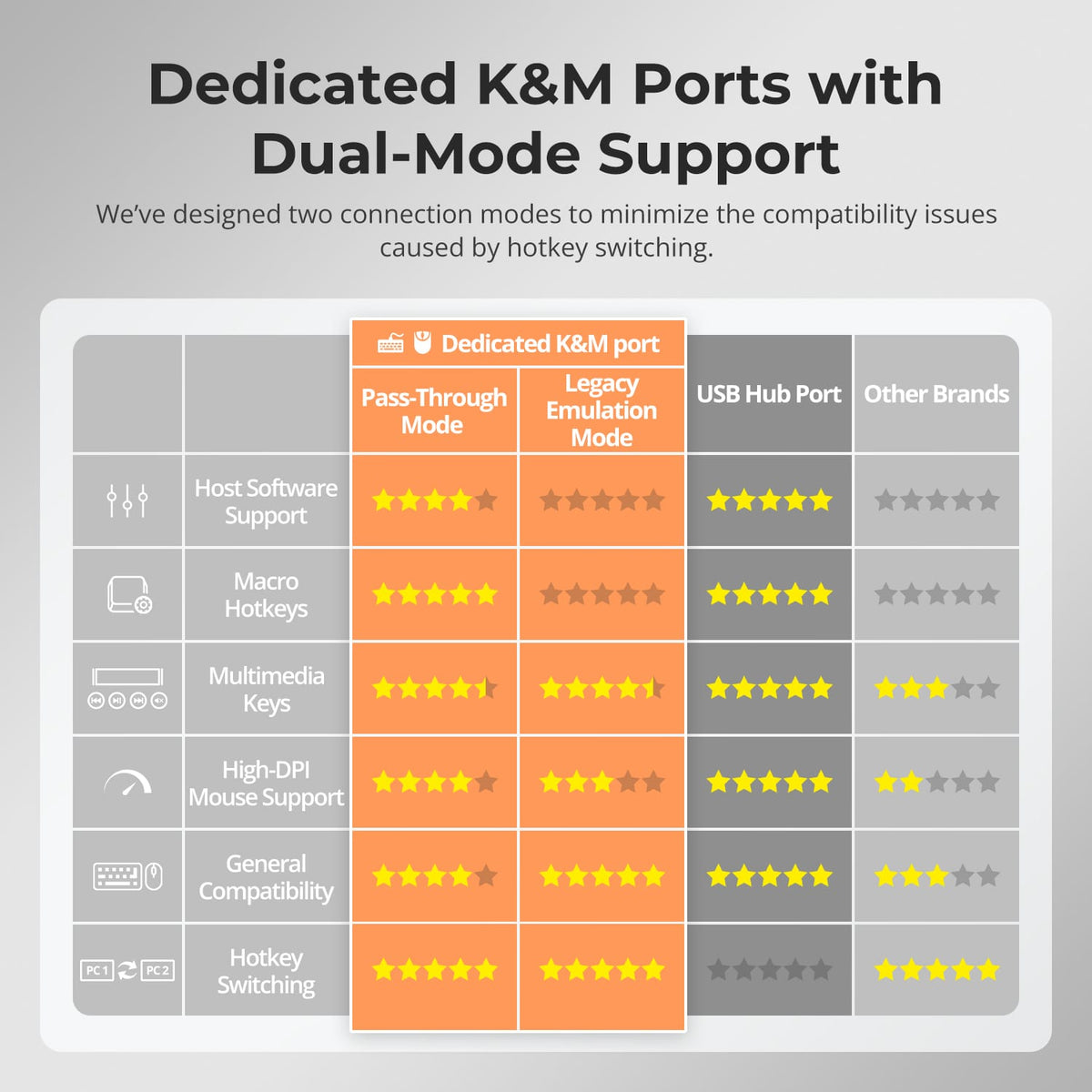
[Features & Connections] What keyboard and mouse modes are available?
Pass-Through Mode supports drivers, macros and multifunction devices. If compatibility issues occur, switch to Legacy Emulation Mode and restart the KVM; advanced driver-based functions are unavailable in that mode.
[Setup & Switching] How do I connect CKS201-M23?
Connect each computer to a rear USB-C input, connect the HDMI monitor, then attach the keyboard, mouse, optional USB devices, audio and LAN, and the supplied DC 20V power adapter.
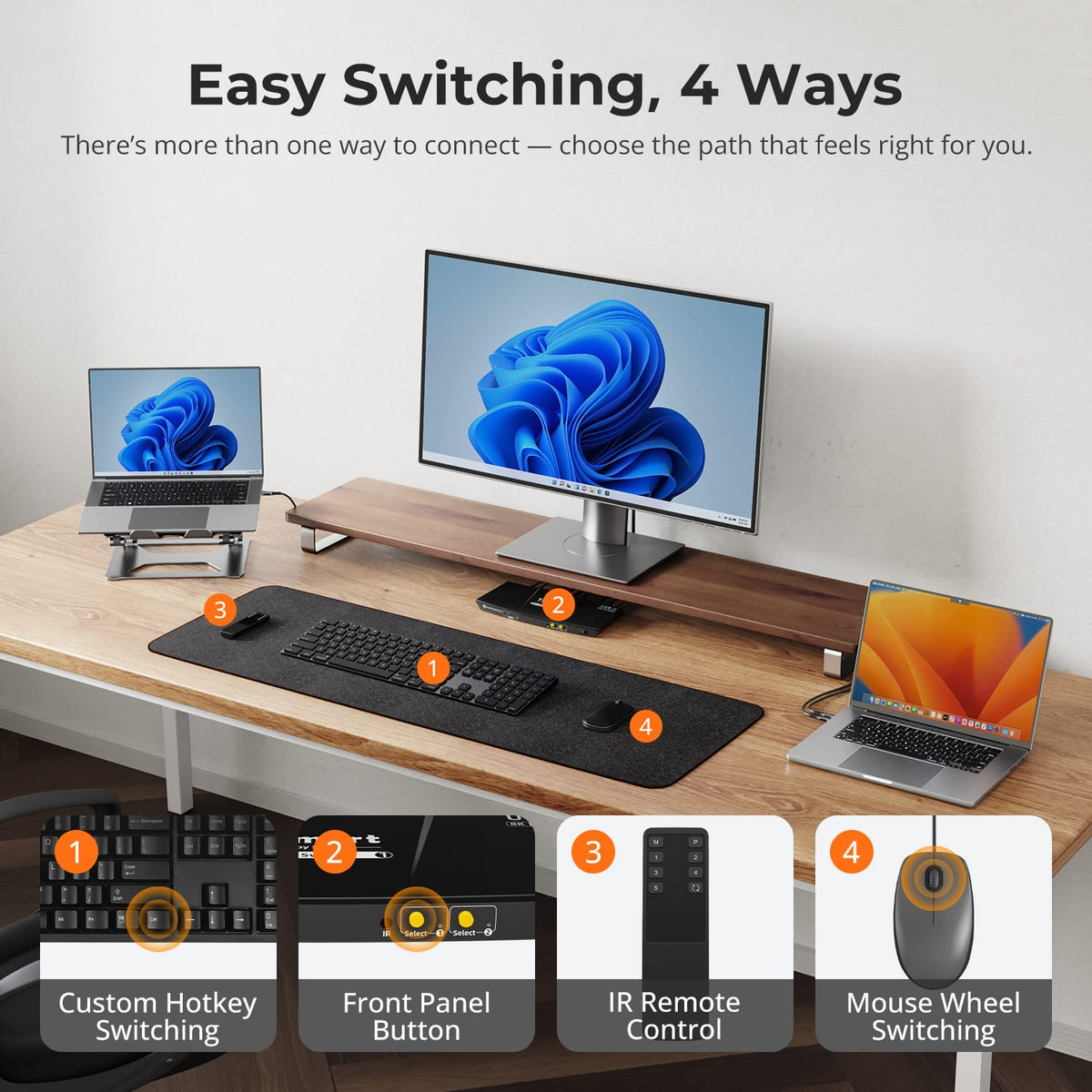
[Setup & Switching] How can I switch between computers?
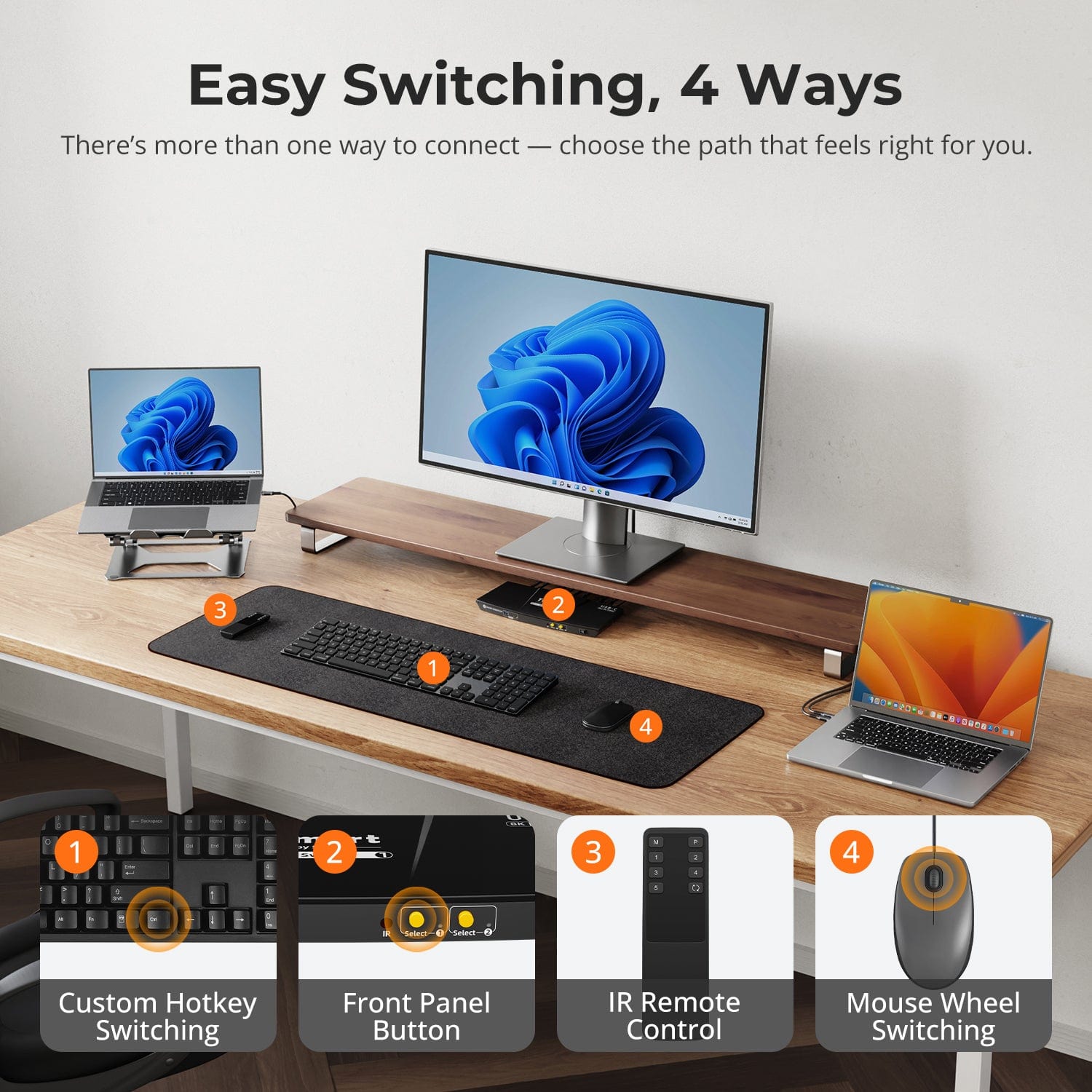
Use the front-panel button, IR remote, keyboard hotkeys or mouse-wheel switching. Mouse-wheel switching is disabled by default and must be enabled before use.
[Setup & Switching] What is the default hotkey trigger?
The default trigger is Right-Ctrl. The keyboard must be connected to the dedicated keyboard and mouse port; the trigger can also be customized.
[Setup & Switching] What should I check if the monitor stays black?
Use the supplied power adapter, confirm the computer USB-C port supports DP Alt Mode, and test the HDMI cable and monitor through a direct connection. Remove unverified converters or docks while troubleshooting.