

Display Setup
Max Display Output
Multi-Monitor
Laptop Charging
Single-cable connection
Network Sharing
Display Stability
2×3 DisplayLink® KVM for Laptop & Desktop | Triple 4K60, 100W PD
Run three 4K@60Hz displays for Mac and PC on one dock—DisplayLink® bypasses macOS limits, with 100W charging and EDID-stable switching between systems.
Display Setup
Max Display Output
Multi-Monitor
Laptop Charging
Single-cable connection
Network Sharing
Display Stability
2×3 DisplayLink® KVM for Laptop & Desktop | Triple 4K60, 100W PD
Why Choose HDC203-PM24
Overview
01
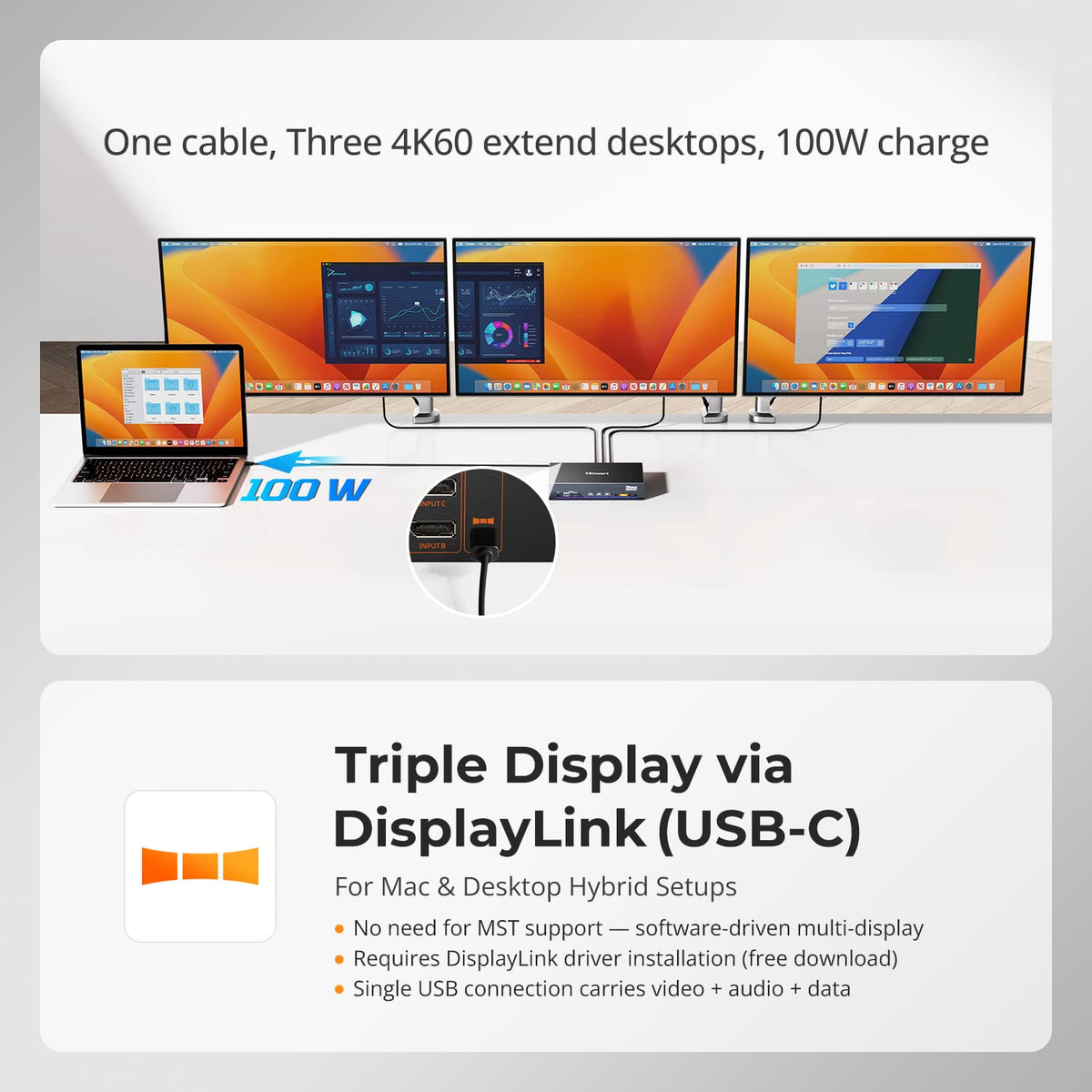
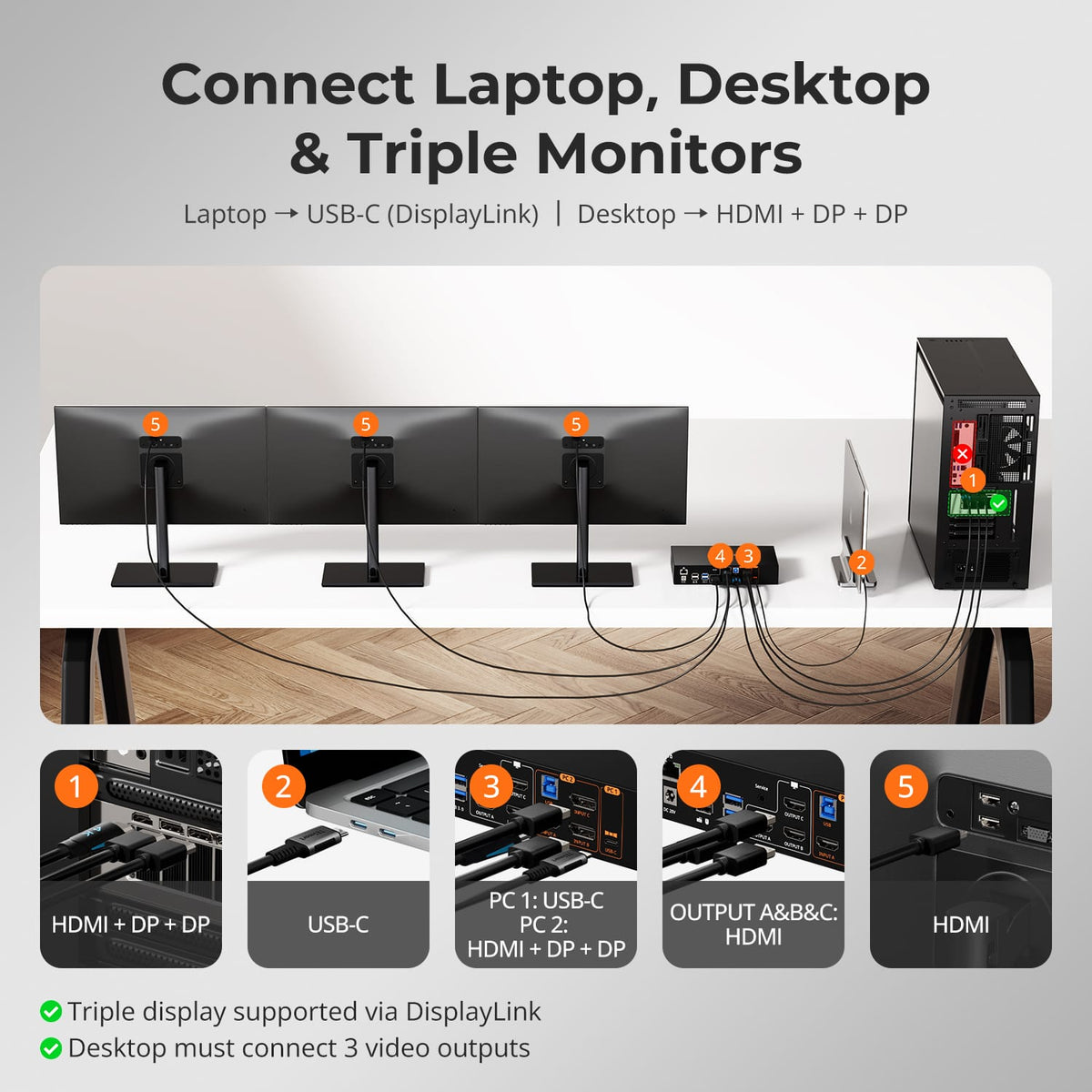
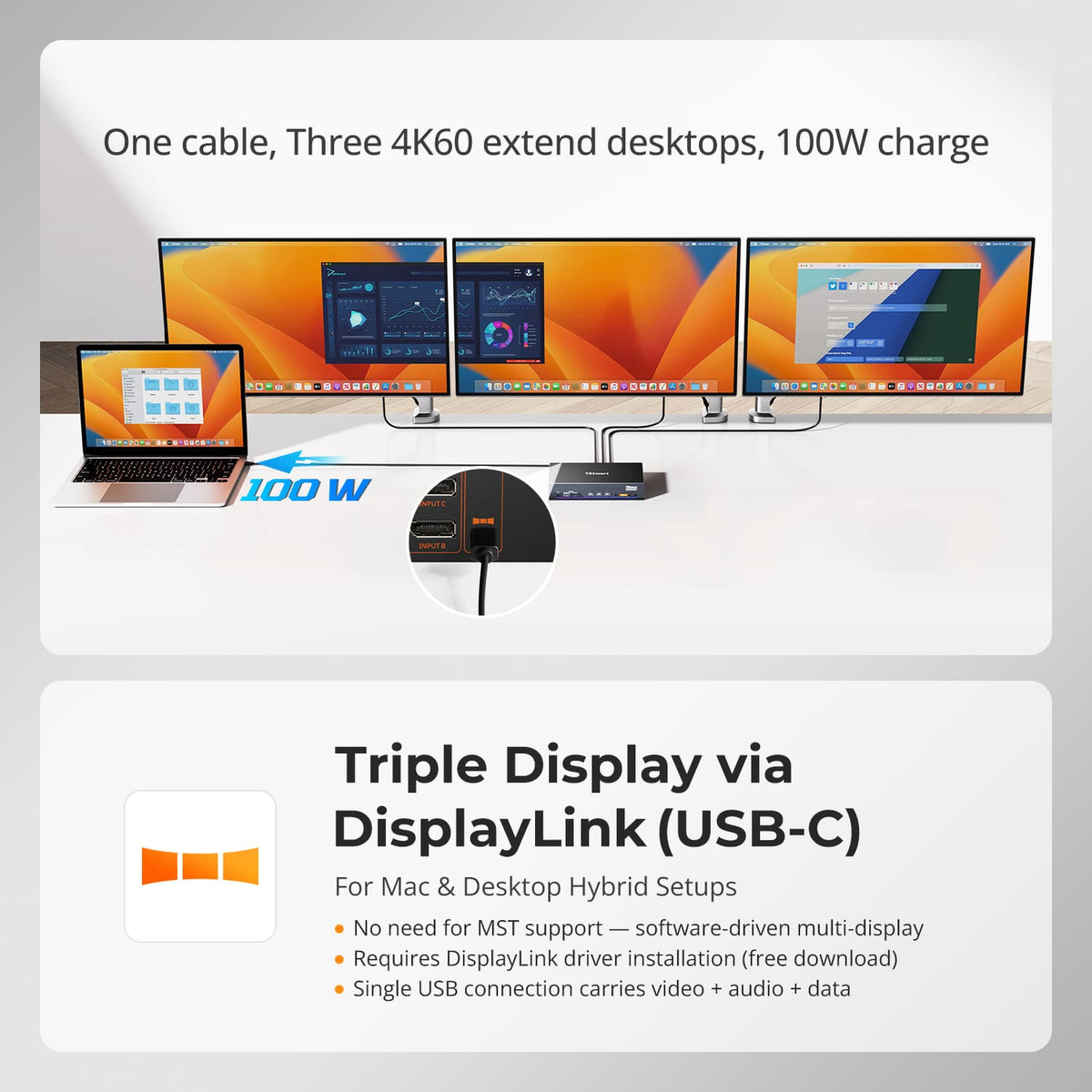
One Cable. Three 4K60 Desktops. 100W Charge.
Connect a laptop with one USB-C cable for three extended 4K@60Hz desktops via DisplayLink, plus USB data and up to 100W charging. DisplayLink driver required on PC 1.
02
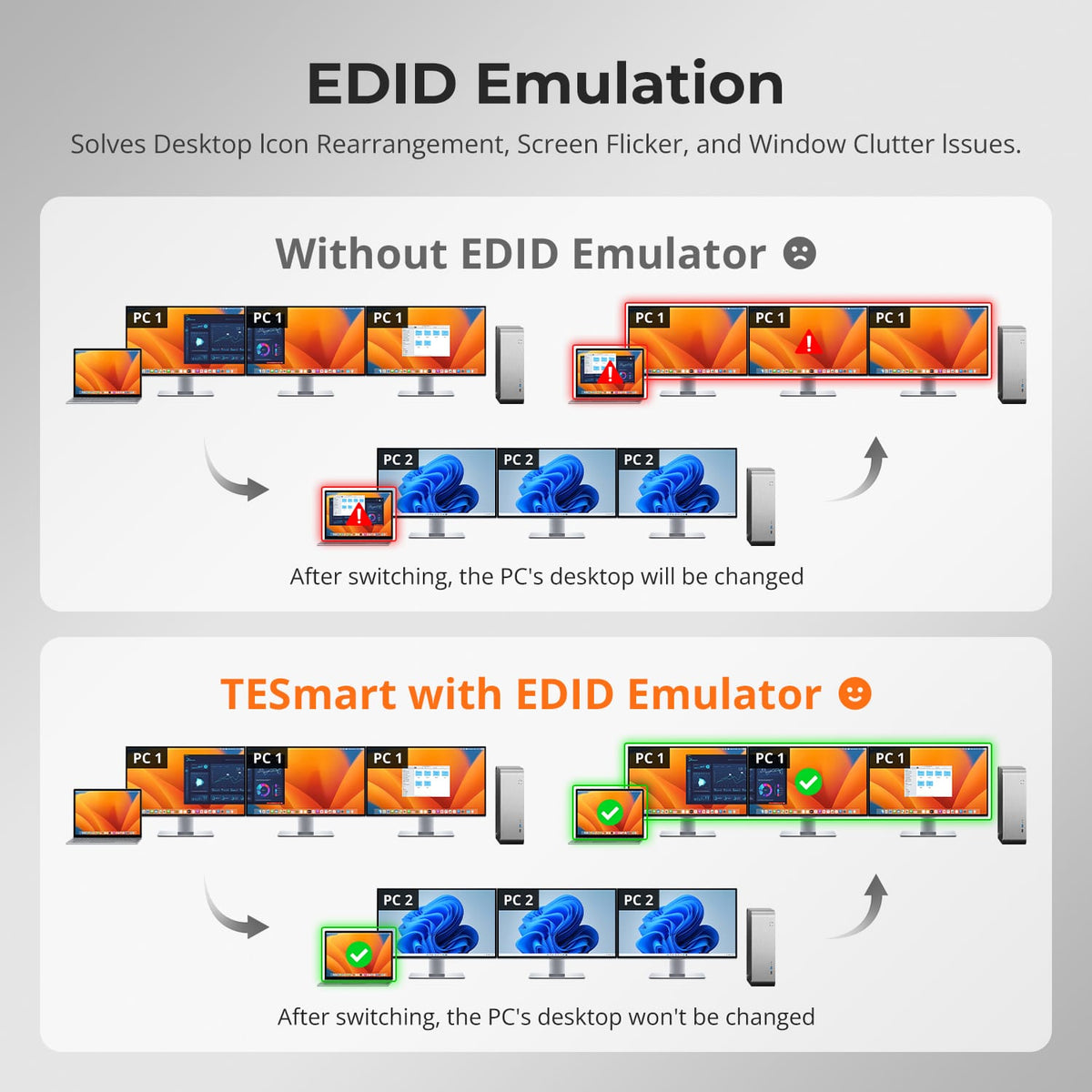
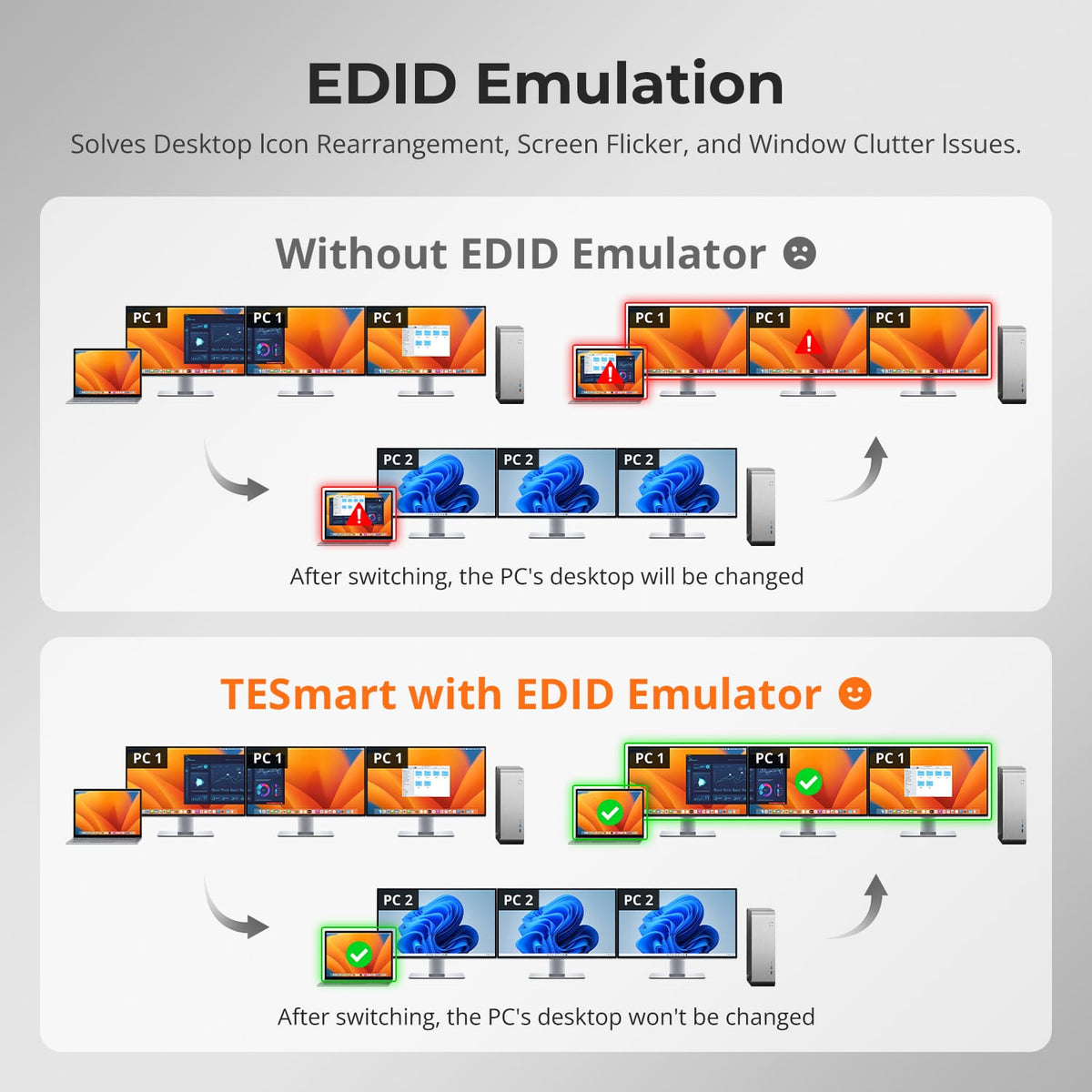
EDID Emulation, Stable Desktops
Built-in EDID emulation keeps all three monitors' settings locked during switching, preventing resolution changes, icon rearrangement, flicker and window clutter—your multi-display layout stays stable across both computers.
03
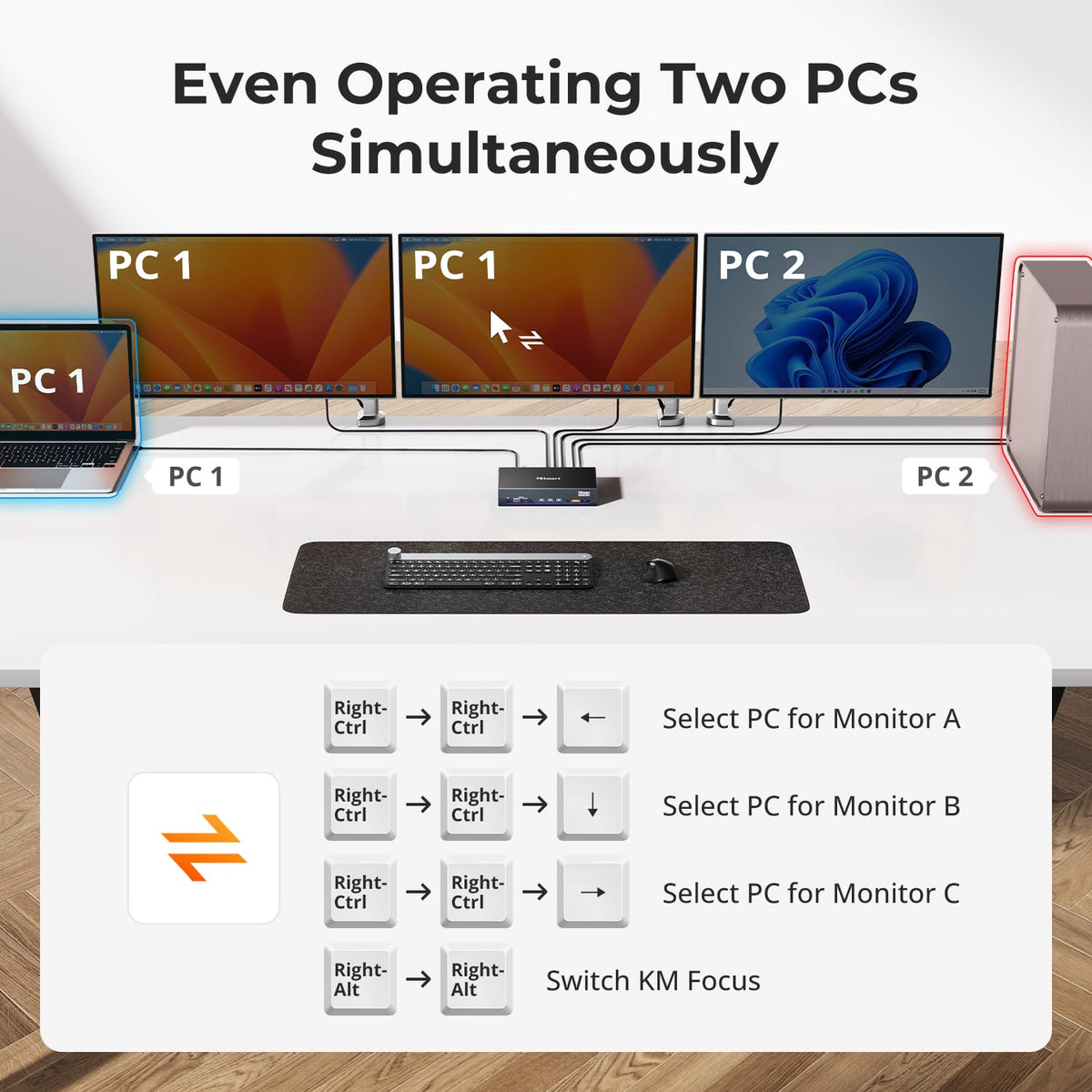
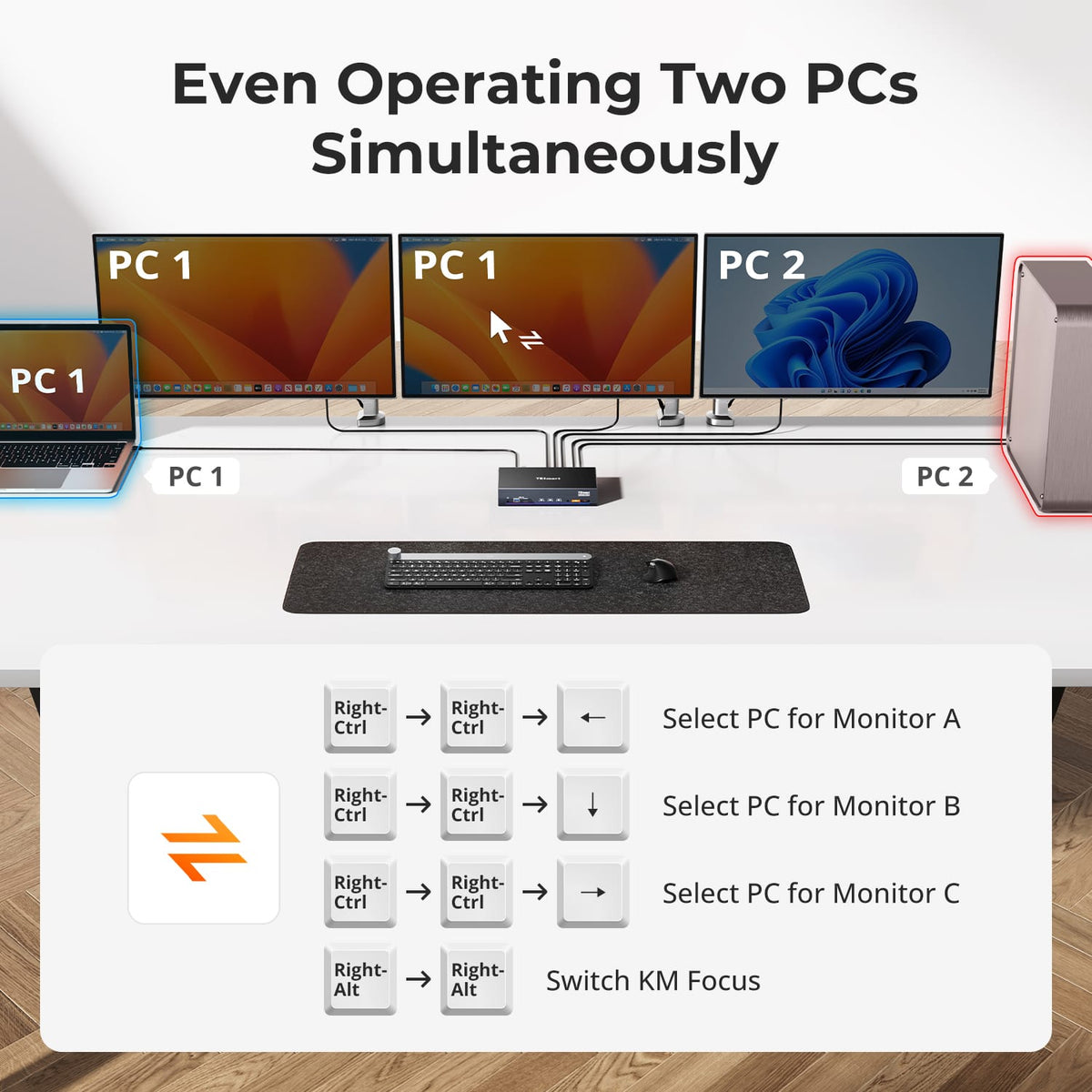
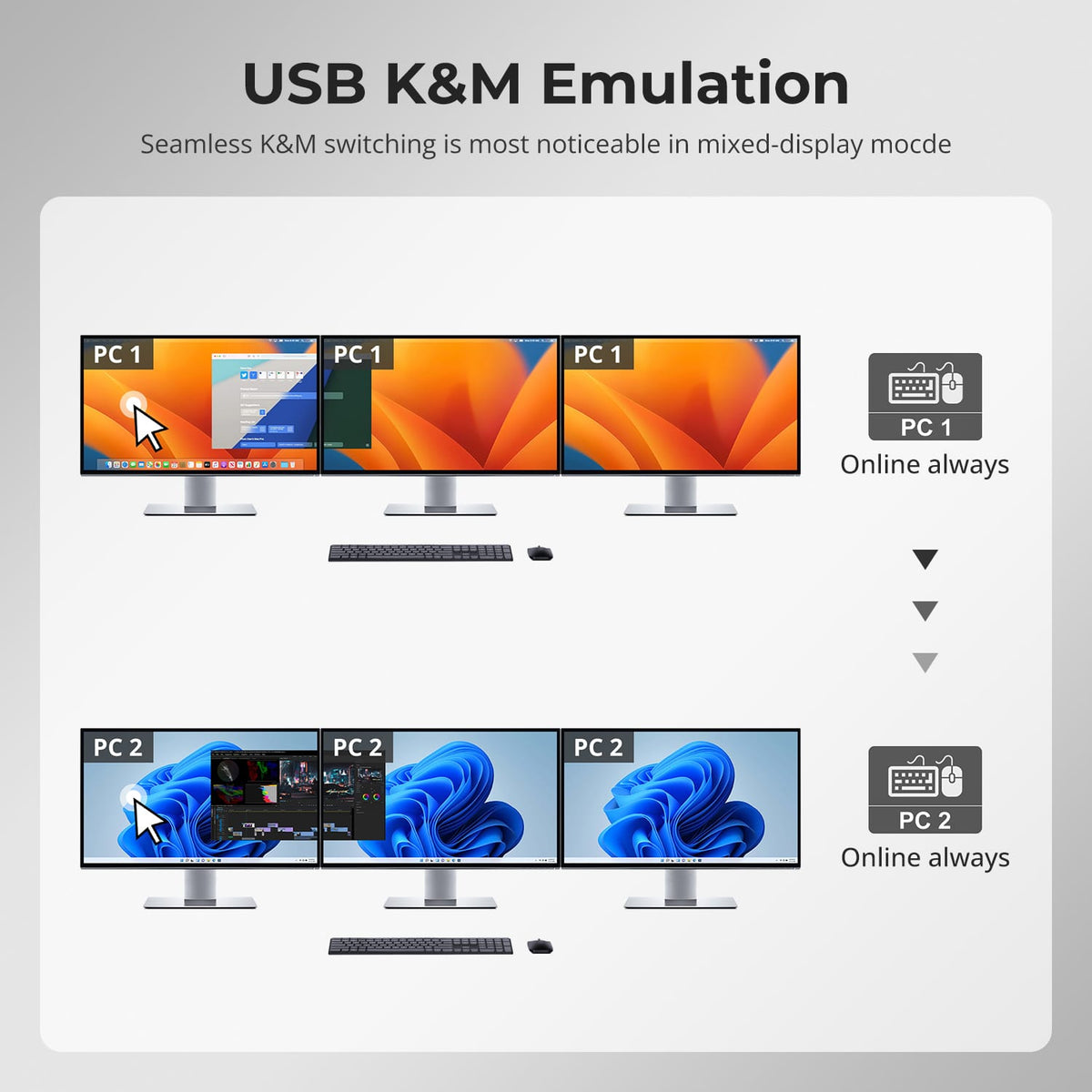
Dual Display Modes — Operate Three PCs Simultaneously
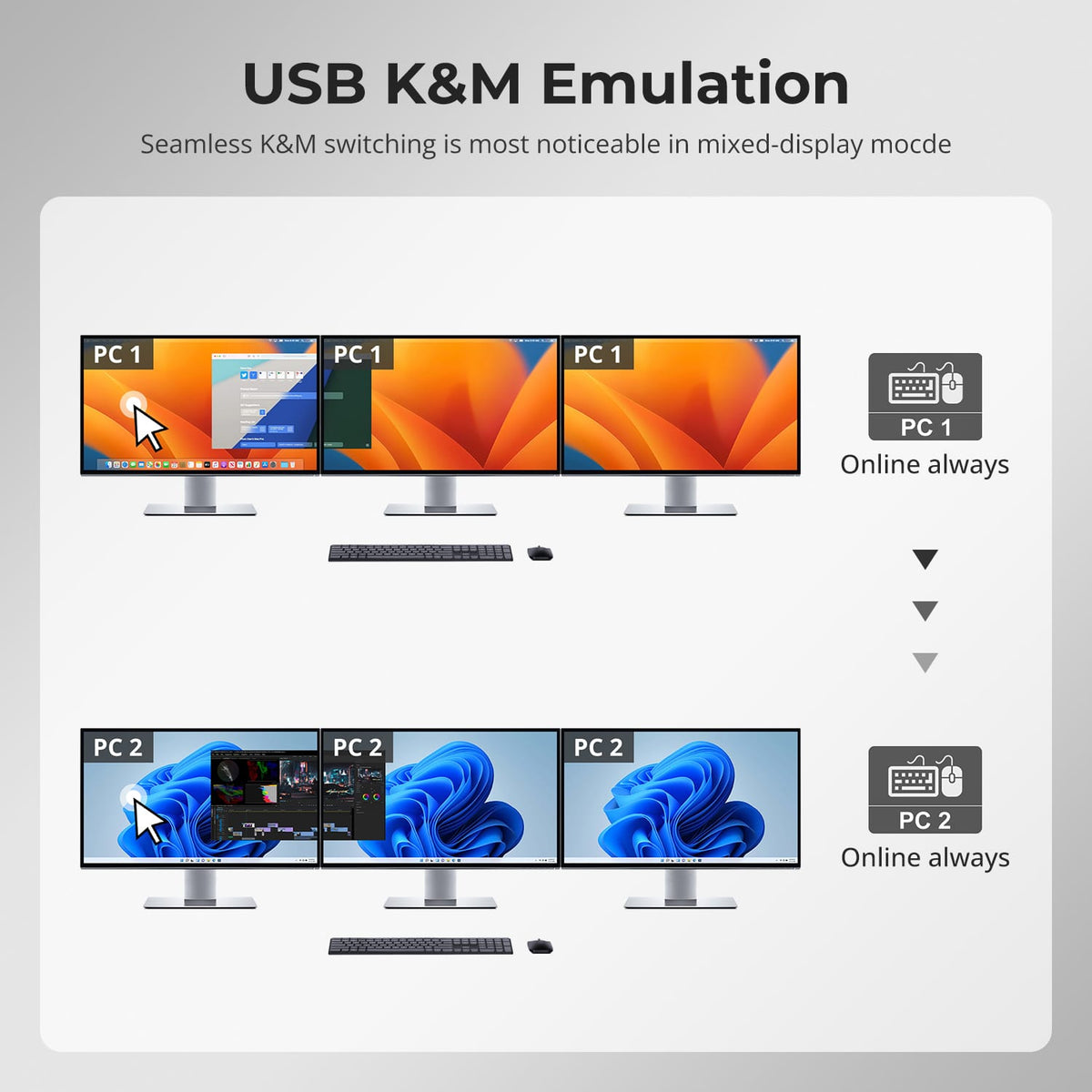
Operate two computers over three monitors — assign a PC to each display, and move keyboard and mouse focus between them with Right-Alt twice. Both computers stay online.
04
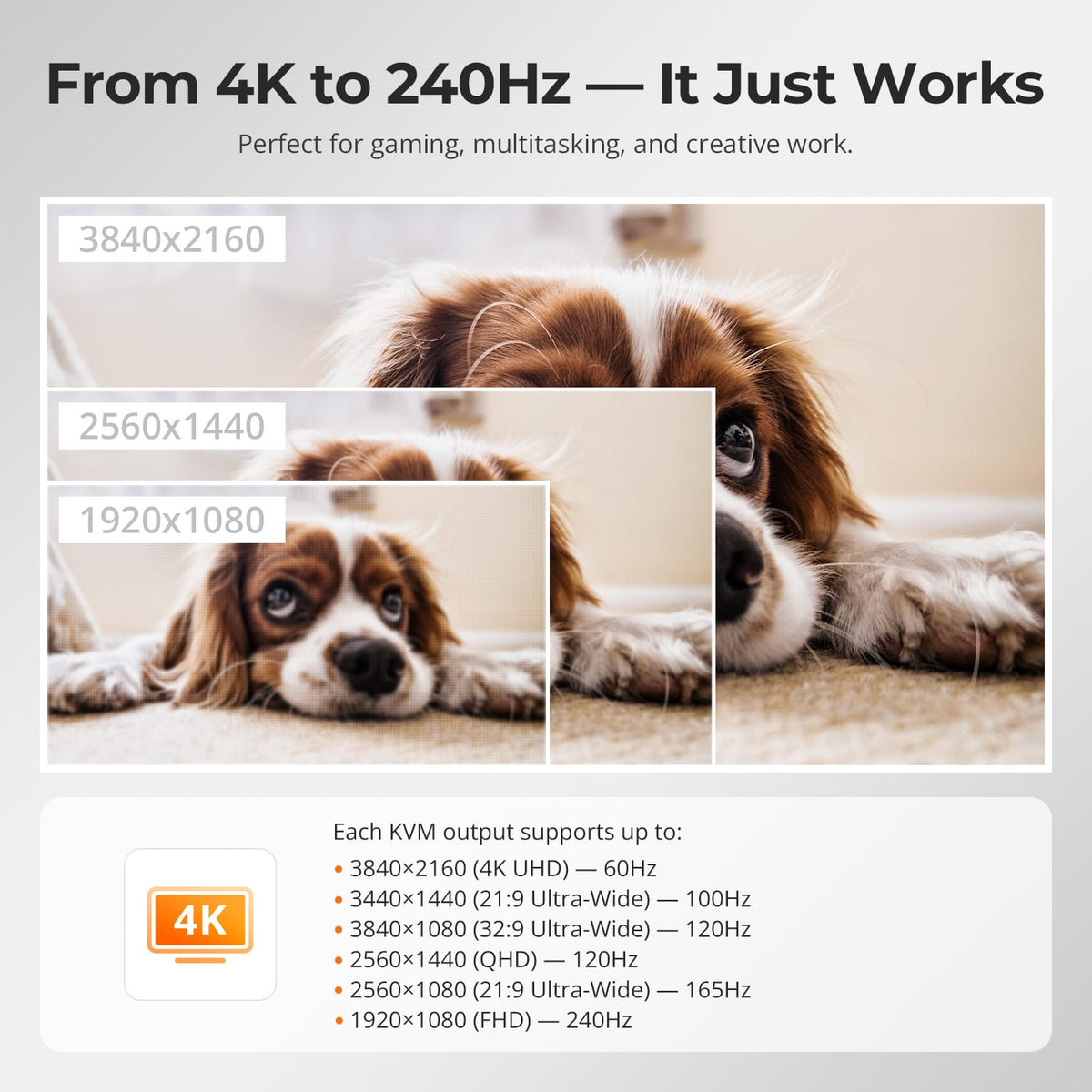
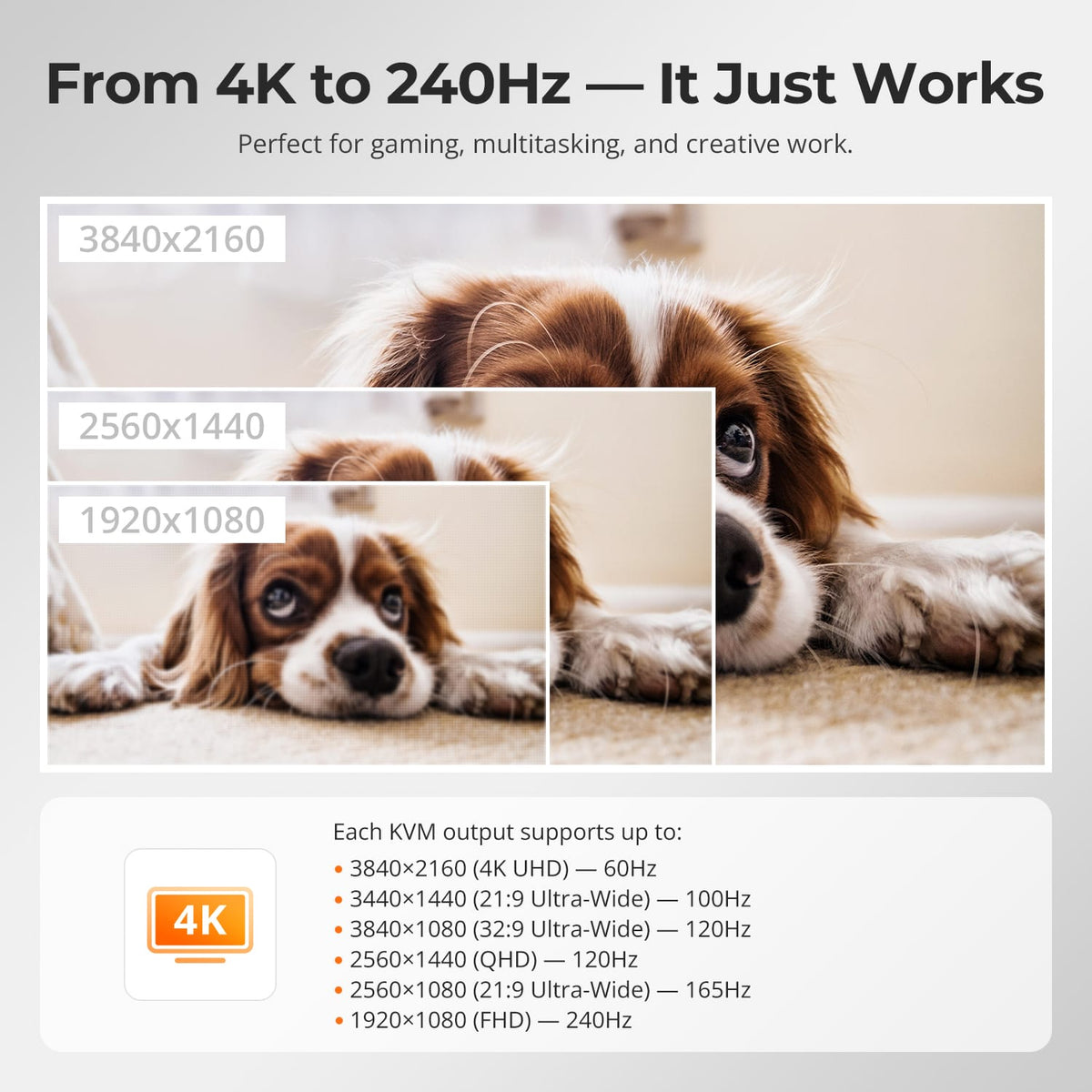
From 4K@60Hz to 1080P@240Hz
Each HDMI output delivers up to 3840×2160@60Hz 4:4:4 for crisp creative work, 3440×1440@100Hz for ultrawide multitasking, and high-refresh modes up to 1920×1080@240Hz for competitive gaming. One KVM covers design, productivity and esports—no compromise, no extra hardware.
05
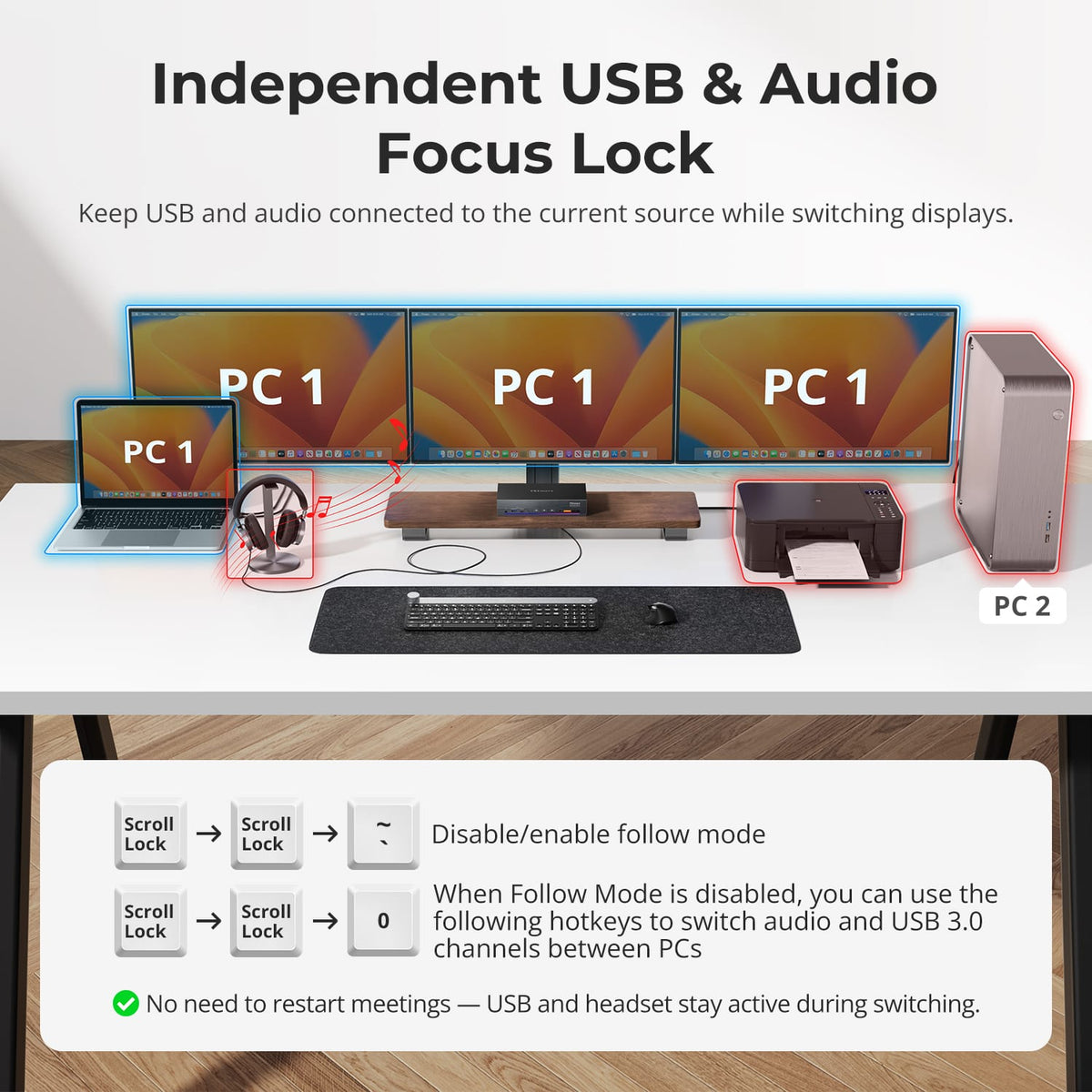
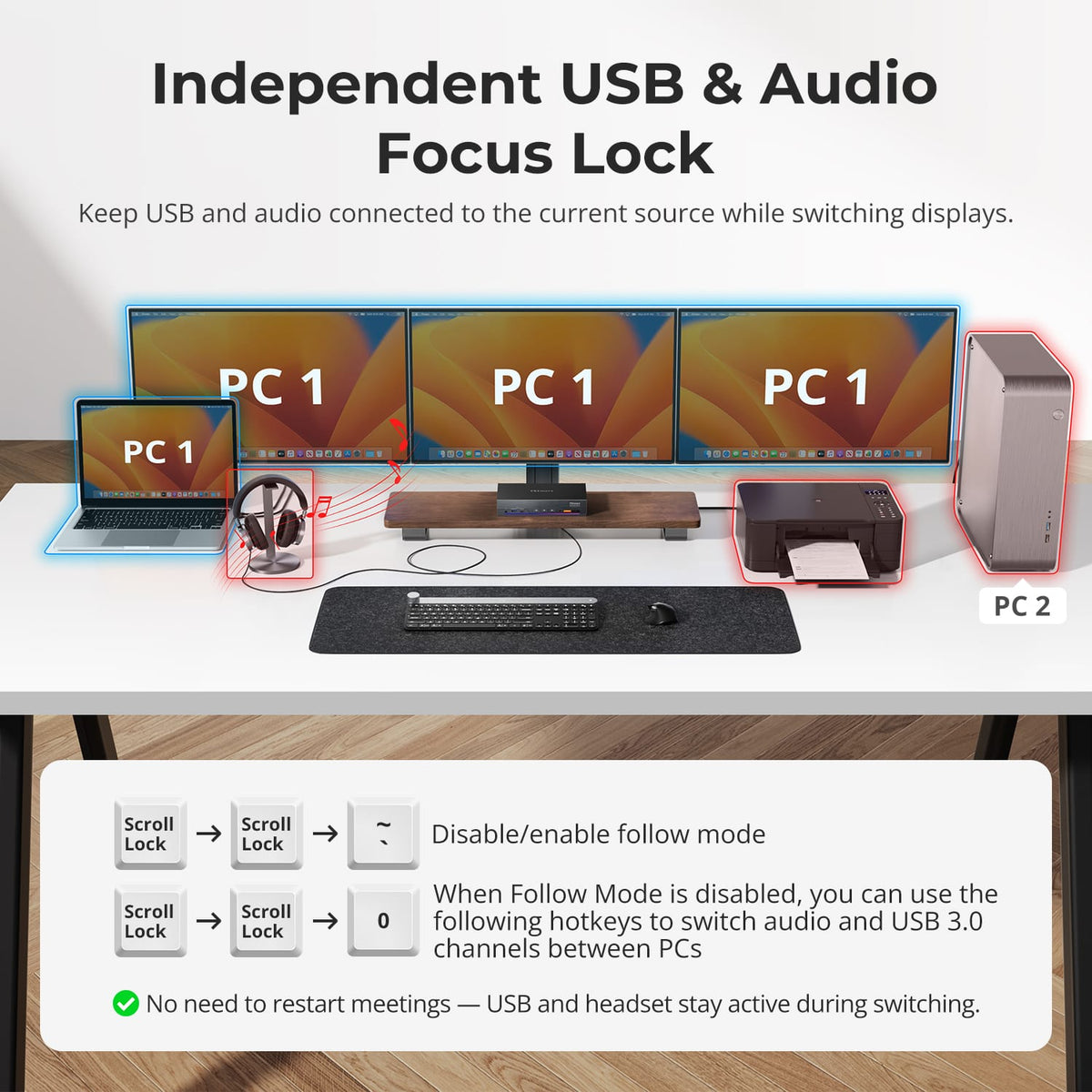
Independent USB & Audio Focus Lock
USB and audio can stay locked to the current source while switching displays. Toggle follow mode via hotkey—when disabled, switch USB and audio independently. No meeting dropouts, no reconnecting—seamless workflow.
06
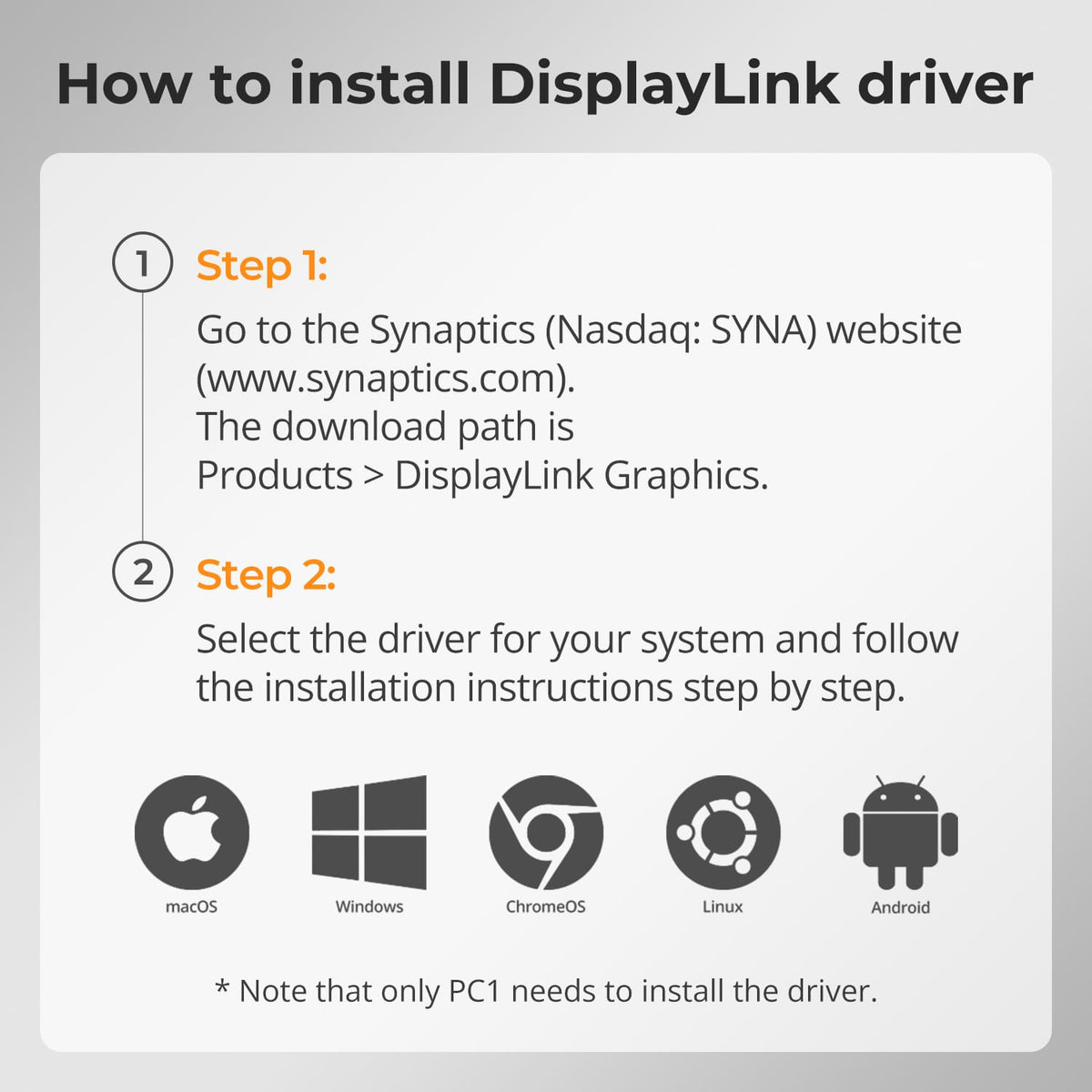
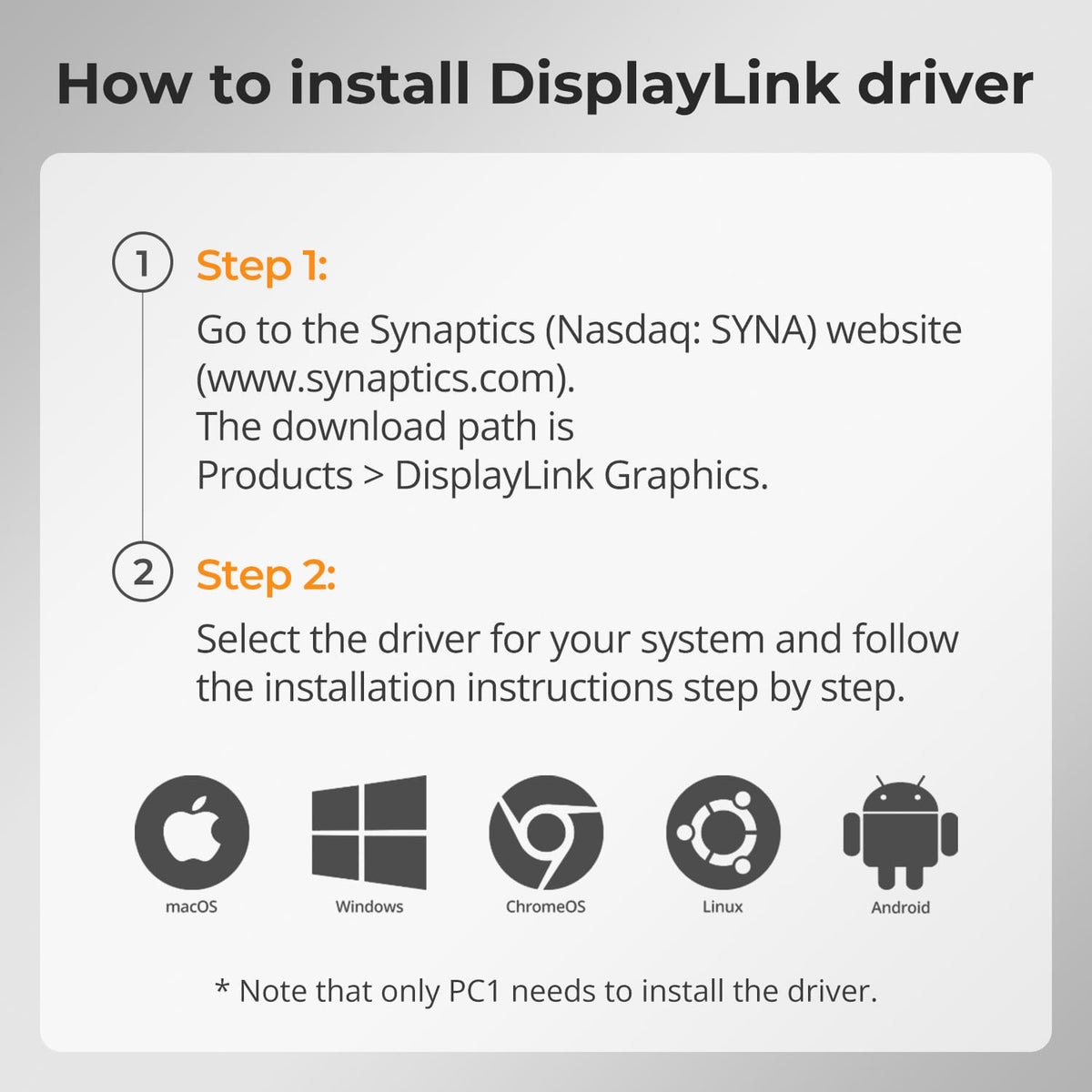
Install the DisplayLink Driver in Minutes
Download the free DisplayLink driver from Synaptics, choose your operating system and install it. Only PC 1 needs the driver, and a restart may be required.
07
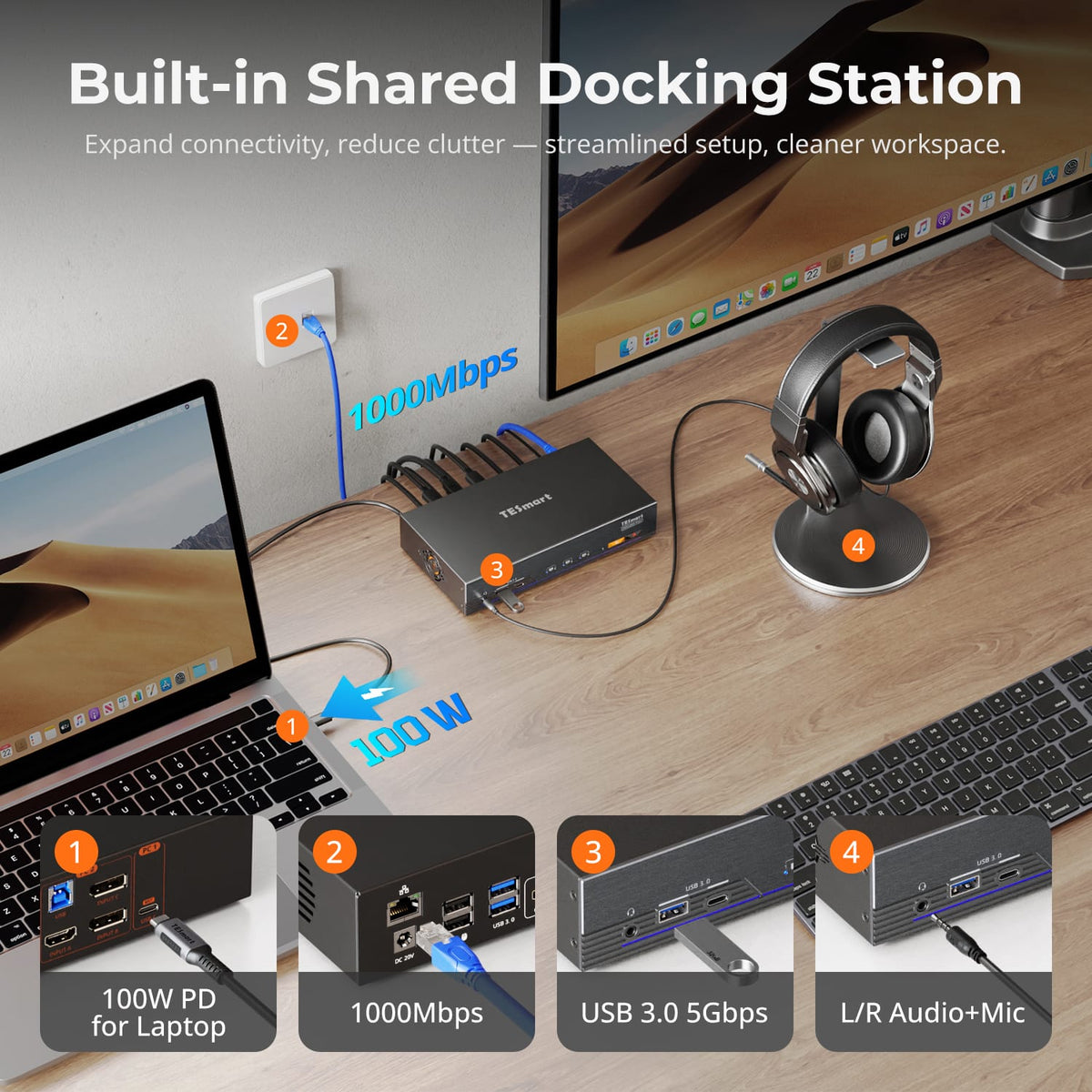
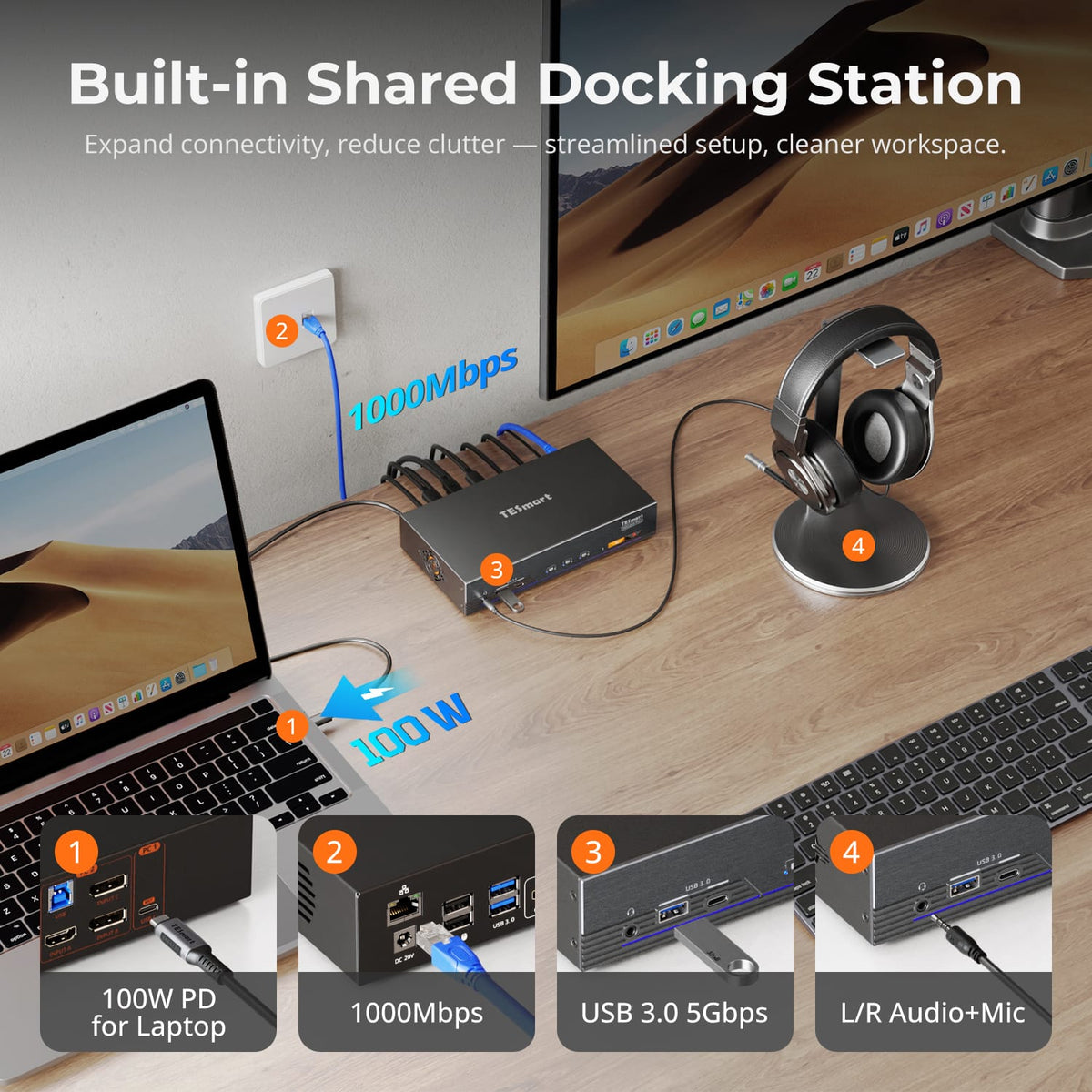
More than a KVM. A Shared Dock for Your Desk.
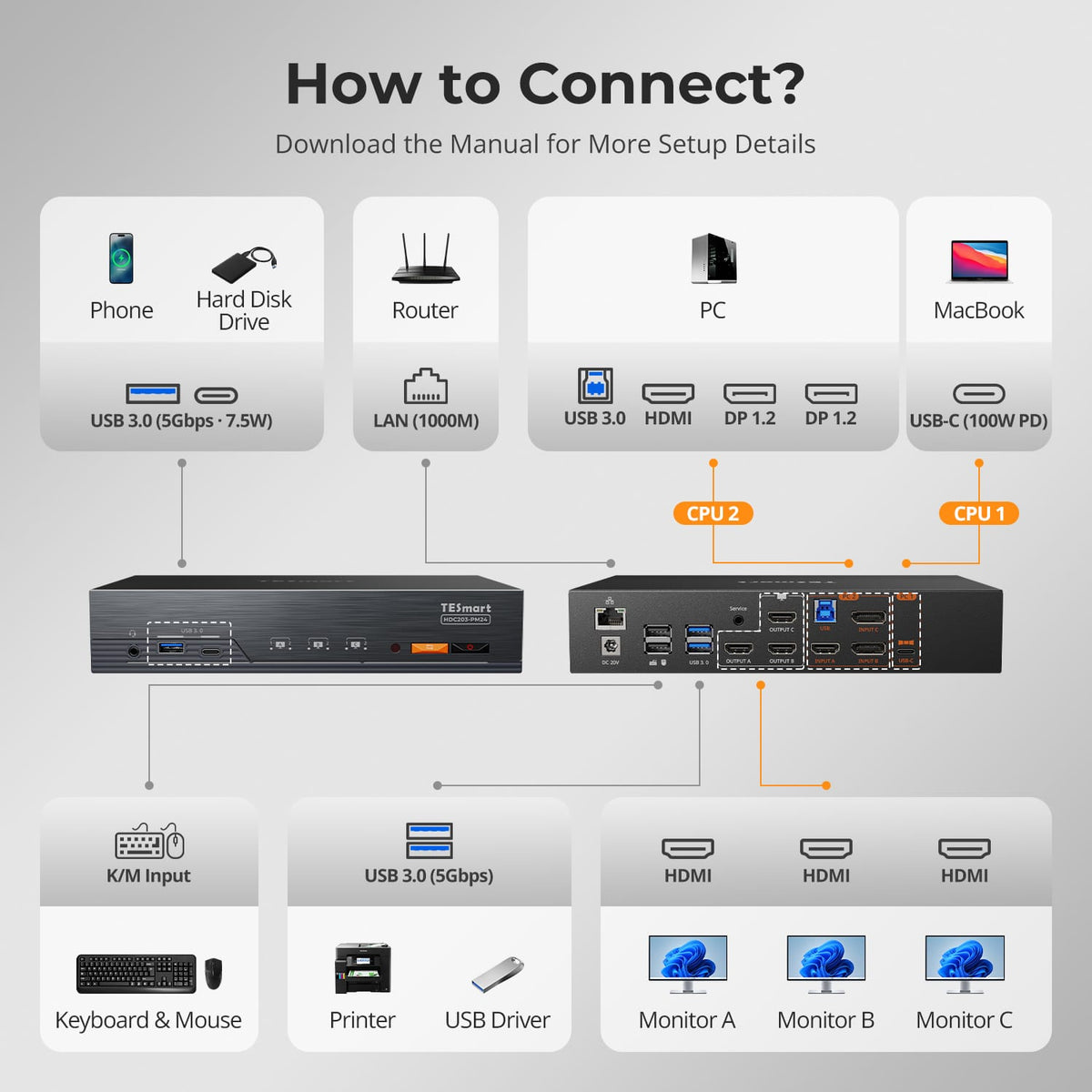
Share 100W laptop charging, Gigabit Ethernet, USB 3.0 and audio between both computers — one dock replaces the charger, hub and network adapter.
08
09
10
Specifications & Support
Compatibility & Input Guide
Technical Specifications
Manuals & Downloads
Included in the Box
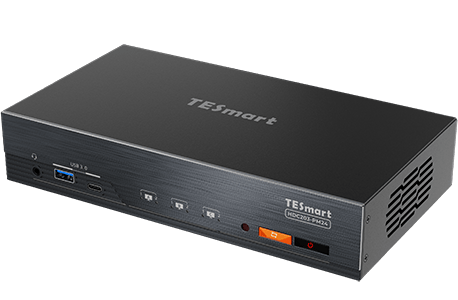
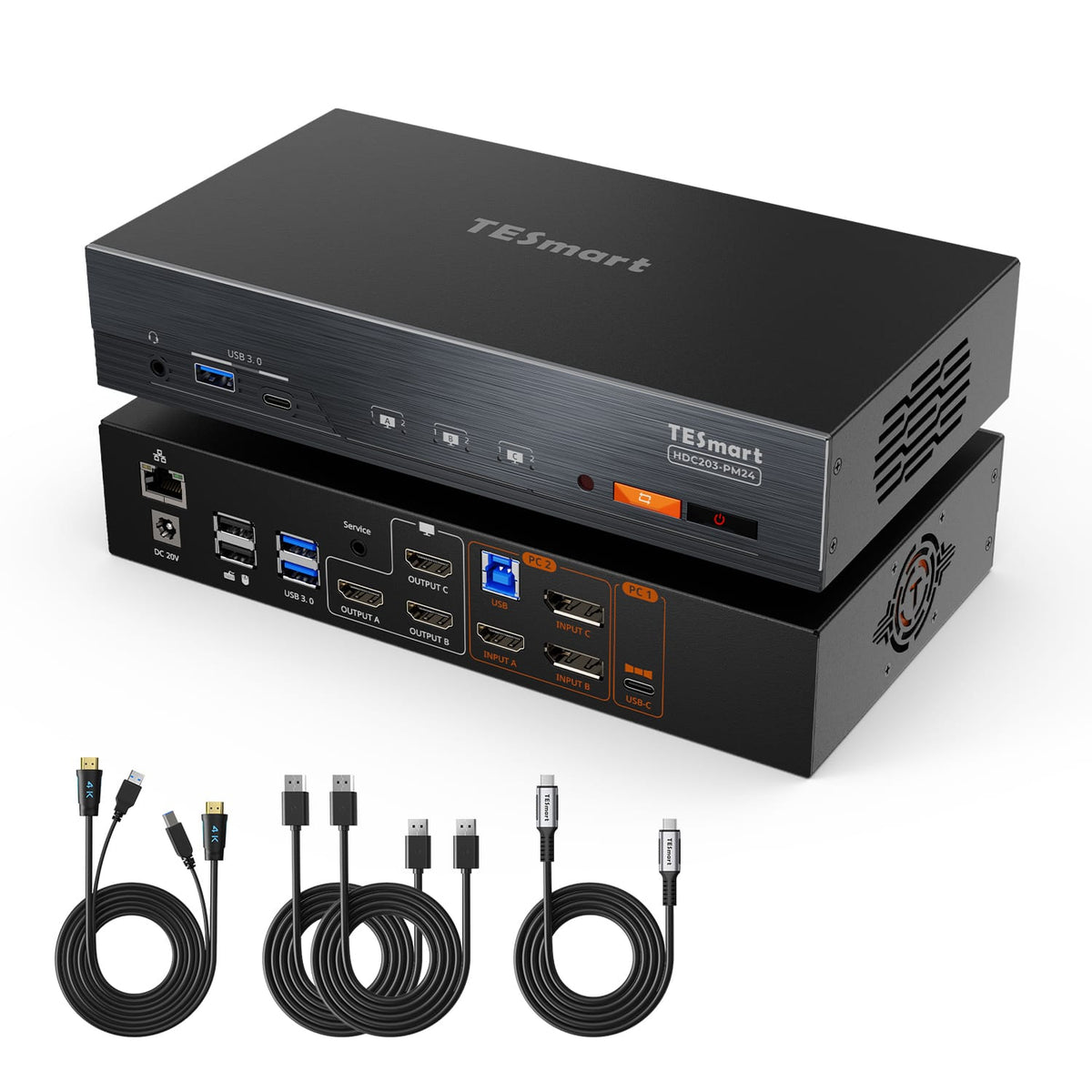
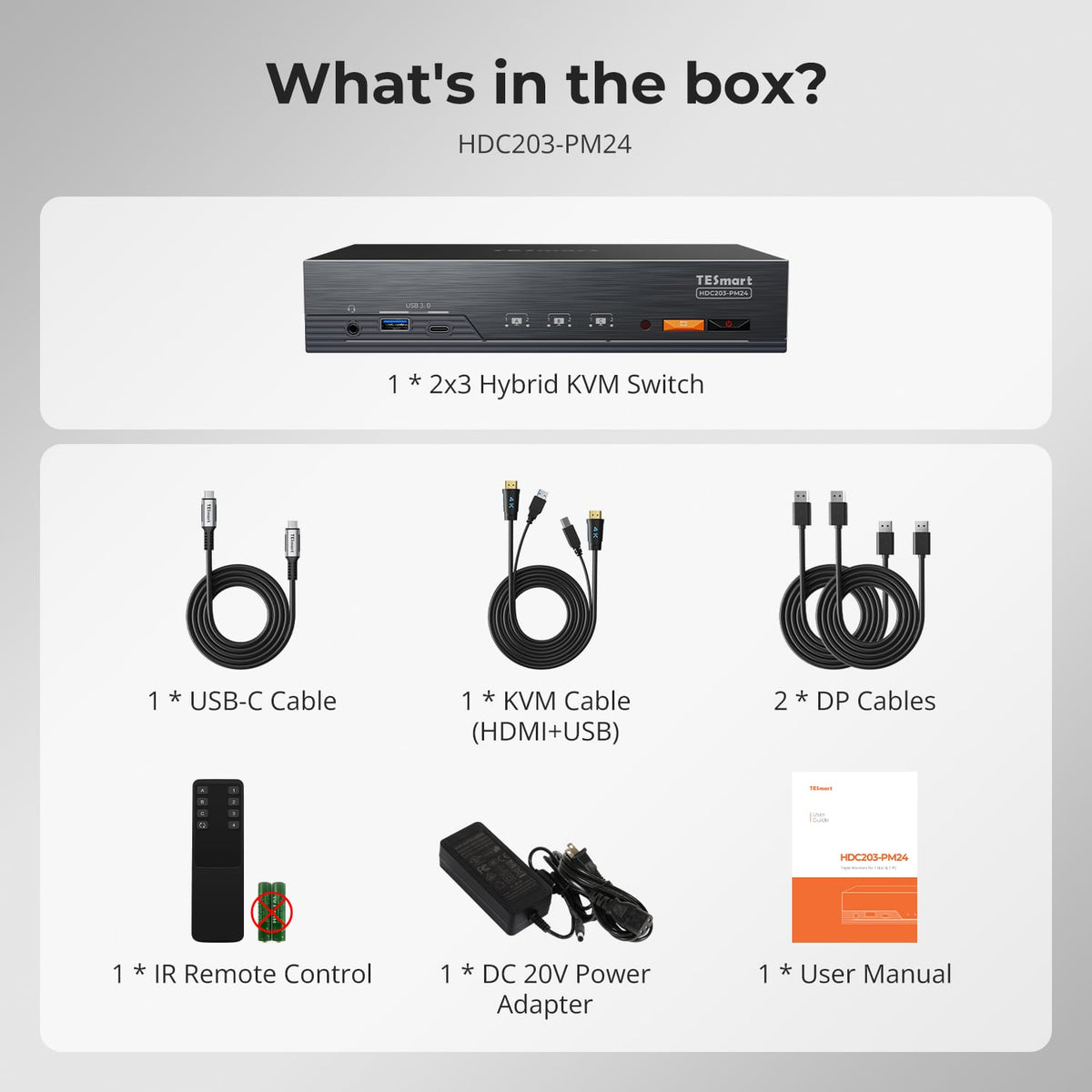
1 × HDC203-PM24 KVM Switch
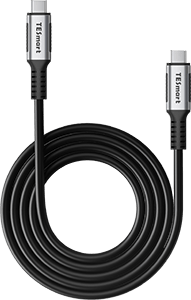
1 × USB-C Cable
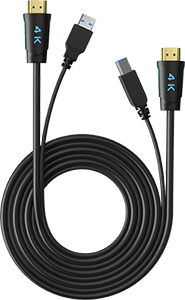
1 × KVM Cable (HDMI + USB)
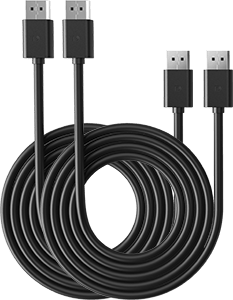
2 × DP Cables
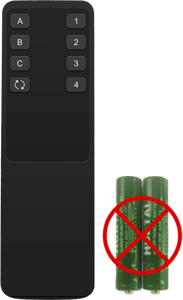
1 × IR Remote Control
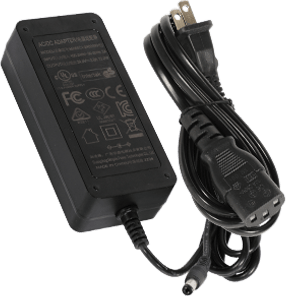
1 × DC 20V Power Adapter
1 × User Manual
FAQs
Visit our Help Center for more answers.
[Compatibility] Which operating systems does HDC203-PM24 support?
Supported systems include Windows 10 and 11, macOS Ventura 13, Sonoma 14, Sequoia 15 and Tahoe 26, Android 5.0 (Lollipop) or later, ChromeOS R51 or later, and Linux Ubuntu 20.04, 22.04, 23.04 and 24.04.
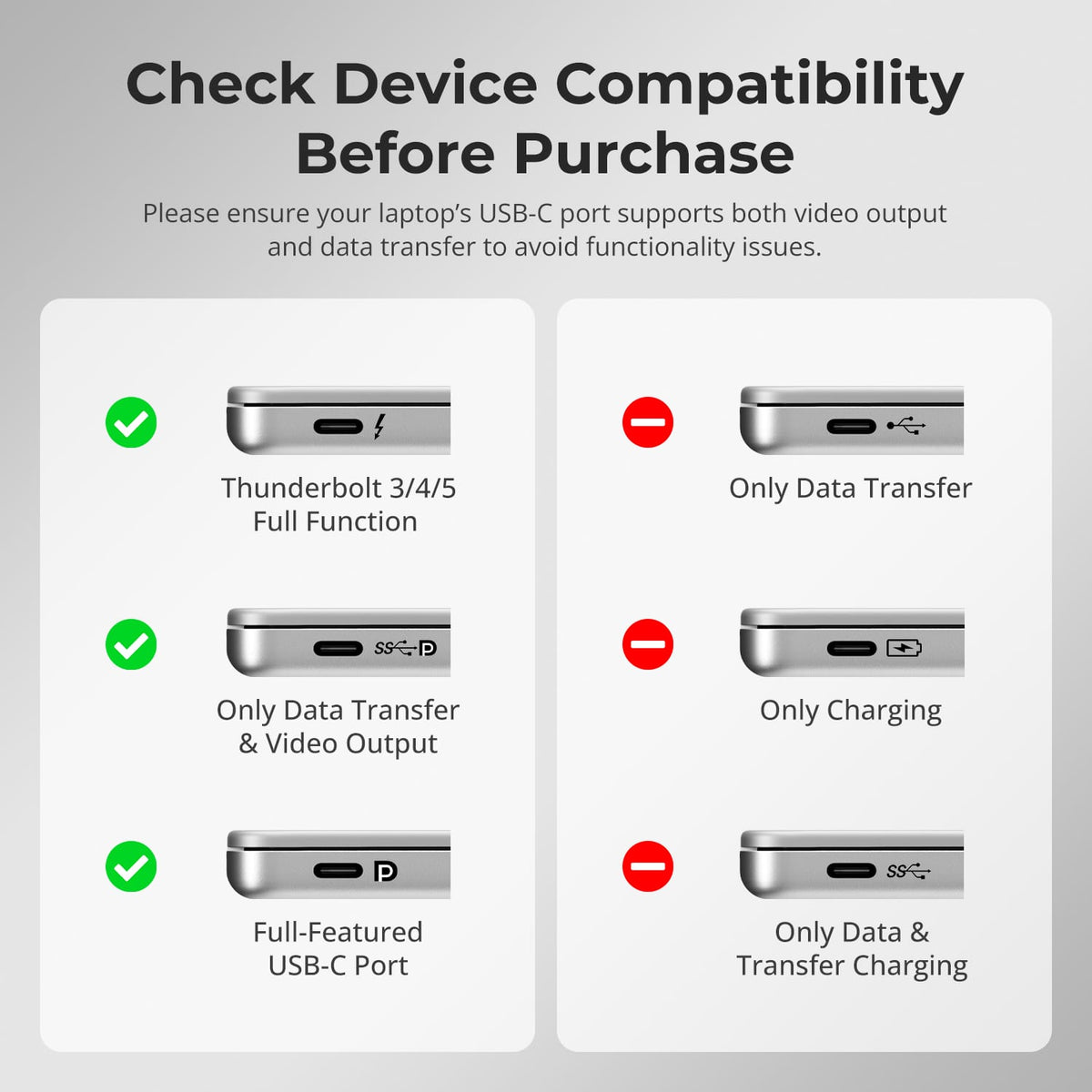
PC 1 also needs the free DisplayLink driver, and its USB-C port must support video output (DP Alt Mode) to drive all three displays.
[Compatibility] Does my laptop's USB-C port need to support DP Alt Mode?
It decides how many displays you get from PC 1. With DP Alt Mode and the DisplayLink driver, all three outputs work: native DP video goes to OUTPUT C and two DisplayLink signals drive OUTPUT A/B. With DP Alt Mode but no driver, only OUTPUT C shows a picture.
Without DP Alt Mode, the driver gives you two DisplayLink displays on OUTPUT A/B, and with neither there is no video output at all. Only PC 1 uses DisplayLink; PC 2 is a native HDMI and DisplayPort connection.
[Compatibility] Can I still get a picture before the DisplayLink driver starts?
Yes, as long as the USB-C port supports DP Alt Mode.
PC 1 combines a DisplayLink channel, a native DP 1.2 video channel and a USB 3.0 data channel, so the native DP channel keeps driving OUTPUT C on its own whenever the DisplayLink driver is not running — for example at the macOS boot or login screen, or before the driver is installed. Once the driver starts, OUTPUT A and B light up and all three displays are available. On macOS the driver only starts after you log in, so keep a monitor on OUTPUT C if you want to see the boot screen.
[Compatibility] Can I watch Netflix, Prime Video or Disney+ through DisplayLink on macOS?
No.
When the DisplayLink driver is active, macOS cannot complete the HDCP security check required by Amazon Prime Video, Netflix, Disney+ and similar services, so the video window turns completely black. This is a known limitation of the macOS plus DisplayLink architecture and is not caused by a hardware fault.
[Features & Connections] Do I need to install the DisplayLink driver, and where do I get it?
Yes, on PC 1 only. Download the free driver from Synaptics at
https://www.synaptics.com/products/displaylink-graphics/downloads
choose your operating system and install it; a restart may be required. On macOS 10.15 or later you must also allow Screen Recording permission for DisplayLink — the screen is not actually being recorded. Keep the driver up to date and use cables rated USB 3.0 or higher. PC 2 needs no driver.
[Features & Connections] What is the maximum supported resolution?
Each of the three HDMI 2.0 outputs supports up to 4K@60Hz. Lower-resolution high-refresh combinations such as 3440x1440 at 100Hz, 3840x1080 at 120Hz, QHD@120Hz and 1080p@240Hz are also supported.
Actual resolution and refresh rate depend on the connected computers, displays, cables and selected display mode.
[Features & Connections] What display modes does HDC203-PM24 support?
Two display modes are supported.
Mode 1 puts the same PC on all three monitors, extending or mirroring its desktop across every display.
Mode 2 shows a different PC on each monitor, and you can double-press the Right-Alt key to switch keyboard and mouse focus while keeping both systems visible.
[Features & Connections] Is DisplayLink suitable for gaming, and does image quality suffer?
DisplayLink carries compressed video over USB, so it is designed for office, multitasking and creative work rather than competitive gaming; minor latency or colour differences can appear on the DisplayLink outputs.
For the lowest latency and highest refresh rates, run games on PC 2, whose HDMI and DisplayPort connections run natively without compression.
[Features & Connections] Can HDC203-PM24 charge my connected laptop?
Yes.
PC 1 provides up to 100W (20V/5A) Power Delivery through the USB-C port, enough to charge most laptops including MacBook Pro and MacBook Air in typical office and creative scenarios. If your laptop needs more than 100W, such as a high-end gaming laptop or mobile workstation, use the original power adapter. Ensure proper ventilation during extended high-power use, and turn the KVM off if it will be unused for long periods.
[Features & Connections] What does EDID emulation do?
Each input port includes an EDID emulator. When you switch computers, each PC continues to detect the display as connected, so desktop icons stay in place, windows do not resize and the screen does not flicker. Your multi-monitor layout remains unchanged.
[Features & Connections] Can I lock USB and audio to one computer while switching?
Yes.
The KVM runs in Follow Mode by default, so USB 3.0 devices and audio follow the keyboard and mouse focus. Press Right-Ctrl → Right-Ctrl → ~ to turn Follow Mode off, then press Right-Ctrl → Right-Ctrl → 0 to move USB 3.0 and audio between the two computers independently.
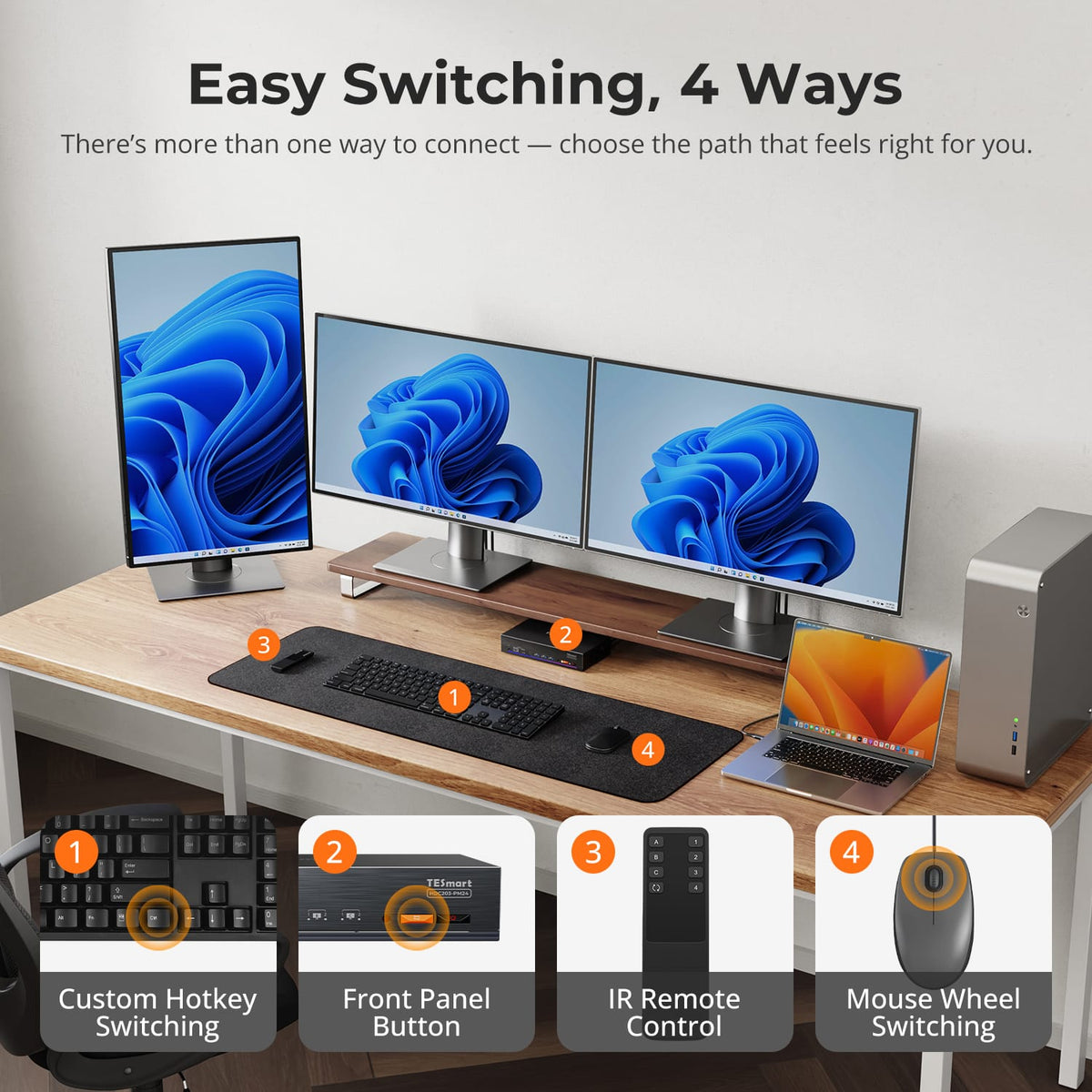
[Setup & Switching] How can I switch between connected devices?
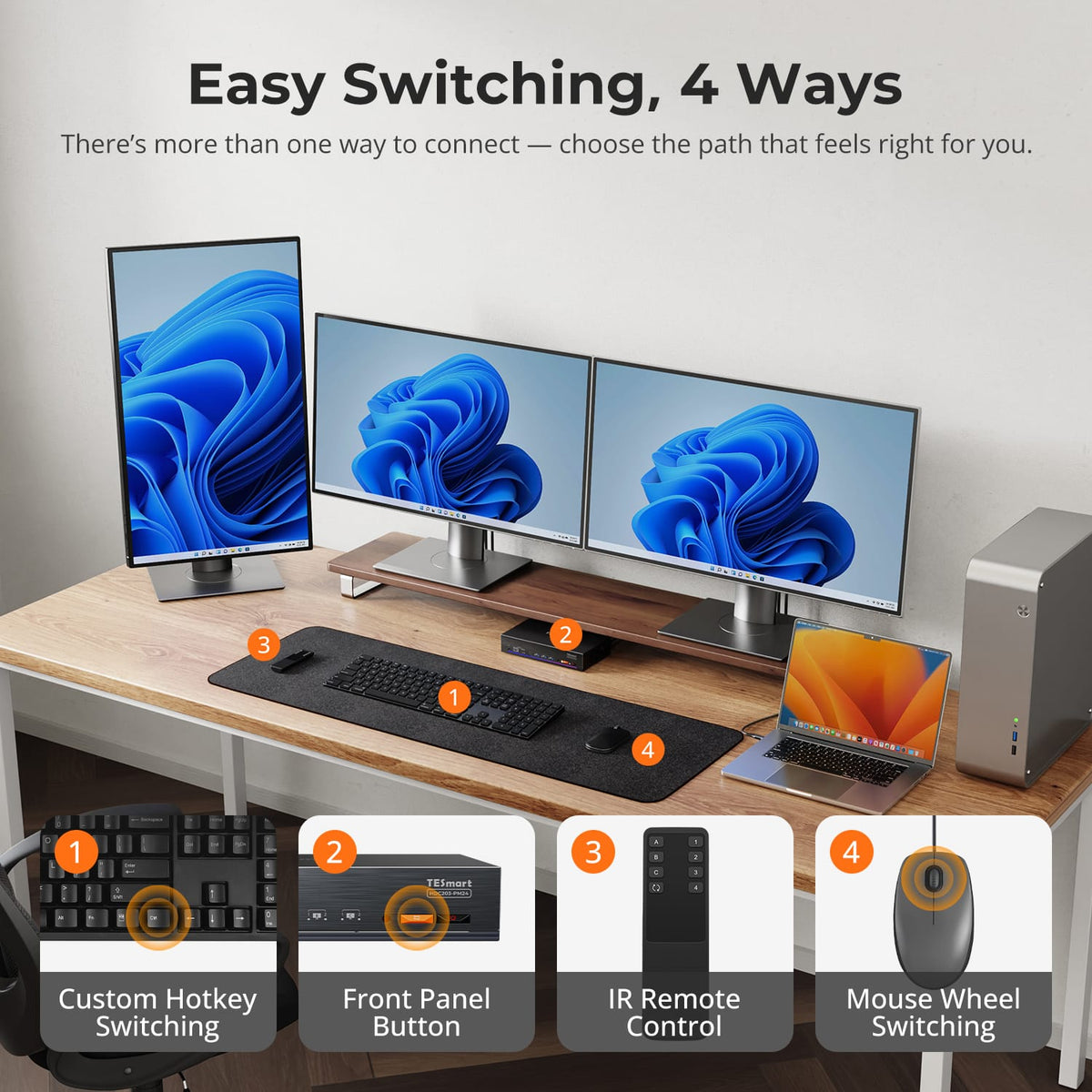
HDC203-PM24 provides four switching methods: front-panel keypad with LCD, IR remote control, keyboard hotkeys and mouse-wheel switching.
Mouse-wheel switching is off by default and must be turned on with a hotkey; double-click the mouse wheel to move to the next computer.
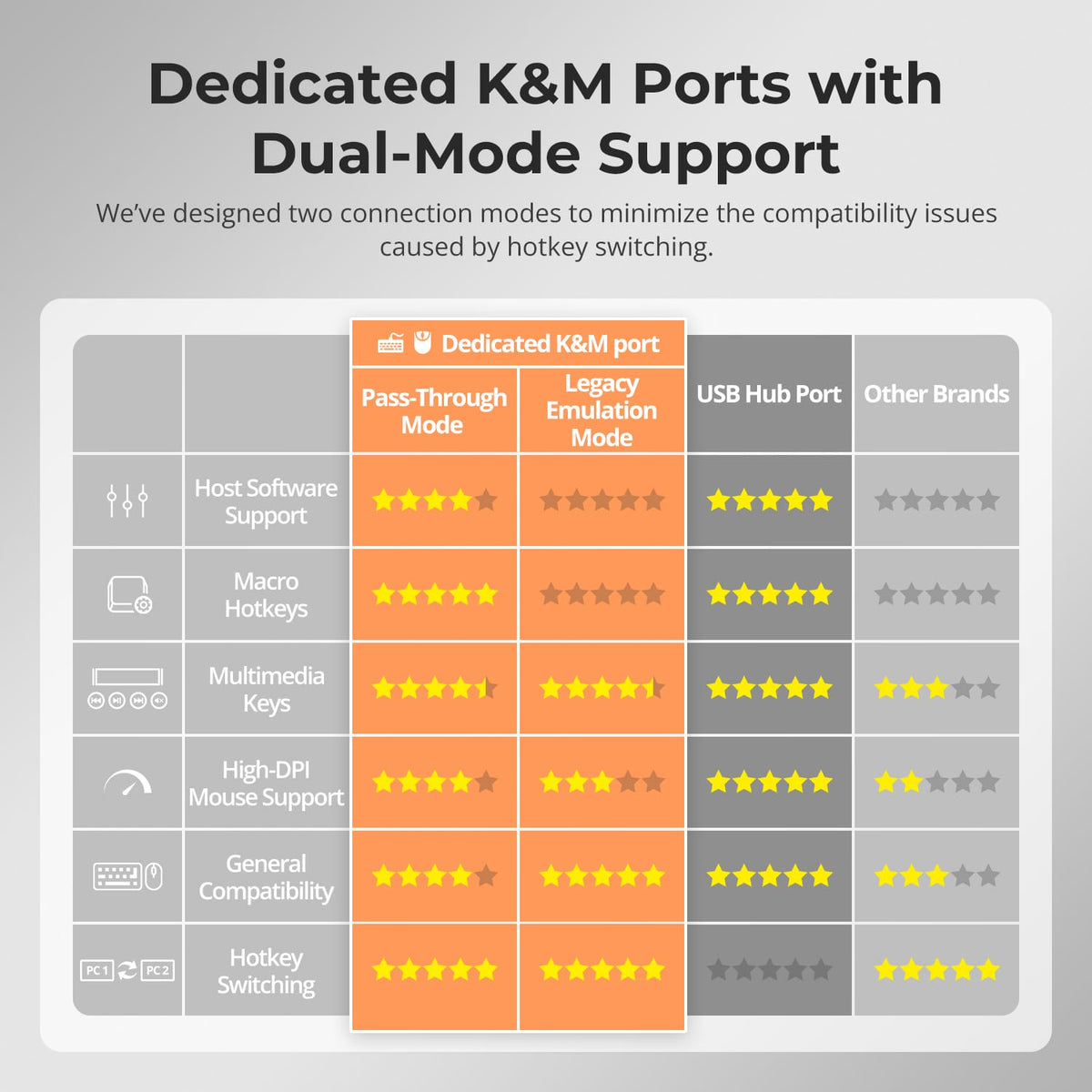
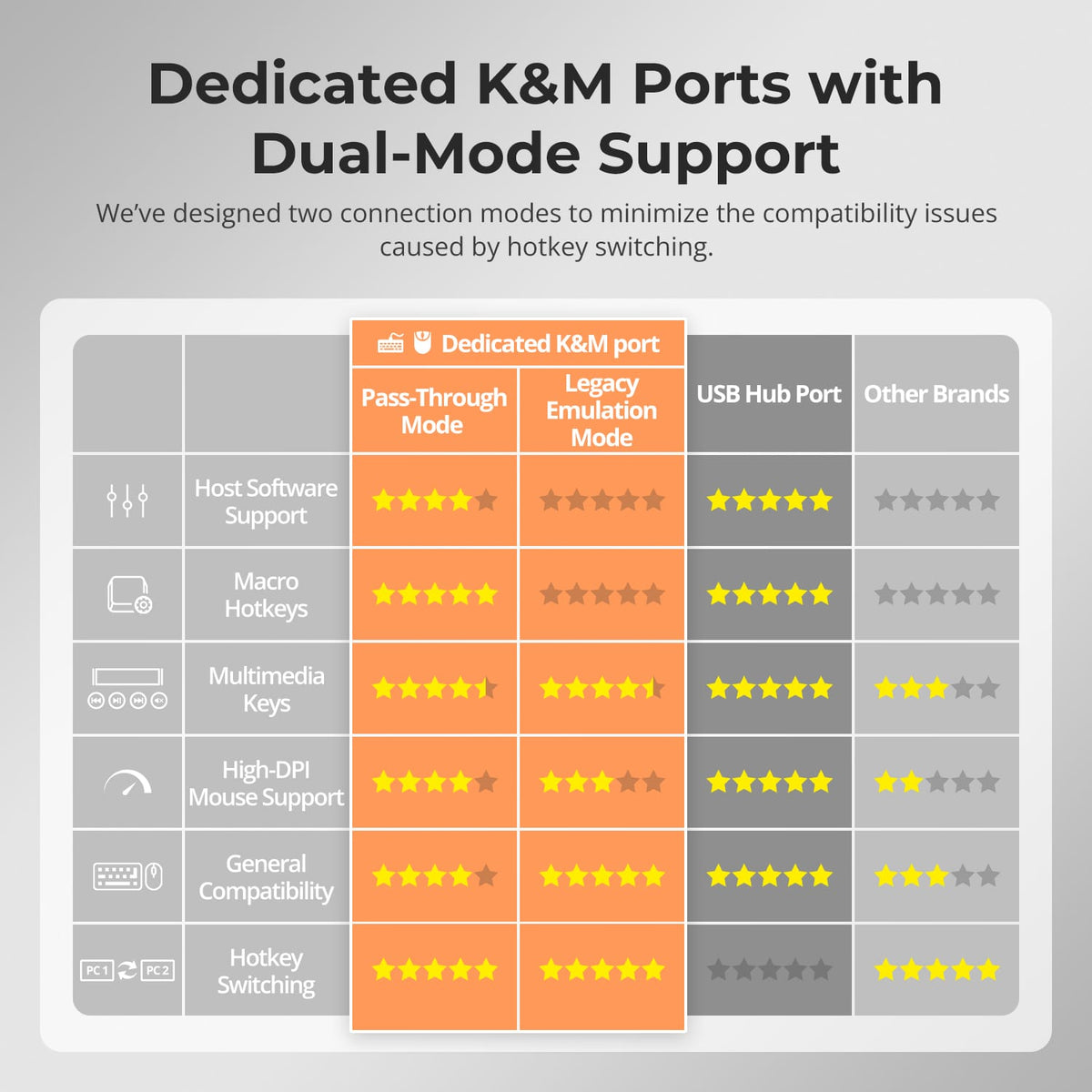
[Setup & Switching] What are Pass-Through Mode and Legacy Emulation Mode?
Pass-Through Mode is recommended for most modern keyboards and mice. It provides more direct communication with the computer and supports many advanced peripheral functions.
Legacy Emulation Mode provides an alternative compatibility mode for basic keyboard, mouse and hotkey operation when a device does not work correctly in Pass-Through Mode.
Some driver-based, programmable or advanced keyboard and mouse functions may be unavailable in Legacy Emulation Mode.
[Setup & Switching] Do I need to install drivers or switching software?
No dedicated switching software is required for normal display switching, keyboard and mouse control, or the primary KVM functions.
Some connected keyboards, mice, USB devices or other peripherals may still require their own drivers or applications.