



Display Setup
Max Display Output
Device Setup
Display Stability
USB Speed
Network Sharing
Keyboard & Mouse
Quad 4K60 HDMI DP KVM Switch - with USB 3.2 Hub, Gigabit LAN & EDID for 2 PC Workstation
Share two Apple Studio Displays, one keyboard and mouse between two computers—or show one computer on each display when you need both systems at once.
Display Setup
Max Display Output
Device Setup
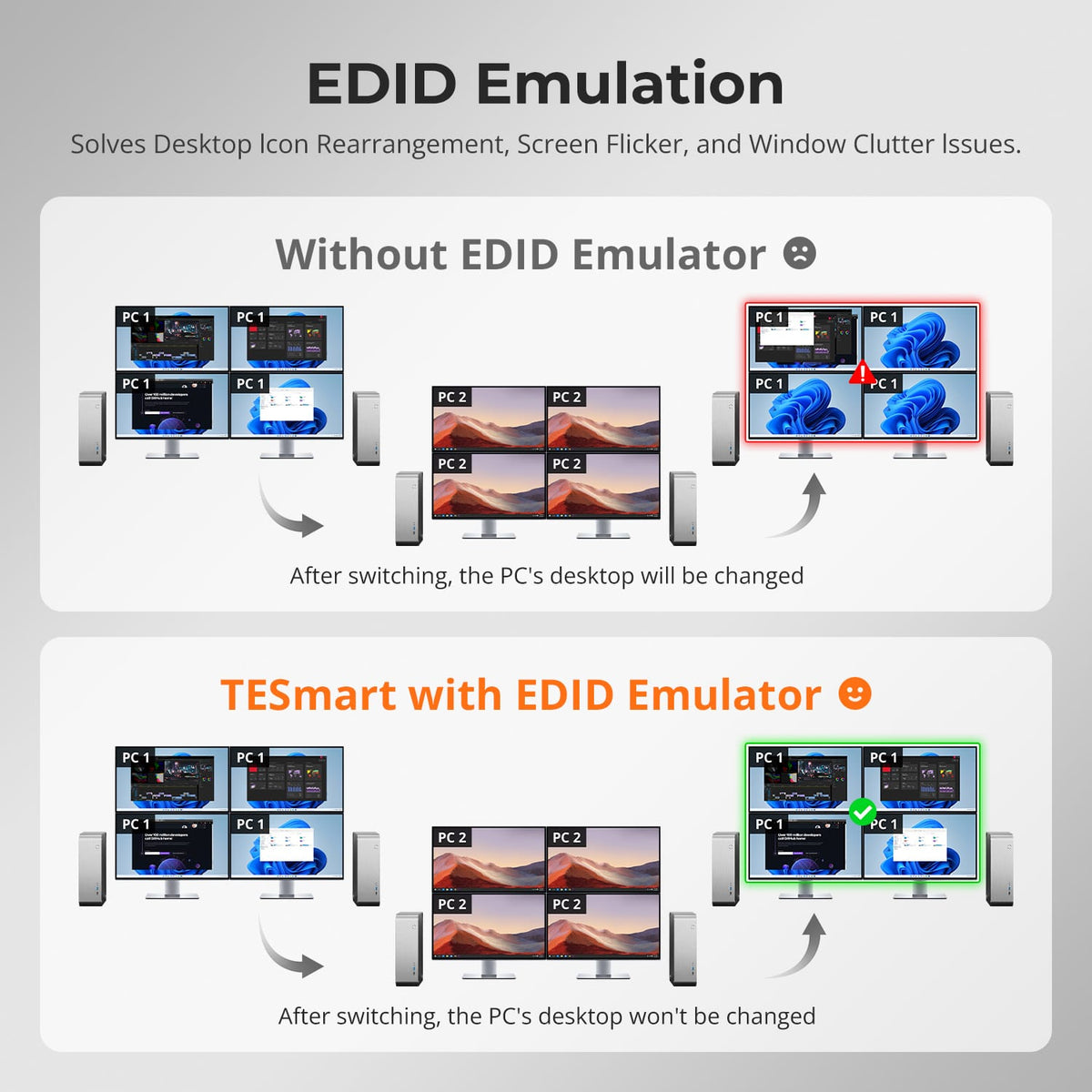
Display Stability
USB Speed
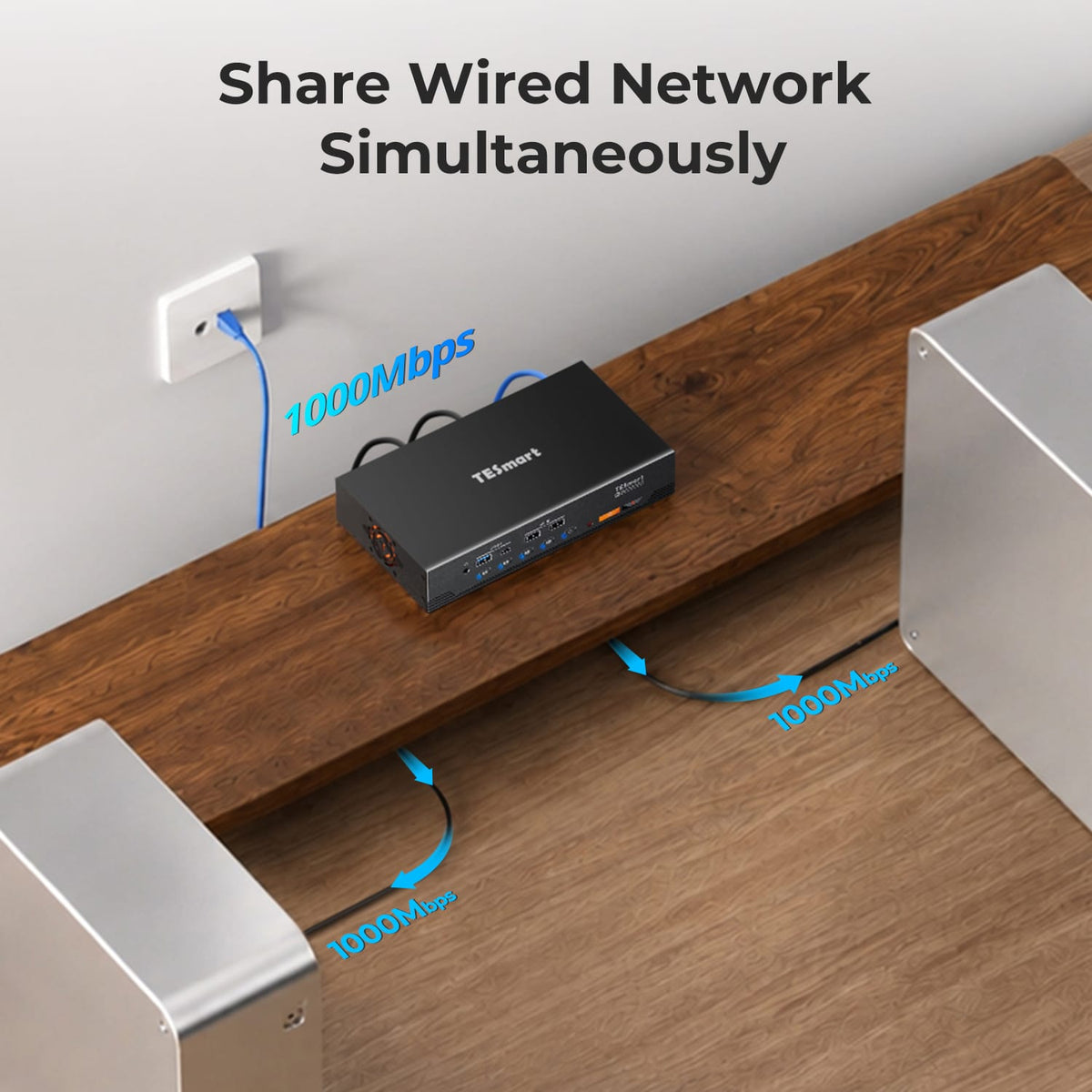
Network Sharing
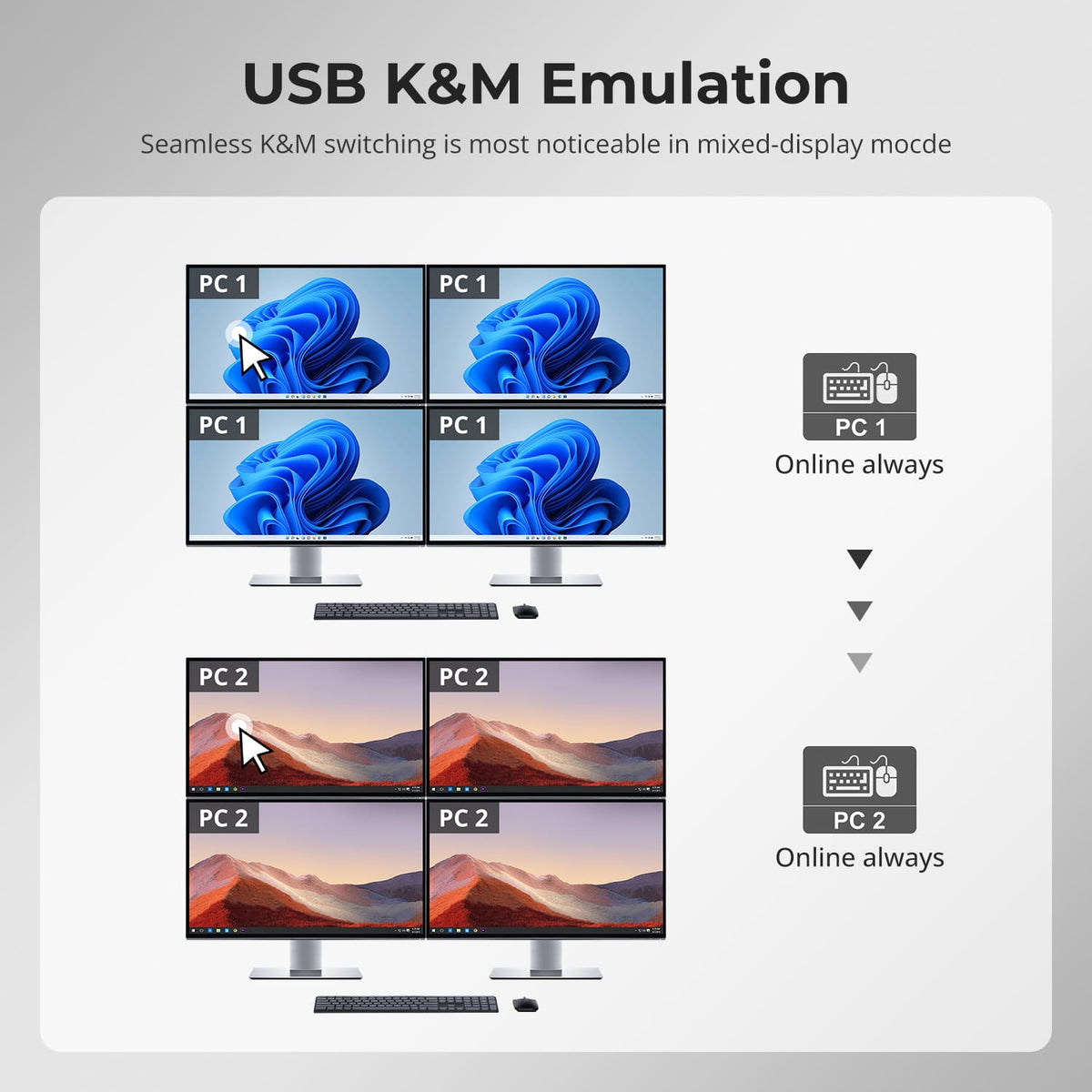
Keyboard & Mouse
Quad 4K60 HDMI DP KVM Switch - with USB 3.2 Hub, Gigabit LAN & EDID for 2 PC Workstation
Why Choose HDK204-P24
Overview
01
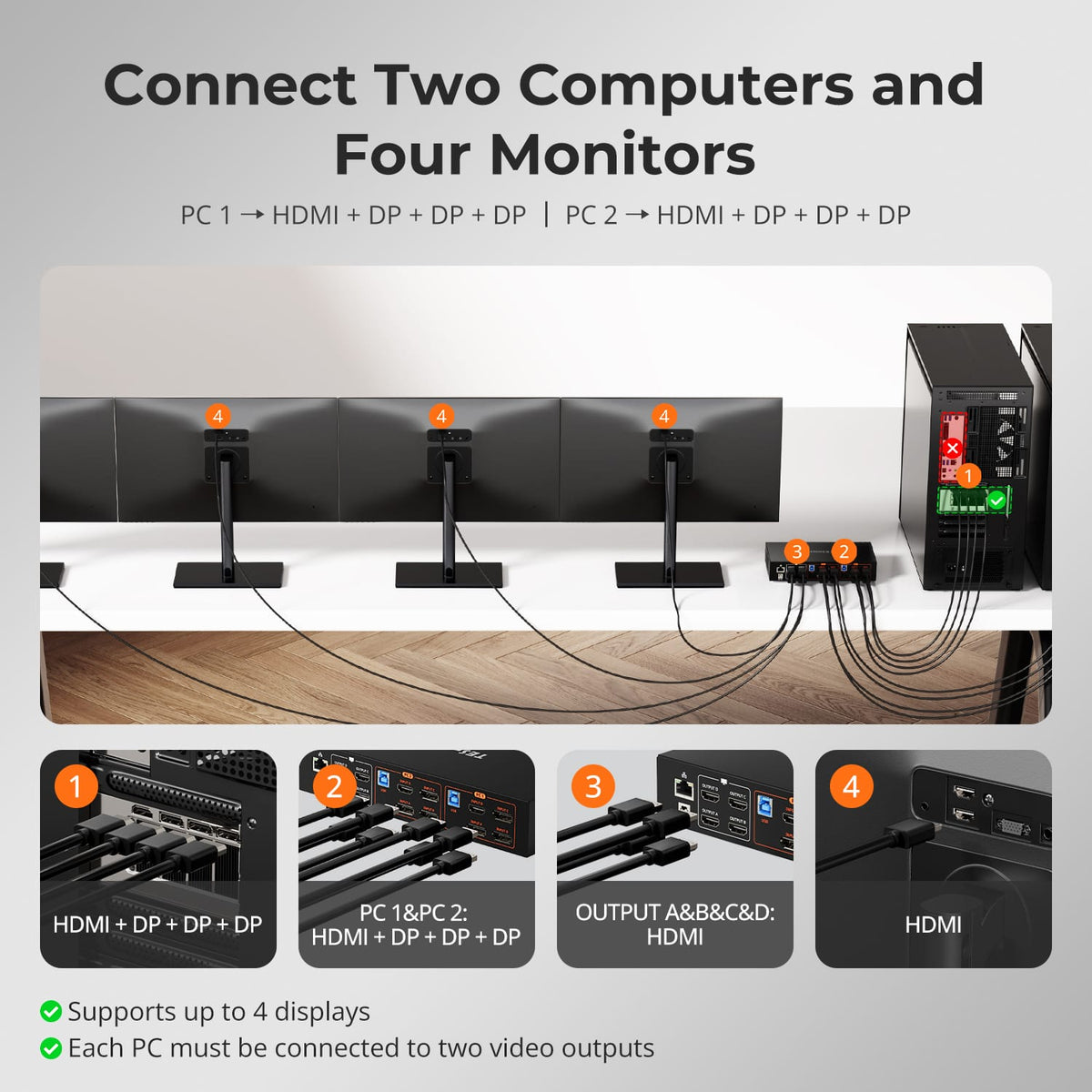
Quad 4K60 for a Two-Computer Workstation
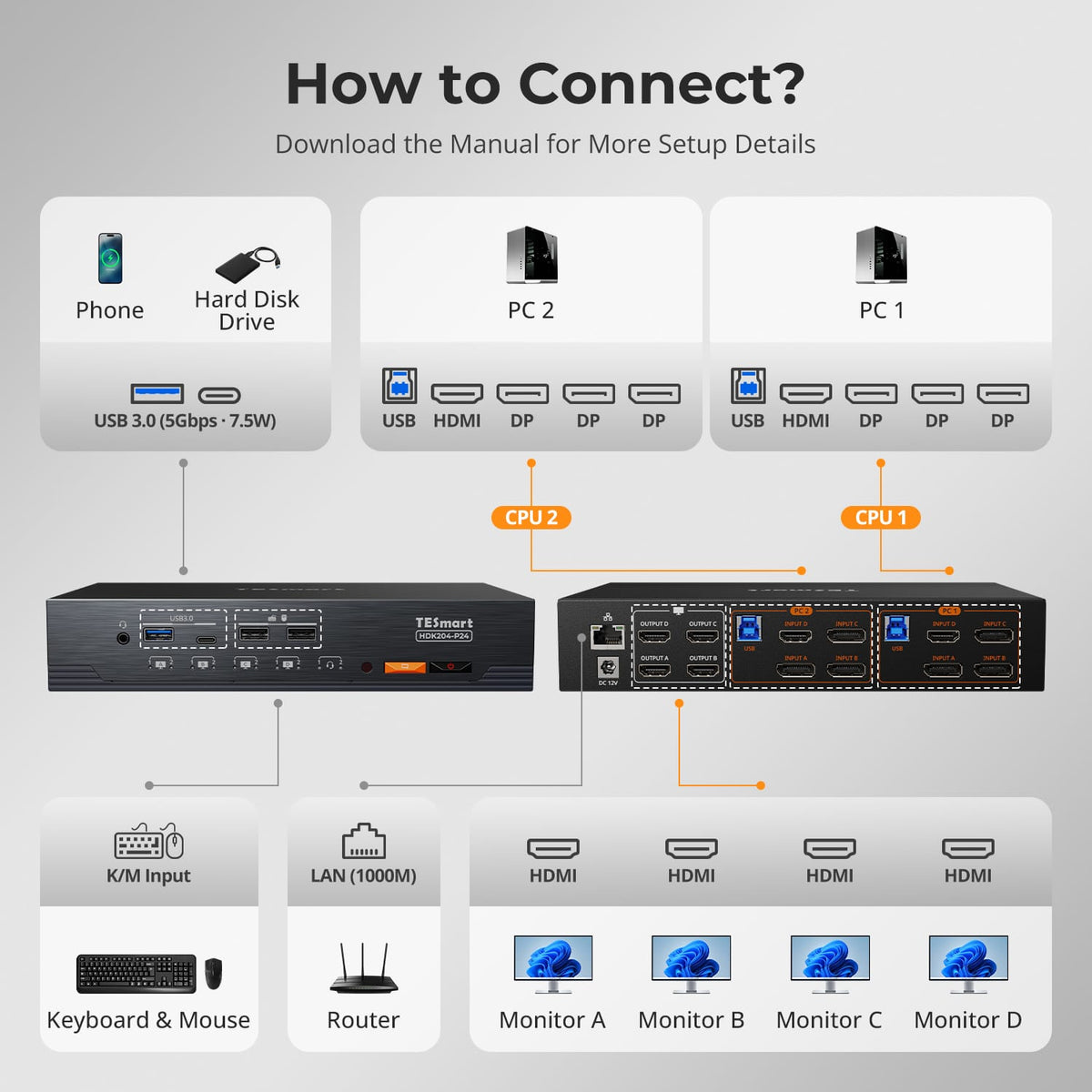
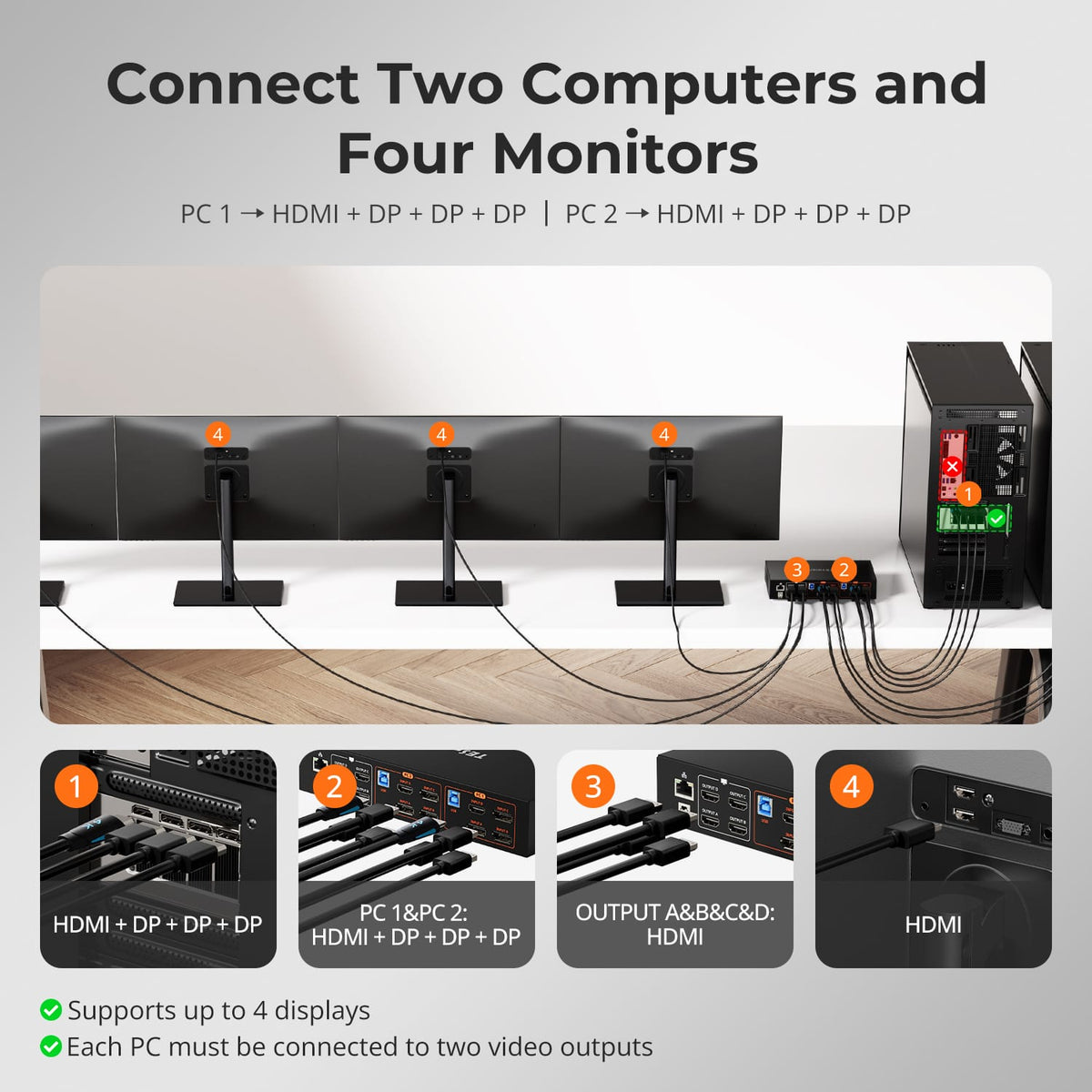
Control two computers across four HDMI monitors at up to 4K@60Hz. Each computer connects through one HDMI and three DisplayPort video inputs, giving power users a high-density workspace without maintaining separate keyboards, mice and peripherals.
02
Four Displays, Flexible Your Way
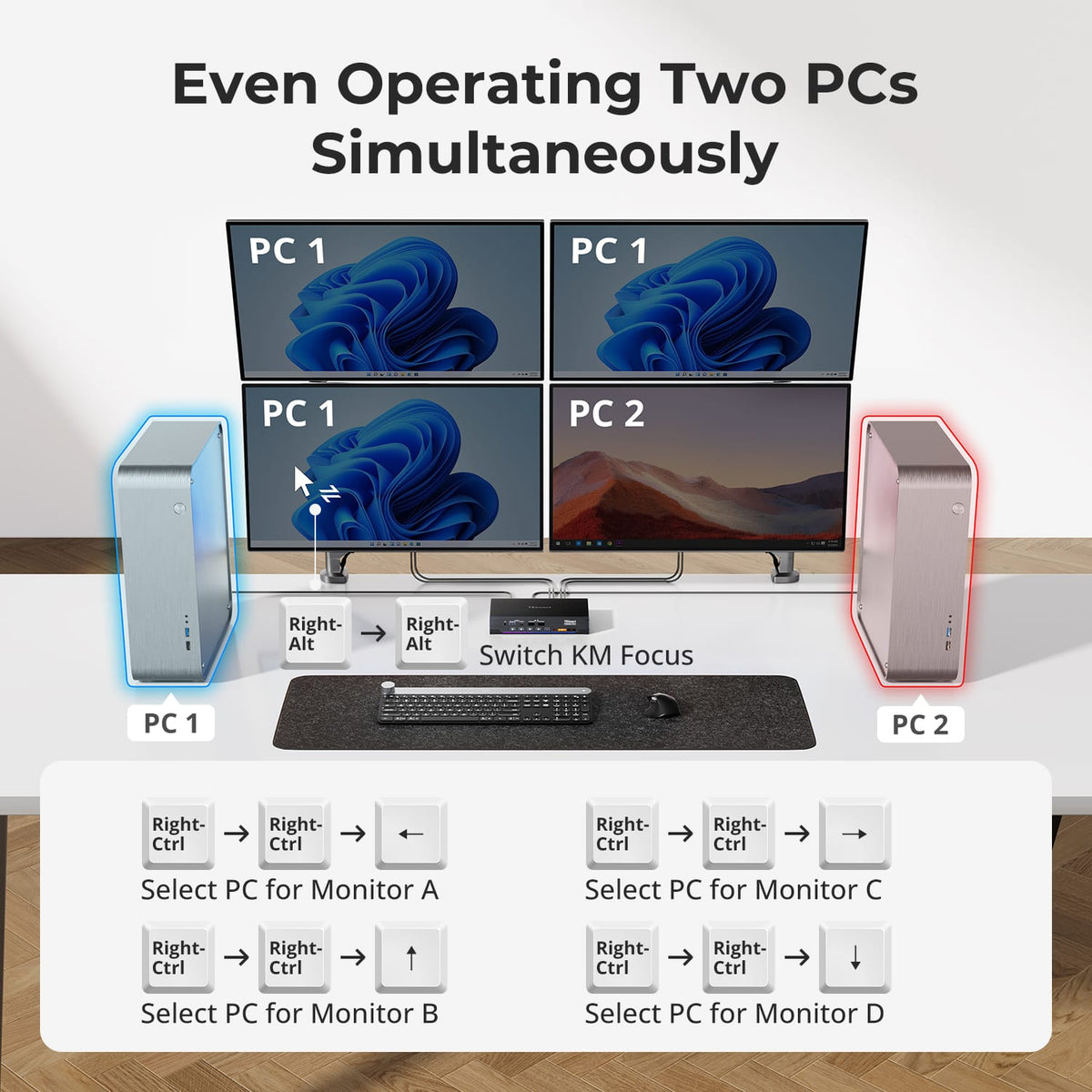
Use all four displays with one computer, or keep content from two computers visible at the same time for easier monitoring and multitasking.
03
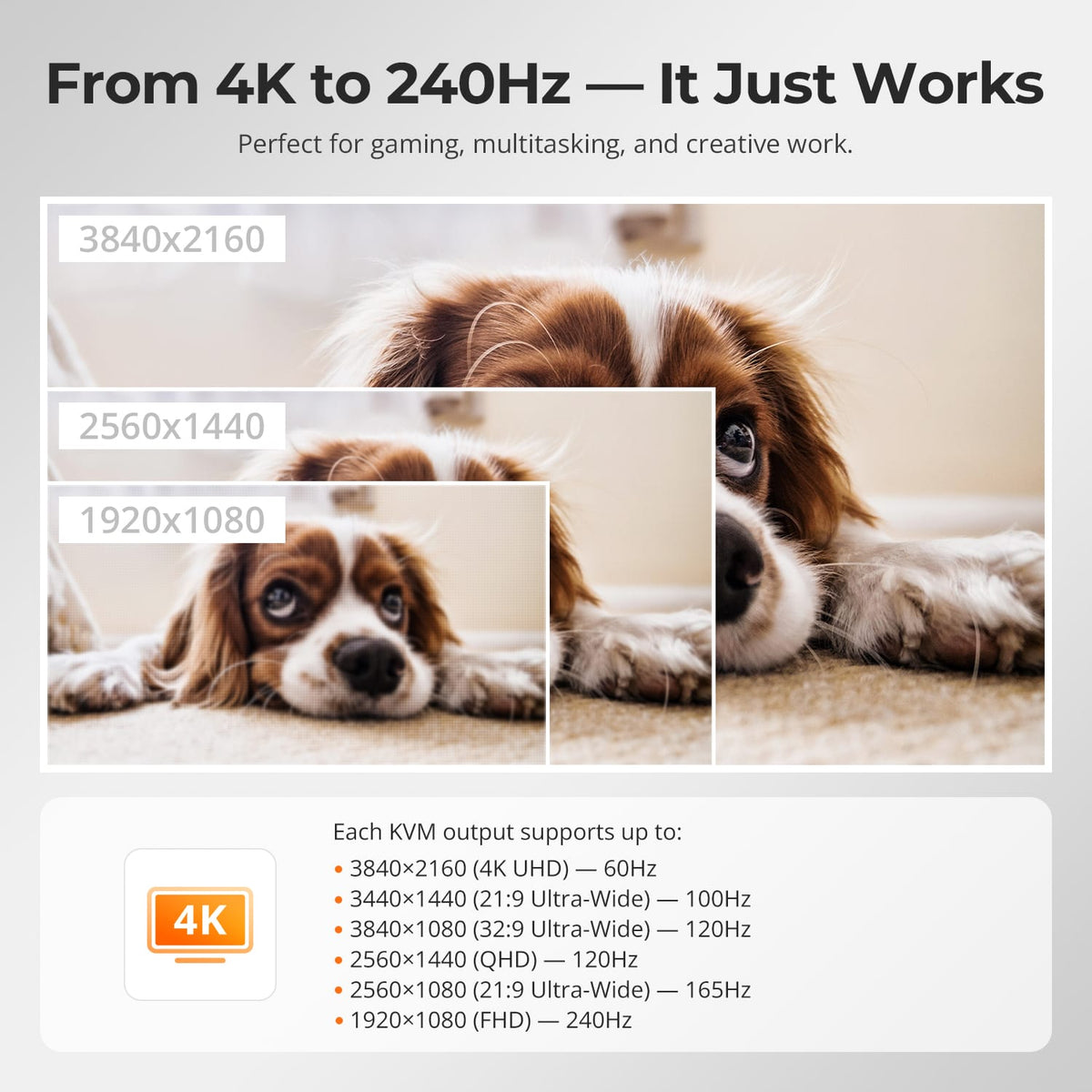
From 4K Clarity to 240Hz Smoothness
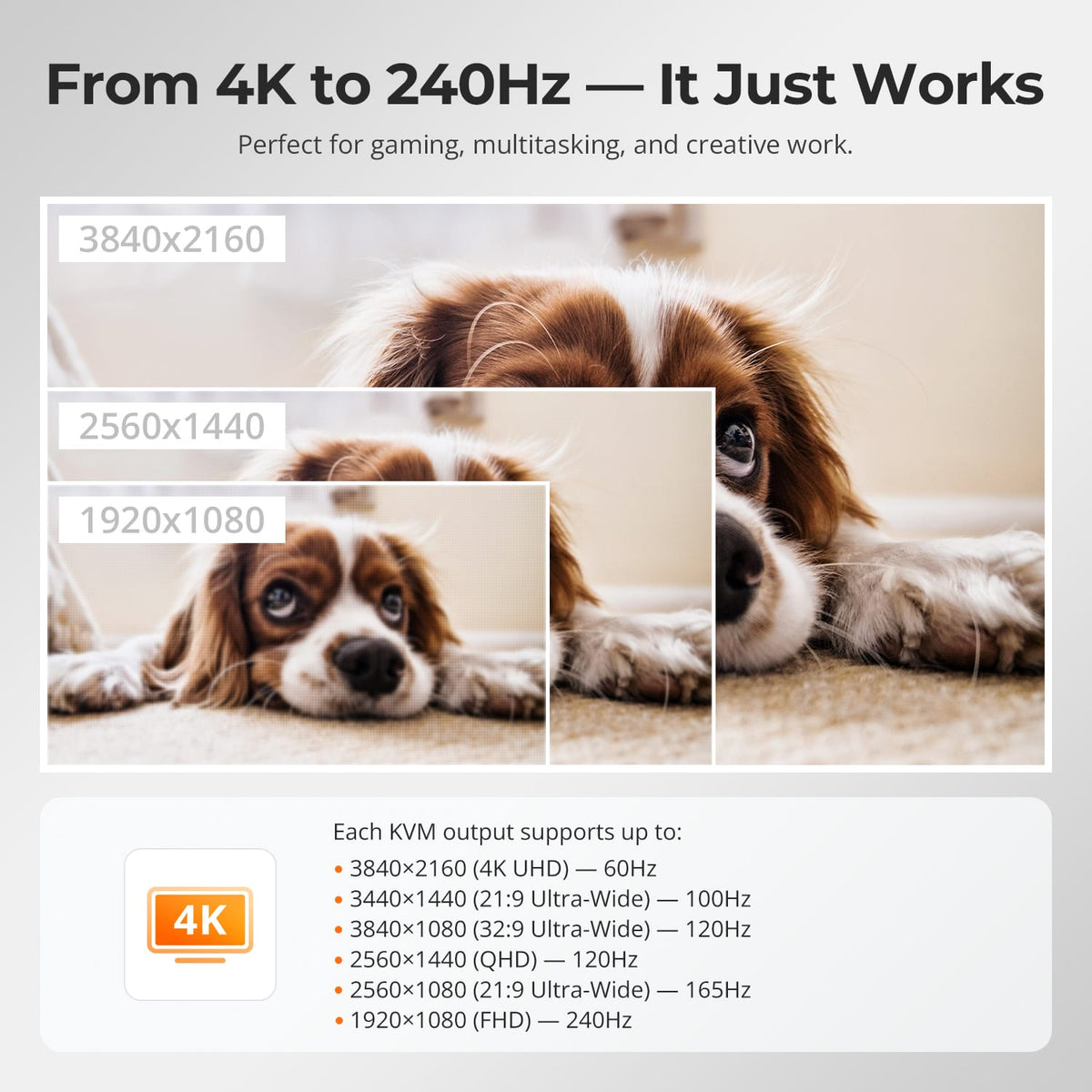
Each KVM output supports resolutions and refresh rates up to 4K@60Hz or 1080p@240Hz, with additional ultrawide and high-refresh options for work, gaming, and creative setups.
04
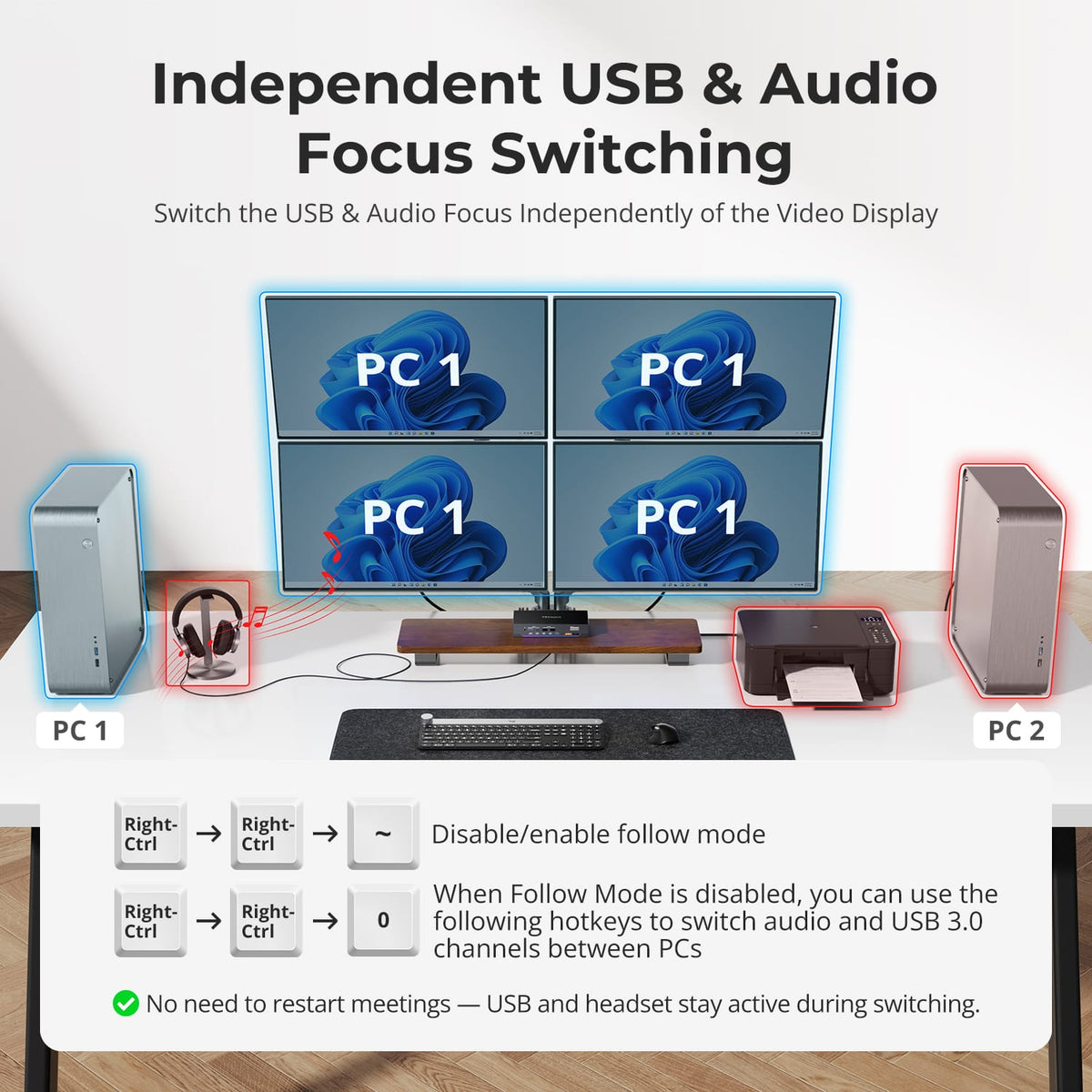
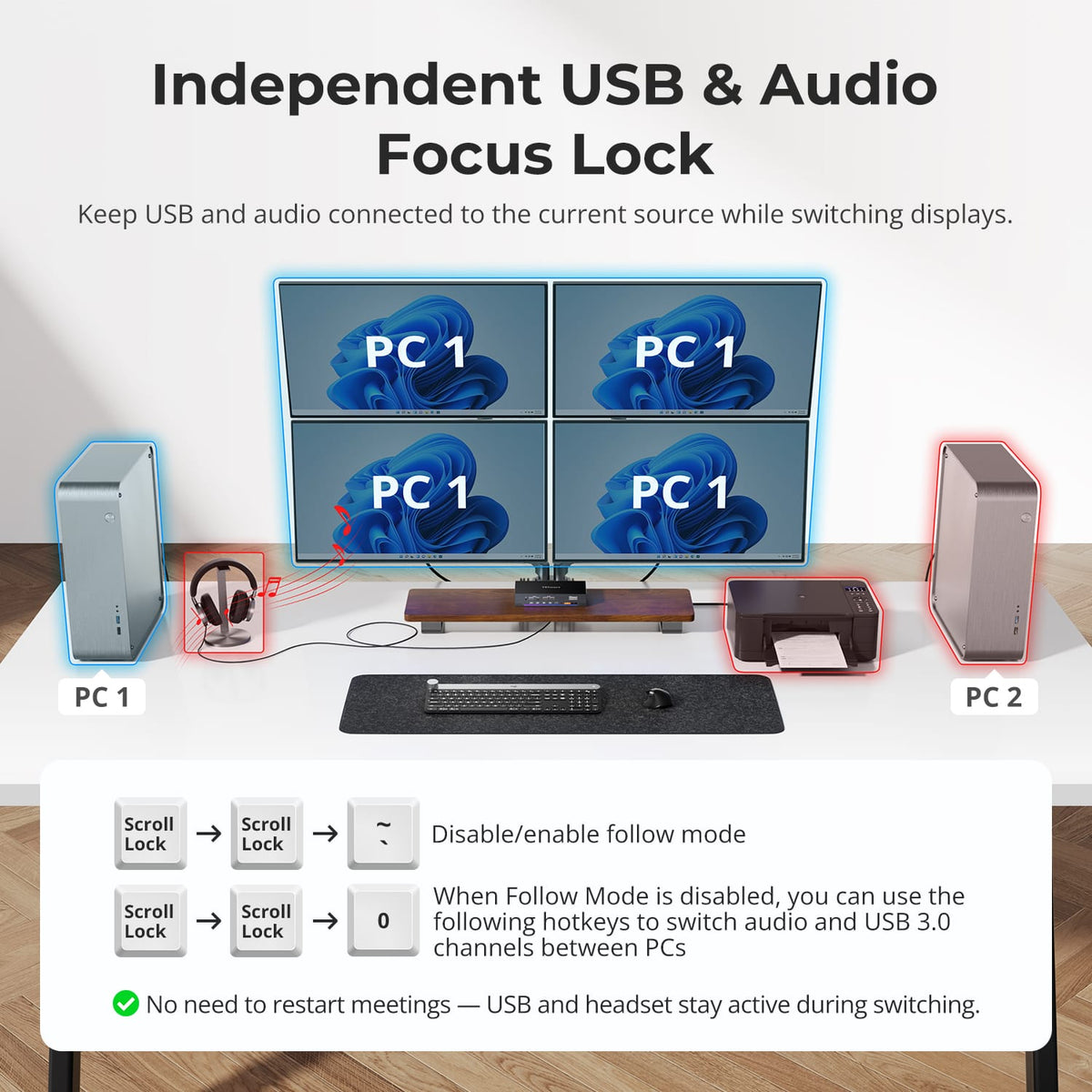
Keep USB & Audio on the Computer You Choose
Switching displays doesn’t have to move every connected device with them. Keep supported USB devices and audio assigned to one computer while switching displays or keyboard and mouse control independently—useful when a headset, meeting or USB device needs to stay active on one system.
05
More than a KVM. A Shared Dock for Your Desk.
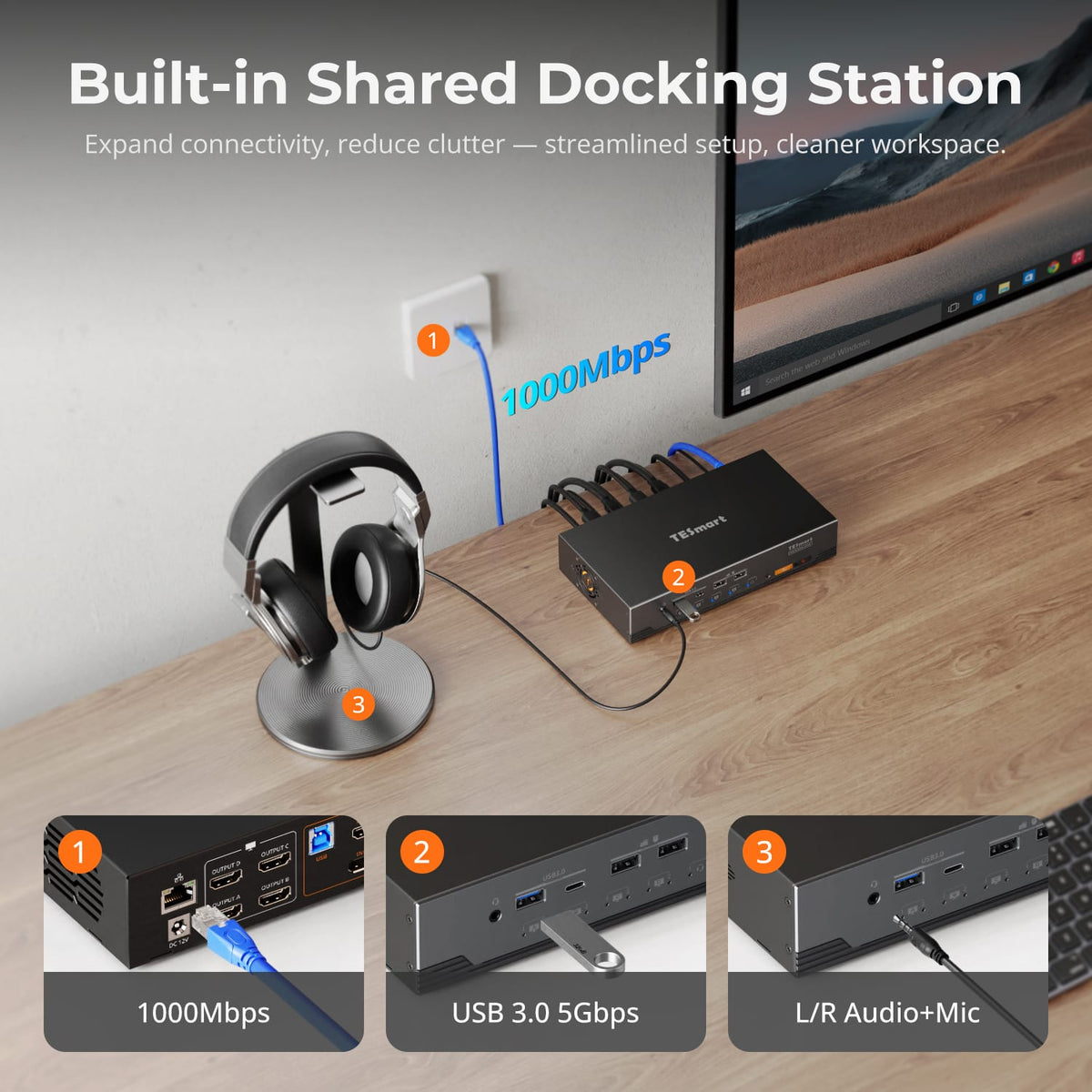
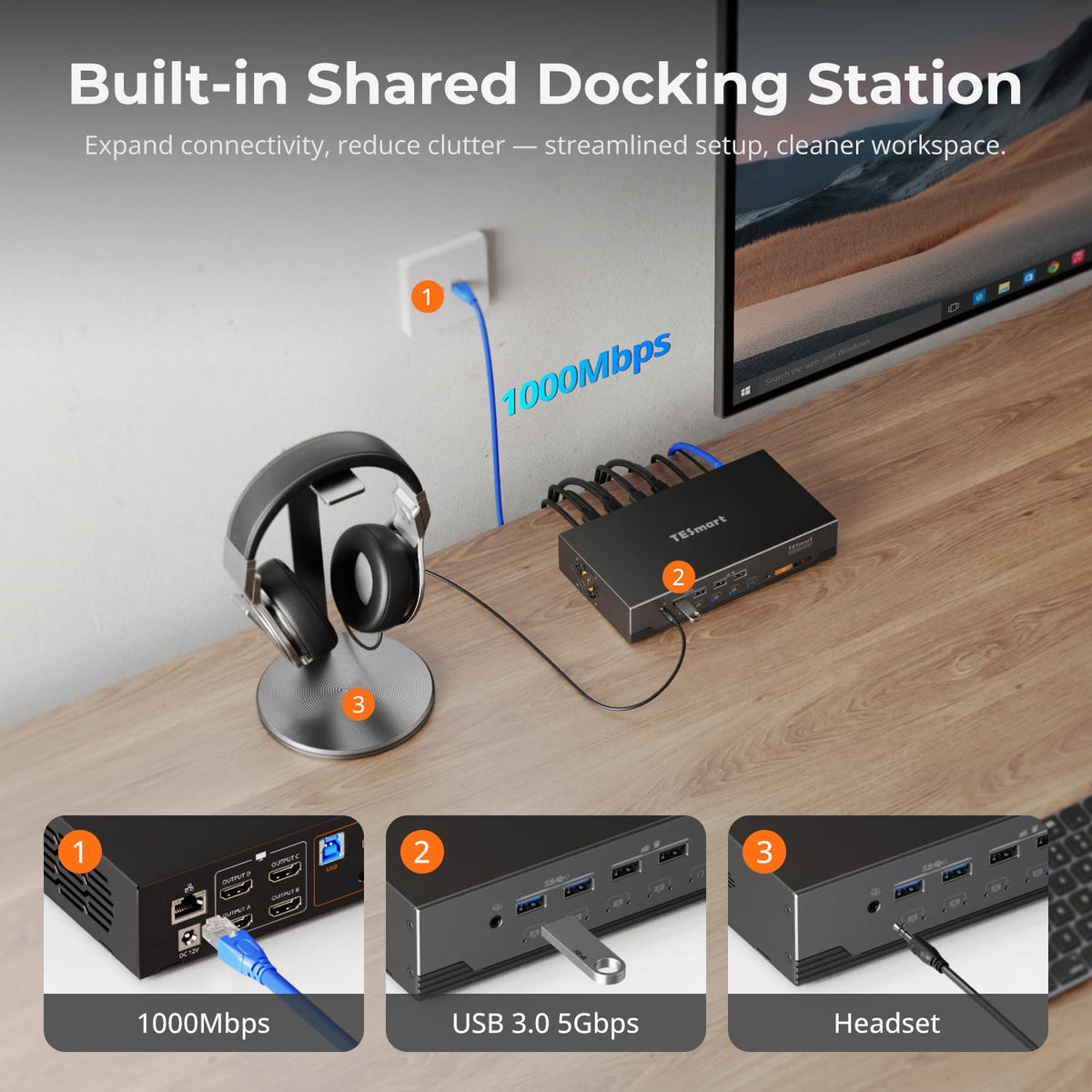
Share USB 3.0 peripherals, Gigabit Ethernet and audio across your computers from one device — fewer adapters, a cleaner desk, and no separate dock, switch or network adapter.
06
07
08
Specifications & Support
Compatibility & Input Guide
Technical Specifications
Manuals & Downloads
Included in the Box
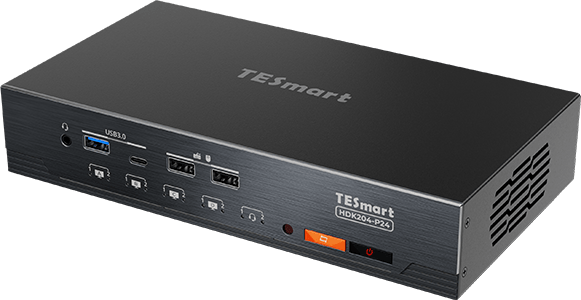
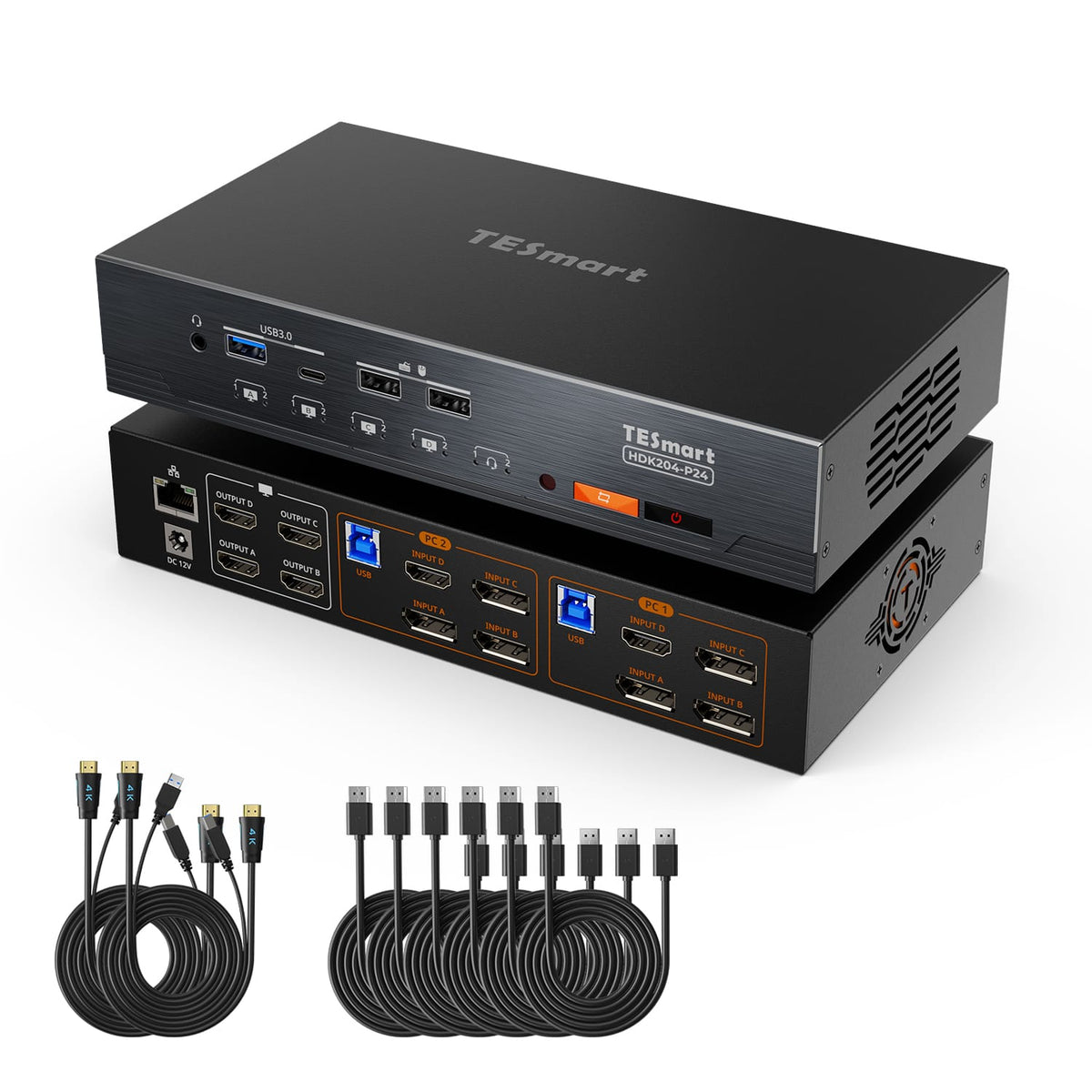
1 × HDK204-P24 KVM Switch
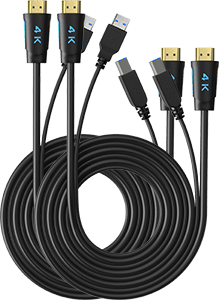
2 × KVM Cables (HDMI+USB)
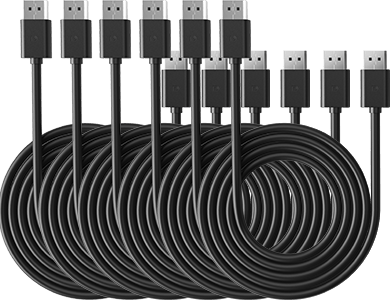
4 × DP Cables
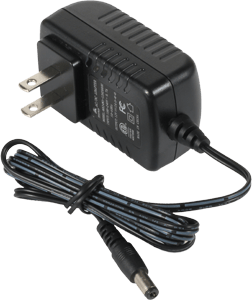
1 × DC 20V Power Adapter
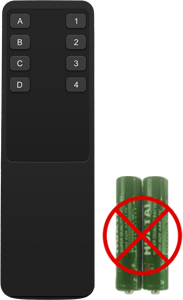
1 × IR Remote Control
1 × User Manual
FAQs
Visit our Help Center for more answers.
[Compatibility] What computers and monitors can I connect to HDK204-P24?
Connect two computers and up to four HDMI monitors. For full four-monitor operation, each computer needs one HDMI output, three DisplayPort outputs and one USB connection to the KVM.
[Compatibility] What resolution does HDK204-P24 support?
HDK204-P24 supports up to 3840×2160@60Hz 4:4:4 on its HDMI outputs. Actual resolution depends on the source computers, graphics hardware, monitors and cables.
[Compatibility] Which operating systems are supported?
The product page lists Windows, macOS and Linux support, including Raspberry Pi, Ubuntu and Debian systems. Available extended or mirrored layouts are also determined by the operating system and graphics hardware.
[Features & Connections] Can I display both computers at the same time?
Yes. Mixed display mode can assign groups of monitors to different computers so both systems remain visible. You can also show one computer across all four displays.
[Features & Connections] Does the KVM preserve my desktop layout when switching?
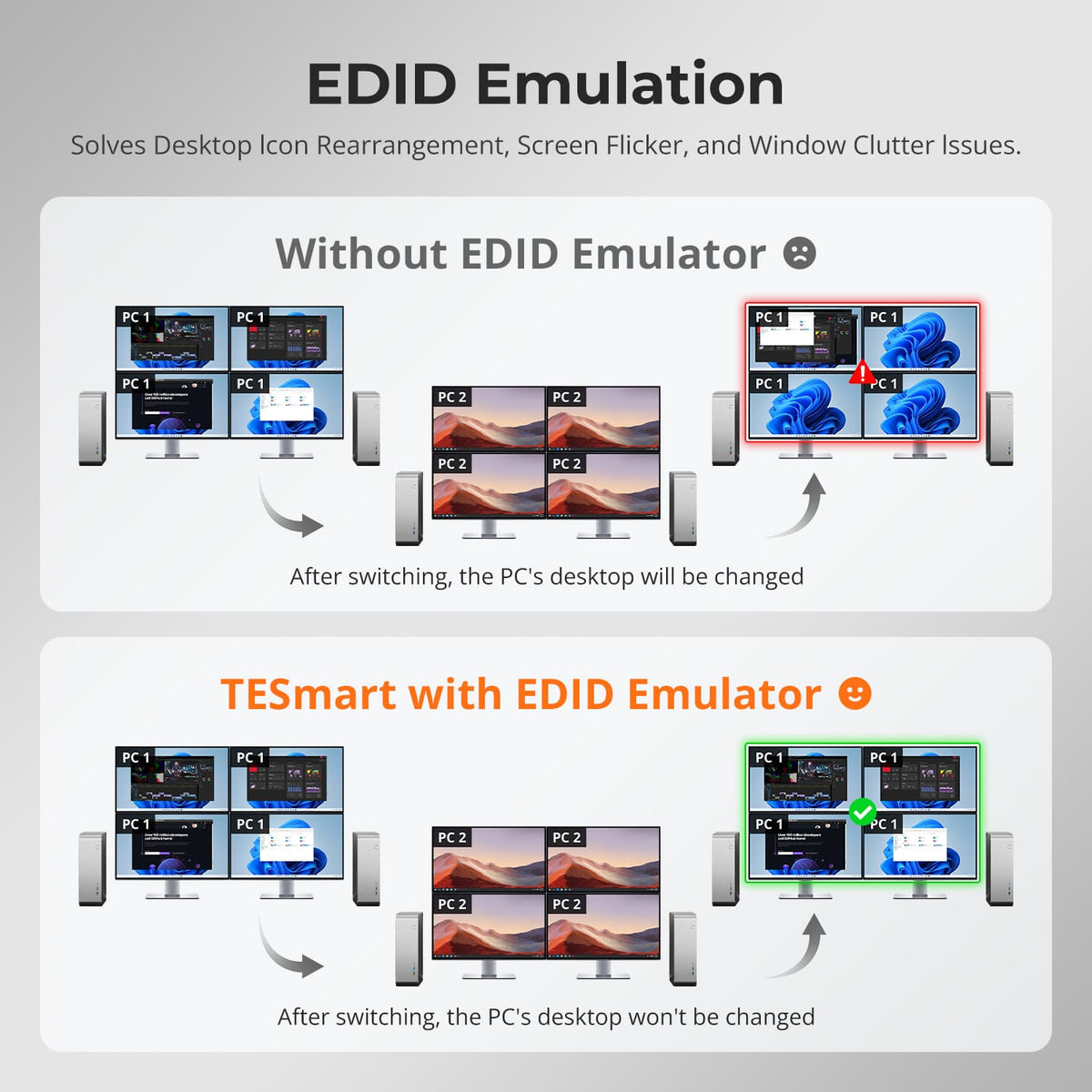
Yes. EDID emulators keep display information available to the connected computers, helping reduce desktop icon rearrangement and window movement during switching.
[Features & Connections] What peripherals can both computers share?
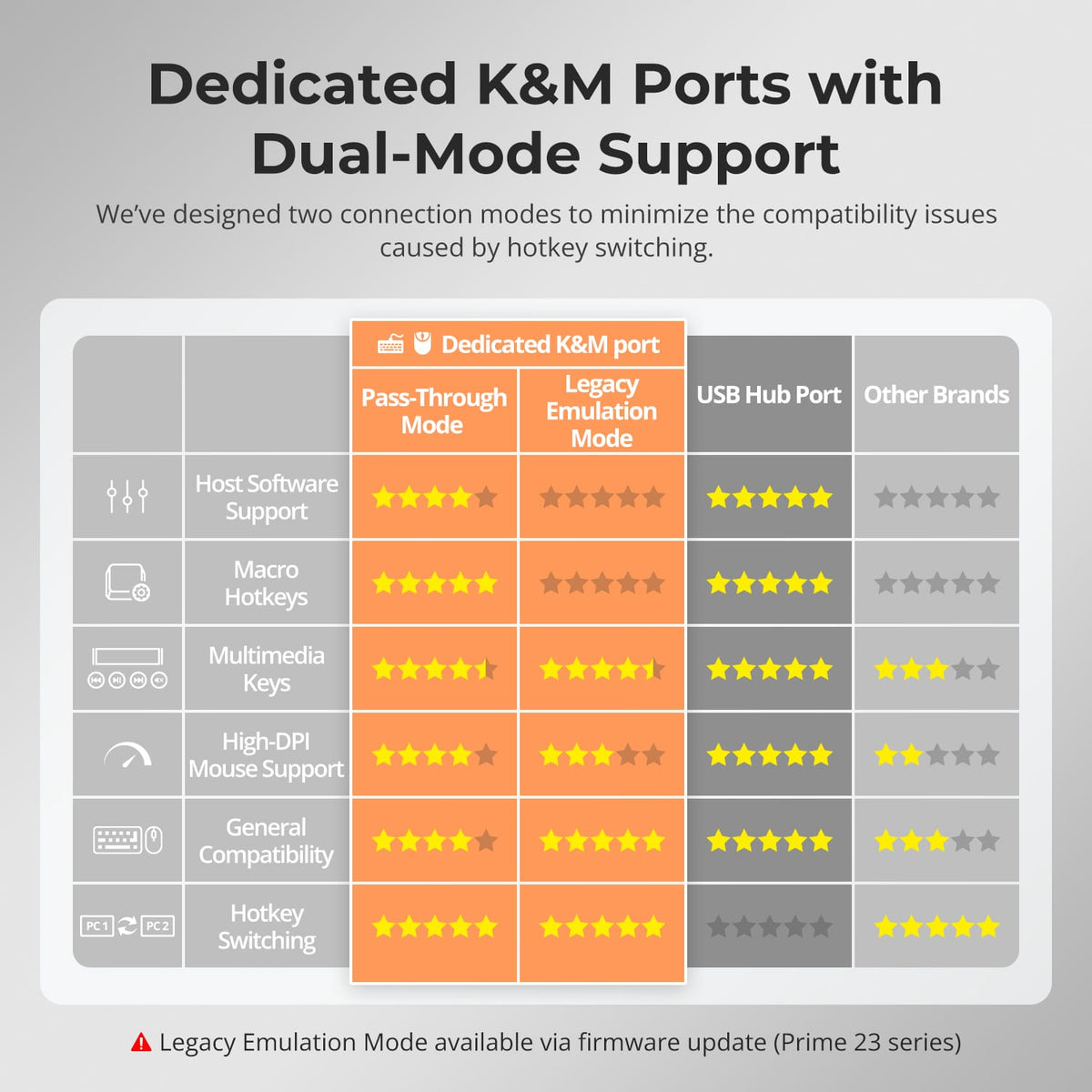
Both computers can share the keyboard, mouse, USB 3.2 Gen 1 devices and the integrated audio connection. Front USB-A and USB-C ports also support data transfer and charging for compatible mobile devices.
[Features & Connections] Can both computers use one wired network connection?
Yes. Connect the KVM's LAN port to a router or network switch. Its built-in USB Ethernet adapter provides the connected computers with shared Gigabit Ethernet access up to 1000Mbps.
[Setup & Switching] How do I connect each computer?
Connect one HDMI cable, three DisplayPort cables and one USB cable from each computer to the matching input group on the KVM. Then connect four HDMI monitors and the shared keyboard, mouse and other peripherals to the KVM.
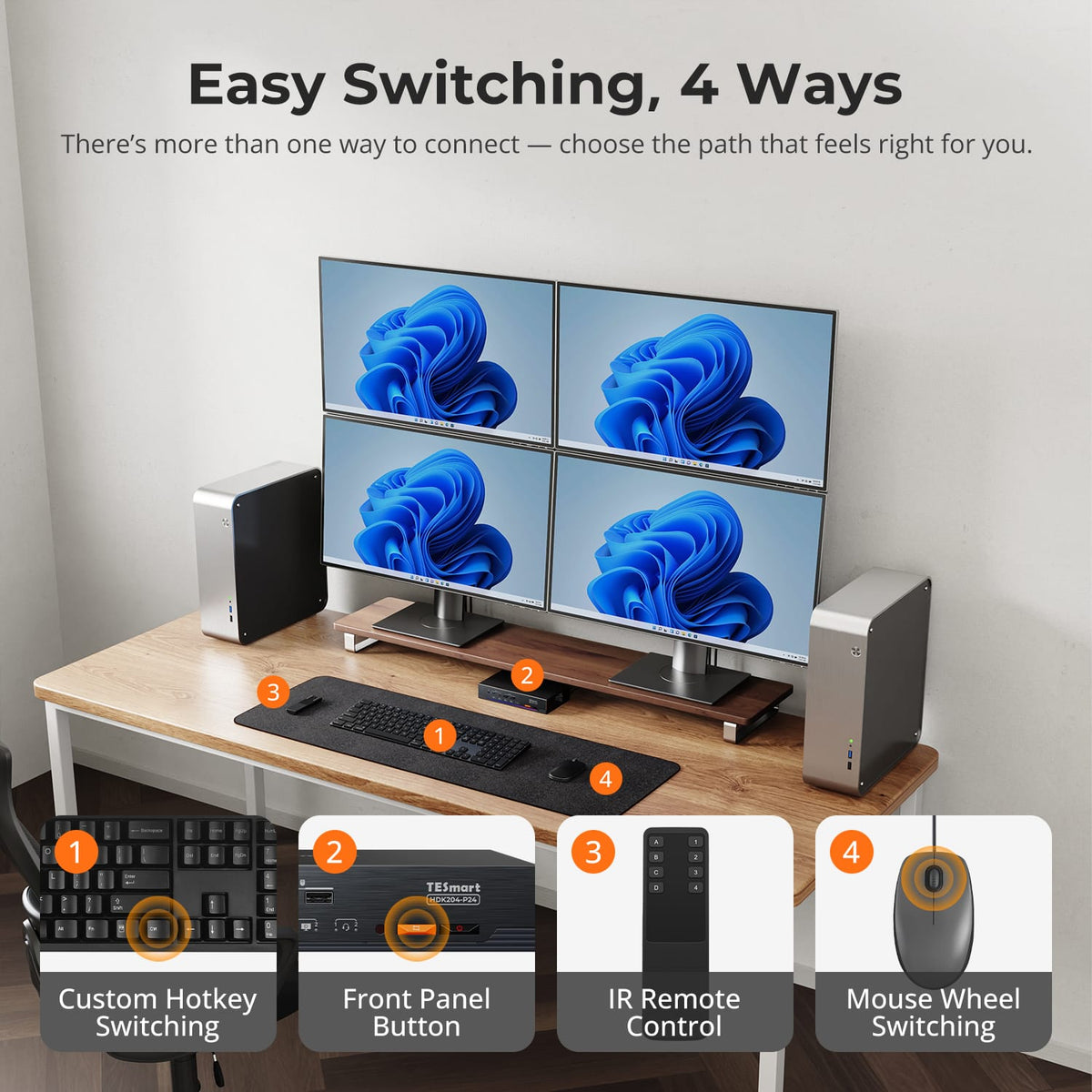
[Setup & Switching] How can I switch between computers?
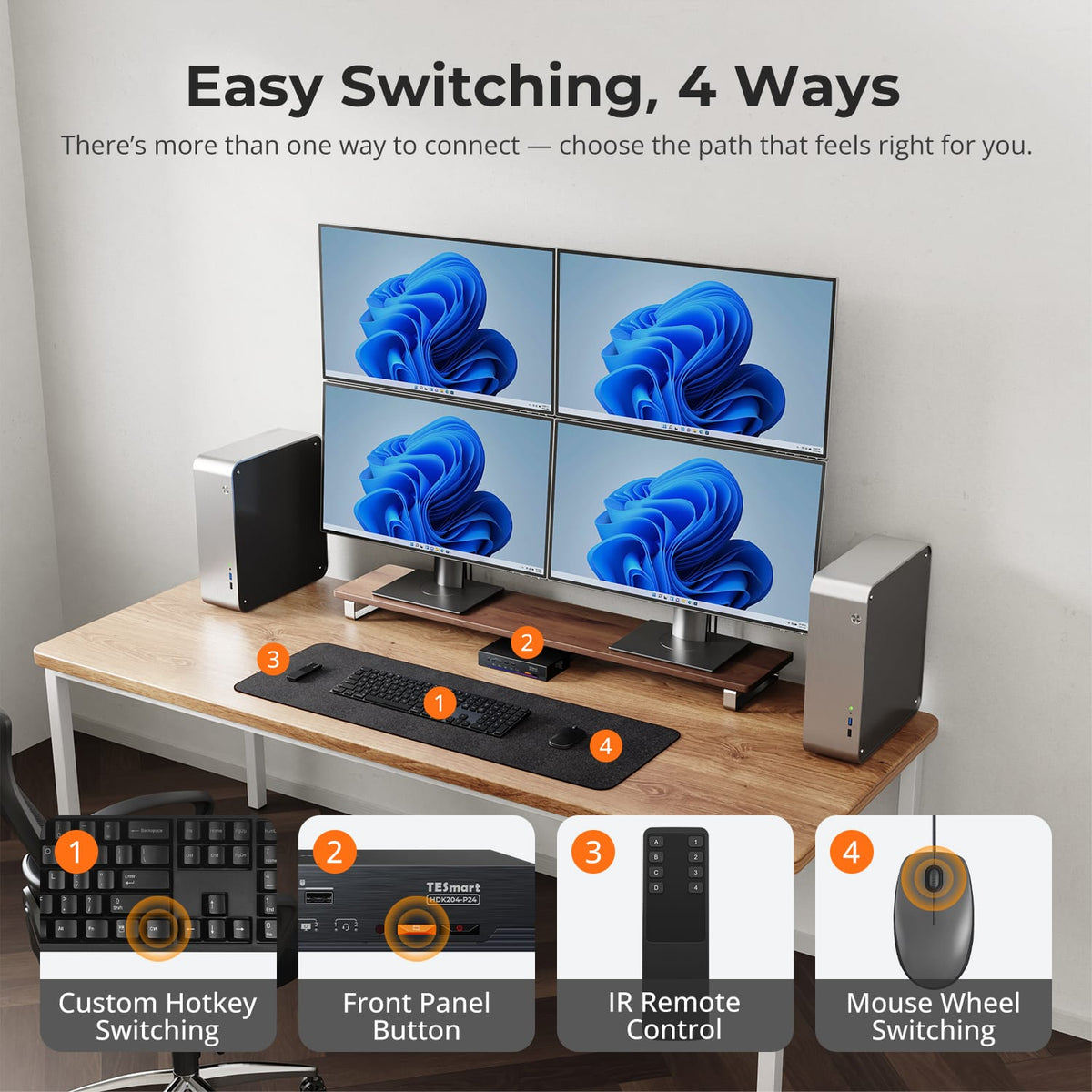
Use the front-panel buttons, IR remote, keyboard hotkeys or mouse-wheel switching. Mouse-wheel switching is off by default and must be enabled with the corresponding hotkey command before use.
[Setup & Switching] How do I move keyboard and mouse control in mixed display mode?
Press Right-Alt twice to move keyboard and mouse focus between the computers while both systems are shown in mixed display mode.
[Setup & Switching] Can I disable the network adapter, fan or buzzer?
Yes. The manual provides hotkey controls for the built-in network adapter, cooling fan and buzzer. The fan also offers four operating modes.