



Display Setup
Max Display Output
Display Color
Gaming Display

USB Speed
USB Speed

Automatic input detection
HDMI 2.1 & DP 1.4 Dual 8K60Hz KVM Switch for 8 PCs & 2 Monitors, w/ ADI Chip, EDID, VRR, FVA, ALLM, and Dynamic HDR
Share two Apple Studio Displays, one keyboard and mouse between two computers—or show one computer on each display when you need both systems at once.
Display Setup
Max Display Output
Display Color
Gaming Display
USB Speed
USB Speed
Automatic input detection
HDMI 2.1 & DP 1.4 Dual 8K60Hz KVM Switch for 8 PCs & 2 Monitors, w/ ADI Chip, EDID, VRR, FVA, ALLM, and Dynamic HDR
Why Choose HDK802-M24
Overview

01
Eight PCs. Two Displays. One Control Point.
Connect up to eight computers to one dual-monitor desk and control them from a single keyboard and mouse. Show both displays from one computer or keep two computers visible at the same time when side-by-side monitoring matters.

02
Dual 8K60. High-Refresh 4K.
Built for demanding visual workflows, HDK802-M24 supports up to 8K@60Hz 4:4:4 and is backward compatible with 4K@60/120/144Hz. HDMI 2.1 bandwidth, VRR, FVA, ALLM and DSC support help preserve smooth, high-fidelity output with compatible sources and displays.

03
EDID Keeps Every Desktop Stable
EDID emulation keeps display information available to each connected computer, helping prevent window reshuffling, resolution changes and slow display re-detection when you switch between systems.

04
Keep Two Systems Visible at Once
Use the two outputs independently to view different computers side by side, then move keyboard and mouse focus to the system you need. It is useful for monitoring, testing and multi-system operations where both screens need to stay active.

05
Control It from the Desk—or the Network
Switch and manage the KVM through front-panel controls, the IR remote, keyboard hotkeys and mouse-wheel switching. LAN and RS232 control add options for racks, labs and managed installations.

06
Auto Detect and Auto Scan
Auto Detect can follow active source changes, while Auto Scan cycles through connected computers at a defined interval. Both are useful when the KVM is used for monitoring rather than constant manual switching.

07

08

09
Specifications & Support
Compatibility & Input Guide
Technical Specifications
Manuals & Downloads
Included in the Box
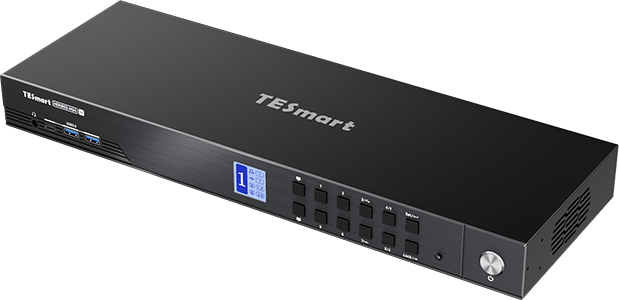
1 × HDK802-M24 KVM Switch

8 × HDMI + USB KVM Cables

8 × DisplayPort Cables
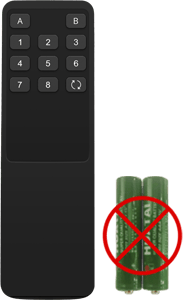
1 × IR Remote Control
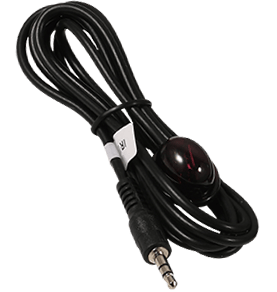
1 × IR Receiver Cable
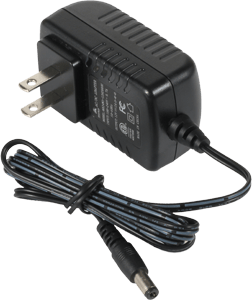
1 × DC 12V / 4A Power Adapter
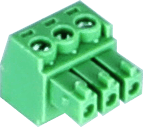
1 × 3-Pin RS232 Connector
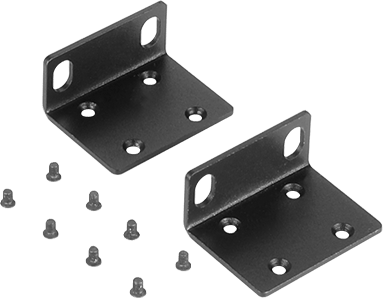
2 × Rack Ears


FAQs
Visit our Help Center for more answers.
[Compatibility] What computers can I connect to HDK802-M24?
You can connect up to eight computers. Each computer uses one HDMI connection, one DisplayPort connection and one USB connection to its matching KVM input group.
[Compatibility] What display resolution does HDK802-M24 support?
It supports up to 8K@60Hz 4:4:4 and is backward compatible with 4K@60/120/144Hz. Actual output depends on the GPU, monitor, cables and selected video format.
[Compatibility] What do I need from each PC for dual-monitor operation?
Each PC needs both an HDMI video output and a DisplayPort video output, plus USB for keyboard, mouse and shared USB devices. If a computer cannot provide both video links, it cannot drive both KVM display outputs by itself.
[Features & Connections] Can I show two different computers on the two monitors?
Yes. HDK802-M24 can keep different computers visible on the two outputs, with keyboard and mouse focus moved to the system you want to control.
[Features & Connections] Does HDK802-M24 support EDID emulation?
Yes. EDID emulation keeps display information available to the connected computers to reduce resolution changes, display re-detection and window rearrangement after switching.
[Features & Connections] Can I share USB devices through the KVM?
Yes. Shared USB 3.2 Gen 1 ports support data transfer up to 5Gbps for compatible USB devices.
[Features & Connections] What are the LAN and RS232 ports used for?
They are control interfaces for managing the KVM through network commands or serial control. They are not a shared Ethernet connection for the eight PCs.
[Setup & Switching] How can I switch or control HDK802-M24?
You can use the front-panel controls, IR remote, keyboard hotkeys or mouse-wheel switching. LAN and RS232 are also available for remote or integrated control.
[Setup & Switching] What do Auto Detect and Auto Scan do?
Auto Detect can switch when active sources are connected or removed. Auto Scan cycles through powered, connected inputs at a defined interval for unattended monitoring.