



Display Setup
Max Display Output
Display Stability

USB Speed
Keyboard & Mouse
Display Mode
Switching Control
2 Port Dual Monitor KVM Switch Kit HDMI 4K60Hz with USB 3.0 Docking Station, EDID
Share two Apple Studio Displays, one keyboard and mouse between two computers—or show one computer on each display when you need both systems at once.
Display Setup
Max Display Output
Display Stability
USB Speed
Keyboard & Mouse
Display Mode
Switching Control
2 Port Dual Monitor KVM Switch Kit HDMI 4K60Hz with USB 3.0 Docking Station, EDID
Why Choose HKS202-P23-V2
Overview
01
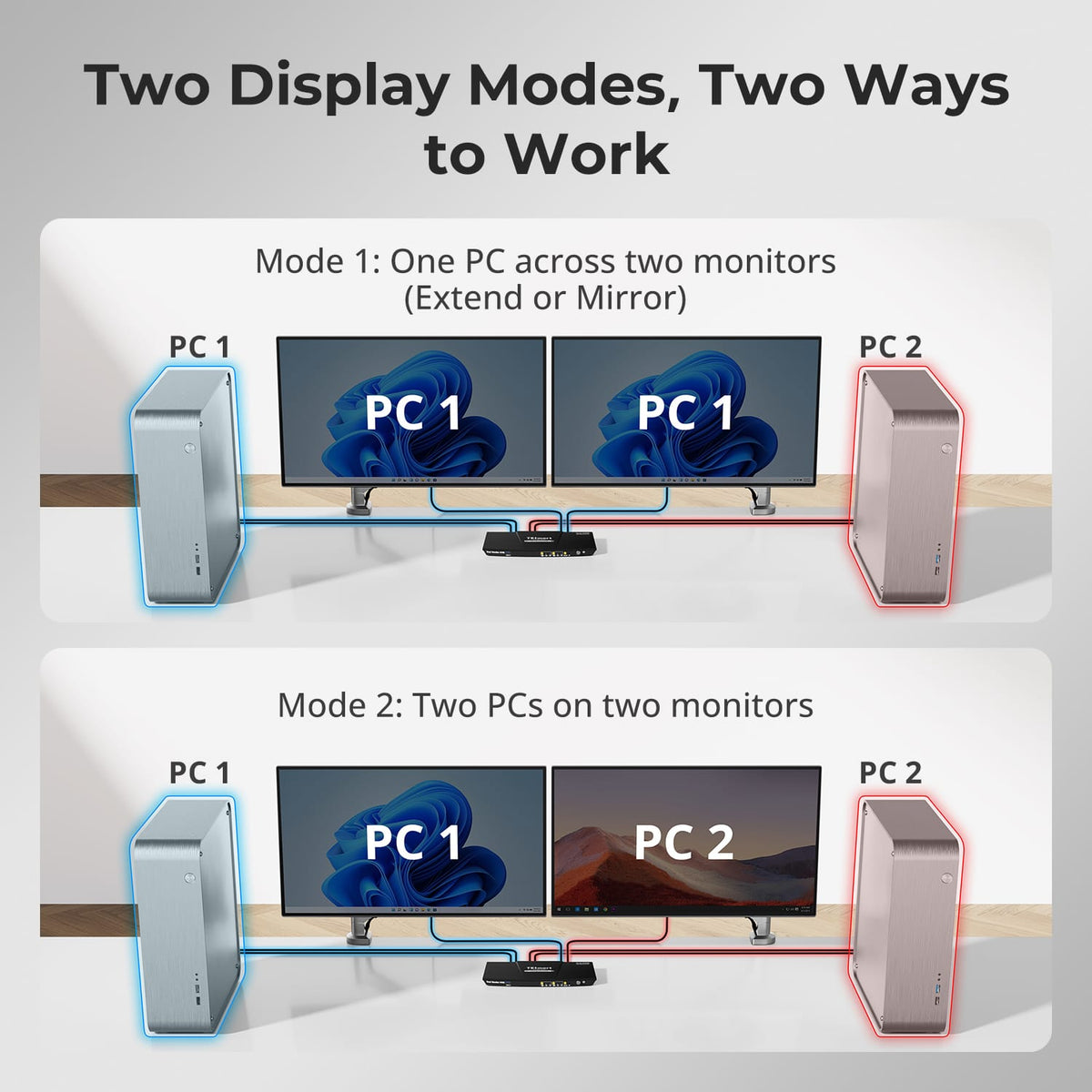
Two PCs. Two HDMI Displays.
Connect two computers to one dual-monitor workspace and share the same keyboard, mouse and USB devices. Each computer connects two HDMI video links so both screens can follow the selected system.
02
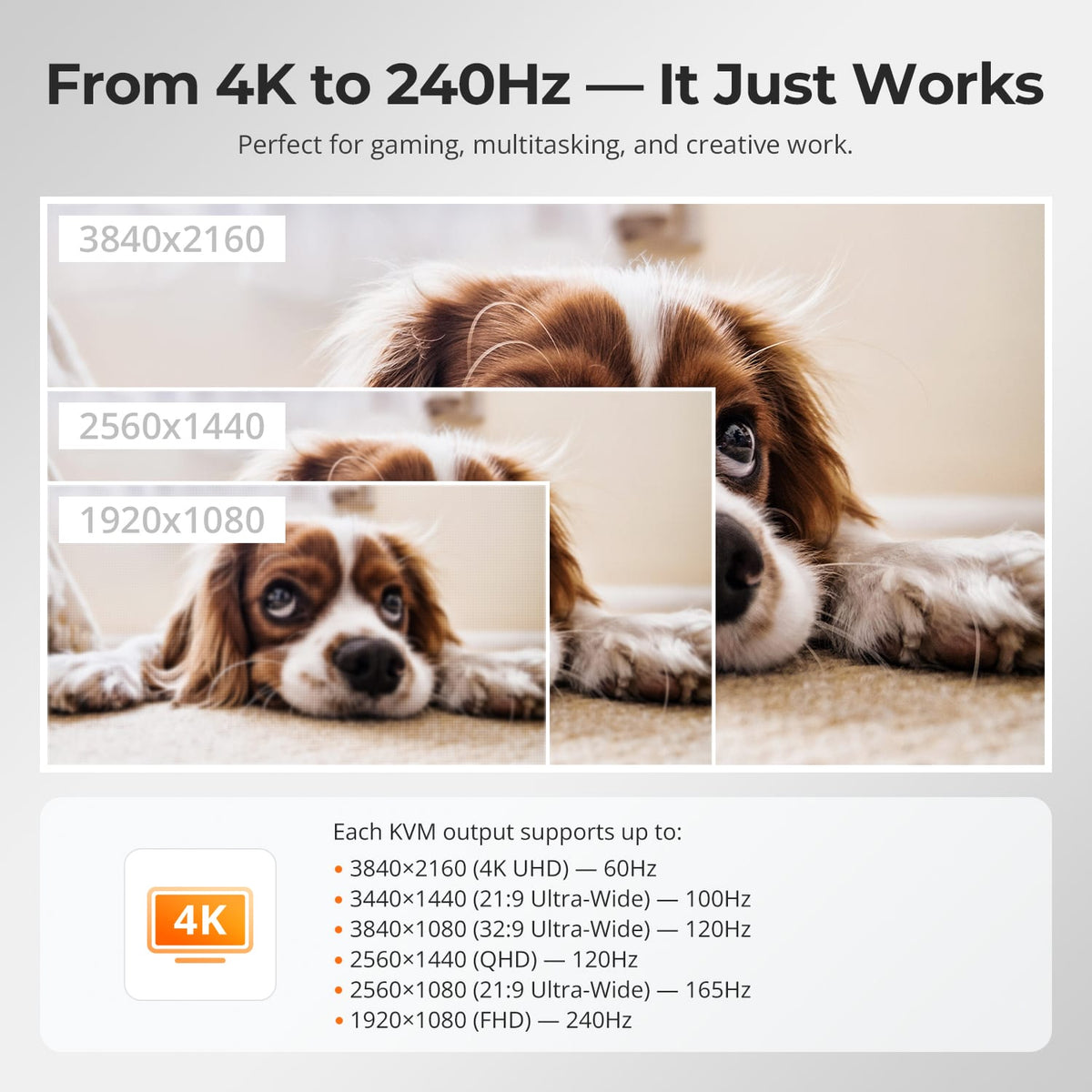
4K60 for Work. High Refresh Where Supported.
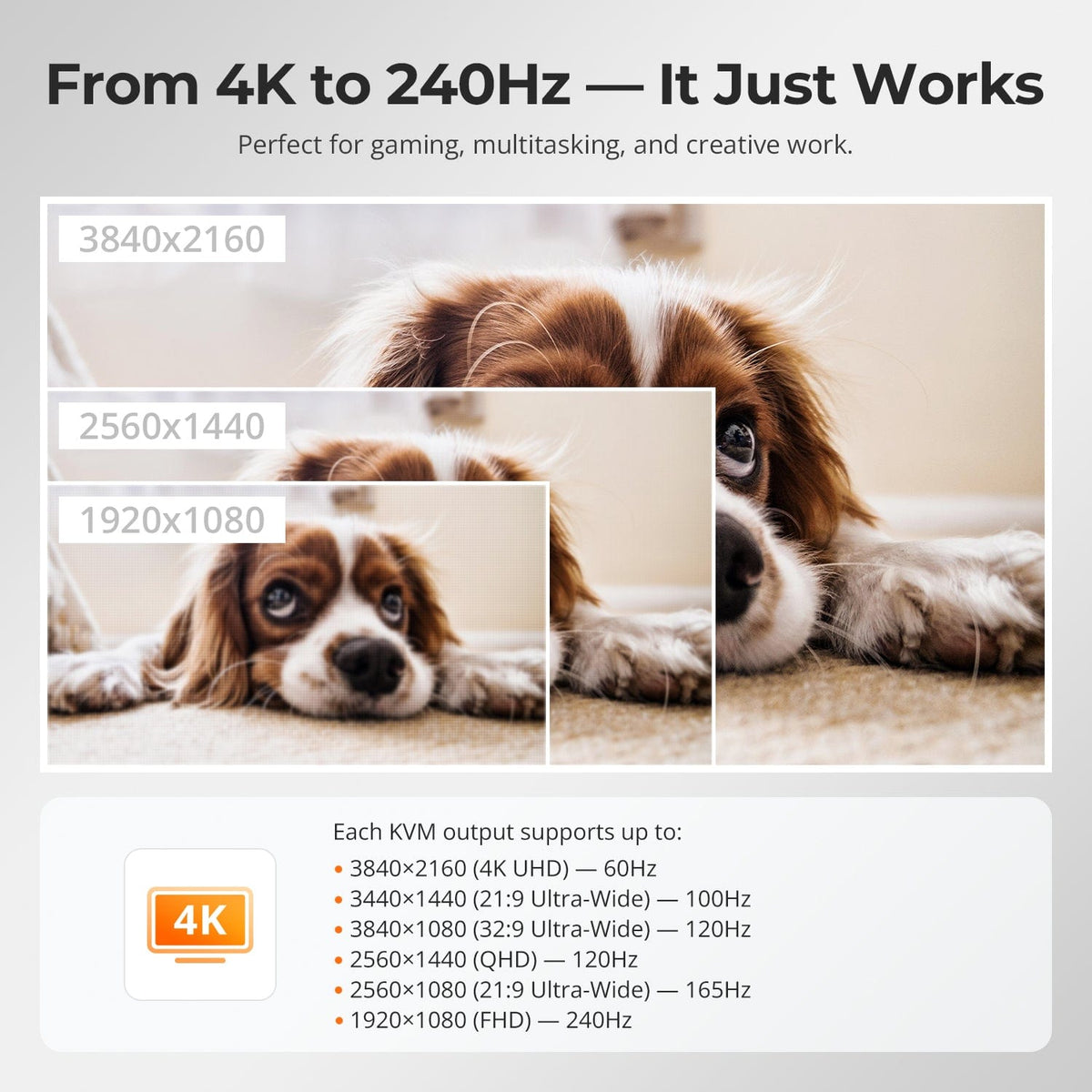
Support up to 3840×2160@60Hz 4:4:4, with lower-resolution high-refresh combinations available when supported by the computers, monitors and cables.
03
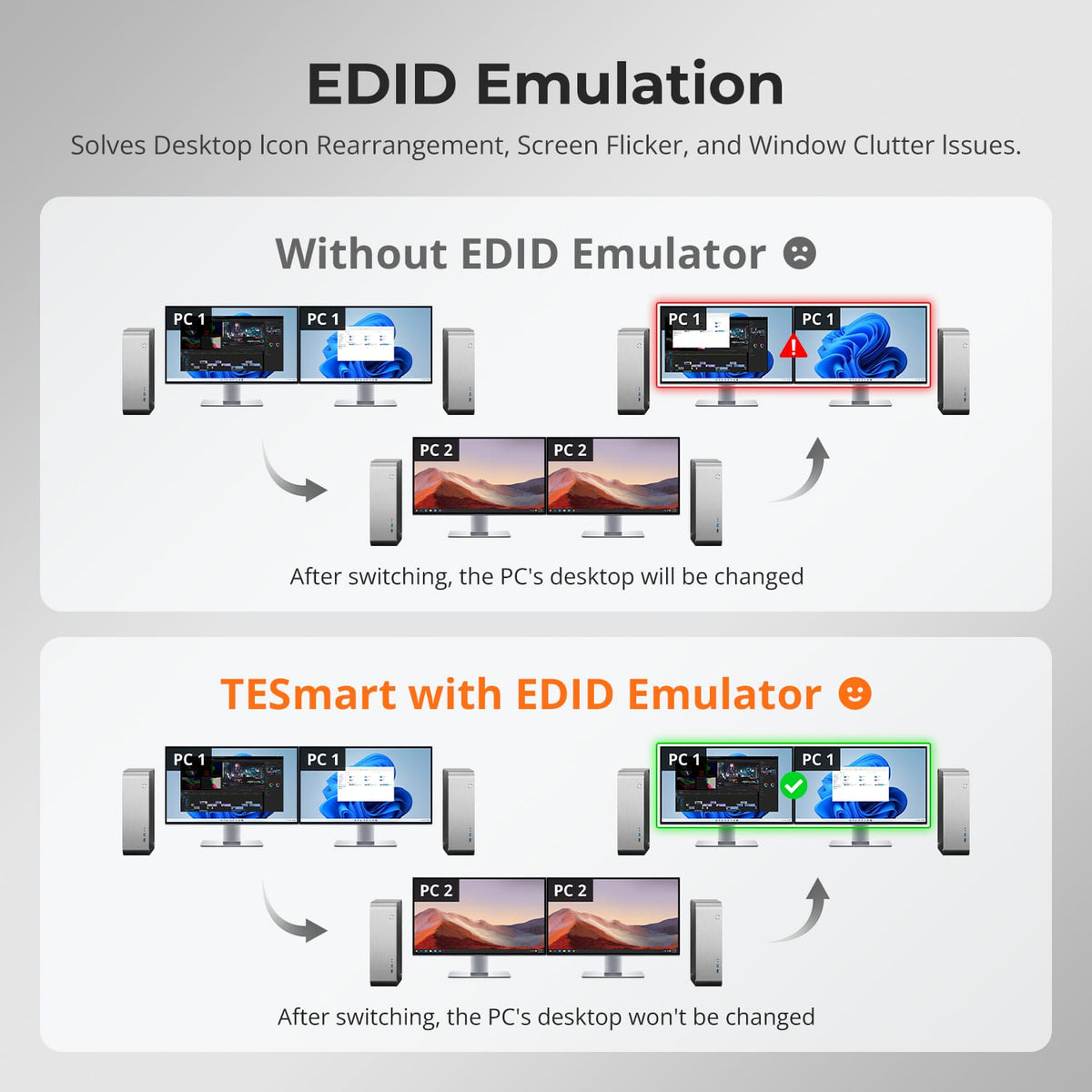
EDID Helps Keep Your Desktop Stable
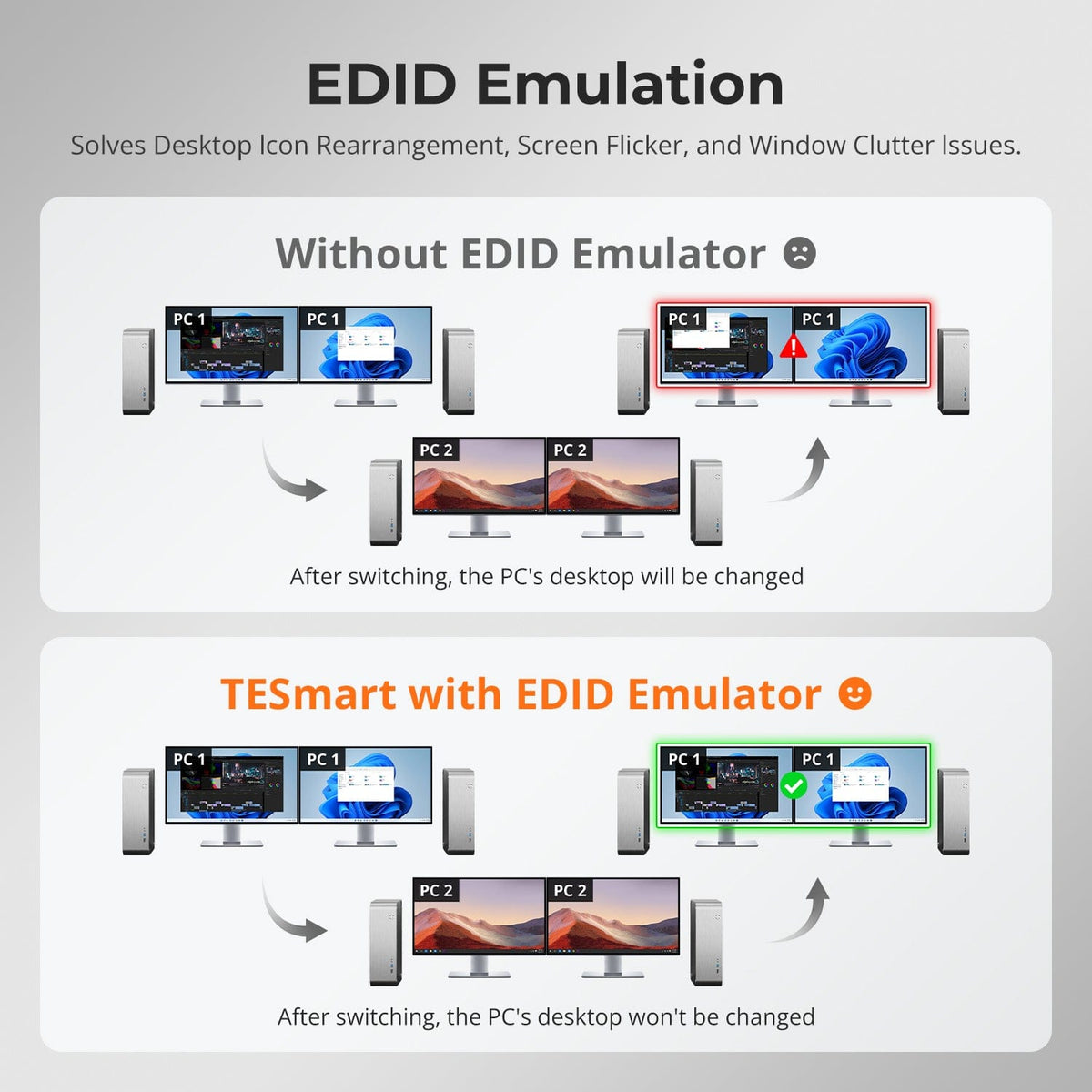
In the supported display mode, EDID emulation keeps monitor information available to the computers, helping prevent display re-detection, resolution changes and rearranged windows after switching.
04
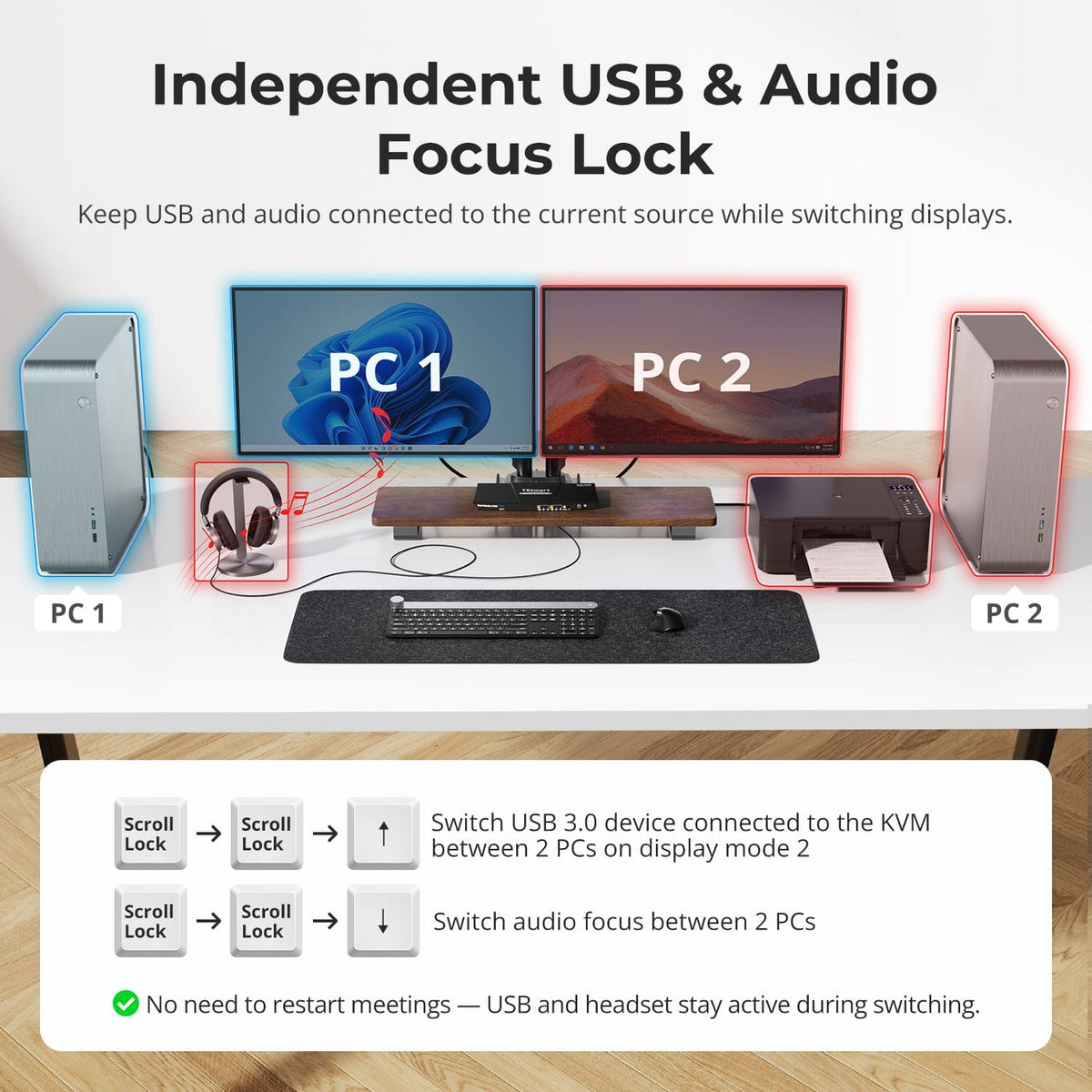
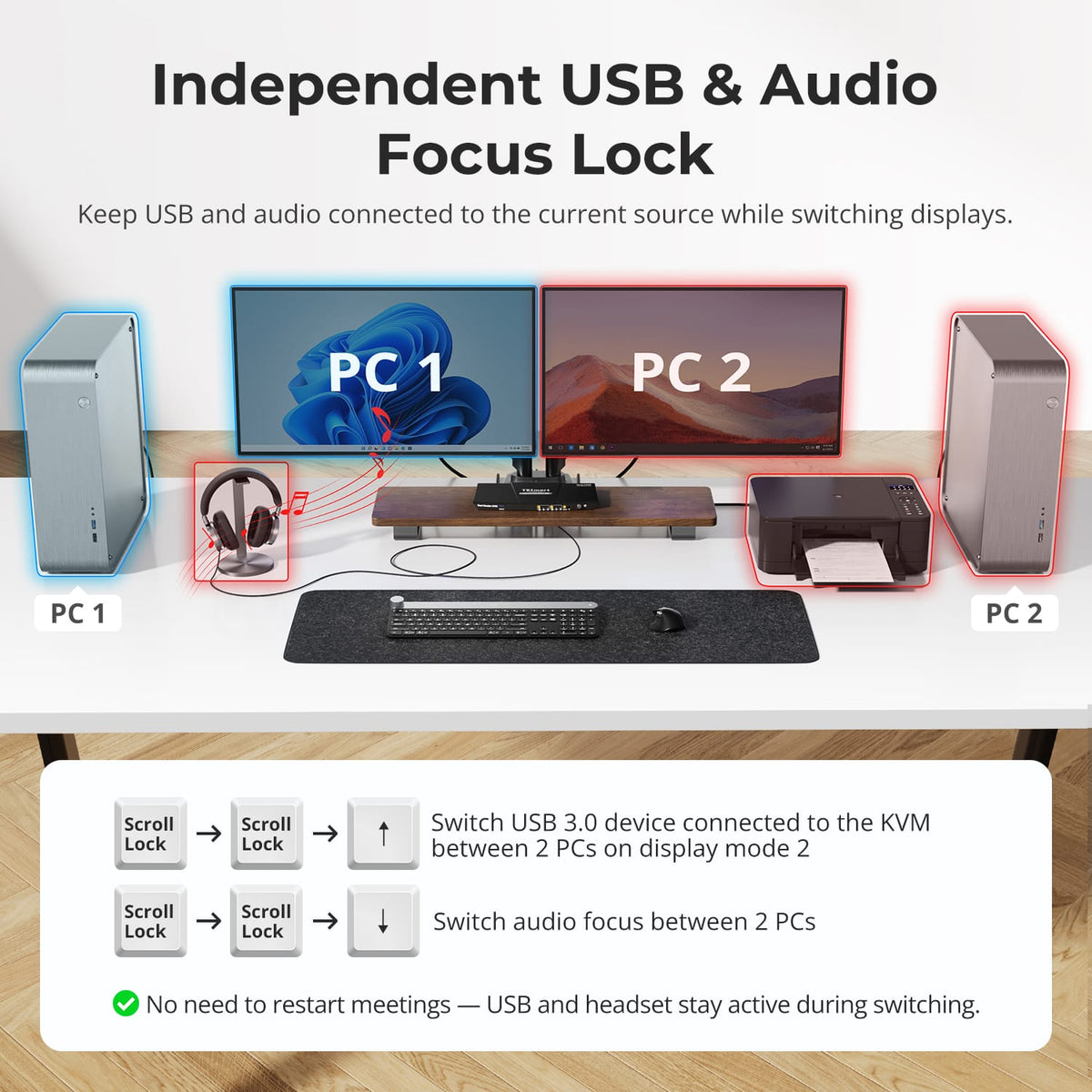
Share USB 3.0 Peripherals
Connect compatible USB storage and accessories once and access them from the active computer along with the shared keyboard and mouse.
05
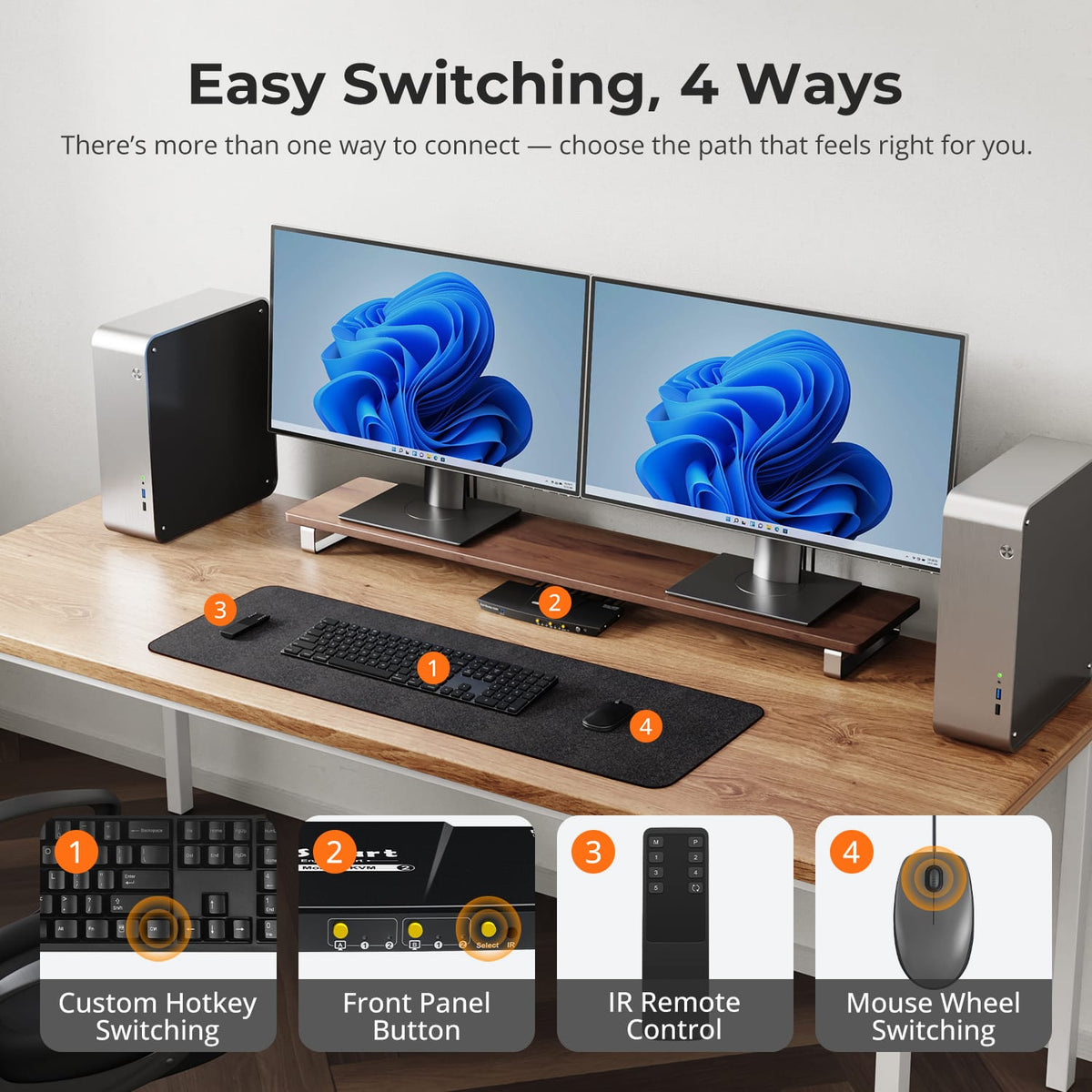
Four Ways to Switch
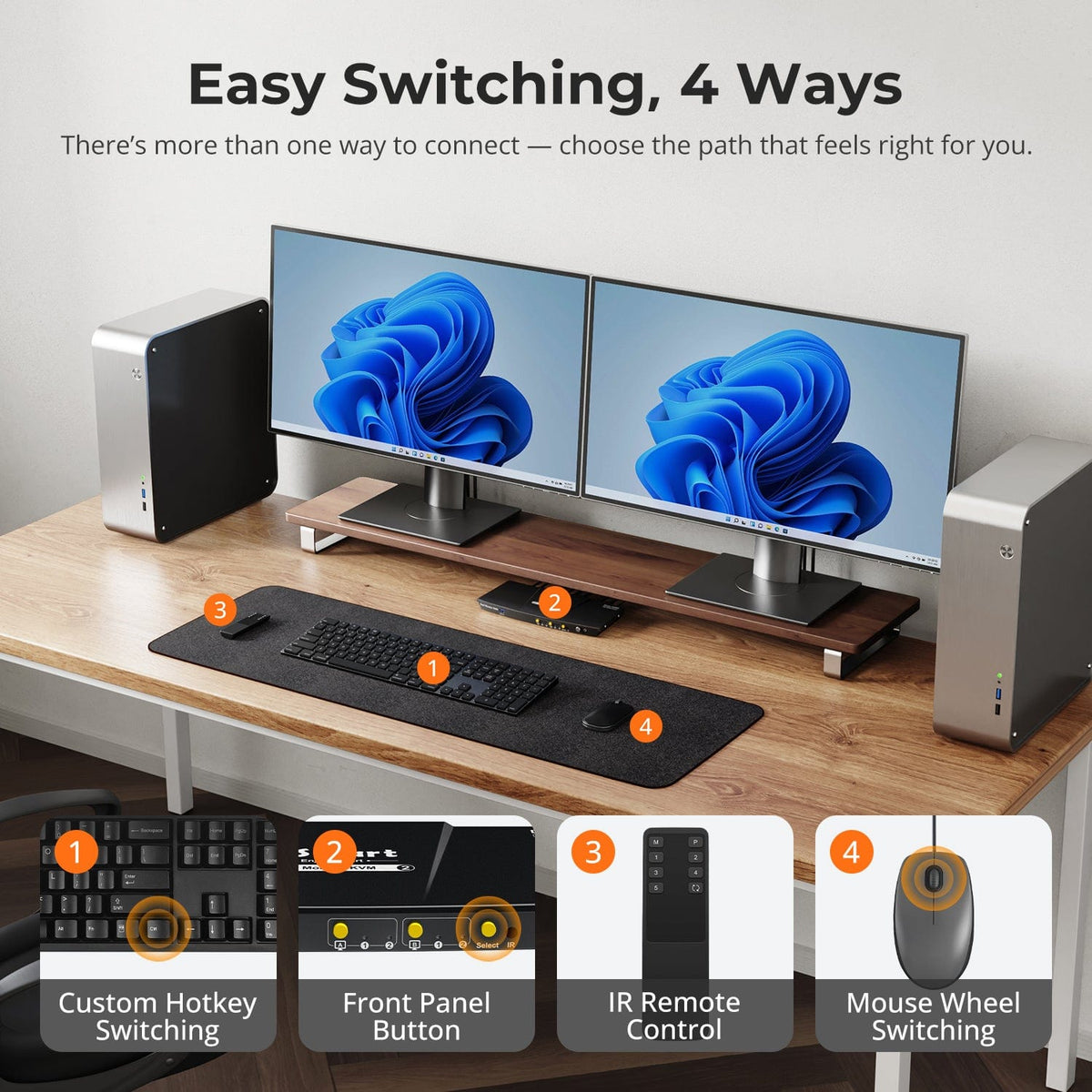
Switch from the front panel, IR remote, keyboard hotkeys or mouse-wheel control instead of reconnecting display cables.
06
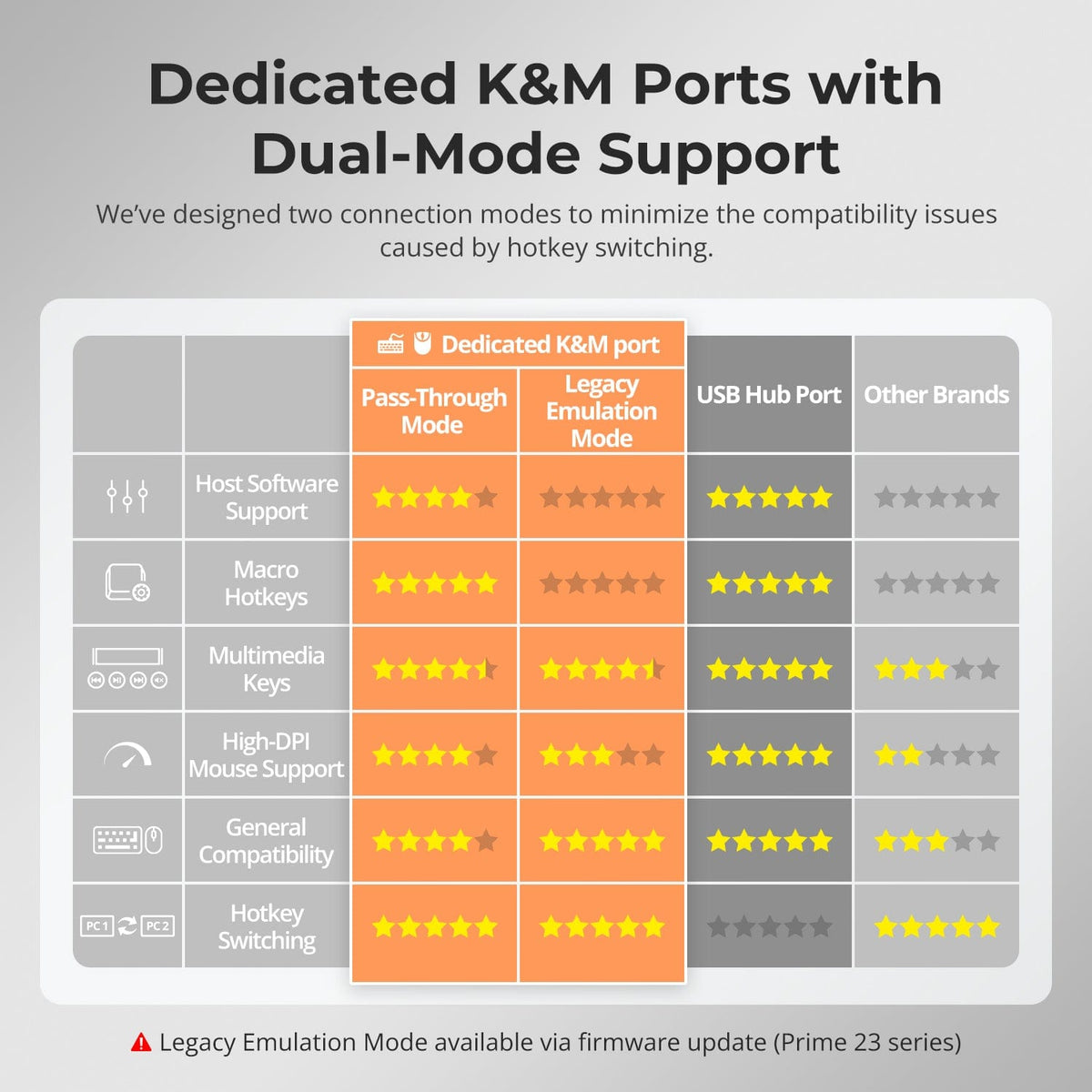
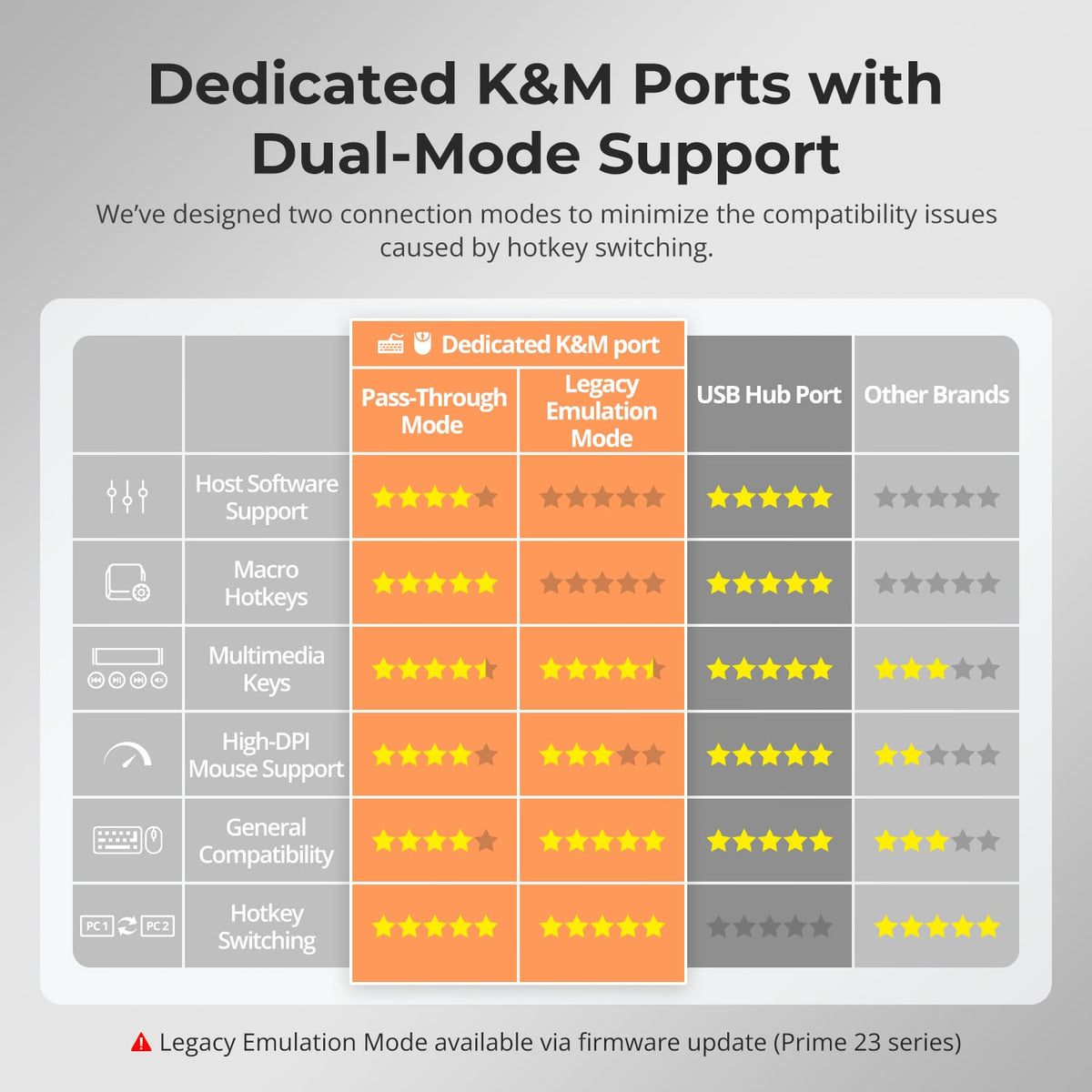
Keyboard & Mouse Pass-Through
Pass-through mode is available to improve compatibility with supported keyboards and mice while keeping the dedicated KVM control ports easy to use.
Specifications & Support
Compatibility & Input Guide
Technical Specifications
Manuals & Downloads
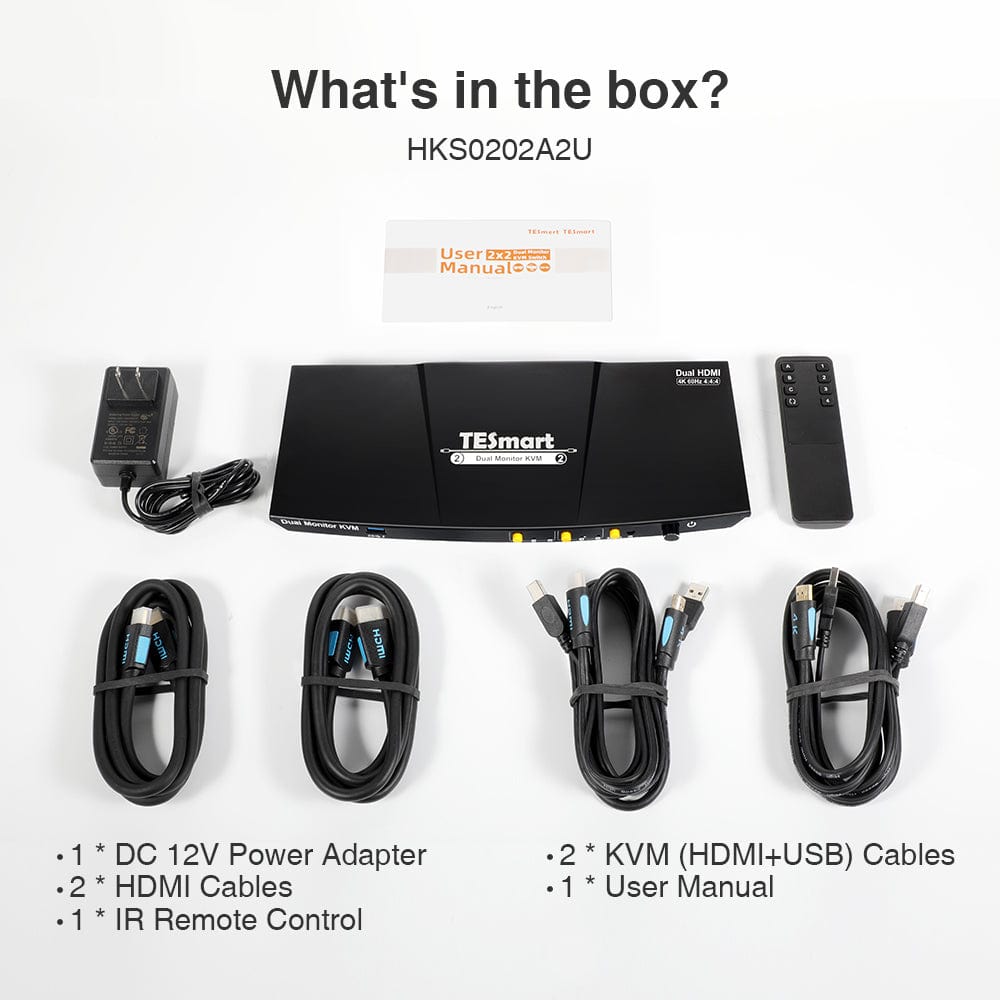
Included in the Box
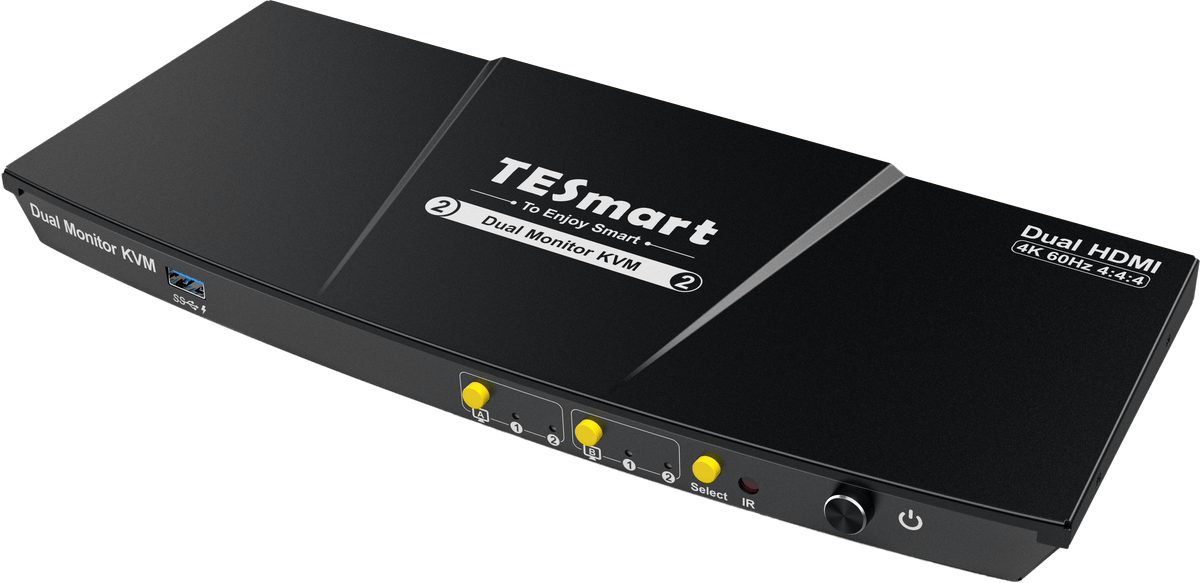
1 × 2×2 HDMI Dual Monitor KVM Switch
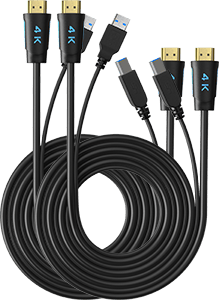
2 × KVM Cables
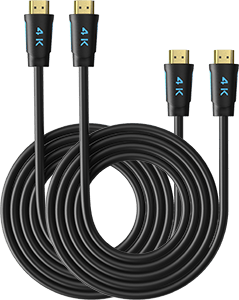
2 × HDMI Cables
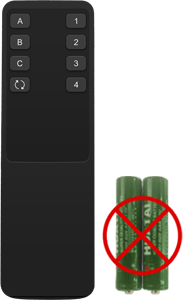
1 × IR Remote Control
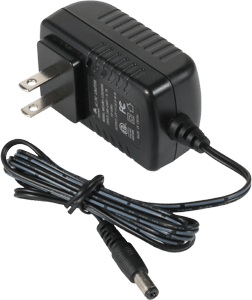
1 × DC 12V Power Adapter
1 × User Manual
FAQs
Visit our Help Center for more answers.
[Compatibility] What computers can I connect to HKS202-P23-V2?
You can connect two computers. Each computer needs two HDMI outputs plus USB for full dual-monitor KVM operation.
[Compatibility] What is the maximum supported resolution?
The manual supports up to 3840×2160@60Hz 4:4:4. Lower resolutions may run at higher refresh rates when supported by the source, display and cables.
[Compatibility] Do I need two HDMI outputs on each computer?
Yes if you want that computer to use both monitors. Each PC sends one HDMI signal to each KVM display path.
[Features & Connections] What display modes are available?
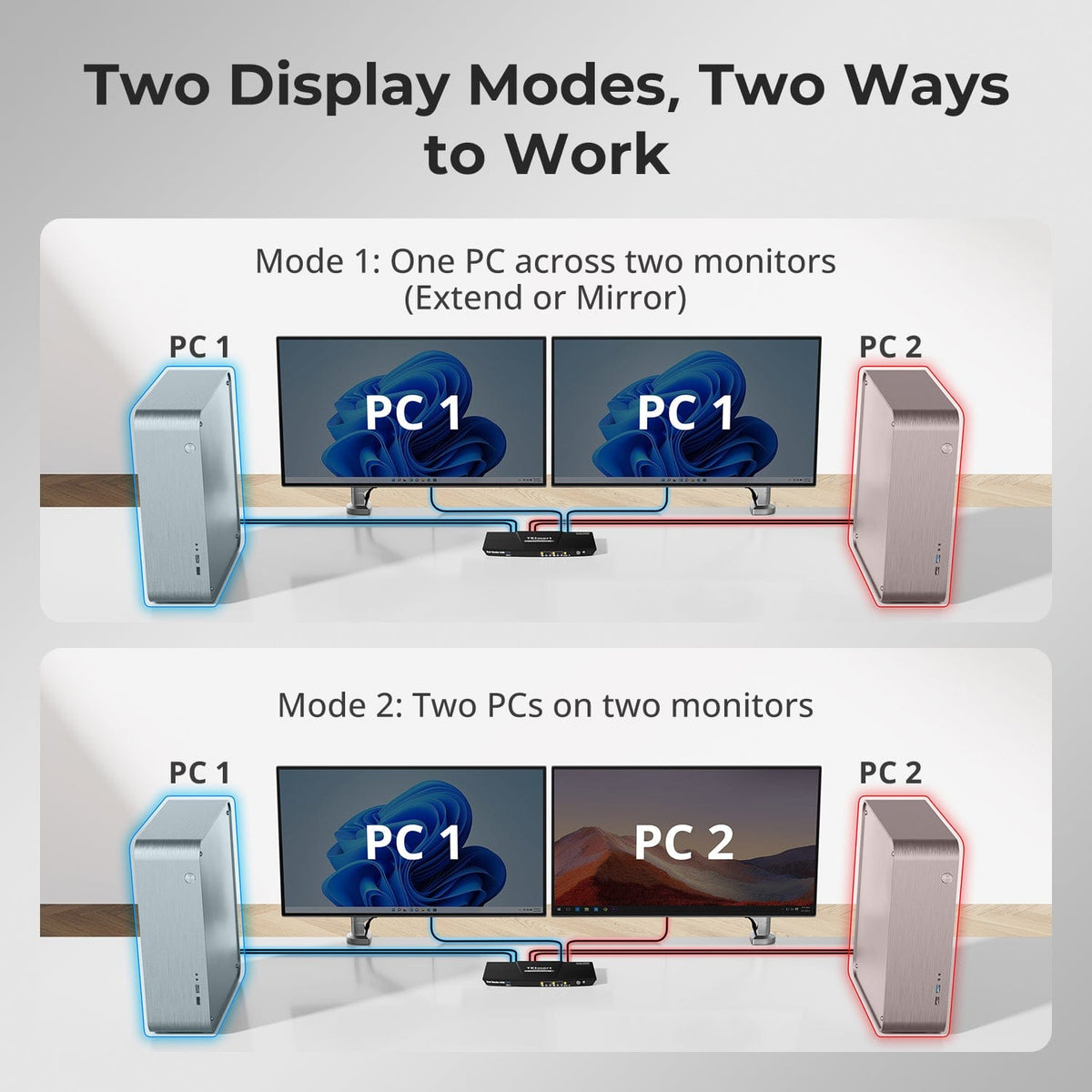
You can use both displays with one computer in extended or mirrored mode, or show different computers on the two monitors.
[Features & Connections] Does HKS202-P23-V2 support EDID?
Yes. The manual specifies EDID emulation in Display Mode 1 to help preserve display information and desktop layout.
[Features & Connections] Can I share USB devices between the two computers?
Yes. USB 3.0 ports let compatible peripherals follow the selected computer at up to 5Gbps.
[Features & Connections] Can the front USB port charge a phone or tablet?
Yes. The front USB-A port supports charging compatible mobile devices.
[Setup & Switching] How can I switch between computers?
Use the front-panel controls, IR remote, keyboard hotkeys or mouse-wheel switching.
[Setup & Switching] Do I need to shut down equipment before connecting or disconnecting devices?
No. The manual supports hot-plugging, so supported connected devices can be added or removed without powering down the KVM.