

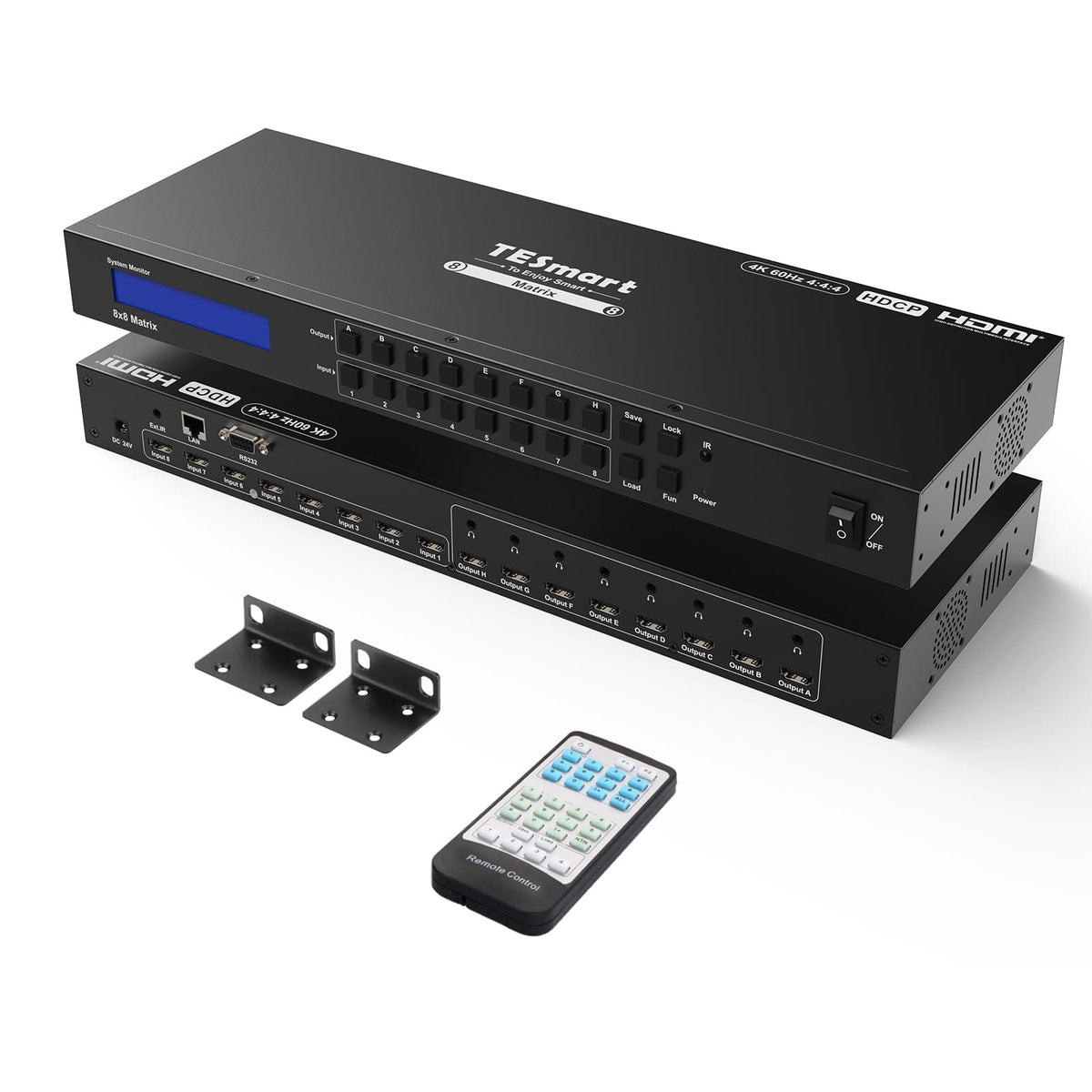
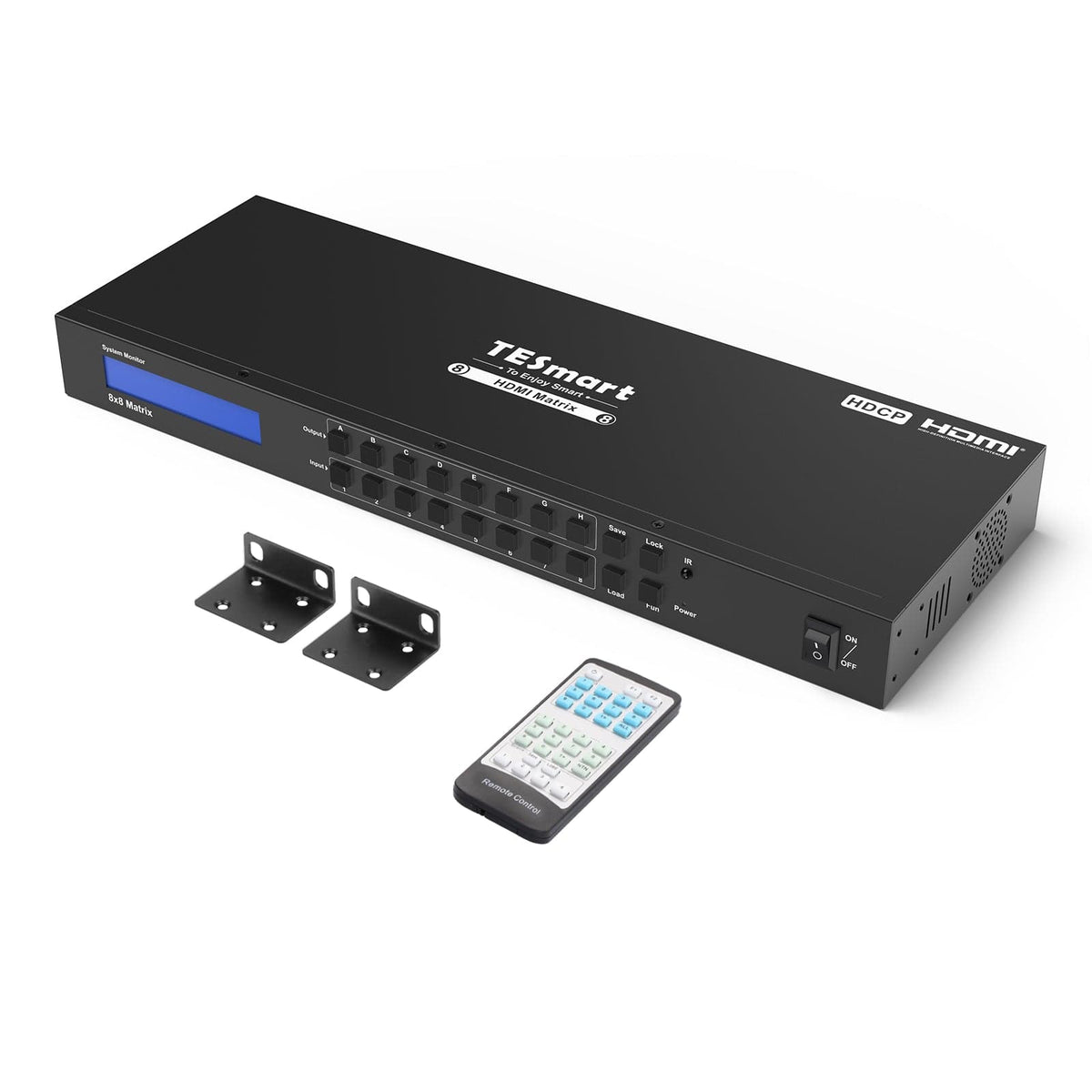

HMA808-E23 8x8 HDMI Matrix Switch
Share two Apple Studio Displays, one keyboard and mouse between two computers—or show one computer on each display when you need both systems at once.
HMA808-E23 8x8 HDMI Matrix Switch
Why Choose HMA808-E23
Overview
01
Choose What Each Screen Displays
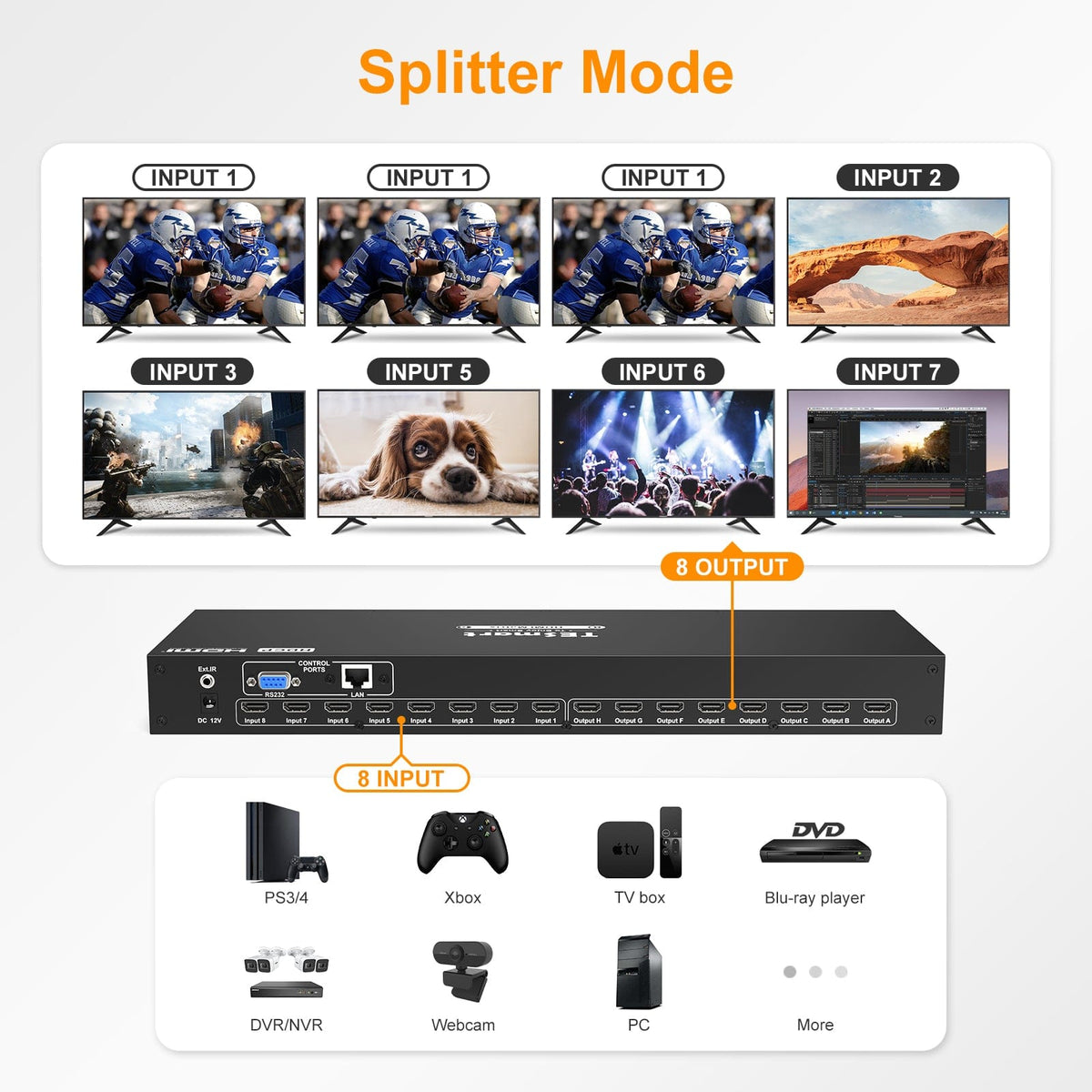
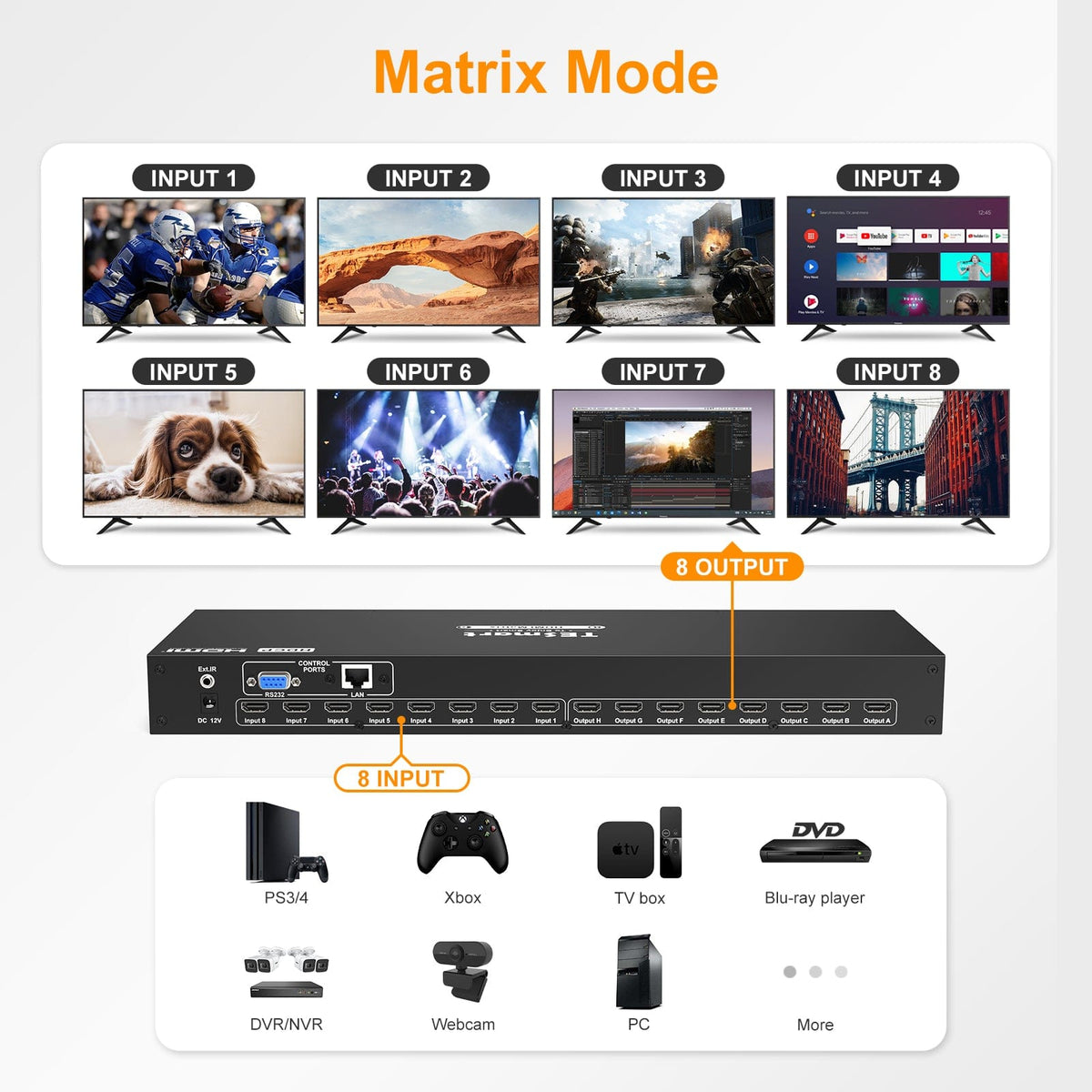
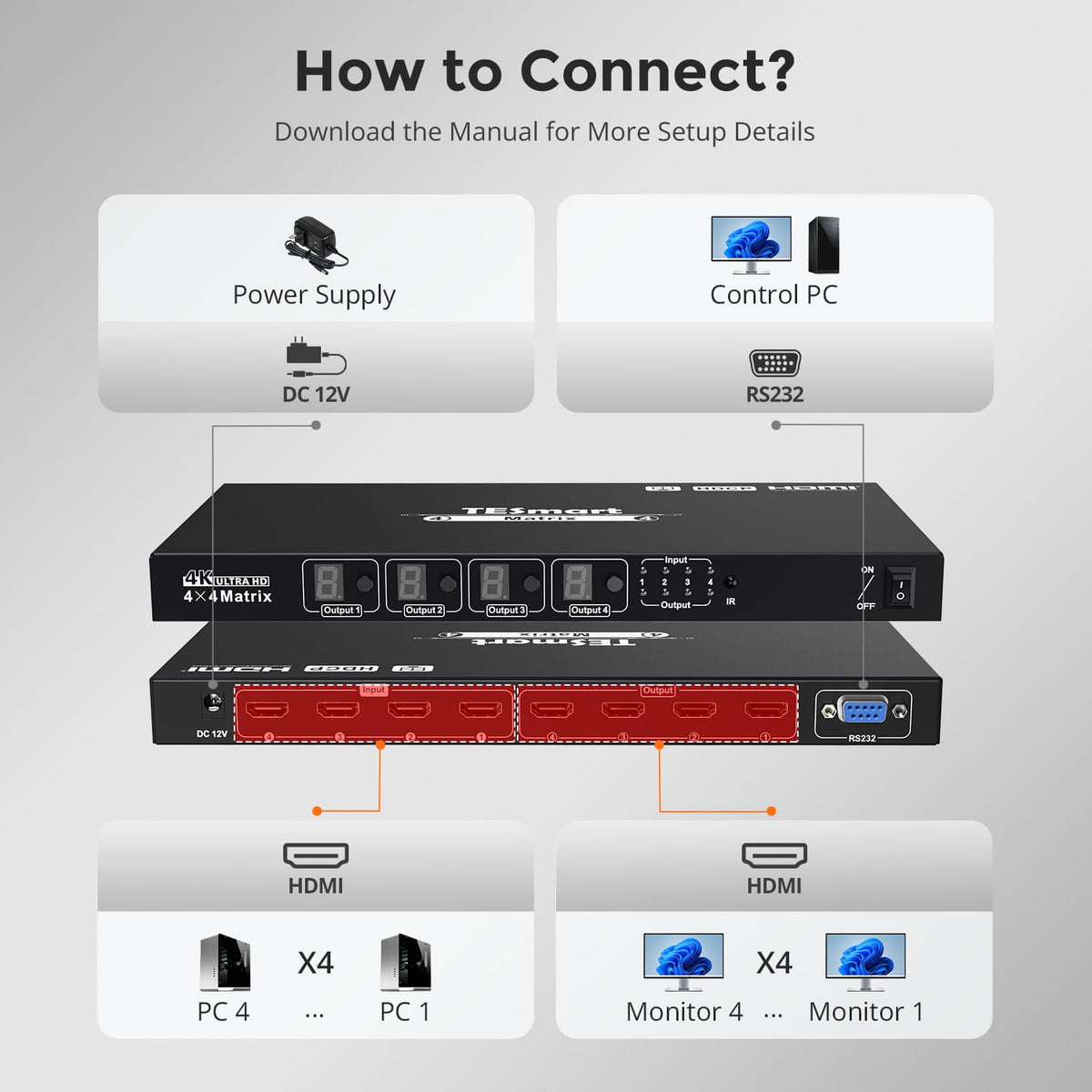
Route any of eight HDMI sources to any of eight HDMI displays. Each output can show a different source, or multiple outputs can share the same source. Keep presentations, media players, and monitoring feeds connected, then change the routing to match the room's needs.
02
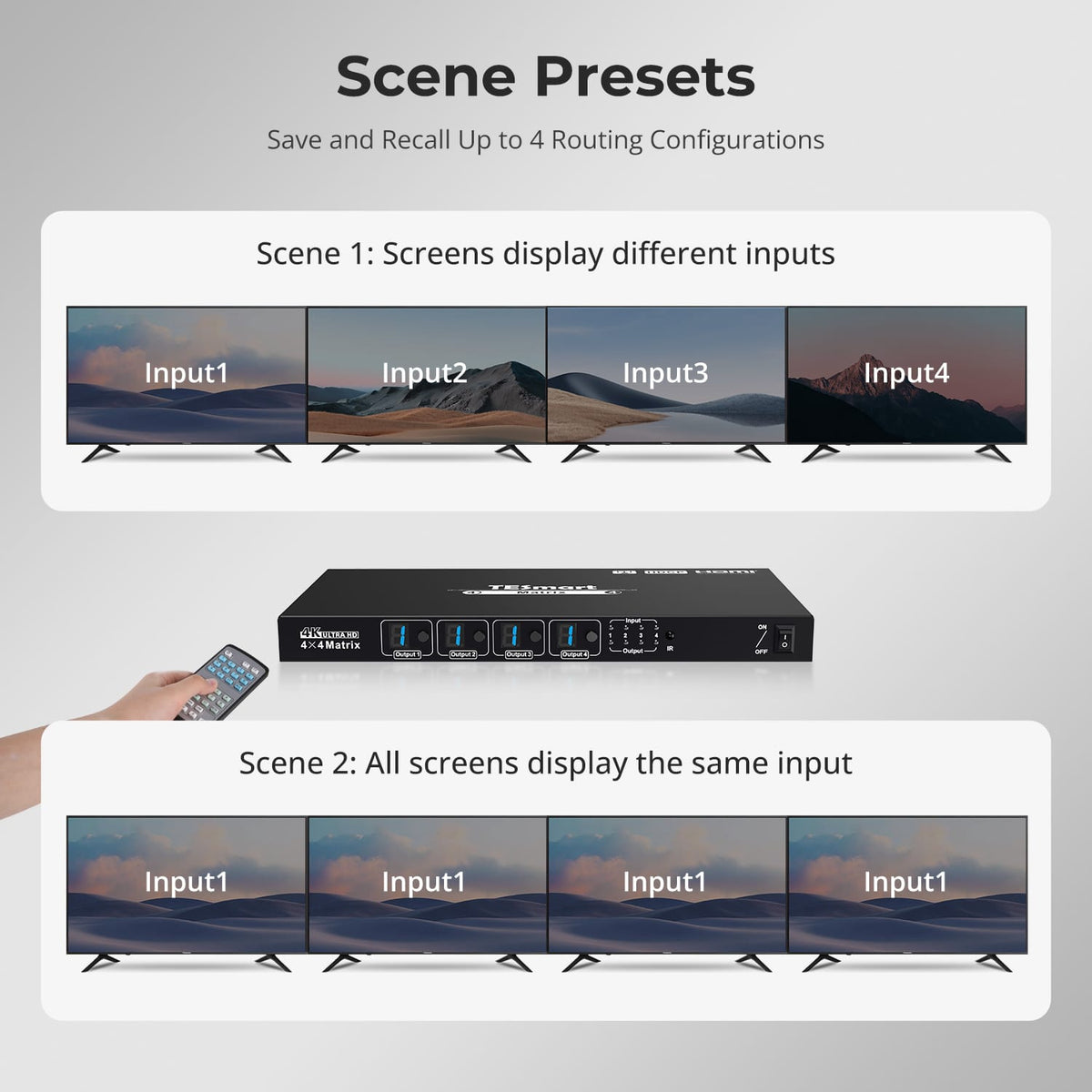
Save the Routing for Your Regular Setups
HDMI matrix with the Save button highlighted and an enlarged LCD showing output letters A through H and their assigned inputs, illustrating eight configurable routing presets.
03
Control the Matrix Locally or from a PC
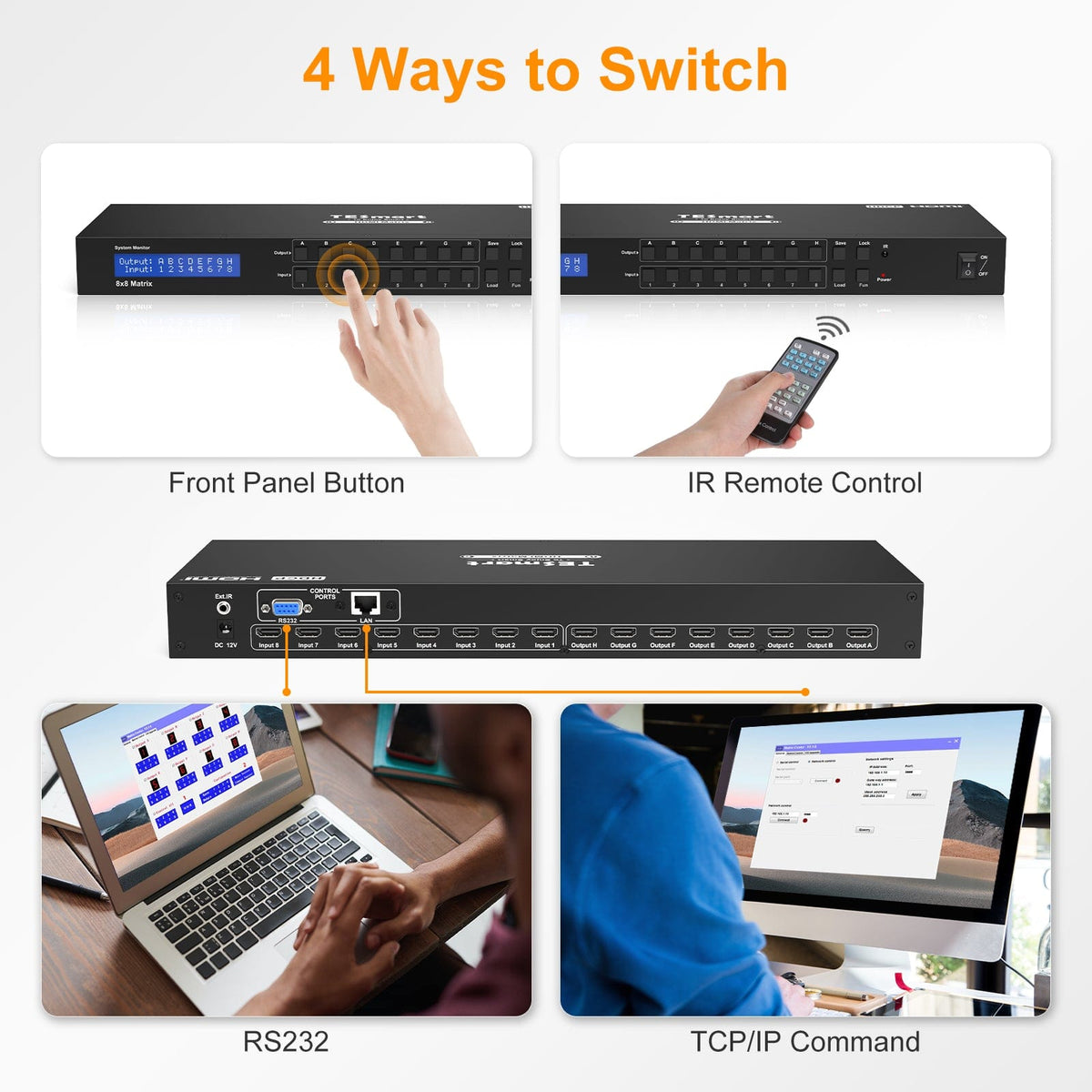
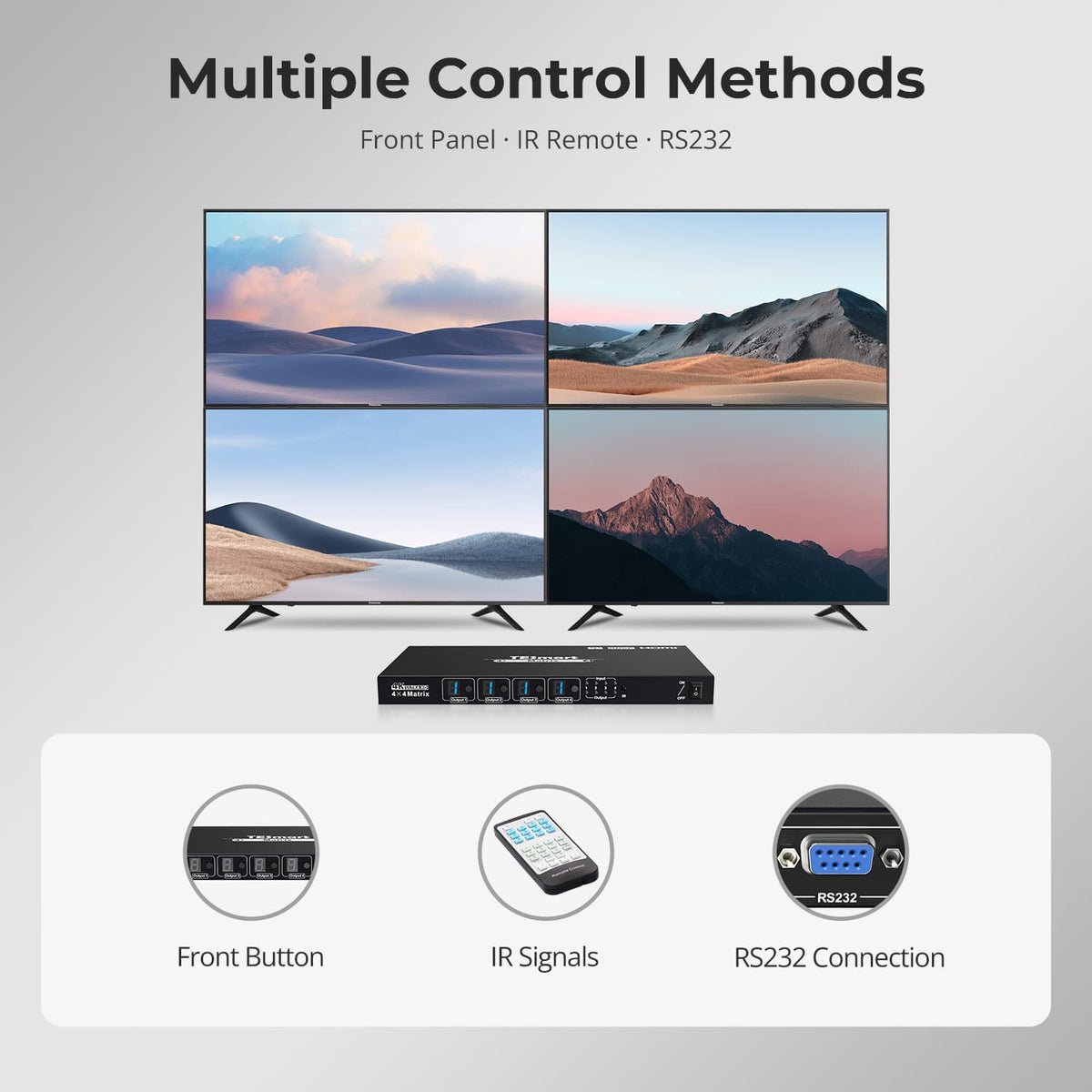
Select sources with the front-panel buttons or IR remote, or manage routing from a Windows PC through RS232 or LAN using the Matrix Controller software. RS232 and TCP/IP control also support integration with a compatible external control system. LAN control uses software or protocol commands rather than a web browser interface.
Specifications & Support
Compatibility & Input Guide
Technical Specifications
Manuals & Downloads
Included in the Box
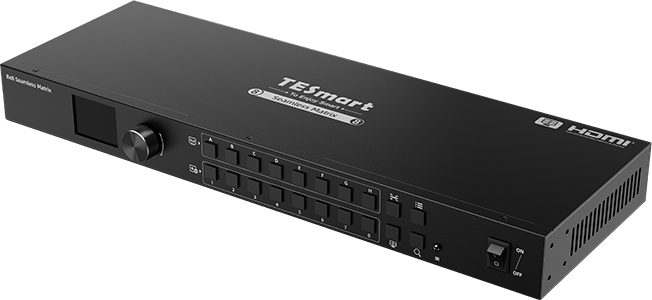
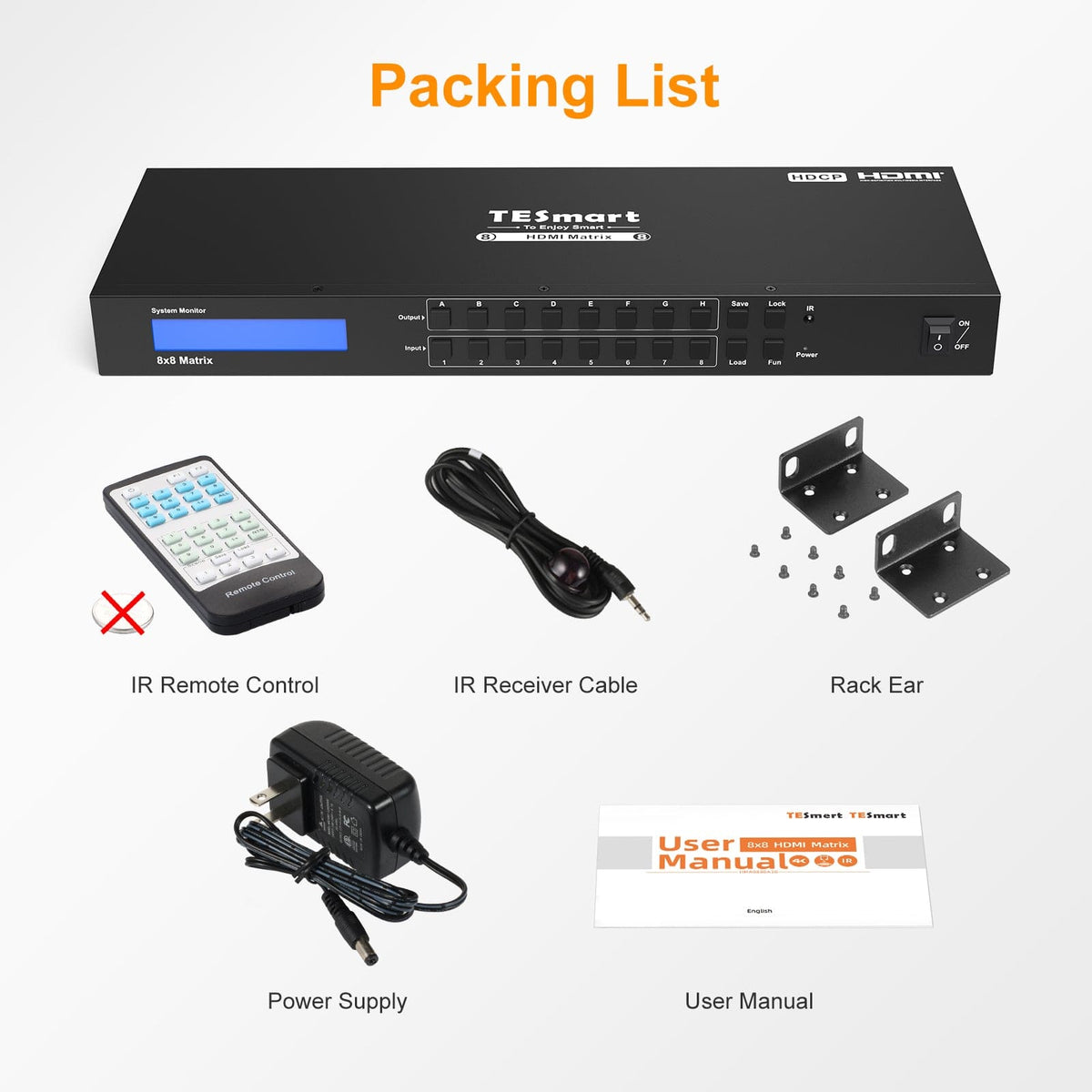
1 × 8x8 HDMI Matrix Switch
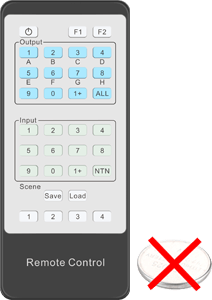
1 × IR Remote Control
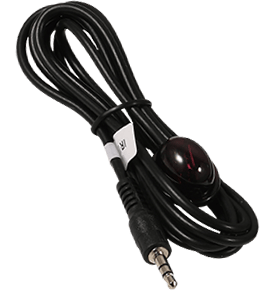
1 × IR Extension Cable
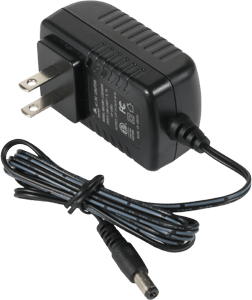
1 × 12V Power Adapter

2 × Rack Ears
1 × User Manual
Product comparison
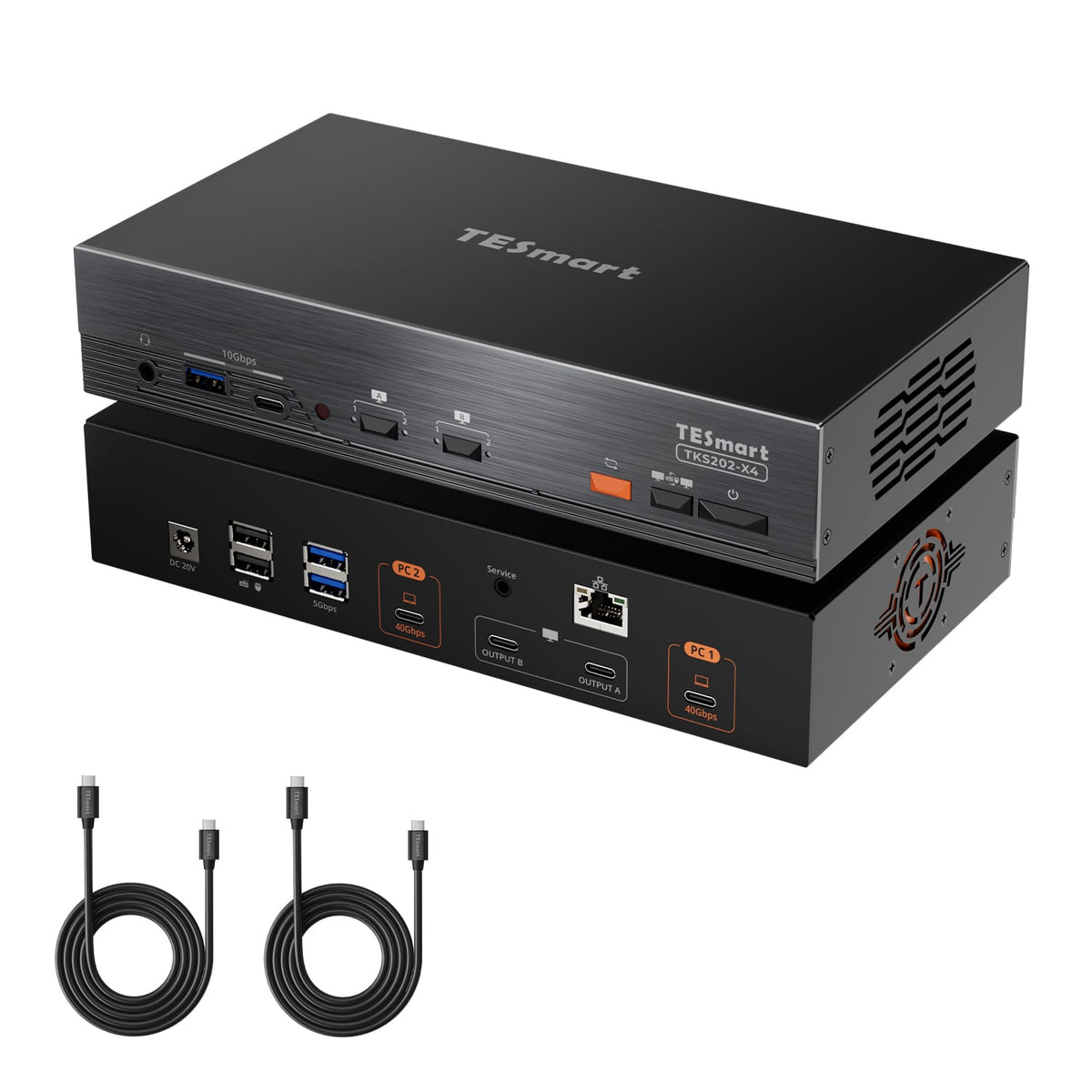
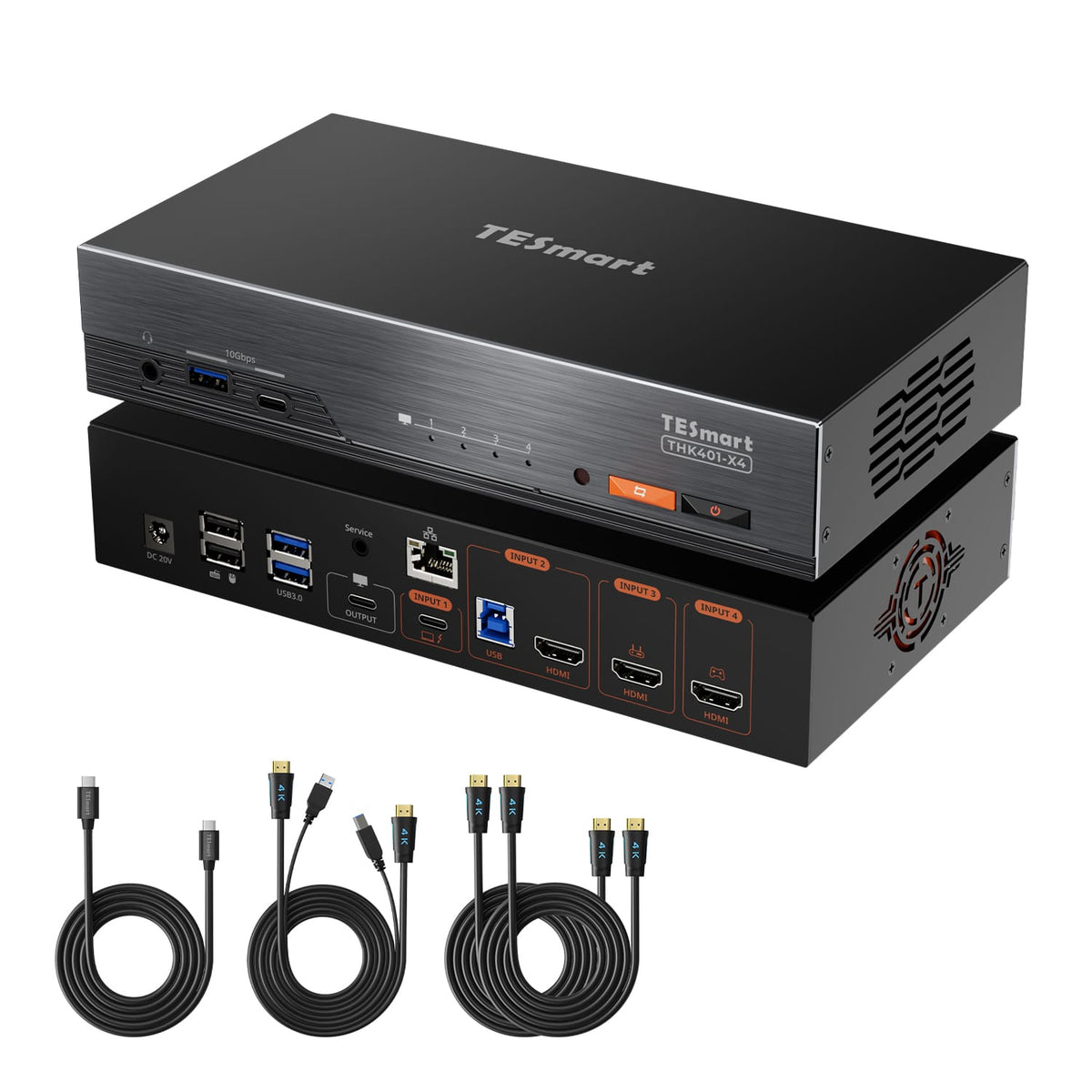
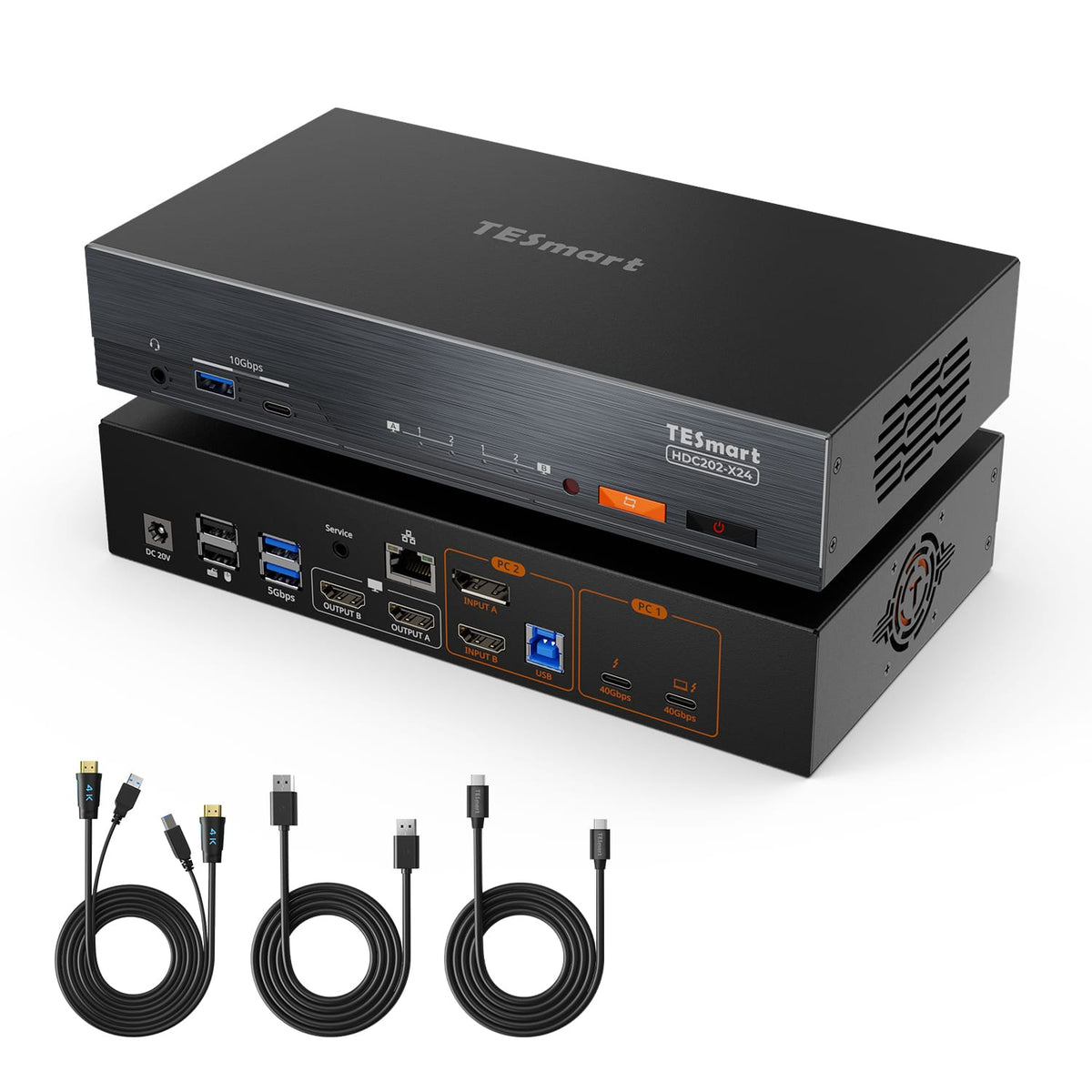
Source Mix
2× PCs (Thunderbolt™ 4)
Source Mix
1× Mac (Thunderbolt™ 4)
1x Windows PC
2× HDMI sources
Source Mix
1× Laptop (Thunderbolt™ 4)
1× HDMI/DP desktop
Display Setup
2× Apple Studio Displays
Display Setup
1× Apple Studio Display
Display Setup
2× HDMI monitors
Max Display Output
Up to 6K@60Hz / 5K@120Hz
Max Display Output
Input 1: 6K@60Hz / 5K@120Hz
HDMI: 4K@60Hz
Max Display Output
Dual 4K@60Hz
Laptop Charging
2× 60W
Laptop Charging
1× 60W
Laptop Charging
1× 60W
Best For
Two Macs or Win Laptops(Thunderbolt 4) sharing two Apple Studio Displays
Best For
Mac, desktop and HDMI devices sharing one Apple Studio Display
Best For
Mac and one desktop sharing two standard monitors
FAQs
Visit our Help Center for more answers.
[Compatibility] What sources and displays can I connect to HMA808-E23?
Connect up to eight HDMI sources and eight HDMI-input displays. The manual shows PCs, DVRs, set-top boxes, DVD players, and game consoles as source examples, with monitors, TVs, or projectors as displays. Each source needs an HDMI connection to the matrix, and each display needs an HDMI connection from an output port.
[Compatibility] Why do my displays use a lower resolution than expected?
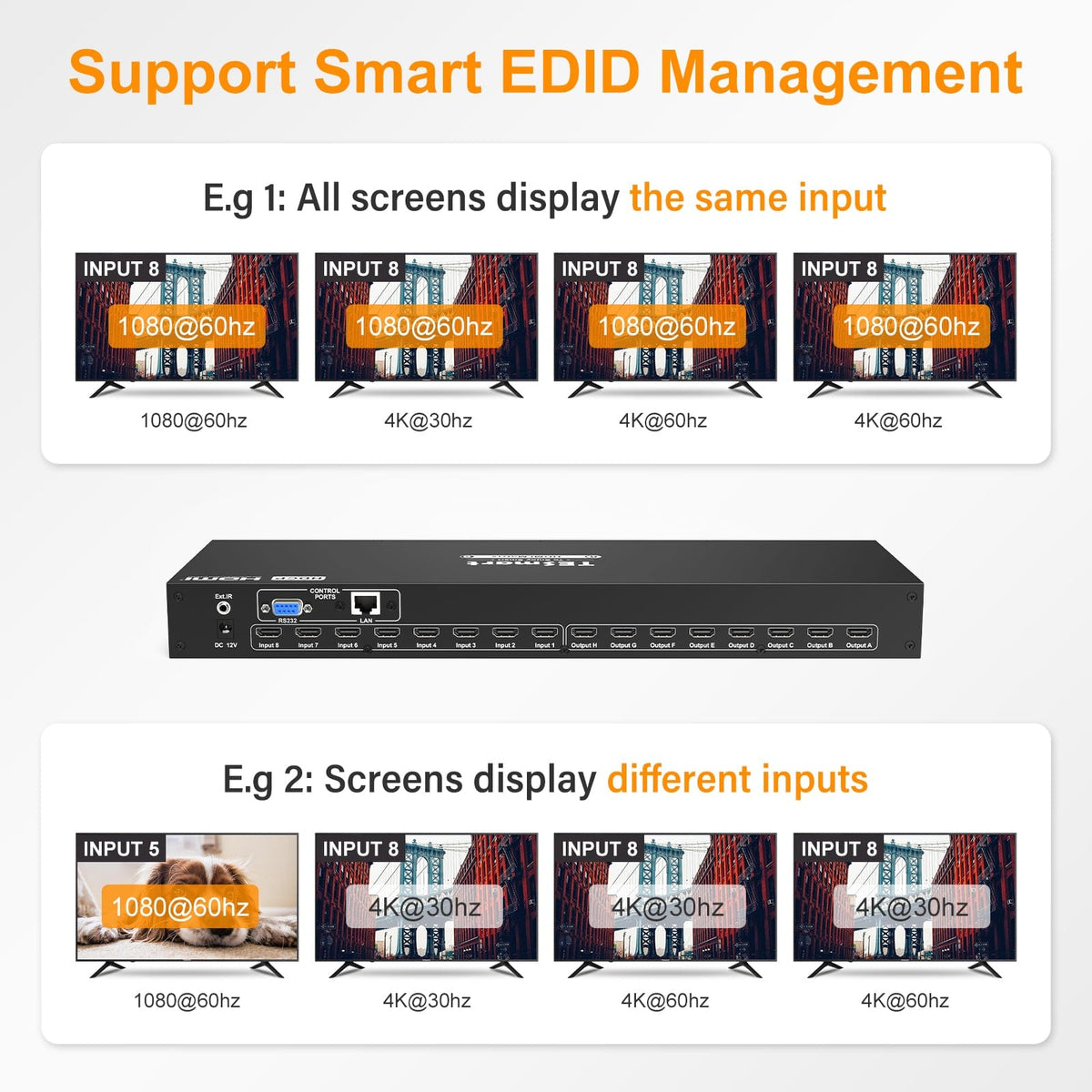
When several displays share one input, smart EDID management reports display capabilities that they support in common. A lower-capability screen can limit the shared source's output. For example, one 1080p display connected alongside two higher-resolution displays can make that source output 1080p. Use displays that support the same target resolution or change which displays share the input.
[Compatibility] Which operating system supports the official control software?
The official Matrix Controller software supports Windows. This requirement applies to the control PC running the software. You can also operate the matrix with its front-panel buttons or IR remote without running the Windows controller. The manual provides a protocol for developing a controller for another platform.
[Features & Connections] Can each display show a different source?
Yes. Each HDMI output can select its own input, so different displays can show different sources at the same time. Several outputs can also select the same input. The one-to-one routing function maps Input 1 to Output A, Input 2 to Output B, and so on.
[Features & Connections] Can I extract audio or select a separate audio source?
Audio extraction is supported, but a separate audio source cannot be selected. Each output group includes an HDMI output and an L/R analog audio output for external speakers or audio equipment. Both outputs in that group always use the same input source.
[Features & Connections] How many routing configurations can I save?
You can save up to eight complete routing configurations and recall them from the front panel. A saved configuration records which input each output uses, allowing you to reuse a layout without assigning every output individually.
[Features & Connections] Will the matrix remember its routing after power loss?
Yes. The matrix stores the previous routing state and restores it when power returns. This lets the displays resume their previous input assignments after the matrix powers on again.
[Setup & Switching] How do I connect the matrix for basic use?
Connect your sources to the HDMI Input ports and your displays to the HDMI Output ports. If needed, connect external audio equipment to the corresponding L/R outputs. Connect the supplied power adapter to the matrix and a power outlet, then turn the matrix on. HDMI cables are not included.
[Setup & Switching] Why are the front-panel buttons and IR remote not responding?
Check whether the keypad is locked. The lock display will show if the buttons are locked - refer to the manual for instructions on unlocking the keypad.
[Setup & Switching] How do I send one source to every display?
On the front panel, press Fun once, then press the desired input number 1 through 8 according to the LCD prompt. On the IR remote, select all output ports with the All button, then select the input source. All displays then receive the same input.
[Setup & Switching] How do I save and load a scene from the front panel?
First configure the routing you want to store. Press Save, then press a number from 1 through 8 according to the LCD prompt to save that configuration. To recall it, press Load and then its preset number from 1 through 8.
[Setup & Switching] Can I control the matrix through a web browser?
No. HMA808-E23 does not provide web UI control. Use the Windows Matrix Controller software over LAN or RS232, a compatible controller using the documented protocol, the front-panel buttons, or the IR remote.
[Setup & Switching] How do I connect the Windows controller over LAN?
Connect the LAN port to a router or directly to the control PC, and place the PC and matrix on the same subnet with different IP addresses. The documented default matrix address is 192.168.1.10 with port 80 and subnet mask 255.255.255.0. In Matrix Controller, open General, select Network Control, enter the matrix IP address and port, and click Connect. After connection, select Matrix Control to change routing.
[Setup & Switching] How do I connect the Windows controller through RS232?
Connect the PC to the matrix's RS232 port with a serial cable. Use 9600 bps, 8 data bits, 1 stop bit, and no parity. In Matrix Controller, open General, select Serial Control, choose the correct COM port, and click Connect. Once connected, open Matrix Control to assign inputs to outputs.