

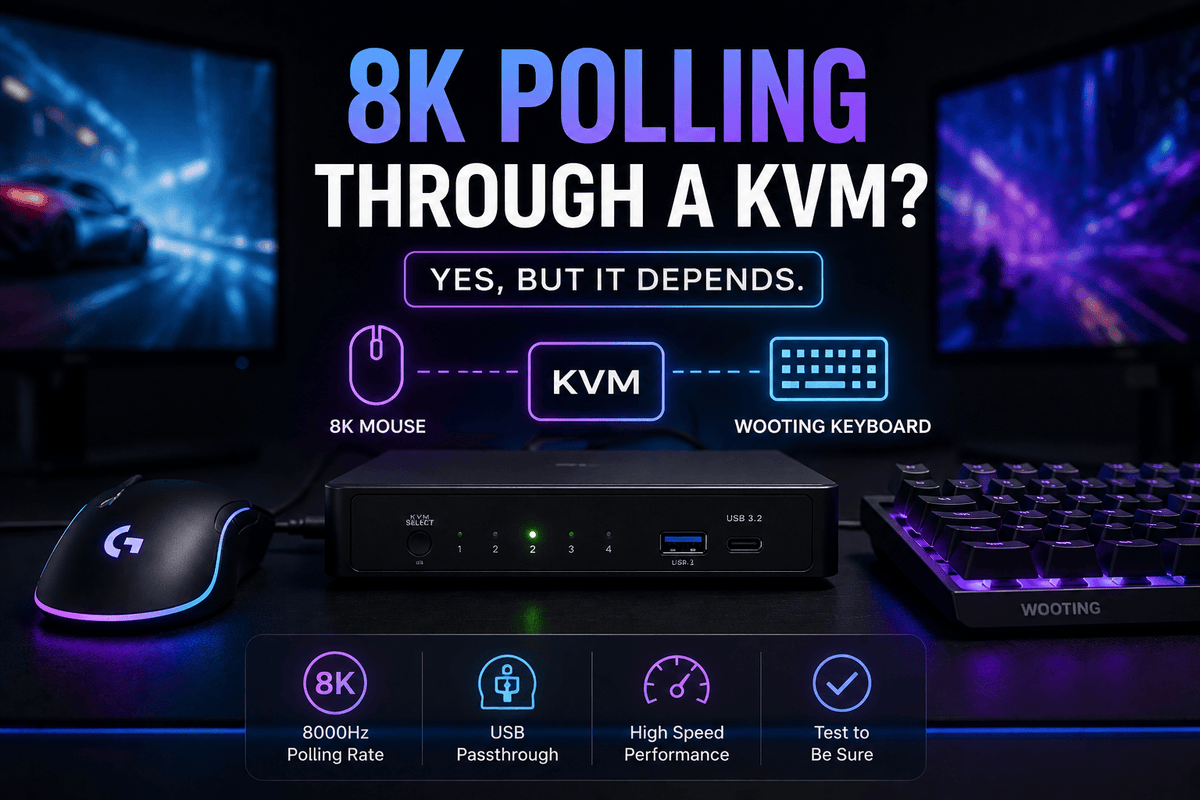
Short answer: yes, a high-polling-rate mouse or Wooting keyboard can work through a KVM switch, but that does not automatically mean its configured 4000Hz or 8000Hz polling rate will be preserved.
The result depends on the complete USB path: Peripheral → USB Port Type → KVM USB Architecture → Host USB Connection → Operating System → Actual Polling Rate.
A KVM can therefore pass basic keyboard and mouse input correctly while still changing how an advanced gaming peripheral communicates with the computer. The important question is not simply whether the KVM has USB 2.0, USB 3.0, or USB 3.2. You need to know which USB path the peripheral is using and then verify the result on the host computer.
Table of Contents
- Short Answer: Yes, But the USB Path Matters
- Why 8K Polling-Rate Peripherals Are Different from Normal Keyboards and Mice
- What Actually Happens to USB Devices Inside a KVM Switch?
- Dedicated KVM Keyboard Port vs USB Passthrough Port
- Can a KVM Reduce an 8000Hz Polling Rate?
- Wooting Keyboard + KVM: What Compatibility Problems Can Appear?
- How to Test Whether Your KVM Is Really Passing 8K Polling
- Troubleshooting High-Polling-Rate Keyboard and Mouse Problems
- What to Check Before Buying a KVM for an 8K Mouse or Wooting Keyboard
- Building a Gaming PC + Work Laptop Setup with High-Polling-Rate Peripherals
- How to Evaluate a TESmart KVM for Gaming Peripherals
- Final Takeaway
- FAQ
Short Answer: Yes, But the USB Path Matters
An 8000Hz mouse KVM setup is technically possible. The same is true for a Wooting keyboard capable of high polling rates. What cannot be assumed is that every KVM will preserve the peripheral's original USB behavior.
There are at least three separate levels of compatibility:
- Basic operation: the mouse moves and clicks, or the keyboard types.
- Advanced-device compatibility: configuration software, RGB, analog input, macro functions, firmware tools, and vendor-specific interfaces still work.
- Full high-polling operation: the device continues reporting at the configured 4000Hz or 8000Hz rate without instability.
A setup can pass the first test while failing the second or third.
This distinction matters when evaluating an 8K polling rate KVM. Seeing the cursor move normally is not evidence that the entire 8000Hz report stream is reaching the computer unchanged.
Why 8K Polling-Rate Peripherals Are Different from Normal Keyboards and Mice
Polling rate describes how frequently a USB input device can provide new reports to the host. Higher polling rates shorten the interval between report opportunities.
| Polling Rate | Nominal Report Interval | Typical Context |
|---|---|---|
| 125Hz | 8 ms | Basic office peripherals and older devices |
| 500Hz | 2 ms | Older or efficiency-focused gaming devices |
| 1000Hz | 1 ms | Common gaming mouse and gaming keyboard rate |
| 4000Hz | 0.25 ms | High-polling gaming peripherals |
| 8000Hz | 0.125 ms | Current high-performance gaming mice and keyboards |
The interval is only one part of total input latency. Device scanning, firmware processing, USB scheduling, operating-system processing, CPU load, the game engine, and display refresh timing also contribute to the final response seen on screen.
That is why an 8000Hz specification should not be interpreted as a guarantee of exactly 0.125 ms end-to-end latency.
Why Gamers Use 4K and 8K Polling
A mouse moving continuously can generate frequent position updates. Increasing polling from 1000Hz to 8000Hz gives the host more frequent opportunities to receive newer position information. The effect is most relevant when the rest of the system is also fast enough to expose those smaller timing differences, especially on high-refresh-rate gaming setups.
High-polling keyboards approach the problem somewhat differently because a keyboard does not behave like a constantly moving mouse. Advanced keyboards may combine fast matrix scanning, rapid actuation processing, multiple USB interfaces, analog data, and high-rate USB reporting.
For example, current Wooting models with 8K capability use a different USB communication mode from their lower polling configuration. That is an important reminder that a Wooting keyboard KVM test involves more than basic typing.
More Reports Mean More Work
At 8000Hz, a continuously active peripheral can generate substantially more USB activity than a traditional 1000Hz device. The KVM's USB controller is only one part of that path. The host USB controller and CPU also need to process the resulting workload.
This does not mean 8000Hz will automatically create high CPU usage on every computer. It means that a marginal USB controller, overloaded system, extra hub layers, or an unusual KVM USB implementation becomes more relevant when the peripheral is operating at a much higher report frequency.

What Actually Happens to USB Devices Inside a KVM Switch?
Two KVM switches can both list "USB" on their specifications while handling a keyboard or mouse very differently internally.
From a gaming-peripheral perspective, four concepts are especially important.
HID Emulation
A dedicated keyboard or mouse connection may use HID emulation. Instead of exposing the exact physical gaming device directly to each computer, the KVM may present a standardized keyboard or mouse interface.
This architecture can be useful for basic keyboard and mouse switching. It may help maintain input availability, support KVM hotkeys, or reduce some reconnect behavior when switching computers.
However, an advanced gaming keyboard or mouse can expose more than basic HID input. Vendor configuration software, analog controls, lighting interfaces, firmware access, high-rate reports, media interfaces, or additional HID endpoints may depend on communication that a basic emulation layer was not designed to reproduce.
This does not mean every HID-emulated KVM lowers polling rate. It means an emulated keyboard/mouse path should not automatically be treated as transparent USB communication.
Dedicated Keyboard and Mouse Ports
A port labeled "Keyboard" or "Mouse" is often optimized for standard HID behavior and KVM control functions. Depending on the model, the port may have different USB behavior from the general-purpose USB ports on the same KVM.
Advanced users should therefore avoid assuming that a port is preferable simply because it has a keyboard icon.
Shared USB Hub
A KVM may also contain a switchable USB hub. When the active computer changes, the hub and attached devices are transferred to the selected host.
This path can allow the computer to enumerate the actual gaming device rather than a generic emulated keyboard or mouse. That can make it more suitable for peripherals that require software such as Wootility, Razer Synapse, Logitech G HUB, or Corsair iCUE.
The tradeoff is that the device may disconnect from one computer and re-enumerate on the other during switching.
USB Passthrough
The term USB passthrough KVM generally refers to a path intended to forward the connected USB device more directly rather than translate it into a simplified keyboard or mouse identity.
For gaming peripherals, this is often the more useful path to test first. But "passthrough" still does not guarantee 8000Hz operation. The KVM's hub controller, upstream connection, signal quality, power design, firmware, and the host controller remain part of the chain.

Dedicated KVM Keyboard Port vs USB Passthrough Port
The most important practical question for a KVM switch for gaming mouse use is often not "Which USB version does it have?" but "Which physical USB port will my gaming device use?"
| USB Path | Possible Advantage | What to Verify |
|---|---|---|
| Dedicated keyboard/mouse port | May support hotkeys, keyboard/mouse focus handling, or HID continuity | Whether HID emulation is used and whether advanced device interfaces remain visible |
| Regular shared USB port | More likely to enumerate the complete peripheral through the active host | USB speed, reconnect behavior, host link, power, and actual polling rate |
| USB passthrough/hub path | Usually preferable when vendor software or multiple USB interfaces are required | Whether the KVM passes the required USB mode and remains stable at high polling |
For a Wooting keyboard, 4K/8K gaming mouse, or another device that depends on advanced vendor communication, a general USB passthrough or shared hub port is often the more logical first test.
There is an operational tradeoff. If your KVM recognizes hotkeys only through the dedicated keyboard port, moving the gaming keyboard to the shared USB hub may mean that its normal KVM hotkeys no longer trigger switching. In that case, use the KVM's front-panel button, remote control, or another supported switching method.
The exact behavior is model-specific, so check the KVM manual rather than assuming every keyboard-labeled port or USB hub works the same way.

Can a KVM Reduce an 8000Hz Polling Rate?
Yes, it is possible for the effective polling behavior to change after a peripheral is connected through a KVM. But there is no single mechanism that applies to every product.
Possible causes include:
- HID emulation: the host may be communicating with the KVM's emulated HID interface rather than directly with the original peripheral.
- USB operating mode: the peripheral may enumerate differently through the KVM than when directly attached.
- Hub architecture: the KVM may introduce one or more internal USB hub stages.
- Host-controller behavior: one USB controller may handle the high-polling device more reliably than another.
- Additional adapters or docks: every extra USB bridge introduces another controller, cable, power source, and enumeration step.
- Signal or cable problems: marginal USB connections may become visible as reconnects, missed reports, or instability.
- Shared peripheral load: other USB devices on the same path can change the operating environment.
- Host processing load: high report rates create more input-processing activity than ordinary office peripherals.
Why USB 2.0 vs USB 3.x Does Not Answer the Question
One of the most common mistakes when choosing a high polling rate KVM is assuming that USB 3.0 automatically supports 8000Hz while USB 2.0 automatically does not.
USB generation and HID polling frequency describe different things.
USB 2.0 includes multiple signaling speeds. A device operating in USB Hi-Speed mode can use much shorter scheduling intervals than a traditional Full-Speed HID device. Some current high-polling keyboards use USB Hi-Speed specifically to enable 8000Hz operation.
At the same time, a KVM advertising USB 3.0 or USB 3.2 may still route its dedicated keyboard/mouse ports through a separate HID-oriented controller rather than the general SuperSpeed hub.
Therefore:
USB 3.x on the specification sheet is useful information, but it is not proof of 8K polling compatibility.
The architecture of the actual port used by the gaming peripheral matters more.

Wooting Keyboard + KVM: What Compatibility Problems Can Appear?
A Wooting KVM switch setup is a useful example because modern Wooting keyboards can expose functions beyond ordinary keyboard input.
Depending on the Wooting model and configuration, the device may rely on advanced USB communication for configuration, analog features, firmware functions, and high-rate operation.
Wootility Cannot Detect the Keyboard
If typing works but Wootility cannot detect the keyboard, check whether the Wooting is connected to a dedicated HID-emulated keyboard port.
The computer may be seeing a basic keyboard interface supplied by the KVM instead of the complete USB device required by the configuration utility.
If the KVM provides a separate shared USB or passthrough port, move the keyboard there and test again.
The Keyboard Reconnects or Fails to Enumerate
A high-polling Wooting model can behave differently at 8000Hz than at a lower polling rate because the USB operating mode may change.
If a keyboard is stable at 1000Hz but becomes unreliable at 8000Hz through the KVM, that comparison provides an important troubleshooting clue. It does not immediately prove that the KVM is defective; the KVM hub, host USB controller, cable, or another intermediate device may be part of the problem.
RGB or Advanced Functions Stop Working
Basic typing and advanced USB functions should be tested separately.
If the keyboard types normally but RGB controls, analog features, firmware access, or software detection fail, the issue is more likely to involve the USB interface exposed through the KVM rather than the basic keyboard data alone.
Mouse Stutter with High-Speed USB Devices Connected
An 8K mouse may appear smooth during a simple desktop test but show inconsistent behavior during gaming or while other USB devices are active.
Remove external hubs, webcams, capture devices, storage devices, and unnecessary adapters temporarily. Then retest the mouse by itself through the KVM.
If the problem disappears, add devices back one at a time. This is more useful than immediately concluding that the gaming mouse KVM latency is caused by one specific component.

How to Test Whether Your KVM Is Really Passing 8K Polling
Do not begin with the KVM. Establish a direct-connection baseline first.
- Connect the peripheral directly to the gaming PC. Avoid a dock, monitor USB hub, extension, or KVM during the baseline test.
- Set the peripheral to 4000Hz or 8000Hz. Use the manufacturer's configuration software where applicable.
- Confirm that the device is recognized correctly. Check firmware, configuration software, lighting, custom controls, and other advanced functions.
- Measure the direct-connection polling behavior. Record the result so you have a baseline.
- Connect the same peripheral through the KVM. Keep other variables as similar as possible.
- Test the dedicated keyboard/mouse port. Record recognition, advanced functions, polling behavior, and stability.
- Test the regular USB passthrough or shared USB port if available. Compare the result with the dedicated port.
- Switch between computers repeatedly. Test whether the peripheral re-enumerates correctly after several switches.
- Run a real game or workload. A desktop polling test alone may not reveal CPU-load or controller-related instability.
Testing Mouse Polling Rate in Windows
For a gaming mouse, use a reliable polling-rate utility or a testing utility supplied or recommended by the mouse manufacturer when available.
Move the mouse continuously and compare the distribution of report intervals rather than focusing only on the highest number displayed. An 8000Hz configuration has a nominal interval of approximately 0.125 ms, but real samples will show variation.
Run the test once with a direct connection and again through the KVM using the same mouse settings, DPI, USB host, and general test method.
Browser-based mouse polling tests can be useful for a quick comparison, but browser event handling may not always represent the raw USB report stream accurately enough for a strict 8K validation.
Testing a Wooting Keyboard in Windows
Keyboard polling is more difficult to verify with a normal online keyboard tester. Pressing keys manually cannot generate enough events to prove that the USB host is polling the device every 0.125 ms.
First use Wootility to confirm the configured polling mode and verify that the keyboard is fully recognized. Then compare direct and KVM connections for device detection, configuration access, input stability, and any available vendor diagnostics.
If you need engineering-level confirmation of actual USB transaction timing, use a specialized USB/HID capture method or hardware USB analyzer rather than relying on keyboard key-repeat speed.
Important: "The keyboard types normally" proves basic HID input. It does not prove that the configured 8000Hz USB polling mode is reaching the host unchanged.
Troubleshooting High-Polling-Rate Keyboard and Mouse Problems
If an 8K mouse, Wooting keyboard, or another gaming peripheral becomes unstable through a KVM, simplify the USB path before changing multiple settings at once.
| Symptom | What to Check First | Useful Comparison Test |
|---|---|---|
| Mouse works but polling appears lower | Dedicated HID port vs shared USB port | Direct PC vs each KVM USB path |
| Wootility cannot detect keyboard | Possible HID emulation or incomplete USB enumeration | Move keyboard to shared USB passthrough |
| Device disconnects after switching PCs | USB re-enumeration, power, hub layers, firmware | Repeat switching at 1000Hz and 8000Hz |
| Mouse stutters in games | Host CPU/controller load and other USB devices | Remove other USB peripherals and retest |
| Advanced keyboard functions disappear | Whether only a basic HID interface is being exposed | Compare software detection direct vs passthrough |
Recommended Troubleshooting Order
- Connect the gaming peripheral directly to the computer.
- Confirm that 4000Hz or 8000Hz is stable without the KVM.
- Connect the KVM directly to the host USB port without an extra dock or hub.
- Test the peripheral by itself through the KVM.
- Try the regular shared USB port instead of the dedicated HID port.
- Try a different native USB port on the computer.
- Use a short, known-good USB cable for the KVM upstream connection.
- Temporarily lower the peripheral from 8000Hz to 1000Hz.
- Switch between both computers several times and retest.
- Add other USB devices back one at a time.
If lowering the peripheral from 8000Hz to 1000Hz makes the problem disappear, you have identified a strong correlation with the high-polling USB path. You still need to determine whether the limiting layer is the KVM port, its USB controller, the upstream connection, an adapter, or the host USB controller.

What to Check Before Buying a KVM for an 8K Mouse or Wooting Keyboard
When evaluating a gaming KVM switch, treat gaming-peripheral compatibility as a separate requirement from video resolution.
A KVM supporting 4K144, 4K160, or another high-refresh display mode tells you about the video path. It does not by itself describe the keyboard and mouse USB architecture.
Pre-Purchase Compatibility Checklist
| Check | Why It Matters |
|---|---|
| Dedicated HID port or USB passthrough? | HID emulation may change how advanced peripherals communicate with the host. |
| Does the keyboard/mouse port use HID emulation? | Basic input compatibility does not guarantee vendor-specific interfaces or high-polling behavior. |
| Is there a regular shared USB hub? | Advanced gaming peripherals are often better candidates for a path that exposes the full USB device. |
| USB 2.0 / USB 3.x connection | Defines part of the USB link, but the generation alone does not guarantee 8K polling. |
| KVM-to-host USB connection | A dock, adapter, or extra hub creates another USB controller and compatibility variable. |
| Vendor software detection | Wootility, Synapse, G HUB, iCUE, or similar tools help determine whether the complete device is visible. |
| Actual polling-rate test | Confirms whether the configured 4K/8K rate survives the complete KVM path. |
| Stability during repeated switching | A peripheral should be tested after multiple host changes, not only immediately after connection. |
| Known tests with your exact peripheral | Wooting, Razer, Logitech, Corsair, and other devices can expose different USB interfaces and behaviors. |
- Confirm exactly which port you plan to use for the gaming keyboard.
- Confirm exactly which port you plan to use for the gaming mouse.
- Ask whether those ports are emulated or transparent/shared USB paths.
- Check whether the shared USB path switches completely between hosts.
- Check the KVM's upstream USB connection to each computer.
- Avoid assuming that the video specification tells you anything about KVM polling rate.
- If 8000Hz operation is essential, ask whether your exact KVM and peripheral combination has been tested.
- Plan to verify the polling rate yourself after installation.
Building a Gaming PC + Work Laptop Setup with High-Polling-Rate Peripherals
Consider a typical mixed desk:
- Gaming PC
- Work laptop
- High-refresh-rate gaming monitor
- Wooting keyboard
- 8000Hz gaming mouse
- KVM switch
It is easy to focus only on the monitor specification: HDMI 2.1, DisplayPort, 4K144, 1440p240, VRR, or another display target.
But this desk actually contains two separate performance paths.
1. The Video Path
The gaming PC needs enough display bandwidth for the target resolution, refresh rate, color format, and gaming features.
The work laptop needs a compatible display output path, possibly through USB-C, HDMI, DisplayPort, or an adapter depending on the laptop.
2. The USB Input Path
The Wooting keyboard and 8K mouse need a USB path that handles the complete devices reliably.
For the gaming PC, a direct KVM upstream connection to a native motherboard USB port is preferable during compatibility testing. If the work laptop requires an adapter, keep that path as simple as possible instead of routing USB through several docks and hubs before it reaches the KVM.
If the KVM has both dedicated HID ports and regular USB sharing ports, test the high-performance peripherals on the regular shared USB path first when transparent communication is required.
You may decide that switching speed and gaming performance have different priorities. For example, a simple office keyboard may work well on the KVM's dedicated keyboard channel for hotkey control, while the Wooting keyboard and 8K mouse use the shared USB path.
There is no requirement that every USB peripheral on the desk use the same type of KVM port.
Wireless 4K/8K Mouse Considerations
If the mouse uses a high-polling wireless receiver, USB architecture is only part of the problem. Receiver placement and radio conditions also matter.
A receiver placed behind a metal KVM, next to active USB 3.x devices, or far from the mouse can create a different problem from USB polling itself.
When troubleshooting a wireless 8000Hz mouse KVM setup, compare both the USB path and receiver location before attributing cursor stutter to KVM processing latency.
How to Evaluate a TESmart KVM for Gaming Peripherals
At TESmart, we recommend separating video compatibility from gaming-peripheral compatibility.
A KVM may meet your display requirements while its dedicated keyboard/mouse channel and shared USB hub follow different internal paths. For a Wooting keyboard or high-polling gaming mouse, those USB paths should be evaluated independently.
Before choosing a TESmart model for an 8K peripheral setup, check:
- how many computers and monitors need to be switched;
- the required display resolution and refresh rate;
- whether the model provides dedicated keyboard/mouse ports;
- whether those dedicated ports use HID emulation;
- whether a separate USB hub or passthrough path is available;
- the USB upstream connection required for each host;
- whether vendor configuration software needs to communicate with the peripheral;
- and whether your exact gaming peripheral has been tested through that USB path.
From a KVM design perspective, we look at the entire connection rather than treating "USB 3.0" as a guarantee of gaming compatibility.
If a specific TESmart product has not been validated with your exact Wooting keyboard, Razer mouse, Logitech gaming mouse, Corsair keyboard, or other 4K/8K peripheral, the appropriate approach is to verify the USB architecture and perform a direct-versus-KVM polling test.
We do not recommend assuming "8000Hz supported" simply because a KVM provides a high-speed USB hub.
Users comparing TESmart KVM products for gaming should therefore choose the display architecture first, then confirm the USB peripheral path before purchase.
Final Takeaway
An 8K mouse or Wooting keyboard can potentially operate through a KVM switch, but the correct compatibility question is not:
"Does this KVM have USB 3.0?"
It is:
"How does this KVM handle my gaming peripheral from the device port all the way to the host?"
Use this troubleshooting chain:
Peripheral → USB Port Type → KVM USB Architecture → Host USB Connection → Operating System → Actual Polling Rate
If the peripheral is connected through an emulated HID path, advanced functions or high-rate communication may behave differently from a transparent USB path. If it uses a shared USB passthrough port, full device enumeration may be more likely, but 8000Hz stability still needs to be tested.
Most importantly, keep three questions separate:
- Does the device work?
- Do its advanced features work?
- Is the full configured polling rate actually preserved?
For users building a Gaming PC + Work Laptop desk, answering those questions before purchase is more useful than looking for an "8K polling rate KVM" label alone.
If you are considering a TESmart KVM, compare the number of computers, display configuration, video requirements, dedicated HID ports, and shared USB architecture together. For high-polling gaming peripherals, verify the exact USB path for the model you are considering rather than relying only on its headline USB specification.
FAQ
Q1: Can a KVM switch support an 8000Hz gaming mouse?
Potentially, yes. An 8000Hz mouse can work through a KVM when the USB path is compatible with the device's high-rate communication. However, basic mouse movement does not prove that the full 8000Hz polling rate is preserved. Test the mouse directly and through the KVM and compare the measured polling behavior.
Q2: Does USB 3.0 guarantee that a KVM supports 8000Hz polling?
No. USB 3.0 or USB 3.x describes part of the USB connection architecture, but it does not tell you whether a particular keyboard or mouse port uses HID emulation, a separate USB controller, or transparent device switching. A USB 3.x specification alone is not an 8K polling guarantee.
Q3: Does USB 2.0 prevent an 8K mouse or keyboard from working?
Not necessarily. USB 2.0 includes different signaling modes, including Hi-Speed operation. Some 8000Hz peripherals use USB Hi-Speed communication. The more useful question is which USB mode and endpoint behavior the complete KVM path supports, rather than judging compatibility from the "USB 2.0" label alone.
Q4: Should I connect my Wooting keyboard to the KVM's keyboard port?
Not automatically. A dedicated keyboard port may use HID emulation intended for basic keyboard functions and KVM hotkeys. If Wootility, analog functions, high-rate polling, or other advanced interfaces are important, test a regular shared USB or passthrough port if the KVM provides one.
Q5: Why does my Wooting keyboard type normally but Wootility cannot detect it?
The keyboard may be passing through only as a basic HID device while other interfaces needed by Wootility are not being exposed to the computer. Test the keyboard directly, then try a non-emulated shared USB port on the KVM.
Q6: Why does my 8K mouse stutter through a KVM?
Possible causes include the KVM USB path, host USB controller, extra hubs or docks, cable quality, system load, USB re-enumeration, or—in the case of a wireless mouse—receiver placement and radio interference. Establish a direct connection baseline and then simplify the KVM path before changing multiple variables.
Q7: How can I tell whether my 8000Hz polling rate survived the KVM connection?
Measure the mouse directly on the PC first, then repeat the same polling-rate test through the KVM. For a Wooting keyboard, confirm the polling configuration and full software recognition, and use specialized USB/HID measurement if strict verification of transaction timing is required. Normal typing or an online key-repeat test is not sufficient evidence of 8000Hz USB polling.
Q8: Is a USB passthrough KVM always better for gaming peripherals?
It is often a better starting point for advanced peripherals because the complete device is more likely to be enumerated by the active computer. However, a passthrough path is not a guarantee of stable 4000Hz or 8000Hz operation. The hub controller, host link, cables, operating system, and peripheral still need to be tested together.
Share:
HDMI 2.2 Is Coming: Should You Wait or Buy an HDMI 2.1 KVM Now?
How Much USB Bandwidth Does a KVM Switch Need?