

Table of Contents
- Introduction
- Two Ways to Build the Same Gaming PC + Work Laptop Desk
- When a USB Switch Is Actually Enough
- Why Not Always Use a USB Switch?
- What Gamers Should Check Before Routing Video Through a KVM
- Gaming Mouse and Keyboard Compatibility Is a Separate Question
- The Hidden Difference: What Happens to Your Displays When You Switch?
- KVM Switch vs USB Switch: Decision Table
- Who Actually Needs a KVM?
- 10 Things to Check Before Buying a KVM
- If You Decide You Actually Need a KVM
- Suggested Internal Links
- FAQ
- Conclusion
Introduction
Your desk has a gaming PC, a work laptop, a 1440p 144Hz, 165Hz, or 240Hz main monitor, a second monitor, a gaming mouse, a mechanical keyboard, a webcam, and perhaps a USB microphone or headset.
Now that the same desk has become your gaming station and your work-from-home setup, the obvious question is how to share everything between the two computers.
A KVM switch can move the monitors and USB peripherals from one computer to the other with a single switching action. But it also places another device in the video path between your GPU and monitors.
A USB switch takes the opposite approach. Your gaming PC stays directly connected to the monitor, while only the keyboard, mouse, and other USB devices are switched between computers.
So the useful question is not simply “What is the difference between a KVM switch and a USB switch?”
It is:
Is the convenience of switching my entire workstation worth routing the video signals through a KVM?
For some desks, the answer is no. You may not actually need a KVM switch.
For others—especially dual-monitor desks with frequent switching and several shared peripherals—a USB switch begins to solve only part of the problem.
Two Ways to Build the Same Gaming PC + Work Laptop Desk
Before comparing specifications, it helps to compare the two actual desk architectures.
Option 1: USB Switch + Direct Monitor Connections
With a USB switch, the video path normally stays outside the switch.
Gaming PC:
DisplayPort → Main Monitor
DisplayPort / HDMI → Second Monitor
Work Laptop:
USB-C / HDMI / Dock → Main Monitor
USB-C / HDMI / Dock → Second Monitor
Shared peripherals:
Keyboard + Mouse + Webcam + Microphone
↓
USB Switch
↓
Gaming PC / Work Laptop
When you move from work to gaming, you may need to:
- Press the USB switch button.
- Change the input on Monitor 1.
- Change the input on Monitor 2.
The advantage is a very simple gaming video path. Your GPU remains connected directly to the monitor.
Option 2: Full KVM Switching
A KVM brings video and USB switching into the same device.
Gaming PC + Work Laptop
↓
KVM Switch
↓
Monitor 1 + Monitor 2 + Keyboard + Mouse + USB Peripherals
When you switch computers, the KVM can move the display paths and shared peripherals together.
The practical advantage is not that a KVM is automatically “better.” It is that several separate switching operations become one coordinated action.

When a USB Switch Is Actually Enough
A USB switch can be the more sensible solution when the problem you are trying to solve is mainly USB sharing, not complete workstation switching.
You probably do not need a full KVM if:
- You use only one monitor.
- Your monitor has multiple inputs.
- Your gaming PC can stay connected through DisplayPort.
- Your work laptop can use another HDMI, DisplayPort, or USB-C input.
- You mainly want to share a keyboard and mouse.
- You switch computers only once or twice per day.
- You do not mind changing the monitor input manually.
- You want to keep the gaming video chain as simple as possible.
- Your budget is limited.
Consider a single-monitor setup where the gaming PC uses the monitor's DisplayPort input and the laptop uses HDMI through a dock.
The monitor already performs the video-source selection. In that situation, adding another device solely to switch the video may not provide enough benefit to justify the additional hardware and cabling.
A basic USB switch can handle the keyboard and mouse while the monitor handles video selection.
That is a completely valid architecture.
Why Not Always Use a USB Switch?
Because a USB switch normally solves only the USB part of the workstation.
It generally does not manage:
- DisplayPort or HDMI switching
- Multiple monitor switching
- EDID management
- Display detection state
- Synchronized video and peripheral switching
With one monitor, that limitation may barely matter.
With two monitors, the workflow becomes different.
You may now have:
USB switch button + Monitor 1 input + Monitor 2 input + laptop dock
If you switch between work and gaming several times during the day, those manual steps become the real reason to consider a KVM.
Add a webcam, USB microphone, headset, Stream Deck, or other shared peripherals and the desk becomes more dependent on coordinated switching.
This is where a full KVM starts to make sense: not because a USB switch is technically inferior, but because the number of things that need to change together has increased.

What Gamers Should Check Before Routing Video Through a KVM
Gaming users have a legitimate reason to examine the video path carefully.
If your monitor runs at 1440p 144Hz, 165Hz, 240Hz, or another high-refresh mode, do not choose a KVM based only on a label such as “4K KVM” or “8K KVM.”
Resolution alone does not describe the signal you are asking the KVM to carry.
Check Resolution and Refresh Rate Together
A 4K60 signal and a 1440p240 signal create different requirements. A device supporting one headline resolution does not automatically support every possible lower-resolution, higher-refresh combination.
Before buying, check the complete combination of:
- Video interface and version
- Resolution
- Refresh rate
- Color depth
- HDR requirements
- DSC support where required
- VRR requirements
- G-SYNC / FreeSync compatibility
The Entire Video Chain Has to Support the Mode
A KVM is only one part of the connection.
A high-refresh gaming path may look like this:
GPU → Cable → KVM → Cable → Monitor
If a work laptop is involved, its path may be more complicated:
Laptop → USB-C adapter or dock → Cable → KVM → Cable → Monitor
Every component has to support the required display mode.
A KVM cannot turn a laptop output, dock, cable, or monitor input into a higher-bandwidth connection than it already is.
What About VRR, G-SYNC, and FreeSync?
Variable refresh rate should also be treated as a complete-chain feature.
If you rely on G-SYNC or FreeSync, verify that the KVM model explicitly supports the required adaptive-sync workflow and that the GPU, display, cable, driver, and selected monitor port are compatible.
Do not assume VRR support from resolution specifications alone.
This matters especially when comparing a direct gaming-PC-to-monitor connection with a KVM path. The direct connection has fewer components to validate. The KVM approach trades that simplicity for coordinated switching.

Gaming Mouse and Keyboard Compatibility Is a Separate Question
Video bandwidth gets most of the attention in gaming KVM discussions, but the keyboard and mouse path deserves its own check.
A gaming mouse should not be evaluated only by asking whether the KVM has USB 2.0 or USB 3.x ports.
Other factors may include:
- HID emulation behavior
- USB pass-through support
- Mouse polling rate
- Keyboard polling rate
- Driver-dependent features
- Macro keys
- RGB configuration software
- High-DPI mouse behavior
- Dedicated keyboard/mouse ports versus general USB ports
HID Emulation vs Pass-Through
Dedicated keyboard and mouse ports can use HID emulation to maintain consistent control and enable features such as hotkey switching. That approach works well for many standard keyboards and mice.
Advanced gaming peripherals, however, may use vendor-specific USB communication beyond basic keyboard or mouse functions.
A Pass-Through Mode can be useful in those cases because it reduces the amount of keyboard/mouse emulation applied between the peripheral and computer.
This can be relevant for gaming keyboards, high-DPI mice, macro devices, and peripherals that depend on configuration software.
But pass-through should not be interpreted as a guarantee that every 4000Hz or 8000Hz gaming mouse will maintain its configured polling rate through every KVM configuration.
If competitive input performance is a major requirement, test the exact peripheral or confirm model-specific compatibility before changing your desk architecture.

The Hidden Difference: What Happens to Your Displays When You Switch?
This is one of the least obvious differences between a USB switch and a KVM.
A USB switch normally does not touch the gaming PC's video connection.
Gaming PC → Monitor
That link remains physically connected even when you switch the keyboard and mouse to the laptop.
A KVM, by contrast, sits inside the display path.
That means its display-management design can influence:
- Monitor detection
- Window rearrangement
- Resolution retention
- Refresh-rate retention
- Wake behavior
- Multi-monitor stability
Why EDID Matters
EDID is the information a monitor provides to a computer about its supported display characteristics, including resolution and timing information.
When a monitor appears to disconnect during source switching, an operating system may react as if the display has been physically removed.
In a dual-monitor Windows workstation, that can contribute to windows moving to another display, desktop layouts changing, or the display being rediscovered after switching.
A KVM with appropriate EDID emulation can help keep a consistent monitor identity visible to the connected computers while the active display path changes.
This is why a serious dual-monitor KVM comparison should look beyond “2 PCs / 2 monitors.”
EDID behavior can matter just as much as the port count.
It should still not be treated as a promise that every GPU, monitor, dock, and operating-system combination will behave identically. Docking stations, adapters, cables, monitor firmware, and graphics drivers can introduce their own link-management behavior.

KVM Switch vs USB Switch: Decision Table
| Situation | USB Switch | KVM Switch |
|---|---|---|
| One monitor | Often enough if the monitor has multiple inputs | Useful if you want one-button video + USB switching |
| Dual monitors | Works, but usually requires changing both monitor inputs | More practical when both displays should switch together |
| Gaming PC + work laptop | Good when video can remain connected separately | Good when the complete workstation should follow the active computer |
| 1440p 144Hz gaming | Simplest video path | Suitable only when the KVM and full signal chain explicitly support the target mode |
| 1440p 240Hz gaming | Strong option when direct GPU connection is the priority | Can make sense with a verified high-bandwidth model and compatible chain |
| Keyboard + mouse only | Usually the better value | Often more hardware than necessary |
| Webcam + USB microphone | Works if USB bandwidth and device compatibility are sufficient | Useful when these devices should switch together with displays |
| Several USB devices | Can work, but USB topology and bandwidth need attention | More integrated if the KVM provides the required USB connectivity |
| Frequent switching | Multiple manual actions become noticeable | Strong advantage |
| Occasional switching | Usually sufficient | Convenient, but may not justify the additional cost |
| Want one-button switching | USB only | Better fit for coordinated video + USB switching |
| Want direct GPU-to-monitor connection | Better fit | Adds a switching device to the display path |
| Care about EDID stability | Video remains outside the USB switch | Look for EDID emulation when displays are switched |
| Limited budget | Usually less expensive | Higher cost is easier to justify as the workstation becomes more complex |
| Clean desk / fewer switching devices | May still require monitor controls and a dock | More integrated for a complete shared workstation |
Who Actually Needs a KVM?
You Probably Do NOT Need a KVM If:
- You use one monitor.
- The monitor already has separate inputs for the PC and laptop.
- Only the keyboard and mouse need to be shared.
- You switch computers once or twice per day.
- You want the lowest-cost architecture.
- You prefer keeping the gaming GPU directly connected to the monitor.
A KVM Is Probably Worth It If:
- You use two or more monitors.
- You switch between work and gaming repeatedly throughout the day.
- Your webcam, microphone, headset, keyboard, and mouse should follow the active computer.
- You want one switching action instead of changing every monitor input.
- You care about persistent display detection and EDID behavior.
- Your desk is becoming a combination of a dock, USB switch, monitor controls, adapters, and additional cables.
The more of your desk you want to switch, the more useful a KVM becomes.
10 Things to Check Before Buying a KVM
If the previous sections point you toward a KVM, do not start by searching for the highest resolution number. Start by documenting the desk.
- Number of computers: Two computers require a different KVM architecture from four.
- Number of monitors: A dual-monitor KVM usually needs an independent video path for each monitor.
- Video interfaces: Check whether the gaming PC, laptop, dock, KVM, and monitors use DisplayPort, HDMI, or USB-C video.
- Resolution: Record the actual resolution of every display.
- Refresh rate: Check 60Hz, 144Hz, 165Hz, 240Hz, or whatever you actually intend to run.
- VRR requirements: Confirm whether G-SYNC, FreeSync, or another adaptive-sync mode matters to your gaming setup.
- EDID behavior: For multi-monitor switching, EDID emulation can help maintain display identity and desktop state.
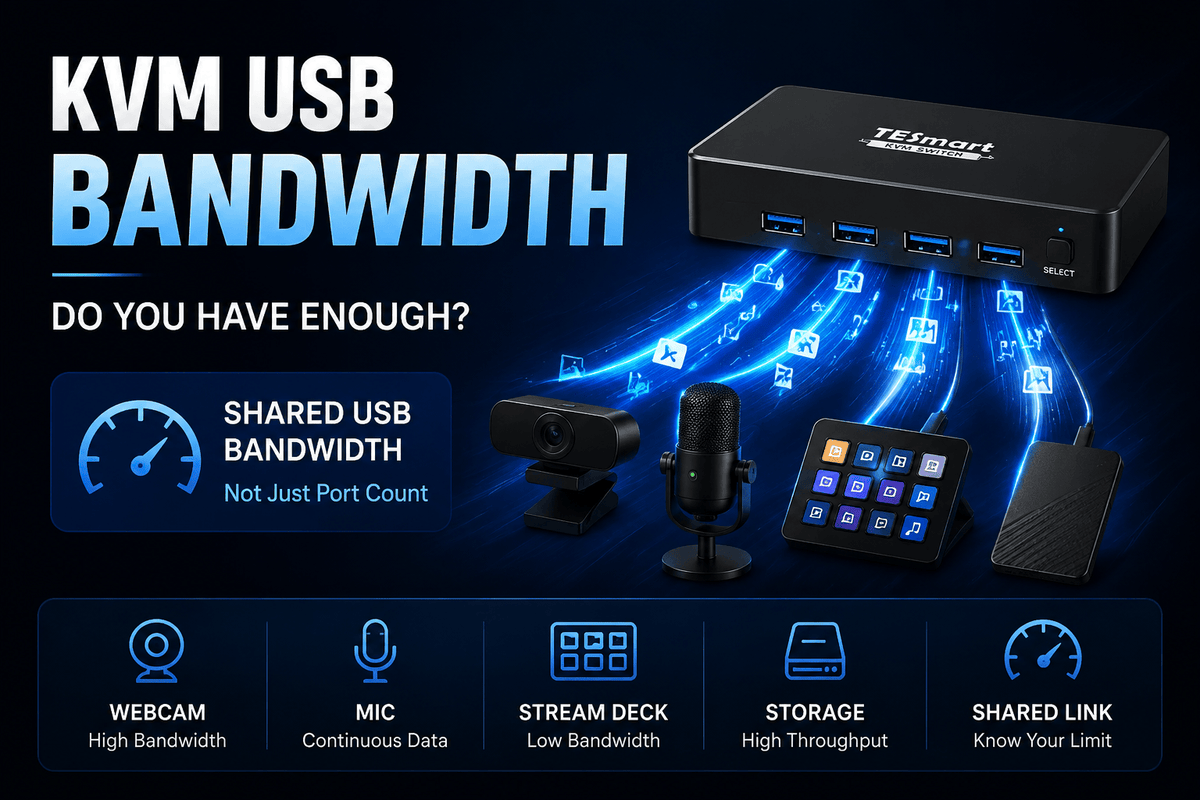
- USB bandwidth: A keyboard and mouse are different from sharing a webcam, SSD, audio interface, and other high-bandwidth devices simultaneously.
- Keyboard and mouse compatibility: Check HID emulation, pass-through options, software-dependent features, and polling-rate requirements.
- Laptop connection: Verify how the laptop produces the required video outputs before the signal reaches the KVM.
A Note About Laptop Docks
A dual-monitor KVM cannot create a second independent video output that the laptop or dock does not provide.
If the KVM expects two DisplayPort inputs from each computer, the work laptop must ultimately provide two compatible DisplayPort signals, whether through native outputs, USB-C video adapters, or a suitable docking station.
This is especially important with Mac systems, which commonly rely on USB-C connections rather than native DisplayPort connectors. A DisplayPort-based KVM may therefore require USB-C-to-DisplayPort cables or an appropriate dock on the Mac side.
Every additional adapter or dock also adds another point where display negotiation can fail, so the simplest stable connection path should be preferred whenever practical.

If You Decide You Actually Need a KVM
Once you know that a USB switch no longer solves enough of your workstation, the next question is which KVM architecture matches the desk.
For a typical setup with:
- 2 computers
- 2 DisplayPort monitors
- A gaming PC with high-refresh requirements
- A work laptop or dock capable of providing the required DisplayPort outputs
- Shared keyboard, mouse, and USB peripherals
the TESmart DKS202-M24 is the type of KVM that begins to make sense.
Why DKS202-M24 Fits This Type of Desk
The DKS202-M24 is designed for 2 PCs sharing 2 DisplayPort monitors. Its DisplayPort 1.4-class video path is aimed at higher-resolution and higher-refresh workstation configurations rather than basic 1080p switching.
Features relevant to this particular decision include:
- Dual-monitor DisplayPort switching
- DisplayPort 1.4 signal path
- EDID emulation
- Support for G-SYNC / FreeSync workflows
- USB peripheral sharing
- Keyboard and mouse operating modes including pass-through-oriented compatibility options
For a user who only needs to share a mouse and keyboard, those capabilities would be unnecessary.
For someone trying to move two displays, a gaming PC, a work laptop, and several USB peripherals between systems as one workstation, they address the exact complexity that a USB-only switch leaves behind.
Do Not Choose It Just Because It Says 8K
The DKS202-M24 is listed as an 8K60-class model, but that number should not be used as shorthand for every gaming mode.
Before buying, verify:
- Your GPU outputs
- Your laptop or dock outputs
- Your monitor inputs
- Your required resolution
- Your required refresh rate
- Whether the display mode depends on DSC
- Your G-SYNC / FreeSync requirements
- Your cable specifications
A high-bandwidth KVM works only as part of a compatible high-bandwidth signal chain.
When This Type of KVM Does Not Fit
A DisplayPort dual-monitor KVM is not automatically the right choice just because one computer is a gaming PC.
If your laptop provides only HDMI, your monitors are primarily HDMI devices, or your laptop needs several layers of conversion before producing two DisplayPort outputs, another KVM architecture may fit the desk better.
The interface structure should follow the devices you already own rather than forcing every computer through unnecessary adapters.

Suggested Internal Links
The following internal links can be placed naturally throughout this article once the final Shopify URLs are confirmed:
- Anchor Text: What Is EDID and Why Does It Matter for KVM Switches?
- Anchor Text: Can a High-Polling-Rate Gaming Mouse Work Through a KVM?
- Anchor Text: KVM USB Bandwidth Guide
- Anchor Text: HDMI vs DisplayPort for High-Refresh KVM Setups
- Anchor Text: Do KVM Switches Support High Refresh Rates for Gaming?
- Anchor Text: G-SYNC and FreeSync Through a KVM Switch
- Anchor Text: How to Choose the Right TESmart KVM
- Anchor Text: Dual Monitor KVM Switches
- Anchor Text: Gaming KVM Switches
FAQ
Q1: Is a KVM switch worth it for a gaming PC and work laptop?
It depends on how much of the desk needs to switch. If you use one monitor and only need to share a keyboard and mouse, a USB switch may be enough. If you use two monitors, switch computers frequently, and want webcams, microphones, audio devices, and displays to follow the active computer, a KVM becomes much easier to justify.
Q2: Is a USB switch better than a KVM for gaming?
A USB switch has one clear advantage: it allows the gaming PC to remain directly connected to the monitor. That keeps the video path simple. If you rarely switch systems and manually changing monitor inputs does not bother you, this can be an excellent solution. A KVM becomes more useful when switching convenience across multiple displays and peripherals matters more.
Q3: Will a KVM reduce my monitor refresh rate?
It can if the KVM or another part of the signal path does not support the required display mode. Refresh rate depends on the GPU, interface version, KVM, cables, monitor input, color settings, and sometimes DSC. Choose based on the exact resolution and refresh-rate combination rather than the KVM's maximum resolution alone.
Q4: Can I use a KVM with a 1440p 144Hz or 240Hz monitor?
Yes, provided the specific KVM and the rest of the signal chain support that mode. A 1440p 240Hz requirement should be checked explicitly. Do not assume that a device labeled 4K or 8K automatically supports 240Hz at every lower resolution.
Q5: Will a KVM affect G-SYNC or FreeSync?
G-SYNC and FreeSync can work through compatible KVM configurations, but adaptive sync should be treated as a chain-dependent feature. The GPU, graphics driver, KVM, cable, monitor port, and display settings all need to support the required VRR mode.
Q6: Will a gaming mouse work through a KVM switch?
Many gaming mice work through KVM switches, but basic cursor movement does not prove that every advanced feature is operating exactly as it would over a direct USB connection. High polling rates, RGB software, macros, vendor drivers, and custom USB behavior should be considered separately. Pass-through options may improve compatibility with complex devices, but testing the exact peripheral remains the safest approach.
Q7: Can I connect my gaming PC directly to the monitor and only switch USB devices?
Yes. This is one of the strongest reasons to choose a USB switch. Keep the gaming PC connected directly to one monitor input, connect the work laptop to another, and use the USB switch only for shared peripherals. If you do not mind changing monitor inputs manually, there may be no reason to add a full KVM.
Q8: Do I need a KVM for two monitors?
Not necessarily. You can connect both computers directly to separate inputs on both monitors and use a USB switch for peripherals. The trade-off is that changing computers usually requires switching the input on each monitor separately. If that happens many times per day, a dual-monitor KVM becomes considerably more useful.
Q9: Does a dual-monitor KVM mean I only need one video cable from each computer?
Usually no. Traditional dual-monitor KVM architectures normally require each computer to provide two independent video signals so that both displays can operate as an extended desktop. The KVM switches those existing video paths; it does not normally generate an additional display output by itself.
Q10: Can a laptop dock replace a KVM?
A dock and a KVM solve different problems. A dock expands the connectivity of one computer. A KVM switches shared displays and peripherals between multiple computers. A work-laptop setup may therefore use both: the dock produces the laptop's required video and USB connections, while the KVM switches those resources between the laptop and gaming PC.
Conclusion
The right answer to KVM switch vs USB switch for a gaming PC and work laptop depends less on the product category and more on how much of your workstation you actually need to switch.
If you have one monitor, share only a keyboard and mouse, switch systems occasionally, and want to keep the gaming PC directly connected to the display, a USB switch may be all you need.
If you have two or more monitors, change computers repeatedly during the day, share several USB devices, and want the displays and peripherals to move together, a full KVM begins to solve a much larger part of the desk.
For gaming users, that convenience should still be evaluated against the exact video requirements. Check resolution, refresh rate, VRR, DSC where relevant, monitor inputs, cables, and the laptop's output structure before choosing a model.
And if advanced gaming keyboards or mice are part of the setup, verify USB behavior separately rather than assuming that a high-bandwidth video specification also guarantees peripheral compatibility.
Still deciding?
If your setup only requires keyboard and mouse sharing, a USB switch may be all you need. But if you are trying to switch two displays, a gaming PC, a work laptop, and several USB peripherals as one workspace, a full KVM can remove several manual steps from the desk.
For a two-PC, two-DisplayPort-monitor workstation with high-refresh gaming requirements, explore the TESmart DKS202-M24 and compare its capabilities against your exact GPU, laptop, monitor, refresh-rate, VRR, and cable requirements before choosing.
Share:
How Much USB Bandwidth Does a KVM Switch Need?
Can You Use a USB Audio Interface or DAC Through a KVM Switch?