

Table of Contents
- Introduction
- Quick Answer: Why Protected Video Goes Black Through a KVM
- Common HDCP Symptoms in KVM Setups
- Is It HDCP, EDID, or Bandwidth?
- Why HDCP Fails Through a KVM Switch
- How HDCP Authentication Works in a KVM Display Chain
- HDCP 1.4 vs 2.2 vs 2.3: Why 4K Protected Content Fails
- Why Docks, Adapters, Extenders, and Capture Cards Make HDCP Harder
- Why KVM Switching Can Trigger HDCP Re-Authentication
- HDCP Over HDMI, DisplayPort, USB-C, and Thunderbolt-Compatible Workflows
- How to Troubleshoot HDCP Errors Step by Step
- How to Choose a KVM Switch for HDCP-Sensitive Workflows
- Where TESmart KVM Switches Fit
- Common HDCP Mistakes in KVM Setups
- FAQ
- Conclusion
Introduction
Most users do not start by asking, “What is HDCP?” They start with a black screen.
A computer desktop may display normally through a KVM switch, but protected video playback may fail. Netflix, Apple TV, Disney+, Prime Video, Blu-ray players, streaming boxes, game consoles, or media apps may show a black screen, display an HDCP error, disable HDR, or drop from 4K to 1080p.
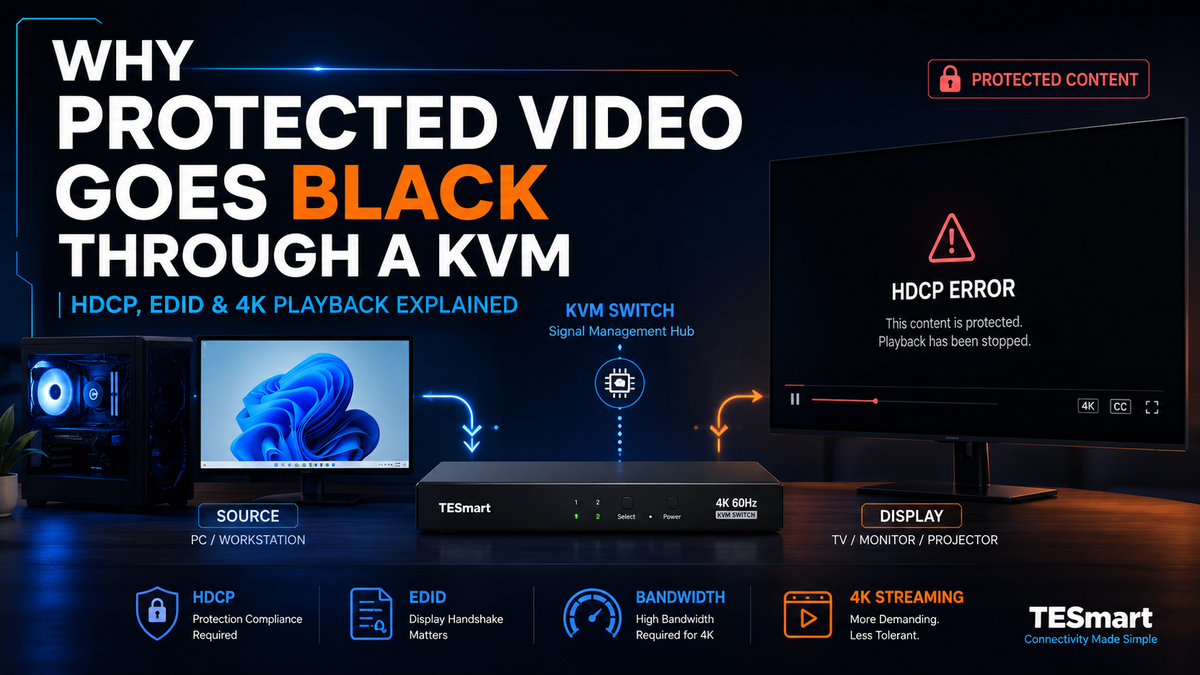
That difference matters. A normal desktop signal and protected video playback are not always treated the same way by the source device. Protected content may require the entire display path to pass HDCP authentication before the video is shown.
HDCP stands for High-bandwidth Digital Content Protection. It is used to protect digital audio and video content as it travels across a display connection. According to Digital Content Protection LLC, HDCP specifications apply across HDMI, DVI, DisplayPort, HDBaseT, MHL, and interface-independent adaptations.
For KVM users, the key point is simple: HDCP is not only about the monitor. It is about the complete path from the computer, media device, or console to the display. If one device in that path does not support the required HDCP version or does not pass authentication correctly, protected playback may fail even when the desktop looks normal.

Quick Answer: Why Protected Video Goes Black Through a KVM
| Question | Answer |
|---|---|
| Can a KVM switch cause an HDCP error? | Yes. A KVM switch becomes part of the HDCP authentication chain when protected content is played. |
| Why does the desktop work but Netflix shows a black screen? | The desktop usually does not require protected playback authentication. Streaming and Blu-ray content may require HDCP across the full display chain. |
| Does 4K support mean HDCP 2.2 support? | No. A device can support 4K resolution but still fail protected 4K playback if the required HDCP version is missing or not maintained through the chain. |
| Is every black screen an HDCP problem? | No. If BIOS, desktop, normal apps, or game menus also fail, the issue is more likely cable quality, input selection, resolution, refresh rate, EDID, USB-C video output, or adapter compatibility. |
| What should users check first? | Check the source device, KVM switch, adapters, docks, cables, display input, and the HDCP version required by the content. |
Common HDCP Symptoms in KVM Setups
HDCP problems are often confusing because they are content-specific. A normal desktop, browser window, software interface, spreadsheet, game menu, or system setting page may display correctly. The problem appears only when protected video starts playing.
| Symptom | Possible Cause | What to Check |
|---|---|---|
| Netflix, Apple TV, Disney+, Prime Video, or Blu-ray playback shows a black screen | HDCP authentication failed | Check HDCP support across the source, KVM switch, adapter, cable, and display |
| 4K content drops to 1080p | HDCP 2.2 or HDCP 2.3 may not be available across the full chain | Confirm that every device in the path supports the protected playback requirement |
| Desktop works but protected video fails | Normal desktop output does not require the same protected playback check | Test the same content directly, then test it again through the KVM switch |
| HDR becomes unavailable | The video path may fail HDCP, bandwidth, or metadata negotiation | Check HDMI or DisplayPort version, cable rating, HDR support, and HDCP version |
| Only one monitor fails in a dual-monitor setup | Different display path, cable, EDID behavior, or HDCP capability | Test each monitor path separately instead of assuming both displays behave the same |
| Capture card records menus but protected apps go black | The source may enable HDCP only when protected content starts | Check whether the content source allows capture and whether the capture workflow is HDCP-compliant |
Is It HDCP, EDID, or Bandwidth?
HDCP is often confused with EDID and bandwidth because all three can create display problems. The symptoms can overlap, but the causes are different.
| Problem Type | What It Controls | Common Symptoms | How It Usually Feels to the User |
|---|---|---|---|
| HDCP | Protected content authentication | Netflix black screen, HDCP error, protected 4K content drops to 1080p | The desktop works, but protected video fails |
| EDID | How the display reports its resolution, refresh rate, color format, and capabilities | Wrong resolution, missing refresh rate, windows moving after switching, monitor detection delays | The computer seems to “forget” the monitor or change the display layout |
| Bandwidth | Whether the cable, interface, and devices can carry the required video signal | Flicker, no signal at high refresh rate, unstable 4K120, artifacts, HDR failure | The signal works at lower settings but fails when resolution, refresh rate, or HDR increases |
This distinction matters because not every black screen should be treated as an HDCP error. If the desktop is unstable before opening protected content, start with cable quality, display input, resolution, refresh rate, EDID behavior, or adapter compatibility.
If the desktop is stable but protected video fails, HDCP becomes a stronger possibility.
Why HDCP Fails Through a KVM Switch
A KVM switch does not simply pass a static image from one side to the other. In a protected video workflow, it becomes part of the display chain that the source device must verify.
A direct connection is simple:
Source device → Display
A KVM setup adds at least one more device:
Source device → KVM switch → Display
Many real setups are more complex:
Laptop → Dock → Adapter → KVM switch → Cable → Monitor
or:
Game console → KVM switch → AV receiver → 4K TV
When protected content is played, the source checks whether the connected path supports the required HDCP capability. If the chain is valid, protected video can be transmitted. If the chain is incomplete, unsupported, or inconsistent, the source may block playback, lower the resolution, or show an HDCP error.
This is why a KVM switch can matter even when the same monitor and cable work in a direct connection. The KVM is not necessarily “damaging” the signal. It is changing the authentication path.

How HDCP Authentication Works in a KVM Display Chain
HDCP is easier to troubleshoot when you think of it as a process instead of a single feature label on a product page.
| Stage | What Happens | Why It Matters in a KVM Setup |
|---|---|---|
| 1. Detection | The source device detects the connected display path. | A KVM, dock, adapter, extender, AV receiver, or capture device may appear as part of that path. |
| 2. Authentication | The source checks whether the connected devices can support the required protected content rules. | If one device cannot satisfy the required HDCP version or link behavior, playback may stop. |
| 3. Protected transmission | Protected video is transmitted only after authentication succeeds. | The desktop can still work because normal desktop output does not always require this protected path. |
| 4. Link monitoring | The source may check the link again after a change in the display path. | KVM switching, display sleep, input changes, resolution changes, HDR changes, or refresh-rate changes can trigger another check. |
This is why HDCP errors can appear intermittently. A setup may work after a restart, then fail after switching inputs, waking a monitor, changing display mode, or starting a different streaming app.
HDCP 1.4 vs 2.2 vs 2.3: Why 4K Protected Content Fails
One common mistake is assuming that 4K video support automatically means 4K protected content support. These are different requirements.
A device may support 3840×2160 resolution for normal desktop output, but protected 4K streaming or Blu-ray playback may require HDCP 2.2 or newer across the entire chain. If one device only supports an older HDCP version, protected 4K playback may fail or fall back to a lower resolution.
| HDCP Version | Typical Relevance | Why It Matters in KVM Setups |
|---|---|---|
| HDCP 1.4 | Common in older HD and early digital video workflows | May be enough for some 1080p protected content, but not for many protected 4K workflows |
| HDCP 2.2 | Widely associated with protected 4K playback | Often required by 4K streaming devices, Blu-ray players, and 4K content services |
| HDCP 2.3 | Newer protected content and device ecosystems | May be required depending on the source, display, interface, and content platform |
The practical rule is straightforward: protected playback follows the weakest link. If the computer, media device, KVM switch, adapter, cable, receiver, or display input cannot satisfy the required HDCP version, the full protected path may fail.
Why Docks, Adapters, Extenders, and Capture Cards Make HDCP Harder
HDCP troubleshooting becomes harder when the signal path includes conversion layers. A direct connection has fewer variables. A workstation path with docks, adapters, extenders, receivers, and capture devices creates more points where authentication, EDID reporting, or bandwidth negotiation can change.
Docks and Adapters
A dock or adapter may convert USB-C to HDMI, USB-C to DisplayPort, DisplayPort to HDMI, or HDMI to another format. Even if the adapter supports the target resolution, that does not automatically mean it supports the protected playback path required by the source.
This matters especially in laptop setups. A laptop may work directly with a monitor, but fail when the path becomes:
Laptop → USB-C dock → Adapter → KVM switch → Monitor
Each added layer should be tested separately. If protected video works directly but fails after adding a dock, the dock or its output mode may be part of the problem.
Extenders and AV Receivers
HDMI extenders, DisplayPort extenders, HDBaseT devices, and AV receivers can also affect protected playback. They may support normal video but still introduce limitations around HDCP version, resolution, refresh rate, HDR, or display communication.
If an extender or AV receiver is used, test the KVM switch without that device first. Then add one device back at a time.
Capture Cards: Why Gameplay Works but Streaming Apps Go Black
Capture cards are a special case. A capture card may show a desktop, game menu, camera feed, or unprotected video source correctly. The same capture card may show a black screen when a streaming app, Blu-ray disc, or protected media app starts.
That does not always mean the KVM switch is defective. It may mean the source has started enforcing HDCP for protected content. A KVM switch should not be expected to bypass HDCP. The correct approach is to confirm whether the source, content platform, capture device, and display workflow are allowed to support that use case.
Why KVM Switching Can Trigger HDCP Re-Authentication
KVM switching changes which source device is actively connected to the display path. Depending on the source, display, and KVM design, that change can trigger the source to check the display chain again.
Several events can force protected playback to re-check the link:
| Event | Possible Result |
|---|---|
| Switching from one computer to another | The new source may need to authenticate the full display path before playback resumes |
| Monitor sleep or wake | The source may detect the display as disconnected or changed |
| Changing resolution or refresh rate | The source may re-check both bandwidth and HDCP requirements |
| Enabling HDR | The display path may need to support additional video metadata and bandwidth requirements |
| Changing display input | The source may restart the display negotiation process |
This is where EDID behavior and HDCP can overlap. EDID affects how the monitor reports its display capabilities. HDCP affects protected content authorization. A stable EDID path can help reduce monitor detection delays and layout changes, but protected playback still depends on HDCP support across the full chain.
HDCP Over HDMI, DisplayPort, USB-C, and Thunderbolt-Compatible Workflows
HDCP is not limited to HDMI. It can also appear in DisplayPort and USB-C video workflows. For KVM users, the interface type affects how the chain should be checked.
HDMI KVM Setups
HDMI is common for TVs, game consoles, Blu-ray players, streaming boxes, and many monitors. In HDMI KVM setups, protected 4K playback depends on more than the HDMI connector shape. Users should check HDMI version, HDCP version, HDR requirements, cable rating, and the display input being used.
A 4K monitor or TV may have multiple HDMI ports, but not every port always behaves the same. If protected 4K playback fails through a KVM switch, testing another HDMI input on the display can help isolate the issue.
DisplayPort KVM Setups
DisplayPort is common in workstation and high-refresh-rate monitor setups. It is often preferred for gaming monitors, professional displays, and PCs with multiple GPU outputs.
For DisplayPort KVM users, HDCP should be checked together with DisplayPort version, DSC requirements, refresh rate, and monitor compatibility. A DisplayPort path may work for normal desktop output but still fail protected content if the required HDCP support is not present across the full chain.
USB-C Laptop Workflows
USB-C adds another layer of complexity because the connector does not tell the full story. A USB-C port may support charging, data, video, or a combination of these functions. For video output, the laptop, cable, dock, and adapter must all support the required display mode.
For MacBook users, there is another practical consideration: many MacBook models rely on USB-C or Thunderbolt-compatible ports rather than native DisplayPort outputs. If the KVM switch uses DisplayPort inputs, the Mac side usually requires a USB-C to DisplayPort cable, dock, or adapter. That conversion layer can affect both display negotiation and protected playback.
Thunderbolt-Compatible Workflows
For laptops compatible with Thunderbolt 4 devices, the display path may carry video, USB data, peripheral communication, and power-related behavior through a compact connector. That does not remove the need to check HDCP. It makes the full chain more important.
When building a KVM workflow for Thunderbolt-compatible laptops, users should confirm the actual display protocol, dock behavior, adapter requirements, monitor type, operating system limits, and protected playback requirements. Compatibility should not be confused with certification unless certification is clearly stated by the product manufacturer.
How to Troubleshoot HDCP Errors Step by Step
HDCP troubleshooting works best when the display chain is simplified first. Do not start by replacing every cable or changing every setting at once. Test one layer at a time.
| Step | What to Do | What It Tells You |
|---|---|---|
| 1 | Connect the source device directly to the display | If protected content fails directly, the issue is not caused by the KVM switch |
| 2 | Use the same resolution, refresh rate, streaming app, and content through the KVM switch | If the failure appears only through the KVM, the added chain matters |
| 3 | Remove docks, hubs, adapters, extenders, AV receivers, and capture devices temporarily | This helps identify whether another intermediate device is causing authentication failure |
| 4 | Check the required HDCP version for the source, content, KVM switch, and display | Protected 4K playback may require HDCP 2.2 or newer across the full chain |
| 5 | Test each monitor path separately in dual-monitor or triple-monitor setups | One display path may support protected playback while another does not |
| 6 | Lower the output to 1080p or reduce refresh rate temporarily | If the image returns, the issue may involve HDCP version, bandwidth, cable quality, or interface limits |
| 7 | Use properly rated cables for the target resolution and refresh rate | Weak cables can make HDCP, HDR, and high-bandwidth video failures harder to distinguish |
| 8 | Restart the source device, display, and KVM after changing the display chain | This can force the source to rebuild the display and HDCP negotiation path |
The goal is not to bypass HDCP. The goal is to confirm whether the complete display path supports the protected playback requirements of the source and content platform.
How to Choose a KVM Switch for HDCP-Sensitive Workflows
Choosing a KVM switch for protected 4K playback should start with the complete desk structure, not just the resolution printed on a product page.
| Setup Type | Recommended Direction | What to Check |
|---|---|---|
| PC + console + one HDMI display | HDMI KVM workflow | HDMI version, HDCP support, 4K60 or 4K120 requirement, HDR, display input compatibility |
| Two computers + two monitors | Dual-monitor KVM workflow | Each display path, HDCP version, resolution, refresh rate, cable quality, EDID behavior |
| DisplayPort workstation | DisplayPort KVM workflow | DisplayPort version, DSC, HDCP support, high refresh rate, monitor compatibility |
| USB-C laptop setup | USB-C video KVM or dock-plus-KVM workflow | Actual video protocol, DP Alt Mode support, dock chipset, adapter path, protected playback support |
| MacBook workflow | USB-C, HDMI, or adapter-based KVM workflow depending on the Mac model and display inputs | macOS display limits, dock behavior, USB-C to DP or HDMI conversion, protected playback support |
| Capture card workflow | Validate source and content rules before selecting hardware | A KVM switch should not be expected to make protected content available for capture |
For users who only switch office desktops, HDCP may rarely become visible. For users who switch streaming devices, Blu-ray players, game consoles, 4K TVs, HDR monitors, or media workstations, HDCP support should be checked before buying.
Where TESmart KVM Switches Fit
TESmart KVM switches are most useful when the problem is not only “I need another video input,” but “I need multiple computers or devices to share displays, keyboard, mouse, and USB peripherals in a predictable way.”
For HDCP-sensitive workflows, the right TESmart product direction depends on the number of computers, number of monitors, interface type, and target resolution. The setup should be matched as a complete system, not selected only by one headline specification.
| User Scenario | TESmart Product Direction | Why This Direction Makes Sense |
|---|---|---|
| Two or more computers sharing one HDMI display | Single-monitor HDMI KVM direction, such as the HKS series | Suitable when the main need is switching one monitor, keyboard, mouse, and USB devices between systems |
| Two computers sharing two monitors | Dual-monitor KVM direction, such as HDK202, DKS202, HDC202, or CKS202 depending on interface needs | More suitable when each computer must maintain a dual-display workspace instead of switching only one screen |
| DisplayPort workstation with high-resolution or high-refresh monitors | DisplayPort KVM direction, such as DKS series models matched to monitor count and resolution | Useful when the setup depends on PC GPU outputs, DisplayPort monitor inputs, and stable multi-monitor switching |
| Triple-monitor or quad-monitor workstation | Multi-monitor KVM direction, such as DKS203, HDC203, HDK203, HDK204, HDC403, or HDK404 depending on monitor count and interface type | Appropriate when each computer needs multiple independent video outputs and stable display switching across several screens |
| USB-C or MacBook workflow | USB-C video KVM or dock-plus-KVM workflow after confirming the actual video output path | MacBook and USB-C setups often involve adapters or docks, so the complete chain must be checked before choosing the KVM |
Compared with a basic video switch, a KVM switch is more appropriate when the user also needs keyboard control, mouse control, USB device sharing, hotkey switching, and a consistent workstation layout.
For protected 4K playback, users should still confirm HDCP requirements across the complete chain. A TESmart KVM switch can be part of a stable workflow only when the source, switch, cable, adapter, and display are matched correctly.
Common HDCP Mistakes in KVM Setups
| Mistake | Why It Causes Confusion | Better Approach |
|---|---|---|
| Assuming “4K support” means protected 4K playback support | Resolution support and HDCP support are separate requirements | Check both the video format and the required HDCP version |
| Checking only the KVM switch | HDCP depends on the full source-to-display path | Check the source, KVM, cable, adapter, receiver, extender, and display input |
| Ignoring adapters and docks | Conversion layers can change display negotiation and protected playback behavior | Test the setup with and without each adapter or dock |
| Treating capture failure as a normal KVM issue | Protected content may be blocked by the source or content platform | Confirm whether the capture workflow is allowed for that source and content type |
| Confusing HDCP with EDID | Both can cause display problems, but they control different parts of the video chain | Use symptoms to separate protected playback failures from monitor-detection problems |
FAQ
Why does Netflix show a black screen through my KVM switch?
Netflix and other streaming platforms may require HDCP authentication before protected video is displayed. If the full display chain does not satisfy the required HDCP version or authentication behavior, the desktop may still work while Netflix playback goes black.
Why does my desktop work but protected video is black?
A desktop signal is usually not protected in the same way as streaming or Blu-ray content. Protected video may trigger an HDCP check that the desktop does not require.
Can a KVM switch cause an HDCP error?
Yes. A KVM switch becomes part of the protected playback path. If the source, KVM switch, adapter, cable, or display does not support the required HDCP behavior, an HDCP error can appear.
Does 4K support mean HDCP 2.2 support?
No. 4K resolution support and HDCP 2.2 support are different. A device may support 4K desktop output but still fail protected 4K playback if HDCP 2.2 or newer is required and not available across the full chain.
Is HDCP the same as EDID?
No. EDID tells the computer what the display supports, such as resolution and refresh rate. HDCP controls protected content authentication. They can both affect display behavior, but they are not the same problem.
Can USB-C adapters or docks cause HDCP errors?
Yes. USB-C adapters and docks may affect the video path, especially when converting USB-C to HDMI or DisplayPort. The adapter may support normal video output but still fail protected playback requirements.
Why does my capture card work for gameplay but not streaming apps?
Some sources and apps may enable HDCP when protected content starts. A capture card may show menus or unprotected sources correctly but show a black screen for protected streaming or Blu-ray content. A KVM switch should not be expected to bypass HDCP.
Does DisplayPort also use HDCP?
Yes. HDCP is not limited to HDMI. DisplayPort and USB-C video workflows can also involve HDCP, depending on the source, display, content type, and connected devices.
Can a TESmart KVM bypass HDCP?
No. A KVM switch should not be used to bypass HDCP. The correct goal is to build a display chain where the source, KVM switch, cable, adapter, and display support the protected playback requirements legally and correctly.
How do I troubleshoot an HDCP error through a KVM switch?
Start with a direct source-to-display connection using the same app, content, resolution, and refresh rate. Then add the KVM switch. After that, add docks, adapters, receivers, extenders, or capture devices one at a time. This process helps identify where the protected playback path fails.
Conclusion
An HDCP error through a KVM switch is not always a simple cable problem, and it does not always mean the KVM switch is defective. It means the source device cannot confirm the protected video path required by the content.
That path may include a computer, game console, dock, adapter, KVM switch, cable, AV receiver, extender, capture device, monitor, or TV. If one part of the chain does not support the required HDCP version or does not report the connection correctly, protected 4K playback may show a black screen, drop to 1080p, or display an HDCP error.
For users building a KVM workstation, the safest approach is to choose based on the full setup: number of computers, number of monitors, HDMI or DisplayPort path, USB-C or Thunderbolt-compatible laptop workflow, resolution, refresh rate, HDR requirement, EDID behavior, and HDCP support.
A TESmart KVM switch makes the most sense when users need more than video switching: shared keyboard and mouse control, USB peripheral sharing, multi-monitor switching, and a cleaner multi-computer desk. For HDCP-sensitive workflows, the complete display chain should always be checked before finalizing the setup.
Share:
EDID Emulation Explained: How It Makes KVM Multi-Monitor Switching More Stable
Thunderbolt 5 and KVM Switches: Does Thunderbolt 5 Replace a KVM?