


HDMI 2.1 & DP 1.4 Dual 4K144Hz KVM Switch Gaming Dock for 2 PCs & 2 Monitors, w/ ADI Chip, EDID, VRR, FVA, ALLM, and Dynamic HDR
Share two Apple Studio Displays, one keyboard and mouse between two computers—or show one computer on each display when you need both systems at once.
HDMI 2.1 & DP 1.4 Dual 4K144Hz KVM Switch Gaming Dock for 2 PCs & 2 Monitors, w/ ADI Chip, EDID, VRR, FVA, ALLM, and Dynamic HDR
Why Choose HDK202-M24
Overview
01
High-Bandwidth Dual Display, Built for Stability
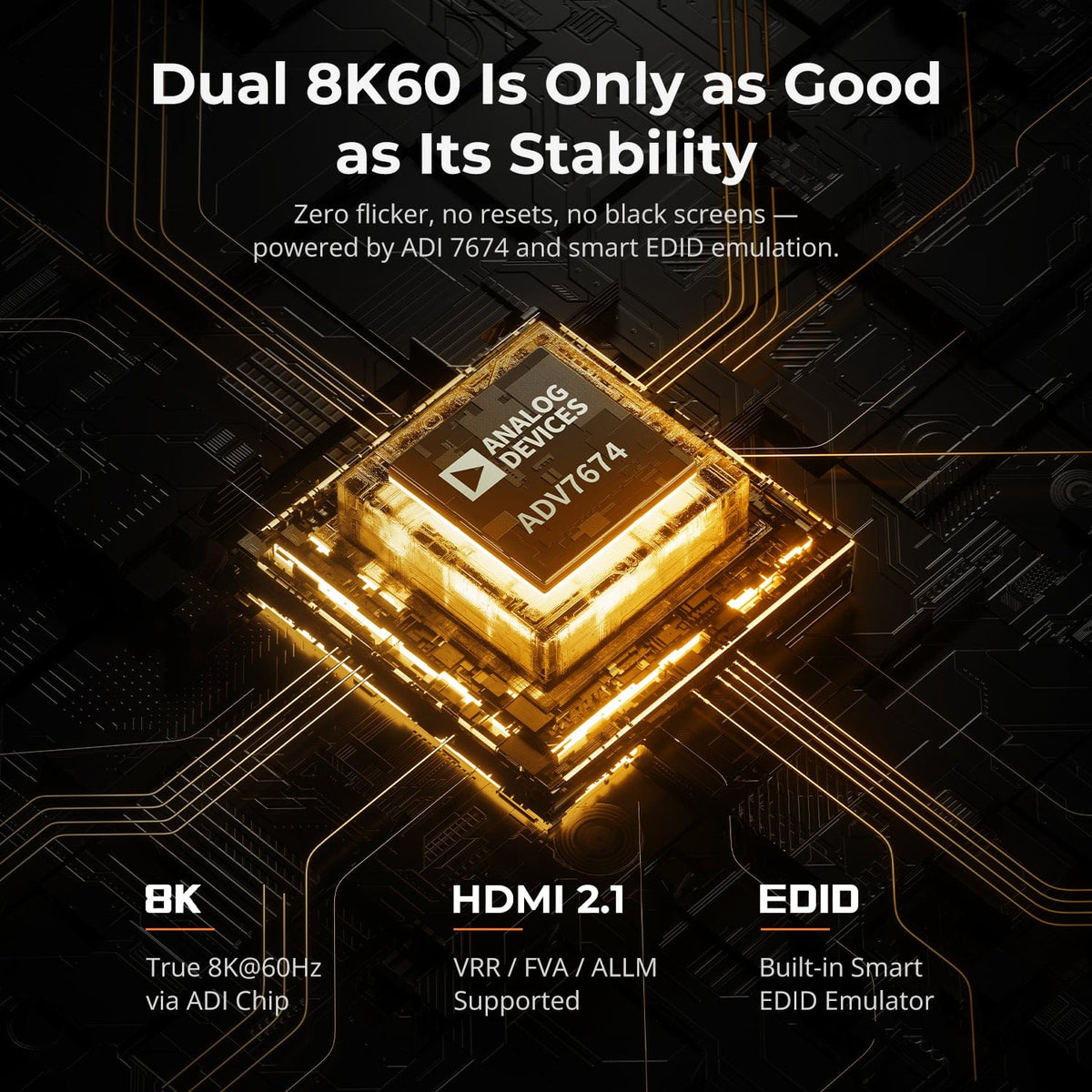
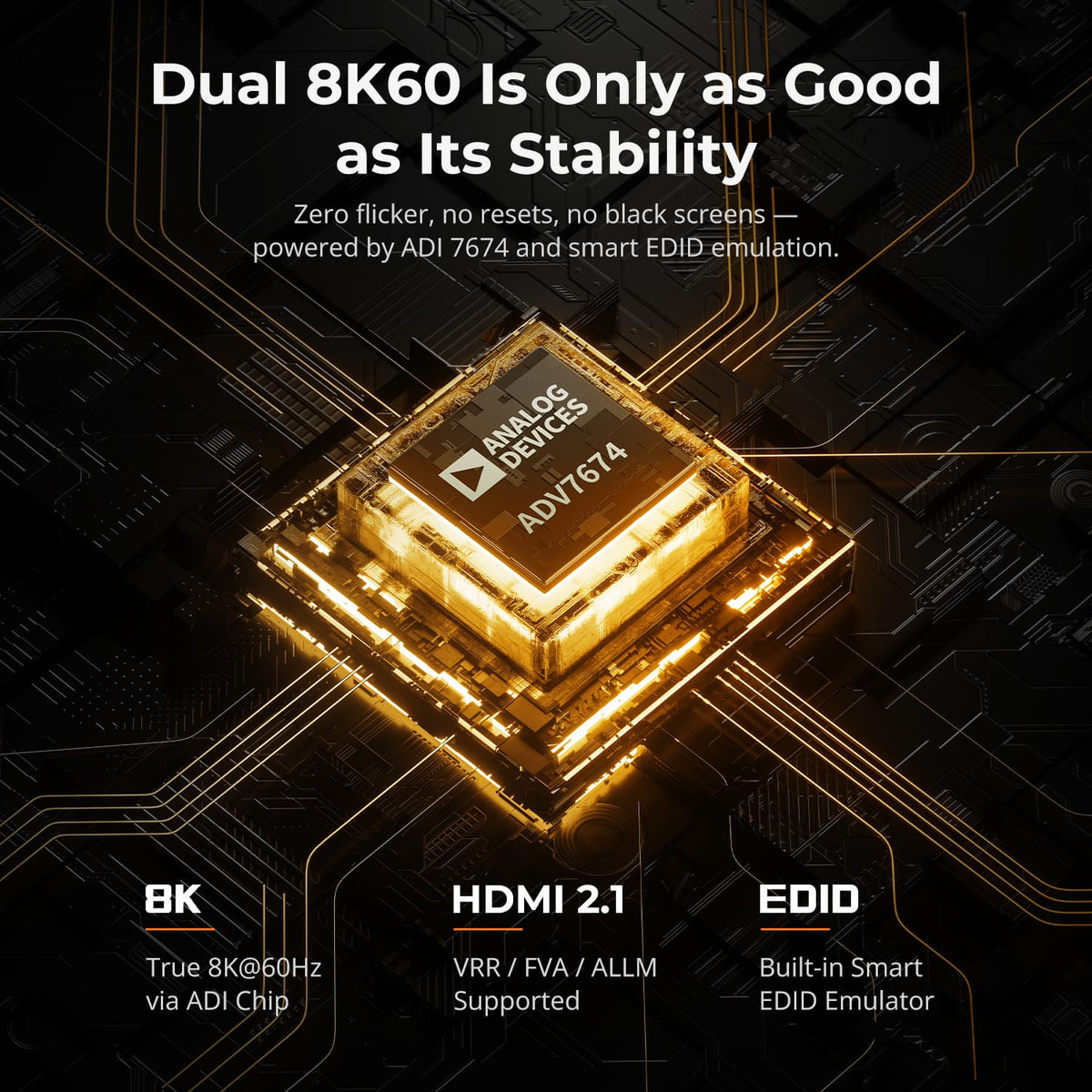
ADV 7674 decoding and EDID emulation are designed to keep both HDMI 2.1 display paths stable under demanding bandwidth. This supports a more consistent dual-monitor experience for high-resolution creative work and high-refresh gaming.
02
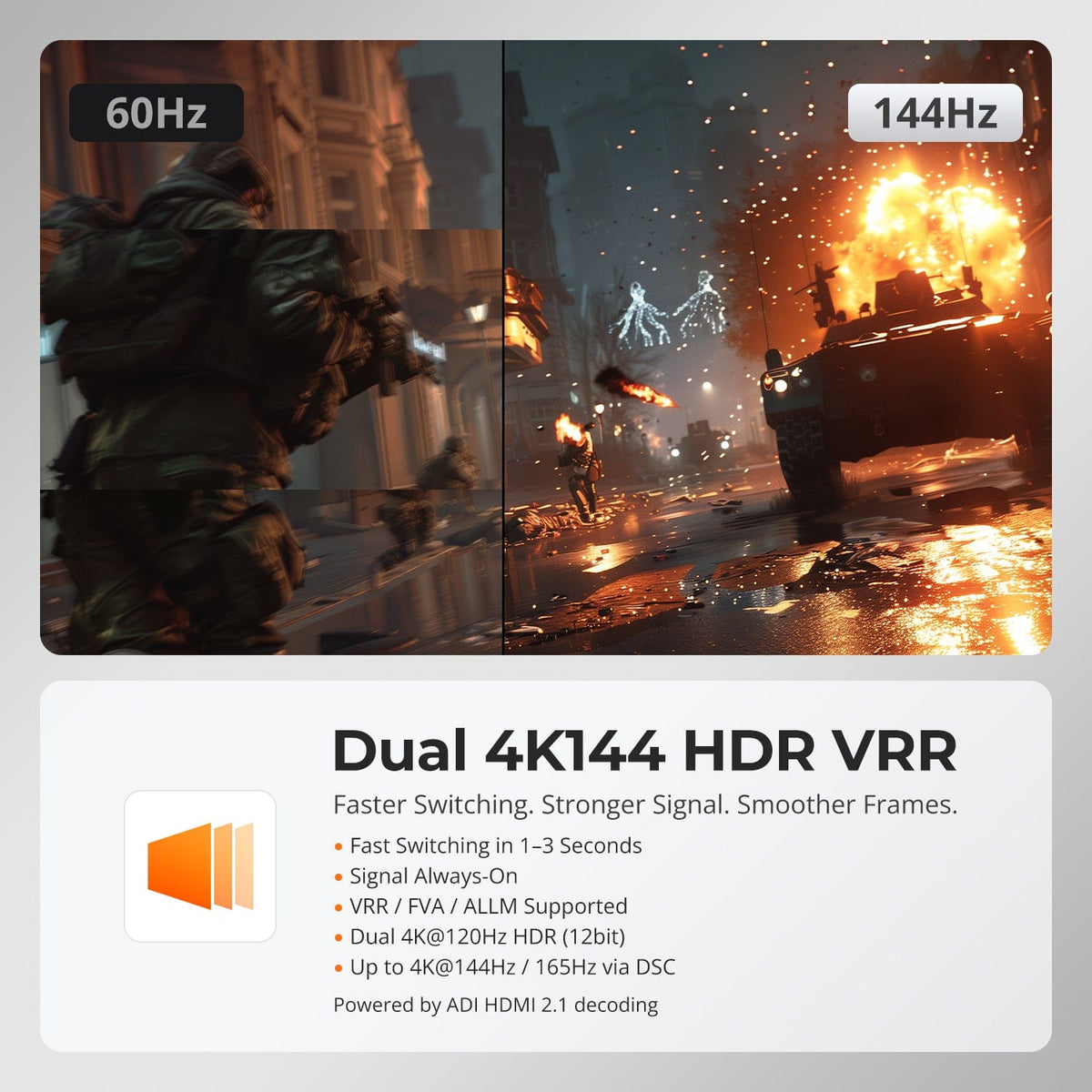
Dual 4K High Refresh for Fast, Detailed Work
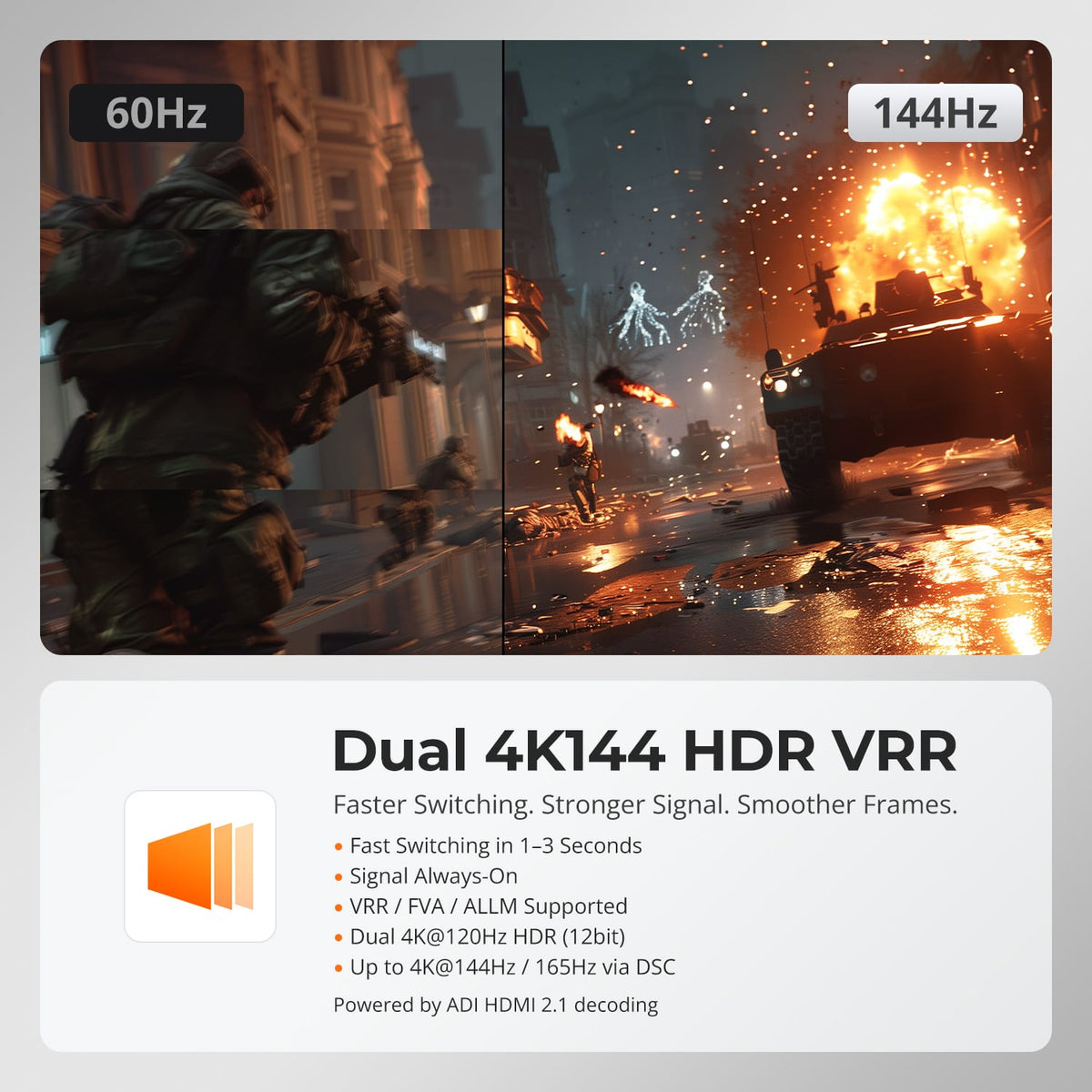
The current page highlights dual 4K120 HDR at 12-bit and up to 4K144/165 through DSC, with VRR, FVA and ALLM support for smoother motion and lower latency. Every component in the signal path must support the selected format.
03
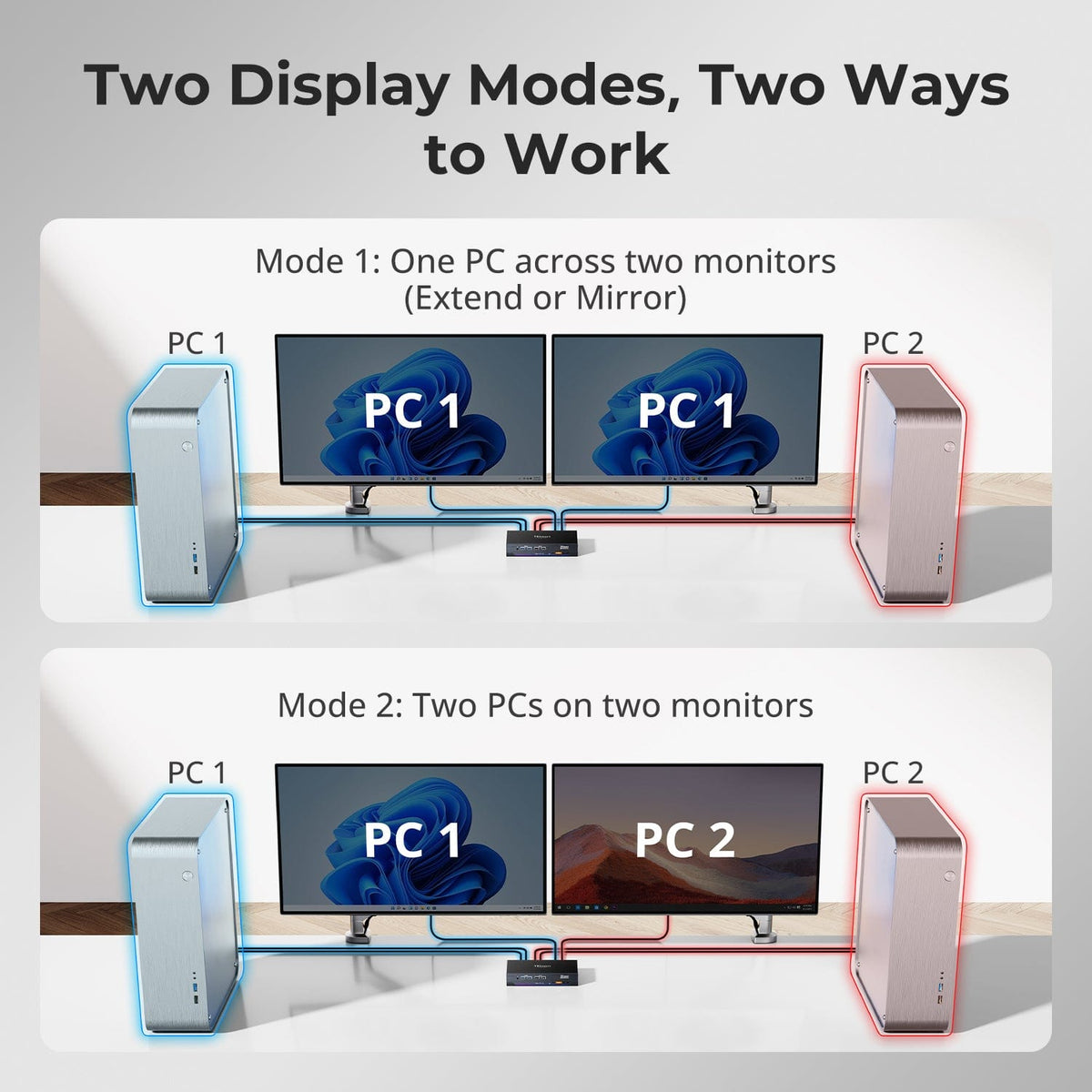
Two Screens, Two Ways to Work
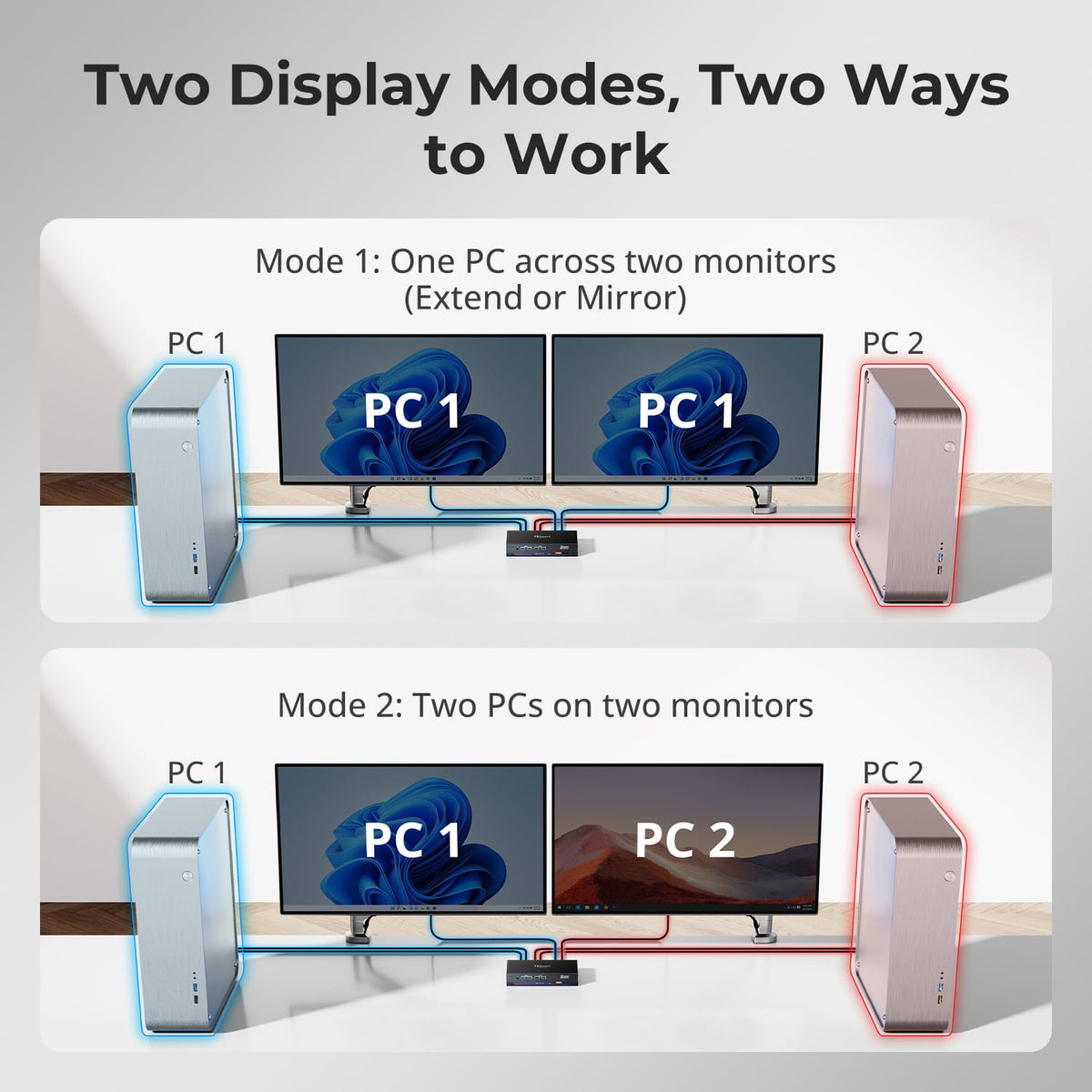
Extend or mirror one computer across both monitors, or keep one computer visible on each screen. In mixed-display mode, move keyboard and mouse focus between the two systems while both remain in view.
04
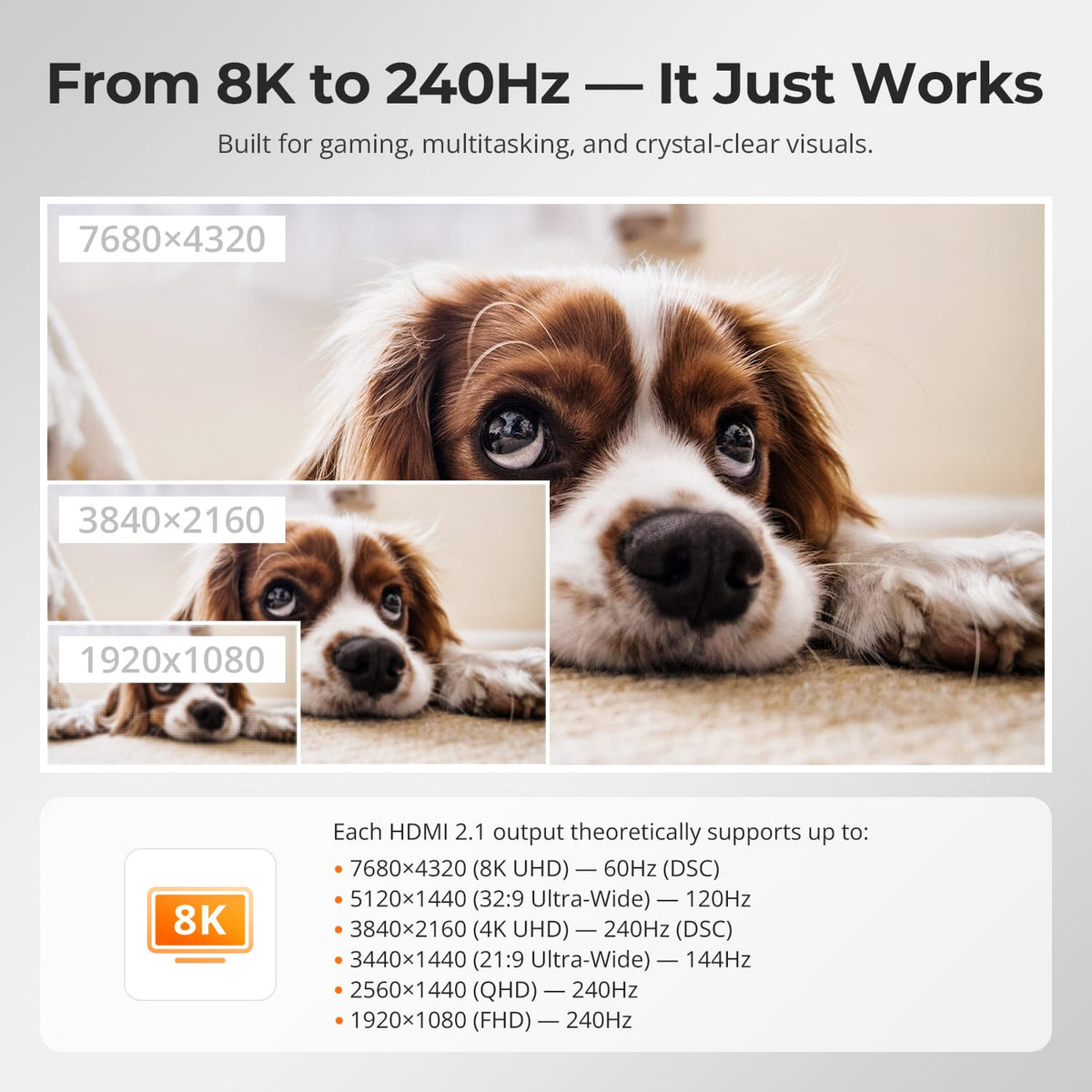
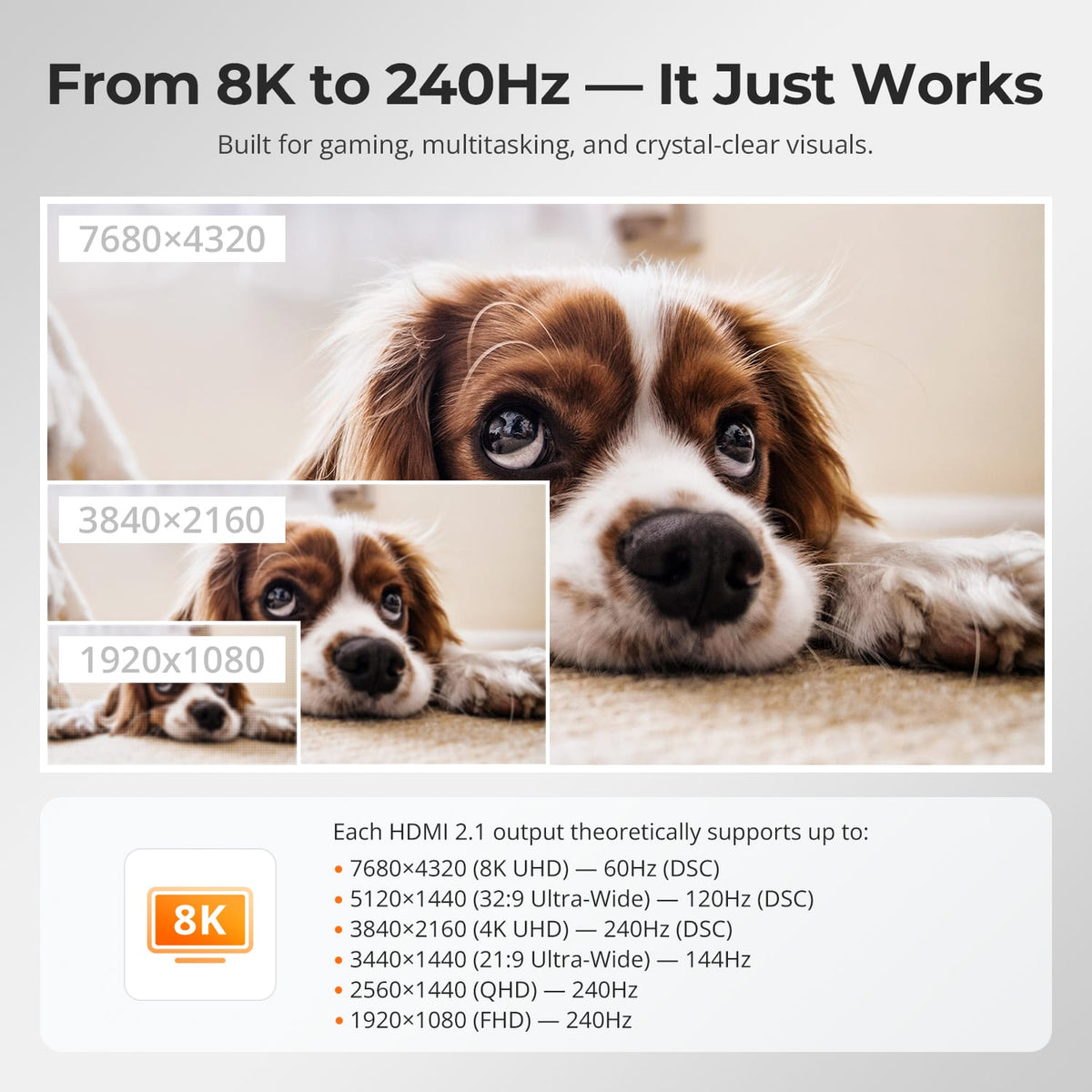
Resolution Options for Detail and Speed
Each output supports a range of HDMI 2.1 formats. The current page lists up to 8K60, 5120×1440 at 120Hz, 4K240 through DSC, 3440×1440 at 144Hz and 1440p or 1080p at 240Hz, subject to the connected hardware and cables.
05
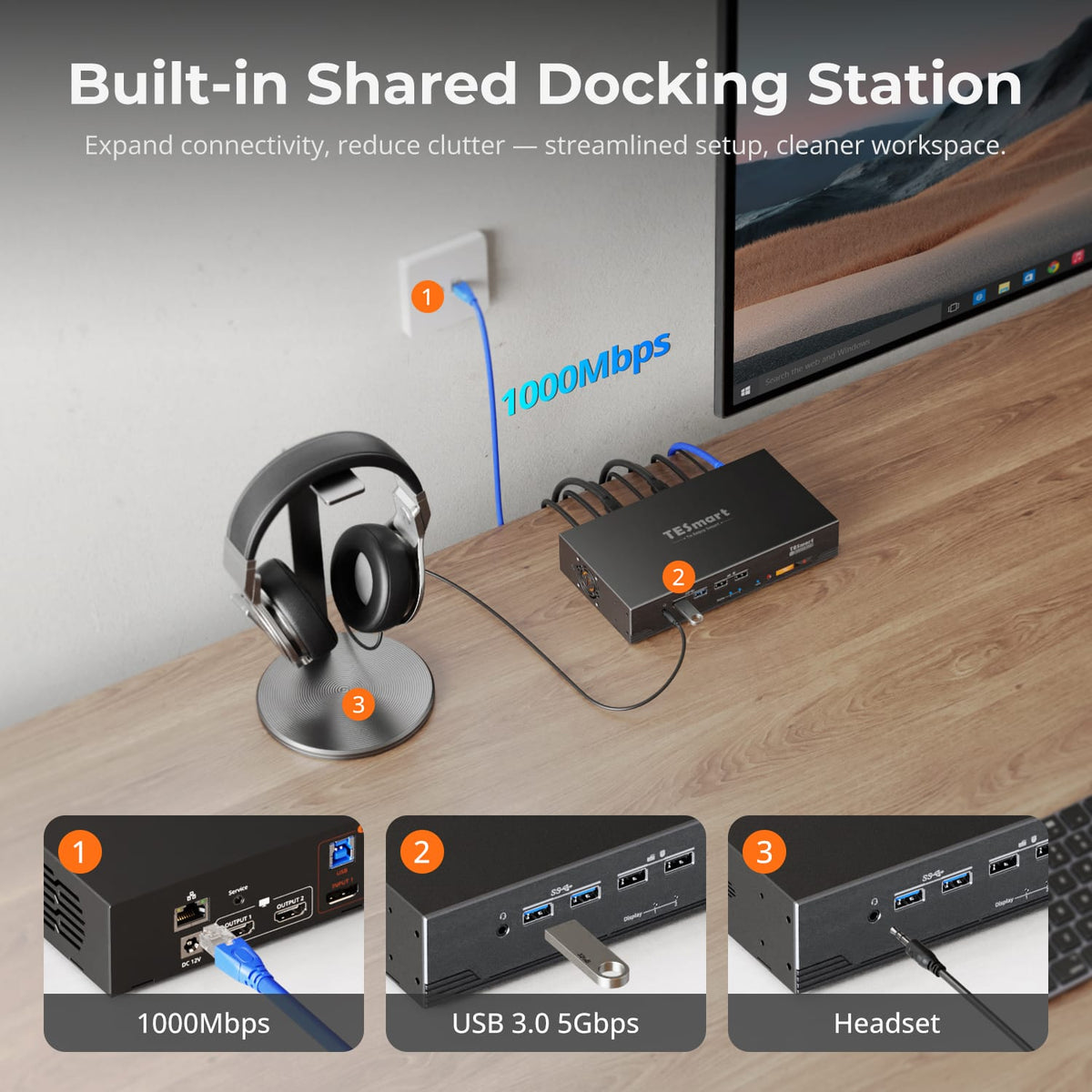
Dock Both Computers Through the KVM
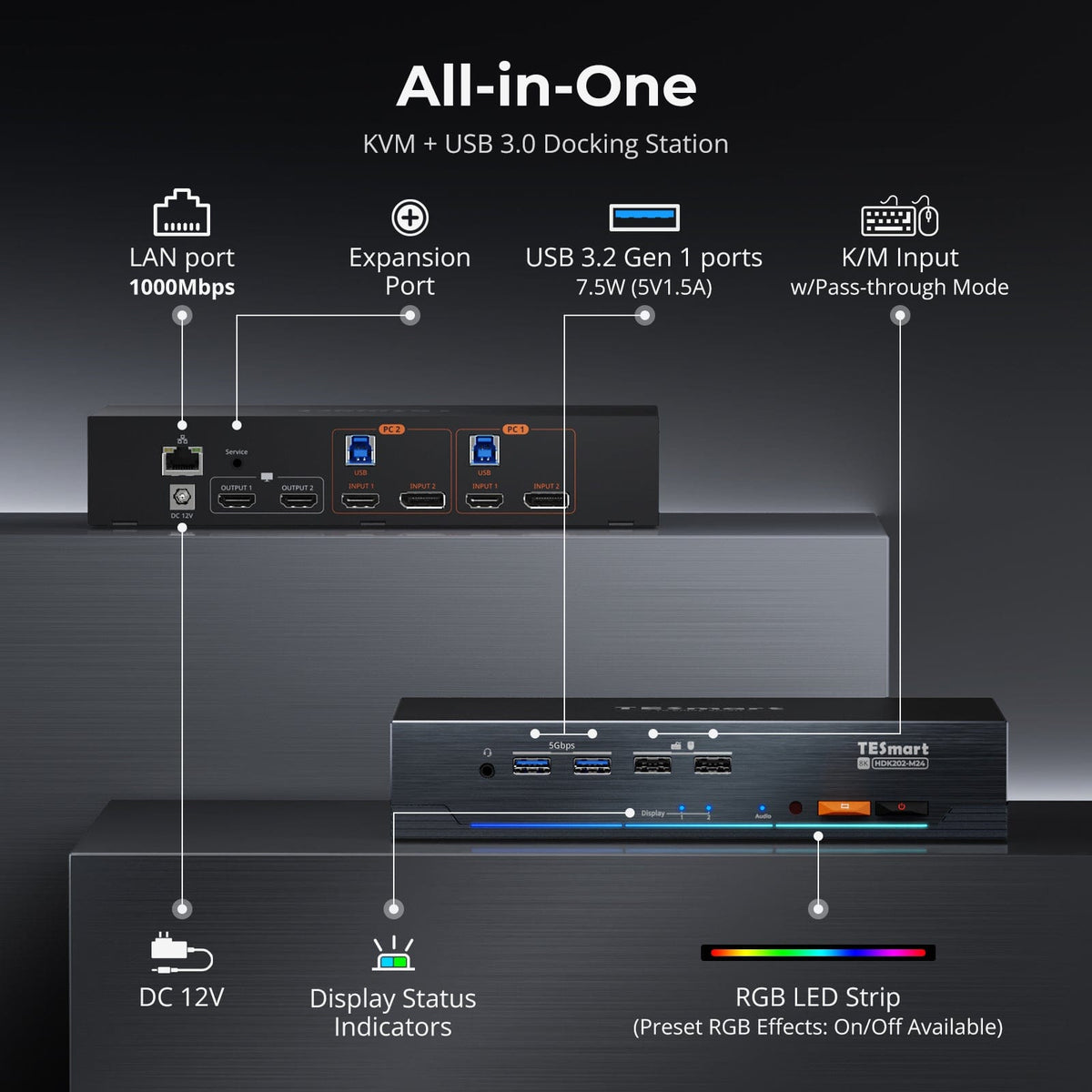
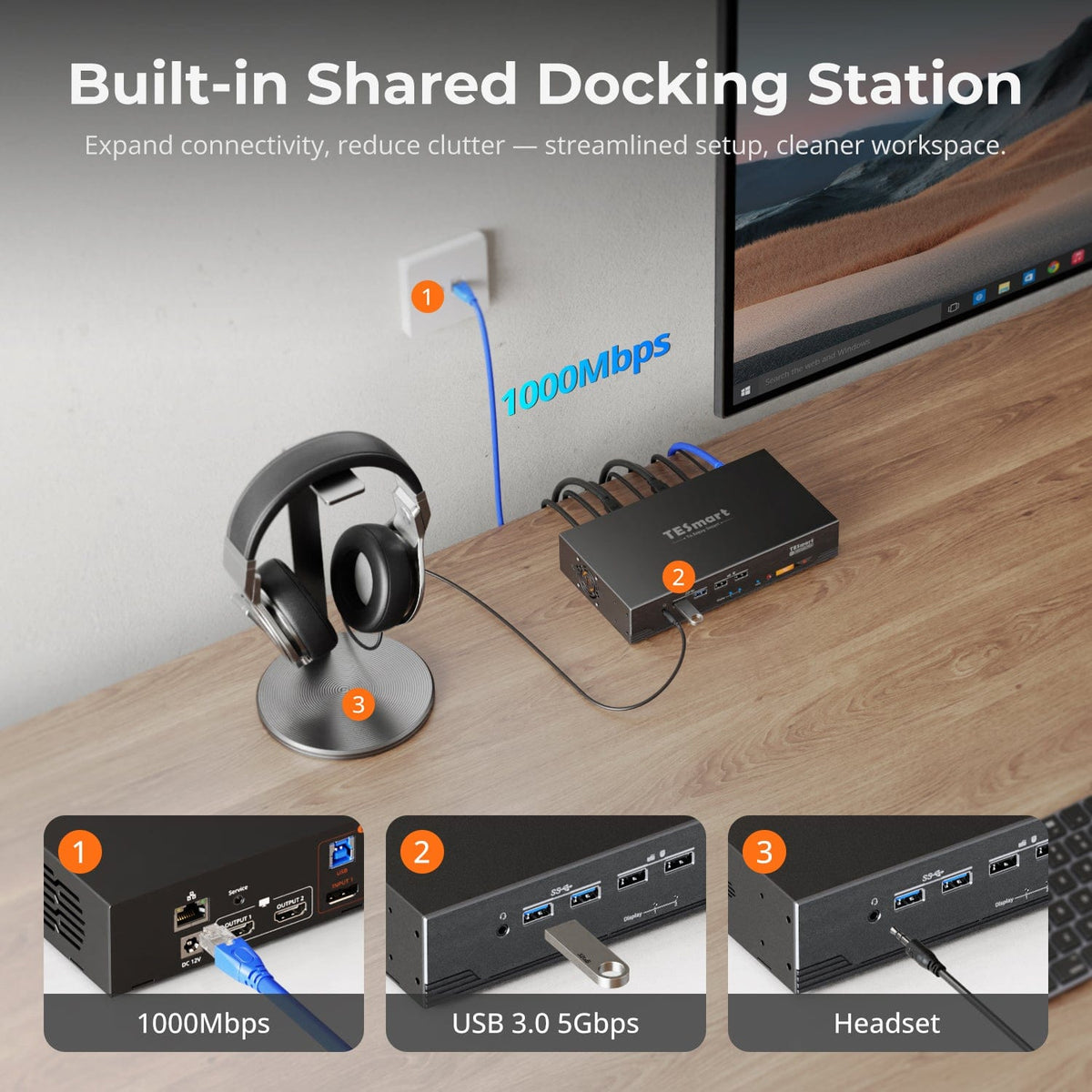
One dock serves both computers: share a 1000Mbps Gigabit Ethernet connection, USB 3.0 peripherals, and integrated audio/mic ports—expanding connectivity while cutting cable clutter for a cleaner desk.
06
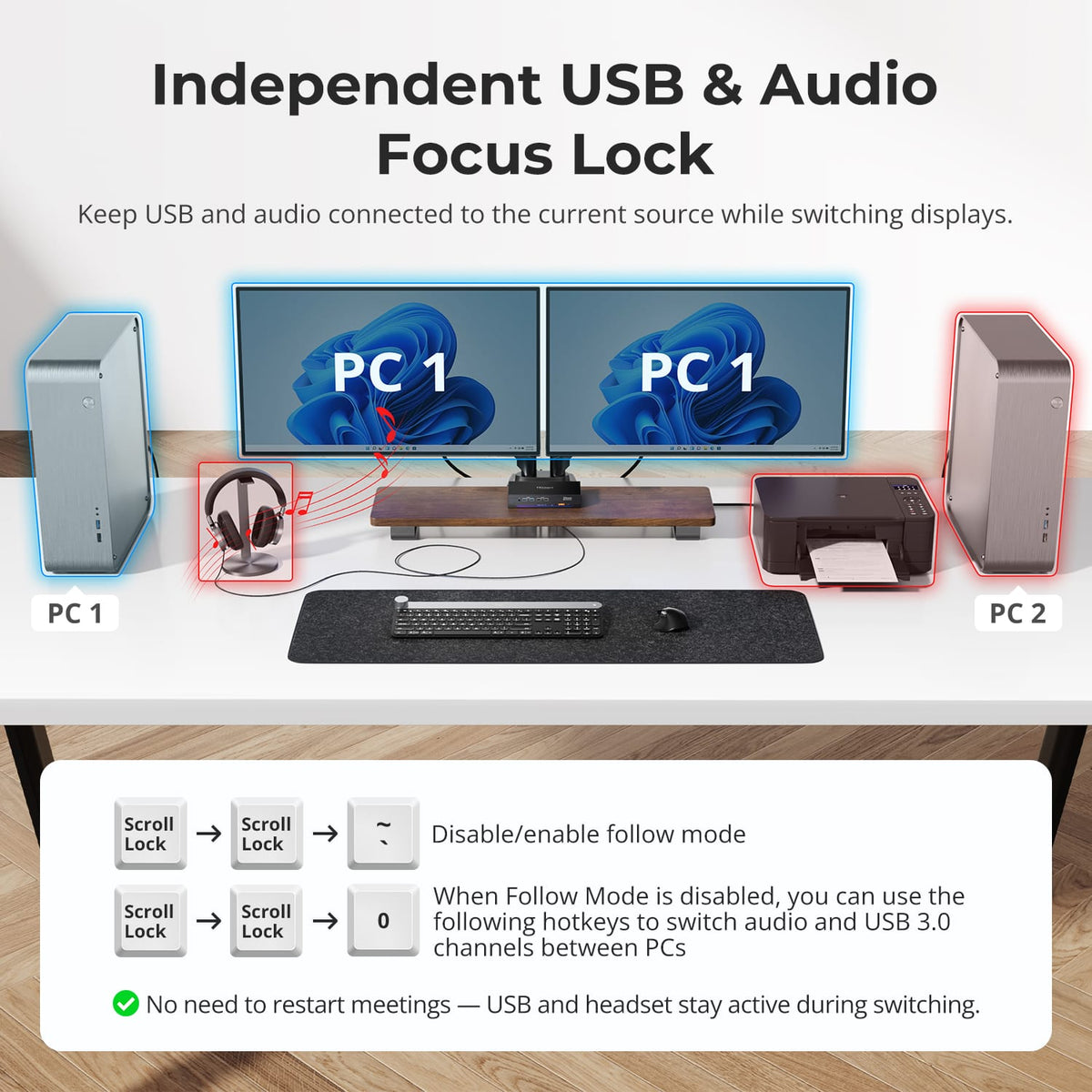
Keep USB and Audio on the Computer That Needs Them
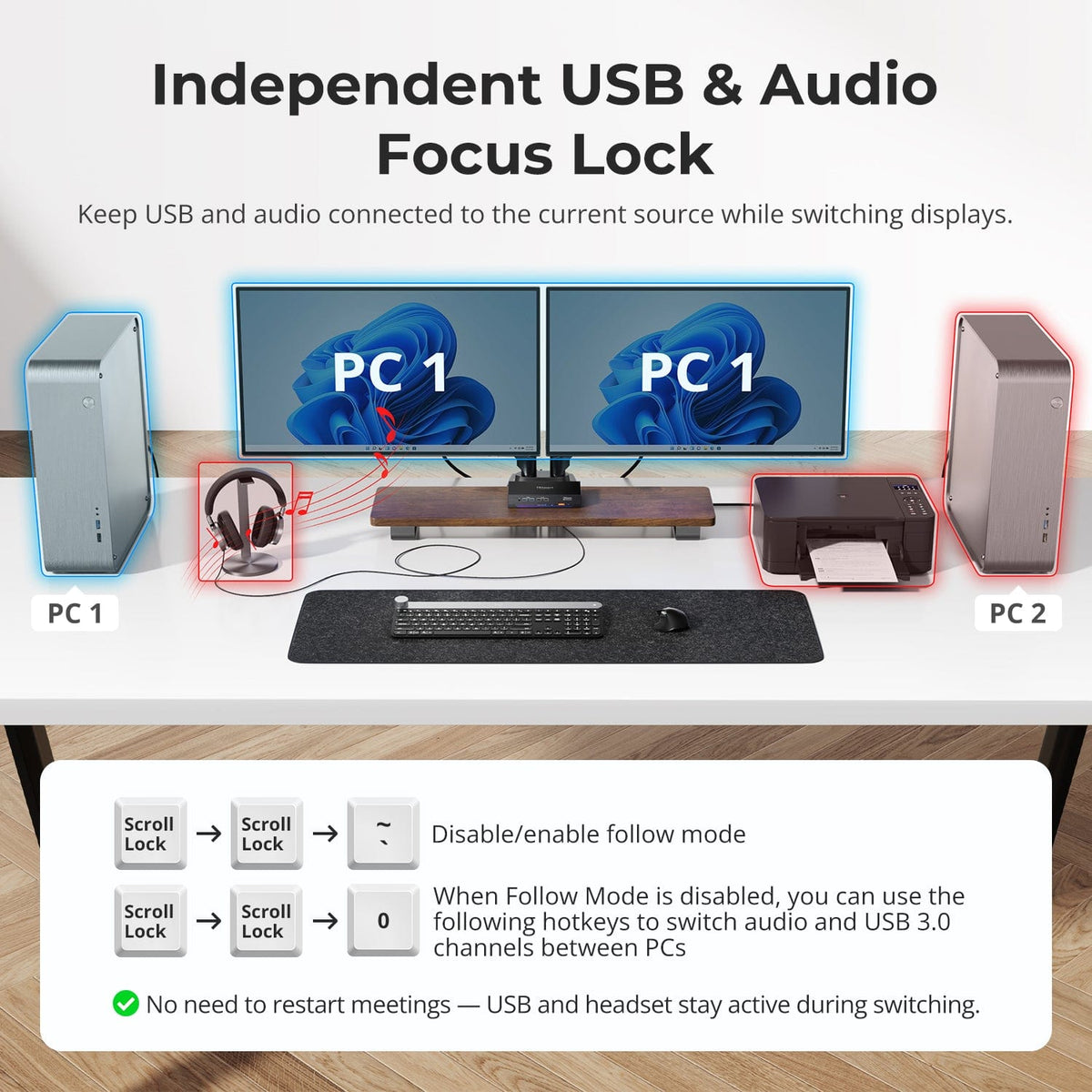
Follow Mode normally moves shared USB devices and audio with keyboard and mouse focus. Disable it when a drive, headset or other peripheral should stay assigned to one computer while display or console control changes.
07
08
09
Specifications & Support
Compatibility & Input Guide
Technical Specifications
Manuals & Downloads
Included in the Box
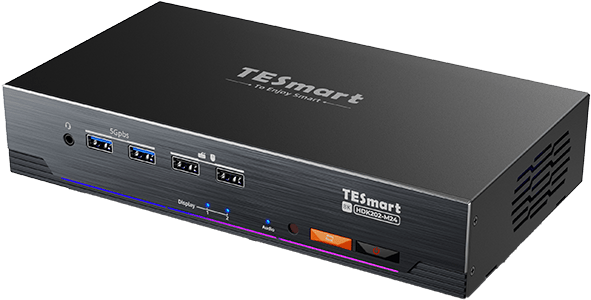
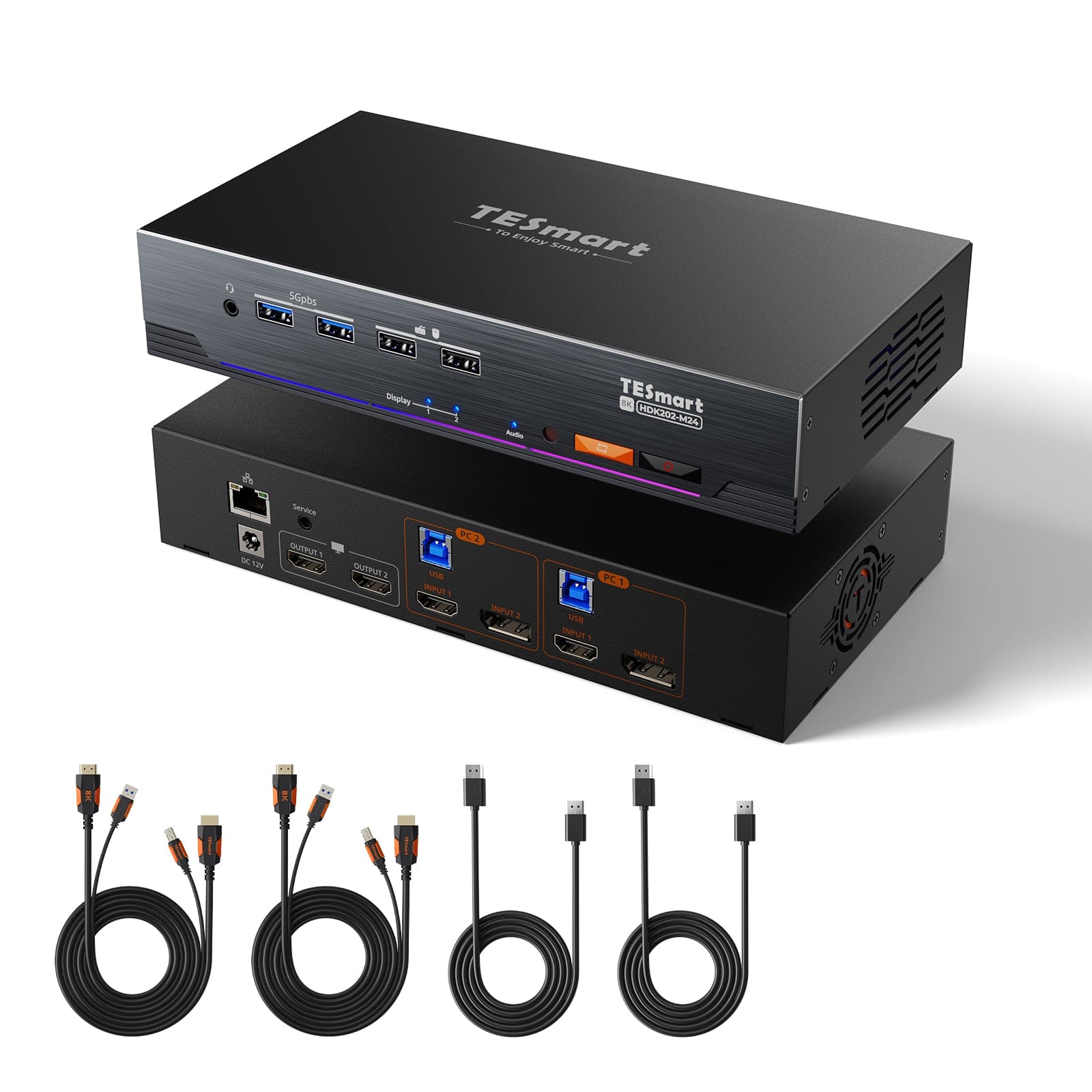
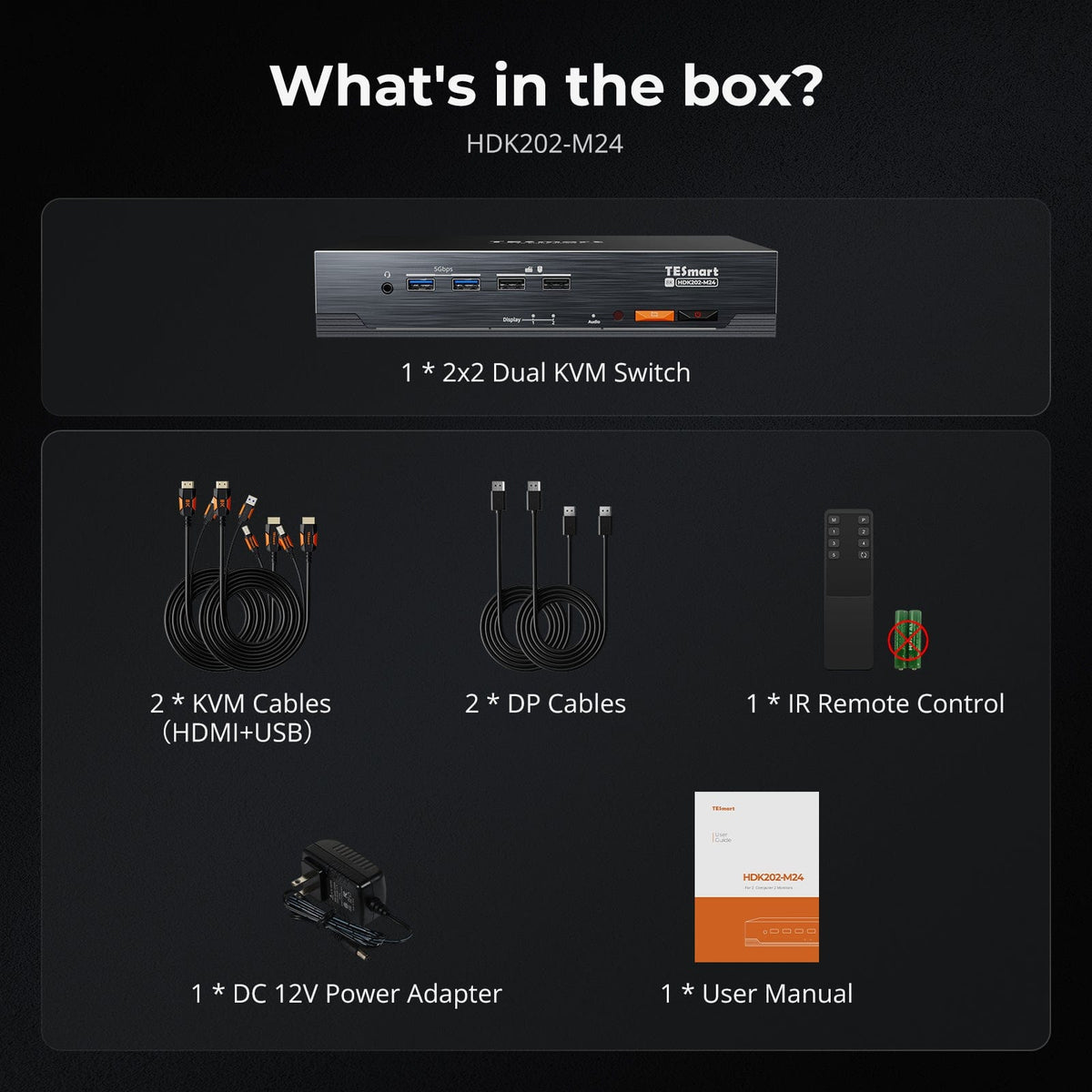
1 × HDK202-M24 KVM Switch
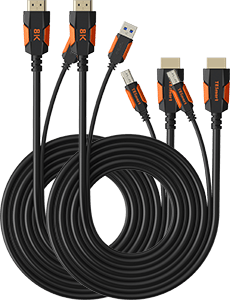
2 × KVM Cables (HDMI + USB)
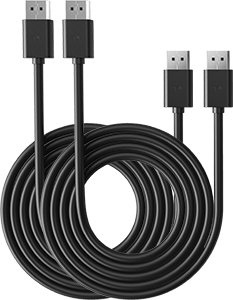
2 × DisplayPort Cables
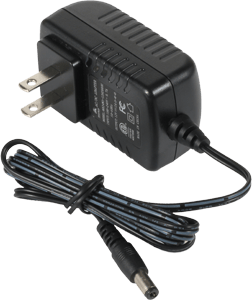
1 × DC 12V Power Adapter
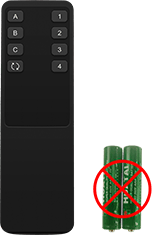
1 × IR Remote Control
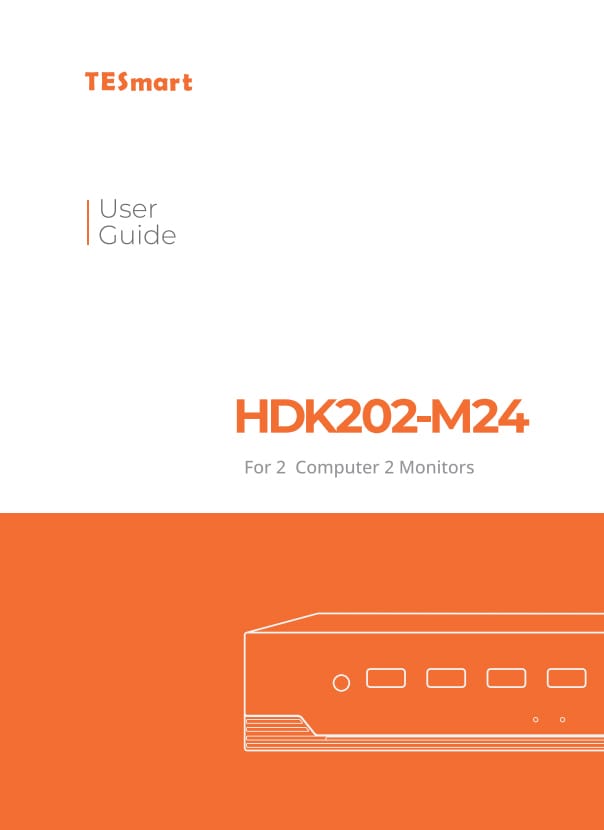
1 × User Manual
FAQs
Find answers to common questions about HDK202-M24 compatibility, features and setup.
[Compatibility] What computers and monitors can I connect to HDK202-M24?
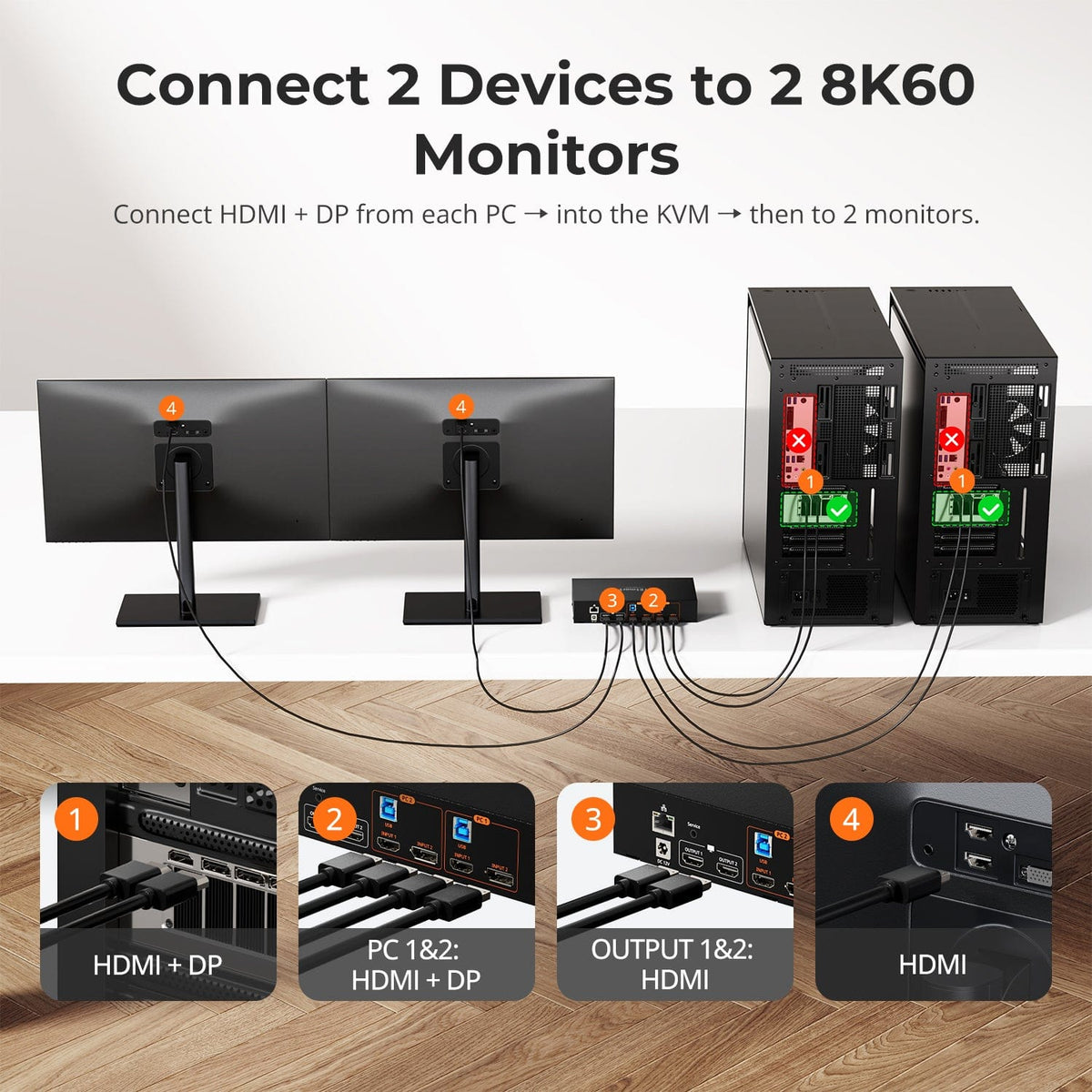
Connect two computers and two HDMI monitors. Each computer needs one HDMI output, one DisplayPort output and one USB connection to its matching KVM input group.
[Compatibility] Which operating systems are supported?
The current product page lists Windows, macOS and Linux, including Raspberry Pi. Basic KVM operation is plug-and-play, while the computer must support the selected dual-display mode.
[Compatibility] What is required for 8K or high-refresh 4K output?
The graphics hardware, operating system, monitors and cables must all support the selected HDMI 2.1 or DisplayPort 1.4 format. The supplied sources conflict on whether 8K60 requires DSC and on the maximum dual-4K refresh rate, so confirm those final claims before publication.
[Compatibility] Can I use a Bluetooth keyboard or mouse?
No. The current product page states that Bluetooth keyboards and mice are not supported; use wired USB devices connected to the dedicated keyboard and mouse ports.
[Features & Connections] What dual-monitor display modes are available?
Extend or mirror one computer across both monitors, or display one computer on each monitor. In mixed-display mode, use a hotkey to move keyboard and mouse focus while both computers stay visible.
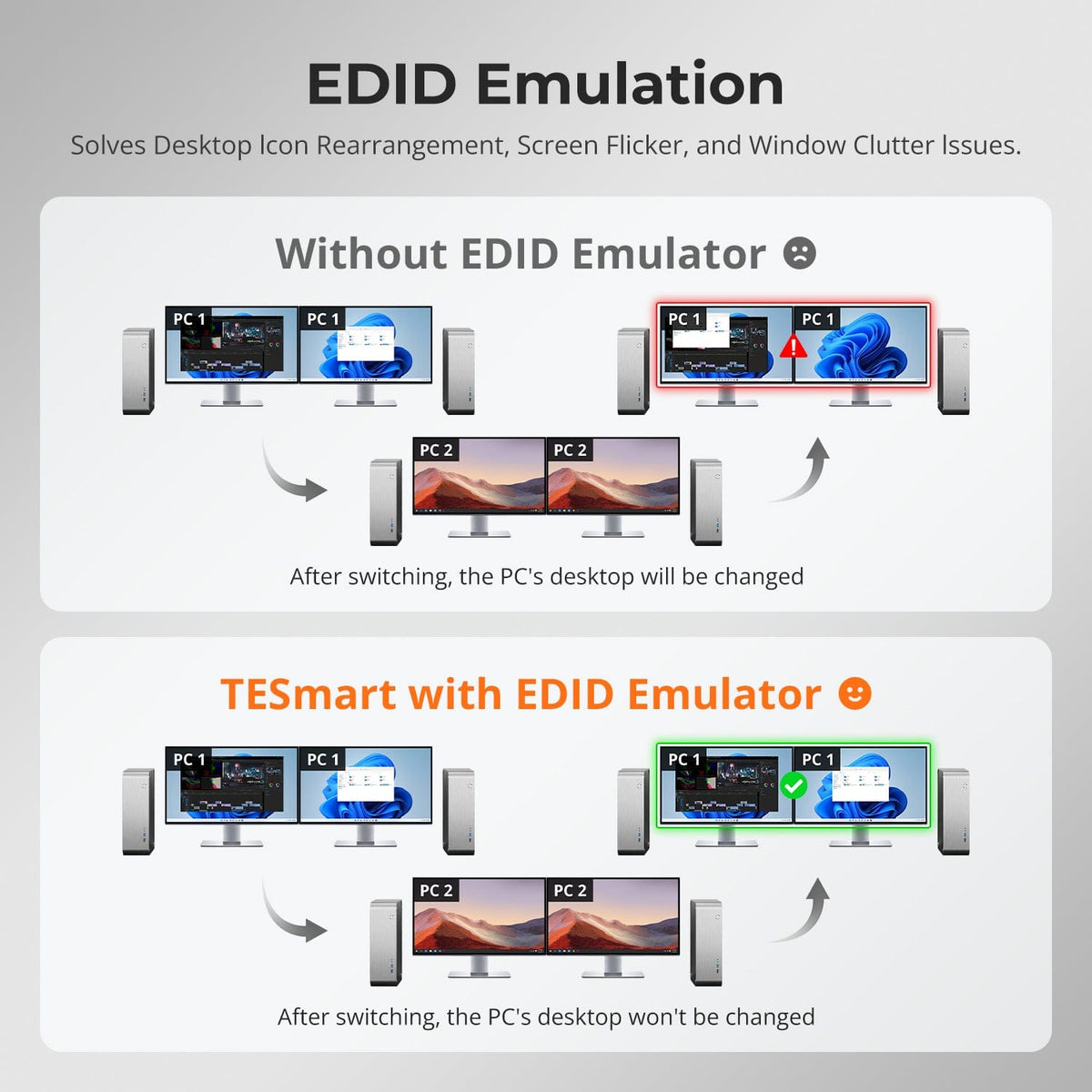
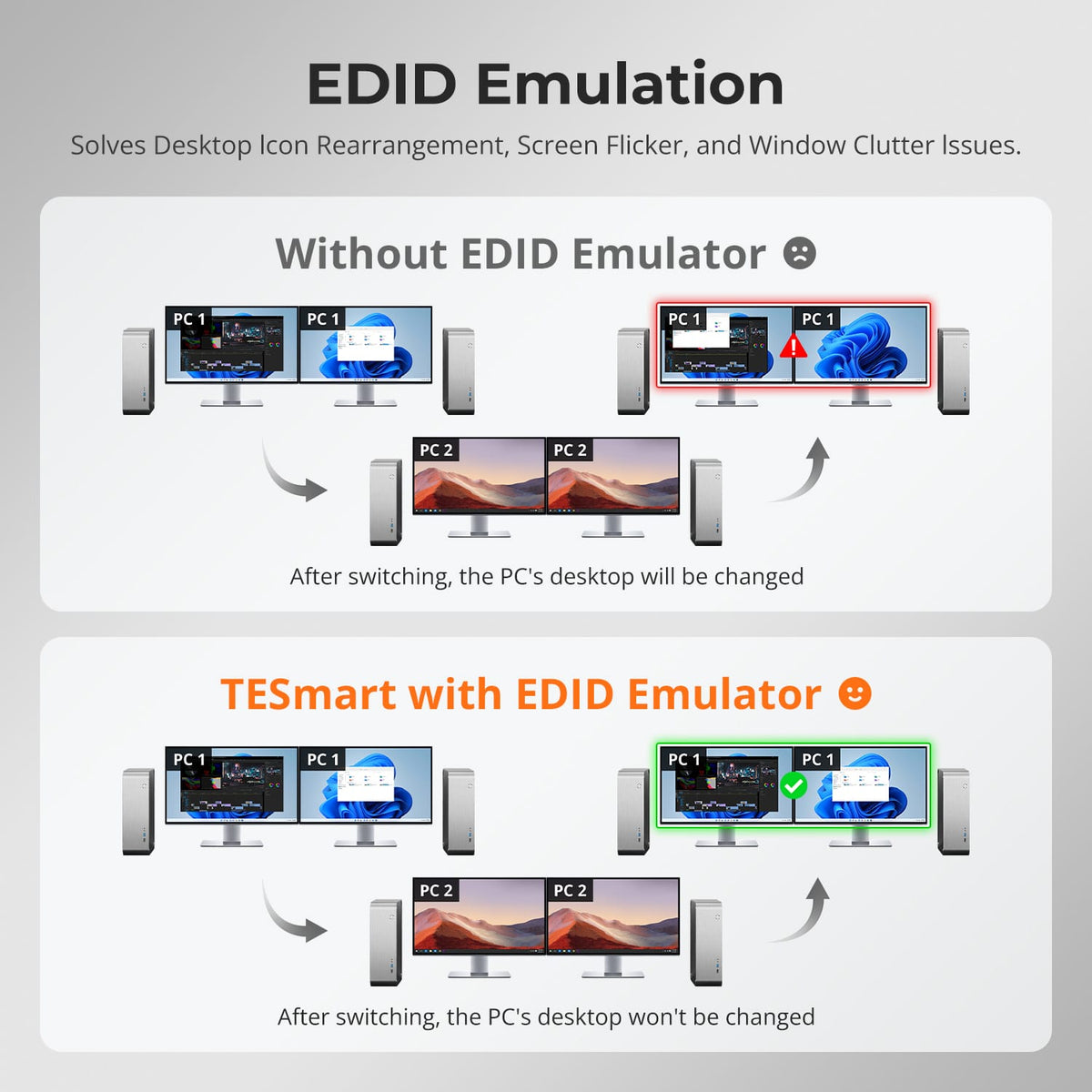
[Features & Connections] What does EDID emulation do?
EDID emulation keeps display information available to both computers, helping preserve window positions and reduce flicker, black screens and desktop rearrangement during switching.
[Features & Connections] What video and gaming features are supported?
The manual lists HDMI 2.1, HDCP 2.3, DSC 1.2a, HDR10, Dolby Vision, VRR, FVA and ALLM. The source, display and cables must support each feature you intend to use.
[Features & Connections] What peripherals can the computers share?
Use the USB 3.2 Gen 1 ports for compatible drives, webcams and other peripherals at up to 5Gbps. The computers can also share the 3.5mm audio/microphone connection and Gigabit Ethernet.
[Features & Connections] Can both computers share one wired network connection?
Yes. Connect the KVM LAN port to a router or network switch. Both computers can use the Gigabit Ethernet adapter through their USB connections; the built-in network adapter can be disabled with a hotkey when Wi-Fi is preferred.
[Features & Connections] What is Follow Mode?
When Follow Mode is enabled, shared USB devices and audio move with keyboard and mouse focus. Disable it when those devices should remain assigned to one computer while display or console control changes.
[Features & Connections] How do the fan modes work?
The KVM has four fan modes: off, automatic by temperature, continuous low speed and continuous high speed. Mode 2, automatic operation, is the default.
[Setup & Switching] How do I connect HDK202-M24?
Connect one HDMI cable, one DisplayPort cable and one USB cable from each computer to its matching input group. Then connect both HDMI monitors, keyboard, mouse, optional shared peripherals, audio and LAN, and DC 12V power.
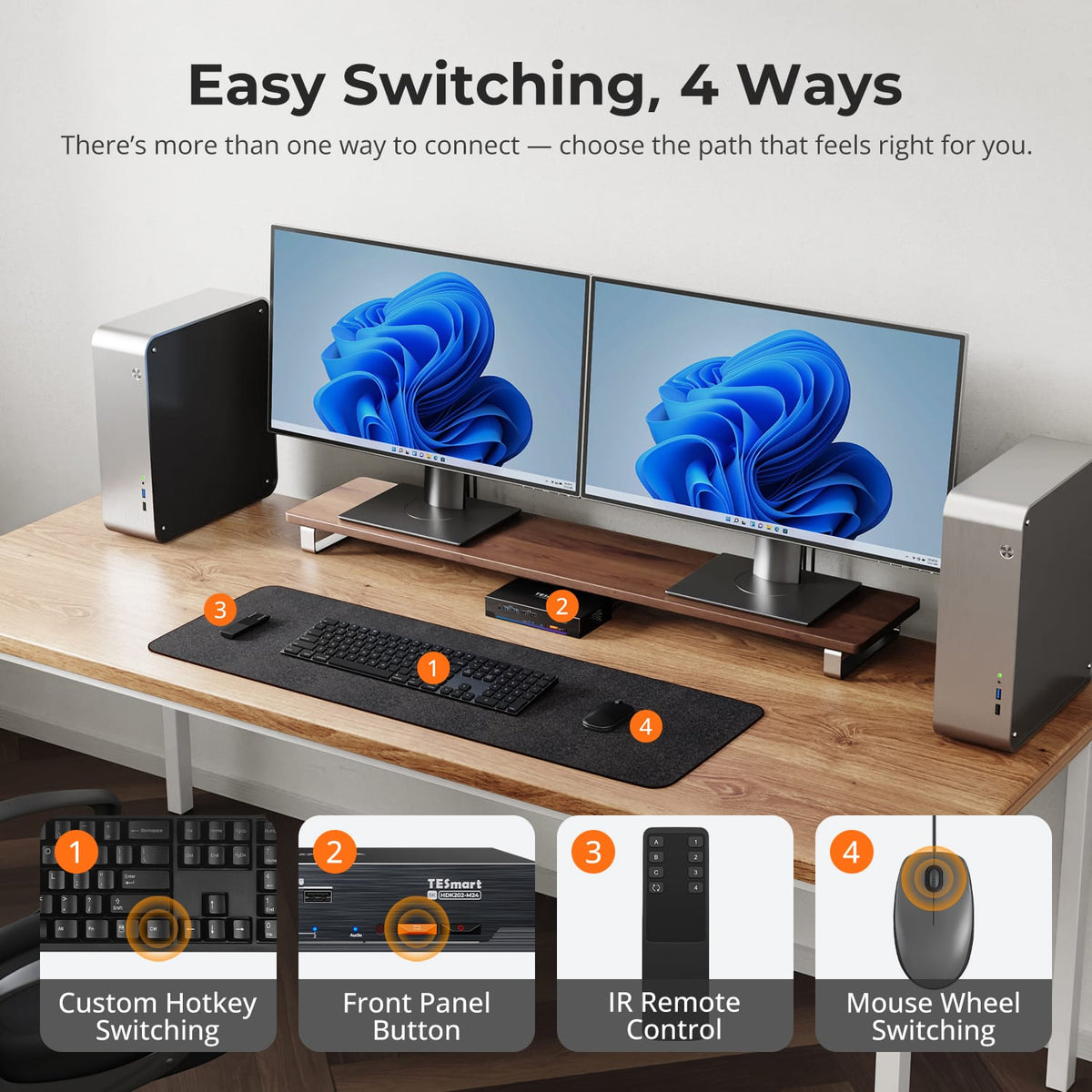
[Setup & Switching] How can I switch between computers?
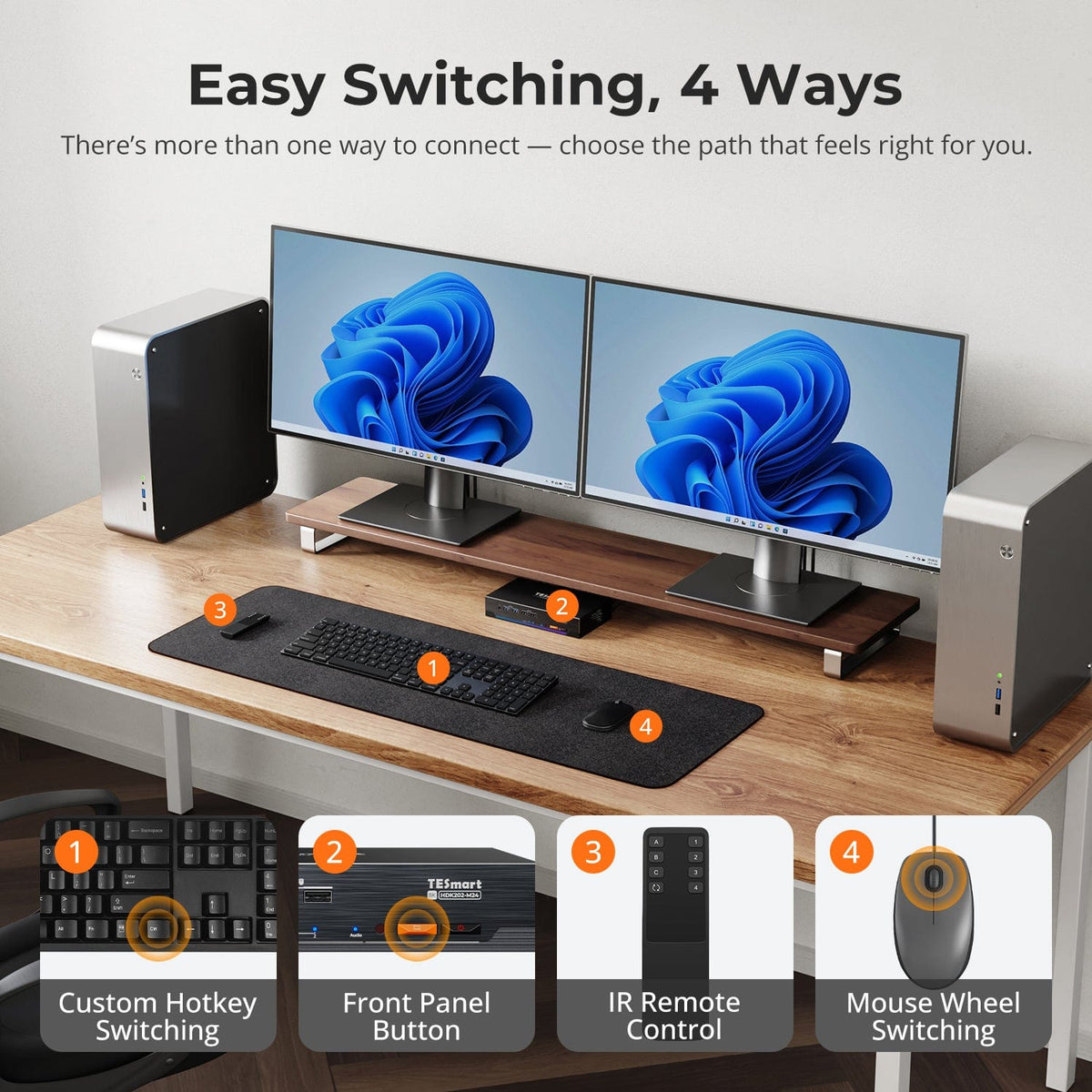
Use the front-panel input button, IR remote, keyboard hotkeys or mouse-wheel switching. Mouse-wheel switching is disabled by default and must be enabled before use.
[Setup & Switching] What is the default hotkey trigger?
The default trigger is Right-Ctrl. Press it twice, then enter the command; the keyboard must be connected to the dedicated keyboard and mouse port.
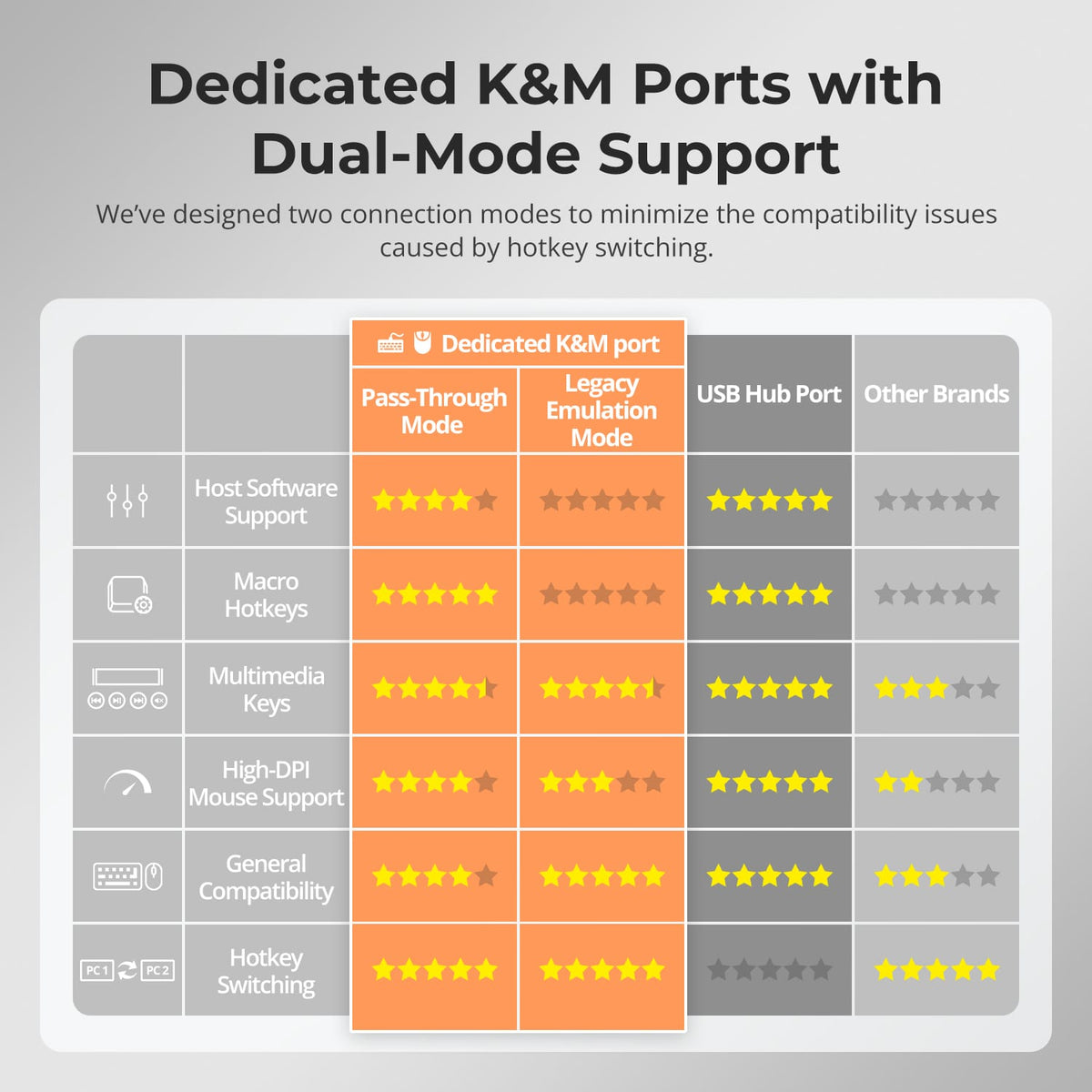
[Setup & Switching] What should I try if hotkeys or the mouse do not work correctly?
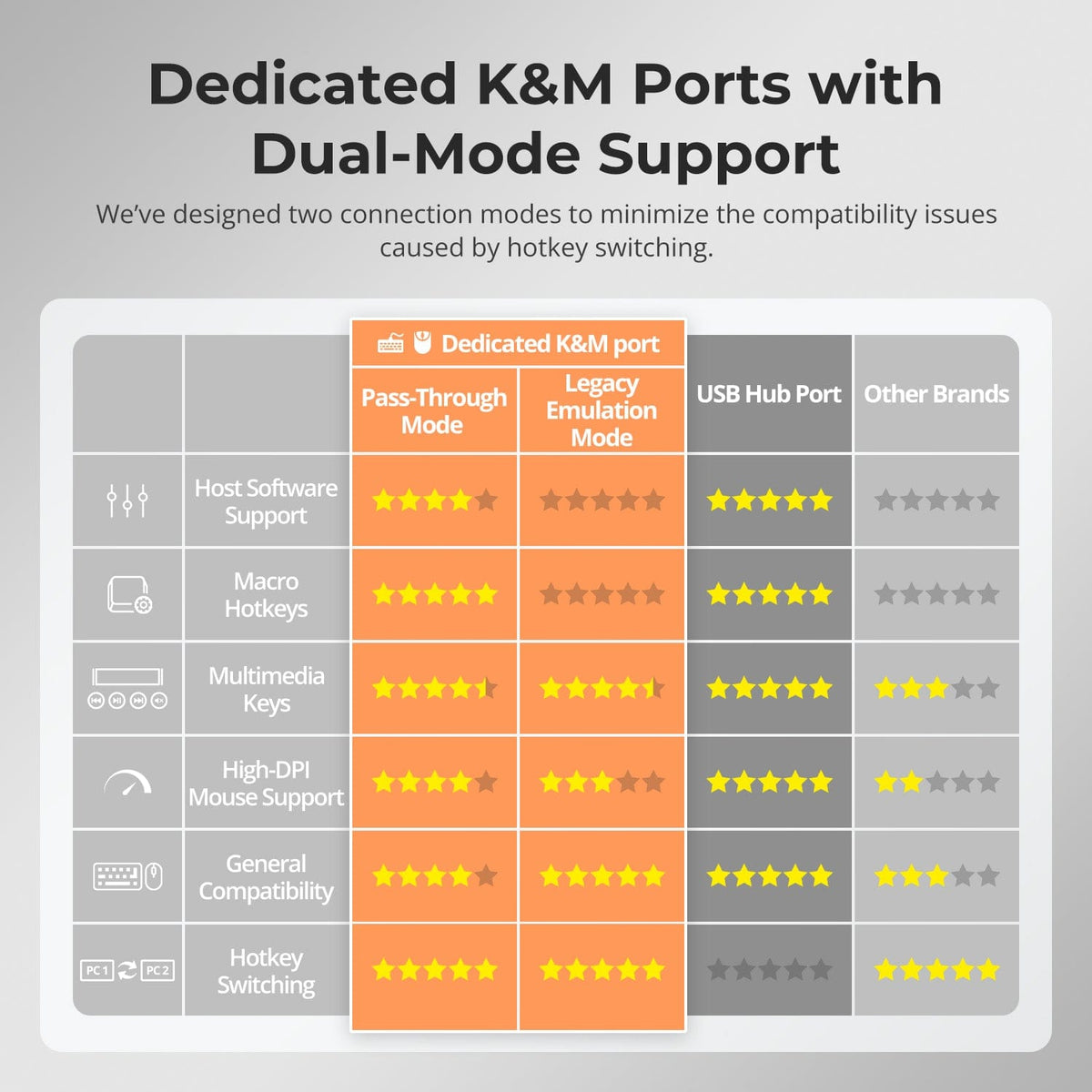
Confirm the keyboard and mouse are connected to the dedicated console ports. If Pass-Through Mode has compatibility issues, switch to Legacy Emulation Mode; advanced driver-based features are unavailable in that mode.