



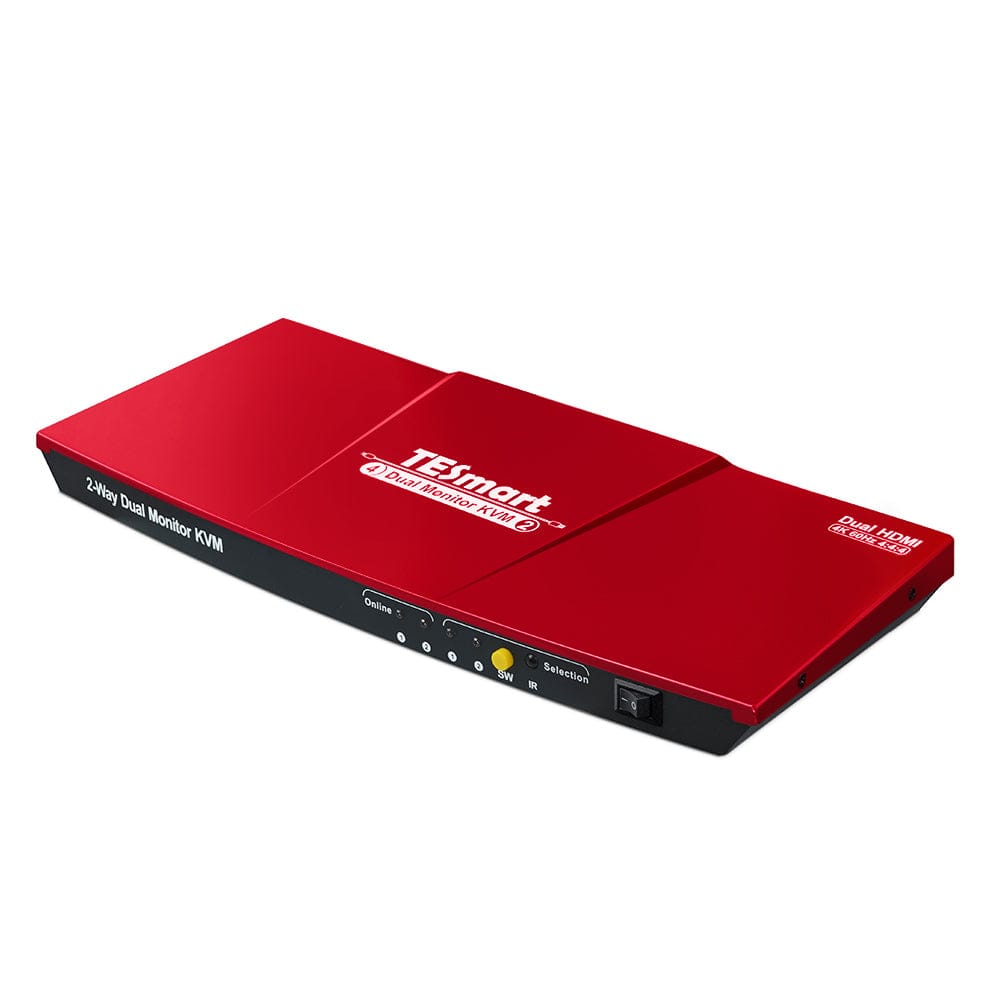
2 Port Dual Monitor KVM Switch Kit HDMI 4K60Hz with EDID
Share two Apple Studio Displays, one keyboard and mouse between two computers—or show one computer on each display when you need both systems at once.
2 Port Dual Monitor KVM Switch Kit HDMI 4K60Hz with EDID
Why Choose HKS202-E23
Overview
01
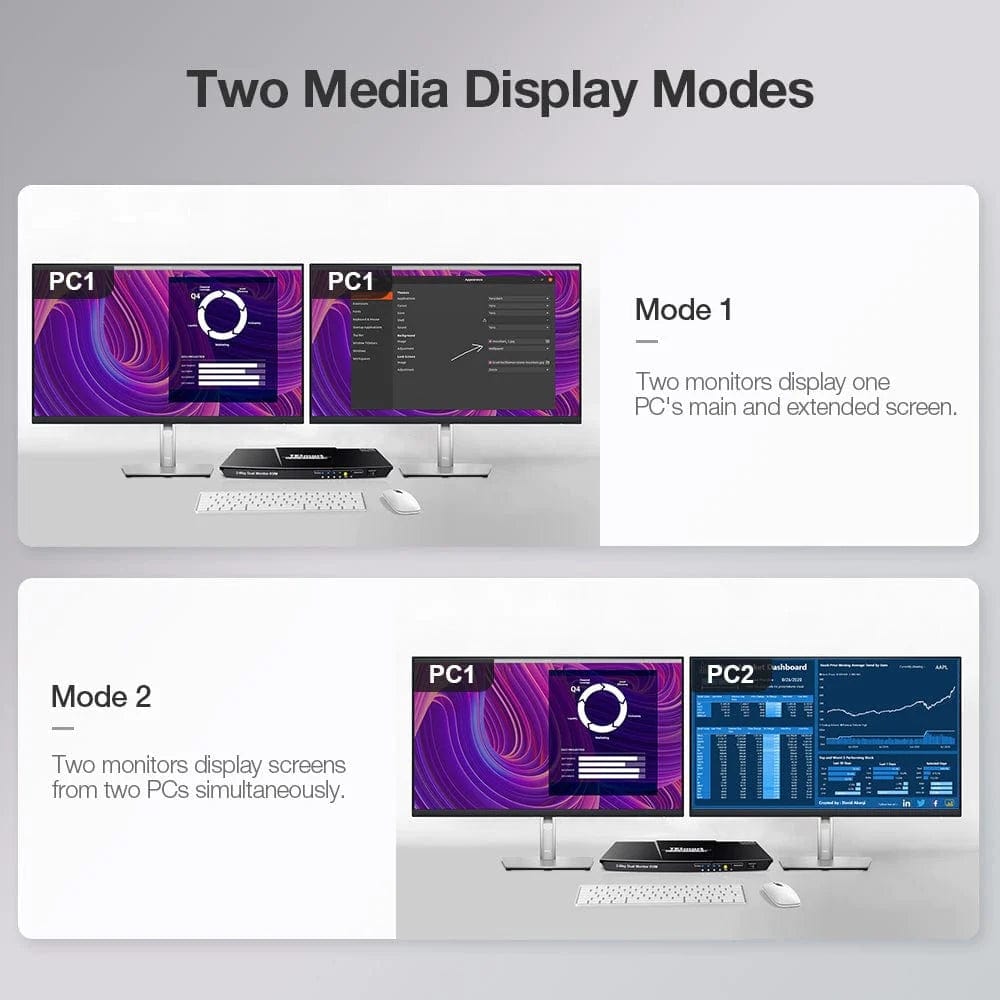
Two Display Modes for a Two-Computer Desk
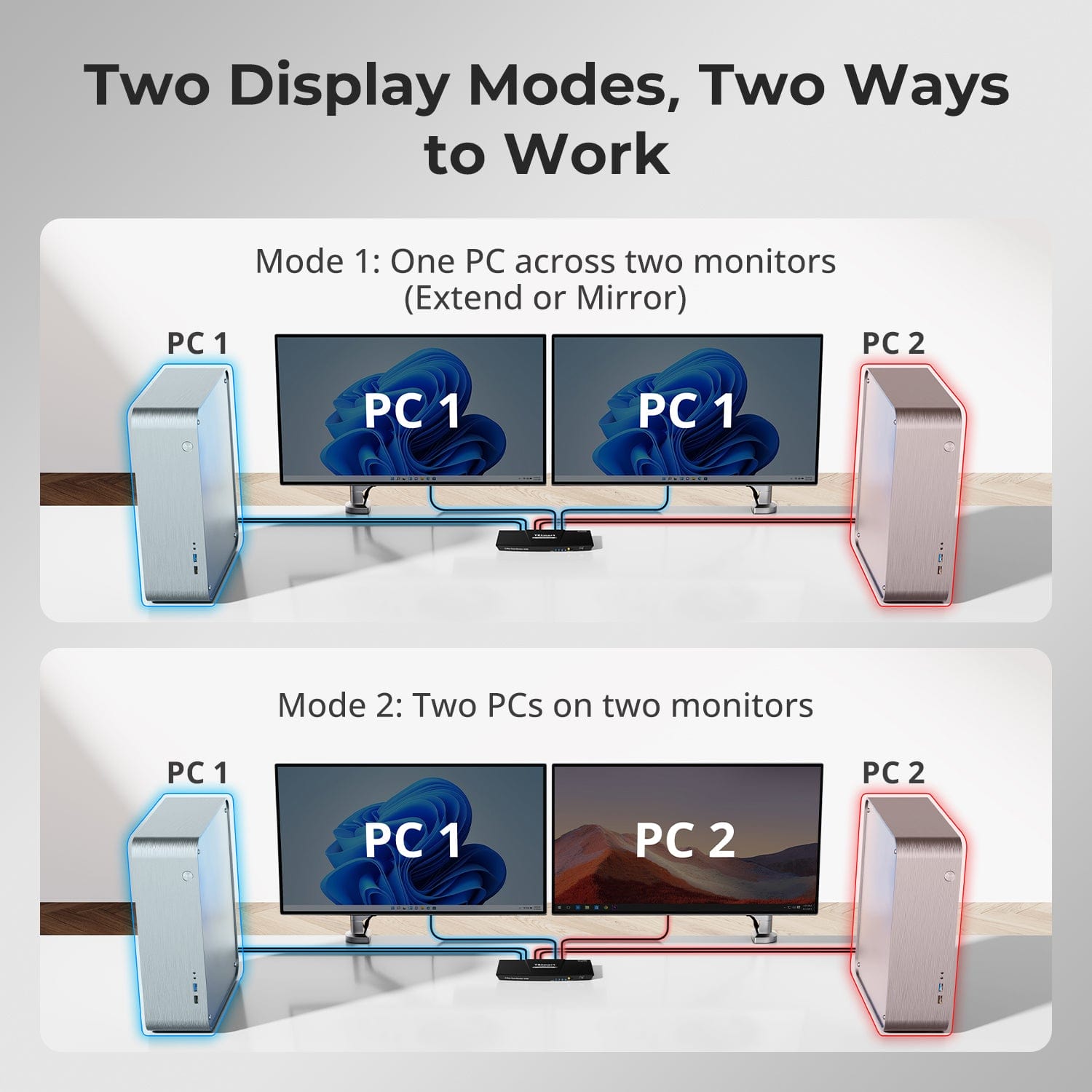
Use both monitors with one computer for an extended or mirrored desktop, or show one computer on each monitor to keep both systems in view. Set extended or mirrored mode in your computer’s display settings. For a dual-monitor desktop, connect two video outputs from that computer to the same PC input group on the KVM. In the side-by-side mode, press Right Alt twice to move keyboard and mouse control between the computers.
02
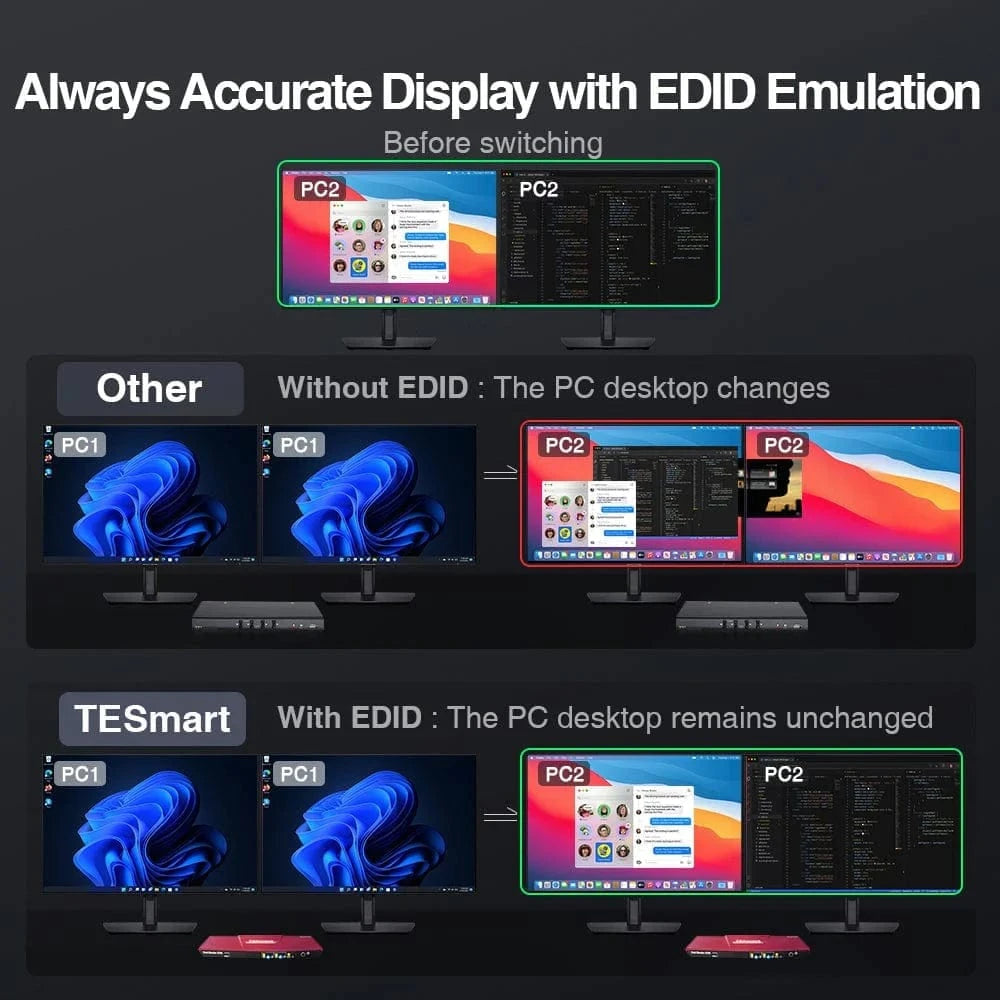
Keep Your Desktop Layout When Switching Computers
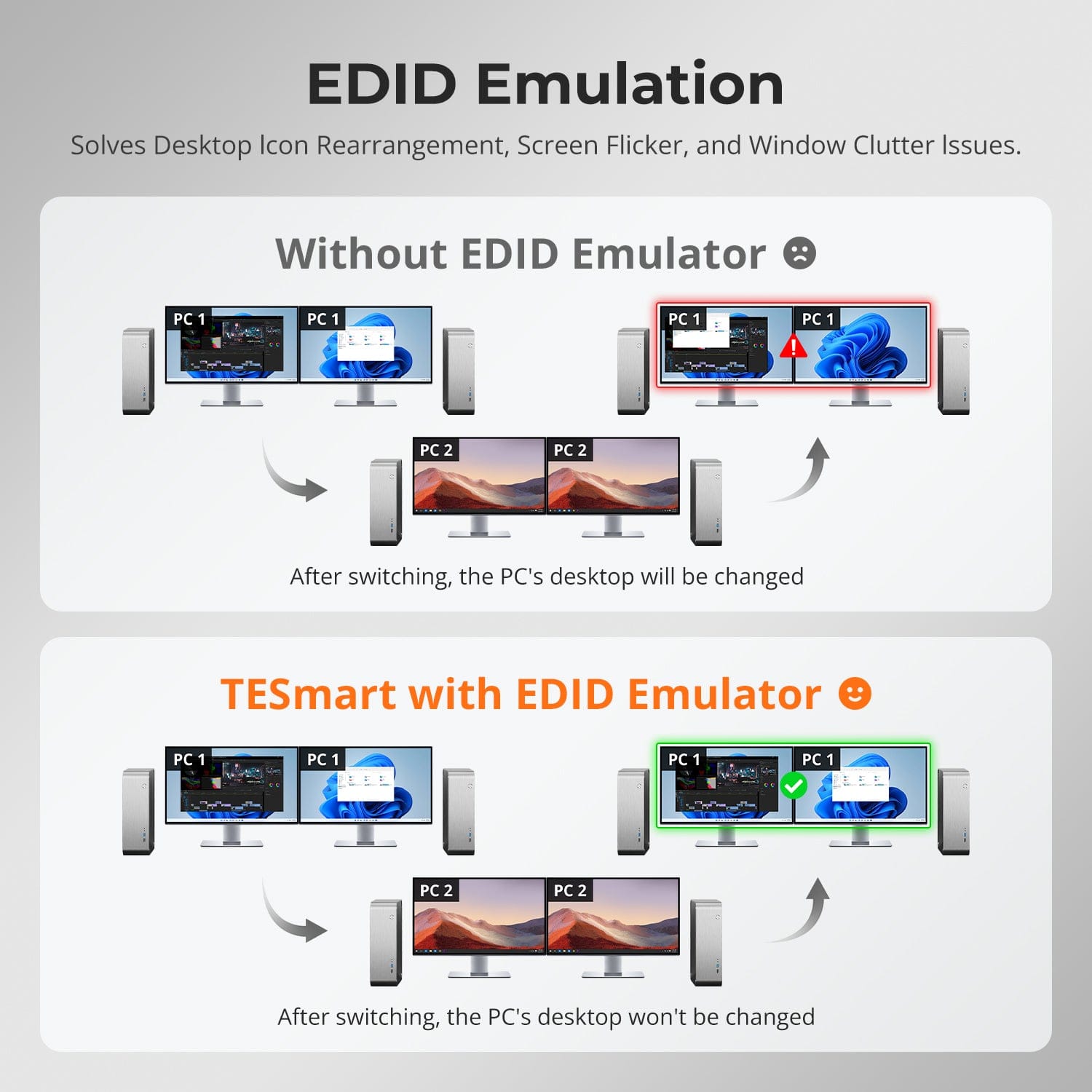
Built-in EDID emulators keep the connected computers supplied with display information in Display Mode 1, helping preserve window positions and desktop organization when you switch both monitors between systems. EDID emulation is not supported in Display Mode 2, where each monitor shows a different computer.
03
4K Detail or Higher Refresh Rates at Lower Resolutions
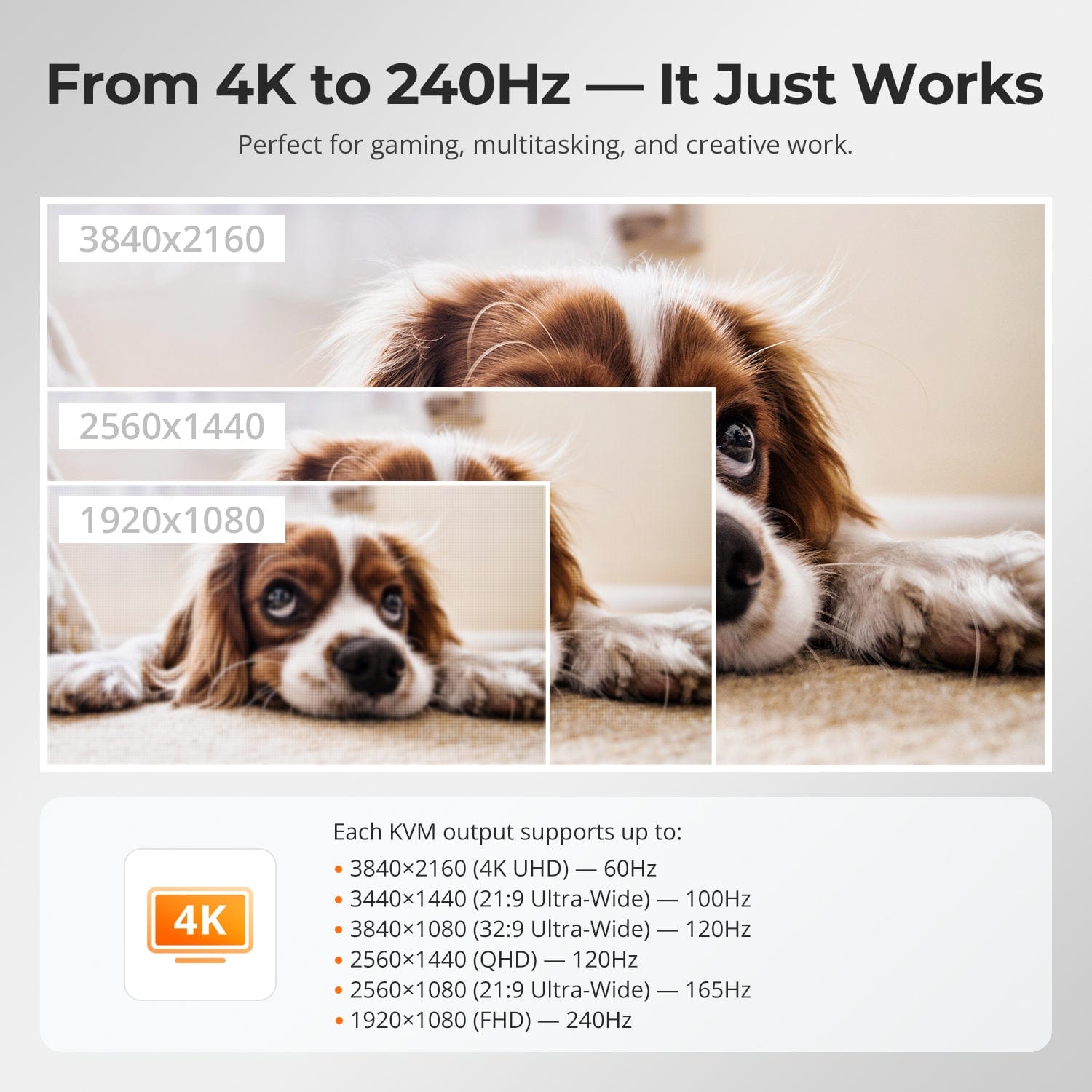
Each HDMI output supports up to 3840 × 2160 at 60Hz. Supported lower-resolution options include 3440 × 1440 at 100Hz, 3840 × 1080 at 120Hz, 2560 × 1440 at 120Hz, 2560 × 1080 at 165Hz, and 1920 × 1080 at 240Hz. Choose the setting that fits your work or gaming setup. Your computer, monitor, cables, and any adapters must all support the selected resolution and refresh rate. This model does not support 4K at 144Hz or 8K.
Specifications & Support
Compatibility & Input Guide
Technical Specifications
Manuals & Downloads
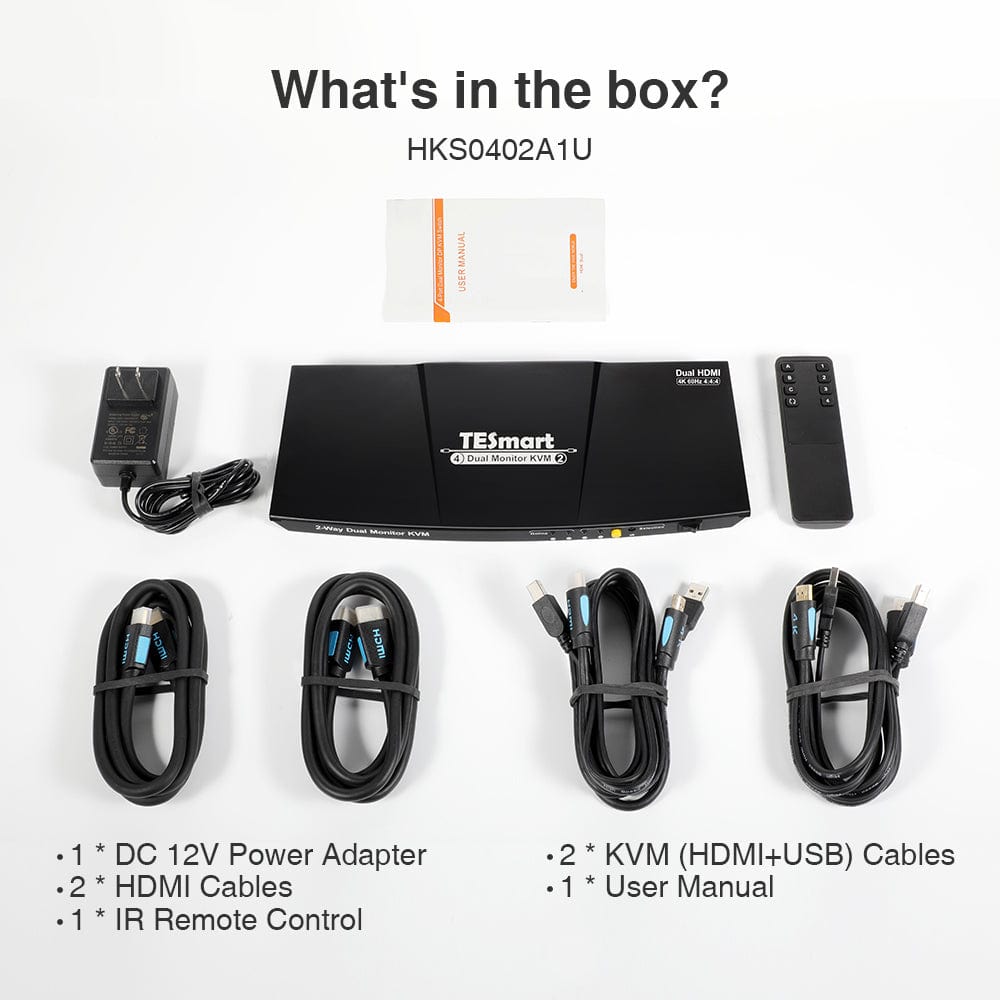
Included in the Box
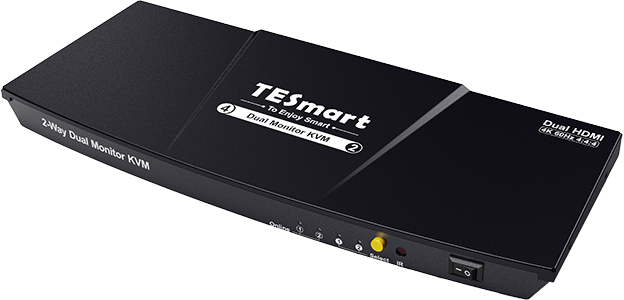
1 × HKS202-E23 HDMI Dual-Monitor KVM Switch
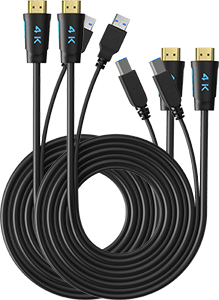
2 × KVM Cables (HDMI + USB)
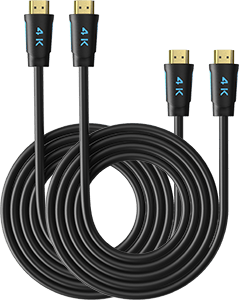
2 × HDMI Cables
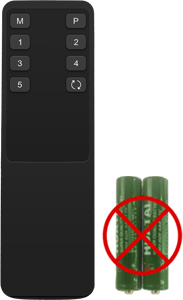
1 × IR Remote Control
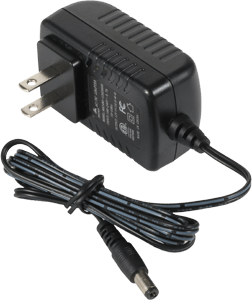
1 × DC 12V Power Adapter
1 × User Manual
FAQs
Visit our Help Center for more answers.
[Compatibility] Can I connect a work laptop and a gaming desktop?
Yes. HKS202-E23 lets two computers share up to two HDMI monitors, one keyboard and mouse, and supported USB peripherals. For both monitors to show an extended or mirrored desktop from one computer, that computer must provide two video outputs connected to the same PC input group on the KVM. If it lacks a second HDMI output, the target-product FAQ lists a suitable USB-C-to-HDMI adapter or HDMI docking station for a laptop, or a DisplayPort-to-HDMI adapter for a desktop. Check the computer and adapter's display capabilities before purchase.
[Compatibility] Can I run a 4K144Hz or 8K monitor at its maximum setting?
No. HKS202-E23 supports HDMI 2.0 with a maximum output of 3840 × 2160 at 60Hz. A higher-specification monitor can be used at a supported setting, such as 4K60Hz or 2560 × 1440 at 120Hz. The product page also lists Full HD at up to 240Hz and other lower-resolution options. Your computer, monitor, cables, and any adapters must support the selected setting. This KVM does not provide 4K144Hz or 8K output.
[Compatibility] Can I use only one computer or one monitor?
Yes. The target-product FAQ confirms that using fewer inputs or outputs does not prevent normal operation of the connected devices. You can start with one computer or one HDMI monitor and add the second device later.
[Compatibility] Which operating systems are supported, and what should macOS Tahoe users know?
The supplied manual lists Windows, macOS X, Unix, and Linux-based systems such as Debian, Ubuntu, Fedora, and Raspbian. If your keyboard or mouse stops being recognized after upgrading to macOS Tahoe, the target-product FAQ advises contacting TESmart Technical Support for the correct model-specific firmware package and update instructions.
[Compatibility] Can I connect Bluetooth keyboards and mice directly to the KVM?
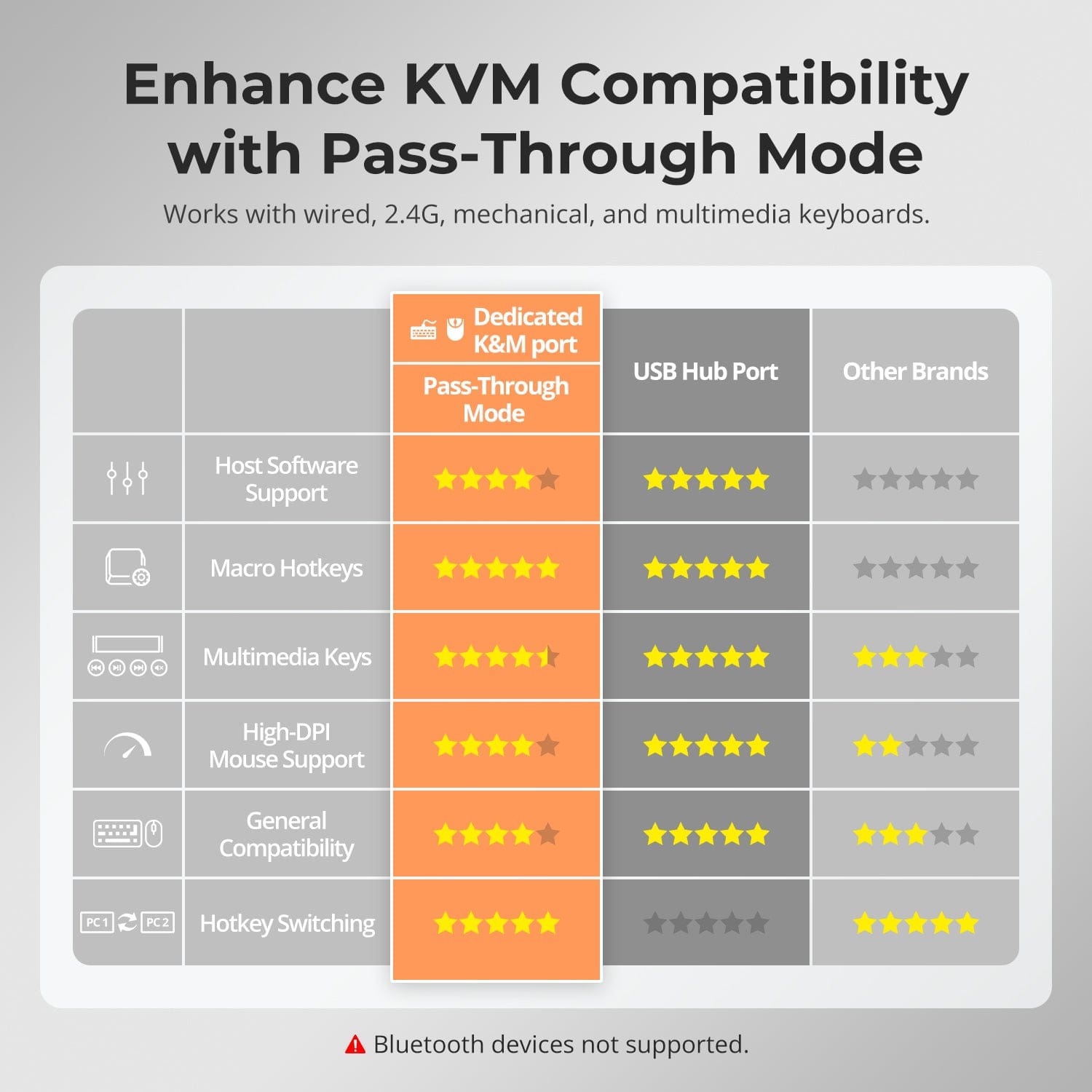
No. Direct Bluetooth keyboard and mouse connections are not supported. The product image lists wired, 2.4GHz wireless, mechanical, and multimedia keyboards as supported types for pass-through use. A 2.4GHz wireless peripheral needs its USB receiver connected to the KVM. Compatibility and additional functions depend on the specific keyboard or mouse.
[Features & Connections] What are the two display modes?
Display Mode 1 puts the same computer on both monitors. Choose an extended or mirrored desktop in that computer's display settings, and connect two video outputs from that computer to its KVM input group. Display Mode 2 shows a different computer on each monitor. Press Right Alt twice to switch keyboard and mouse focus between the two computers. The manual states that swapping the monitor images is unavailable if the monitors have different maximum supported resolutions.
[Features & Connections] Does EDID emulation work in both display modes?
No. The manual specifies that EDID emulation is supported only in Display Mode 1. In that mode, the input-port EDID emulators keep the computers supplied with display information when you switch between systems, helping preserve desktop and window organization. EDID emulation is not supported in Display Mode 2.
[Features & Connections] Where should I connect shared USB peripherals?
Connect devices such as a USB drive, printer, barcode scanner, or USB audio device to the standard USB 2.0 peripheral port. Connect the keyboard and mouse to their dedicated ports, which are marked with keyboard and mouse icons, when you need hotkey operation. The USB connection from each computer must belong to the same PC input group as that computer's HDMI connections.
[Features & Connections] How do I connect an audio device, and why might there be no sound?
Use the analog L/R output for a 3.5mm audio device, or the shared USB 2.0 port for a USB audio device. For the 3.5mm output, the target-product FAQ says to keep the computer's HDMI connections connected and select the corresponding monitor audio output in the computer's sound settings. Try the monitor connected to Display 2 first, then Display 1 if necessary. For USB audio, select the USB headset or USB audio device instead. If the analog output still does not work, the FAQ suggests using a USB-to-3.5mm sound card.
[Features & Connections] Can both connected computers receive charging and use Gigabit Ethernet?
Yes. Each compatible computer can receive up to 60W Power Delivery, while both systems can access the KVM's Gigabit Ethernet connection up to 1000Mbps. Charging and wired network access can remain available at the same time, helping reduce separate chargers and network adapters on the desk.
[Setup & Switching] How do I connect the computers, monitors, and peripherals?
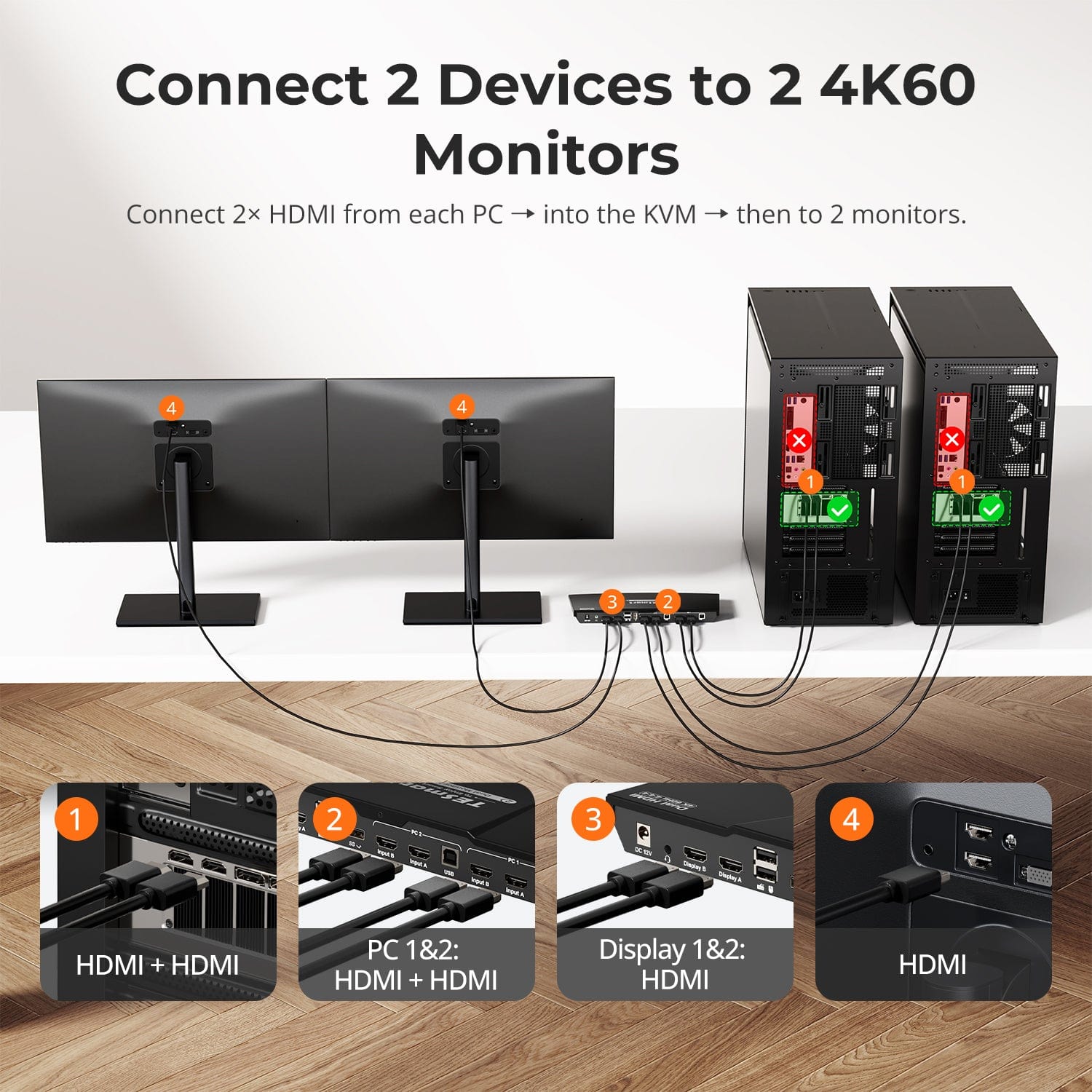
For each computer, connect one included KVM cable (HDMI + USB) and one included HDMI cable to the same PC1 or PC2 input group. Both HDMI connections and the USB connection in a group must come from the same computer. Connect the monitors to Display 1 and Display 2 using two additional HDMI cables that you supply. Plug the keyboard and mouse into their dedicated USB ports, other peripherals into the USB 2.0 port, and an analog audio device into the L/R output if needed. Connect the included DC 12V adapter and turn on the KVM.
[Setup & Switching] How can I switch computers or change the display mode?
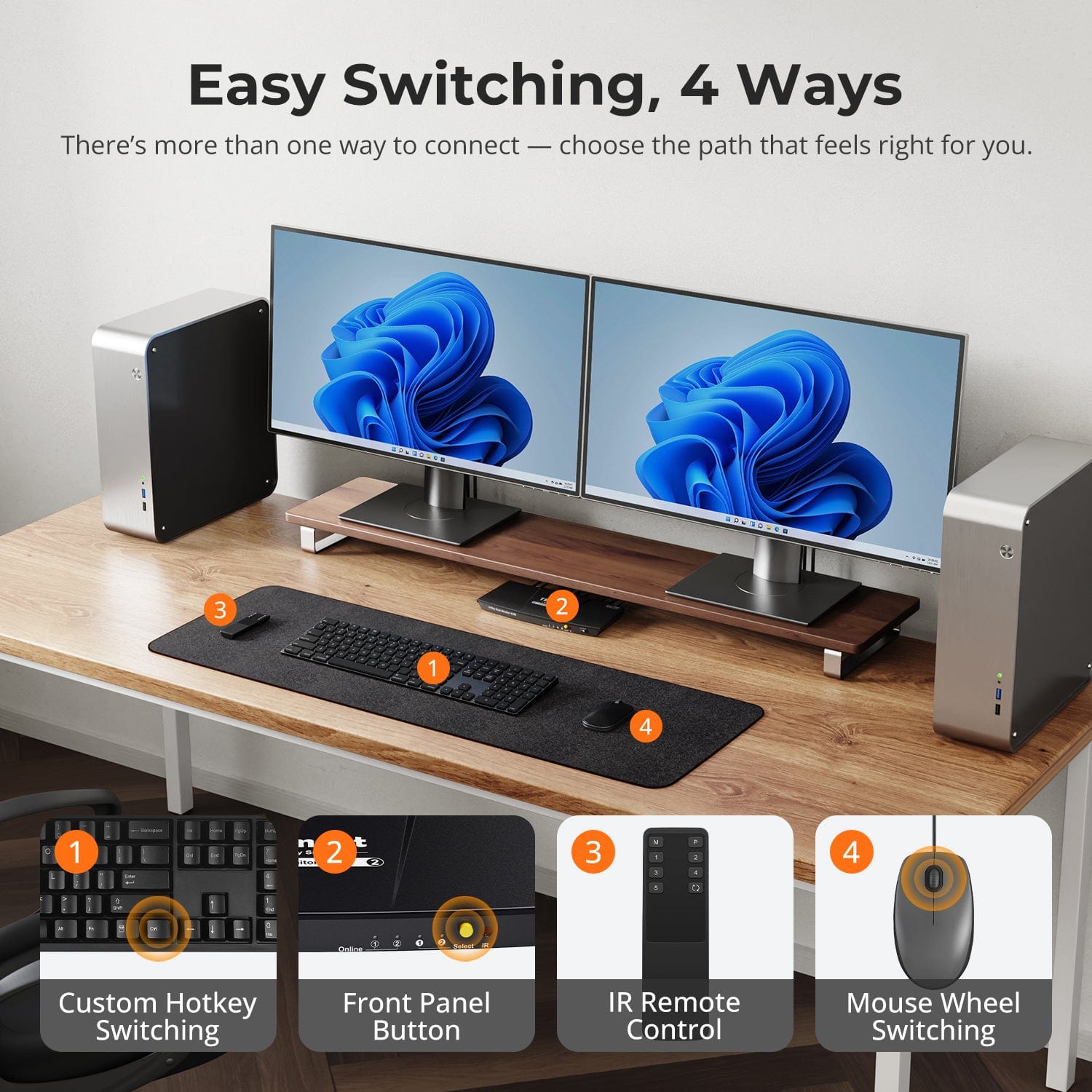
Use the front-panel Select button, IR remote control, or keyboard hotkeys.
[Setup & Switching] What are Pass-Through Mode and Legacy Emulation Mode?
Pass-Through Mode is recommended for most modern keyboards and mice. It provides more direct communication with the computer and supports many advanced peripheral functions. Legacy Emulation Mode provides an alternative compatibility mode for basic keyboard, mouse and hotkey operation when a device does not work correctly in Pass-Through Mode. Some driver-based, programmable or advanced keyboard and mouse functions may be unavailable in Legacy Emulation Mode.
[Setup & Switching] Do I need to install drivers or switching software?
No dedicated switching software is required for normal display switching, keyboard and mouse control, or the primary KVM functions. Some connected keyboards, mice, USB devices or other peripherals may still require their own drivers or applications.