


Display Setup
Max Display Output
Display Technology

Laptop Charging

Network Sharing
Display Stability

USB Speed
Triple 4K60Hz Hybrid KVM Gaming Dock for 1 Desktop PC & 1 Laptop, w/ EDID, MST
Connect one USB-C laptop and one desktop to three HDMI monitors. MST distributes the laptop video signal; the available resolution per display depends on host bandwidth.
Display Setup
Max Display Output
Display Technology
Laptop Charging
Network Sharing
Display Stability
USB Speed
Triple 4K60Hz Hybrid KVM Gaming Dock for 1 Desktop PC & 1 Laptop, w/ EDID, MST
Why Choose HDC203-P24
Overview
01
Three Displays from One USB-C Connection
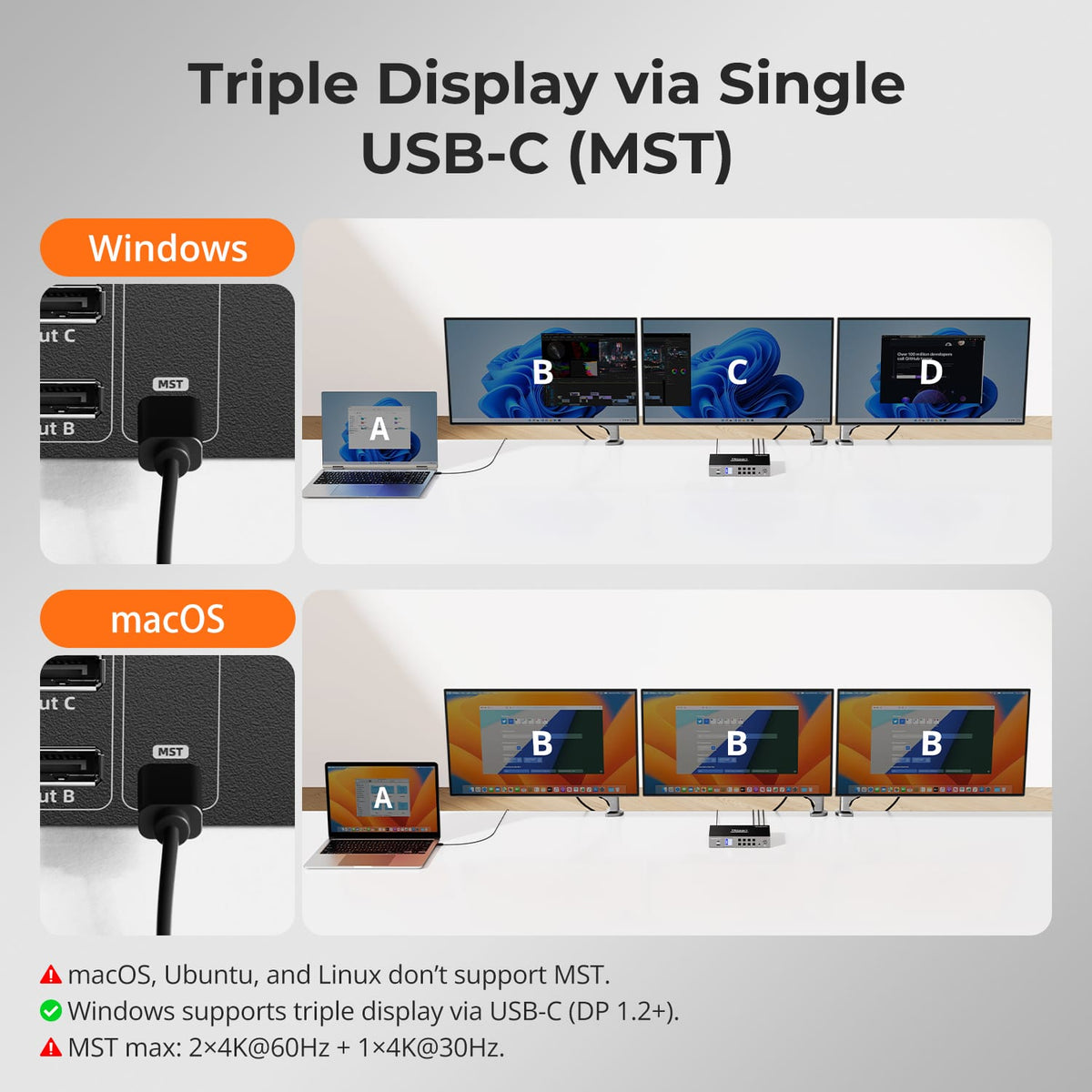
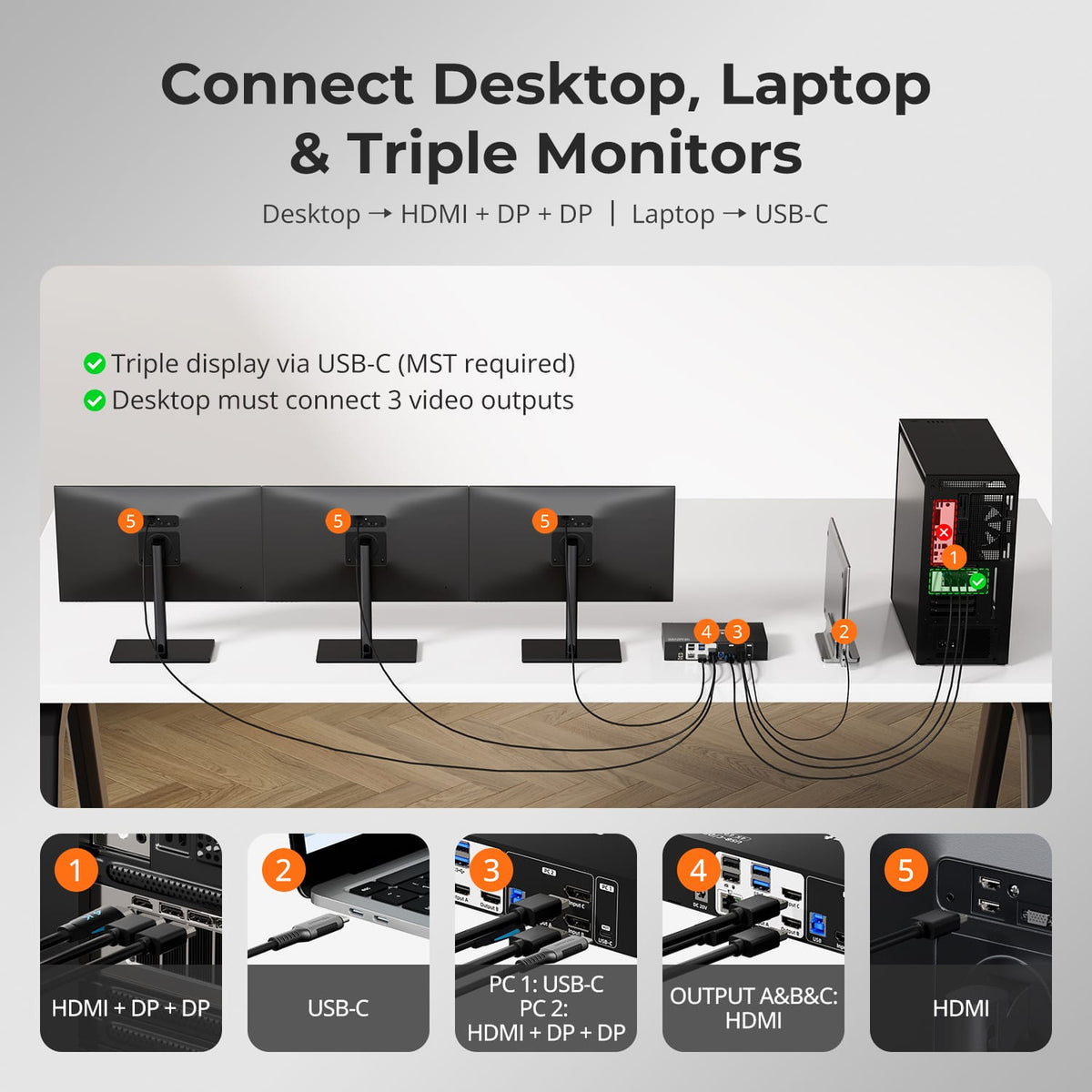
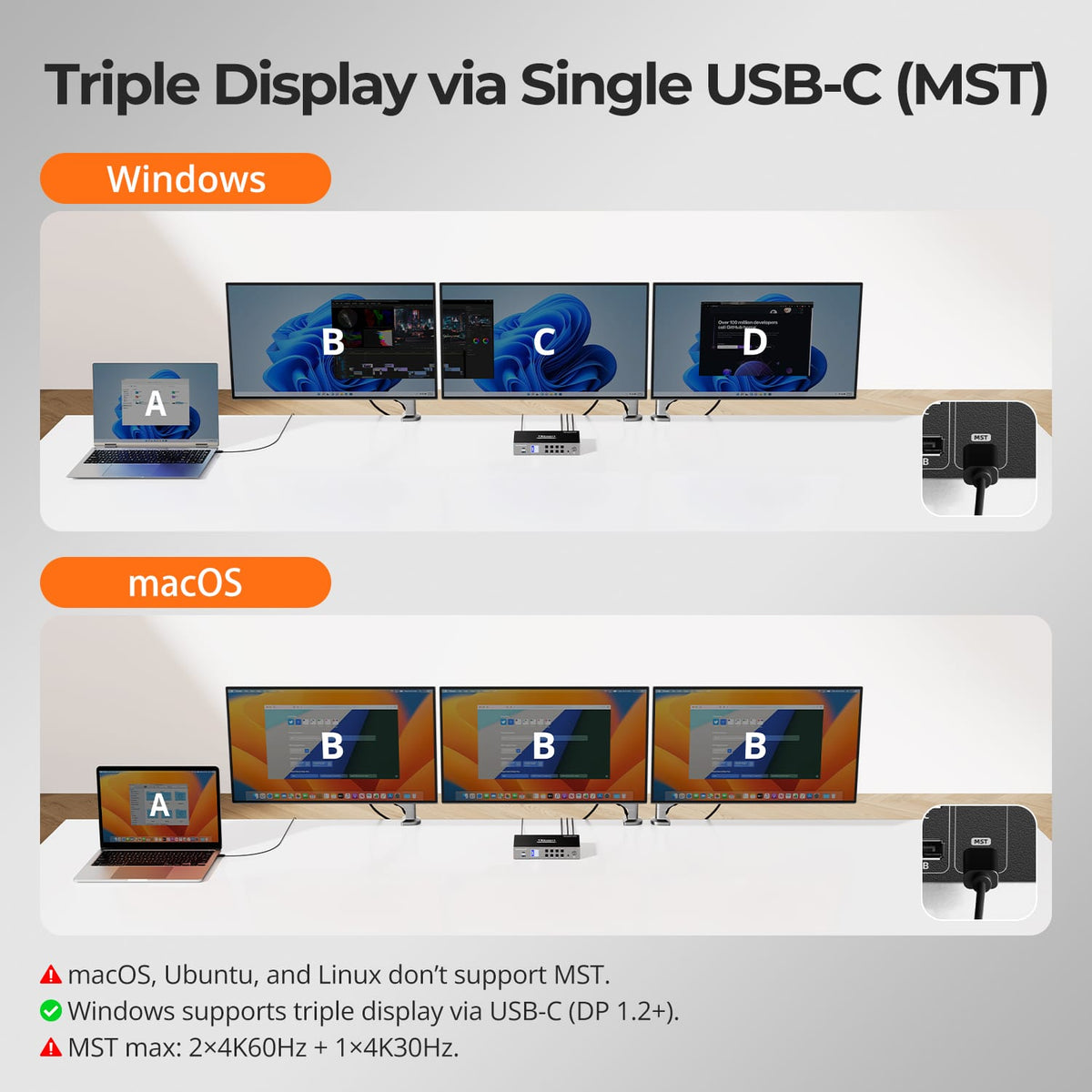
Connect a compatible Windows laptop to the PC 1 USB-C port for video, USB data and charging through one cable. With DP Alt Mode and MST support, the laptop can extend across three HDMI displays; the MST path supports up to two 4K60 displays plus one 4K30 display.
02
From 4K60 to High-Refresh Full HD
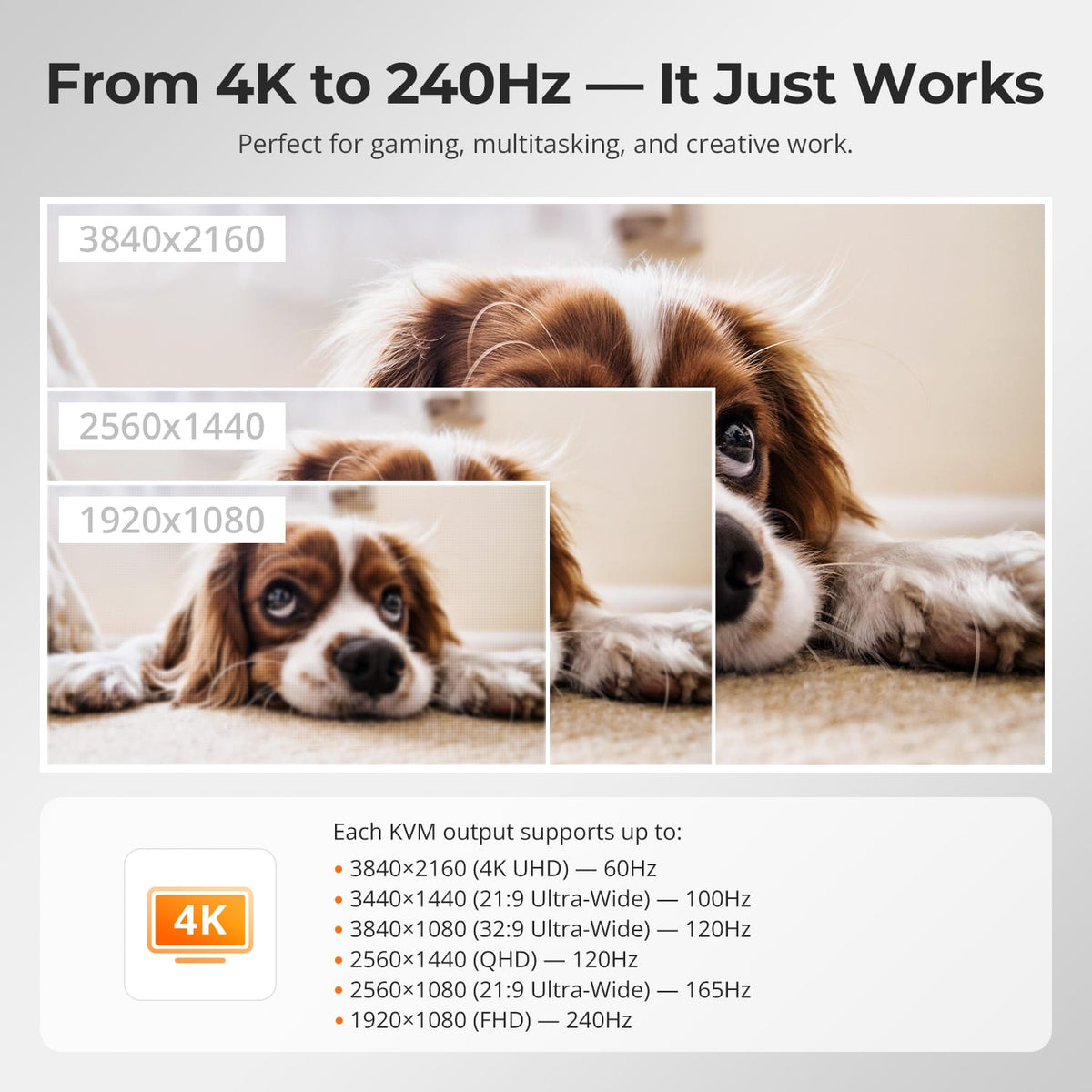
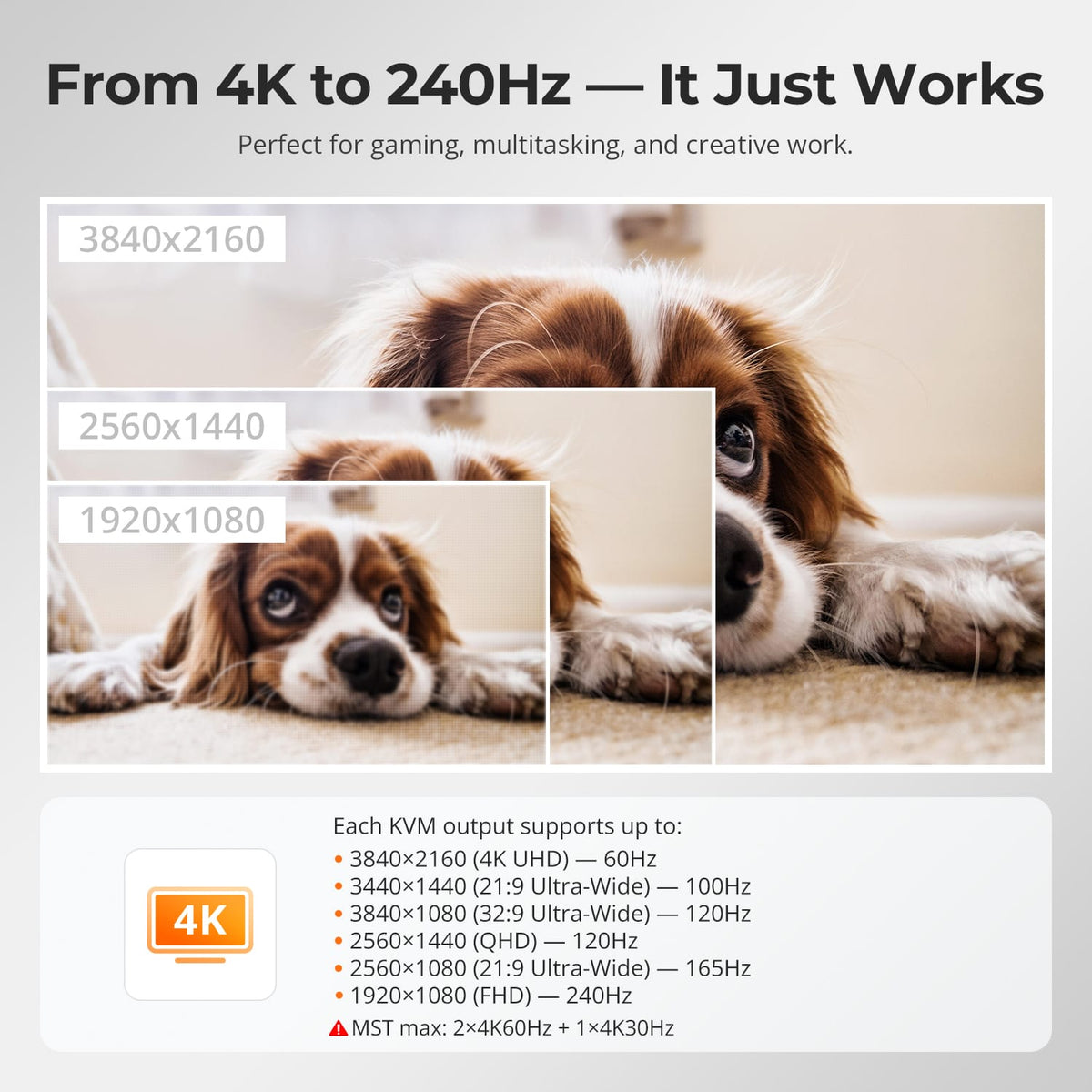
Run a 4K display at up to 60Hz, or use supported lower-resolution high-refresh formats including 1440p at 120Hz and 1080p at 240Hz. Actual results depend on the source, display and cable capabilities.
03
3 Displays. Flexible Computer Routing.
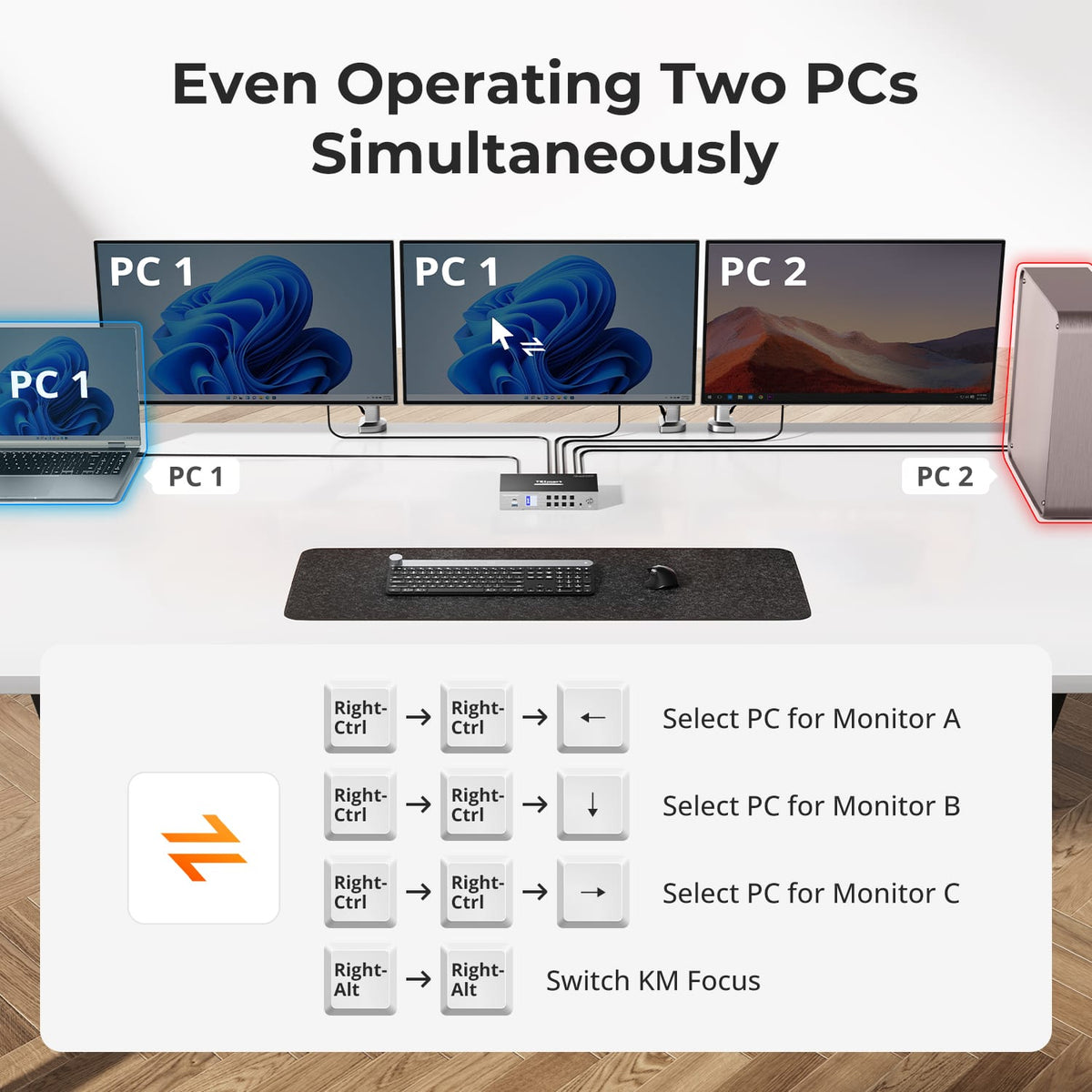
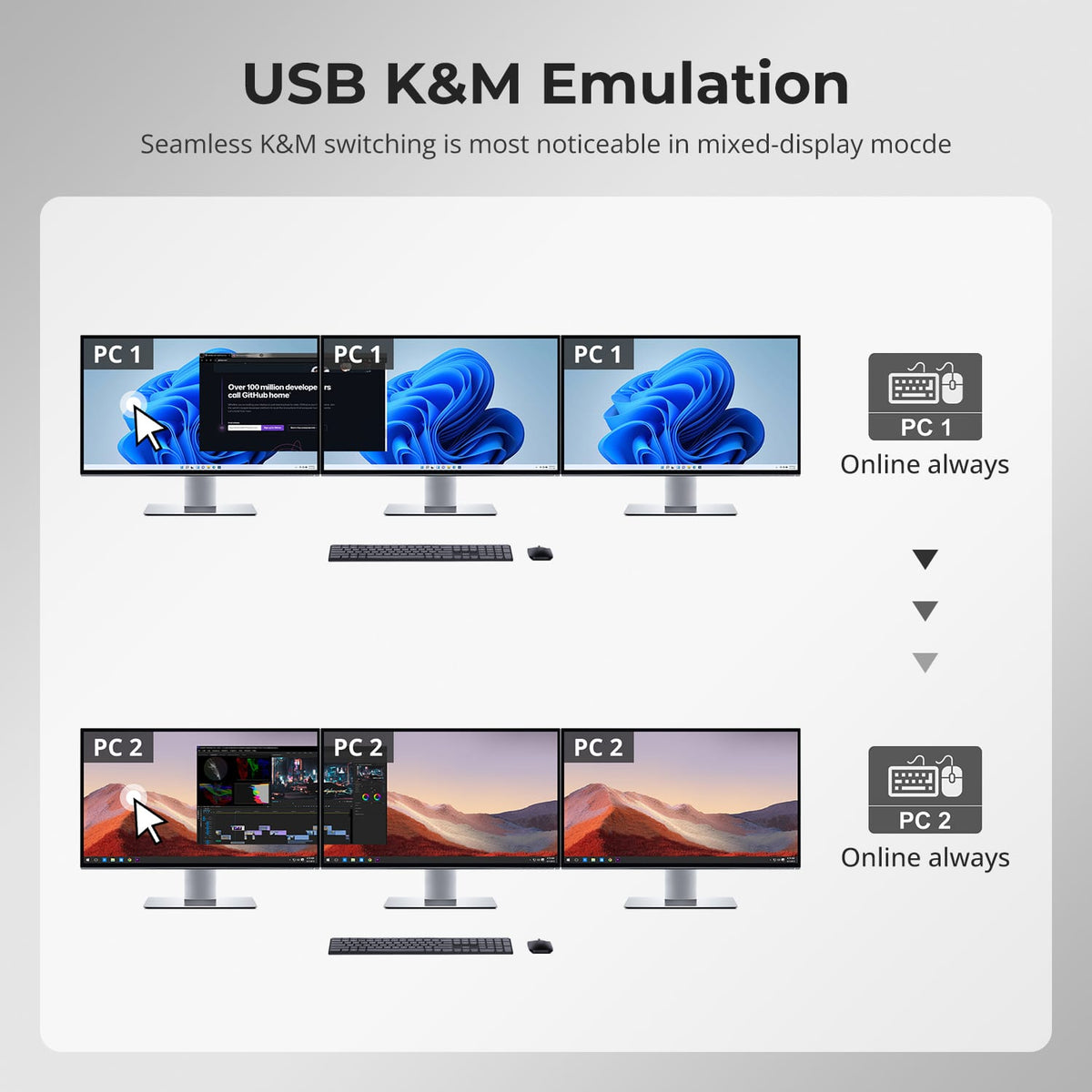
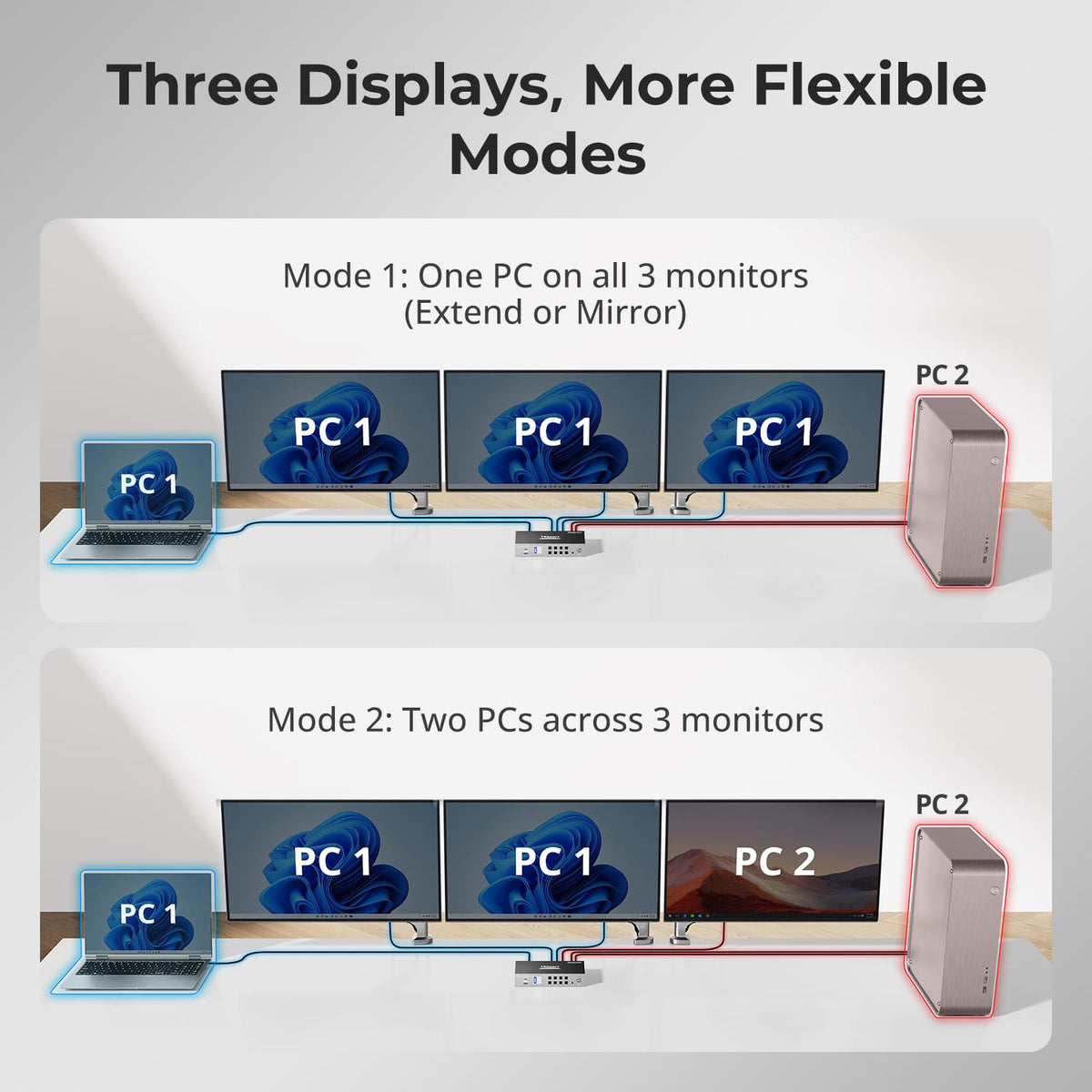
Show one computer across all 3 displays, or assign different computers to separate displays where supported. A shared keyboard and mouse control the selected computer.
04
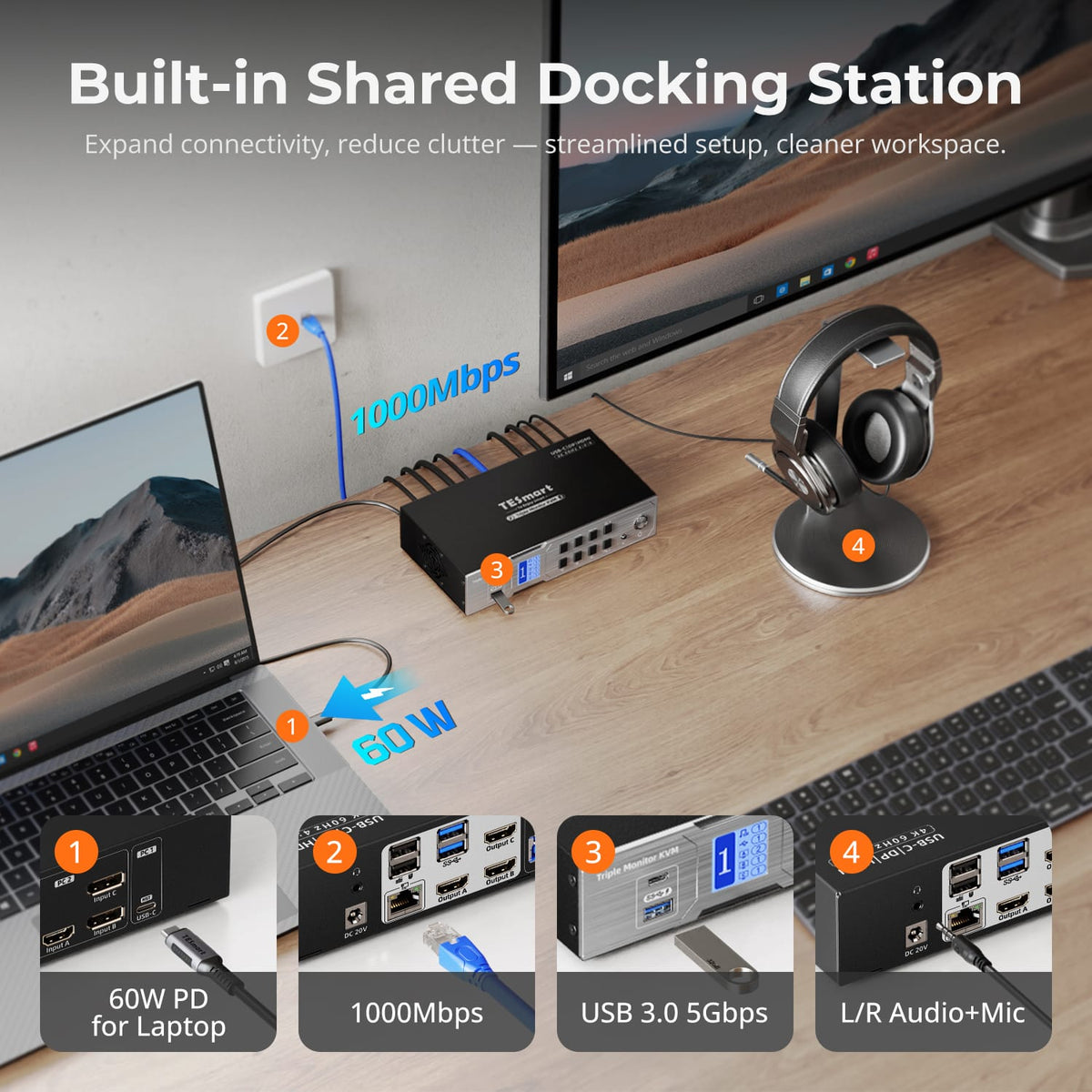
A Shared Docking Station Built into the KVM
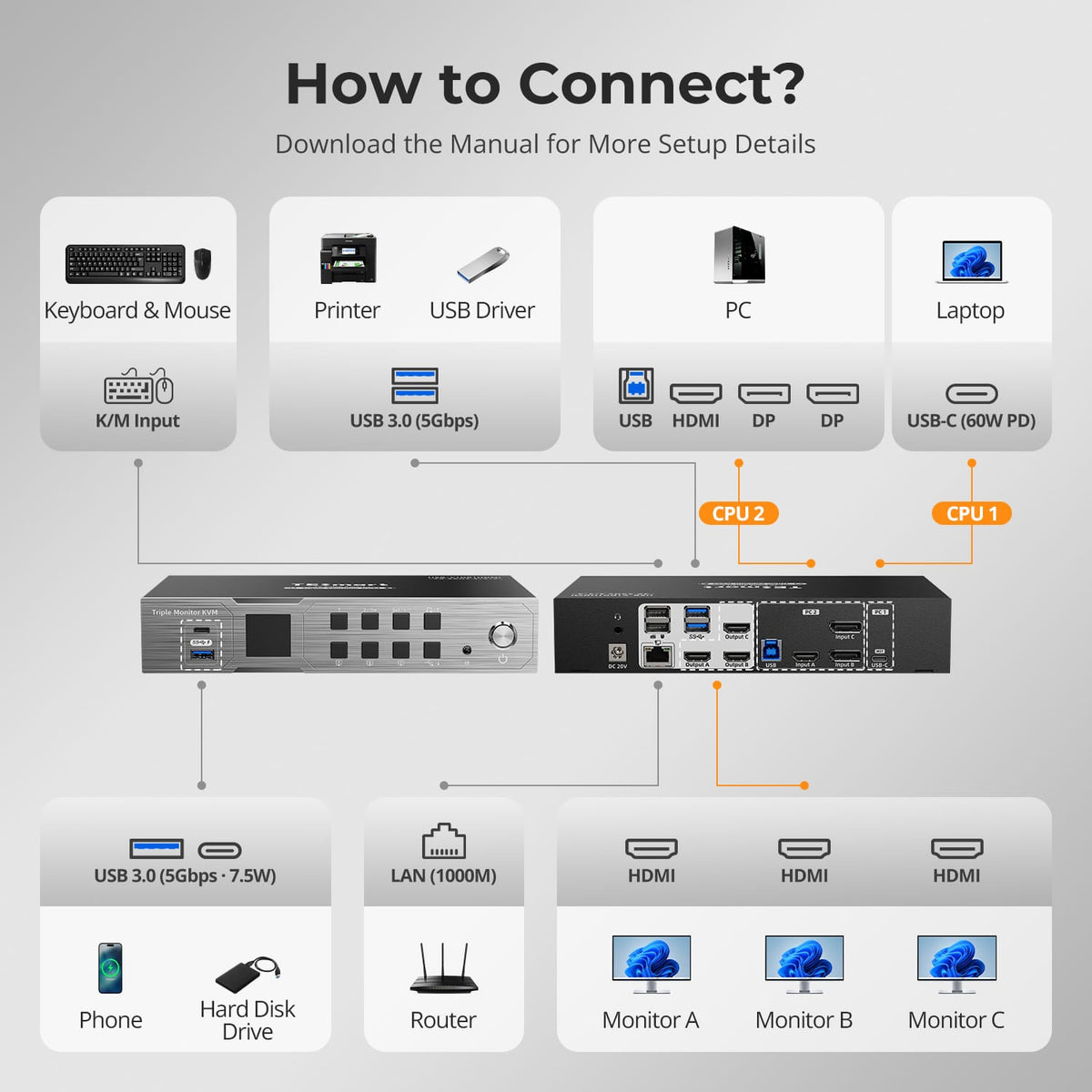
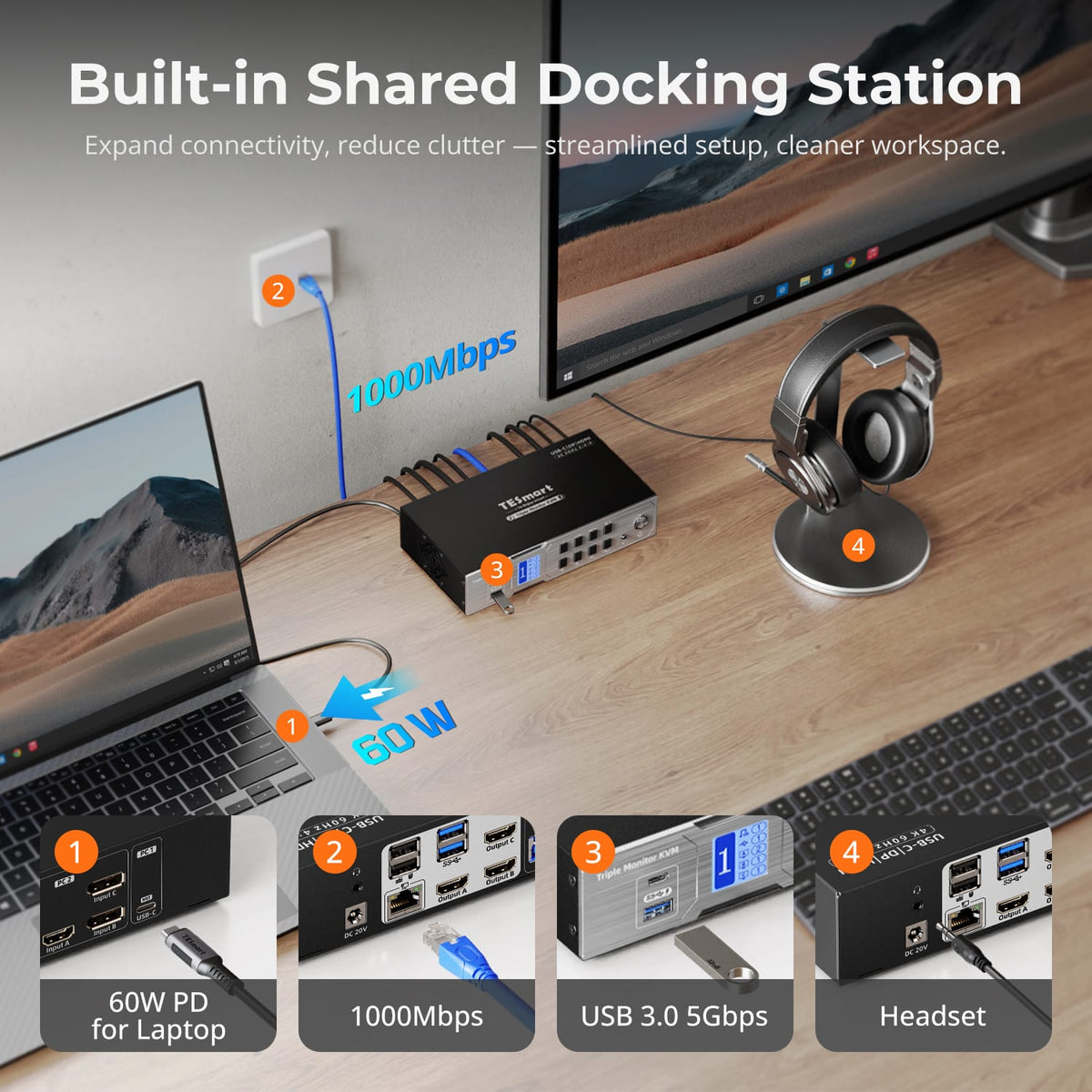
Declutter your desk with a built-in docking station — no extra hubs needed. Share essential ports across all connected devices:
· 60W USB-C PD — Power your laptop while working
· USB 3.0 (5Gbps) — Fast data for drives, webcams, and more
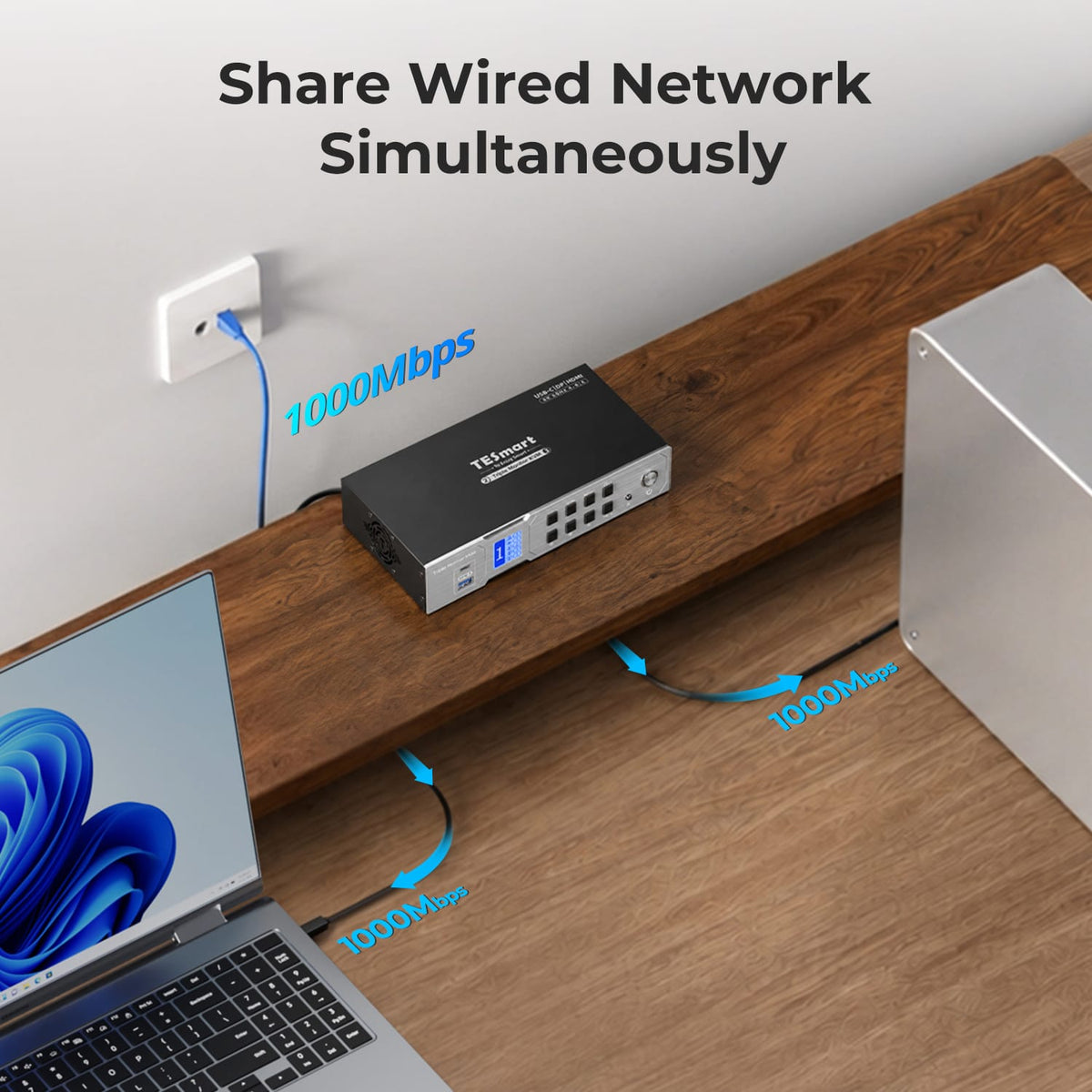
· 1000Mbps Ethernet — Reliable, wired network connection
· Headset Jack — Clear audio input and output for meetings
Perfect for hybrid setups, home offices, and clean cable management.
05
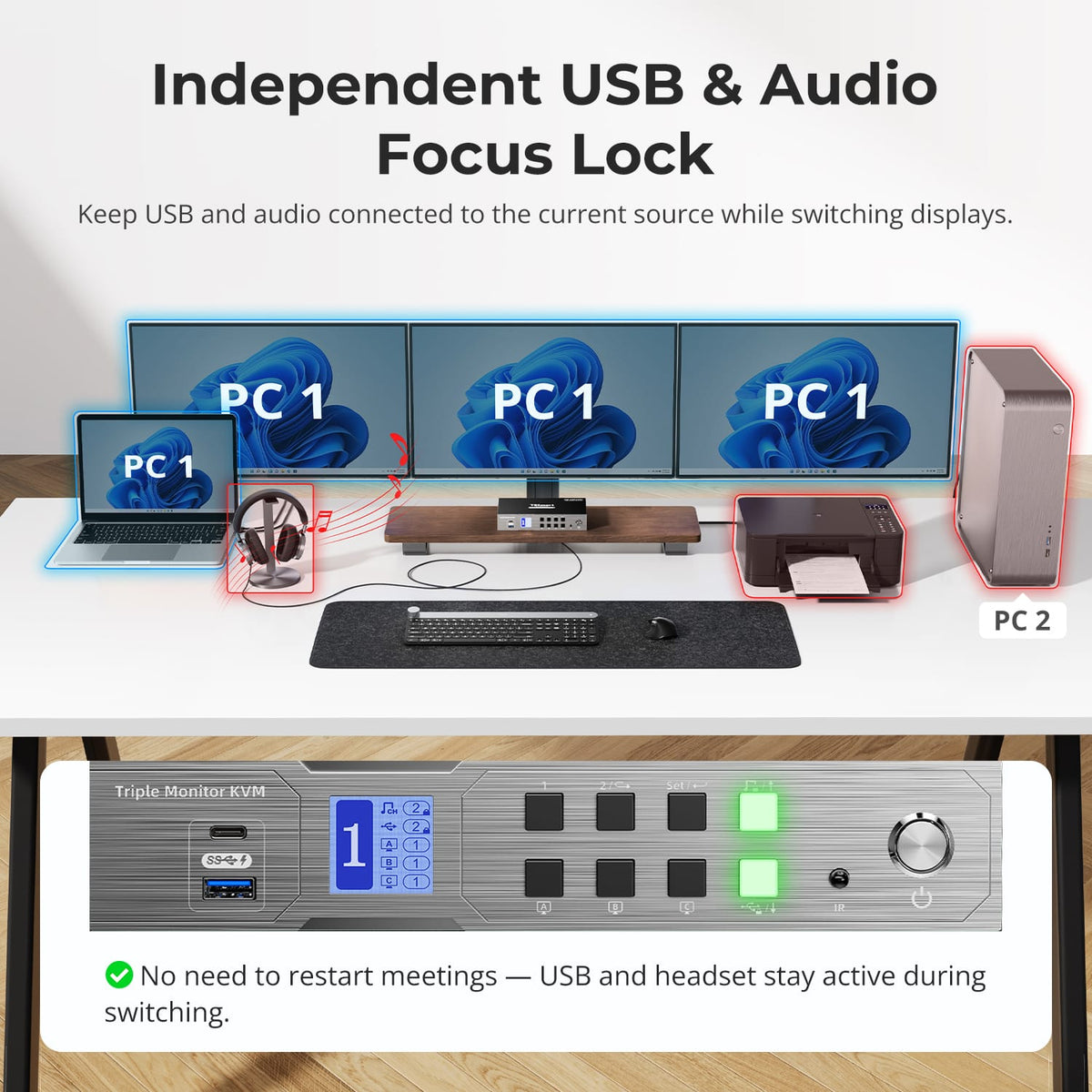
Keep USB and Audio with the Computer That Needs Them
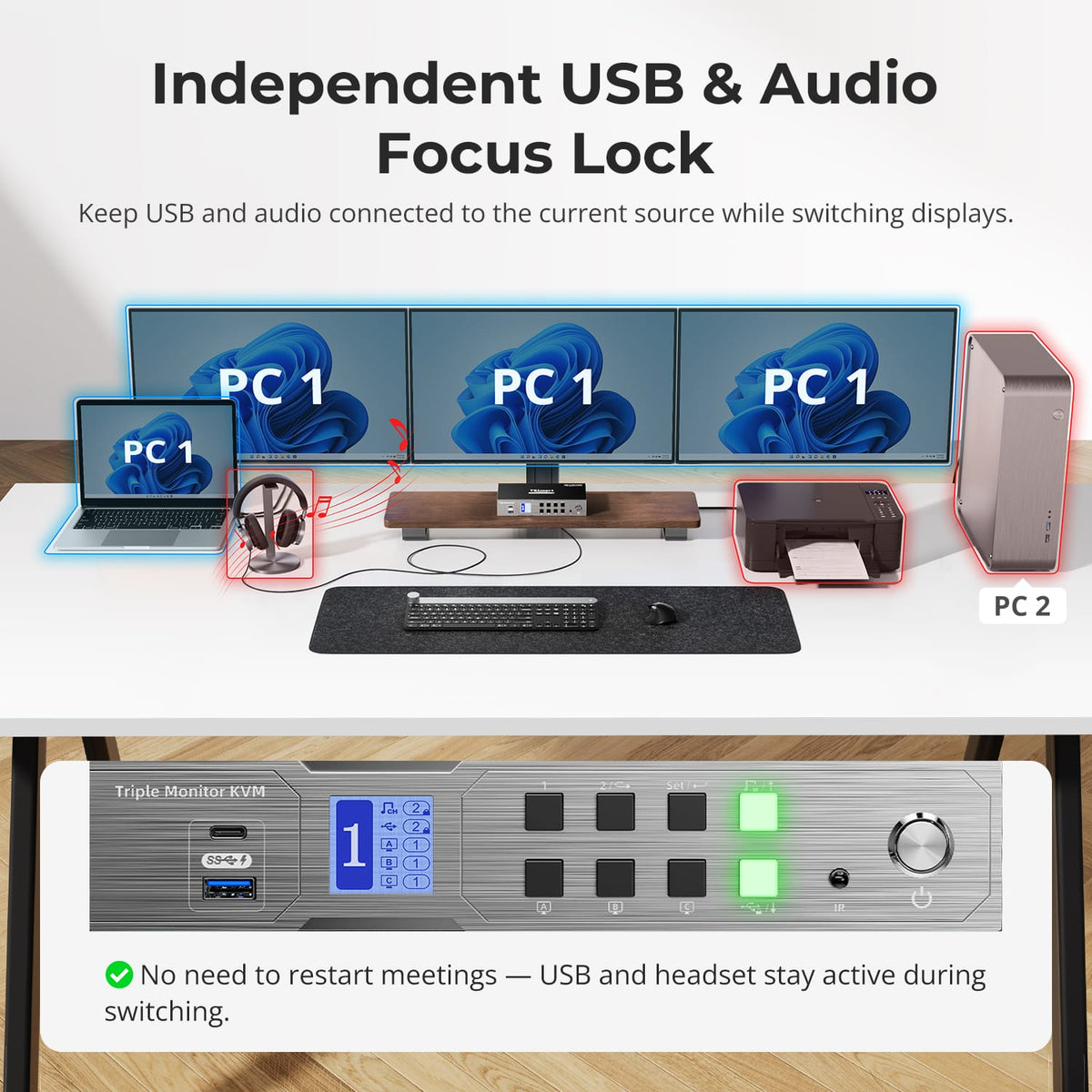
Lock shared USB peripherals and audio to one computer while the displays switch independently. A headset, printer, or other connected device can stay active on the current system, helping meetings and ongoing tasks continue without reconnecting accessories.
06
07
08
Specifications & Support
Compatibility & Input Guide
Technical Specifications
Manuals & Downloads
Included in the Box
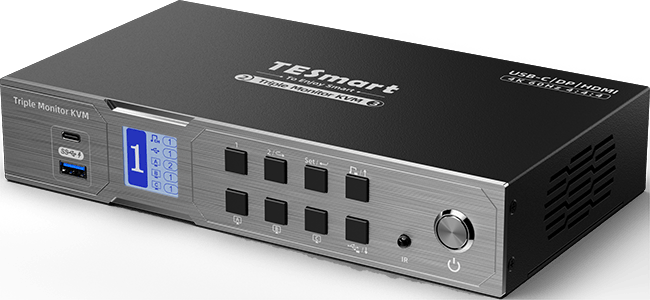
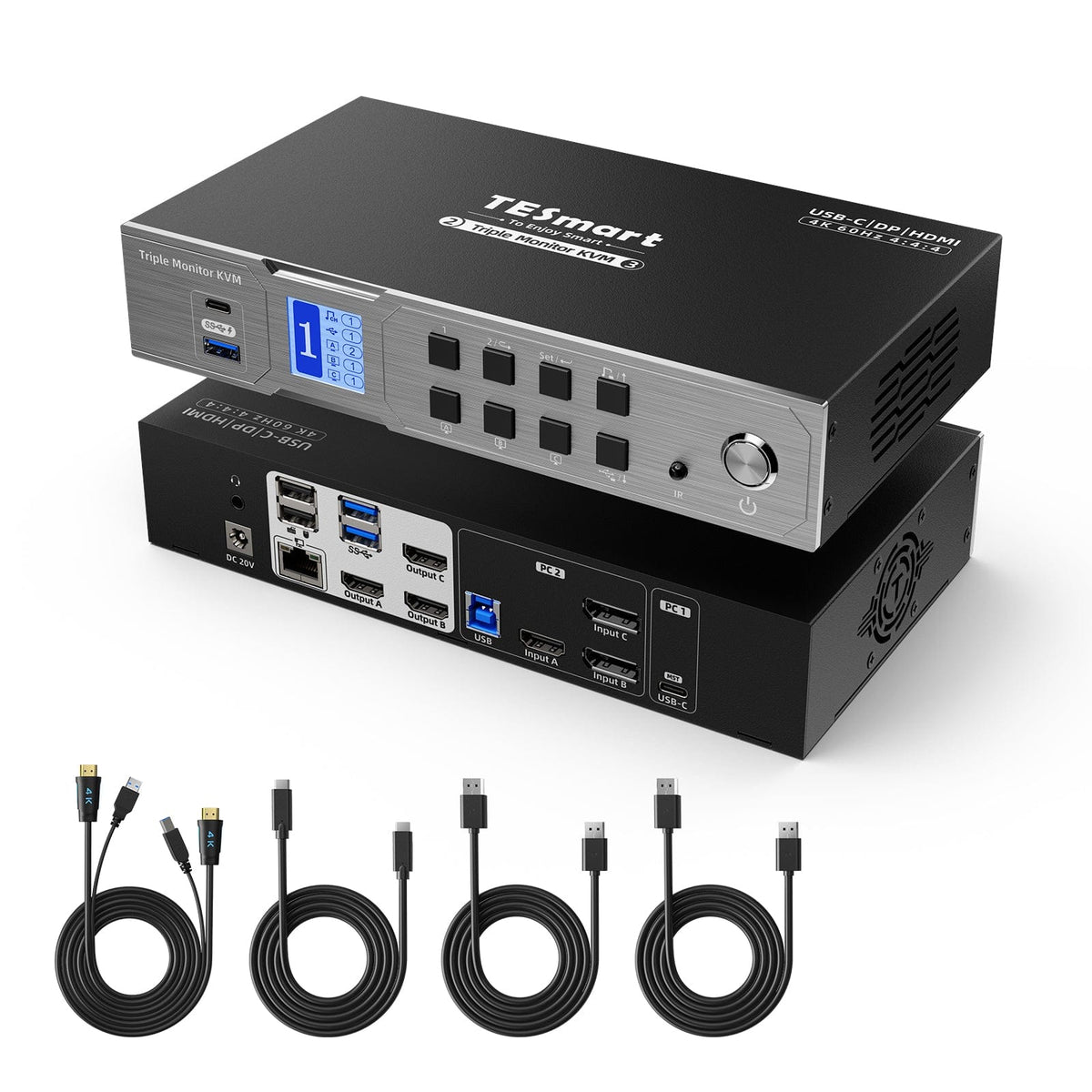
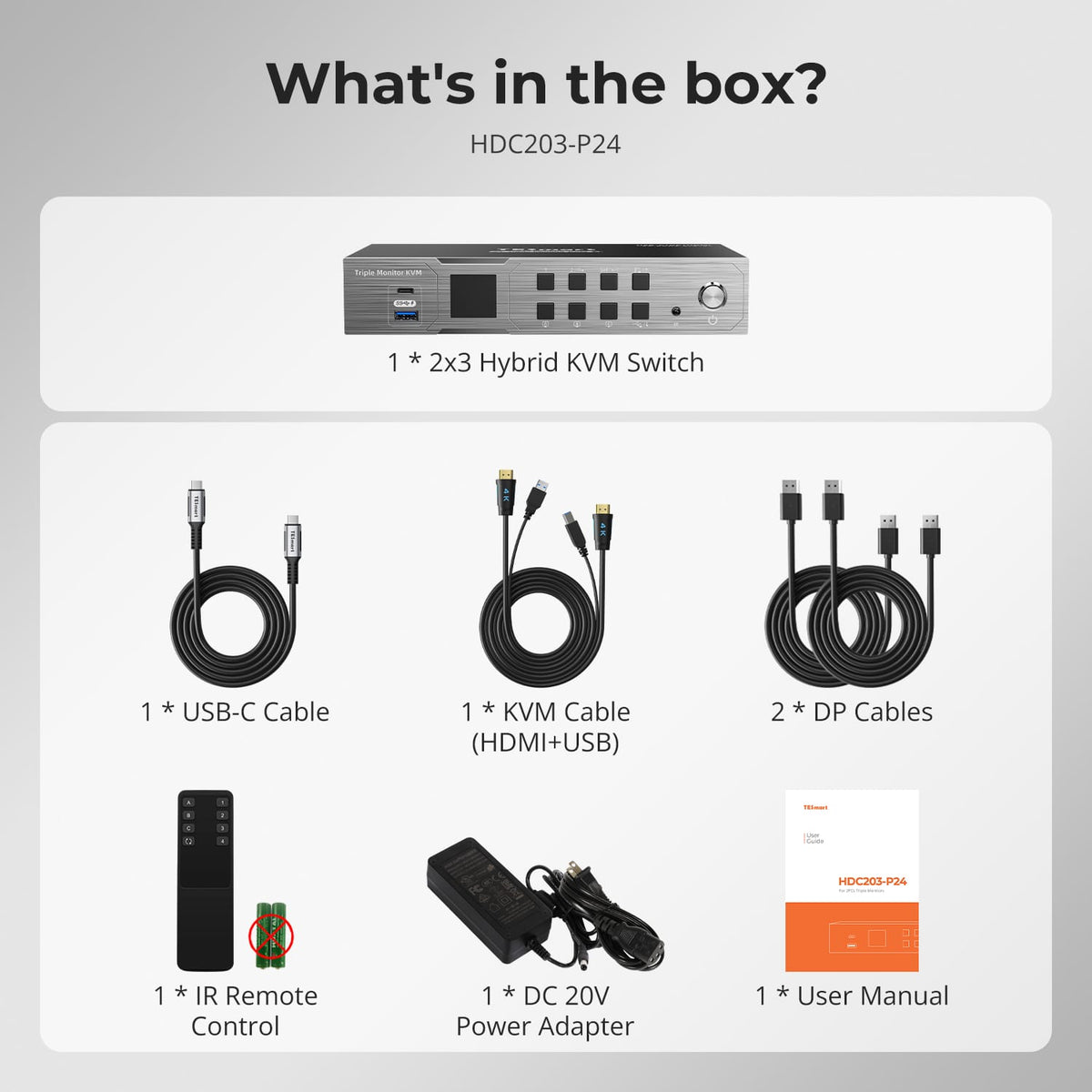
1 × HDC203-P24 KVM Switch

1 × USB-C Cable
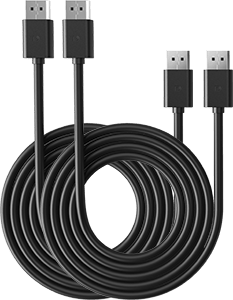
2 × DisplayPort Cables
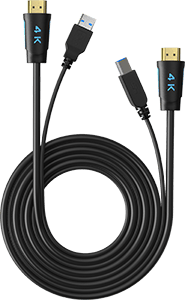
1 × KVM Cables (HDMI + USB)
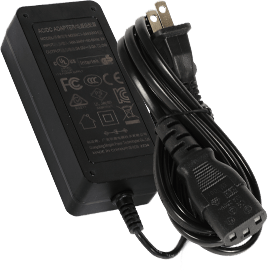
1 × DC 20V Power Adapter
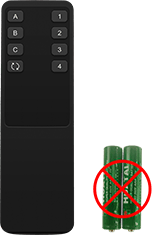
1 × IR Remote Control
1 × User Manual

Compare your options
Choose models from the menus to compare connections, display performance and shared features.
Model
HDC203-P24
Model
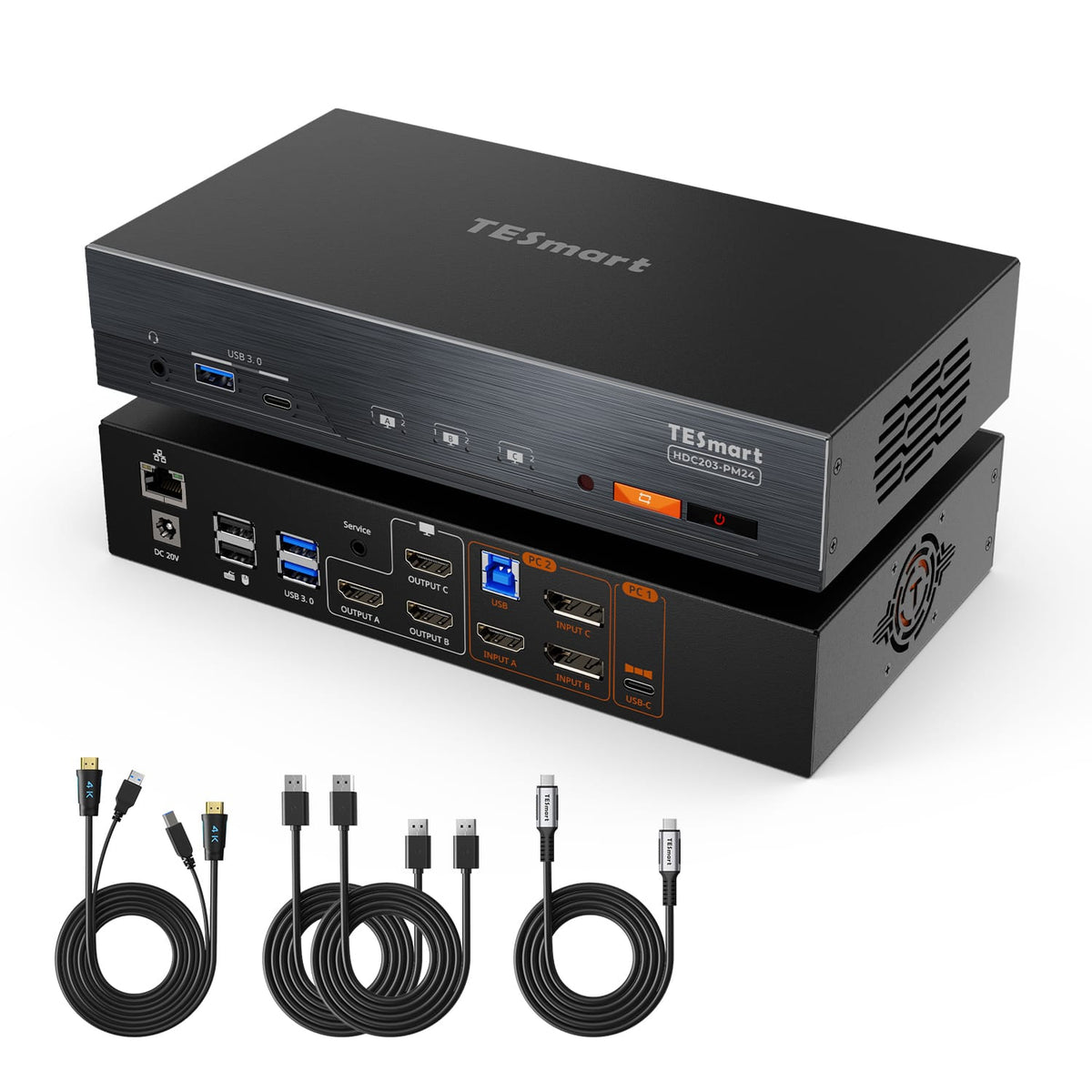
HDC203-PM24
Model
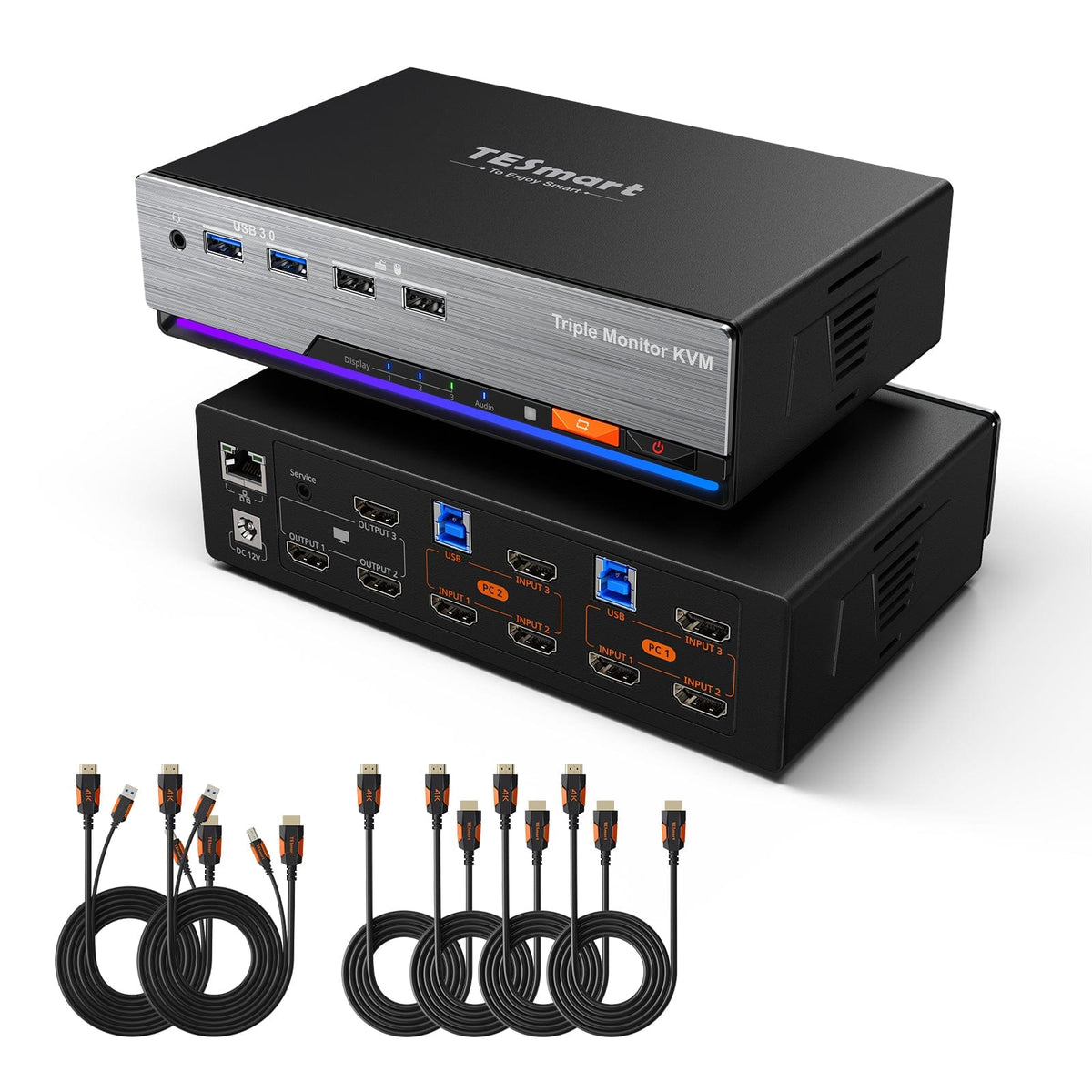
HKS203-P24
Computer setup
1 desktop + 1 laptop
Computer setup
1 desktop + 1 laptop
Computer setup
2 computers
Computer connections
Laptop: 1 × USB-C; desktop: HDMI + 2 × DP + USB
Computer connections
Laptop: 1 × USB-C; desktop: HDMI + 2 × DP + USB
Computer connections
Each PC: 3 × HDMI + USB
Display outputs
3 × HDMI
Display outputs
3 × HDMI
Display outputs
3 × HDMI
Video output
4K60; USB-C MST: 2 × 4K60 + 1 × 4K30
Video output
4K60
Video output
4K60
Shared USB
USB 3.0 / 5Gbps
Shared USB
USB 3.0 / 5Gbps
Shared USB
USB 3.0 / 5Gbps
Laptop charging
Up to 60W on laptop input
Laptop charging
Up to 100W on laptop input
Laptop charging
Shared Ethernet
1000Mbps
Shared Ethernet
1000Mbps
Shared Ethernet
1000Mbps
EDID emulation
EDID emulation
EDID emulation
Multi-display setup
MST on laptop input: 2 × 4K60 + 1 × 4K30
Multi-display setup
DisplayLink on laptop input
Multi-display setup
Separate video outputs from each computer
Display requirements
Windows MST required for single-cable triple extension; macOS does not extend via MST
Display requirements
DisplayLink driver required on laptop; supports extended displays on compatible Macs
Display requirements
Each computer must drive 3 displays
FAQ's
Visit our Help Center for more answers.
[Compatibility] What computers can I connect to HDC203-P24?
Connect one USB-C laptop to PC 1 and one desktop to PC 2. The laptop needs USB-C with DisplayPort Alt Mode; Windows MST support is required for three independent displays. The desktop requires one HDMI output, two DisplayPort outputs, and one USB data connection.
[Compatibility] Can I connect a macOS computer to achieve triple-display expansion?
No. macOS does not support MST, so HDC203-P24 cannot provide three independent extended displays through its single USB-C connection. The displays may mirror instead. For macOS triple-display expansion, use a DisplayLink-based model such as HDC203-PM24.
[Compatibility] What resolutions and refresh rates are supported?
Each output supports up to 4K60. The USB-C MST path supports up to two 4K60 displays plus one 4K30 display. Listed alternatives include 3440×1440 at 100Hz, 2560×1440 at 120Hz, and 1920×1080 at 240Hz, subject to the connected hardware and cables.
[Features & Connections] What display modes are available?
Use one computer across all three monitors in extended or mirrored mode, or assign the two computers across the three displays. In mixed-display mode, each output can switch independently while keyboard and mouse focus moves between the computers.
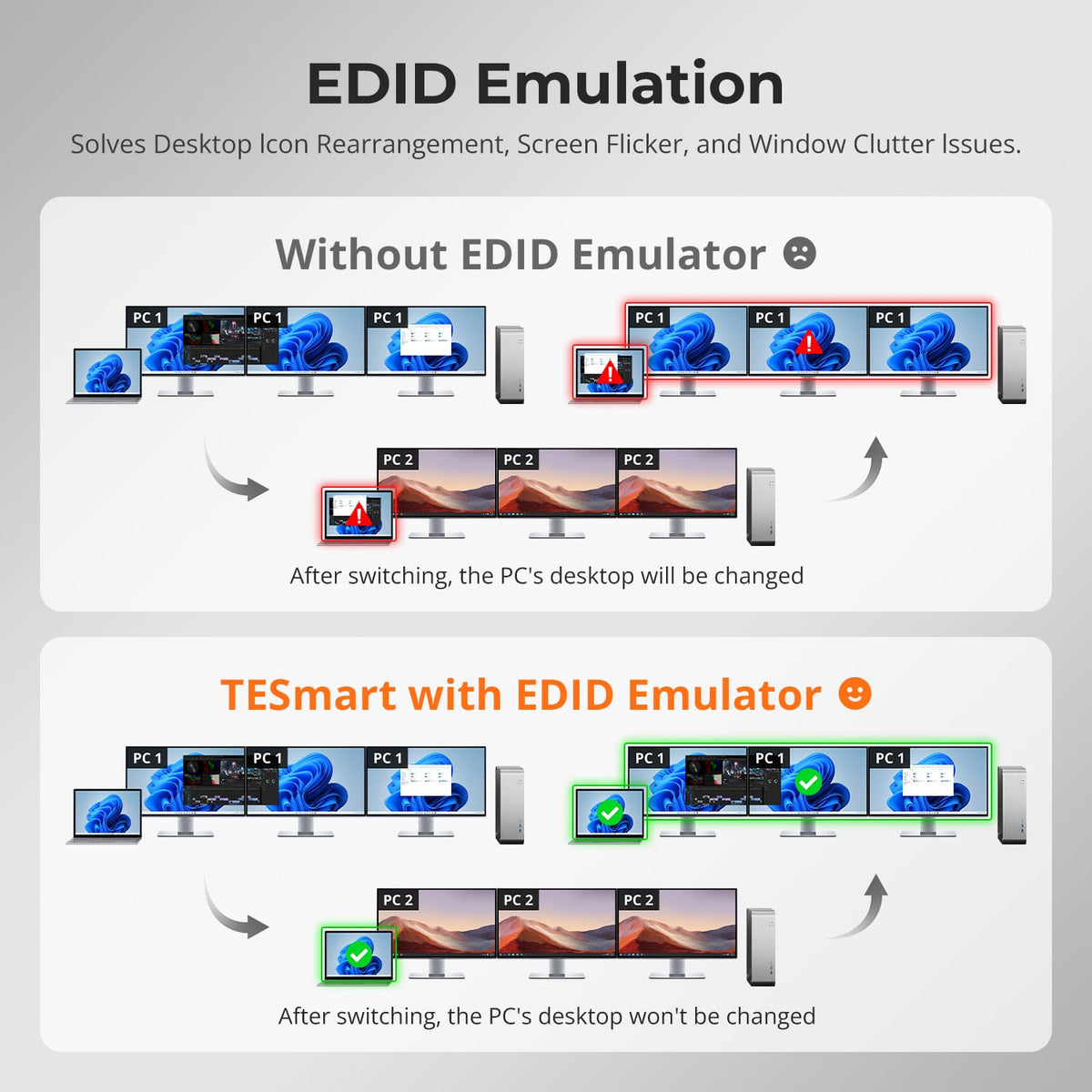
[Features & Connections] What does EDID emulation do?
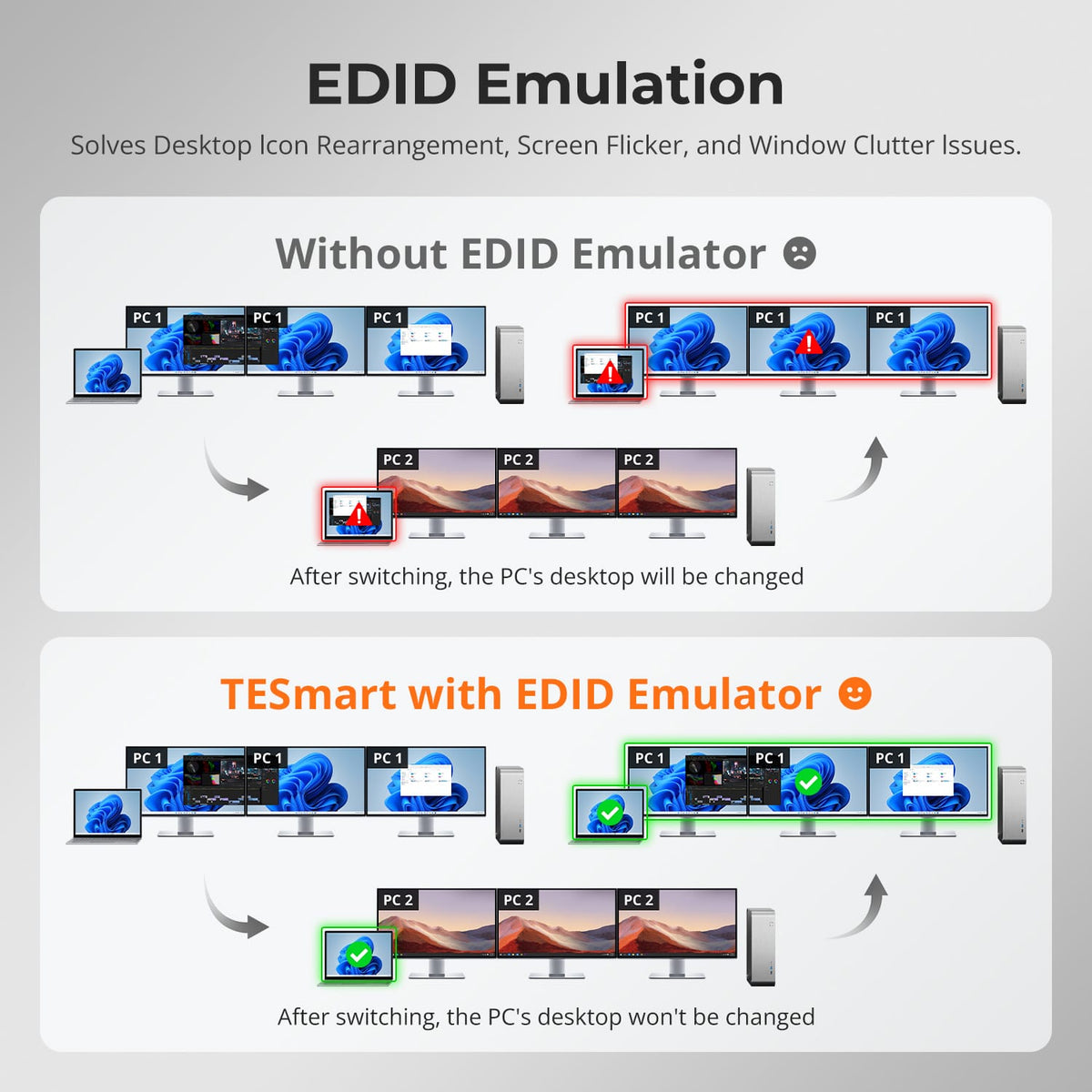
EDID emulation keeps display information available to both computers. This helps preserve window positions and reduces screen re-detection, flicker, black screens, and desktop icon rearrangement when switching between sources.
[Features & Connections] Can the fan speed be adjusted?
No. The fan runs automatically according to the KVM's internal temperature. If it starts and stops frequently or becomes unusually loud, contact TESmart Support for the latest model-specific firmware and instructions.
[Features & Connections] How can I switch USB peripherals or an audio device independently?
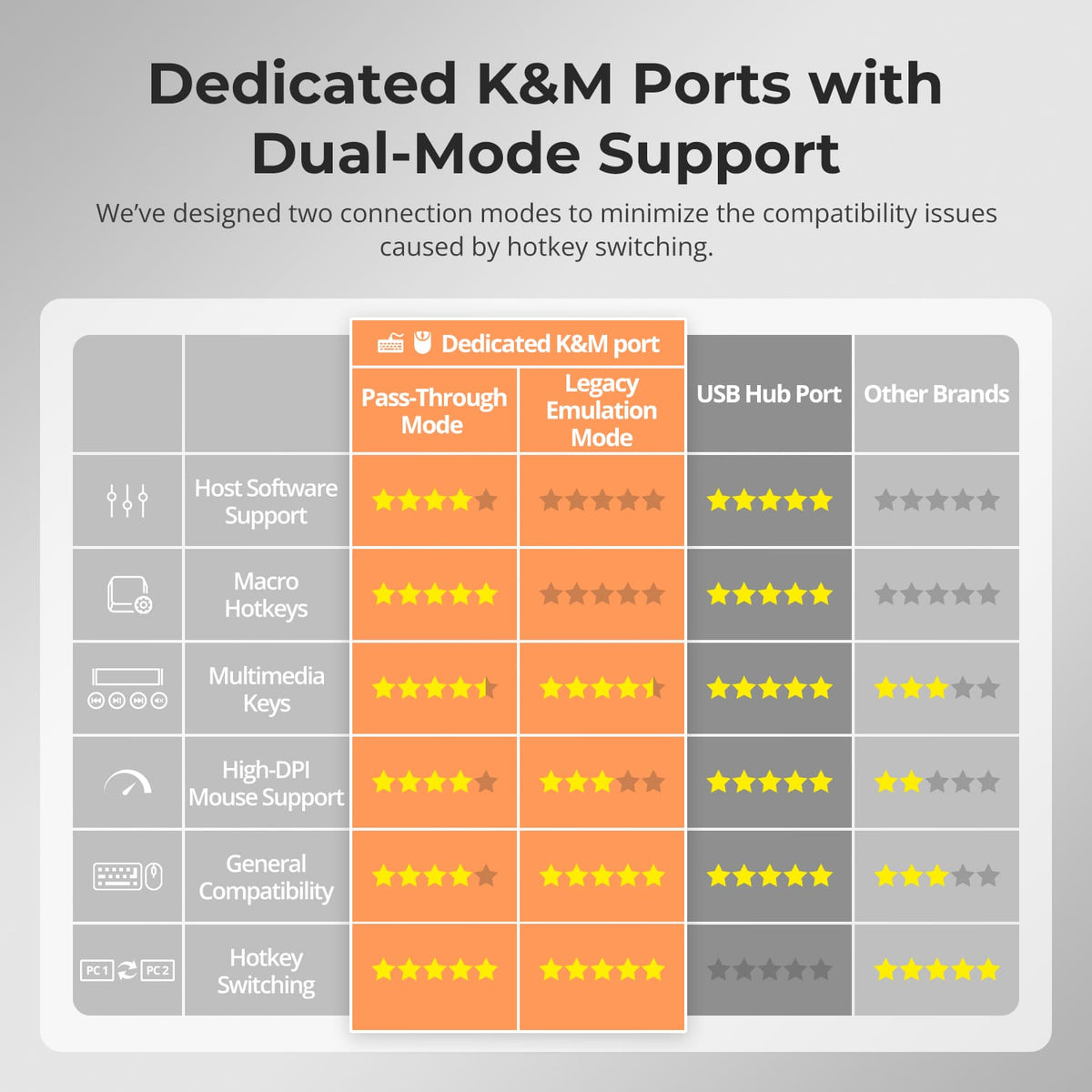
Switch to the target computer, then press the USB or audio lock button. Press the same button again to unlock it. Dedicated keyboard and mouse ports cannot be locked, and the displays can continue switching independently.
[Features & Connections] Why can't my computer use Wi-Fi after connecting to the KVM Switch?
The computer may prioritize the KVM's built-in Gigabit Ethernet adapter. Press Right Ctrl twice, then F4 to disable it for the selected computer, or disable Realtek USB GbE Family Controller in the operating system's network settings.
[Features & Connections] Why does my laptop show "Slow Charging"?
HDC203-P24 supplies up to 60W at 20V/3A through USB-C. Laptops that need 90W or more, or do not accept 20V input, may charge slowly. Use the laptop's original power adapter alongside the KVM when more power is required.
[Features & Connections] Does the KVM Switch support firmware upgrades?
Yes, but install only firmware supplied specifically for HDC203-P24. Do not update a normally functioning unit without guidance. Contact TESmart Support for the correct file, instructions, and assistance.
[Features & Connections] Why are my USB peripherals not working?
Confirm PC 1's USB-C data connection and PC 2's USB-B connection. Use the dedicated console ports only for the keyboard and mouse; connect other devices to the shared USB ports. For high-power devices, use a powered hub or connect them directly to the computer.
[Features & Connections] Why is my audio device not working?
Confirm the USB data connection for the selected computer. Choose USB Audio for the 3.5mm output or select the connected USB headset in the system sound settings. If the analog output remains unavailable, try a USB sound card.
[Setup] How do I connect my devices to the KVM switch?
Connect the laptop to PC 1 with the included USB-C cable. Connect the desktop to PC 2 with the KVM cable and two DisplayPort cables, then connect three HDMI monitors to Outputs A, B, and C. Attach the console devices and DC 20V power.
[Setup & Switching] How can I switch between computers?
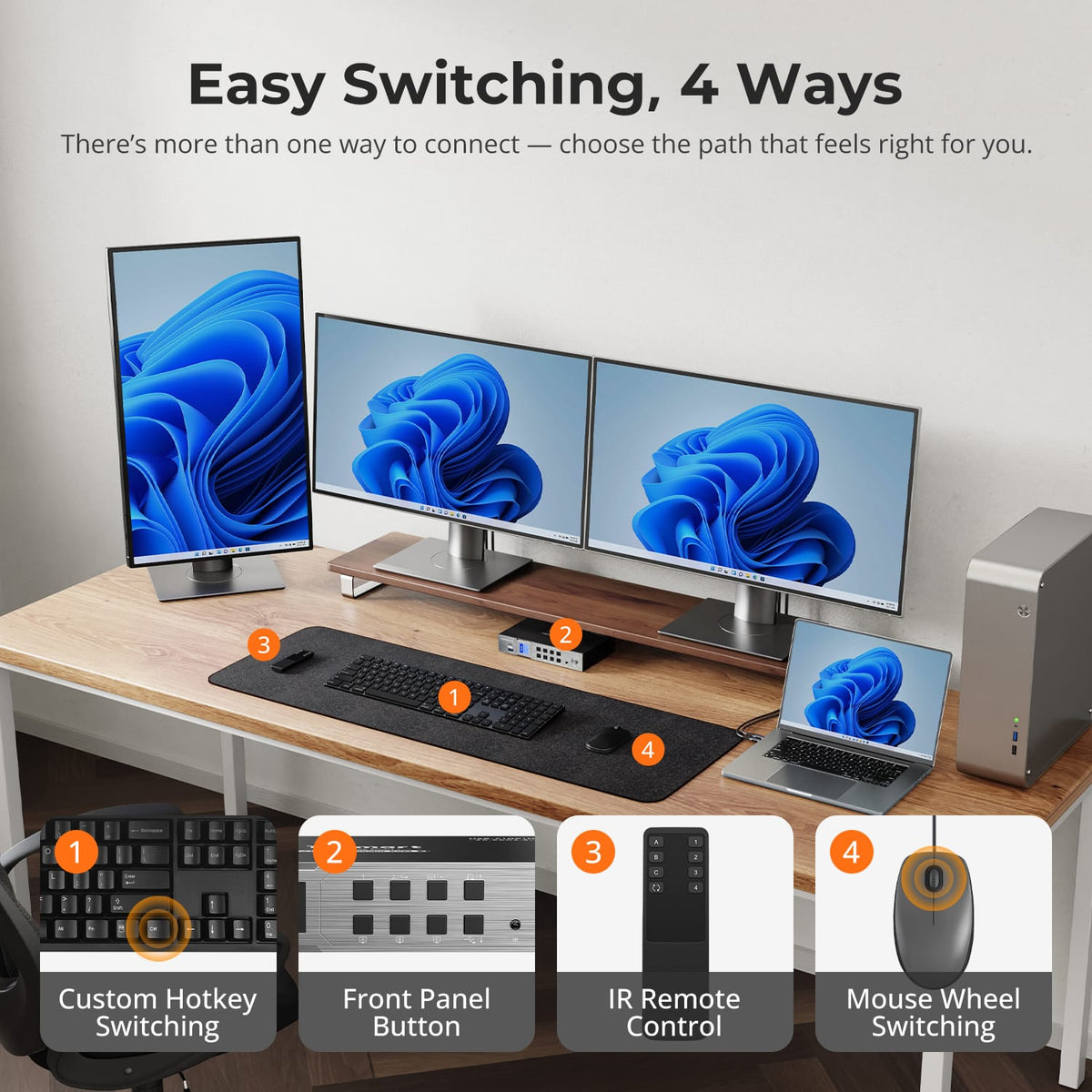
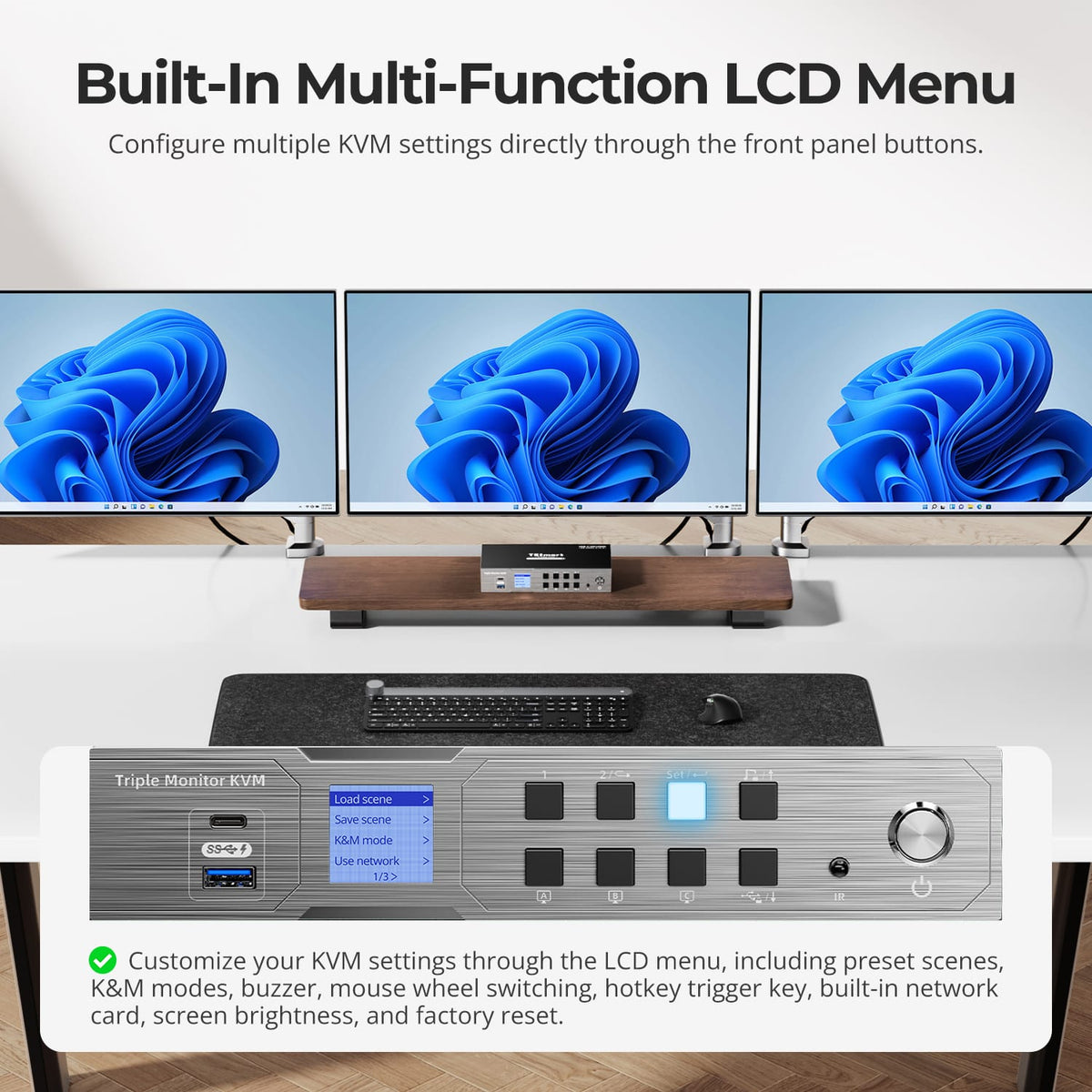
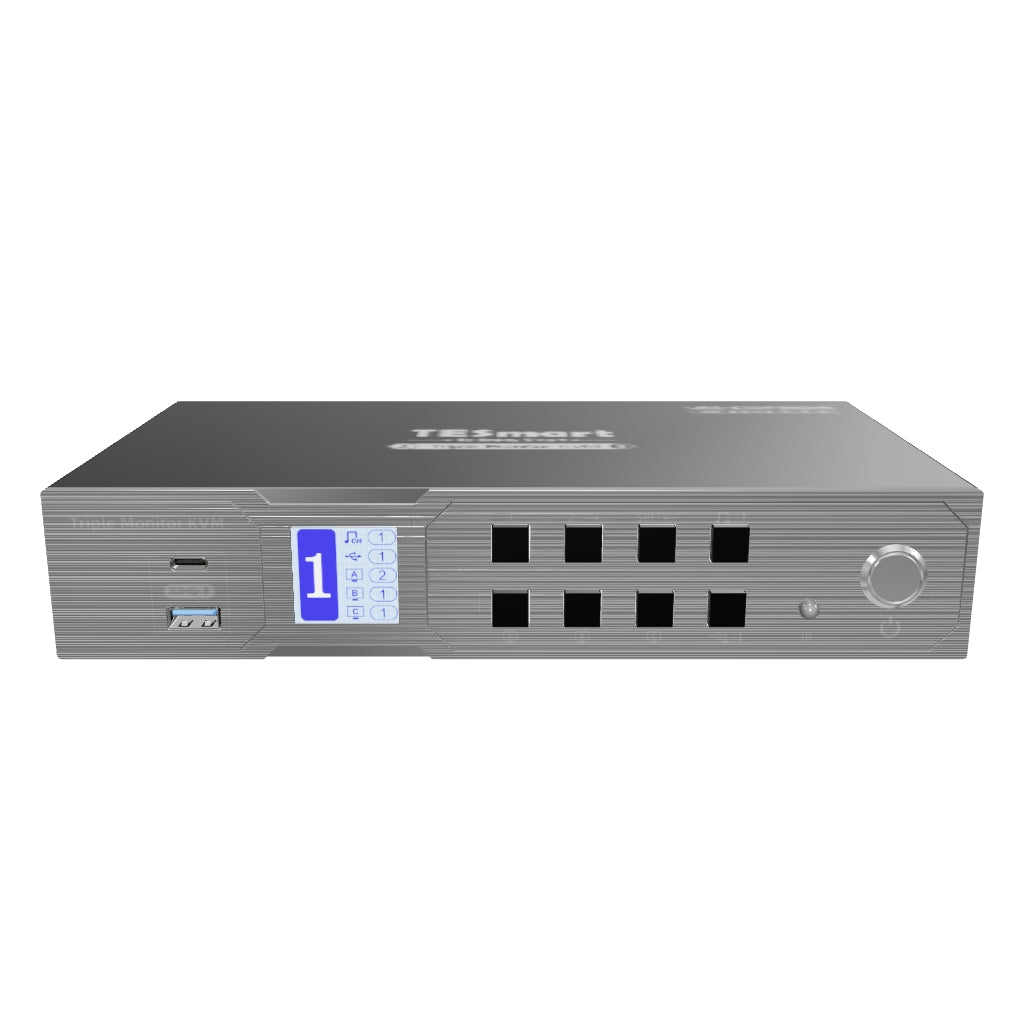
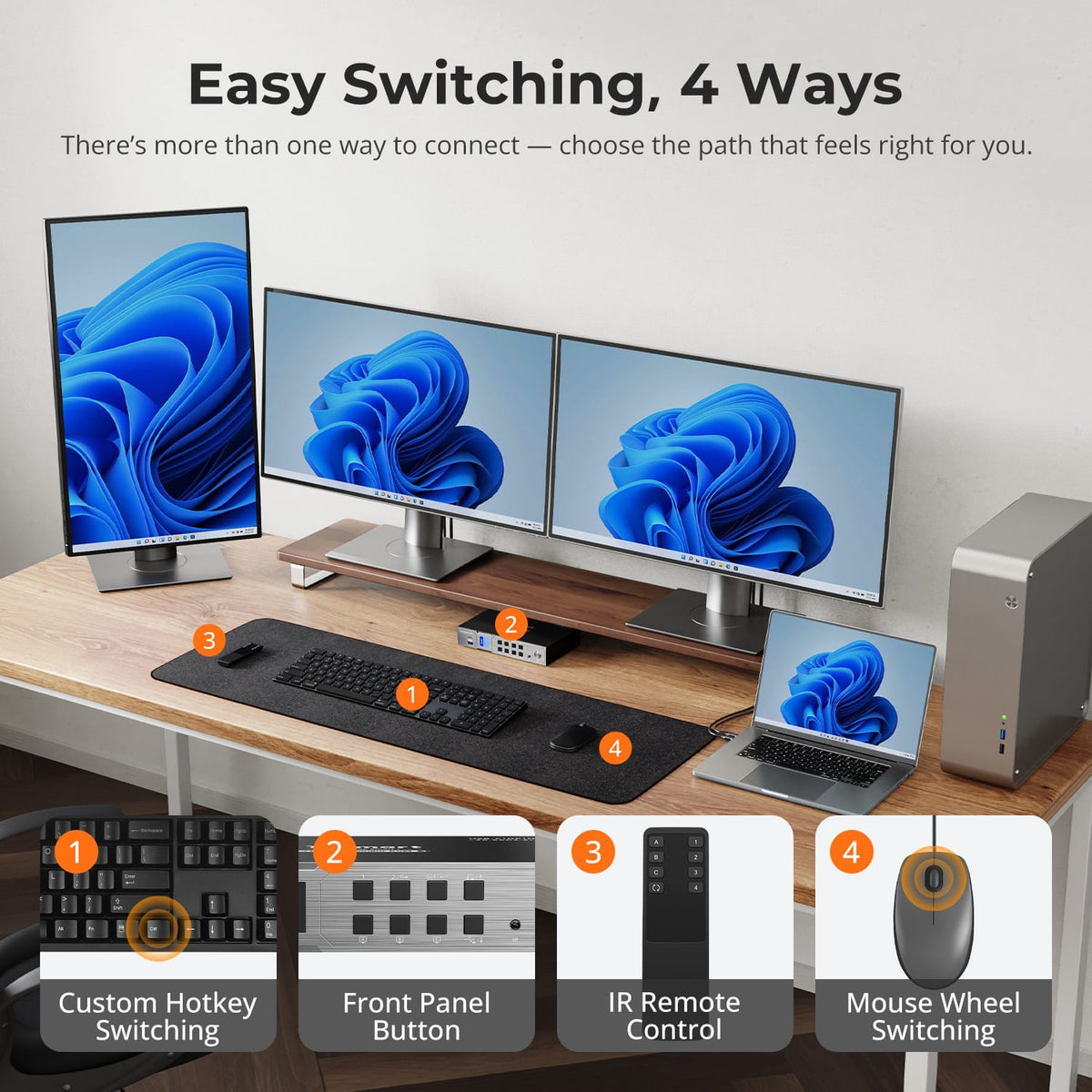
Use the front-panel controls, IR remote, keyboard hotkeys, or mouse-wheel switching. Mouse-wheel switching is disabled by default and must be enabled before double-clicking the wheel to change inputs.
[Setup & Switching] Why are my keyboard and mouse not working properly?
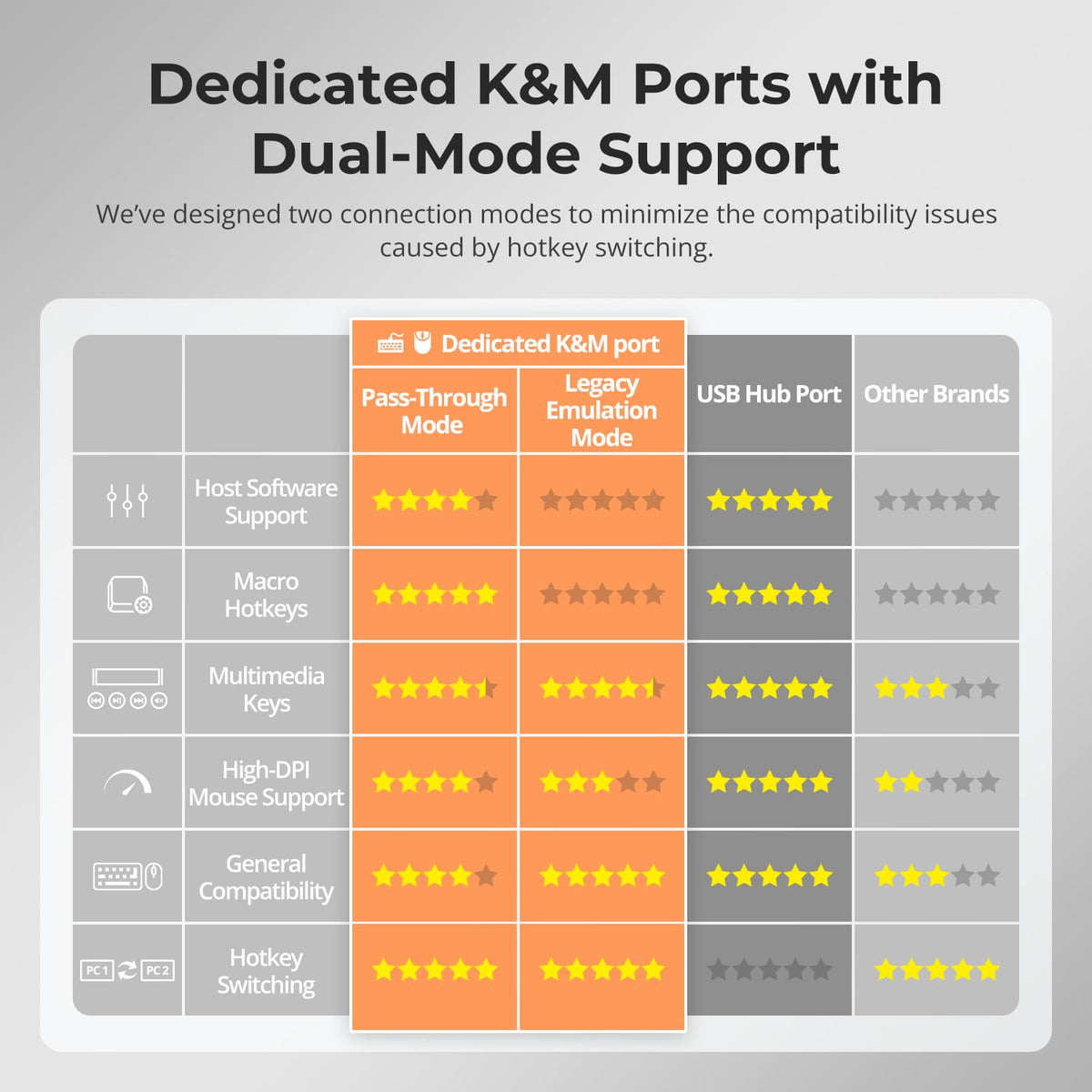
Confirm both devices are connected to the dedicated console ports. If input is delayed, duplicated, or unresponsive, press Right Ctrl twice, then F2 to switch to Legacy Emulation Mode. Contact TESmart Support if the issue continues.