

2×1 KVM for Apple Studio Display | 5K120/6K60, Thunderbolt™ 4 Compatible
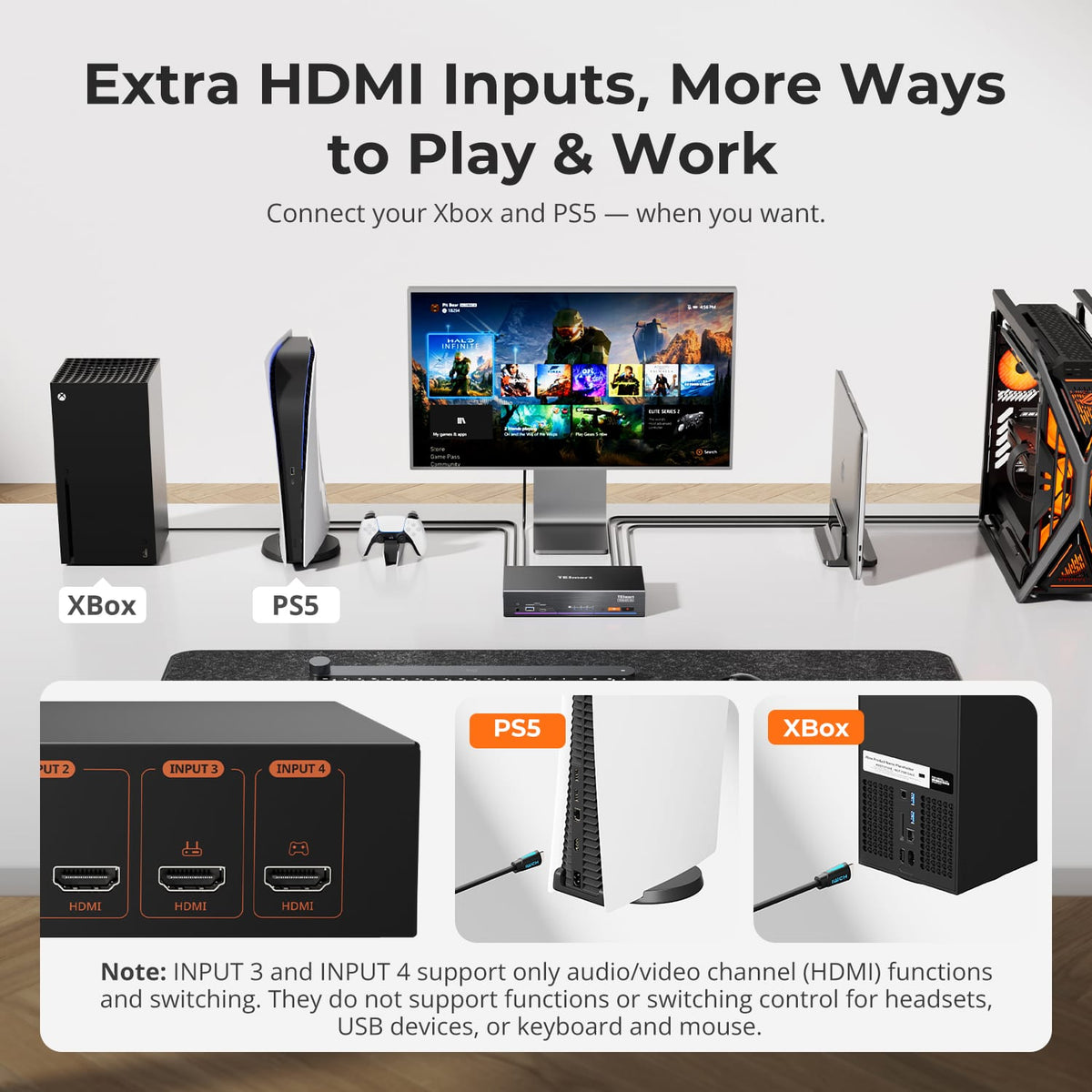
Beyond the 2-computer KVM, two additional HDMI inputs let you switch consoles and media devices on the same Apple Studio Display.
- Plug Type:
- US Plug
Why Choose THK401-X4
Overview
01
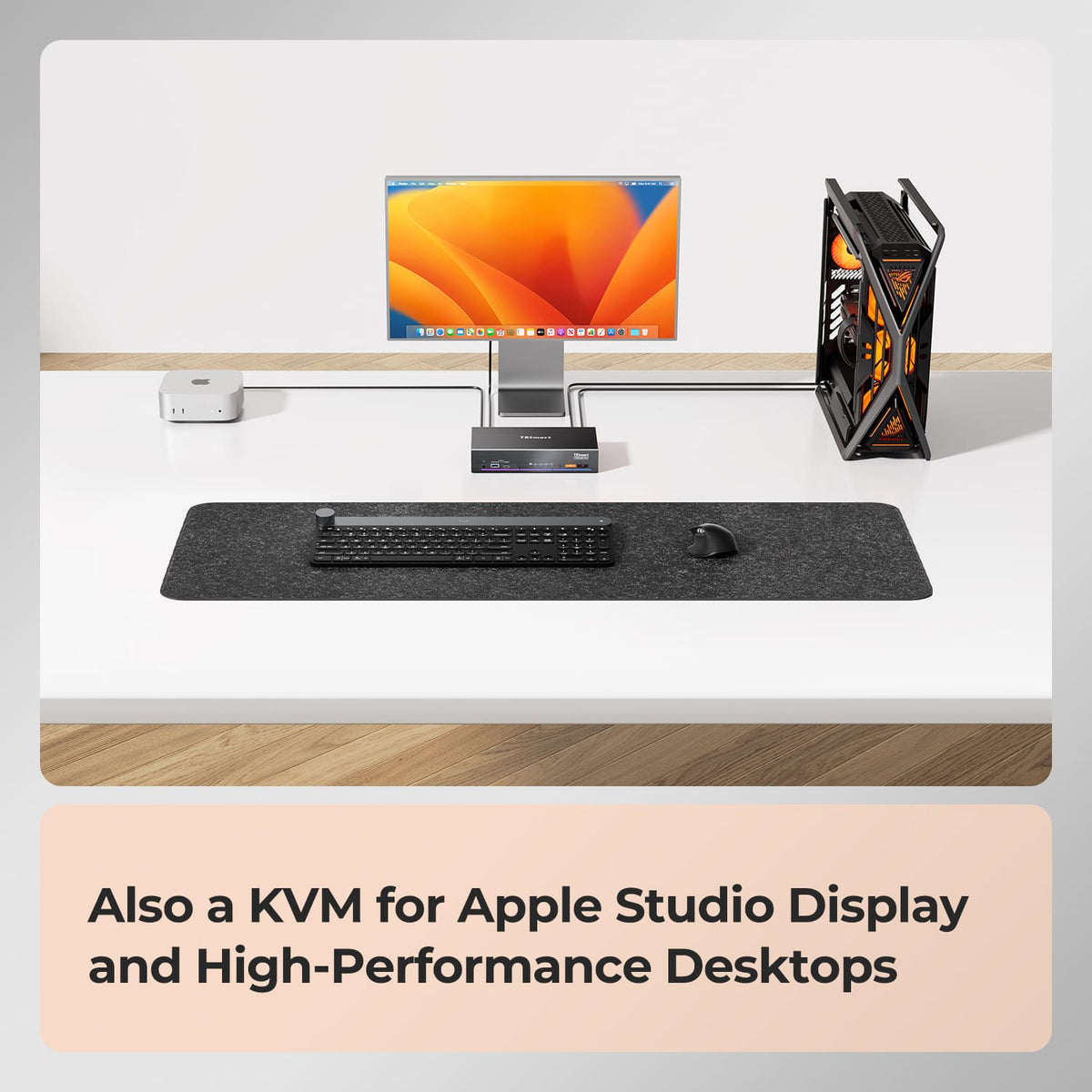
Work Mac + Windows Desktop
Use one Apple Studio Display for both your Mac and Windows desktop. Keep your primary keyboard, mouse, and supported USB devices connected at all times when switching between systems.
02
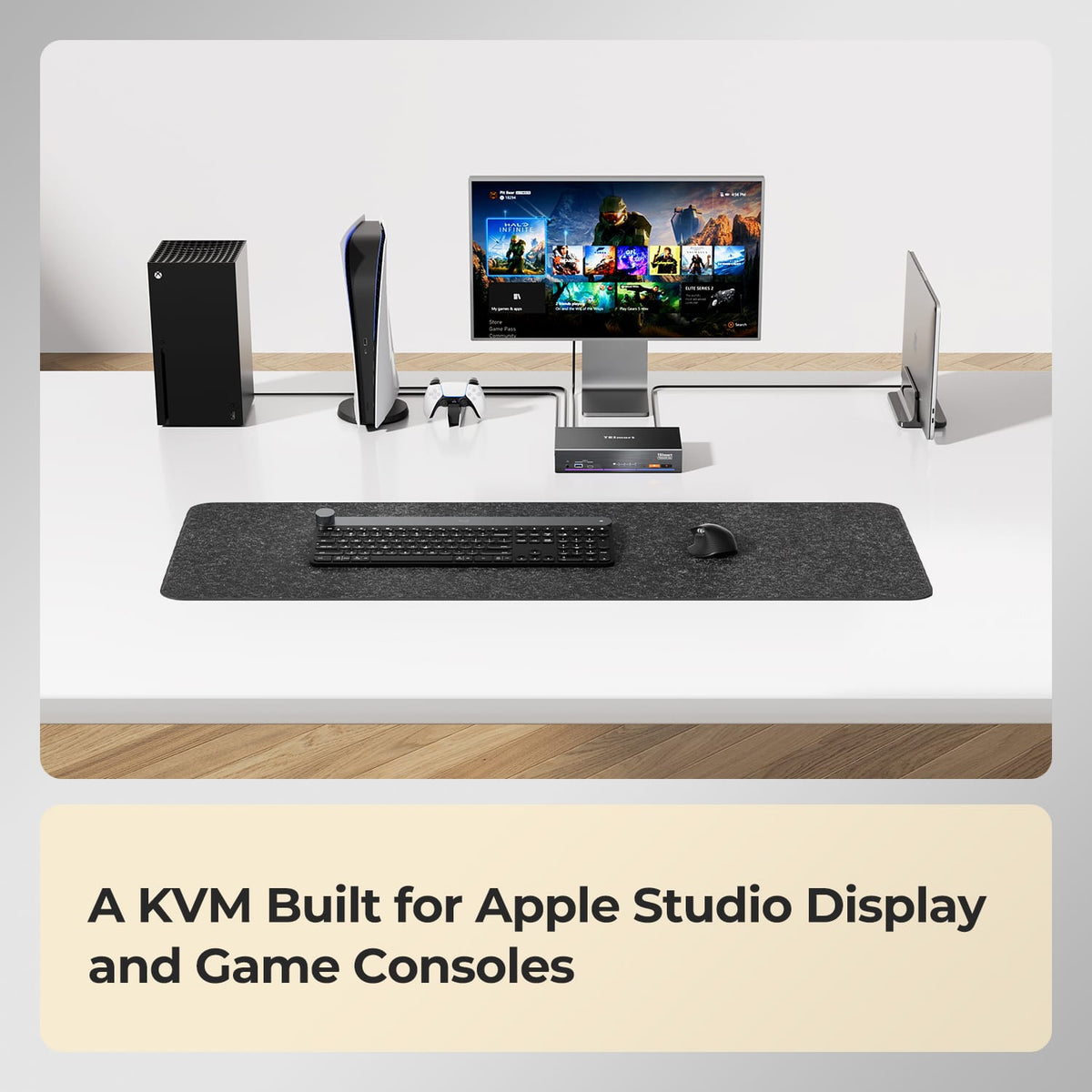
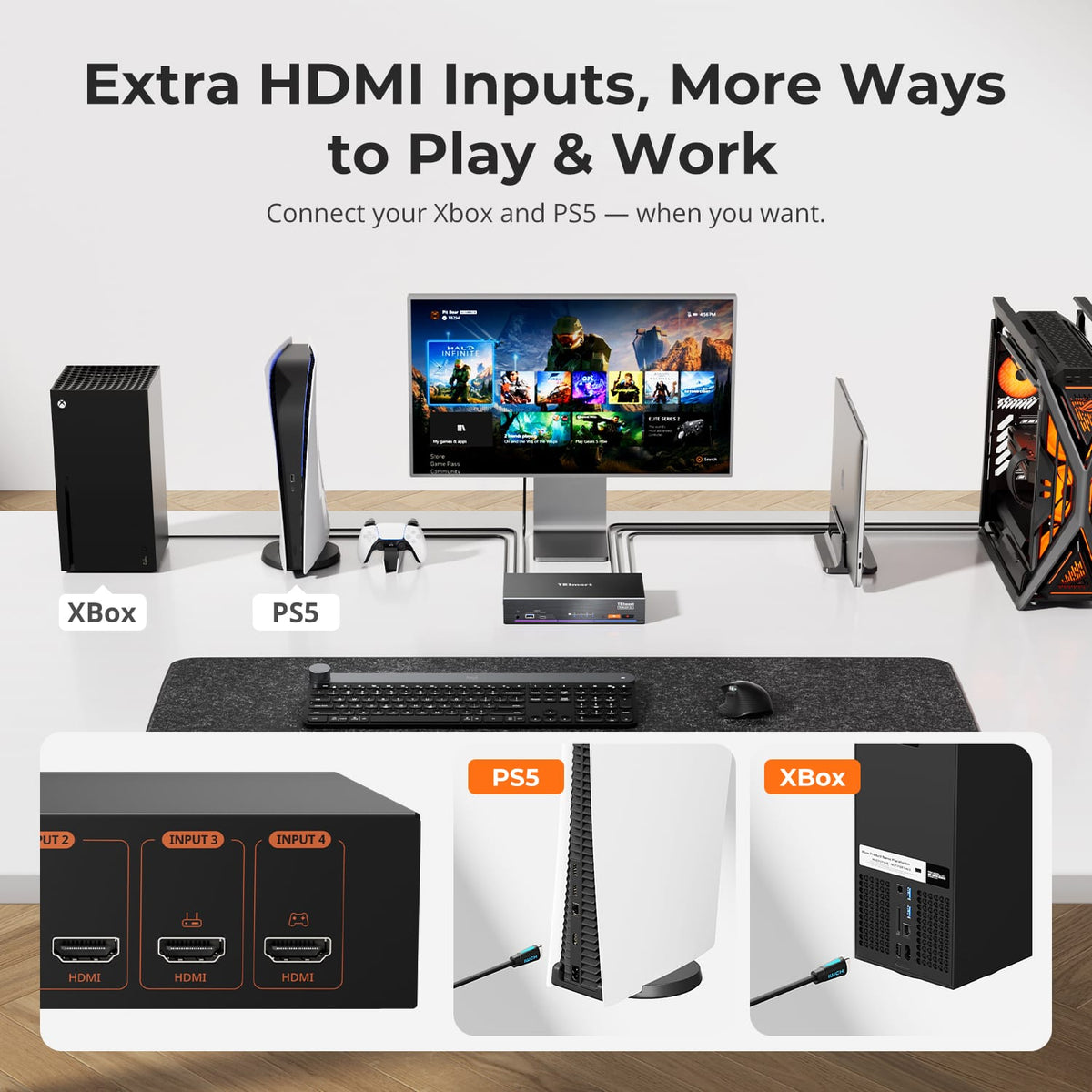
Mac + PS5 or Xbox
Finish work on your Mac, then switch the same display to a PS5, Xbox or another HDMI device—without disconnecting and reconnecting the display.
03
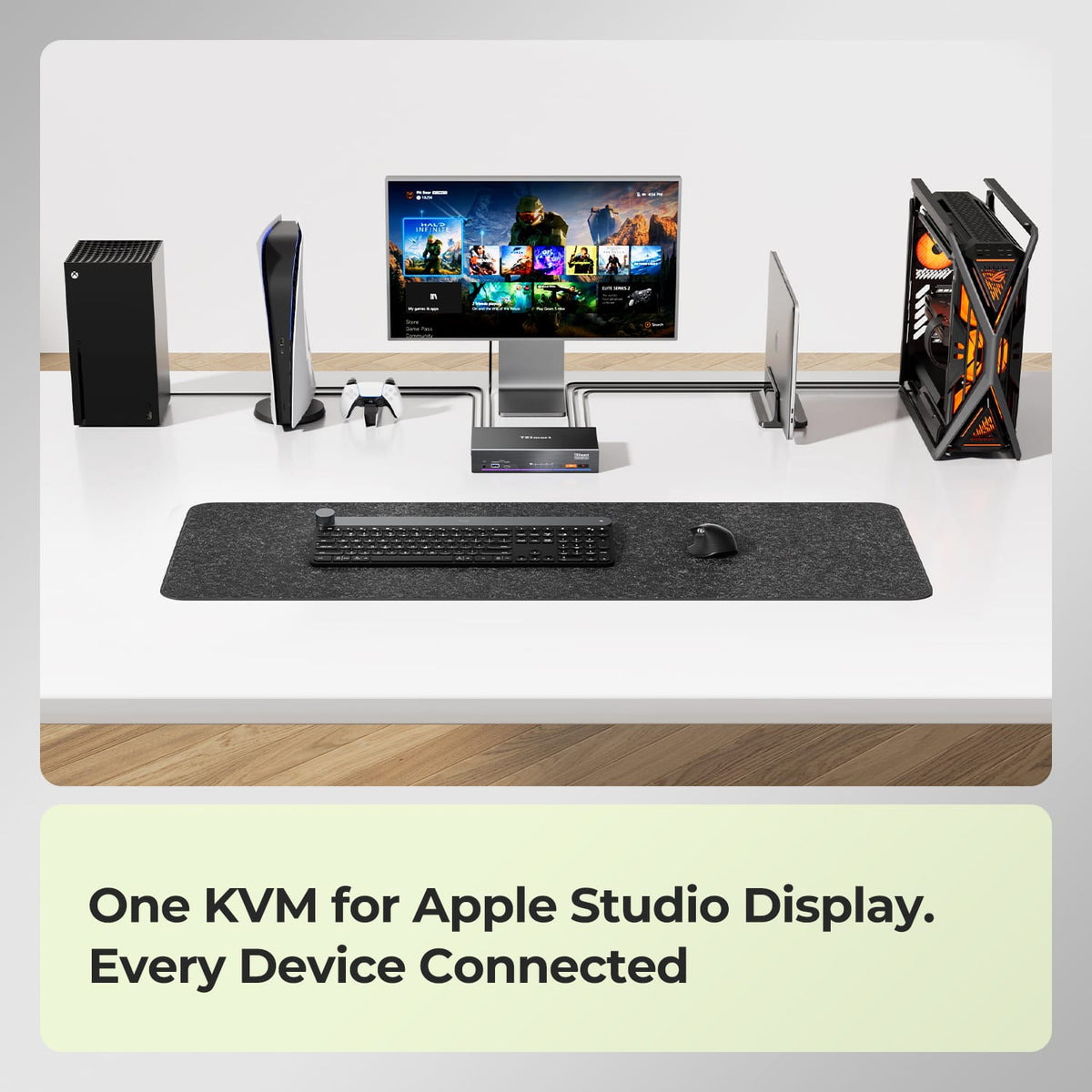
Mac + PC + Multiple HDMI Devices
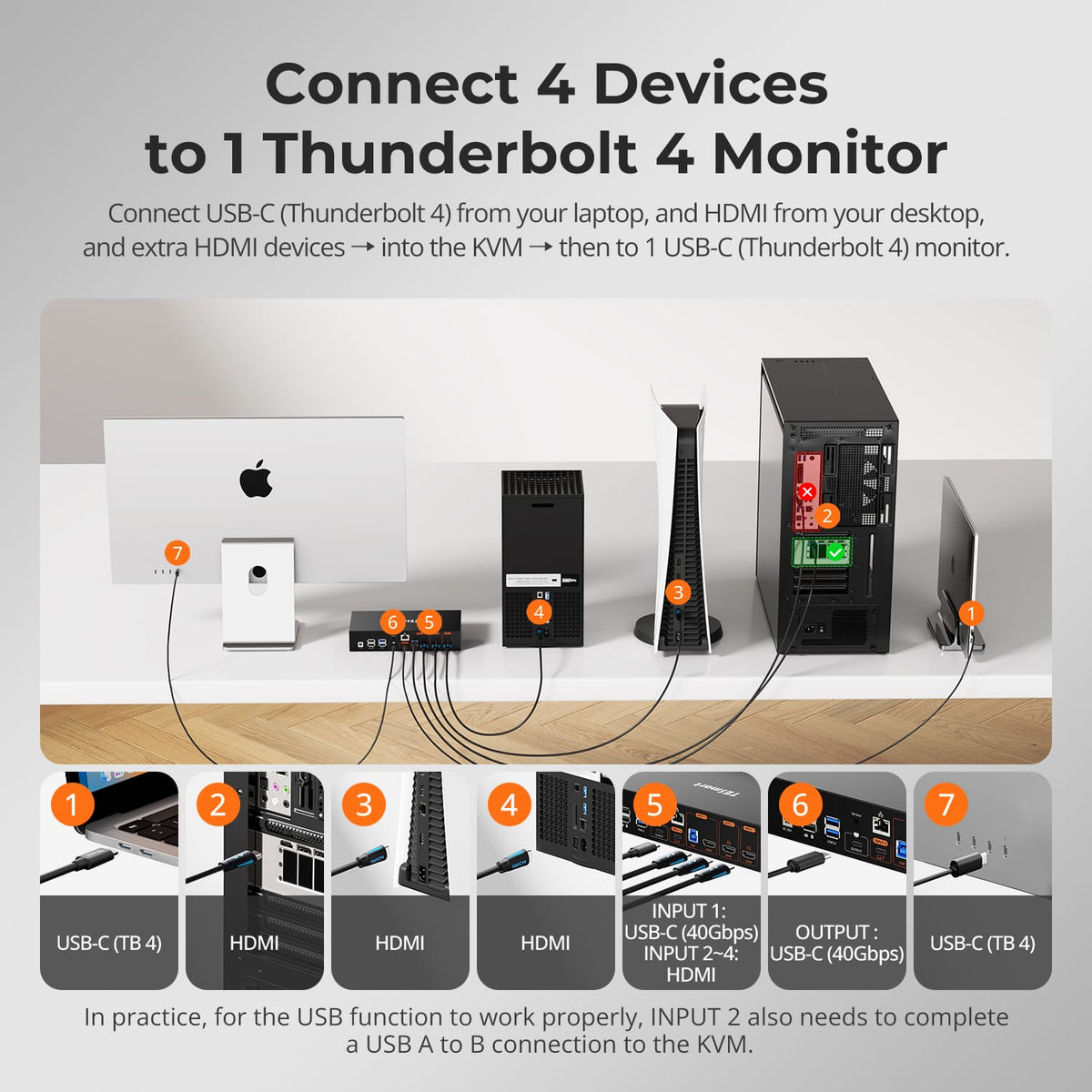
Connect a Mac, Windows PC, gaming console and an additional HDMI source to one organized workspace built around Apple Studio Display.
04
Connect HDMI Devices to Apple Studio Display
Connect a Windows PC, gaming console or other HDMI device to Apple Studio Display—without constantly changing cables or adding separate converters.
05
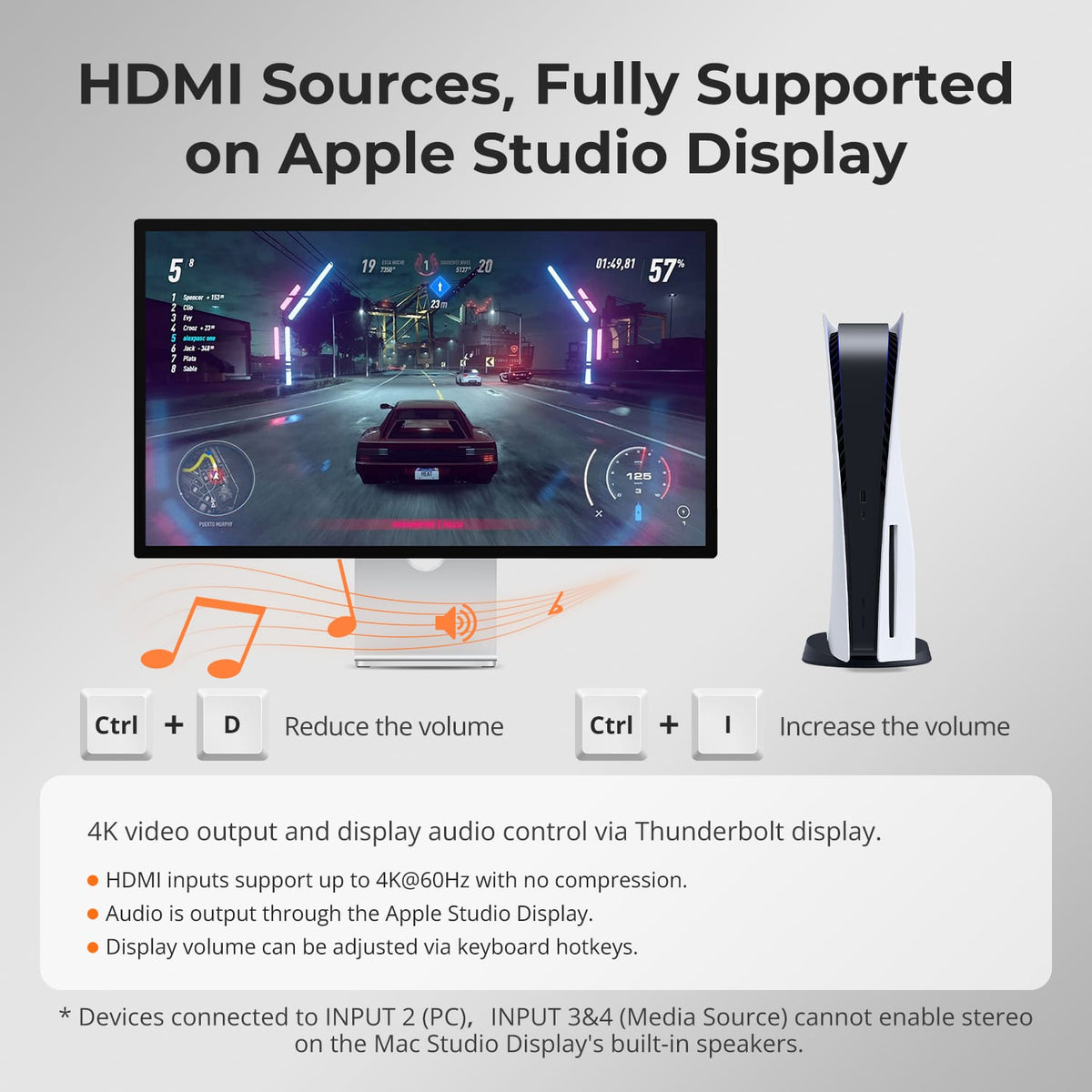
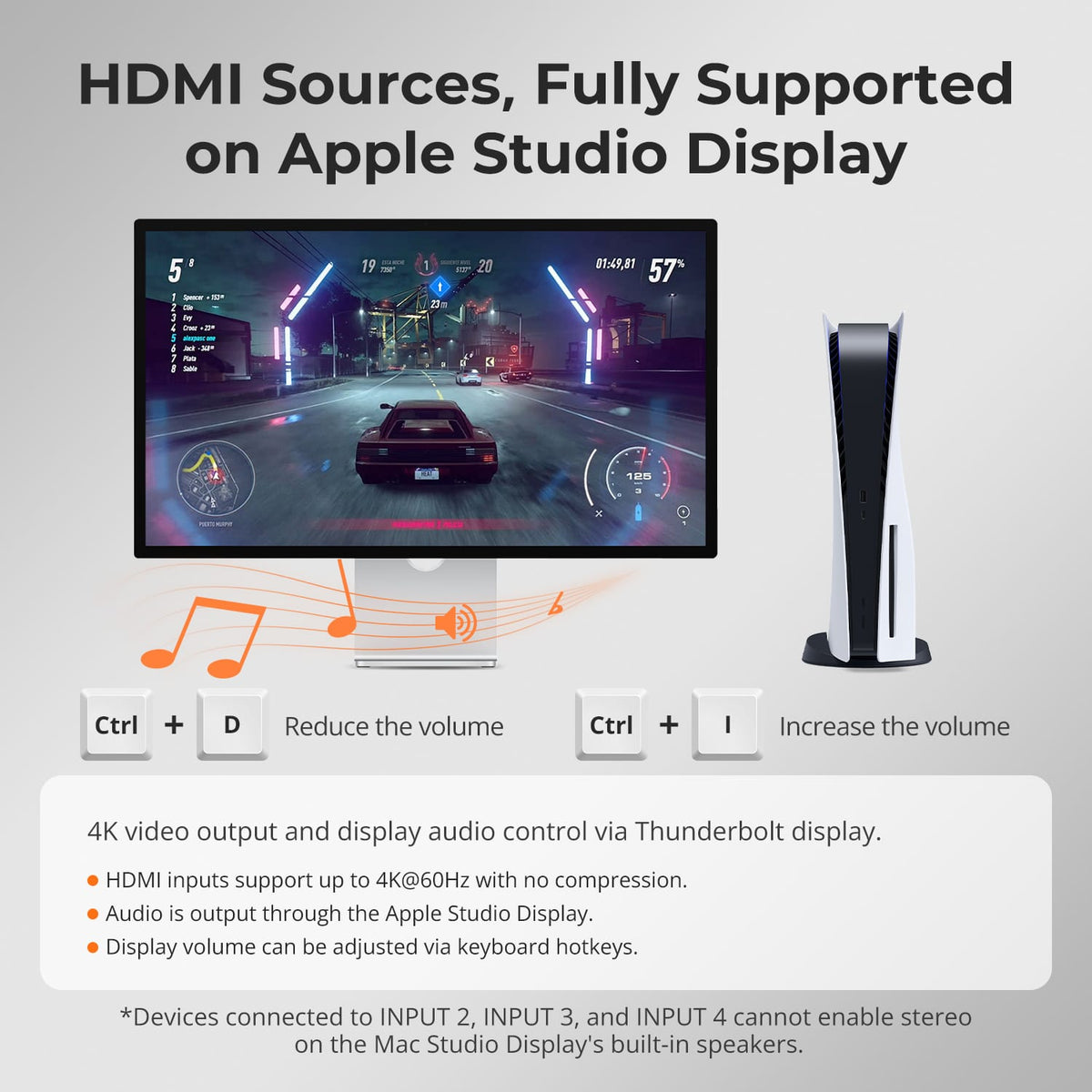
Use the Display’s Built-In Speakers
HDMI inputs support up to 4K@60Hz with no compression, audio is output through the Apple Studio Display, and display volume can be adjusted via keyboard hotkeys (Right-Ctrl twice + D to reduce, + I to increase). Note: devices connected to INPUT 2–4 cannot enable stereo on the display's built-in speakers.
06
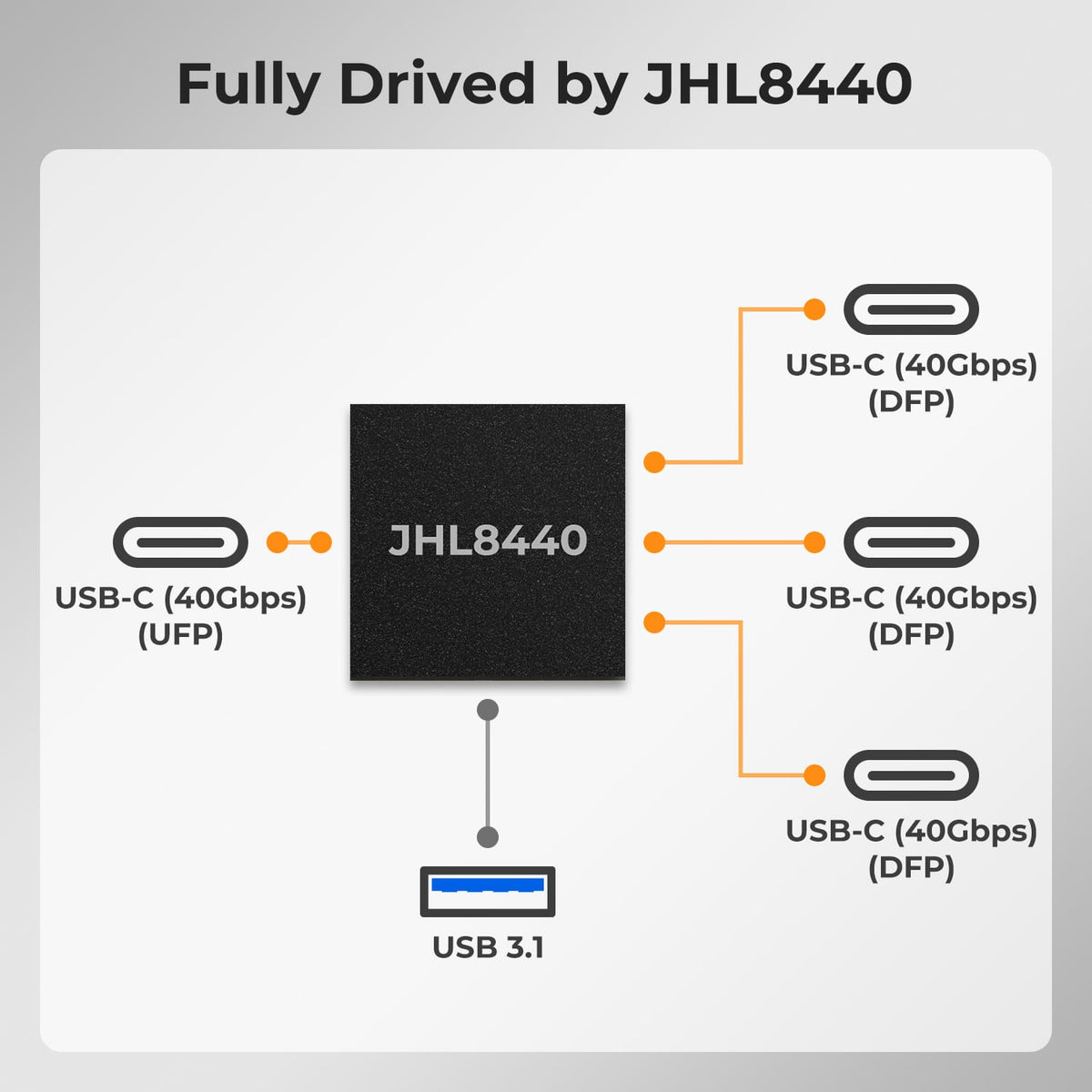
Powered by Intel JHL8440
THK401-X4 is built around the Intel® JHL8440 Thunderbolt™ 4 controller—an Intel-certified Thunderbolt 4 chip delivering full 40Gbps bandwidth. It ensures interference-free video, data, and power delivery when connecting an Apple Studio Display and multiple HDMI devices, providing a reliable foundation for multi-device sharing and stable switching.
07
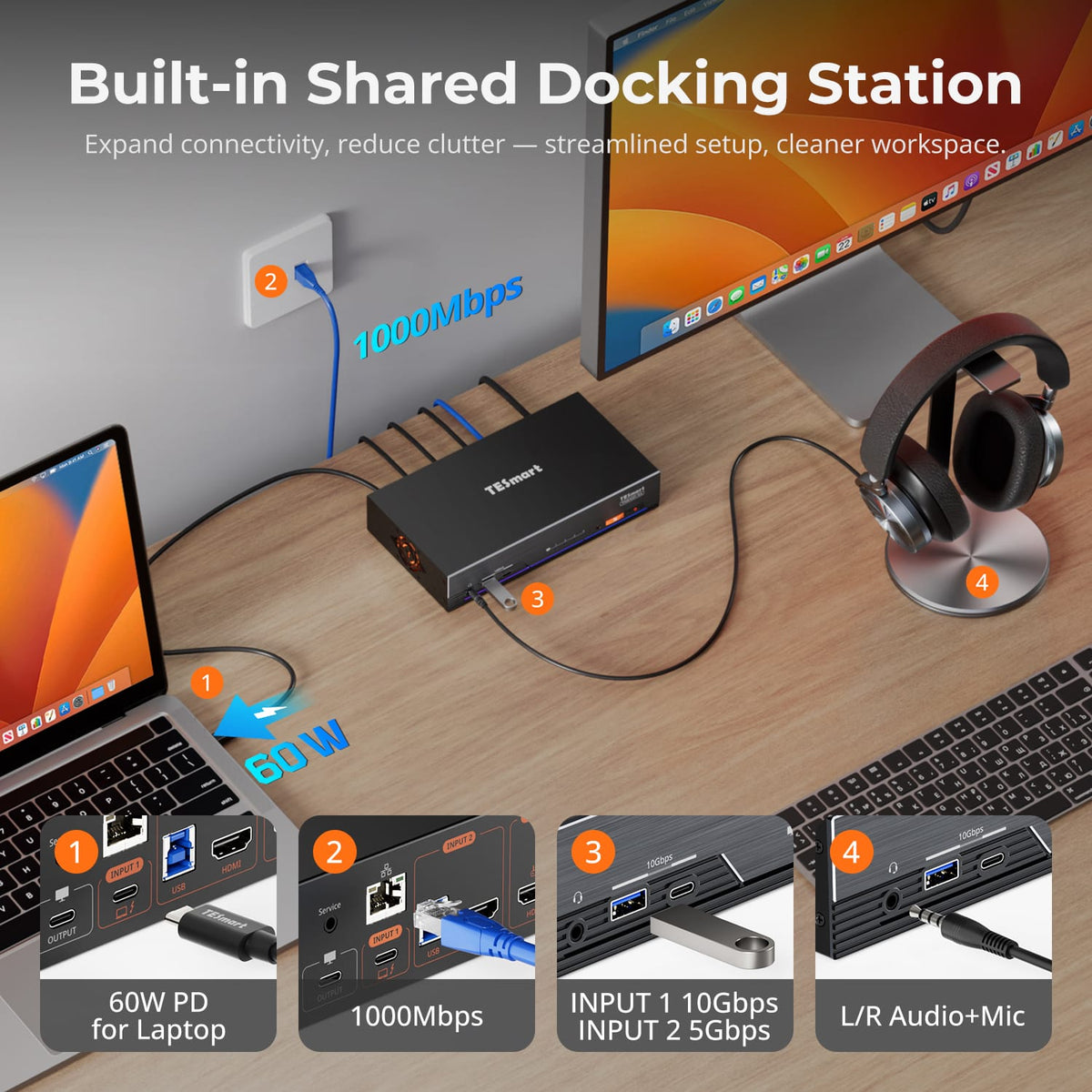
More than a KVM. A Shared Dock for Your Desk.
Centralize display switching, keyboard and mouse control, USB devices, Gigabit Ethernet and dedicated audio connections in one device—reducing the need for a separate dock, USB switch and audio adapter.
08
09
10
Specifications & Support
Compatibility & Input Guide
Technical Specifications
Manuals & Downloads
Included in the Box
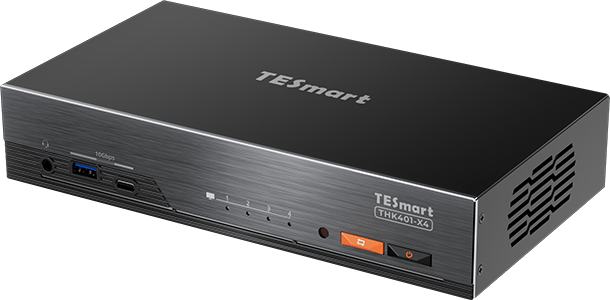
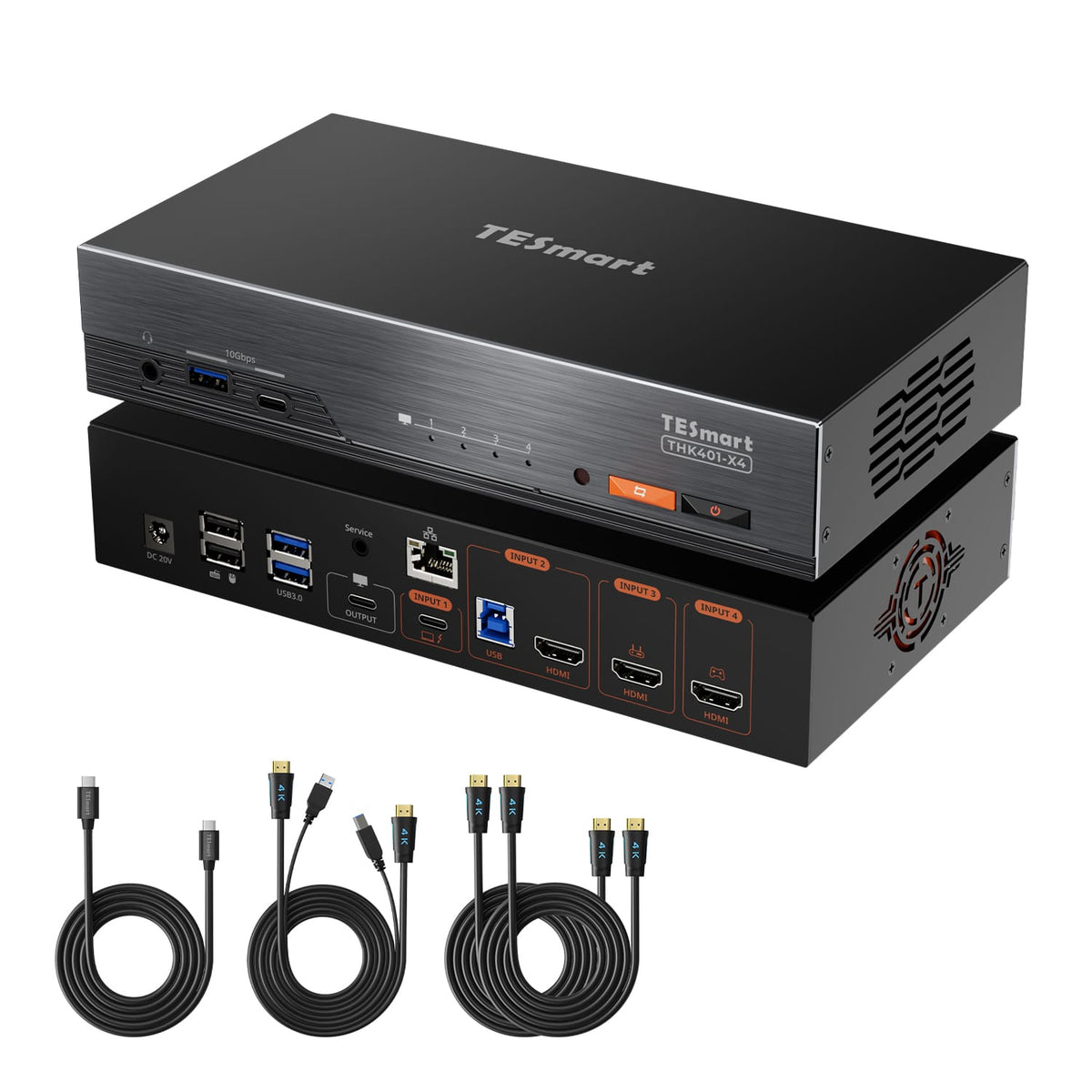
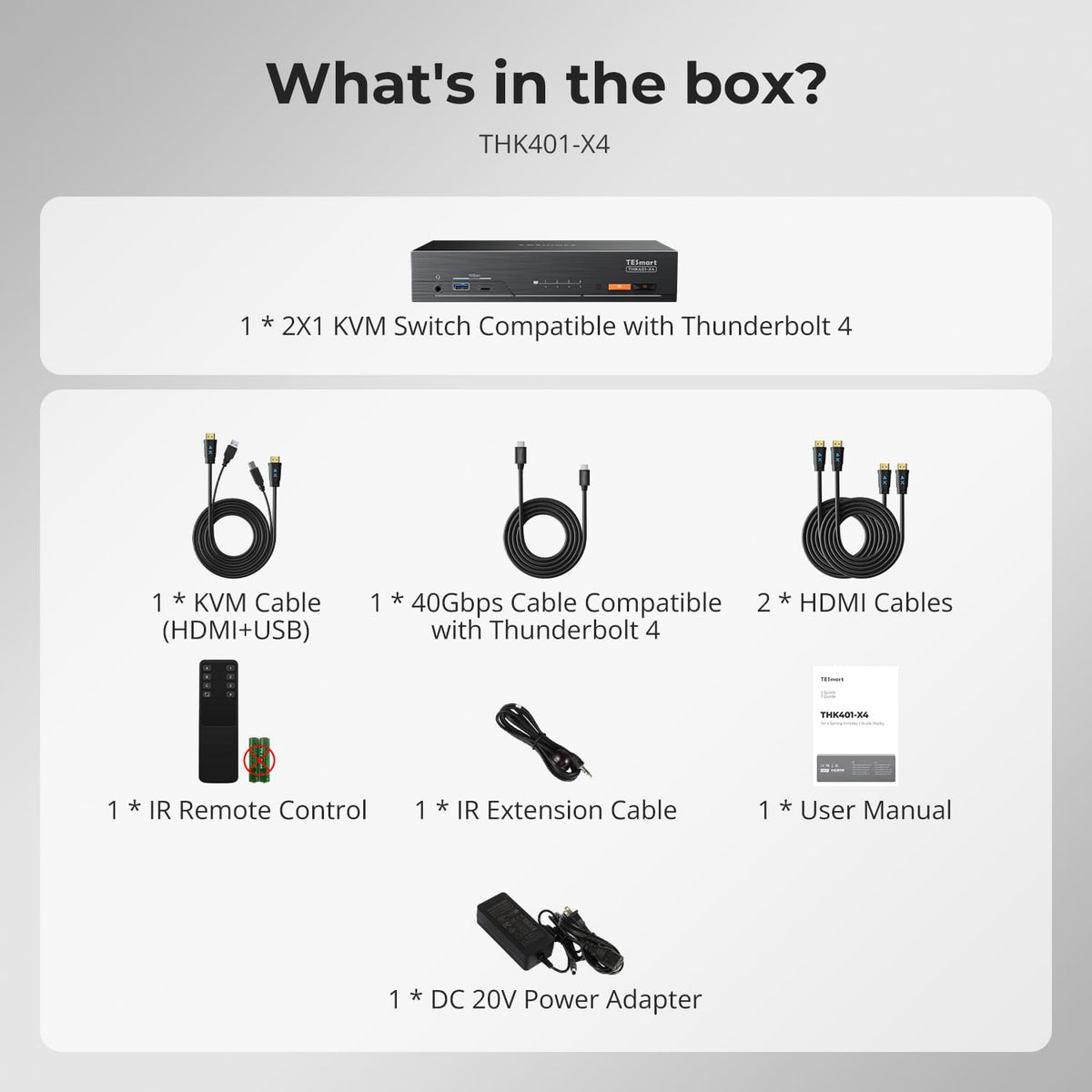
1 × THK401-X4 KVM Switch
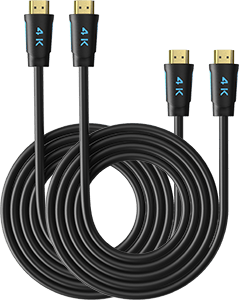
2 × HDMI Cables
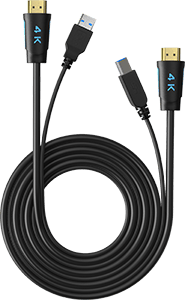
1 × KVM Cable (HDMI + USB)
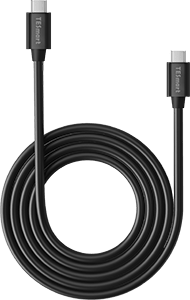
1 × 40Gbps USB-C Cable
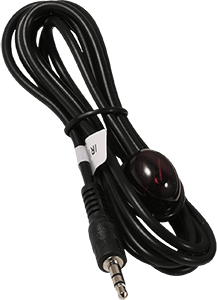
1 × IR Extension Cable
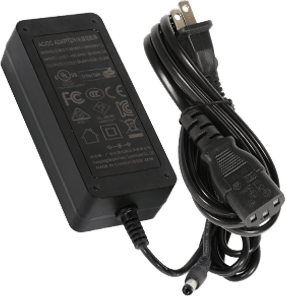
1 × DC 20V Power Adapter
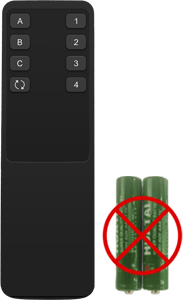
1 × IR Remote Control
1 × User Manual
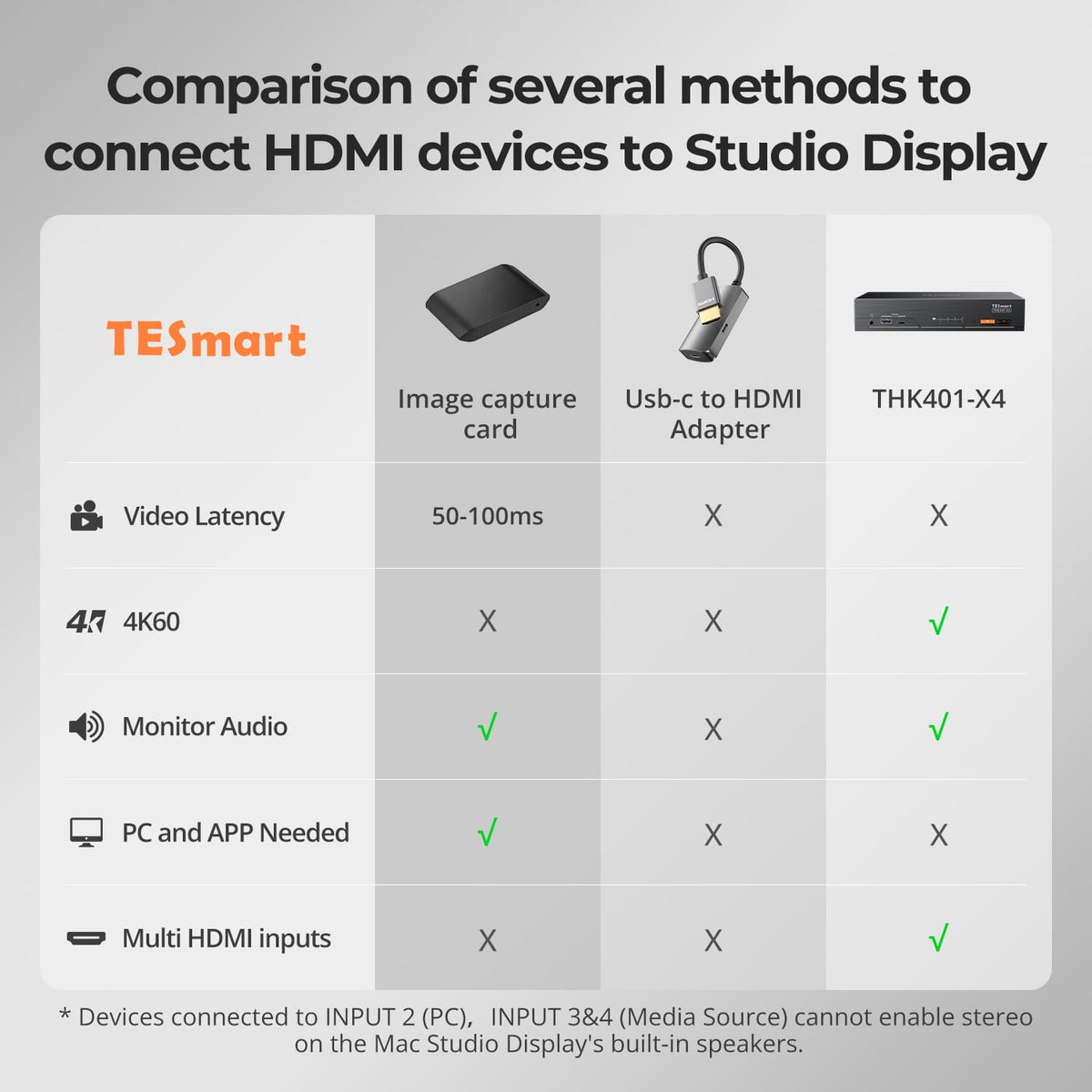
Product comparison
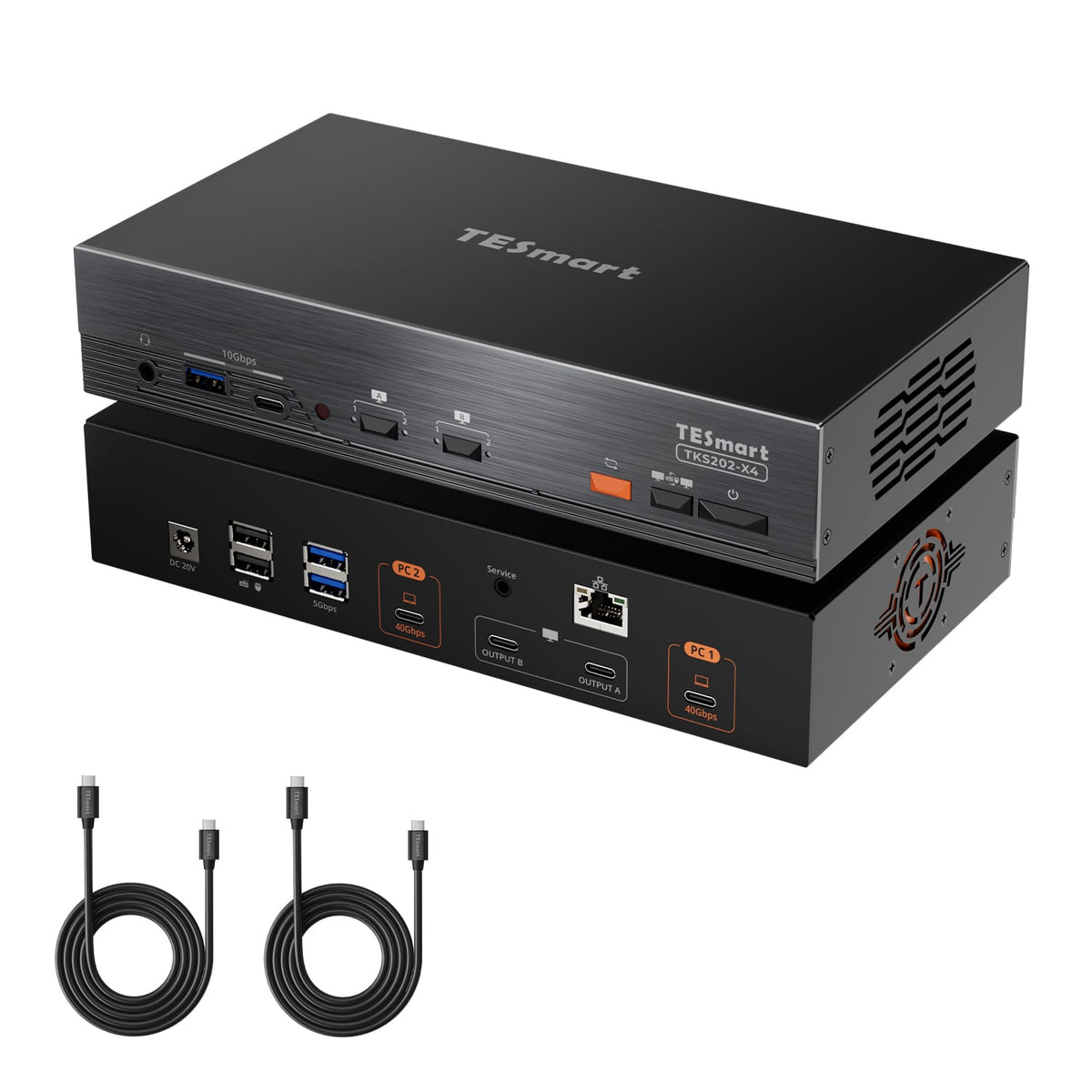
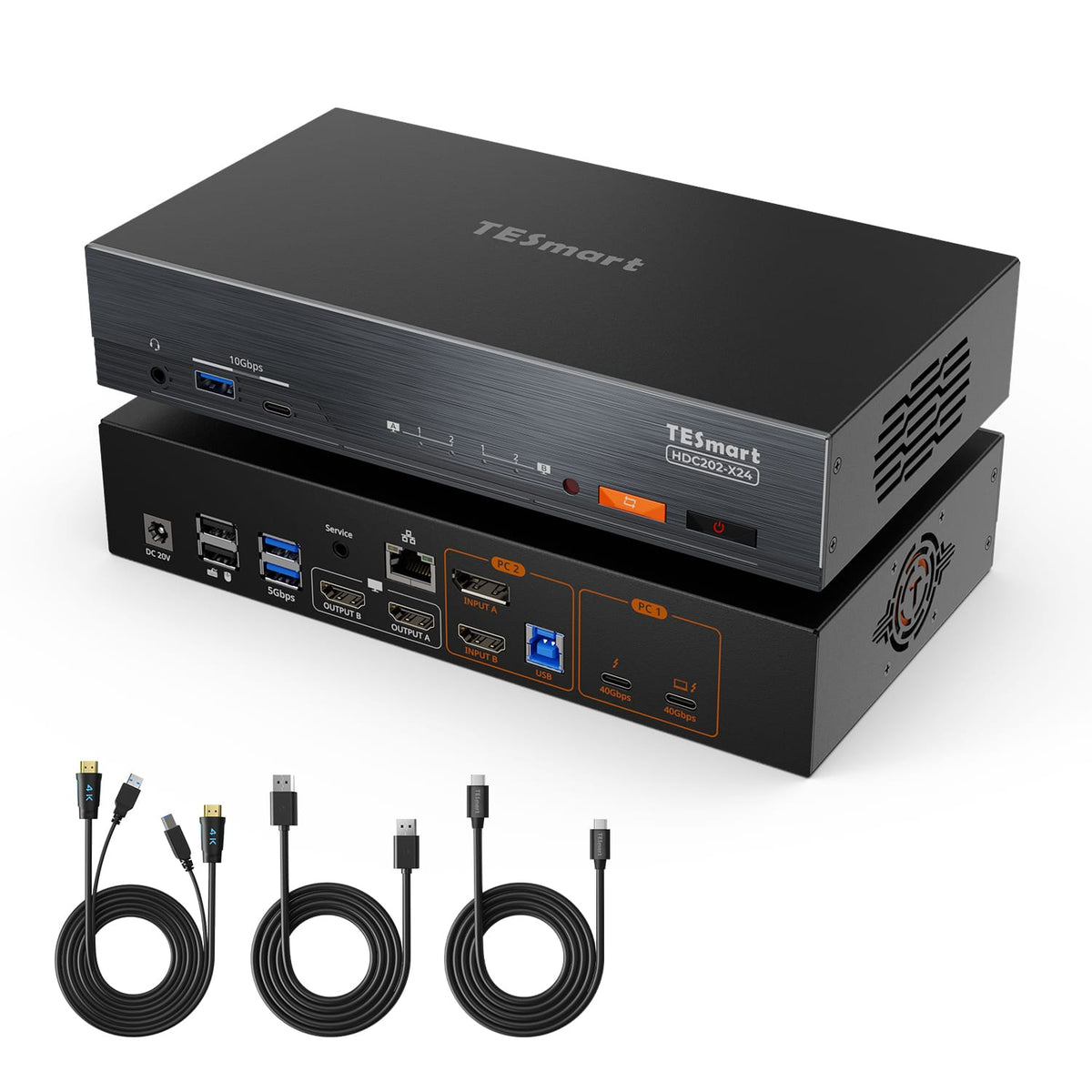
Source Mix
2× PCs (Thunderbolt™ 4)
Source Mix
1× Mac (Thunderbolt™ 4)
1x Windows PC
2× HDMI sources
Source Mix
1× Laptop (Thunderbolt™ 4)
1× HDMI/DP desktop
Display Setup
2× Apple Studio Displays
Display Setup
1× Apple Studio Display
Display Setup
2× HDMI monitors
Max Display Output
Up to 6K@60Hz / 5K@120Hz
Max Display Output
Input 1: 6K@60Hz / 5K@120Hz
HDMI: 4K@60Hz
Max Display Output
Dual 4K@60Hz
Laptop Charging
2× 60W
Laptop Charging
1× 60W
Laptop Charging
1× 60W
Best For
Two Macs or Win Laptops(Thunderbolt 4) sharing two Apple Studio Displays
Best For
Mac, desktop and HDMI devices sharing one Apple Studio Display
Best For
Mac and one desktop sharing two standard monitors
FAQs
Visit our Help Center for more answers.
[Compatibility] What devices can I connect to THK401-X4?
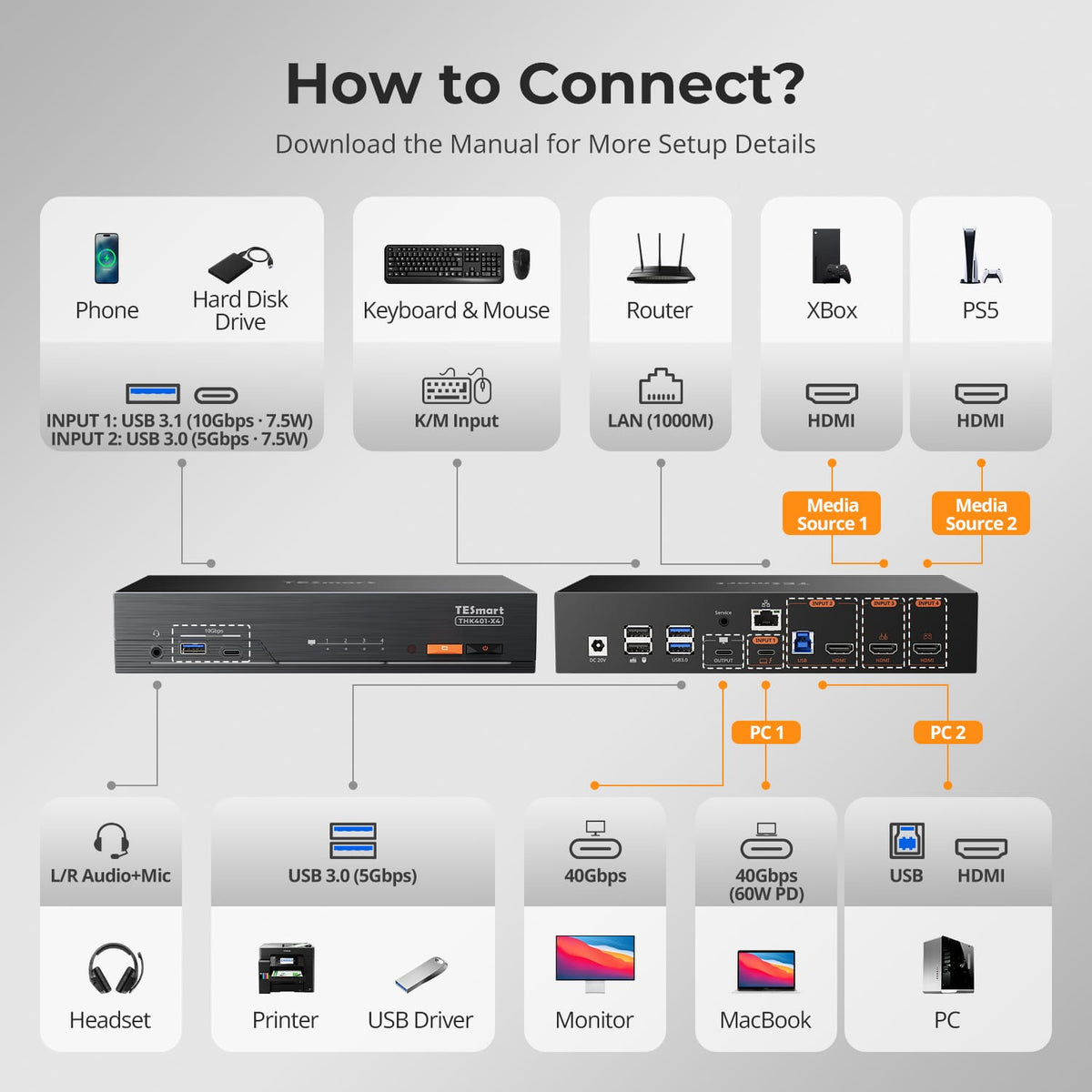
THK401-X4 supports a compatible Mac through Input 1, including supported MacBook Air, MacBook Pro, Mac mini, Mac Studio and Mac Pro models.
Input 2 supports a second computer through HDMI + USB, while Inputs 3–4 are additional HDMI inputs for devices such as PS5, Xbox and media players.
A typical setup combines a MacBook or Mac mini, a Windows desktop and two additional HDMI devices, all sharing one Apple Studio Display.
[Compatibility] Can I connect a PS5, Xbox or Nintendo Switch?
Yes.
Connect the console to one of the HDMI inputs. HDMI source inputs support up to 4K at 60Hz.
Final resolution and audio performance may also depend on the console settings, game, cable and selected display mode.
[Compatibility] Can THK401-X4 work with displays other than Apple Studio Display?
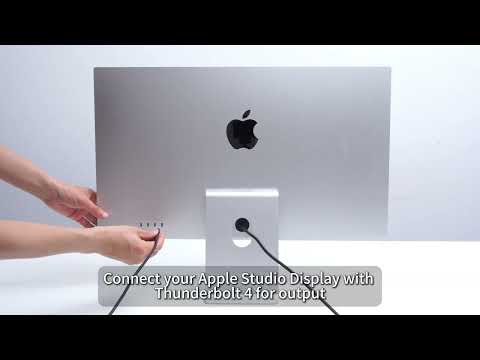
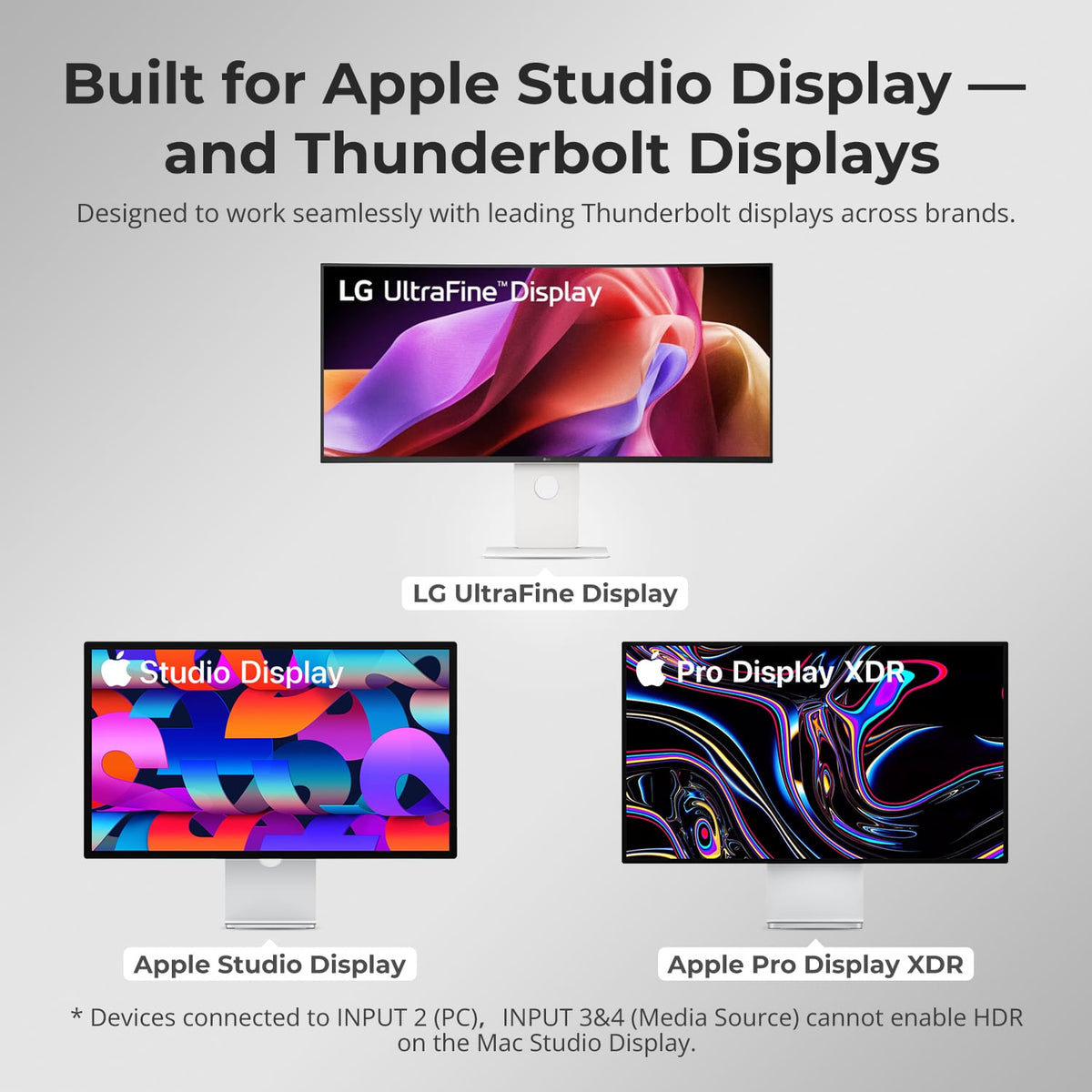
THK401-X4 is primarily designed for Apple Studio Display and is also compatible in principle with displays using Thunderbolt™ 4.
Tested compatible models include Apple Studio Display, Apple Pro Display XDR and selected LG UltraFine displays shown in our compatibility guide.
Compatibility with standard USB-C displays may vary by model and is not guaranteed. If you plan to use a USB-C display that is not listed, please contact TESmart Support before purchase.
[Compatibility] Is THK401-X4 Intel® certified for Thunderbolt™?
THK401-X4 is not yet Intel® certified for Thunderbolt™.
It is designed for use with computers compatible with Thunderbolt™ 4 and has been tested across common real-world setups for display output, data connectivity and peripheral switching.
Intel® certification for Thunderbolt™ is currently in progress.
[Compatibility] Should I choose THK401-X4 or TKS202-X4?
Choose THK401-X4 when one Apple Studio Display needs to be shared by one computer compatible with Thunderbolt™ 4 and multiple HDMI devices.
Choose TKS202-X4 when two computers compatible with Thunderbolt™ 4 need to share a dual-display workstation.
[Features & Connections] What is the maximum supported resolution?
Input 1 supports up to 6K at 60Hz or 5K at 120Hz.
Inputs 2–4 support up to 4K at 60Hz.
Actual resolution and refresh rate depend on the connected computer, display, operating system, cable and selected display mode.
[Features & Connections] Do all four inputs provide the same functions?
No.
Input 1 is designed for a compatible computer and provides the highest display capability, USB data and up to 60W laptop charging.
Input 2 uses HDMI for video and a separate USB upstream connection for shared keyboard, mouse, USB devices and network access.
Inputs 3–4 are HDMI source inputs and do not provide the same USB, charging or network functions.
[Features & Connections] Can all connected devices share the keyboard, mouse and USB devices?
Input 1 and Input 2 support shared keyboard, mouse and compatible USB devices when the required data connection is used.
Inputs 3–4 are HDMI source inputs and do not provide the same USB upstream data path.
[Features & Connections] Can HDMI devices use the Apple Studio Display speakers?
THK401-X4 can route supported HDMI audio to the Apple Studio Display speakers.
Select the correct audio output on the connected source device. Available audio formats, channel support and volume-control functions may vary by hardware version, source device and operating system.
[Features & Connections] Can every connected laptop receive charging?
No.
Input 1 provides up to 60W Power Delivery to a compatible laptop.
Inputs 2–4 do not provide laptop charging.
[Features & Connections] Can every input use the Gigabit Ethernet port?
No.
Gigabit Ethernet is available to compatible computers connected through Input 1 and Input 2.
Devices connected through HDMI Inputs 3–4 do not receive network access through the KVM.
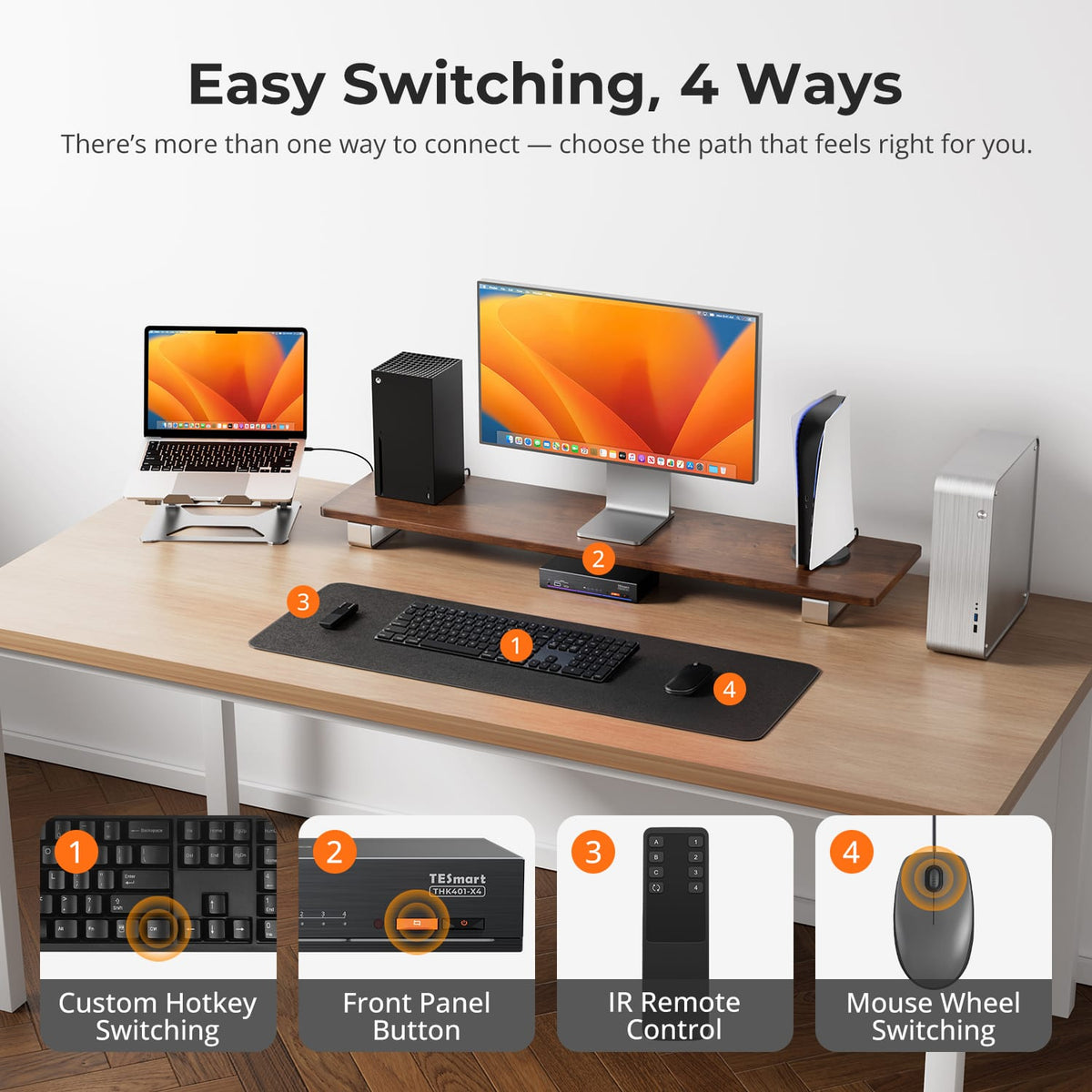
[Setup & Switching] How can I switch between connected devices?
THK401-X4 provides four switching methods: front-panel button, IR remote control, keyboard hotkeys and mouse-wheel switching.
Mouse-wheel switching must be enabled before use.
[Setup & Switching] Does THK401-X4 support keyboard hotkeys?
Yes.
Connect a compatible wired USB keyboard to the dedicated keyboard port to use hotkey controls.
Hotkey functions may not work through Bluetooth keyboards, general USB hubs or some wireless receivers.
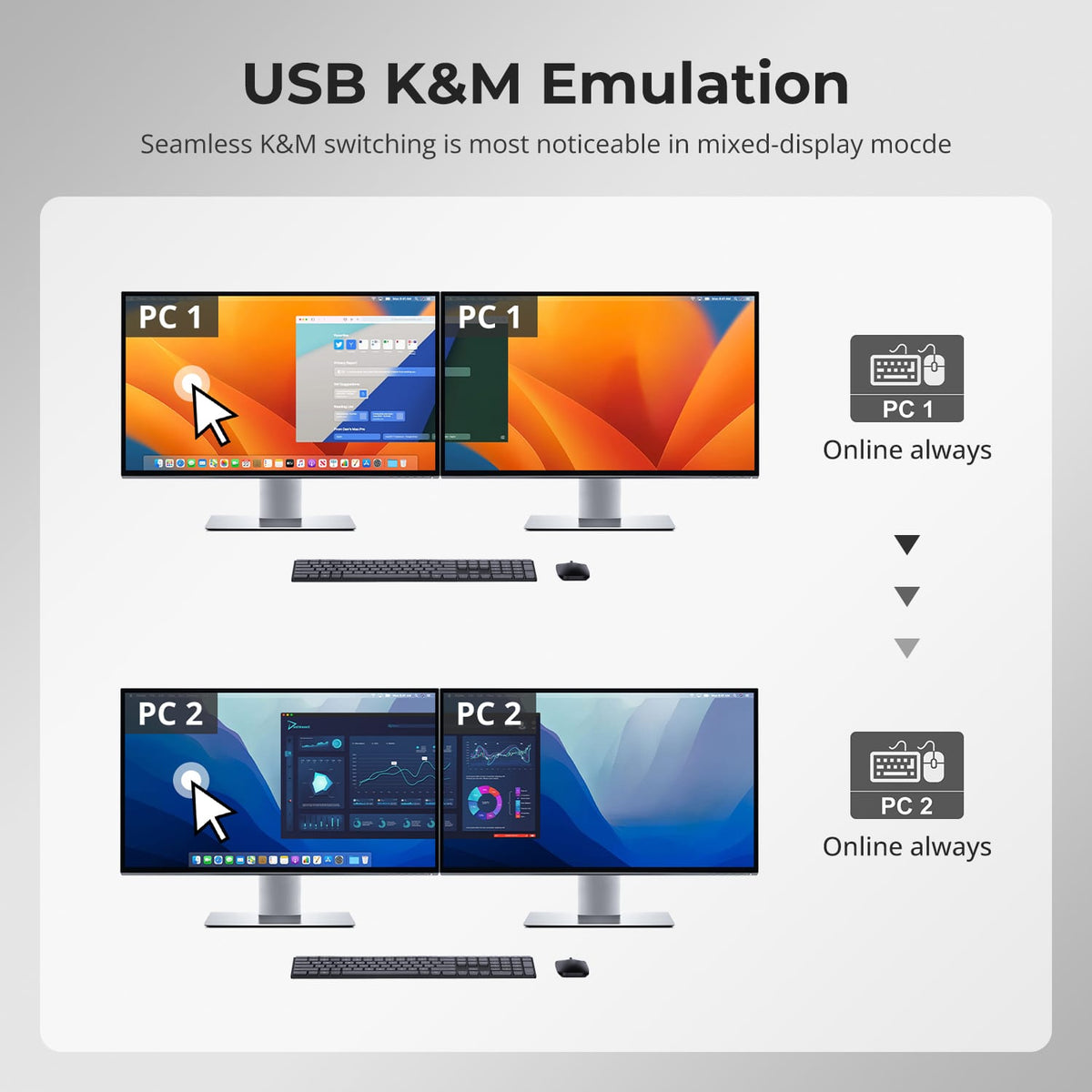
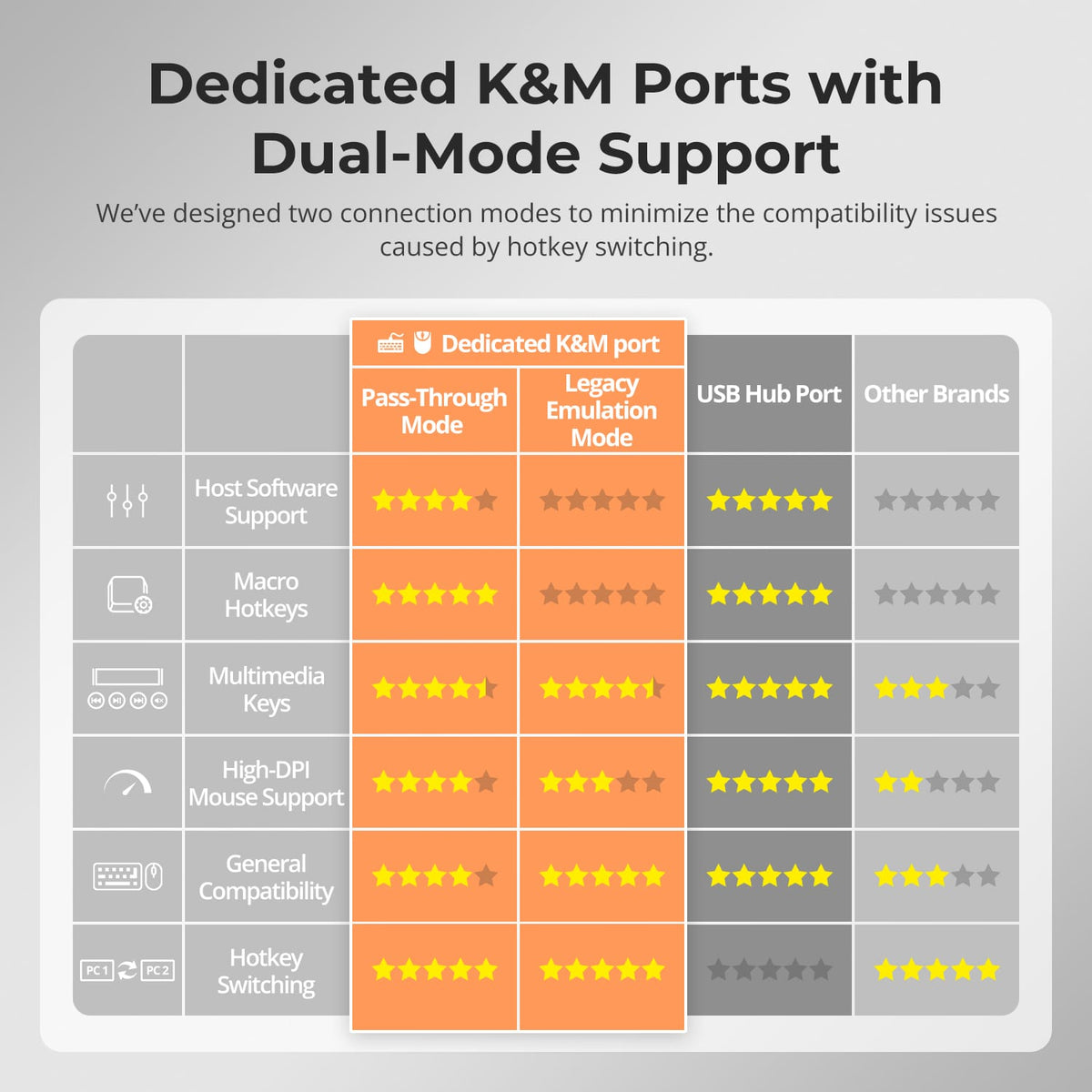
[Setup & Switching] What are Pass-Through Mode and Legacy Emulation Mode?
Pass-Through Mode is recommended for most modern keyboards and mice and supports many advanced peripheral functions.
Legacy Emulation Mode can improve basic keyboard, mouse and hotkey compatibility when a device does not operate correctly in Pass-Through Mode.
Some advanced keyboard or mouse software functions may be unavailable in Legacy Emulation Mode.