

Table of Contents
- Introduction
- What Users Are Actually Trying to Solve
- Why This Setup Becomes Complicated
- What Matters When Choosing a Solution
- Which TESmart Product Fits This Scenario
- Recommended Setup Examples
- Common Mistakes to Avoid
- FAQ
- Conclusion
Introduction

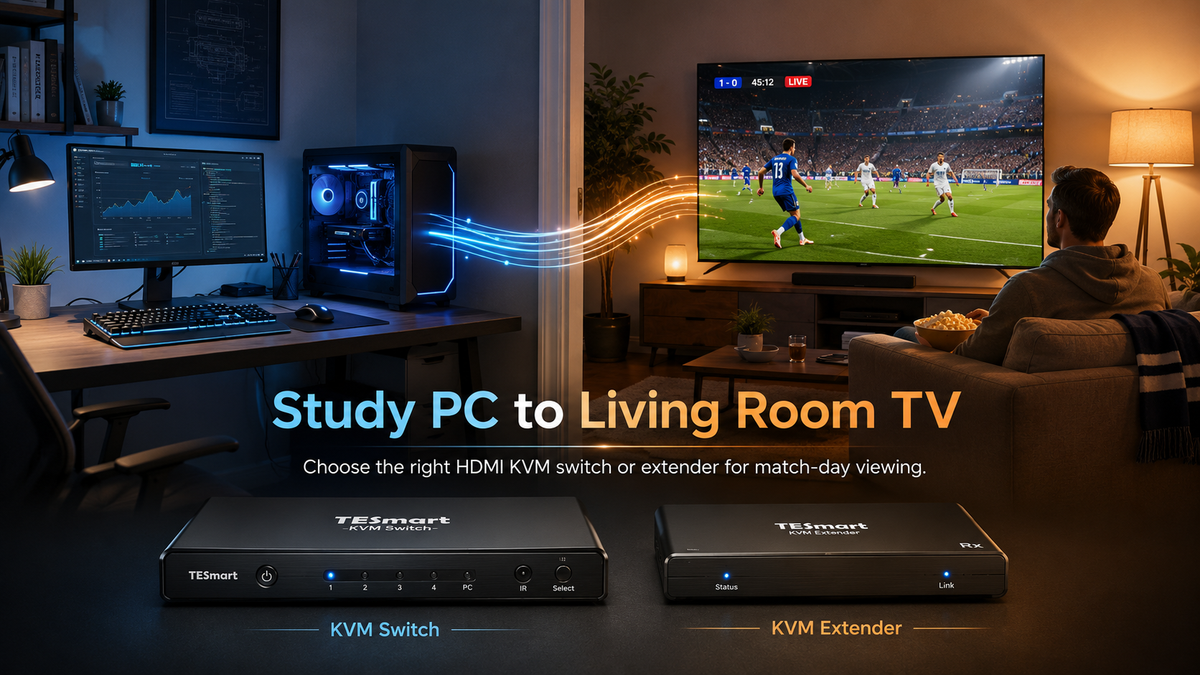
During the World Cup, a common home setup problem becomes very obvious: the powerful computer is in the study, but the best screen in the house is the large TV in the living room.
At first, the solution looks simple. Run an HDMI cable from the PC to the TV, switch the TV input, and start watching. In practice, the setup can quickly become less convenient. The distance may be too long for a standard HDMI cable, the keyboard and mouse may still be stuck in the study, and switching between the PC, game console, streaming box, or work laptop may require constant cable swapping.
This is where a TESmart HDMI KVM switch or HDMI KVM extender can be useful. The right choice depends on one main question: are you only sending video to the TV, or do you also need to control the study-room computer from the living room?
What Users Are Actually Trying to Solve

The real goal is not simply “connect a PC to a TV.” Most users want one of three things:
First, watch the World Cup from the living room using the study-room PC. This may be useful when the match stream, browser login, VPN, media app, or capture setup is already configured on the computer.
Second, control the PC from the sofa. If the computer is in another room, walking back to the study every time you need to pause, change a stream, adjust audio, or open another browser tab is frustrating.
Third, share the living-room TV between multiple sources. Many homes use the same big screen for a PC, game console, streaming box, laptop, or work computer. A switch-based setup avoids repeated plugging and unplugging.
These are different problems, so they need different hardware. A long HDMI cable may be enough for video-only use. A KVM extender is more suitable when video and USB control need to travel between rooms. A KVM switch is better when several devices need to share one TV and one set of controls.
Why This Setup Becomes Complicated

Distance Matters More Than It Looks
HDMI is sensitive to cable quality and distance. A short HDMI cable can often carry 4K video without trouble, but long in-wall or room-to-room runs can lead to black screens, flickering, resolution drops, or unstable audio.
If the study and living room are far apart, the distance should be treated as part of the system design, not as an afterthought. For longer runs, an extender that uses network cable can be more practical than trying to stretch a passive HDMI cable across rooms.
Video and Control Are Separate Problems
Sending the PC image to the TV only solves half of the living-room use case. If you still need a keyboard, mouse, wireless dongle, or USB controller near the TV, the setup needs USB extension as well.
This is the difference between a basic video connection and a KVM-style connection. KVM stands for keyboard, video, and mouse. In this scenario, the value is simple: the PC can stay in the study while the display and controls move to the living room.
World Cup Viewing Does Not Always Require the Same Specs as Gaming
For live sports streaming, stable 1080p or 4K60 is usually more important than chasing the highest refresh rate. A dropped signal during a match is far more annoying than a spec sheet that looks less impressive.
However, if the same living-room TV is also used for gaming, especially with a PC or console that supports 4K high-refresh output, the KVM choice becomes different. In that case, HDMI 2.1-class switching and cable quality become much more important.
What Matters When Choosing a Solution
1. Check the Distance Between the Study and Living Room
If the rooms are close and the cable path is short, an HDMI KVM switch near the TV may be enough. If the cable needs to go through walls, ceilings, or a long hallway, an extender-based setup is usually more reliable.
2. Decide Whether 1080p, 4K60, or Higher Refresh Is Required
A 1080p60 setup can be sufficient for many World Cup viewing scenarios, especially if the stream source is 1080p. A 4K TV setup should use a solution that matches 4K60 at minimum. If the TV is also used for gaming at 4K120 or similar high-refresh modes, choose a higher-bandwidth HDMI KVM switch and use suitable HDMI cables.
3. Count the Number of Source Devices
If you only need to connect one study-room PC to the TV, an extender may be the most direct solution. If you also want to connect a laptop, game console, mini PC, or streaming device, a 2-port or 4-port KVM switch makes more sense.
4. Decide Whether You Need USB Control in the Living Room
For passive watching, video output may be enough. For browser control, chat, stream switching, media playback, or sofa-side operation, USB keyboard and mouse access becomes important.
Which TESmart Product Fits This Scenario
| Scenario | Recommended TESmart Product | Why It Fits |
|---|---|---|
| Study-room PC is far from the living-room TV, and 1080p60 is acceptable | TESmart HKE120-EH23 HDMI KVM Extender | Suitable when the priority is sending the PC signal across a longer distance using network cable. It supports up to 1080p@60Hz and is a practical choice for room-to-room viewing and basic control needs. |
| Two HDMI sources share one living-room TV at up to 4K60 | TESmart HKS201-P23 HDMI KVM Switch | Fits users who want to switch between a study-room PC and another HDMI device, such as a laptop or streaming box, while sharing one TV and USB controls. |
| Two HDMI sources share one premium TV, with higher video bandwidth required | TESmart HKS201-M24 HDMI KVM Switch | Better suited for users who want a higher-spec single-display HDMI setup, especially when the TV is also used for gaming or high-resolution desktop output. |
| Three or four devices need to share one living-room TV | TESmart HKS401-P23 or HKS401-M24 HDMI KVM Switch | More suitable when the TV is shared by a PC, console, laptop, and media device. The 4-input structure reduces cable swapping and makes the living-room display easier to manage. |
Recommended Setup Examples
Setup 1: Simple World Cup Viewing from the Study PC
Best fit: TESmart HKE120-EH23
This setup is for users who mainly want to watch the match on the living-room TV while keeping the PC in the study. The extender sends the HDMI signal from the computer side to the TV side over network cable.
This is the more practical direction when the rooms are far apart and a normal HDMI cable is not reliable. It is especially suitable if 1080p@60Hz is enough for the match stream.
Recommended topology:
Study-room PC → TESmart transmitter → network cable → TESmart receiver → living-room TV
If sofa-side keyboard and mouse control is needed, connect the USB peripherals on the receiver side according to the product connection design.
Setup 2: 4K Living-Room TV Shared by PC and Another Device
Best fit: TESmart HKS201-P23
This setup is better when the living-room TV is not extremely far from the PC signal path and the main goal is switching between two HDMI devices. For example, one input can be the study-room PC, and the other can be a laptop, mini PC, or streaming device.
The HKS201-P23 is a better match when 4K60 is the target. It keeps the setup simple: one TV, two source devices, one set of keyboard and mouse controls.
Recommended topology:
PC / laptop / media device → TESmart HKS201-P23 → living-room TV
This is the more reasonable choice when the TV is used as the main shared screen and the distance can be handled with a suitable HDMI cable.
Setup 3: Living-Room TV for Both World Cup Viewing and Gaming
Best fit: TESmart HKS201-M24 or HKS401-M24
If the same TV is used for sports streaming and high-refresh PC or console gaming, choose a higher-spec HDMI KVM switch. The HKS201-M24 is suitable for a two-source setup, while the HKS401-M24 is more appropriate when several devices need to share the TV.
This type of setup is useful when the living room is not only a viewing area but also a gaming and entertainment space. The key requirement is not just “can it show the image,” but whether the video chain can maintain the resolution and refresh rate you expect.
Recommended topology:
Gaming PC / console / laptop / media device → TESmart HDMI KVM switch → living-room TV
For high-refresh setups, use cables that match the required HDMI bandwidth and avoid unnecessary adapters in the signal path.
Setup 4: One TV Shared by PC, Console, Laptop, and Streaming Box
Best fit: TESmart HKS401-P23 or HKS401-M24
A 4-input HDMI KVM switch is more suitable when the living-room TV has become the central screen for several devices. Instead of reconnecting cables before every match or game, each source remains connected to the switch.
Choose HKS401-P23 when 4K60 is enough. Choose HKS401-M24 when the setup needs a higher video specification, especially for newer TVs and gaming hardware.
Common Mistakes to Avoid

Mistake 1: Assuming Any Long HDMI Cable Will Work
Long HDMI runs are one of the most common causes of unstable living-room PC setups. If the cable path is long, test the cable at the target resolution before routing it permanently. For longer distances, an extender may be a safer choice.
Mistake 2: Forgetting About Keyboard and Mouse Control
Watching a match from the sofa is comfortable until you need to change the stream, log in again, or adjust audio. If you want to operate the PC from the living room, choose a KVM-oriented solution rather than a video-only connection.
Mistake 3: Buying for Maximum Specs Without Checking the Real Source
Not every World Cup stream is delivered in 4K or high refresh rate. If the source is 1080p, a stable 1080p60 room-to-room setup may be more useful than an expensive high-bandwidth chain that is not actually needed for viewing.
Mistake 4: Adding Too Many Adapters
Every adapter, converter, or hub adds another possible failure point. For a TV setup that needs to be reliable during a live match, keep the signal path as direct as possible.
FAQ
Do I need an HDMI KVM extender or an HDMI KVM switch?
Choose an extender when the PC is far from the TV and the main problem is room-to-room distance. Choose a KVM switch when multiple devices need to share the same TV and keyboard/mouse setup.
Is 1080p@60Hz enough for watching the World Cup?
For many live sports streams, yes. If your stream source is 1080p, a stable 1080p60 connection can provide a better experience than an unstable long-distance 4K setup.
What if my living-room TV is 4K?
If you want true 4K output from the PC to the TV, choose a 4K-capable HDMI KVM switch such as the HKS201-P23 for a two-source setup or HKS401-P23 for a four-source setup. For higher-bandwidth TV and gaming use, consider the M24 series options.
Can I control the study-room PC from the living room?
Yes, but the setup must carry USB control in addition to video. This is where a KVM extender or KVM switch is more useful than a simple HDMI cable.
Can I connect a game console and PC to the same TV?
Yes. If you have two devices, use a 2-input HDMI KVM switch such as HKS201-P23 or HKS201-M24. If you have more sources, a 4-input model such as HKS401-P23 or HKS401-M24 is more practical.
Conclusion
For a World Cup home setup where the computer is in the study and the big TV is in the living room, the right TESmart product depends on distance, resolution, and control needs.
If the rooms are far apart and 1080p60 is acceptable, the TESmart HKE120-EH23 HDMI KVM Extender is the more practical starting point. If the TV needs to switch between two HDMI sources at 4K60, the TESmart HKS201-P23 is a better match. If the living room also handles high-spec gaming or multiple devices, the HKS201-M24, HKS401-P23, or HKS401-M24 will usually fit better.
The key is to choose based on the actual viewing environment, not just the biggest number on the spec sheet. A good World Cup setup should keep the PC where it belongs, put the match on the best screen in the house, and let you control everything without leaving the sofa.
Share:
How Bars Can Use KVM Switches for a Better World Cup Viewing Experience
EDID Emulation Explained: How It Makes KVM Multi-Monitor Switching More Stable