

Table of Contents
- Introduction
- Why Gaming Handhelds Are Becoming Docked Desktop Devices
- Dock vs KVM: What Is the Real Difference?
- The Real Problem: One Desk, Too Many Gaming and Work Devices
- How to Build a Docked Gaming Handheld Setup with a KVM
- When to Choose an HDMI KVM Like HKS201 or HKS202
- When to Choose a USB-C/HDMI KVM Like CKS202-P23
- What to Check Before Buying a KVM for a Gaming Handheld
- Common Setup Paths
- Final Thoughts
- FAQ
Introduction
A gaming handheld is easy to understand when it stays in your hands. The setup becomes more complicated when you place it on a desk, connect it to a monitor or TV, add a keyboard and mouse, and then try to use the same display with a work laptop or gaming PC.
That is where many users run into the real problem. The question is no longer only whether a ROG Xbox Ally, ROG Xbox Ally X, Steam Deck, Lenovo Legion Go, MSI Claw, or another handheld gaming PC can output video. The harder question is how to make it behave cleanly inside a multi-device desktop setup.
A USB-C dock can help a handheld connect to a display. A KVM switch helps multiple devices share the same display, keyboard, mouse, and selected USB peripherals. For users building a ROG Xbox Ally KVM setup, a Steam Deck KVM setup, or a mixed work-and-gaming desk, that distinction matters.
This guide explains when a dock is enough, when a KVM makes more sense, and how TESmart HDMI and USB-C/HDMI KVM solutions can fit into a docked gaming handheld setup without turning the desk into a cable swap station.
Why Gaming Handhelds Are Becoming Docked Desktop Devices
Gaming handhelds are no longer only short-session portable devices. A modern handheld gaming PC can sit in a dock, connect to an external monitor or TV, use a controller, and behave more like a compact game system or secondary Windows gaming machine.
The ROG Xbox Ally and ROG Xbox Ally X show this direction clearly. Recent platform updates have focused on docked play, external TV and monitor behavior, display settings, controller pairing, and larger-screen gaming workflows. The broader signal is simple: handheld gaming PCs are moving closer to desktop and living-room use.
Steam Deck users have followed a similar pattern for years. Many players already connect Steam Deck to a monitor, keyboard, mouse, TV, controller, capture device, or headset. The same applies to other Windows handhelds such as Lenovo Legion Go and MSI Claw.
Once a handheld enters the desk, it competes for the same resources as everything else:
- A monitor or TV input
- Keyboard and mouse control
- USB headset, microphone, or wireless receiver
- Desk space near a work laptop or gaming PC
- HDMI, USB-C, and power connections
This is why a gaming handheld docked setup often becomes a multi-device switching problem rather than a simple docking problem.

Dock vs KVM: What Is the Real Difference?
A USB-C dock and a KVM switch solve different problems.
A USB-C dock expands one device. It may provide HDMI, DisplayPort, USB-A, Ethernet, audio, charging, or SD card access for a handheld or laptop. If your only goal is to connect one handheld to one monitor, a dock may be enough.
A KVM switch connects multiple source devices to a shared desktop environment. KVM stands for keyboard, video, and mouse. In practice, a KVM can help one monitor, keyboard, mouse, and selected USB peripherals switch between a handheld, laptop, desktop PC, or console-style HDMI source.
The difference becomes important when users ask questions like:
- How do I share monitor keyboard mouse between handheld and PC?
- Can I use the same display for Steam Deck, a work laptop, and a gaming desktop?
- Can my headset receiver stay plugged in instead of moving between devices?
- Can I stop switching monitor inputs manually every time I change devices?
A dock answers “How do I connect this handheld to more ports?” A KVM answers “How do I switch my whole desk between devices?”
| Device Type | Main Purpose | Best For |
|---|---|---|
| USB-C Dock | Expands one handheld or laptop into more ports | One handheld connected to one monitor or TV |
| HDMI Switch | Switches video sources only | Multiple HDMI devices sharing one display without keyboard and mouse sharing |
| KVM Switch | Switches display, keyboard, mouse, and selected USB peripherals | Handheld, laptop, and PC sharing one desktop setup |
The Real Problem: One Desk, Too Many Gaming and Work Devices
The typical docked handheld user does not own only one device. A real desk may include a work laptop for meetings and documents, a gaming PC for high-performance play, and a handheld for couch gaming, travel, or lighter desktop gaming.
Without a KVM, this creates several daily friction points.
Manual Display Input Switching
Many monitors and TVs have multiple inputs, but switching between them through the on-screen menu can be slow. It becomes more annoying when one device uses HDMI, another uses USB-C through a dock, and another uses a different HDMI port.
Repeated USB Swapping
A keyboard, mouse, headset receiver, microphone, or controller dongle may need to move between devices. Repeated unplugging is inconvenient and can also create recognition delays, especially with USB audio devices or wireless receivers.
Cable Clutter Around the Dock
A handheld dock already needs power, video output, and USB connections. Add a work laptop and gaming PC, and the desk can quickly become a mix of HDMI cables, USB-C adapters, USB-A receivers, audio cables, and charger bricks.
Different Devices Behave Differently
A Windows handheld, SteamOS device, work laptop, and gaming PC may not negotiate displays in exactly the same way. Resolution, refresh rate, HDR, audio output, and controller behavior can vary by device, dock, KVM, cable, display, operating system, and game settings.
This is why a handheld gaming PC desktop setup should be planned as a complete signal chain, not just as a handheld plus a dock.

How to Build a Docked Gaming Handheld Setup with a KVM
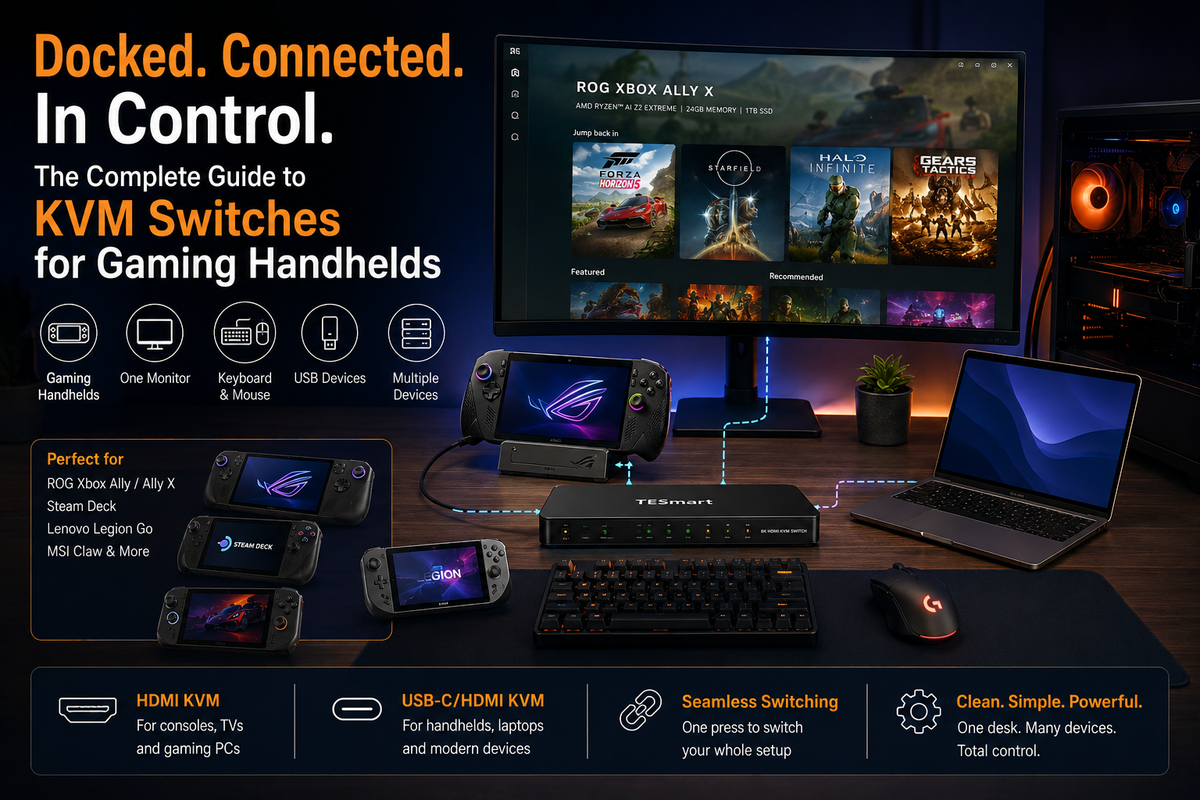
A practical KVM setup starts by deciding which device types need to share the same desktop. The basic structure is simple:
- The gaming handheld connects to a USB-C dock or adapter that provides HDMI or another supported video output.
- The work laptop connects through USB-C, HDMI, or a dock, depending on the KVM and the laptop’s output capability.
- The gaming PC connects directly through its GPU video output and USB connection.
- The monitor or TV connects to the KVM output.
- The keyboard, mouse, and selected USB peripherals connect to the KVM’s console or USB ports.
When switching devices, the KVM changes the active display path and USB control path together. This is the main reason a KVM feels cleaner than a basic video switch in a docked gaming handheld setup.
A common example looks like this:
| Input Device | Connection Path | Shared Through KVM |
|---|---|---|
| ROG Xbox Ally / Steam Deck | USB-C dock to HDMI input on KVM | Monitor or TV, keyboard, mouse, selected USB devices |
| Work Laptop | USB-C, HDMI, or laptop dock to KVM | Same monitor, keyboard, mouse, headset receiver, or webcam where supported |
| Gaming PC | GPU HDMI output plus USB connection to KVM | Same desktop control setup without cable swapping |
The exact wiring depends on your KVM model, dock output, monitor input, and USB needs. The key principle is to keep each device’s video and USB paths matched to the same KVM input group.
When to Choose an HDMI KVM Like HKS201 or HKS202
An HDMI KVM is usually the more natural choice when the display side is a TV, a standard HDMI gaming monitor, or a console-style entertainment setup.
HKS201 is more suitable for users who want a simple two-device, single-monitor HDMI KVM setup. For example, a user may want to switch between a docked Steam Deck and a gaming PC on one monitor, while keeping one keyboard and mouse at the desk.
HKS202 makes more sense when the desk uses two monitors and both source devices can provide the required video outputs. This may fit users who want a dual-screen HDMI workflow between a gaming PC and another HDMI-capable device, or between a work system and a docked handheld setup where the dock and handheld support the intended output layout.
For a living-room or TV-based setup, an HDMI KVM can also be useful when the handheld shares the display with a PC or console-like HDMI source. In that case, the goal is not only to show video, but also to reduce repeated cable swaps for keyboard, mouse, and USB accessories.
Do not assume that every HDMI KVM setup will automatically support every gaming feature. Resolution, refresh rate, HDR, VRR, ALLM, and audio behavior depend on the complete chain: handheld model, dock, KVM specification, HDMI cables, display input, firmware, operating system settings, and game settings.
For users searching for an HDMI KVM for gaming handhelds, the safer approach is to start with the display target. Decide whether your daily priority is 1080p, 1440p, 4K, high refresh rate, HDR, TV gaming mode, or USB device sharing. Then match the KVM and dock to that target.
When to Choose a USB-C/HDMI KVM Like CKS202-P23
A USB-C/HDMI KVM is better suited to mixed desks where a laptop is part of the setup. Many users do not only switch between gaming devices. They switch between work, meetings, browsing, game launchers, file management, and desktop play.
CKS202-P23 is more relevant when the desk includes a USB-C laptop workflow along with HDMI devices. This kind of USB-C HDMI KVM setup can be useful for users who want one desk to support both work and entertainment devices without rebuilding the cable layout every day.
For example, a user may want:
- A USB-C work laptop for office tasks
- A gaming handheld through a USB-C dock with HDMI output
- A shared monitor or dual-monitor desk
- One keyboard and mouse
- A headset receiver, microphone, or other USB accessory where supported
In this kind of setup, the KVM is not replacing the handheld dock. The dock may still be needed to convert the handheld’s USB-C output into HDMI and USB. The KVM then manages switching between the handheld, laptop, and other source devices.
At TESmart, we see docked handheld gaming as part of a larger multi-device desktop workflow. Our USB-C/HDMI KVM solutions are designed for users who switch between work, gaming, and entertainment devices and want the monitor, keyboard, mouse, and selected USB peripherals to follow the active device more predictably.
What to Check Before Buying a KVM for a Gaming Handheld
The most reliable KVM setup starts with the whole signal chain. A KVM cannot create display capabilities that the handheld, dock, cable, or monitor does not support.
1. Does the handheld support video output over USB-C?
Not every USB-C port behaves the same way. Some carry charging and data only. Others support video output. Before building a ROG Xbox Ally docked desktop setup or Steam Deck desktop layout, confirm the handheld’s external display capability and required dock type.
2. What does the dock output?
Check whether the dock provides HDMI, DisplayPort, USB-A, Ethernet, audio, or charging. If the KVM is HDMI-based, the dock must provide a compatible HDMI output. If the KVM is USB-C/HDMI mixed, confirm which device should use which input path.
3. What does the monitor or TV actually support?
A display may support different resolutions and refresh rates on different ports. Some TVs apply game mode, HDR, or low-latency behavior only on specific HDMI inputs or after certain settings are enabled.
4. Are the cables matched to the target resolution and refresh rate?
High refresh rate and HDR setups are more sensitive to cable quality and length. If the display drops to a lower refresh rate or shows a black screen, test with a shorter certified cable and a lower resolution before assuming the KVM is the only cause.
5. Which USB devices need to follow the active system?
Keyboard and mouse sharing is usually the core need. Headsets, webcams, microphones, capture cards, external drives, and wireless receivers may behave differently depending on USB bandwidth, device class, power draw, and KVM USB mode.
6. How will audio be handled?
Audio may come from HDMI, USB headset, 3.5 mm output, Bluetooth, or the display itself. A clean desk plan should define where game audio, voice chat, and meeting audio should go when switching between devices.
7. What display performance do you actually need?
A handheld may be able to connect to a 4K display, but that does not mean every game should run at 4K. For many handheld users, 1080p or 1440p on an external monitor may be more practical than forcing a higher target. Always match expectations to the handheld GPU, dock, KVM, display, and game settings.
Common Setup Paths
The easiest way to decide whether you need a KVM is to identify the number of devices and the amount of sharing you expect.
| Scenario | Likely Better Fit | Reason |
|---|---|---|
| One handheld connected to one monitor | USB-C dock | You mainly need port expansion, not device switching. |
| Handheld plus work laptop sharing one monitor and keyboard/mouse | USB-C/HDMI KVM | You need the display and USB control to move between work and gaming devices. |
| Handheld plus gaming PC plus work laptop | KVM-based desktop switching setup | The value of the KVM increases as more devices share the same desk. |
| Living-room TV plus handheld plus console-like HDMI sources | HDMI KVM or HDMI switching workflow | HDMI is usually the common path for TVs and entertainment devices. |
| Dual-monitor work and gaming desk | Dual-monitor KVM, if both devices can output the required display signals | Each display usually needs a valid video path from each source device. |
If your setup is only a handheld and one screen, start with a dock. If your setup includes a handheld, a work laptop, a gaming PC, and shared peripherals, a KVM becomes much more useful.
Final Thoughts: Docked Handheld Gaming Needs a Cleaner Switching Workflow
Docked handheld gaming is becoming more practical, but the desk experience depends on more than the handheld itself. The real challenge is often the shared environment around it: monitor, TV, keyboard, mouse, headset, microphone, controller receiver, laptop, and gaming PC.
A USB-C dock helps bring a handheld to the desk. A KVM helps that handheld live inside a multi-device setup.
For a simple HDMI monitor or TV setup, TESmart HKS201 and HKS202 are worth considering when the goal is to share display and desktop control across HDMI-based devices. For mixed USB-C laptop and HDMI source workflows, CKS202-P23 is more suitable for users who need a cleaner work-and-gaming switching path.
Before choosing any KVM, confirm your handheld video output, dock specifications, monitor or TV input limits, cable quality, USB device needs, and realistic resolution or refresh rate target.
Build a cleaner docked gaming handheld setup with TESmart
If your desk includes a ROG Xbox Ally, Steam Deck, work laptop, gaming PC, or TV-based gaming setup, explore TESmart HDMI and USB-C/HDMI KVM solutions to share your monitor, keyboard, mouse, and selected USB peripherals with fewer cable swaps.
Consider: HKS201 for single-monitor HDMI switching, HKS202 for dual-monitor HDMI workflows, and CKS202-P23 for mixed USB-C/HDMI work-and-gaming setups.
FAQ
Do I need a KVM for ROG Xbox Ally or Steam Deck?
You may not need a KVM if you only connect one handheld to one monitor. A USB-C dock may be enough. A KVM becomes more useful when the handheld needs to share a monitor, keyboard, mouse, headset receiver, or other USB devices with a laptop or gaming PC.
Can I use one monitor, keyboard, and mouse for a handheld, laptop, and gaming PC?
Yes, that is one of the main reasons to use a KVM. The handheld usually connects through a dock or adapter, while the laptop and gaming PC connect through the KVM’s supported input paths. The monitor, keyboard, mouse, and selected USB devices stay connected to the KVM.
Is a USB-C dock the same as a KVM?
No. A USB-C dock expands one device by adding ports. A KVM allows multiple devices to share the same desktop hardware and switch between them. In many gaming handheld setups, the dock and KVM work together rather than replacing each other.
Can a KVM improve handheld docked play?
A KVM does not increase the handheld’s gaming performance. Its value is workflow improvement. It reduces cable swapping, makes it easier to share a monitor and peripherals, and helps the handheld fit into a desk that already includes a laptop or PC.
What should I check before connecting a gaming handheld to a KVM?
Check the handheld’s USB-C video output capability, dock output specification, KVM input type, monitor or TV resolution and refresh rate support, HDMI cable quality, power delivery needs, USB peripheral behavior, and audio routing. The final experience depends on the entire chain.
Which TESmart KVM should I consider for a docked gaming handheld setup?
For a single HDMI monitor or TV setup, HKS201 may be suitable. For dual-monitor HDMI workflows, HKS202 may make more sense if each source device can provide the required video outputs. For a mixed USB-C laptop and HDMI device setup, CKS202-P23 is more relevant to users who switch between work and gaming devices on the same desk.
Share:
Can a KVM Support 4K 240Hz OLED?
Nintendo Switch 2 Shared Monitor: HDMI Switch or KVM Switch?