

Table of Contents
- Introduction
- Why Switch 2 Makes Shared Monitor Setups More Common
- HDMI Switch vs KVM Switch: The Real Difference
- When an HDMI Switch Is Enough for Nintendo Switch 2
- When a KVM Switch Makes More Sense
- Example Setup: Switch 2, Gaming PC, and Work Laptop on One Desk
- Which Setup Should You Choose?
- Where TESmart HKS401-M23 Fits
- Where TESmart HKS202-M24 Fits for Dual-Monitor Users
- Common Mistakes to Avoid in a Switch 2 KVM Setup
- FAQ
- Conclusion
Introduction
A Nintendo Switch 2 docked setup is no longer just a living-room question. Many players now want to connect Switch 2 to the same monitor they already use for a Windows gaming PC, work laptop, or office desktop.
That creates a practical choice: should you use an HDMI switch, or do you need a KVM switch?
The answer depends on what you want to share. If you only need to send either the Switch 2 or a PC to one display, an HDMI switch may be enough. If you want a cleaner desk where multiple devices share the same monitor, keyboard, mouse, USB receiver, headset receiver, webcam, or other USB peripherals, a KVM switch is usually the better fit.
This guide explains the difference between an HDMI switch and a KVM switch in a real Switch 2 shared monitor setup. It also shows where TESmart HDMI 2.1 KVM switch options such as HKS401-M23 and HKS202-M24 make sense.
Why Switch 2 Makes Shared Monitor Setups More Common
Switch 2 docked mode makes desktop monitor use more attractive because many gaming monitors already offer sharper panels, lower input lag, and better desk placement than a shared TV. For players who also use a gaming PC, the monitor is often the best screen in the house.
The problem is that the monitor may already be occupied by a PC, laptop, or work computer. Unplugging HDMI cables whenever you move from PC gaming to Switch 2 becomes annoying, especially if the monitor is wall-mounted or the ports are hard to reach.
This is where the phrase Nintendo Switch 2 with PC monitor becomes more than a search term. The real question is how much of the desk you want to share:
Do you only want to switch the video signal?
Or do you want the monitor, USB devices, keyboard, mouse, and audio-related accessories to follow the selected device?
That difference is what separates an HDMI switch from a KVM switch.

HDMI Switch vs KVM Switch: The Real Difference
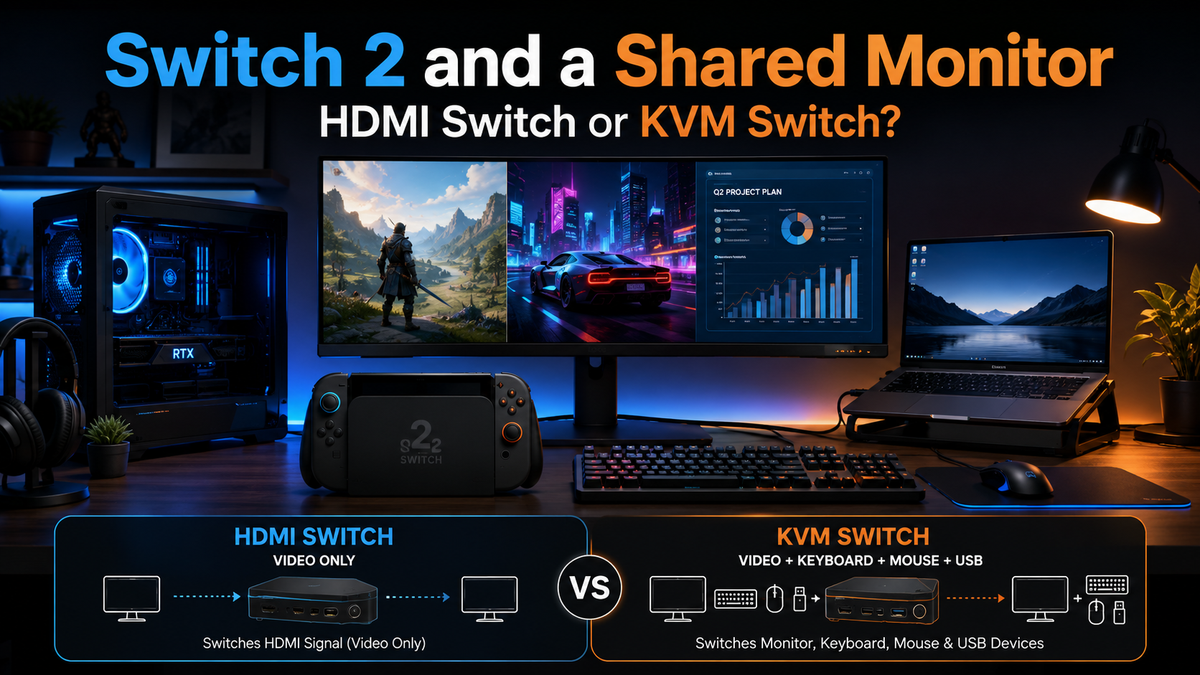
An HDMI switch is a video input selector. It takes multiple HDMI sources and sends one selected source to one display. A KVM switch handles video plus control and USB device sharing. KVM stands for keyboard, video, and mouse, but modern KVM setups often include USB hubs, remote switching, EDID management, and audio-related device routing.
For a player trying to share monitor between Switch 2 and PC, both devices can be useful. The better choice depends on whether the monitor is the only shared device.
| Feature | HDMI Switch | KVM Switch |
|---|---|---|
| Main purpose | Switches HDMI video sources to one display | Switches display, keyboard, mouse, and selected USB peripherals between devices |
| Best for | Console + PC sharing one monitor when only video switching is needed | Mixed gaming and work desks with multiple computers and shared USB devices |
| Keyboard and mouse sharing | No | Yes, for computers that support keyboard and mouse input |
| Switch 2 game control | No | Not the main purpose; Switch 2 games should still be controlled with Joy-Con, Pro Controller, or compatible controllers |
| USB peripheral sharing | No | Yes, depending on the KVM, connected device, and peripheral compatibility |
| Desk cable management | Improves video cable routing | Reduces video and USB cable swaps across multiple devices |
| EDID stability | Depends on model | Often a key feature in better KVM designs to help maintain display detection during switching |
| Typical limitation | Does not manage USB control or peripherals | Requires the right video inputs, USB connections, cables, and realistic device compatibility expectations |
When an HDMI Switch Is Enough for Nintendo Switch 2
An HDMI switch is enough when your setup is simple: Nintendo Switch 2 and one gaming PC connect to the same monitor, and you only need to choose which video signal appears on screen.
This works well if your keyboard and mouse stay connected to the PC, while Switch 2 is played with Joy-Con 2, a Pro Controller, or another compatible controller. In that case, there is no need to route keyboard and mouse through a KVM.
An HDMI switch also makes sense when the monitor has limited HDMI inputs. For example, if your monitor has one HDMI port and one DisplayPort port, you may prefer to connect your PC over DisplayPort and connect Switch 2 through an HDMI switch with other HDMI devices.
The main limitation is that an HDMI switch does not solve USB sharing. If you also want to move a USB headset receiver, webcam, keyboard, mouse, or wireless dongle between a PC and a work laptop, an HDMI switch does not handle that part of the workflow.
When a KVM Switch Makes More Sense
A KVM switch makes more sense when the shared monitor is part of a larger desk setup. Many users do not just have Switch 2 and one PC. They may also have a work laptop, office PC, capture setup, USB headset receiver, keyboard, mouse, webcam, or USB storage device.
In this case, the value of a Nintendo Switch 2 KVM switch is not that it turns Switch 2 into a keyboard-and-mouse gaming system. It does not. The value is that the KVM becomes the desk hub for switching display and USB focus between supported devices.
For computers, that means one keyboard and mouse can follow the selected PC. For Switch 2, the KVM can help keep the display path organized and may share compatible USB devices where supported, but gameplay control should still be based on Nintendo’s controller ecosystem.

A KVM is especially useful when you want:
- One monitor shared by Switch 2, gaming PC, work PC, and laptop
- One keyboard and mouse for the computers on the desk
- USB receiver or headset receiver switching without repeated unplugging
- Button or remote switching instead of reaching behind the monitor
- EDID handling to help reduce display re-detection issues during switching
- A cleaner cable path for a hybrid gaming and work desktop
Example Setup: Switch 2, Gaming PC, and Work Laptop on One Desk
A typical desk might include:
- Nintendo Switch 2 in docked mode
- A Windows gaming PC
- A work laptop or office desktop
- One high-refresh HDMI monitor
- One keyboard and mouse
- A USB headset receiver or webcam
With an HDMI switch, only the video source changes. Your monitor can show Switch 2 or the PC, but your keyboard, mouse, and USB accessories remain connected elsewhere.
With a KVM switch, the selected computer can receive the shared keyboard, mouse, and USB devices. The monitor also follows the selected input. For a user who switches between a work laptop during the day, a gaming PC in the evening, and Switch 2 after work, this reduces cable swaps and keeps the desk easier to manage.
The key is to design the setup around realistic device behavior. Switch 2 should be treated primarily as an HDMI source with its own controllers. PCs and laptops are the devices that benefit most from keyboard, mouse, and USB peripheral sharing.
Which Setup Should You Choose?
| Setup | Better choice | Why |
|---|---|---|
| Switch 2 + one gaming PC + one monitor | HDMI switch may be enough | You only need to switch the video signal, while each device keeps its own controls. |
| Switch 2 + gaming PC + work laptop + one monitor | Single-monitor KVM switch | The desk benefits from shared display switching plus keyboard, mouse, and USB device sharing for the computers. |
| Gaming PC + work PC as the main workflow, with Switch 2 added to the desk | KVM switch | The KVM keeps the work and gaming computers usable with one set of peripherals, while Switch 2 stays available as an HDMI source. |
| Dual-monitor PC workflow + occasional console use | Dual-monitor KVM switch | The PC workflow needs two displays, but the setup can still include a console or other HDMI source carefully without assuming Switch 2 dual-screen output. |
| Console-only setup with multiple HDMI devices | HDMI switch | If there are no computers or shared USB peripherals, KVM functions may not add much value. |
Where TESmart HKS401-M23 Fits
HKS401-M23 is more suitable for a single-monitor desk with several HDMI sources. Think of a setup with Switch 2, a gaming PC, a work desktop, and a laptop all competing for one high-spec monitor.
We designed HKS401-M23 for multi-device HDMI desk setups where users want more than video input selection. It supports a 4-in/1-out HDMI 2.1 structure, which makes it a practical fit when several devices need access to one monitor.
For a Switch 2 shared monitor setup, HKS401-M23 is useful when:
- You want one monitor for Switch 2, gaming PC, work PC, and another HDMI source
- Your PC and work computer should share the same keyboard and mouse
- You want to reduce repeated HDMI and USB cable swaps
- You prefer front-panel, hotkey, or remote-style switching instead of changing monitor inputs manually
- You care about EDID handling for a more stable PC display experience during switching
The important boundary is that HKS401-M23 should not be described as a way to control Switch 2 games with a keyboard and mouse. Its value in this context is display sharing, desk organization, USB peripheral routing where supported, and easier switching between a console and computers.
Where TESmart HKS202-M24 Fits for Dual-Monitor Users
HKS202-M24 is more suitable when your main workflow is built around two monitors and two computers. For example, a user may have a gaming PC and a work PC that both need dual-screen access during the day, while also wanting to keep a game console available on the same desk.
This is different from saying Switch 2 supports dual-screen output. It does not need to. The dual-monitor value of HKS202-M24 is mainly for PC workflows where each computer provides the required video outputs for two displays.
HKS202-M24 makes sense when:
- Your gaming PC and work PC both use two monitors
- You want the keyboard, mouse, and USB peripherals to follow the selected computer
- Your desk is built around HDMI 2.1 display connections
- You want EDID support to help reduce window movement and display re-detection issues between PCs
- You also want to keep a console or other HDMI source in the broader desk plan without rebuilding the entire setup
For users who mostly need a HDMI 2.1 KVM switch for two computers and two monitors, HKS202-M24 is the more relevant product. For users whose main need is one monitor shared by several HDMI devices, HKS401-M23 is usually the clearer match.
Common Mistakes to Avoid in a Switch 2 KVM Setup
Mistake 1: Assuming a KVM Makes Keyboard and Mouse Control Switch 2 Games
A KVM switch can share keyboard and mouse control with computers. It should not be treated as a device that turns Switch 2 games into native keyboard-and-mouse games. Switch 2 gameplay should still be planned around Joy-Con 2, Pro Controller, or compatible controllers.
Mistake 2: Assuming Every Display Feature Will Pass Through Automatically
Display behavior depends on the full chain: console, dock, cable, KVM or HDMI switch, monitor, and game support. Do not buy any switch expecting unverified 4K120, VRR, HDR, or special console behavior unless the exact chain has been confirmed.
Mistake 3: Treating Switch 2 Like a Dual-Monitor PC
A dual-monitor KVM is for computers that output two display signals. It should not be used to imply that Switch 2 provides a dual-monitor desktop experience. If Switch 2 is part of a dual-monitor desk, treat it as a single HDMI source within that setup.
Mistake 4: Ignoring Cable Quality and Input Types
High-resolution and high-refresh setups are sensitive to cable quality and port compatibility. Use HDMI cables that match the target resolution and refresh rate, avoid unnecessary adapter chains, and test each device directly with the monitor before adding a switch.
Mistake 5: Expecting Every USB Accessory to Work the Same Way on Every Device
USB sharing is useful, but support depends on the device and accessory. A keyboard, mouse, webcam, headset receiver, or controller receiver may behave differently on a PC, laptop, or console. For Switch 2, check whether the accessory is supported by the console and the game before assuming it will work through a KVM.
FAQ
Can I use a KVM switch with Nintendo Switch 2?
Yes, you can use a KVM switch as part of a Nintendo Switch 2 shared monitor setup, especially when Switch 2 shares a desk with one or more computers. In this setup, Switch 2 should mainly be treated as an HDMI video source, while the KVM’s keyboard, mouse, and USB sharing functions are most useful for PCs and laptops.
Do I need a KVM switch or HDMI switch for Switch 2?
If you only want Switch 2 and a PC to use the same monitor, an HDMI switch may be enough. If you also want computers to share a keyboard, mouse, USB receiver, webcam, or other USB devices, a KVM switch is the better choice.
Can a keyboard and mouse control Nintendo Switch 2 through a KVM?
You should not assume that a KVM switch allows keyboard and mouse control for Switch 2 games. The main control methods for Switch 2 remain Joy-Con 2, Pro Controller, and compatible controllers. A KVM is mainly useful here for monitor switching, USB organization, and PC peripheral sharing.
Can Nintendo Switch 2 share a monitor with a gaming PC?
Yes. A Switch 2 docked setup can share a monitor with a gaming PC through an HDMI switch or a KVM switch. Choose an HDMI switch if you only need video switching. Choose a KVM switch if the gaming PC and other computers also need shared keyboard, mouse, and USB peripherals.
Is HKS401-M23 better for single-monitor Switch 2 setups?
HKS401-M23 is a strong fit for single-monitor, multi-HDMI-device desks. It is more relevant when Switch 2, a gaming PC, a work PC, and another HDMI source all need access to one monitor, while the computers also benefit from shared USB peripherals.
Should dual-monitor users choose HKS202-M24?
HKS202-M24 is better suited for users whose main workflow involves two computers and two monitors. It can fit a gaming and work PC desk where dual displays matter, while a console can still be considered as part of the broader HDMI setup. It should not be described as giving Switch 2 dual-screen output.
Conclusion
The choice between an HDMI switch and a KVM switch comes down to what you want to share.
If your goal is only to show Nintendo Switch 2 and a gaming PC on the same monitor, an HDMI switch may be enough. It is simple, focused, and appropriate for video-only switching.
If your desk includes Switch 2, a gaming PC, a work laptop, and shared USB peripherals, a KVM switch becomes more useful. It reduces cable swapping, keeps the monitor path organized, and lets supported computers share the same keyboard, mouse, and USB devices.
For single-monitor HDMI desks with several devices, our HKS401-M23 is the more natural fit. For dual-monitor PC workflows where two computers need shared displays and peripherals, our HKS202-M24 makes more sense.
Explore TESmart KVM options for mixed gaming and work desks: HKS401-M23 for single-monitor multi-device HDMI setups and HKS202-M24 for dual-monitor HDMI 2.1 PC workflows.
Share:
OG Xbox Ally, Steam Deck, and Gaming Handhelds: Docked KVM Setup Guide
49-Inch Super Ultrawide vs Dual Monitors: Which KVM Setup Works Better?