

A practical guide to the TESmart CKS203-PM24 USB-C KVM
Introduction
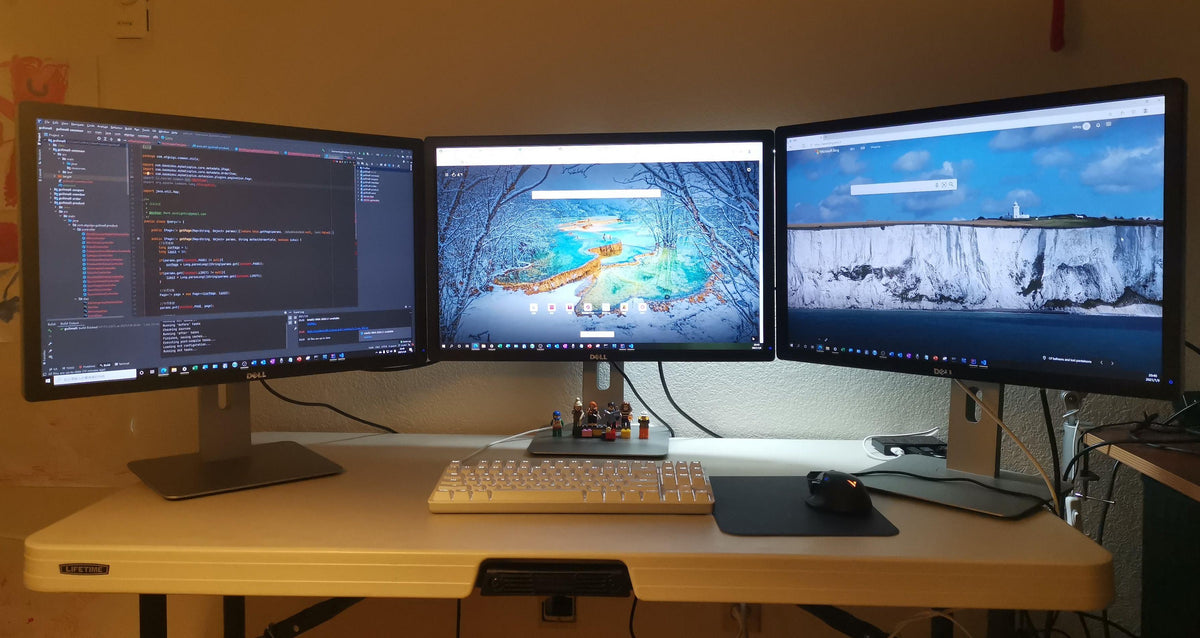
Your work laptop and personal laptop should not need separate desktop setups. You want room for an editor, documentation, and a call, then the option to use that same three-monitor workspace with the other machine. Ideally, your keyboard, mouse, and USB peripherals stay where they are.
For that setup, we recommend the TESmart CKS203-PM24: a two-computer, three-monitor KVM that combines DisplayLink expansion with USB-C host connections. It supports three independent 3840 × 2160 displays at 60Hz, with each monitor assignable to either computer. Both laptops remain connected, so changing machines does not require swapping the host cable.
Here is how the CKS203-PM24 gives both laptops access to three independent displays, keeps your peripherals connected, and simplifies charging and wired networking—with the setup requirements and limitations explained along the way.

Get three independent displays from a compatible laptop
What DisplayLink solves
A laptop’s native external-display limit depends on its chip, GPU, operating system, and connection method. If it supports only one or two external displays, you may not be able to use a third monitor as an independent desktop through native video output alone.
DisplayLink adds another display path over USB. With the CKS203-PM24, a compatible laptop can use three external 4K60 monitors even when its native external-display count is lower. That gives your editor, reference material, and meeting window their own space instead of forcing you to keep switching between them.
The host driver processes and compresses desktop image data, sends it over USB, and the DisplayLink hardware in the KVM decodes it into video for the monitors. This expands your workspace; it does not increase the GPU’s native display-output capability. Supported display counts and resolutions still depend on the computer, software, and device.
Setup is a driver install and a display setting
You do not need to modify your laptop or configure that video-processing pipeline yourself. On a compatible system, download and install the appropriate DisplayLink driver, connect the hardware, and select extended display mode in your operating system. Mac users should follow the prompts to grant Screen Recording permission.
The result is three separate desktops, not three copies of the same image. The CKS203-PM24 provides three HDMI outputs supporting 3840 × 2160 at 60Hz simultaneously, subject to the host, driver, display, and cable requirements.
Give one laptop all three screens or split them between two
When you need your full workspace, assign all three displays to PC1. When you move to your other laptop, assign them to PC2. You can also keep both computers visible: the front-panel A, B, and C buttons let you select the source for each display independently.
For example, assign A and B to your work laptop and C to your personal laptop. You can keep work across two screens while checking content from the other machine on the third. To return to a single-computer workspace, assign A, B, and C to the same host.
Connections at a glance

Each laptop connects to its own host input with one USB-C cable. The three monitors connect to the KVM’s HDMI outputs, while the keyboard, mouse, and other peripherals connect to the KVM. Install the appropriate DisplayLink driver on both hosts, then set extended mode and arrange the displays to match their physical positions.
The two USB-C host cables and power adapter are included. Supply three HDMI cables for the monitors. On macOS, follow any prompts for Screen Recording permission.
Keep the rest of your desk connected too
Sharing the screens only solves part of the problem. If the keyboard, storage, power, and network connections still live on individual laptops, changing machines can still mean rearranging cables. The CKS203-PM24 brings those connections together so the rest of the desk can stay in place.
Use the keyboard and mouse you already like
Keep one familiar keyboard and mouse on the desk instead of two sets, or reconnecting them every time you change computers. Two dedicated rear USB-A ports handle the keyboard and mouse, leaving four shared USB 3.2 Gen 1 ports for devices such as flash drives and external storage.
Those four shared ports have a rated data rate of 5Gbps; actual transfer speeds depend on the device and connection. The front USB-A and USB-C ports put frequently used connections within reach, so plugging in a flash drive does not mean reaching behind the unit. Each front port also supports 7.5W charging for compatible devices, such as a phone.
Use the host cable for charging as well
Each USB-C host input supports up to 65W charging, and both laptops can remain powered at the same time. For laptops that accept compatible USB-C charging and operate within that power budget, the host cable carries display data, peripheral data, and power. That can remove a separate charging cable from each laptop and leave you with fewer cables to unplug when taking one away.
If your laptop needs more than 65W for your workload, keep its original power adapter connected.
Add wired networking without a separate USB Ethernet adapter
A laptop without an RJ45 port can access wired networking through its USB-C host connection to the KVM. Connect your Ethernet cable to the KVM’s Gigabit Ethernet port to add an alternative to Wi-Fi for calls, company-network access, and file transfers, without fitting a separate USB Ethernet adapter to each laptop.
The network port supports a link rate of up to 1Gbps; actual throughput depends on your network. Both connected computers can stay online simultaneously and continuously. Network-port and microphone sharing can be switched independently or set to follow keyboard-and-mouse control.
Check compatibility and the tradeoffs before you buy
USB data support and driver permissions
Both host connections must support USB data. A charging-only port or cable cannot carry DisplayLink display data. Use the included host cables and check compatibility for your exact laptop models rather than relying on the USB-C connector shape.
Windows and macOS need the appropriate DisplayLink software. On a managed work laptop, confirm that your IT policy allows the driver installation and required permissions. For Linux or a custom system, check the specific distribution, hardware architecture, and driver version.
Workload and protected content
DisplayLink uses host resources to process the desktop and can add latency. It is a good fit for documents, spreadsheets, browsers, and office multitasking. For competitive gaming, extremely latency-sensitive applications, or professional color grading, we recommend a native video-output setup. Actual three-screen performance also depends on your computer, OS, drivers, monitors, and cables.
On macOS, some HDCP-protected content from services such as Netflix, Prime Video, or Disney+ may not display correctly over DisplayLink, including possible black screens. Factor this in if protected streaming content is a major part of your use.
The CKS203-PM24 does not include an EDID emulator. The system re-detects the displays after switching or a sleep/wake cycle, and window placement and recovery time depend on the OS, drivers, and device behavior. If preserving a particular window layout is critical, test that workflow with your own computers.
We recommend the CKS203-PM24 for compatible two-laptop setups built around three-screen office work and shared peripherals. Both hosts can stay connected to one desktop setup, with flexible screen assignments, shared USB devices, charging, and wired networking.
FAQ
Can one laptop use all three monitors at 4K60
Yes. The CKS203-PM24 supports three simultaneous 3840 × 2160 outputs at 60Hz through DisplayLink. Install the correct driver and make sure the laptop, system, performance, and connection requirements are met.
What if my laptop cannot natively output to three 4K60 displays
That is one of the use cases for DisplayLink. It provides an additional software-assisted USB display path rather than three native GPU outputs. Your laptop still needs a supported USB data connection and a compatible DisplayLink driver that it can install and run.
Can I use the CKS203-PM24 with just one laptop
Yes. You can use it with one laptop, but if you only need display expansion, a suitable dock may be simpler. The KVM’s main advantage is switching between two hosts while sharing the monitors and peripherals.
Can both computers stay online and share a microphone
The 1Gbps RJ45 port lets both computers remain online simultaneously and continuously. The front 3.5mm AUDIO+MIC connection supports audio input and output for compatible audio devices. Network-port and microphone sharing can switch independently or follow keyboard-and-mouse control.
Will switching preserve my window layout
The CKS203-PM24 does not include an EDID emulator. Switching or waking from sleep causes the system to re-detect the monitors. Window positions and recovery time depend on the OS, drivers, and device behavior, so test your own workflow if layout persistence is important.
Share:
The Dual-Computer Dilemma: Why System Integration Defines the Future of Productivity
Two Laptops and Three 4K Monitors: KVM vs Dock