



Display Setup
Max Display Output

Multi-Monitor

Laptop Charging
Single-cable connection

Network Sharing

Display Management
2×3 DisplayLink® KVM for Dual Laptops | Triple 4K60, Dual 65W PD
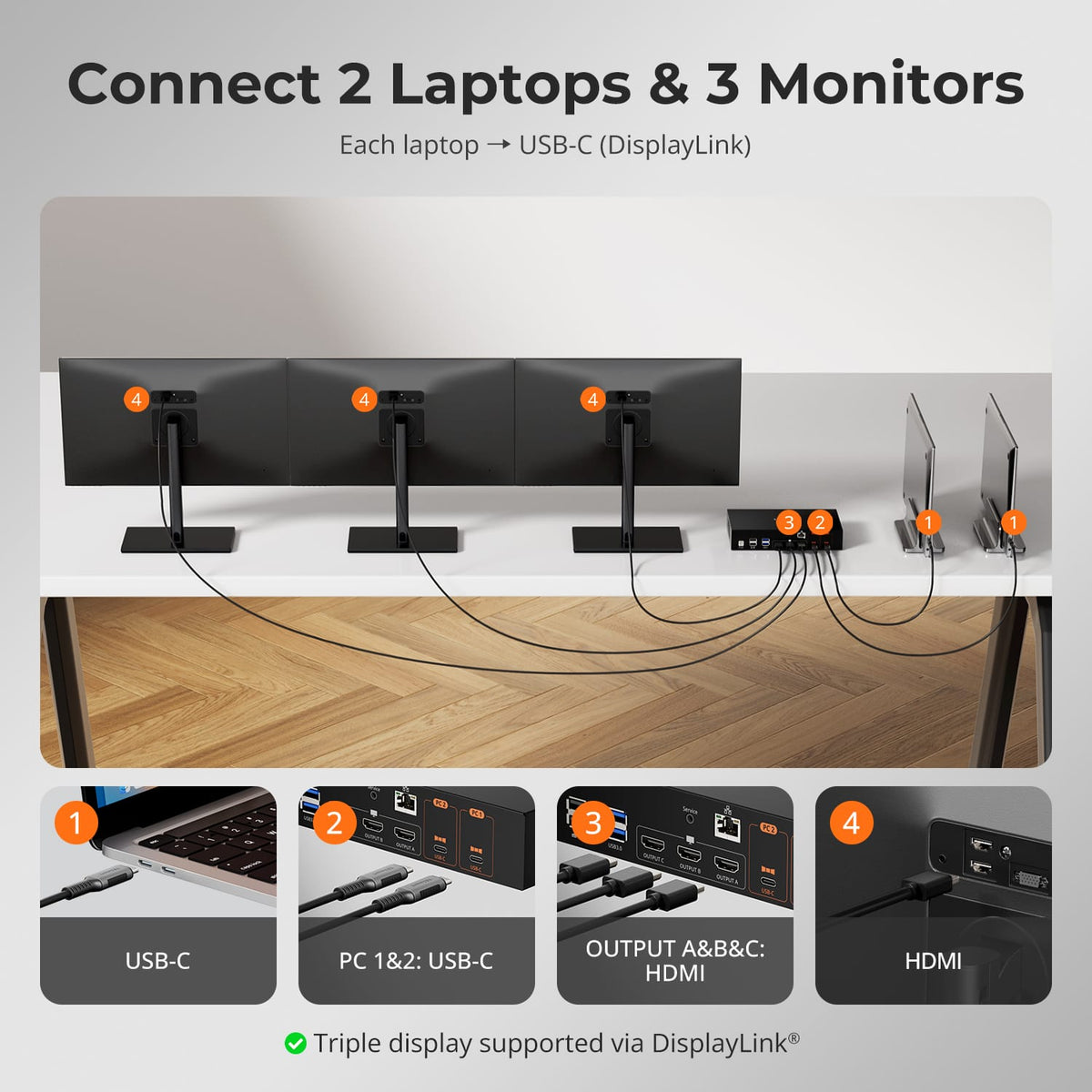
Connect two USB-C laptops to three shared HDMI monitors, plus a keyboard, mouse, USB devices, and a wired network. DisplayLink enables a flexible triple-screen workspace on compatible systems without relying on MST; driver installation is required.
Display Setup
Max Display Output
Multi-Monitor
Laptop Charging
Single-cable connection
Network Sharing
Display Management
2×3 DisplayLink® KVM for Dual Laptops | Triple 4K60, Dual 65W PD
Why Choose CKS203-PM24
Overview
01
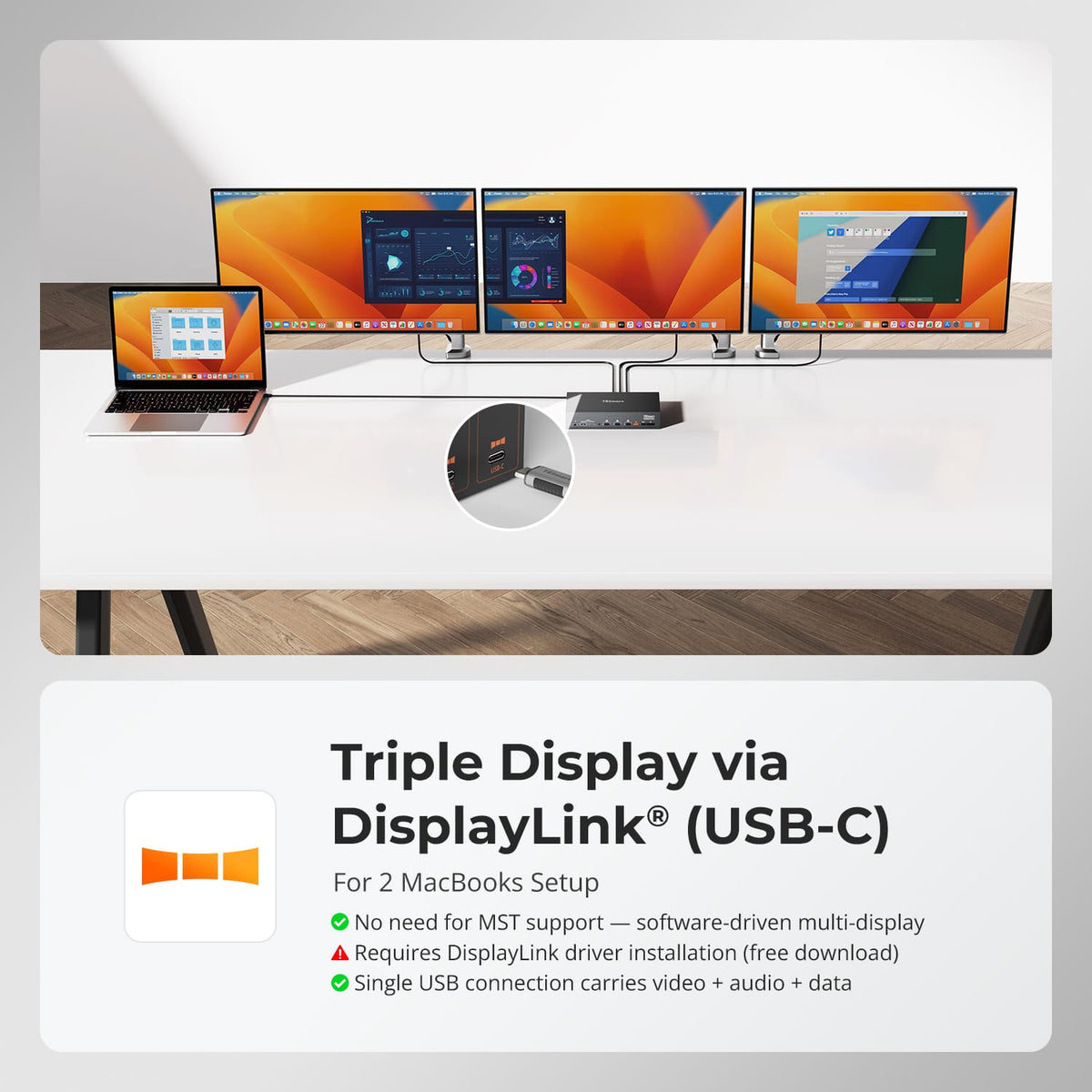
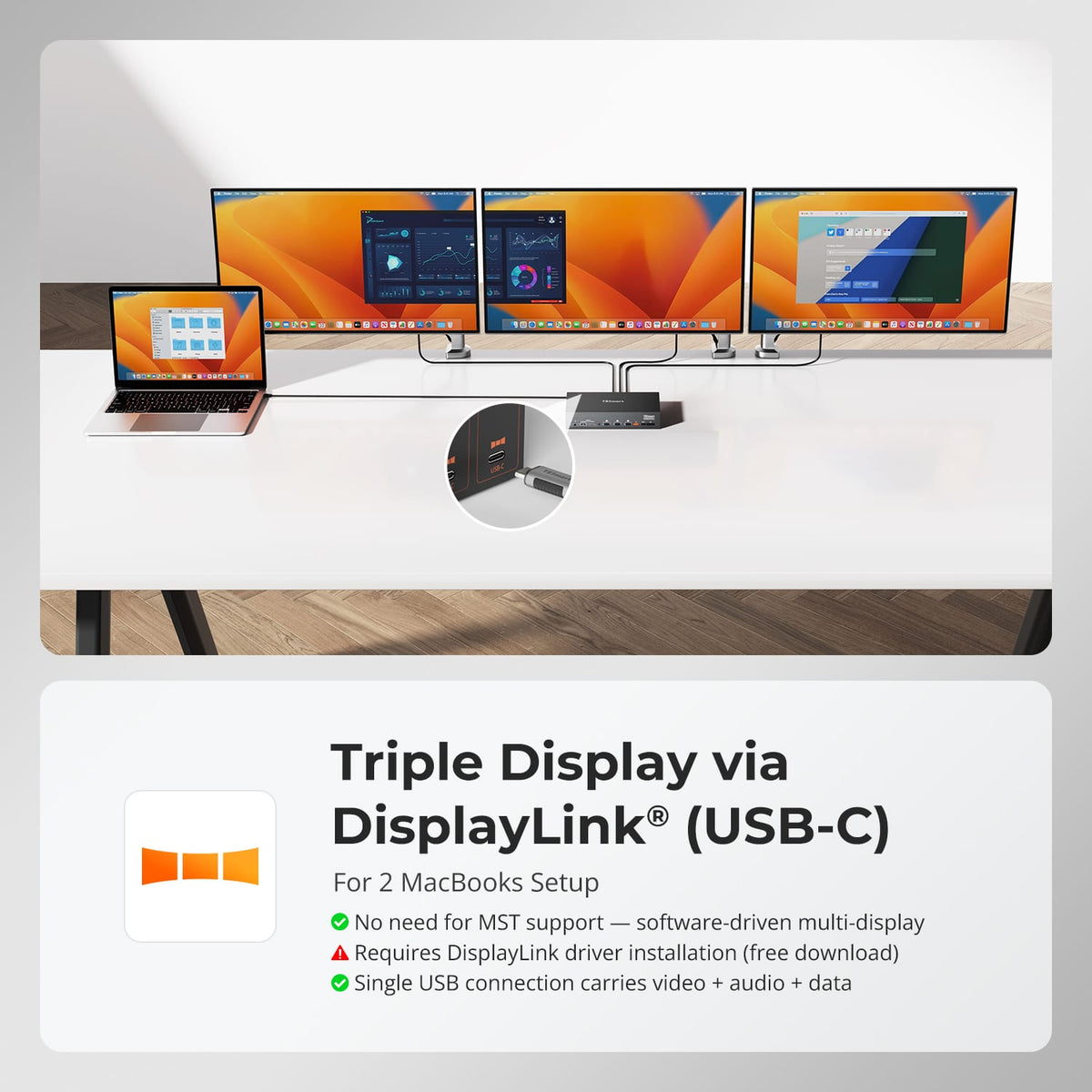
Three Screens. Two Laptops. One USB-C Cable Each.
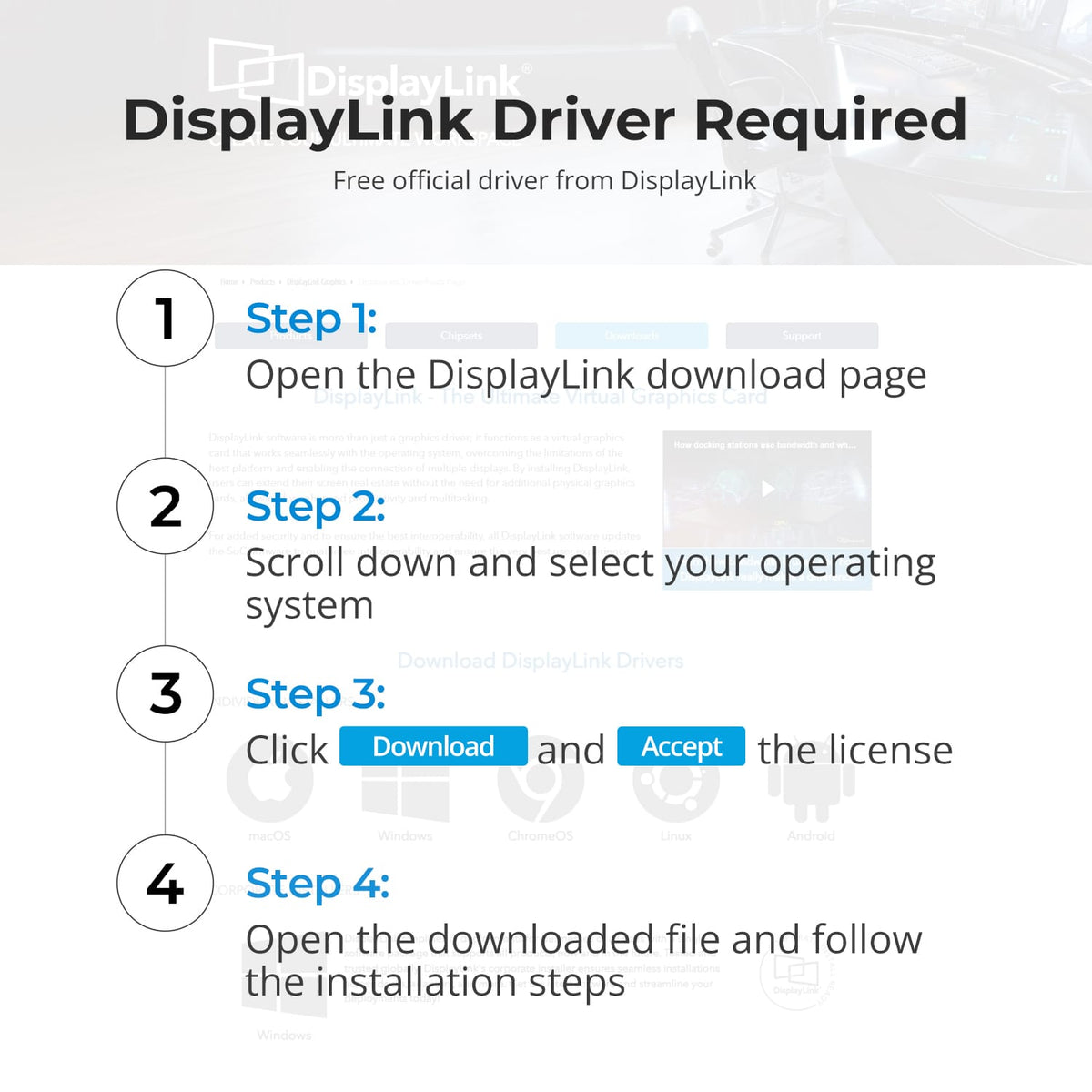
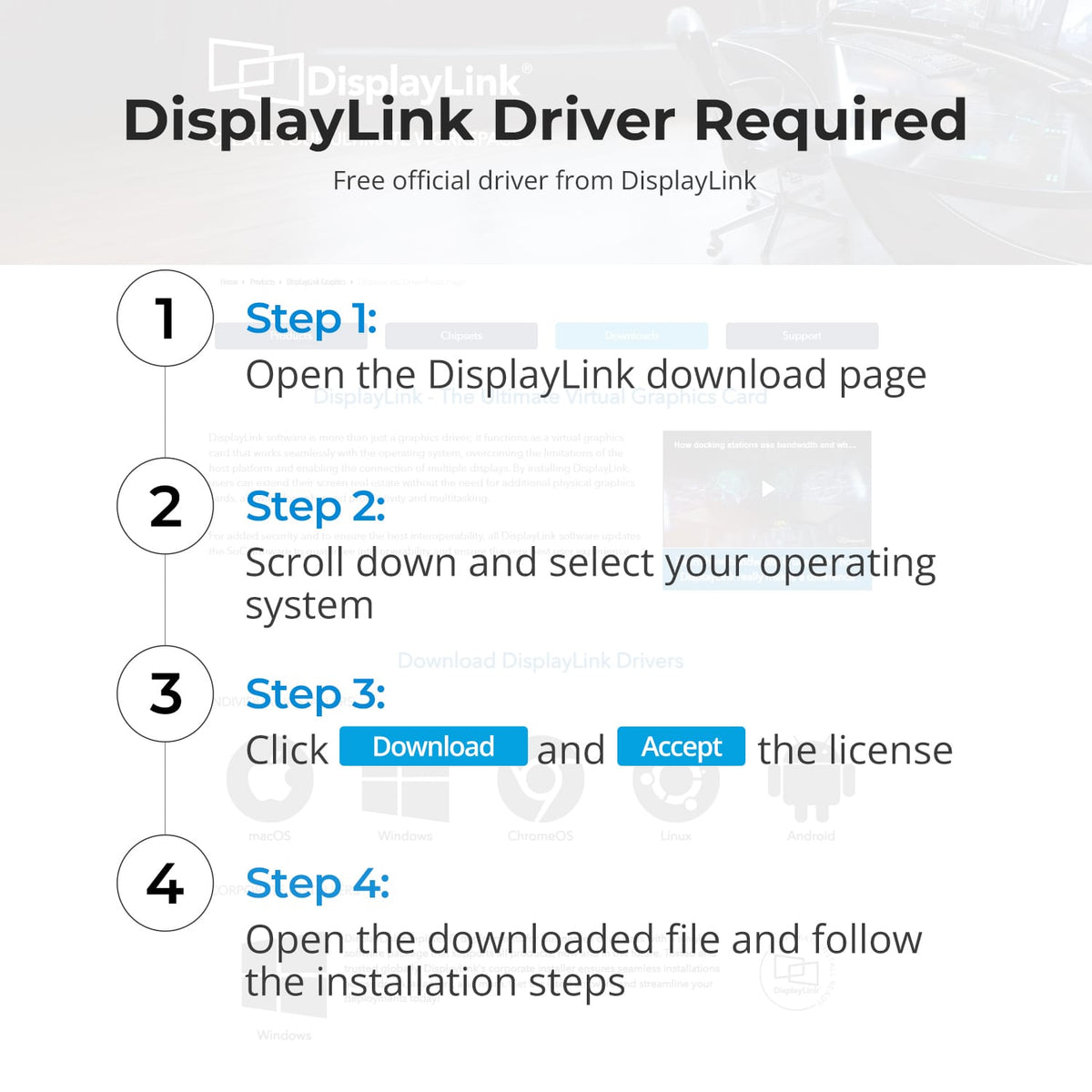
Build a three-monitor workspace that either connected laptop can use. DisplayLink technology enables multi-screen extension on compatible Macs and PCs without relying on MST. Connect each laptop through a full-featured USB-C port and install the free DisplayLink driver on both computers before using the triple-display workflow.
02
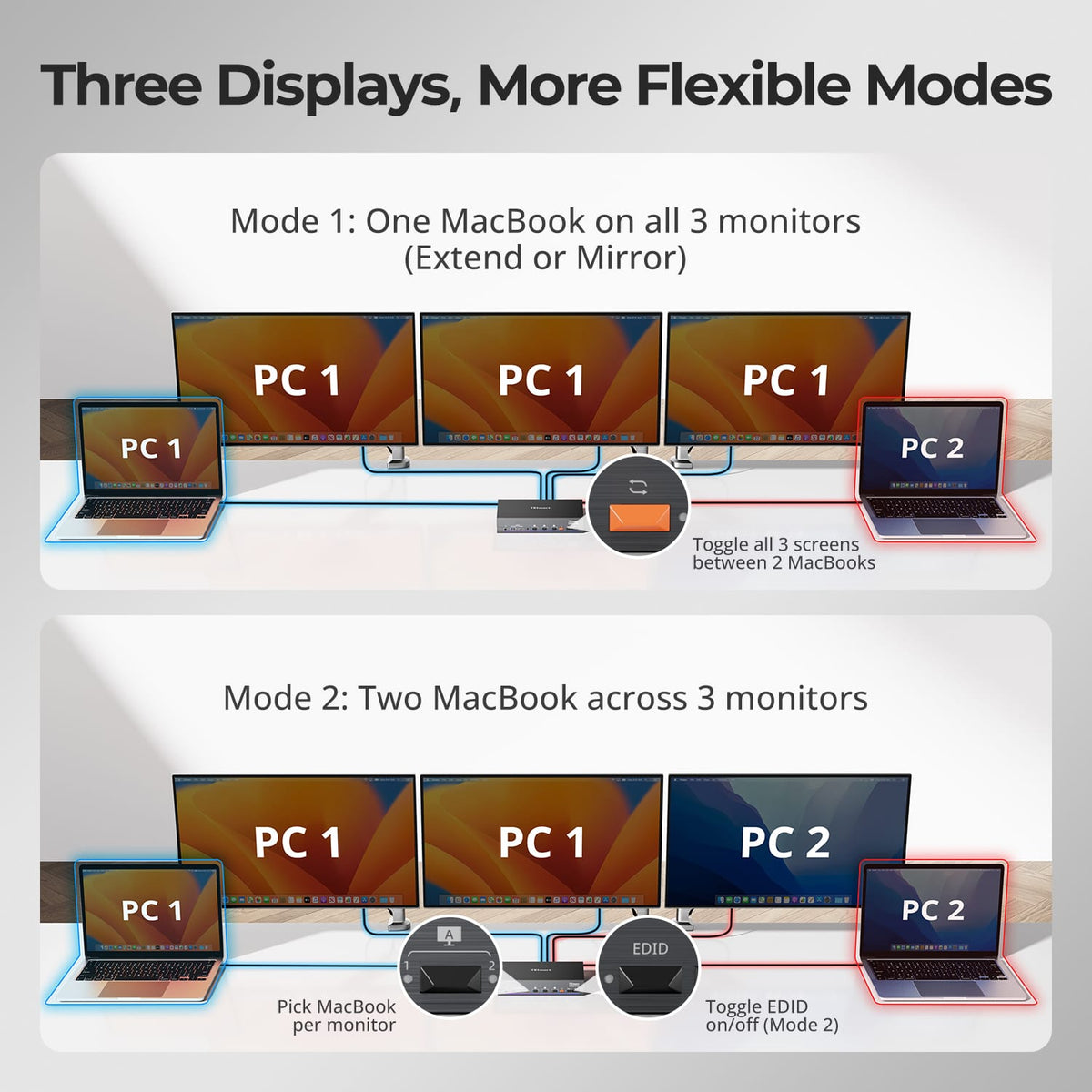
Assign Each Screen to the Laptop You Need
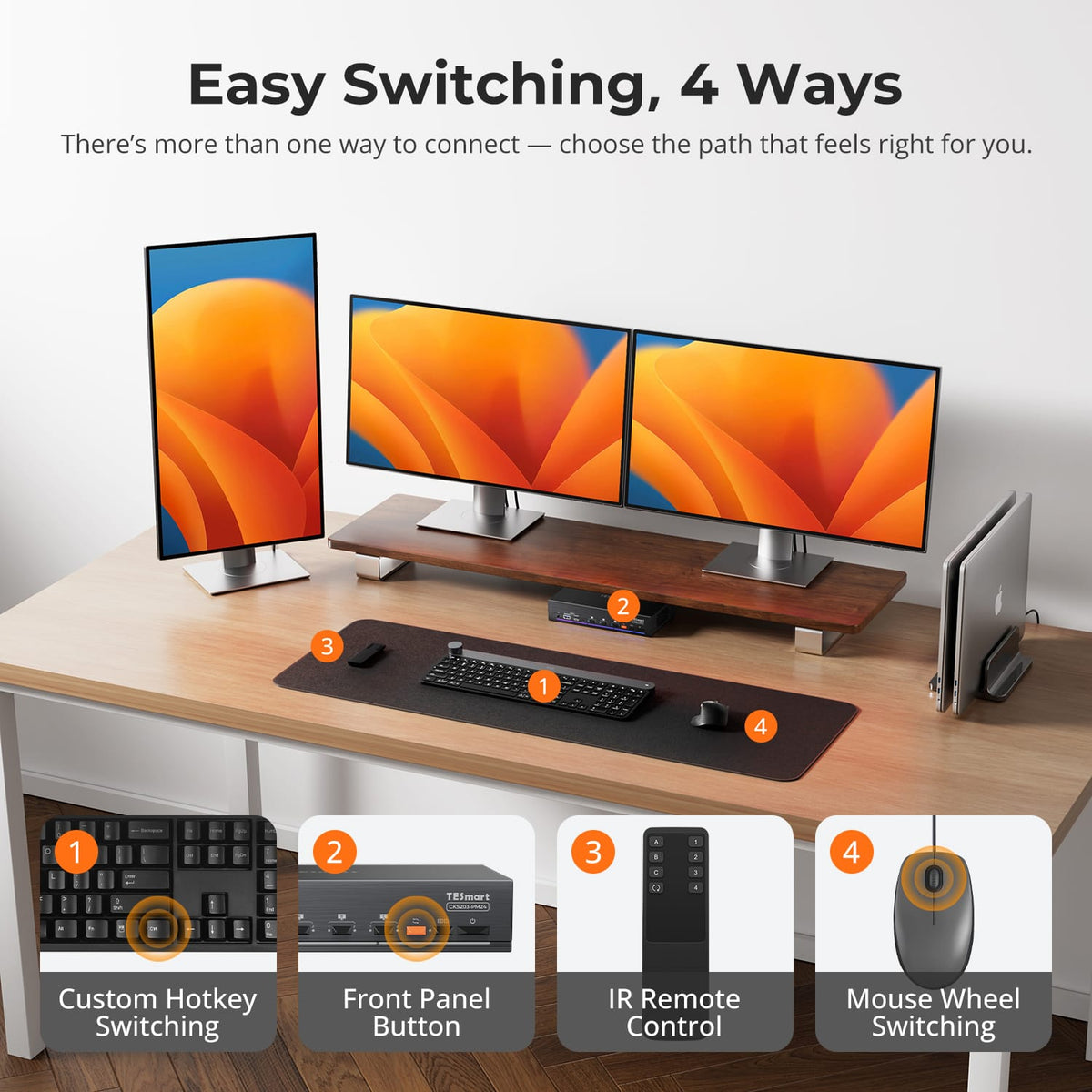
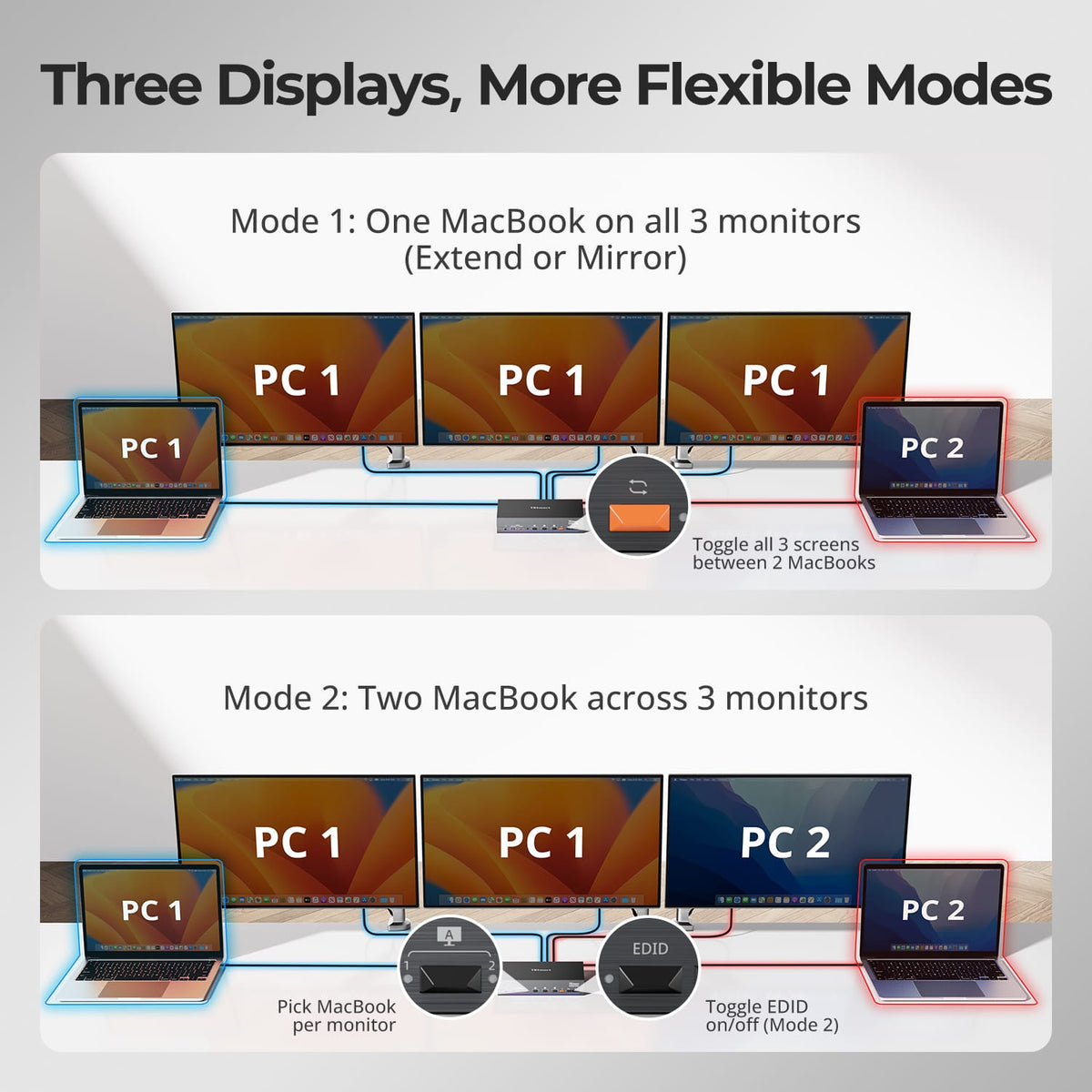
Use all three monitors with one laptop or assign individual monitors to different laptops. Switch Monitor A, B, or C separately when you need to view work from both systems side by side, or switch all three together to move your entire workspace. Keyboard and mouse control can be changed independently in a mixed-source setup.
03
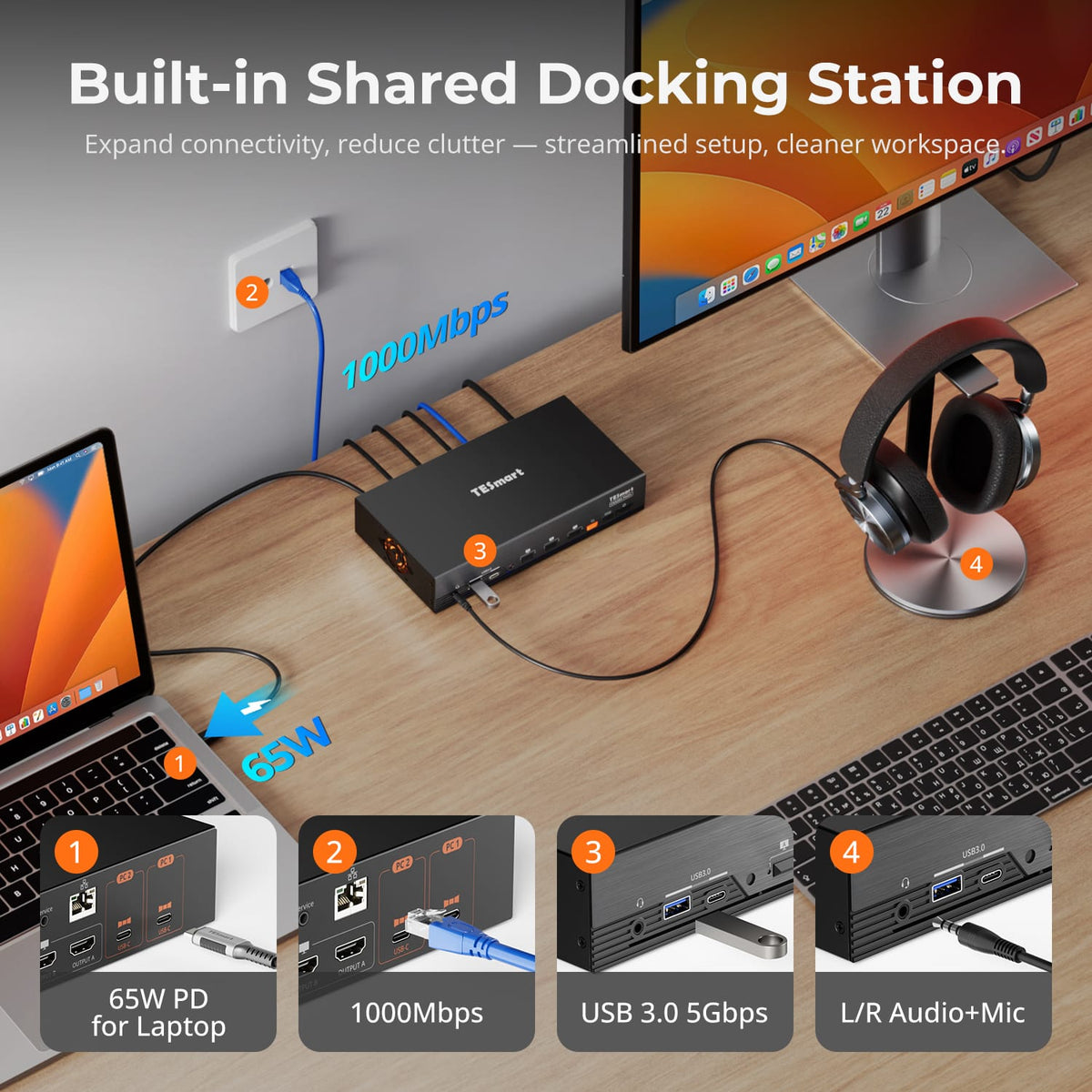
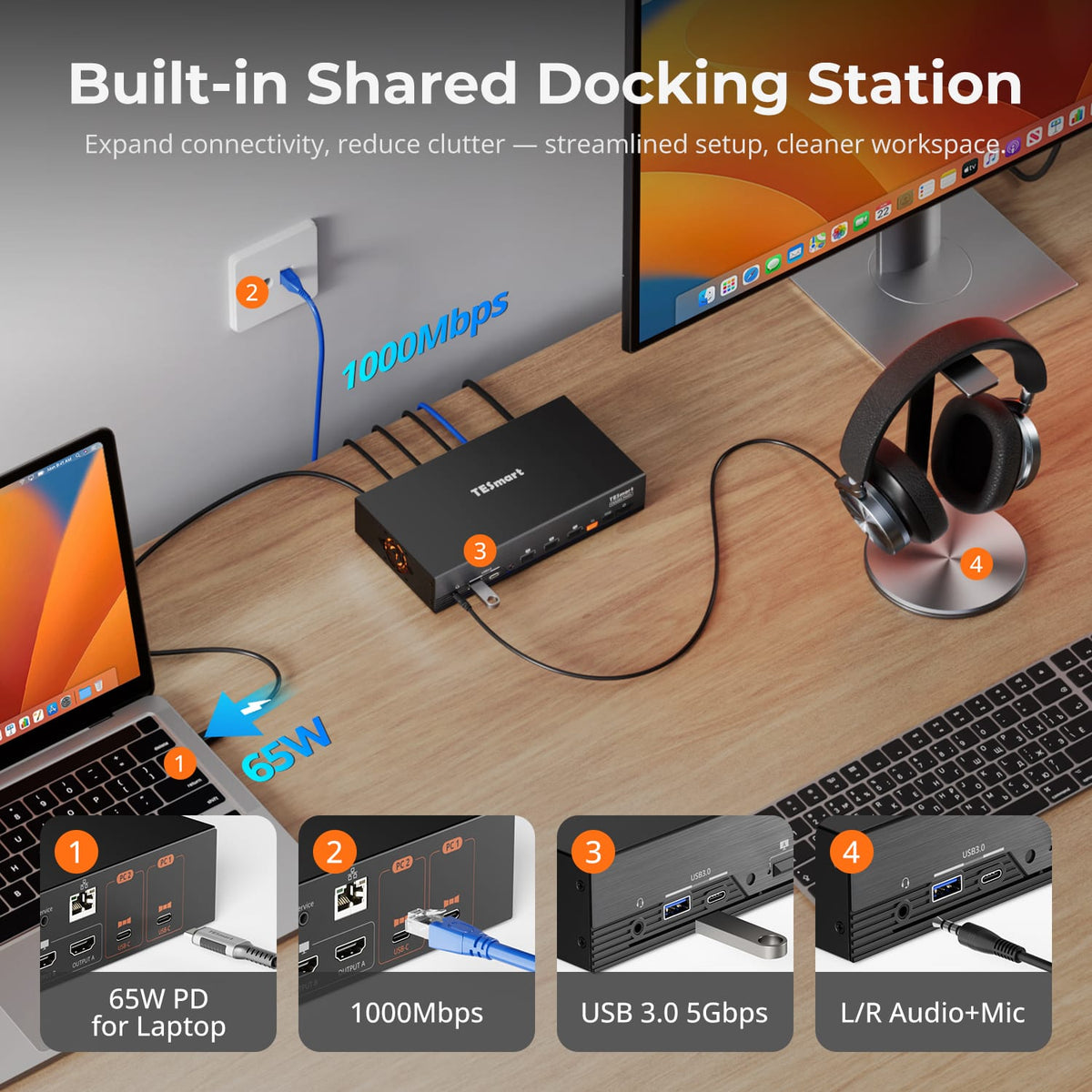
One Shared Dock for Both Laptops
Keep monitors, USB peripherals, audio and a Gigabit Ethernet connection at one workstation instead of reconnecting devices whenever you change laptops. Each USB-C computer input supports up to 65W Power Delivery for a compatible laptop. Shared USB 3.2 Gen 1 ports provide data transfer at up to 5Gbps.

04
From 4K Detail to High-Refresh Full HD
Each of the three HDMI monitor outputs supports up to 3840 × 2160 at 60Hz. The provided performance chart also illustrates selected lower-resolution, higher-refresh configurations, including 1920 × 1080 at 240Hz. Actual performance depends on the host computer, monitor, HDMI cable and display settings.
05
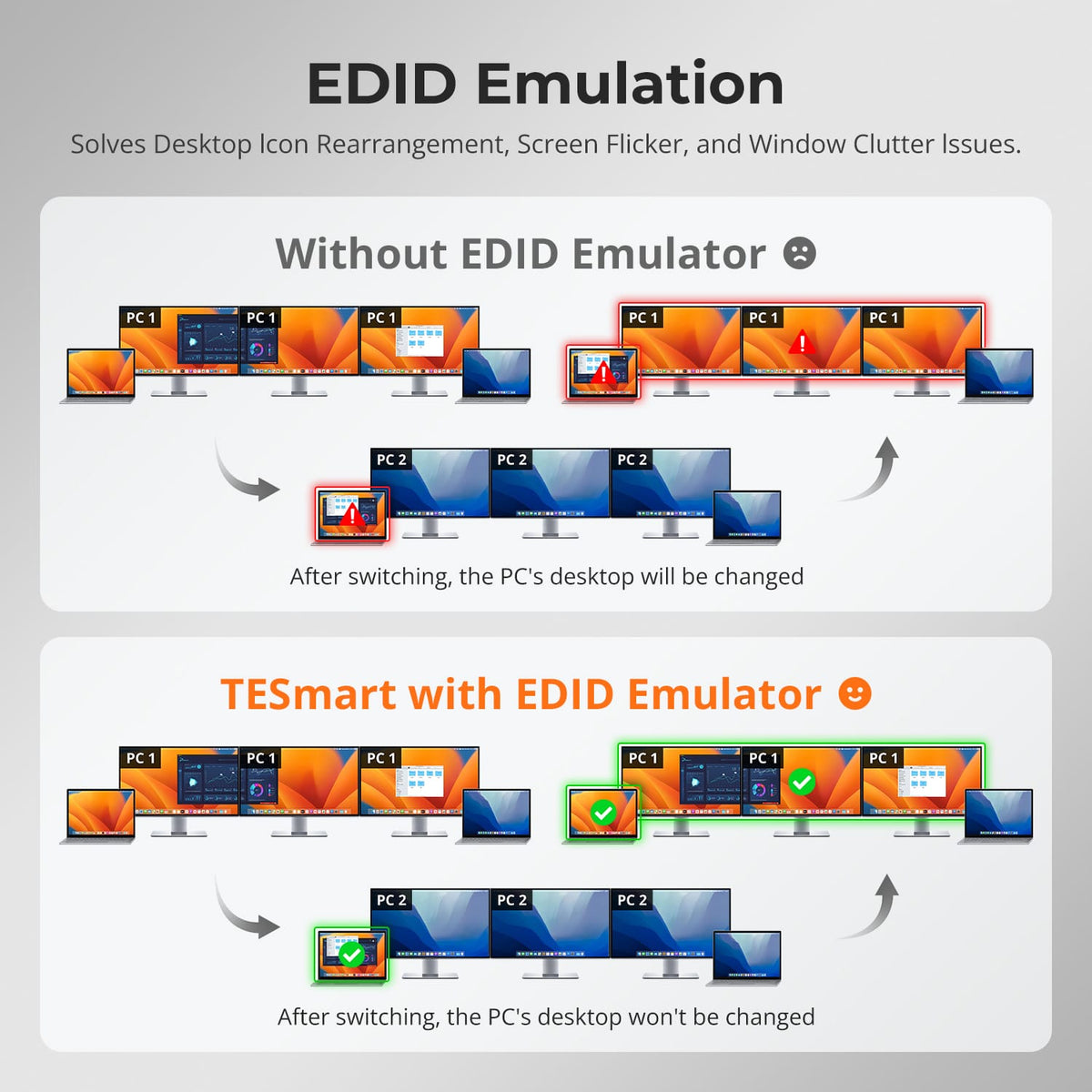
Keep Each PC Focused on Its Assigned Displays
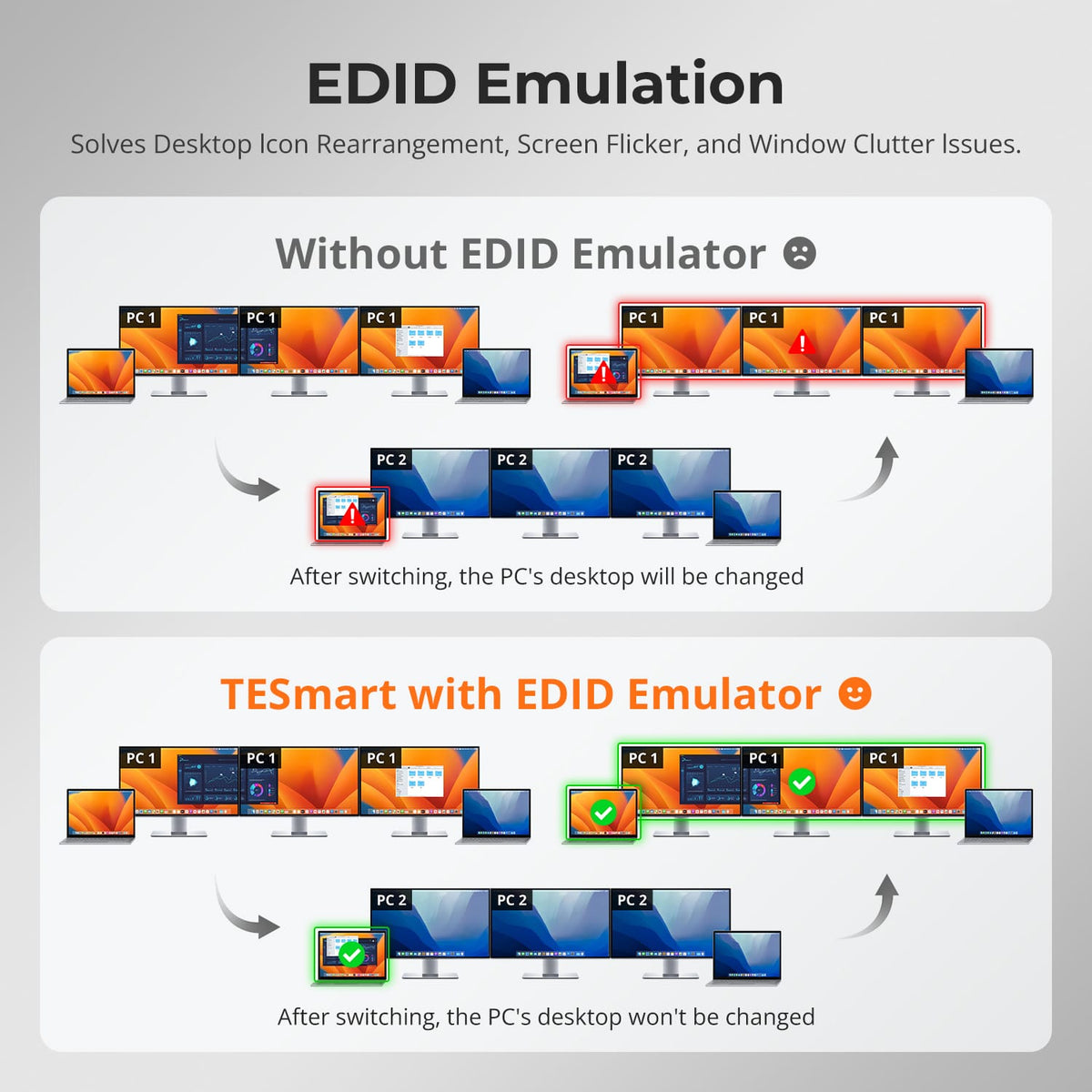
Enable EDID Isolation when the two laptops are using different monitors. Each computer then recognizes only the monitor paths currently assigned to it, helping prevent windows or the pointer from moving to a screen used by the other laptop. EDID Isolation is off by default and can be enabled from the front panel.
06
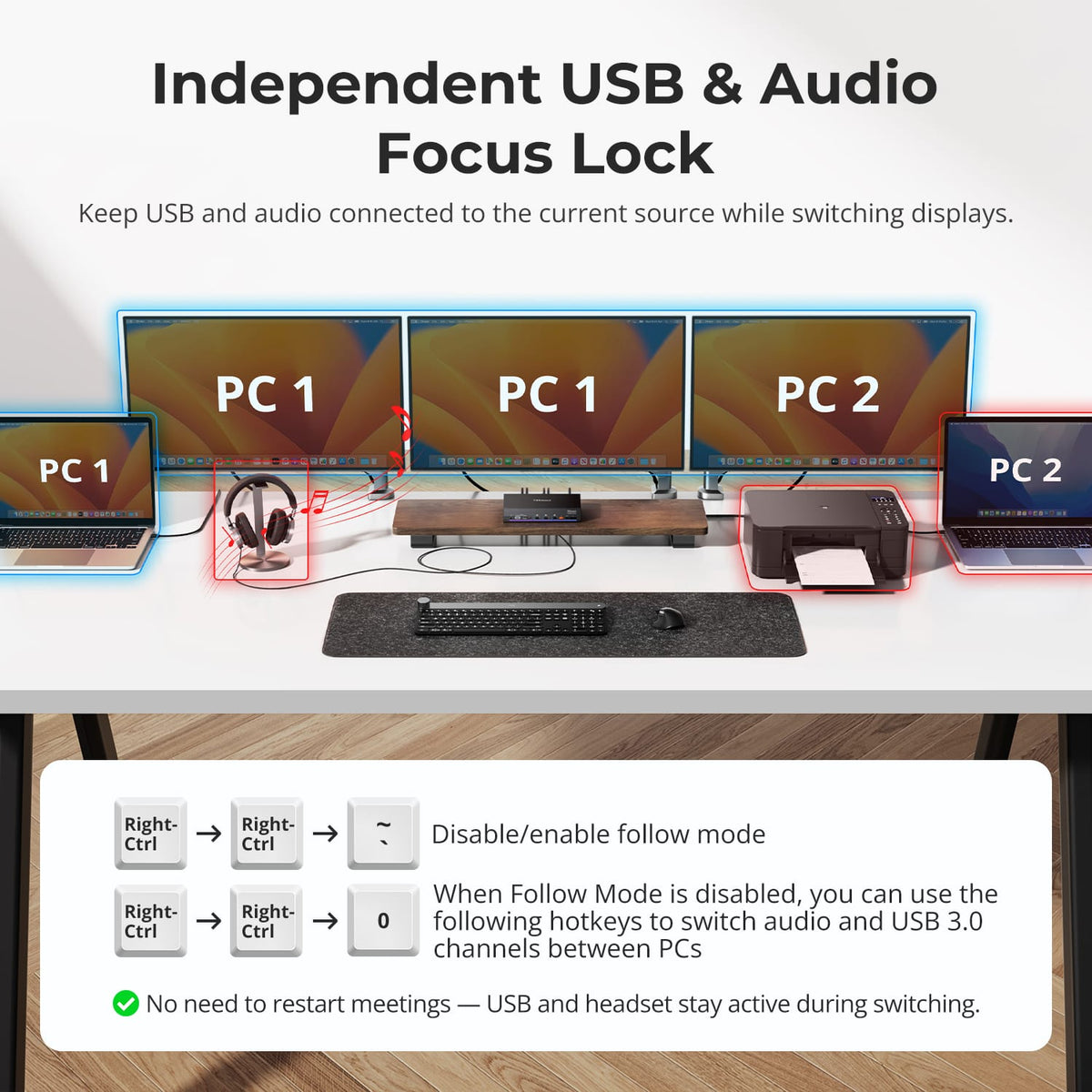
Control Where USB and Audio Stay
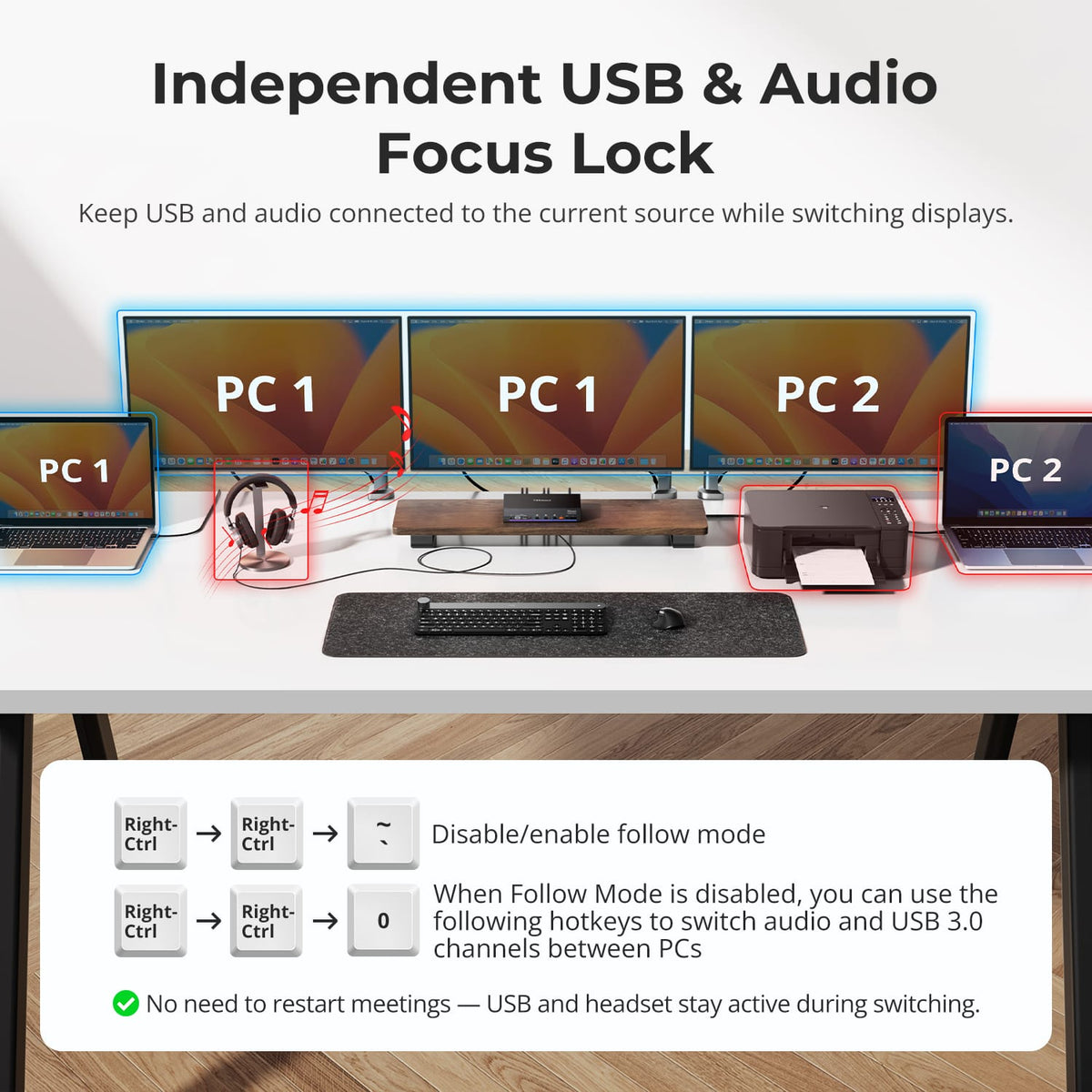
USB devices and audio normally follow the computer under keyboard and mouse control. Turn Follow Mode off when you want USB and audio to remain with one laptop while changing the displays, then switch that USB/audio channel manually whenever needed. Brief USB reconnections may occur during channel changes.
07
08
09
Specifications & Support
Compatibility & Input Guide
Technical Specifications
Manuals & Downloads
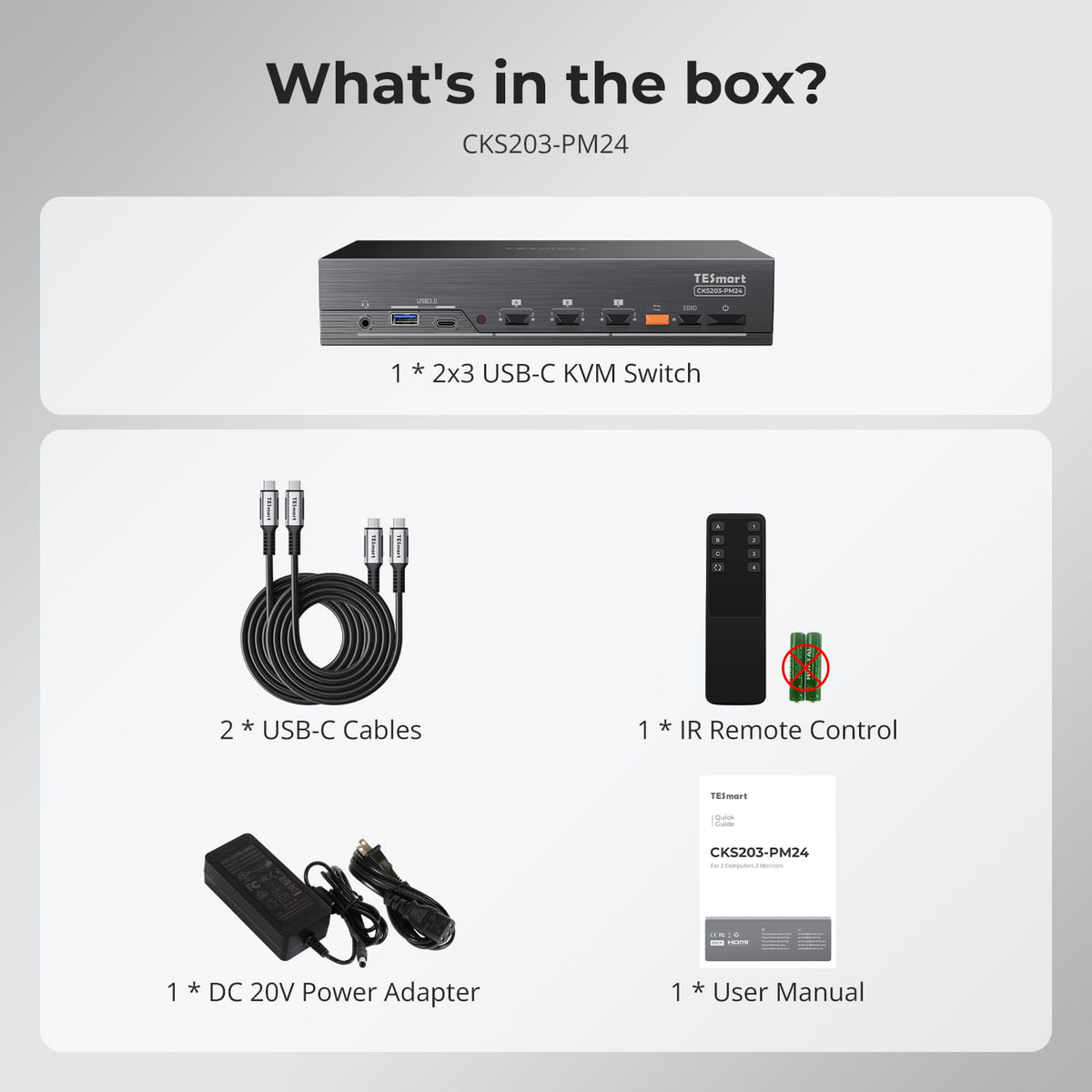
Included in the Box
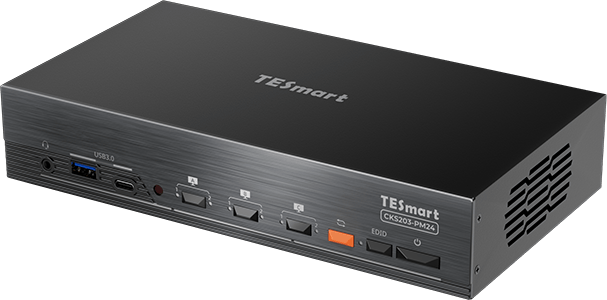
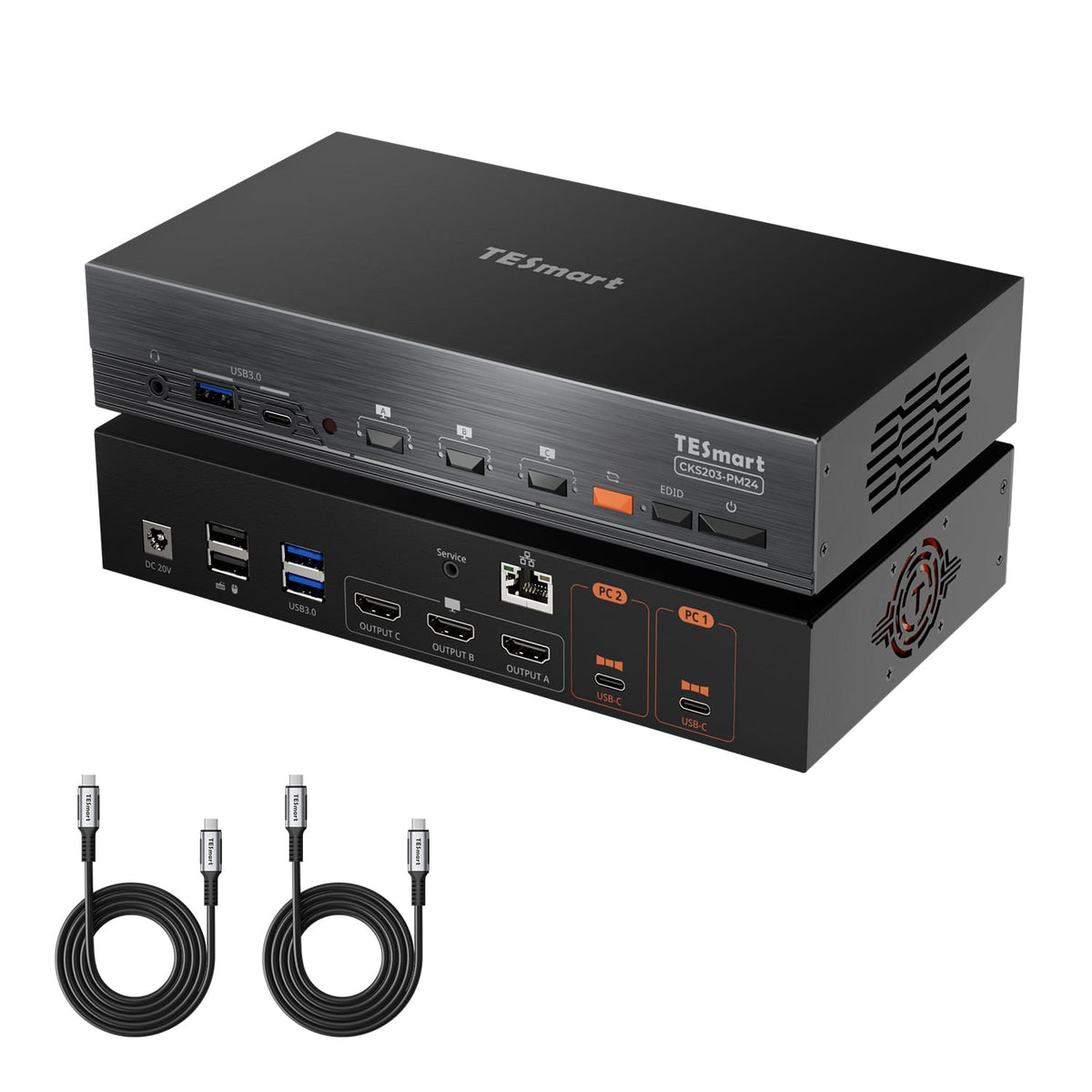
1 × CKS203-PM24 KVM Switch
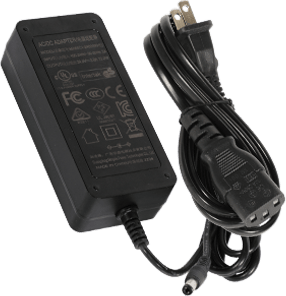
1 × DC 20V Power Adapter
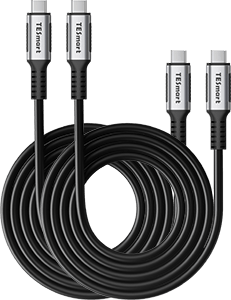
2 × USB-C Cables (1.5 m)
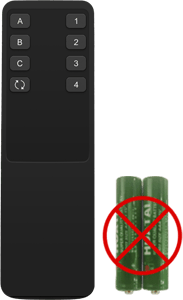
1 × IR Remote Control
1 × User Manual
Compare your options
Compare computer connections, monitor outputs and charging, then choose a model from each menu.
DisplayLink models require compatible drivers on each computer using the DisplayLink connection. CKS203-PM24 requires a video-capable USB-C port on each laptop. Check Mac compatibility and monitor connections on the product page.
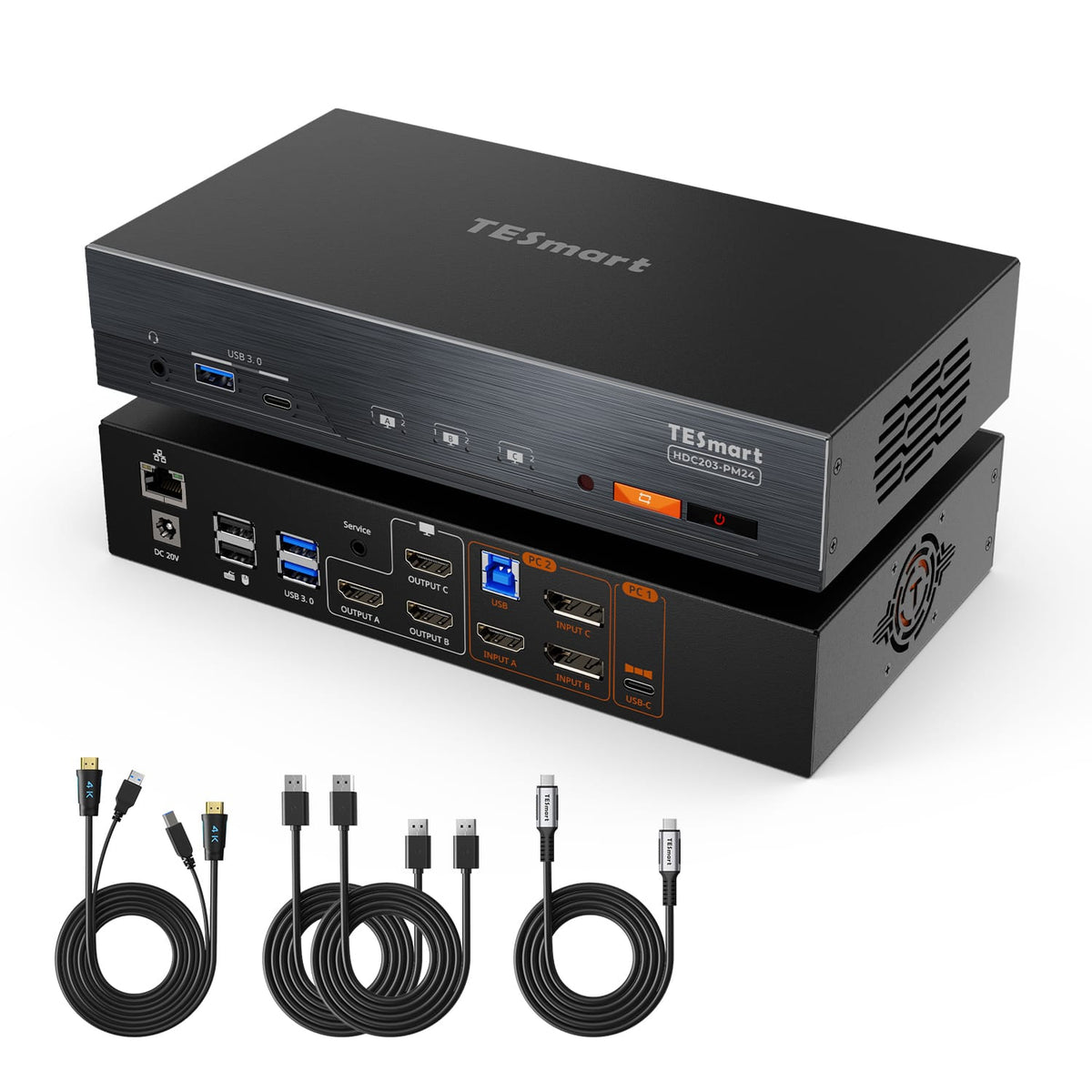
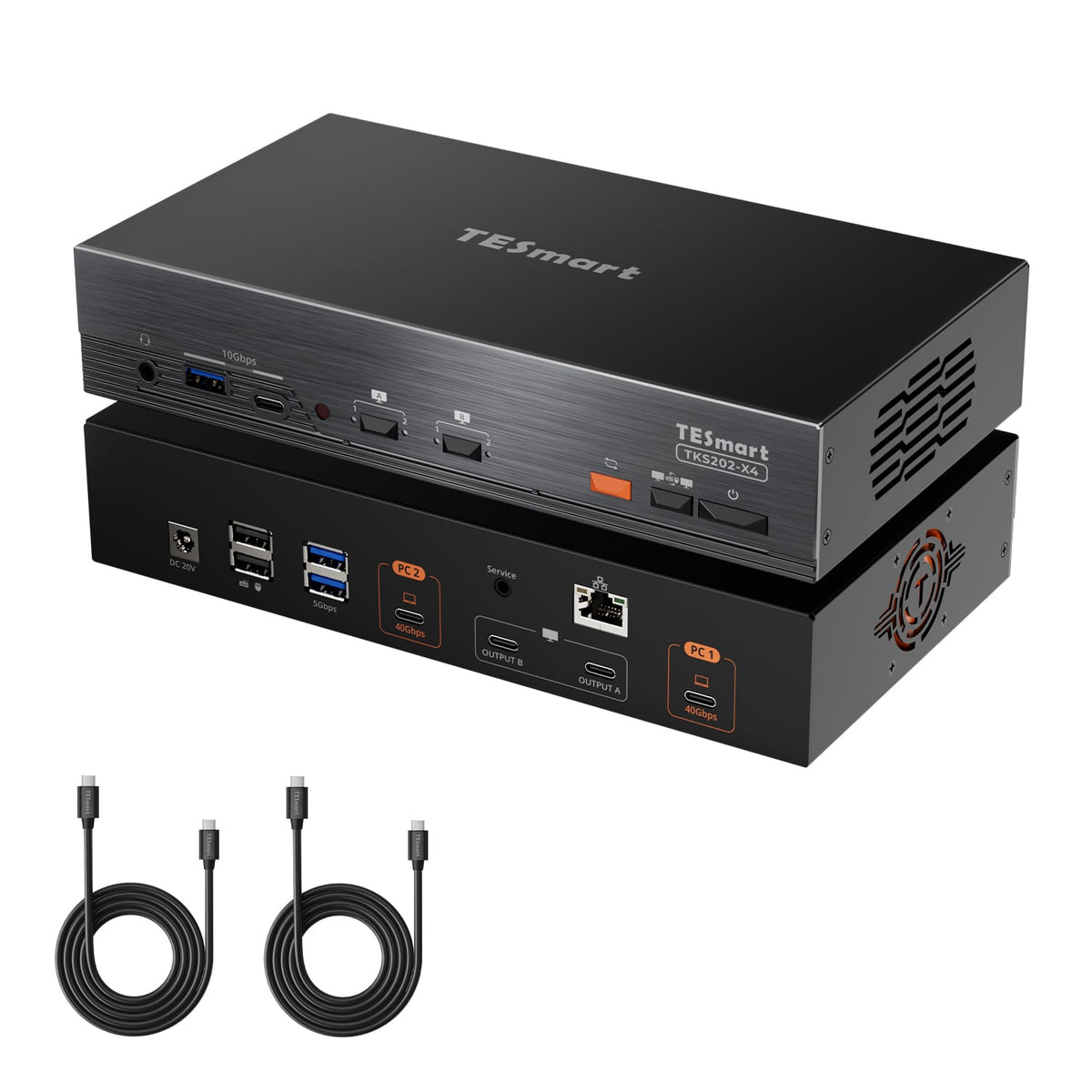
Model
CKS203-PM24
Model
HDC203-PM24
Model
TKS202-X4
Connected devices
2 USB-C laptops
Connected devices
1 USB-C laptop + 1 HDMI/DP desktop
Connected devices
2× PCs (Thunderbolt™ 4)
Display setup
3 × HDMI monitors
Display setup
3 monitors
Display setup
2× Apple Studio Displays
Video resolution
Up to 3 × 4K60 simultaneously
Video resolution
Up to triple 4K60
Video resolution
Up to 6K@60Hz / 5K@120Hz
Laptop charging
Up to 65W per laptop (2 laptops)
Laptop charging
Up to 100W for the laptop
Laptop charging
2× 60W
Display technology / software
DisplayLink; compatible driver required on both laptops
Display technology / software
DisplayLink on the laptop connection; compatible driver required
Display technology / software
Thunderbolt-compatible video; check host external-display support
Best for
Two Macs or compatible USB-C laptops sharing three HDMI monitors
Best for
A Mac or compatible laptop and a desktop sharing a triple-monitor workspace
Best for
Two Macs or Win Laptops(Thunderbolt 4) sharing two Apple Studio Displays
FAQ's
Visit our Help Center for more answers.
[Compatibility] Can I use CKS203-PM24 with two MacBooks?
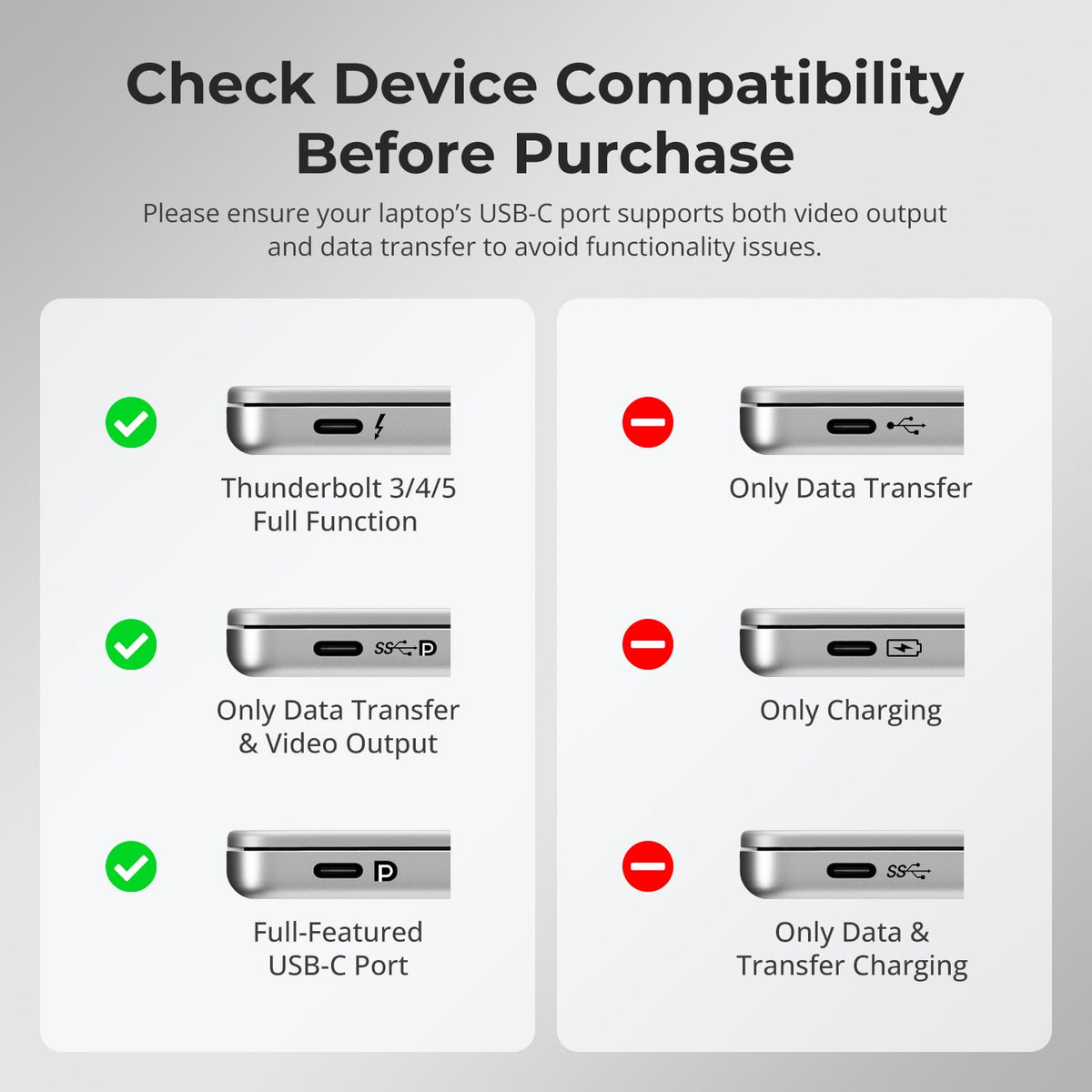
Yes. Connect each MacBook through a compatible USB-C port that supports video output and USB data, and install the appropriate DisplayLink driver on both computers. This setup can provide three external HDMI display outputs without relying on macOS MST support. Confirm your macOS version is supported by the driver.
[Compatibility] Does my laptop need a video-capable USB-C port?
Yes. For the specified triple-monitor configuration, each laptop requires a USB-C port that supports video output and USB data (DP Alt Mode or Thunderbolt); a data-only or charging-only USB-C port does not meet the stated connection requirements.
[Compatibility] Which operating systems are supported?
According to the current Synaptics official website, it supports the following five operating systems: macOS, Windows, ChromeOS, Linux, and Android. The intended multi-monitor workflow requires a compatible DisplayLink driver on each connected laptop. Check driver availability for your exact operating system and version before purchase.
[Compatibility] Can I connect Apple Studio Displays or other USB-C-only monitors?
This KVM has three HDMI monitor outputs. Connect compatible HDMI monitors to OUTPUT A, B and C. Apple Studio Display is outside this model's declared compatibility scope; the KVM does not provide native Thunderbolt display output.
[Compatibility] What resolutions and refresh rates can I use?
Supports simultaneous output of up to three 3840 × 2160 @ 60Hz displays. The product artwork shows lower-resolution, higher-refresh-rate combinations, including 2560 × 1440 @ 120Hz and 1920 × 1080 @ 240Hz, but achievable modes depend on the computer, monitors, cables, and settings. HDR is listed as supported; due to DisplayLink driver limitations, HDCP-encrypted video source output cannot be supported.
[Features & Connections] Can I display both laptops on the three monitors at the same time?
Yes. You can assign the three monitor outputs individually to PC1 or PC2, such as two screens for one laptop and one for the other. You can also switch all three screens to the same laptop. In a mixed-source layout, switch keyboard and mouse focus separately as needed.
[Features & Connections] Can the KVM charge both laptops?
Yes. Both USB-C computer input ports support Power Delivery charging up to 65W per connected compatible laptop. Actual charging depends on the laptop's power requirements and USB-C power negotiation.
[Features & Connections] Which devices can the two laptops share?
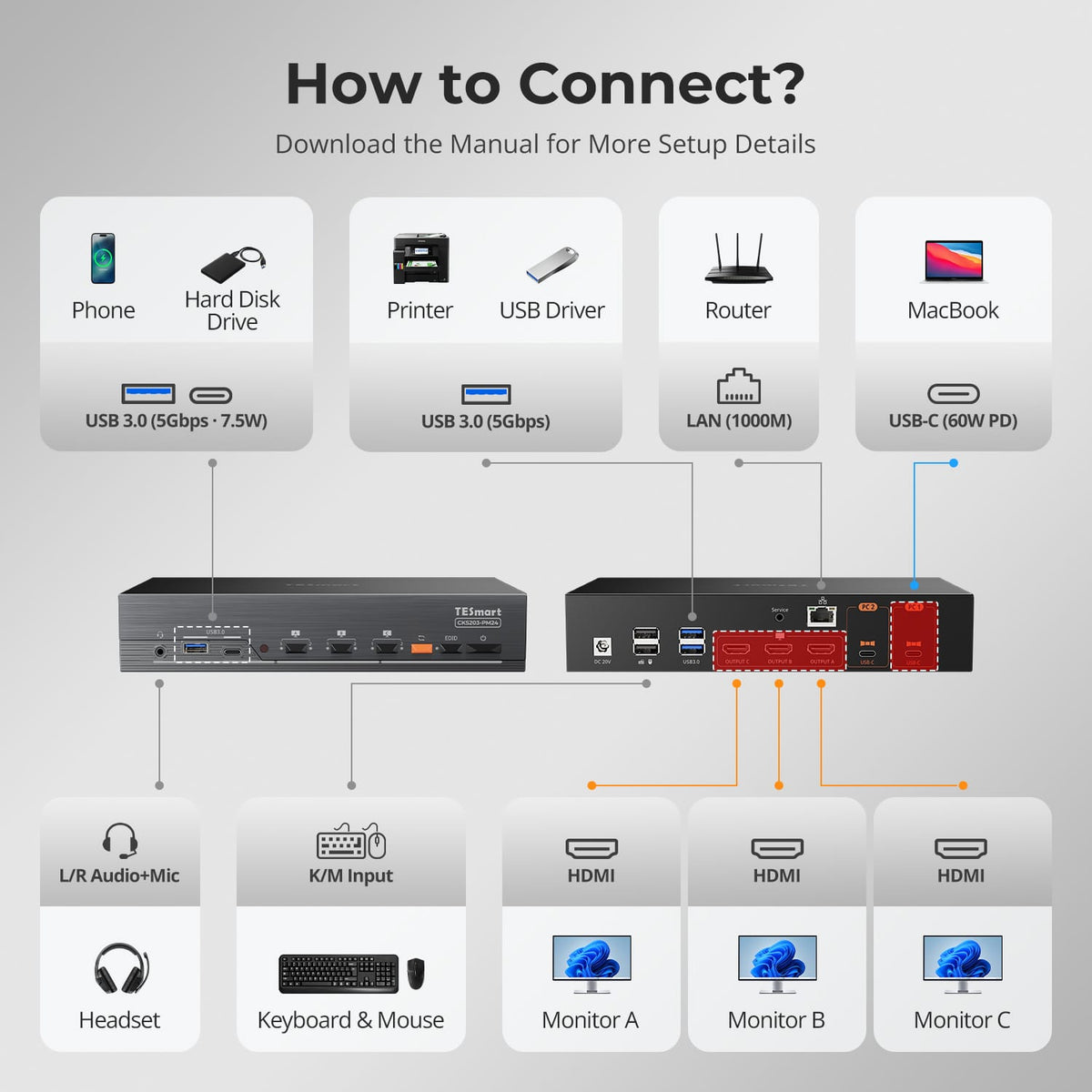
The laptops can share three HDMI monitors, a keyboard and mouse, USB 3.2 Gen 1 peripherals, an audio device through the 3.5mm audio/microphone connection, and one Gigabit Ethernet uplink. USB data transfer supports up to 5Gbps, with up to 7.5W power supply; some high-power USB devices require external power.
[Features & Connections] Can I keep USB devices and audio on one laptop when switching monitors?
Yes. USB/audio follow mode is enabled by default, so those devices normally follow the currently controlled computer. Disable follow mode to keep the USB/audio channel on its current laptop, and switch that channel manually when needed. USB peripherals may reconnect briefly during a channel change.
[Features & Connections] What does EDID Isolation do?
When enabled, EDID Isolation allows each laptop to recognize only the monitor paths currently assigned to it. This can help prevent application windows or the pointer from moving to a display assigned to the other laptop. It is disabled by default and can be toggled using the front-panel EDID button.
[Setup & Switching] Do I need to install software before connecting the monitors?
Yes. Install the official DisplayLink driver on both laptops for the intended triple-screen functionality. On macOS, approve the required permissions when prompted. Then connect the HDMI monitors, the two USB-C host cables, peripherals and power adapter.
[Setup & Switching] How can I switch computers and individual monitors?
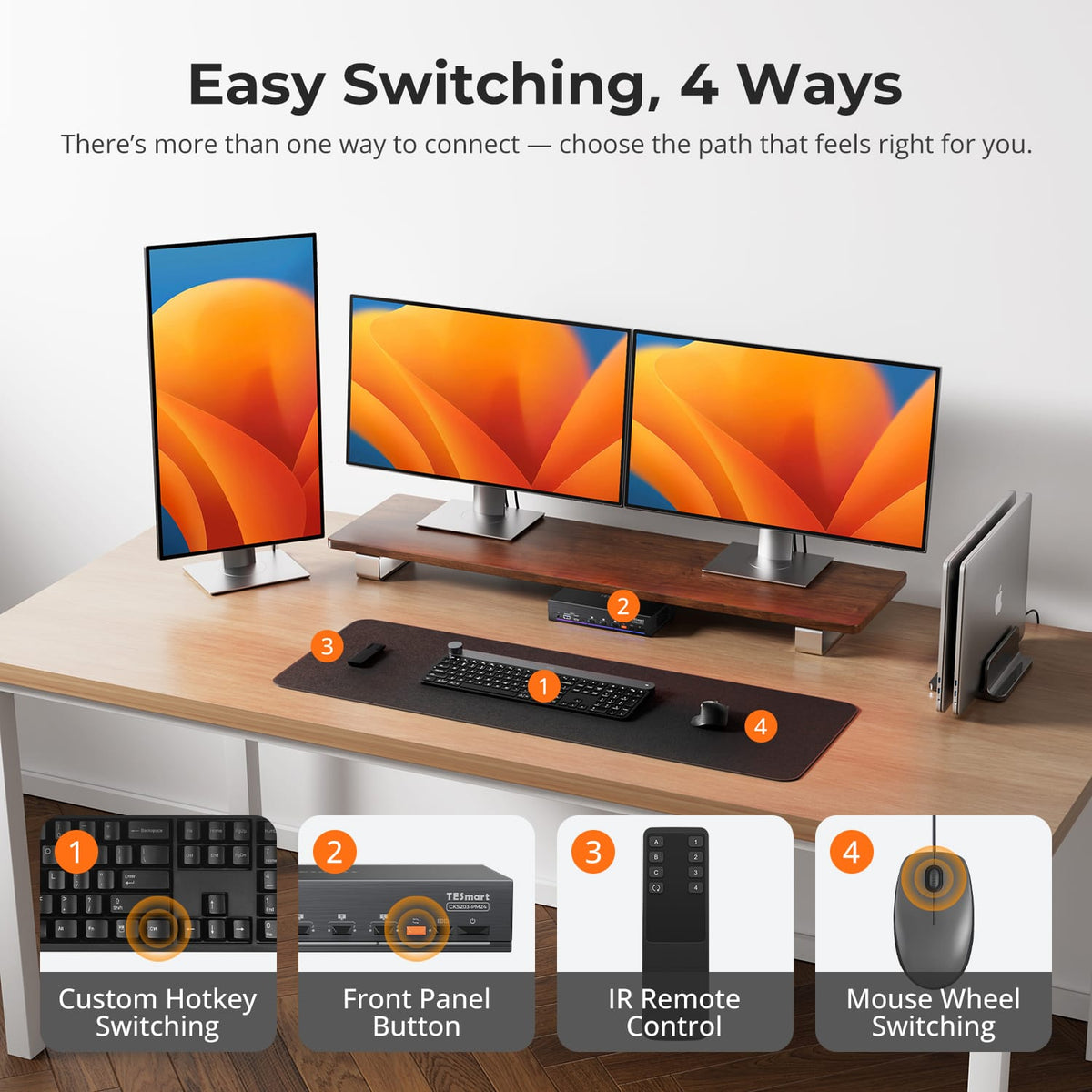
Use the front-panel buttons, keyboard hotkeys, supplied IR remote or mouse-wheel switching. The A, B and C buttons switch the corresponding monitor individually; the orange Switch button switches all monitors together. For keyboard shortcuts, press Right Ctrl twice within one second, then the command key.
[Setup & Switching] Can I change the keyboard and mouse compatibility mode?
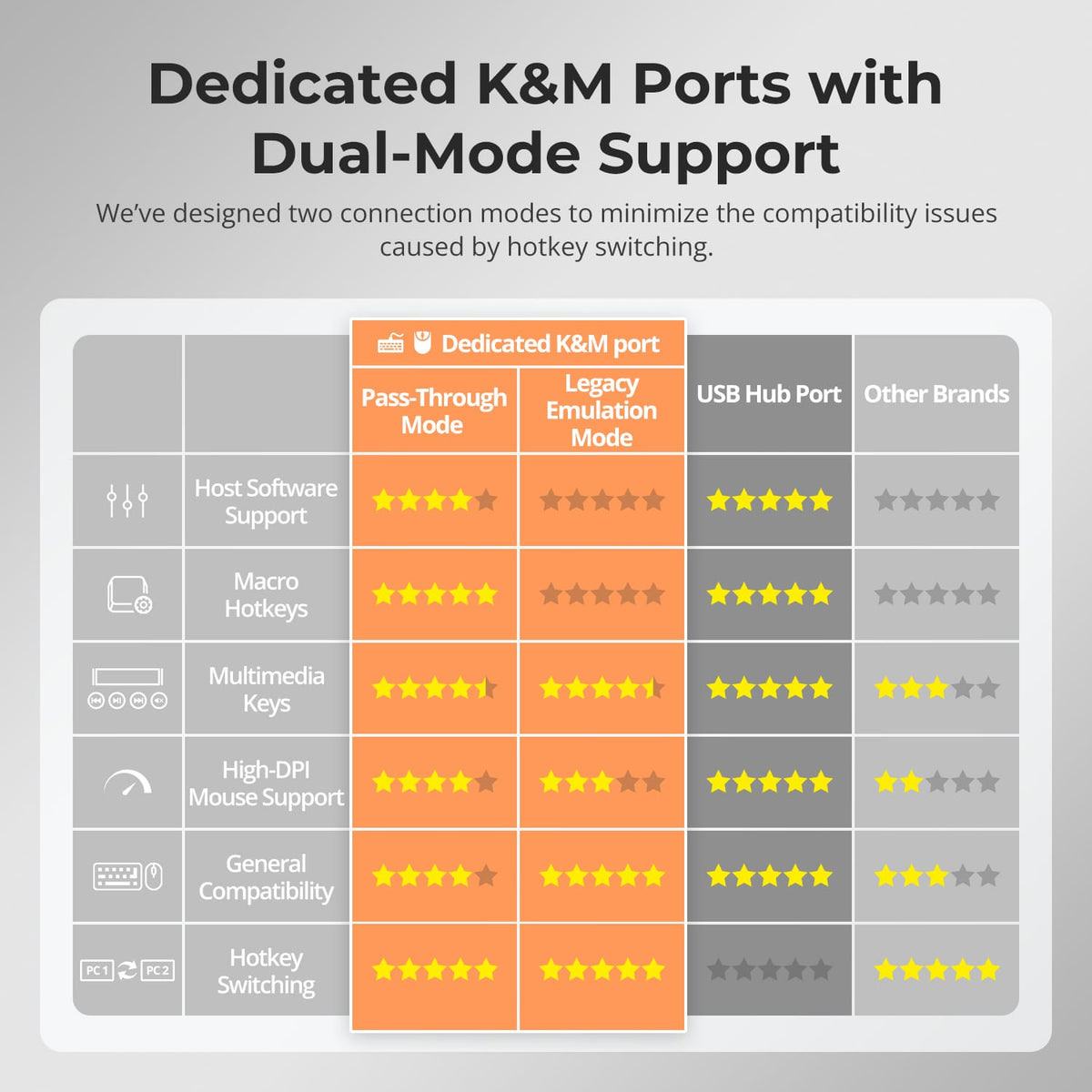
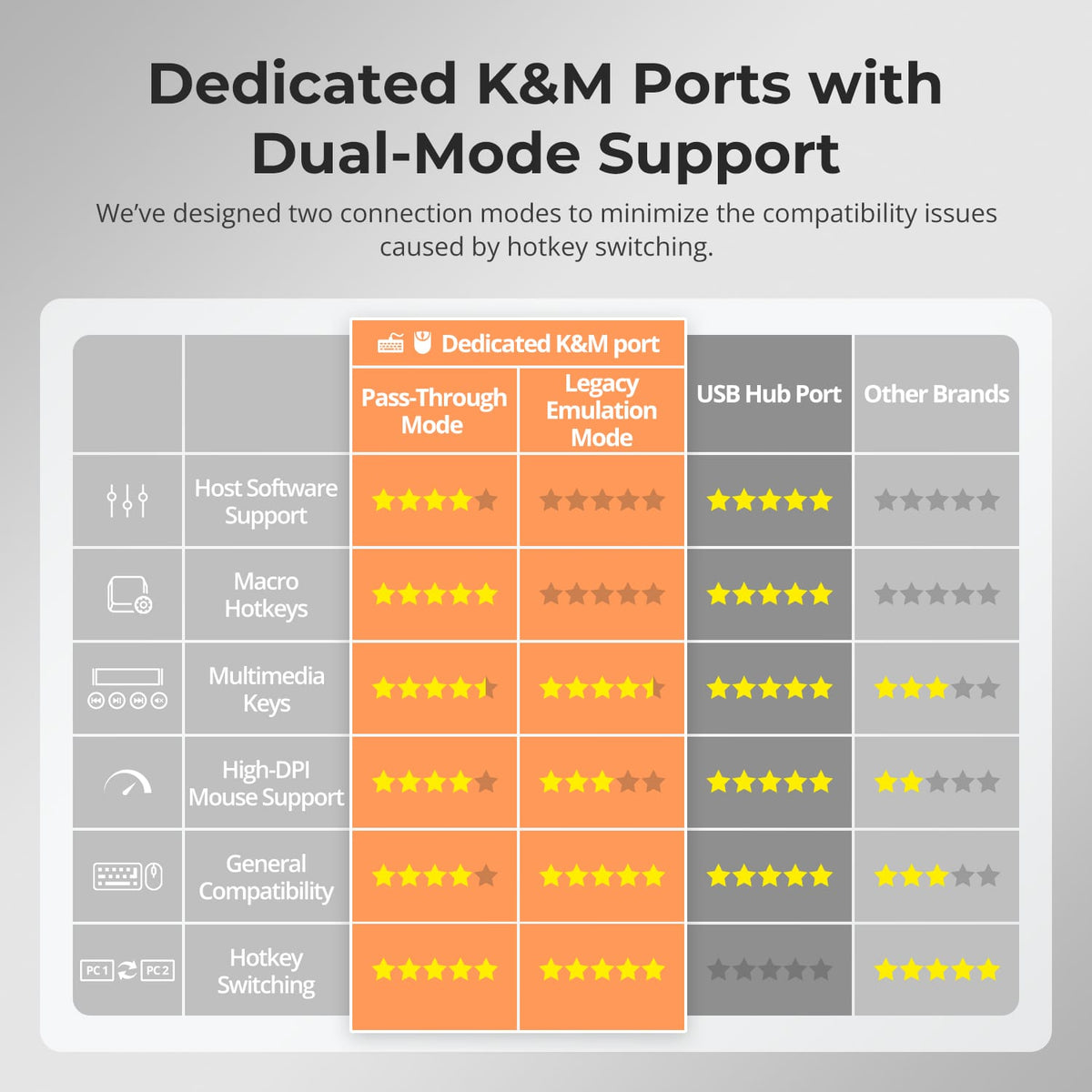
Yes. The dedicated keyboard/mouse connection supports Pass-Through Mode and Legacy Emulation Mode. Pass-Through is the default; press 【Right Ctrl】twice and then F2 to toggle modes if a keyboard or mouse behaves abnormally.