

Display Setup
Max Display Output
Thunderbolt Controller
Connectivity
Compatibility
Laptop Charging

Network Sharing
2×2 KVM for Laptop & Desktop | Dual 4K60Hz, Thunderbolt™ 4 Compatible
Share dual 4K60 displays, keyboard, mouse, USB and Ethernet between a Thunderbolt laptop and desktop, with 60W charging and EDID for stable hybrid work.
Display Setup
Max Display Output
Thunderbolt Controller
Connectivity
Compatibility
Laptop Charging
Network Sharing
2×2 KVM for Laptop & Desktop | Dual 4K60Hz, Thunderbolt™ 4 Compatible
Why Choose HDC202-X24
Overview
01
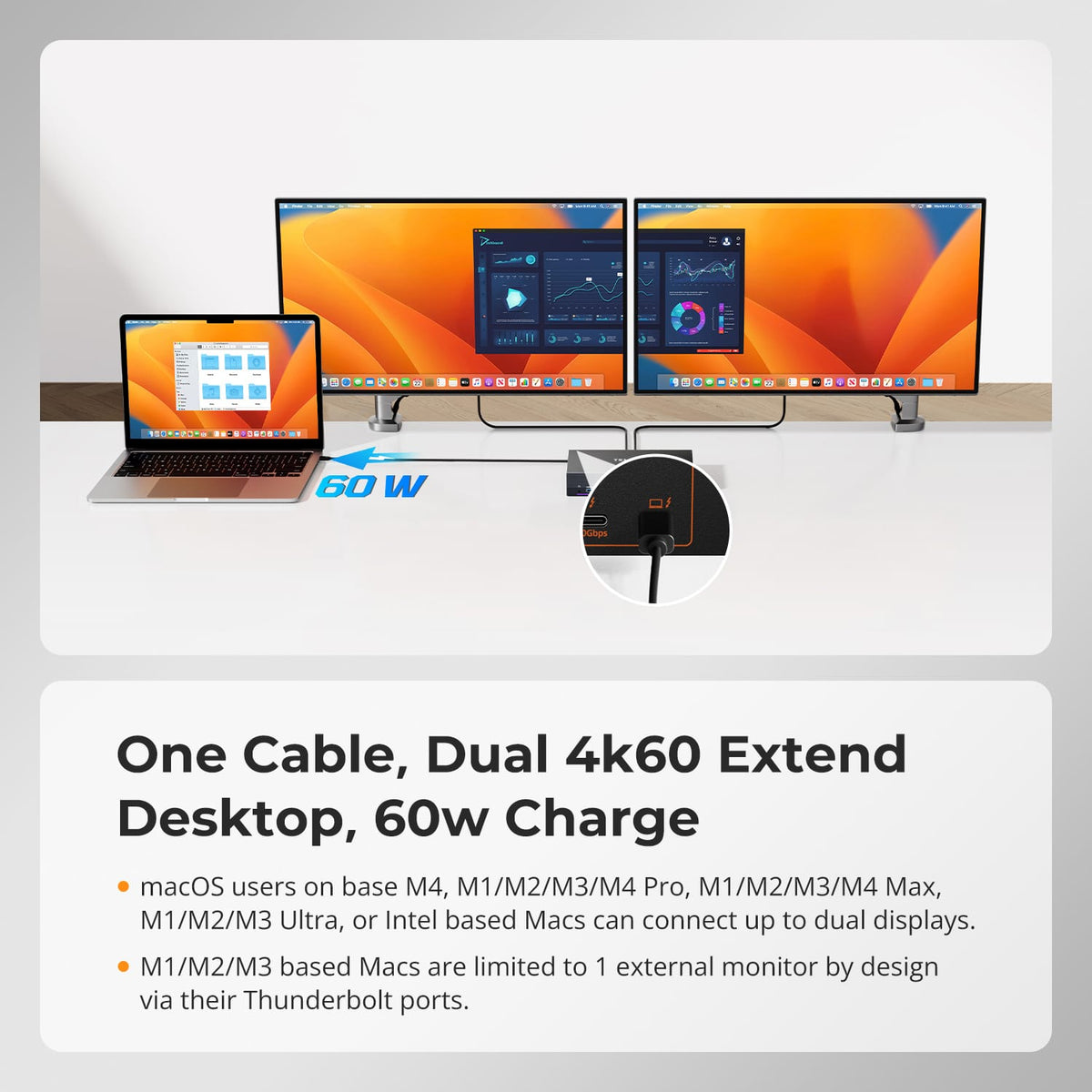
One Cable, Dual 4K60Hz + 60W Charge
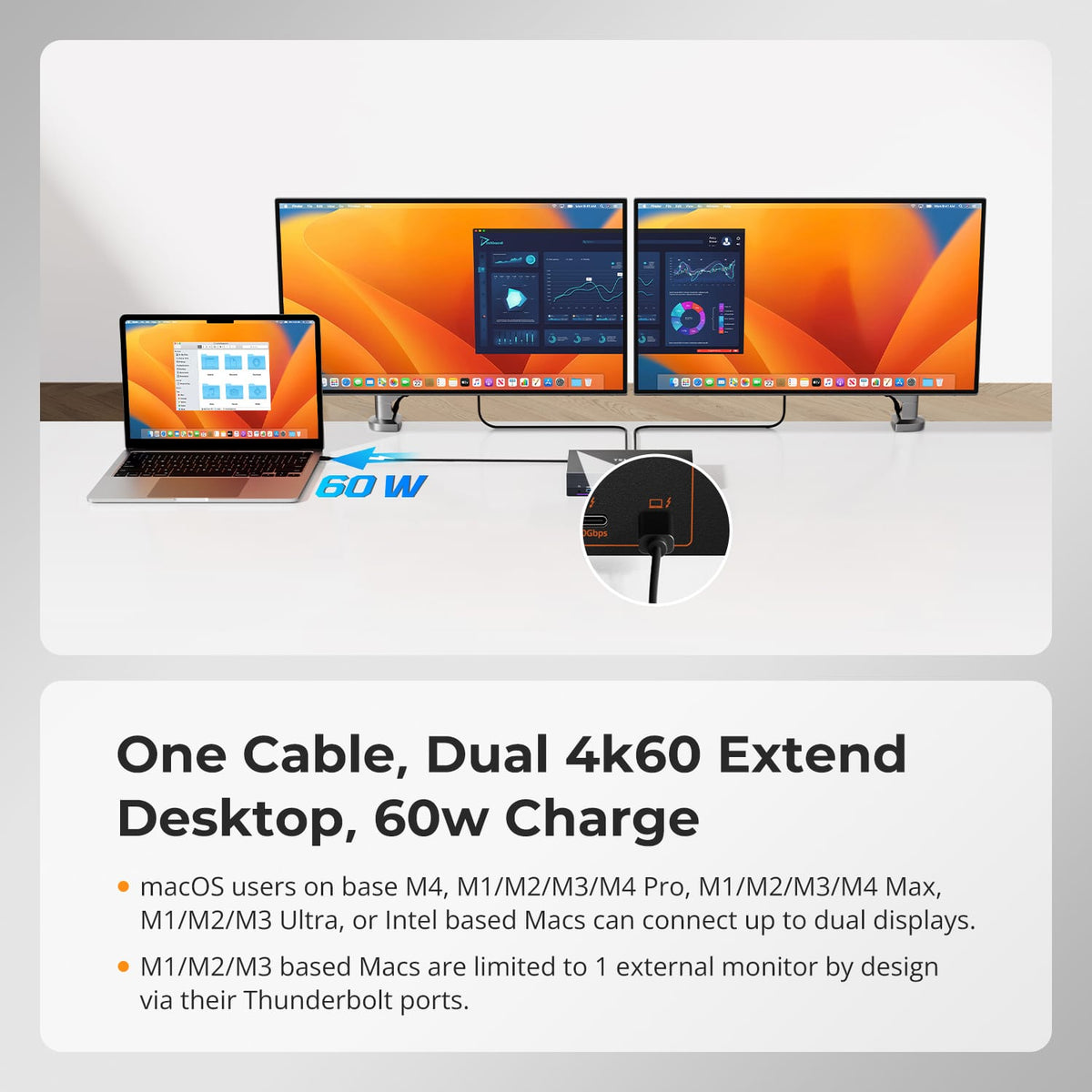
Connect your Thunderbolt 4 laptop with a single cable for dual extended 4K@60Hz displays, 40Gbps data and up to 60W charging. Ideal for Mac and Windows hybrid desks.
02
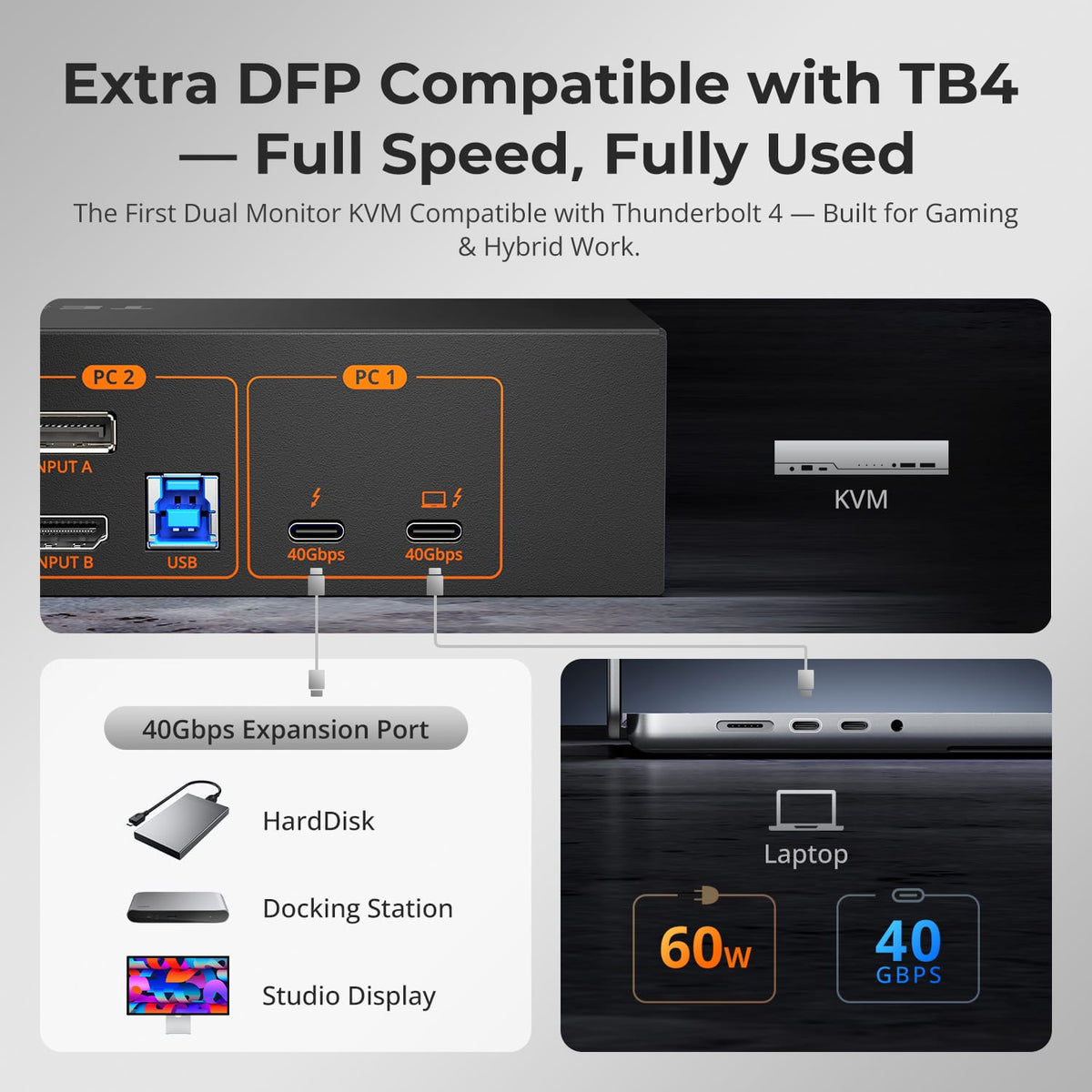
40Gbps Expansion, Fully Used
A second downstream Thunderbolt 4 port keeps your PSSD, docking station or Studio Display running at full 40Gbps—your laptop's port is never wasted on the KVM.
03
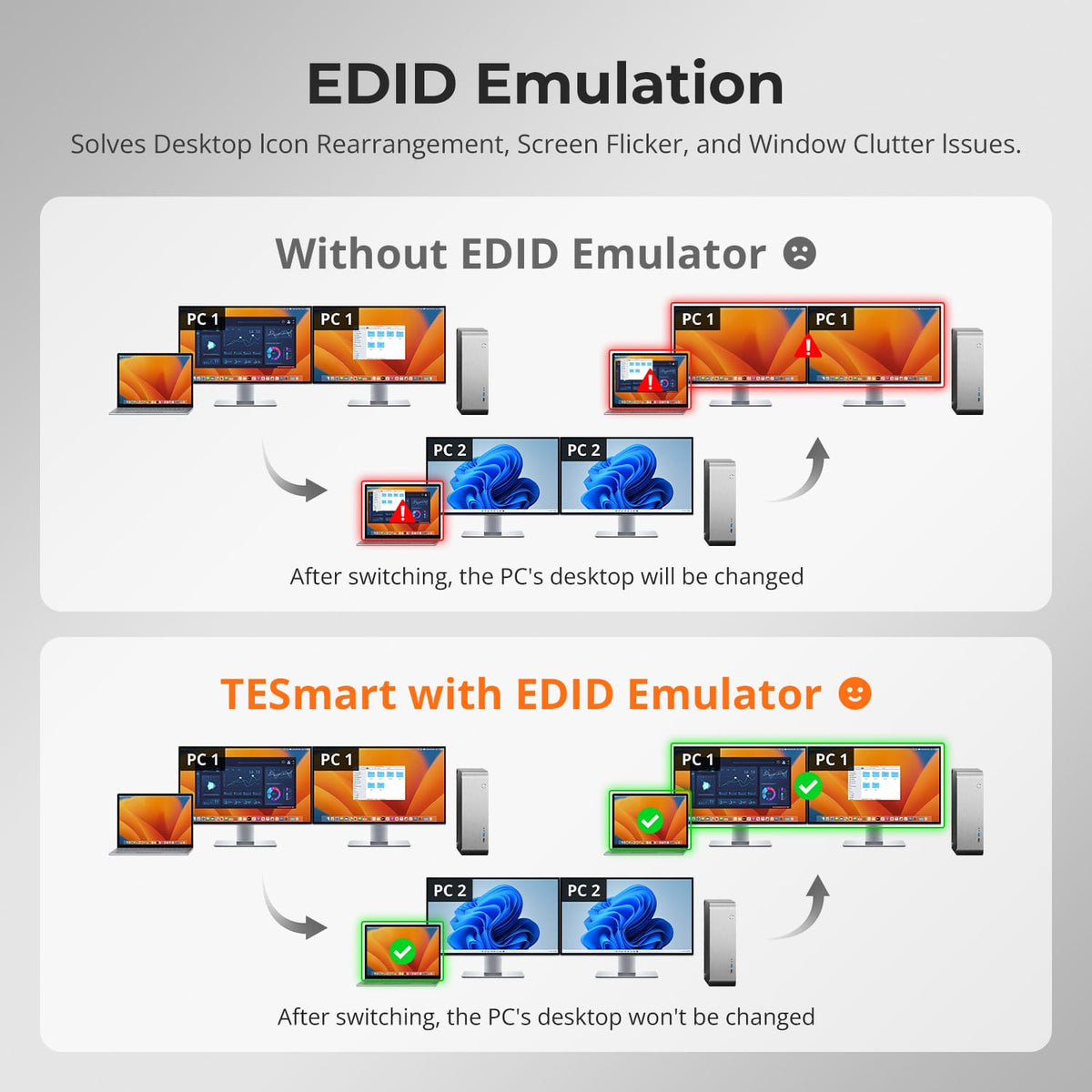
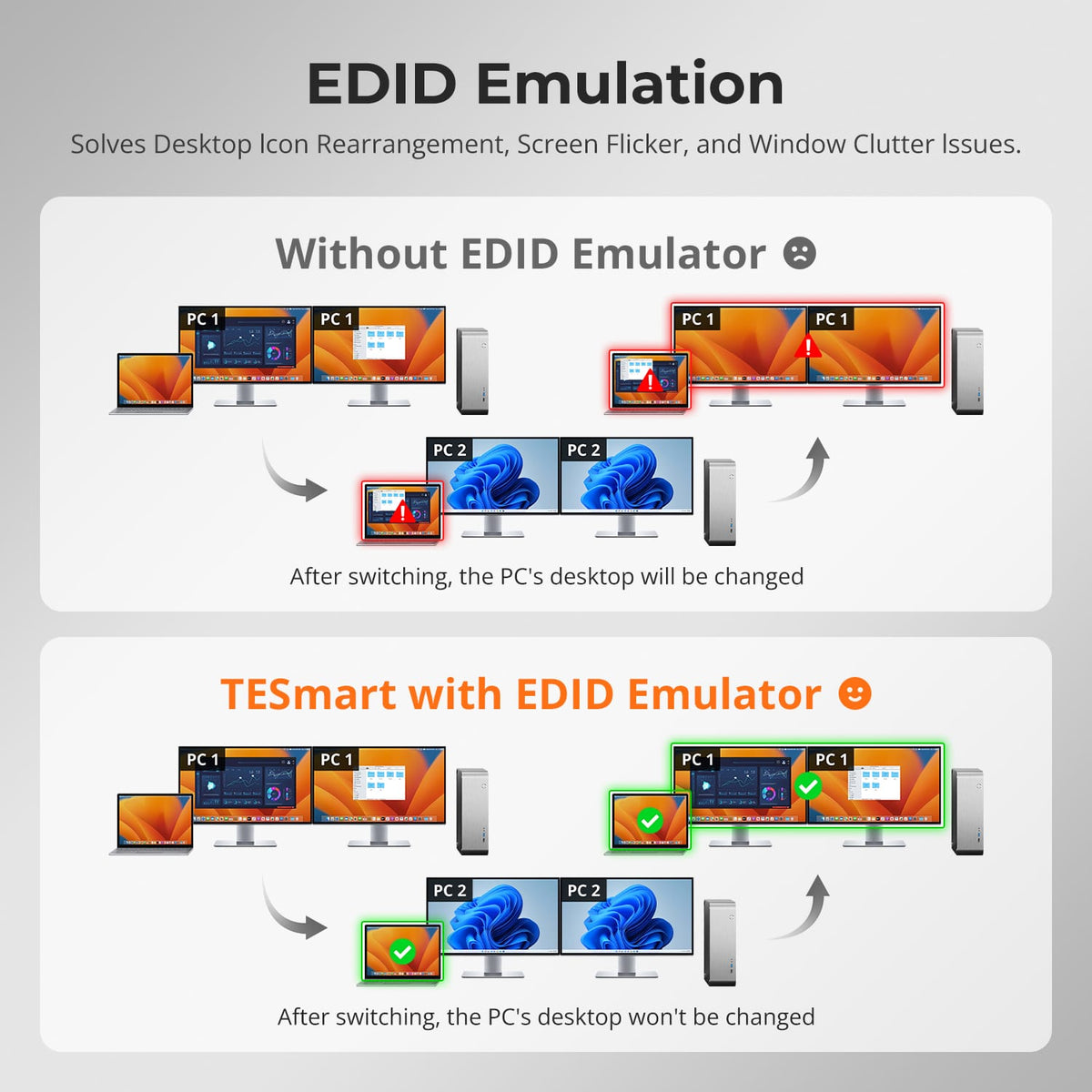
EDID Emulation, Stable Desktops
Built-in EDID emulators lock each PC's display information, so resolutions, icons and windows stay exactly where you left them after switching—no flicker, no rearrangement.
04
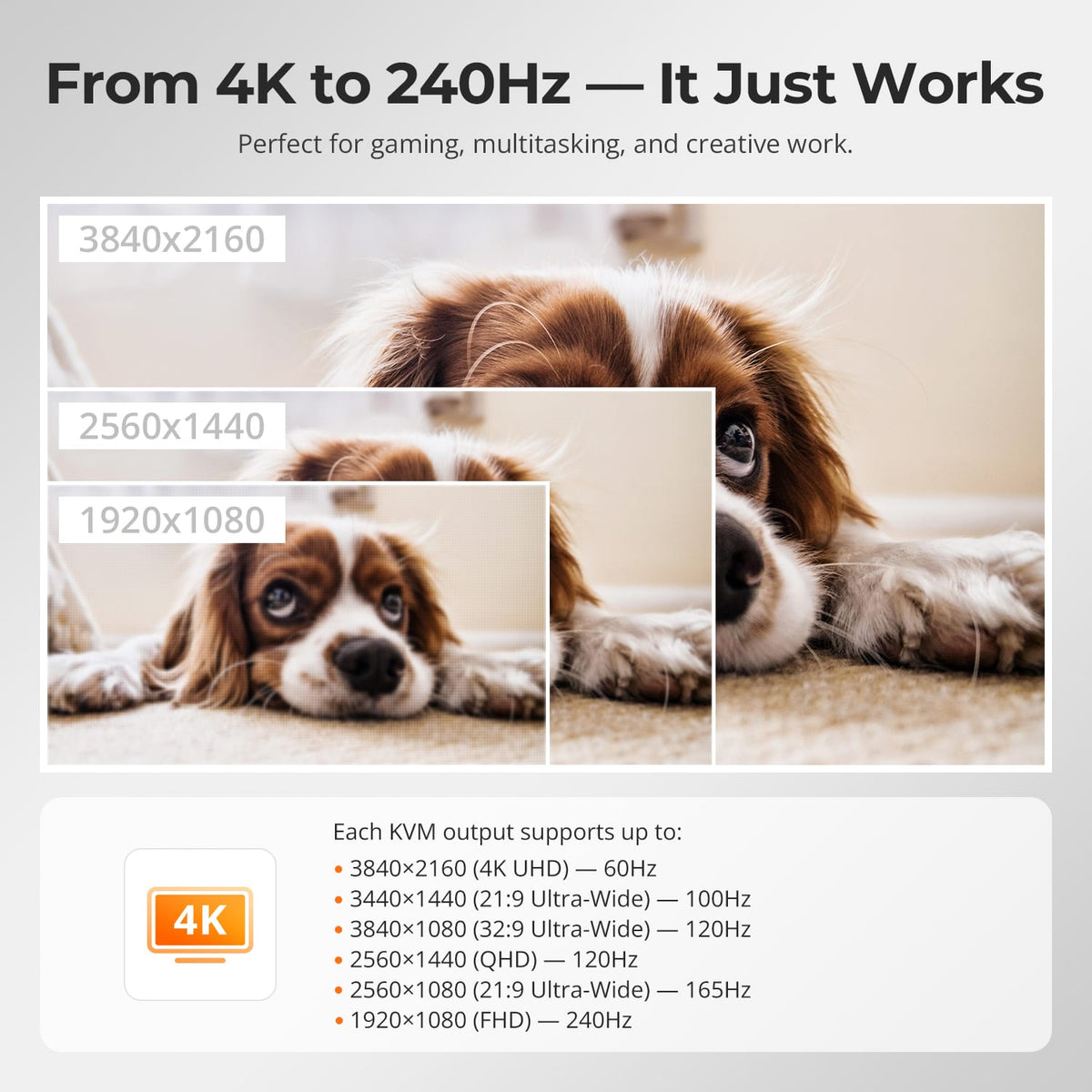
From 4K@60Hz to 1080P@240Hz
Each HDMI output delivers up to 3840×2160@60Hz 4:4:4 for crisp creative work, 3440×1440@100Hz for ultrawide multitasking, and high-refresh modes up to 1920×1080@240Hz for competitive gaming. One KVM covers design, productivity and esports—no compromise, no extra hardware.
05
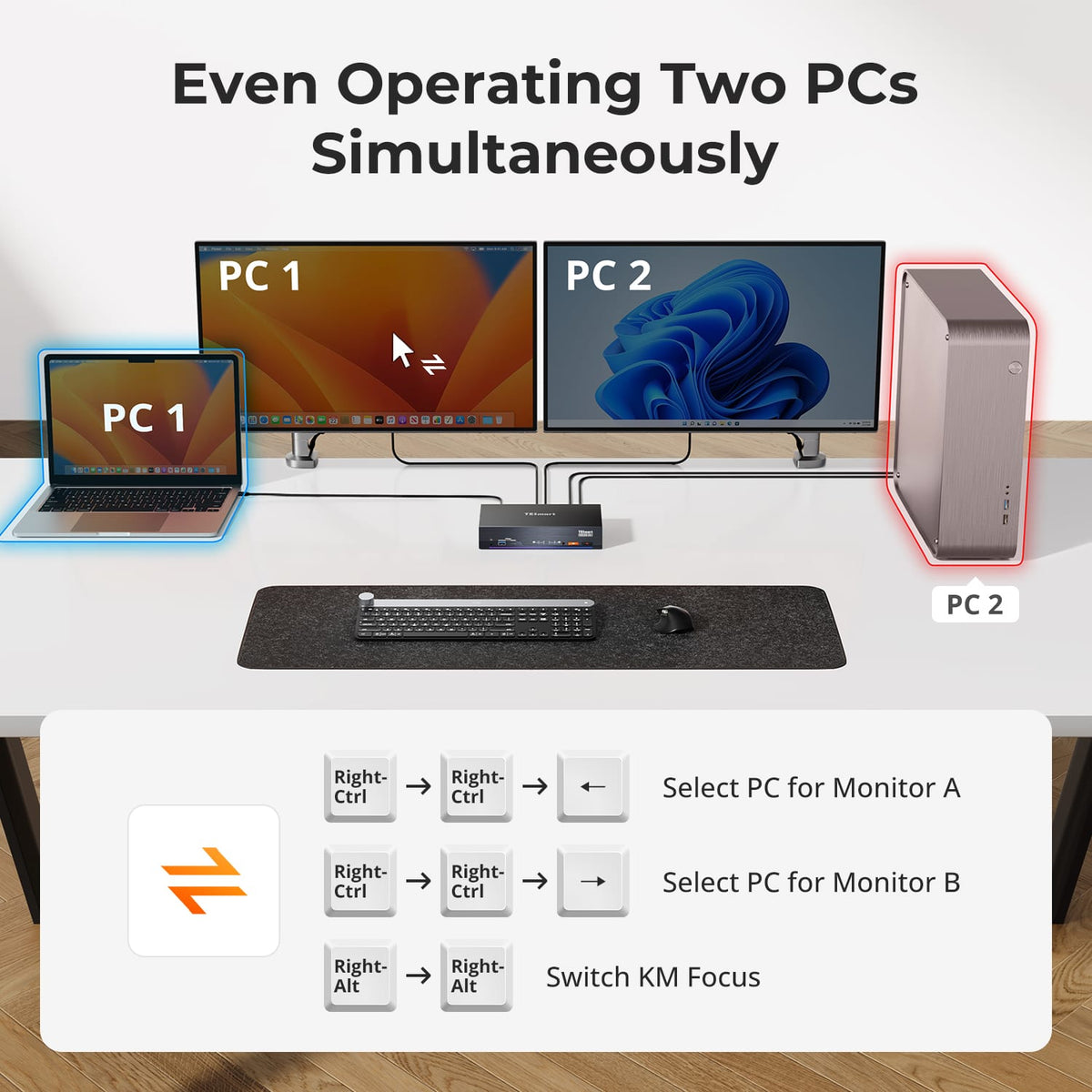
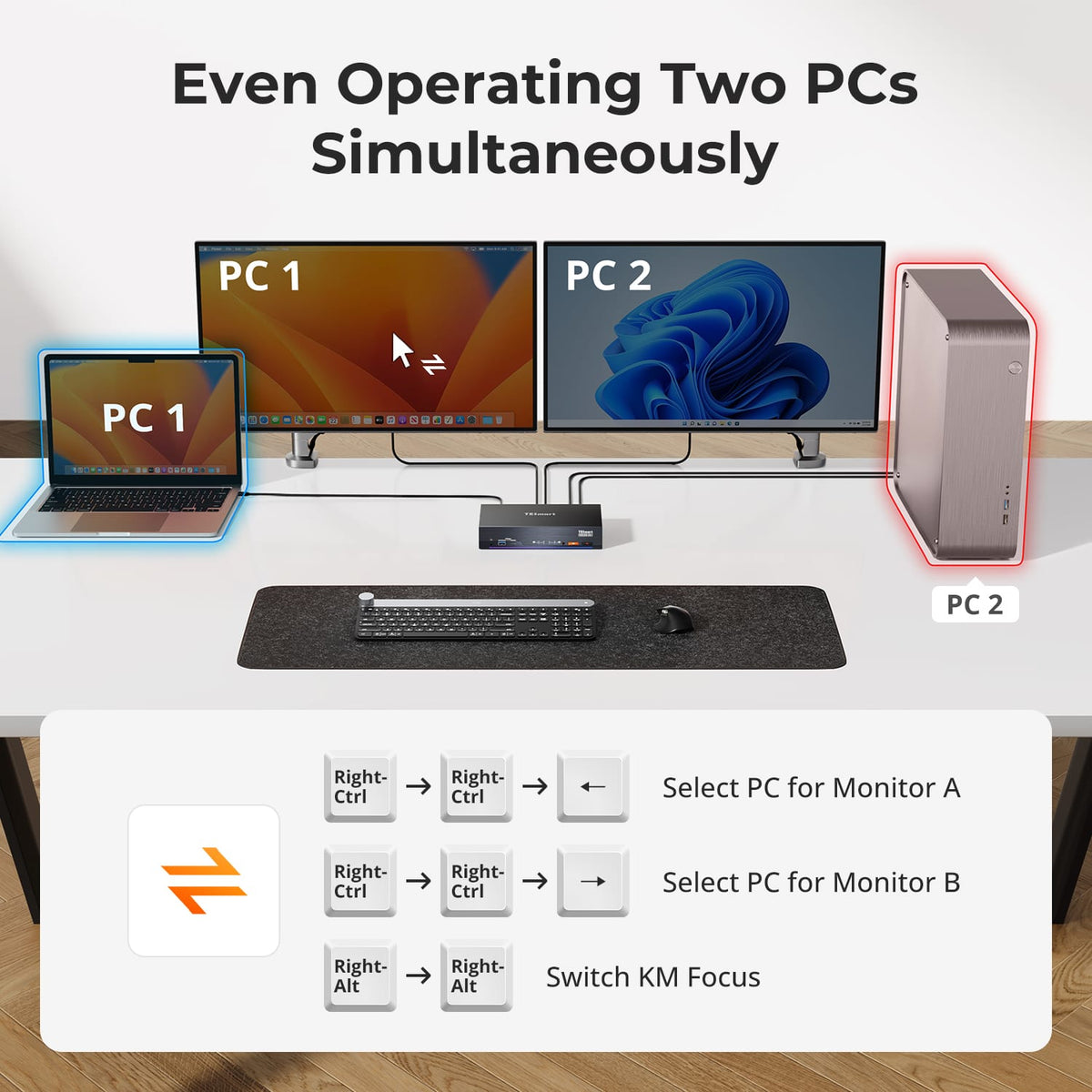
Operate Two PCs at Once
Display Mode 2 keeps PC 1 and PC 2 live on separate monitors at the same time. Assign each screen with Right-Ctrl hotkeys, and double-tap Right-Alt to move keyboard and mouse focus instantly—true parallel work across two systems.
06
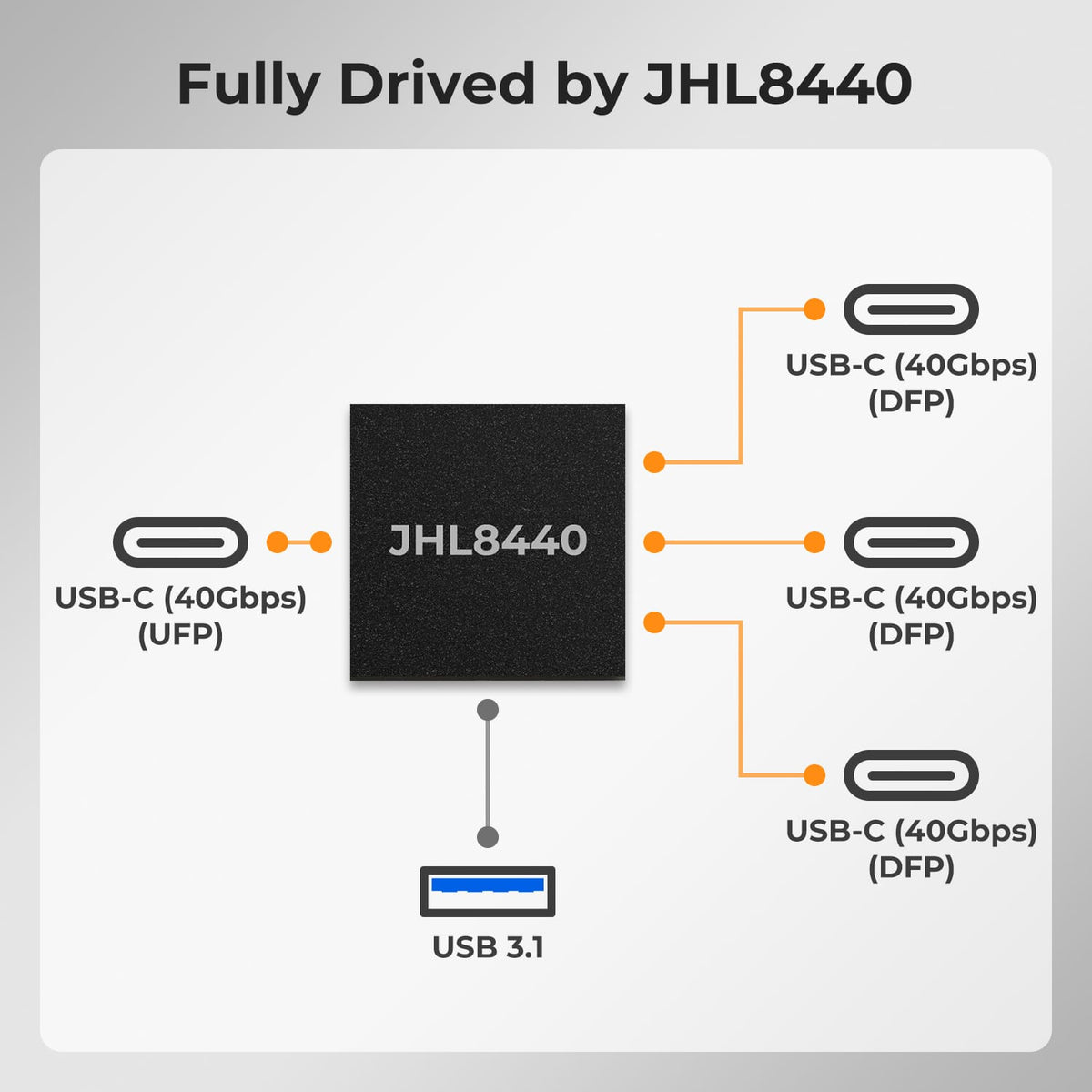
Powered by Intel JHL8440
At its core, the Intel JHL8440 Thunderbolt 4 controller routes a 40Gbps upstream link from your laptop to three downstream 40Gbps USB-C ports plus USB 3.1—delivering certified TB4 bandwidth, stable video and full-speed peripherals with zero adapters.
07
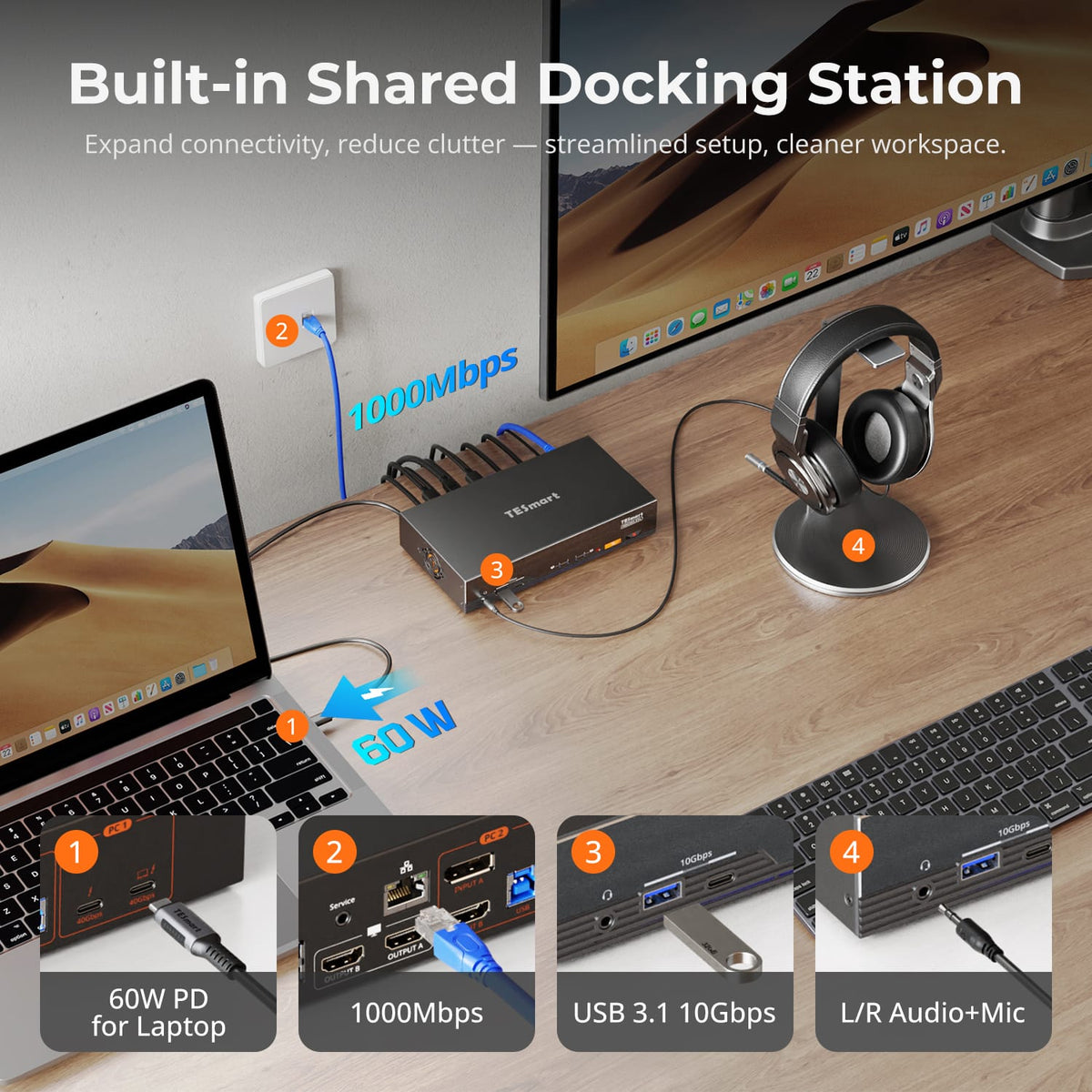
Built-In Shared Docking
One dock serves both computers: 60W PD charging for your laptop, 1000Mbps Gigabit Ethernet shared over a single network cable, 10Gbps USB for fast peripherals, and integrated L/R audio plus mic—expanding connectivity while cutting cable clutter for a cleaner desk.
08

09
10
Specifications & Support
Compatibility & Input Guide
Technical Specifications
Manuals & Downloads
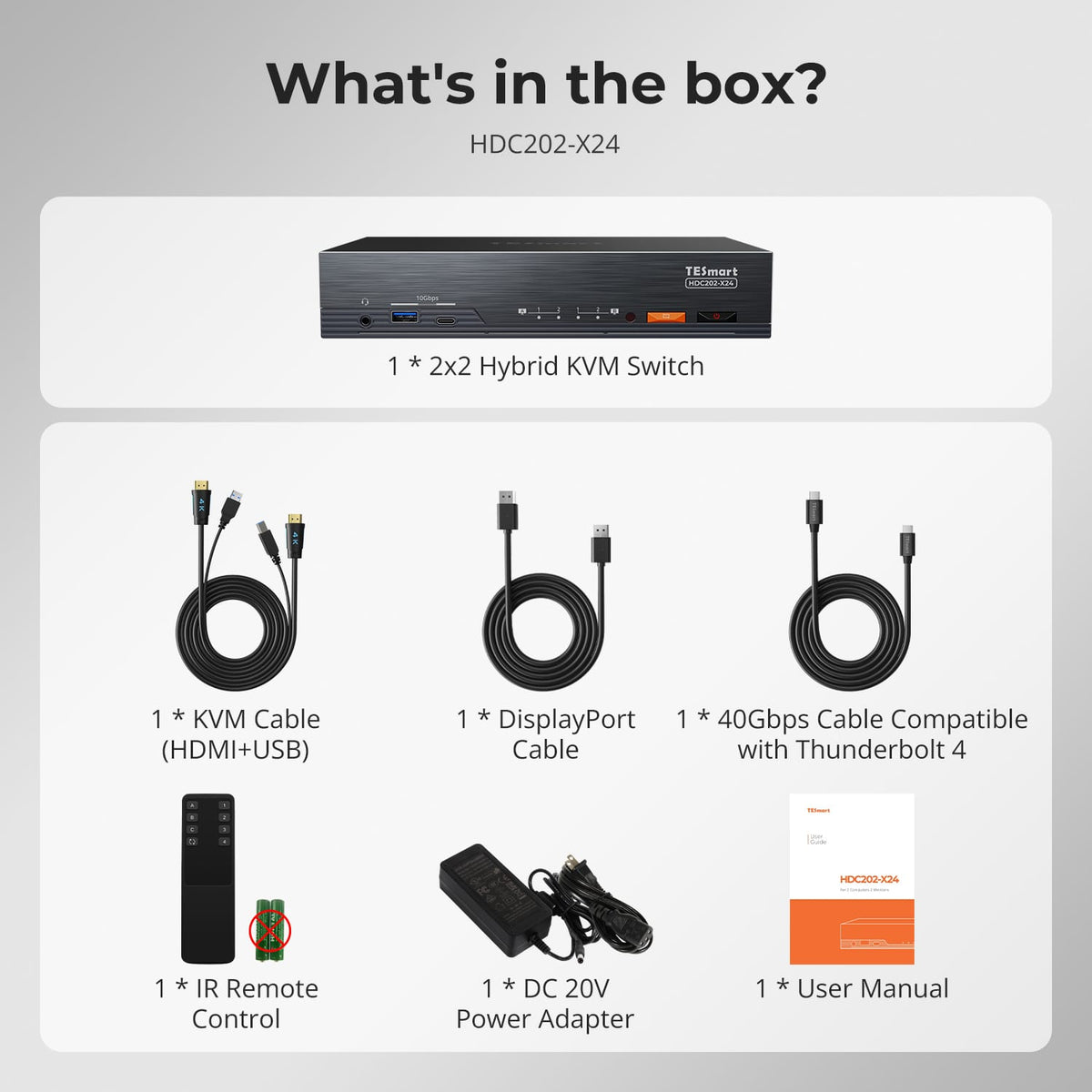
Included in the Box
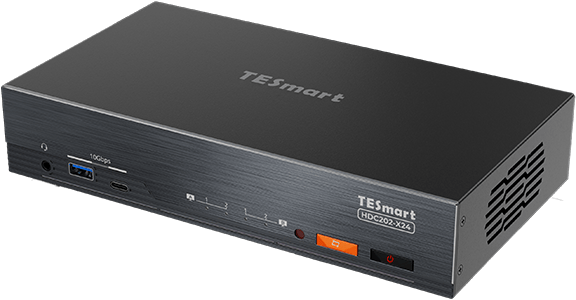
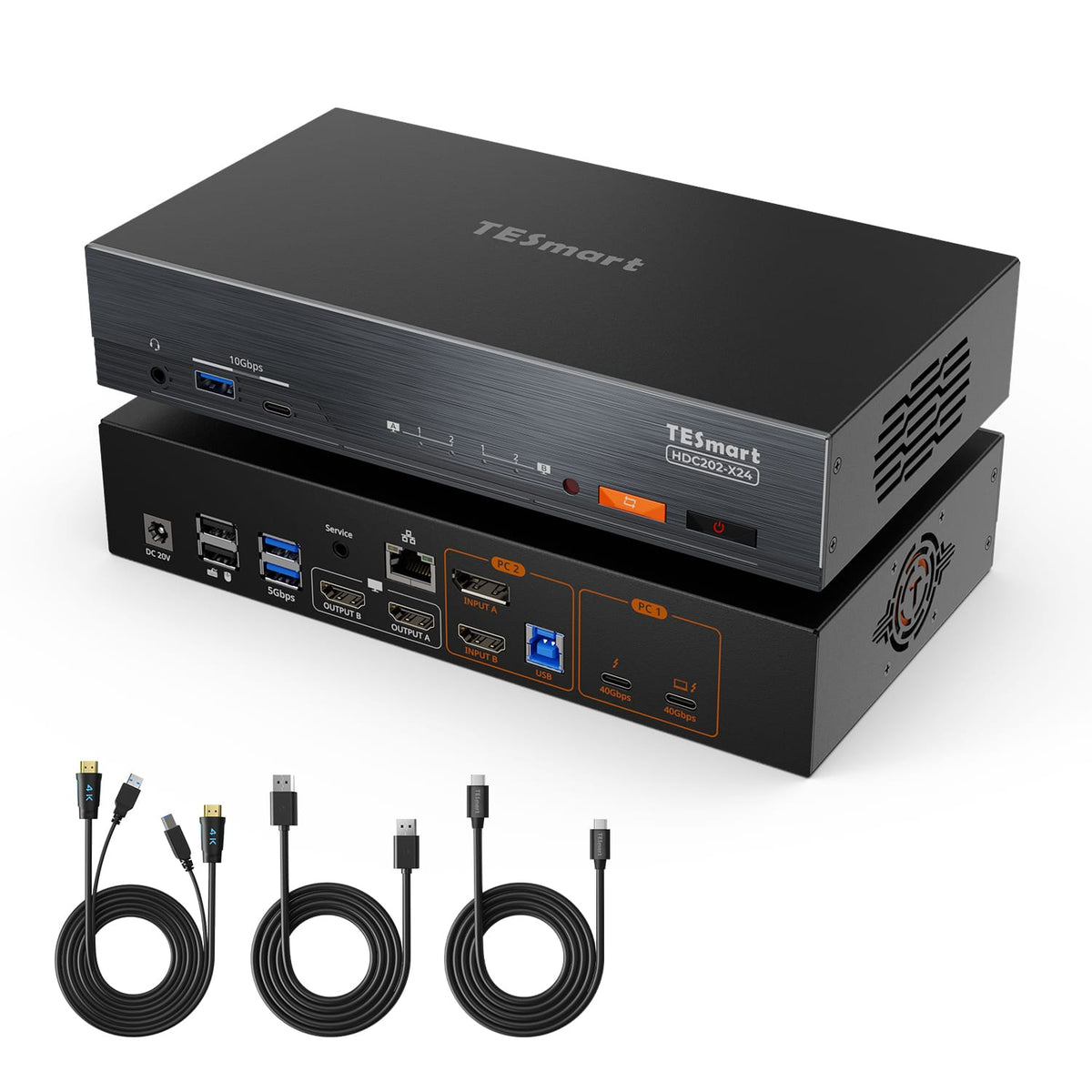
1 × HDC202-X24 KVM Switch
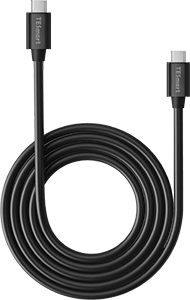
1 × USB-C Cable (40 Gbps)
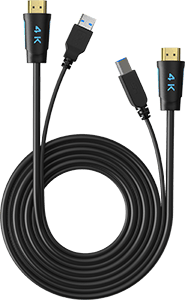
1 × KVM Cables (HDMI + USB)
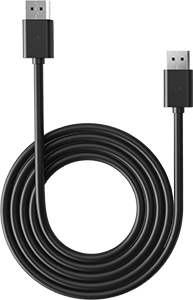
1 × DisplayPort Cable
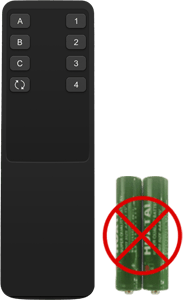
1 × IR Remote Control
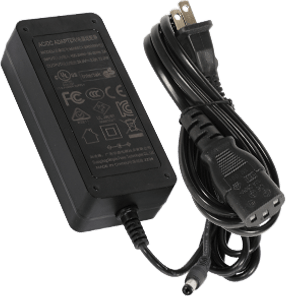
1 × DC 20V Power Adapter
1 × User Manual
Product comparison
Source Mix
1× Laptop (Thunderbolt™ 4)
1× HDMI/DP desktop
Source Mix
2× PCs (Thunderbolt™ 4)
Source Mix
1× Mac (Thunderbolt™ 4)
1x Windows PC
2× HDMI sources
Display Setup
2× HDMI monitors
Display Setup
2× Apple Studio Displays
Display Setup
1× Apple Studio Display
Max Display Output
Dual 4K@60Hz
Max Display Output
Up to 6K@60Hz / 5K@120Hz
Max Display Output
Input 1: 6K@60Hz / 5K@120Hz
HDMI: 4K@60Hz
Laptop Charging
1× 60W
Laptop Charging
2× 60W
Laptop Charging
1× 60W
Best For
Mac and one desktop sharing two standard monitors
Best For
Two Macs or Win Laptops(Thunderbolt 4) sharing two Apple Studio Displays
Best For
Mac, desktop and HDMI devices sharing one Apple Studio Display
FAQ's
Visit our Help Center for more answers.
[Compatibility] What devices can I connect to HDC202-X24?
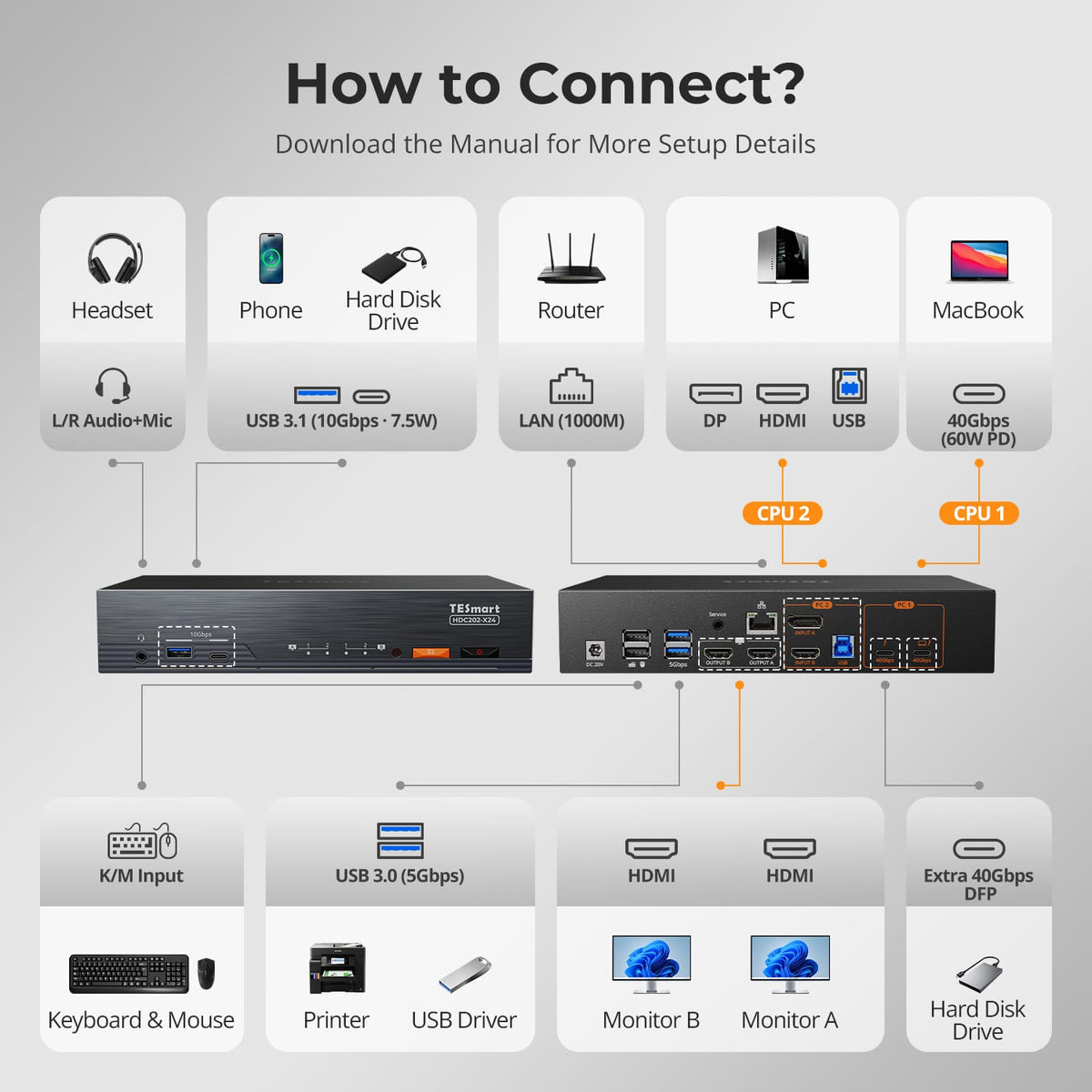
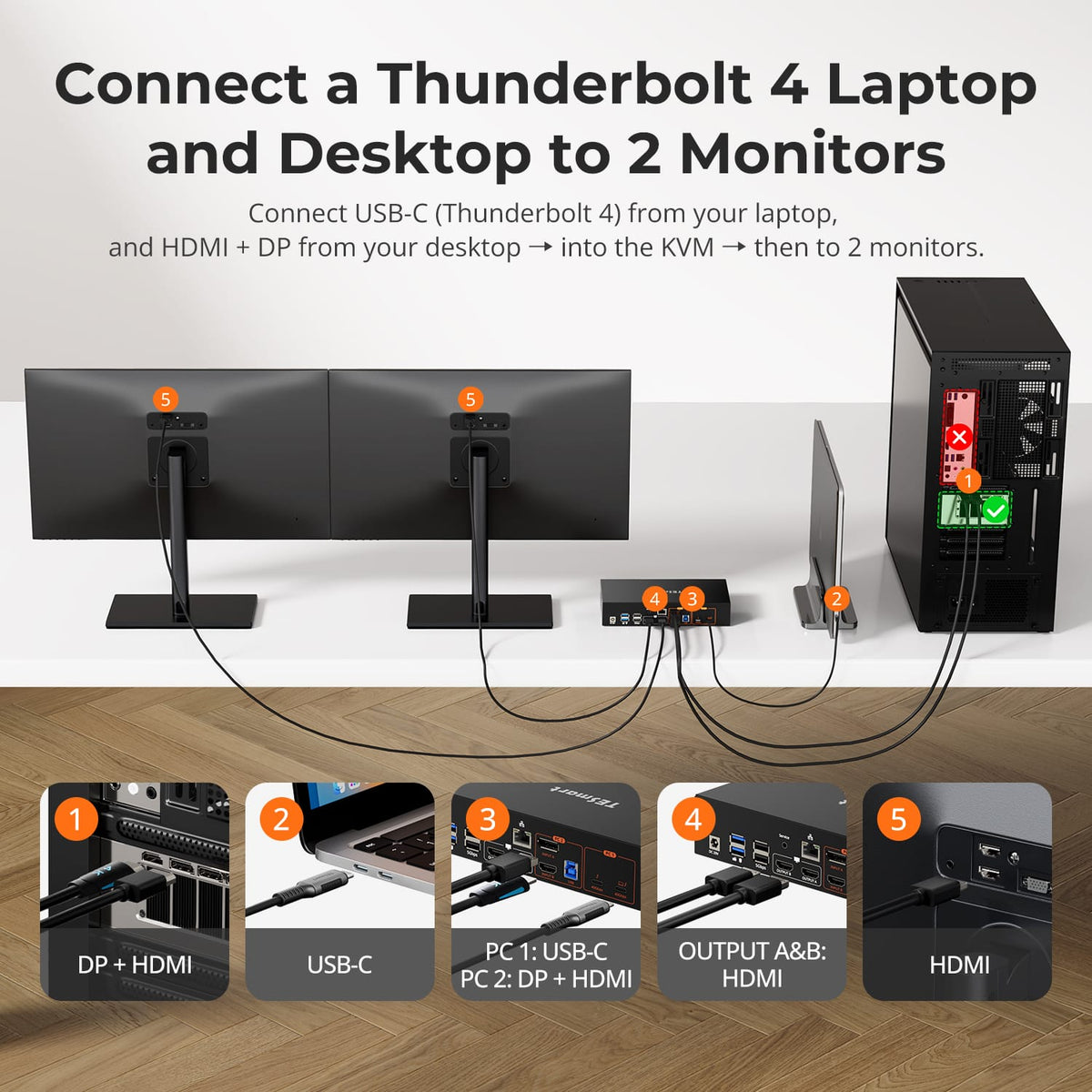
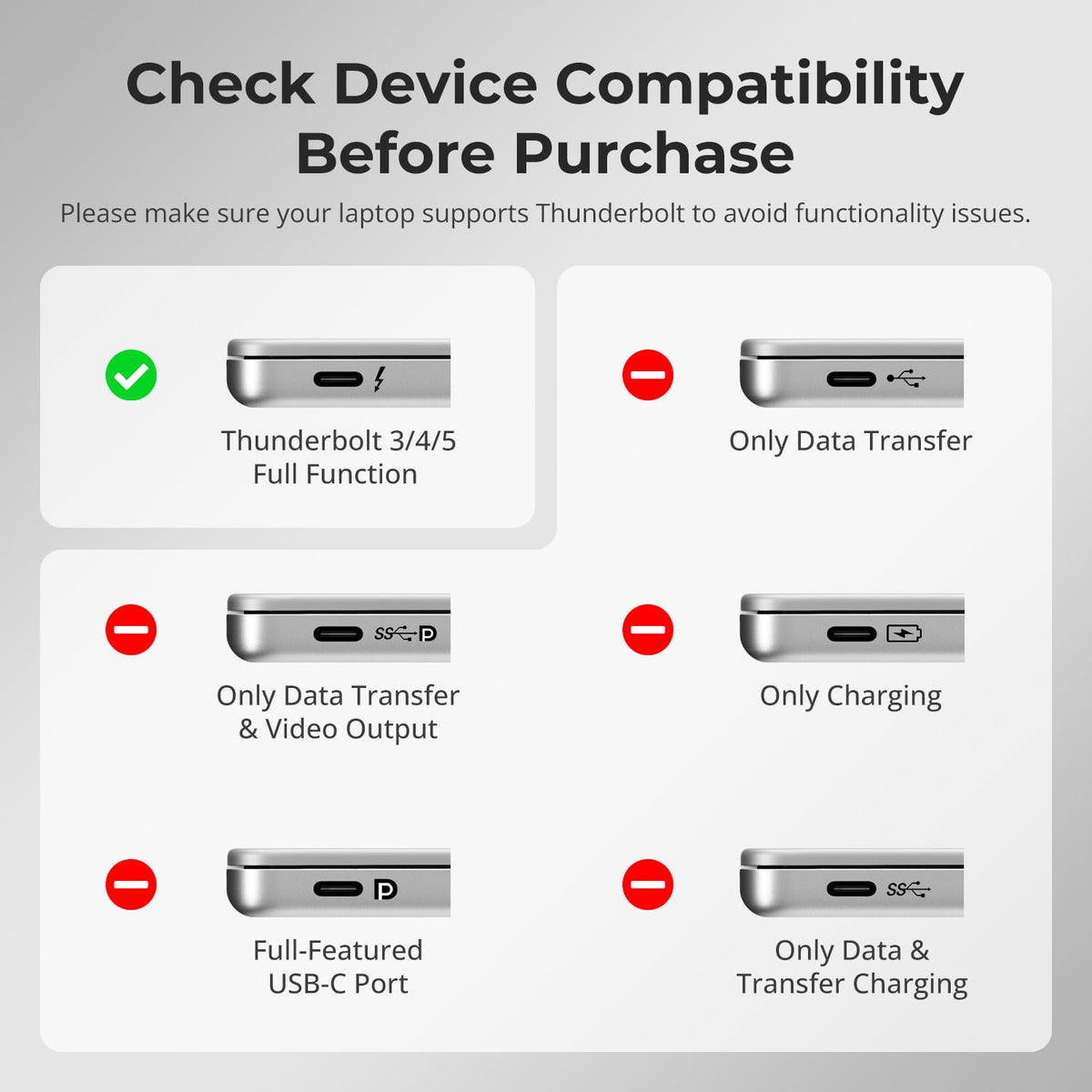
HDC202-X24 supports a Thunderbolt 3/4/5 computer through PC1, and a desktop or second computer through PC2 using DisplayPort or HDMI plus a USB-B connection.
A typical setup combines a MacBook or Windows Thunderbolt laptop, a Windows desktop and two HDMI displays, all controlled with one keyboard and mouse.
[Compatibility] How can I tell whether my Mac supports dual extended displays through the PC1 port?
Whether you can run dual displays depends on whether your Mac can output two display streams simultaneously through a single Thunderbolt port — not on how many external displays the Mac supports in total. PC1 therefore requires a Thunderbolt 3 or later port.
The following Macs cannot run dual extended displays when connected to PC1 over a single cable:
- MacBook Air / MacBook Pro with a base M1 or M2 chip;
- MacBook Air / MacBook Pro with a base M3 chip — only one display when the lid is open; dual displays are supported once the lid is closed and the power adapter is connected;
- Mac mini with a base M1 chip;
- MacBook Neo (A18 Pro).
All other Macs can run dual extended displays through the HDC202-X24 PC1 port.
Compiled from Apple's official technical specifications. Actual behavior also depends on your Mac model, macOS version and display configuration; please refer to Apple's official documentation for the final details. If you still have questions, please contact TESmart Support.
[Compatibility] Is HDC202-X24 Intel® certified for Thunderbolt™?
HDC202-X24 is not yet Intel® certified for Thunderbolt™. It is designed for use with computers compatible with Thunderbolt™ 4 and has been tested across common real-world setups for display output, data connectivity and peripheral switching. Intel® certification for Thunderbolt™ is currently in progress.
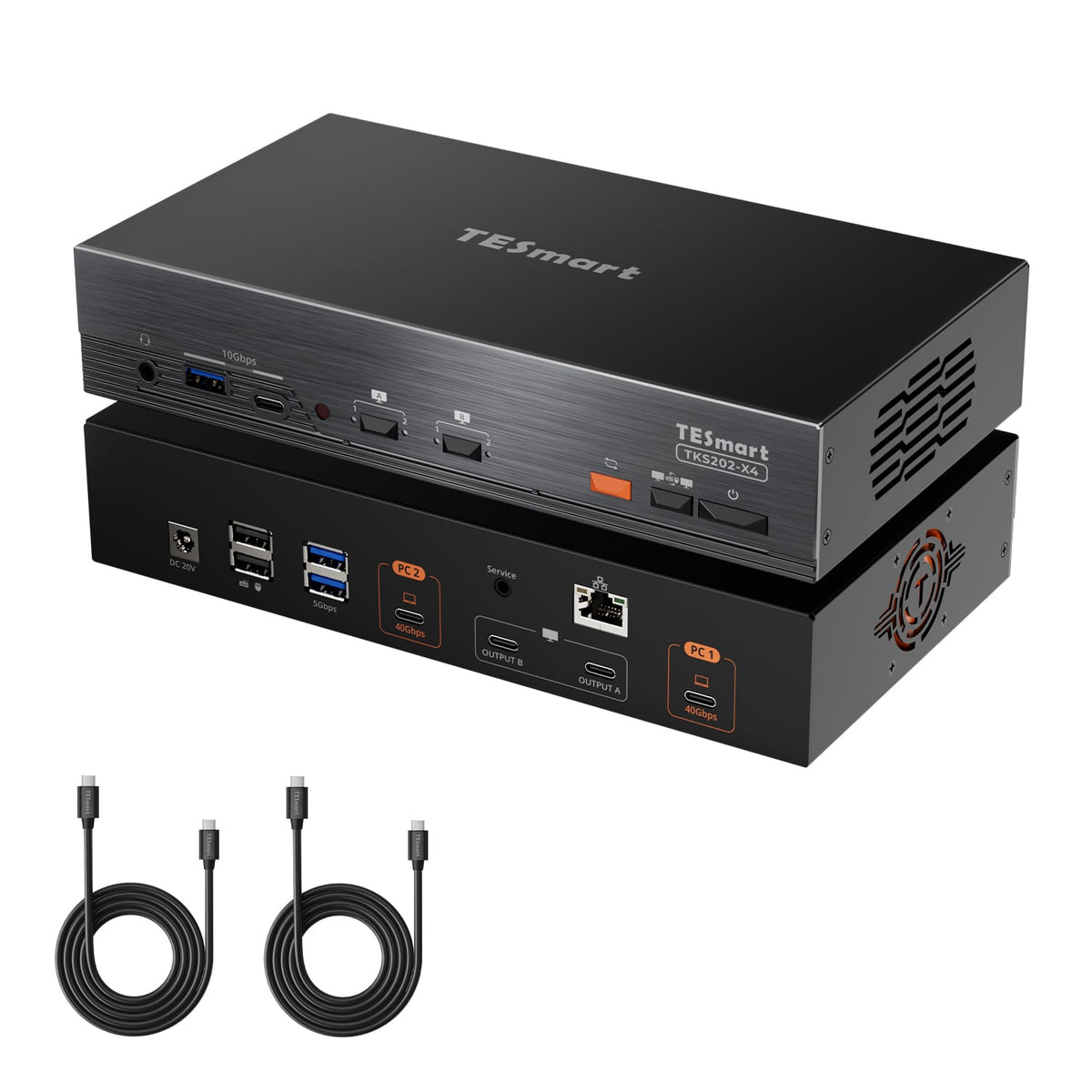
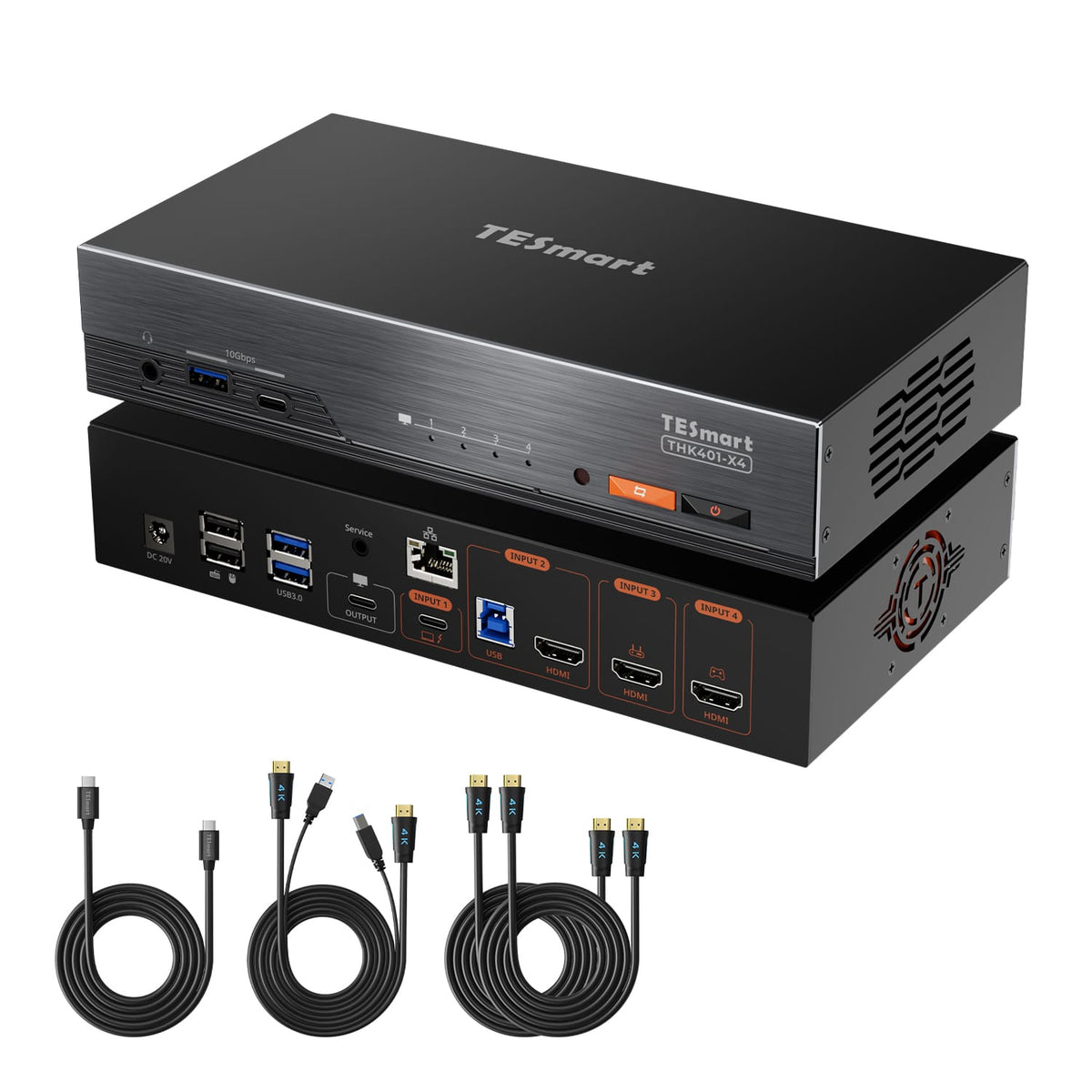
[Compatibility] Should I choose HDC202-X24, THK401-X4 or TKS202-X4?
Choose HDC202-X24 when a Thunderbolt laptop and a DP/HDMI desktop need to share two HDMI displays with built-in docking—60W charging, Gigabit Ethernet and 10Gbps USB—plus high-refresh gaming support.
Choose THK401-X4 when one Apple Studio Display needs to be shared between two computers plus two additional HDMI source devices.
Choose TKS202-X4 when two computers compatible with Thunderbolt™ 4 need to share a dual Thunderbolt-display workstation.
[Features & Connections] Do both PC inputs provide the same functions?
No.
PC1 is designed for Thunderbolt computers and provides dual display output, USB data, network access, up to 60W charging and a 40Gbps expansion port.
PC2 uses DisplayPort or HDMI for video and a separate USB-B connection for shared keyboard, mouse and USB devices. PC2 does not provide laptop charging or an expansion port.
[Features & Connections] What is the maximum supported resolution?
Each HDMI output supports up to 3840×2160@60Hz 4:4:4, plus high-refresh modes including 2560×1440@120Hz and 1920×1080@240Hz.
Actual resolution and refresh rate depend on the connected computer, display, operating system, cable and selected display mode.
[Features & Connections] How can I use the two display outputs?
HDC202-X24 supports two display modes. Display Mode 1 shows one PC on both monitors in extended or duplicate mode, depending on your operating system settings.
Display Mode 2 shows PC1 on one monitor and PC2 on the other, and you can double-click Right-Alt to switch keyboard and mouse focus while keeping both systems visible.
[Features & Connections] What is the 40Gbps expansion port?
The expansion port adds a downstream USB-C interface to PC1 for a PSSD, dock or display at up to 40Gbps.
It is only available on PC1, and devices connected to it are not switched between computers.
[Features & Connections] Can both PCs use the Gigabit Ethernet port?
Yes.
The built-in network switch shares one Gigabit Ethernet connection with both connected PCs at up to 1000Mbps.
The feature can be enabled or disabled by keyboard hotkey.
[Features & Connections] Do USB and audio have to follow the display when I switch?
No.
You can choose how they behave. With Follow Mode enabled (default), supported USB and audio devices follow the active computer when switching.
With Follow Mode disabled, you can switch the audio and USB channels independently by hotkey. This is useful when a headset, meeting or USB device needs to stay active on one system.
[Setup & Switching] How can I switch between connected devices?
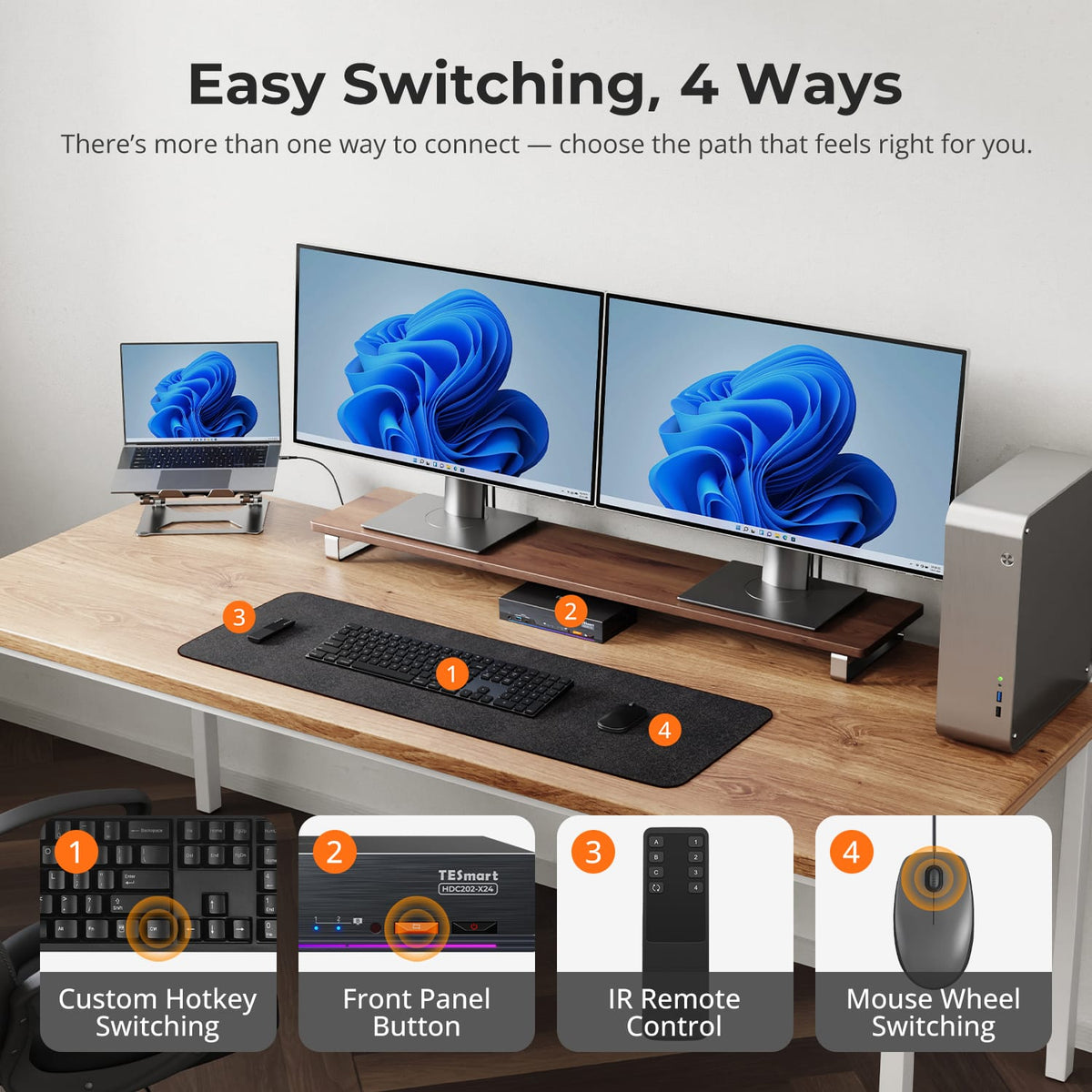
HDC202-X24 provides four switching methods: front-panel button, IR remote control, keyboard hotkeys and mouse-wheel switching.
Mouse-wheel switching must be enabled before use.
[Setup & Switching] Does HDC202-X24 support keyboard hotkeys?
Yes.
Connect a compatible wired USB keyboard to the dedicated keyboard port to use hotkey controls.
Hotkey functions may not work through Bluetooth keyboards, general USB hubs or some wireless receivers.
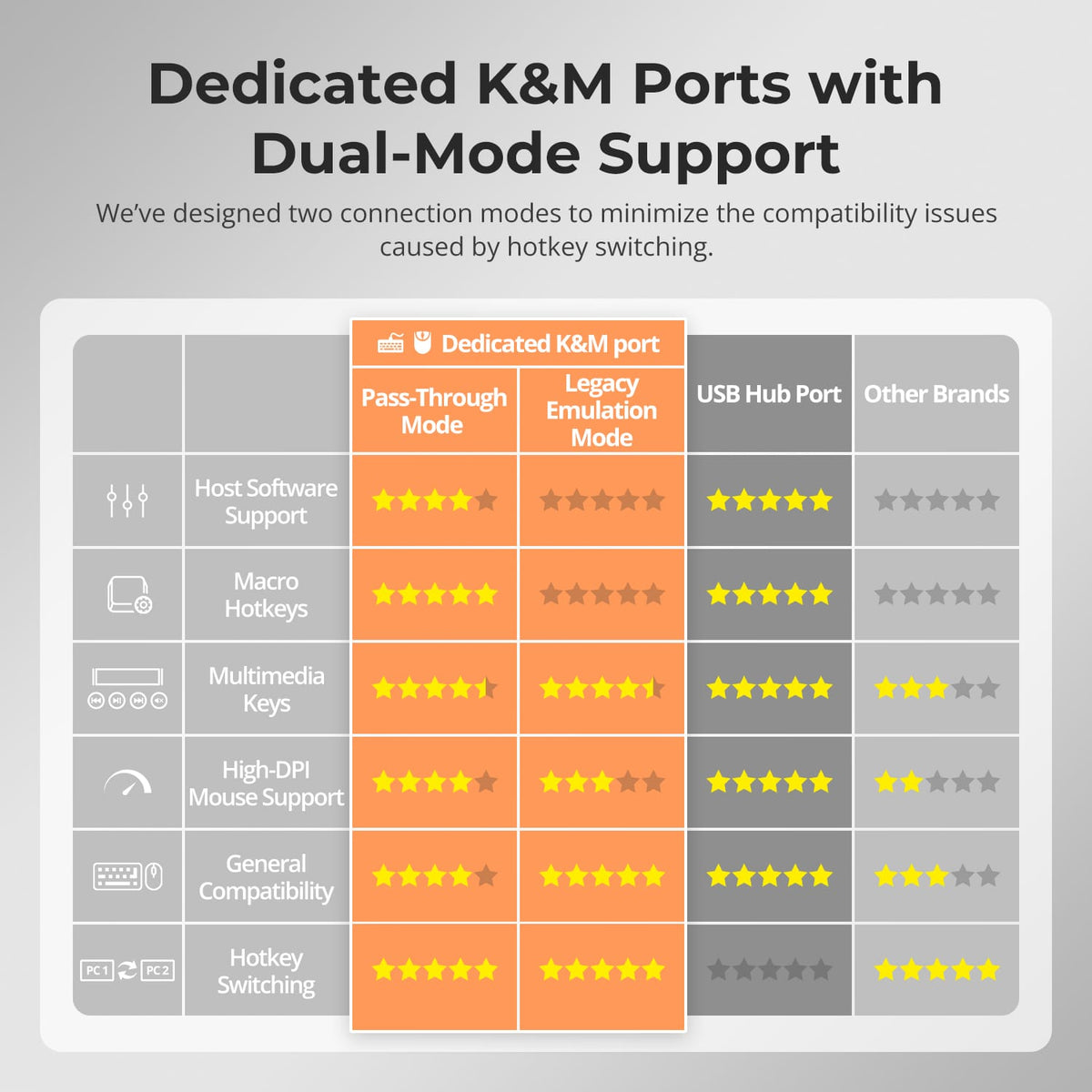
[Setup & Switching] What are Pass-Through Mode and Legacy Emulation Mode?
Pass-Through Mode is recommended for most modern keyboards and mice and supports many advanced peripheral functions.
Legacy Emulation Mode can improve basic keyboard, mouse and hotkey compatibility when a device does not operate correctly in Pass-Through Mode. Some advanced keyboard or mouse software functions may be unavailable in Legacy Emulation Mode.
[Setup & Switching] Do I need to install drivers or switching software?
The primary display and source-switching functions do not require dedicated switching software.
Some connected keyboards, mice, USB devices or other peripherals may still require their own drivers or applications.