





Display Setup
Max Display Output

Display Stability
USB Sharing
Automatic input detection

Automatic input scanning
RJ45 network control
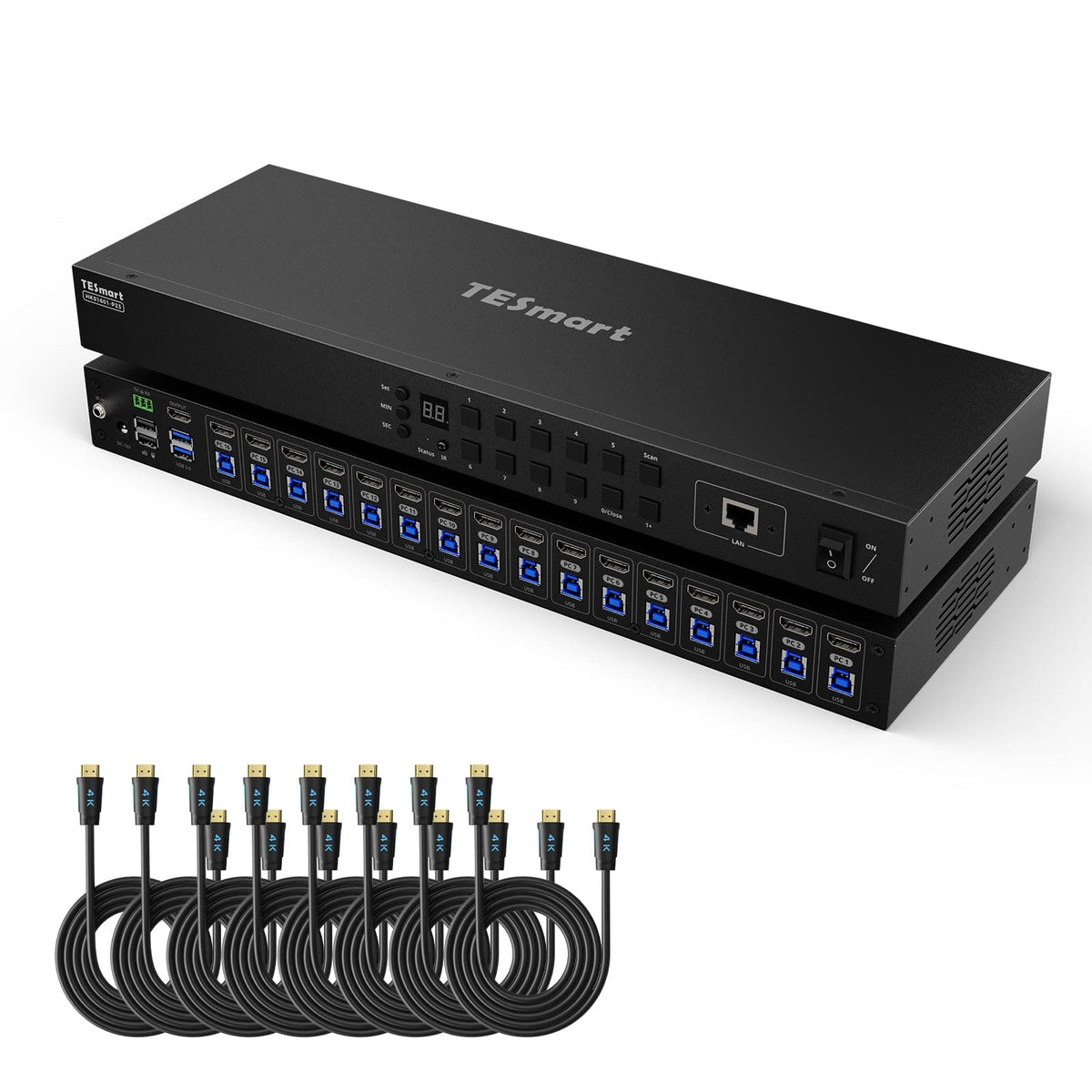
16 Port HDMI KVM Switch 4K30Hz Support RS232/LAN, Upgraded for Broader Compatibility and Stability
Share one HDMI monitor, a keyboard and mouse between 16 computers, with up to 4K30, EDID and USB 2.0. Auto Scan and automatic input detection simplify monitoring.
Display Setup
Max Display Output
Display Stability
USB Sharing
Automatic input detection
Automatic input scanning
RJ45 network control
16 Port HDMI KVM Switch 4K30Hz Support RS232/LAN, Upgraded for Broader Compatibility and Stability
Why Choose HKS1601-EB23
Overview
01
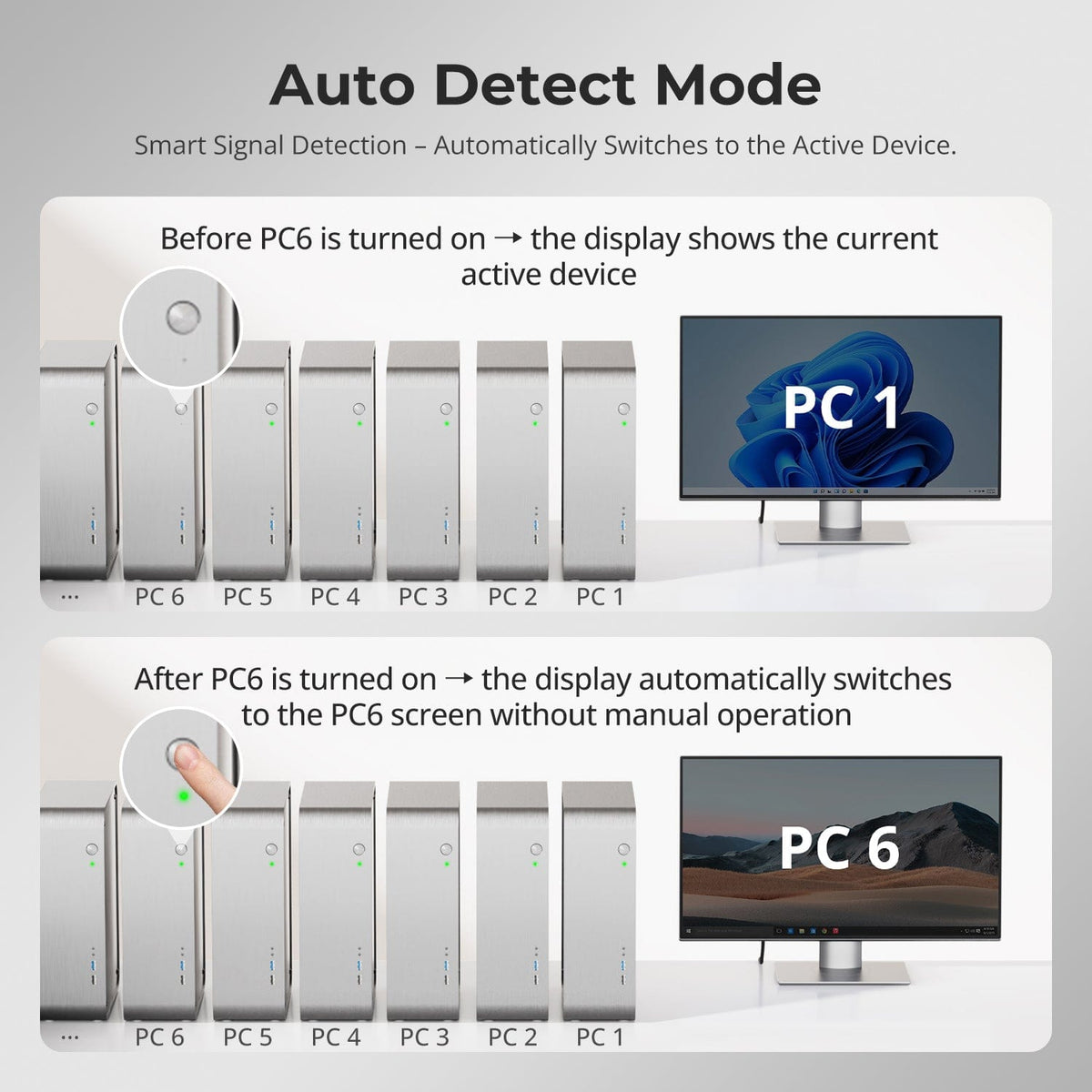
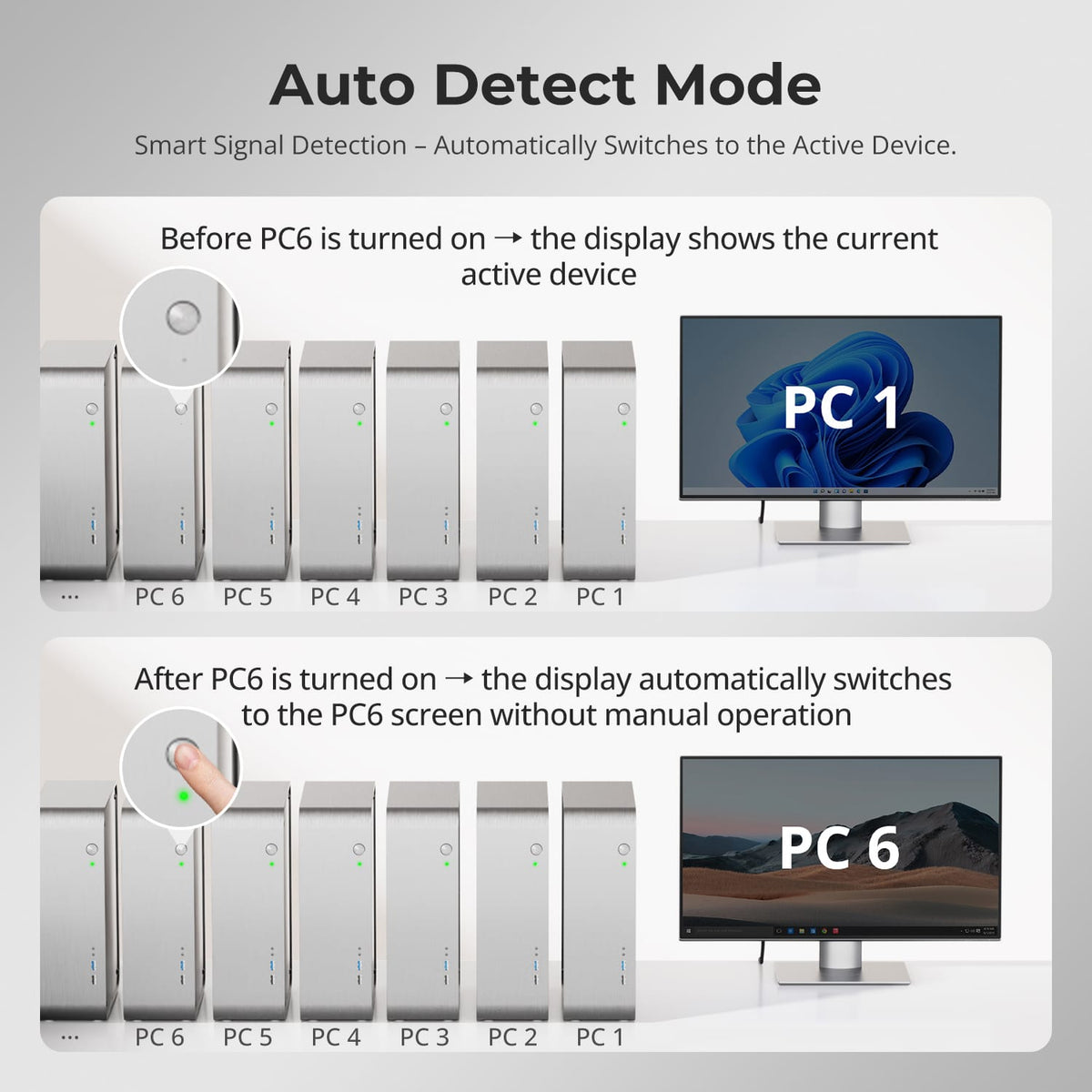
Automatically Follow a Newly Active Source
Auto Detect Mode switches to a newly connected active computer and moves to the next active input when a source is removed. The feature is enabled by default and can be toggled from the IR remote.

02
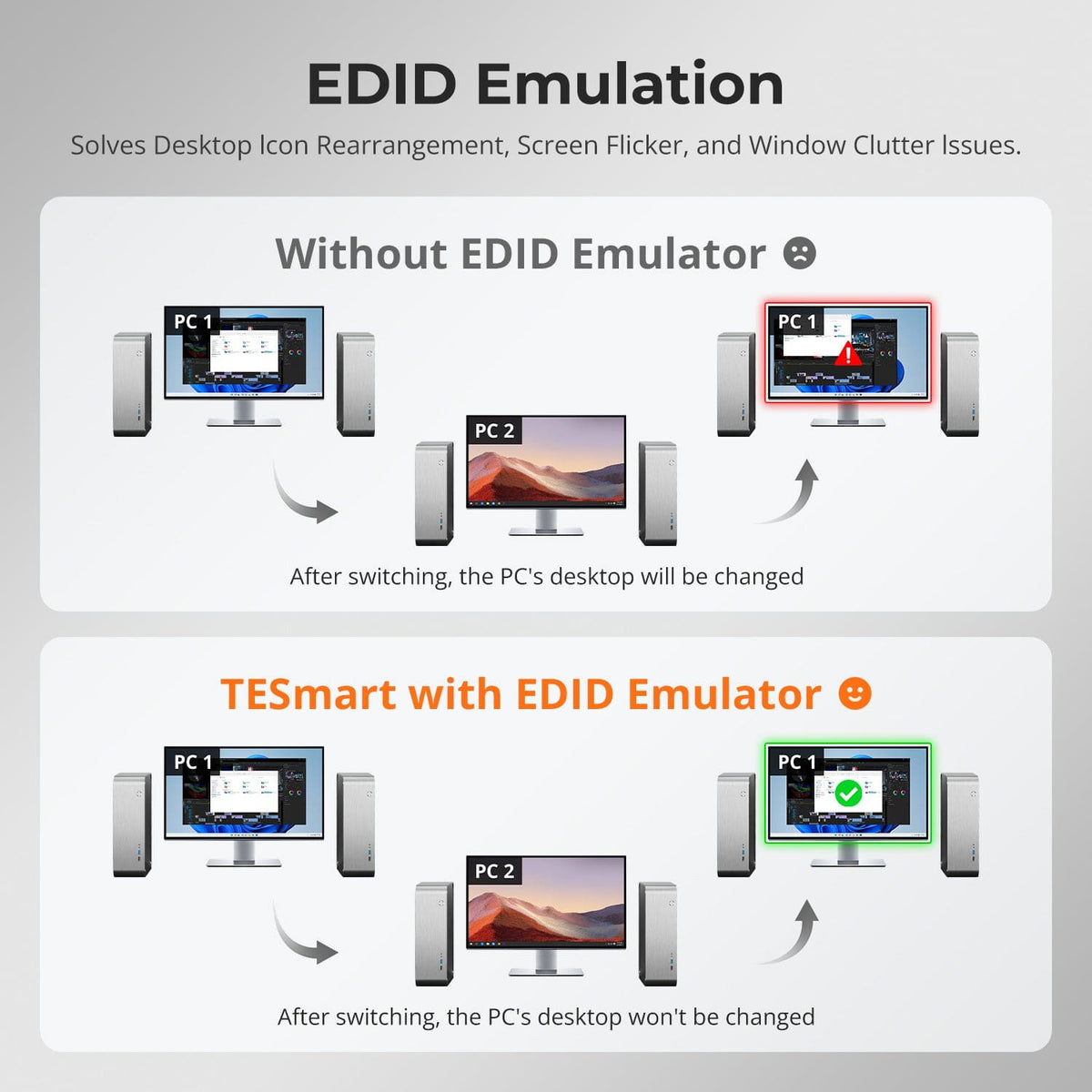
EDID Emulation Keeps Each Computer Ready
An EDID emulator on every input keeps monitor information available to connected computers during switching, helping reduce desktop rearrangement, flicker and display reinitialization.
03
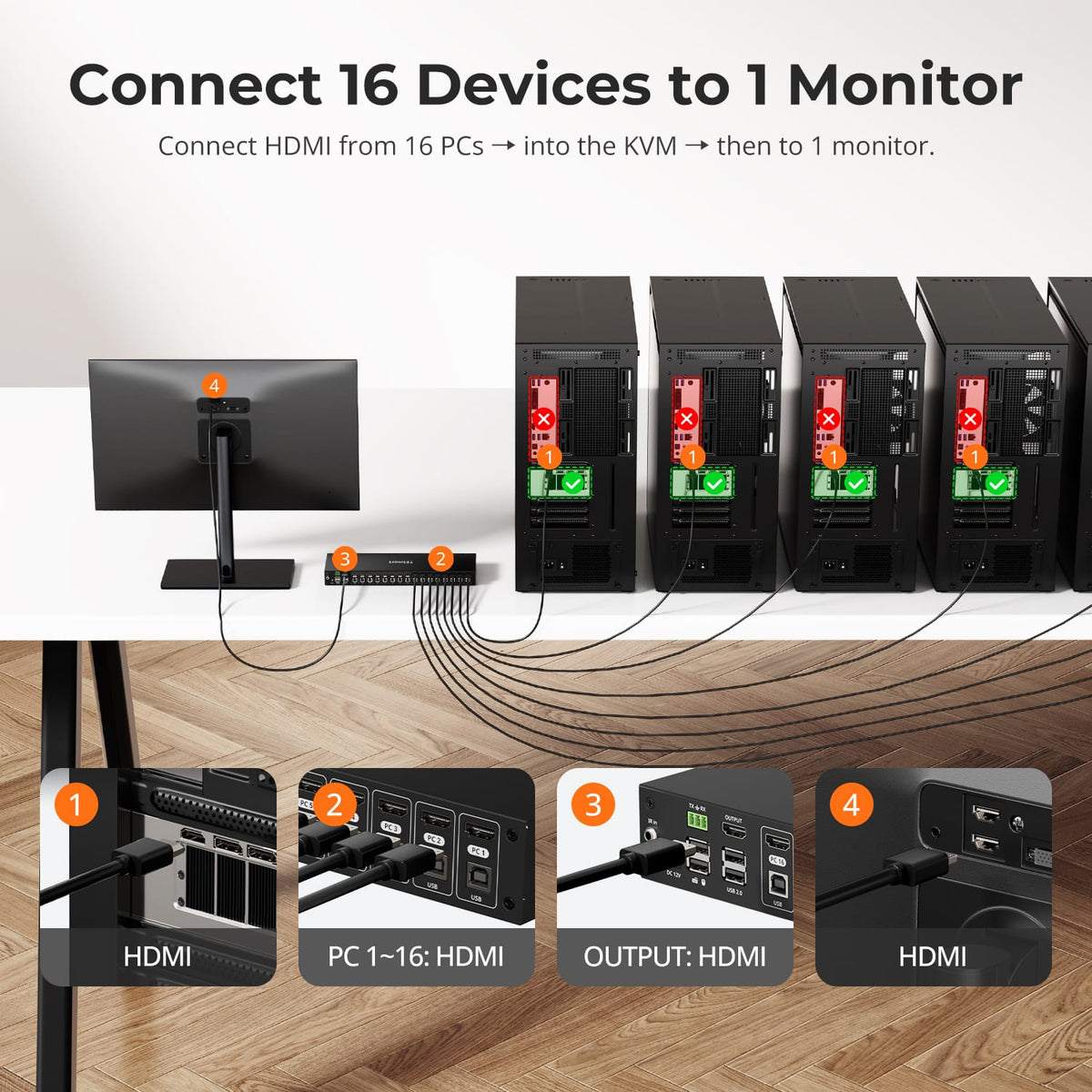
One Monitor. Multiple Computers.
Share one HDMI monitor, a keyboard and mouse between 16 computers, with up to 4K30, EDID and USB 2.0. Auto Scan and automatic input detection simplify monitoring.
04
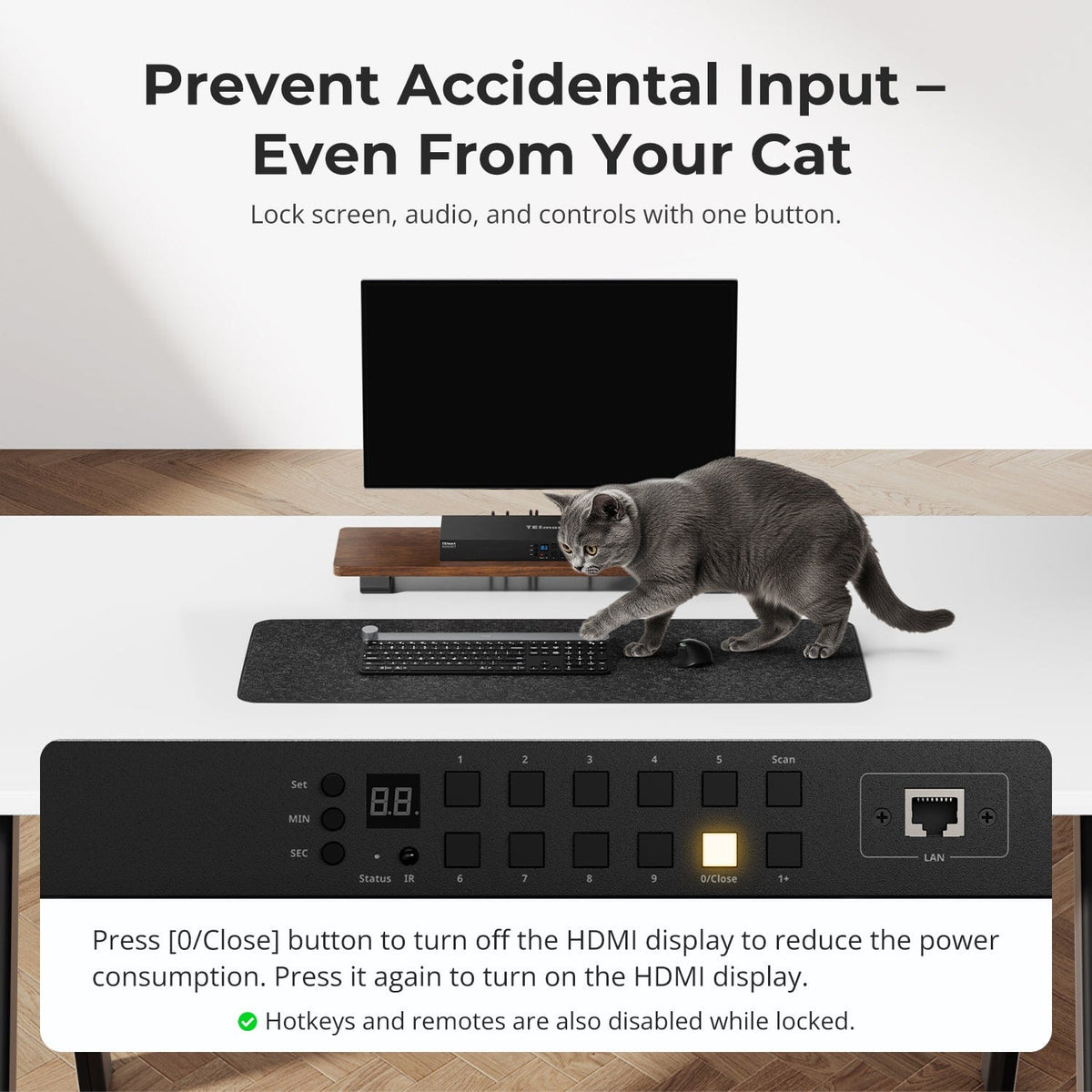
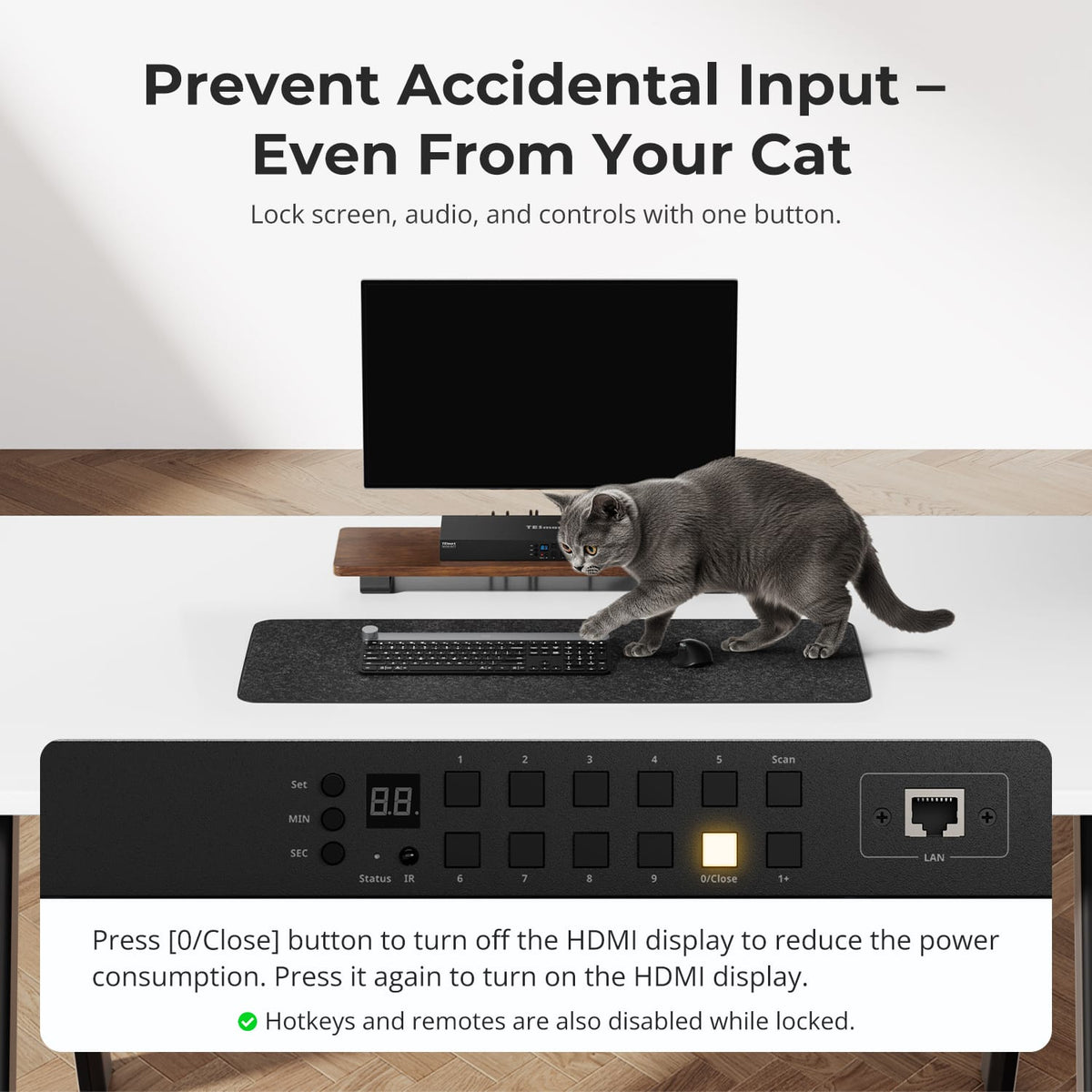
Turn Off the Display Without Powering Down
Press the 0/Close button to turn off the HDMI display output and reduce power consumption. Press it again to restore the display when you are ready to continue.
05
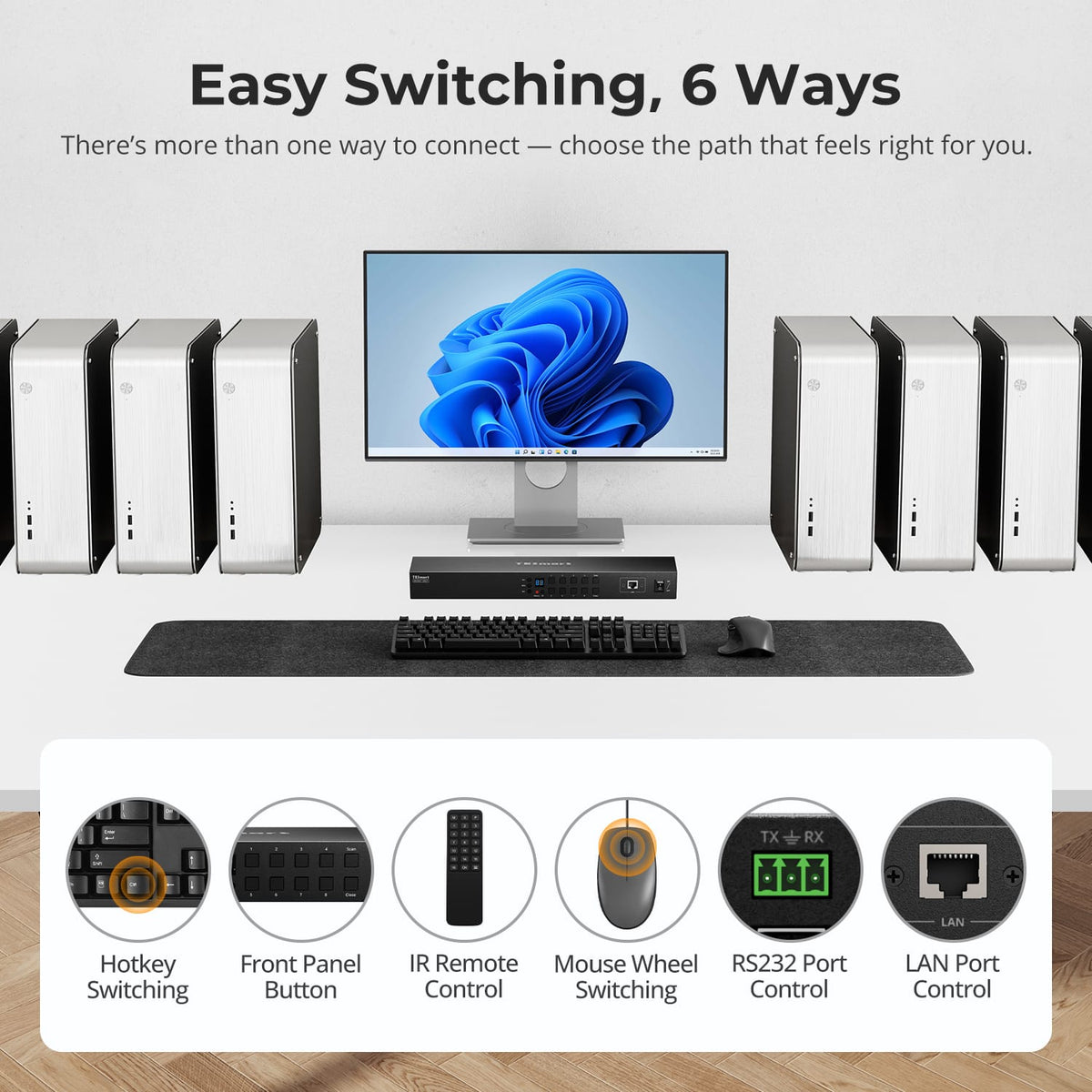
Switch Your Way, 6 Ways
Switch between computers using keyboard hotkeys, front-panel buttons, the IR remote, mouse wheel, RS232, or LAN control.
06
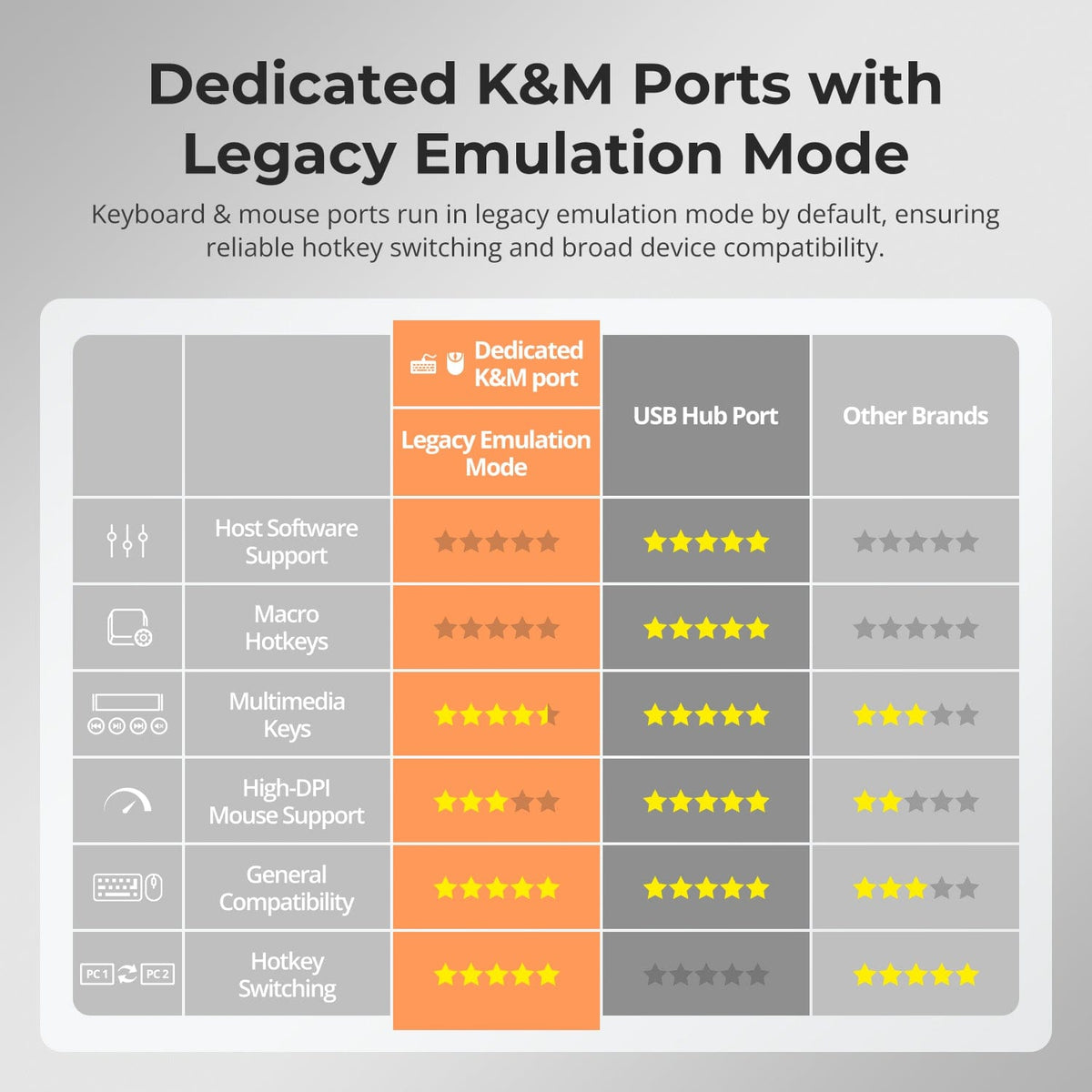
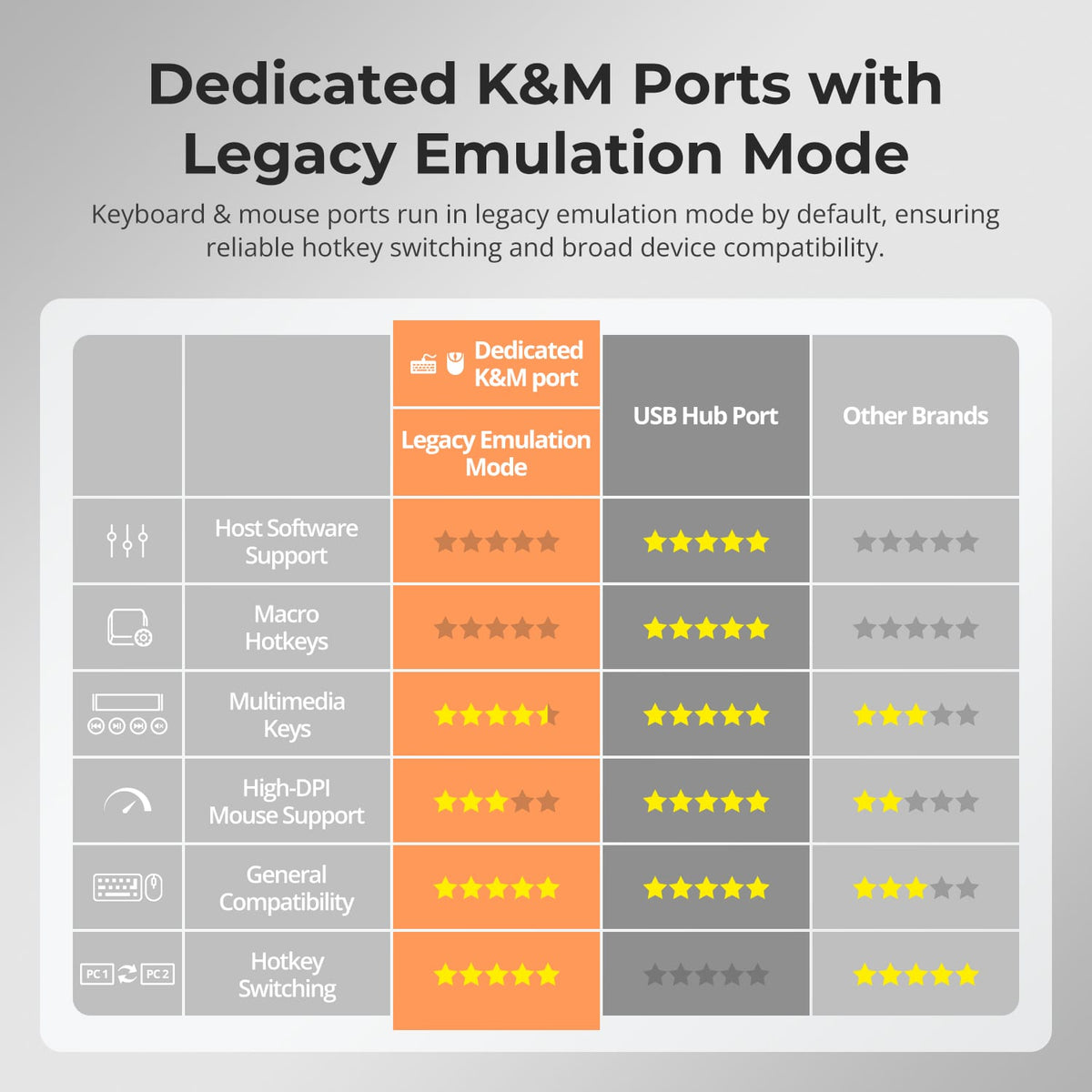
Dedicated Keyboard & Mouse Ports
Legacy emulation mode is enabled by default for reliable hotkey switching and broad keyboard and mouse compatibility.
Specifications & Support
Compatibility & Input Guide
Technical Specifications
Manuals & Downloads
Included in the Box
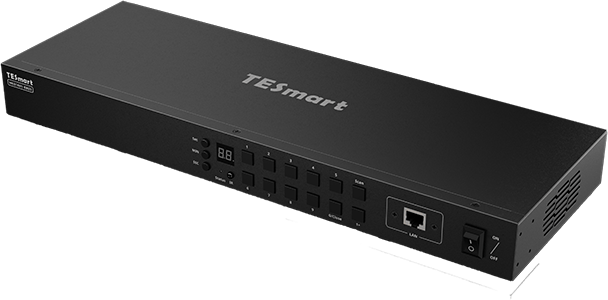
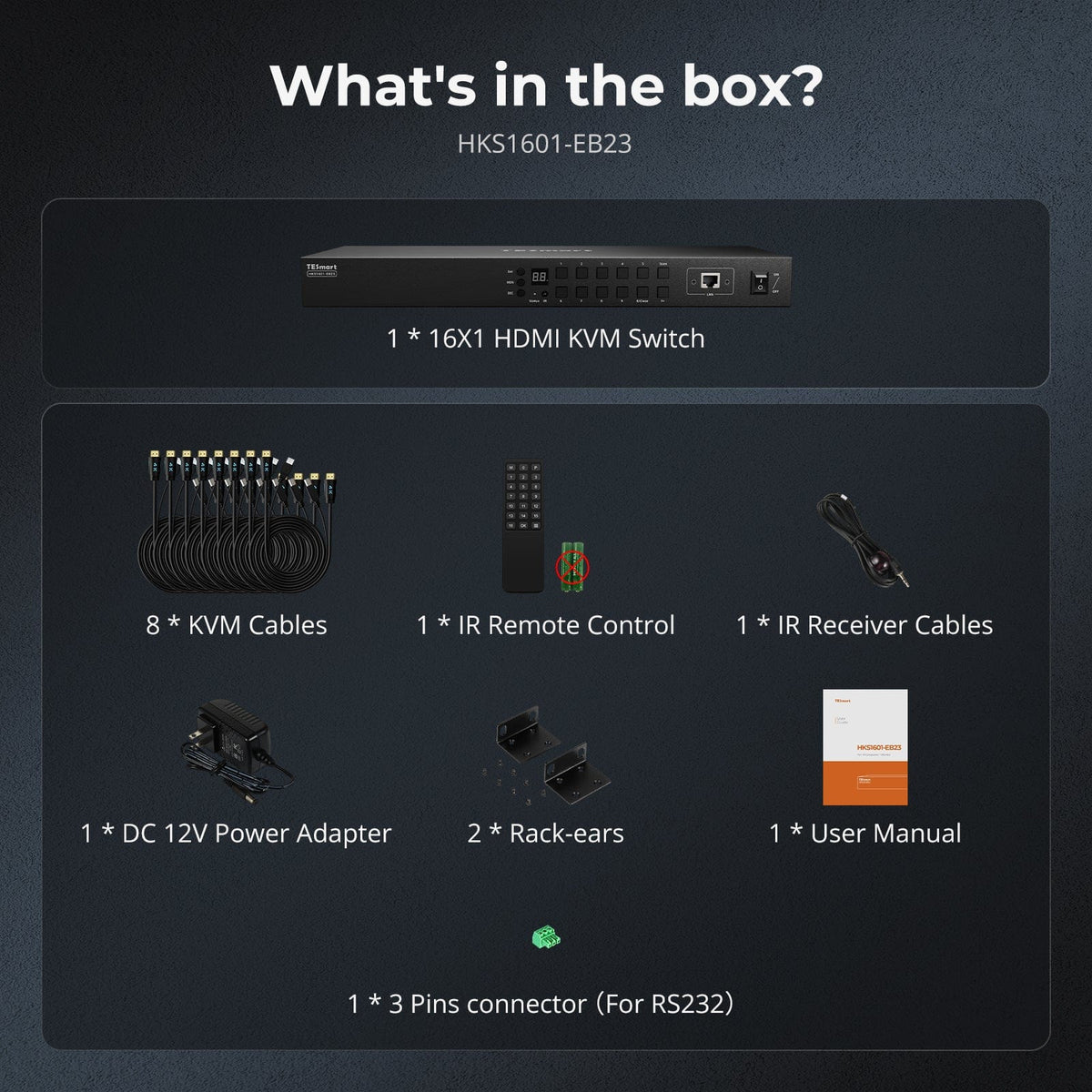
1 × HKS1601-EB23 KVM Switch
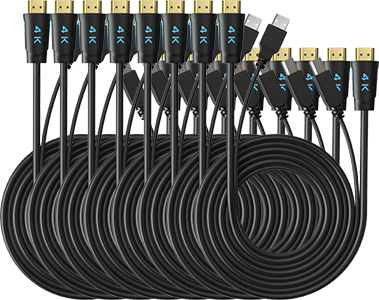
8 × KVM Cables (HDMI + USB)
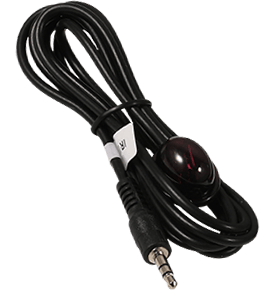
1 × IR Receiver Cable
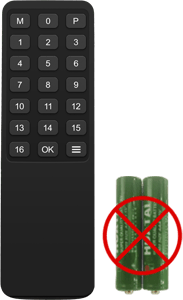
1 × IR Remote Control
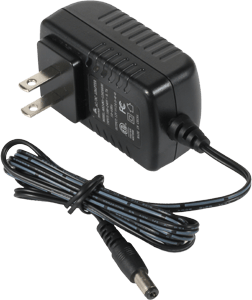
1 × 12 V DC Power Adapter
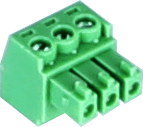
1 × 3-Pin RS232 Connector

2 × Rack Brackets
1 × User Manual

Compare your options
Choose models from the menus to compare connections, display performance and shared features.

Model
HKS1601-EB23
Model
HKS1601-P23
Model
HKS1601-M24
Computer setup
16 computers
Computer setup
16 computers
Computer setup
16 computers
Computer connections
Each PC: 1 × HDMI + USB
Computer connections
Each PC: 1 × HDMI + USB
Computer connections
Each PC: 1 × HDMI + USB
Display outputs
1 × HDMI
Display outputs
1 × HDMI
Display outputs
1 × HDMI
Video output
4K30
Video output
4K60
Video output
8K60 / 4K144
Shared USB
USB 2.0
Shared USB
USB 3.0 / 5Gbps
Shared USB
USB 3.0 / 5Gbps
EDID emulation
EDID emulation
EDID emulation
Network control
LAN / TCP-IP + RS232
Network control
LAN / TCP-IP + RS232
Network control
LAN / TCP-IP + RS232
FAQ's
Visit our Help Center for more answers.
[Compatibility] Does the KVM support Mac and Windows environments?
Yes. HKS1601-EB23 supports Windows, macOS, Unix, Raspberry Pi OS, and Linux distributions including Debian, Ubuntu, Fedora, and Raspbian. PS5 and Nintendo Switch can also be connected as HDMI sources.
[Compatibility] What computers and display can I connect to HKS1601-EB23?
Connect up to sixteen HDMI computers and one HDMI monitor. Each computer also needs a USB data connection to the KVM for keyboard, mouse, and shared USB functions.
[Compatibility] Can I use DVI equipment with this KVM?
Yes. DVI-D single-link sources and displays can be used with suitable HDMI-to-DVI adapters.
[Features & Connections] Can the KVM Switch be controlled via computer software?
Yes. TESmart provides Windows control software for input switching and a control-protocol document for compatible third-party or custom tools. Download the current resources from TESmart or contact Support.
[Features & Connections] What does EDID emulation do?
It keeps monitor information available to every connected computer, helping reduce display re-detection, flicker, and desktop rearrangement during switching.
[Features & Connections] Can the computers share USB devices?
Yes. Connect a compatible peripheral to the shared USB port, and it will follow the selected computer.
[Features & Connections] What are the LAN and RS232 ports used for?
They provide external KVM control. LAN accepts TCP/IP commands, while RS232 uses the documented serial protocol. The LAN port does not share network access with the connected computers.
[Features & Connections] Why are my USB peripherals not working?
Confirm that the selected computer's USB data cable is connected to its matching KVM input. Use the dedicated ports only for a keyboard and mouse; connect other devices to the shared USB port. For high-power devices, use a powered hub or connect them directly to the computer.
[Setup & Switching] How do I connect each computer?
Connect one HDMI cable and one USB data cable from each computer to the matching input group. Then connect the HDMI monitor, keyboard, mouse, shared USB devices, optional IR receiver, and DC 12V power.
[Setup & Switching] How can I switch between computers?
Use the front-panel keypad, IR remote, keyboard hotkeys, mouse wheel, RS232 commands, Windows control software, or TCP/IP commands through the LAN port. Mouse-wheel switching must be enabled before use.
[Setup & Switching] Why does it automatically switch to a newly connected computer?
Auto Detect Mode is enabled by default. It selects a newly connected or powered-on source and moves to another active input when the current source is removed. Press M on the IR remote to toggle it.
[Setup & Switching] How do I set the Auto Scan interval?
Enable Auto Scan with the front-panel Scan button, Right Ctrl twice then Space, or P on the remote. Set 5 seconds to 59 minutes 59 seconds with the MIN, SEC, and Set buttons; the default is 15 seconds. Hotkey + and - adjustments work only while Auto Scan is active.
[Setup & Switching] Why does the monitor fail to output stable video, showing flickering or black screens?
Choose a resolution and refresh rate supported by the source, KVM, display, and cables. Use the included input cables, keep the output HDMI cable under 3 m, and remove adapters or cascaded devices. If the issue continues, contact TESmart Support to check for an EDID compatibility issue.
[Setup & Switching] Why is there a slight delay when switching to PC1?
The KVM briefly waits to determine whether 1 is the first digit of ports 10–16. This is normal. Press the front-panel 1 button for immediate access to PC1.
[Setup & Switching] What keyboard is recommended for hotkeys?
Use a full-size wired keyboard with a separate Scroll Lock key and connect it to the dedicated keyboard port. The default hotkey trigger is Right Ctrl.