



Display Setup
Max Display Output

Display Stability
Gaming Display

Gaming Display

USB Speed

Automation
16-Port 8K60Hz HDMI 2.1 KVM Switch – Multi-Control, USB 3.2 Gen1 (5Gbps) & Smart Modes for Pro Studios & Multi-PC Setups
Share one HDMI monitor, a keyboard and mouse between 16 computers, with up to 8K60/4K144, EDID and USB 3.2. Auto Scan and automatic input detection simplify monitoring.
Display Setup
Max Display Output
Display Stability
Gaming Display
Gaming Display
USB Speed
Automation
- Connect Setup:
- For 16 PCs 1 Monitor (8K@60Hz)
- Plug Type:
- US Plug
16-Port 8K60Hz HDMI 2.1 KVM Switch – Multi-Control, USB 3.2 Gen1 (5Gbps) & Smart Modes for Pro Studios & Multi-PC Setups
Why Choose HKS1601-M24
Overview

01
8K60 for Detail. High-Refresh 4K for Motion.
HDMI 2.1 provides 48Gbps bandwidth with support up to 8K@60Hz 4:4:4 and backward compatibility through 4K@144Hz, plus VRR, FVA, ALLM and DSC on supported hardware.

02
EDID Keeps Every PC Display-Ready
EDID emulation on the input ports keeps monitor information available to connected systems, helping reduce resolution changes and display re-detection when switching across a large PC pool.

03
Control It Locally or Remotely
Switch through front-panel controls, IR remote, keyboard hotkeys or mouse-wheel control. LAN and RS232 interfaces support managed or integrated deployments where the KVM may not sit within arm's reach.

04
Auto Detect Active Sources
Auto Detect can follow changes in connected active sources, reducing manual input selection when systems are plugged in or removed.

05

06

07
Specifications & Support
Compatibility & Input Guide
Technical Specifications
Manuals & Downloads
Included in the Box
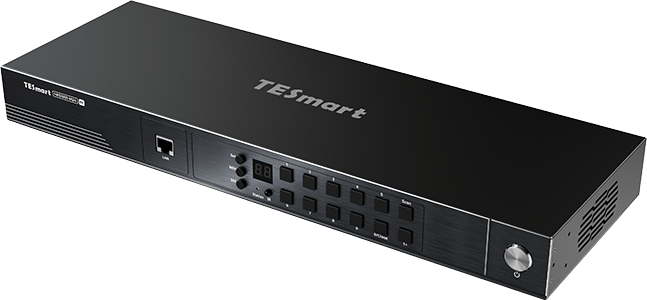
1 × 16×1 HDMI KVM Switch
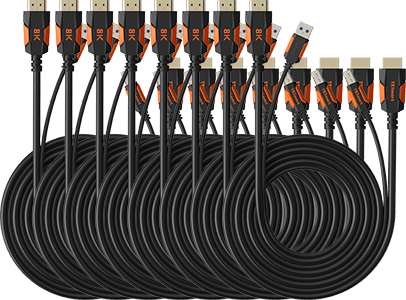
8 × HDMI + USB KVM Cables
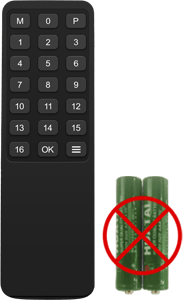
1 × IR Remote Control
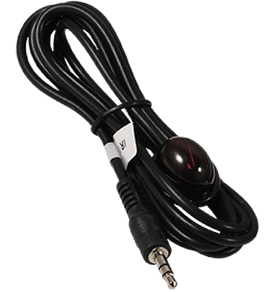
1 × IR Receiver Cable
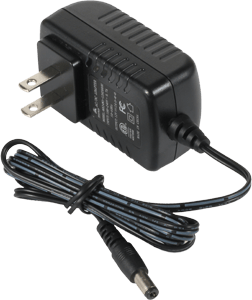
1 × 12 V DC Power Adapter
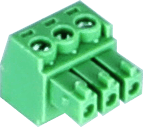
1 × 3-Pin RS232 Connector
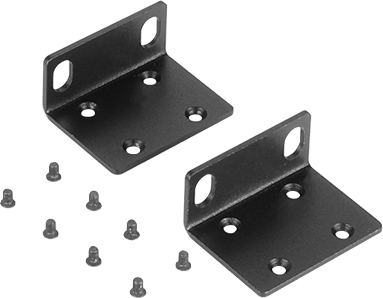
2 × Rack Brackets
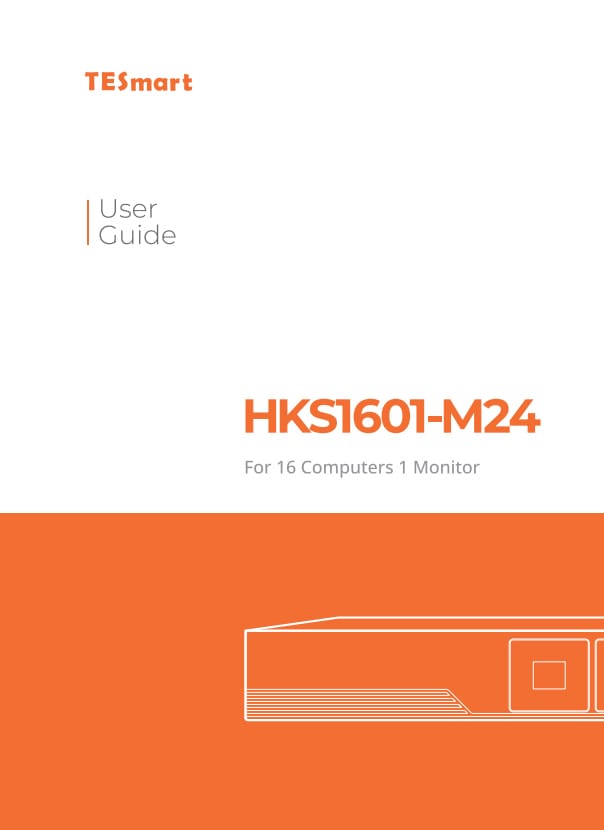
1 × User Manual
FAQ's
Visit our Help Center for more answers.
[Compatibility] How many computers can I connect to HKS1601-M24?
You can connect up to sixteen HDMI computers and share one HDMI display, keyboard and mouse.
[Compatibility] What is the maximum supported resolution?
The uploaded manual supports up to 8K@60Hz 4:4:4 and lists backward compatibility through 4K@144Hz. Actual output depends on the source, display and cable.
[Compatibility] What do I need for 8K60 or high-refresh 4K?
The GPU, HDMI connection, display and cable must all support the target HDMI 2.1 bandwidth and video feature.
[Features & Connections] Does HKS1601-M24 support EDID emulation?
Yes. EDID emulation on the inputs keeps display information available to each computer to reduce re-detection and resolution changes when switching.
[Features & Connections] What are the LAN and RS232 ports used for?
They are KVM control interfaces for network or serial management. They are not a shared Ethernet connection for the connected computers.
[Features & Connections] What does Auto Detect do?
Auto Detect can switch when an active source is connected or when the current source is removed, following available inputs automatically.
[Features & Connections] What does Auto Scan do?
Auto Scan cycles through powered, connected computers at a configurable interval for monitoring.
[Setup & Switching] How can I switch HKS1601-M24?
Use the front-panel controls, IR remote, keyboard hotkeys or mouse-wheel switching. LAN and RS232 are also available for remote control.
[Setup & Switching] Do I need special switching software?
No dedicated switching software is required for normal KVM operation or the built-in control methods.