

Display Setup
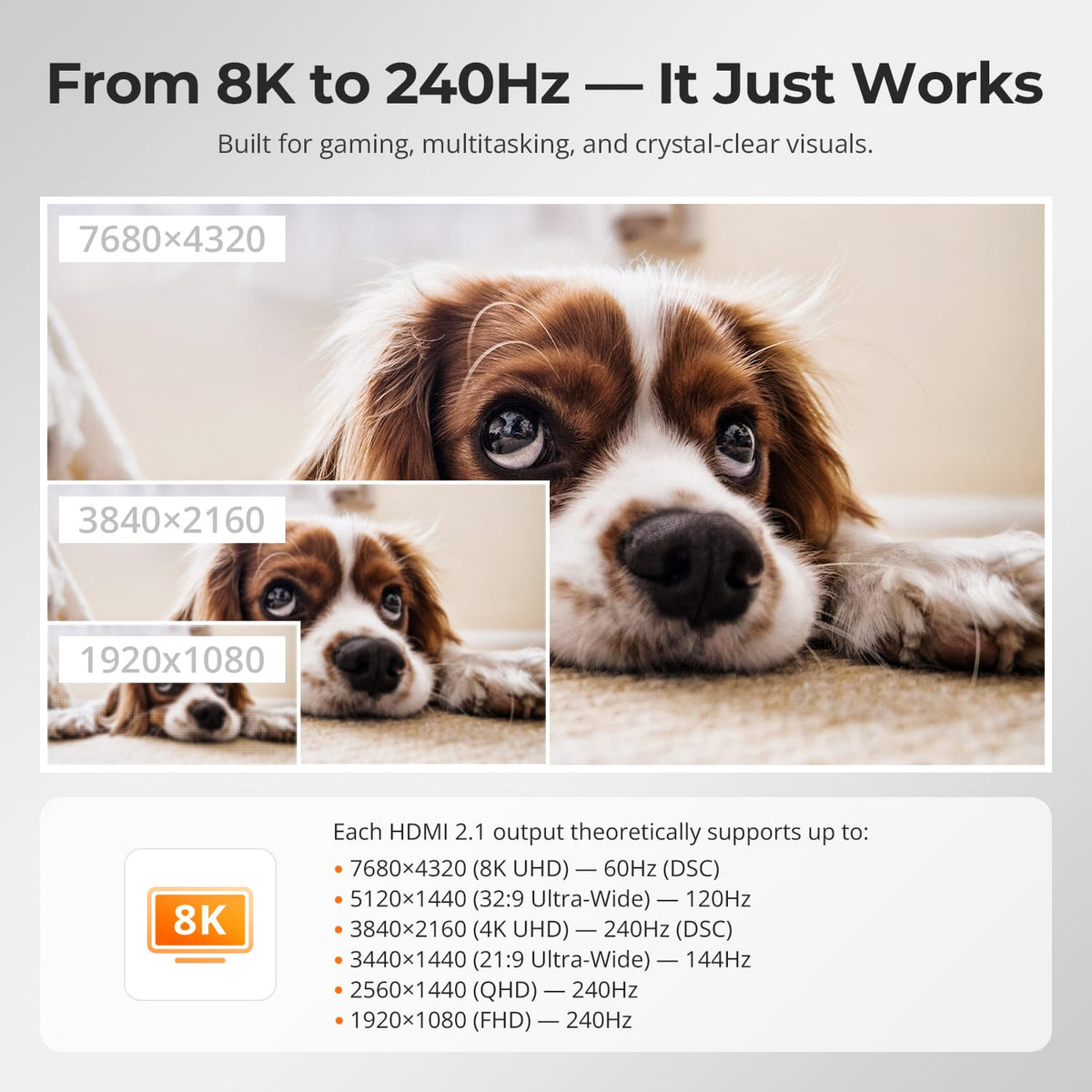
Max Display Output

Display Color
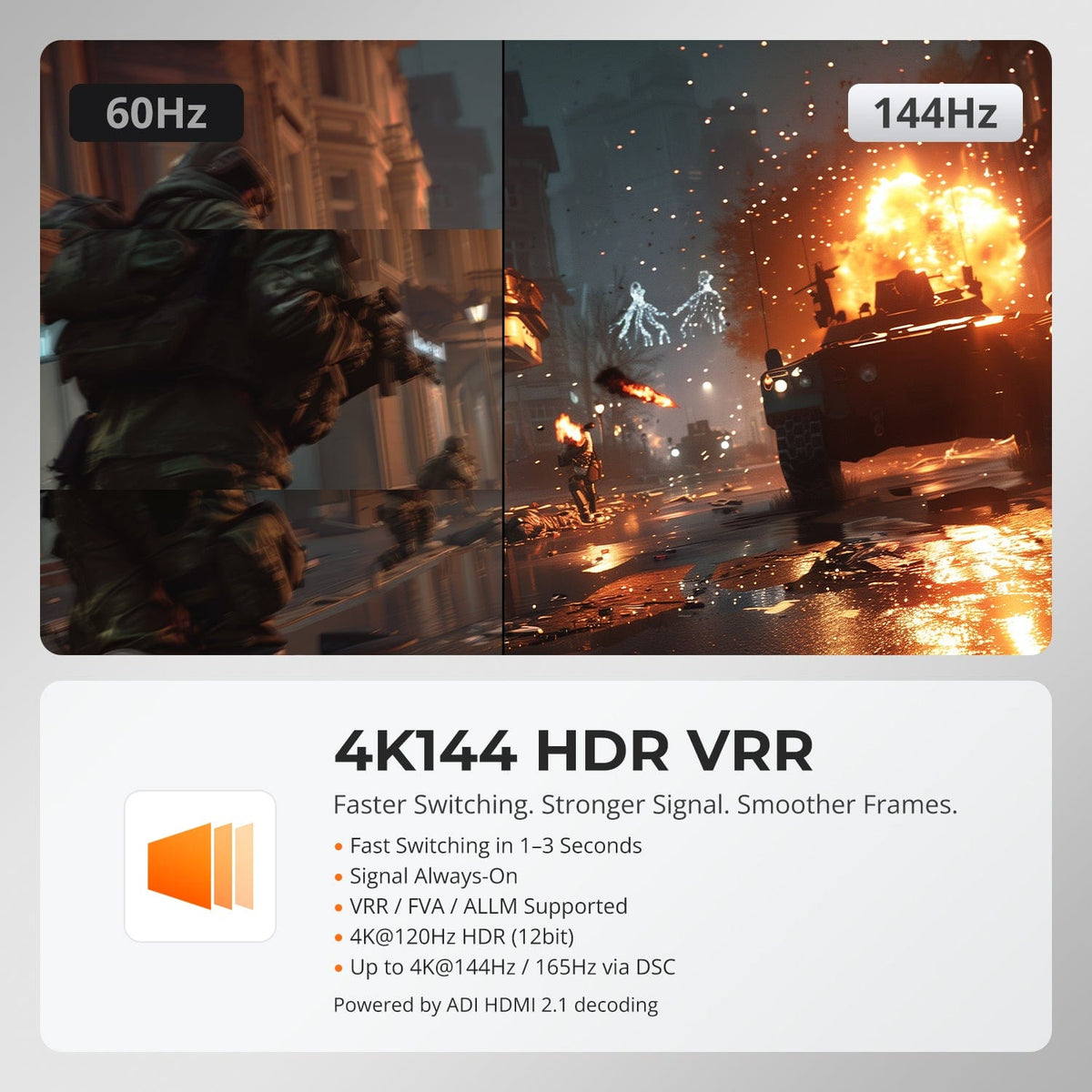
Gaming Display

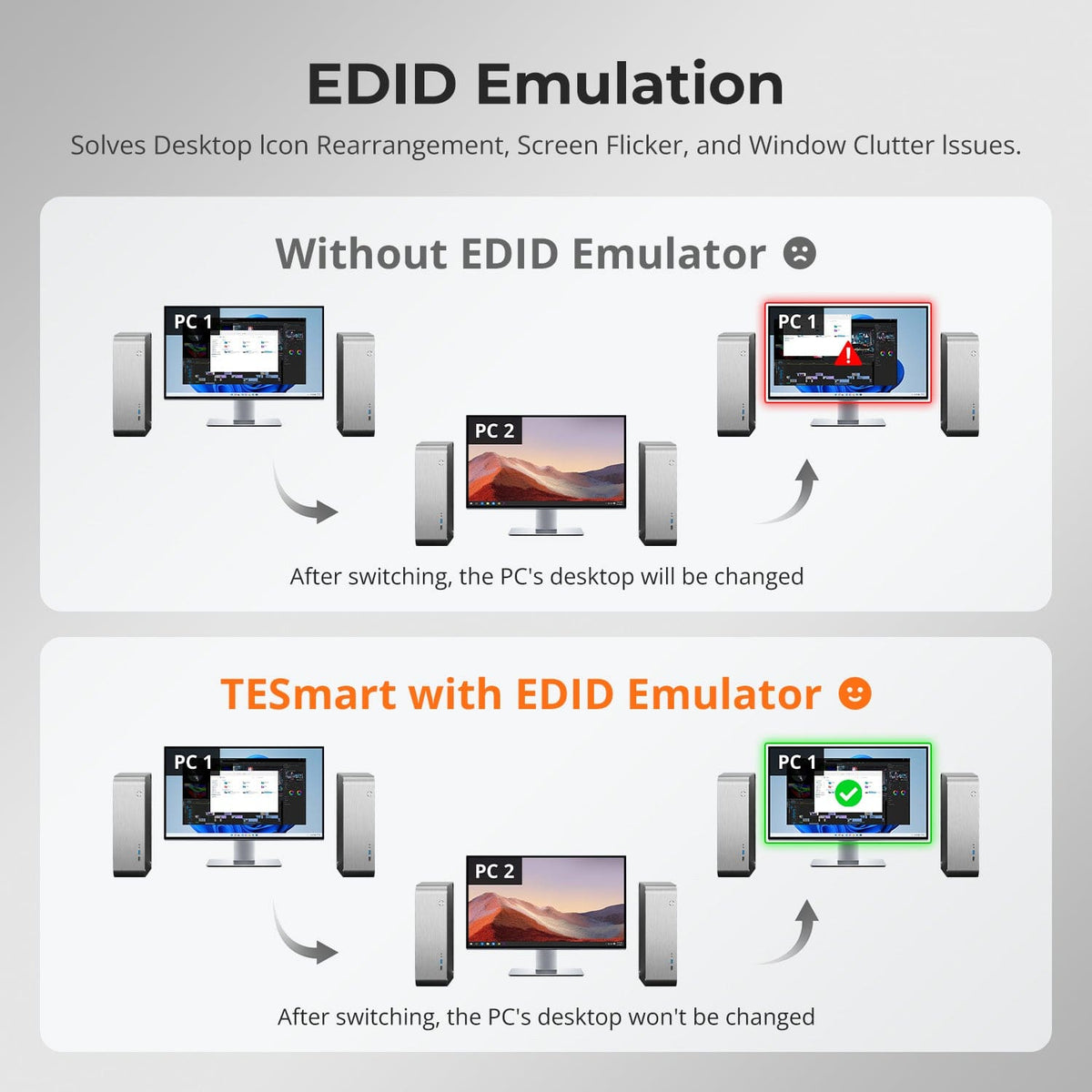
Display Stability

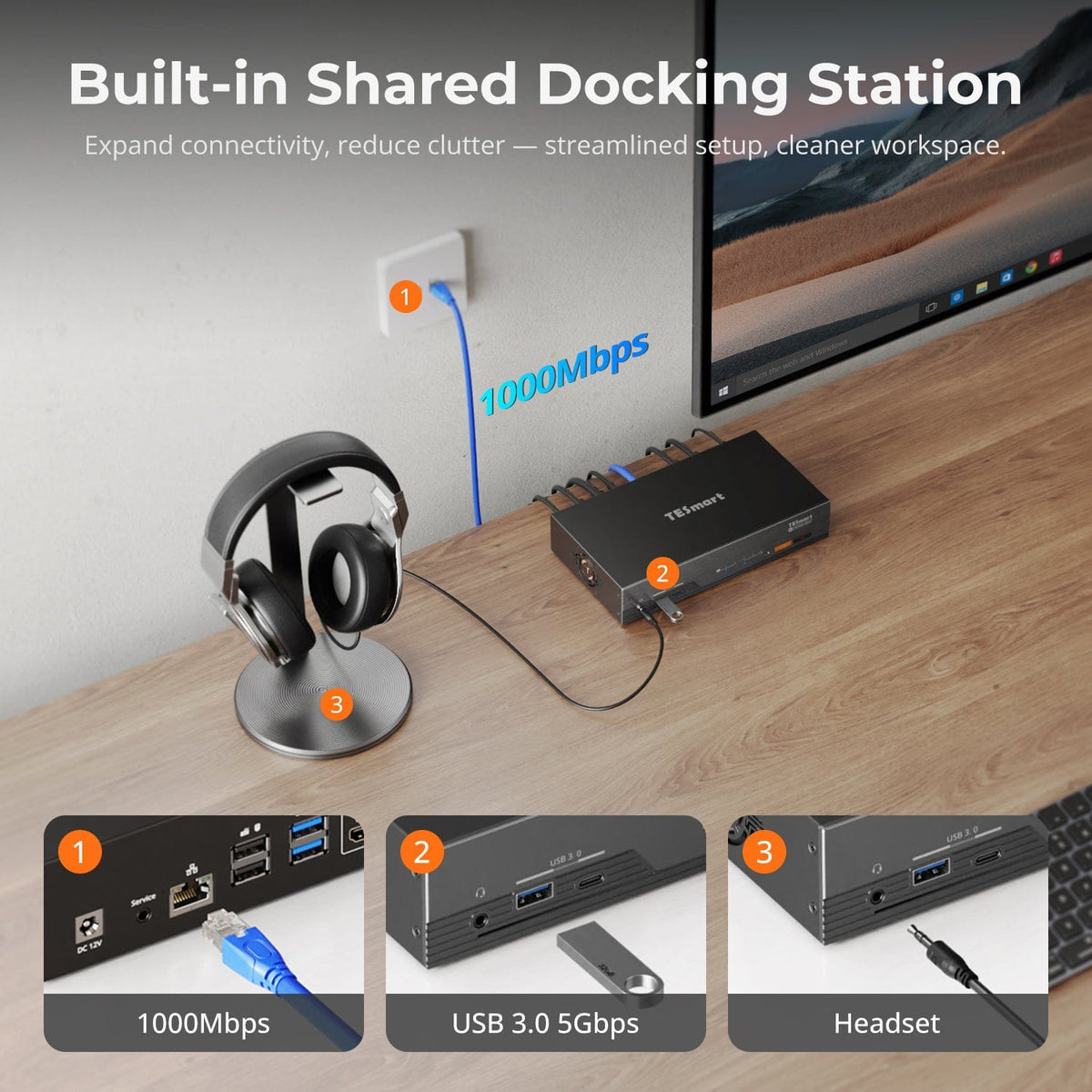
Network Sharing

Automatic input detection
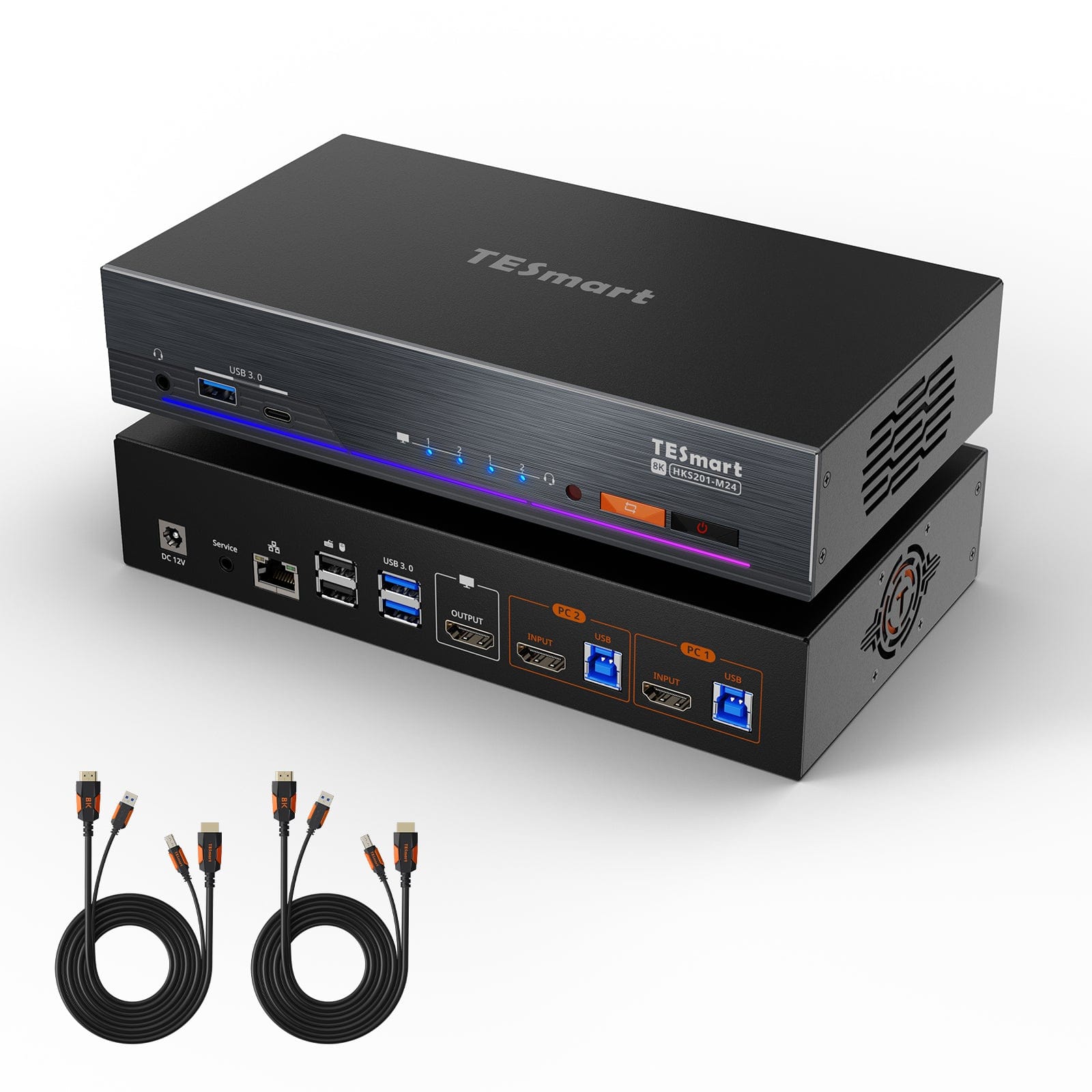
8K60Hz HDMI 2.1 2x1 KVM Switch Pro Hub for 2 PCs, w/ EDID Emulation, Gigabit LAN, Dual Charging & USB 3.2 Gen 1
Share one HDMI monitor, a keyboard and mouse between two PCs, with up to 8K60/4K144, EDID emulation, a USB hub and shared Gigabit Ethernet.
Display Setup
Max Display Output
Display Color
Gaming Display
Display Stability
Network Sharing
Automatic input detection
8K60Hz HDMI 2.1 2x1 KVM Switch Pro Hub for 2 PCs, w/ EDID Emulation, Gigabit LAN, Dual Charging & USB 3.2 Gen 1
Why Choose HKS201-M24
Overview
01
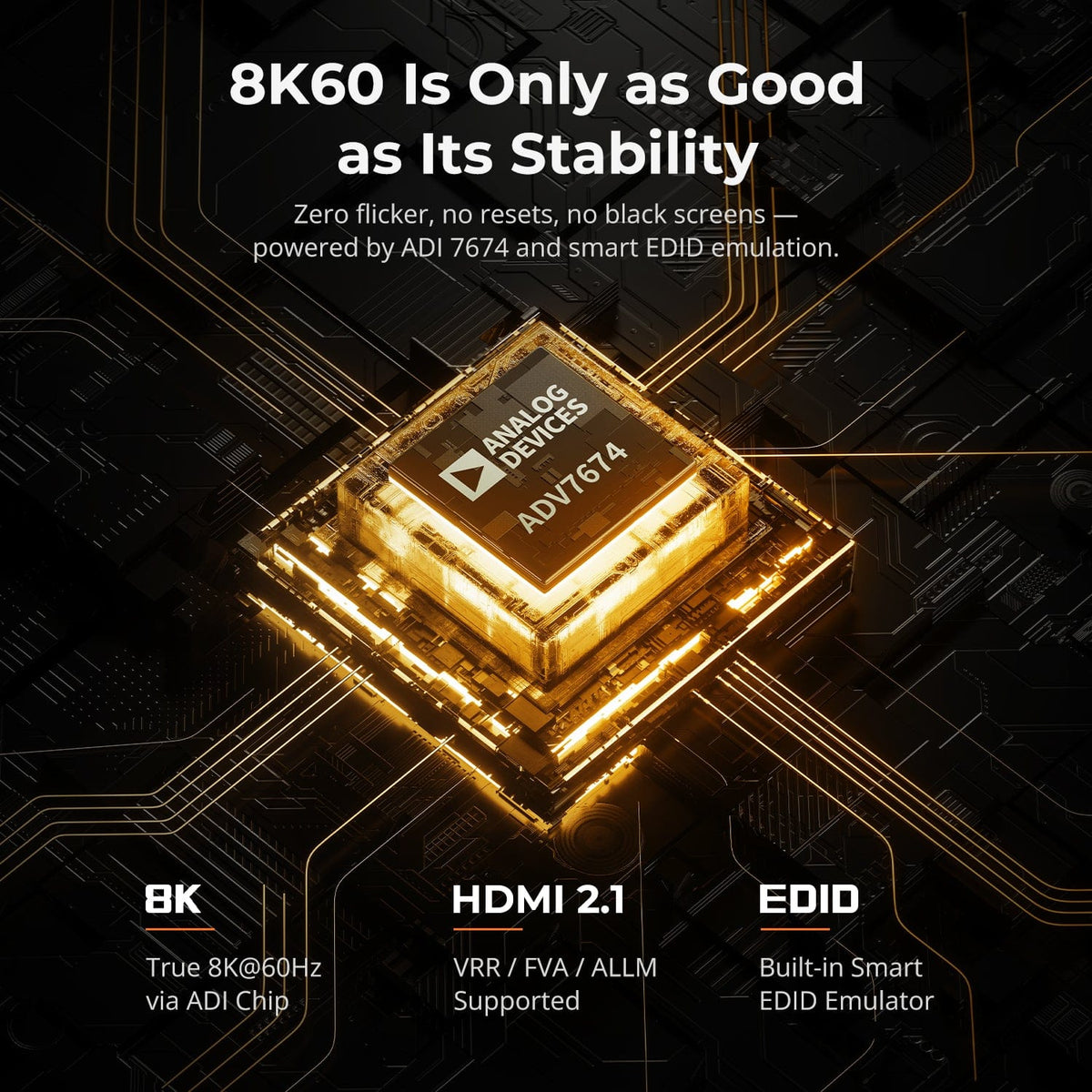
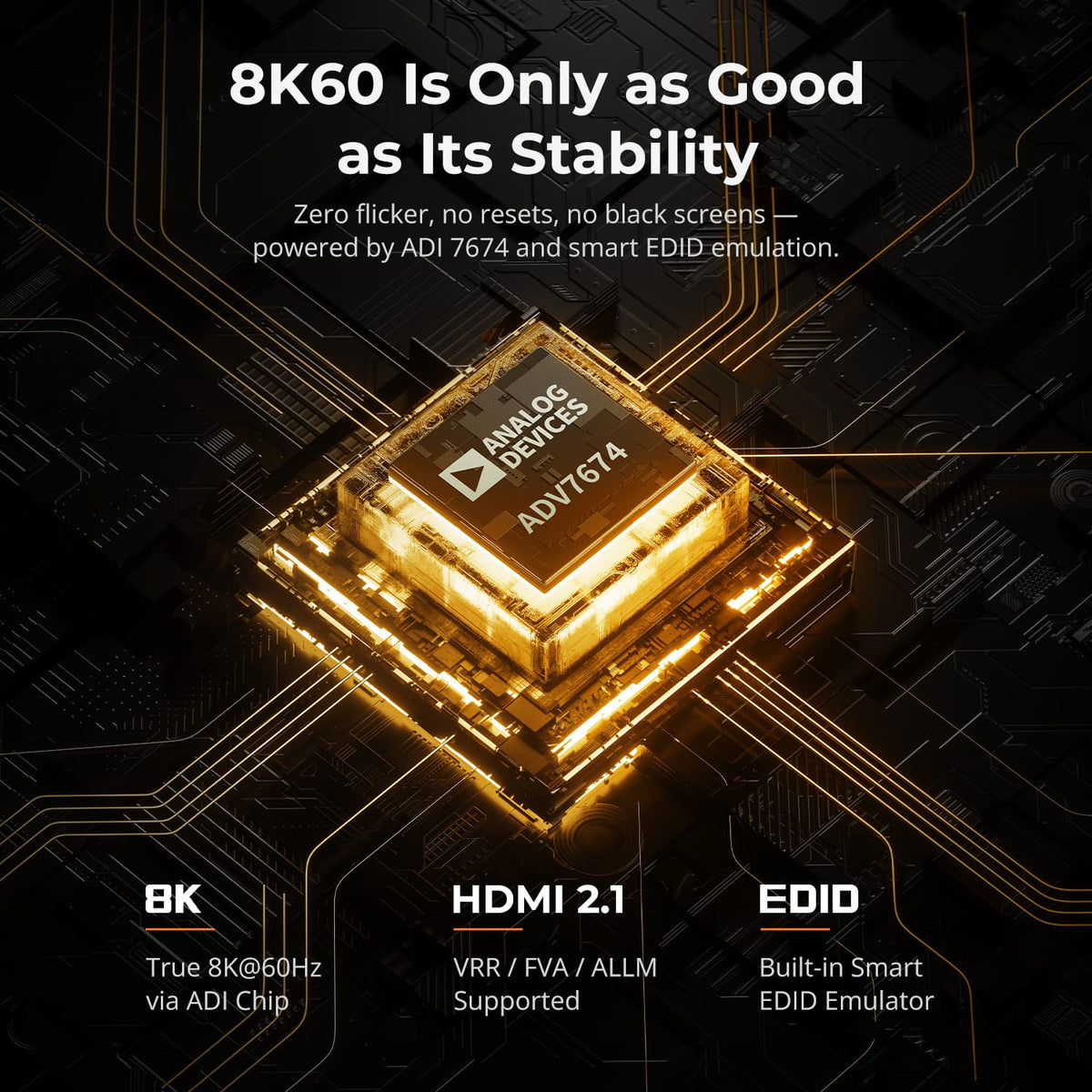
8K60 Is Only Useful When It Stays Stable
An ADV 7674 chipset and HDMI 2.1 architecture support an 8K@60Hz signal path with built-in EDID emulation. The design is focused on reducing black screens, resets and switching instability in demanding single-monitor setups.
02
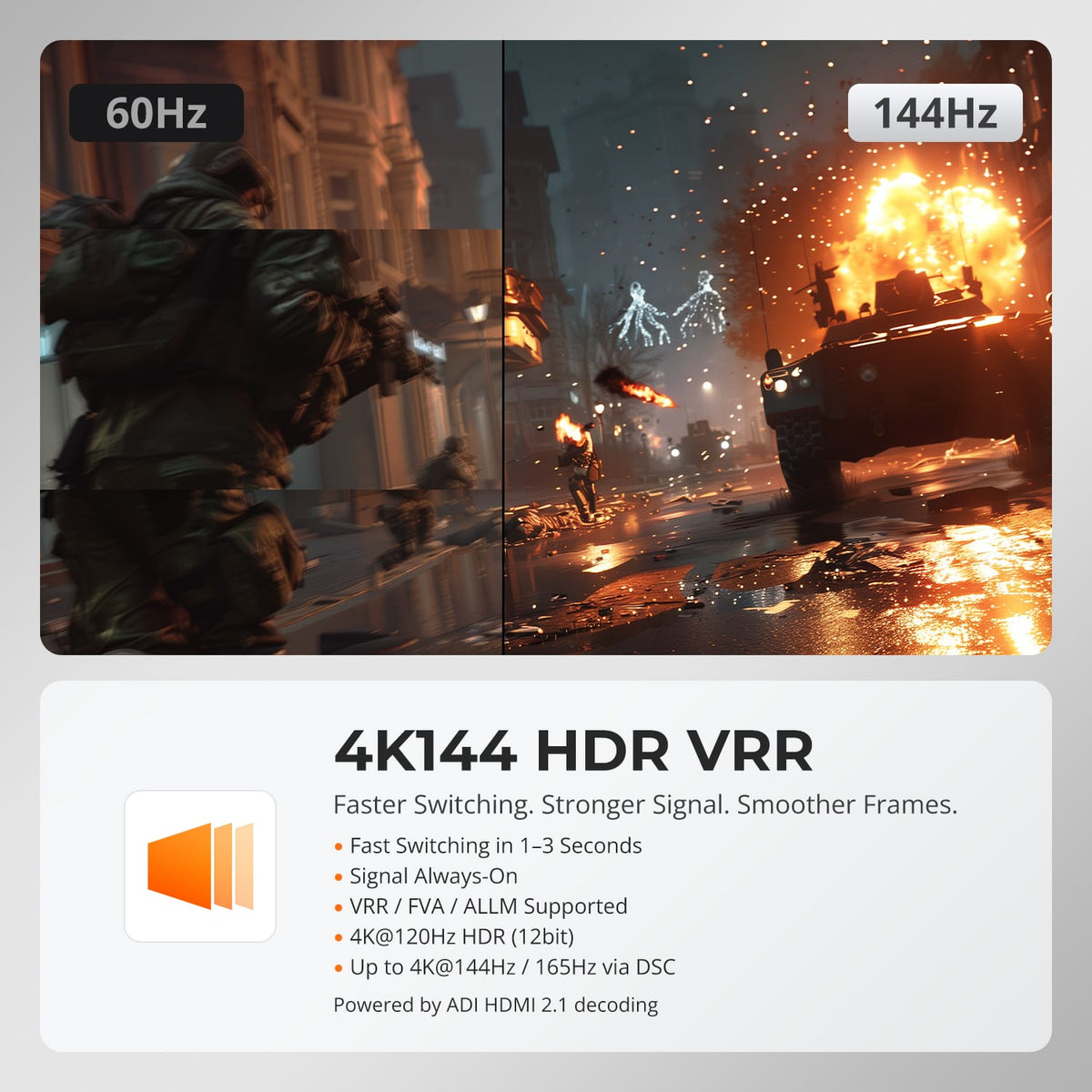
High Refresh, HDR and VRR for Responsive Play
Run supported gaming displays at 4K@120Hz with 12-bit HDR or up to 4K@144Hz/165Hz through DSC. VRR, FVA and ALLM support help the display and GPU stay synchronized for smoother motion and lower-latency play.
03
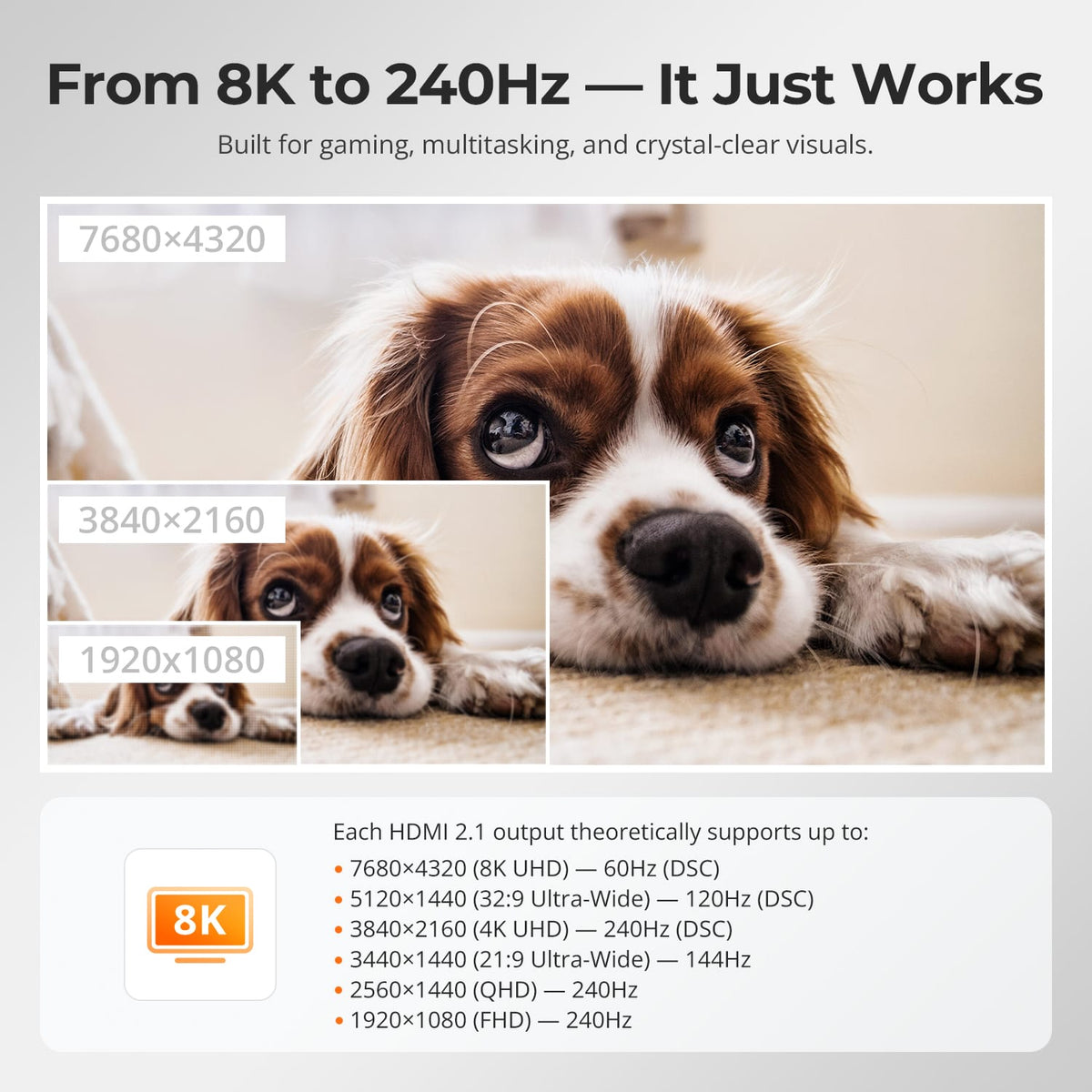
From 4K60 to High-Refresh Full HD
Run a 4K display at up to 60Hz, or use supported lower-resolution high-refresh formats including 1440p at 120Hz and 1080p at 240Hz. Actual results depend on the source, display and cable capabilities.
04
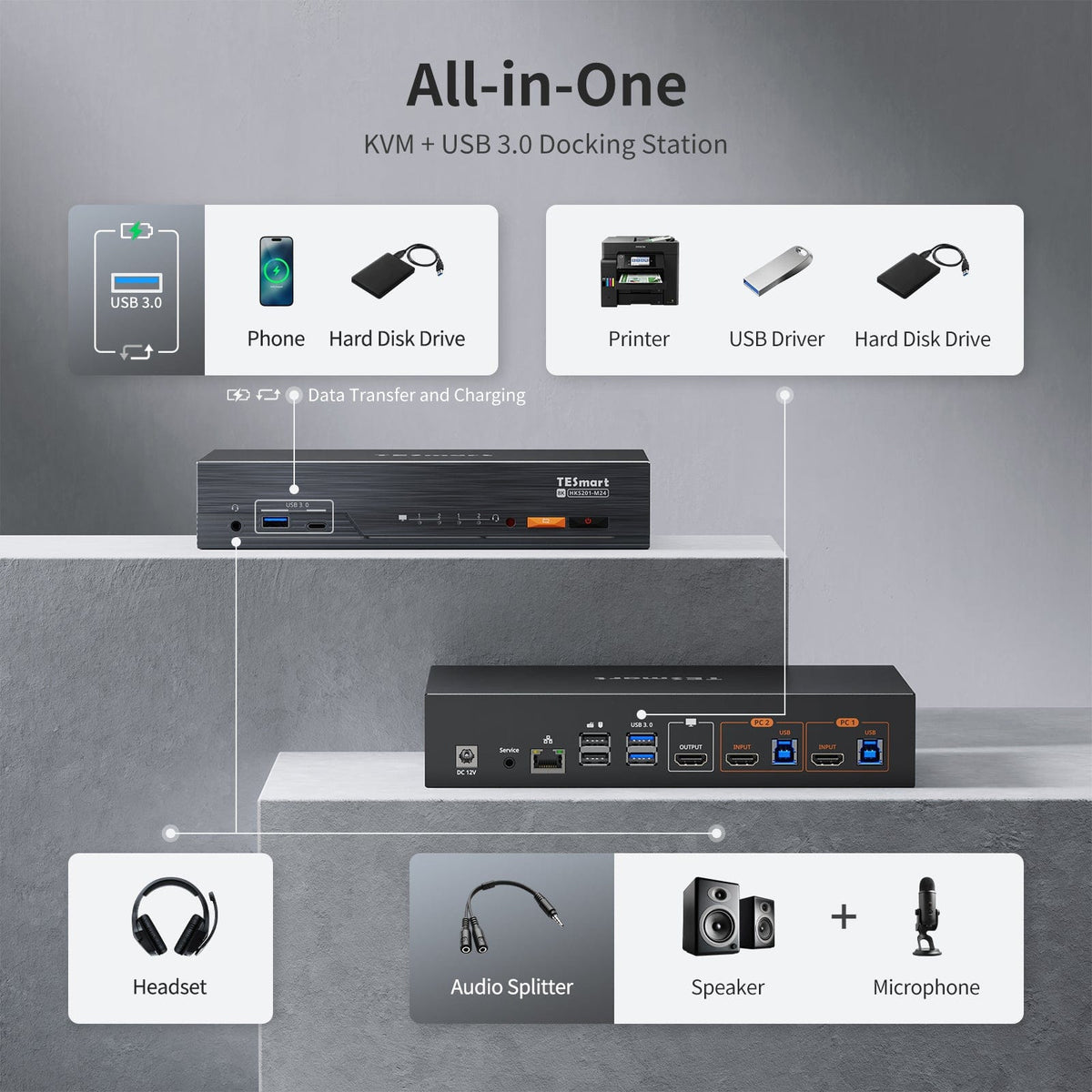
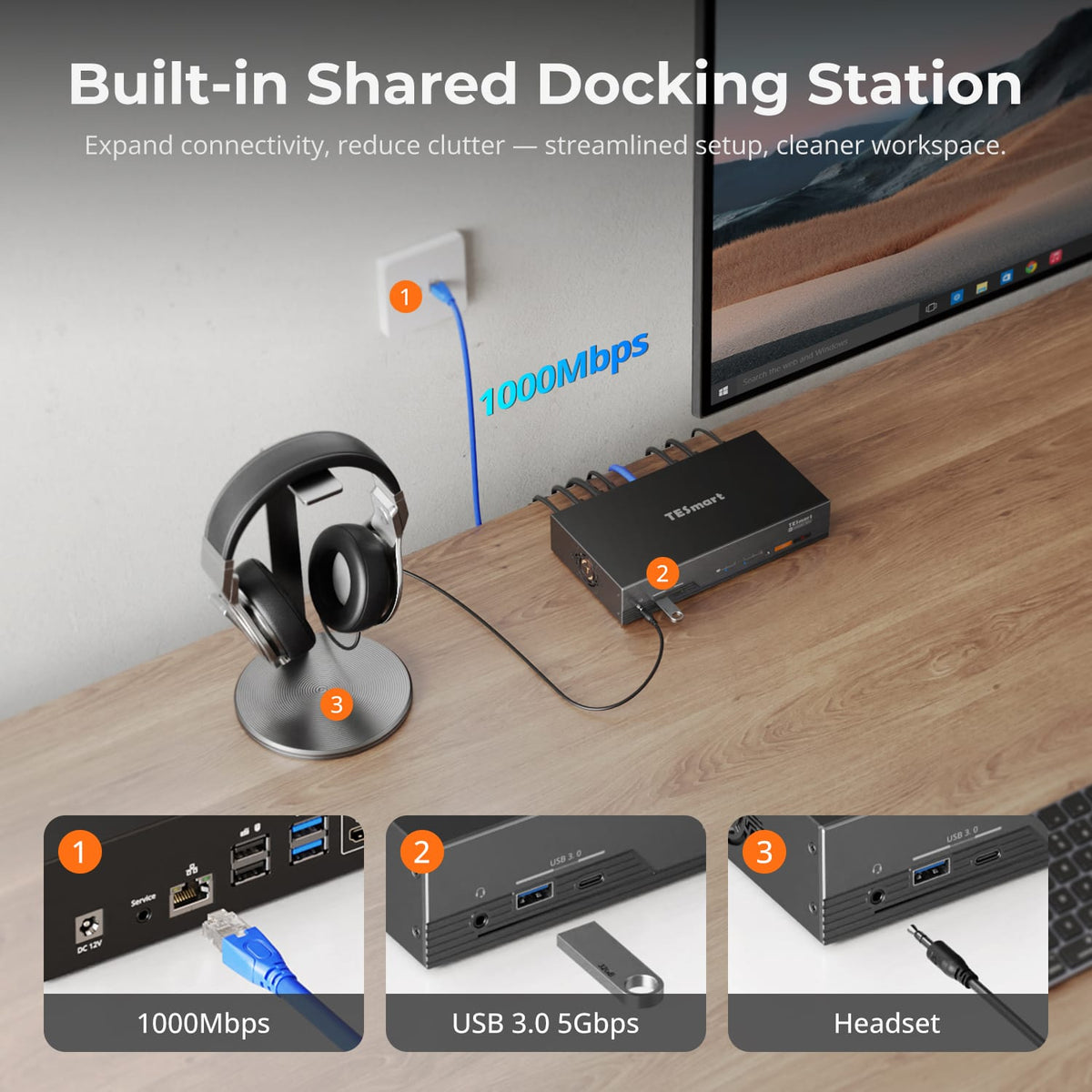
A Shared Dock Built into the KVM
Share Gigabit Ethernet, USB 3.2 Gen 1 devices and 3.5mm audio through the same desktop hub, reducing the number of standalone switches and adapters around the two-computer setup.
05
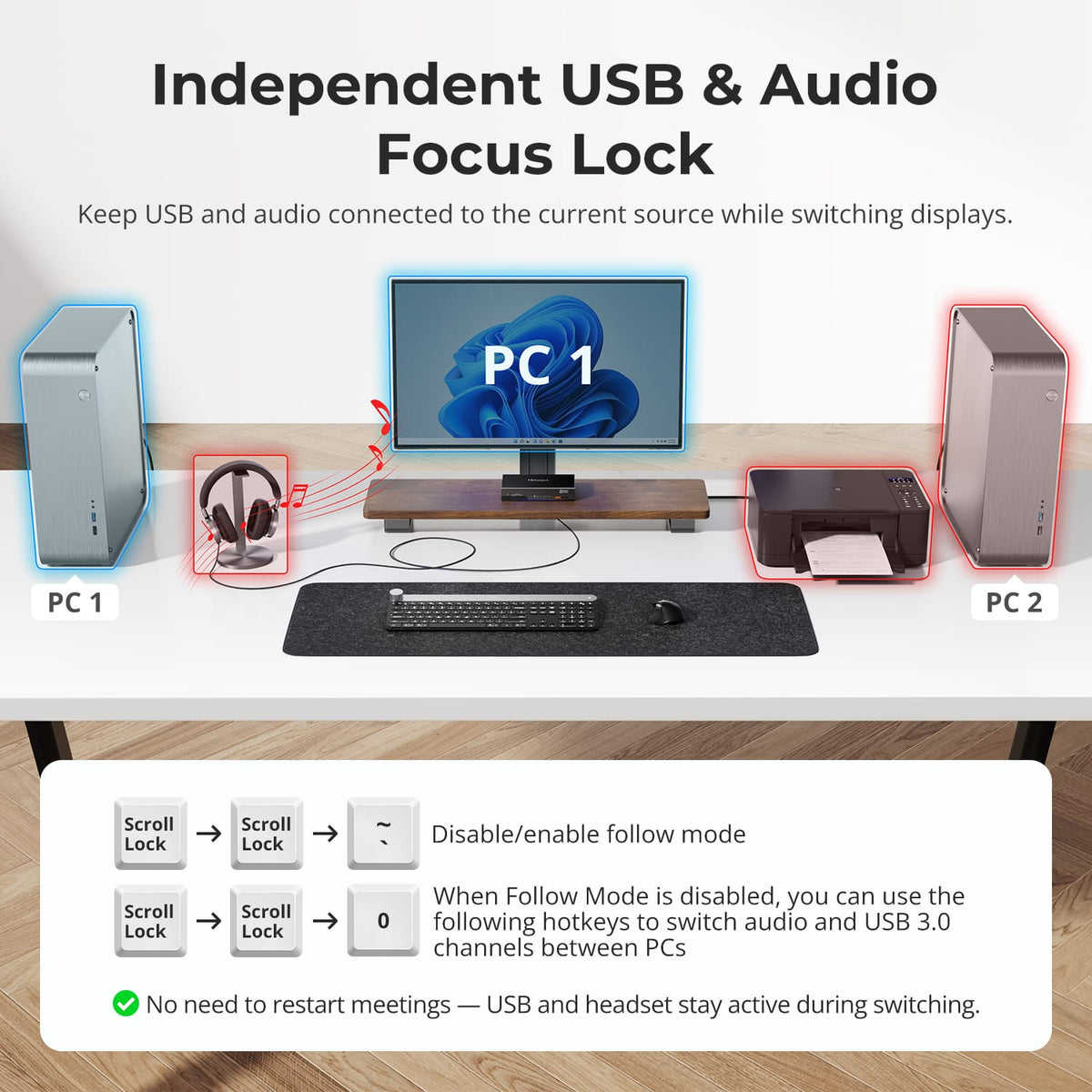
Keep USB & Audio on the Active Task
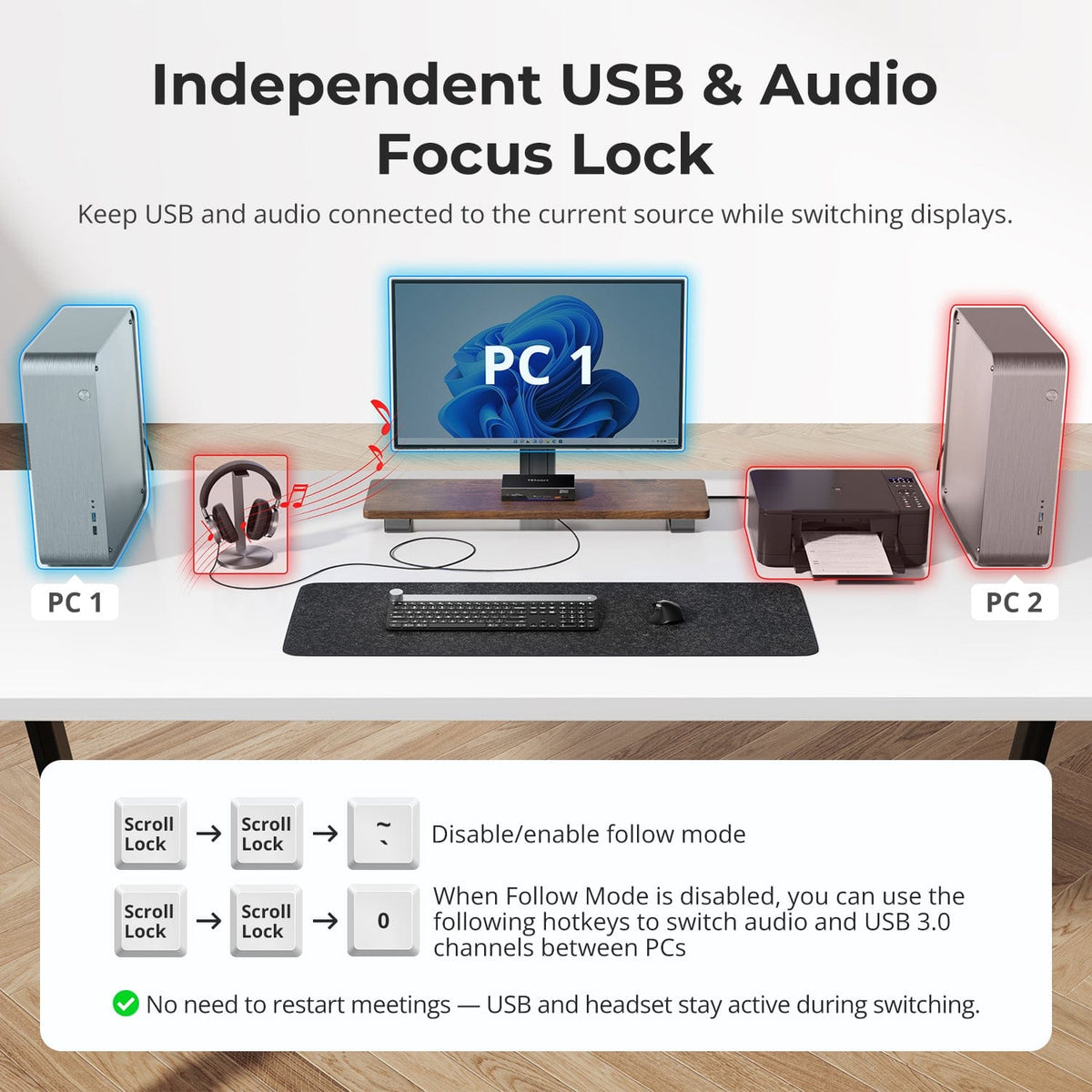
Lock USB devices or audio to the current computer while switching displays and keyboard and mouse control elsewhere. The two locks work independently and remain set after restart, which helps calls, recordings and transfers continue without interruption.
06
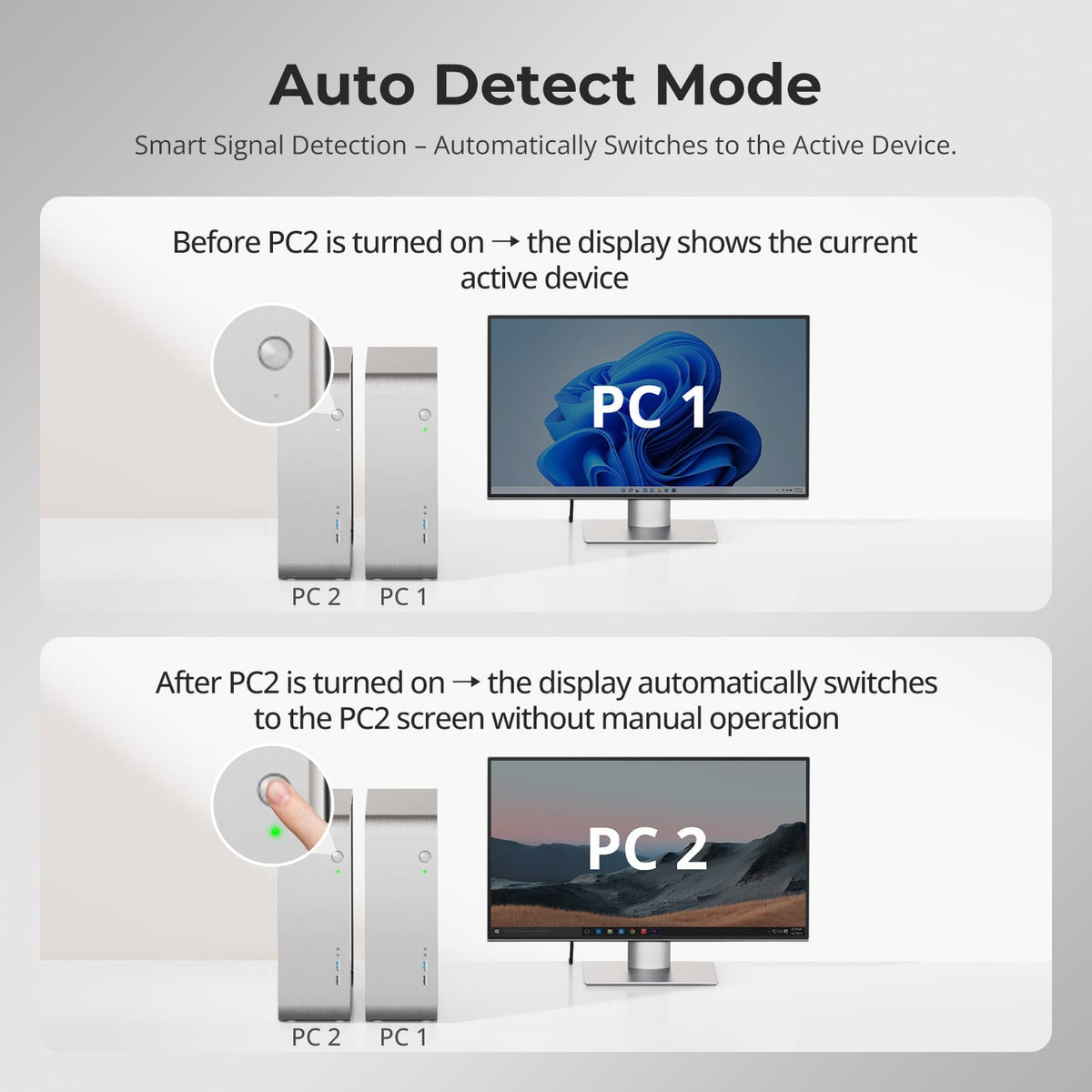
Automatically Follow a New Active Computer
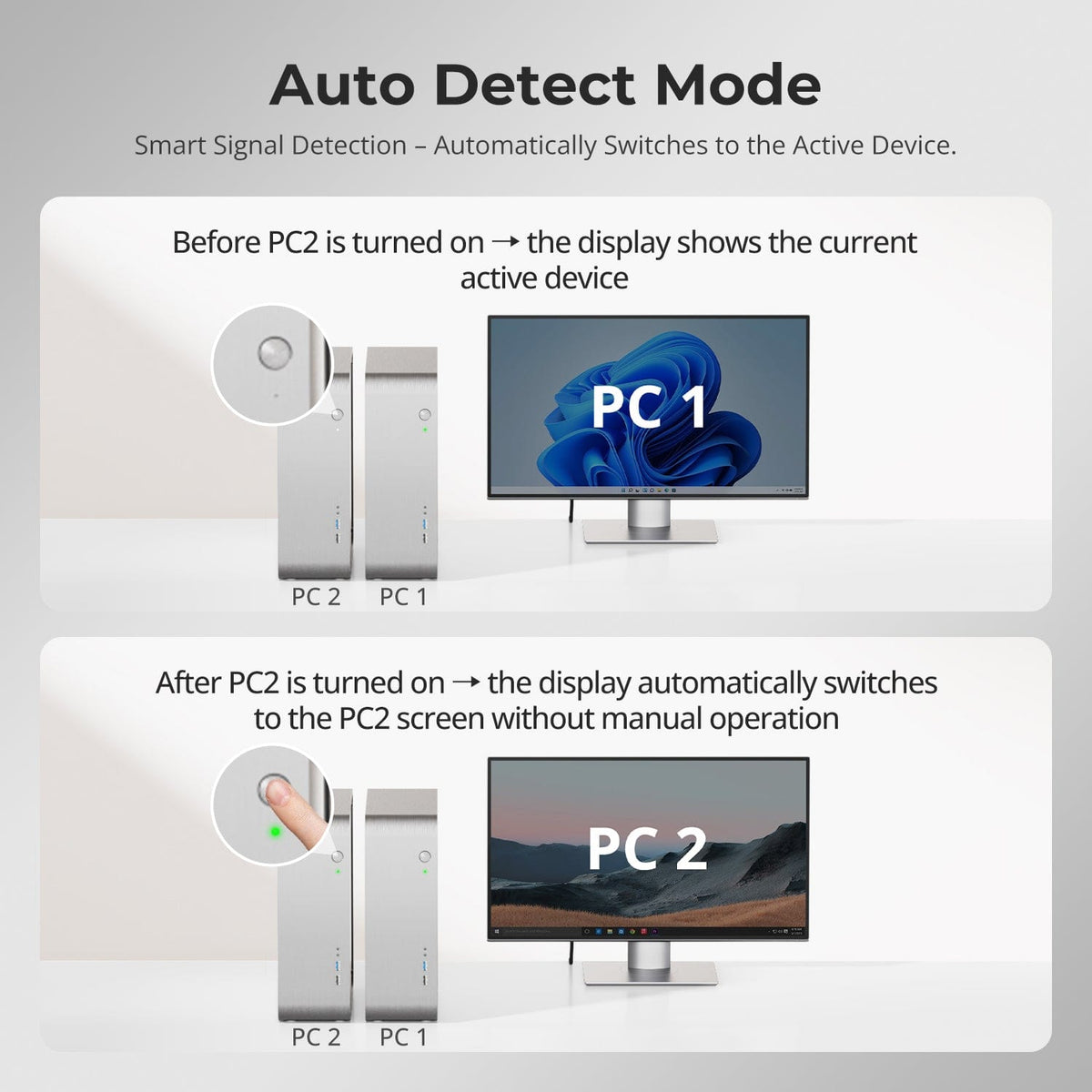
Auto Detect Mode monitors the input status and can switch the display when a newly connected computer becomes active. It reduces manual steps in a two-computer desk where systems start at different times.
07
08
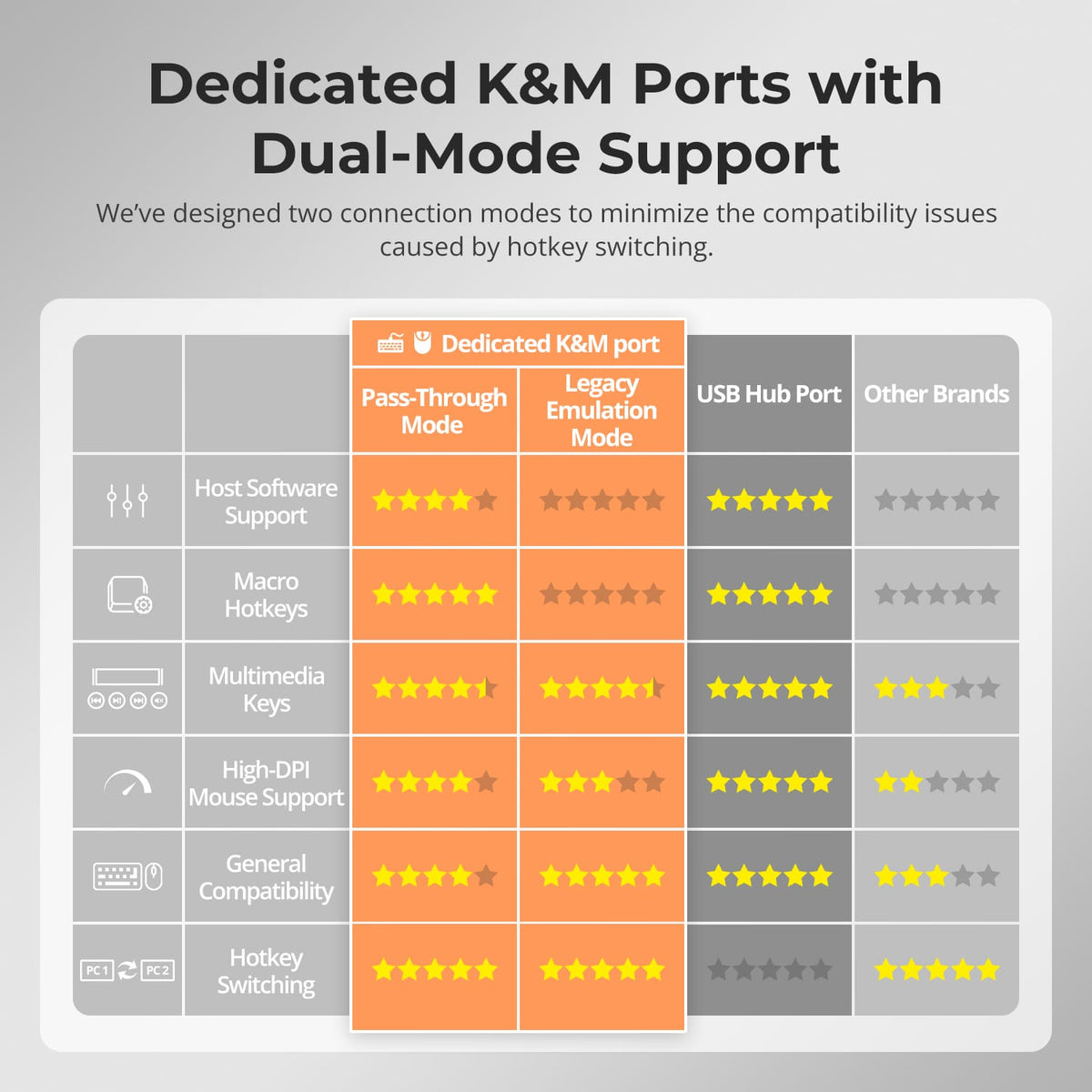
09
Specifications & Support
Compatibility & Input Guide
Technical Specifications
Manuals & Downloads
Included in the Box
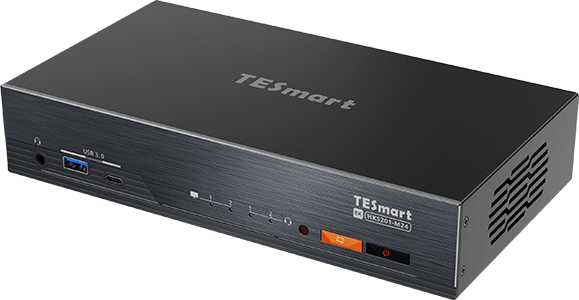
1 × HKS201-M24 KVM Switch
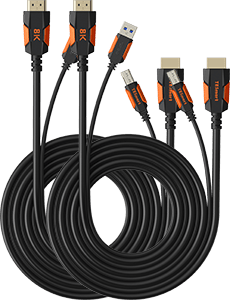
2 × KVM Cables (HDMI + USB)
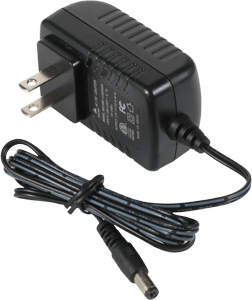
1 × DC 12V Power Adapter
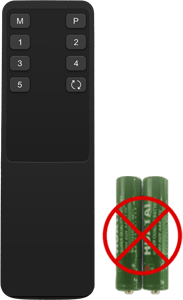
1 × IR Remote Control
1 × User Manual
Compare your options
Compare connections, display performance and shared features for your setup.
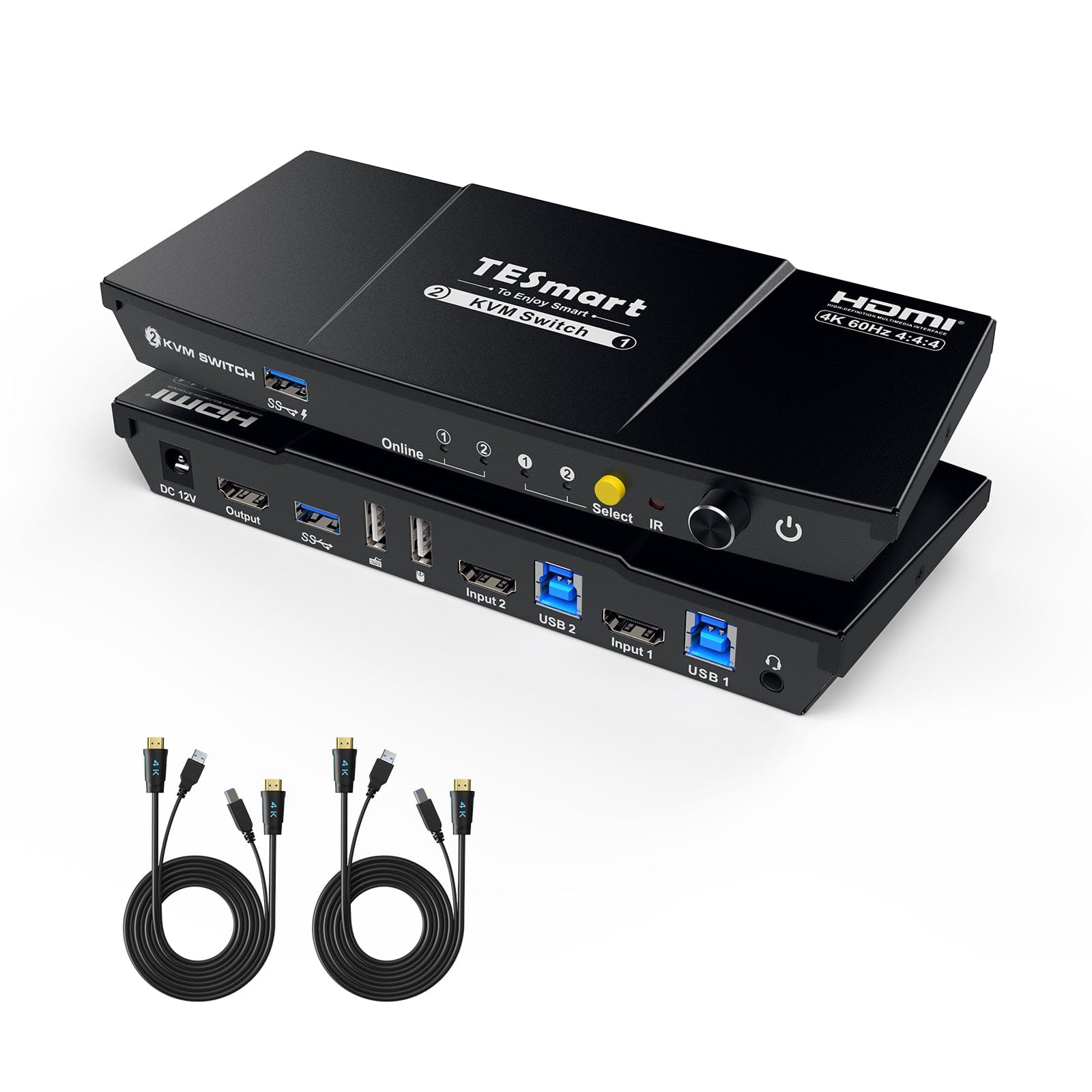
Model
HKS201-M24
Model
HKS201-P23-V2
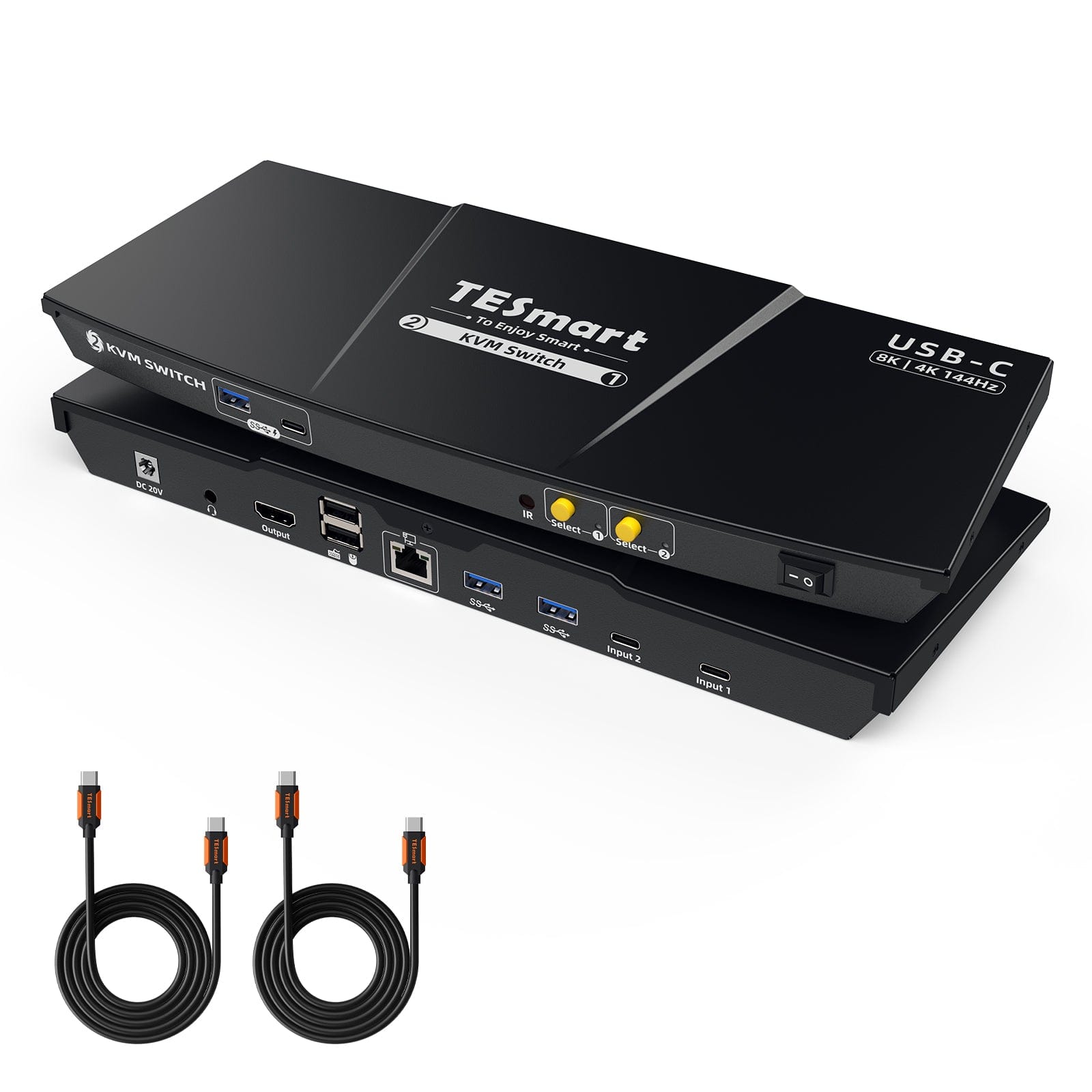
Model
CKS201-M23
Computer setup
2 computers
Computer setup
2 computers
Computer setup
2 USB-C laptops
Computer connections
Each PC: 1 × HDMI + USB
Computer connections
Each PC: 1 × HDMI + USB
Computer connections
Each laptop: 1 × USB-C (DP Alt Mode)
Display outputs
1 × HDMI
Display outputs
1 × HDMI
Display outputs
1 × HDMI
Video output
8K60 / 4K144
Video output
4K60
Video output
8K60 / 4K144
Shared USB
USB 3.0 / 5Gbps
Shared USB
USB 3.0 / 5Gbps
Shared USB
USB 3.0 / 5Gbps
Laptop charging
Laptop charging
Laptop charging
Up to 60W per laptop
Shared Ethernet
1000Mbps
Shared Ethernet
Shared Ethernet
1000Mbps
EDID emulation
EDID emulation
EDID emulation
FAQ's
Visit our Help Center for more answers.
[Compatibility] What computers and display can I connect to HKS201-M24?
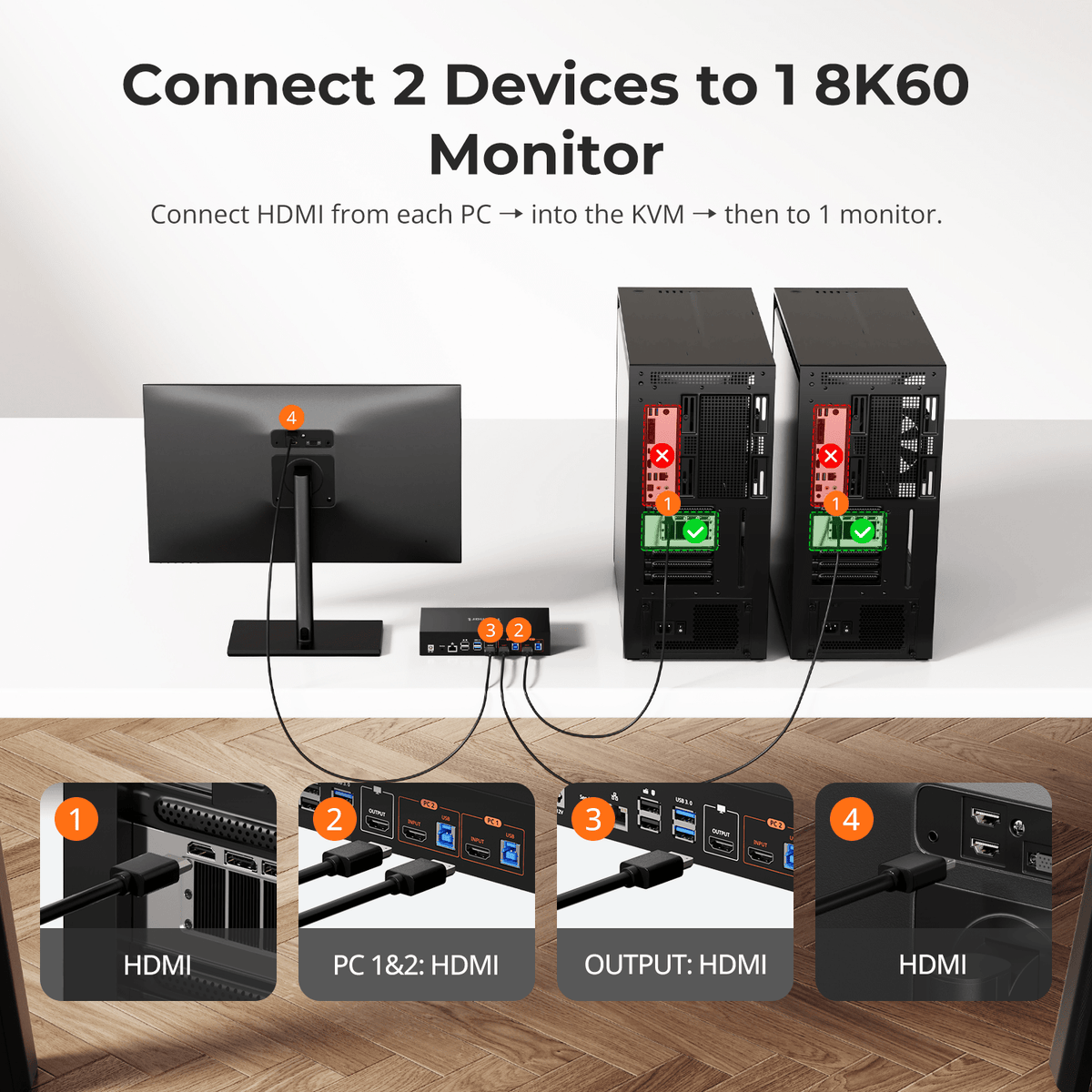
Connect up to two computers with HDMI video outputs and USB data ports to one HDMI monitor or TV. Each computer uses one included HDMI-and-USB KVM cable.
[Compatibility] Can this KVM support my 4K@144Hz or 8K monitor?
Yes. HKS201-M24 supports HDMI 2.1 output up to 8K@60Hz and is backward compatible with 4K@60/120/144Hz. Actual output depends on the source, display, cables, and DSC where required.
[Compatibility] What do I need for 8K60 or high-refresh output?
The GPU, operating system, HDMI output, display, and cables must support the selected mode. Use HDMI 2.1-compatible equipment, and ensure DSC is supported throughout the signal chain when required.
[Compatibility] Does this KVM support Dolby Vision?
Yes. HKS201-M24 supports Dolby Vision. The source, content, display, and HDMI cables must also support and enable it.
[Compatibility] Does this KVM support Adaptive-Sync on my monitor?
Yes. It supports HDMI 2.1 VRR and is compatible with G-Sync and FreeSync. The source, display, and cables must also support the selected feature.
[Features & Connections] What peripherals can the computers share?
The computers can share a keyboard, mouse, USB 3.2 peripherals, a 3.5mm audio device, and Gigabit Ethernet. Shared devices follow the selected computer unless Follow Mode is disabled.
[Features & Connections] What does EDID emulation do?
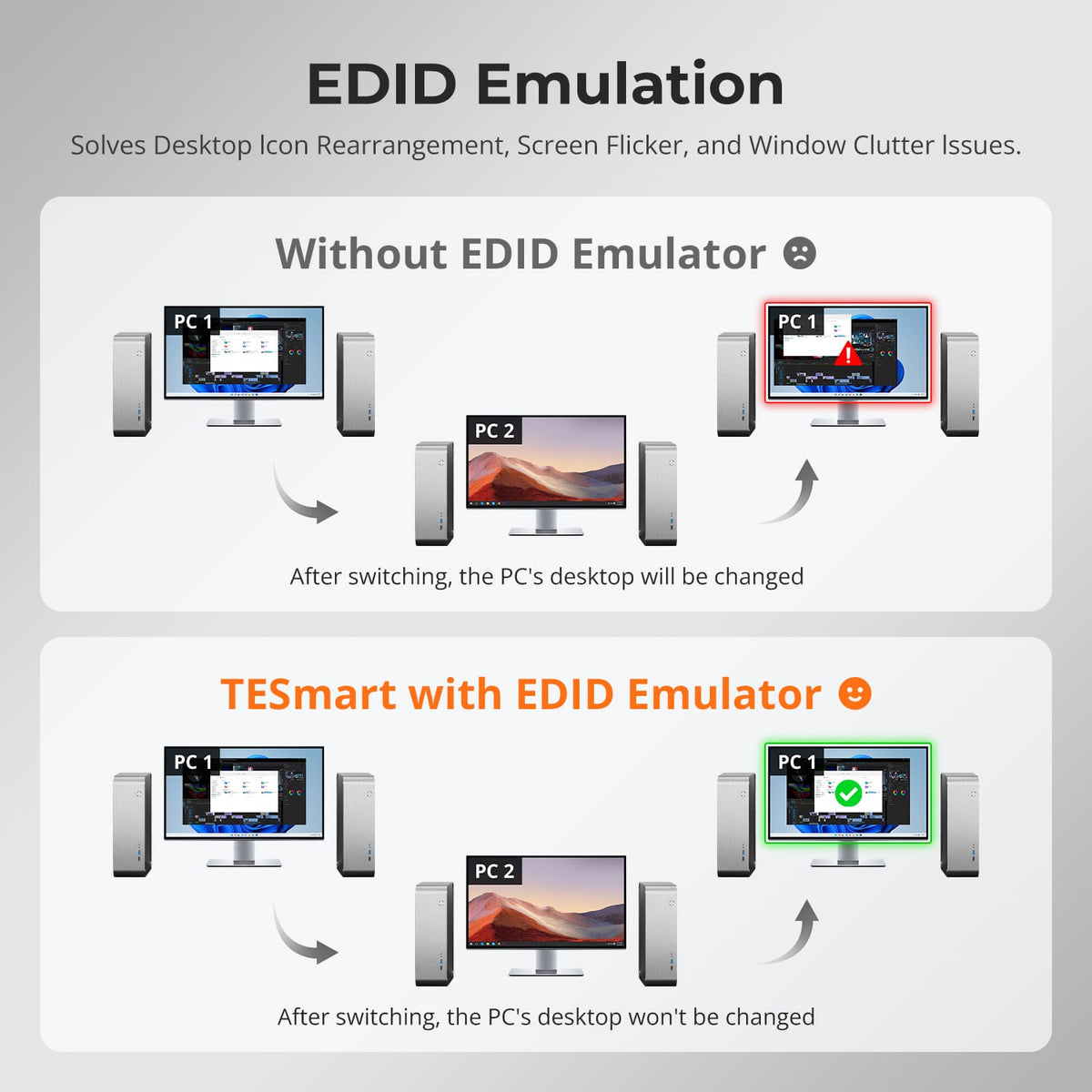
It keeps the monitor information available to both computers during switching, helping reduce screen flicker, resolution resets, window movement, and desktop icon rearrangement.
[Features & Connections] How do I switch USB peripherals or audio device independently?
USB and audio follow the selected computer by default. Press Right Ctrl twice, then ~ to disable Follow Mode; press Right Ctrl twice, then 0 to switch USB and audio together between computers.
[Features & Connections] What does Auto Detect do?
It monitors input activity and can automatically switch the display when a connected computer becomes active, such as when the second computer is powered on.
[Features & Connections] Why can't my computer use Wi-Fi after connecting to the KVM Switch?
The computer may prioritize the KVM's built-in wired network adapter. Press Right Ctrl twice, then F4 for the selected computer, or disable Realtek USB GbE Family Controller in the operating system.
[Features & Connections] Why is my audio device not working?
Confirm that the computer's USB connection to the KVM is secure. Select USB Audio for the 3.5mm output or the appropriate USB audio device; if the 3.5mm output remains unavailable, use a USB sound card.
[Features & Connections] Why are my USB peripherals not working?
Confirm each computer's USB connection and connect non-keyboard devices to the USB 3.0 ports. For high-power or high-bandwidth devices, use a powered hub or connect directly to the computer, and minimize cascaded hubs.
[Setup & Switching] How to connect devices to the KVM switch?
Connect each computer with one included HDMI-and-USB KVM cable, then connect the display to HDMI OUT with a separate HDMI cable. Attach the keyboard, mouse, USB devices, audio device, network cable, and power adapter as needed.
[Setup & Switching] How do I adjust the fan speed?
Press Right Ctrl twice, then F3 to cycle through Off, Automatic, Low, and High. Automatic is the default mode, and the buzzer beeps one to four times to identify the selected mode.
[Setup & Switching] How can I switch between the two computers?
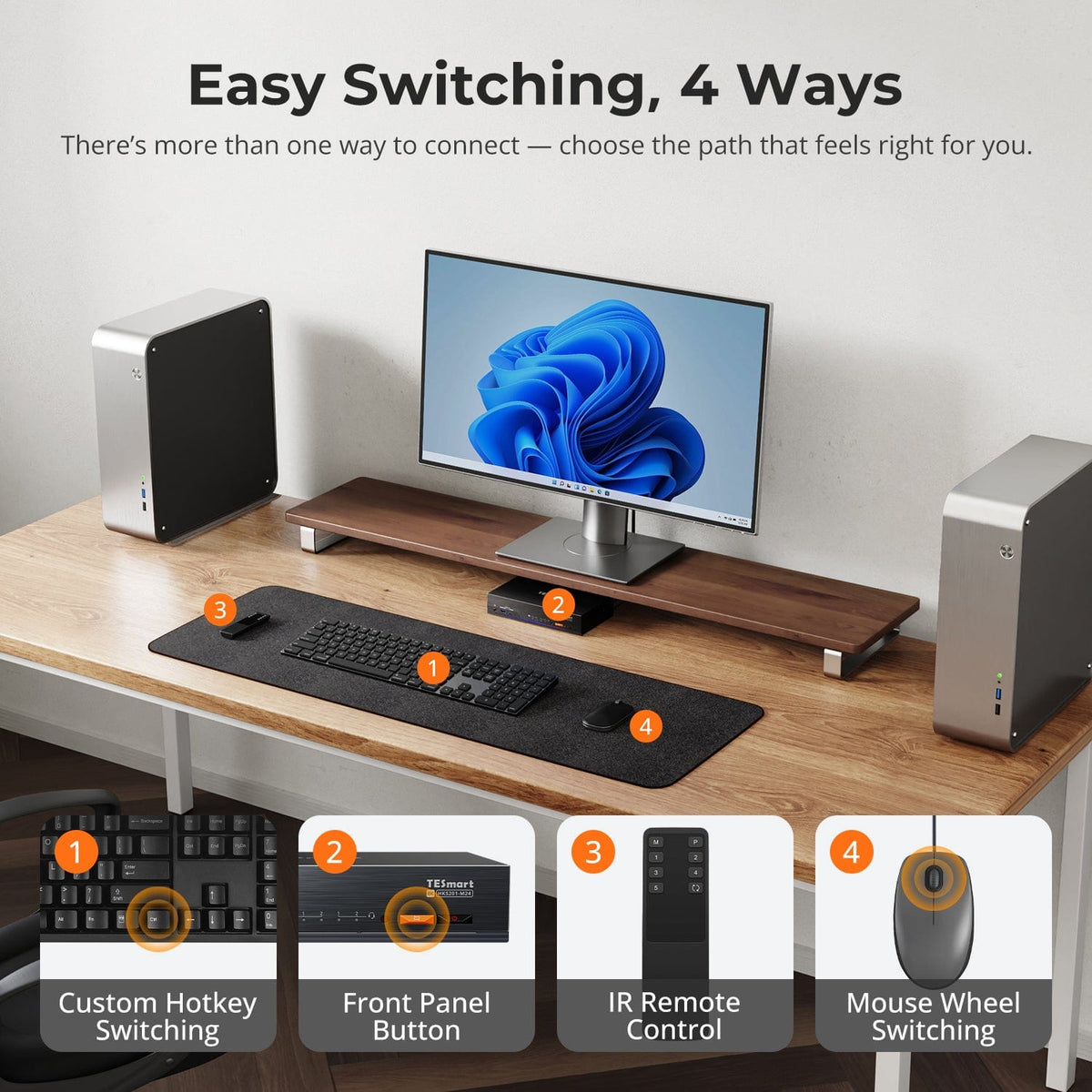
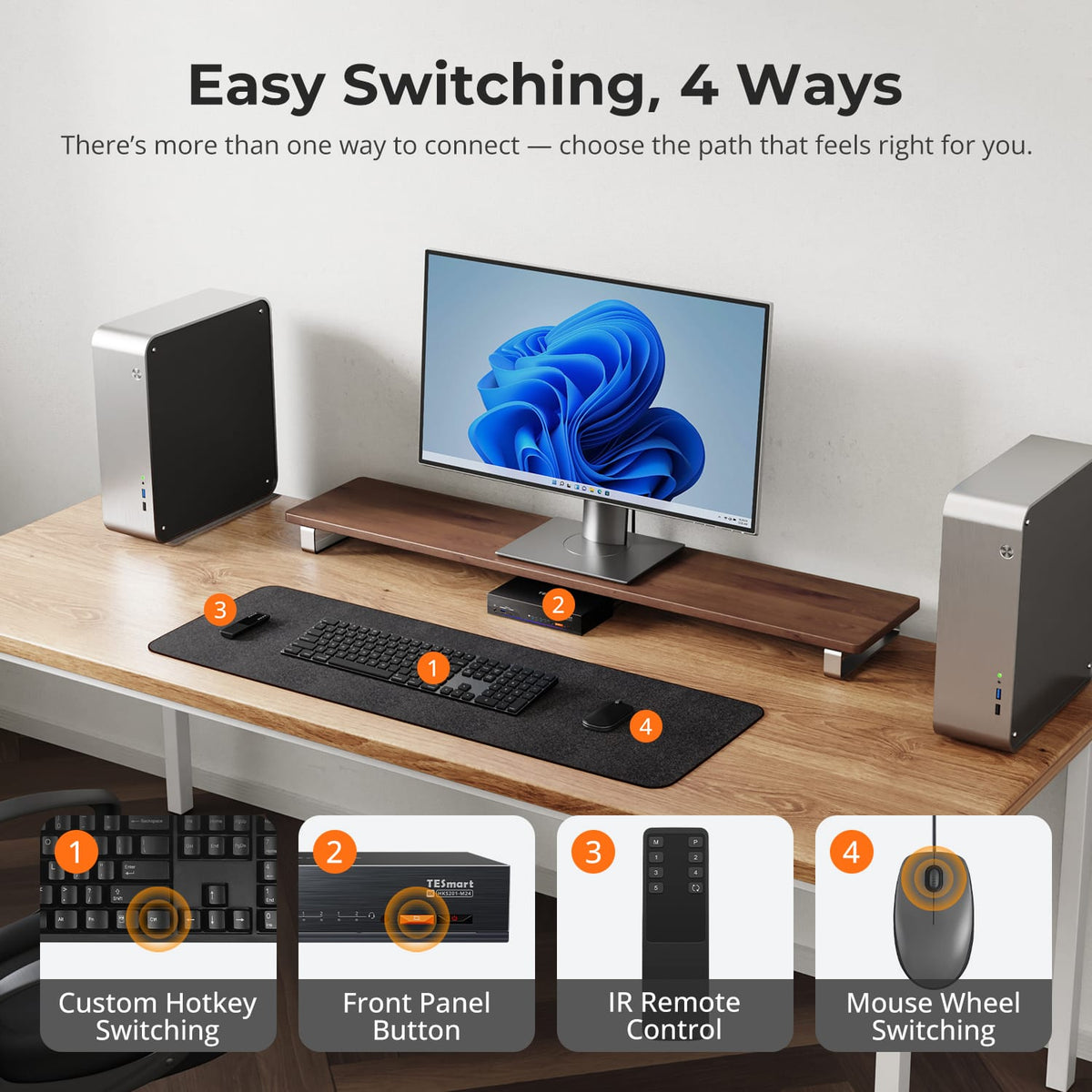
Use the front-panel button, IR remote, keyboard hotkeys, or mouse wheel. Mouse-wheel switching is disabled by default and must be enabled before use.