





Display Setup
Max Display Output

Display Stability
Gaming Display

Gaming Display

USB Speed

Automation
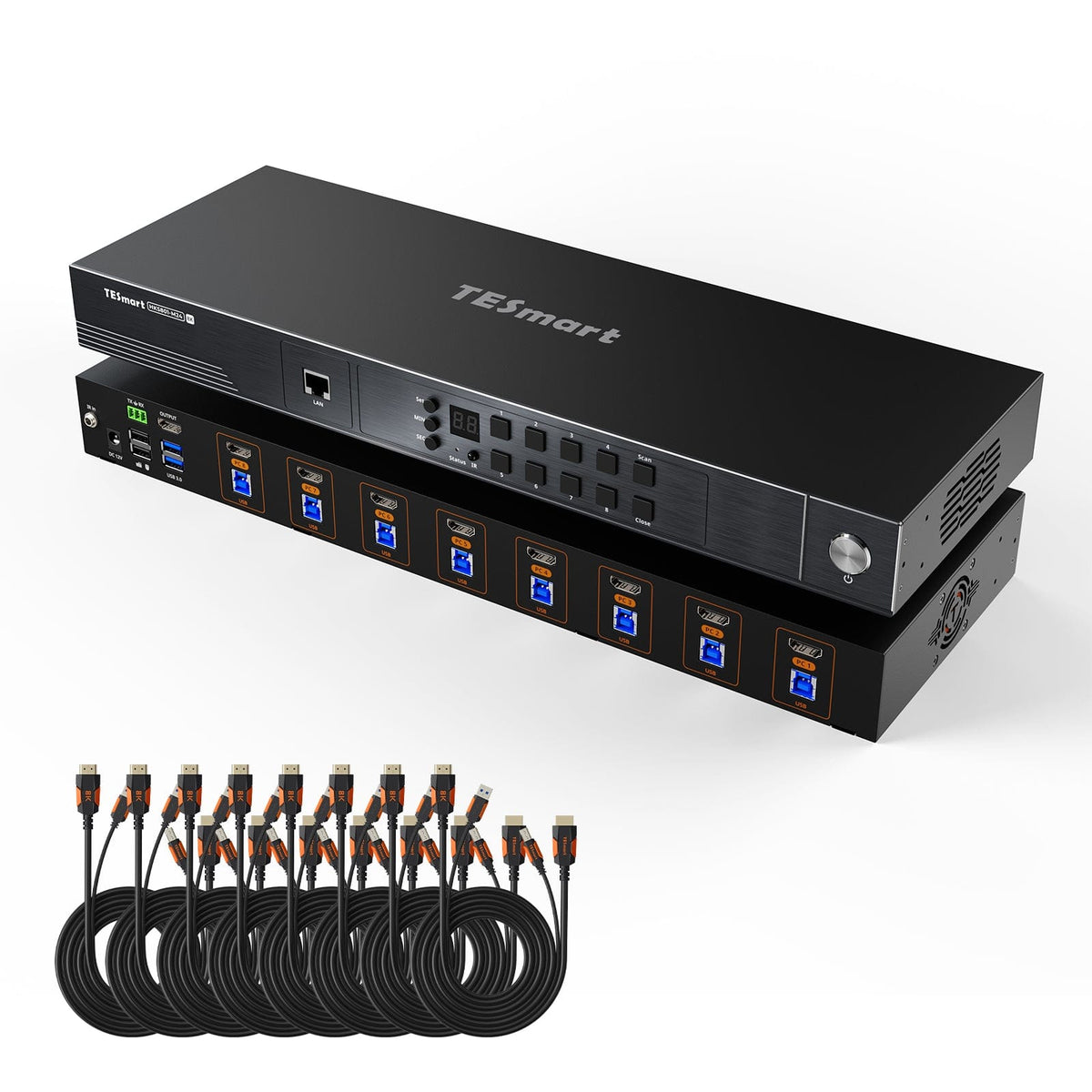
HDMI 2.1 8K60Hz 8x1 KVM Switch for 8 PCs & 1 Monitor, w/ ADI Chip, EDID Emulator, VRR, FVA, ALLM, 48Gbps, and Dynamic HDR
Share one HDMI monitor, a keyboard and mouse between 8 computers, with up to 8K60/4K144, EDID and USB 3.2. Auto Scan and automatic input detection simplify monitoring.
Display Setup
Max Display Output
Display Stability
Gaming Display
Gaming Display
USB Speed
Automation
HDMI 2.1 8K60Hz 8x1 KVM Switch for 8 PCs & 1 Monitor, w/ ADI Chip, EDID Emulator, VRR, FVA, ALLM, 48Gbps, and Dynamic HDR
Why Choose HKS801-M24
Overview
01
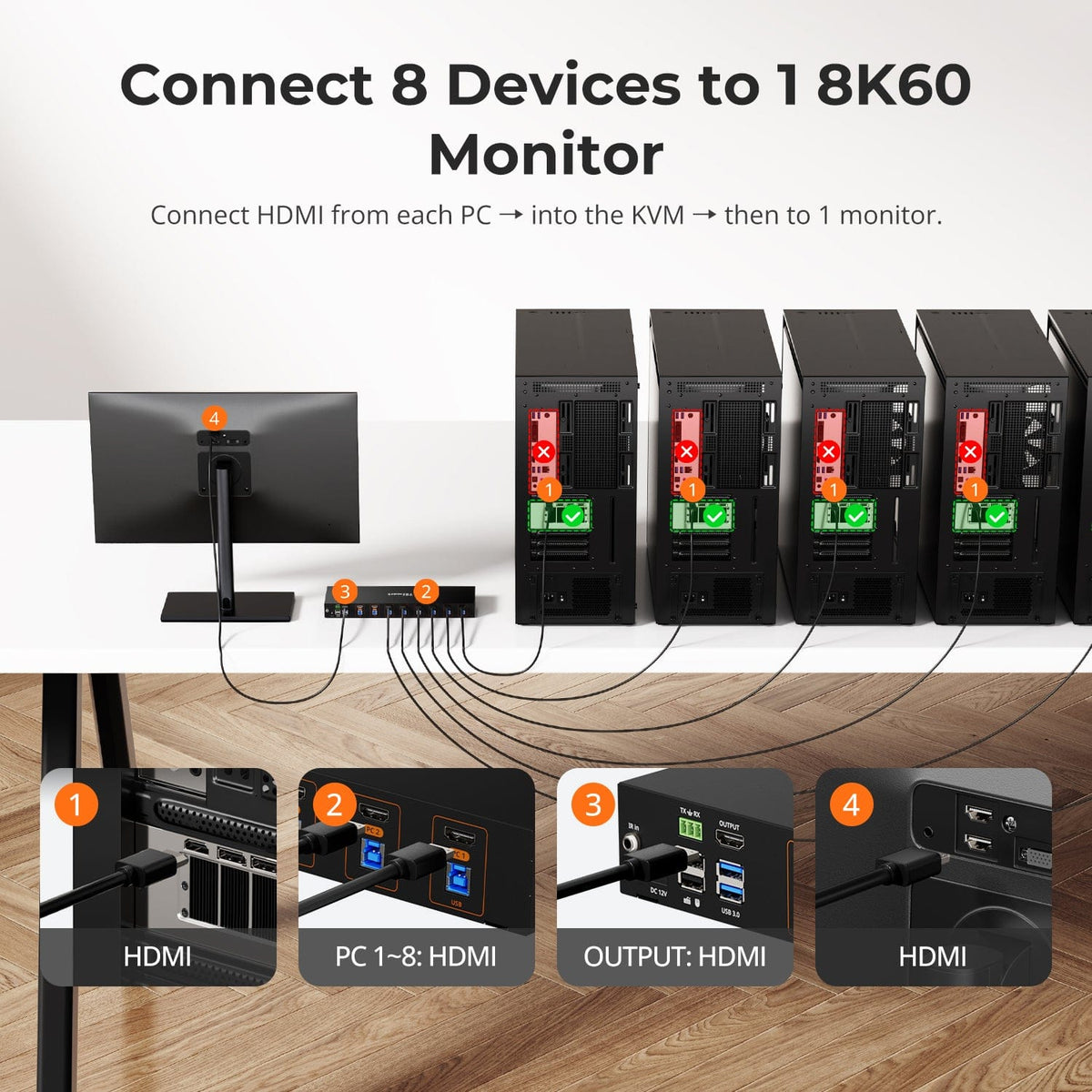
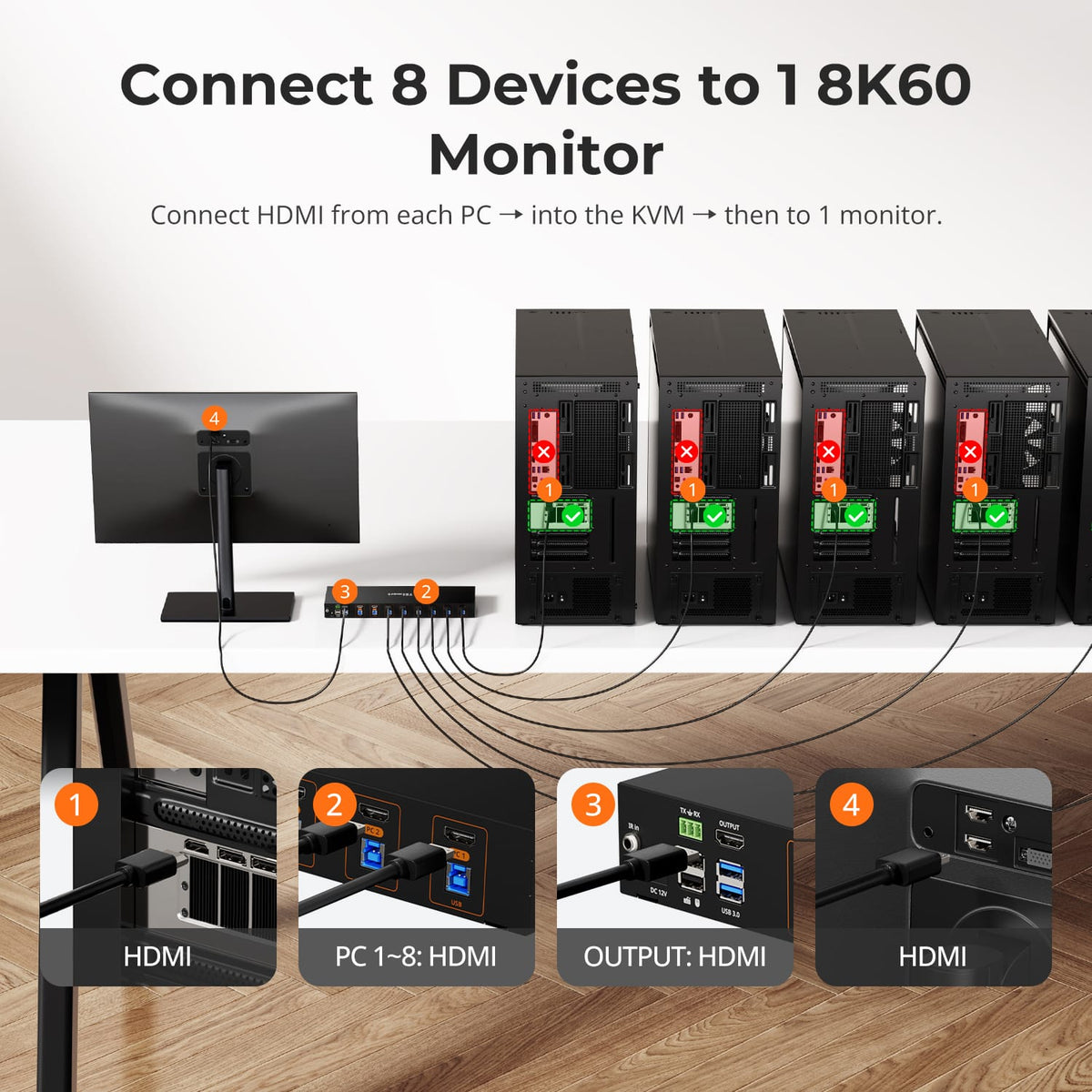
One Console for Eight HDMI Computers
Connect up to eight HDMI computers to one 8K display, keyboard, and mouse. Centralize multi-system control without repeatedly reconnecting cables or duplicating desk hardware.
02
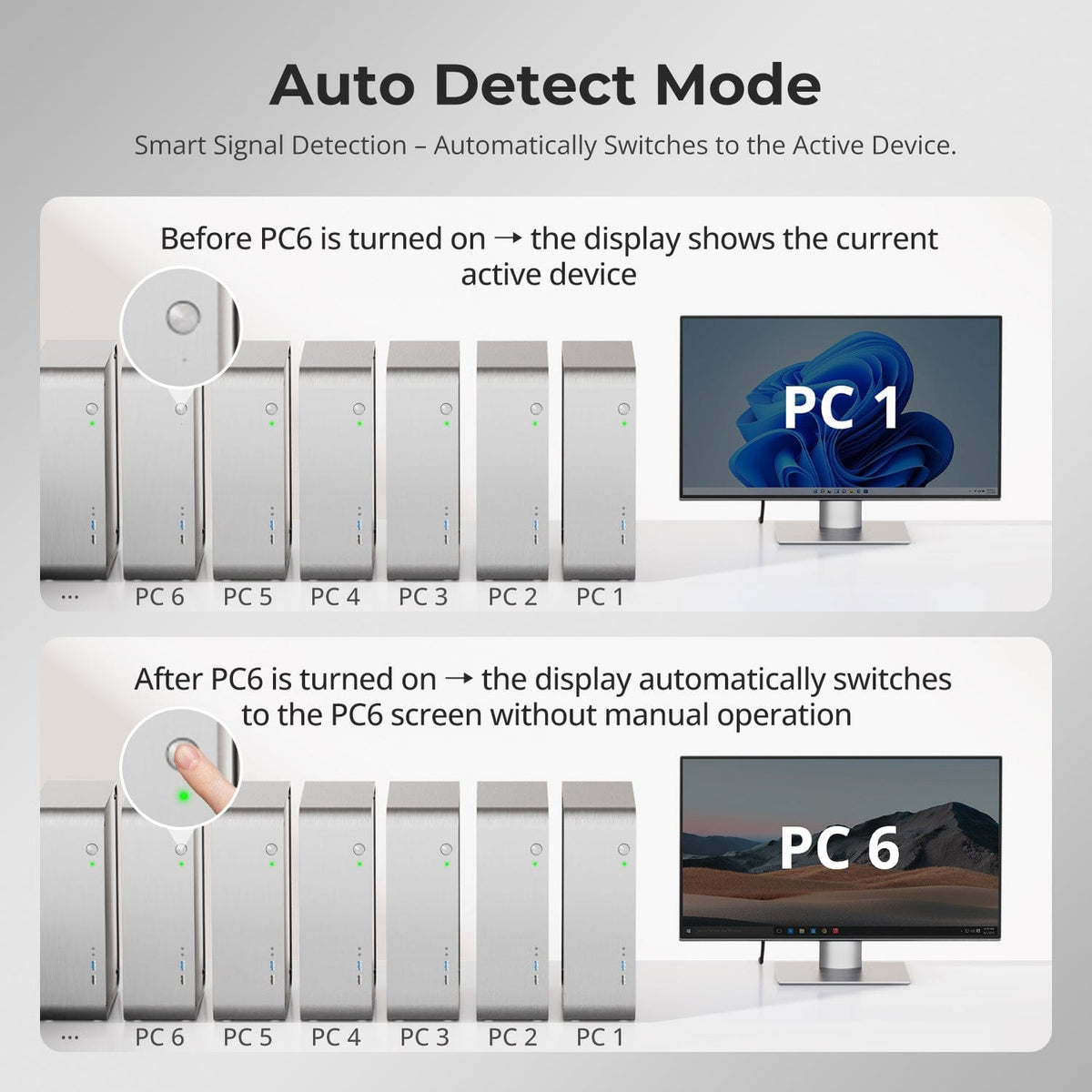
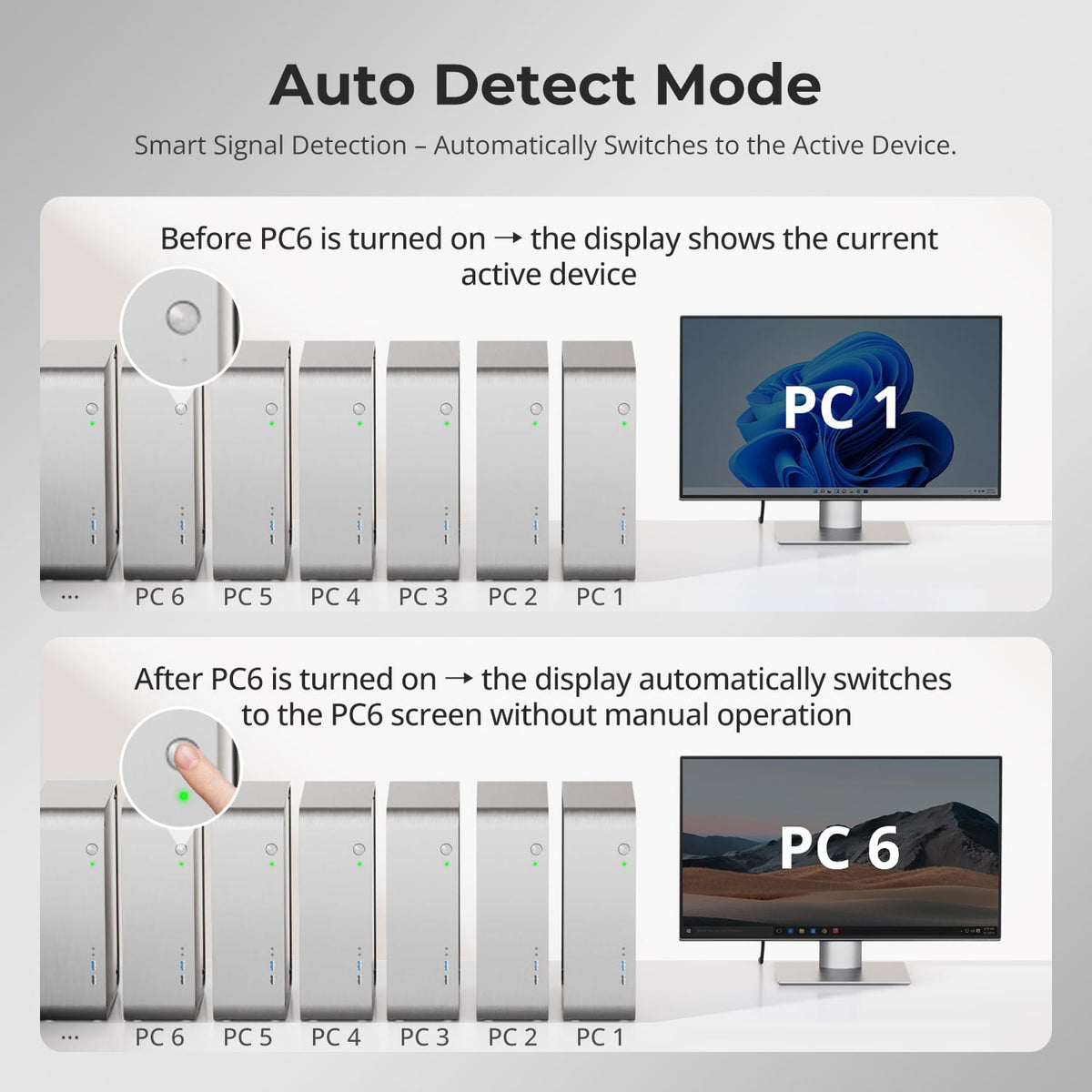
Switch Automatically to the Active Computer
When a connected computer powers on, Auto Detect Mode automatically switches the display to the newly active input—no manual switching required.

03
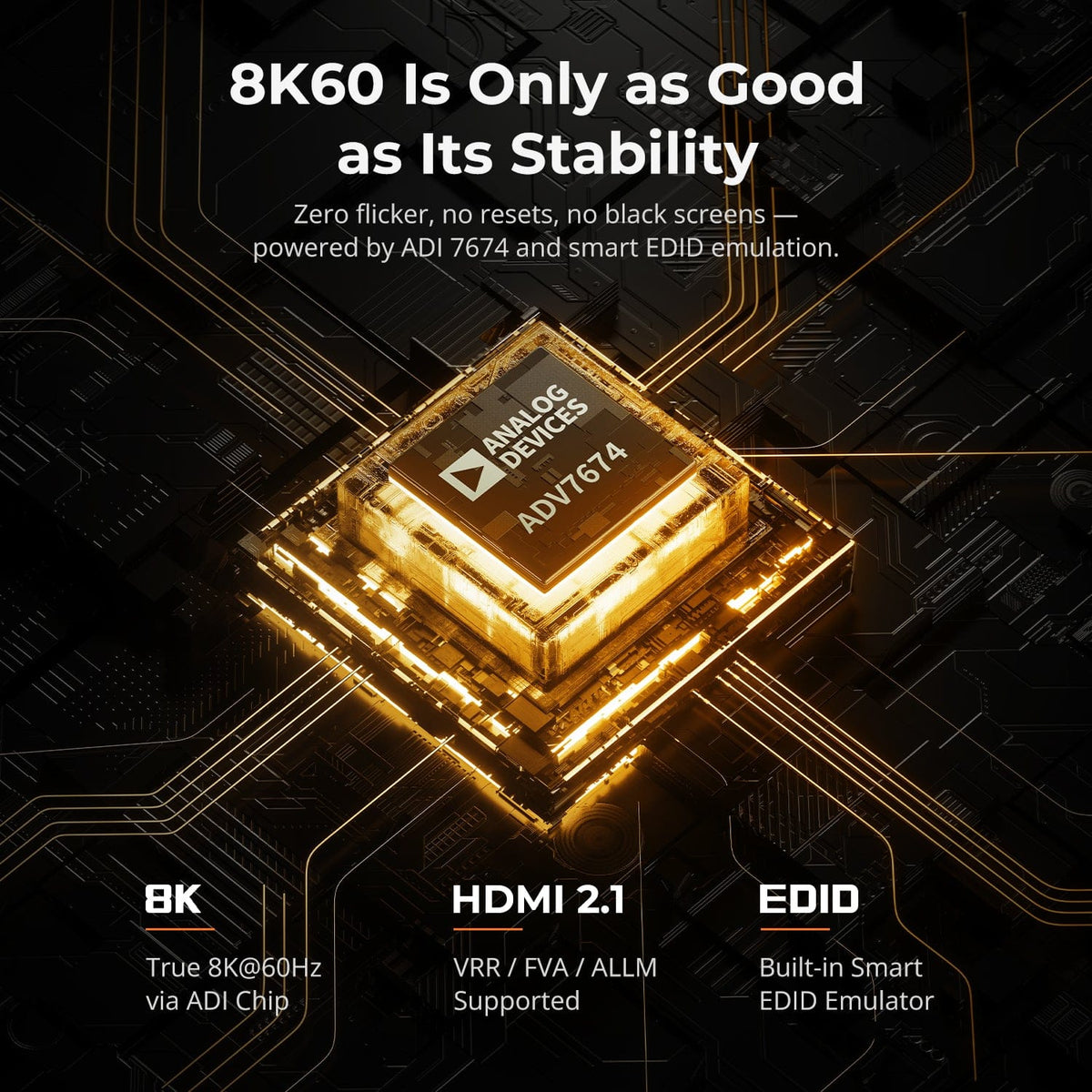
8K60 Is Only as Good as Its Stability
Zero flicker. No resets. No black screens.
Powered by ADV7674 decoding and advanced EDID emulation, this KVM ensures stable multi-monitor output even under high bandwidth loads.
Why it’s built different:
• ADV 7674: industry-grade HDMI 2.1 decoding
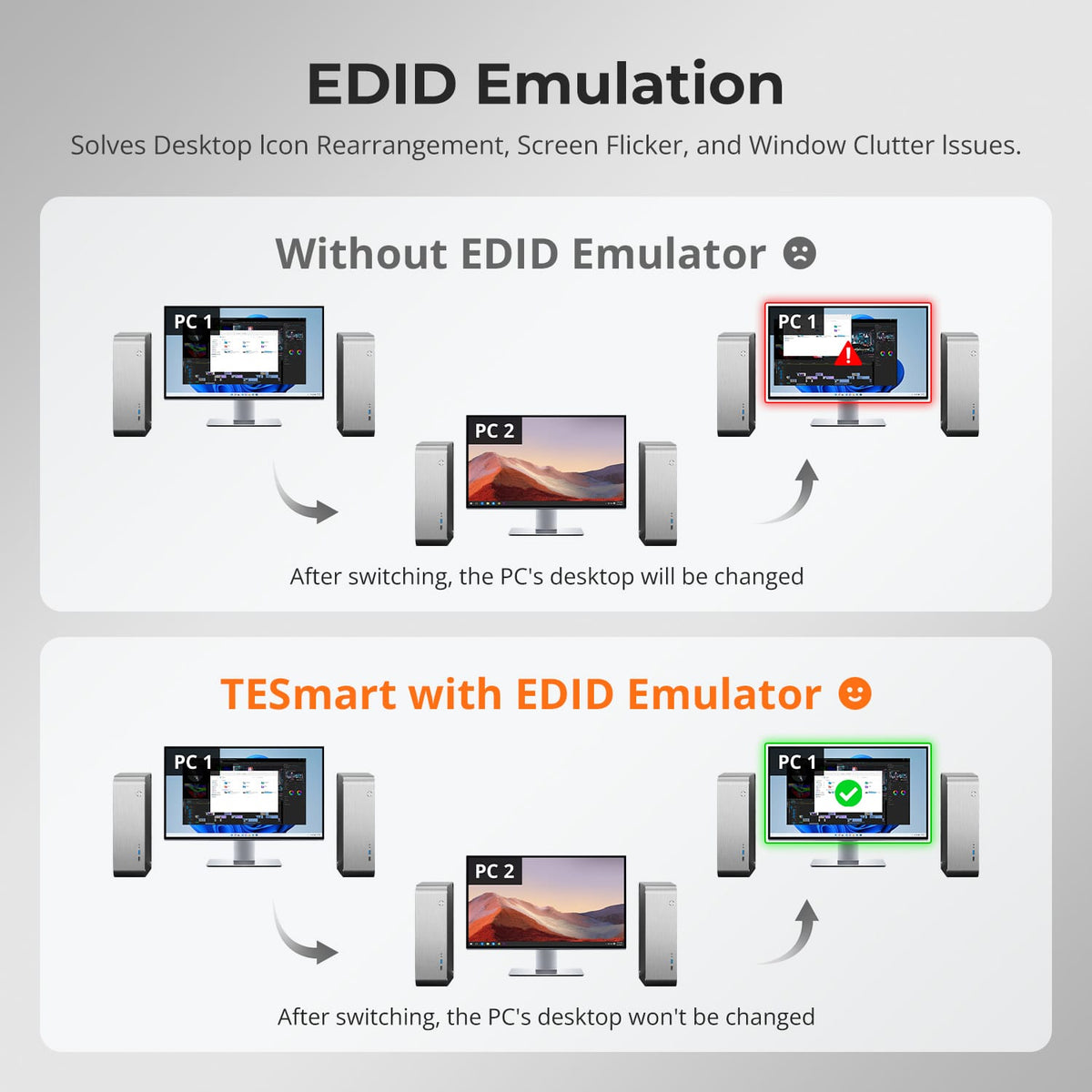
• Smart EDID: signal always-on, no display loss
• VRR / FVA / ALLM supported for smooth, tear-free gaming
• Ideal for high FPS gaming and critical creative workflows
04
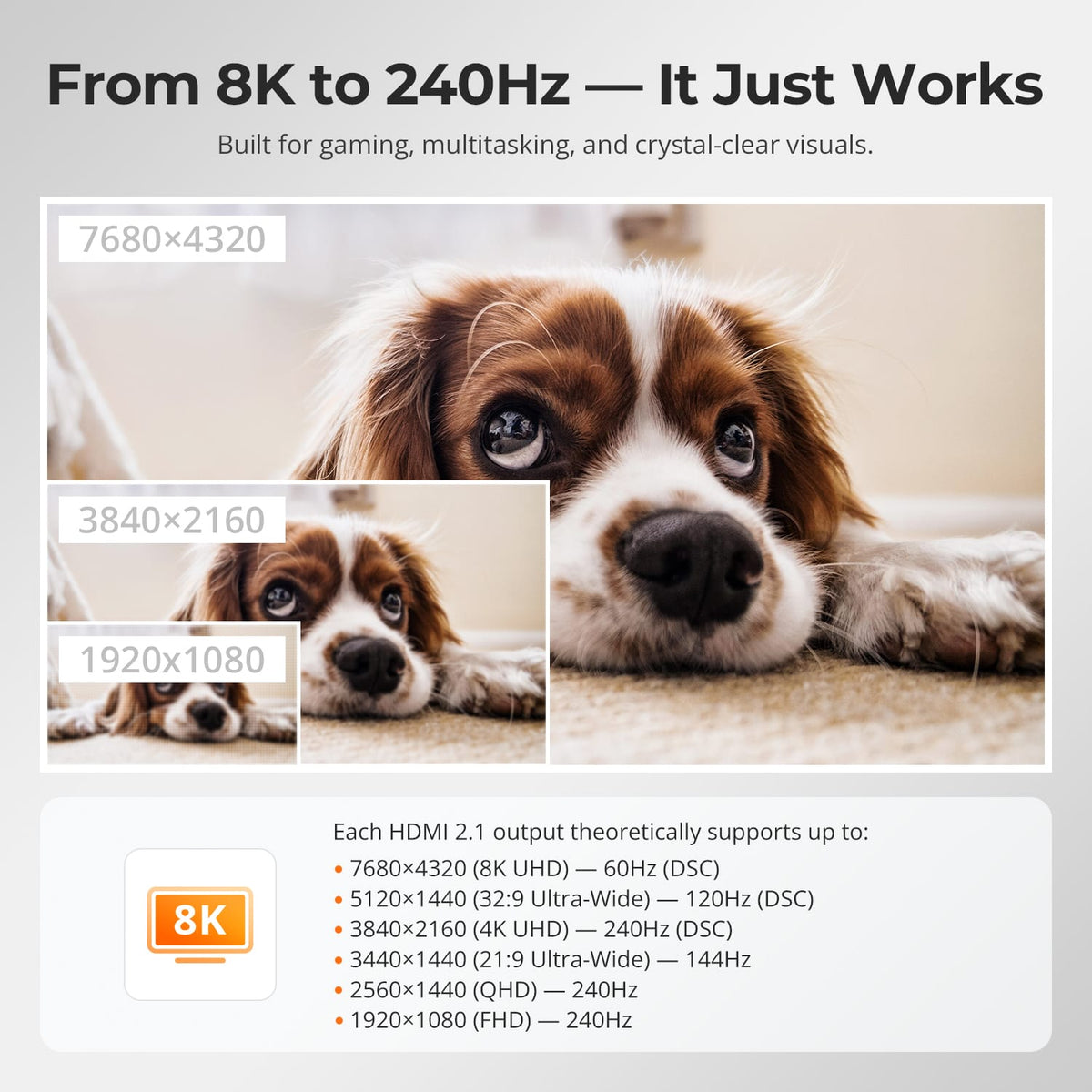
From 8K to 240Hz — It Just Works
Built for smooth gameplay, creative workflows, and ultra-clear visuals. With HDMI 2.1 and DSC, our KVM supports extreme resolutions and high refresh rates across a wide range of displays.
Each HDMI 2.1 output theoretically supports up to:
• 7680×4320 (8K UHD) — 60Hz (DSC)
• 5120×1440 (32:9 Ultra-Wide) — 120Hz (DSC)
• 3840×2160 (4K UHD) — 240Hz (DSC)
• 3440×1440 (21:9 Ultra-Wide) — 144Hz
• 2560×1440 (QHD) — 240Hz
• 1920×1080 (FHD) — 240Hz

05
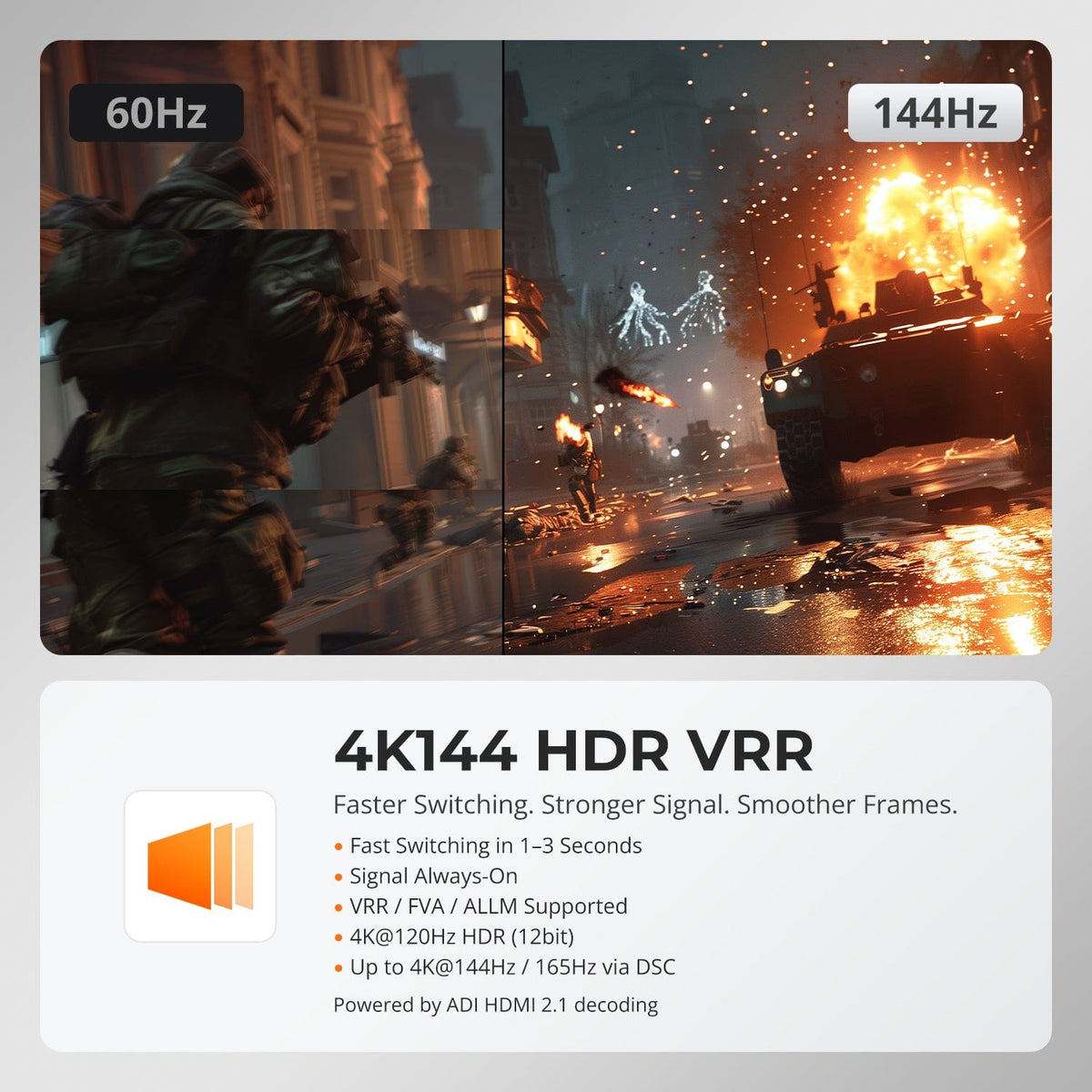
4K144 HDR VRR
Faster Switching. Stronger Signal. Smoother Frames.
• Fast Switching in 1–3 Seconds: No blackouts, no resets
• Signal Always-On: No disconnects during switch
• VRR / FVA / ALLM Supported: Tear-free, low-lag gaming
• 4K@120Hz HDR (12bit): Stunning clarity and colors
• Up to 4K@144Hz / 165Hz via DSC: Built for fast-action games
Powered by ADI HDMI 2.1 decoding — boosts weak signals and ensures seamless multi-monitor stability
06
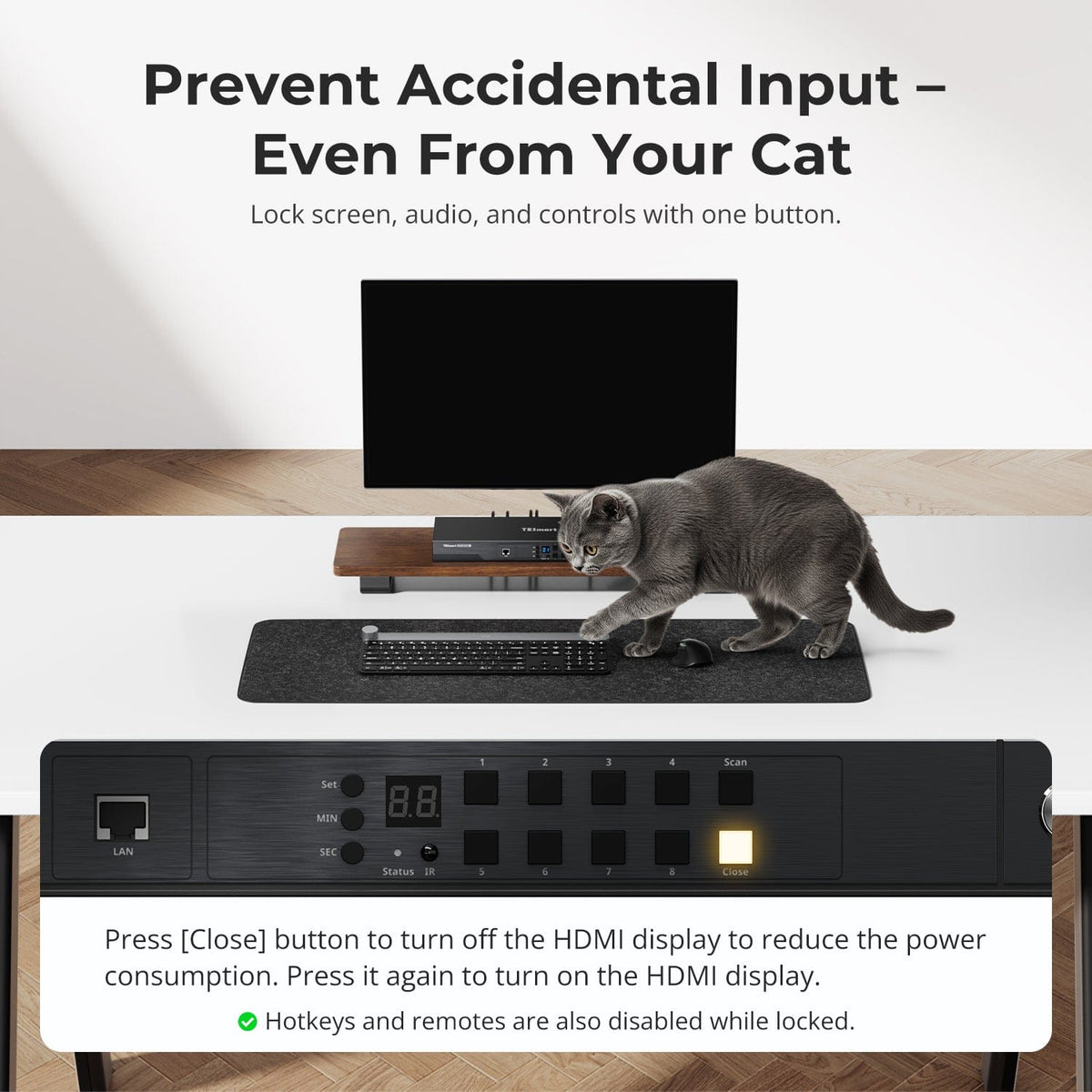
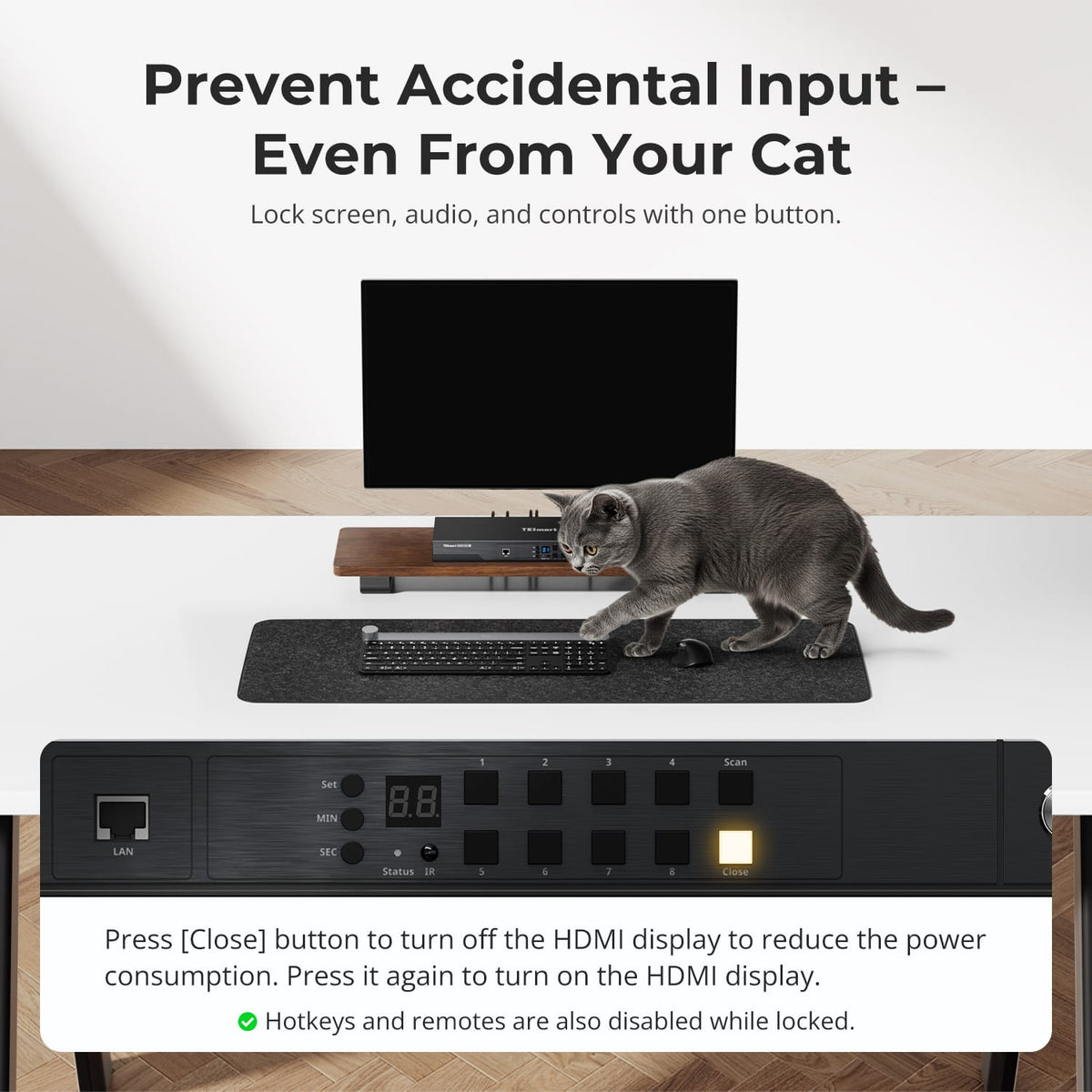
Prevent Accidental Switching with One Button
Press the Close button to turn off the HDMI display and temporarily disable hotkey and IR remote commands. Press it again when you are ready to resume operation.
07
08
09
Specifications & Support
Compatibility & Input Guide
Technical Specifications
Manuals & Downloads
Included in the Box

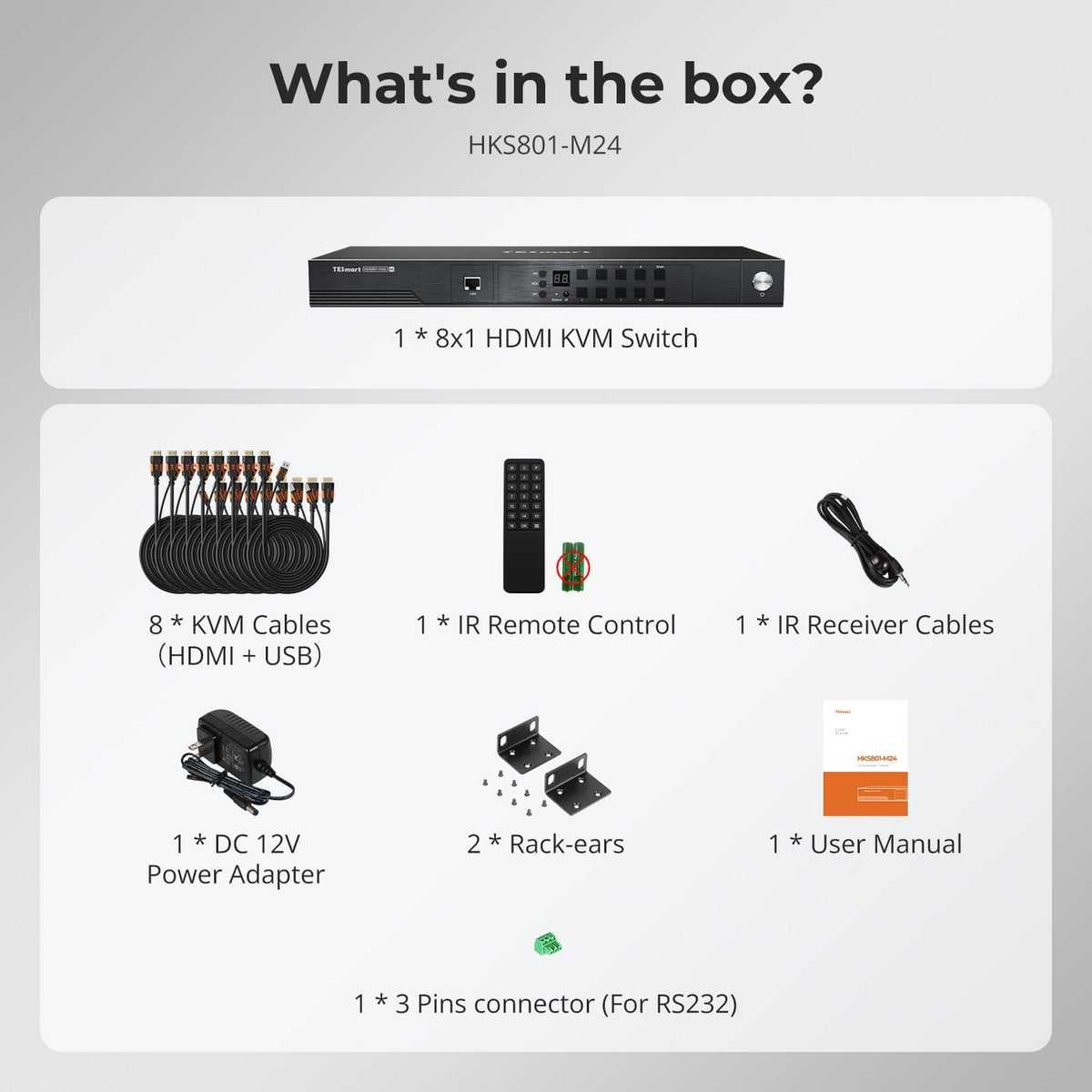
1 × HKS801-M24 KVM Switch
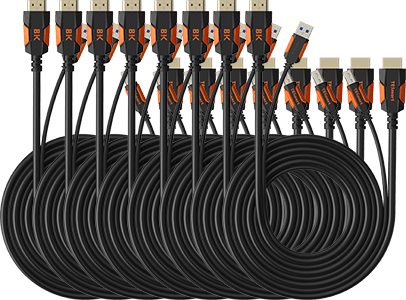
8 × KVM Cables (HDMI + USB)
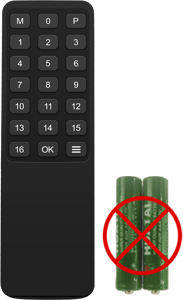
1 × IR Remote Control
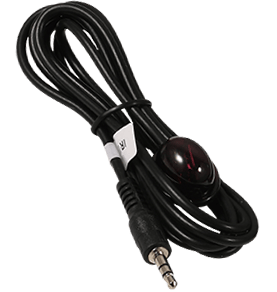
1 × IR Receiver Cable
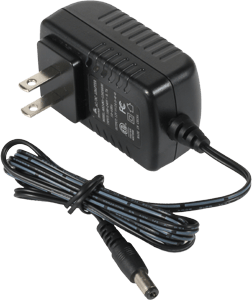
1 × 12 V DC Power Adapter
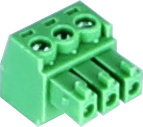
1 × 3-Pin RS232 Connector
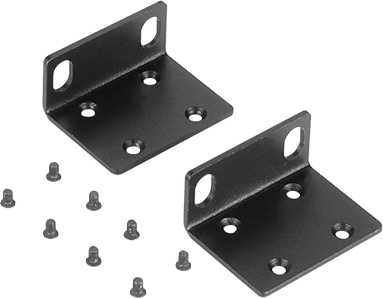
2 × Rack Brackets
1 × User Manual

Compare your options
Choose models from the menus to compare connections, display performance and shared features.
Model
HKS801-M24
Model
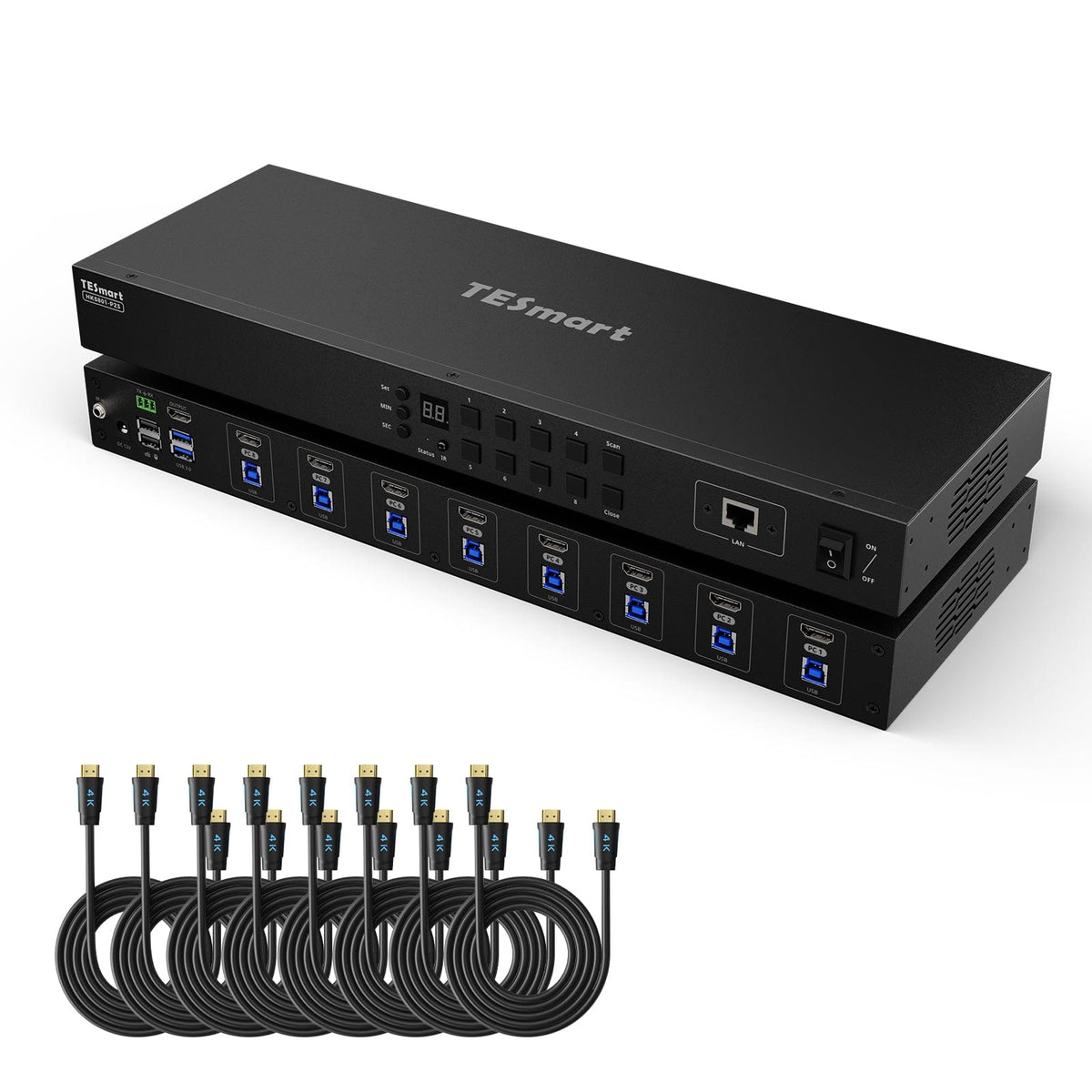
HKS801-P23
Model
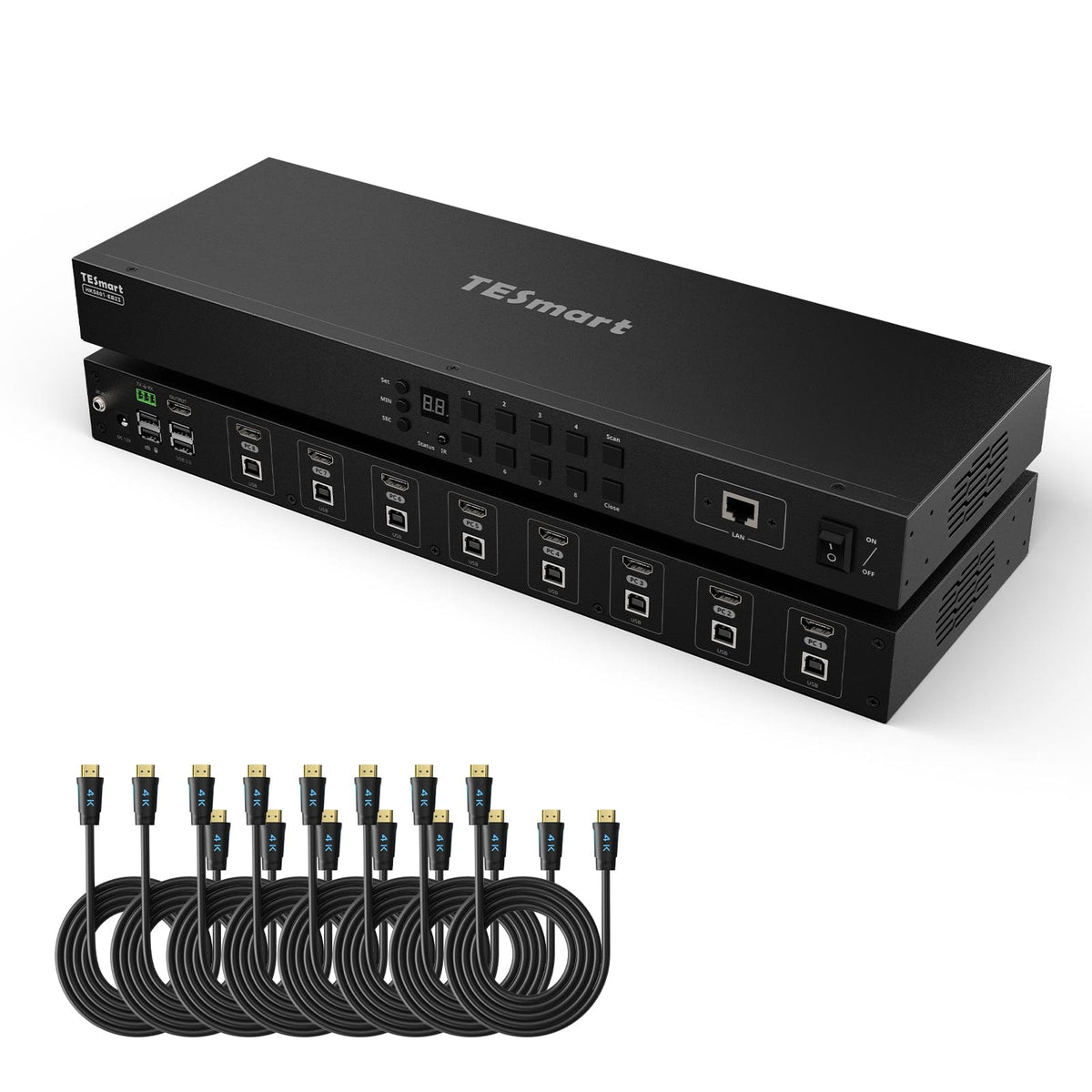
HKS801-EB23
Computer setup
8 computers
Computer setup
8 computers
Computer setup
8 computers
Computer connections
Each PC: 1 × HDMI + USB
Computer connections
Each PC: 1 × HDMI + USB
Computer connections
Each PC: 1 × HDMI + USB
Display outputs
1 × HDMI
Display outputs
1 × HDMI
Display outputs
1 × HDMI
Video output
8K60 / 4K144
Video output
4K60
Video output
4K30
Shared USB
USB 3.0 / 5Gbps
Shared USB
USB 3.0 / 5Gbps
Shared USB
USB 2.0
EDID emulation
EDID emulation
EDID emulation
Network control
LAN / TCP-IP + RS232
Network control
LAN / TCP-IP + RS232
Network control
LAN / TCP-IP + RS232
FAQ's
Visit our Help Center for more answers.
[Compatibility] What setup is HKS801-M24 designed for?
HKS801-M24 lets up to eight HDMI computers share one HDMI display, keyboard, mouse, and supported USB peripherals. It displays one selected computer at a time and does not show multiple computers simultaneously on the screen.
[Compatibility] What computers and operating systems can I use with HKS801-M24?
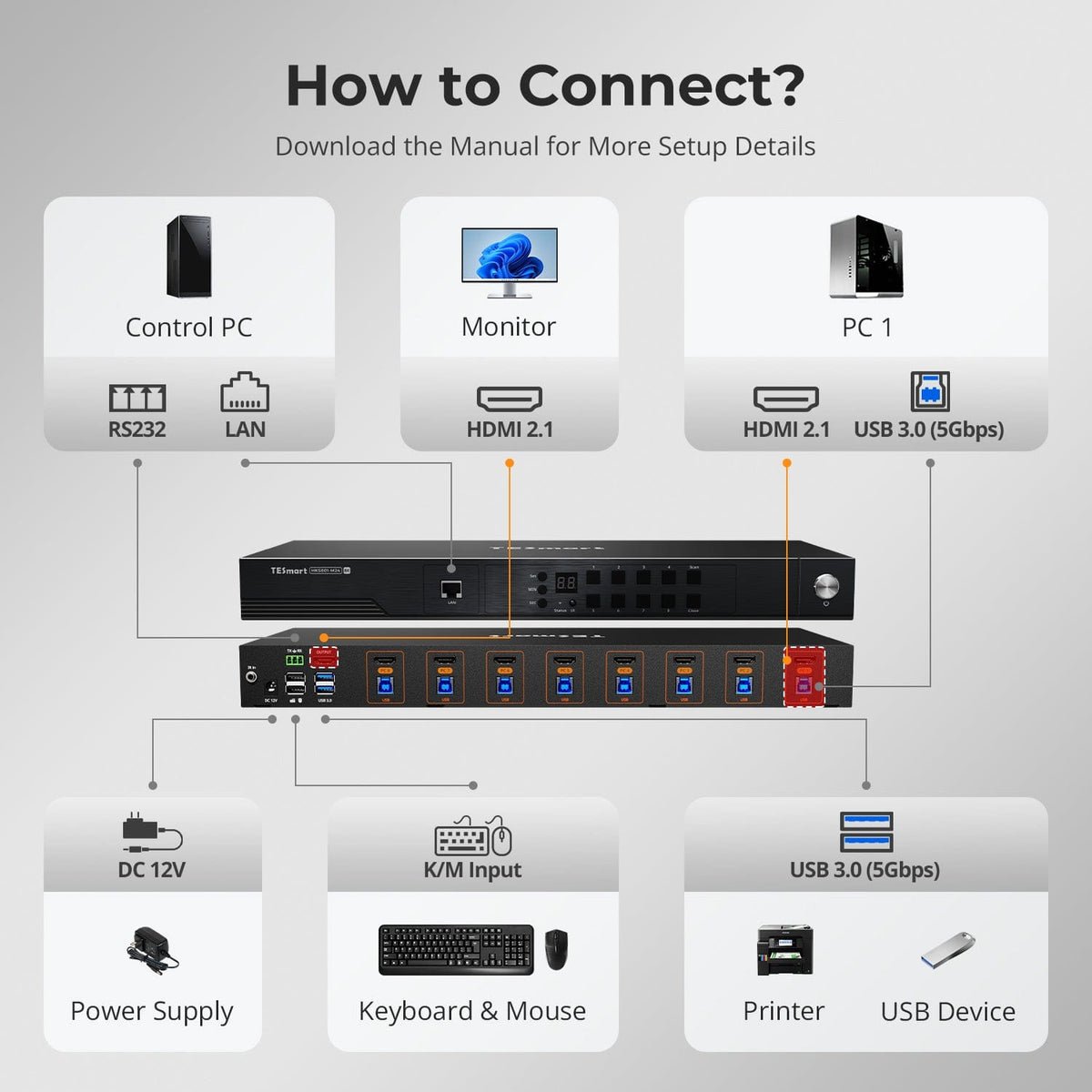
Each computer needs an HDMI video output and a USB-A data port. HKS801-M24 supports Windows, macOS, Linux, Raspberry Pi, and Unix-based systems. Each computer connects through one included HDMI and USB KVM cable.
[Compatibility] What display and cables do I need?
Use one monitor or TV with an HDMI input. The package includes eight HDMI and USB KVM cables for connecting the computers, but you need a separate HDMI cable between the KVM’s HDMI output and the display. Use HDMI 2.1-compatible equipment for 8K60 or 4K144.
[Compatibility] What resolutions and refresh rates does HKS801-M24 support?
HKS801-M24 supports up to 7680×4320 at 60Hz and 3840×2160 at 144Hz. Actual output depends on the computer’s GPU, display, operating-system settings, HDMI cables, and DSC support required by the selected display mode.
[Compatibility] Does HKS801-M24 support HDR and variable refresh rate gaming?
Yes. It supports HDR10, Dolby Vision, VRR, G-Sync, FreeSync, FVA, and ALLM. The computer, graphics card, display, content, and HDMI cables must also support and enable the required feature.
[Features & Connections] How do the ADI chipset and EDID emulation improve switching?
The ADI 7674 chipset processes high-bandwidth HDMI 2.1 signals, while the EDID emulator keeps display information available to every connected computer. Together, they help maintain stable resolutions and reduce screen re-detection, window movement, and desktop icon rearrangement after switching.
[Features & Connections] What can I connect to the shared USB 3.2 ports?
The two rear USB-A 3.2 Gen 1 ports support shared USB devices such as storage drives and printers at speeds up to 5Gbps. Connected devices follow the currently selected computer.
[Features & Connections] What is the difference between Auto Detect and Auto Scan?
Auto Detect switches to a newly connected or powered-on computer and moves to another active input when the current source is disconnected. Auto Scan automatically cycles through powered-on computers at a selected interval from 5 seconds to 1 hour.
[Features & Connections] What does the Close button do?
Pressing the Close button turns off the HDMI display output to reduce power consumption and prevent unintended switching. Hotkey and IR remote commands are disabled while the display is closed. Press the button again to resume normal operation.
[Features & Connections] What are the LAN and RS232 ports used for?
The LAN and RS232 ports provide remote switching and system control for managed or automated installations. LAN uses TCP/IP commands over a local network, while RS232 uses serial commands. The LAN port does not provide shared internet or Ethernet access to the connected computers.
[Features & Connections] Does HKS801-M24 have a separate audio output?
No. HKS801-M24 does not provide a separate analog audio output. Audio is carried through HDMI and follows the selected computer to the connected monitor or TV. Configure the computer and display to use HDMI audio.
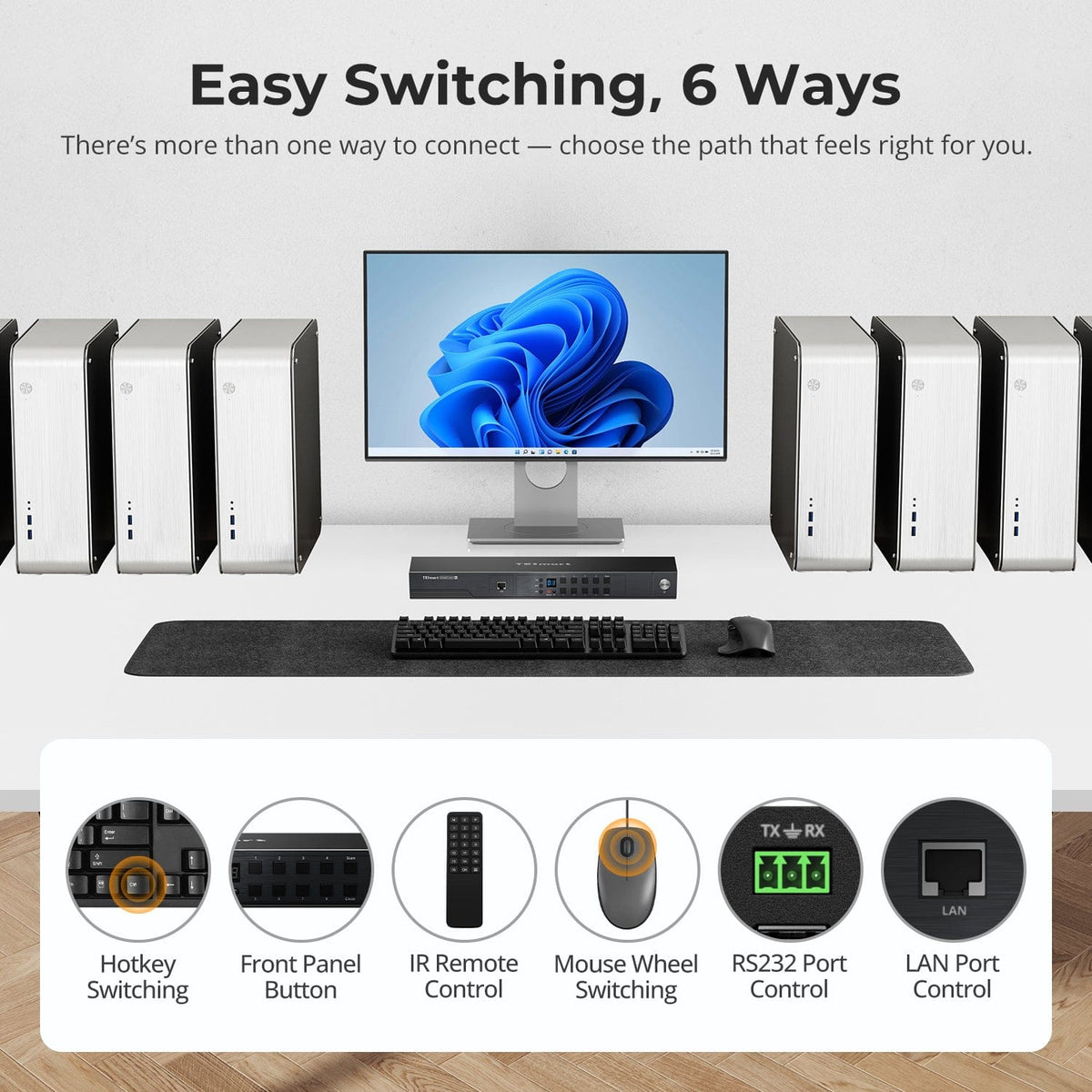
[Setup & Switching] How can I switch or control HKS801-M24?
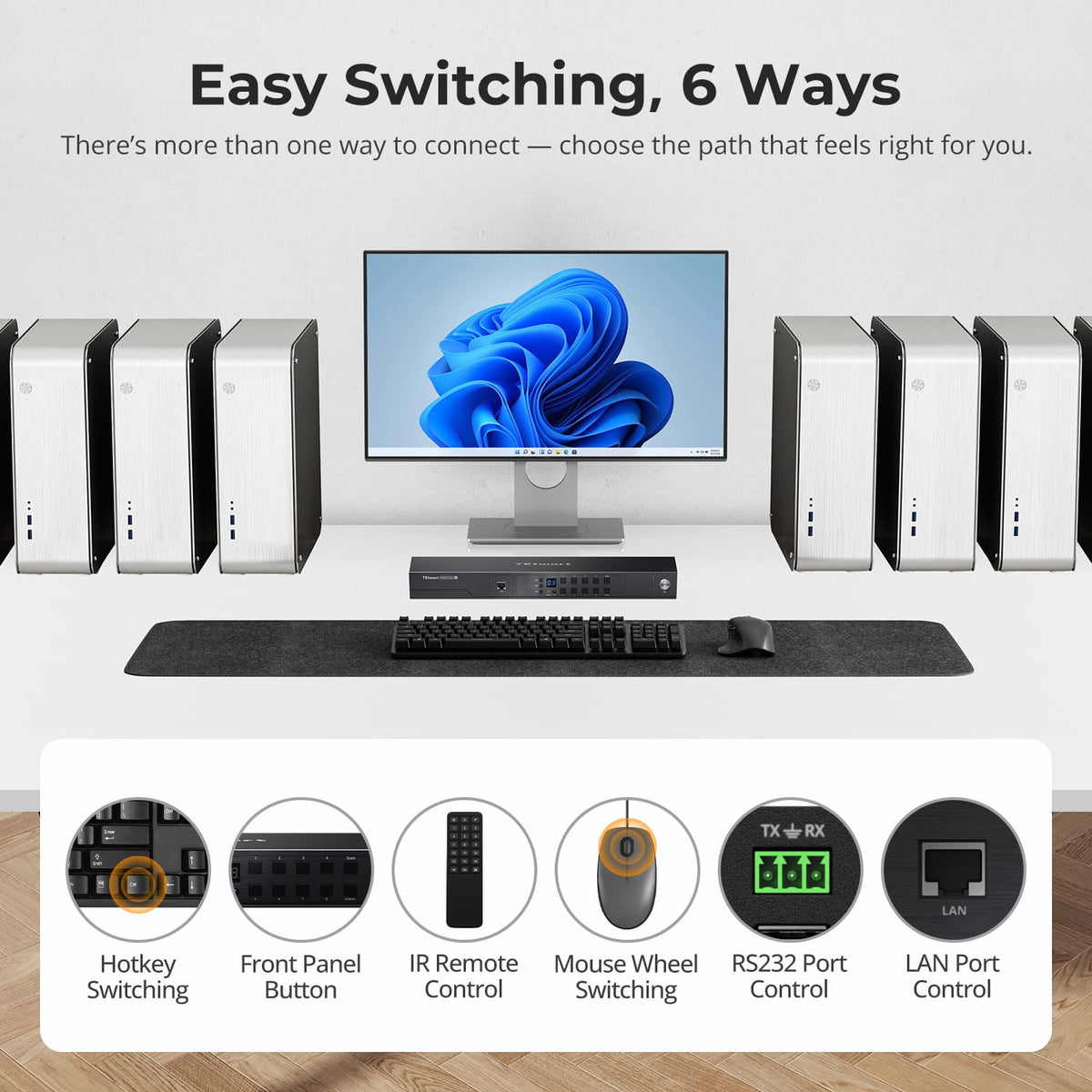
For everyday switching, use the front-panel buttons, IR remote, keyboard hotkeys, or mouse-wheel double-click. Managed installations can also control the KVM through RS232 or LAN using TCP/IP commands. Mouse-wheel switching must be enabled before use.
[Setup & Switching] How do the keyboard hotkeys work, and can I change the trigger key?
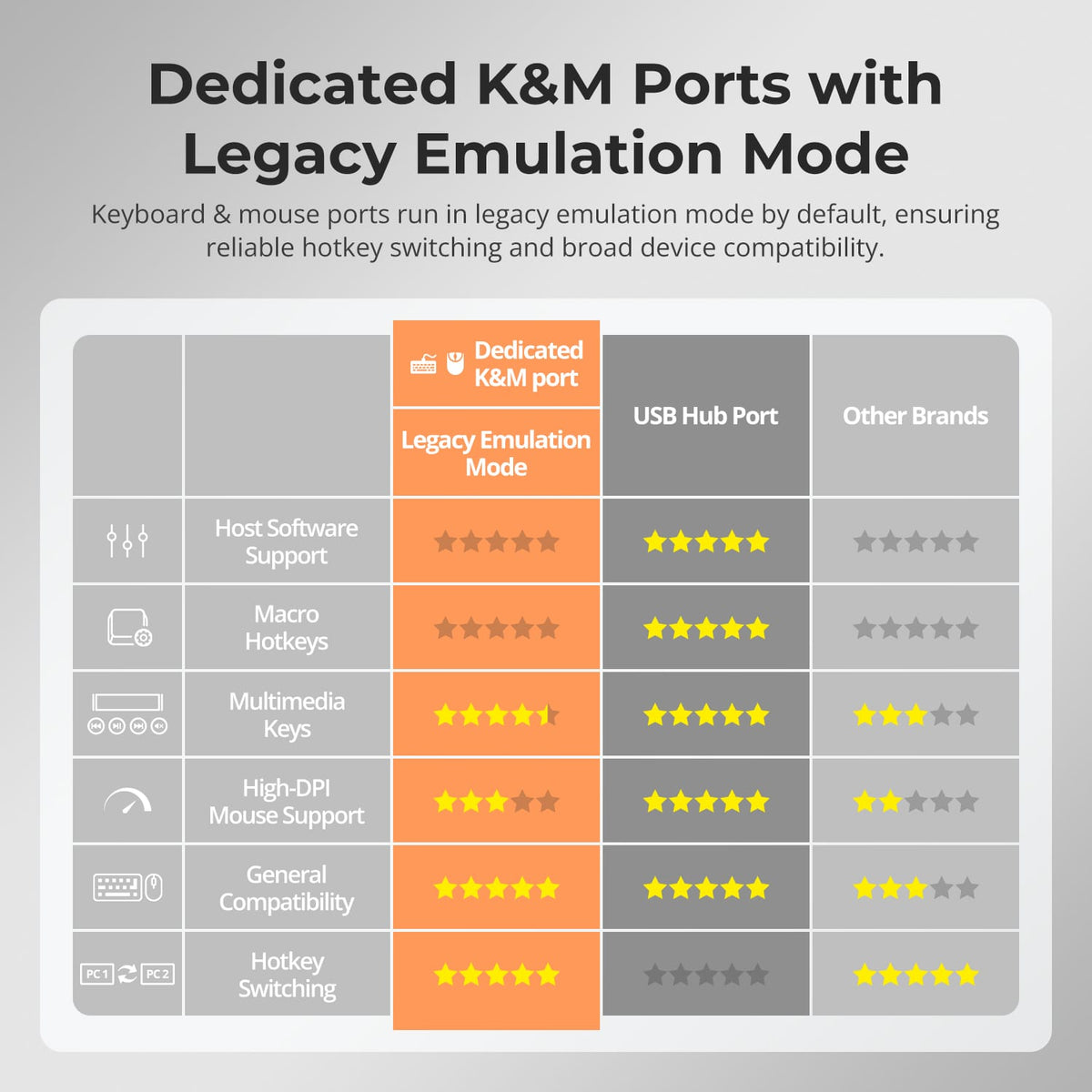
Connect a compatible wired USB keyboard to the dedicated keyboard port. Press Right Ctrl twice within two seconds, then enter the required command within three seconds. The trigger key can be changed between Right Ctrl and Scroll Lock using the documented hotkey command.
[Setup & Switching] What are Pass-Through Mode and Legacy Emulation Mode?
Pass-Through Mode provides broader support for modern, mechanical, multimedia, and gaming keyboards and mice. Legacy Emulation Mode prioritizes basic keyboard and mouse compatibility and reliable hotkey operation. Some driver-based functions, macros, and advanced peripheral features may not work in Legacy Emulation Mode.