

Table of Contents
- Introduction
- What Users Are Actually Trying to Solve
- Why 1080p 240Hz Is Not Just “1080p”
- Three Monitors Usually Mean Three Independent Video Paths
- Check the GPU Before You Check the KVM
- HDMI 2.0, HDMI 2.1, or DisplayPort 1.4?
- Do You Need DSC, VRR, G-Sync, or FreeSync?
- Why Cables, Adapters, and Docks Can Still Limit You
- Which TESmart KVM Fits a Triple 1080p 240Hz Setup?
- How to Verify All Three Monitors Are Actually Running at 240Hz
- Triple 240Hz KVM Buying Checklist
- FAQ
Introduction
Can two computers share three 1080p 240Hz monitors through one KVM switch without dropping the displays to 144Hz or 60Hz?
Yes, but the answer depends on much more than whether the KVM description says “1080p supported.” A 1920×1080 signal at 240Hz places very different demands on the video path than the same resolution at 60Hz. With three monitors, the source computer also needs to supply three usable display signals, and every cable, adapter, dock, KVM input, KVM output, and monitor port has to preserve the required mode.
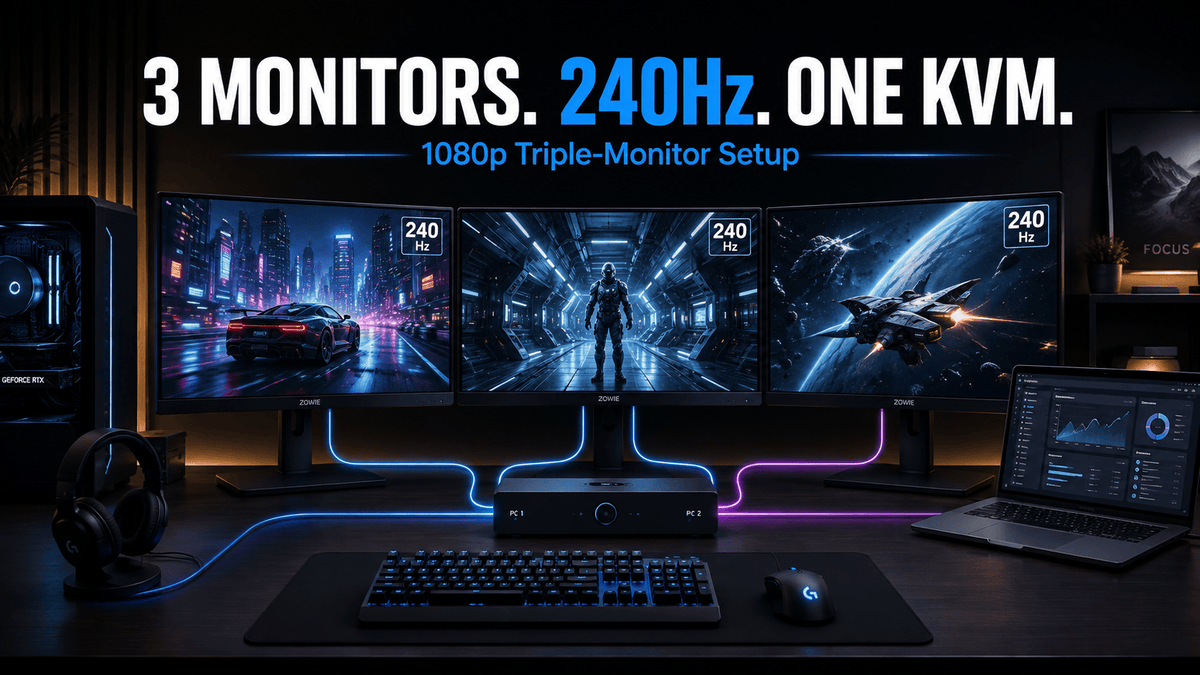
A 2025 Reddit discussion illustrates the confusion around this setup. A user wanted to keep a gaming desktop while sharing three 1080p 240Hz monitors with another computer through a KVM. Several replies questioned whether all three displays could remain at 240Hz at the same time.
The important point is that a triple-monitor 240Hz KVM setup is technically possible. The harder question is whether the entire signal chain can run three independent 240Hz links consistently.
This guide explains what to check before buying the KVM.
What Users Are Actually Trying to Solve
The requirement sounds simple:
- Two computers
- Three 1920×1080 monitors
- 240Hz on every monitor
- One keyboard and mouse
- One button or hotkey to switch the workstation
But there are actually several separate requirements hidden inside that description.
First, each computer must be capable of driving three external monitors sim aneously. Second, each display output must support 1080p at 240Hz. Third, the KVM needs three video paths capable of carrying those signals. Finally, the cables and any conversion devices between the computer and KVM must preserve the same refresh rate.
A KVM does not create additional GPU outputs. It switches video signals that already exist.
That distinction is one of the most important things to understand before buying a triple-monitor KVM.

Why 1080p 240Hz Is Not Just “1080p”
Monitor resolution alone does not describe the bandwidth requirement.
A 1920×1080 monitor running at 60Hz refreshes the image 60 times per second. At 240Hz, it refreshes four times as often. The resolution has not changed, but substantially more video data has to move through the link every second.
This is why a KVM advertised only as “1080p compatible” tells you almost nothing about whether it can handle a 240Hz gaming monitor.
You need to check the supported combination of:
- Resolution
- Refresh rate
- Color depth
- Chroma format
- HDR mode
- Variable refresh rate
For example, a device may support 1920×1080 at 240Hz in an 8-bit RGB configuration but behave differently when 10-bit color, HDR, or another high-bandwidth mode is enabled.
This is also why “supports 4K” is not a useful shortcut. A 4K60 KVM does not automatically support every lower-resolution high-refresh mode unless that mode is part of the device's supported timing and bandwidth range.

Three Monitors Usually Mean Three Independent Video Paths
One common misunderstanding is that three 1080p 240Hz monitors require the KVM to combine the bandwidth of all three displays into one enormous video connection.
That is not how a conventional triple-monitor KVM is normally wired.
In a native triple-display KVM configuration, each display uses its own video path.
For example:
- GPU Display Output 1 → KVM Video Input 1 → Monitor 1
- GPU Display Output 2 → KVM Video Input 2 → Monitor 2
- GPU Display Output 3 → KVM Video Input 3 → Monitor 3
The second computer provides another three video connections to the KVM.
Each display link therefore carries its own 1080p 240Hz signal. You do not simply multiply the bandwidth of three monitors and expect all of it to travel through one DisplayPort or HDMI cable.
This distinction matters because it explains why triple-monitor KVMs require so many video cables. If a computer connects only one video output to a conventional three-monitor KVM, the KVM cannot manufacture two additional extended desktop signals.
There is an important exception: docks, MST hubs, DisplayLink devices, and some USB-C display solutions can carry multiple displays through a shared upstream connection. In those designs, bandwidth is shared and the limitations are different. A dock rated for “three monitors” may therefore support three 1080p60 displays but not three 1080p240 displays.

Check the GPU Before You Check the KVM
For a three-monitor 240Hz workstation, the source computer is often the first limiting factor.
Before choosing a KVM, check whether both computers can generate three independent 1920×1080 240Hz outputs simultaneously.
Desktop Graphics Cards
A desktop GPU may provide several physical ports, but the port layout matters.
For example, a graphics card might provide:
- 3 × DisplayPort + 1 × HDMI
- 2 × DisplayPort + 2 × HDMI
- 3 × DisplayPort + 2 × HDMI
If you choose an all-DisplayPort triple-monitor KVM but your graphics card has only two DisplayPort outputs, the third signal will require a compatible conversion path or a different KVM topology.
The number of connectors is not the only consideration. Check the GPU manufacturer's supported multi-display configurations as well. A GPU capable of running one monitor at an extreme resolution or refresh rate does not automatically guarantee the same performance across three displays simultaneously.
Laptops and USB-C Systems
Laptops require more caution because three physical display connectors are uncommon.
A USB-C port may carry DisplayPort video, but connecting a three-monitor dock does not automatically produce three unrestricted high-refresh links. The dock may divide one DisplayPort connection across several outputs, use MST, or rely on DisplayLink compression and drivers.
For a triple 240Hz setup, determine exactly where each video signal comes from before choosing the KVM.

HDMI 2.0, HDMI 2.1, or DisplayPort 1.4?
You do not automatically need HDMI 2.1 simply because the monitors run at 240Hz.
At 1920×1080, HDMI 2.0 can support 240Hz in compatible 8-bit configurations. This is why some HDMI 2.0 KVMs specifically list 1920×1080@240Hz even though their maximum 4K mode is 60Hz.
However, interface capability and actual product implementation are not the same thing. The KVM, source GPU, monitor input, and cables must all expose the required timing.
HDMI 2.0
HDMI 2.0 can make sense when your three monitors use HDMI and your target is specifically 1080p at 240Hz rather than much higher-resolution high-refresh modes.
Before buying, confirm that the KVM explicitly lists 1080p240 support. Do not infer it only from a “4K60” label.
Color depth also matters. An 8-bit 1080p240 signal is less demanding than higher-bit-depth HDR configurations, so a display mode that works at 8-bit may not behave identically after additional color bandwidth is enabled.
HDMI 2.1
HDMI 2.1 provides substantially more headroom and becomes more relevant when the workstation may later move beyond 1080p240 to 1440p high refresh, 4K120/144Hz, HDR, or other higher-bandwidth display modes.
For 1080p240 alone, HDMI 2.1 is not mandatory. Its value is the additional bandwidth margin and compatibility with more demanding future monitor configurations.
DisplayPort 1.4
DisplayPort 1.4 is a natural fit for many desktop gaming and professional GPUs because multiple native DisplayPort outputs are common on graphics cards.
A direct DP-to-DP topology also avoids unnecessary HDMI-to-DisplayPort conversion when all three monitors provide DisplayPort inputs.
For an all-DisplayPort workstation, the cleanest layout is usually:
- Three native DP outputs from Computer 1
- Three native DP outputs from Computer 2
- Three DP inputs per computer on the KVM
- Three DP outputs from the KVM to the monitors
The fewer format conversions in that path, the easier it is to isolate refresh-rate, EDID, and wake-from-sleep problems.
Do You Need DSC, VRR, G-Sync, or FreeSync?
DSC
Display Stream Compression, or DSC, is frequently mentioned with modern high-refresh KVMs because it allows higher display modes to operate within available link bandwidth.
For ordinary 1920×1080 at 240Hz, DSC is generally not the feature that determines whether the setup works. A sufficiently capable native video link can carry this mode without relying on DSC.
DSC becomes much more important when moving toward combinations such as 4K at very high refresh rates or other display modes that exceed the uncompressed capacity of the link.
That means a KVM supporting DSC can provide useful headroom for future monitor upgrades, but you should not buy a DSC-capable model under the assumption that three 1080p240 displays inherently require compression.
VRR
For gaming, achieving 240Hz is only part of the requirement.
If you use variable refresh rate, the KVM also needs to preserve the signaling required by technologies such as Adaptive-Sync, AMD FreeSync, or NVIDIA G-Sync-compatible workflows.
A KVM can theoretically pass a fixed 240Hz signal while failing to preserve the VRR behavior you use when gaming.
This is why the product specification should be checked separately for:
- Maximum fixed refresh rate
- VRR support
- G-Sync compatibility
- FreeSync compatibility
- HDR support
Do not treat these as interchangeable specifications.
Why Cables, Adapters, and Docks Can Still Limit You
A KVM capable of 240Hz cannot force the rest of the signal chain to operate at 240Hz.
The practical rule is simple: the weakest link determines the available display mode.
Cables
High-refresh configurations are less tolerant of marginal signal quality than basic 1080p60 desktops.
If one of the three monitors repeatedly drops to 144Hz, flickers, goes black, or disappears after switching, test the video path with shorter, known-good cables before assuming the KVM itself is the problem.
Remember that a KVM installation contains cables on both sides of the switch:
- Computer → KVM
- KVM → Monitor
With two computers and three displays, that quickly becomes a large number of high-bandwidth connections.
Adapters
An adapter may advertise DisplayPort or HDMI compatibility without supporting the maximum mode available from the original GPU port.
For example, converting an HDMI GPU output to DisplayPort for the third monitor can introduce limitations involving:
- Maximum refresh rate
- Color depth
- VRR
- HDR
- EDID communication
Active conversion is especially important to check carefully because HDMI-to-DisplayPort and DisplayPort-to-HDMI are not automatically equivalent or bidirectional.
Docks
A dock is often the hidden reason a laptop can reach only 60Hz or 144Hz even though the KVM and monitor support 240Hz.
When multiple monitors share one USB-C or DisplayPort upstream link, the dock has to divide the available display bandwidth among its outputs. A dock specification stating “triple monitor support” therefore does not mean “triple 240Hz support.”
For high-refresh troubleshooting, direct video connections from the GPU to the KVM provide a much clearer baseline than a multi-stage dock-and-adapter chain.

Which TESmart KVM Fits a Triple 1080p 240Hz Setup?
The right model depends first on the number of computers and the video-port topology. Do not choose the KVM only because all three products are capable of triple-monitor switching.
DKS203-M24: Two Computers and Three DisplayPort Monitors
If your setup consists of two computers and three DisplayPort monitors, the TESmart DKS203-M24 is the most direct match.
It uses a three-path DisplayPort 1.4 architecture and is designed around two computers sharing three displays. Its higher-bandwidth display support also provides significantly more headroom than a conventional 4K60 KVM, while support for G-Sync and FreeSync makes it better aligned with gaming-oriented high-refresh workstations.
This model makes the most sense when:
- Both computers can provide three DisplayPort video signals
- All three monitors provide suitable DisplayPort inputs
- 240Hz operation matters on the gaming computer
- You want to preserve VRR functionality
- You want all three monitors, keyboard, mouse, and shared USB devices to follow the active computer
For an all-DP desktop workstation, avoiding format conversion is a major practical advantage. It reduces the number of variables involved when diagnosing refresh-rate or display-detection problems.
HDK203-M24: Two Computers with a Mixed HDMI and DisplayPort Layout
If the monitor group or GPU outputs naturally use both HDMI and DisplayPort, the TESmart HDK203-M24 may be a better match.
This model combines HDMI 2.1 and DisplayPort 1.4 in a two-computer, three-monitor design. It is particularly useful when forcing every signal into the same connector type would otherwise require unnecessary adapters.
This configuration is more suitable when:
- Each computer provides one suitable HDMI output and two DisplayPort outputs
- The three-monitor layout includes HDMI and DisplayPort connections
- You want higher-bandwidth headroom beyond a basic HDMI 2.0 KVM
- VRR and high-refresh gaming features are part of the requirement
Compared with converting an HDMI GPU output into DisplayPort solely to use an all-DP KVM, matching the KVM to the GPU's native port layout can produce a simpler signal chain.
HKS403-P23: Four Computers and Three HDMI Monitors
If the requirement changes from two computers to up to four computers, and all three displays use HDMI, the TESmart HKS403-P23 addresses a different workstation structure.
Its supported display modes include 1920×1080 at 240Hz, making it relevant to users who need three Full HD high-refresh monitors but do not require the higher-resolution headroom of an HDMI 2.1 or DisplayPort 1.4 model.
This model makes more sense when:
- You need to switch among three or four computers
- All three monitor paths are HDMI
- Your main high-refresh target is 1080p240
- 4K60 is sufficient when operating at 4K resolution
However, do not assume that a listed 1080p240 mode automatically guarantees every gaming feature. If VRR, a specific G-Sync configuration, HDR, or a particular color depth is essential, verify those requirements separately rather than relying on refresh rate alone.
Quick Comparison
| Model | Computer / Monitor Layout | Video Path | Best Fit |
|---|---|---|---|
| DKS203-M24 | 2 PCs → 3 monitors | DisplayPort 1.4 | All-DP high-refresh workstation, especially when VRR matters |
| HDK203-M24 | 2 PCs → 3 monitors | HDMI 2.1 + DisplayPort 1.4 | Mixed HDMI/DP GPU and monitor topology |
| HKS403-P23 | 4 PCs → 3 monitors | HDMI 2.0 | Four-computer HDMI setup targeting 4K60 or 1080p240 |
How to Verify All Three Monitors Are Actually Running at 240Hz
After connecting the KVM, do not assume that all three monitors are operating at 240Hz simply because Windows displays an image.
Verify every display individually.
Step 1: Open Advanced Display Settings
In Windows, open:
Settings → System → Display → Advanced display
Select the first monitor and check its current refresh rate. It should report 240Hz or the monitor's equivalent 239.xxHz timing.
Repeat the check for Monitor 2 and Monitor 3.
Step 2: Repeat the Test on Both Computers
A successful result on Computer 1 does not guarantee the same result on Computer 2.
One computer might be using three native DisplayPort connections while the second computer uses an adapter or dock on one path. In that case, two monitors may operate at 240Hz while the third negotiates only 144Hz.
Switch the KVM to each computer and verify all three displays separately.
Step 3: Check the GPU Control Panel
If you use an NVIDIA or AMD GPU, also inspect its graphics control panel.
Confirm:
- 1920×1080 resolution
- 240Hz refresh rate
- Expected color depth
- RGB or intended chroma mode
- G-Sync or FreeSync status, when required
This is especially important because a display may technically reach 240Hz after Windows silently changes another parameter.
Step 4: Check the Monitor OSD
Many gaming monitors show the current input refresh rate in their on-screen display.
Use the monitor's own information screen as an additional check. If Windows says 240Hz but the monitor repeatedly reports another mode after switching, investigate the cable, adapter, EDID, and KVM path.
Step 5: Test One Display Path at a Time
If one monitor refuses to reach 240Hz, temporarily connect that computer directly to the monitor using the same cable.
If direct connection also fails, the problem is upstream of the KVM.
If direct connection works but the KVM path does not, replace the KVM-side cables and remove adapters before changing other parts of the configuration.
Testing one path at a time is much faster than changing settings across all three monitors simultaneously.
Triple 240Hz KVM Buying Checklist
Before ordering a KVM for three 1080p 240Hz monitors, answer the following questions.
- Can Computer 1 drive three external monitors simultaneously?
- Can Computer 2 drive three external monitors simultaneously?
- Can each computer output 1080p240 on all three required ports?
- Does the KVM explicitly support the target refresh rate or a higher-bandwidth equivalent?
- Does the KVM have three independent video paths?
- Are your monitor inputs HDMI, DisplayPort, or mixed?
- Can you connect the GPU to the KVM without unnecessary adapters?
- Do all cables support the required link bandwidth?
- Is a dock or MST hub sharing bandwidth between displays?
- Do you need G-Sync, FreeSync, or another VRR mode?
- Do you also need HDR or higher color depth?
- Are you switching two computers or up to four?
If any of these answers are unknown, resolve that point before choosing the KVM model.
For most desktop systems, the cleanest triple-240Hz configuration is the one with three direct GPU video outputs, three matching KVM paths, and as few adapters as possible.
FAQ
Q1: Can one KVM really run three 1080p monitors at 240Hz?
Yes. A triple-monitor KVM can handle three 1080p240 displays when it has three suitable video paths and both computers can provide three independent 240Hz signals. The KVM cannot compensate for a GPU, dock, adapter, cable, or monitor input that does not support the required mode.
Q2: Do three 1080p240 monitors share one KVM bandwidth limit?
Not in a conventional triple-monitor KVM with three independent inputs and outputs. Each monitor normally uses a separate video path. Shared-bandwidth limitations become more relevant when several displays originate from one USB-C connection, MST hub, or docking station.
Q3: Do I need HDMI 2.1 for 1080p 240Hz?
No. HDMI 2.0 can support 1920×1080 at 240Hz in compatible configurations, and some HDMI 2.0 KVMs explicitly support this mode. HDMI 2.1 becomes more valuable when you need additional bandwidth for higher resolutions, higher color depth, HDR, or future monitor upgrades.
Q4: Do I need Display Stream Compression for 1080p 240Hz?
Normally not. DSC is more important for higher-resolution, high-refresh modes that approach or exceed the uncompressed bandwidth of the display link. It can provide useful future headroom, but three 1080p240 monitors do not inherently require DSC simply because they operate at 240Hz.
Q5: Why does my 240Hz monitor drop to 144Hz through a KVM?
The limiting point may be the KVM, but cables, adapters, docks, GPU outputs, monitor input ports, EDID negotiation, and color settings can produce the same symptom. Test the affected display directly from the GPU first, then rebuild the signal path one component at a time.
Q6: Will G-Sync or FreeSync still work through a KVM?
Only if the complete KVM path supports the required variable-refresh signaling. Do not assume VRR support simply because the KVM can pass a fixed 240Hz signal. For a gaming-oriented three-DisplayPort setup, a model such as the DKS203-M24 is more relevant because its specification explicitly includes G-Sync and FreeSync support.
Q7: Which TESmart model should I use for three 1080p240 monitors?
For two computers and three DisplayPort monitors, DKS203-M24 is the more direct high-refresh path. For two computers with a mixed HDMI and DisplayPort layout, HDK203-M24 may reduce unnecessary conversion. For up to four computers and three HDMI monitors, HKS403-P23 is relevant when the target is 1080p240 or up to 4K60.
Q8: What is the most important thing to check before buying?
Start with the source computers, not the KVM. Confirm that each computer can provide three simultaneous video outputs at the required refresh rate. Once that is established, match the KVM to the monitor count, connector types, refresh-rate requirement, VRR requirement, and actual cable topology.
Share:
Why the KVM Works on Your Laptop but Not Your Desktop: A Dual-Monitor Signal-Path Checklist
DisplayPort KVM with a Dock Compatible with Thunderbolt 5: Which Video Output Should You Actually Use?