

Table of Contents
- Introduction
- The Full Laptop → Dock → DisplayPort KVM Signal Chain
- Built-In DisplayPort vs Downstream USB-C: Why the Paths Can Behave Differently
- USB-C-to-DisplayPort Cable vs Standard DisplayPort Cable
- MST, DSC, DP++ and Active Converters: What Can Change the Result?
- What to Test for Dual 4K, High Refresh Rates and Sleep/Wake
- Recommended Connection Topologies
- Which TESmart DisplayPort KVM Fits the Setup?
- Related TESmart Guides
- FAQ
- Conclusion
Introduction
If a high-end laptop dock has a full-size DisplayPort connector, it is tempting to assume that this must be the best port to connect to a DisplayPort KVM.
That assumption is not always safe.
A recent Reddit discussion about a dock compatible with Thunderbolt 5 and dual displays included a practical suggestion: instead of automatically using the dock's dedicated DisplayPort outputs, test its downstream USB-C / Thunderbolt-compatible outputs with USB-C-to-DisplayPort cables.
Another user running a CalDigit TS5 Plus with a TESmart DKS402-M24 reported that the setup generally worked but occasionally showed display artifacts. That does not prove one port architecture is universally better, but it illustrates the actual problem: the connector printed on the outside of a dock does not tell you the complete internal video path.
A built-in DisplayPort connector may sit behind an MST hub, a display bridge, or another internal routing stage. A downstream USB-C port capable of display output may expose a different DisplayPort path. Feed those two paths into the same KVM, and link training, bandwidth allocation, DSC behavior and sleep/wake recovery can differ.
This article is therefore not another explanation of why a monitor stays dark after switching. That problem is already covered in Why Your Monitors Don't Wake After Switching a KVM.
Here, the question is narrower:
When a laptop connects through a dock compatible with Thunderbolt 5 and then into a DisplayPort KVM, which dock video outputs should you actually use?
The Full Laptop → Dock → DisplayPort KVM Signal Chain
Start by treating the desk as a signal chain rather than a collection of ports.
Laptop → Thunderbolt 5 host connection → Dock display architecture → DisplayPort output path → KVM input → KVM switching path → DisplayPort cable → Monitor
For a dual-monitor setup, this structure must ultimately deliver two display streams to the two video inputs assigned to that computer on the KVM.
The KVM does not create the second display stream. It switches the streams it receives.
This distinction becomes important when a dock has two physical DisplayPort connectors. Two connectors do not necessarily mean that the laptop supplied two completely independent GPU links all the way to those connectors. The dock may be distributing available display bandwidth internally.
Likewise, an 80Gbps or 120Gbps host-side specification does not mean every downstream DisplayPort path has that same usable video bandwidth. The dock controller, laptop GPU, operating system, display routing architecture, KVM, cables and monitors all remain part of the result.
The Two Paths You Are Actually Comparing
| Connection Path | Typical Structure | Main Question |
|---|---|---|
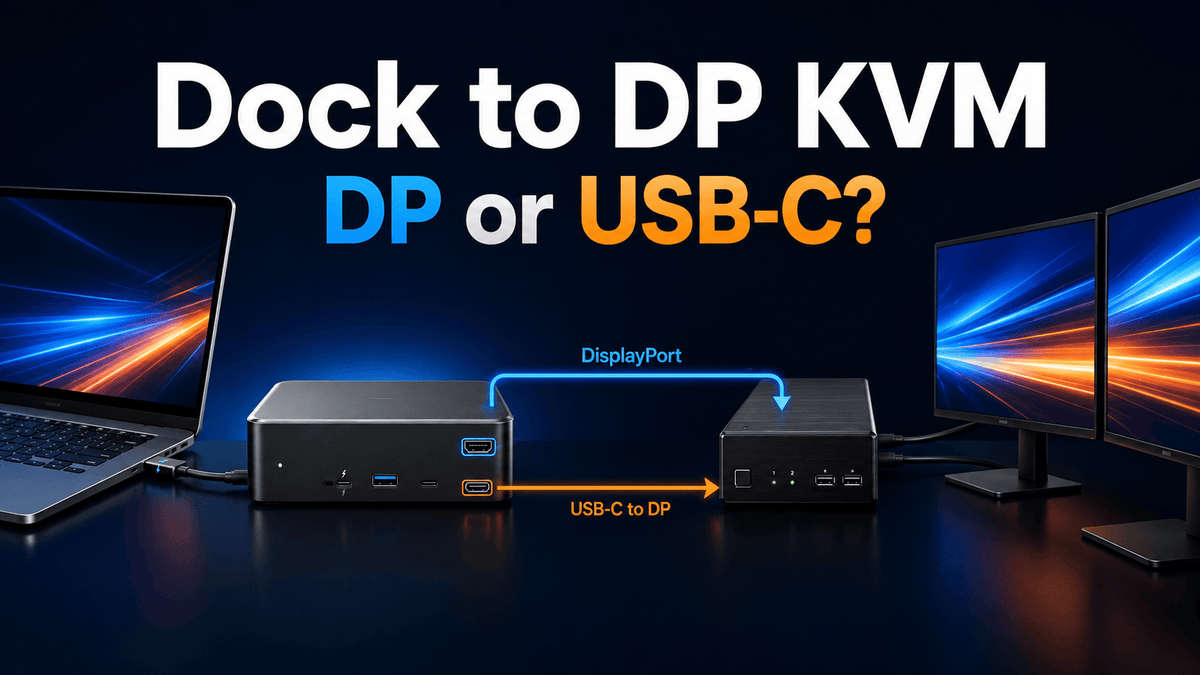
| Built-in DisplayPort output | Laptop → Dock → Internal display routing → Full-size DP port → DP cable → KVM | What hardware inside the dock generates that DP output? |
| Downstream USB-C display output | Laptop → Dock → Downstream USB-C display-capable port → USB-C-to-DP cable → KVM | Does this port expose a cleaner or separately routed DisplayPort stream? |
The second path is not automatically better. The first path is not automatically worse.
The goal is to identify which path introduces fewer restrictions for your exact combination of display count, resolution, refresh rate, operating system and KVM.

Built-In DisplayPort vs Downstream USB-C: Why the Paths Can Behave Differently
Using the Dock's Built-In DisplayPort Output
If the dock provides a full-size DisplayPort output, the simplest connection is:
Dock DisplayPort → DisplayPort cable → KVM DisplayPort input
This has an obvious advantage: there is no external protocol conversion between the dock and the KVM. Both ends are DisplayPort.
For a straightforward single-monitor or dual-4K60 workstation, this can be an excellent path when the dock manufacturer has implemented the DisplayPort outputs appropriately for the target host.
The complication is internal architecture.
A dock can expose multiple physical display connectors while internally routing them through an MST hub or another display component. The KVM cannot see how the dock created the stream. It simply receives the resulting DisplayPort signal.
If that internal stage changes available bandwidth, display enumeration or link-retraining behavior, the symptom may only become visible after the KVM is added.
Using a Downstream USB-C / Thunderbolt-Compatible Port
The alternative is:
Dock downstream USB-C display-capable port → USB-C-to-DisplayPort cable → KVM DisplayPort input
This path can be worth testing because some docks route downstream display-capable USB-C ports differently from their dedicated DisplayPort connectors.
In a suitable design, using the downstream port may avoid a display hub or bridge used by another connector. It may also expose one of the DisplayPort streams carried through the host connection more directly.
But this is dock-dependent. A downstream USB-C connector should not be assumed to provide display output merely because it has the same physical connector as the host port. Check the dock's documentation for display capability and supported monitor combinations.
Do Not Choose by the "Fastest Port" Label
A downstream port labeled 80Gbps does not send an 80Gbps DisplayPort signal into a DP 1.4 KVM.
Once the video leaves the USB-C connector as DisplayPort and enters a DisplayPort KVM, the DisplayPort segment becomes its own link with its own supported rate, encoding, DSC behavior and cable requirements.
The useful question is therefore not:
"Which connector has the largest number printed next to it?"
It is:
"Which output path gives the KVM the cleanest supported DisplayPort stream for the display mode I need?"

USB-C-to-DisplayPort Cable vs Standard DisplayPort Cable
The correct cable depends on which dock output you select.
When the Dock Has a Full-Size DisplayPort Output
Use a direct DisplayPort-to-DisplayPort cable whenever possible:
Dock DP → DP cable → KVM DP input
This keeps the external path simple and avoids adding an unnecessary video protocol conversion stage.
Choose the cable according to the DisplayPort mode you are actually trying to run, not only the connector shape. A cable that is stable at 4K60 may become the weak point when the same workstation is changed to a much higher refresh rate.
When Using a Downstream USB-C Port
Use a USB-C-to-DisplayPort cable or adapter explicitly rated for the DisplayPort mode required by the workstation:
Dock USB-C display output → USB-C-to-DP cable → KVM DP input
It is common to hear this described informally as a "Thunderbolt-to-DisplayPort cable." For this part of the display chain, however, the important function is that the USB-C output can provide DisplayPort video and that the cable correctly presents that signal to the KVM's DisplayPort input.
Confirm three points before buying the cable:
- Direction: The cable must support USB-C source to DisplayPort display direction.
- Display mode: Check the resolution, refresh rate and DisplayPort link rate it supports.
- DSC expectations: If your target mode depends on DSC, verify that the complete path can preserve the required behavior.
A USB-C connector alone does not prove video support, and an inexpensive adapter labeled "8K" does not guarantee stable operation through every dock-and-KVM combination.

MST, DSC, DP++ and Active Converters: What Can Change the Result?
Several technologies are often mixed together when users troubleshoot dock-to-KVM connections. They solve different problems.
| Technology | What It Does | Possible Effect in a Dock → KVM Setup |
|---|---|---|
| MST | Allows multiple display streams to share one DisplayPort source connection. | Two dock outputs may share upstream display bandwidth. Display count and behavior can also depend on the operating system and dock design. |
| DSC | Compresses high-bandwidth display data with visually lossless compression. | Can make higher resolution or refresh-rate modes possible, but the required DSC support must survive the relevant parts of the chain. |
| DP++ | Allows a compatible DisplayPort source to provide HDMI/DVI-style signaling through suitable adapters. | Usually unnecessary when the KVM itself has native DisplayPort inputs. Adding DP-to-HDMI conversion can make the chain more complicated. |
| Active protocol converter | Actively converts one video protocol to another. | Adds another device that must manage resolution, EDID, HDCP and link timing. Use when required, not by default. |
DP++: Usually Not the Feature You Need for a DP KVM
DP++ is relevant when a DisplayPort source needs to work with HDMI or DVI through the appropriate adapter path.
If the dock output and KVM input are both native DisplayPort, DP++ is normally not a reason to add another adapter.
A path such as:
Dock DP → HDMI adapter → HDMI cable → DP converter → DisplayPort KVM
should be avoided unless the hardware genuinely requires it.
Every additional conversion stage makes bandwidth limits, EDID handling and link recovery harder to isolate.
What to Test for Dual 4K, High Refresh Rates and Sleep/Wake
Do not test every variable at the same time. Compare the dock outputs using the same KVM, monitors and display settings.
| Test | Built-In DP Path | Downstream USB-C-to-DP Path | What to Record |
|---|---|---|---|
| Single monitor 4K60 | Test monitor A alone | Test the same monitor alone | Detection, resolution, artifacts, reconnect time |
| Dual 4K60 | Connect both displays | Connect both through supported display-capable outputs | Independent extension, stability and repeat switching |
| High refresh | Raise one monitor first | Repeat on alternate output path | Maximum stable refresh rate, HDR, color depth and VRR behavior |
| Sleep/wake | Run repeated sleep and KVM switching cycles | Repeat the same sequence | Black screen, delayed wake, replug requirement or link recovery |
For Dual 4K Workstations
Start with dual 4K60 before enabling more demanding modes.
If both output paths are stable at dual 4K60, you have established a useful baseline. From there, add HDR, higher color depth or higher refresh rates one variable at a time.
If one dock output architecture works reliably at dual 4K60 and the other does not, that difference is more useful than the headline specification printed on either connector.
For High-Refresh Monitors
Test one high-refresh monitor first.
For example, establish the target resolution and refresh rate through the dock before adding the second display. Then reconnect the second screen and see whether the first display's available modes change.
If the refresh rate falls only after the second screen is added, investigate shared dock bandwidth, MST architecture and DSC support before replacing the KVM.
If the target mode works through the dock directly but not after the KVM is inserted, then the dock-to-KVM cable, KVM configuration, EDID negotiation or the second DP cable becomes more relevant.
For Sleep/Wake Problems
Port selection can affect wake behavior because changing the dock output may change the display path that has to retrain after sleep or switching.
Run the same sequence several times:
- Wake the laptop.
- Confirm both monitors are active.
- Switch the KVM to another computer.
- Allow the laptop or displays to enter the intended power state.
- Switch back and record whether both links recover.
If the purpose of your test changes from "which output should I use?" to "why is the monitor detected but still dark?", continue with Why Your Monitors Don't Wake After Switching a KVM. That guide covers the wake and link-training problem in detail.

Recommended Connection Topologies
Topology A: Use the Built-In DisplayPort Outputs When They Are Stable
Laptop → Dock compatible with Thunderbolt 5 → Dock DP outputs → DP cables → DisplayPort KVM → DP monitors
This is the cleaner choice when:
- The dock documentation supports the required monitor combination.
- Both displays reach the required resolution and refresh rate.
- Repeated KVM switching is stable.
- Sleep/wake recovery is predictable.
There is no reason to replace a stable DP-to-DP path simply because the dock also has faster-looking USB-C connectors.
Topology B: Test Downstream USB-C Outputs When the DP Path Is Problematic
Laptop → Dock compatible with Thunderbolt 5 → Display-capable downstream USB-C ports → USB-C-to-DP cables → DisplayPort KVM → DP monitors
This path becomes worth testing when:
- The dock's built-in DP outputs show artifacts or unreliable wake behavior.
- High-refresh modes are unexpectedly limited.
- The dock's documented architecture suggests that dedicated display connectors share an MST or bridge path.
- A specific host behaves differently across the dock's display outputs.
The advantage is not that "USB-C is faster than DisplayPort." The advantage is that you may be selecting a different internal display route through the dock.
Topology C: A Mixed Output Path Can Be Valid
Some dual-display docks are designed around one dedicated DisplayPort output plus one display from a downstream USB-C port.
In that case, a practical topology can be:
Display 1 path: Dock DP → DP cable → KVM DP input 1
Display 2 path: Dock USB-C → USB-C-to-DP cable → KVM DP input 2
Do not reject this layout simply because the two cables are different. What matters is whether the dock is designed to expose two supported display streams through those ports.
When High Refresh Is the Priority, Avoid Adding an External MST Splitter Without a Reason
A dual-monitor DisplayPort KVM expects the source side to provide the display paths required by its inputs.
If your dock already provides two supported outputs, inserting an additional external MST hub before the KVM usually adds another shared-bandwidth and negotiation layer.
For demanding gaming, engineering or creator workstations, fewer display-processing stages generally make the topology easier to validate.

Which TESmart DisplayPort KVM Fits the Setup?
The important point is that the following TESmart models are DisplayPort KVM switches. They should not be treated as devices that turn one Thunderbolt host connection into multiple monitors.
The dock or laptop must first provide the required DisplayPort video paths.
| Model | Workstation Structure | When It Makes Sense | Dock-Side Requirement |
|---|---|---|---|
| DKS202-M24 | 2 PCs → 2 DisplayPort monitors | Dual-monitor workstation where two computers share high-resolution or high-refresh DP displays. | The docked laptop must supply two compatible DisplayPort video paths. |
| DKS203-M24 | 2 PCs → 3 DisplayPort monitors | Triple-monitor developer, creator, engineering or monitoring workstation. | The laptop and dock combination must be capable of supplying three supported display streams. |
| DKS402-M24 | 4 PCs → 2 DisplayPort monitors | Dual-monitor IT, engineering or multi-system desk with up to four computers. | Each docked source still needs two stable DisplayPort paths. |
| DKS403-M24 | 4 PCs → 3 DisplayPort monitors | Large multi-system workstation requiring three shared DisplayPort displays. | Every source that needs all three monitors must provide three compatible display paths. |
DKS202-M24: Two Computers, Two Displays
The DKS202-M24 is the most direct match when the desk contains two computers and two DisplayPort monitors.
Its DP 1.4 architecture, EDID support and DSC-compatible high-bandwidth display workflow make it relevant for users who want to preserve high-resolution or high-refresh DP paths through a dual-monitor KVM.
For a docked laptop, however, buying the KVM does not remove the need to validate the dock. Determine which two dock outputs provide the most stable DisplayPort streams first.
DKS203-M24: When the Dock Must Supply Three Display Streams
The DKS203-M24 is more suitable when two computers must share three DisplayPort monitors.
This makes the dock-side architecture even more important. Three physical monitor outputs are useful only if the laptop, operating system and dock can actually produce the required extended-display structure.
A triple-monitor KVM cannot turn a single duplicated or unsupported dock stream into three independent desktops.
DKS402-M24: Four Computers Sharing Two Displays
The DKS402-M24 makes more sense when the desk expands from two computers to four while retaining two DisplayPort monitors.
This is particularly relevant to IT workbenches, test environments and mixed desktop/laptop setups. One computer may connect directly from a discrete GPU while another enters through a dock.
Those sources do not need identical cabling. They do need to deliver compatible DP signals to their assigned KVM inputs.
DKS403-M24: Four Computers and Three Displays
The DKS403-M24 is intended for four-computer, three-monitor DisplayPort workstations.
For a laptop connected through a dock, this is the configuration where assuming "three dock connectors equals three independent displays" becomes especially risky.
Confirm the host's external-display capability, the dock's supported monitor topology, any MST dependency, the target refresh rates and the exact USB-C-to-DP or DP-to-DP cable plan before purchasing around the KVM alone.
Across all four models, the selection logic is simple:
First choose how many computers and monitors the workstation needs. Then prove that each computer can deliver the required display streams. Only after that should you optimize the dock-to-KVM port path.
Related TESmart Guides
- Why Your Monitors Don't Wake After Switching a KVM — Use this when the monitor is still detected but fails to recover after switching or sleep.
- Can You Use a Docking Station With a KVM Switch? — Explains the correct dock-before-KVM architecture and why video and USB remain separate paths.
- Dock vs KVM: Why a High-Bandwidth Laptop Dock Still Does Not Replace Host Switching — Read this if the main question is whether the dock can replace the KVM entirely.
- How Do I Know If My PC or Laptop Supports MST? — Useful when multiple dock outputs may depend on one upstream DisplayPort stream.
- What Is DSC and Why Does It Matter for 8K Displays? — Covers the compression technology behind many high-resolution and high-refresh DP modes.
FAQ
1. Should I always use a downstream USB-C port instead of the dock's DisplayPort output?
No. If the built-in DisplayPort output reaches your required resolution and refresh rate and remains stable through repeated switching and sleep/wake cycles, a direct DP-to-DP connection is simpler.
Use the downstream USB-C-to-DP path as an alternative when it provides a different or more stable display route for the specific dock.
2. Does a Thunderbolt 5 host connection guarantee dual high-refresh displays through a KVM?
No. Host-side bandwidth is only one part of the chain. The GPU, dock display architecture, MST or DSC behavior, USB-C-to-DP cable, KVM, output cables and monitors all influence the final supported display mode.
3. Is a USB-C-to-DisplayPort cable the same as an active DP-to-HDMI converter?
No. A USB-C-to-DisplayPort connection can expose DisplayPort video from a compatible USB-C output without changing the video into HDMI. An active DP-to-HDMI converter performs a separate protocol-conversion job.
For a DisplayPort KVM, staying in DisplayPort is usually easier to validate than converting through HDMI and back.
4. Can an MST dock connect to a dual-monitor DisplayPort KVM?
It can in compatible setups if the dock produces two usable DisplayPort outputs and the host operating system supports the required MST display arrangement.
However, both streams may still share upstream DisplayPort bandwidth. A dual-monitor KVM does not remove that limitation.
5. Why does 4K60 work while a higher refresh rate becomes unstable?
The higher mode requires more bandwidth and may also depend on DSC, cable quality, color depth or other features. A connection that has enough margin for 4K60 can expose a weak cable, shared dock bandwidth or link-negotiation limitation at a higher refresh rate.
Test the target mode directly through the dock before adding the KVM, then compare both dock output paths.
6. Does EDID emulation mean the dock output choice no longer matters?
No. EDID emulation helps maintain consistent display identification and supported-mode information. It does not make every dock output follow the same internal video path.
If the problem is specifically that the monitor remains detected but does not wake, see Why Your Monitors Don't Wake After Switching a KVM.
7. Which TESmart model should I use with a docked laptop?
Choose according to the number of computers and monitors rather than the dock connector:
- DKS202-M24: 2 computers and 2 DisplayPort monitors.
- DKS203-M24: 2 computers and 3 DisplayPort monitors.
- DKS402-M24: 4 computers and 2 DisplayPort monitors.
- DKS403-M24: 4 computers and 3 DisplayPort monitors.
Then confirm that the docked laptop can provide the required number of DisplayPort video streams at the intended resolution and refresh rate.
Conclusion
When connecting a dock compatible with Thunderbolt 5 to a DisplayPort KVM, do not assume that the dock's full-size DisplayPort connector is automatically the highest-performance or most reliable output.
Also do not assume that a downstream USB-C port is automatically better.
The correct choice depends on the internal display path.
If the dock's dedicated DisplayPort outputs provide the required display modes and remain stable, use the direct DP-to-DP path. If those outputs show bandwidth limitations, artifacts or inconsistent recovery, test a display-capable downstream USB-C port with an appropriate USB-C-to-DisplayPort cable. That alternative may follow a different internal route through the dock.
For dual- and triple-monitor workstations, pay particular attention to MST, shared upstream bandwidth and DSC. For native DisplayPort KVM inputs, avoid unnecessary DP++ or HDMI conversion stages unless they solve a specific compatibility requirement.
Finally, remember what the KVM can and cannot do. Models such as the DKS202-M24, DKS203-M24, DKS402-M24 and DKS403-M24 can switch the DisplayPort streams supplied to them. They cannot create display streams that the laptop and dock do not provide.
Choose the dock output path first by signal architecture and measured stability. Then choose the KVM by computer count, monitor count and the display modes the complete chain must support.
Share:
Can a KVM Run Three 1080p 240Hz Monitors? What to Check Before You Buy
Mixed-Refresh Dual-Monitor KVM Setup: 1440p 240Hz Gaming + 4K 60Hz Work Display