

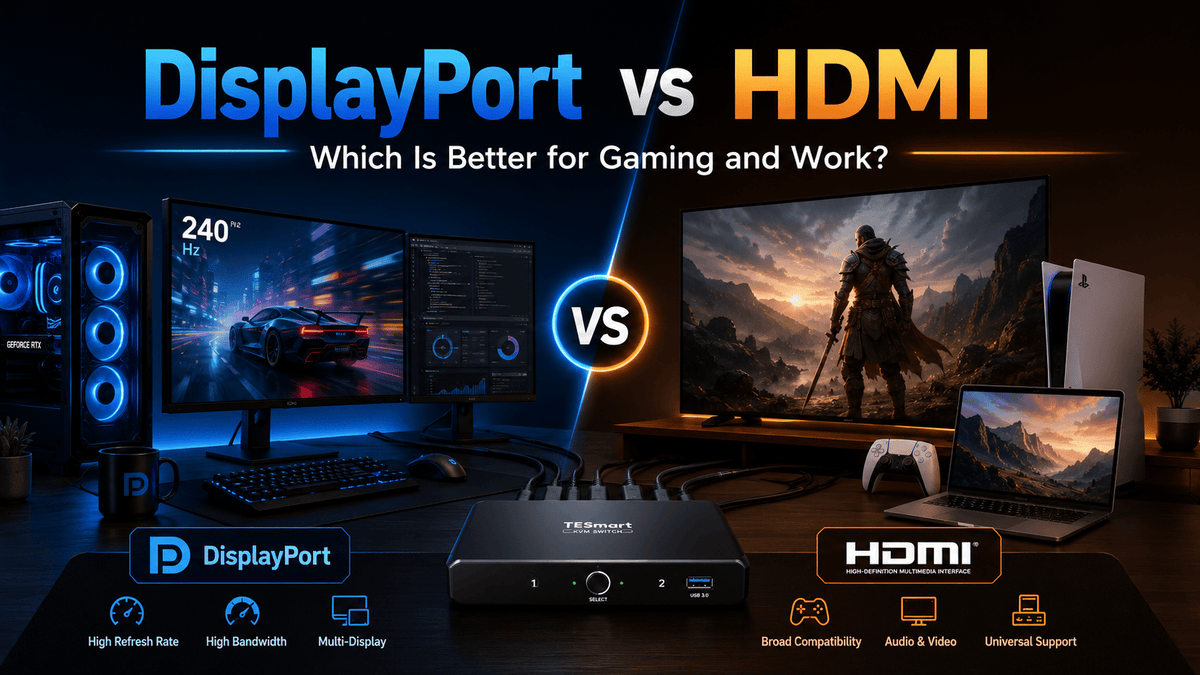
Choose a DisplayPort KVM when your computers and monitors are primarily DP-based, especially for high-refresh PC gaming, GPU workstations, or dual- and triple-monitor desks.
Choose an HDMI KVM when your setup includes consoles, TVs, HDMI laptops, projectors, capture devices, or other AV equipment.
The connector name is only the first filter. Before buying, confirm the exact resolution, refresh rate, color depth, DSC, VRR, HDR, EDID behavior, number of monitors, and the number of independent video outputs available from every computer.
Table of Contents
- Quick Answer: HDMI KVM or DisplayPort KVM?
- HDMI vs DisplayPort KVM Comparison
- Start with the Computer and Monitor Ports
- Choose by Resolution and Refresh Rate
- HDMI 2.1 vs DisplayPort 1.4 in Current KVM Setups
- What DisplayPort 2.1 and HDMI 2.2 Change
- Gaming PC: HDMI or DisplayPort KVM?
- PS5 and Xbox: Which KVM Path Works?
- Dual- and Triple-Monitor KVM Requirements
- MacBook and USB-C Adapter Considerations
- EDID, DSC, VRR, HDR, and HDCP
- How to Validate a High-Refresh KVM Setup
- Common Buying Mistakes
- Which TESmart KVM Direction Fits?
- FAQ
- Conclusion
HDMI vs DisplayPort KVM Comparison
The most useful comparison is not HDMI versus DisplayPort in isolation. It is how each interface fits the devices already on your desk and whether a KVM can preserve the display modes you actually use.
| Decision Point | DisplayPort KVM | HDMI KVM |
|---|---|---|
| Typical source devices | Desktop GPUs, gaming PCs, engineering workstations, multi-monitor PCs | Laptops, consoles, TVs, projectors, AV receivers, media and capture devices |
| Typical display environment | High-refresh PC monitors, ultrawide monitors, dual- and triple-monitor desks | Gaming TVs, general office monitors, console displays, meeting-room and AV setups |
| Current high-bandwidth KVM target | DisplayPort 1.4 with support for the required refresh rate and, where needed, DSC | HDMI 2.1 with support for the required refresh rate and features such as VRR or HDR |
| Multi-monitor planning | Often matches the multiple DP outputs available on desktop graphics cards | Works well when each computer already provides the required number of HDMI outputs |
| Common compatibility risk | USB-C-to-DP adapters, docks, DSC support, link-rate limits, Mac output structure | Different capabilities across HDMI ports, 4K120 feature support, HDCP and AV-device behavior |
| Better starting point when... | The most demanding devices are DP-based PCs and monitors | The setup includes consoles, TVs, HDMI-native laptops, or AV hardware |

Start with the Computer and Monitor Ports
The safest KVM path usually uses the native video outputs on the computers and the preferred inputs on the monitors. Every adapter or dock adds another device that must negotiate resolution, refresh rate, color format, EDID, and sometimes HDCP.
When the Native Path Is DisplayPort
A desktop graphics card with two or three DisplayPort outputs is a natural match for a DisplayPort multi-monitor KVM. The computer can provide one independent signal for each monitor without converting the video interface before it reaches the switch.
This structure is common in gaming, development, CAD, trading, simulation, and content-production desks. It is especially useful when the monitors expose their highest PC-focused refresh modes through DisplayPort.
When the Native Path Is HDMI
An HDMI KVM is usually easier when the source devices already use HDMI. Examples include a work laptop with an HDMI port, a desktop with HDMI outputs, a PS5 or Xbox, a projector, or a TV-based workstation.
Using HDMI throughout the chain also avoids unnecessary DP-to-HDMI conversion. That matters because an adapter may support basic video while failing to preserve the target refresh rate, VRR, HDR, or HDCP behavior.
When the Desk Uses Both HDMI and DisplayPort
Mixed-interface desks need more planning. A common example is a gaming PC with DisplayPort outputs, a work laptop with HDMI or USB-C video, and two monitors that accept both HDMI and DP.
There are three practical choices:
- Standardize on DisplayPort and convert only the laptop connection.
- Standardize on HDMI and confirm that the gaming PC and monitors support the target mode over HDMI.
- Use a KVM designed for a mixed HDMI and DisplayPort monitor path.
The third option can reduce adapters, but the port layout must match both computers. A mixed-output KVM does not automatically convert any input into any output; each video path still follows the model’s defined connection structure.
Choose by Resolution and Refresh Rate
“Supports 4K” is not a useful buying standard by itself. A 4K60 office monitor, a 4K120 gaming TV, and a 4K144 or 4K160 gaming monitor place very different demands on the video chain.
| Target Display Mode | What to Confirm | Why It Matters in a KVM Chain |
|---|---|---|
| 1080p60 or 1440p60 | Native ports, basic cable quality, correct monitor input | Bandwidth is rarely the main limitation; compatibility and cabling are usually more important |
| 4K60 | Every source, cable, KVM port, and monitor input supports 4K60 at the required color format | Older HDMI or DisplayPort paths may reduce color depth or refresh rate |
| 1440p144–240 | The exact timing is listed by the KVM and monitor; VRR support is confirmed separately | A generic “high refresh rate” claim may not cover ultrawide or 240Hz modes |
| 4K120–160 | HDMI 2.1 or DP 1.4 capability, DSC requirements, cable certification, HDR and color depth | The mode may work only with DSC or with a specific color configuration |
| 8K60 | Whether DSC is required, which ports support the mode, and whether each monitor path supports it independently | “8K60” is a maximum mode, not proof that every lower-resolution high-refresh combination is supported identically |
A KVM should be selected for the hardest mode on the desk, not the easiest one. If one computer only needs 4K60 but the gaming PC needs 4K144 with VRR, the gaming path determines the required KVM capability.
HDMI 2.1 vs DisplayPort 1.4 in Current KVM Setups
For many high-refresh KVM purchases today, the practical comparison is HDMI 2.1 versus DisplayPort 1.4.
DisplayPort 1.4 in a KVM
DisplayPort 1.4 uses an HBR3 link with up to 32.4 Gbps of raw bandwidth and 25.92 Gbps of payload bandwidth. It also introduced support for Display Stream Compression in the DisplayPort transport. These capabilities make DP 1.4 relevant for high-refresh PC displays and higher-resolution multi-monitor workstations.
However, a DP 1.4 label does not guarantee that every 4K144, ultrawide, HDR, or VRR mode will pass through a particular KVM. The KVM must support the timing and features, and the source, monitor, cable, and any adapter must support the same mode.

HDMI 2.1 in a KVM
HDMI 2.1 increases maximum bandwidth to 48 Gbps and supports formats including 4K120 and 8K60. It also defines gaming and AV features such as VRR, ALLM, Dynamic HDR, and eARC.
For a KVM setup, verify the features listed by the product rather than assuming that the HDMI version number confirms all of them. A model may support the target resolution but handle VRR, HDR, color depth, or HDCP differently.

What DisplayPort 2.1 and HDMI 2.2 Change
DisplayPort 2.1 and HDMI 2.2 raise the bandwidth ceiling, but they do not make current DP 1.4 or HDMI 2.1 KVMs obsolete for most desks.
| Standard | Maximum Link Bandwidth | What It Means for KVM Buyers |
|---|---|---|
| DisplayPort 1.4 | 32.4 Gbps raw | Still a relevant high-refresh PC and workstation interface, especially when DSC is supported across the chain |
| HDMI 2.1 | 48 Gbps | Current path for many 4K120 console, gaming TV, and high-bandwidth HDMI setups |
| DisplayPort 2.1b | Up to 80 Gbps raw; up to 77.37 Gbps payload | Useful for newer UHBR sources and displays, but only when the KVM explicitly supports the required UHBR rate |
| HDMI 2.2 | Up to 96 Gbps | Creates more headroom for future high-resolution and high-refresh formats; it does not upgrade an HDMI 2.1 KVM |
VESA describes DisplayPort 2.1-class UHBR links with DP40 and DP80 cable certification, while the HDMI Forum introduced the Ultra96 cable for HDMI 2.2 applications. These are useful future-facing standards, but a KVM must contain the required switching hardware. A new cable cannot turn a DP 1.4 KVM into a DP 2.1 device or an HDMI 2.1 KVM into an HDMI 2.2 device.
Buying implication: Choose DP 2.1 or HDMI 2.2 only when the source, display, and KVM all require and explicitly support that standard. For a current 4K120 or 4K144 desk, a properly matched HDMI 2.1 or DP 1.4 KVM may still be the more practical choice.
Gaming PC: HDMI or DisplayPort KVM?
For a gaming PC, start with the monitor’s supported input modes rather than a general rule that DisplayPort is always faster or HDMI is always newer.
Choose a DisplayPort KVM When
- The gaming monitor exposes its preferred 144Hz, 165Hz, 240Hz, ultrawide, or DSC mode through DisplayPort.
- The graphics card already provides enough DisplayPort outputs for every monitor.
- The desk includes two or three high-refresh PC monitors.
- You want to avoid converting a DP GPU output to HDMI before the KVM.
Choose an HDMI KVM When
- The monitor or gaming TV supports the target mode through HDMI 2.1.
- The gaming system shares a display with a console or AV device.
- The computer and monitor both have native HDMI ports that support the same resolution, refresh rate, HDR, and VRR target.
Input latency is not determined by the connector name alone. The more practical risks are unsupported timings, EDID renegotiation, feature pass-through, and USB behavior. A high-refresh gaming KVM also needs to handle the keyboard and mouse path correctly, especially for high-DPI mice, programmable keyboards, and devices that depend on vendor software.

PS5 and Xbox: Which KVM Path Works?
PS5 and Xbox use HDMI, so an HDMI KVM is the direct video path. A DisplayPort KVM is not the normal starting point because the console does not provide a native DisplayPort output.
For 4K120 console gaming, check all of the following:
- The console output is configured for the target mode.
- The KVM explicitly supports the required HDMI timing and gaming features.
- The selected TV or monitor HDMI input supports 4K120.
- The cables are suitable for the required HDMI bandwidth.
- VRR, HDR, and HDCP behavior are confirmed separately.
A basic HDMI KVM that supports 4K60 is appropriate for office or standard console use but will not provide 4K120 simply because the console and TV support it.
Dual- and Triple-Monitor KVM Requirements
A traditional multi-monitor KVM normally switches one independent video path per monitor. That means a dual-monitor KVM generally needs two video outputs from each computer, and a triple-monitor KVM generally needs three.
| Desk Structure | Typical Video Requirement per Computer | What to Check |
|---|---|---|
| 2 computers → 1 monitor | 1 video output | Interface type, target refresh rate, USB sharing |
| 2 computers → 2 monitors | 2 independent video outputs | Both computers can drive two displays at the target modes |
| 2 computers → 3 monitors | 3 independent video outputs | GPU output count, laptop display limit, adapter or dock structure |
| 4 computers → 2 monitors | 2 independent outputs from each computer | Total cable count, consistent port types, EDID and switching behavior |
MST, DisplayLink, and USB-C video products can change the connection structure, but they are not interchangeable:
- MST divides a DisplayPort stream into multiple display streams and depends on source and operating-system support.
- DisplayLink creates display output through USB data and requires compatible drivers.
- A traditional multi-monitor KVM switches the video signals it receives; it does not create additional GPU outputs.
Before buying, draw the desk as a signal map: computer output 1 to KVM input 1, computer output 2 to KVM input 2, and so on. This catches more compatibility problems than comparing only the KVM’s maximum resolution.

MacBook and USB-C Adapter Considerations
Most MacBook models rely on USB-C ports compatible with DisplayPort video output, and some models also include HDMI. They generally do not provide a full-size native DisplayPort output.
As a result, a DisplayPort KVM usually requires one of these Mac-side paths:
- A USB-C-to-DisplayPort cable for each required display signal.
- A dock or adapter that provides the required number of independent DisplayPort outputs.
- A KVM with a USB-C video input designed for the laptop connection structure.
Do not assume that one USB-C port can drive any number of displays. Check the exact Mac model, chip generation, supported external-display count, clamshell requirements, and the capabilities of the adapter or dock.
Also avoid assuming that an MST dock producing two independent extended displays on Windows will behave the same way on macOS. When reliability matters, a direct USB-C-to-DP or USB-C-to-HDMI path with fewer conversion stages is easier to validate.
Mac pre-check: Record the Mac model, macOS version, dock or adapter model, target monitor count, resolution, refresh rate, and whether each display is extended or mirrored before choosing the KVM.
EDID, DSC, VRR, HDR, and HDCP
These features often determine whether a KVM setup feels stable, even when the basic video signal works.
EDID
EDID tells the computer which resolutions, refresh rates, color formats, and other display modes are available. When a KVM disconnects the inactive monitor path, the operating system may think the display was removed. That can cause window rearrangement, resolution changes, or a longer black-screen recovery after switching.
An EDID emulator or EDID-preservation design can help the computer retain a consistent display identity. It does not fix an unsupported video mode, but it can improve switching stability when the rest of the chain is compatible.
DSC
Display Stream Compression is often used to reach high-resolution, high-refresh modes within the available link bandwidth. If a target mode depends on DSC, the source, KVM, and display must all support the required compressed path.
A cable advertised for a high bandwidth does not add DSC support to a KVM that lacks it.
VRR
Variable Refresh Rate allows the display refresh to follow the source frame rate within a supported range. For gaming, confirm that VRR is supported through the exact KVM ports and display mode you plan to use. Do not infer VRR support from resolution alone.
HDR and Color Depth
Higher color depth and HDR consume more bandwidth than the same resolution and refresh rate in an 8-bit SDR mode. A setup may reach 4K144 at one color configuration but require DSC or a different chroma format at another.
HDCP
HDCP matters for protected streaming and console content. A desktop may show the operating system normally while a protected app, capture workflow, or AV device reports an HDCP error. When consoles or media devices are part of the desk, check HDCP support separately from the maximum resolution.
How to Validate a High-Refresh KVM Setup
Published specifications define the expected ceiling, but real compatibility depends on the exact hardware and settings. A useful validation record should identify the complete chain rather than reporting only “4K works.”
| Record This | Example of the Required Detail |
|---|---|
| Source | GPU or laptop model, operating system, graphics driver |
| Display | Monitor model and exact input used |
| KVM | Model, firmware version, EDID mode |
| Cables and adapters | Interface, certification, length, active or passive, dock model |
| Video mode | Resolution, refresh rate, RGB or YCbCr, color depth, HDR, DSC |
| Gaming features | VRR status, G-Sync/FreeSync behavior, wake and switching recovery |
| Switching result | Black-screen duration, window position, USB reconnection, audio device behavior |
When troubleshooting, first test the computer directly with the monitor at the target mode. Then add the KVM using short, known-good cables. If the problem remains, reduce the setup to 1080p60, remove docks and adapters, and rebuild the chain one stage at a time.
Common Buying Mistakes
Mistake 1: Buying by the Interface Name Alone
“HDMI KVM” or “DisplayPort KVM” does not describe the supported bandwidth, refresh rate, DSC, VRR, EDID, or multi-monitor behavior. Check the exact model specification.
Mistake 2: Checking the Monitor but Not the Selected Input
A monitor may support 4K144 through one input and a lower mode through another. Confirm the capability of the exact HDMI or DisplayPort input that will connect to the KVM.
Mistake 3: Ignoring the Computer’s Output Count
A dual-monitor KVM cannot create a second native display signal from a computer that provides only one. The laptop, GPU, dock, or adapter must supply the required outputs.
Mistake 4: Treating Adapters as Transparent
An adapter can change the supported link rate, color mode, HDR, VRR, or HDCP behavior. Prefer native connections and minimize conversion stages.
Mistake 5: Using Long or Unverified Cables at the Highest Mode
High-bandwidth modes are more sensitive to cable quality and length. Start with shorter certified cables before adding longer runs or active conversion.
Mistake 6: Focusing Only on Video
A KVM also manages keyboards, mice, USB devices, audio, and sometimes networking. High-bandwidth webcams, capture devices, storage, and audio interfaces may need a dedicated USB path or powered hub rather than the keyboard-and-mouse port.
Which TESmart KVM Direction Fits?
The correct TESmart model depends first on the connection structure, then on the display target. The following examples show how to narrow the choice without treating one model as suitable for every desk.
Two DP-Based PCs and Two High-Refresh Monitors
DKS202-M24 is more suitable for a 2-computer, 2-monitor workstation built around DisplayPort 1.4. It is listed for modes up to 8K60 and 4K144, with EDID support. This direction makes sense when both computers provide two DP outputs and the monitors use DP as their preferred high-refresh input.
Compared with a basic DP switch, this structure also accounts for shared keyboard, mouse, and USB control. MacBook users should plan the required USB-C-to-DP connections before selecting it.
Two DP-Based PCs and Three Monitors
DKS203-M24 is designed for users who need to switch three DisplayPort monitor paths between two computers. It is a better fit for development, engineering, trading, or monitoring desks where each computer can provide three independent display outputs.
The main pre-check is not only resolution. Confirm that both GPUs or laptop dock paths can drive all three displays at the required modes.
Two HDMI Computers and One Monitor
HKS201-M24 is more suitable for a 2-computer, 1-monitor HDMI 2.1 setup. It is listed for up to 8K60 and includes EDID functionality. This is a practical direction for users who need a single high-bandwidth HDMI display shared between two computers without building a multi-monitor cable structure.
Two HDMI Computers and Two Monitors
HKS202-M24 is designed for 2 computers and 2 monitors using HDMI 2.1 paths, with support listed up to 8K60. It makes more sense than a DP model when both computers and both monitors are already HDMI-based and the target mode is supported through those HDMI ports.
One HDMI Path and One DP Path per Computer
HDK202-M24 is more suitable for a mixed dual-monitor structure that uses HDMI 2.1 and DisplayPort 1.4. It is designed for 2 computers and 2 monitors and lists high-resolution and high-refresh modes with EDID, VRR, and HDR-related support.
This model is not a universal converter. It makes sense when each computer can provide the required HDMI and DP signals and the two monitors accept the corresponding outputs.
Before ordering: Compare the model’s supported timing table with your exact monitor modes. Maximum resolution is only one part of compatibility; confirm refresh rate, color depth, DSC, VRR, HDR, EDID, and cable requirements for the selected ports.
FAQ
Should I use HDMI or DisplayPort for a KVM switch?
Use DisplayPort when the main computers and monitors are DP-based, especially for high-refresh PC and multi-monitor workstations. Use HDMI when the desk includes HDMI-native laptops, consoles, TVs, projectors, or AV devices. Then verify the exact resolution, refresh rate, and feature support of the KVM.
Does DisplayPort support higher refresh rates through a KVM?
It can, but the result depends on the DisplayPort version, link rate, DSC support, monitor timing, cable, and KVM model. DisplayPort is not automatically faster in every setup.
Can PS5 work with a DisplayPort KVM?
PS5 uses HDMI output, so an HDMI KVM is the direct path. A DP KVM would require active conversion, which can introduce limits for 4K120, VRR, HDR, or HDCP and is usually not the preferred design.
Does a dual-monitor KVM need two video outputs from each computer?
Usually yes. A traditional dual-monitor KVM switches two independent video signals, so each computer normally needs two outputs. MST, DisplayLink, and specialized USB-C products can use different structures, but their compatibility rules must be checked separately.
Can I use USB-C to DisplayPort with a KVM?
Yes, when the USB-C port supports video output and the cable supports the target resolution and refresh rate. For dual- or triple-monitor use, confirm how many independent displays the computer supports and avoid unnecessary docks or adapter chains.
Does a KVM support DSC and VRR?
Some models do. These features must be listed for the specific KVM and supported by the source, monitor, and selected ports. Do not infer DSC or VRR support from the maximum resolution alone.
Why does my monitor drop from 144Hz to 60Hz through a KVM?
One part of the chain is probably falling back to a lower mode. Common causes include a lower-bandwidth KVM port, cable limitation, adapter or dock, unsupported monitor input, EDID change, or a color and HDR setting that exceeds the available bandwidth.
Do DisplayPort 2.1 and HDMI 2.2 matter for current KVM buyers?
They matter when both the source and display require those newer link rates. They do not improve a KVM built for DP 1.4 or HDMI 2.1. For many current 4K120 or 4K144 desks, matching the complete HDMI 2.1 or DP 1.4 chain remains more important than buying for a newer standard name.
Conclusion
The choice between an HDMI KVM and a DisplayPort KVM should follow the signal path already built into the desk.
A DisplayPort KVM is usually the stronger starting point for DP-based gaming PCs, graphics workstations, and multi-monitor desks. An HDMI KVM is usually more practical for HDMI laptops, consoles, TVs, projectors, and AV devices. Mixed-interface KVMs are useful when the computer and monitor ports match their defined HDMI and DP paths.
Before choosing a model, write down five things: the number of computers, the number of monitors, every source output, every monitor input, and the hardest resolution and refresh-rate target. Then confirm EDID, DSC, VRR, HDR, HDCP, USB devices, cables, and adapters. That process is more reliable than choosing a KVM from the connector name or maximum resolution alone.
Share:
HDMI 2.0 vs HDMI 2.1: What Is the Real Difference?
HDMI ARC vs eARC Explained: Soundbars, TVs, Dolby Atmos, and HDMI Switches