

Table of Contents
- Introduction
- The Real HDMI 2.0 vs HDMI 2.1 Difference
- Why Bandwidth Changes Resolution and Refresh Rate
- HDMI 2.0 vs HDMI 2.1 Comparison Table
- Why HDMI 2.1 Matters for Gaming
- Is HDMI 2.0 Still Good Enough?
- HDMI 2.1 in Multi-Device Desk Setups
- How an HDMI 2.1 KVM Fits Into the Setup
- What to Check Before Choosing an HDMI 2.1 Switch or KVM
- FAQ
- Conclusion
Introduction
When users compare HDMI 2.0 vs HDMI 2.1, the first answer they often hear is simple: HDMI 2.1 is faster. That is true, but it does not explain what actually changes on a desk, in a gaming setup, or inside a multi-PC workstation.
The real HDMI 2.0 vs HDMI 2.1 difference comes down to bandwidth, signaling method, supported display modes, and optional features such as VRR, ALLM, eARC, and high-refresh-rate output. These details determine whether your setup can run a 4K monitor at 60Hz, a gaming display at 4K120Hz, or an 8K display through a switch, matrix, or KVM.
HDMI 2.0 is still useful for many office and 4K60Hz display setups. HDMI 2.1 becomes more important when the display chain includes a PS5, Xbox Series X, high-end GPU, 4K120Hz HDMI 2.1 monitor, 8K TV, or a multi-device switching setup where several systems share the same display and peripherals.
The Real HDMI 2.0 vs HDMI 2.1 Difference
HDMI 2.0 and HDMI 2.1 are not just two version numbers printed on product boxes. They represent different levels of display bandwidth and different expectations for modern video workflows.
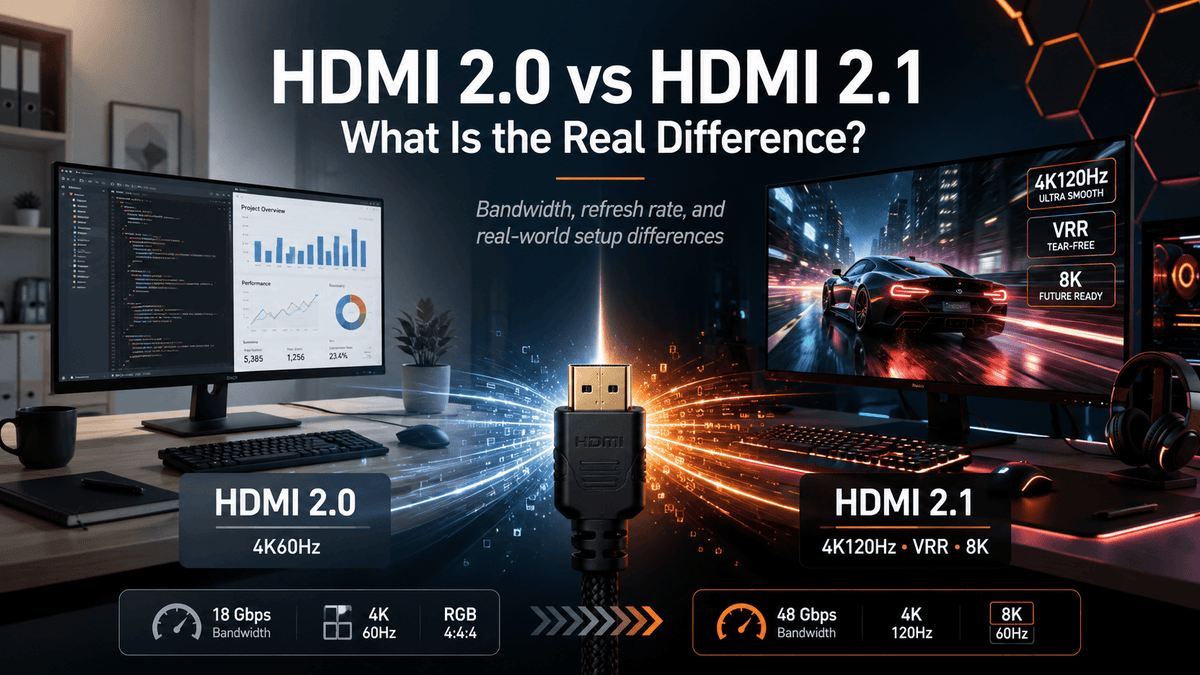
HDMI 2.0 supports up to 18Gbps of total bandwidth. In practical terms, that makes it a strong fit for 1080p, 1440p, and 4K60Hz setups. For office monitors, video conferencing, spreadsheets, coding, and general productivity, HDMI 2.0 is often enough.
HDMI 2.1 raises the bandwidth ceiling significantly, with support for up to 48Gbps on full-bandwidth implementations. This additional capacity is what makes display modes such as 4K120Hz, 4K144Hz in some setups, and 8K HDMI workflows possible when the source, cable, switch, KVM, and display all support the required mode.
That last condition matters. HDMI 2.1 is a specification family, and not every HDMI 2.1-labeled device supports every HDMI 2.1 feature. Before buying an HDMI 2.1 switch, HDMI 2.1 KVM, monitor, TV, or cable, users should check the actual supported resolution, refresh rate, color format, HDR behavior, VRR support, and device compatibility.

Why Bandwidth Changes Resolution and Refresh Rate
A display signal is not only about resolution. It also carries refresh rate, color depth, chroma format, HDR metadata, audio, and control data. The more pixels and frames you push through the cable, the more bandwidth the link needs.
A 4K60Hz signal is much easier to carry than a 4K120Hz signal because the display refreshes twice as often. If HDR, 10-bit color, or higher chroma quality is added, the required data rate increases further. This is why a setup may work at 4K60Hz but fail, flicker, or drop to a lower refresh rate when the user selects 4K120Hz.
HDMI 2.0 relies on TMDS signaling. HDMI 2.1 introduced FRL, or Fixed Rate Link, to support higher-bandwidth display modes. For users, the technical difference shows up as a practical question: can the entire chain carry the signal mode you want without falling back to a lower setting?
In a direct connection, the chain may be simple: GPU to HDMI cable to monitor. In a more advanced setup, the chain may include a game console, PC, AV receiver, HDMI 2.1 switch, KVM, capture device, or matrix. Every device in that chain needs to support the target display mode.
HDMI 2.0 vs HDMI 2.1 Comparison Table
| Category | HDMI 2.0 | HDMI 2.1 | What It Means in Real Use |
|---|---|---|---|
| Maximum bandwidth | Up to 18Gbps | Up to 48Gbps on full-bandwidth implementations | HDMI 2.1 can carry higher-resolution and higher-refresh-rate signals when the whole chain supports them. |
| Signaling method | TMDS | FRL for higher-bandwidth modes, with TMDS fallback | FRL is one reason HDMI 2.1 can support display modes beyond typical HDMI 2.0 limits. |
| Common 4K use | 4K60Hz | 4K120Hz and higher in supported setups | Office users may be fine with HDMI 2.0, while gamers and high-refresh-rate users benefit more from HDMI 2.1. |
| 8K support | Limited or not practical for most 8K workflows | Designed to support 8K HDMI workflows depending on implementation | An 8K HDMI switch or KVM requires careful checking of resolution, refresh rate, cable quality, and source/display support. |
| VRR | Not a core HDMI 2.0 feature | Part of the HDMI 2.1 feature set | Useful for gaming because it can reduce tearing and uneven frame pacing when supported end to end. |
| ALLM | Not a core HDMI 2.0 feature | Part of the HDMI 2.1 feature set | Useful for consoles and TVs because it can help switch the display into low-latency mode automatically. |
| eARC | ARC support is common | eARC is part of the HDMI 2.1 feature set | Important for home theater audio, especially when routing high-quality audio between a TV and sound system. |
| Best-fit scenarios | Office work, 1080p, 1440p, 4K60Hz displays | 4K120Hz HDMI 2.1 gaming, 8K displays, high-refresh-rate workstations, advanced switching | The better choice depends on your display target, not only the version number. |
Why HDMI 2.1 Matters for Gaming
HDMI 2.1 for gaming matters because modern consoles and GPUs are no longer limited to 1080p60 or 4K60Hz. A PS5, Xbox Series X, or gaming PC may target 4K120Hz, HDR, VRR, and low-latency display behavior. HDMI 2.1 gives these devices more room to deliver those modes.
4K120Hz HDMI 2.1
4K120Hz HDMI 2.1 is one of the most visible upgrades. At 120Hz, motion feels more responsive than 60Hz, especially in fast shooters, racing games, competitive titles, and action games. The difference is not only smoother motion; it can also reduce the delay between input and on-screen response.
However, 4K120Hz requires more than an HDMI 2.1 port on one device. The console or GPU, HDMI cable, switch or KVM, and display must all support the required mode. If one part of the chain falls short, the setup may drop to 4K60Hz, reduce color settings, disable HDR, or fail to display a stable signal.
VRR
VRR, or Variable Refresh Rate, allows the display to adjust its refresh timing to match the output frame rate from the source. In games where frame rate changes during heavy scenes, VRR can reduce tearing and stutter.
For users building a shared gaming and work desk, VRR support should be checked carefully. Some HDMI 2.1 devices support VRR; some do not. Some switches or KVMs may pass certain high-bandwidth modes while not supporting every gaming feature in every configuration.
ALLM
ALLM, or Auto Low Latency Mode, is most relevant for console-to-TV setups. When supported, the source can signal the TV to enter a lower-latency mode for gaming. This reduces the need to manually change picture modes each time you switch between watching video and playing games.
eARC
eARC is more important in AV and living-room setups than in most desk-based KVM workflows. It allows higher-quality audio return between a TV and an audio system. If your setup includes a TV, soundbar, AV receiver, and HDMI 2.1 switch, eARC behavior should be checked separately from video resolution support.

Is HDMI 2.0 Still Good Enough?
Yes. HDMI 2.0 is still a practical choice for many users. If your setup is based on 1080p displays, 1440p monitors, or 4K60Hz office screens, HDMI 2.0 can provide a stable and cost-effective connection path.
For spreadsheets, coding, web work, video meetings, document editing, monitoring dashboards, and general office use, the jump from 4K60Hz to 4K120Hz may not change the work experience enough to justify replacing every device in the chain.
HDMI 2.0 is also common on many monitors, laptops, docks, capture devices, and older graphics cards. In mixed environments, choosing HDMI 2.1 only makes sense if the display, source devices, and switching hardware can actually use the higher-bandwidth modes.
A simple rule helps: if your target is 4K60Hz or below, HDMI 2.0 may be enough. If your target is 4K120Hz, 4K144Hz, 8K, VRR gaming, or a high-refresh-rate multi-device setup, HDMI 2.1 is worth considering.
HDMI 2.1 in Multi-Device Desk Setups
The HDMI 2.0 vs HDMI 2.1 difference becomes more important when several devices need to share the same monitor or TV. A direct cable is easy to judge. A multi-device setup is more complex because switching hardware becomes part of the video path.
A typical HDMI 2.1 multi-device setup may include:
- A gaming PC with an HDMI 2.1 GPU output
- A PS5 or Xbox Series X
- A work laptop or desktop PC
- A 4K120Hz monitor or 8K TV
- An HDMI 2.1 switch, HDMI matrix, or HDMI 2.1 KVM
- A shared keyboard, mouse, headset, webcam, or USB storage device
In this kind of setup, the user is not only asking for video switching. They may want to share one monitor between multiple PCs, move between a work machine and a gaming system, keep USB peripherals connected, and avoid cable changes every day.
This is where the difference between an HDMI switch and a KVM becomes important. An HDMI 2.1 switch usually handles video source switching. An HDMI 2.1 KVM also manages keyboard, mouse, and often USB peripheral switching. For users who work and game at the same desk, an HDMI KVM for gaming and work can reduce cable clutter while keeping control behavior more predictable.

How an HDMI 2.1 KVM Fits Into the Setup
The first time many users consider an TESmart HDMI 2.1 KVM is when a basic HDMI switch no longer solves the real problem. They do not only need to move video from Device A to Monitor B. They need to control multiple systems from one keyboard and mouse while preserving the display mode their monitor was purchased for.
Our HDMI 2.1 KVM solutions are designed for high-refresh-rate HDMI workflows where users need to switch between multiple computers, game consoles, or mixed desktop devices. In these setups, the value is not simply “one button switching.” The value is maintaining a cleaner signal path, reducing repeated cable plugging, and keeping video and USB control organized around the same desk.
This is especially useful for users who:
- Use one 4K120Hz or high-refresh-rate monitor for both work and gaming
- Switch between a gaming PC and a work PC
- Use a console and PC with the same display
- Need a high refresh rate KVM switch for a desk that handles both productivity and entertainment
- Want to share one monitor between multiple PCs without reconnecting HDMI and USB cables
- Prefer one keyboard, mouse, and USB device set across several systems
For multi-monitor users, the requirements become even more specific. Each monitor normally needs its own video path from each computer. A dual-monitor HDMI KVM for gaming and work is not simply a single HDMI input multiplied across two displays. The source devices must provide the correct number of outputs, and the KVM must match the monitor count, resolution target, and refresh-rate requirement.

What to Check Before Choosing an HDMI 2.1 Switch or KVM
Before choosing an HDMI 2.1 switch, 8K HDMI switch, HDMI 2.1 KVM, or high refresh rate KVM switch, users should look beyond the version label. The correct choice depends on the entire display chain.
1. Check the Exact Resolution and Refresh Rate
Do not stop at “HDMI 2.1.” Check whether the device supports the specific mode you need, such as 4K120Hz, 4K144Hz, 8K60Hz, or another target format. Also check whether the mode depends on compression, color format, or device-specific settings.
2. Check Both Source and Display Support
A KVM cannot create a display mode that the source or monitor does not support. If the GPU only outputs 4K60Hz over HDMI, or the monitor’s HDMI port is limited, an HDMI 2.1 KVM will not turn that chain into 4K120Hz.
3. Use the Right HDMI Cables
High-bandwidth modes are more sensitive to cable quality and cable length. For 4K120Hz and 8K workflows, use certified or clearly specified Ultra High Speed HDMI cables where appropriate. Avoid stacking adapters unless the adapter is known to support the target mode.
4. Confirm VRR, HDR, ALLM, and Audio Requirements Separately
Video resolution support does not automatically guarantee every HDMI 2.1 feature. If VRR, HDR, ALLM, or eARC is important, confirm those requirements in the product specifications and test them in the actual device chain.
5. Decide Whether You Need a Switch, Matrix, or KVM
An HDMI 2.1 switch is usually enough when you only need to select which source appears on one display. A matrix is better when multiple sources need to route to multiple displays. A KVM is the better fit when you need video switching plus keyboard, mouse, and USB control across computers.
At TESmart, we design KVM switches for modern high-refresh-rate workflows where display performance and control switching need to work together. For users comparing HDMI 2.0 vs HDMI 2.1, the key question is not only which version is newer. The better question is whether your desk needs 4K60Hz simplicity or HDMI 2.1 multi-device setup capability.
FAQ
1. What is the main HDMI 2.0 vs HDMI 2.1 difference?
The main difference is bandwidth and the display modes enabled by that bandwidth. HDMI 2.0 supports up to 18Gbps and is commonly used for 4K60Hz. HDMI 2.1 can support much higher bandwidth, which makes 4K120Hz, 8K workflows, and HDMI 2.1 gaming features possible when the whole chain supports them.
2. Do I need HDMI 2.1 for a 4K monitor?
Not always. If your 4K monitor runs at 60Hz, HDMI 2.0 may be enough. If your 4K monitor supports 120Hz, 144Hz, or other high-refresh-rate modes over HDMI, HDMI 2.1 is usually the more appropriate choice.
3. Is HDMI 2.1 only for gaming?
No. HDMI 2.1 is valuable for gaming, but it also matters for high-refresh-rate workstations, 8K displays, advanced AV setups, and users who want to share high-resolution displays across multiple devices. Gaming simply makes the benefits easier to notice because refresh rate, latency, and VRR directly affect the experience.
4. Can an HDMI 2.1 KVM support 4K120Hz?
Some HDMI 2.1 KVM solutions are designed for 4K120Hz and other high-bandwidth workflows, but users should always check the exact product specification. The source, cable, KVM, and display must all support the target mode.
5. Does every HDMI 2.1 device support VRR, ALLM, and eARC?
No. HDMI 2.1 includes several features, but support can vary by device. A product may support high-bandwidth video without supporting every optional feature in every configuration. Always confirm the specific feature list before buying.
6. Should I choose an HDMI 2.1 switch or an HDMI 2.1 KVM?
Choose an HDMI 2.1 switch if you only need to change which video source appears on a display. Choose an HDMI 2.1 KVM if you also want to share a keyboard, mouse, and USB peripherals between multiple computers. For a mixed gaming and work desk, a KVM is often the more complete option.
Conclusion
HDMI 2.0 vs HDMI 2.1 is not a question of old versus new in every situation. It is a question of what your display chain needs to carry.
For 1080p, 1440p, and 4K60Hz office setups, HDMI 2.0 can still be a sensible choice. For 4K120Hz HDMI 2.1 gaming, 8K displays, VRR-capable consoles, high-refresh-rate monitors, and multi-device switching, HDMI 2.1 provides the bandwidth and feature set that modern setups often require.
If your desk includes multiple PCs, a console, a high-refresh-rate display, and shared USB peripherals, the switching device becomes part of the performance path. In that case, an HDMI 2.1 KVM is not just a convenience accessory. It is the device that determines whether your display and control workflow stay organized when you move between systems.
To build a cleaner high-resolution switching setup, explore our TESmart HDMI 2.1 KVM solutions designed for modern gaming, creative, and multi-PC workstations.
Share:
Multi-PC Live Broadcast Workstation Setup for Sports Commentary | TESmart Multi-Monitor Solution
HDMI vs DisplayPort KVM Switch: Which One Fits Your Setup?