

Table of Contents
- Introduction
- What a Sports Commentary Setup Actually Needs
- Why an HDMI Switch or Monitor Input Button Is Not Always Enough
- How a Multi-Monitor KVM Solution Helps a Live Production Desk
- Practical Workstation Examples for Sports Commentary and Live Streaming
- How to Choose the Right KVM Switch for Live Streaming
- Where TESmart Multi-Monitor KVM Solutions Fit
- Setup Notes for Cleaner Broadcast Workflows
- FAQ
- Conclusion
Introduction
A sports commentary desk rarely runs from one computer and one screen. A typical live production desk setup may include a streaming PC running OBS, vMix, or Streamlabs, a laptop for live scores and social media, a backup machine for recording, and one or more HDMI sources for game footage, replay content, or reference video.
The challenge is not only getting video onto the monitors. The real problem is control. During a live match, the commentator or producer may need to switch from the streaming PC to a data laptop, check a replay folder on another system, adjust audio routing, or manage a backup stream without moving between keyboards, mice, and USB devices.
This is where a multi-monitor KVM solution becomes different from a basic HDMI switch. A KVM does not replace a capture card, production switcher, encoder, or streaming software. Instead, it helps manage multiple computers, multiple displays, keyboard and mouse control, and selected USB peripherals from one control position.
What a Sports Commentary Setup Actually Needs
In a multi-PC live broadcast workstation, each computer usually has a different job. Keeping those jobs separated can make the production more stable and easier to operate.
Typical Device Roles in a Multi Computer Broadcast Setup
The main streaming PC often handles OBS, vMix, Streamlabs, scene switching, overlays, alerts, and the final program output. This machine should not be interrupted by unnecessary browsing, file transfers, or unrelated tasks during the show.
A second laptop may be used for match statistics, live scores, team sheets, social media comments, YouTube Studio, Twitch chat, or sponsor notes. This computer is information-heavy, but it may not need to run the stream itself.
A third system may act as a backup recorder, replay material station, graphics machine, or emergency streaming device. In a small sports broadcast workstation, this backup role is often what prevents a minor software issue from stopping the whole program.
Multiple monitors help separate these roles visually. For example, one display can show the OBS preview and program output, another can show data and chat, and a third can show replay content or the backup stream status.

Why Control Matters More Than the Number of Screens
Adding more monitors is easy to understand. Managing control across several computers is where the workflow becomes messy.
Without centralized switching, users often end up with two or three keyboards, multiple mice, duplicated USB microphones, extra hubs, and tangled cables behind the desk. During a live broadcast, that increases the chance of operating the wrong computer or losing time when a quick adjustment is needed.
A KVM switch for live streaming is useful when the operator needs one keyboard, one mouse, and selected USB peripherals to follow the active computer while the monitors show the right sources for the production task.
Why an HDMI Switch or Monitor Input Button Is Not Always Enough
For a simple viewing setup, an HDMI switch may be enough. If you only need to choose whether one monitor displays a console, a laptop, or a streaming PC, a basic video switch can solve that single problem.
A live commentary desk is different because the operator usually needs video switching and device control at the same time.
An HDMI Switch Only Handles Part of the Workflow
An HDMI KVM switch and a standard HDMI switch are not the same category of device. A regular HDMI switch routes video from multiple sources to one display. It usually does not manage keyboard, mouse, USB focus, or multi-monitor workstation behavior.
That matters during live production. If the screen changes to the statistics laptop but the keyboard is still connected to the streaming PC, the operator has not really switched the workstation. They have only switched the picture.
Monitor Input Switching Gets Slow in Multi-Screen Setups
Using the input button on each monitor can work for occasional switching. It becomes awkward when two or three displays must move together between computers.
For example, a dual-monitor sports commentary setup may require both displays to follow the streaming PC during setup, then one display to show the data laptop during the match. Manually changing monitor inputs can interrupt the operator’s attention, especially when the display menus are slow or inconsistent.
Manual Cable Swapping Is Risky During a Live Stream
Unplugging and reconnecting HDMI, DisplayPort, USB, or USB-C cables during a show can trigger display renegotiation, resolution changes, USB reconnection, or temporary signal loss. It also increases wear on ports and makes troubleshooting harder.
For live streaming, the goal is not to make the desk complicated. The goal is to reduce avoidable actions while the broadcast is running.
How a Multi-Monitor KVM Solution Helps a Live Production Desk
A multi-monitor KVM solution is designed for users who need to switch control between computers while keeping multiple displays and shared peripherals organized.
Shared Keyboard and Mouse Control
The main value of a KVM is control switching. Instead of keeping separate keyboards and mice for the streaming PC, data laptop, and backup system, the operator can control the selected computer from one keyboard and mouse position.
For a commentator, this reduces desk clutter. For a producer, it reduces the chance of typing into the wrong machine when adjusting scenes, checking a score feed, or opening replay files.
Multi-Monitor Display Management
A dual monitor KVM or triple monitor KVM can help when each computer needs access to more than one display. This is common in broadcast workflows because one screen is rarely enough for preview, control, chat, and monitoring.
The important detail is that multi-monitor KVM setups usually require each computer to provide the required number of video outputs. A dual-monitor KVM normally needs two video connections from each computer. A triple-monitor KVM normally needs three. The KVM manages the switching, but it does not create extra independent GPU outputs by itself.
USB Peripheral Sharing
Many live production desks use USB devices such as keyboards, mice, audio interfaces, control pads, capture accessories, webcams, stream controllers, or external storage. A KVM can help centralize selected USB peripherals so they do not need to be manually moved between systems.
This does not mean every USB device will behave identically in every chain. Some capture cards, audio interfaces, or control surfaces may be sensitive to USB bandwidth, drivers, or reconnection behavior. For critical broadcast devices, it is still smart to test the full setup before using it in a live event.
Display Stability and EDID Behavior
In multi-display workstations, switching computers can cause windows to move, resolutions to reset, or monitors to be detected again. This is often related to how the computer sees the display information during switching.
For a sports broadcast workstation, stable display behavior matters because the operator may rely on fixed window positions: OBS on one monitor, chat on another, and score data on a third. A KVM with stronger display handling can help reduce unnecessary disruption, but users should still match resolution, refresh rate, cable quality, and monitor capabilities across the full signal chain.

Practical Workstation Examples for Sports Commentary and Live Streaming
Solo Sports Commentator Desk
A solo YouTube or Twitch commentator may use one main PC for OBS and one laptop for live statistics, match notes, or chat. In this case, a dual-monitor setup is often enough.
One monitor can show the live production software, while the second monitor shows data, comments, or browser-based control panels. A dual monitor KVM is useful when the user wants both computers to share the same keyboard, mouse, and USB peripherals without constantly switching cables.
Small Studio or Podcast-Style Sports Show
A small studio may have one production PC, one guest call or research laptop, one backup recorder, and one HDMI source from a console, set-top box, or camera feed. The operator may need to check different systems quickly while keeping the program output stable.
In this case, the KVM should be chosen based on how many computers require keyboard and mouse control, not just how many HDMI sources are present. If some sources are video-only, an HDMI matrix or production switcher may still be needed alongside the KVM.
Esports Commentary and Tournament Desk
Esports production often requires game capture, observer tools, Discord or team communications, stream overlays, live chat, sponsor assets, and replay clips. A multi-monitor layout helps separate these tasks, but the operator still needs quick control over multiple systems.
A DisplayPort KVM switch may be more appropriate when the workstation uses high-refresh-rate PC monitors. An HDMI KVM switch may be more suitable when the setup includes consoles, HDMI capture workflows, or broadcast monitors.
Sports Bar or Venue Content Operation
Sports bars, clubs, and small venues may run multiple PCs or media sources for live games, menu boards, scoreboards, social feeds, and local commentary. These environments often combine AV routing with computer control.
A KVM is helpful for controlling the computers from one operator station. A matrix switch or AV distribution system may still be needed when the goal is to route many video sources to many displays across the venue.

How to Choose the Right KVM Switch for Live Streaming
The right KVM depends on the workstation structure. Before choosing a product, map the desk in four steps: number of computers, number of monitors, video interface type, and USB peripheral requirements.
1. Count the Computers That Need Control
Do not count every HDMI source as a computer. A game console, camera output, or set-top box may provide video but may not need keyboard and mouse control.
If you need to control two computers, a 2-PC KVM may be enough. If the desk includes a streaming PC, statistics laptop, backup recording PC, and graphics system, a 4-PC KVM may be more practical.
2. Decide Between Dual Monitor and Triple Monitor Workflows
A dual-monitor layout works well for many solo streamers and commentators. It usually separates production software from data, chat, or browser tools.
A triple-monitor layout is better when the operator needs dedicated screens for program monitoring, control panels, replay assets, score data, or backup stream status. A triple monitor KVM is more demanding because each controlled computer must support the required number of display outputs.
3. Match HDMI, DisplayPort, USB-C, or Thunderbolt-Compatible Workflows
Use an HDMI KVM switch when the workflow is built around HDMI monitors, consoles, capture devices, or standard AV equipment.
Use a DisplayPort KVM switch when the workstation depends on DisplayPort monitors, higher refresh rates, or graphics-card-driven PC setups.
Use a USB-C KVM switch when laptops need video, USB data, and charging-friendly desk integration through USB-C based connections. Always confirm that the USB-C port supports video output, because USB-C describes the connector shape, not every supported signal.
For laptops with Thunderbolt-enabled ports or Thunderbolt-compatible display workflows, choose a solution described as compatible with Thunderbolt 4 devices or designed for Thunderbolt 4 laptop workflows. Compatibility and official certification are not the same thing, so users should check the product page and compatibility notes before building a critical production setup.
4. Check Resolution, Refresh Rate, and Cable Quality
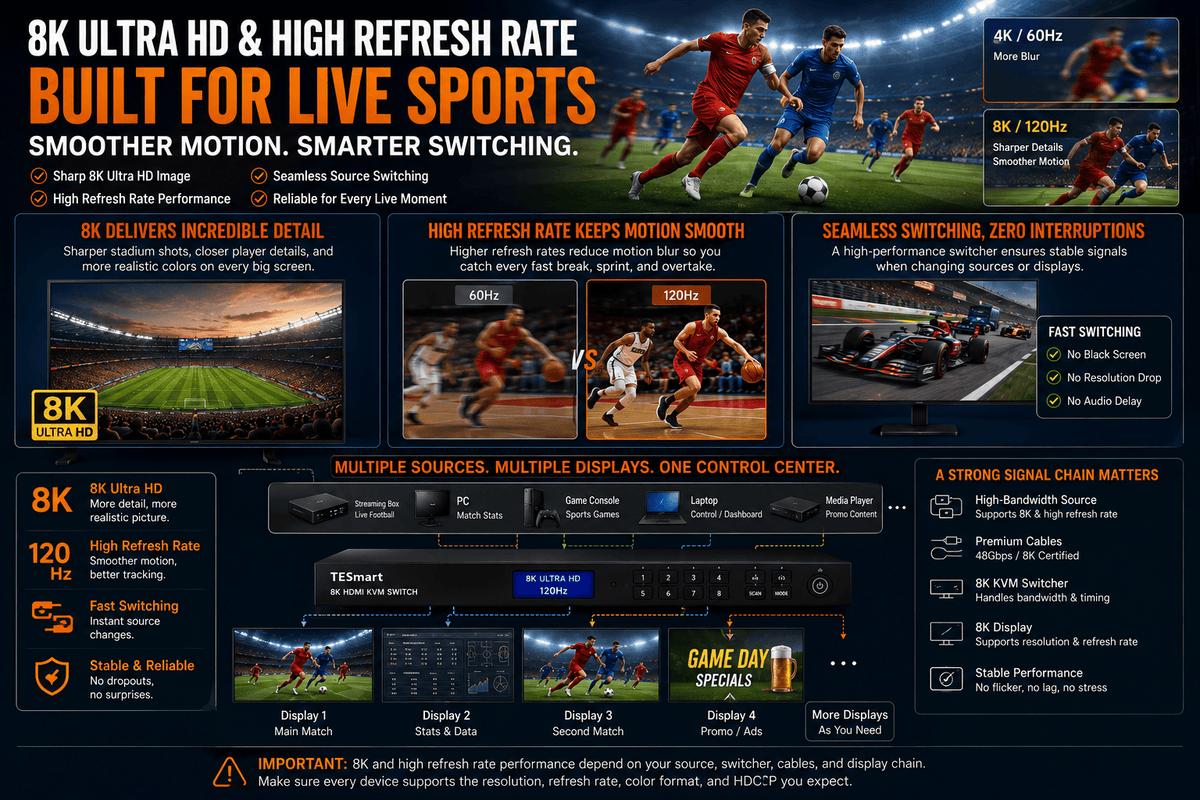
A KVM should be selected based on the highest resolution and refresh rate required by the actual monitors. A 1080p60 scoreboard screen, a 4K60 production monitor, and a 144Hz esports monitor have very different signal requirements.
The full chain matters: GPU output, laptop adapter, dock, KVM, cable, monitor input, and operating system settings must all support the target format. A high-refresh-rate KVM cannot compensate for a weak cable, an underpowered adapter, or a monitor input that does not support the desired mode.
5. Test Critical USB Devices Before Going Live
USB microphones, audio interfaces, capture cards, and control surfaces may behave differently from basic keyboards and mice. Before using any KVM in a paid broadcast or live commentary show, test switching behavior, device reconnection, audio routing, and software recognition under real production conditions.
For critical audio or capture hardware, some teams prefer to keep those devices fixed to the streaming PC while sharing only keyboard, mouse, and general USB peripherals through the KVM.
Where TESmart Multi-Monitor KVM Solutions Fit
At TESmart, we design KVM systems for cleaner multi-device workstations where users need to manage several computers and displays from one control position.
For sports commentary, esports production, small studios, and content creator desks, a TESmart multi-monitor KVM is most useful when the problem is not only video switching, but also keyboard, mouse, USB peripheral sharing, and multi-display organization.
Dual-Monitor KVM for Streamers and Commentators
A dual-monitor KVM is a strong fit for a two-computer desk: one streaming PC and one data or production laptop. This setup helps the user keep OBS or vMix on one screen while checking live scores, comments, or backend dashboards on another.
For users building this kind of desk, TESmart’s dual-monitor KVM collection is a practical starting point: TESmart Dual Monitor KVM Switches.
Triple-Monitor KVM for Denser Production Desks
A triple-monitor KVM is better suited to production desks that separate program monitoring, data, chat, and replay or graphics control. This is common when one person is both commentator and producer, or when a small team needs a compact control position.
The key requirement is planning. Each controlled computer must be able to output to three displays through the required interface type, whether that is HDMI, DisplayPort, USB-C with video output, or an adapter-based chain.
High-Refresh-Rate KVM for Esports and Fast Motion Monitoring
For esports commentary or gaming-related streams, refresh rate may matter more than it does in a standard sports talk show. A high-refresh-rate KVM should be matched with the monitor’s target mode and the computer’s GPU outputs.
When the setup depends on high refresh rates, avoid mixing weak adapters, long passive cables, and uncertain monitor inputs. The KVM is only one part of the display path.
HDMI, DisplayPort, and USB-C Product Paths
TESmart HDMI KVM products are generally a better fit for HDMI-based broadcast monitors, consoles, capture workflows, and AV desks.
TESmart DisplayPort KVM products are better aligned with PC workstations, high-refresh monitors, and GPU-driven multi-display layouts.
TESmart USB-C KVM products are useful when laptops are central to the workflow, especially when the user wants fewer cables on the desk. For USB-C and Thunderbolt-enabled laptops, users should confirm video output capability, charging expectations, and display compatibility before finalizing the setup.
Setup Notes for Cleaner Broadcast Workflows
Separate Video Routing from Computer Control
A KVM is not a production switcher. It does not replace OBS, vMix, Streamlabs, a capture card, an encoder, or an HDMI matrix.
Think of the KVM as the control layer for computers and workstation displays. Think of the production switcher, capture chain, and streaming software as the broadcast signal layer. Keeping these roles clear helps avoid buying the wrong device for the wrong problem.
Label Each Cable and Computer Role
Label the streaming PC, data laptop, backup recorder, replay machine, and each monitor input. In a live environment, troubleshooting is much faster when every cable has a known role.
This is especially important for multi-monitor KVM setups because each computer may require two or three separate video cables plus USB control connections.
Avoid Unnecessary Adapter Layers
Every adapter, dock, hub, or converter adds another negotiation point. This can affect resolution, refresh rate, USB behavior, or display detection.
When possible, use direct HDMI-to-HDMI, DisplayPort-to-DisplayPort, or validated USB-C video connections. If adapters are required, test them at the target resolution and refresh rate before the live show.
Create a Rehearsal Profile
Before using a KVM in a real match-day workflow, run a full rehearsal. Switch between computers, open the same software used during the show, test USB devices, check audio device selection, and confirm that window positions remain workable after switching.
This kind of test is more useful than checking specifications alone because live streaming desks combine software, operating systems, USB devices, displays, and human timing.
FAQ
Do I need a KVM switch for live streaming if I already have an HDMI switch?
You may not need a KVM if you only switch one video source to one monitor. You should consider a KVM when you need to control multiple computers with one keyboard and mouse, share USB peripherals, and manage multiple displays from the same desk.
Can a KVM replace OBS, vMix, Streamlabs, or a video switcher?
No. A KVM does not replace streaming software, capture cards, production switchers, encoders, or video mixers. It mainly helps with computer control, display switching, keyboard and mouse sharing, and selected USB peripheral management.
Is a dual monitor KVM enough for a sports commentary setup?
For many solo commentators and small creator desks, yes. A dual monitor KVM can support a practical layout with one screen for production software and another for data, chat, or monitoring. A triple monitor KVM is better when replay, backup stream status, or dedicated program monitoring needs its own screen.
Should I choose an HDMI KVM switch or a DisplayPort KVM switch?
Choose HDMI when your setup is centered on HDMI monitors, consoles, capture workflows, or AV equipment. Choose DisplayPort when your workstation depends on PC graphics cards, DisplayPort monitors, or higher refresh-rate display paths.
Can I use a USB-C KVM switch with a laptop for live streaming?
Yes, if the laptop’s USB-C port supports video output and the KVM supports the required display mode. USB-C is only the connector type, so users should confirm whether the port supports DisplayPort Alt Mode, USB data, charging expectations, and the required monitor resolution.
What about Thunderbolt-enabled laptops?
For Thunderbolt-enabled laptops, look for solutions described as compatible with Thunderbolt 4 devices or designed for Thunderbolt 4 laptop workflows. Do not assume every USB-C KVM will support every Thunderbolt-compatible display chain. Check the product requirements, certification status, and tested workflow notes before using it in a production environment.
Conclusion
A multi-PC sports commentary setup is not difficult because it has many screens. It becomes difficult because several computers, video paths, USB devices, and control tasks must work together under live conditions.
An HDMI switch or monitor input button can solve basic picture switching, but it does not fully solve workstation control. For creators, commentators, esports producers, AV operators, and small studios that need cleaner control over multiple computers and displays, a TESmart multi-monitor KVM can be a more appropriate foundation.
Start by mapping your computers, monitors, interfaces, USB devices, and target resolution. Then choose the KVM around the actual workflow: dual monitor for lean commentary desks, triple monitor for denser production layouts, HDMI for AV-heavy setups, DisplayPort for high-refresh PC workstations, and USB-C or Thunderbolt-compatible paths for modern laptop-based desks.
To explore options for your next sports broadcast workstation, visit TESmart Multi-Monitor KVM Solutions and choose based on the number of computers, displays, and interfaces your live production desk actually needs.
Share:
No More Screen Switching Chaos! Control Multiple Displays for Live Sports with TESmart KVM Switch
HDMI 2.0 vs HDMI 2.1: What Is the Real Difference?