

Table of Contents
- Why Sharing Two Monitors Is More Complicated Than Sharing One
- Docking Station vs USB Switch vs KVM Dock
- What a Laptop-and-Desktop Setup Actually Needs
- How HDC202-X24 Combines KVM Switching and Docking
- Why One USB-C Cable Does Not Guarantee Dual Displays
- Dual-Monitor Mode vs Split-View Mode
- How to Connect HDC202-X24
- Who HDC202-X24 Is Designed For
- Compatibility Checklist Before You Buy
- Final Recommendation
- FAQ
Why Sharing Two Monitors Is More Complicated Than Sharing One
A single-monitor KVM usually routes one video signal from each computer to one display. A dual-monitor KVM must manage two display paths for each host. That means the system needs either two independent video outputs from the computer or a host connection that can carry two supported display streams.
The desktop side is often straightforward. A discrete graphics card may provide HDMI and DisplayPort outputs, allowing the PC to send one signal for each monitor. The USB upstream connection is separate because video output alone does not carry keyboard, mouse, webcam, or storage traffic through a conventional desktop KVM path.
The laptop side is more complicated. One USB-C-shaped port may carry charging only, USB data, DisplayPort Alt Mode, USB4, or Thunderbolt. Even when video is supported, the laptop may be limited to one external display. The number of outputs on a dock or KVM does not override that host limitation.
This is the first buying rule for any dual monitor KVM for a laptop and desktop: count the display streams at the computers before comparing KVM output ports. Two HDMI outputs on the KVM are useful only when each selected host can provide the two displays required by the chosen connection architecture.
Docking Station vs USB Switch vs KVM Dock
These devices solve different parts of the desk problem. The most suitable option depends on whether you need expansion, switching, or both.
| Capability | Docking Station | USB Switch | Traditional Dual-Monitor KVM | Hybrid KVM Dock |
|---|---|---|---|---|
| Switches video between computers | Usually no | No | Yes | Yes |
| Supports a dual-monitor workflow | For one host, subject to host support | No video function | Yes, with required host video paths | Yes, with required host video paths |
| Switches keyboard and mouse | No, unless manually reconnected | Yes | Yes | Yes |
| Shares USB peripherals | With one connected host | Yes | Model-dependent | Yes, subject to bandwidth and device compatibility |
| Laptop charging | Common | No | Usually no | Model-dependent |
| Ethernet | Common | No | Model-dependent | Model-dependent |
| EDID management | Not normally a switching function | No | Model-dependent | Model-dependent |
| Devices needed for full desk switching | Dock plus another switching device | USB switch plus monitor input switching | One KVM, but more laptop cables may be required | One central device for the intended mixed-host layout |
Use a dock for one laptop, a USB switch when manual monitor switching is acceptable, and a traditional KVM when both hosts already provide the required video outputs. A hybrid KVM dock fits a compatible laptop that benefits from one-cable access plus a desktop with discrete video outputs.
What a Laptop-and-Desktop Setup Actually Needs
The useful way to plan this desk is to separate the laptop path, desktop path, and shared console path.
Hybrid Dual-Monitor Workstation Topology
Laptop
Supported Thunderbolt connection carrying video, USB data and charging
↓
Hybrid KVM Dock
Desktop PC
HDMI/DisplayPort video paths plus USB upstream connection
↓
Shared Desk
Two HDMI monitors + keyboard + mouse + compatible USB devices + Ethernet + audio
A supported laptop connection can carry display streams, USB data, and power through one cable. The desktop uses a different path: its graphics card supplies video, while USB upstream carries peripheral data. The hosts do not need identical ports; each path must deliver the signals expected by the KVM dock.

How HDC202-X24 Combines KVM Switching and Docking
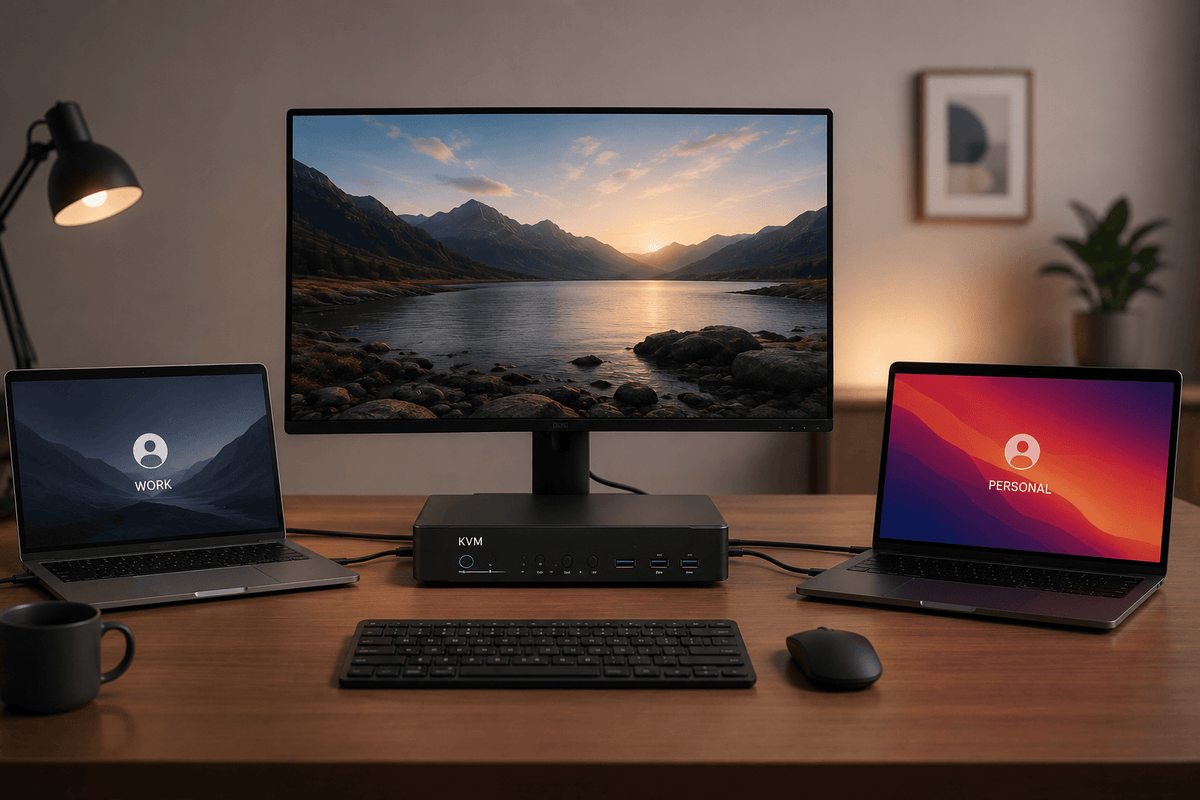
At TESmart, we designed the HDC202-X24 for a specific mixed-host structure: one laptop with a supported Thunderbolt 4 connection, one desktop PC, and two HDMI monitors. The laptop connects on the PC1 side through one supported cable. The desktop connects on the PC2 side through an HDMI-plus-USB KVM cable and a separate DisplayPort cable. Two HDMI outputs connect to the displays.
For users trying to share two monitors between a laptop and desktop, each function addresses a different part of the problem:
- Dual HDMI outputs: both monitors can become part of the switched workstation rather than being changed manually one at a time.
- Up to dual 4K at 60Hz: the model is designed for dual-display productivity at this stated maximum, subject to the complete host, cable, and monitor chain.
- Up to 60W laptop charging: the PC1 laptop connection can reduce the need for a separate charger when 60W is sufficient for the laptop’s workload.
- Shared keyboard, mouse, and USB ports: common desk peripherals can move between the selected computers without being unplugged.
- Gigabit Ethernet: the laptop can join the wired desk network through the docking path, while the workstation retains a centralized network connection.
- EDID emulation: the computers can retain display identity information during switching, which may reduce unnecessary display re-detection.
HDC202-X24 does not use DisplayLink. That avoids a software-generated display path, but it also means the device cannot bypass the laptop’s native external-display limit. The host must already support the two external displays you expect to use.
Compatibility wording: HDC202-X24 is designed for use with compatible Thunderbolt 4 laptop workflows. This statement describes connection compatibility and does not imply Intel Thunderbolt certification. Confirm current certification status on the product page if certification is a purchasing requirement.

Why One USB-C Cable Does Not Guarantee Dual Displays
USB-C describes the connector shape, not the complete capability of the port. Two laptops can have visually identical USB-C ports while supporting very different functions.
- A basic USB-C port may support only USB data and charging.
- A port with DisplayPort Alt Mode can carry native video, but the number of supported displays depends on the host and connection design.
- USB4 can support high-bandwidth data and display tunneling, but implementation details still matter.
- A laptop with Thunderbolt 4 connectivity may support a multi-display workflow, but the processor, graphics architecture, firmware, and operating system still determine the actual external-display count.
This is especially important for Mac users. External-display support varies by Apple silicon model, and macOS does not use a conventional MST hub as a Windows-style method for creating two independent extended desktops. Two dock outputs may mirror or activate only one display when the Mac-side path does not provide two independent streams.
Verify the exact laptop model, processor, and supported display count in the intended lid state. Then confirm that the selected KVM architecture carries those displays.
The same rule applies to Windows laptops: USB-C data support does not automatically mean video or two-monitor support.

Dual-Monitor Mode vs Split-View Mode
Dual-Monitor Mode
In dual-monitor mode, both monitors show the currently selected computer. This is the normal choice for software development, design, document work, video editing, data analysis, and gaming. The keyboard, mouse, USB peripherals, network access, and audio are used with the active host according to the selected KVM and focus settings.
Split-View Mode
In split-view mode, one monitor can show the laptop while the other shows the desktop. This is useful for monitoring a build on one system, comparing files, testing across operating systems, watching a stream while working, or keeping a managed work computer visible beside a personal PC.
The two displays can present different hosts, but one shared keyboard, mouse, and USB peripheral set cannot control both computers simultaneously. USB and keyboard/mouse focus must be assigned to one host through the product’s supported focus controls. Do not assume that the peripherals automatically follow whichever monitor you are looking at. Set the desired focus mode and verify which computer owns the shared USB devices before starting a split-view workflow.

How to Connect HDC202-X24
Build the system in stages so each host, cable, monitor, and KVM path can be verified separately.
- Confirm the laptop’s display capability. Verify that the exact laptop model and processor support two external displays through the intended connection.
- Connect the laptop to PC1. Use the supplied or specified cable between the compatible Thunderbolt 4 laptop and the HDC202-X24 laptop-side port. Avoid adding another dock or hub during the first test.
- Connect the desktop video paths. Use the HDMI-plus-USB KVM cable and the separate DisplayPort cable so the desktop provides two independent display signals and USB control.
- Connect both HDMI monitors. Attach one suitable HDMI cable from each KVM output to each monitor.
- Connect the keyboard and mouse. Use the designated console ports first, especially when testing hotkeys or keyboard/mouse emulation.
- Add compatible USB peripherals. Start with basic devices. Add webcams, capture devices, hubs, and external SSDs after video and basic input switching are stable.
- Connect Ethernet and audio. Add the wired network and audio devices required by the desk, then confirm that the operating system selects the expected network and audio endpoints.
- Power on and test one host at a time. Confirm both displays on the laptop, then both displays on the desktop. After that, test switching, sleep and wake, USB focus, and split-view behavior.
A Practical Troubleshooting Baseline
- Start at 1920 × 1080 at 60Hz or another conservative mode before increasing resolution.
- Test each monitor directly with each computer to confirm the host can drive it.
- Remove extra docks, hubs, and adapters during the baseline test.
- Use cables rated for the target resolution and refresh rate, and keep the chain as short as practical.
- Confirm the desktop graphics card has the required HDMI and DisplayPort outputs.
- Update graphics, system, and Thunderbolt-related drivers or firmware where applicable.
- If USB devices fail, test a basic wired keyboard and mouse before adding high-bandwidth devices.
Who HDC202-X24 Is Designed For
HDC202-X24 fits desks that match its mixed laptop-and-desktop architecture:
- hybrid workers with one company laptop and one personal desktop;
- MacBook Pro and Windows desktop users whose Mac model supports the required external displays;
- developers moving between a managed work system and a personal machine;
- content creators using a portable laptop and a more powerful desktop workstation;
- users who need two HDMI displays, shared USB devices, wired networking, audio, and laptop charging;
- gamers who also use the same dual-screen desk for office work.
Recheck compatibility for two-laptop setups, one-display laptops, DisplayLink-dependent expansion, more than two displays, data-only USB-C ports, unverified HDR or VRR combinations, or Thunderbolt 5-specific requirements.
Compatibility Checklist Before You Buy
| Check | What to Confirm | Why It Matters |
|---|---|---|
| Laptop model and processor | Exact model, CPU or Apple silicon generation | External-display limits vary by host |
| Laptop port | Thunderbolt 4, USB4, or other stated video capability | USB-C shape alone does not confirm video support |
| External-display count | Two external displays in the intended operating mode | The KVM cannot create unsupported outputs |
| Desktop GPU outputs | Required HDMI and DisplayPort paths are available | Each monitor needs a desktop-side video signal |
| Monitor inputs | Two monitors with compatible HDMI inputs | HDC202-X24 outputs to HDMI displays |
| Resolution and refresh rate | Target mode within the complete chain’s capability | Host, KVM, cable, and monitor must all support it |
| HDR, VRR, or special modes | Exact required combination is documented | Do not infer support from resolution alone |
| USB workload | Webcam, storage, audio, and other bandwidth needs | Shared devices compete for available USB bandwidth |
| Laptop charging | Up to 60W is sufficient for the laptop and workload | High-performance laptops may still need their own adapter |
| Operating system | Windows or macOS display behavior is understood | MST and multi-display behavior differ by platform |
| Cables | Correct type, rating, and practical length | A weak cable can reduce resolution or cause dropouts |
Final Recommendation
If you only need to expand one laptop, a normal docking station may already solve the problem. If you only need to share a keyboard, mouse, and a few USB devices, a USB switch can be a less expensive choice, although the monitors still need to be changed separately.
A hybrid KVM dock becomes useful when the real requirement is broader: switch dual monitors between a laptop and desktop, share one set of input devices, keep compatible USB peripherals at the desk, add wired networking and audio, and charge the laptop through the same connection.
For one compatible Thunderbolt 4 laptop, one desktop PC with the required video outputs, and two HDMI monitors, the HDC202-X24 dual-monitor KVM dock is the TESmart model to evaluate. Confirm the laptop’s native external-display support, the desktop GPU outputs, and the target display mode before ordering.
Building a shared workstation for one laptop and one desktop PC?
Review the HDC202-X24 connection requirements and confirm that your laptop supports the number of external displays you need.
FAQ
1. Can I share two monitors between a laptop and desktop PC?
Yes, when both computers can provide the two display streams required by the KVM. A hybrid KVM docking station can let a compatible laptop use one supported host connection while the desktop uses separate video and USB paths. The KVM then routes both monitors and the shared peripherals. Check the laptop’s native external-display limit, desktop GPU outputs, monitor inputs, and target resolution before buying.
2. Does every USB-C laptop support two external monitors?
No. USB-C is a connector type, and the port may support only data and charging. Video requires DisplayPort Alt Mode, USB4, Thunderbolt, or another supported implementation. Even with video support, the laptop’s graphics architecture may allow only one external display. Always check the exact laptop model and processor rather than assuming two monitor outputs on a dock mean the host can drive both.
3. What is the difference between a KVM switch and a docking station?
A docking station expands one computer with displays, USB, Ethernet, audio, and charging, but it does not normally switch those resources between computers. A KVM switches keyboard, video, mouse, and supported peripherals between hosts. A hybrid KVM dock combines both roles for a defined laptop-and-desktop layout, reducing the number of separate devices and manual input changes required at the desk.
4. Can HDC202-X24 charge the connected laptop?
HDC202-X24 supports up to 60W charging for the laptop connected on the PC1 path. That is sufficient for many business laptops, but some high-performance mobile workstations may draw more power under load. Check the laptop’s recommended adapter wattage and charging behavior. A laptop that expects more than 60W may charge slowly, maintain battery level, or still require its original power adapter.
5. Does HDC202-X24 use DisplayLink?
No. HDC202-X24 does not rely on DisplayLink software to create additional displays over USB data. Its dual-monitor result depends on the laptop’s native display capability and supported host connection. This reduces software dependency, but it also means the KVM cannot bypass a laptop that supports only one external display. Users who specifically need software-assisted display expansion should evaluate a DisplayLink-based architecture instead.
6. Can a MacBook and Windows PC share two monitors?
Yes, when the Mac model supports the required external displays and the Windows desktop provides the expected physical video outputs. macOS does not use ordinary MST as a Windows-style method for two independent extended desktops, so the Mac-side connection architecture must be verified. Also confirm that both monitors use compatible inputs and that the target resolution is supported across the complete chain.
7. What does EDID emulation do in a dual-monitor KVM?
EDID emulation keeps display identity and capability information available to the computers while switching. This can reduce unnecessary resolution changes, monitor reordering, icon movement, and display reconnection delays. Results still depend on the operating system, graphics driver, monitor firmware, sleep state, and cable quality, so EDID should be viewed as a stability aid rather than a guarantee of identical behavior in every setup.
8. Can I display the laptop on one monitor and the desktop on the other?
Yes, split-view operation is useful for testing, monitoring, streaming, file comparison, and keeping work and personal systems visible side by side. The keyboard, mouse, and shared USB devices still have one active host at a time. Assign USB and keyboard/mouse focus through the supported focus controls, and verify which computer owns the peripherals before working in split view. The two visible desktops are not controlled simultaneously by one keyboard and mouse.
9. Can I share a webcam, external SSD, and other USB devices?
Compatible USB peripherals can be shared, but device behavior depends on USB bandwidth, power needs, drivers, and switching tolerance. Begin with a basic keyboard and mouse, then add a webcam, storage drive, audio interface, or hub one at a time. High-bandwidth devices may perform better when connected directly or through an appropriate powered hub, depending on the workload. Test critical devices before relying on them in production.
10. What should I check before buying a KVM dock for a Thunderbolt 4 laptop?
Confirm the exact laptop model and processor, external-display count, port capability, desktop GPU outputs, monitor inputs, target resolution and refresh rate, charging requirement, USB bandwidth, operating-system limitations, and cable specifications. Also verify the host combination: HDC202-X24 is designed around one compatible laptop and one desktop rather than a generic two-laptop layout. Review the current product page and manual for the exact regional SKU.
Share:
How to Share Three Monitors Between a MacBook and Windows PC with a DisplayLink KVM Dock
How to Share Two Monitors Across Two Laptops and Two Desktop PCs