

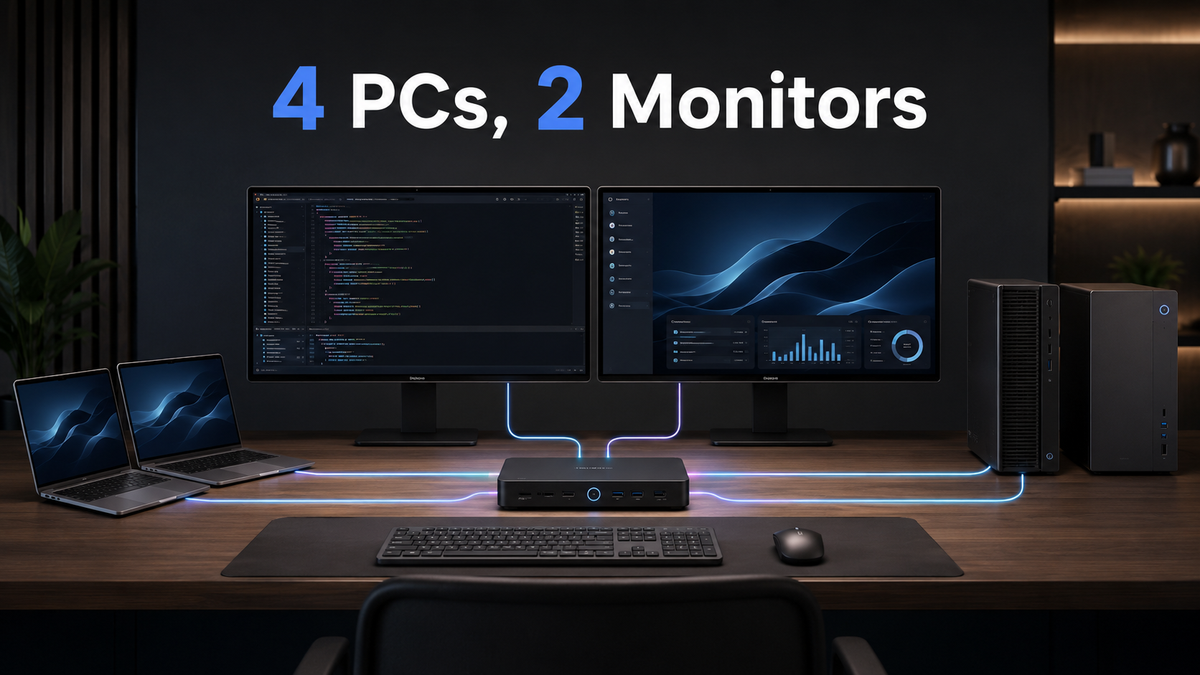
At TESmart, we often hear from users who want to connect a work laptop, a personal laptop, a desktop workstation and a secondary PC to the same two monitors.
The visible part of the problem is monitor switching. The complete problem is larger: both displays, the keyboard and mouse, USB peripherals, audio, Ethernet and laptop charging may all need to move from one computer to another.
That is why this setup cannot be planned only by counting computers and monitors. Each computer must also provide the correct video paths, USB data connection and, for laptops, compatible USB-C display and charging capabilities.
Quick Answer
The most direct way to share two monitors across two laptops and two desktop PCs is to use a four-computer, dual-monitor KVM designed for mixed USB-C, HDMI and DisplayPort inputs.
A standard docking station usually expands only one laptop. A USB switch shares peripherals but does not switch video. Monitor input buttons switch pictures but do not move the keyboard, mouse or USB devices. A conventional desktop KVM can manage displays and peripherals, but USB-C laptops may still require separate docks, adapters and charging connections.
For a hybrid workstation, first confirm that each laptop supports video over USB-C. A single USB-C connection for two extended monitors normally requires DisplayPort Alt Mode and MST support from the host. Compatible Windows systems may support this arrangement, while macOS does not use MST to create two independent extended displays.
Table of Contents
- Introduction: One Desk, Four Computers, Two Monitors
- Why This Multi-Computer Setup Becomes Complicated
- Docking Station vs USB Switch vs KVM Switch
- What Each Computer Must Support
- How a Four-Computer Dual-Monitor KVM Works
- A Hybrid Setup with Two USB-C Laptops and Two Desktop PCs
- Where a Hybrid KVM Pro Hub Fits
- Important Windows, Linux and macOS Differences
- Comparing the Main Connection Options
- Is This Configuration Right for Your Desk?
- Final Recommendation
- FAQ
Introduction: One Desk, Four Computers, Two Monitors
A typical hybrid workstation may include a corporate USB-C laptop, a personal laptop, a gaming or creative desktop and another desktop used for testing, administration or specialized software.
The user usually wants all four computers to share:
- Two external monitors
- One keyboard and mouse
- A webcam, microphone, headset or USB audio device
- External storage or other USB peripherals
- A wired Ethernet connection
- Charging for the two laptops
Without an integrated switching path, the user may have to change both monitor inputs, switch a separate USB device, move a dock cable and confirm which laptop charger is connected. What appears to be one computer change can become four or five separate actions.
The goal is therefore not simply to display four computers on two monitors. It is to create a predictable relationship between the selected computer and the shared display, USB, audio and network resources.
Why This Multi-Computer Setup Becomes Complicated
Different Computers Use Different Video Paths
Desktop PCs usually connect directly from a dedicated or integrated GPU through HDMI or DisplayPort. A dual-monitor desktop commonly provides two independent physical outputs, such as one HDMI output and one DisplayPort output.
Laptops are less predictable. Two USB-C ports can have the same physical shape while supporting completely different functions. One may provide only USB data and charging. Another may also carry DisplayPort video. A third may support a compatible Thunderbolt workflow.
The USB-C connector alone does not confirm:
- DisplayPort Alt Mode support
- The number of external displays supported
- MST support
- USB data speed
- Power Delivery input requirements
- The maximum resolution or refresh rate
A laptop must support the required display output before a KVM, dock or adapter can deliver that output to the monitors.
Two Monitors Need Two Usable Display Streams
Two external monitors normally require two independent display streams. A desktop PC can often provide them through two GPU outputs. A compatible Windows laptop may carry both streams through one USB-C DisplayPort Alt Mode connection by using MST.
That single-cable method is host-dependent. The laptop, GPU, USB-C controller, operating system and driver must all support the intended configuration.
On macOS, one DisplayPort stream cannot be divided through MST into two independent extended desktops. An MST connection may produce mirrored output instead. A Mac that supports two external monitors may still need to provide two separate video connections to the KVM.
Peripherals Do Not Follow Monitor Input Changes
Changing a monitor from HDMI 1 to DisplayPort does not automatically move the keyboard, mouse, webcam, USB drive, headset or Ethernet adapter to the same computer.
Those devices follow their own USB or network paths. This is why using monitor input buttons together with a separate USB switch can work, but it requires the user to keep multiple switches synchronized manually.

Docking Station vs USB Switch vs KVM Switch
These devices solve related problems, but they are not interchangeable.
What a Docking Station Does
A docking station expands the connectivity of one host computer. It may turn one USB-C connection into monitor outputs, USB ports, Ethernet, audio and laptop charging.
Its primary job is expansion, not multi-computer switching. Most docks remain connected to one laptop at a time. Moving between two laptops usually requires moving the dock’s host cable or buying separate docks.
A dock also does not normally manage two additional desktop PCs. Connecting several docks to a conventional KVM may work, but every additional dock, converter and cable creates another point where video, USB or power negotiation can fail.
What a USB Switch Does
A USB switch lets several computers share USB devices. It can be useful for a keyboard, mouse, printer or other peripheral set.
It does not switch monitor signals. Users must still change both monitor inputs separately or add a video switch. Laptop charging and Ethernet may also remain outside the switching workflow.
What Monitor Input Switching Does
Using the input controls built into each monitor is the simplest video-only method. It can be practical when computers are changed infrequently and each monitor has enough available inputs.
However, two monitors must usually be switched separately. USB peripherals remain connected to another device, and monitor input menus can become inconvenient when users change computers many times per day.
What a Standard KVM Switch Does
A KVM switch links video switching with keyboard and mouse control. Multi-monitor models can also route two or more display paths from each computer.
A standard four-port HDMI KVM still expects each host to provide the HDMI signals and a separate USB data connection. It does not automatically give a USB-C laptop the functions of a dock. The laptop may need USB-C-to-HDMI adapters, a docking station, separate charging and possibly multiple display cables.
What a Hybrid KVM Pro Hub Does
A hybrid KVM Pro Hub combines multi-computer switching with selected docking functions. It can provide dedicated USB-C connection groups for laptops while retaining conventional HDMI, DisplayPort and USB paths for desktop computers.
This approach is most useful when the desk contains fundamentally different host types. It reduces the need to force every computer through the same connection method.
For other computer and monitor combinations, use the TESmart KVM Finder or review the TESmart KVM lineup before choosing a model.

What Each Computer Must Support
We recommend checking every computer individually before buying a KVM. Do not assume that two laptops from the same brand have identical USB-C display or charging behavior.
Pre-Purchase Compatibility Checklist
- Computer count: Confirm how many systems need permanent connections now and in the near future.
- Monitor count: Confirm that both monitors must follow the selected computer rather than showing different computers.
- Desktop video outputs: Check whether each desktop can provide two compatible outputs, such as HDMI plus DisplayPort.
- USB-C video support: Verify that each laptop port supports DisplayPort Alt Mode or another compatible display-output path.
- MST support: For a one-cable Windows dual-display path, confirm MST support from the laptop, GPU, port and driver.
- macOS display support: Check the exact Mac model, chip, operating mode and supported number of external displays.
- Laptop charging: Compare the laptop’s required voltage and wattage with the KVM’s Power Delivery specification.
- Monitor inputs: Confirm that the monitor input types match the KVM outputs.
- Resolution and refresh rate: Check the entire signal chain rather than only the KVM specification.
- USB bandwidth: Consider whether the shared devices include high-bandwidth storage, webcams, capture devices or audio hardware.
- Ethernet and audio: Decide whether these functions should follow the selected computer or remain locked to another system.
Do Not Treat These USB-C Terms as Synonyms
| Term | What It Means in This Setup |
|---|---|
| USB-C connector | The physical connector shape. It does not confirm video, charging wattage or data speed. |
| USB-C data | The USB connection used by keyboards, storage, webcams and other peripherals. |
| USB-C Power Delivery | The negotiated charging connection between the laptop and the power source. |
| DisplayPort Alt Mode | A method for carrying DisplayPort video through a USB-C connector. |
| MST | A DisplayPort method that can carry multiple display streams over one compatible connection. |
| Thunderbolt | A separate high-bandwidth connection standard that can carry display and data. A Thunderbolt-capable port does not make every attached KVM a Thunderbolt device. |
A laptop with a Thunderbolt-capable port may work with a USB-C display path when that port exposes the required DisplayPort signals. However, HDC402-P23 should not be treated as a replacement for every dock designed for Thunderbolt workflows, especially when the monitor itself requires a native Thunderbolt connection.

How a Four-Computer Dual-Monitor KVM Works
A four-computer dual-monitor KVM sits between the four host systems and the two displays.
- Each computer sends its required video and USB signals into a dedicated KVM input group.
- The two monitors connect to the KVM’s display outputs.
- The keyboard, mouse and shared USB devices connect once to the KVM.
- The selected computer receives control of the shared display and peripheral resources.
- Audio, USB or other functions may follow the selected computer or remain locked, depending on the supported settings.
What EDID Emulation Changes
EDID is the monitor information a computer uses to identify supported resolutions, timings and display characteristics. When a basic switch disconnects a monitor during every change, the operating system may behave as though the display was physically unplugged.
EDID emulation helps the connected computers retain consistent monitor information while they are not actively displayed. In practice, this can reduce display re-detection, window repositioning and resolution changes.
EDID does not correct every GPU, driver, cable or operating-system problem. It is one part of maintaining a more consistent display relationship.
What HPD Hold Changes
Hot Plug Detect tells a computer whether a display is connected. HPD Hold is intended to reduce complete display disconnection during switching by maintaining the relevant connection state.
This can make switching less disruptive, but it cannot guarantee that every application, operating system or display driver will preserve window positions in every configuration.
Why Shared USB, Audio and Ethernet Matter
A shared USB path allows the selected computer to use devices such as a webcam, external drive or headset without physically reconnecting them.
Audio and USB locking functions can be useful when a resource should stay attached to one computer while the monitors switch elsewhere. For example, a user may want a storage transfer or audio call to remain active on one host while viewing another.
Shared Gigabit Ethernet lets all connected host paths use one wired network connection through the KVM instead of requiring a separate Ethernet adapter for each laptop. Actual network availability still depends on the host connection and system configuration.

A Hybrid Setup with Two USB-C Laptops and Two Desktop PCs
A practical connection topology for this desk looks like the following:
- Laptop 1: Connect to the first USB-C laptop input group.
- Laptop 2: Connect to the second USB-C laptop input group.
- Desktop PC 1: Connect its HDMI output, DisplayPort output and USB data path to one desktop input group.
- Desktop PC 2: Connect its HDMI output, DisplayPort output and USB data path to the other desktop input group.
- Monitor 1 and Monitor 2: Connect to the two KVM display outputs.
- Keyboard and mouse: Connect to the shared console ports.
- Webcam and storage: Connect to the shared USB peripheral ports.
- Ethernet: Connect the KVM’s network port to the router or network switch.
- Audio device: Connect the headset, speakers or microphone through the supported audio path.
For a compatible Windows laptop, one USB-C video path may carry two extended displays through MST. For a Mac or another system that cannot produce two independent displays through MST, use two independent video-capable USB-C connections when supported by the computer.
Desktop PCs generally need two physical video outputs because the KVM cannot create a second independent desktop from one ordinary HDMI or DisplayPort signal.
Before installation, review the HDC402-P23 product manual and label the cables by computer and input group. Keeping each computer’s video and USB connections within the same KVM group makes later troubleshooting easier.

Where a Hybrid KVM Pro Hub Fits
At TESmart, we designed the HDC402-P23 hybrid KVM Pro Hub for users who need to combine two USB-C laptops and two HDMI/DisplayPort desktop computers on one dual-monitor workstation.
Its role is not limited to routing two monitor signals. It combines four-computer switching with two USB-C laptop input groups, two HDMI and DisplayPort desktop input groups, shared USB peripherals, Gigabit Ethernet, audio functions, EDID emulation and HPD Hold.
For compatible Windows hosts, the USB-C input design supports DisplayPort Alt Mode with MST. The two laptop connection groups are also designed to provide charging, with the product specification listing charging up to 60W. Actual charging depends on the laptop’s Power Delivery negotiation, voltage support and power requirements.
This configuration can reduce the need for:
- Separate docks for both laptops
- Repeated USB-C dock cable swapping
- An independent keyboard and mouse switch
- Repeated changes through two monitor input menus
- Separate USB Ethernet adapters
- Multiple disconnected peripheral paths
The HDC402-P23 also supports pass-through and legacy keyboard and mouse modes. Pass-through is intended for broader keyboard and mouse compatibility, while legacy emulation supports KVM-oriented control functions. The appropriate mode depends on the devices being connected and the switching behavior required.
Users comparing other dual-monitor configurations can also review the TESmart dual-monitor KVM collection and the KVM docking station collection.

Important Windows, Linux and macOS Differences
Windows and MST
A compatible Windows laptop may send two extended display streams through one USB-C connection when the host supports DisplayPort Alt Mode and MST.
This capability still depends on the laptop model, GPU, USB-C port wiring, driver and total display bandwidth. The presence of a USB-C logo or a Thunderbolt-capable port is not enough to confirm the result.
Linux Support
Linux systems may support MST, but results depend on the GPU, kernel, graphics driver, distribution and desktop environment. We recommend testing the laptop directly with the intended two-monitor path before assuming the same MST behavior as Windows.
macOS and Dual Extended Displays
macOS does not use MST to divide one DisplayPort stream into two independent extended displays. When two monitors are attached through an MST-based single USB-C path, the displays may mirror rather than extend.
A Mac that supports the required number of external displays may need two separate video-capable USB-C connections to the KVM. The computer model itself must also support two external displays in the intended lid-open or lid-closed configuration.
This distinction is especially important for MacBook users. The KVM cannot override the external-display limit of the Mac, and it cannot convert an unsupported single-stream output into two independent desktops.
For Thunderbolt-only monitors such as Apple Studio Display, choose a solution that preserves the monitor’s required native connection. HDC402-P23 outputs through conventional display connections and is not intended to replace a native Thunderbolt display workflow.

Comparing the Main Connection Options
| Solution | Computers Supported | Dual-Monitor Switching | USB-C Laptop Support | Desktop HDMI/DP Support | Laptop Charging | Shared Keyboard and Mouse | Shared USB Devices | Shared Ethernet | Switching Steps | Cable Complexity | macOS MST Consideration | Best Use Case |
|---|---|---|---|---|---|---|---|---|---|---|---|---|
| Manual cable swapping | Depends on available cables and ports | Manual | Depends on docks or adapters | Yes, with direct cables | Separate chargers or docks | No integrated sharing | No integrated sharing | Separate connection | Multiple | High | Each Mac display path must still be supported | Infrequent switching on a small budget |
| Separate docking stations | Usually one laptop per dock | No integrated four-host switching | Yes | Requires separate desktop path | Usually yes, depending on dock | Requires another switch | Requires another switch or reconnection | Depends on dock | Multiple | High | Dock must provide a macOS-compatible display method | Expanding individual laptops |
| USB switch plus monitor input switching | Depends on USB switch and monitor inputs | Manual on both monitors | Requires docks or adapters | Yes | Separate | Yes | Yes, within USB bandwidth | Separate | Two or more | Medium to high | Mac video connections remain separate from USB switching | Users who switch computers occasionally |
| Standard four-port dual-monitor KVM | Four | Yes | Partial; adapters or docks may be required | Depends on KVM input type | Usually no | Yes | Depends on model | Depends on model | One KVM action, plus possible dock changes | Medium to high with laptops | Usually requires two independent Mac video inputs | Four desktop-style computers with matching outputs |
| Hybrid USB-C/HDMI/DP KVM Pro Hub | Depends on model | Yes | Integrated on supported input groups | Integrated on supported input groups | Depends on model and host | Yes | Depends on model | Depends on model | Usually one | Medium during initial setup | Single-cable dual extension is not available through MST on macOS | Mixed laptop and desktop workstations |
| TESmart HDC402-P23 | Four | Yes | Two USB-C laptop input groups | Two HDMI/DP desktop input groups | Up to the specified limit; depends on host negotiation | Yes | Yes | Shared Gigabit Ethernet | One KVM control action for the selected workflow | Medium during setup; fewer separate devices afterward | Mac dual extended displays may require two independent video-capable connections | Two USB-C laptops plus two HDMI/DP desktops sharing two monitors |
Is This Configuration Right for Your Desk?
HDC402-P23 Is More Suitable When
- Your workstation includes two USB-C laptops and two desktop PCs.
- All four computers need to share two conventional HDMI-compatible monitors.
- The desktop PCs provide the required HDMI and DisplayPort video outputs.
- The Windows laptops support DisplayPort Alt Mode and, for a one-cable dual-display path, MST.
- You need shared keyboard, mouse, USB devices, Ethernet and audio.
- You want to reduce the number of separate docks, USB switches and monitor input changes.
- Your target is a productivity or workstation display mode within the verified product specification, including dual 4K at 60Hz where the complete signal chain supports it.
- You currently use three computers but expect to add a fourth or want all systems permanently connected.
It May Be Less Suitable When
- Your monitors require native Thunderbolt connectivity.
- You use Apple Studio Display or another monitor without a compatible conventional video input path.
- You expect two extended Mac displays from one MST-based USB-C connection.
- Your Mac does not support the required number of external displays.
- Your laptop USB-C ports support data or charging but not video output.
- You need more than two external monitors.
- Your priority is DisplayPort 1.4 gaming performance beyond the verified HDC402-P23 specification.
- Your laptop requires charging power or voltage behavior outside the product’s supported Power Delivery negotiation.
- You need a device to replace every function of a specialized dock used in a native Thunderbolt workflow.
When the input structure does not match this topology, use the TESmart KVM selection guide or contact the TESmart Help Center with the exact computer models, monitor models and target display modes.

Final Recommendation
Before choosing a KVM switch for two laptops, two desktops and two monitors, confirm four points:
- Computer count: Decide whether all four systems need permanent connections.
- Monitor count: Confirm that two displays must switch with the selected computer.
- Video-output path: Verify that each desktop provides two video streams and each laptop supports the required external displays.
- USB-C and MST compatibility: Confirm DisplayPort Alt Mode, MST behavior, macOS limitations and charging requirements.
For a workstation that specifically combines two compatible USB-C laptops with two HDMI and DisplayPort desktop PCs, HDC402-P23 consolidates display switching, USB sharing, audio, Ethernet and laptop charging into one managed connection structure.
After checking your computers’ video outputs, USB-C DisplayPort Alt Mode support, MST behavior and monitor connections, explore the TESmart HDC402-P23 to determine whether it matches your four-computer dual-monitor workstation.
FAQ
Q1: Can I connect two laptops and two desktop PCs to two monitors?
Yes, with a four-computer dual-monitor KVM that supports the connection types provided by all four computers. Each desktop normally needs two usable video outputs. Each laptop must provide one or two compatible display paths, depending on its MST and operating-system support.
Q2: Can a USB-C KVM replace a docking station?
It can replace some docking functions when the KVM includes USB-C video, USB data, charging, Ethernet and peripheral ports. It may not replace every feature of a specialized dock, especially for native Thunderbolt displays, proprietary charging or unsupported display configurations.
Q3: Does every USB-C laptop support two external monitors?
No. A USB-C connector may support only data or charging. Dual external displays depend on the laptop model, GPU, DisplayPort Alt Mode capability, MST support, operating system and supported number of external monitors.
Q4: Can HDC402-P23 charge both connected laptops?
The two USB-C laptop input groups are designed to provide charging, and the product specification lists charging up to 60W. Actual charging for each laptop depends on Power Delivery negotiation, voltage support and the laptop’s power requirements. Do not assume that every MacBook, ThinkPad or other laptop will receive the same wattage.
Q5: Does HDC402-P23 work with Mac and Windows?
It can be used with compatible Windows, Linux and macOS computers, but the display connection method differs. Compatible Windows systems may use MST for two extended displays over one USB-C video path. A Mac may require two independent video-capable USB-C connections, and the Mac model must support two external displays.
Q6: Why do two monitors mirror when connected to a Mac through MST?
macOS does not use MST to turn one DisplayPort stream into two independent extended desktops. As a result, an MST-based dual-monitor connection may mirror the same image. Two independent display paths or another macOS-compatible display method may be required.
Q7: Can I share a webcam and USB storage drive between four computers?
Yes, they can be connected to the shared USB peripheral ports and assigned to the active computer. Performance depends on USB bandwidth, device compatibility and whether another hub or adapter is present in the chain. High-bandwidth devices should be tested in the final configuration.
Q8: What is the difference between EDID emulation and HPD Hold?
EDID emulation maintains monitor capability information for connected computers. HPD Hold helps prevent the computer from seeing the monitor as completely disconnected during switching. Both can reduce display re-detection, but neither can correct every cable, driver, GPU or operating-system issue.
Q9: Do I need two video outputs from each desktop PC?
Usually, yes. Two independent monitors require two independent display streams. For the HDC402-P23 desktop input groups, the intended topology uses HDMI, DisplayPort and USB connections from each desktop.
Q10: Is HDC402-P23 suitable for high-refresh gaming monitors?
It is primarily suited to hybrid productivity and workstation configurations within its verified display specification. Some lower-resolution high-refresh modes may be supported, but the result depends on the GPU, cables, KVM, monitor and selected display mode. Users who require DisplayPort 1.4 gaming performance beyond that specification should compare a dedicated high-refresh DisplayPort KVM.
Q11: Do I need a four-computer KVM if I currently use only three computers?
Not necessarily. A three-computer setup can use a four-port KVM when you want all systems permanently connected, expect to add another computer or need the specific hybrid input structure. A smaller KVM may make more sense when the fourth port and hybrid laptop functions are not required.
Share:
How to Share Two Monitors Between a Thunderbolt Laptop and a Desktop PC
Best KVM Setup for 2 Laptops and 2 Desktops: One Dual-Monitor Desk, Four Computers