

Table of Contents
- Introduction
- Does DisplayLink Work Through a KVM Switch?
- Why a Triple-Monitor KVM Does Not Automatically Create Three Displays
- Why MST-Based Triple-Monitor Docks Often Fail on macOS
- Separate DisplayLink Dock Plus KVM vs. an Integrated DisplayLink KVM
- How an Integrated DisplayLink KVM Builds the Triple-Monitor Workflow
- What Happens During Switching, Wake, and Display Reconnection?
- Compatibility Checklist Before You Buy
- Who Is This Type of KVM Workstation For?
- Who Should Consider a Different KVM Setup?
- Practical Setup and Troubleshooting Practices
- FAQ
- Build a Cleaner Mac and PC Triple-Monitor Workspace
Introduction
You already have a MacBook Air or MacBook Pro driving three external monitors through a DisplayLink dock. Beside it is a Windows desktop with three native graphics outputs. The next goal sounds simple: connect both computers to one triple-monitor KVM, share the same keyboard, mouse, webcam, headset, USB storage, and wired network, then switch the entire desk with one button.
The uncertainty begins when the DisplayLink dock is placed in front of the KVM. Will all three displays return after switching? Will macOS keep them in extended mode? Does the KVM need EDID emulation? Can one USB-C connection carry the complete MacBook side of the setup?
At TESmart, we often hear these questions from users building hybrid Mac-and-PC workstations. The answer is not a simple yes or no. DisplayLink can work as part of a KVM workflow, but reliability depends on the complete signal path: the Mac model, DisplayLink Manager, USB data connection, USB-C DP Alt Mode support, KVM input architecture, EDID behavior, cables, monitors, operating system, and wake or login state.
The most useful way to evaluate the setup is therefore not to ask only whether DisplayLink “passes through” a KVM. The better question is whether every display signal and every USB function has a clear path from each computer to the shared workstation.
Does DisplayLink Work Through a KVM Switch?
Yes, DisplayLink-generated video can be used in a multi-monitor KVM workflow. However, this does not mean every DisplayLink dock will work predictably with every triple-monitor KVM.
DisplayLink creates display outputs by encoding desktop images and sending them over a USB data connection. A DisplayLink dock then converts that USB data into video outputs. If those outputs match the KVM's video inputs, they can be switched in the same way as other HDMI or DisplayPort signals.
The important detail is that the KVM is only one part of the chain. A typical separate-device setup looks like this:
MacBook
  → USB-C or USB data connection
  → DisplayLink dock
  → Three video cables
  → Triple-monitor KVM
  → Three monitors
For this architecture to work, DisplayLink Manager must be installed and running, the dock must generate the required outputs, the KVM must accept those outputs, and the complete chain must remain within the required resolution and bandwidth limits. Sleep, login permissions, cable quality, and display re-detection can also affect what happens after switching.
We recommend testing the chain in stages. Confirm that the MacBook drives all required displays through the dock before adding the KVM. Then connect one display path through the KVM, verify it, and add the remaining paths. This makes it easier to identify whether a problem begins at the host, dock, KVM, cable, or monitor.

Why a Triple-Monitor KVM Does Not Automatically Create Three Displays
A conventional triple-monitor KVM switches three video signals; it does not create them. In most designs, each computer must provide one independent video signal for each shared monitor.
A Windows desktop with a discrete graphics card may already have three suitable outputs. In that case, the desktop side can usually connect to the KVM through three native video cables plus a USB connection for keyboard, mouse, and peripherals.
The MacBook side is different. The number of displays a Mac can drive natively depends on the exact Mac model, Apple silicon generation, operating mode, resolution, and other platform conditions. Some MacBooks cannot provide three independent native external display signals.
Adding a triple-monitor KVM does not bypass that host limitation. The KVM cannot turn one ordinary HDMI output into three separate extended desktops. It can only route the display signals it receives.
DisplayLink solves a different part of the problem. It uses USB data to generate additional display outputs, allowing a compatible dock or integrated workstation device to provide more display paths than the host exposes natively. That expansion comes from DisplayLink software and hardware, not from the KVM switching function itself.

Why MST-Based Triple-Monitor Docks Often Fail on macOS
Many ordinary USB-C multi-monitor docks use DisplayPort Multi-Stream Transport, or MST, to divide one DisplayPort stream into multiple outputs. Windows commonly supports extended desktops through this architecture.
macOS generally does not use ordinary MST hubs to create multiple independent extended desktops. A dock that produces two or three extended displays on Windows may therefore show mirrored content on a Mac instead of three separate workspaces.
This is why a dock advertised as a “triple-display USB-C dock” is not automatically a triple-display solution for macOS. The user must identify whether the dock relies on MST, DisplayLink, or multiple native display paths supported by the specific Mac.
For a focused comparison of the two architectures, see MST vs. DisplayLink for a triple-monitor setup. Users who need more detail on the Mac side can also review how DisplayLink helps overcome macOS multi-monitor limitations.

Separate DisplayLink Dock Plus KVM vs. an Integrated DisplayLink KVM
A separate DisplayLink dock and conventional KVM can be a valid solution. It may make sense when the dock is already installed, its three outputs are stable, and the user wants a wider choice of standard KVM hardware.
The tradeoff is architectural complexity. Every additional conversion, cable, USB hub, and power supply creates another point that must negotiate correctly when the computer wakes or the KVM changes inputs.
| Factor | Separate DisplayLink Dock + KVM | Integrated DisplayLink KVM |
|---|---|---|
| Number of main devices | Two: a dock and a KVM | One integrated workstation device |
| Laptop-side architecture | Dock connection followed by multiple video paths into the KVM | Consolidated USB-C laptop connection with internal display routing |
| DisplayLink driver | Required for DisplayLink outputs | Required for DisplayLink outputs |
| Cable management | More video cables and another power supply | Fewer intermediate devices and shorter signal paths |
| Troubleshooting | Dock, adapters, KVM, cables, and monitors must be tested separately | Fewer hardware layers to isolate |
| Existing hardware reuse | Better when a compatible DisplayLink dock is already owned | May require replacing the existing dock |
| Switching integration | Depends on how two separate devices handle USB and display reconnection | Designed as one display, USB, audio, and network workflow |
| Best fit | Users with a proven dock who accept additional cabling | Users building a new MacBook-and-desktop shared workstation |
The integrated approach is not automatically better for every user. Its main advantage is not simply “more ports.” It combines DisplayLink expansion, native DP Alt Mode video, hardware KVM switching, peripheral sharing, audio, networking, and laptop charging in one architecture. That can reduce the number of compatibility variables that must be managed.
How an Integrated DisplayLink KVM Builds the Triple-Monitor Workflow
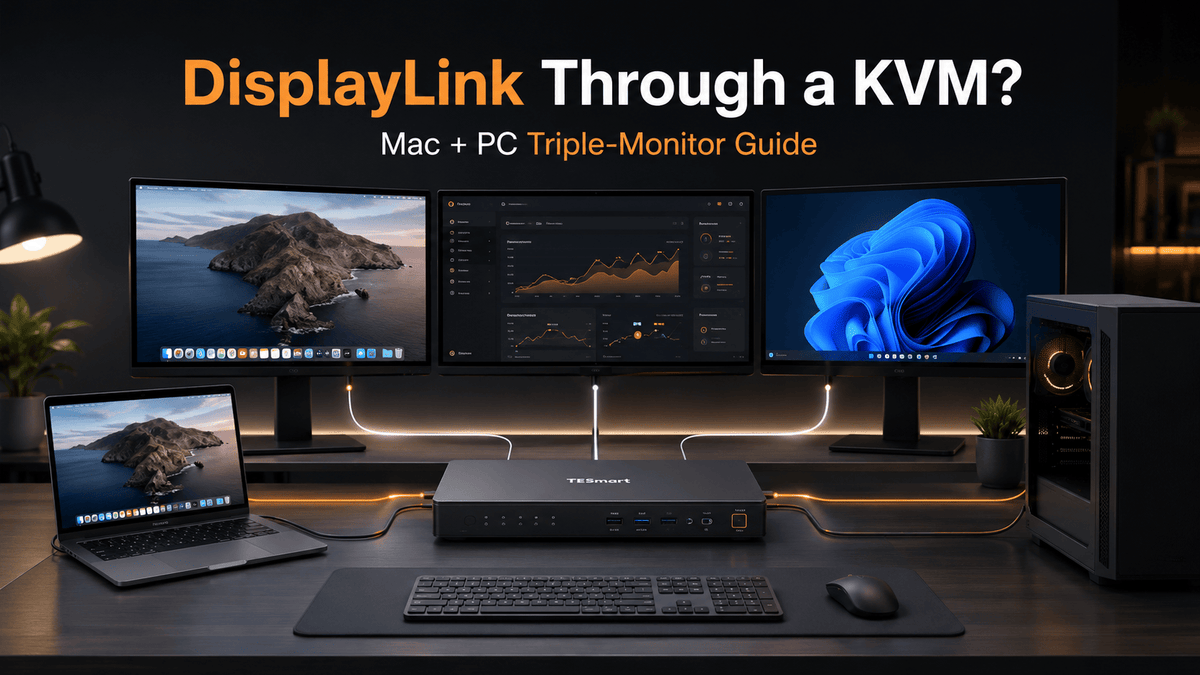
We designed the TESmart HDC203-PM24 DisplayLink KVM docking station around a specific hybrid workstation: one USB-C laptop, one desktop PC, three HDMI monitors, and one shared set of peripherals.
On the PC1 laptop side, OUTPUT A and OUTPUT B use DisplayLink video, while OUTPUT C uses native DP Alt Mode video from the USB-C host connection. Full three-monitor operation therefore requires two conditions: DisplayLink Manager must be installed for the two DisplayLink paths, and the laptop's USB-C port must support DP Alt Mode for the third path.
If the USB-C port carries data but does not support DP Alt Mode, the two DisplayLink outputs can still be available after the driver is installed, but the native OUTPUT C path will not operate. In that case, the laptop side is limited to two external outputs through this architecture.
DisplayLink is available on the PC1 side only. The PC2 desktop side must supply the independent native video signals expected by the KVM. A typical Windows workstation connection uses one HDMI path, two DisplayPort paths, and a USB connection for shared controls and peripherals.
MacBook or USB-C Laptop
  └─ USB-C → HDC203-PM24 PC1
                 ├─ HDMI Output A → Monitor 1  [DisplayLink]
                 ├─ HDMI Output B → Monitor 2  [DisplayLink]
                 ├─ HDMI Output C → Monitor 3  [DP Alt Mode]
                 ├─ Keyboard, mouse, webcam, and USB devices
                 ├─ Audio
                 ├─ Gigabit Ethernet
                 └─ USB-C Power Delivery up to 100W

Windows Desktop or Workstation
  ├─ HDMI → HDC203-PM24 PC2
  ├─ DisplayPort 1 → HDC203-PM24 PC2
  ├─ DisplayPort 2 → HDC203-PM24 PC2
  └─ USB → HDC203-PM24 PC2

HDC203-PM24
  ├─ HDMI Output A → Monitor 1
  ├─ HDMI Output B → Monitor 2
  └─ HDMI Output C → Monitor 3
This structure supports up to three 4K 60 Hz displays under the required connection conditions, depending on the host, operating system, cables, adapters, and monitors. Each monitor must accept HDMI, and every part of the signal chain must support the requested mode.
The device also brings keyboard and mouse control, shared USB peripherals, audio, Gigabit Ethernet, and up to 100W USB-C Power Delivery into the same switching workflow. Our goal is not simply to add more ports, but to reduce the number of docks, adapters, and switching devices in the complete workstation.

What Happens During Switching, Wake, and Display Reconnection?
When a KVM changes from one computer to another, the inactive host may interpret the displays as disconnected. When the connection returns, the operating system may need to detect the displays again, rebuild the desktop, and restore the position of open windows.
This behavior is affected by the host, graphics driver, DisplayLink Manager state, display firmware, cable path, and EDID handling. It is also why a setup that works after a cold boot may behave differently after sleep or after the MacBook lid is opened and closed.
Smart EDID is designed to improve display recognition during switching by keeping more consistent display information available to the connected systems. It can help reduce repeated re-detection, window movement, and switching wait time. It should not be interpreted as a promise of zero black screen, zero delay, or identical behavior across every Mac, PC, and monitor combination.
DisplayLink adds another software-controlled layer. On macOS, the DisplayLink Manager application must be active and have the required system permissions. After a restart, login, security update, or policy change, the DisplayLink outputs may not return until the software is running correctly.
For users who switch frequently, we recommend validating four states before considering the setup complete: cold boot, restart, wake from sleep, and repeated switching in both directions.

Compatibility Checklist Before You Buy
1. Can You Install and Run DisplayLink Manager?
DisplayLink video requires software. On a personally managed MacBook, installation is usually a straightforward planning step. On a company-managed MacBook, administrator rights, screen-recording permissions, background-service policies, or endpoint security rules may prevent the driver from running.
Confirm approval with the IT department before choosing a DisplayLink-based workflow. Without the driver, the two DisplayLink output paths cannot function.
2. Does the Laptop USB-C Port Support DP Alt Mode?
The complete three-monitor laptop mode combines two DisplayLink paths with one native DP Alt Mode path. A USB-C connector can support ordinary USB data without supporting video. The connector shape alone is not enough to confirm DP Alt Mode.
If the port does not support DP Alt Mode, the third native video path will not be available. With DisplayLink Manager installed, the two DisplayLink outputs may still operate.
3. How Many Displays Can the Mac Drive Natively?
Check the exact Mac model and chip rather than relying on the words “MacBook Air” or “MacBook Pro.” Native external display support varies by model and operating conditions. This determines whether DisplayLink is actually needed and whether a native-video KVM architecture might be more suitable.
4. Can the Desktop Provide Three Independent Video Signals?
The desktop side must provide the video inputs required by the KVM. A single HDMI output cannot be divided into three independent extended desktops by the KVM. Confirm the GPU has the required number and type of active outputs, and confirm that all three can operate together at the target resolution.
5. What Work Will Run on the DisplayLink Monitors?
DisplayLink is generally well suited to productivity workloads such as browsers, office applications, code editors, spreadsheets, documentation, dashboards, communication tools, and content management.
Evaluate it more carefully for competitive gaming, high-refresh-rate gameplay, low-latency control, strict color-critical work, professional grading, or other workflows that depend on a direct native GPU-to-display path. DisplayLink uses compressed video transport over USB, so its behavior is not identical to native DisplayPort or HDMI output.
6. Will You Watch HDCP-Protected Content?
Some protected streaming content can show a black screen when played through DisplayLink on macOS. This is related to the interaction among macOS, DisplayLink, and HDCP-protected playback rather than necessarily indicating a KVM hardware fault.
Users who depend heavily on protected streaming should plan to use the native DP Alt Mode output or a direct native display connection for that content.
7. Do All Three Monitors Accept HDMI?
The shared display outputs are HDMI. If a monitor accepts only DisplayPort or USB-C, an additional conversion stage is required. Active and passive adapters do not behave the same way, and direction matters. Check the exact adapter specification instead of assuming any USB-C, HDMI, or DisplayPort cable is bidirectional.
8. Does the Complete Chain Support the Target Resolution?
“Supports up to 4K 60 Hz” describes the upper capability under the required conditions. Actual results depend on the computer, GPU, operating system, USB bandwidth, DisplayLink state, KVM path, cables, adapters, and monitors. Test at 1080p 60 Hz or 4K 60 Hz before adding more conversion stages or demanding modes.

Who Is This Type of KVM Workstation For?
An integrated DisplayLink KVM docking station is more suitable for users whose priority is a shared three-monitor productivity workspace rather than a fully native high-refresh-rate display path.
- MacBook and Windows desktop users: One laptop and one workstation need to share three HDMI monitors and the same desktop peripherals.
- Developers and IT professionals: Code, terminals, logs, browser tools, virtual-machine consoles, and documentation are distributed across several screens.
- Finance, data, and operations teams: Spreadsheets, dashboards, communication tools, and monitoring views benefit from persistent multi-window space.
- Home-office users: A work MacBook and personal Windows PC need one keyboard, mouse, webcam, headset, storage device, and wired network connection.
- Users building a new desk: Reducing the number of docks, adapters, power supplies, and switch devices is more important than reusing an existing DisplayLink dock.
Compared with a basic triple-monitor KVM, the HDC203-PM24 makes more sense when the laptop cannot supply three suitable native outputs and the user accepts the DisplayLink driver and workflow requirements.

Who Should Consider a Different KVM Setup?
A DisplayLink-based integrated workflow is not the right answer for every three-monitor desk.
- Managed laptops without software approval: If DisplayLink Manager cannot be installed or kept running, the two DisplayLink paths are unavailable.
- Native high-refresh-rate gaming setups: Users prioritizing competitive gaming, minimum latency, or direct GPU output should consider a native HDMI or DisplayPort KVM matched to the GPU and monitors.
- Color-critical production: Professional color grading and tightly controlled reference-monitor workflows usually benefit from native display paths and purpose-built video hardware.
- Protected streaming as a primary use: HDCP behavior can limit playback through DisplayLink on macOS.
- Macs with sufficient native outputs: If the exact Mac already supports the required three-display layout natively, a conventional native-video KVM may provide a simpler software path.
- Monitors without HDMI inputs: Three conversion adapters add complexity and should be evaluated separately.
- Two USB-C laptops requiring single-cable docking: DisplayLink is available on the PC1 laptop side only; the PC2 side is designed around independent desktop video inputs.
Being clear about these boundaries helps avoid buying a device that solves the wrong part of the workstation.

Practical Setup and Troubleshooting Practices
We recommend checking the complete display path before choosing a triple-monitor KVM. Once the hardware is selected, build the workstation in a controlled order.
- Verify each monitor directly. Confirm the target resolution and refresh rate from each computer before adding the KVM.
- Validate the MacBook side first. Install DisplayLink Manager, grant the required permissions, and confirm the two DisplayLink outputs plus the DP Alt Mode output.
- Confirm the desktop outputs. Test all three GPU outputs at the same time, not one at a time.
- Use short, known-good cables. Replace adapters and long cables during troubleshooting.
- Connect basic USB devices first. Start with a wired keyboard and mouse before adding webcams, storage, audio interfaces, or hubs.
- Test switching before sleep behavior. Establish a stable baseline while both computers are awake, then test restart and wake states.
- Reduce the display mode when isolating a problem. Start at 1080p 60 Hz, then move to the required 4K mode once the chain is stable.
If a display remains black, determine whether the problem follows the computer, KVM input, cable, or monitor. If the two DisplayLink screens disappear together, check DisplayLink Manager and the USB data path. If only the third laptop-side display disappears, check DP Alt Mode support and the OUTPUT C path.
For model-specific installation details, see the HDC203-PM24 setup and troubleshooting guide.
FAQ
Does DisplayLink work through a KVM switch?
It can. DisplayLink-generated video can enter a KVM workflow when the dock or integrated device produces video outputs that match the KVM architecture. Reliability depends on the driver, USB data path, EDID behavior, cables, monitors, operating system, and switching state. An integrated DisplayLink KVM can reduce the number of intermediate hardware layers.
Can a MacBook Air run three external monitors through the HDC203-PM24?
The laptop side can support a three-monitor layout under the required connection conditions: DisplayLink Manager must be installed for OUTPUT A and OUTPUT B, and the MacBook's USB-C port must support DP Alt Mode for OUTPUT C. The exact Mac model, operating system, cables, and monitors still matter.
Does the HDC203-PM24 require DisplayLink Manager?
Yes, when PC1 uses the two DisplayLink output paths. Without DisplayLink Manager and the required macOS permissions, OUTPUT A and OUTPUT B cannot provide DisplayLink video from the laptop.
Can I use it if my work MacBook does not allow software installation?
Not for the complete three-monitor DisplayLink workflow. Without the driver, the two DisplayLink paths are unavailable. Contact the IT administrator before purchasing or deploying the device. The native DP Alt Mode path alone does not replace the two missing DisplayLink outputs.
Is DisplayLink suitable for gaming?
It is primarily suited to productivity-oriented multi-monitor workflows. Because DisplayLink compresses and transports display data over USB, it may add latency or behave differently from native GPU output. Use a native HDMI or DisplayPort path for competitive gaming, high refresh rates, or latency-sensitive play.
Why does Netflix or other protected video show a black screen through DisplayLink on macOS?
This can result from the interaction among macOS, DisplayLink, and HDCP-protected playback. It is a workflow limitation rather than automatically a KVM hardware defect. A native display path may be required for protected content.
What happens if my USB-C port does not support DP Alt Mode?
With DisplayLink Manager installed, the two DisplayLink outputs may still function, but the native OUTPUT C path will not. The laptop side therefore cannot provide the complete three-monitor layout through this architecture.
Does a three-monitor KVM need EDID emulation?
EDID management is useful because it helps the computers retain more consistent display information during switching. It can reduce display re-detection, window movement, and waiting, but it cannot guarantee zero black screen or identical wake behavior in every setup.
Can I switch all three monitors and USB devices with one button?
The integrated design is intended to switch the shared displays and workstation devices between the two connected systems as one hardware workflow. The operating systems and DisplayLink software may still need time to complete display and USB reconnection after the hardware switch.
Where can I find connection details and support information?
Review the HDC203-PM24 product manual before installation, especially the host-port requirements, video-input map, driver steps, and supported display modes.
Build a Cleaner Mac and PC Triple-Monitor Workspace
DisplayLink can work in a KVM workflow, but the result depends on more than the word “DisplayLink” appearing on a dock or product page. The complete path must account for software permission, USB data, DP Alt Mode, independent desktop GPU outputs, EDID behavior, monitor inputs, cables, resolution, and wake behavior.
A separate DisplayLink dock plus a conventional triple-monitor KVM can work and may be the practical choice when the dock is already proven. An integrated DisplayLink KVM docking station becomes more suitable when the goal is to reduce devices, power supplies, cable paths, and troubleshooting variables.
The HDC203-PM24 combines DisplayLink expansion, a native DP Alt Mode path, triple-monitor hardware switching, USB peripherals, audio, Gigabit Ethernet, and USB-C Power Delivery in one MacBook-and-desktop workstation architecture. It is intended primarily for three-screen productivity, not every gaming, protected-video, or color-critical scenario.
If your goal is to share three HDMI monitors, a keyboard, mouse, USB devices, audio, and wired networking between a MacBook and a Windows desktop, explore the TESmart HDC203-PM24 DisplayLink KVM docking station and review the compatibility requirements before building your setup.
Share:
How to Share Two DisplayPort Monitors Across Four Computers: A 4x2 KVM Setup Guide
How to Share Two Monitors Between a Thunderbolt Laptop and a Desktop PC