

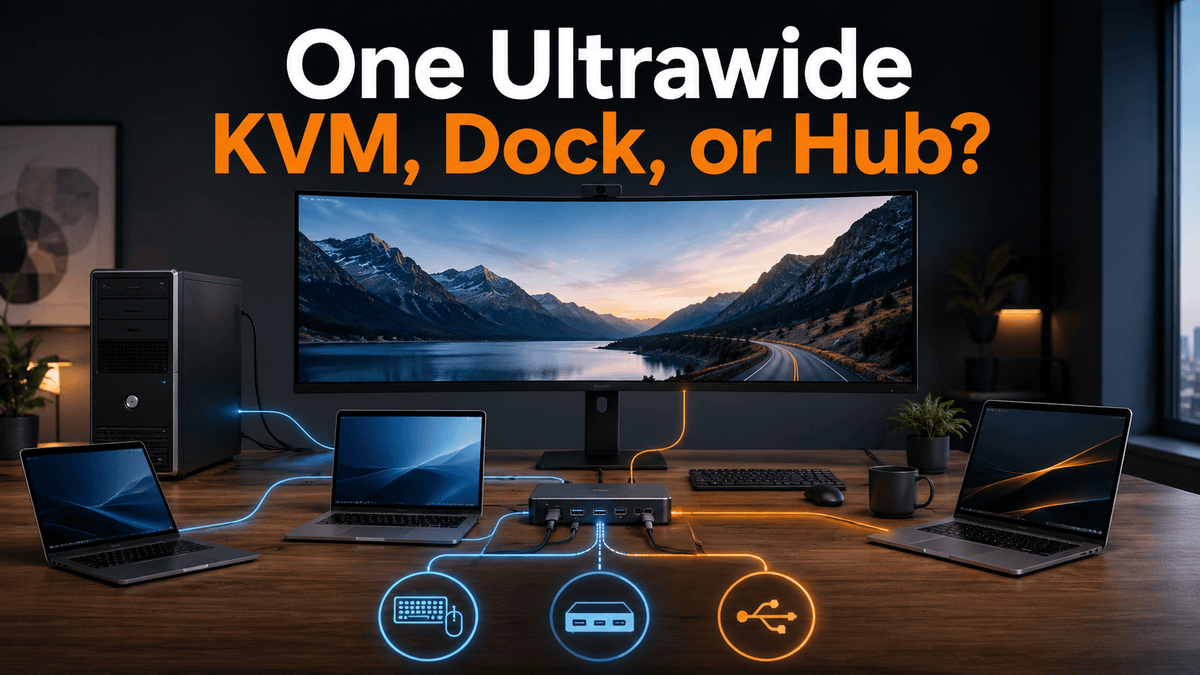
Table of Contents
- Introduction
- What This Desk Setup Is Actually Trying to Solve
- Why a KVM, Dock, and USB Hub Solve Different Problems
- Connection Architecture Decision Tree
- Comparing the Main Connection Architectures
- What to Check for an Ultrawide Monitor
- How to Handle Webcams and Other USB Devices
- Which TESmart Solution Fits Each Scenario
- The Most Practical Architecture for This Setup
- Pre-Purchase Checklist
- Conclusion
- FAQ
Introduction
A desktop computer, several USB-C laptops, and one ultrawide monitor may look like a straightforward KVM setup. The difficulty is that the devices do not connect in the same way.
The older desktop usually sends video through HDMI or DisplayPort and uses a separate USB connection for the keyboard, mouse, webcam, and other peripherals. Each laptop, by contrast, is expected to use one USB-C cable for video, USB data, Ethernet, and charging.
This means the real question is not simply, “Which KVM supports an ultrawide monitor?” It is:
- Which device should handle video switching?
- Which device should share the USB peripherals?
- Which device should charge the laptops?
- Should Ethernet follow the active computer?
- Does every computer need to switch with one command?
The Reddit setup that inspired this article includes all of these requirements. That makes it a connection architecture problem rather than a normal ultrawide KVM buying question.
What This Desk Setup Is Actually Trying to Solve
The easiest way to understand the setup is to separate it into four signal paths.
1. The Video Path
The desktop can normally send HDMI or DisplayPort directly to the monitor. A USB-C laptop must support video output through USB-C, usually through DisplayPort Alt Mode or a compatible Thunderbolt connection.
A connector shaped like USB-C does not automatically guarantee video support. The laptop port, cable, dock, switch, and monitor must all support the required display mode.
2. The USB Peripheral Path
The keyboard, mouse, webcam, storage devices, audio interface, and other accessories need a USB data connection to the active computer.
This path can be handled by a KVM, a dedicated USB switch, or a USB hub connected downstream from one of those devices. A normal USB hub alone cannot decide which computer controls the peripherals.
3. The Laptop Charging Path
One-cable laptop use requires USB Power Delivery in addition to video and data. A basic HDMI KVM does not provide laptop charging merely because the laptop is connected through an HDMI adapter.
The required charging wattage also varies by laptop. A device offering 60W may be sufficient for a thin business laptop but may charge a larger mobile workstation slowly under sustained load.
4. The Ethernet Path
Ethernet can be handled in several ways. Each computer can use its own network connection, a USB-C dock can provide Ethernet to the connected laptop, or a KVM with an integrated network switch can make one wired network connection available to several computers.
Ethernet is useful, but it should not determine the entire architecture. Video compatibility, charging, USB bandwidth, and host count are usually more restrictive.

Why a KVM, Dock, and USB Hub Solve Different Problems
What a USB Hub Does
A USB hub expands one USB connection into several peripheral ports. It is useful when the shared setup includes a webcam, external drive, card reader, headset, or other USB devices.
A USB hub does not normally switch those peripherals between computers. It still needs to connect to a KVM or USB switch if more than one computer must use the devices.
What a Dock Does
A dock expands one laptop connection into video outputs, USB ports, Ethernet, audio, and charging. Its main job is to adapt and expand one host.
A conventional dock does not automatically switch between several computers. Connecting the dock to a different laptop usually requires moving the host cable unless the dock includes a host-switching function.
What a USB Switch Does
A USB switch allows several computers to share USB peripherals. It is appropriate when users only need to switch the keyboard, mouse, webcam, or other USB devices.
It does not switch the monitor signal. The monitor input must be changed separately through its controls, remote, software, or automatic input detection.
What a KVM Does
A KVM switches the keyboard, video, and mouse between computers. Many current models also share USB 3.x peripherals, audio, and Ethernet.
A full KVM is useful when the monitor and peripherals must follow the same computer with one command. However, the KVM still needs input signals that match its host ports. An HDMI KVM expects HDMI video. A USB-C KVM expects a USB-C host connection that carries the required video and USB data.
What a KVM Dock Does
A KVM dock combines host switching with some docking functions. Depending on the model, it may carry laptop video and data through USB-C, provide charging, connect USB peripherals, and switch everything to another computer.
This can reduce cable handling, but the host count and host types are more restrictive. A device designed for two USB-C laptops may not accept an older desktop that only has HDMI, DisplayPort, and USB-A.

Connection Architecture Decision Tree
Do the Laptops Need One-Cable Video, Data, and Charging?
Yes: Start with a KVM dock or a USB-C dock combined with another switching device.
A KVM dock is cleaner when it supports every required host. A separate dock is more flexible when the desktop and laptops use different connection types, but it introduces additional devices and signal negotiations.
No: A conventional HDMI or DisplayPort KVM becomes easier to use. Each laptop can connect through a video adapter or dock while using its own charger.
Can Every Computer Provide HDMI Video and USB Data?
Yes: A multi-port HDMI KVM can switch all computers, the monitor, and the shared peripherals together.
For a USB-C laptop, this normally means placing a compatible dock or adapter before the KVM. To preserve one-cable laptop charging, that dock must also provide sufficient USB Power Delivery.
No: Use a mixed-host KVM dock, or separate the video and USB switching paths.
Do You Only Need to Switch the Keyboard, Mouse, and USB Devices?
Yes: A USB switch may be sufficient. Connect the desktop and laptop dock to different monitor inputs, then change the monitor input separately.
This is often the most economical option when the monitor has several inputs and only one laptop is physically connected to the dock at a time.
Must the Display and Peripherals Switch Together?
Yes: Use a complete KVM architecture. This is the clearest choice when the KVM will be hidden under the desk and switching will be performed through a hotkey, remote control, or external button.
No: Use the monitor’s input selector for video and a USB switch for peripherals. The extra switching step may be acceptable in exchange for lower cost and simpler USB-C charging.
Will a Second Monitor Be Added Soon?
Yes: It may make sense to choose a dual-monitor architecture now, provided every computer can supply the necessary video signals.
No: Do not buy a dual-monitor KVM only because it appears more expandable. Dual-monitor products require more video connections and may add cost and setup complexity without improving a one-monitor desk.
Comparing the Main Connection Architectures
| Architecture | Video Switching | USB Sharing | Laptop Charging | Main Tradeoff |
|---|---|---|---|---|
| USB-C KVM dock | Yes | Yes | Usually, subject to model and laptop | Host types and host count are limited |
| HDMI KVM plus USB-C docks | Yes | Yes | Provided by each dock | Each laptop may need its own dock or adapter |
| Monitor input switching plus USB switch | Through the monitor | Yes | Provided by the laptop dock | Video and USB require separate switching |
| USB switch only | No | Yes | No | Only appropriate when video is handled elsewhere |
| USB hub only | No | One host only | Depends on the hub | Does not provide multi-computer switching |
What to Check for an Ultrawide Monitor
“Ultrawide” describes an aspect ratio, not one specific video mode. A 3440×1440 monitor at 60Hz is a very different load from a 3440×1440 monitor at 144Hz or a 5120×1440 display at a high refresh rate.
Before choosing a switch, confirm:
- The monitor’s exact native resolution
- The target refresh rate
- Whether the monitor uses HDMI, DisplayPort, or USB-C for its highest mode
- Whether Display Stream Compression is required
- Whether variable refresh rate or HDR must pass through the switch
- The maximum mode supported by every laptop and desktop output
The complete signal chain matters. A KVM may support the target resolution, but the connection can still fall back if a USB-C dock, adapter, cable, or laptop port has a lower limit.
Why EDID Matters on an Ultrawide
When a computer loses the monitor connection during switching, the operating system may treat the display as disconnected. Windows can move application windows, resize them, or change the selected resolution.
A KVM with EDID emulation keeps display information available to inactive computers. This can reduce layout changes and make switching more predictable, although switching time and behavior still depend on the monitor, GPU, operating system, and complete cable path.

How to Handle Webcams and Other USB Devices
A keyboard and mouse require relatively little USB bandwidth. A high-resolution webcam, external SSD, capture device, or audio interface can require much more.
For several shared devices, it is often better to connect a powered USB hub to a suitable USB 3.x sharing port than to select a KVM only because it has the largest number of USB-A connectors.
However, avoid building a long chain of hubs, docks, adapters, and switches. Each additional layer adds another controller, cable, power requirement, and compatibility variable.
Keep Hotkey Requirements in Mind
Some KVM hotkeys only work when the keyboard is connected to a dedicated keyboard and mouse port. Connecting the keyboard through a general-purpose hub may disable hotkey detection.
If the KVM will be mounted under the desk, confirm the switching method before installation. A keyboard hotkey, wired selector, front-panel extension, or infrared remote is more useful than a button that becomes inaccessible after mounting.
Treat the Webcam as a High-Bandwidth Device
If webcam stability matters, confirm that the shared peripheral path supports USB 3.x and test the camera at its intended resolution and frame rate.
When problems occur, first connect a basic wired keyboard and mouse directly. Then add the webcam, hub, and other USB devices one at a time. This makes it easier to identify a bandwidth, power, or device-compatibility problem.

Which TESmart Solution Fits Each Scenario
CKS201-M23: Two USB-C Computers and One High-Specification Monitor
The TESmart CKS201-M23 is more suitable when the active setup consists of two USB-C laptops or other computers with full-featured USB-C video connections.
Each host connects through USB-C, while one HDMI display, the keyboard, mouse, USB peripherals, and wired network connection are shared. The model supports DisplayPort Alt Mode, EDID emulation, USB peripheral sharing, Gigabit Ethernet, and laptop charging subject to the laptop’s supported charging negotiation.
This architecture makes sense when:
- There are two regularly used USB-C computers
- Both USB-C ports support video output
- One-cable laptop connection is a priority
- The display uses one HDMI input
- A custom keyboard hotkey or remote switching method is needed
It is not the natural choice for an older desktop that only provides HDMI or DisplayPort video and USB-A data. The desktop would need a fully compatible conversion path that combines video and USB into the required USB-C host connection, which is usually less practical than choosing an architecture designed for mixed host types.
HKS401-M24: Up to Four HDMI Computers and One Monitor
The TESmart HKS401-M24 is more suitable when up to four computers can provide HDMI video and a separate USB data connection.
It supports four HDMI inputs and one monitor output, USB 3.2 peripheral sharing, an integrated Gigabit network function, EDID emulation, and several switching methods, including keyboard hotkeys, front-panel controls, infrared remote control, and mouse switching.
This architecture makes sense when:
- The desktop already provides HDMI output
- Several laptops can connect through USB-C docks or HDMI adapters
- All computers should switch with one command
- Shared Ethernet and USB peripherals are required
- The ultrawide uses a high-resolution or high-refresh-rate HDMI mode
The important limitation is laptop charging. The HKS401-M24 does not turn an HDMI connection into a one-cable USB-C laptop connection. Each laptop needs a compatible dock or adapter that provides HDMI, USB data, and sufficient charging power.
For several laptops, that may mean purchasing a dock for each laptop. A single dock can be moved between laptops, but changing laptops then requires moving the USB-C host cable rather than switching entirely through the KVM.
HDC202-X24: One Compatible USB-C Laptop and One Desktop with Two Monitors
The TESmart HDC202-X24 is designed for a hybrid desk with one laptop compatible with Thunderbolt 4 and one desktop computer.
It supports two monitors at up to 4K60Hz, a laptop connection with up to 60W charging subject to device compatibility, Gigabit Ethernet, EDID emulation, and USB 3.2 Gen 2 peripheral connections.
This model makes more sense when:
- One laptop and one desktop are the two primary computers
- The laptop supports a compatible Thunderbolt 4 workflow
- A dual-monitor workspace is required
- The laptop needs charging through its host connection
- The user wants integrated docking and switching functions
It is not intended to rotate among several laptops, and its main value is tied to a dual-monitor mixed desktop-and-laptop workstation. For a single ultrawide monitor, it may add display capacity that the user does not need.
Compatibility should not be confused with certification status. The laptop model, operating system, display support, charging requirements, and complete cable path should be checked before purchase.

The Most Practical Architecture for This Setup
For one older desktop, several USB-C laptops used one at a time, and one ultrawide monitor, there is no single architecture that automatically provides unlimited laptop inputs, one-cable charging, mixed desktop connectivity, shared USB devices, and one-button switching without tradeoffs.
Lowest-Cost and Lowest-Complexity Option
Use the ultrawide monitor’s separate inputs for video:
- Connect the desktop directly to one HDMI or DisplayPort input
- Connect one USB-C dock to another monitor input
- Connect the active laptop to that dock with one USB-C cable
- Use a USB switch to move the shared peripherals between the desktop and dock
The dock provides charging, video, USB ports, and Ethernet to whichever laptop is connected. The desktop retains its direct video connection and can use its own Ethernet port.
The tradeoff is that changing between the desktop and laptop normally requires switching both the monitor input and the USB switch.
Best Option for One-Command Switching Across Several Computers
Use a multi-port HDMI KVM such as the HKS401-M24, then place a compatible USB-C dock or adapter in front of each laptop.
The desktop connects directly to the KVM through HDMI and USB. Each laptop dock provides the HDMI video signal, USB data connection, charging, and any laptop-specific Ethernet connection.
This architecture allows the monitor and peripherals to follow the selected computer through one KVM command. The tradeoffs are the cost of the docks, additional cables, and more signal-conversion stages.
Best Option When Two USB-C Laptops Are the Priority
Use the CKS201-M23 for the two laptops. This provides the cleaner one-cable experience for those hosts.
The older desktop can remain connected to another monitor input, with USB handled through a separate USB switch. This is a hybrid architecture rather than a complete one-button solution, but it avoids forcing the desktop through an unsuitable USB-C conversion path.
Best Option When the Setup Becomes One Laptop and One Desktop
If the workflow eventually settles on one laptop compatible with Thunderbolt 4, one desktop, and two monitors, the HDC202-X24 becomes the more coherent architecture.
It should not be selected only because it includes docking functions. Its host structure and dual-monitor design need to match the actual desk.
Pre-Purchase Checklist
Monitor
- What is the exact ultrawide resolution?
- What refresh rate is required?
- Which monitor input supports that mode?
- Are HDR, VRR, or DSC required?
Laptops
- Does each USB-C port support video output?
- What charging wattage does each laptop require?
- Does the laptop support the monitor’s full resolution and refresh rate?
- Will each laptop have its own dock, or will one dock be moved between laptops?
Desktop
- Does the GPU provide HDMI, DisplayPort, or both?
- Which output supports the ultrawide’s target mode?
- Is a separate USB upstream connection available for the KVM?
Peripherals
- Does the webcam require USB 3.x?
- Will external storage be shared?
- Is a powered USB hub required?
- Must USB devices follow the video automatically?
Switching
- Must switching happen with one command?
- Will the hardware be hidden under the desk?
- Is a keyboard hotkey, remote control, or wired selector required?
- Does the keyboard need to remain on a dedicated KVM port for hotkeys?
Conclusion
A USB hub is not a substitute for a KVM because it expands one host rather than selecting between computers. A dock solves the laptop’s connection and charging requirements, but it does not necessarily switch multiple hosts. A USB switch shares peripherals but leaves video switching to the monitor.
The correct choice depends on which requirement has priority:
- For two USB-C computers and one high-specification monitor, the CKS201-M23 provides the cleaner USB-C host architecture.
- For up to four computers that can all provide HDMI and USB, the HKS401-M24 provides unified display, USB, and network switching.
- For one laptop compatible with Thunderbolt 4, one desktop, and two monitors, the HDC202-X24 provides a purpose-built mixed-host workflow.
- For the lowest-cost version of the original setup, one USB-C dock, the monitor’s input selector, and a USB switch may be sufficient.
The main decision is not how many ports a device has. It is whether the selected architecture can carry the required video mode, USB bandwidth, laptop charging, and host switching without unnecessary conversion layers.
FAQ
Q1: Can a USB hub replace a KVM switch?
No. A USB hub expands the peripheral capacity of one host. It does not normally switch a monitor, keyboard, mouse, and USB devices between several computers.
Q2: Can I connect a USB hub to a KVM?
Yes, provided the KVM’s shared USB port supports the required bandwidth and power. A powered USB hub can be useful for webcams, external drives, card readers, and other peripherals. Keyboards used for hotkey switching may still need to remain on a dedicated keyboard port.
Q3: Does an HDMI KVM charge a USB-C laptop?
No. HDMI carries the display signal but does not provide USB-C laptop charging. The laptop needs a powered USB-C dock, compatible adapter, or separate charger.
Q4: Can several USB-C laptops share one dock?
They can share one dock by moving the dock’s host cable between laptops. However, a standard dock does not electronically select among several host computers. One-button laptop switching requires a dock or KVM designed with multiple host inputs.
Q5: Is a USB-C KVM suitable for an older desktop?
Only when the desktop can provide the video and USB data format required by the KVM’s USB-C host input. A desktop with only HDMI or DisplayPort plus USB-A is usually better matched with a mixed-host KVM or a conventional HDMI or DisplayPort KVM.
Q6: Is a dual-monitor KVM a problem when I only use one ultrawide?
It may work with one output unused, depending on the model, but it can add cost and cabling without providing a practical benefit. A single-monitor architecture is usually easier unless a second display will be added soon.
Q7: Why does the ultrawide resolution drop through a dock or KVM?
The final display mode is limited by the weakest part of the chain. The laptop port, dock, adapter, KVM, cable, and monitor input must all support the target resolution and refresh rate.
Q8: What is the simplest setup for one desktop and several laptops used one at a time?
Connect the desktop and a USB-C dock to separate monitor inputs, connect each active laptop to the dock, and use a USB switch for the shared peripherals. This requires separate video and USB switching but avoids buying a dock for every laptop.
Share:
Three Laptops, Two Monitors, One Webcam: How Consultants Can Build a Clean Multi-Laptop Workspace
PS5 Connected to Apple Studio Display with No Sound? TESmart THK401-X4 Solves the Audio Issue