

Table of Contents
- Introduction
- What This Multi-Laptop Workspace Actually Needs
- Can Every Laptop Provide Two Video Signals?
- Does Every Laptop Need Its Own Dock?
- How to Connect the Keyboard, Mouse, Receiver, and Webcam
- One Four-Port KVM or Two Two-Port KVMs?
- A Practical Wiring Plan for Three Laptops
- Which TESmart Solution Fits This Setup?
- Final Setup Checklist
- FAQ
Introduction
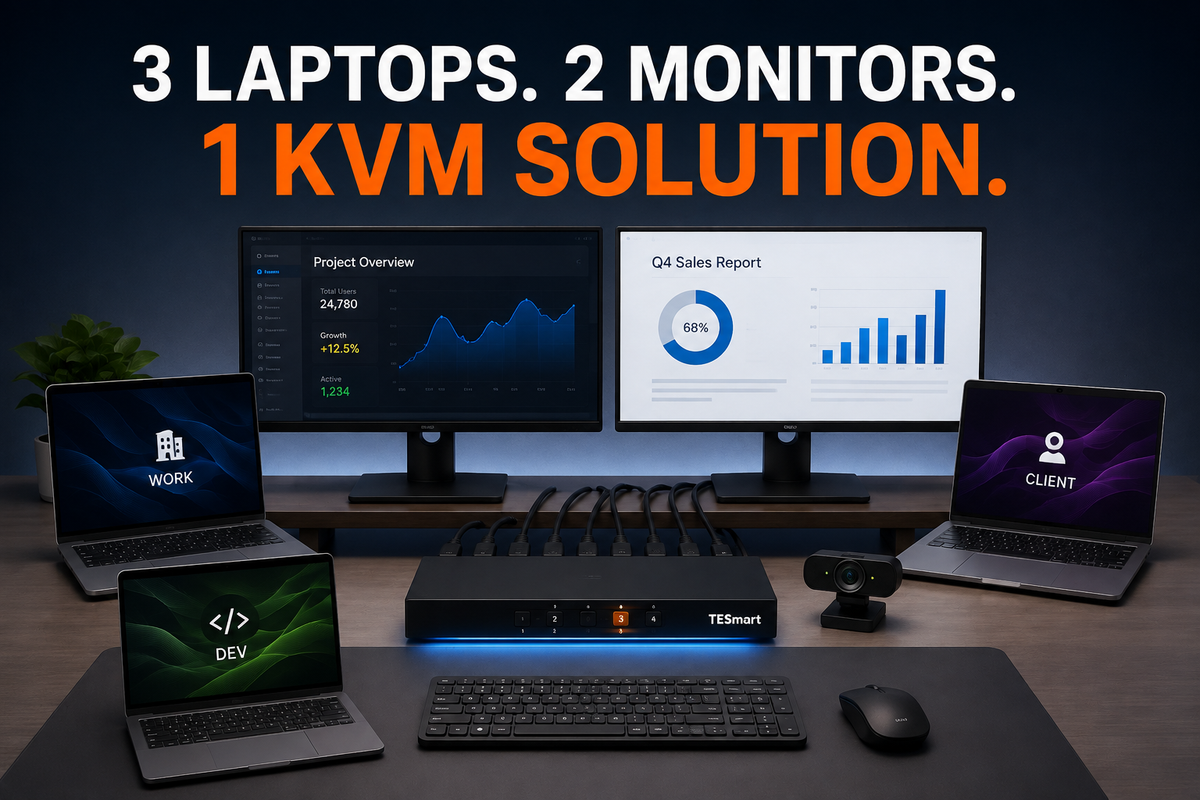
A consultant working across three laptops does not simply need a faster way to change screens. The real goal is to make two monitors, a keyboard, a mouse, and a USB webcam follow whichever client computer is currently active.
This is a common requirement for consultants, managed service providers, IT administrators, and technical specialists who move between separate customer environments throughout the day. One laptop may belong to the consultant's employer, another may be issued by a client, and a third may be a personal or testing system.
Without a central switching system, changing environments can mean reconnecting monitor cables, moving a webcam, changing keyboard profiles, and checking which computer currently owns the USB headset. Repeating that process several times a day creates more than cable clutter. It also increases the chance of joining a client call with the webcam or microphone still connected to the wrong laptop.
A four-computer, dual-monitor KVM can centralize the desk, but the KVM alone does not solve every connection problem. Before choosing one, the user must confirm that all three laptops can provide two independent video signals and a USB connection to the KVM.
What This Multi-Laptop Workspace Actually Needs
The visible requirement is three laptops sharing two monitors. The complete requirement is more specific:
- Both monitors should display the selected laptop.
- The keyboard and mouse should control the same selected laptop.
- The CenterCam or another USB webcam should move with the active computer.
- A USB headset, speakerphone, or authentication device may also need to follow the switch.
- Inactive laptops should retain stable display detection where possible.
- Switching should require one action rather than several separate button presses.
This last point matters. A video switch changes only the monitor source. It does not automatically transfer the keyboard, mouse, webcam, or other USB devices. A docking station expands the ports of one laptop, but it does not normally switch those ports between three computers.
A KVM is the device that combines video switching with shared USB control. For a dual-monitor desk, it must also manage two video paths for every connected computer.
The Basic Connection Requirement
In a conventional dual-monitor KVM setup, each laptop typically needs to provide:
Video output 1 → KVM monitor channel A
Video output 2 → KVM monitor channel B
USB upstream connection → KVM keyboard, mouse, and peripheral control
For three laptops, that can mean six video connections and three USB upstream connections entering the KVM. A fourth computer input can remain available for a future laptop, desktop, or test system.
The KVM routes the selected computer's two video signals to the two monitors and connects the shared USB devices to that same computer.

Can Every Laptop Provide Two Video Signals?
This is the first question to answer. A dual-monitor KVM does not create an additional display output. It can only switch the video signals that each laptop already supplies.
If a laptop sends only one video signal to the KVM, the KVM cannot turn that signal into two independent extended desktops. At most, another device in the chain may duplicate the same image, which is not the same as running two extended monitors.
Laptops with Multiple Native Outputs
A workstation laptop may provide HDMI plus USB-C video output, two USB-C display-capable ports, or a combination of HDMI and Mini DisplayPort. In that case, the laptop may connect to both KVM video inputs without a full docking station.
For example:
HDMI port → KVM video input A
USB-C-to-DisplayPort cable → KVM video input B
USB-A or USB-C data port → KVM USB upstream input
This arrangement reduces the number of active devices in the signal path. Fewer conversion stages generally make troubleshooting easier.
Laptops Relying on a Single USB-C Port
Many thin business laptops depend on USB-C for video output. A suitable dock can take that connection and provide two physical video outputs, but three conditions must be checked:
- The laptop's USB-C port must support video output.
- The laptop must support two independent external display streams.
- The dock must produce two outputs compatible with the KVM inputs.
The presence of two connectors on a dock does not prove that the laptop can drive two extended displays. The laptop, operating system, dock chipset, and display protocol all affect the result.
Windows and Mac Display Differences
Many Windows laptops can use DisplayPort Multi-Stream Transport through a compatible USB-C dock to create two extended displays. The available resolution and refresh rate still depend on the laptop's graphics output and the bandwidth allocated to the dock.
Mac laptops require more careful checking. Most Mac models do not have a native DisplayPort connector, so a DisplayPort KVM usually requires USB-C-to-DisplayPort cables or a dock. Native support for multiple external displays also varies by Mac model and processor.
MST-based docks that create two extended displays on Windows may not provide the same result on macOS. Some combinations mirror the displays instead. DisplayLink-based docks can add display outputs through software, but they require a driver and introduce another processing layer.
Before building the complete desk, test each laptop directly with both monitors. Confirm that the operating system recognizes two independent displays at the intended resolution and refresh rate. Only then should the same video paths be connected through the KVM.

Does Every Laptop Need Its Own Dock?
No. A dock is required only when a laptop cannot otherwise provide the necessary ports or when the user specifically wants a single-cable laptop connection.
When a Dock Is Not Required
A dock may be unnecessary when the laptop already has two usable video outputs and a separate USB data port. Direct cables or single-purpose adapters can provide a shorter and easier-to-diagnose connection path.
This approach is often suitable for a laptop with HDMI plus a display-capable USB-C port. The HDMI output can feed one KVM channel, while a USB-C-to-HDMI or USB-C-to-DisplayPort cable feeds the second channel.
When a Dock Is Useful
A dock makes more sense when:
- The laptop has only one practical connection port.
- Two video outputs must be created from one laptop connection.
- The laptop also needs charging, Ethernet, or local USB expansion.
- The user frequently removes the laptop from the desk.
In a three-laptop workspace, the docks do not have to match. One laptop may connect directly, another may use a USB-C dock, and a third may require separate adapters. What matters is that every connection produces two independent video outputs in the format expected by the KVM.
Avoid Long Adapter Chains
A common source of black screens and unstable resolution is a chain such as:
Laptop → USB-C hub → video adapter → cable converter → KVM → monitor adapter → display
Each stage adds another point where bandwidth, EDID, HDCP, or signal conversion can fail. Where possible, use a direct cable from the laptop or dock to the KVM and a direct cable from the KVM to each monitor.
When a dock is necessary, confirm the two-monitor setup at 1080p60 or 4K60 before testing higher refresh rates. This establishes whether the basic display topology works before additional bandwidth is introduced.

How to Connect the Keyboard, Mouse, Receiver, and Webcam
Video is only half of this workspace. The USB connection determines whether the keyboard, mouse, webcam, headset, and other devices actually follow the selected computer.
Why Bluetooth Keyboard and Mouse Switching Is Different
A Bluetooth keyboard or mouse is normally paired directly with a laptop's Bluetooth radio. Because the connection exists between the peripheral and the operating system, a conventional KVM cannot transfer that Bluetooth pairing to another computer.
Some Bluetooth devices support several stored host profiles, but changing computers still requires pressing a device-specific button. The peripheral is performing the switch, not the KVM.
For keyboard and mouse control that follows the KVM automatically, use wired USB devices or wireless devices with a USB receiver connected to the KVM.
Where to Connect a Logitech Bolt or Unifying Receiver
For basic keyboard and mouse use, the Logitech Bolt or Unifying receiver should normally be tested first in the KVM's dedicated keyboard or mouse console port. This allows the receiver to follow the active computer and may also support KVM hotkey operation.
Dedicated keyboard and mouse ports are often optimized for standard HID input. That can improve switching consistency, but it may limit device-specific functions or software communication.
If Logitech Options software cannot detect the device, custom buttons stop working, or the receiver behaves unpredictably in the emulated keyboard port, move the receiver to a standard shared USB port on the KVM. The general USB path may provide more complete device communication, although switching and hotkey behavior should be tested again.
The practical rule is:
Use the keyboard or mouse console port when basic input stability and hotkeys are the priority.
Use a standard shared USB port when advanced receiver features require normal USB communication.
Where to Connect the USB Webcam
A webcam should not be connected to a low-speed keyboard or mouse emulation port. Video devices transfer more data and should use a shared USB 3.x port on the KVM.
The preferred path is:
CenterCam or USB webcam → KVM shared high-speed USB port → selected laptop's USB upstream connection
When the KVM changes computers, the active laptop detects the camera as though it had been unplugged from one system and connected to another. Conferencing software may need a few seconds to release or rediscover the camera.
Close applications that are actively using the webcam before switching when possible. Some video-conferencing applications continue holding the camera until the call window or application is closed.
When to Add a Powered USB Hub
A powered USB hub can be connected to a shared high-speed KVM USB port when the desk includes several peripherals, such as:
- A webcam
- A USB headset or speakerphone
- An external microphone
- A smart-card reader
- A printer or scanner
The hub should be used for general peripherals, not inserted between the laptop and the KVM's USB upstream input. Adding a hub to the upstream side can make device enumeration and troubleshooting more difficult.
High-bandwidth devices may compete for the same USB connection. If camera quality drops or audio becomes unstable, test the webcam directly in the KVM's high-speed port and move lower-bandwidth devices to the hub.
USB Authentication Devices and Client Security
Security keys, smart-card readers, and biometric devices may react differently from ordinary USB peripherals. Switching the KVM usually causes the device to disconnect from one computer and enumerate on another. Some applications require the user to authenticate again after every switch.
Consultants should also check client security policies before sharing storage devices, network adapters, or authentication hardware across managed laptops. A technically compatible connection may still be restricted by endpoint security software or company policy.

One Four-Port KVM or Two Two-Port KVMs?
Two two-port KVM switches may appear to be a less expensive way to connect three laptops, but they create several control problems in a dual-monitor workspace.
Problems Created by Two Separate KVMs
If each KVM controls part of the desk, changing laptops may require two separate switching actions. One switch may control the displays while the other controls USB devices, or each switch may control one monitor.
This can leave the desk in an inconsistent state:
- Monitor 1 shows laptop A while monitor 2 shows laptop B.
- The keyboard controls a different laptop from the one displayed.
- The webcam remains connected to the previous client system.
- Users must remember the correct input combination on both switches.
It is possible to build a specialized split-screen workflow with multiple switches, but that is different from the stated requirement. The consultant wants both monitors and all shared USB devices to follow one selected laptop.
Why a Four-Computer Dual-Monitor KVM Is More Logical
A four-computer, dual-monitor KVM keeps both video channels and the USB device group inside one switching system. A single selection changes the active laptop across the desk.
The unused fourth input is also practical. It can support a future customer laptop, a permanent desktop, or a temporary test computer without replacing the KVM.
A centralized KVM also makes EDID management more useful. With EDID emulation, the inactive computers can continue detecting the monitors while another laptop is selected. This can reduce window rearrangement, display reconnection, and long detection delays.
EDID emulation does not override the laptop's graphics limitations, and operating systems may still reposition some windows. However, it addresses a different problem than a basic mechanical video switch that fully removes the monitor connection from inactive computers.

A Practical Wiring Plan for Three Laptops
The following structure provides a useful starting point for this workspace.
Shared Console Connections
Monitor 1 → KVM display output A
Monitor 2 → KVM display output B
Keyboard or wireless receiver → KVM keyboard/shared USB port
Mouse or wireless receiver → KVM mouse/shared USB port
CenterCam → KVM high-speed shared USB port
Optional powered USB hub → Additional KVM high-speed shared USB port
Laptop 1
Video output 1 → KVM computer 1 video input A
Video output 2 → KVM computer 1 video input B
USB data connection → KVM computer 1 USB upstream port
Laptop 2
Dock video output 1 → KVM computer 2 video input A
Dock video output 2 → KVM computer 2 video input B
Laptop or dock USB data connection → KVM computer 2 USB upstream port
Laptop 3
Video adapter 1 → KVM computer 3 video input A
Video adapter 2 → KVM computer 3 video input B
USB data connection → KVM computer 3 USB upstream port
The fourth computer input can remain unused until another device is added.
Recommended Setup Order
- Test both monitors directly with laptop 1.
- Confirm extended desktop mode at a conservative resolution and refresh rate.
- Repeat the test for laptops 2 and 3.
- Connect only the monitors and one laptop through the KVM.
- Add the remaining laptops one at a time.
- Connect a basic wired keyboard and mouse.
- Add the wireless receiver, webcam, headset, and other USB devices individually.
- Increase the target resolution or refresh rate only after the complete setup is stable.
This sequence makes it easier to identify whether a failure originates from a laptop, dock, cable, KVM video channel, or USB peripheral.

Which TESmart Solution Fits This Setup?
The appropriate model depends primarily on the video connectors used by the laptops, docks, and monitors. The number of ports alone is not enough.
DKS402-M24 for a DisplayPort-Based Workspace
The TESmart DKS402-M24 is designed for four computers sharing two DisplayPort monitors. It is more suitable when the laptops or their docks can each provide two compatible DisplayPort signals.
This matches the consultant workflow because three computers can remain connected while both monitors, the keyboard, mouse, webcam, and other shared USB devices follow the selected system.
The DKS402-M24 is listed as a four-computer, dual-monitor model with support up to 8K60. The usable resolution and refresh rate in a specific installation still depend on the laptops, graphics hardware, adapters, cables, and monitors.
Its EDID handling is particularly relevant in a multi-client environment. Keeping monitor information available to inactive computers can reduce display re-detection and window movement when the consultant changes laptops repeatedly.
Integrated USB sharing allows the webcam and input devices to move with the active computer. Network sharing can also reduce duplicated desk connections where company security policies permit the same network interface to be used across client systems.
This model makes more sense when:
- The two monitors primarily use DisplayPort.
- Every laptop or dock can provide two DisplayPort signals.
- EDID stability is important during frequent switching.
- The user wants USB and network resources managed from one device.
Mac users should account for the connection path before choosing this model. Because most Mac laptops do not provide native DisplayPort connectors, USB-C-to-DisplayPort cables or a compatible dock will normally be required.
HDK402-M24 for Mixed HDMI and DisplayPort Workflows
The TESmart HDK402-M24 is another four-computer, dual-monitor option. It is more suitable when the workspace combines HDMI and DisplayPort connections or when higher-refresh display targets influence the choice of video path.
The model is listed for four computers and two monitors with support up to 8K60. As with any high-bandwidth KVM setup, the final result is limited by the weakest component in the chain.
This model is worth considering when:
- The laptops or docks do not all provide the same output type.
- The monitors offer a combination of HDMI and DisplayPort inputs.
- The user needs more headroom than a basic office-oriented 4K60 configuration.
- The desk may later include a higher-refresh workstation or gaming system.
Before purchasing, map the exact output of every laptop to the required KVM computer inputs. A hybrid connector layout can reduce adapter use only when it matches the actual laptop and monitor ports.
A Four-Port Dual-Monitor HDMI KVM for Standard Office Use
For two 4K60 office monitors and laptops that already provide HDMI outputs through native ports or docks, a four-computer, dual-monitor HDMI KVM may be sufficient.
This path is more appropriate when the priority is stable office display switching rather than high-refresh output. It can also reduce the need for DisplayPort conversion if every laptop dock already provides two HDMI connections.
The selection process should still begin with the same questions:
- Can every laptop output two independent HDMI signals?
- Do both monitors support the required HDMI resolution and refresh rate?
- Does the KVM provide a high-speed shared USB port for the webcam?
- Does it provide EDID handling for stable multi-monitor switching?
Choosing HDMI instead of DisplayPort does not remove the need for two video signals from each computer.

Final Setup Checklist
Before ordering a KVM or reconnecting the entire desk, verify the following points.
- Computer count: Three laptops are required now, so a four-computer KVM provides the correct capacity.
- Monitor count: The KVM must support two physical monitor outputs.
- Video outputs: Each laptop must provide two independent display signals.
- Dock behavior: Every dock must be tested for extended dual-display output, not just mirrored output.
- Connector match: Choose DisplayPort, HDMI, or a mixed connection model based on the complete signal path.
- USB upstream: Every laptop needs a USB data connection to the KVM.
- Wireless input: Use a USB receiver when the keyboard and mouse need to follow KVM switching automatically.
- Webcam connection: Connect the webcam to a shared high-speed USB port rather than a keyboard emulation port.
- USB bandwidth: Use a powered hub for additional devices, but test the webcam directly if video or audio becomes unstable.
- EDID: Use EDID emulation where available to reduce display re-detection and window rearrangement.
- Client policies: Confirm that shared USB, authentication, and network hardware are allowed on managed customer laptops.
For this specific workflow, one four-computer, dual-monitor KVM is generally more practical than combining two smaller switches. It keeps the displays and USB peripherals under one control path and leaves one input available for future expansion.
The final model should be chosen only after documenting the two video outputs available from each laptop. For DisplayPort-based workstations, the DKS402-M24 provides a direct four-computer, dual-monitor path with EDID, USB, and network sharing. For mixed HDMI and DisplayPort environments or higher-refresh requirements, the HDK402-M24 may be the more appropriate connection structure.
FAQ
Q1: Can one USB-C cable from each laptop drive both monitors through a KVM?
It can, but only when a compatible dock or adapter converts that USB-C connection into two independent video outputs and the laptop supports two external displays. The dock's two outputs must then connect to the two video inputs assigned to that computer on the KVM.
Q2: Will a Bluetooth keyboard and mouse automatically follow KVM switching?
Usually not. Bluetooth devices are paired directly with each computer. To make wireless input devices follow the KVM, use models with a USB receiver and connect that receiver to the KVM.
Q3: Should a Logitech Bolt or Unifying receiver use the keyboard port or a USB hub port?
Start with the dedicated keyboard or mouse port when basic input stability and KVM hotkeys are the priority. Move the receiver to a standard shared USB port if advanced buttons, Logitech software, or device-specific functions do not work through the emulated port.
Q4: Can the webcam be connected to the same USB port as the keyboard and mouse?
The webcam should use a shared high-speed USB port. It should not be connected to a low-speed keyboard or mouse emulation port. A powered USB hub can expand the shared high-speed connection when several peripherals are required.
Q5: Does every laptop need a separate docking station?
No. A laptop with two compatible video outputs can connect directly to the KVM. A dock is needed when the laptop lacks enough outputs, requires charging and expansion through one cable, or needs its USB-C connection converted into two physical display outputs.
Q6: Why can a laptop drive two monitors directly but fail when connected through a KVM?
The complete KVM path includes additional cables, adapters, EDID communication, and bandwidth requirements. Test at 1080p60 or 4K60, remove unnecessary adapters, use shorter cables, and confirm each video channel separately before increasing the refresh rate.
Q7: Is a four-port KVM better than two two-port KVMs for three laptops?
For a workspace where both monitors and all USB devices should follow one laptop, a four-computer, dual-monitor KVM is usually more logical. Two separate KVMs require multiple switching actions and can leave the monitors, keyboard, or webcam connected to different computers.
Q8: Can a MacBook connect to a DisplayPort KVM?
Yes, but most Mac laptops require USB-C-to-DisplayPort cables or a compatible dock because they do not provide native DisplayPort connectors. The Mac model must also support the required number of external displays.
Share:
Why Your Monitors Don’t Wake After Switching a KVM
One Desktop and Multiple USB-C Laptops on One Ultrawide: KVM, Dock, or USB Hub?