

Table of Contents
- Introduction
- Why Standard Dual-Monitor KVMs Switch Both Displays Together
- What Is a 2×2 Display Matrix?
- Four Ways to Route Two Computers to Two Displays
- Which Computer Should Control the Keyboard, Mouse, USB, and Audio?
- Why Independent Monitor Switching Matters in Professional Workflows
- What to Check Before Choosing a Dual-Monitor Matrix KVM
- How TESmart TKS202-X4 Fits This Scenario
- Example Setup: Two Computers and Two Thunderbolt Displays
- Compatibility and Performance Notes
- FAQ
- Conclusion
Introduction
Most dual-monitor KVM switches are designed around one assumption: both displays belong to the same active computer. When you switch from Computer A to Computer B, Monitor 1, Monitor 2, the keyboard, the mouse, and usually the shared USB devices all move together.
That behavior works well when the goal is to use two computers as complete dual-screen workstations. It becomes restrictive when you need to see both computers at the same time.
A developer may want one display connected to a coding machine while the second shows a test system. A video editor may need to keep an export or render visible on one computer while using the other display for active editing. An IT operator may need to monitor a remote server continuously without giving up the main workstation screen.
These workflows require a dual-monitor matrix KVM, not only a standard dual-monitor KVM. The key difference is that a matrix-capable design can assign each display output independently.
This article explains how a 2×2 display matrix works, how two computers can be shown on two displays independently, and how keyboard, mouse, USB, and audio focus should be handled when the screens no longer switch as one group.

Why Standard Dual-Monitor KVMs Switch Both Displays Together
A standard dual-monitor KVM treats each computer as one complete workstation source.
Computer A provides two display signals to the KVM, and Computer B provides another two display signals. The KVM then selects one computer and sends both of that computer’s display signals to the two connected monitors.
The switching logic normally looks like this:
| Selected Computer | Monitor 1 | Monitor 2 | Keyboard and Mouse |
|---|---|---|---|
| Computer A | Computer A | Computer A | Computer A |
| Computer B | Computer B | Computer B | Computer B |
This is synchronized switching. Both display outputs are tied to the same host-selection command.
The design is simple and predictable. It also makes peripheral routing straightforward because the keyboard, mouse, USB hub, and audio connection can follow the same selected computer.
However, synchronized switching cannot create a split-computer display layout. You cannot normally keep Monitor 1 on Computer A while moving only Monitor 2 to Computer B. Pressing the computer-selection button changes the entire workstation.
This is why a product described only as a “dual-monitor KVM” does not necessarily support independent monitor switching. The number of displays tells you how many screens the KVM can serve. It does not tell you whether those screens can be routed separately.

What Is a 2×2 Display Matrix?
In a 2×2 matrix, the first number represents the two computer sources and the second number represents the two display outputs.
- Two inputs: Computer A and Computer B
- Two outputs: Monitor 1 and Monitor 2
Instead of selecting one computer for the entire desk, the switching system makes a separate source decision for each output.
Monitor 1 can select Computer A or Computer B. Monitor 2 can also select Computer A or Computer B. These decisions do not have to be identical.
| Display Output | Available Source 1 | Available Source 2 |
|---|---|---|
| Monitor 1 | Computer A | Computer B |
| Monitor 2 | Computer A | Computer B |
This creates four possible routing combinations. Two combinations behave like a conventional dual-monitor KVM, while the other two divide the displays between the computers.
The word “matrix” therefore refers to signal routing, not simply to the number of monitors. A true matrix KVM switch combines two functions:
- Video routing between multiple sources and outputs
- Keyboard, mouse, USB, and other workstation control
A standalone video matrix may route the displays but provide no shared keyboard or mouse. A standard KVM may switch the controls but keep the display outputs locked together. A matrix KVM is useful when both independent video routing and centralized control are required.

Four Ways to Route Two Computers to Two Displays
Mode 1: Both Displays Show Computer A
In this mode, Monitor 1 and Monitor 2 are both assigned to Computer A.
Monitor 1 → Computer A
Monitor 2 → Computer A
This is the normal dual-screen layout for Computer A. It is appropriate when you need the full desktop area for development, editing, design, analytics, or other work that benefits from two displays.
Mode 2: Both Displays Show Computer B
Both outputs are assigned to Computer B.
Monitor 1 → Computer B
Monitor 2 → Computer B
The desk now functions as a complete dual-monitor workstation for the second computer. This is equivalent to switching a conventional dual-monitor KVM from Computer A to Computer B.
Mode 3: Monitor 1 Shows Computer A and Monitor 2 Shows Computer B
This is the first split-computer layout.
Monitor 1 → Computer A
Monitor 2 → Computer B
Both computers remain visible. The user can actively work on one system while monitoring the other.
For example, Monitor 1 may show a development environment on Computer A while Monitor 2 shows test results, system logs, or a virtual machine running on Computer B.
Mode 4: Monitor 1 Shows Computer B and Monitor 2 Shows Computer A
The source assignments are reversed.
Monitor 1 → Computer B
Monitor 2 → Computer A
This mode is useful when the physical position or specifications of the displays matter. The user may prefer the larger, color-accurate, or high-refresh display for the active computer while keeping the secondary system visible on the other screen.

Matrix Routing Summary
| Routing Mode | Monitor 1 | Monitor 2 | Typical Use |
|---|---|---|---|
| A + A | Computer A | Computer A | Full dual-screen workspace for Computer A |
| B + B | Computer B | Computer B | Full dual-screen workspace for Computer B |
| A + B | Computer A | Computer B | Work on A while monitoring B |
| B + A | Computer B | Computer A | Work on B while monitoring A |
Which Computer Should Control the Keyboard, Mouse, USB, and Audio?
Independent video switching creates an important question: when each display shows a different computer, which computer receives the keyboard, mouse, USB devices, and audio connection?
The displays do not determine control automatically. A user can look at both computers, but a single keyboard and mouse normally control only one computer at a time.
Keyboard and Mouse Focus
The keyboard and mouse should follow the computer you are actively operating.
For example, in an A + B display layout, Monitor 1 may show Computer A and Monitor 2 may show Computer B. If you are writing code on Computer A while only monitoring a render on Computer B, keyboard and mouse focus should remain on Computer A.
When you need to respond to an alert or change a setting on Computer B, you switch the keyboard and mouse focus to Computer B without necessarily changing either display assignment.
This separation is essential. Without independent control focus, switching the keyboard and mouse could also rearrange the displays and defeat the purpose of matrix routing.
USB Peripheral Focus
General USB devices require a more deliberate decision.
A webcam, printer, USB receiver, capture device, or external drive can normally be connected to only one host through the KVM at a time. The most suitable routing depends on what the device is doing.
- A webcam should follow the computer running the meeting.
- A printer can follow the computer that is sending the current job.
- A capture device should follow the system running the recording software.
- An external drive should remain connected to the host performing the file transfer.
High-speed storage should not be switched while data is being written. Eject the device or stop the transfer before changing USB focus.
Audio Focus
Audio does not always need to follow the active display or keyboard.
A render workstation may continue playing an alert sound while the keyboard and mouse are controlling another computer. A meeting may remain active on Computer A while one display is temporarily switched to Computer B. A livestream operator may need to monitor audio from one system while controlling production software on the other.
For this reason, independent audio routing can be more useful than forcing audio to follow the currently controlled computer.
Recommended Focus Strategy
| Resource | Recommended Routing Rule |
|---|---|
| Monitor 1 and Monitor 2 | Assign each display according to the information you need to see. |
| Keyboard and mouse | Route them to the computer you are actively controlling. |
| USB peripherals | Route them to the computer using the device; avoid switching active storage transfers. |
| Audio | Route it according to the meeting, playback, monitoring, or production task. |
The important principle is that display source, control focus, USB focus, and audio focus are separate workstation decisions. They may follow the same computer in a basic setup, but a professional matrix workflow should not require them to remain permanently linked.

Why Independent Monitor Switching Matters in Professional Workflows
Software Development and Cross-Platform Testing
A developer may use Computer A as the primary coding environment and Computer B as a Windows, Linux, or macOS test system.
With synchronized switching, checking the second computer removes both development screens. With a split-computer display KVM layout, the code can remain visible on Monitor 1 while Monitor 2 displays build output, browser tests, virtual machines, or application logs from Computer B.
The keyboard and mouse can remain on Computer A until an action is required on the test system.
Rendering and Media Production
Rendering and export tasks often run for extended periods. Moving both displays away from the render system makes it harder to watch progress, error messages, temperature data, or storage status.
A matrix layout can keep one display on the rendering computer while the second display is assigned to another system for editing, asset management, or communication.
Audio can remain connected to the system that needs monitoring, even when keyboard and mouse focus has moved elsewhere.
Livestreaming and Broadcast Work
Livestreaming desks frequently divide responsibilities across two computers. One computer may run the game, presentation, or source content, while the second handles encoding, chat, recording, and stream management.
Independent monitor switching makes it possible to view both systems at once without duplicating the keyboard, mouse, network connection, and other desk peripherals.
The operator can keep the production computer visible while temporarily giving control to the source computer.
Remote Operations and System Administration
IT teams may need one computer for daily administration and another for a secure network, remote console, server dashboard, or monitoring environment.
A continuously visible monitoring screen helps operators detect warnings without repeatedly switching the entire desktop. Keyboard and mouse focus can move to the monitored system only when intervention is needed.
Hardware and Software Validation
Test engineers often compare the same application, device, or output across two host systems.
Placing Computer A on one display and Computer B on the other makes differences easier to observe. This is useful for operating-system testing, driver validation, application compatibility checks, color comparison, device qualification, and performance monitoring.

What to Check Before Choosing a Dual-Monitor Matrix KVM
Confirm That the Displays Can Switch Independently
Do not assume that every dual-monitor KVM has matrix functionality.
Look for explicit descriptions such as:
- Independent monitor switching
- Independent display selection
- 2×2 display matrix
- Mixed-host display mode
- Each output can select either computer
If the documentation only says that two computers can share two monitors, the product may support synchronized switching only.
Check Whether Both Computers Can Drive Two External Displays
A matrix KVM routes display signals; it does not add display capability to a computer.
Each host must support the required external-display topology. Check the computer’s GPU, operating system, Thunderbolt or USB-C implementation, supported display count, and target resolution.
This is especially important with laptops and Macs. Two computers can have physically similar USB-C or Thunderbolt ports while supporting different numbers of external displays.
Confirm the Display Connection Type
Thunderbolt displays are not equivalent to standard USB-C monitors.
A basic USB-C monitor may use DisplayPort Alt Mode for video. A Thunderbolt display can also expose USB devices, audio hardware, cameras, network functions, and other components through the same connection.
If your displays require a Thunderbolt connection, use a KVM compatible with Thunderbolt 4 devices and displays. An HDMI or DisplayPort KVM cannot preserve a native Thunderbolt display path simply by using a passive adapter.
Check Peripheral Routing Options
For split-screen operation, confirm how the following resources are selected:
- Keyboard and mouse
- General USB ports
- High-speed USB ports
- Audio output and microphone input
- Ethernet connection
The product should clearly indicate whether these resources always follow one host, follow the keyboard and mouse, or can be switched separately.
Check the Available Switching Controls
A matrix KVM needs more commands than a synchronized KVM. One button for “Computer A or Computer B” is not enough.
Useful controls include:
- Separate selection for Monitor 1
- Separate selection for Monitor 2
- A command for switching both displays together
- Keyboard and mouse focus selection
- USB and audio routing controls
- Front-panel, hotkey, infrared, or remote-control access
Hotkey control is particularly useful when the KVM is installed behind a monitor, under a desk, or inside a workstation rack.

How TESmart TKS202-X4 Fits This Scenario
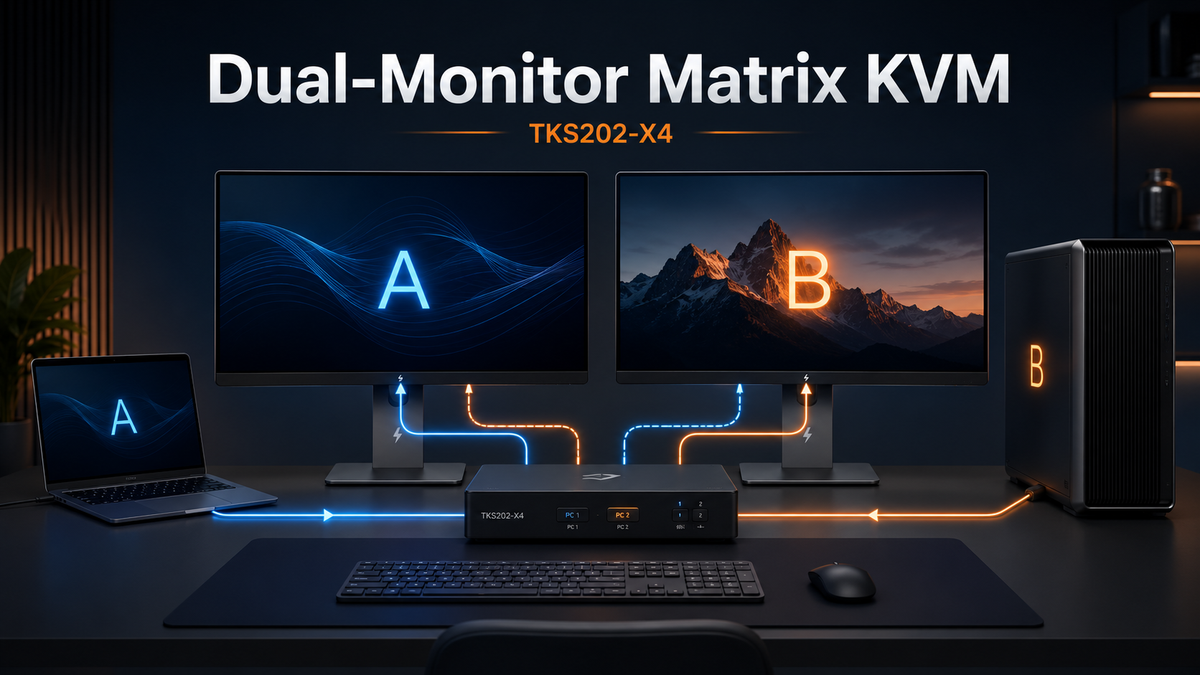
TESmart TKS202-X4 is designed for two compatible computers sharing two Thunderbolt-compatible displays and a common set of workstation peripherals.
Its main point of differentiation is not simply that it connects two displays. Its two display outputs can be assigned independently to the connected hosts.
This allows TKS202-X4 to support both conventional and matrix display modes:
- Both displays assigned to Computer A
- Both displays assigned to Computer B
- Monitor 1 assigned to Computer A and Monitor 2 assigned to Computer B
- Monitor 1 assigned to Computer B and Monitor 2 assigned to Computer A
The front panel provides separate source-selection controls for the two displays, along with a mixed-display mode control and four display-selection indicators. Host and routing functions can also be managed through keyboard hotkeys, while infrared control provides another switching method.
Control and Peripheral Management
TKS202-X4 includes dedicated keyboard and mouse connections as well as shared USB connectivity. Separating HID control from general USB devices makes it possible to change the controlled host without treating every peripheral as the same type of resource.
For higher-speed peripherals, the front panel includes USB-A and USB-C connections documented at up to 10Gbps. Rear USB-A ports are documented at up to 5Gbps and are more suitable for permanently connected devices that do not require the front high-speed ports.
The unit also integrates analog audio and microphone connections and Gigabit Ethernet. These resources help centralize the workstation, but users should still decide which computer needs each resource during split-display operation.
Documented Display and Link Capabilities
| Item | Documented TKS202-X4 Information | What to Confirm for Your Setup |
|---|---|---|
| Host count | Two computer inputs | Both hosts must support the intended external-display configuration. |
| Display count | Two Thunderbolt-compatible display outputs | Confirm the exact monitor models and simultaneous display mode. |
| Display routing | Independent source selection for Display A and Display B | Confirm the preferred synchronized and mixed-host workflows. |
| Link rate | Up to 40Gbps listed | Link rate alone does not guarantee a specific dual-display resolution. |
| Single-output mode | Documentation lists up to 5K at 60Hz for one output | Verify the exact display, host, cable, and dual-output combination. |
| High-refresh mode | Up to 3840 × 2160 at 160Hz, 4:4:4 is listed | Confirm whether the target mode applies to one or both outputs. |
| Front USB | USB-A and USB-C, up to 10Gbps | Use appropriate cables and test high-bandwidth devices. |
| Rear USB | Two USB-A ports, up to 5Gbps | Suitable for receivers, printers, webcams, and similar devices. |
| Network | Gigabit Ethernet | Confirm network-interface behavior after host switching. |
| Audio | Analog audio output and microphone input | Confirm whether you will use analog audio or display-integrated audio. |
Compared with a basic dual-monitor KVM, TKS202-X4 is more suitable when your priority is keeping two computers visible and assigning the displays according to the current task rather than moving the entire desk between hosts every time.
Example Setup: Two Computers and Two Thunderbolt Displays
1. Connect the Two Computers
Connect Computer A to the first host input and Computer B to the second host input using cables that support the required Thunderbolt-compatible link.
Before adding the KVM, verify that each computer supports the intended number of external displays. A port with the correct connector does not automatically guarantee dual-display support.
2. Connect the Two Displays
Connect Monitor 1 to Display Output A and Monitor 2 to Display Output B.
Use cables suitable for the required protocol, bandwidth, and distance. Avoid unnecessary docks, hubs, or adapter layers during the initial setup.
3. Connect the Keyboard, Mouse, and USB Devices
Connect the keyboard and mouse to the dedicated HID ports. Connect high-speed temporary devices, such as portable SSDs, to the appropriate front USB ports. Devices such as printers, receivers, and webcams can use the rear shared USB ports where suitable.
4. Test Synchronized Dual-Display Mode
First assign both displays to Computer A and confirm that both screens, the keyboard, mouse, and essential peripherals work correctly.
Repeat the test with both displays assigned to Computer B.
This verifies the basic dual-monitor paths before matrix routing is introduced.
5. Test Independent Display Mode
Assign Monitor 1 to Computer A and Monitor 2 to Computer B.
Confirm that both computers remain visible. Then test switching keyboard and mouse focus between the systems without changing the display assignments.
Repeat the test with the display assignments reversed.
6. Test USB and Audio Separately
Confirm which host receives each shared USB device and audio connection in every routing mode.
Do not begin with all peripherals attached. Establish stable display and keyboard operation first, then add storage, cameras, audio interfaces, and other higher-bandwidth devices one at a time.

Compatibility and Performance Notes
The KVM Cannot Override Host Display Limits
A computer that supports only one external display will not gain a second independent display merely because it is connected to a dual-monitor matrix KVM.
Verify the display limits of both hosts before choosing the switching hardware.
Verify Simultaneous Dual-Display Performance
Maximum link rate and single-output resolution do not automatically describe simultaneous dual-output performance.
Confirm the exact combination of computer, operating system, display model, resolution, refresh rate, cable, and connected peripherals. Do not assume that a documented single-output 5K mode guarantees two simultaneous 5K displays in every configuration.
Test Integrated Display Devices
Some Thunderbolt displays include cameras, microphones, speakers, USB hubs, and other internal devices.
A stable image does not prove that every integrated device is available through the switching path. Test the functions that matter to your workflow, particularly webcams, microphones, display audio, downstream USB ports, wake behavior, and charging.
Keep the Connection Path Simple
High-bandwidth display and USB links are sensitive to cable capability and additional conversion layers.
Begin with short, qualified cables and direct connections. Add docks, adapters, extension cables, and other devices only after the basic configuration works reliably.
Compatibility Is Not the Same as Certification
TKS202-X4 should be described as a KVM compatible with Thunderbolt 4 devices and designed for Thunderbolt-compatible workstation workflows.
This compatibility wording does not by itself indicate Intel Thunderbolt certification. If certification is mandatory for an enterprise deployment, confirm the current certification status in the latest TESmart product documentation before purchasing.
FAQ
Q1: What is matrix switching on a dual-monitor KVM?
Matrix switching means that each display output can select its computer source independently. With two computers and two monitors, both monitors can show Computer A, both can show Computer B, or the monitors can be divided between the two computers.
Q2: Can a normal dual-monitor KVM show two computers at the same time?
Not necessarily. Most standard dual-monitor KVMs use synchronized switching, so both monitors follow the same selected computer. Look for explicit support for independent display selection or a 2×2 display matrix.
Q3: Can Monitor 1 show Computer A while Monitor 2 shows Computer B?
Yes, when the KVM supports independent monitor switching. This configuration is often described as a split-computer display mode, mixed-host mode, or A + B matrix layout.
Q4: Which computer does the keyboard and mouse control in split mode?
The keyboard and mouse control the host currently selected for HID focus. They do not need to follow either monitor automatically. Users can keep both computers visible and move control focus between them as required.
Q5: Do USB devices have to follow the keyboard and mouse?
That depends on the KVM’s routing design and selected mode. In a flexible workstation setup, general USB devices may be switched separately from keyboard and mouse control. Always stop active file transfers before moving an external storage device to another host.
Q6: Should audio follow the active computer?
Not in every workflow. Audio may need to remain on a meeting, render, recording, or monitoring computer while keyboard and mouse focus moves to the other system. Independent audio routing is useful when the displayed, controlled, and monitored systems are not the same.
Q7: Can an HDMI or DisplayPort matrix KVM control Thunderbolt displays?
Not through a native Thunderbolt display path. Thunderbolt displays may require protocol communication for video, USB, audio, cameras, and other integrated devices. Use a KVM compatible with the required Thunderbolt display workflow rather than assuming an HDMI or DisplayPort adapter will preserve all functions.
Q8: Is TKS202-X4 suitable for two computers and two Thunderbolt displays?
TKS202-X4 is designed for two compatible host systems sharing two Thunderbolt-compatible displays. Its independent display-selection structure is suitable for users who need both synchronized dual-screen operation and split-computer display layouts.
Q9: Can both computers use two displays if one computer supports only one external monitor?
No. The KVM routes the display connections provided by the host. It cannot override the computer’s GPU or operating-system display limits.
Q10: Is a dock an alternative to a matrix KVM?
A dock expands the ports of one computer. It does not normally route two displays, keyboard, mouse, USB devices, and audio between two computers. A dock and a matrix KVM solve different problems.
Conclusion
A standard dual-monitor KVM answers one question: which computer should control the complete two-screen workstation?
A dual-monitor matrix KVM answers a more flexible question: which computer should appear on each display, and which computer should receive control of the shared peripherals?
With a 2×2 display matrix, two monitors can operate as a normal dual-screen desktop for either computer or as two independent windows into separate systems. Keyboard and mouse focus can follow the computer being actively controlled, while USB and audio resources can be assigned according to the task.
This structure is particularly useful for development, testing, rendering, livestreaming, system administration, and other workflows where one computer must remain visible while the user works on another.
For users with two compatible computers and two Thunderbolt-compatible displays, TESmart TKS202-X4 provides independent display selection alongside shared keyboard, mouse, USB, audio, and network resources. Compared with a basic dual-monitor KVM, it makes more sense when the displays need to follow the workflow rather than always following one computer as a fixed pair.
Explore TESmart TKS202-X4 for two-computer, dual-display matrix workflows.
Share:
THK401-X4-V3 Apple Studio Display KVM With Improved Audio and Camera Support
How to Share Three High-Refresh DisplayPort Monitors Across Four Computers