

Quick Answer
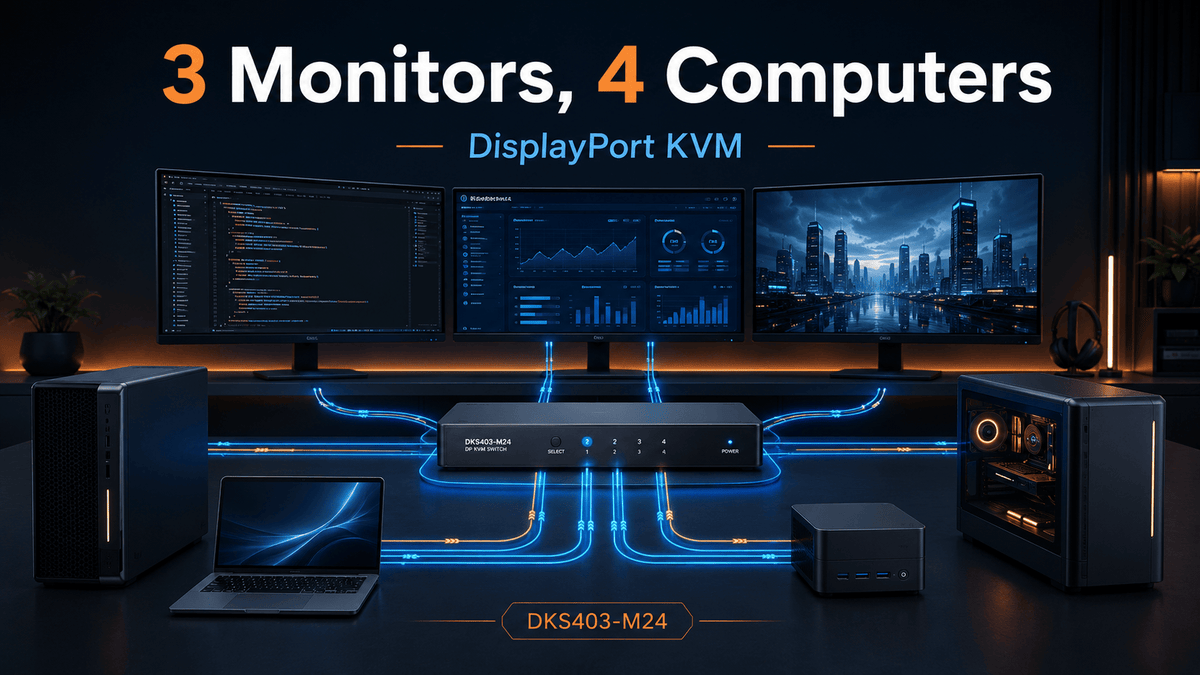
To share three high-refresh DisplayPort monitors across four computers, you need a KVM architecture with three independent video paths for each computer, three outputs to the monitors, and a coordinated USB path for the keyboard, mouse, and shared peripherals.
In most hardware-level triple-monitor DisplayPort KVM setups, each computer must provide three independent display signals. The KVM can route those signals, but it cannot create three extended displays from a computer that supplies only one video output.
Refresh rate is not determined by the KVM label alone. The working mode depends on the GPU, source ports, adapters or docks, the KVM, both cable segments, monitor inputs, resolution, color depth, HDR, VRR, EDID, and any required DSC support.
Table of Contents
- Introduction
- Why Sharing Three Monitors Across Four Computers Is Difficult
- Why Monitor Input Switching and USB Switches Are Not Enough
- Does Each Computer Need Three DisplayPort Outputs?
- Can a Triple-Monitor KVM Preserve High Refresh Rates?
- Why EDID Matters in a Four-Computer Workstation
- One PC on Three Monitors vs Different PCs on Different Monitors
- How USB and Audio Locking Improve Multi-Computer Workflows
- Compatibility Checklist Before Connecting the KVM
- Connection Structure and Setup Sequence
- Where a Four-Port Triple-Monitor DisplayPort KVM Fits
- Before You Buy
- FAQ
- Conclusion
Introduction
Sharing three high-refresh DisplayPort monitors across four computers is not simply a larger version of a two-computer KVM setup. A KVM switch for 4 computers and 3 monitors must coordinate twelve source-side video links, three monitor outputs, keyboard and mouse control, USB peripherals, audio, display identification, and switching behavior across different operating systems and graphics hardware.
The visible goal sounds simple: press one button and move the workstation from one computer to another. The technical goal is harder. Each computer must continue to recognize the three monitors correctly, each display path must carry the requested resolution and refresh rate, and the USB devices must follow—or intentionally remain with—the correct computer.
This guide explains how to share three DP monitors across multiple PCs without treating “DisplayPort 1.4,” “8K,” or “144Hz” as a complete compatibility answer. The right decision starts with the workstation architecture, then checks the entire signal chain, and only then selects a suitable triple-monitor DisplayPort KVM.
Why Sharing Three Monitors Across Four Computers Is Difficult
A single-monitor KVM manages one display identity and one video path per computer. A four-computer triple-monitor workstation manages three display identities per computer. The operating system tracks the resolution, refresh rate, scaling, orientation, desktop position, and connection state of each monitor separately.
That creates several practical complications:
- Each computer must be able to drive three external displays in the intended extended-desktop mode.
- Each display link must pass through a source cable, the KVM, and an output cable.
- Different computers may use different GPU ports, adapters, docks, drivers, and operating systems.
- High-refresh modes can fail on one display path even when the other two remain stable.
- When a computer believes a monitor has disconnected, windows and desktop icons may move.
- USB devices and audio may need to follow the active computer or remain locked to another system.
The wiring scale also matters. Four computers with three independent display outputs create twelve source-side video connections before the three monitor cables and four USB upstream connections are counted. A desk built around this architecture needs deliberate cable routing, known-good cables, and clear labels for each computer and display path.
For a deeper explanation of why this architecture differs from a basic multi-monitor setup, see our guide to a dedicated triple-monitor DisplayPort KVM.
The Surface Need and the Real Need
The surface need is “switch three screens.” The real need is to move an entire workstation state between computers without separately changing monitor inputs, reconnecting peripherals, or repeatedly rebuilding the display layout.
This distinction explains why a four-port three-monitor KVM cannot be evaluated only by maximum resolution. Its value comes from coordinating three video paths, shared control, EDID behavior, switching modes, and peripheral focus in one system.

Why Monitor Input Switching and USB Switches Are Not Enough
Switching Inputs on Three Monitors
Using each monitor’s input menu can work for occasional switching, but it requires three separate actions. The monitors may also have different button layouts, auto-input behavior, or wake times. After the video changes, the keyboard, mouse, webcam, storage, audio interface, and other USB devices still remain connected to their previous computer.
This creates a common failure state: the screens show one computer while the keyboard and mouse control another. It also makes it difficult to switch all three displays at the same moment.
A USB Switch Solves Only Peripheral Sharing
A USB switch can let one keyboard, mouse, or USB hub move between computers. It does not route DisplayPort signals, maintain monitor identities, control resolution negotiation, or coordinate three display outputs.
A USB switch is appropriate when each computer already has its own monitor arrangement and only the peripherals need to be shared. It is not a replacement for a 4 port triple monitor KVM switch when the displays must move between computers as part of the same action.

A Dual-Monitor KVM Leaves the Third Display Outside the System
A dual-monitor KVM can switch two screens, but the third monitor must be connected and switched separately. That may be acceptable when the third display is permanently assigned to one system. It is not a complete solution when all three displays need to follow the selected computer or when each display needs flexible source assignment.
| Method | What It Solves | What Remains Unsolved | When It Makes Sense |
|---|---|---|---|
| Monitor input switching | Changes the video source on each monitor | Requires three separate actions and does not switch USB, keyboard, mouse, or audio | Rare switching or one permanently assigned screen |
| USB switch | Shares keyboard, mouse, and selected USB devices | Does not switch or stabilize the three-monitor display layout | Computers keep separate monitors |
| Dual-monitor KVM | Coordinates two displays and shared controls | Leaves the third monitor on a separate path | The third display never needs to follow the KVM |
| Hardware-level triple-monitor KVM | Coordinates three display paths, keyboard, mouse, and shared peripherals | Still depends on source output capability and the complete display chain | Four-computer triple-monitor workstations |
Does Each Computer Need Three DisplayPort Outputs?
In most hardware-level triple-monitor DisplayPort KVM systems, yes: each computer needs three independent video outputs connected to the KVM. One output feeds each monitor path.
This is not MST splitting inside the KVM. The KVM is switching three separate DisplayPort links. It does not take one DisplayPort signal and generate three independent extended desktops for a computer that cannot already produce them.
Important: Three physical connectors do not automatically mean that a computer can drive three external displays at the requested modes. Confirm the GPU’s active-display limit, the capabilities of the exact ports being used, and any operating-system or laptop-model restrictions.
Desktop PCs and Professional Workstations
A desktop GPU with three available DisplayPort outputs is usually the simplest source. Confirm that the GPU can drive all three displays simultaneously at the intended resolution, refresh rate, color depth, and HDR setting. Also confirm that the outputs are active together rather than shared with another onboard or add-in connection.
Laptops with USB-C or Thunderbolt-Compatible Ports
Many laptops do not have three full-size DisplayPort connectors. A laptop may need USB-C-to-DisplayPort cables, adapters, or a dock to produce the required inputs for the KVM. Those devices become part of the display chain and can limit resolution, refresh rate, DSC, or the number of independent displays.
A USB-C connector is not enough by itself. The port must support an appropriate display output mode, and the laptop must support the required number of external displays. A computer with a Thunderbolt-compatible port may still need a dock or adapters, but the DKS403-M24 should not be described as a Thunderbolt KVM, a USB-C KVM, or a single-cable triple-display dock.
Mac-Specific Output Limits
Most Mac computers do not provide native full-size DisplayPort outputs, so USB-C-to-DisplayPort conversion is usually required for a DisplayPort-input KVM. The exact number of external displays depends on the Mac model and chip configuration. Some Macs cannot provide three independent external displays, even when a dock has several physical outputs.
macOS also handles MST differently from Windows. A dock that creates three independent extended displays on a Windows PC may not provide the same result on a Mac unless it uses a different architecture, such as driver-based display expansion. Verify the exact Mac model, operating system version, dock architecture, and external-display limit before purchasing.

Can a Triple-Monitor KVM Preserve High Refresh Rates?
It can preserve a documented high-refresh mode only when every component in the path supports and correctly negotiates that mode. “DP 1.4” describes an interface generation, but it does not guarantee every combination of resolution, refresh rate, color depth, HDR, and variable refresh rate.
The complete path is:
GPU output
  → source DisplayPort cable
  → USB-C-to-DisplayPort adapter or dock, if used
  → triple-monitor DisplayPort KVM
  → output DisplayPort cable
  → monitor input
  → monitor OSD and operating-system display settings
The final result is controlled by the weakest or least compatible part of that path. A monitor may run at 165Hz when connected directly but fall back to 60Hz through the KVM chain because one cable, adapter, port, or display setting cannot carry or advertise the requested mode.
When troubleshooting this symptom, use the same GPU port, monitor input, resolution, and color settings in a direct-connection test. Our guide on why a KVM may only show 60Hz provides a step-by-step method for isolating the limiting component.
Resolution, Refresh Rate, and Color Depth
Higher resolution increases the number of pixels in each frame. Higher refresh rate sends more frames each second. Higher color depth sends more information for each pixel. Enabling HDR commonly increases the color-depth requirement, while RGB or 4:4:4 color can require more bandwidth than reduced-chroma formats.
This is why “4K support” does not automatically mean “4K at 144Hz with 10-bit HDR and full RGB.” The exact mode must fit within the capabilities of the full chain.
DSC
Display Stream Compression can make some high-resolution, high-refresh-rate modes possible when uncompressed transport would exceed the available link capacity. A DSC-dependent mode works only when the GPU output, adapters or dock, KVM path, and monitor can preserve the required behavior.
Do not assume that a mode will work merely because both the GPU and monitor list DSC. An adapter or switching stage in the middle can still become the limiting component.
G-Sync, FreeSync, and Other VRR Modes
Variable refresh rate features depend on compatible GPU output, monitor input, drivers, operating-system settings, and pass-through behavior across the KVM chain. If a monitor works at a fixed 144Hz but flickers when G-Sync or FreeSync is enabled, test the same resolution and refresh rate with VRR disabled. That separates a basic bandwidth problem from a VRR negotiation problem.
How to Read the Product’s Display Specification
For a high-refresh triple-monitor KVM, the safe wording is that it supports documented display modes up to the modes listed by the manufacturer. That statement is not a promise that all three monitors will run their highest advertised mode simultaneously in every configuration.
Before buying, write down the exact target for each monitor, including resolution, refresh rate, color depth, HDR state, and VRR state. A mixed setup such as one 4K high-refresh monitor plus two lower-bandwidth monitors may be easier to validate than three identical displays running the most demanding mode.
Why EDID Matters in a Four-Computer Workstation
EDID is the display information a monitor presents to a computer. It tells the GPU which resolutions, refresh rates, timing modes, and other display capabilities are available.
In a direct connection, the computer reads this information from the monitor. In a KVM setup, the computer must receive consistent display information through the switching hardware. If that information disappears or changes during switching, the operating system may treat a monitor as disconnected or replaced.
What the User Sees When EDID Is Unstable
- Windows and application panels move to another monitor.
- Desktop icons are rearranged.
- The system falls back to a lower resolution or refresh rate.
- A display wakes slowly or remains black after switching.
- Monitor order or orientation changes.
- A full-screen application reopens on the wrong display.
An EDID emulator helps keep the connected displays visible to the source computer during switching. This can reduce display re-detection and preserve a more consistent desktop layout. It does not override a GPU limit, repair a weak cable, or make an unsupported display mode valid.
For a more detailed explanation, read how EDID affects DP KVM switching.
EDID with Three Different Monitors
Mixed monitor models require extra care. One display may support 4K at a high refresh rate, another may be limited to 1440p, and the third may use a different color depth or orientation. Configure each path deliberately rather than assuming one common display mode will be correct for all three.
After initial setup, verify each monitor’s identity, resolution, refresh rate, scaling, and physical position in every operating system used on the workstation.

One PC on Three Monitors vs Different PCs on Different Monitors
A four-computer three-monitor KVM can support two distinct workstation patterns. Choosing between them changes how the desk is used.
One Computer Across All Three Monitors
In this mode, all three displays show the same selected computer in an extended or duplicated arrangement supported by that computer. This is the standard choice for development, editing, engineering, financial analysis, and other work that needs a large unified desktop.
All three display paths switch together, and the keyboard and mouse control the computer shown across the workstation. This mode reduces the risk of controlling the wrong system because the display and input focus remain aligned.
Different Computers on Different Monitors
In a mixed-source layout, each monitor can show a different computer. For example:
Monitor 1 → Development workstation
Monitor 2 → Test system
Monitor 3 → Monitoring or communication PC

Keyboard and mouse → Selected control target
USB and audio → Follow the selected target or remain locked, depending on the workflow
This layout is useful for test labs, control desks, system monitoring, financial workflows, and IT operations where several systems must remain visible at once. It is also useful during a migration or software validation process when the operator needs to compare outputs from different machines.
The tradeoff is cognitive and operational complexity. Users need to understand which computer currently receives keyboard, mouse, USB, and audio focus. Clear naming, consistent switching habits, and visible source indicators become more important.

How USB and Audio Locking Improve Multi-Computer Workflows
In a basic KVM, video, keyboard, mouse, USB, and audio all follow the selected computer. That behavior is convenient for ordinary switching, but some professional workflows need one resource to remain attached to a different system.
Independent USB and audio locking allows the display selection to change without automatically moving every peripheral or audio path.
Meetings and Communication
A webcam, microphone, or conference speaker can remain connected to the meeting computer while the displays switch to a development or presentation system. This prevents a call from losing its active USB devices when the operator checks another computer.
File Transfer and External Storage
An external drive can remain attached to the computer performing a transfer while the displays move to another machine. The user should still avoid switching or disconnecting storage during active writes, and high-bandwidth devices should be tested for stability through the shared USB path.
Monitoring and Alert Audio
Audio can remain with a monitoring computer so alarms, communications, or playback continue while the screens display another system. This is useful in IT operations, production control, and multi-system test environments.
Development and Hardware Testing
A USB programming interface, license key, or test instrument can remain attached to a designated workstation while the operator uses the same monitors for another computer. This reduces unnecessary reconnection, but specialized USB devices should be validated because some depend on low-level drivers, timing, or direct host access.

Compatibility Checklist Before Connecting the KVM
Use this table to validate the complete multi-computer triple-monitor setup before installation.
| Component | What to Confirm | Common Failure if Missed |
|---|---|---|
| Computer and GPU | Each computer can drive three independent external displays at the intended modes | Only one or two monitors work, or the system duplicates instead of extending |
| Source ports | The exact GPU or laptop ports support the required resolution, refresh rate, color depth, and display count | One computer is limited to 60Hz or fewer displays |
| USB-C adapters or dock | Each output is independent and supports the target DisplayPort mode; Mac and Windows behavior has been checked separately | No signal, duplicated displays, lower refresh rate, or unstable reconnection |
| Source cables | All twelve computer-to-KVM cables are appropriate for the intended mode and kept within reasonable length | Flicker, intermittent black screens, or high-refresh failure on one path |
| KVM display capability | The exact documented modes include the intended resolution and refresh range | The operating system exposes only a lower mode |
| Output cables | Each KVM-to-monitor cable supports the same target mode as its source-side cable | Direct connection works, but the complete KVM path fails |
| Monitor inputs | The selected DisplayPort input supports the monitor’s target refresh rate, DSC, HDR, and VRR settings | The monitor works through another input but not the selected DP input |
| Monitor OSD | High-bandwidth DisplayPort mode, adaptive sync, or DSC-related settings are enabled when required | The monitor remains capped at a lower mode |
| EDID behavior | Each display is detected consistently after repeated switching and restart tests | Window movement, icon rearrangement, resolution changes, or long black screens |
| HDR and color settings | The target color depth and format are realistic for the available bandwidth | HDR forces a lower refresh rate or causes signal loss |
| G-Sync, FreeSync, or VRR | The complete path is stable first at a fixed refresh rate, then with VRR enabled | Flicker or black screens only when adaptive sync is active |
| USB peripherals | Keyboard, mouse, webcam, storage, audio, and specialist devices work in the intended focus mode | Device reconnection, driver errors, or insufficient stability for high-bandwidth devices |
| Operating systems | Windows, Linux, and any Mac systems preserve display order and input focus after repeated switching | Different behavior on each computer despite identical monitors |
When a problem appears, simplify the chain. Test one computer and one monitor directly, use a conservative mode such as 1080p at 60Hz, remove docks and adapters where possible, then add one component at a time. This method is more reliable than replacing several parts at once.
Connection Structure and Setup Sequence
Connection Structure
Computer 1: DP 1 ─┐
            DP 2 ─┼──→ KVM input group 1
            DP 3 ─┘
            USB ─────→ KVM USB input 1

Computer 2: DP 1 ─┐
            DP 2 ─┼──→ KVM input group 2
            DP 3 ─┘
            USB ─────→ KVM USB input 2

Computer 3: DP 1 ─┐
            DP 2 ─┼──→ KVM input group 3
            DP 3 ─┘
            USB ─────→ KVM USB input 3

Computer 4: DP 1 ─┐
            DP 2 ─┼──→ KVM input group 4
            DP 3 ─┘
            USB ─────→ KVM USB input 4

KVM DP output 1 ─────→ Monitor 1
KVM DP output 2 ─────→ Monitor 2
KVM DP output 3 ─────→ Monitor 3

Keyboard / Mouse / USB devices / Audio / Ethernet
                    ↕
              Shared workstation paths
Recommended Setup Sequence
- Confirm that each computer can drive all three monitors directly or through its planned adapters and dock.
- Record the intended resolution, refresh rate, HDR, color depth, and VRR setting for each monitor.
- Label every source cable by computer and display number before connecting the KVM.
- Connect the three monitors to the KVM outputs using short, appropriate DisplayPort cables.
- Connect one computer first with its three video cables and USB upstream cable.
- Start at a conservative display mode and verify all three extended displays.
- Increase resolution and refresh rate one monitor at a time.
- Enable HDR, DSC-dependent modes, and VRR only after the fixed display modes are stable.
- Add the remaining computers one at a time and confirm display order after each addition.
- Test front-panel, hotkey, remote, and other switching methods used in the daily workflow.
- Configure USB and audio focus behavior, then test webcams, storage, audio interfaces, and specialist devices.
- Perform repeated switching, sleep/wake, reboot, and cold-start tests before final cable management.
For users still deciding between interface types, our comparison of DisplayPort vs HDMI for gaming and work explains why the monitor’s available inputs and the source GPU structure matter as much as the KVM connector.
Where a Four-Port Triple-Monitor DisplayPort KVM Fits
After the source-output and signal-chain checks are complete, the workstation can be matched to the switching hardware.
At TESmart, we designed the DKS403-M24 for users who need to manage four computers across three DisplayPort monitors while sharing one keyboard, mouse, and workstation peripheral set.
Our DKS403-M24 is intended for systems where each computer can supply the required independent DisplayPort signals. It does not create three displays from one video connection, and it is not an MST splitter, a USB-C KVM, a Thunderbolt KVM, or a single-cable laptop dock.
Display Modes and High-Refresh Positioning
The product documentation lists DisplayPort 1.4 and supports documented display modes up to 8K at 60Hz, with backward-compatible 4K at 120Hz or 144Hz modes. These figures should be used as compatibility boundaries to investigate, not as a promise that three monitors will all run the highest listed mode simultaneously in every workstation.
We recommend checking the complete display path for each monitor, especially when HDR, 10-bit color, VRR, or DSC is required.
Workstation Features That Address the Real Problem
- Four computers and three DisplayPort monitors: the switching architecture matches the physical scale of a four-PC, three-display desk.
- Unified or mixed display allocation: one computer can use all three screens, or different computers can appear on different monitors.
- EDID emulation: helps maintain display identification and reduce layout disruption during switching.
- USB 3.2 Gen 1 front-panel connectivity: supports shared USB-A and USB-C peripherals within the product’s USB path.
- Gigabit Ethernet switching: allows the four connected computers to share a wired network connection through the integrated network function.
- Independent USB and audio focus locking: allows peripherals or audio to remain with one computer while the display selection changes.
- Multiple control methods: front-panel buttons, keyboard hotkeys, IR remote control, and mouse-based switching support different desk layouts and switching habits.
- Keyboard and mouse operating modes: pass-through and legacy emulation options help users choose between advanced peripheral behavior and broad keyboard/mouse compatibility.
- Auto-scan: supports repeated source monitoring in test, oversight, and operations environments.
Who It Fits
This model is more suitable for users whose workstation already requires three persistent views and four source computers:
- Developers and QA teams: code, logs, documentation, test machines, and build status can remain visible across separate displays.
- IT operations and system administrators: production, staging, monitoring, and maintenance systems can share one console.
- Financial and data-monitoring users: charts, order tools, alerts, and communication windows can stay visible without dedicating separate keyboards and mice to each system.
- Content production teams: editing, preview, scopes, assets, rendering, and communication tools can be distributed across three screens.
- Engineering and lab users: a main workstation, test system, analysis computer, and instrument-control PC can share one desk.
- Control and monitoring desks: different computers can remain visible on separate monitors while one operator controls the selected system.
Who It Does Not Fit
The DKS403-M24 is not the right match for every multi-device desk. A different architecture makes more sense when:
- A laptop can provide only one or two external displays.
- The source devices are primarily HDMI-only desktops or game consoles.
- The main requirement is a single USB-C cable that combines display expansion, charging, and peripherals.
- The monitors do not have appropriate DisplayPort inputs.
- Only two computers need to share the workstation.
- The third monitor is permanently assigned to one computer and does not need coordinated switching.
- The user expects the KVM to generate three extended displays from one source connection.
Before You Buy
Confirm all of the following before selecting a high refresh rate triple monitor KVM:
- Each computer supports three independent external displays.
- Each computer can provide three compatible video outputs, directly or through validated adapters or a dock.
- All three monitors have suitable DisplayPort inputs.
- You have defined the exact target mode for each monitor.
- Both cable segments on every display path support the target mode.
- Any required DSC, HDR, G-Sync, FreeSync, or other VRR behavior is supported across the complete path.
- The planned USB devices are appropriate for a switched USB environment.
- You understand whether USB and audio should follow the displays or remain locked to another computer.
- Your Mac, laptop, dock, or USB-C adapters have been checked for real three-display output capability.
- You do not need the KVM to function as a USB-C charging dock or create extra displays from one input.
FAQ
1. Can one KVM switch connect four computers to three monitors?
Yes, when the KVM is designed for four source computers and three independent display paths. Each computer must also provide the required video outputs, and the complete display chain must support the target modes.
2. Does each computer need three DisplayPort outputs?
In most hardware-level triple-monitor DisplayPort KVM setups, each computer needs three independent video signals. Native DisplayPort outputs are the simplest option, but validated USB-C-to-DisplayPort adapters or a suitable dock may also be used.
3. Can DKS403-M24 create three displays from one video connection?
No. It switches three independent DisplayPort paths. It cannot generate three extended displays from a computer that supplies only one video signal.
4. Will a KVM switch reduce my monitor refresh rate?
It can become the limiting component, but the same symptom can be caused by the GPU port, source cable, adapter, dock, output cable, monitor input, EDID, DSC, HDR, color depth, or VRR settings. Test the full path rather than judging the KVM alone.
5. Why do windows move or rearrange after switching computers?
The operating system may believe that one or more monitors disconnected or changed identity. EDID behavior, hot-plug detection, drivers, adapters, and operating-system display handling can all affect this. EDID emulation can reduce the problem but cannot remove every source-side variable.
6. Can different computers appear on different monitors?
Yes. The DKS403-M24 supports a mixed display arrangement in which different monitors show different computers, as well as a mode where one computer uses all three monitors. Users should keep track of the active keyboard, mouse, USB, and audio focus.
7. Can USB devices or audio stay connected to one PC while the displays switch?
Yes. Independent USB and audio focus locking can keep those resources assigned to one computer while the display selection changes. Validate specialized or high-bandwidth USB devices in the intended workflow.
8. Can a laptop with USB-C or Thunderbolt connect to this DisplayPort KVM?
It may connect through suitable USB-C-to-DisplayPort cables, adapters, or a dock, provided the laptop can output three independent displays. The adapters and dock become part of the compatibility chain and may limit display count or high-refresh modes.
9. Is DKS403-M24 a Thunderbolt or USB-C KVM?
No. It is a triple-monitor DisplayPort KVM. It should not be described as a Thunderbolt KVM, a USB-C KVM, or a single-cable triple-display docking solution.
10. What should I check before buying a triple-monitor KVM?
Confirm the number of computers and monitors, three-display output capability on every computer, source and monitor port types, exact resolution and refresh-rate targets, both cable segments, adapters or docks, EDID behavior, DSC or VRR requirements, USB devices, and operating-system limits.
Conclusion
Sharing three high-refresh DisplayPort monitors across four computers requires more than matching a KVM’s headline resolution to a monitor’s specification. The workstation must provide three independent display signals from each computer, preserve those signals through two cable segments and any adapters, maintain stable EDID information, and coordinate keyboard, mouse, USB, audio, and network access.
Start by validating each computer’s real external-display capability. Then define the exact display mode for each monitor and test the complete signal path. Only after those checks should you select a 4 PC 3 monitor KVM switch.
For users whose systems already meet those requirements, the TESmart DKS403-M24 provides a hardware-level four-computer, three-monitor DisplayPort structure with EDID, flexible display allocation, shared USB, Gigabit Ethernet, and independent USB and audio focus control.
Before purchasing, confirm your computer outputs, monitor inputs, adapters, cable plan, and target display modes. Then review the TESmart DKS403-M24 product page to compare the documented capabilities with your complete workstation path.
Share:
What Is Matrix Switching on a Dual-Monitor KVM? How to Control Two Computers and Two Thunderbolt Displays
How to Share Two DisplayPort Monitors Across Four Computers: A 4x2 KVM Setup Guide