

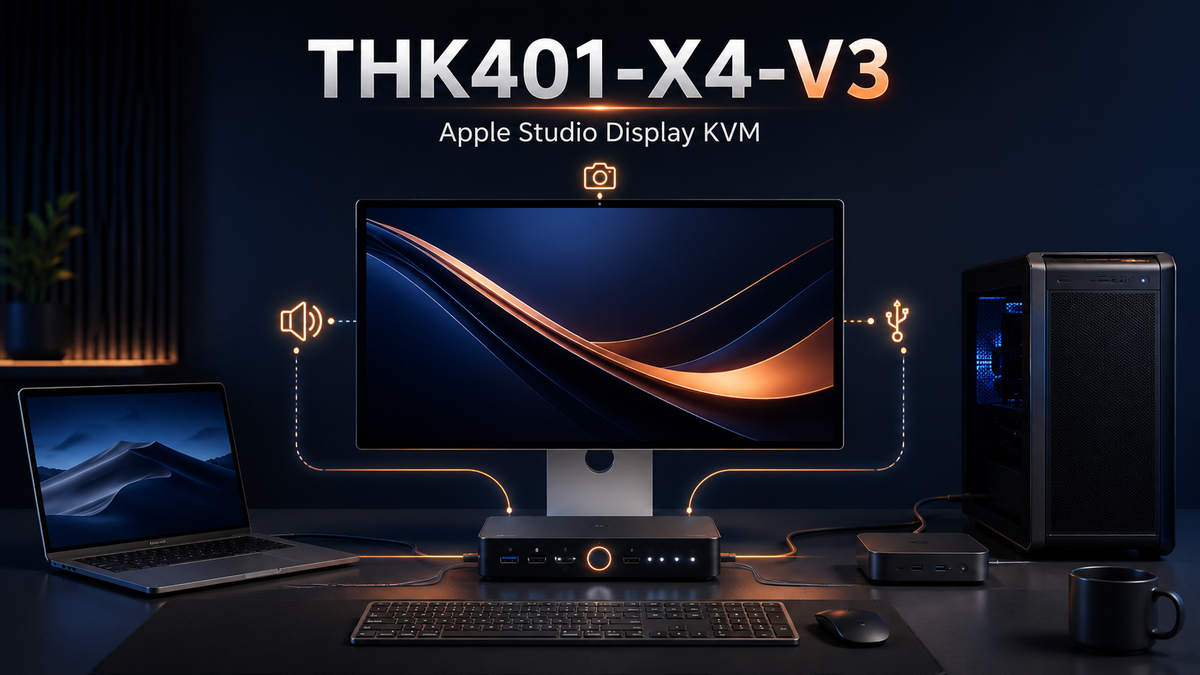
Use one Apple Studio Display across Mac, Windows PC, and HDMI source workflows without repeatedly reconnecting the display and shared USB devices.
The updated THK401-X4-V3 production version improves Apple Studio Display speaker support on Input 2, Input 3, and Input 4. It also improves access to the display’s built-in camera through Input 1 and Input 2 when the required video and USB data connections are in place.
Designed for mixed-device desks, the THK401-X4-V3 helps users switch the display, keyboard, mouse, compatible USB peripherals, audio, and camera-related data paths from one workstation.
Table of Contents
- Introduction
- Who Is THK401-X4-V3 For?
- What Problems Does THK401-X4-V3 Solve?
- What Is Improved in THK401-X4-V3?
- Why Audio and Camera Support Matter on Apple Studio Display
- Why Choose THK401-X4-V3?
- How to Connect and Use THK401-X4-V3
- Typical Setup Examples
- V3 and Certain Earlier Units: Functional Differences
- Important Compatibility Notes
- FAQ
- Choose the Correct THK401-X4 Version
Introduction
Sharing an Apple Studio Display between several computers is not the same as switching a conventional HDMI monitor. A standard display may only need a video signal and an audio channel. Apple Studio Display also contains speakers, a camera, microphones, and a USB-C hub, all of which depend on the correct data path between the active computer and the display.
This distinction explains a common source of confusion: a computer may produce a visible image on Apple Studio Display while the speakers, camera, or USB devices remain unavailable.
A visible image is only one part of the Apple Studio Display experience. Audio, camera, and USB functions depend on the complete data path.
The TESmart THK401-X4 was developed for users who need to share Apple Studio Display across a mixed collection of devices. This may include a MacBook, Mac Studio, Windows workstation, or an HDMI source that would not normally connect directly to the display.
For the updated THK401-X4-V3 production version, we revised audio routing and USB data handling for several input paths. These changes are intended to provide more consistent access to Apple Studio Display speakers and its built-in camera when the host, cables, operating system, and required data connections support those functions.

Who Is THK401-X4-V3 For?
THK401-X4-V3 is intended for users whose workstation includes Apple Studio Display but is not limited to one computer or one operating system.
Mac Users With Multiple Computers
A user may keep a Mac Studio connected at the desk while bringing a MacBook into the same workspace. Both computers may need access to the same display, keyboard, mouse, external storage, webcam applications, and audio output.
Instead of moving the Apple Studio Display cable between computers, the KVM provides a central switching point. This is especially useful for developers, designers, video editors, and other users who regularly move between a desktop Mac and a portable Mac.
Mac and Windows Workstations
Many professional applications, testing environments, and corporate systems require both macOS and Windows. THK401-X4-V3 is suitable for users who want to share Apple Studio Display between a Mac and Windows PC while also switching compatible USB peripherals.
The Windows computer still needs a compatible video path and the required USB data connection. The presence of an image alone does not confirm that the computer can access the display’s camera, USB hub, or every integrated feature.
Users Connecting an HDMI Source to Apple Studio Display
Apple Studio Display does not provide a conventional HDMI input. This creates a practical problem for users who want to include an HDMI desktop, laptop, media source, or other compatible HDMI device in the same workspace.
THK401-X4-V3 is designed to help integrate selected HDMI sources into an Apple Studio Display workflow. The HDMI signal provides the video and audio source, while separate USB data connections may be required for keyboard, mouse, camera, or other USB functions.
Video Conferencing and Remote Work Users
The V3 production update is particularly relevant to users who rely on the Apple Studio Display camera and speakers for video meetings, remote work, online teaching, or client communication.
These users need more than display switching. They need the active computer to detect the correct audio device, receive the required USB camera data, and obtain permission from the operating system and conferencing application.
Creators, Streamers, and Production Workstations
Content creators may use one computer for editing, another for rendering or encoding, and a third source for preview or capture-related tasks. A shared Apple Studio Display workspace reduces duplicated peripherals and avoids repeatedly reconnecting sensitive USB-C and display cables.
THK401-X4-V3 is more suitable for these environments than a basic video-only switch because it is designed around the relationship between display output, USB data, audio routing, and integrated Studio Display devices.

What Problems Does THK401-X4-V3 Solve?
The main purpose of THK401-X4-V3 is to make Apple Studio Display practical in a multi-device environment. It addresses several problems that cannot be solved by a simple HDMI switch or by moving one cable between computers.
Sharing One Apple Studio Display Across Multiple Devices
Without a suitable switching workflow, users must disconnect Apple Studio Display from one computer and reconnect it to another. They may also need to move the keyboard, mouse, storage devices, or other USB peripherals separately.
THK401-X4-V3 creates a central point for selecting the active source and sharing compatible workstation devices.
Audio Missing or Limited on Selected Inputs
Depending on the sales channel and production batch, certain earlier units may provide limited audio behavior when Input 2, Input 3, or Input 4 is selected. Some listed units may produce mono audio through these paths, while others may not produce audio through the Apple Studio Display speakers.
The updated V3 production version uses revised audio routing to improve speaker and audio output support on Input 2, Input 3, and Input 4.
This update is useful for users who want the Studio Display speakers to remain part of the workstation instead of connecting a separate speaker system whenever they change computers.
Apple Studio Display Camera Not Appearing
In certain earlier configurations, the Apple Studio Display camera may not be accessible through Input 1 or Input 2. THK401-X4-V3 improves camera-related USB data handling for these input paths.
Camera availability still depends on the complete connection. The active host must have the required USB data path, the operating system must detect the camera, and the conferencing or recording application must have permission to use it.
Switching Between Mac, Windows, and HDMI Sources
A mixed desktop introduces different connection requirements. A MacBook may use a USB-C or Thunderbolt-compatible connection. A Windows workstation may use HDMI plus USB. Another source may provide video without a suitable upstream USB data channel.
THK401-X4-V3 is designed to organize these different paths within one Apple Studio Display workstation. It does not make every source technically identical, but it gives users a structured way to connect and switch them.
Repeated Cable Reconnection
Frequent cable swapping creates several practical problems:
- USB-C, HDMI, and computer ports receive additional physical wear.
- Cables accumulate around the front or side of the desk.
- The operating system repeatedly redetects the display and USB devices.
- Audio output and camera permissions may need to be checked again.
- Users may connect the correct video cable but forget the required USB data connection.
A fixed KVM installation keeps the host cables connected and allows routine switching without rebuilding the workstation each time.

What Is Improved in THK401-X4-V3?
Our V3 production update focuses on more complete use of Apple Studio Display through the affected input paths. The changes are not limited to whether a picture appears. They address how audio and USB camera data move through the switching system.
| Function | Affected Inputs in Some Earlier Units | THK401-X4-V3 Improvement |
|---|---|---|
| Studio Display audio | Input 2, Input 3, Input 4 | Improved speaker and audio output support |
| Stereo audio | Input 2, Input 3, Input 4 | Addresses the mono-only limitation found in some units |
| Audio availability | Input 2, Input 3, Input 4 | Addresses the no-audio condition found in some units |
| Studio Display camera | Input 1, Input 2 | Improved access to the built-in camera through revised USB data handling |
| Multi-device workflow | Mixed Mac, Windows PC, and HDMI sources | More complete coordination of display, audio, and compatible USB switching |
Not every earlier THK401-X4 unit has the same behavior. The exact limitation may depend on the sales channel, production batch, and hardware version. The V3 designation is therefore important when audio and camera access are central to the intended setup.
Updated Audio Routing
We updated the THK401-X4-V3 audio routing for Input 2, Input 3, and Input 4. The goal is to allow these paths to use Apple Studio Display speakers without the mono-only or no-audio behavior identified in certain earlier units.
After switching, the operating system may still retain another output device, such as internal laptop speakers, a headset, or an audio interface. Users should confirm that Apple Studio Display or the corresponding USB audio device is selected in the system sound settings.
Enhanced Camera Access
The V3 production version improves access to the Apple Studio Display built-in camera through Input 1 and Input 2.
This improvement depends on the USB data path. A video signal cannot transport camera data by itself. The computer must be connected according to the input diagram, including the upstream USB connection required for camera and peripheral communication.
Revised USB Data Handling
Apple Studio Display behaves partly like a monitor and partly like a USB device. Revised USB data handling helps the selected computer communicate with integrated display devices and compatible peripherals.
After switching, the operating system may need several seconds to enumerate the camera, audio device, keyboard, mouse, and other USB hardware. This recognition period is normal and may vary by computer and operating system.

Why Audio and Camera Support Matter on Apple Studio Display
An Apple Studio Display KVM must manage more than a video signal. Understanding the separate paths helps users diagnose situations in which the screen works but another feature does not.
The Video Path
The video path carries the image generated by the active computer. When this path is working, Apple Studio Display can show the desktop, application, or source image.
A successful video connection confirms only that the display is receiving a compatible image signal. It does not prove that the computer has a USB data connection to the display.
The Audio Path
The Studio Display speakers require the correct audio routing and an audio format that the active connection can carry. The computer must also select the correct audio output device.
If an image appears but the speakers remain silent, users should check both the physical signal path and the operating system’s sound output selection.
The Camera and USB Data Path
The built-in camera functions as a USB data device. The same principle applies to the display’s USB hub and other integrated functions.
An HDMI connection normally provides video and audio, but it does not independently provide the upstream USB data required by the Apple Studio Display camera. An HDMI source therefore needs a corresponding USB data path when camera or shared peripheral access is expected.
Operating-System and Application Permissions
Even with the correct cables connected, macOS or Windows may prevent an application from accessing the camera or microphone until the user grants permission.
Video conferencing, streaming, browser, and recording applications may each maintain separate privacy settings. Users should confirm that the intended application is permitted to access the Apple Studio Display camera and microphone.
Recognition After Switching
When the active input changes, the newly selected computer must detect the display and its attached devices. Video, audio, camera, keyboard, mouse, and external USB devices may not appear at exactly the same moment.
Allow the system to complete device recognition before disconnecting cables or changing settings. If a device remains unavailable, verify the USB data connection first.

Why Choose THK401-X4-V3?
Designed for Apple Studio Display Workflows
THK401-X4-V3 is designed around the way Apple Studio Display combines video, audio, camera, and USB data. It is not treated simply as an HDMI monitor with a USB-C connector.
This distinction matters when users expect the speakers and camera to follow the active computer instead of using the display only as a screen.
Supports Mixed-Device Workstations
The product is intended to help share Apple Studio Display across combinations of Mac, Windows PC, and compatible HDMI sources.
This is more suitable for users who maintain several types of computers than a basic switch designed around identical HDMI-only hosts.
Improved Studio Display Speaker Support
The V3 update improves audio behavior on Input 2, Input 3, and Input 4. This allows users to keep the Apple Studio Display speakers within the shared workstation rather than assigning separate speakers to different computers.
Improved Built-In Camera Access
Input 1 and Input 2 receive enhanced camera access in the updated production version. For users who spend significant time in video meetings, this is a practical difference between switching only the screen and switching a more complete Studio Display workspace.
Keyboard, Mouse, and Compatible USB Peripheral Sharing
Users can maintain one set of workstation peripherals instead of keeping separate keyboards and mice for every computer. Depending on the device type, bandwidth requirement, and system compatibility, other USB peripherals can also follow the selected host.
Less Manual Cable Handling
A fixed KVM setup reduces repeated disconnection of the Apple Studio Display cable and host cables. This helps preserve a consistent connection layout and reduces the chance of omitting a required USB data cable during daily switching.
Designed for Multi-Computer Workstations
TESmart develops switching products for desks that combine multiple computers, displays, operating systems, and USB devices. THK401-X4-V3 applies that workstation experience to Apple Studio Display use cases where ordinary video switching is not enough.

How to Connect and Use THK401-X4-V3
Follow the connection diagram supplied with the product for the exact port assignment. The following process explains the role of each connection and the checks required after installation.
Step 1: Connect Apple Studio Display
Connect Apple Studio Display to the designated monitor output on THK401-X4-V3. Use a suitable cable that supports the required video and data path.
A cable that physically fits the port is not automatically suitable. Cable capability and condition can affect display detection, audio, camera access, and USB communication.
Step 2: Connect Each Computer or Video Source
Connect the Mac, Windows PC, or HDMI source to the corresponding THK401-X4-V3 input.
Use the connection method assigned to that input. Do not assume that every input uses the same combination of video and USB cables.
Step 3: Connect the Required USB Data Cables
For any computer that needs access to the Apple Studio Display camera, keyboard, mouse, or other USB functions, connect the corresponding upstream USB data cable.
This step is essential. An HDMI video cable by itself normally does not provide the camera and peripheral data path.
Step 4: Connect Shared USB Peripherals
Connect the keyboard, mouse, and other compatible shared USB devices to the designated console or peripheral ports.
Devices with high bandwidth requirements, unusual drivers, or strict timing behavior may respond differently from basic keyboards and mice. Test specialized hardware in the final connection layout before relying on it for production work.
Step 5: Select the Audio Output Device
On each host computer, open the system audio settings and select Apple Studio Display or the corresponding USB audio device as the output.
Check this setting separately on every computer. An operating system may continue using its internal speakers or a previously selected headset after the KVM input changes.
Step 6: Grant Camera Permissions
On the Mac or compatible Windows computer that will use the built-in camera, open the operating system privacy settings and allow the required applications to access the camera and microphone.
Also check permissions inside the video conferencing, browser, streaming, or recording software.
Step 7: Select the Active Input
Use the front-panel control, remote control, or another switching method supported by the product to select the required input.
Avoid making several rapid input changes while the computer is still detecting the display and USB devices.
Step 8: Allow Device Recognition to Complete
After the first switch, allow time for the operating system to recognize the display, audio device, camera, keyboard, mouse, and connected USB peripherals.
Initial detection may take longer than later switches because the computer is registering the hardware for the first time.
Step 9: Check Missing Functions Separately
If the screen works but the audio does not, check the system sound output and the connection assigned to that input.
If the screen works but the camera does not appear, check the upstream USB data cable, camera permissions, application settings, and device detection status.
If neither video nor USB devices work, test the computer directly with the display and then rebuild the connection one section at a time.
Typical Setup Examples
MacBook + Mac Studio + Apple Studio Display
This setup is suitable for a user who carries a MacBook between locations but keeps a Mac Studio at the main desk.
Both Macs can remain connected to THK401-X4-V3. The user selects the active computer and continues using the same Studio Display, keyboard, mouse, speakers, and supported USB devices.
For camera use, verify that the active input has the required USB data connection and that camera access is enabled in macOS.
Mac Studio + Windows Workstation
Developers, engineers, and creators may use a Mac Studio for macOS work and a Windows workstation for testing, rendering, CAD, or company-specific applications.
THK401-X4-V3 helps both systems share Apple Studio Display and workstation peripherals. The Windows computer must provide a compatible video output, and camera or USB access requires the corresponding data connection.
MacBook + Windows PC + HDMI Desktop
This mixed configuration illustrates why THK401-X4-V3 is not simply a conventional display switch.
The MacBook may use a USB-C or Thunderbolt-compatible workflow, while the Windows PC or desktop may use HDMI plus an additional USB data cable. The switch organizes these different connection types around one Studio Display workspace.
Mac + PC Video Conferencing Workstation
A user may run daily meetings on a company Windows computer while using a personal or production Mac for other work.
The V3 camera and audio improvements are relevant because the Studio Display speakers and camera need to follow the active meeting computer. Users should test the selected conferencing application on each host and confirm its camera, microphone, and speaker settings.
Multi-Device Content Creation and Streaming Desk
A creator may use one Mac for editing, a Windows PC for streaming or encoding, and another HDMI source for preview or playback.
THK401-X4-V3 allows these sources to share the Studio Display and compatible peripherals. Specialized capture devices, high-bandwidth storage, and professional audio interfaces should be tested individually because their behavior depends on USB bandwidth, drivers, and system support.
V3 and Certain Earlier Units: Functional Differences
The following comparison is intended to help users understand the production update. It should not be interpreted as a statement that every earlier unit has every listed limitation.
| Area | Certain Earlier Units | Updated THK401-X4-V3 Production Version |
|---|---|---|
| Input 2 audio | May be mono or unavailable, depending on sales channel and production batch | Updated audio routing for improved Studio Display speaker output |
| Input 3 audio | May be mono or unavailable in certain units | Improved speaker and audio output support |
| Input 4 audio | May be mono or unavailable in certain units | Improved speaker and audio output support |
| Input 1 camera access | Built-in Studio Display camera may not be available in some configurations | Enhanced camera access with the required USB data path |
| Input 2 camera access | Built-in Studio Display camera may not be available in some configurations | Enhanced camera access with the required USB data path |
| Overall workflow | Display switching may work while selected audio or camera functions remain limited | Optimized for more complete display, audio, and USB device switching |
Customers who require the revised audio and camera behavior should confirm that they are purchasing the latest V3 production version. Existing inventory on different marketplaces may not transition to V3 at the same time.
Important Compatibility Notes
THK401-X4-V3 Is Not Marketed as a Thunderbolt 5 KVM
THK401-X4-V3 should not be described as a Thunderbolt 5 KVM. It is a Thunderbolt™-compatible KVM designed for Apple Studio Display workflows and mixed Mac, PC, and HDMI source switching.
No claim is made here regarding complete or certified Thunderbolt 5 functionality.
Compatibility Is Not the Same as Certification
Statements such as “Thunderbolt-compatible” describe the intended connection workflow. They should not be interpreted as confirmation of Intel Thunderbolt certification unless that certification is expressly listed in the current product documentation.
Host Interface Capability Matters
The computer must provide a compatible video output for the selected input. Camera, USB hub, keyboard, mouse, and other data functions additionally require the corresponding USB data connection.
A USB-C connector does not automatically guarantee every video, data, charging, or Thunderbolt capability.
HDMI Does Not Independently Carry Camera Data
An HDMI source can provide video and audio, but HDMI alone normally cannot provide the upstream USB data required by the Apple Studio Display camera or USB hub.
When camera or peripheral sharing is needed, connect the separate USB data path shown in the THK401-X4-V3 connection diagram.
Do Not Assume Every Input Has Identical Capabilities
The available functions depend on the design of each input path and the cables connected to it. Users should follow the port-specific connection instructions rather than moving the same cable combination between inputs.
Operating System, Drivers, and Permissions Matter
Actual results can be affected by macOS or Windows versions, USB drivers, application permissions, sleep settings, and how quickly the host re-enumerates USB devices after switching.
Cable Quality and Connection Complexity Matter
Use suitable cables and avoid unnecessary adapters, hubs, or extension layers during initial setup. Every additional conversion point creates another place where video, audio, or USB communication can fail.
Verify Required Display Modes Before Purchase
This page does not promise unverified resolution, refresh-rate, HDR, VRR, or power-delivery performance. Confirm the current product specifications and the capabilities of the host, cable, and Apple Studio Display before purchase.
Specialized USB Devices May Require Testing
Basic keyboards and mice generally have simpler USB requirements than capture devices, audio interfaces, high-speed storage, security hardware, or proprietary peripherals.
Test specialized devices in the intended workstation before using them in a critical production process.
FAQ
Q1: What is different about THK401-X4-V3?
THK401-X4-V3 includes updated audio routing for Input 2, Input 3, and Input 4, along with revised USB data handling that improves Apple Studio Display camera access through Input 1 and Input 2.
The update is intended to provide a more complete Studio Display experience when switching between Mac, Windows PC, and compatible HDMI source workflows.
Q2: Does THK401-X4-V3 address the audio issue on Input 2, Input 3, and Input 4?
Yes. The updated V3 production version improves Studio Display speaker and audio output support on these inputs.
Certain earlier units may provide mono audio or no audio on the affected paths, depending on the sales channel and production batch. Users must still select the correct output device in the operating system.
Q3: Can THK401-X4-V3 use the Apple Studio Display built-in camera?
THK401-X4-V3 improves camera access through Input 1 and Input 2. Camera operation requires the correct USB data connection, host support, operating-system detection, and application permission.
The presence of a picture does not confirm that the camera data path is connected.
Q4: Can I share Apple Studio Display between a Mac and Windows PC?
Yes, a Mac and a compatible Windows PC can be included in the same THK401-X4-V3 setup.
The Windows PC must provide the required video connection. Camera, keyboard, mouse, and USB peripheral access also require the corresponding upstream USB data connection.
Q5: Why can I see an image but cannot use the camera?
Video and camera data use different parts of the connection. The video path may be working while the USB data path is missing, connected to the wrong host, or not yet detected.
Check the USB data cable, the selected input, operating-system privacy settings, and the camera selection inside the application.
Q6: Do I need a separate USB connection for the camera and peripherals?
For host paths that use a separate video connection such as HDMI, a corresponding USB data connection is normally required for the camera, keyboard, mouse, and other USB functions.
Follow the input-specific diagram supplied with THK401-X4-V3.
Q7: Can I connect an HDMI computer or game console?
A compatible HDMI source can be integrated through the designated input path. However, an HDMI connection alone normally supplies video and audio rather than the USB data needed for the Studio Display camera and hub.
Game consoles and protected media sources may also be affected by output format, HDCP behavior, cable capability, and device-specific compatibility. Confirm the intended source before purchase.
Q8: Is THK401-X4-V3 a Thunderbolt 5 KVM?
No. THK401-X4-V3 should not be marketed or described as a Thunderbolt 5 KVM.
It is a Thunderbolt™-compatible KVM designed for Apple Studio Display workflows. No unverified Thunderbolt 5 functionality or certification is implied.
Q9: How can I confirm that I am purchasing the V3 production version?
Before ordering, check the product listing, model label, version information, or confirmation provided by the seller. Look specifically for the THK401-X4-V3 designation.
Inventory on different TESmart sales channels and marketplaces may come from different production batches. Do not assume that every listing has already transitioned to V3 unless the version is clearly confirmed.
Q10: What should I check if Apple Studio Display has no audio after switching?
First, confirm that the active input and all required cables are connected according to the THK401-X4-V3 diagram. Then open the computer’s sound settings and select Apple Studio Display or the corresponding USB audio device.
Allow the system time to detect the audio device. If audio remains unavailable, restart the application using sound, reconnect the affected host input, and test the computer directly with the display to isolate the connection.
Q11: Why does the camera take time to appear after switching?
The newly selected computer must enumerate the Apple Studio Display camera as a USB device. This may take longer than the video signal because the operating system also loads device services and applies privacy permissions.
Allow recognition to finish before changing inputs again.
Q12: Does THK401-X4-V3 guarantee every Apple Studio Display function on every computer?
No. Available functions depend on the selected input path, host interface, video output, USB data connection, cable capability, operating system, drivers, and application permissions.
THK401-X4-V3 improves audio and camera support in the specified paths, but it should not be interpreted as a guarantee that every function will operate with every computer or source.
Choose the Correct THK401-X4 Version
THK401-X4-V3 is intended for users who want to share Apple Studio Display across Mac, Windows PC, and selected HDMI sources while retaining access to more of the display’s integrated audio and camera functions.
The V3 production update is most relevant when your workflow depends on:
- Studio Display speaker output through Input 2, Input 3, or Input 4;
- Studio Display camera access through Input 1 or Input 2;
- switching between macOS and Windows computers;
- including an HDMI source in an Apple Studio Display workstation;
- sharing a keyboard, mouse, and compatible USB peripherals;
- reducing repeated USB-C, HDMI, and USB cable reconnection.
Before purchasing, confirm that the listing identifies the product as the latest THK401-X4-V3 production version. Also review the connection diagram for each intended computer so that both the video path and the required USB data path are available.
Explore TESmart THK401-X4 and confirm V3 availability for your Apple Studio Display setup.
Share:
Thunderbolt 4 vs Thunderbolt 5: Is Thunderbolt 5 Worth the Upgrade in 2026?
What Is Matrix Switching on a Dual-Monitor KVM? How to Control Two Computers and Two Thunderbolt Displays