


Fiber Extension

Max Display Output

Recommended Setup
Fiber Extension

Response Time

Video Support

OS Compatibility
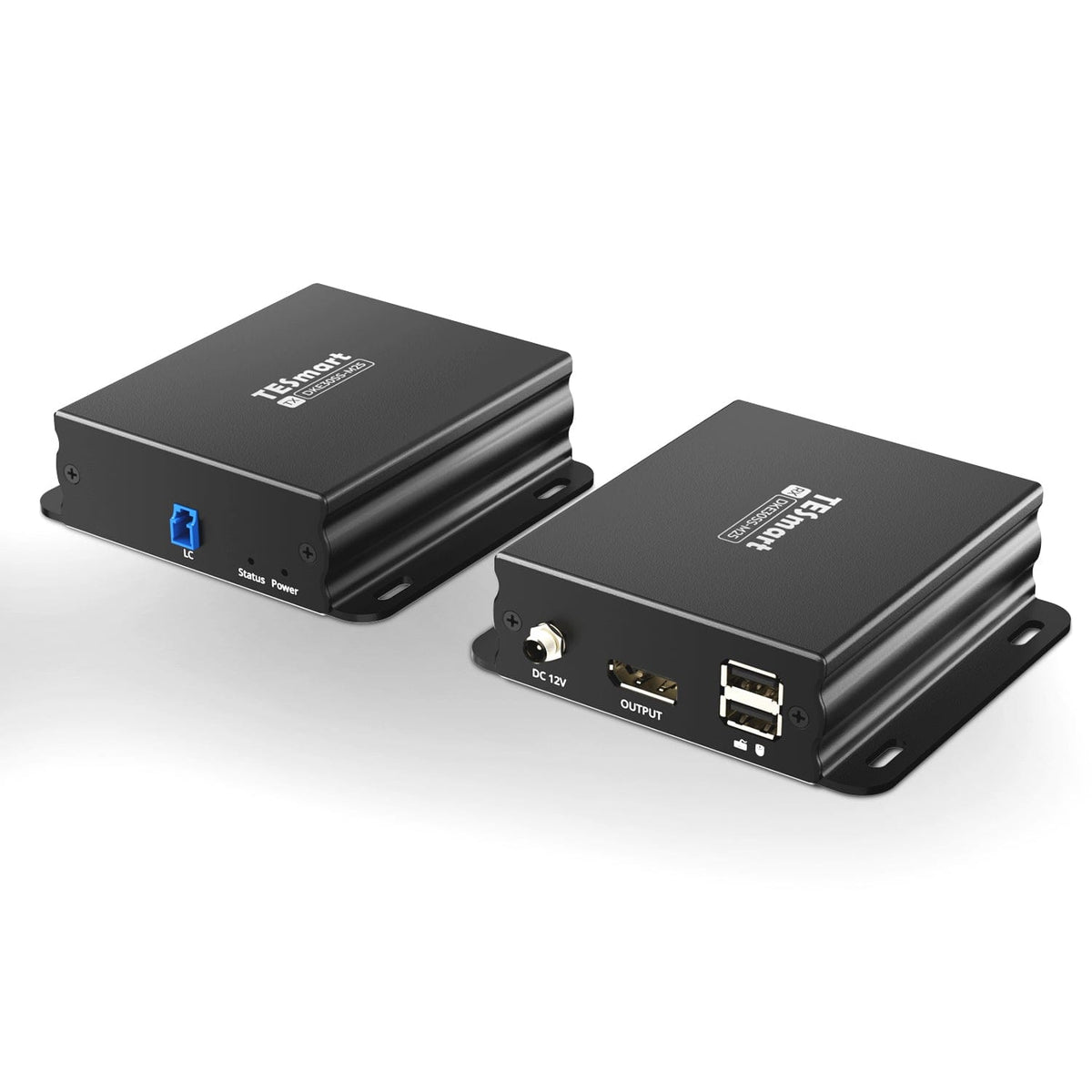
300M Fiber DP Extender 8K@60Hz / 4K@240Hz Lossless Over Optical Fiber
Extend DisplayPort video, keyboard and mouse up to 300 m over fiber, with up to 8K60/4K240 and latency below 1 ms.
Fiber Extension
Max Display Output
Recommended Setup
Fiber Extension
Response Time
Video Support
OS Compatibility
300M Fiber DP Extender 8K@60Hz / 4K@240Hz Lossless Over Optical Fiber
Why Choose DKE30SS-M25
Overview
01
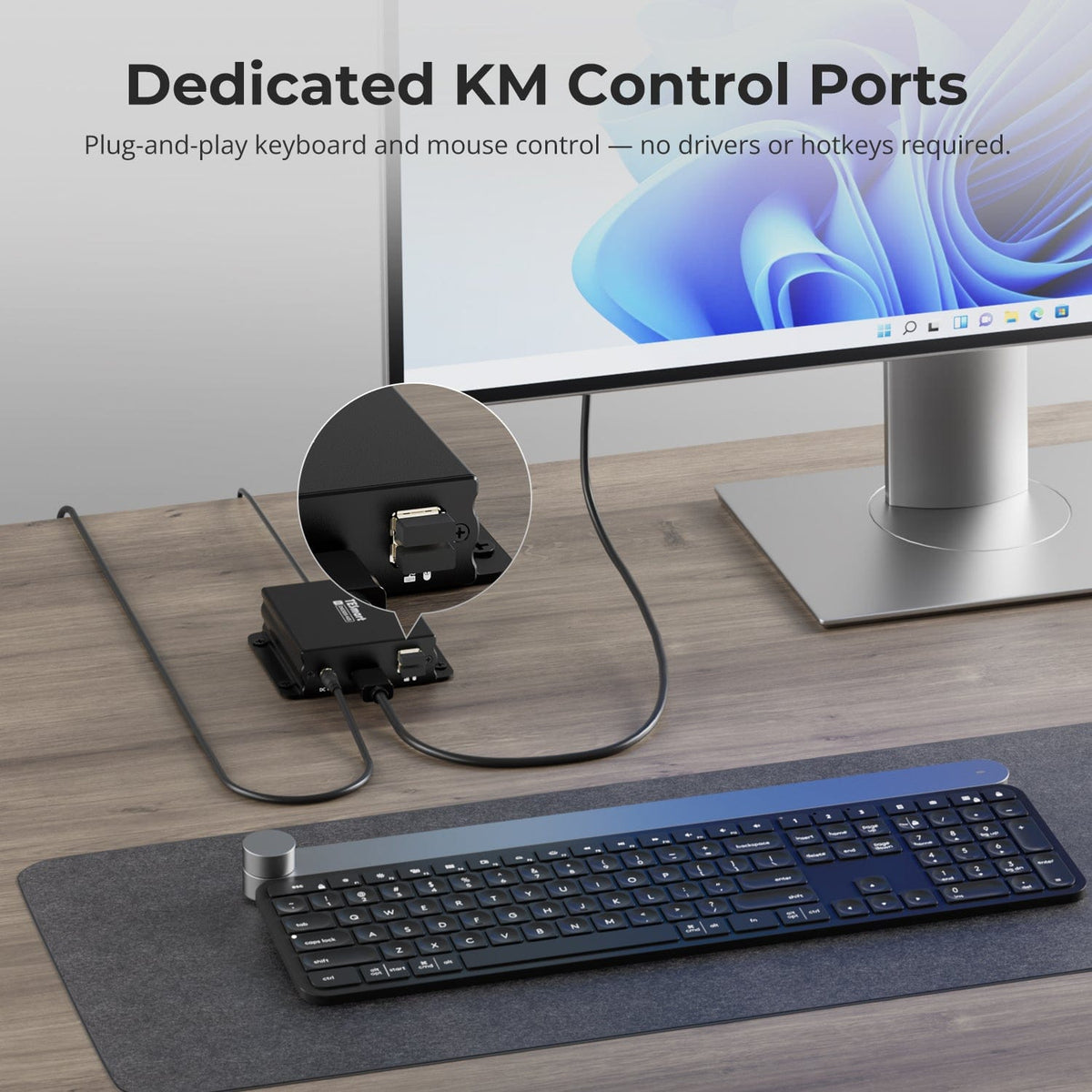
Plug-and-Play Keyboard and Mouse Control
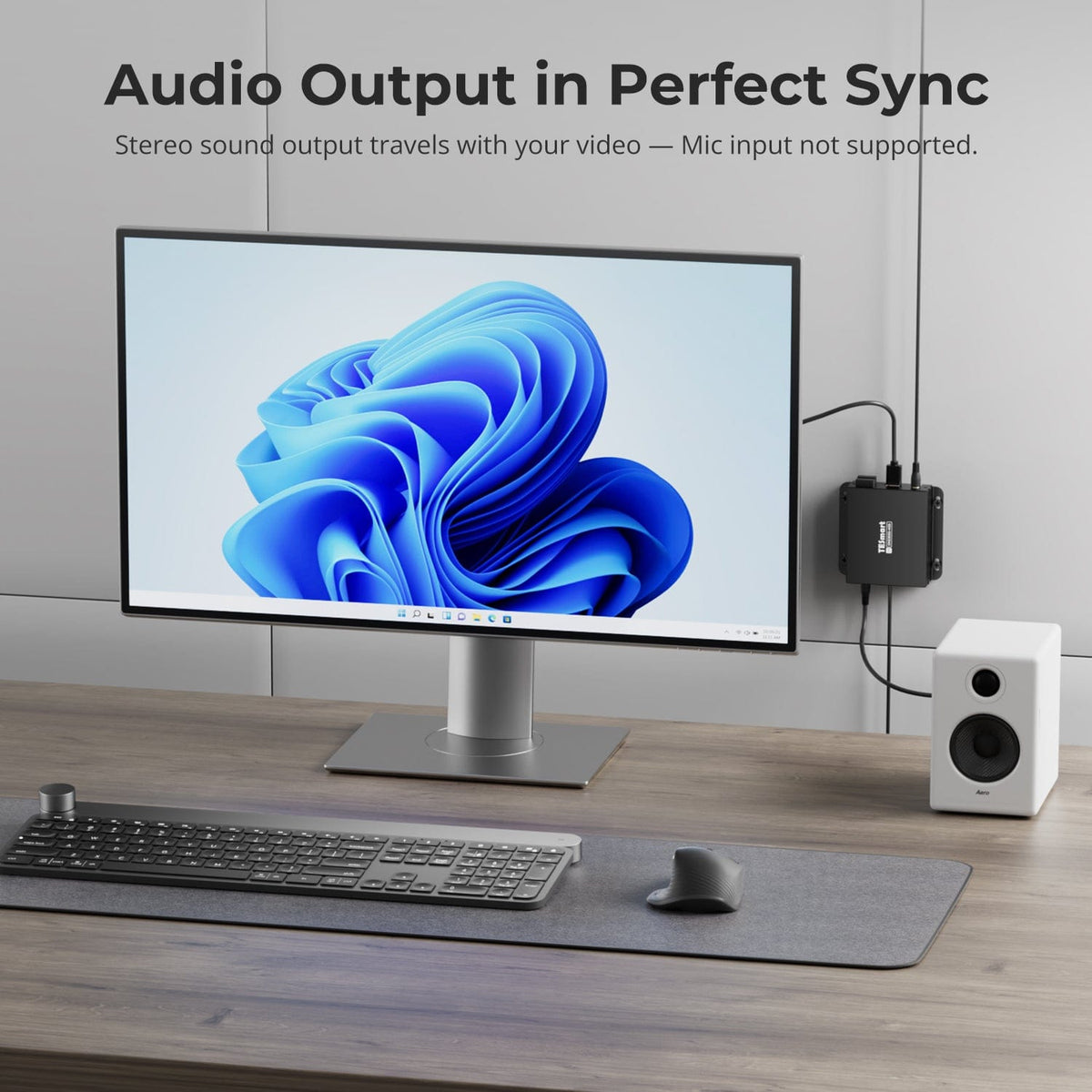
Connect your keyboard and mouse through the dedicated KM ports—no drivers or hotkeys required. Stereo audio follows the video signal; microphone input is not supported.
02
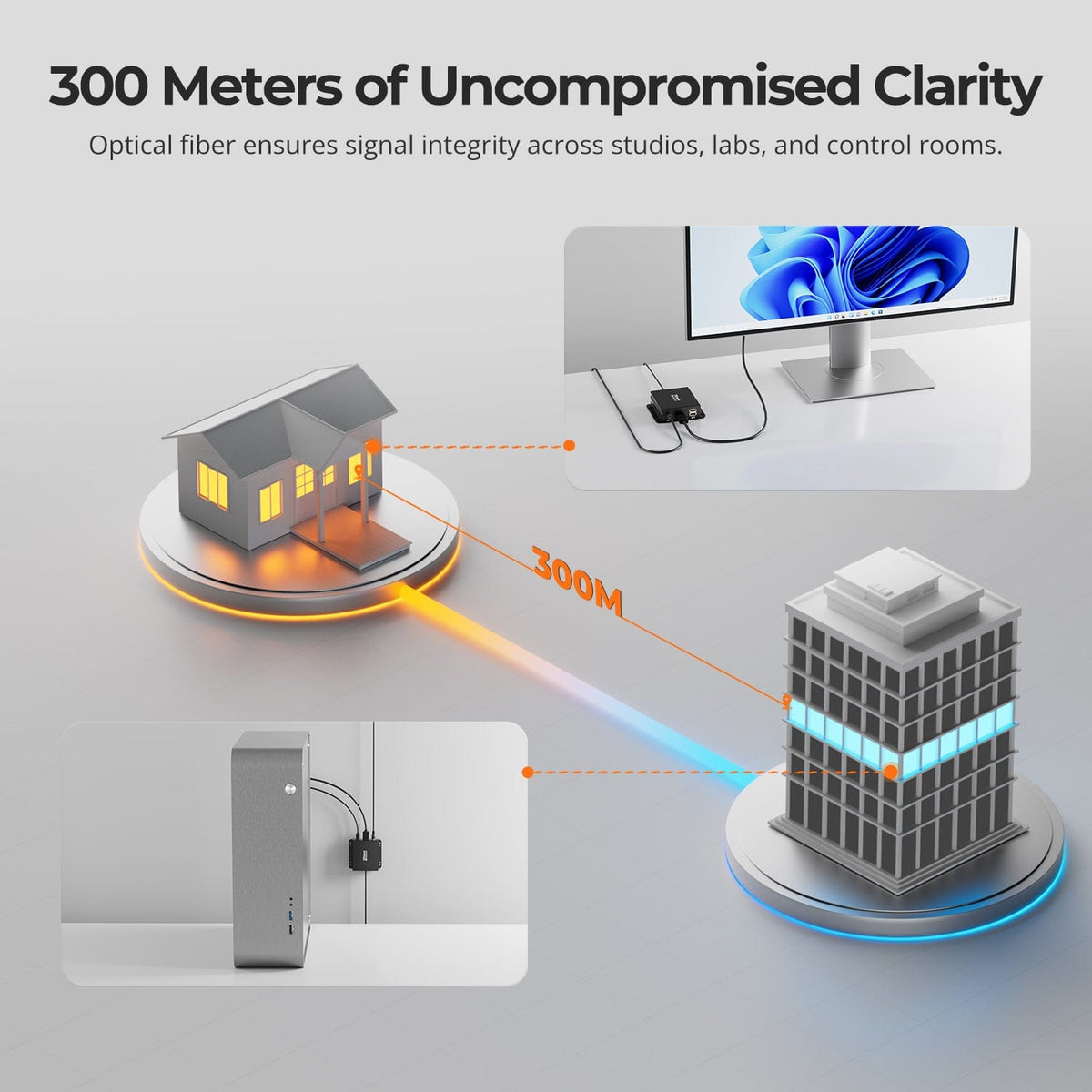
Reliable Optical Extension up to 300 m
Extend your setup across studios, labs, or control rooms with an optical fiber connection designed to maintain signal clarity over distances up to 300 m.
03
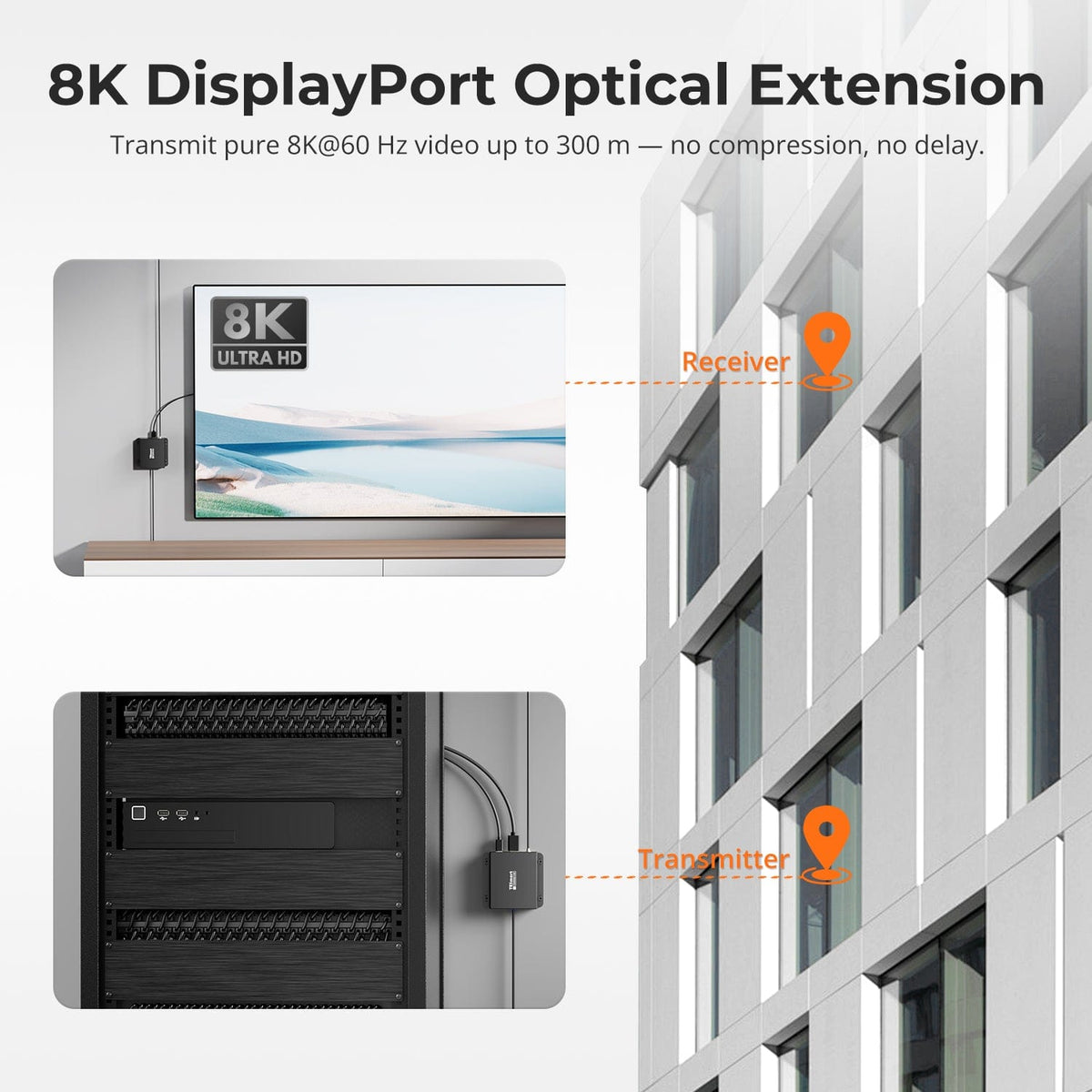
8K@60 Hz DisplayPort Extension
Transmit 8K@60 Hz DisplayPort video up to 300 m over optical fiber, without video compression.
Specifications & Support
Compatibility & Input Guide
Technical Specifications
Manuals & Downloads
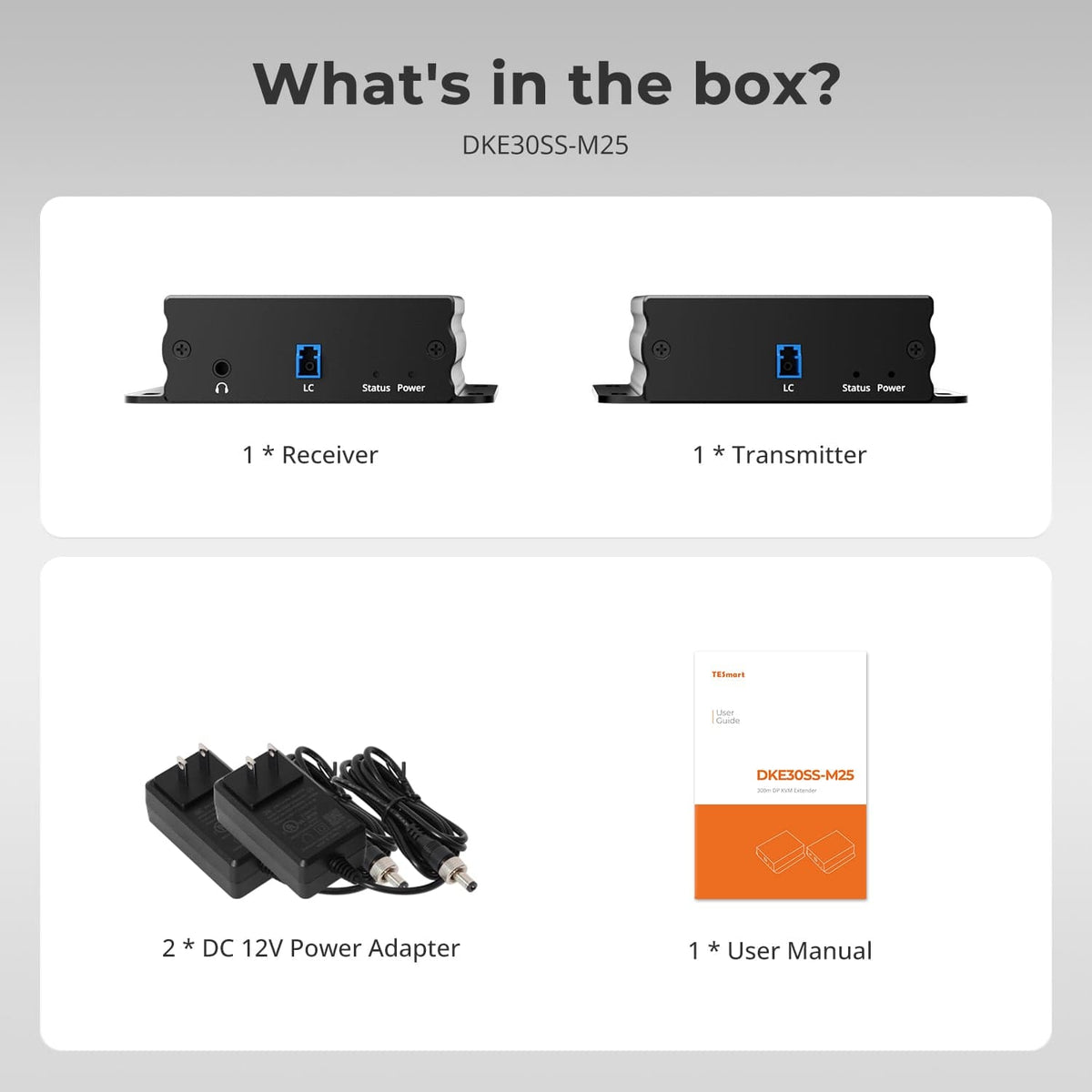
Included in the Box
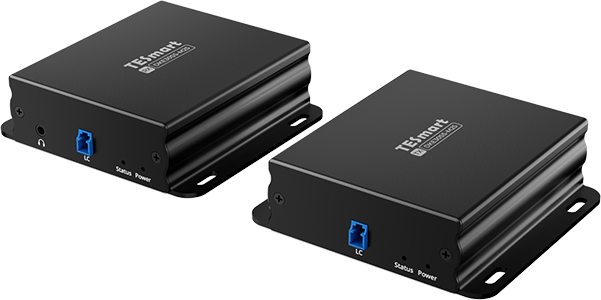
1 x DKE30SS-M25 TX+RX
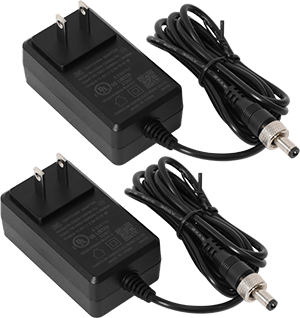
2 × 12 V DC Power Adapters
1 × User Manual
Compare your options
Choose models from the menus to compare host connections, distance, display output and installation requirements.


Model
DKE30SS-M25
Model
HKE10SS-PD25
Model
HKE10SS-E25
Host connection
DisplayPort 1.4 + USB
Host connection
USB 3.2 Gen 1 or faster USB-A host
Host connection
HDMI + USB
Display outputs
1 × DisplayPort
Display outputs
2 × HDMI
Display outputs
1 × HDMI
Video output
8K60 / 4K144
Video output
Dual 4K60
Video output
4K30
Extension medium
OM4 multimode duplex LC-LC fiber
Extension medium
23AWG Cat6a or higher S/FTP
Extension medium
23AWG Cat6 or higher S/FTP
Maximum distance
300m / 984ft
Maximum distance
100m / 328ft
Maximum distance
100m / 328ft
Connection topology
Direct point-to-point
Connection topology
Direct point-to-point
Connection topology
Direct point-to-point
Remote USB
USB 2.0 keyboard and mouse
Remote USB
USB 3.2 Gen 1 / 5Gbps
Remote USB
USB 2.0 / up to 480Mbps
Software requirements
No TESmart software required
Software requirements
DisplayLink driver required
Software requirements
Hardware video connection
Power
2 × DC 12V adapters
Power
2 × DC 12V adapters
Power
Single-end DC 12V power at TX or RX
Installation requirements
Direct fiber link; no switch, splitter or media converter
Installation requirements
Direct TX–RX link; macOS HDCP video has DisplayLink limitations
Installation requirements
One continuous shielded cable; no Ethernet switch or router
FAQ's
Visit our Help Center for more answers.
[Compatibility] What devices can I connect to DKE30SS-M25?
Connect one computer or other source with a DisplayPort output to one DisplayPort display. The product page lists compatibility with Windows, macOS and Linux. For remote control, the source also needs a USB port for the transmitter's USB Type-A to Type-B connection. Maximum video performance depends on the GPU, operating system, display and cables supporting the requested format.
[Compatibility] What fiber cable should I use, and what is the maximum distance?
Use one continuous OM4 multimode duplex LC-LC fiber patch cable that meets IEC 60793-2-10. Connect the transmitter and receiver directly for distances up to 300 m (984 ft). Do not route the link through a fiber switch, media converter, optical splitter or other active network device. Keep the LC connector end faces clean and avoid excessive bending.
[Compatibility] What is the maximum supported resolution and refresh rate?
The maximum supported format is 7680×4320 at 60Hz. Compatible lower formats include 3840×2160 at 60Hz, 120Hz, 144Hz and 240Hz. Actual performance depends on the source GPU, operating system, display, DP cables, fiber link, HDCP requirements and the capabilities negotiated across the complete connection.
[Compatibility] Does the extender require a driver or software?
No. DKE30SS-M25 is a hardware DisplayPort and USB extension system and does not require a DisplayLink driver or TESmart control software. The computer may still need its normal graphics, USB or peripheral drivers.
[Features & Connections] How does automatic display negotiation work?
The extender automatically presents the connected display's capabilities to the source; this model has no EDID DIP switch or manual EDID mode. Whenever possible, connect and power the receiver and display before starting or reconnecting the source. If the source selects the wrong resolution, power-cycle the extender and display, then reconnect or restart the source.
[Features & Connections] Which USB devices are supported?
The receiver USB ports are intended for USB 2.0 keyboard and mouse input, including a compatible wireless keyboard-and-mouse receiver. General-purpose USB devices such as storage drives, webcams, printers and audio interfaces are not confirmed by the supplied documentation and should be connected directly to the computer unless compatibility has been verified.
[Features & Connections] How does the stereo audio output work?
Connect speakers or headphones to the receiver's stereo output, then select the DisplayPort display or corresponding digital-audio device in the computer's playback settings. This connection provides stereo output only; it does not support microphone input or bidirectional analog audio.
[Features & Connections] Do both the transmitter and receiver need power?
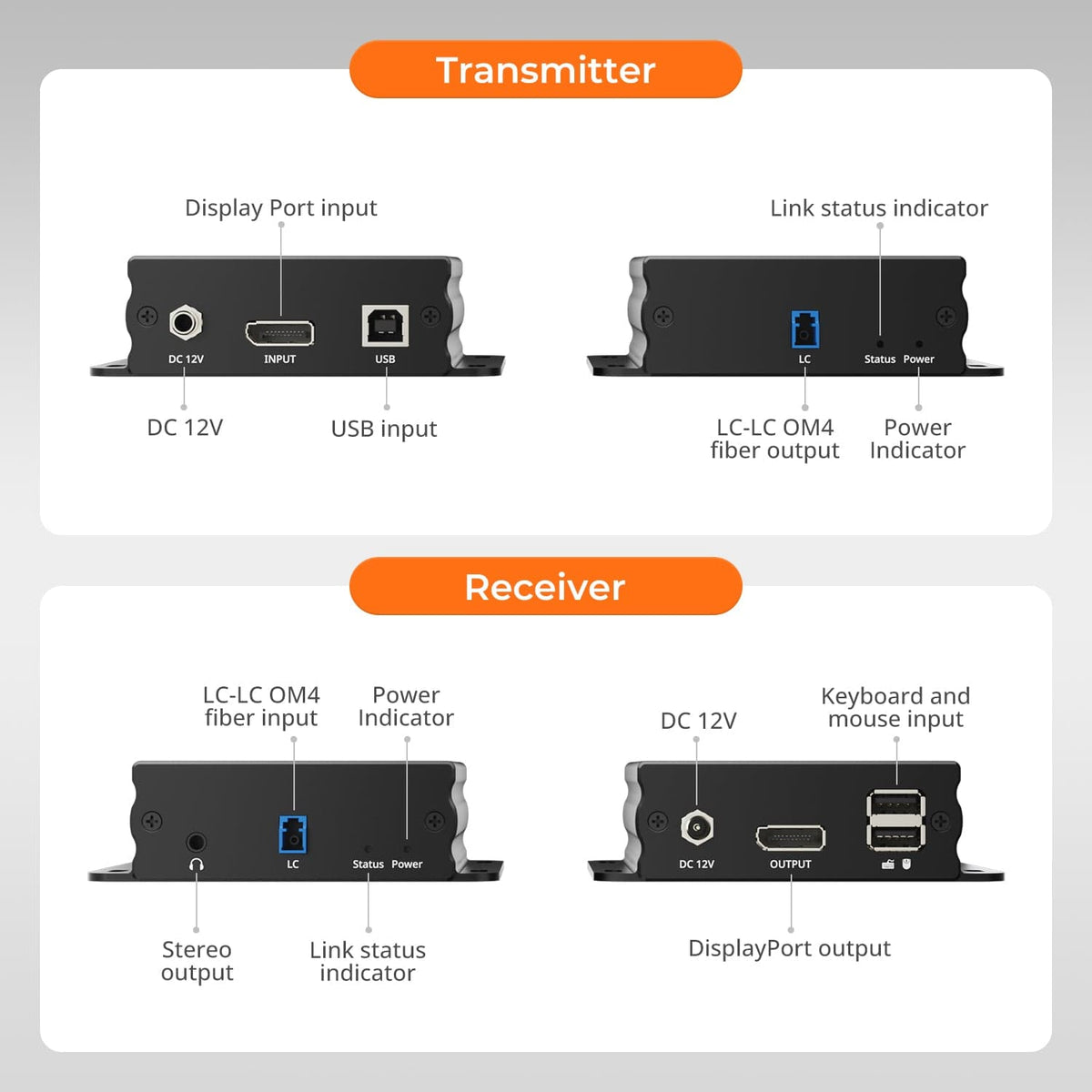
Yes. Connect one supplied 12V power adapter to the transmitter and the other to the receiver. Fully seat and lock both 5.5×2.1 mm DC connectors. Use only the supplied adapters or replacements with matching voltage, polarity, connector size and current capacity.
[Features & Connections] What do the Power and Video indicators mean?
A red Power indicator means the unit detects its 12V input. A blue Video Signal indicator means the unit detects an active video signal. If red is off, check the adapter, outlet and locking DC connection. If both units have power but blue is off, check the source DP output, DP cables, fiber link and display input.
[Setup] How do I connect the transmitter and receiver?
Connect the computer's DP output and USB port to the transmitter. Link the transmitter directly to the receiver with one OM4 multimode duplex LC-LC fiber cable. Connect the receiver to the display by DP, then attach the keyboard, mouse and optional speakers or headphones. Power both units with the supplied 12V adapters and confirm that the red Power and blue Video indicators are on.
[Setup & Switching] Why is there no image or the Video indicator is off?
Confirm that both Power indicators are on and that the source is awake and outputting through the connected DP port. Reseat the DP and duplex LC connectors, select the correct display input, and verify a direct OM4 link without unsupported intermediate devices. Test short known-good DP and OM4 cables at 1920×1080@60Hz before increasing the format.
[Setup & Switching] Why is 8K, HDR or a high refresh rate unavailable or unstable?
Confirm that the GPU output, display input, DP cables and selected display mode all support the requested format. Update the graphics driver, test a lower resolution or refresh rate, use short DP 1.4 cables at both ends, and keep the OM4 link within 300 m. For protected content, every component in the chain must support HDCP 2.2.
[Setup & Switching] Why are the keyboard, mouse or audio not working?
Confirm that the computer is connected to the transmitter by both DP and USB. Reconnect the input devices, test them directly on the computer, try another computer.