




Cable Extension

Max Display Output

Recommended Setup

Multi-Monitor

USB Speed

Receiver Control

Audio jack, metal enclosure
100m Dual-Monitor KVM Extender | Dual 4K60, DisplayLink over Cat6a
Connect a PC to a remote workstation up to 100 m away over Cat6a. DisplayLink supports two 4K60 monitors, shared USB devices and remote PC startup.
Cable Extension
Max Display Output
Recommended Setup
Multi-Monitor
USB Speed
Receiver Control
Audio jack, metal enclosure
100m Dual-Monitor KVM Extender | Dual 4K60, DisplayLink over Cat6a
Why Choose HKE10SS-PD25
Overview
01
Dual 4K@60Hz Displays from One USB Host Connection
Create an extended or mirrored dual-monitor workspace at the receiver without running separate video cables from the computer. DisplayLink carries two independent video streams through the host USB connection, with each HDMI output supporting up to 3840×2160 at 60Hz.
02
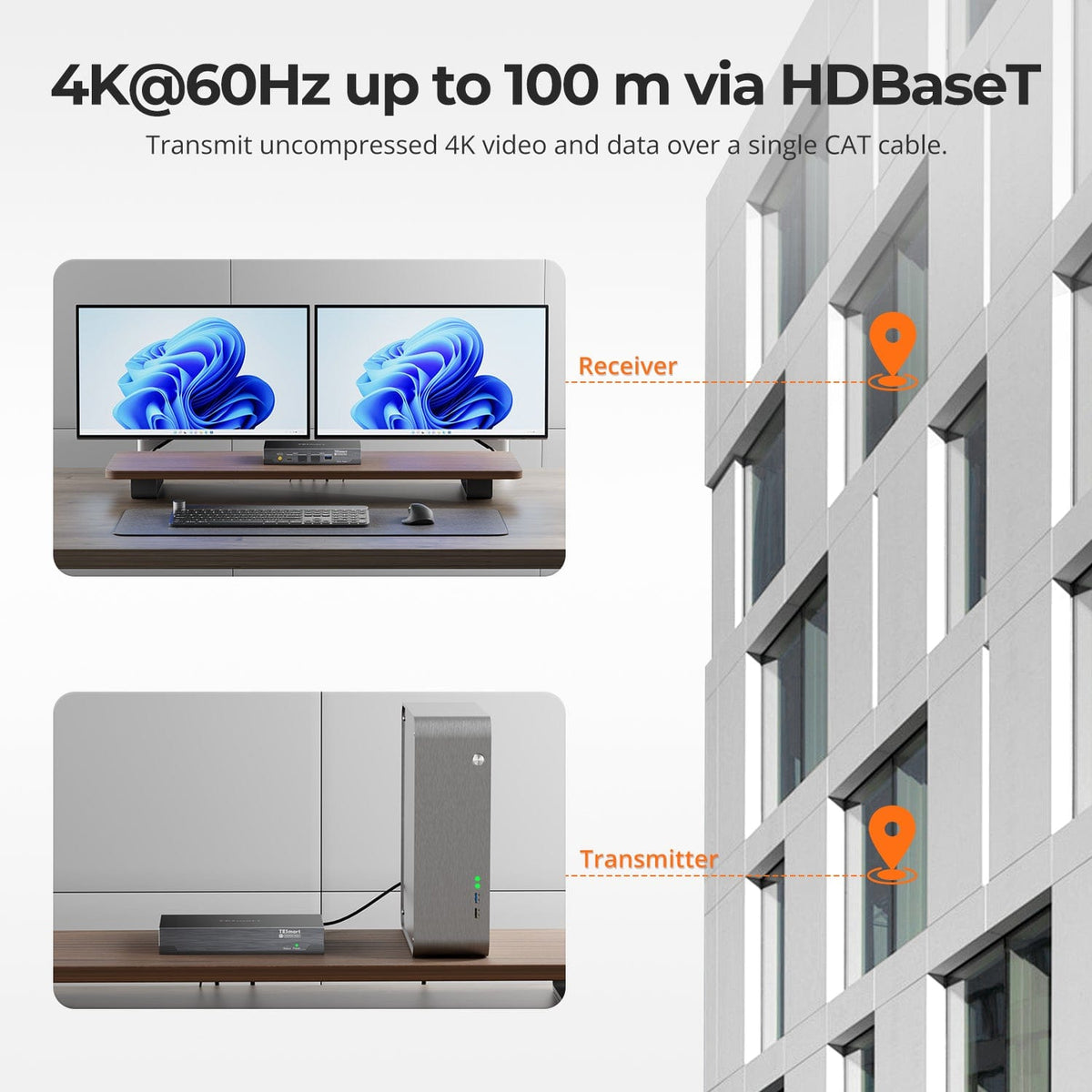
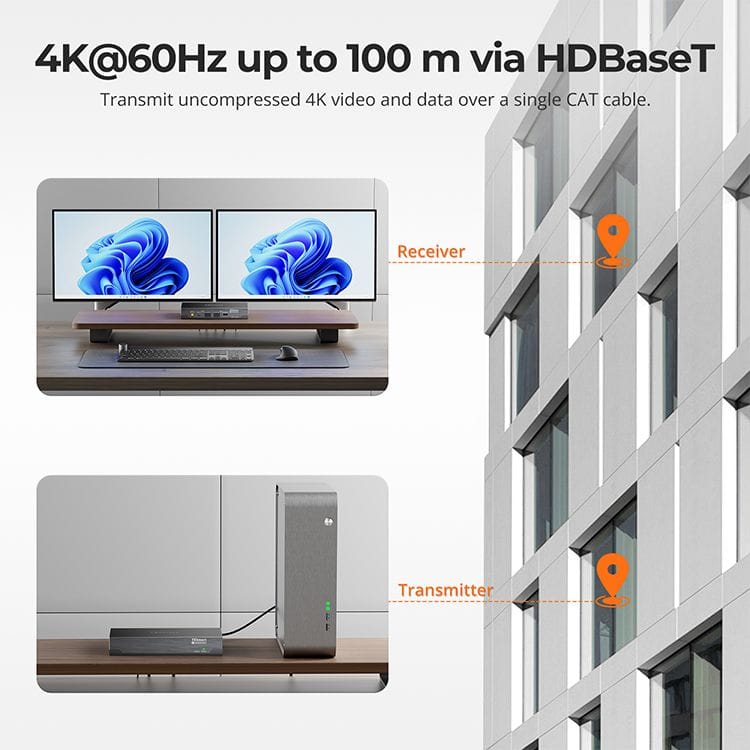
One Cat6a Cable. Up to 100 m Away.
Place the computer and remote workstation up to 100 m (328 ft) apart using one continuous 23AWG S/FTP Cat6a or higher shielded cable. The TX-to-RX link is point-to-point and must not pass through an Ethernet switch, router or other active network device.
03
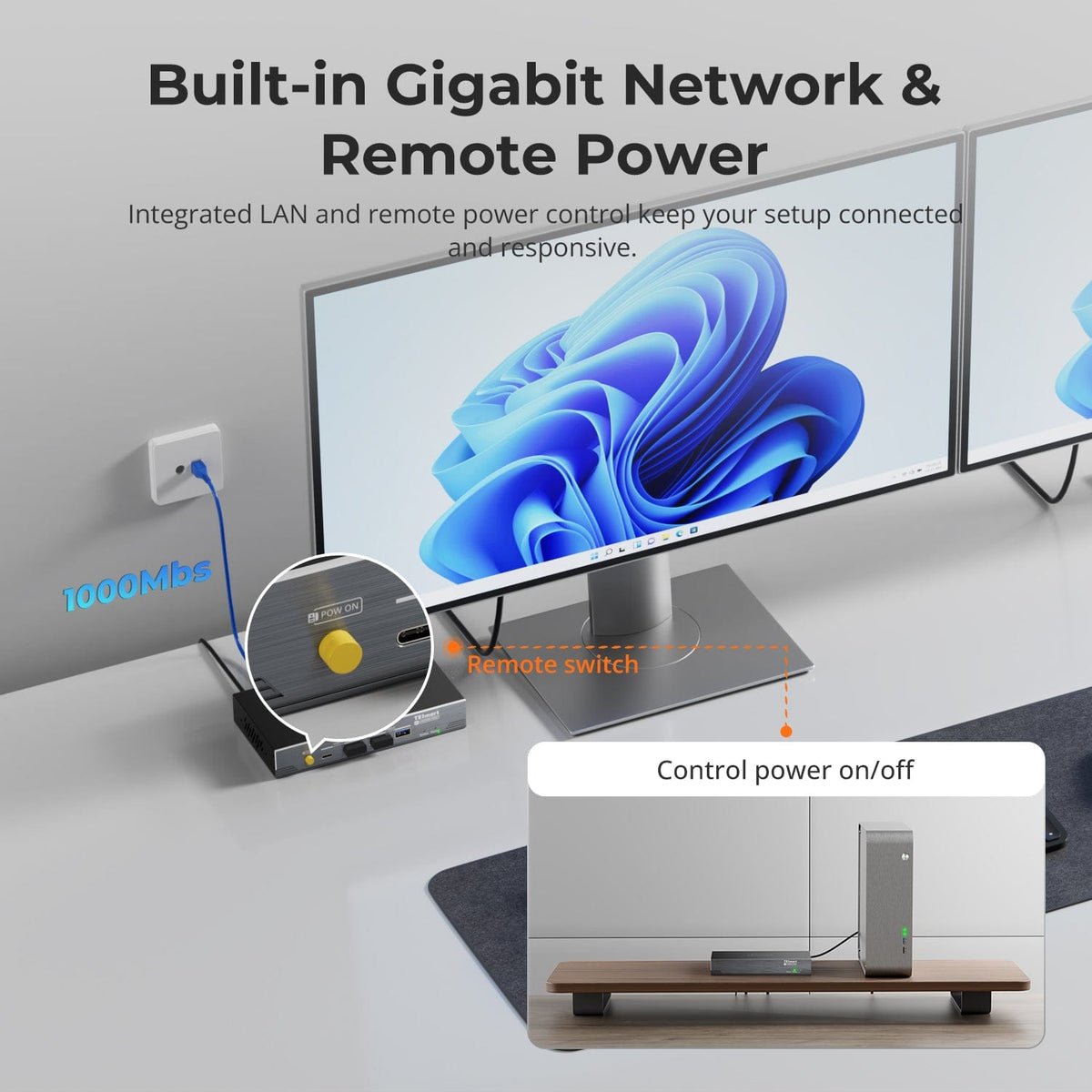
Gigabit LAN and Remote Power Control
Stay connected and in control with built-in Gigabit Ethernet and remote power management, designed for responsive operation across professional setups.
Specifications & Support
Compatibility & Input Guide
Technical Specifications
Manuals & Downloads
Included in the Box
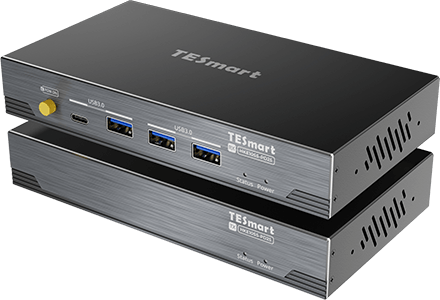
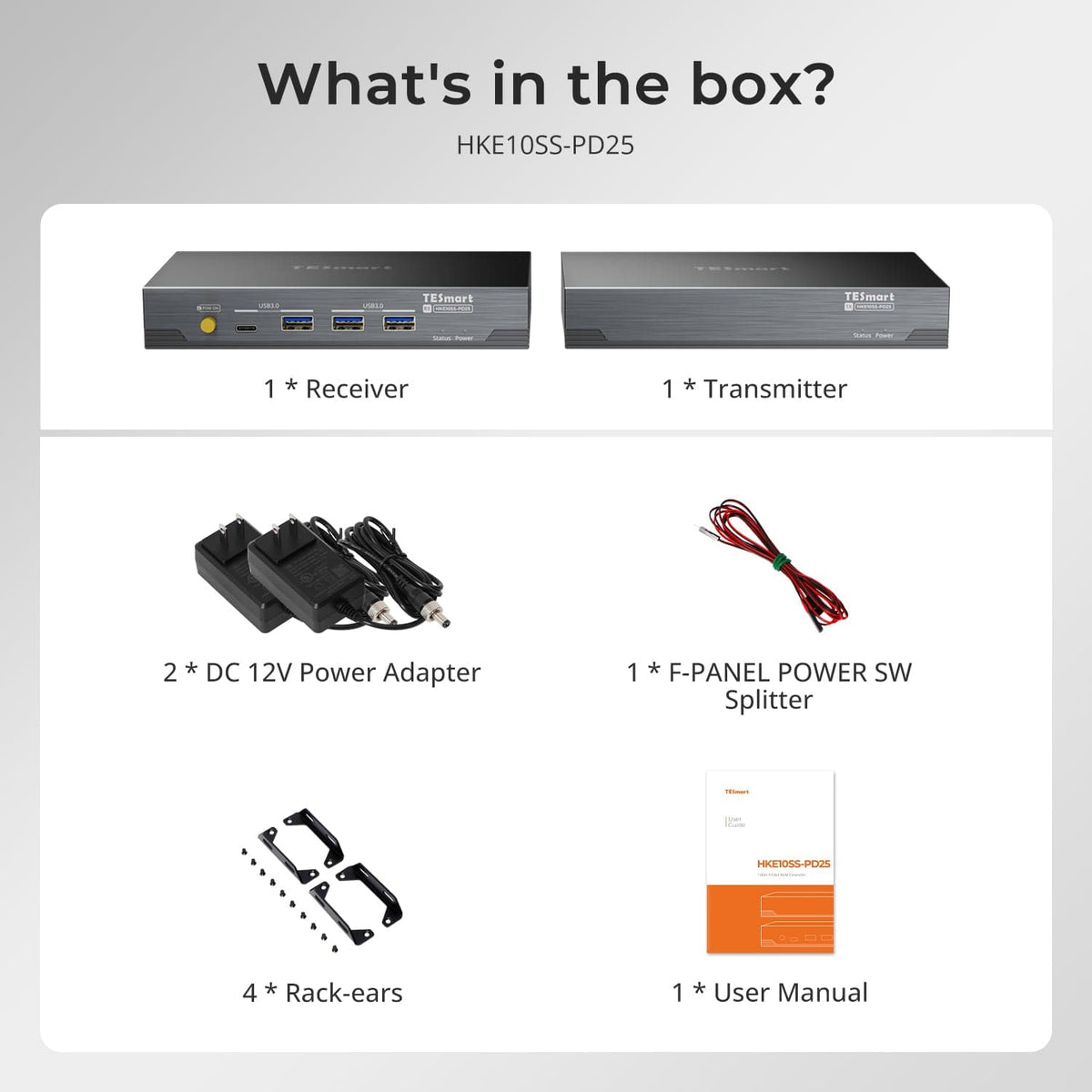
1 × HKE10SS-PD25 TX+RX
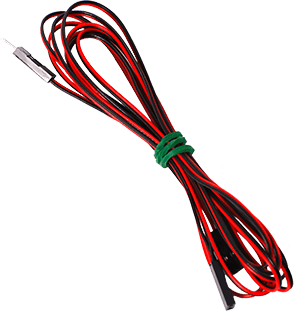
1 × F-PANEL POWER SW Splitter
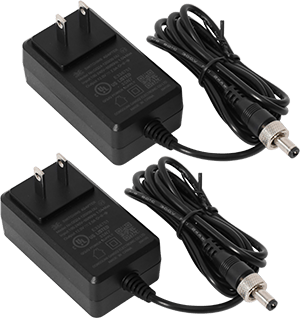
2 × 12 V DC Power Adapters
1 × User Manual
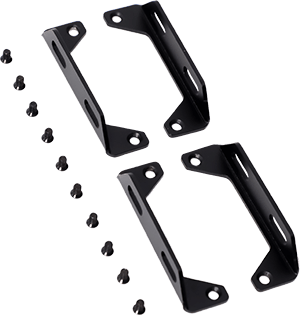
4 × Rack Brackets
Compare your options
Choose models from the menus to compare host connections, distance, display output and installation requirements.


Model
HKE10SS-PD25
Model
HKE10SS-E25
Model
HKE12MM-L25
Host connection
USB 3.2 Gen 1 or faster USB-A host
Host connection
HDMI + USB
Host connection
HDMI + USB per transmitter
Display outputs
2 × HDMI
Display outputs
1 × HDMI
Display outputs
1 × HDMI per receiver
Video output
Dual 4K60
Video output
4K30
Video output
1080p60
Extension medium
23AWG Cat6a or higher S/FTP
Extension medium
23AWG Cat6 or higher S/FTP
Extension medium
Cat5e or higher UTP / FTP
Maximum distance
100m / 328ft
Maximum distance
100m / 328ft
Maximum distance
120m / 394ft per supported copper link
Connection topology
Direct point-to-point
Connection topology
Direct point-to-point
Connection topology
Point-to-point or networked; up to 32 TX + 32 RX
Remote USB
USB 3.2 Gen 1 / 5Gbps
Remote USB
USB 2.0 / up to 480Mbps
Remote USB
Keyboard and mouse; Quad-Screen cross-control
Software requirements
DisplayLink driver required
Software requirements
Hardware video connection
Software requirements
Hardware video connection
Power
2 × DC 12V adapters
Power
Single-end DC 12V power at TX or RX
Power
Compatible PoE switch or local power adapters
Installation requirements
Direct TX–RX link; macOS HDCP video has DisplayLink limitations
Installation requirements
One continuous shielded cable; no Ethernet switch or router
Installation requirements
Ethernet switch / router supported; Single-Screen or Quad-Screen
FAQ's
Visit our Help Center for more answers.
[Setup & Switching]What should I check if there is no image, only one display or an abnormal resolution?
First confirm that both red Power indicators are lit and the blue USB Signal indicator is illuminated on both units. Check the host computer's display settings, try extending or mirroring the displays, and verify that the DisplayLink driver is installed and running. Test with a short known-good Cat6a cable to isolate connection issues. If using a Mac, check System Preferences > Security & Privacy > Screen Recording for DisplayLink permission. Restart the computer and extender if needed.
[Compatibility] What computer specs are needed?
Use a Windows, macOS or Linux computer with a certified USB 3.2 Gen 1 or faster USB-A port. The computer connects to the transmitter through one USB Type-A to Type-B cable, and the appropriate DisplayLink driver must be installed for video output.
[Compatibility] What cable should I use, and how far can I extend the workstation?
Use one continuous 23AWG Cat6a or higher S/FTP shielded cable between the transmitter and receiver. The supported extension distance is up to 100 m (328 ft) when the cable and terminations meet the required specification.
[Compatibility] What displays and resolutions are supported?
Connect one or two HDMI displays to the receiver. Each HDMI output supports up to 3840×2160 at 60Hz, and the operating system can arrange the displays as an extended or mirrored desktop. Actual output depends on the host USB port, driver, operating system, displays, HDMI cables and Cat6a link.
[Compatibility] Can I watch HDCP-protected streaming video on macOS through DisplayLink?
Not reliably. When DisplayLink is active on macOS, protected video from services such as Netflix, Amazon Prime Video and Disney+ may show a black video window because macOS cannot complete the required HDCP check through the DisplayLink path.
[Compatibility] Can the TX-to-RX Cat6a link pass through an Ethernet switch or router?
No. The extension link is a direct point-to-point connection and does not support an intermediate Ethernet switch, router or other active network device. The separate LAN port on the receiver may be connected to a router or switch for host network access.
[Features & Connections] What does HKE10SS-PD25 extend to the remote workstation?
It extends two HDMI display outputs, USB peripherals, audio, network access and hardware-level remote power control from the host side to the receiver over one direct Cat6a link.
[Features & Connections] Which USB devices can I connect at the receiver?
The four USB 3.2 Gen 1 ports support compatible keyboards, mice, flash drives, external storage, printers and other USB 2.0/3.0 peripherals. Bandwidth is shared across the extension link, and high-power devices may need their own adapter or a powered USB hub.
[Features & Connections] How does the receiver LAN port work?
Connect the receiver LAN port to a router or Ethernet switch to provide network access to the connected computer through the extender's USB connection. The computer may detect it as an additional USB Ethernet adapter; this LAN port is separate from the TX-to-RX UTP extension port.
[Features & Connections] How does the 3.5 mm audio and microphone port work?
The receiver's 3.5 mm port provides microphone input and left/right audio output for a compatible headset or audio device. Select the DisplayLink or USB audio device in the operating system's playback and recording settings; a headset with separate plugs may require a suitable TRRS adapter.
[Features & Connections] How does remote power control work?
It reproduces a physical press of the computer's power button and works independently of the operating system, including pre-boot and BIOS states. Connect the included F-PANEL POWER SW splitter between the transmitter's remote-power interface and the motherboard power-switch header according to the motherboard manual.
[Features & Connections] Do both the transmitter and receiver need power?
Yes. Connect one supplied 12V adapter to the transmitter and the other to the receiver. Fully seat the locking 5.5×2.1 mm DC connectors, and use only the supplied adapters or replacements with exactly matching electrical specifications and polarity.
[Features & Connections] What do the red and blue indicators mean?
A red Power indicator confirms that the unit detects its 12V input. A blue USB Signal indicator confirms that the USB handshake has completed. If the blue indicator stays off, check both power adapters, the host USB cable and port, and the direct Cat6a connection.
[Setup & Switching] How do I connect HKE10SS-PD25?
Install the DisplayLink driver, connect the computer to the transmitter with a USB Type-A to Type-B cable, link TX directly to RX with one continuous shielded Cat6a cable, connect one or two HDMI displays and the required USB, audio and LAN devices at the receiver, then power both units with the supplied 12V adapters. Initial testing with a short known-good Cat6a cable is recommended before installing the full cable run.
[Setup & Switching] How do I install and configure DisplayLink?
Download the driver for your operating system from Synaptics, install it, restart if prompted and reconnect the extender. On macOS Catalina 10.15 or later, allow Screen Recording permission for DisplayLink Manager; enabling automatic launch after login is also recommended. Use the operating system display settings to extend, mirror, arrange and scale the displays.