





Cable Extension
Max Display Output

Recommended Setup

Display Management

Single-End Power
Remote Control
Remote Control
100M 4K30 HDMI Extender with PoE & Bi-IR Over CAT5e/6 Cable
Extend HDMI, USB 2.0, IR, audio and RS232 up to 100 m over Cat6, with up to 4K30 and power supplied from one end.
Cable Extension
Max Display Output
Recommended Setup
Display Management
Single-End Power
Remote Control
Remote Control
100M 4K30 HDMI Extender with PoE & Bi-IR Over CAT5e/6 Cable
Why Choose HKE10SS-E25
Overview
01
Power and USB at the Remote Workstation
Run the linked transmitter and receiver from one 12V adapter at either end—receiver-side power is recommended—while extending USB 2.0 peripherals to the remote workstation over the same point-to-point Cat6 link, up to 100 m away.
02
Remote PC Power and RS232 Control
Control a desktop PC from the receiver location with hardware-level power on, power off, or reset through the included motherboard power-switch splitter. Bidirectional RS232 pass-through also carries compatible serial control commands across the extender link.
03
Two-Way IR and Audio Communication
Send IR commands and analog audio in either direction. Control a source from the display side, control a display from the source side, play source-side audio near the remote display, or return remote-side audio to the control location.
Specifications & Support
Compatibility & Input Guide
Technical Specifications
Manuals & Downloads
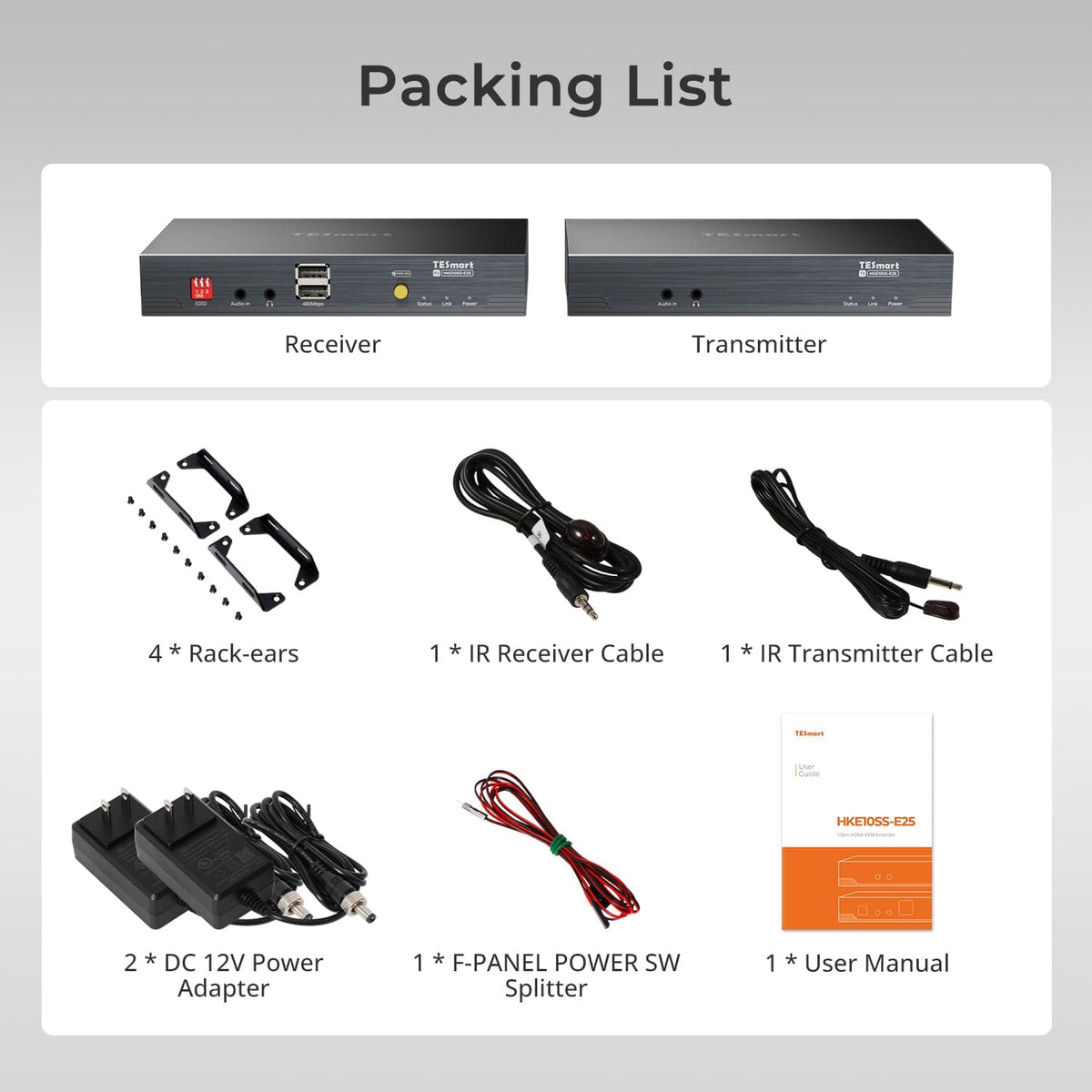
Included in the Box
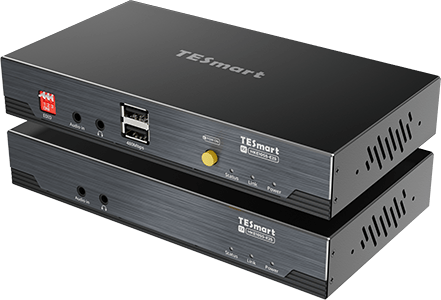
1 × HKE10SS-E25 TX+RX
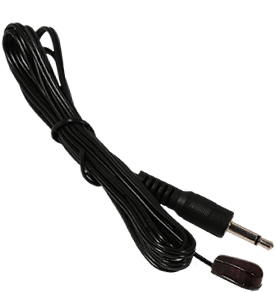
1 × IR Transmitter Cable
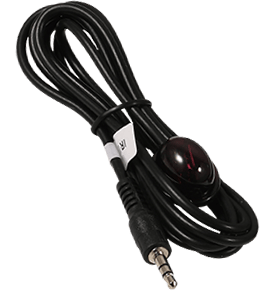
1 × IR Receiver Cable
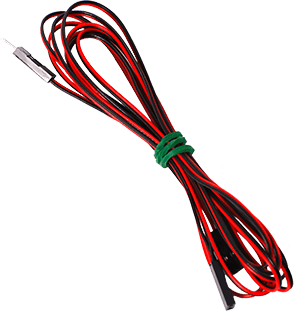
1 × F-PANEL POWER SW Splitter
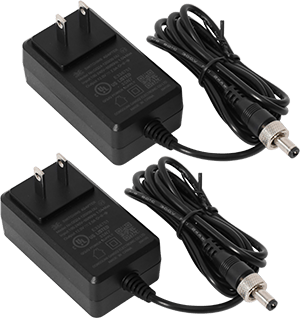
2 × 12 V DC Power Adapters
1 × User Manual

4 × Rack Brackets
Compare your options
Choose models from the menus to compare host connections, distance, display output and installation requirements.


Model
HKE10SS-E25
Model
HKE10SS-PD25
Model
HKE12MM-L25
Host connection
HDMI + USB
Host connection
USB 3.2 Gen 1 or faster USB-A host
Host connection
HDMI + USB per transmitter
Display outputs
1 × HDMI
Display outputs
2 × HDMI
Display outputs
1 × HDMI per receiver
Video output
4K30
Video output
Dual 4K60
Video output
1080p60
Extension medium
23AWG Cat6 or higher S/FTP
Extension medium
23AWG Cat6a or higher S/FTP
Extension medium
Cat5e or higher UTP / FTP
Maximum distance
100m / 328ft
Maximum distance
100m / 328ft
Maximum distance
120m / 394ft per supported copper link
Connection topology
Direct point-to-point
Connection topology
Direct point-to-point
Connection topology
Point-to-point or networked; up to 32 TX + 32 RX
Remote USB
USB 2.0 / up to 480Mbps
Remote USB
USB 3.2 Gen 1 / 5Gbps
Remote USB
Keyboard and mouse; Quad-Screen cross-control
Software requirements
Hardware video connection
Software requirements
DisplayLink driver required
Software requirements
Hardware video connection
Power
Single-end DC 12V power at TX or RX
Power
2 × DC 12V adapters
Power
Compatible PoE switch or local power adapters
Installation requirements
One continuous shielded cable; no Ethernet switch or router
Installation requirements
Direct TX–RX link; macOS HDCP video has DisplayLink limitations
Installation requirements
Ethernet switch / router supported; Single-Screen or Quad-Screen
FAQ's
Visit our Help Center for more answers.
[Compatibility] What sources, displays, and operating systems work with HKE10SS-E25?
Connect one HDMI source with a matching USB connection to the transmitter and one HDMI display or projector to the receiver. HKE10SS-E25 is compatible with Windows, macOS, Linux, and legacy systems. The source and display must support the resolution and HDCP requirements used in the installation.
[Compatibility] What cable should I use, and what is the maximum extension distance?
Use one continuous 23AWG Cat6 or higher S/FTP shielded cable directly between the transmitter and receiver. The supported distance is up to 100 m (328 ft). Do not route this link through an Ethernet switch, router, or other active network device, and avoid couplers or patch panels whenever possible.
[Compatibility] What is the maximum supported video resolution?
The maximum supported resolution is 3840×2160 at 30 Hz. The extender also supports common lower resolutions, including 1920×1080 at 60 Hz. This model does not support 4K at 60 Hz, and the actual result depends on the source, display, HDMI cables, Cat cable, HDCP compatibility, and selected EDID mode.
[Features & Connections] What signals and controls can HKE10SS-E25 extend?
It extends HDMI video and audio, USB 2.0, bidirectional analog audio, bidirectional infrared, bidirectional RS232 data, and hardware-level remote PC power control between the transmitter and receiver. The extender is HDCP 1.4 compliant and operates with less than 0.1 ms transmission latency.
[Features & Connections] Which USB standard does the extender support?
HKE10SS-E25 supports USB 2.0 at up to 480 Mbps. Use the USB Type-A to Type-B host cable between the computer and transmitter, then connect compatible keyboards, mice, flash drives, storage devices, or other USB 2.0 peripherals to the receiver. USB 3.x devices are limited to USB 2.0 speed, and high-power devices may need separate power or a powered hub.
[Features & Connections] How does bidirectional infrared control work?
IR commands can travel in either direction. To control a source from the receiver side, connect the IR receiver to RX IR In and place the transmitter from TX IR Out over the source's IR sensor. To control the display from the transmitter side, reverse the path using TX IR In and RX IR Out.
[Features & Connections] How does bidirectional audio work?
Analog audio can travel simultaneously in both directions. Send computer-side audio to speakers or headphones near the remote display, or connect a remote-side audio source and return it to the transmitter location. Connect each source to Audio In and the receiving device to the corresponding audio-output port.
[Features & Connections] What does the RS232 connection do?
The RS232 ports provide transparent bidirectional serial-data pass-through for compatible control, monitoring, and configuration equipment. The extender does not create or translate device commands, so both connected serial devices must use matching baud rate, data bits, stop bits, and parity settings.
[Features & Connections] How does remote PC power control work?
The receiver button reproduces a physical motherboard power-button press through the included F-PANEL POWER SW splitter connected at the transmitter. It works independently of the operating system, including pre-boot or BIOS states, and can perform power on, power off, or reset behavior. Verify the motherboard's 2-pin power-switch header before wiring and disconnect AC power before changing internal connections.
[Features & Connections] Do both the transmitter and receiver need power adapters?
No. One 12V adapter can power the linked units from either the transmitter or receiver side, and receiver-side power is recommended. Two adapters are included, so both units may also be powered separately when required by the installation. Use only the supplied or correctly specified 12V adapters.
[Setup] How do I connect the transmitter and receiver?
Connect the computer's HDMI output and USB port to the transmitter. Connect TX directly to RX with the shielded Cat6 link, then connect the receiver to the HDMI display and remote USB devices. Connect power, turn on the source and display, and confirm the Power, Link, and Video indicators. Test first with short HDMI and Cat cables before installing the full-distance run.
[Setup & Switching] How do I select the correct EDID mode?
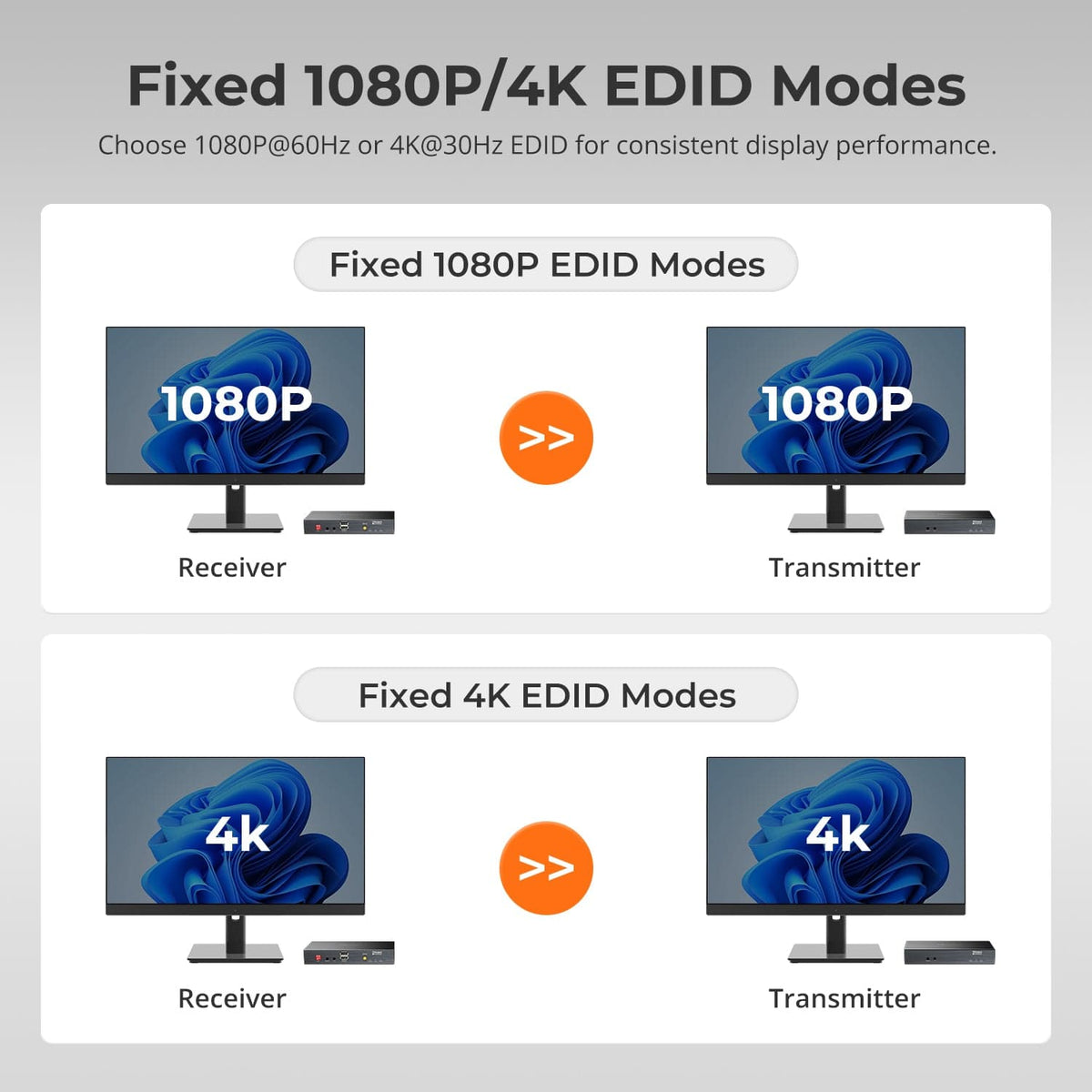
Use the DIP switch on the receiver. Set switch 2 to ON for fixed 4K@30Hz EDID, set switch 3 to ON for fixed 1080p@60Hz EDID, and use any other combination for Intelligent EDID. After changing the setting, power-cycle the source or reconnect the HDMI input so it reads the updated EDID.
[Setup & Switching] What do the Power, Link, and Video indicators mean?
Red Power means the unit detects DC input. Blue Link means the transmitter and receiver have established the Cat-cable connection. A green Video indicator blinking regularly means an active video signal is detected. If Link is off, check the cable connection and power status.