



Cable Extension

Max Display Output

Recommended Setup

Network Scale
Network Extension
Network Setup

Four views, cross-device K&M
120m 1080p HDMI KVM Extender with PoE & Quad-Screen Cross-Control
Connect remote PCs and workstations up to 120 m away, with 1080p60, KVM over IP, PoE and Quad-View with cross-screen keyboard and mouse control.
Cable Extension
Max Display Output
Recommended Setup
Network Scale
Network Extension
Network Setup
Four views, cross-device K&M
120m 1080p HDMI KVM Extender with PoE & Quad-Screen Cross-Control
Why Choose HKE12MM-L25
Overview
01
Point-to-Point or Many-to-Many, Up to 32 TX and 32 RX
Connect one transmitter to one receiver, or connect multiple transmitters and receivers through a network switch. Supports up to 32 transmitters (TX) and 32 receivers (RX).
02
Full-Screen Focus or Four-Way Split View
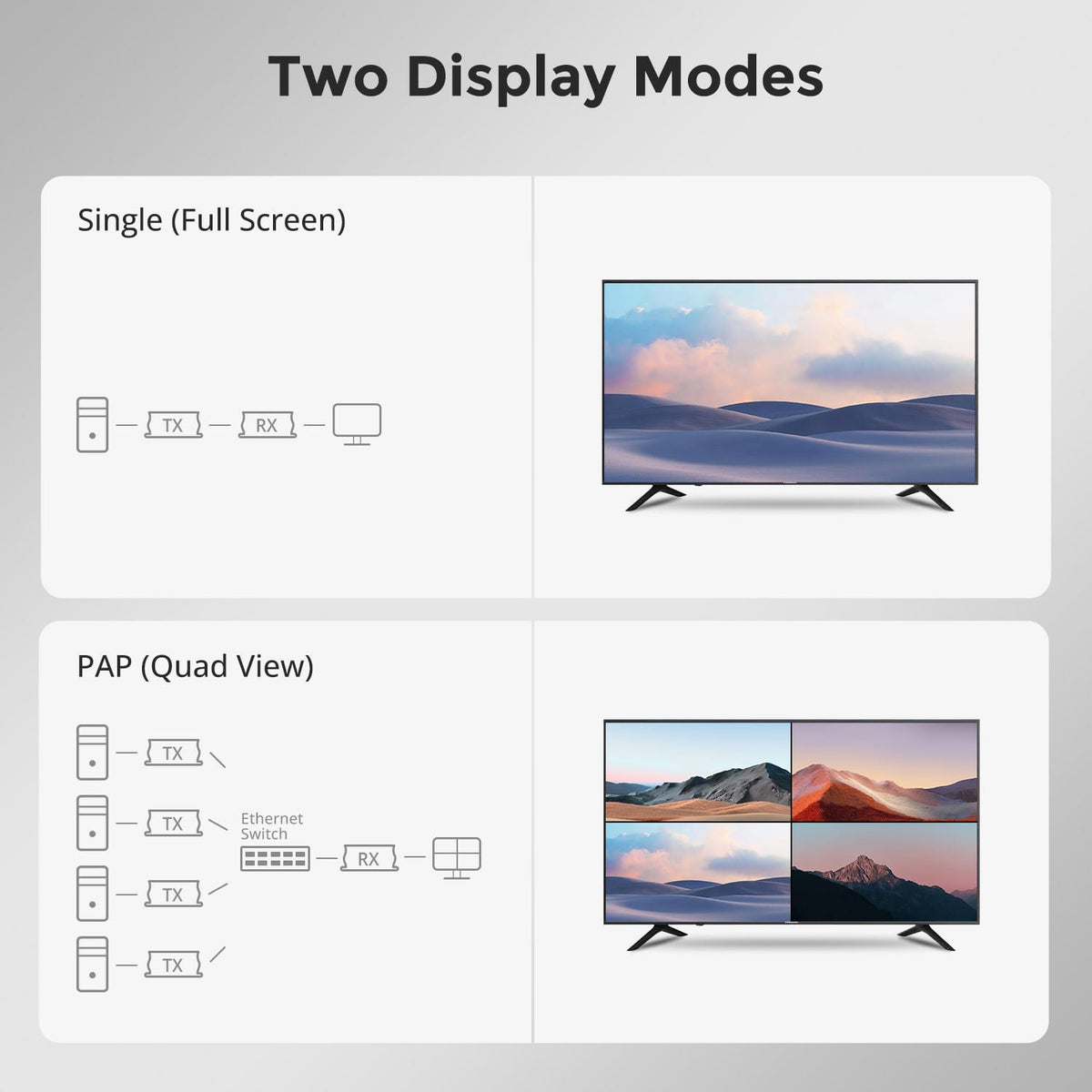
Focus on one source in full-screen mode, or see four sources at once in a four-way split view (PAP).
03
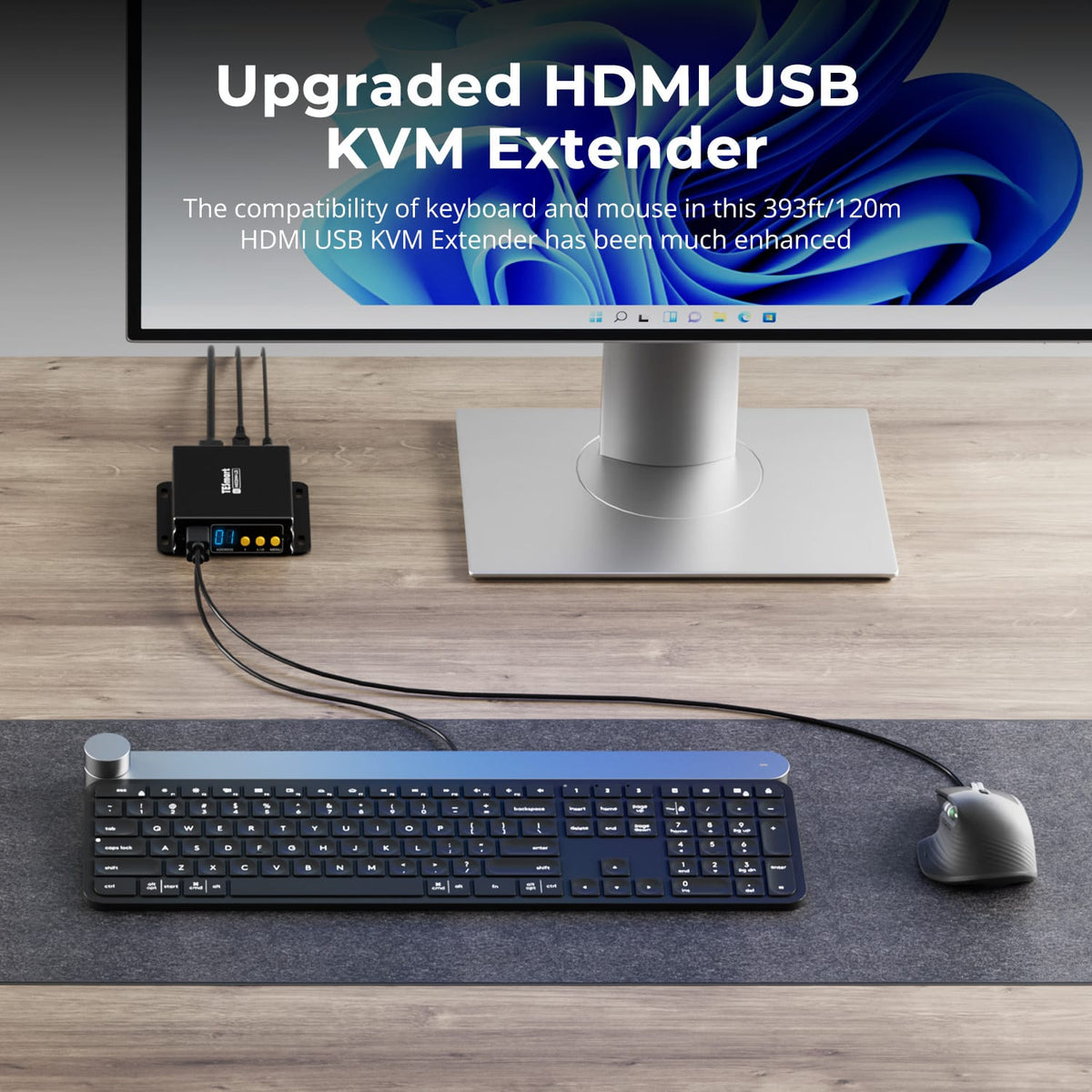
Better Keyboard and Mouse Compatibility at 393 ft
Control your computer from up to 393 ft (120 m) away. The upgraded HDMI USB KVM extender improves compatibility with your keyboard and mouse.
Specifications & Support
Compatibility & Input Guide
Technical Specifications
Manuals & Downloads
Included in the Box
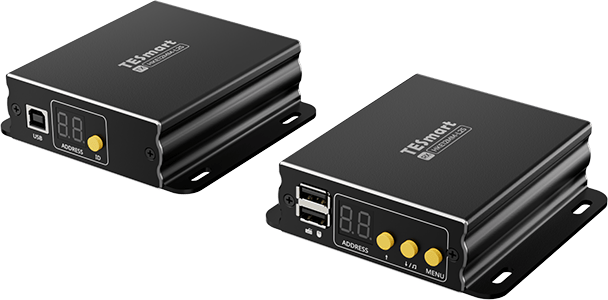
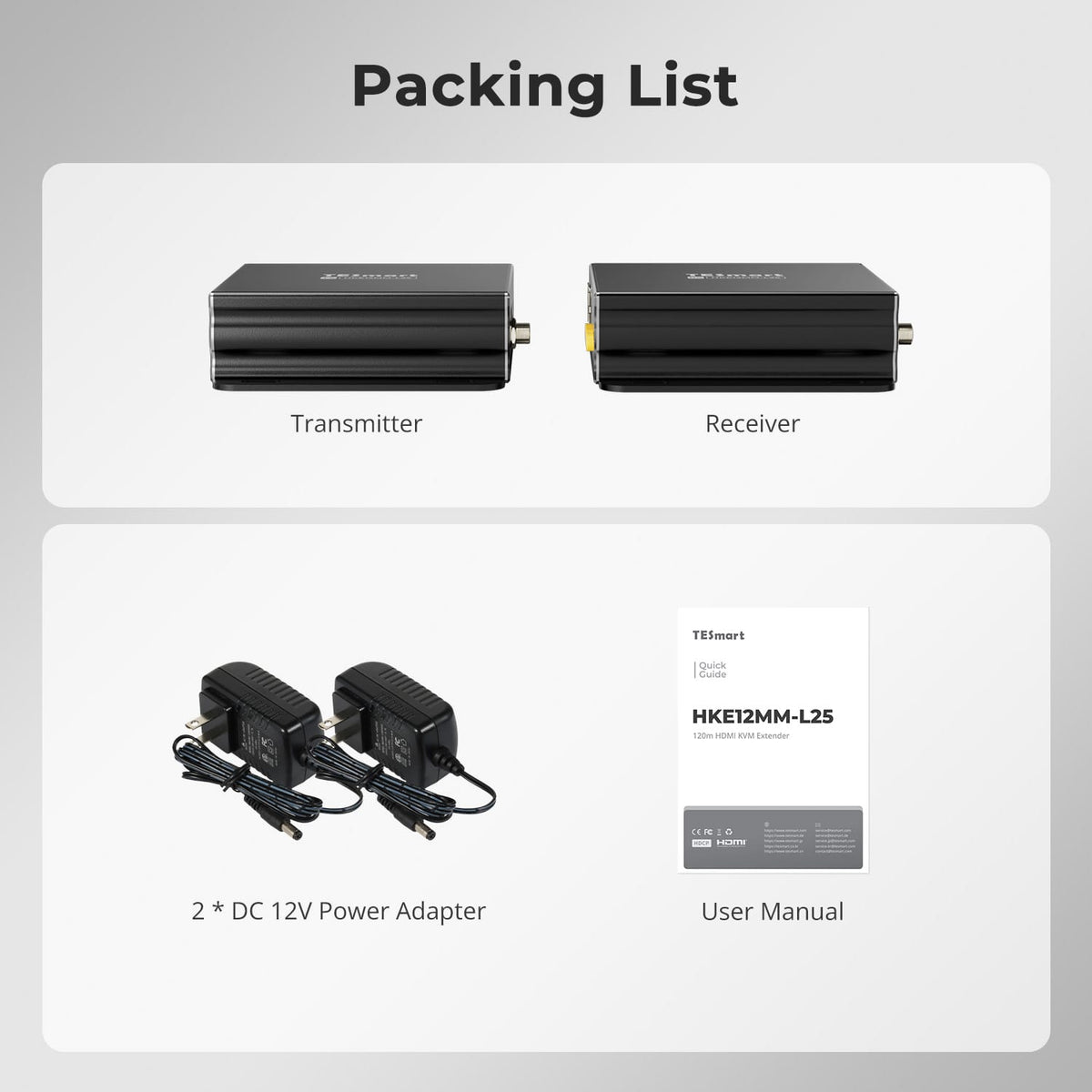
1 × HKE12MM-L25 TX+RX
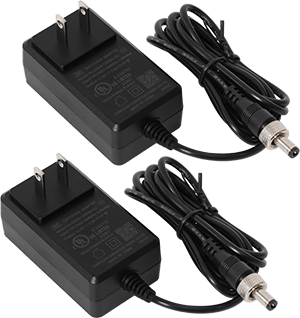
2 × 12 V DC Power Adapters
1 × User Manual
Compare your options
Choose models from the menus to compare host connections, distance, display output and installation requirements.


Model
HKE12MM-L25
Model
HKE10SS-E25
Model
HKE10SS-PD25
Host connection
HDMI + USB per transmitter
Host connection
HDMI + USB
Host connection
USB 3.2 Gen 1 or faster USB-A host
Display outputs
1 × HDMI per receiver
Display outputs
1 × HDMI
Display outputs
2 × HDMI
Video output
1080p60
Video output
4K30
Video output
Dual 4K60
Extension medium
Cat5e or higher UTP / FTP
Extension medium
23AWG Cat6 or higher S/FTP
Extension medium
23AWG Cat6a or higher S/FTP
Maximum distance
120m / 394ft per supported copper link
Maximum distance
100m / 328ft
Maximum distance
100m / 328ft
Connection topology
Point-to-point or networked; up to 32 TX + 32 RX
Connection topology
Direct point-to-point
Connection topology
Direct point-to-point
Remote USB
Keyboard and mouse; Quad-Screen cross-control
Remote USB
USB 2.0 / up to 480Mbps
Remote USB
USB 3.2 Gen 1 / 5Gbps
Software requirements
Hardware video connection
Software requirements
Hardware video connection
Software requirements
DisplayLink driver required
Power
Compatible PoE switch or local power adapters
Power
Single-end DC 12V power at TX or RX
Power
2 × DC 12V adapters
Installation requirements
Ethernet switch / router supported; Single-Screen or Quad-Screen
Installation requirements
One continuous shielded cable; no Ethernet switch or router
Installation requirements
Direct TX–RX link; macOS HDCP video has DisplayLink limitations
FAQ's
Visit our Help Center for more answers.
[Compatibility] What source devices, displays and operating systems can I use with HKE12MM-L25?
Connect a PC or other HDMI source to each transmitter and an HDMI display to each receiver. Maximum output is 1920 × 1080 at 60 Hz with HDCP 1.4. Keyboard and Mouse Cross-Control is compatible with Windows, macOS and Ubuntu when each computer has a working USB connection to its transmitter.
[Compatibility] What network cable should I use, and what is the maximum distance?
Use Cat5e or higher-grade UTP/FTP Ethernet cable. Keep each supported copper link within 120 m (394 ft). For long or electrically noisy runs, use high-quality Cat6 or Cat6a cable with correctly terminated connectors and avoid damaged cables, unnecessary couplers and routing beside high-voltage power lines.
[Compatibility] What Ethernet switch or router should I use?
Use reliable Ethernet infrastructure with enough ports and capacity for all connected transmitters and receivers. For larger installations, the existing FAQ recommends a managed Gigabit switch with IGMP snooping and a dedicated VLAN. Confirm port speed, VLAN membership, DHCP service, multicast policies and PoE power budget with the network administrator before deployment.
[Compatibility] Does HKE12MM-L25 support 4K video?
No. The maximum supported format is 1920 × 1080 at 60 Hz with HDCP 1.4. Actual performance also depends on the source, display, HDMI cables, Ethernet link and network equipment.
[Features & Connections] What network topologies does HKE12MM-L25 support?
It supports point-to-point, point-to-multipoint and multipoint-to-multipoint installations. One transmitter can feed multiple receivers, and multiple uniquely identified transmitters and receivers can share the same local network. The system supports up to 32 transmitters and 32 receivers.
[Features & Connections] What is the difference between Single-Screen and Quad-Screen modes?
Single-Screen mode displays one selected transmitter source across the entire receiver display. Quad-Screen mode, labeled PAP in the OSD, displays four transmitter sources at the same time in four quadrants.
[Features & Connections] How does Keyboard and Mouse Cross-Control work?
In Quad-Screen mode, one keyboard and mouse connected to the receiver can control the four computers shown on screen. Move the cursor across a quadrant boundary to transfer control to the computer in the next segment. No additional cross-control software is required, but every controlled computer must be connected to its transmitter by USB.
[Features & Connections] Do I need the power adapters when using PoE?
No. A transmitter or receiver receiving stable power from a compatible PoE-enabled switch port does not need its local power adapter. If PoE is unavailable or the switch power budget is insufficient, use the supplied adapter for that unit. Do not use an incompatible passive PoE injector.
[Features & Connections] How does audio work in Quad-Screen mode?
The receiver 3.5 mm stereo output plays audio from one displayed source at a time. The OSD identifies the active audio quadrant. Select the required quadrant with the receiver controls or supported hotkeys, and make sure the source sends audio through HDMI.
[Features & Connections] How do communication IDs and DHCP work?
Assign each transmitter a unique communication ID from 1 to 32. In Single-Screen mode, select that ID on the receiver; in Quad-Screen mode, assign one transmitter ID to each quadrant. Each unit also has an IP address, and its DHCP client can obtain one automatically from a network with an active DHCP server.
[Setup & Switching] How do I connect a basic transmitter and receiver pair?
Connect the computer to the transmitter with HDMI and USB Type-A to Type-B, connect the transmitter and receiver directly with Cat5e or higher cable or through the planned network switch, and connect the receiver to the HDMI display, keyboard, mouse and optional audio device. Power both units by compatible PoE or their supplied adapters, then set the receiver to the transmitter communication ID. HDMI, USB host and Ethernet cables are not listed in the package.
[Setup & Switching] How should I assign communication IDs in a multi-unit system?
Give every transmitter a different ID from 1 to 32. Do not assign the same ID to two transmitters on the same network. Multiple receivers may select the same transmitter when one source needs to be distributed to several locations, but simultaneous keyboard and mouse input should be managed to avoid conflicting control.
[Setup & Switching] How do I switch sources and audio with the receiver buttons?
In Single-Screen mode, use Up and Down to change the selected transmitter ID. In Quad-Screen mode, use the audio-selection control to cycle through the four quadrants, then use Up to change the transmitter ID assigned to the selected quadrant. Press MENU to open the OSD, navigate its options and confirm selections.
[Setup & Switching] Which keyboard hotkeys are supported?
Press Right Ctrl twice within two seconds, then enter the command within three seconds. Use M to switch between Single-Screen and Quad-Screen modes. Enter a one- or two-digit transmitter ID from 1 to 32 to select a source. In Quad-Screen mode, use Up Arrow for the next quadrant or Down Arrow for the previous quadrant, then enter the required transmitter ID.
Frequently asked question
Use this text to answer questions in as much detail as possible for your customers.