

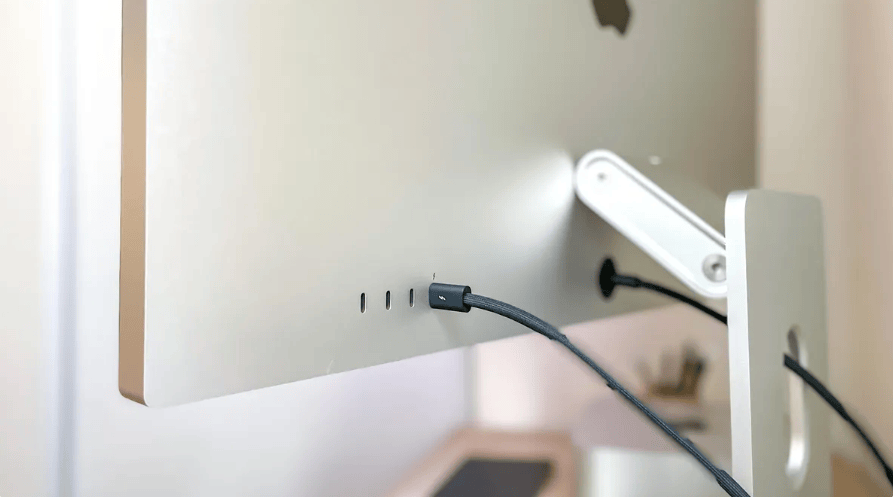
More and more users are using both Mac and Windows PCs simultaneously: Mac for daily office work and creative tasks, while Windows desktops handle professional software, gaming, or high-performance applications. But when users want to share an Apple Studio Display between both devices, a common issue arises—Mac can connect directly, while Windows desktops typically cannot connect via HDMI.
HDMI and Thunderbolt Display Interfaces Use Different Video Transmission Methods
Taking a Windows desktop as an example, most discrete graphics cards still output video signals via HDMI interfaces, while the Apple Studio Display is a display device that uses a Thunderbolt interface. Physically, the two are incompatible and require an interface converter.
In terms of protocol, although both HDMI and USB-C can transmit high-definition video, their underlying data protocols differ. Windows desktops output HDMI video signals, while the Apple Studio Display receives video signals based on the Thunderbolt/USB-C architecture. Therefore, attention must be paid to underlying protocol issues when selecting an interface converter.

Why Is USB-C to HDMI Generally Feasible, While HDMI to USB-C Is More Complex?
In daily use, USB-C to HDMI is a very common connection method. For example, a MacBook Air connects to a traditional HDMI display via USB-C to HDMI. This is because the video signal output by USB-C is essentially a DisplayPort signal, which supports compatible output of the TMDS signal used by HDMI, and can therefore be converted to HDMI format through a conversion chip.
However, HDMI to USB-C is a different case. USB-C display devices typically need to receive DisplayPort video signals, and HDMI signals cannot be directly converted to DisplayPort display signals through protocol compatibility. They must rely on an additional video conversion chip to complete the re-conversion from HDMI to DisplayPort.
Simply put, USB-C can output HDMI signals through compatible methods, while HDMI cannot actively convert to USB-C signals. This is also why USB-C to HDMI is generally feasible, while HDMI to USB-C is more complex.
Why Are Ordinary HDMI to USB-C Cables Limited in Effectiveness?
There are also some HDMI to USB-C conversion cables on the market that can attempt to connect HDMI hosts to USB-C display devices. These cables generally have three limitations.
First, the HDMI interface itself does not provide sufficient power, so the conversion chip must draw power externally. These cables typically have a USB-A or USB-C connector attached for power supply, which makes the user experience very cumbersome and may cause insufficient power supply, leading to screen flickering or black screens. Second, the confined space inside the conversion cable leads to heat accumulation, which degrades performance. Third, chip firmware and many low-cost solutions tend to limit the conversion chip's capabilities, only meeting basic display requirements, with limitations in high resolution, high refresh rate, and long-term stability.
For high-specification display devices like the Apple Studio Display, ordinary conversion cables often struggle to provide a stable and complete connection experience.

How Does the TESmart THK401-X4 Enable Windows Desktops to Connect to Apple Studio Display?
The TESmart THK401-X4 is designed specifically for this type of need. Through a more comprehensive product design, it solves the problems of ordinary HDMI to USB-C conversion cables, such as the need for external power, heat accumulation affecting performance, and unstable firmware.
The THK401-X4 features a built‑in independent power supply system, providing sufficient and stable power to the conversion chip to ensure it always operates at optimal performance. The metal chassis, combined with a well‑designed cooling solution, maintains a stable operating temperature even during prolonged use. The professional-grade conversion chip, paired with continuously optimized firmware, can stably output 4K signals with smooth, tear‑free, and flicker‑free images. It is a KVM device that integrates video conversion, multi‑device switching, and desktop sharing.
The video signal output by the Windows desktop via HDMI first enters the THK401-X4, and after internal video conversion processing, is output as a DisplayPort display signal that the Studio Display can recognize. The entire connection process can be understood as:

Below is the Studio Display compatibility list (laboratory test data):
|
Port |
Device |
Resolution |
|
PC1 |
Mac Mini M4 PRO |
5K |
|
PC1 |
Mac Mini M2 |
5K |
|
PC1 |
MacBook Air (M1 and above) |
5K |
|
PC2 |
Windows Desktop (Nvidia 50 series) |
4K |
|
PC2 |
Windows Desktop (AMD 90 series) |
4K |
|
PC2 |
Lenovo ThinkPad T14s |
4K |
|
PC2 |
Lenovo R7000 AHP9 |
4K |
|
PC2 |
HP TPN-W161 |
4K |
|
PC2 |
DELL PRO 16 |
4K |
|
PC3、4 |
PS5 |
4K |
|
PC3、4 |
PS4 |
4K |
|
PC3、4 |
Xbox Series X |
4K |
|
PC3、4 |
Xbox One S |
4K |
|
PC3、4 |
Nintendo Switch 2 |
4K |
|
PC3、4 |
Nintendo Switch |
1080P |

With the THK401-X4, users do not need to replace their graphics card or purchase special hardware to connect a Windows desktop with HDMI output to the Apple Studio Display. At the same time, the THK401-X4 features KVM functionality, allowing users to quickly switch between Mac and Windows PC and share the same set of desktop devices.
One Studio Display, Connecting Mac, Windows PC, and Gaming Consoles
For users who own Mac, Windows PC, and gaming devices simultaneously, the Apple Studio Display can serve not only as a display for the Mac but also as a unified display hub for the entire desktop.
Through the TESmart THK401-X4, users can share a single Studio Display between their Windows desktop and Mac, and quickly switch between devices according to different usage scenarios. In addition to Windows PC, the THK401-X4 also supports connecting HDMI gaming devices such as PS5, Xbox Series X, Nintendo Switch, and Steam Machine, allowing work, creative, and entertainment devices to all access the same display system.
Whether for office work, design, or gaming entertainment, the THK401-X4 helps users reduce connectivity restrictions between devices, making the Apple Studio Display truly a multi‑device desktop hub.

FAQ:
Can Apple Studio Display connect to a Windows PC?
Yes. Through a device that supports HDMI to USB-C video conversion, such as the TESmart THK401-X4, a Windows PC can connect to the Apple Studio Display via HDMI output and share the display device.
Why can't a Windows PC connect directly to Apple Studio Display via HDMI?
Because Windows PCs typically output HDMI video signals, while the Apple Studio Display uses a Thunderbolt/USB-C display architecture. The two require video protocol conversion.
Can an ordinary HDMI to USB-C cable connect to Apple Studio Display?
Most ordinary conversion cables can only perform basic video conversion and cannot provide a stable, high‑specification connection experience.
Does a Windows PC need to replace its graphics card to connect to Apple Studio Display?
No. The THK401-X4 can receive the HDMI output from a Windows PC and convert it into a video signal that the Studio Display can recognize, without the need to replace the graphics card.
Does Apple Studio Display require Windows drivers?
No. The THK401-X4 handles the video connection conversion. The Windows PC only needs to output a video signal via HDMI to connect to the Studio Display.
Learn More
How to Connect PS5 or Nintendo Switch to Apple Studio Display in a Mul – TESmart
PS5 Connected to Apple Studio Display with No Sound?THK401-X4 Solve it – TESmart
Share:
PS5 Connected to Apple Studio Display with No Sound? TESmart THK401-X4 Solves the Audio Issue
Why the KVM Works on Your Laptop but Not Your Desktop: A Dual-Monitor Signal-Path Checklist