

Table of Contents
- Introduction
- Why Sharing Two Monitors Across Four Computers Is More Complicated Than It Looks
- The Real Questions Users Ask Before Buying a 4-Port Dual-Monitor KVM
- One Computer on Both Monitors vs. Different Computers on Each Monitor
- When a Monitor Input Switch or USB Switch Is Not Enough
- Where a Four-Computer Dual-Monitor KVM Fits
- Compatibility Checklist Before You Build the Setup
- A Practical 4x2 KVM Connection Structure
- Example Workstation Configurations
- Who Should Choose a Four-Computer Dual-Monitor KVM?
- FAQ
- Conclusion
Introduction
You may already have four computers and two high-specification DisplayPort monitors, yet still spend part of every day pressing monitor input buttons, moving USB receivers, reconnecting cables, or waiting for Windows to rebuild the desktop after a switch.
The problem is not simply whether all six devices can be connected. The real question is whether the desk can preserve a usable dual-monitor workflow while sharing keyboard, mouse, USB peripherals, audio, and network access across four systems.
A four computer dual monitor KVM can centralize those functions, but only when the complete setup is planned correctly. Each computer must provide the required video signals, and the monitors, graphics outputs, adapters, cables, operating systems, and KVM must all support the target display mode.
This guide explains how a 4x2 DisplayPort KVM setup works, why EDID and signal-chain quality matter, and when a complete KVM is more practical than separate USB switches and monitor controls.
Why Sharing Two Monitors Across Four Computers Is More Complicated Than It Looks
A four-computer, two-monitor workstation has more signals, switching states, and opportunities for mismatch than a basic one-monitor KVM.
For a true extended desktop, each computer normally sends two independent video signals to the KVM. One feeds Monitor 1 and the other feeds Monitor 2. Across four computers, the KVM may need to manage eight source-side video connections, four USB upstream connections, and the shared peripheral ports.
A KVM does not create a second display output. If a desktop GPU has only one usable DisplayPort output, or a laptop supports only one external display, connecting it to a dual-monitor KVM will not produce a two-screen extended desktop.
Laptops add another layer. A USB-C port may support charging and data without video. A dock may expose two DisplayPort connectors while relying on MST, DisplayLink, or another architecture. The laptop, dock, operating system, and graphics hardware must all support the intended dual-display mode.
Display recognition also matters. When a computer loses access to a monitor, the operating system may treat it as removed, change resolution, or move application windows. EDID emulation can help maintain a more consistent display identity, but it cannot override every graphics-driver, operating-system, or application behavior.

The Real Questions Users Ask Before Buying a 4-Port Dual-Monitor KVM
Port count is only the first filter. A product described as “4-port” may refer to four USB devices or four video inputs rather than four complete computer channels. Confirm that it provides four computer positions, the required video inputs for both monitors, and a USB connection for each system.
Users also need to know whether the two monitors can run at different resolutions or refresh rates. Mixed-display setups can work, but every active signal path must support the selected mode. Switching may take longer when computers renegotiate different timings.
Window movement is another common concern. It usually occurs when the operating system believes a monitor has been disconnected or replaced. EDID emulation is designed to reduce this behavior by keeping monitor information available, although results still depend on the graphics driver and operating system.
Some users need both monitors to follow one computer. Others need Monitor 1 on PC 1 and Monitor 2 on PC 2. The second workflow requires independent monitor switching and clear control over which computer receives keyboard, mouse, USB, and audio focus.
For gaming or latency-sensitive work, avoid “zero delay” assumptions and test the complete video and USB path. High-resolution webcams, capture devices, audio interfaces, and SSDs may also require more USB bandwidth or power than keyboards and mice.

One Computer on Both Monitors vs. Different Computers on Each Monitor
Mode 1: One Computer Uses Both Monitors
A conventional dual-screen workflow looks like this:
Monitor 1 → PC 1
Monitor 2 → PC 1
Keyboard and mouse → PC 1
PC 1 sends two independent video outputs, and the operating system combines them into an extended desktop. This suits development, design, editing, office work, and data analysis.
Extended mode differs from mirrored mode. Extended mode gives each monitor its own desktop area. Mirrored mode sends the same image to both screens. The KVM routes the signals, while the computer determines whether the displays are extended or duplicated.
Mode 2: Each Monitor Shows a Different Computer
A mixed-source workflow may look like this:
Monitor 1 → PC 1
Monitor 2 → PC 2
Keyboard and mouse → selected control target
This is useful when one system runs the active task while another displays logs, dashboards, render status, monitoring data, or a reference environment.
Mixed display mode is more flexible but also more complex. The computer visible on a screen may not be the computer receiving keyboard and mouse input. USB storage and audio may also need to remain on a specific system. A suitable KVM should make these focus states clear.

When a Monitor Input Switch or USB Switch Is Not Enough
Not every desk needs a complete KVM. Manual monitor input switching can be acceptable when you change computers once or twice per day, but both monitors must be changed separately and the computer may detect a display disconnect.
A separate USB switch shares peripherals but does not manage video. Multi-device Bluetooth keyboards and mice also require separate switching and do not control monitors, wired USB devices, audio, EDID, or network access.
A monitor with a built-in KVM can work well for two sources. With two monitors and four computers, however, coordinating both display inputs and USB control becomes more difficult.
A complete 4x2 KVM is more suitable when users switch frequently, need both displays to move together, require independent display assignment, or want EDID, USB, audio, and network resources to follow or remain locked to a chosen computer.
Users still deciding between interfaces can compare KVM switches for four PCs and two monitors before committing to a DisplayPort-only signal path.

Where the TESmart DKS402-M24 Fits
At TESmart, we designed the DKS402-M24 for users who need four computers to share two DisplayPort monitors without forcing every signal to follow one computer at all times.
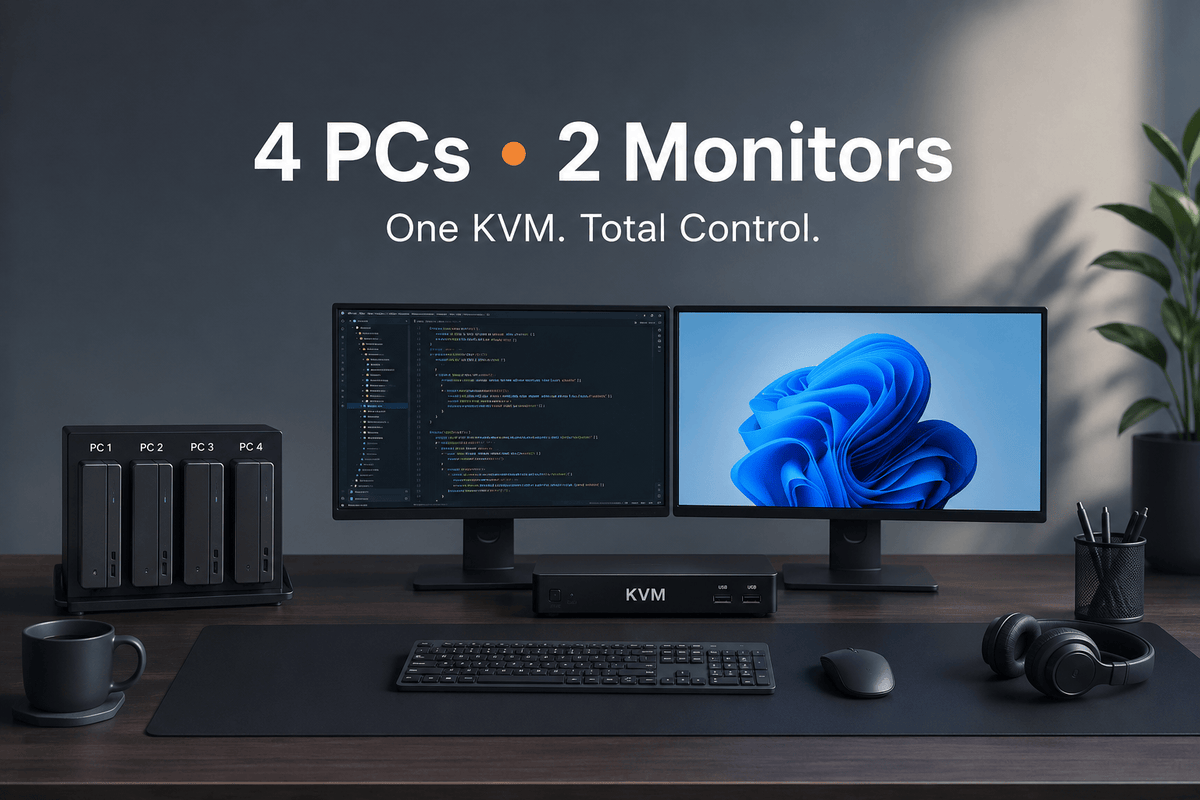
It is a 4x2 DisplayPort KVM for multi-PC workstations. Both monitors can display the same computer for a conventional extended desktop, or the monitors can be assigned to different computers for testing, monitoring, comparison, or mixed-system work.
EDID emulation can help maintain display identification during switching. This is useful when repeated monitor detection would otherwise change resolution or rearrange the desktop. Actual behavior depends on the computer, graphics driver, operating system, display, and selected settings.
The DKS402-M24 also supports flexible focus control. Keyboard and mouse control can follow the active workflow, while USB and audio focus can be locked to a selected computer. This can be useful when a shared drive must remain connected to one machine or an audio interface must stay with a production system.
Front USB-A and USB-C ports support shared peripherals, while Gigabit Ethernet sharing can reduce separate network connections. Peripheral performance depends on bandwidth and power requirements.
Front-panel controls, a remote, keyboard hotkeys, and mouse-wheel switching provide several control methods. Auto-scan can support monitoring and routine inspection.
The product supports demanding display modes up to its specified limits when the complete display path supports the target mode. We recommend checking the GPU, monitor input, cable capability, DSC requirements, refresh rate, color settings, and adapters before planning a high-resolution or high-refresh configuration.

Compatibility Checklist Before You Build the Setup
- Two independent outputs per computer: Confirm that every computer can produce two external display signals.
- Connector type: Check whether the outputs are native DisplayPort. HDMI, USB-C, Mini DisplayPort, or Thunderbolt-compatible laptop paths may require conversion.
- Laptop capability: Verify the maximum number of external displays, not only the number of physical ports.
- Dock architecture: Check whether a dock uses DP Alt Mode, MST, DisplayLink, or another method, and whether the OS supports it.
- Monitor targets: Record the resolution and refresh rate required for each display.
- GPU capability: Confirm that each graphics system can drive both monitors at those settings simultaneously.
- Advanced features: Note any dependence on DSC, HDR, VRR, adaptive sync, or high color depth.
- Cables: Use short, qualified DisplayPort cables and avoid unnecessary couplers.
- USB bandwidth: List webcams, microphones, SSDs, capture devices, printers, and hubs.
- Display assignment: Decide whether both screens normally follow one computer or mixed-source mode is required.
- Operating system: Expect Windows, Linux, and macOS to handle display reconnection differently.
- Mac compatibility: Most Macs do not have native full-size DisplayPort outputs. Check the required USB-C-to-DisplayPort cables or dock and confirm that the Mac supports two external displays.
For broader planning, see our guide to choosing a four-computer dual-monitor setup.
A Practical 4x2 KVM Connection Structure
A typical extended-desktop installation uses this pattern:
PC 1 DisplayPort Output A → KVM PC 1 Video Input A
PC 1 DisplayPort Output B → KVM PC 1 Video Input B
PC 1 USB Connection → KVM PC 1 USB Input
Repeat the same three connections for PC 2, PC 3, and PC 4.
KVM Display Output A → Monitor 1 DisplayPort Input
KVM Display Output B → Monitor 2 DisplayPort Input
Keyboard and mouse → KVM console ports
Shared devices → KVM USB expansion ports
Network cable → KVM Ethernet port, when required
Test one computer at a time. Confirm both monitors in extended mode, verify keyboard and mouse control, and then add shared USB devices. Begin with conservative display settings before enabling higher refresh rates, HDR, DSC-dependent modes, or adaptive sync.
When a laptop requires a dock or adapter, first test the laptop and dock directly with both monitors. Add the KVM only after the dual-display path is stable.
Example Workstation Configurations
Developer and Test Lab
PC 1 → Main development workstation
PC 2 → Linux test system
PC 3 → Build server
PC 4 → Personal computer
Both screens can follow the development workstation during normal work. During testing, one monitor can show Linux while the other remains on the main PC.
Creator and Gaming Setup
PC 1 → Editing workstation
PC 2 → Gaming PC
PC 3 → Streaming PC
PC 4 → Asset or communication system
The editing system can use both displays during production. During a stream, one monitor can show the game while the second shows broadcast controls from another computer. Test the creative and gaming paths separately because they have different color and refresh-rate priorities.
IT Monitoring Desk
Monitor 1 → Active maintenance system
Monitor 2 → Monitoring computer
Keyboard and mouse → Selected target
USB or audio → Locked as required
This arrangement keeps monitoring data visible while an administrator works on another system. Auto-scan can support routine checks without replacing the need for deliberate control of the active computer.

Who Should Choose a Four-Computer Dual-Monitor KVM?
A 4-port dual-monitor KVM is more suitable for IT administrators, developers, test engineers, content creators, video editors, multi-system labs, trading desks, data-analysis workstations, and advanced work-and-gaming setups where switching is frequent.
It also makes sense when users need both same-source dual-screen mode and mixed-source display mode, or when EDID, USB focus, audio focus, and network sharing reduce repetitive desk operations.
A simpler solution may be better for users who have one computer, switch rarely, need only keyboard and mouse sharing, or already have an effective monitor-based KVM. A DisplayPort KVM is also not the natural choice for an HDMI-, USB-C-, or Thunderbolt-compatible display chain when the user does not plan to add conversion hardware.
A KVM cannot solve a source limitation. A computer that cannot produce two independent display signals will not gain that capability by being connected to a dual-monitor KVM.
FAQ
Q1: Can four computers share two monitors through one KVM?
Yes. A 4x2 KVM can connect four computers to two monitors and share keyboard, mouse, and supported USB devices. The computers and KVM must provide the required video connections.
Q2: Does each computer need two DisplayPort outputs?
For a two-screen extended desktop, each computer normally needs two independent video outputs. Native DisplayPort is the simplest match, although compatible adapters or docks may work.
Q3: Can the two monitors display different computers at the same time?
Yes, when the KVM supports independent monitor switching. Keyboard, mouse, USB, and audio focus should then be managed deliberately.
Q4: Why do windows move after switching a KVM?
The operating system may detect that a monitor was disconnected. EDID emulation can help maintain monitor identity and reduce rearrangement, but drivers and applications may still reposition windows.
Q5: Does a DisplayPort KVM reduce refresh rate?
Not automatically. The achievable refresh rate depends on the GPU, KVM, monitor, cables, resolution, color depth, DSC, and any adapters in the path.
Q6: Is EDID necessary for a dual-monitor KVM?
It is not required for every basic setup, but it is useful when switching causes resolution changes, monitor re-detection, or desktop rearrangement.
Q7: Can I share a webcam, microphone, and USB storage device?
Yes, if the KVM provides suitable USB ports and bandwidth. High-bandwidth or bus-powered devices should be tested individually.
Q8: Can I connect a laptop through a docking station?
Possibly. Confirm that the dock can output two independent DisplayPort signals at the target settings. Test it directly with both monitors before adding the KVM.
Q9: Does DKS402-M24 work with Mac computers?
A Mac can be used when it supports the required external displays and provides compatible DisplayPort signals through suitable cables or a dock. The specific Mac model and display path must be checked.
Q10: What should I check before using 4K or high-refresh monitors?
Check the GPU, monitor inputs, KVM limits, cable quality and length, color depth, HDR and VRR settings, DSC requirements, and every adapter in the path.
Conclusion
Sharing two DisplayPort monitors across four computers is not only a port-count problem. A stable setup depends on two independent video outputs from each computer, suitable monitor and cable capability, clear switching logic, and enough USB bandwidth for the peripherals being shared.
For occasional switching, monitor input buttons and a separate USB switch may be sufficient. For frequent multi-system work, a dedicated 4x2 KVM can reduce manual steps and provide better control over dual-screen switching, EDID behavior, peripherals, audio, and network access.
Before choosing a product, confirm that all four computers can provide the required DisplayPort signals, record the target resolution and refresh rate for both monitors, and verify every adapter and cable in the path.
If your workspace includes four DisplayPort-capable computers, two monitors, shared USB peripherals, and frequent switching, review the TESmart DKS402-M24 ports, switching modes, and compatibility considerations to determine whether it matches your complete workstation design.
Share:
How to Share Three High-Refresh DisplayPort Monitors Across Four Computers
How to Share Three Monitors Between a MacBook and Windows PC with a DisplayLink KVM Dock