

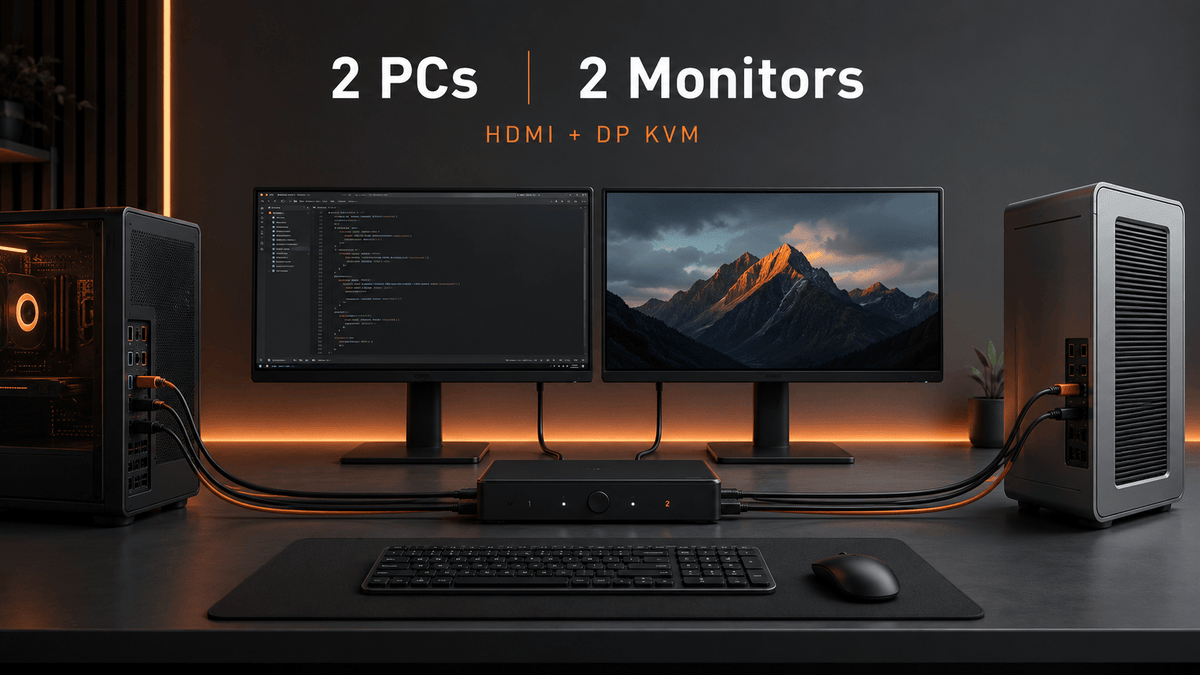
Sharing two monitors between two computers sounds like a simple switching task. In practice, the desk has to manage four source-side video connections, two monitor outputs, USB data, keyboard and mouse control, audio, and the display information that each operating system expects to see.
The most common mistake is assuming that one HDMI cable or one USB cable from each computer can create two independent screens. A dual-monitor KVM does not generate an extra display. Each computer must already be able to provide two usable video signals, and the KVM must match those signals.
Quick Answer: To share two monitors between two PCs with an HDMI and DisplayPort KVM, each computer normally needs one HDMI output, one DisplayPort output, and one USB connection to the KVM. The KVM then sends two HDMI outputs to the monitors and switches the shared keyboard, mouse, and compatible USB devices between the computers.
Table of Contents
- Why Sharing Two Monitors Between Two PCs Is More Complicated Than It Looks
- What a Dual-Monitor KVM Actually Switches
- Why Each Computer Needs Two Video Connections
- HDMI + DisplayPort Input and Dual HDMI Output Explained
- Comparing Ways to Share Two Monitors
- Does 4K60 Also Mean 1440p120 or 1080p240?
- Why EDID Matters When Switching Computers
- How USB Devices, Audio, and Keyboard/Mouse Sharing Work
- Can the Two Monitors Display Different Computers?
- Does This Setup Match Your Hardware?
- Where the TESmart HDK202-P23-V2 Fits
- Who Actually Needs This?
- Before You Buy: Complete Compatibility Checklist
- FAQ
- Final Recommendation
Why Sharing Two Monitors Between Two PCs Is More Complicated Than It Looks
A typical dual-computer desk may include a work PC and a gaming PC, a Windows workstation and a Linux mini PC, or two desktops used for different projects. The user wants both computers to share the same two displays, keyboard, mouse, webcam, storage devices, and audio equipment.
Without a KVM, switching may require changing the input source on both monitors, moving a USB cable, reconnecting a headset, and waiting for the operating system to rebuild the display layout. That is manageable once a month. It becomes disruptive when the user changes systems several times a day.
The technical difficulty comes from the fact that a dual-monitor workspace is not one signal. It is two separate display paths plus a USB control path. If one path is missing, one monitor will remain blank. If the path supports a lower display mode than expected, the system may fall back to a lower resolution or refresh rate.
At TESmart, we recommend checking the complete connection chain before choosing a dual monitor KVM switch for 2 PCs. The number of computers and monitors is only the first step. The source ports, monitor inputs, cable types, adapters, and target display modes determine whether the setup is actually workable.
What a Dual-Monitor KVM Actually Switches
A complete 2 PC 2 monitor KVM switch manages three functions:
- Video: it routes two video signals from the selected computer to the two monitors;
- Keyboard and mouse: it transfers control to the selected computer;
- USB and audio: it allows compatible peripherals and audio devices to follow the selected system or, on supported models, switch separately.
This is different from several devices that are often confused with a dual-monitor KVM.
An HDMI switch usually routes multiple HDMI sources to one display. It does not automatically manage a second monitor or the keyboard and mouse. A USB switch shares USB devices but does not route video. A single-monitor KVM switches one display path, so it cannot move a complete two-screen desktop.
A docking station solves a different problem. It expands the ports of one computer. It may be used before a KVM when a laptop needs more video outputs, but the dock does not replace the KVM’s role of switching control between computers.

Why Each Computer Needs Two Video Connections
For an extended desktop, each monitor needs an independent video signal. That means a two-computer, two-monitor KVM normally receives four source-side video connections:
- Computer 1 video path A;
- Computer 1 video path B;
- Computer 2 video path A;
- Computer 2 video path B.
With an HDMI and DisplayPort KVM, those paths may be one HDMI signal and one DisplayPort signal from each computer. The KVM switches the existing signals; it does not duplicate one input into two independent extended displays.
Why USB Does Not Replace the Second Video Cable
The USB connection between each computer and the KVM carries keyboard, mouse, and peripheral data. On this type of KVM, it is not a video-expansion connection and does not contain DisplayLink functionality.
This distinction explains a common symptom: the keyboard and mouse work, but only one monitor displays an image. The USB path is connected correctly, while the second HDMI or DisplayPort path is missing, unsupported, or not producing a signal.
What If a Computer Has Only One Video Port?
A computer with one usable display output needs another valid display path before it can drive two external monitors through this KVM. Possible options include another GPU output, a USB-C port that supports video, a compatible dock, or an active adapter.
Do not assume that every USB-C port supports video or that every dock creates two independent external displays. The computer, operating system, dock chipset, and adapter must all support the required output structure.
Mac users need additional care. Many Mac models do not provide native DisplayPort connectors, so a USB-C-to-DisplayPort adapter or dock is usually required. The number of supported external displays also depends on the specific Mac model and chip. A KVM cannot bypass that platform limit.

HDMI + DisplayPort Input and Dual HDMI Output Explained
The intended signal path for this setup is straightforward when both computers already provide one HDMI and one DisplayPort output.
PC 1 Connections
PC 1 HDMI output → KVM PC 1 HDMI input
PC 1 DisplayPort output → KVM PC 1 DisplayPort input
PC 1 USB port → KVM PC 1 USB input
PC 2 Connections
PC 2 HDMI output → KVM PC 2 HDMI input
PC 2 DisplayPort output → KVM PC 2 DisplayPort input
PC 2 USB port → KVM PC 2 USB input
Monitor and Peripheral Connections
KVM HDMI output A → Monitor 1 HDMI input
KVM HDMI output B → Monitor 2 HDMI input
Keyboard and mouse → KVM keyboard/mouse ports
Compatible USB devices → KVM USB 3.0 ports
Headset and microphone → Supported audio ports
This mixed-input, dual-HDMI-output structure is useful when both computers have HDMI and DisplayPort outputs but the monitors are connected by HDMI. It is not the same as a dual-DisplayPort-output KVM.
Keep the display mapping consistent. Connect each computer’s primary display path to the same KVM channel and monitor. Consistent mapping reduces confusion when arranging the left and right monitors in Windows, Linux, or macOS.

Comparing Ways to Share Two Monitors
| Setup Method | What It Shares | Main Limitation | Best For |
|---|---|---|---|
| Manually reconnecting cables | Displays and peripherals | Slow, repetitive, and increases connector wear | Very occasional switching |
| Monitor input switching + USB switch | Displays and USB devices separately | Requires multiple switching actions | Users whose monitors already have enough inputs |
| Single-monitor KVM | One display and shared peripherals | Cannot switch a complete dual-monitor workspace | One-screen desks |
| Dual-monitor HDMI + DP KVM | Two displays, keyboard, mouse, and USB devices | Each computer needs two compatible video outputs | Two-PC dual-monitor workstations |
The HDK202-P23-V2 belongs to the final category. It centralizes a complete two-screen workstation, but only when the computers and monitors match its HDMI, DisplayPort, USB, and performance requirements.
Does 4K60 Also Mean 1440p120 or 1080p240?
A 4K 60Hz dual monitor KVM may support higher refresh rates at lower resolutions because lower resolutions require less video bandwidth. For the HDK202-P23-V2 product family, listed compatibility modes include:
- 3840 × 2160 at 60Hz;
- 3440 × 1440 at 100Hz;
- 2560 × 1440 at 120Hz;
- 1920 × 1080 at 240Hz.
These modes should be treated as supported path targets, not as a guarantee for every computer and monitor combination. The final result depends on:
- the graphics card and its active outputs;
- the operating system and graphics driver;
- the HDMI and DisplayPort versions used by the source;
- the KVM path;
- the monitor’s input capability;
- the cable quality and length;
- any adapters or docks in the chain;
- color depth, chroma format, HDR, and other display settings.
A monitor may support 1440p120 over DisplayPort but not over its HDMI input. A GPU may also expose different limits on its HDMI and DisplayPort connectors. Because the KVM outputs HDMI to both monitors, the HDMI input capability of each display is part of the decision.
At TESmart, we recommend testing each monitor directly with each computer at the intended mode before adding the KVM. After the base connection is stable, insert the KVM and raise the refresh rate one screen at a time.

High-refresh boundary: users who require dual 4K120Hz or dual 4K144Hz should choose a higher-bandwidth HDMI 2.1 or DisplayPort 1.4 solution rather than this HDMI 2.0 and DisplayPort 1.2 model.
Why EDID Matters When Switching Computers
EDID is the display information a computer reads to learn which resolutions, refresh rates, color formats, and audio capabilities a monitor supports.
When a basic switch removes the display connection from the inactive computer, the operating system may behave as though the monitor was unplugged. That can cause:
- windows to move to the remaining screen;
- desktop icons to rearrange;
- resolution or scaling settings to change;
- applications to reopen on the wrong monitor;
- a longer delay while the display is detected again.
A KVM switch with EDID can keep display information available to the connected computers, reducing unnecessary monitor re-detection. This does not mean EDID eliminates every black screen or layout change. Cable quality, adapter behavior, GPU drivers, monitor sleep settings, and operating-system display management still matter.
For the HDK202-P23 family, EDID emulation applies when both monitors display the same selected computer. The independent mixed-display mode does not use the same EDID retention behavior. That distinction should be considered by users who frequently alternate between a unified dual-screen workspace and one-computer-per-monitor viewing.
For a deeper explanation, learn how EDID works in a KVM switch.

How USB Devices, Audio, and Keyboard/Mouse Sharing Work
The USB connection from each computer allows the KVM to pass keyboard, mouse, and peripheral data. It is separate from the two video paths.
Dedicated Keyboard and Mouse Ports
Dedicated keyboard and mouse ports support KVM hotkey functions. Some keyboards use proprietary protocols, integrated USB hubs, card readers, lighting controllers, or driver-based features that do not behave normally through an emulated keyboard port.
If a keyboard works poorly in the dedicated port, connecting it to a general USB 3.0 port may improve basic compatibility. The tradeoff is that hotkey switching may no longer work from that keyboard.
USB 3.0 Peripheral Sharing
Compatible webcams, microphones, USB receivers, printers, flash drives, and external storage devices can be shared through the USB 3.0 ports. Performance depends on the device type, total USB bandwidth, cable path, and driver behavior.
High-bandwidth webcams, capture devices, audio interfaces, and external SSDs should be tested individually. Some specialized devices are more stable when connected directly to a computer or through a powered hub.
Always eject storage devices before switching USB focus. A KVM changes which computer owns the USB connection; it does not protect an active file transfer from interruption.
Audio and Microphone Connections
The headset and microphone connections can follow the selected computer or be switched using the supported controls. The operating system must still select the correct audio input and output device.

Can the Two Monitors Display Different Computers?
Yes. The HDK202-P23 family supports two practical display arrangements.
Display Mode 1: Both Monitors Follow One Computer
Both screens display Computer 1 or both display Computer 2. This is the standard dual-monitor KVM workflow for an extended or mirrored desktop. It is also the mode in which EDID emulation is used to help maintain monitor recognition.
Display Mode 2: Each Monitor Shows a Different Computer
Monitor A can display Computer 1 while Monitor B displays Computer 2. This is useful when a user needs to watch logs, a render, a test environment, or a communication app on one computer while actively controlling the other.
The keyboard and mouse still control one computer at a time. The control focus must be switched between systems. USB and audio focus can also be switched using the model’s supported commands.
This mode is not the same as simultaneously controlling both computers with one keyboard and mouse. It is a split viewing mode with selectable input-device focus.

Does This Setup Match Your Hardware?
Suitable When:
- You have two computers.
- Each computer can provide one HDMI and one DisplayPort video output.
- You want to share two monitors with HDMI inputs.
- Your target mode is within the verified resolution and refresh-rate range.
- You want to share a keyboard, mouse, and compatible USB 3.0 devices.
- You want EDID-assisted display stability when both monitors follow the same computer.
- You prefer switching through hotkeys, front-panel buttons, or a remote control.
- You may need the two monitors to display different computers at the same time.
Consider Another Solution When:
- One or both computers have only one usable video output.
- You need one USB-C cable to carry video, data, and laptop charging.
- You need DisplayLink-based display expansion.
- You require dual 4K120Hz or dual 4K144Hz.
- You require HDMI 2.1 or DisplayPort 1.4 functionality.
- You need to share a display that requires a Thunderbolt-compatible connection.
- Your monitors accept only DisplayPort input and you do not want to use active adapters.
- Your Mac does not natively support the required number of external displays.
Users who do not match this port structure should compare TESmart dual-monitor KVM switches or find the right KVM for their setup instead of forcing adapters into an unsuitable connection plan.
Where the TESmart HDK202-P23-V2 Fits
After the hardware checks above, the TESmart HDK202-P23-V2 dual-monitor HDMI + DisplayPort KVM becomes relevant for a specific type of desk: two computers that can each provide one HDMI signal, one DisplayPort signal, and one USB connection, with two HDMI monitors on the output side.
Its value is not that it creates a second display. It centralizes the signals that the computers already provide and coordinates them with keyboard, mouse, USB 3.0 peripherals, audio, and multiple switching methods.
How Its Capabilities Map to the Real Problems
| User Problem | Relevant Capability | Boundary to Check |
|---|---|---|
| Switching two monitors separately takes too many steps | Coordinated dual-display switching | Each computer must supply both video paths |
| Windows move or displays are redetected | EDID emulation in unified display mode | Not a guarantee against every driver or cable issue |
| Keyboard, mouse, and USB devices must move together | USB control and USB 3.0 sharing | Specialized or high-bandwidth devices require testing |
| A work PC and gaming PC need different viewing modes | Unified dual-screen mode and mixed-computer display mode | Keyboard and mouse focus controls one computer at a time |
| Lower-resolution high-refresh monitors are used | Listed 1440p and 1080p high-refresh compatibility modes | The complete signal chain determines the final mode |
For the official connection details, view the HDK202-P23 connection guide. The model family also has a downloadable product manual.

Who Actually Needs This?
Good Fit
- A work PC and gaming PC sharing two HDMI monitors;
- A Windows workstation and Linux computer with HDMI + DisplayPort outputs;
- Two desktop computers that already support two external displays;
- Users who switch systems several times per day;
- Users who want shared USB 3.0 peripherals and audio;
- Users who need both monitors on one computer most of the time but occasionally view one computer on each screen.
Poor Fit
- Two USB-C laptops that need single-cable docking and charging;
- A Mac that supports only one external monitor;
- Dual DisplayPort monitors with no desired HDMI path;
- Dual 4K144 gaming setups;
- Workflows built around DisplayLink expansion;
- Displays that require a Thunderbolt-compatible connection;
- Users who only need one monitor and do not benefit from a two-screen KVM.
This is a decision point, not a product ranking. Compared with a basic setup, the HDK202-P23-V2 makes more sense when the interface layout already matches and the user values coordinated display, USB, and control switching.

Before You Buy: Complete Compatibility Checklist
- □ Both computers support two simultaneous displays.
- □ Each computer has one usable HDMI output.
- □ Each computer has one usable DisplayPort output or a verified DisplayPort-compatible adapter path.
- □ Each computer has a USB port for KVM data.
- □ Both monitors have HDMI inputs.
- □ The HDMI inputs on the monitors support the target resolution and refresh rate.
- □ The GPU supports the target mode on both active outputs.
- □ Cables and adapters are rated for the intended display mode.
- □ Any dock has been tested with two independent external displays.
- □ Mac external-display limits have been checked by exact model and chip.
- □ The user understands that USB does not carry the second display signal on this model.
- □ The user does not require HDMI 2.1, DisplayPort 1.4, dual 4K120, or dual 4K144.
- □ High-bandwidth USB devices have been considered separately.
- □ Bluetooth keyboard and mouse support is not required.
- □ The intended unified or mixed-computer display mode has been identified.
When compatibility is uncertain, collect the exact computer model, GPU, operating system, dock or adapter model, monitor models, desired resolution and refresh rate, and cable types. Those details allow a meaningful compatibility check.
FAQ
1. Can two computers share two monitors through one KVM switch?
Yes. A dual-monitor KVM can route two video signals from the selected computer to two monitors while sharing keyboard, mouse, and compatible USB devices. Each computer must provide the required video outputs.
2. Does each computer need two video outputs for a dual-monitor KVM?
Yes, for two independent displays. The HDK202-P23-V2 requires one HDMI and one DisplayPort video path from each computer. The KVM switches those paths but does not create a second display from one input.
3. Can USB carry the second monitor signal on the HDK202-P23-V2?
No. The USB connection carries keyboard, mouse, and peripheral data. It does not replace the HDMI or DisplayPort video input and does not provide DisplayLink-based display expansion.
4. Will a 4K60 KVM support 1440p at 120Hz?
The model lists 2560 × 1440 at 120Hz as a compatible mode. Actual operation depends on the GPU, driver, cables, adapters, KVM path, and monitor HDMI input. Test the monitor directly before validating the complete KVM chain.
5. Why do my windows move after switching computers?
The operating system may detect the monitors as disconnected and rebuild the desktop layout. EDID emulation can reduce this behavior by keeping display information available, but driver behavior, monitor sleep settings, adapters, and cables can still affect window placement.
6. Can the two monitors display different computers at the same time?
Yes. The mixed-display mode can show Computer 1 on one monitor and Computer 2 on the other. Keyboard and mouse control still has one active computer focus at a time.
7. Does the HDK202-P23-V2 work with Windows and Linux?
Basic KVM operation can work across Windows and Linux when both systems provide the required HDMI, DisplayPort, and USB connections. Display settings, hotkey behavior, USB devices, and drivers should still be tested for the specific systems.
8. Can I use a Mac with this HDMI and DisplayPort KVM?
A Mac can be used only when the exact model supports two external displays and can provide HDMI and DisplayPort-compatible outputs through native ports, adapters, or a verified dock. Most Macs do not have a native DisplayPort connector, and external-display limits vary by model.
9. Can I share a webcam, microphone, or external drive?
Compatible USB devices can be shared through the USB 3.0 ports. High-bandwidth webcams, capture devices, audio interfaces, and storage devices may need testing. Safely eject storage before changing USB focus.
10. Does the KVM support Bluetooth keyboards and mice?
Bluetooth keyboards and mice are not supported through the KVM’s dedicated keyboard and mouse ports. A 2.4GHz wireless keyboard or mouse with a USB receiver may work, subject to device compatibility.
11. Why does only one monitor work with my KVM?
The second video path may be missing or inactive. Confirm that each computer has both its HDMI and DisplayPort connections attached to the correct KVM inputs, then test the second output directly with the monitor at a conservative resolution such as 1080p60.
12. Is this KVM a docking station for USB-C laptops?
No. It includes USB peripheral-sharing functions, but it is not a single-cable USB-C display-expansion and charging dock. A laptop may require a separate compatible dock or adapters before connecting to the KVM.
Final Recommendation
To share two monitors between two PCs reliably, begin with the source devices rather than the KVM specification. Confirm that each computer can produce two independent display signals, that those signals match the HDMI and DisplayPort inputs, and that both monitors can receive the KVM’s HDMI outputs at the required modes.
The HDK202-P23-V2 is more suitable for two-desktop workstations that already match this mixed HDMI + DisplayPort structure. It combines dual-display switching with USB 3.0, keyboard and mouse control, audio, EDID-assisted stability, and an optional one-computer-per-monitor viewing mode.
It is not the right path for every dual-monitor desk. Users who need single-cable USB-C docking, DisplayLink expansion, dual 4K144Hz, DisplayPort-only monitor outputs, or a Thunderbolt-compatible display workflow should choose a different architecture.
Share:
Three Displays, Two Computers: How to Build a Stable High-Refresh DP Workstation
Why Your Monitors Don’t Wake After Switching a KVM