

Table of Contents
- Introduction
- How a Monitor Can Be Recognized but Still Stay Dark
- EDID Is Display Identity, Not a Wake Signal
- Four Events That Must Succeed After a KVM Switch
- Why a Dock Makes the Wake Path More Complicated
- The Three-Stage Isolation Test
- How to Interpret the Test Results
- Practical Tests for Wake and Link-Retraining Problems
- Where DKS202-M24 and DKS402-M24 Fit
- Related TESmart Guides
- FAQ
- Conclusion
Introduction
A recent ThinkPad troubleshooting case shows why an EDID-equipped KVM does not automatically solve every black-screen problem.
The setup included a ThinkPad P1 Gen 8, a Lenovo ThinkPad Smart Dock 7500 connected through Thunderbolt 5, a TESmart dual-monitor DisplayPort KVM with EDID, and two LG UltraFine displays. The KVM was selected partly because EDID emulation was expected to keep the monitors available to the computer while another system was active.
Monitor recognition was not the only problem, however. After switching away from the ThinkPad and then switching back, the monitors sometimes remained dark until they were powered off and on again.
This symptom exposes an important distinction:
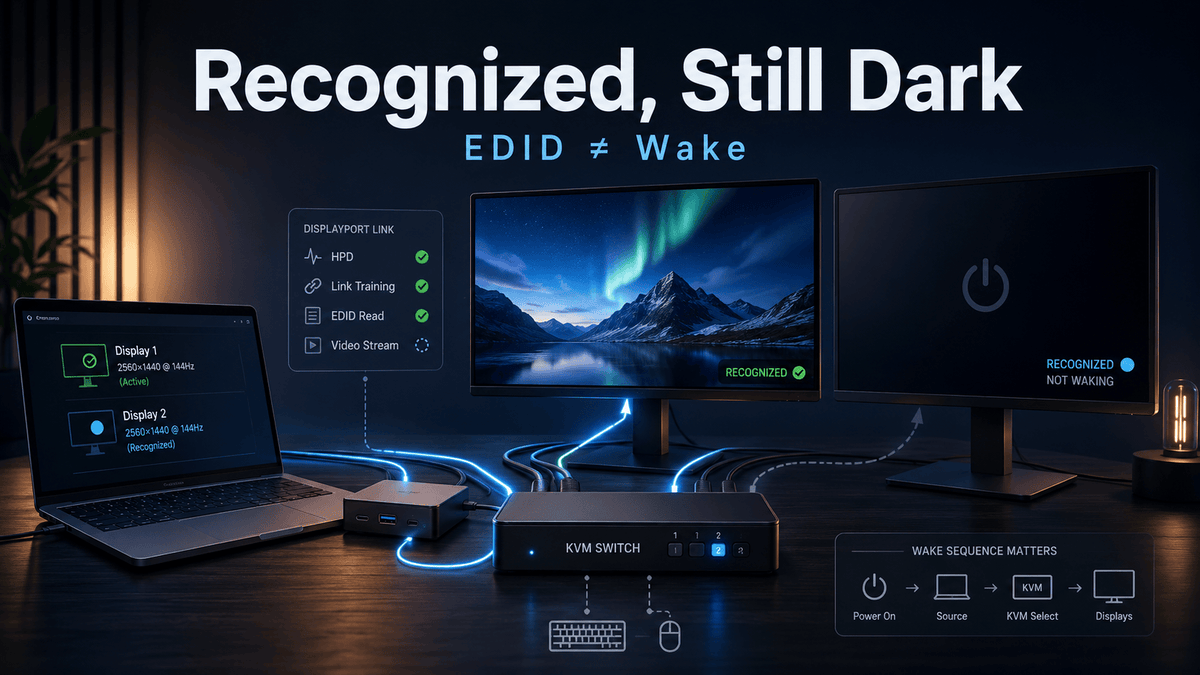
EDID emulation can preserve display identity without guaranteeing that the monitor, dock, graphics driver, and DisplayPort link will complete the wake sequence.
The computer may still list both monitors. Window positions may remain intact. The expected resolution may still appear in Windows. Yet the monitors can remain in standby because a different part of the connection has failed to resume.
This article focuses specifically on that failure path. For a broader explanation of monitor identification, resolution storage, and desktop-layout behavior, see EDID Emulation Explained: How It Makes KVM Multi-Monitor Switching More Stable.
How a Monitor Can Be Recognized but Still Stay Dark
Users often assume that monitor detection and video output are the same event. They are not.
A Windows computer can show a monitor in Display Settings because the graphics system has access to its identification data. The operating system may know the monitor name, preferred resolution, orientation, and previous desktop position.
That does not prove that an active video stream is reaching the panel.
A simplified DisplayPort path contains two different categories of communication:
- Identification and management communication, including EDID, Hot Plug Detect, DisplayPort Configuration Data, and AUX-channel communication.
- The active video link, which carries the pixel stream after the source and display have negotiated a working connection.
An EDID emulator can help the first category remain consistent. The second category may still fail if the source does not resume output, the monitor stays in a low-power state, or DisplayPort link training does not complete.
This is why the following symptoms can occur at the same time:
- Windows still shows two external monitors.
- The desktop remains extended across both displays.
- The mouse pointer can move into the invisible desktop area.
- Applications may open on the dark display.
- The monitor reports “No Signal” or remains in standby.
In this situation, monitor identity has been retained, but the active display path has not recovered correctly.

EDID Is Display Identity, Not a Wake Signal
EDID describes what a display is and which modes it supports. It can include the display identity, preferred timing, available resolutions, refresh rates, color capabilities, and related information.
When a KVM stores or emulates this information, the inactive computer can continue seeing a consistent display identity instead of treating the monitor as fully disconnected.
This helps with problems such as:
- Windows moving applications back to the primary display.
- Desktop icons changing position.
- The operating system forgetting monitor order or orientation.
- Resolution and refresh-rate options disappearing after switching.
- Each KVM switch being treated like a fresh monitor connection.
These benefits are important, but EDID emulation by itself does not guarantee that:
- The monitor will leave its low-power state.
- The dock will reactivate its physical DisplayPort output.
- The correct Hot Plug Detect event will reach the graphics driver.
- AUX-channel communication will resume normally.
- The source and monitor will complete DisplayPort link training.
- The GPU will restart the active pixel stream.
In other words, keeping EDID available is not the same as keeping the complete DisplayPort main link electrically active at all times.
For more detail about Windows monitor memory and desktop restoration, see Windows 11 Multi-Monitor Problems After Updates: Why EDID and Display Memory Matter in KVM Setups.

Four Events That Must Succeed After a KVM Switch
When a DisplayPort monitor returns to a computer after KVM switching, several separate events must align. Treating them as separate stages makes troubleshooting more precise.
| Stage | What It Does | Typical Failure Symptom |
|---|---|---|
| 1. EDID availability | Provides the monitor identity and supported display modes to the computer. | The monitor is missing from the operating system, appears with the wrong identity, or loses expected resolution and refresh-rate options. |
| 2. Hot Plug Detect | Indicates that a display path is present or that the source should check for a connection-state change. | The graphics driver does not recheck the output, or the dock and computer disagree about whether the display path is ready. |
| 3. Display power state | Controls whether the GPU is sending active video and whether the monitor has exited standby. | The computer still recognizes the monitor, but the panel remains asleep or reports no signal. |
| 4. DisplayPort link training | Negotiates lane count, link rate, signal level, and other physical-link conditions between the source and display. | A persistent black screen, repeated flickering, delayed wake, or fallback to a lower display mode. |
Hot Plug Detect Is Separate from EDID
Hot Plug Detect, commonly shortened to HPD, is part of how the graphics system learns that a display connection is present or has changed.
EDID answers the question, “What display is connected and what does it support?” HPD is closer to, “A display path is present, or something about the connection needs attention.”
A KVM may continue presenting stored EDID while the dock, graphics driver, or monitor is waiting for a different HPD transition. If that transition is missed, delayed, or interpreted differently by one device, the monitor can remain dark even though its identity is still available.
DPMS and Display Power State
DPMS is commonly used as shorthand for display power-management behavior. In current computers, the actual wake process may involve the operating system, GPU driver, dock controller, monitor firmware, and DisplayPort link-power state.
Switching away from a computer is not always interpreted the same way as turning the display off through the operating system. A dock may stop transmitting from its DisplayPort output, while the KVM continues presenting EDID upstream. The computer therefore retains the logical monitor but may not perform the same resume sequence it would after a normal display-sleep event.
This distinction can explain an unusual but useful diagnostic clue: the monitors may wake correctly if Windows put them to sleep before the switch, but fail if they were active when the KVM switched away.
The two situations begin from different power and link states, so they can trigger different recovery behavior.
DisplayPort Link Training
DisplayPort does not simply resume by sending pixels through the existing cable path. The source and display may need to establish or re-establish a working physical link.
During link training, the source and display negotiate a usable lane configuration and signal condition. Cable quality, connector loss, dock output behavior, the KVM signal path, monitor firmware, and the selected display mode can all affect the result.
A link that trains reliably at 1080p or 4K@60Hz may be less tolerant at a higher refresh rate, greater color depth, or a mode that requires Display Stream Compression.
We will not repeat the complete DisplayPort bandwidth comparison here. Users selecting between common interface generations can refer to DP 1.4 vs DP 1.2: What’s the Difference?

Why a Dock Makes the Wake Path More Complicated
A direct desktop DisplayPort connection has a relatively short control path:
GPU → KVM → Monitor
A laptop connected through a dock creates a longer path:
Laptop graphics system → USB-C or Thunderbolt-compatible connection → Dock controller and firmware → Dock DisplayPort output → KVM → Monitor
The dock is not a passive cable. It has its own display controller, firmware, output-port state, power management, and timing behavior.
Dock Firmware
Dock firmware influences how physical video outputs initialize, sleep, and recover. A firmware update may change output timing, monitor detection, DisplayPort compatibility, or behavior after the host resumes.
When a problem appears only with a specific laptop and dock combination, the dock firmware should be checked before concluding that the KVM or monitor is defective.
Graphics Drivers and Laptop Display Routing
Workstation laptops may contain integrated and discrete graphics hardware. External display outputs can be routed differently depending on the laptop design, BIOS settings, graphics mode, dock, and driver configuration.
The operating system may still retain the monitor topology while the driver fails to reactivate the physical output behind the dock. Updating the graphics drivers and laptop firmware is therefore relevant even when EDID appears correct.
Display-Off, System Sleep, and Switching Are Different Events
Three actions that look similar to the user can produce different device behavior:
- Windows turns off the displays while the computer remains awake.
- The complete computer enters a sleep or low-power state.
- The KVM routes the monitors to another computer while the original computer remains active.
The graphics driver, dock, and monitor may use different recovery paths for each event. Testing them separately is more useful than describing every failure as a general “sleep issue.”
Monitor Deep Sleep
Some monitors include settings named Deep Sleep, Eco Mode, DP Power Saving, Auto Standby, or similar terms.
These settings may power down more of the monitor’s DisplayPort receiver than a normal blank-screen state. Depending on the monitor design, AUX communication or HPD behavior may also change.
If power-cycling the monitor restores the image, temporarily disabling Deep Sleep is a useful test. It is not proof that the monitor is solely responsible, but it can show that the sink-side power state is part of the failure.
The Dock Output Type Matters
A native GPU DisplayPort output, a physical DisplayPort port on a dock, a USB-C-to-DisplayPort cable, and an active protocol converter do not necessarily present identical wake behavior.
Adapters and conversion stages may be directional and may have their own HPD, AUX, and power-management behavior. Reducing conversion layers during testing helps determine whether the problem is caused by the KVM or by the connection architecture before it reaches the KVM.

The Three-Stage Isolation Test
The fastest way to troubleshoot this problem is not to change several settings at once. Build the display path in three stages and repeat the same wake test at every stage.
Stage 1: Computer Directly to the Monitor
Connect the computer directly to one monitor, bypassing both the dock and KVM where the computer’s available ports allow it.
Test the following:
- Turn the display off through Windows and wake it again.
- Put the computer to sleep and resume it.
- Turn the monitor off and on.
- Disconnect and reconnect the display cable.
- Repeat at the normal resolution and at 4K@60Hz or another conservative mode.
If the monitor fails during a direct connection, the KVM is not the first component to investigate. Focus on the monitor, cable, laptop output, BIOS, graphics driver, and operating-system power behavior.
Stage 2: Dock Directly to the Monitors
Connect the laptop to the dock, then connect the dock directly to both monitors without the KVM.
Use the same dock outputs, display cables, resolution, refresh rate, and monitor settings planned for the final installation.
Repeat the display-off, system-sleep, cable-reconnect, and monitor-power tests.
If Stage 1 works but Stage 2 fails, the problem exists before the KVM is added. Likely areas include:
- Dock firmware.
- Dock DisplayPort output behavior.
- Laptop-to-dock communication.
- Graphics-driver handling of docked displays.
- Monitor compatibility with the dock output.
- Bandwidth allocation across two dock outputs.
Stage 3: Dock to KVM to Monitors
After both monitors wake reliably through the dock alone, insert the KVM:
Laptop → Dock → DisplayPort KVM → Monitors
Do not replace all cables at the same time. Preserve the known-working dock-to-monitor cables where possible and change only the connections required to insert the KVM.
Test one monitor first. Then add the second monitor.
If Stages 1 and 2 work but Stage 3 fails, the relevant issue is the interaction among the dock output, KVM switching behavior, EDID mode, HPD timing, monitor power state, and complete DisplayPort link.
How to Interpret the Test Results
| Test Result | What It Suggests |
|---|---|
| Direct computer-to-monitor connection fails. | Investigate the computer output, GPU driver, monitor firmware, cable, display settings, and sleep behavior before testing the KVM. |
| Direct connection works, but dock-to-monitor fails. | The dock, its firmware, its output ports, or the laptop-to-dock display path is the likely boundary. |
| Computer-direct and dock-direct work, but dock-to-KVM fails. | Investigate dock/KVM timing, EDID configuration, HPD behavior, signal integrity, monitor Deep Sleep, and link training. |
| One monitor always wakes and the other does not. | Swap monitor cables, KVM outputs, dock outputs, and monitor inputs one at a time to determine whether the failure follows a port, cable, or display. |
| The problem occurs only at high refresh rates. | The issue is more likely related to bandwidth, DSC, cable margin, or link training than basic EDID recognition. |
| The problem occurs only after system sleep. | Focus on system power management, graphics-driver resume behavior, dock firmware, and monitor low-power settings. |
| The problem occurs only after switching away while the monitor is active. | The switch transition or missing wake-state change may be more relevant than normal Windows display sleep. |
| Power-cycling the monitor restores the image. | The monitor receiver, AUX state, HPD state, or link-training process may be stuck. This does not identify the responsible device by itself. |
The purpose of this test is to identify the first stage at which reliable wake behavior disappears. That boundary is more useful than immediately replacing the KVM, dock, or monitor.
Practical Tests for Wake and Link-Retraining Problems
After identifying the failing stage, make one change at a time. Record whether the symptom changes.
1. Update the Dock, Laptop, and Graphics Components
- Install the current dock firmware from the dock manufacturer.
- Update the laptop BIOS and system firmware.
- Update both integrated and discrete graphics drivers when the laptop uses hybrid graphics.
- Restart the laptop and fully power-cycle the dock after firmware changes.
A dock firmware update is particularly relevant when the dock-direct test is already unstable.
2. Disable Monitor Deep Sleep Temporarily
Open the monitor’s on-screen menu and look for settings such as:
- Deep Sleep.
- DP Power Saving.
- Eco Standby.
- Automatic Input Detection.
- DisplayPort Hot-Plug behavior.
Disable the deeper power-saving option and manually select the DisplayPort input during testing. Automatic input selection can add another delay or prevent the monitor from returning to the expected port.
3. Reduce the Display Mode
Temporarily test both monitors at a conservative display mode, such as 4K@60Hz or 1080p@60Hz.
Also test with HDR, variable refresh rate, and unusually high color-depth settings disabled.
If wake becomes reliable at the lower mode, the issue is more likely related to signal margin or link training. It does not necessarily mean the KVM lacks the advertised bandwidth. The complete path includes the dock outputs, every cable, the KVM, and both monitor inputs.
4. Test One Monitor at a Time
Disconnect the second display and test the complete dock-to-KVM path with one monitor.
Then move that same monitor and cable through:
- The other KVM output.
- The other dock output.
- The other monitor input, when available.
This identifies whether the failure follows a specific monitor, cable, dock port, or KVM channel.
5. Use Short, Direct DisplayPort Cables
A dock-to-KVM-to-monitor setup uses more cable segments than a direct connection. Each connector and cable adds loss to the physical link.
Use short cables appropriate for the required DisplayPort mode. Remove extension cables, couplers, protocol converters, and unnecessary adapters during testing.
6. Compare Power-Up Sequences
As a diagnostic test, try the following order:
- Power on the monitors.
- Power on the KVM.
- Power on or reconnect the dock.
- Connect or wake the computer.
If one power-up order works consistently and another does not, the problem is likely related to initialization timing rather than missing EDID data alone.
7. Record the Exact Working and Failing Paths
Before contacting support, record:
- Laptop model and operating-system version.
- Graphics driver versions.
- Dock model and firmware version.
- KVM model and EDID configuration.
- Monitor models and firmware versions.
- Resolution, refresh rate, HDR, VRR, and DSC status.
- Which dock and KVM ports are used.
- Whether the computer, dock, or monitor must be power-cycled to recover.
- Which of the three isolation stages first reproduces the failure.
This information makes it possible to distinguish an EDID issue from a dock-output, monitor-power, or DisplayPort link-recovery problem.
Where DKS202-M24 and DKS402-M24 Fit
An EDID-equipped KVM remains useful in this type of workstation. The important point is to match its role to the problem it actually solves.
TESmart DKS202-M24
The TESmart DKS202-M24 is more suitable for users who need two computers to share two DisplayPort monitors, one keyboard, one mouse, and shared USB devices.
It supports a DisplayPort 1.4 signal path and EDID emulation. In a compatible setup, the EDID function helps both computers retain consistent monitor identities when the active video path is switched.
This makes the model relevant for:
- Two desktop workstations with native DisplayPort outputs.
- A desktop and a docked laptop sharing two DisplayPort monitors.
- Dual-monitor workstations where window position and monitor order should remain consistent.
- High-resolution or high-refresh DisplayPort workflows supported by the complete signal chain.
For a docked laptop, however, the dock must first provide two stable DisplayPort outputs. The KVM cannot correct a wake problem that already occurs when the dock is connected directly to the monitors.
The DKS202-M24 should therefore be evaluated at Stage 3 of the isolation process, not used to skip Stages 1 and 2.
TESmart DKS402-M24
The TESmart DKS402-M24 is more suitable when four computers need to share two DisplayPort monitors.
It applies the same general EDID principle to a larger multi-computer workspace: preserve consistent display information for connected systems while routing the active monitor paths according to the selected source.
This model makes more sense for IT workbenches, testing environments, engineering desks, and mixed-system workstations where two monitors must be shared across more than two computers.
The additional computer inputs do not change the wake troubleshooting method. Each source path should still be tested directly, through its dock or adapter, and finally through the KVM.
Set the Correct Expectation for EDID
For both models, EDID emulation is intended to improve monitor recognition, resolution availability, and desktop-layout stability.
It should not be treated as a guarantee that every combination of dock firmware, graphics driver, monitor Deep Sleep implementation, HPD timing, and DisplayPort link state will wake identically.
If the monitors remain dark while the operating system still recognizes them, the next step is not to re-explain EDID. The next step is to identify which device failed to restart the active display link.
Related TESmart Guides
- EDID Emulation Explained: How It Makes KVM Multi-Monitor Switching More Stable — A detailed introduction to monitor identity, desktop layout, and EDID behavior during KVM switching.
- Windows 11 Multi-Monitor Problems After Updates — Explains how Windows display memory and monitor identification affect window positions and monitor order.
- DP 1.4 vs DP 1.2: What’s the Difference? — Covers bandwidth, DSC, resolution, and refresh-rate differences without repeating them here.
- Dual/Triple Monitor KVM Switch Black-Screen Troubleshooting — A practical support path for checking direct connections, docks, adapters, cables, and monitor resolution.
FAQ
Q1: Why does Windows detect the monitor when the screen is still black?
Windows may be receiving stored or emulated EDID information, so it still knows the monitor identity and desktop position. The active DisplayPort video link can still be unavailable because the monitor remains asleep, the dock output has not resumed, or link training has failed.
Q2: Does an EDID emulator keep the DisplayPort video signal active?
Not necessarily. EDID emulation keeps display capability and identity information available to the source. It does not, by itself, guarantee that the DisplayPort main link remains active or that every wake-related HPD, AUX, power-state, and link-training event will complete.
Q3: Does this symptom prove that the dock is incompatible with the KVM?
No. It shows that the complete dock-to-KVM-to-monitor path is not recovering correctly. The three-stage test is needed to determine whether the failure starts with the computer, dock, KVM interaction, monitor, cable, or a specific display mode.
Q4: Why does turning the monitor off and on restore the picture?
A monitor power cycle resets the display receiver and can force the connection to restart. This may produce a fresh HPD event, restore AUX communication, and trigger new DisplayPort link training. It points toward a connection-state problem, but it does not identify which device originally caused the state to become stuck.
Q5: Should I disable Deep Sleep on the monitor?
Disable it temporarily as a test. If wake becomes reliable, the monitor’s low-power behavior is contributing to the problem. You can then decide whether to leave the setting disabled or continue testing firmware, drivers, ports, and cables to find another stable configuration.
Q6: Will DKS202-M24 prevent every black screen after switching?
No KVM can guarantee recovery across every computer, dock, driver, monitor, cable, and power-state combination. The DKS202-M24’s EDID support is useful for preserving display identity and desktop configuration, but dock output recovery and DisplayPort link training still depend on the complete connection path.
Q7: Should I remove the dock and use direct USB-C-to-DisplayPort cables?
Direct cables are useful as a diagnostic comparison because they remove the dock controller from the path. They may also provide a simpler permanent connection when the laptop can output the required number of independent display signals. However, this can remove charging, Ethernet, USB expansion, and other dock functions, so it should be treated as a workflow decision rather than a universal fix.
Conclusion
When monitors do not wake after switching back through a KVM, the presence of EDID emulation does not rule out a display-link problem.
EDID helps the computer remember which monitors are connected and which display modes they support. HPD tells the graphics system that a display path is present or has changed. Display power management determines whether the source and panel are active. DisplayPort link training establishes the physical connection required to carry the video stream.
All four must work together.
A dock adds another controller, firmware layer, output stage, and power-management boundary. That is why the most reliable troubleshooting method is progressive:
Computer directly to monitor → Dock directly to monitor → Dock through KVM to monitor.
The first stage that fails identifies where the investigation should begin.
For two-computer, two-monitor DisplayPort desks, the TESmart DKS202-M24 provides DP 1.4 switching with EDID support. For four computers sharing two DisplayPort monitors, the TESmart DKS402-M24 is the more suitable topology.
In both cases, EDID should be understood as one stability layer within the complete display path—not as a substitute for reliable dock firmware, monitor wake behavior, HPD communication, and DisplayPort link recovery.
Share:
How to Share Two Monitors Between Two PCs with HDMI and DisplayPort
Three Laptops, Two Monitors, One Webcam: How Consultants Can Build a Clean Multi-Laptop Workspace