

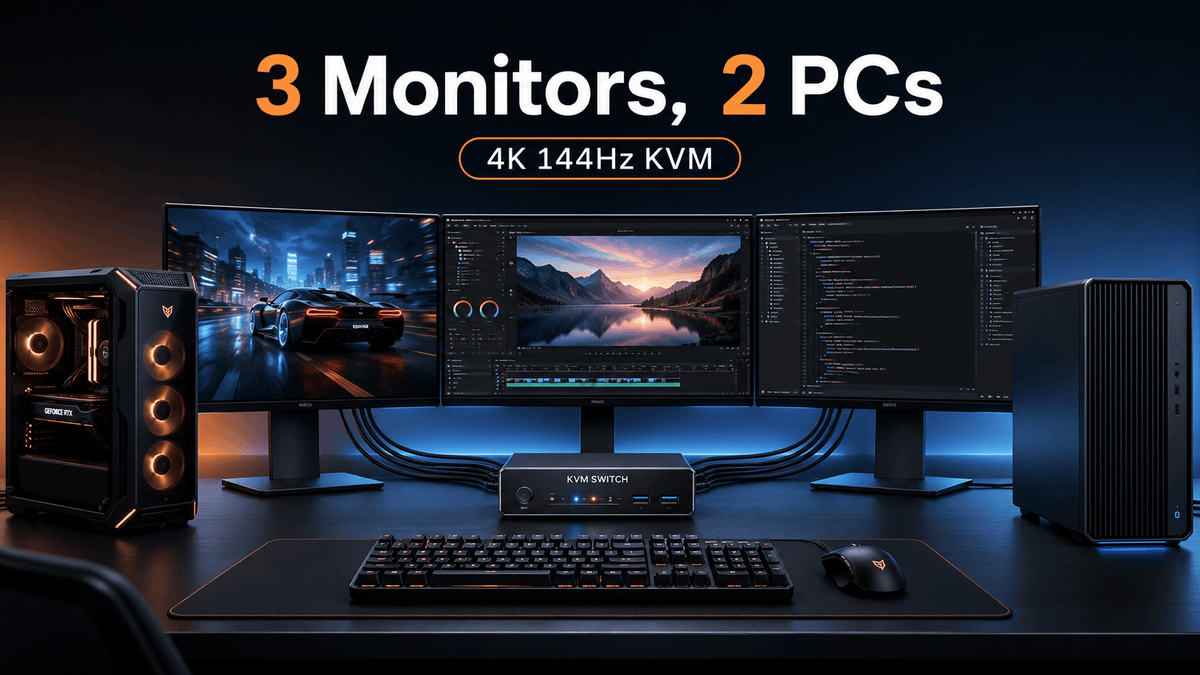
A gaming PC, a work computer, three DisplayPort monitors, and one set of peripherals can make an excellent desk—until switching systems means changing three monitor inputs, moving USB cables, or accepting 60Hz on displays bought for higher refresh rates. A triple monitor KVM switch for 2 PCs can move the complete workspace between both systems, but only when every computer, dock, adapter, cable, KVM path, and monitor supports the intended display mode.
The important buying question is therefore not simply whether a KVM is labeled “DP 1.4” or “4K 144Hz.” It is whether both computers can provide three usable video paths and whether the complete signal chain can preserve the resolution, refresh rate, color format, HDR, and variable refresh rate settings you expect.
Table of Contents
- Quick Answer: Can Two PCs Share Three High-Refresh Monitors?
- The Real Setup Users Are Trying to Build
- Before You Buy: Verify These Five Requirements
- Why Each Computer Needs Three Video Paths
- Can a Triple-Monitor KVM Preserve 4K 144Hz?
- What Happens to USB, Audio, and Network Devices?
- Triple-Monitor KVM Buying Decision Table
- Where the TESmart DKS203-M24 Fits
- Who Actually Needs This?
- Recommended Connection Path
- Laptop and Mac Compatibility Notes
- Final Compatibility Checklist
- Frequently Asked Questions
- Conclusion: Validate the Whole Desk, Not One Specification
Quick Answer: Can Two PCs Share Three High-Refresh Monitors?
Yes—but each computer must first be capable of driving the three displays. In a native DisplayPort setup, that usually means three independent video paths from Computer 1 and three independent video paths from Computer 2. The graphics hardware, dock or adapters, KVM, cables, and monitors must also support the target mode.
The TESmart DKS203-M24 triple monitor KVM switch for two PCs is designed to switch three existing DisplayPort paths between two computers while sharing keyboard, mouse, USB 3.0 devices, audio, and a wired network connection. It does not create extra GPU outputs, and it does not bypass a laptop or desktop computer’s external-display limits.
Early compatibility check: before comparing refresh-rate claims, count the usable display outputs on both computers. A system with only one video output needs a suitable display-expansion solution before it can feed a three-input DisplayPort KVM.
The Real Setup Users Are Trying to Build
A typical three-monitor work and gaming desk looks like this:
- Computer 1: a gaming PC with a discrete GPU and multiple DisplayPort outputs;
- Computer 2: a work desktop, workstation, or laptop connected through a compatible dock;
- Displays: three DisplayPort monitors, often with different roles or specifications;
- Shared peripherals: keyboard, mouse, headset, microphone, webcam, USB receiver, storage, and wired network.
The user is not merely trying to switch one video signal. The goal is to transfer an entire three-screen desktop—including control devices and selected peripherals—without manually changing inputs on every monitor.
That distinction matters because a basic DisplayPort switch handles video routing only. A USB switch handles peripherals only. A docking station expands the ports of one computer. A triple-monitor KVM coordinates video and device control across two computers, but it still depends on the video signals supplied by those computers.

Before You Buy: Verify These Five Requirements
1. Three Usable Video Outputs from Each Computer
Start with the source devices. A desktop GPU may provide three or four physical display connectors, but you still need to confirm that the card supports three simultaneous displays at the required modes. For a laptop, confirm both the number of external displays supported by the specific CPU or GPU platform and the outputs available through its dock or adapters.
2. DisplayPort Inputs on All Three Monitors
The DKS203-M24 is a DisplayPort-path solution. Each monitor should have a usable DisplayPort input. A monitor with HDMI only introduces active conversion requirements and is not the intended direct connection for this setup.
3. Resolution and Refresh Rate for Each Screen
Write down the intended mode for every monitor. For example:
- Monitor 1: 3840 × 2160 at 144Hz;
- Monitor 2: 2560 × 1440 at 165Hz;
- Monitor 3: 2560 × 1440 at 60Hz.
A mixed setup can be workable, but each path negotiates according to its own source output, monitor capability, cable quality, and display settings. Do not assume that one supported mode applies automatically to every screen.
4. DSC, HDR, and Variable Refresh Rate Across the Full Path
Higher display modes may rely on Display Stream Compression (DSC), lower color depth, chroma subsampling, or specific GPU and monitor settings. HDR and G-Sync or FreeSync also require support from the source GPU, driver, KVM path, monitor input, and cable. For more background, see how DSC enables higher display modes.
5. Cable Specification and Total Signal-Chain Length
Every added cable, adapter, dock, or extension creates another point where link training can fail. High-resolution, high-refresh DisplayPort modes are less tolerant of marginal cables than 1080p60. Use short, properly rated cables where practical, avoid unnecessary adapters, and test the intended mode one display path at a time before enabling the complete three-monitor layout.

Important: a “DP 1.4” label does not guarantee that the full system will run a specific three-monitor configuration. The lowest-capability component—or an unstable link between components—sets the practical limit.
Review the DKS203-M24 connection diagram and manual before purchasing.
Why Each Computer Needs Three Video Paths
A three-monitor KVM switches three incoming video signals from the selected computer to three monitor outputs. It does not turn one DisplayPort source into three independent GPU-rendered desktops.
For a standard extended-desktop configuration, the logic is:
- Computer 1 supplies DisplayPort path A, B, and C;
- Computer 2 supplies DisplayPort path A, B, and C;
- The KVM selects which computer’s three paths reach the monitors;
- The USB connection identifies which computer receives keyboard, mouse, and shared-device control.
This is different from an MST hub. MST can divide compatible DisplayPort bandwidth into multiple streams, but its behavior depends on the operating system, GPU, dock, and display topology. It is also different from a DisplayLink dock, which creates additional displays through USB data and a software driver.
For desktop PCs, three native outputs from the discrete GPU are usually the cleanest path. For laptops, a compatible dock may sit between the laptop and the KVM, but the dock must actually expose three independent outputs that the operating system recognizes as extended displays.
The order of responsibility is important: the computer or dock creates the displays; the KVM switches them.

Can a Triple-Monitor KVM Preserve 4K 144Hz?
A 4K 144Hz KVM switch can pass that type of mode only when the rest of the chain can generate, transport, and receive it. The KVM’s stated capability is one requirement, not a guarantee for every three-monitor combination.
GPU Output Capability
The GPU must support the intended resolution and refresh rate on each active output. Running one 4K144 display is not the same workload or link configuration as running three displays simultaneously. Check the graphics card’s maximum active-display count, port layout, DSC support, driver behavior, and any restrictions that apply when multiple outputs are used.
DSC, Color Depth, and HDR
Some high-bandwidth modes depend on DSC. Others may require 8-bit rather than 10-bit color, or a different chroma format. Enabling HDR can increase the required data rate. A monitor may also expose different capabilities depending on whether its DisplayPort setting is configured for an older or newer mode.
At TESmart, we focus on whether the complete signal path can support the intended display mode. The DKS203-M24 is designed for DP 1.4 high-bandwidth workflows and supports DSC-related configurations, but the final mode still depends on the GPU, driver, display, cable, and settings on each path.
G-Sync and FreeSync
Variable refresh rate can work through a compatible DisplayPort KVM path when the GPU, monitor, cable, and configuration all support it. Mixed monitor brands and refresh ranges may require per-display testing. Confirm that G-Sync or FreeSync works with each monitor directly connected before adding the KVM, then retest through the complete path.
Mixed Resolutions and Refresh Rates
Three monitors do not need to use identical modes, but mixed configurations can increase negotiation complexity. A 4K144 main display, a 1440p165 side display, and a 4K60 reference display may all work as independent paths, yet the operating system, driver, and monitor firmware still determine how the combined desktop behaves.
When troubleshooting, start at 60Hz on all three screens. Raise one display at a time while checking for black screens, flicker, unexpected color changes, or resolution fallback.

What Happens to USB, Audio, and Network Devices?
A complete workstation usually needs more than three video paths. The shared-device plan may include:
- keyboard and mouse;
- gaming keyboard or mouse receiver;
- webcam and microphone;
- USB headset or audio interface;
- external SSD or flash drive;
- printer or scanner;
- wired network connection.
The DKS203-M24 provides keyboard and mouse control, USB 3.0 peripheral sharing, a 3.5mm headset connection, and Gigabit Ethernet. That makes it more suitable than a video-only DisplayPort switch for users who want the desk—not just the pictures—to follow the selected computer.
Peripheral bandwidth still matters. A keyboard or mouse has modest requirements, while an external SSD, capture device, high-resolution webcam, or USB audio interface can be more demanding. Specialized devices may need direct connection to a computer or an externally powered hub, especially when several high-bandwidth peripherals operate at once.
Can Displays Switch Without Moving USB or Audio?
Some workflows need the screens on one computer while a USB device or audio connection remains assigned to the other. The DKS203-M24 supports focus-control modes that can keep USB 3.0 or analog audio from automatically following every display switch. This is useful when an external drive is completing a transfer, a headset must stay connected to a call, or a webcam should remain assigned to a meeting computer.
Before using independent focus, review the product manual and test the devices involved. Disconnecting a storage device through a focus change without safely ejecting it can still risk data loss.

Triple-Monitor KVM Buying Decision Table
| Setup Requirement | What the User Must Verify | How DKS203-M24 Addresses It | Potential Limitation |
|---|---|---|---|
| Three extended monitors | Three video paths from each computer | Switches three DisplayPort paths | Does not create extra GPU outputs |
| High refresh rate | Complete DP 1.4 and DSC signal chain | Designed for high-bandwidth DP workflows | Final mode depends on the full system |
| Stable switching | EDID behavior and monitor detection | Includes EDID management | Behavior can vary by hardware and OS |
| USB peripherals | Device type and bandwidth | USB 3.0 peripheral sharing | Some specialized devices require testing |
| Laptop connection | Dock and external-display support | Can be placed after a compatible dock | Not a one-cable display-expansion dock |
| VRR and HDR | GPU, monitor, driver, and cable support | Supports relevant DisplayPort workflows | Must be supported across the complete path |
Where the TESmart DKS203-M24 Fits
At TESmart, we designed the DKS203-M24 for users who already have three DisplayPort video paths from each computer and want to switch the complete three-monitor workspace between two systems.
This positioning matters. The product is most useful after the computer-output question has already been solved. Its role is to coordinate the six source-side DisplayPort connections, three monitor outputs, USB control, selected peripherals, audio, and network access.
For High-Refresh DisplayPort Workflows
The DKS203-M24 is designed around DP 1.4 paths and DSC-related high-bandwidth modes. For a gamer, that means the main display does not automatically have to be reduced to 60Hz merely because a work computer shares the desk. For a creator or engineer, it means the KVM can be considered for higher-resolution or higher-refresh displays without treating every screen as a basic office monitor.
The practical mode still depends on the complete system. We recommend validating each display directly, then through the KVM, before assuming all three screens will run the same maximum setting.
For Users Who Care About Window Layout
Three-screen desktops contain more windows, application panels, and monitor assignments than single-screen desks. EDID management is valuable here because display disconnection events can disrupt the layout more severely. The DKS203-M24 is therefore more suitable for users who care about consistent monitor detection rather than users who only need occasional video switching.
For Shared USB, Audio, and Network Devices
A three-monitor KVM with USB 3.0 is useful when the user wants a webcam, storage device, keyboard, mouse, headset, or wired network connection available to both computers. Independent USB and audio focus also addresses workflows where not every device should follow the displays at the same moment.
For Different Switching Habits
The product supports front-panel controls, an IR remote, customizable keyboard hotkeys, and mouse-wheel switching. The value is not the number of control methods by itself. It is the ability to place the KVM out of the immediate working area, use a direct button during troubleshooting, or switch from the keyboard during normal work.

Who Actually Needs This?
Good Fit
- A gaming PC and a work PC sharing three DisplayPort monitors;
- Two desktop computers with three usable video outputs each;
- Three high-refresh monitors where preserving more than 60Hz matters;
- Users who need shared keyboard, mouse, USB 3.0 devices, audio, or Ethernet;
- Developers, creators, traders, engineers, and system testers with fixed three-screen layouts;
- Users who want EDID management to reduce unnecessary display re-detection;
- Users who prefer switching by button, remote, hotkey, or mouse control.
Not the Best Fit
- Either computer has only one usable video output and no suitable expansion solution;
- The computer itself cannot support three external displays;
- The user expects the KVM to generate two additional displays from one input;
- The required solution must drive three high-refresh displays through one ordinary USB-C data connection;
- All three monitors provide HDMI inputs only;
- The primary requirement is DisplayLink-based display expansion rather than native DisplayPort switching;
- The user cannot accommodate multiple DisplayPort cables between each source and the KVM;
- The desk needs three or four source computers rather than two.
Users who need four computers should review a four-computer, three-monitor switching approach instead of choosing a two-computer model.
Recommended Connection Path
Computer 1
- DP Output 1 → DKS203-M24 PC 1 DP Input 1
- DP Output 2 → DKS203-M24 PC 1 DP Input 2
- DP Output 3 → DKS203-M24 PC 1 DP Input 3
- USB → DKS203-M24 PC 1 USB Input
Computer 2
- DP Output 1 → DKS203-M24 PC 2 DP Input 1
- DP Output 2 → DKS203-M24 PC 2 DP Input 2
- DP Output 3 → DKS203-M24 PC 2 DP Input 3
- USB → DKS203-M24 PC 2 USB Input
KVM Outputs and Shared Devices
- DKS203-M24 DP Output 1 → Monitor 1
- DKS203-M24 DP Output 2 → Monitor 2
- DKS203-M24 DP Output 3 → Monitor 3
- Keyboard and mouse → Dedicated console ports
- Compatible shared peripherals → USB 3.0 ports
- Headset or microphone → Supported audio connection
- Network cable → Gigabit Ethernet port, when shared wired networking is required
Keep the three display paths in a consistent order. For example, map the left monitor to path 1, the center monitor to path 2, and the right monitor to path 3 on both computers. Consistent mapping makes operating-system display arrangement and troubleshooting easier.
Recommended Test Order
- Verify each monitor directly with each computer at a conservative setting such as 1080p60 or 4K60.
- Connect the KVM with short DisplayPort cables and test one display path.
- Add the second and third display paths.
- Confirm keyboard and mouse switching.
- Add USB peripherals one at a time.
- Increase refresh rate on one monitor at a time.
- Enable HDR, DSC-dependent modes, or VRR only after the base layout is stable.
Laptop and Mac Compatibility Notes
A laptop can be used with the DKS203-M24 only when it can supply the required DisplayPort paths. In that topology, the dock or adapters sit between the laptop and the KVM:
Laptop → compatible dock or video adapters → three DisplayPort inputs on the KVM → three monitors
Do not treat the DKS203-M24 as a one-cable laptop dock. It switches the signals presented to it; it does not add external-display support that the laptop, dock, or operating system lacks.
Most Mac computers rely on USB-C or ports compatible with Thunderbolt workflows rather than native DisplayPort connectors. A Mac-to-DKS203-M24 setup therefore usually requires USB-C-to-DisplayPort adapters or a compatible dock. Every added conversion layer should be tested because Mac, dock, adapter, and multi-monitor combinations are common sources of no-video, refresh-rate, or USB issues.
Mac support for three external displays depends on the exact Mac model and chip. Do not assume that every MacBook can drive three external monitors. macOS also should not be described as obtaining three independent extended desktops through a standard MST split. Verify the Mac’s official external-display limit and the dock’s macOS behavior before selecting the KVM.
For a mixed Mac and Windows desk, first confirm that the Mac can produce three independent DisplayPort-compatible outputs at the required modes. Then test the dock or adapters directly with the monitors before inserting the KVM.
Final Compatibility Checklist
- □ Does each computer support three external displays?
- □ Does each computer provide three usable video outputs?
- □ Are all three monitor inputs compatible with DisplayPort?
- □ Does each source-to-monitor path support the target resolution and refresh rate?
- □ Are DSC, HDR, and VRR supported by every required component?
- □ Are the DisplayPort cables suitable for the intended mode and kept reasonably short?
- □ Has each monitor been tested directly with each source?
- □ Does the user need USB 3.0, audio, or network sharing?
- □ Is independent USB or audio focus required?
- □ Is EDID stability important for window placement and monitor detection?
- □ Does the setup require two computers rather than four?
- □ Has the user reviewed the complete setup instructions and connection diagram?
If any answer is uncertain, collect the computer model, GPU model, dock or adapter model, monitor models, target modes, and cable specifications before purchasing. That equipment list is more useful for compatibility validation than a single “DP 1.4” label.
Frequently Asked Questions
1. Do both computers need three DisplayPort outputs?
They need three independent DisplayPort-compatible video paths. A desktop may provide them directly from its GPU. A laptop may require a compatible dock or adapters, but the computer and dock must support three external displays. The KVM cannot create missing outputs.
2. Can the DKS203-M24 create three displays from one video output?
No. It switches three existing video paths from either computer. It is not an MST hub or a DisplayLink display-expansion dock.
3. Can I use a USB-C dock or a dock compatible with Thunderbolt laptops?
Yes, when the dock exposes three usable DisplayPort outputs and the laptop supports three external displays. Place the dock between the laptop and the KVM, then test the dock directly with all three monitors before adding the KVM.
4. Can a triple-monitor KVM support mixed resolutions and refresh rates?
Mixed modes can work because the displays use separate paths, but each path must negotiate successfully. GPU drivers, monitor firmware, cable quality, HDR settings, and DSC requirements can affect the result. Validate each monitor individually and raise refresh rates one at a time.
5. Will G-Sync and FreeSync work through the KVM?
The DKS203-M24 is designed for compatible G-Sync and FreeSync DisplayPort workflows. Actual VRR operation still requires support from the GPU, driver, cable, monitor, and selected display mode. Confirm VRR through direct connections first, then retest through the KVM.
6. Why do windows or desktop icons move after switching computers?
The operating system may interpret the switch as one or more displays being disconnected and reconnected. EDID management can reduce unnecessary re-detection, but GPU drivers, monitor sleep behavior, cable quality, and operating-system window management can still affect the desktop layout.
7. Is the DKS203-M24 suitable for a Mac and PC setup?
It can be suitable when the specific Mac supports three external displays and can provide three DisplayPort-compatible paths through adapters or a compatible dock. Many Macs do not have native DisplayPort outputs, and not every MacBook supports three external displays. Standard MST should not be assumed to provide three independent extended desktops in macOS.
8. Can I switch the displays without switching USB devices?
The DKS203-M24 supports focus-control modes that can keep USB 3.0 or analog audio assigned independently from the display selection. This can help a storage transfer, call, webcam, or audio session remain connected while the screens move to the other computer.
9. Is a triple-monitor KVM the same as a docking station?
No. A docking station expands the ports and displays available to one computer. A KVM switches existing video and USB connections between computers. A laptop-based setup may use both: the dock creates the required outputs, and the KVM switches them.
Conclusion: Validate the Whole Desk, Not One Specification
The central buying question is not how high the resolution number printed on a KVM appears. It is whether every component in the desk can work together across three display paths at the intended refresh rates and feature settings.
For the DKS203-M24, begin by confirming three usable outputs from each computer. Then verify the monitor inputs, GPU and dock limits, DSC requirements, HDR and VRR support, cable quality, USB device plan, and EDID behavior. This process reduces the risk of buying a capable KVM for a source computer that cannot supply the required signals.
Review the product page and manual, and provide TESmart support with your complete device list when compatibility is uncertain.
Check the DKS203-M24 for Your Three-Monitor Setup
Share:
Best KVM Setup for 2 Laptops and 2 Desktops: One Dual-Monitor Desk, Four Computers
How to Share Two Monitors Between Two PCs with HDMI and DisplayPort