

Table of Contents
- Introduction
- Quick Answer: Can 4 Computers Share 3 Monitors Through One KVM?
- Why 3 Monitors Usually Require 3 Video Paths from Each Computer
- How Many Cables Do You Need for 4 PCs and 3 Monitors?
- Can Your GPU Actually Drive Three Monitors?
- What Resolution and Refresh Rate Can a Triple-Monitor KVM Handle?
- Can G-Sync, FreeSync, and DSC Work Through a Triple-Monitor KVM?
- Example Workstation: 4 PCs + 3 DisplayPort Monitors
- Setup Checklist for Stable Triple-Monitor Switching
- Related TESmart Guides and Products
- FAQ
- Conclusion
Introduction
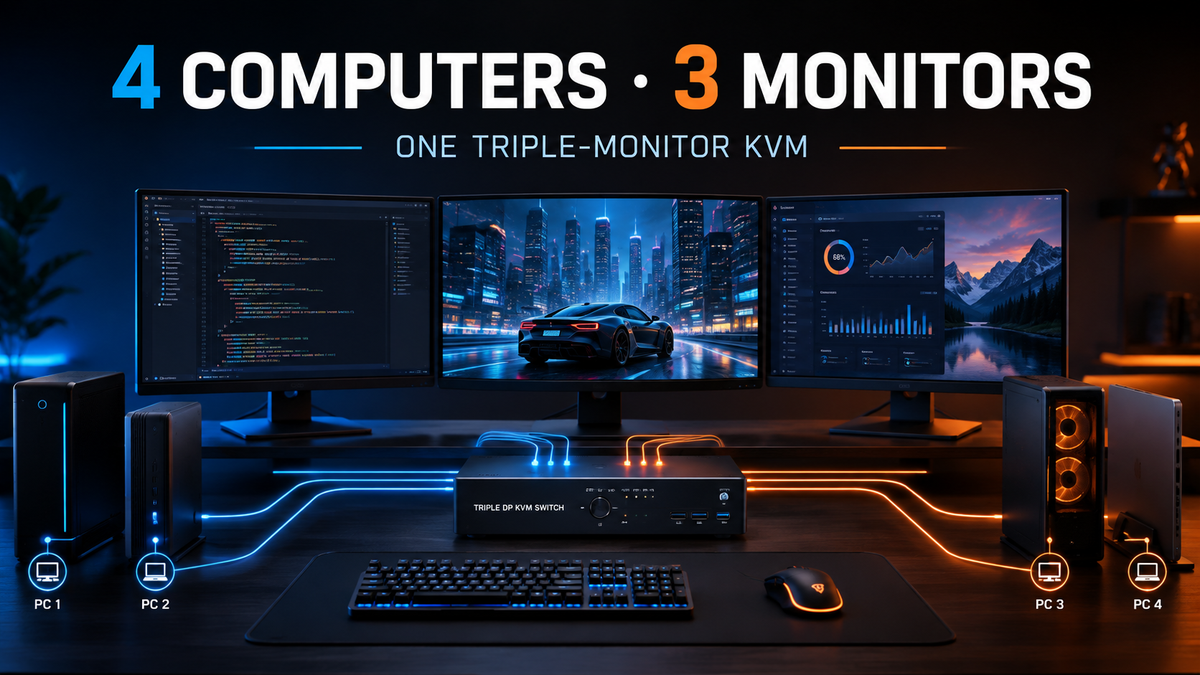
You have three DisplayPort monitors and four computers. You want each computer to use all three displays as an extended desktop, while the same keyboard, mouse, and USB peripherals follow whichever computer is active.
The difficult part is not switching the keyboard or even the monitors. It is making sure every computer can provide three independent video signals and that the complete DisplayPort chain can maintain the resolution, refresh rate, and display layout you expect.
This is where a 4-computer, 3-monitor KVM setup differs from a basic single-monitor KVM. Instead of one video connection per PC, a conventional hardware-level triple-monitor KVM normally has to manage three separate display paths from every source computer.
This guide explains what those connections look like, how many cables are involved, what to check on the GPU side, and why features such as DisplayPort 1.4, EDID, DSC, and VRR matter when building a higher-performance triple-monitor workstation.
Quick Answer: Can 4 Computers Share 3 Monitors Through One KVM?
Yes—provided that the KVM is designed for four computers and three monitors, and each computer can supply the required display outputs.
For a conventional triple-monitor DisplayPort KVM, the key requirement is usually straightforward:
Each computer must provide three independent video signals if you want all three monitors to operate as an extended desktop.
That means a four-computer setup may require twelve source-side DisplayPort connections before the keyboard, mouse, USB, and monitor-side cables are counted.
A KVM switches the video signals that the computers already produce. It does not turn one DisplayPort output into three independent extended displays unless the system uses a separate supported multi-display architecture.
This is the first point to verify before choosing any 4-port triple-monitor KVM.
Why 3 Monitors Usually Require 3 Video Paths from Each Computer
An extended three-monitor desktop is not one large video signal. The operating system normally treats Monitor 1, Monitor 2, and Monitor 3 as separate displays, each with its own resolution, refresh rate, orientation, scaling, and desktop position.
A hardware-level triple-monitor KVM therefore needs a path for each of those display signals.
PC 1 ── DP 1 ──┐
     ── DP 2 ──┤
     ── DP 3 ──┤
     ── USB  ──┤

PC 2 ── DP 1 ──┤
     ── DP 2 ──┤
     ── DP 3 ──┤
     ── USB  ──┤

PC 3 ── DP 1 ──┤
     ── DP 2 ──┤
     ── DP 3 ──┤
     ── USB  ──┤
                │
PC 4 ── DP 1 ──┤
     ── DP 2 ──┤
     ── DP 3 ──┤
     ── USB  ──┤
                │
          Triple-Monitor KVM
                │
          ┌─────┼─────┐
          DP    DP    DP
          │     │     │
        MON 1 MON 2 MON 3
When the KVM changes from PC 1 to PC 2, it is switching three display paths together with the shared control devices.
This architecture also explains why simply buying a three-monitor KVM does not guarantee that every computer in the setup can use three screens. If one laptop can only generate two independent external displays, the KVM cannot create the missing third output.

How Many Cables Do You Need for 4 PCs and 3 Monitors?
The cable requirement is easy to underestimate. For four computers using three independent DisplayPort outputs each, the video path alone requires fifteen DisplayPort cables: twelve from the computers to the KVM and three from the KVM to the monitors.
| Connection | Typical Requirement | Purpose |
|---|---|---|
| PC 1 → KVM | 3 × DisplayPort + USB | Three display signals plus keyboard, mouse, and shared USB communication |
| PC 2 → KVM | 3 × DisplayPort + USB | Three display signals plus USB control |
| PC 3 → KVM | 3 × DisplayPort + USB | Three display signals plus USB control |
| PC 4 → KVM | 3 × DisplayPort + USB | Three display signals plus USB control |
| KVM → Monitors | 3 × DisplayPort | One independent output for each monitor |
For the basic paths shown above, that means 12 source-side DP cables + 3 monitor-side DP cables + 4 USB connections, excluding power, Ethernet, audio, or any optional peripheral connections.
This is why cable planning matters in a four-computer triple-monitor workstation. A single weak cable or adapter affects one display path independently of the other two, which can make troubleshooting more difficult.

Can Your GPU Actually Drive Three Monitors?
Before checking the KVM specifications, check every source computer. The question is not simply whether a GPU has three physical connectors. It must be able to generate three independent displays in the resolution and refresh-rate combination you intend to use.
Desktop PCs with Discrete GPUs
A desktop graphics card with several DisplayPort outputs is usually the most straightforward source for a triple-monitor DisplayPort KVM. If the GPU already drives the three monitors correctly when connected directly, moving those three paths through a compatible KVM is easier to plan.
Do not assume that every physical connector can operate at its maximum specification simultaneously. GPU model, total display bandwidth, DSC support, and the selected monitor modes still matter.
Mixing HDMI and DisplayPort Outputs
If a computer has two DisplayPort outputs and one HDMI output, an adapter may be required to feed a DisplayPort-only KVM.
That adapter becomes part of the signal chain. It must support the required resolution and refresh rate, and high-refresh-rate configurations are less forgiving of adapters that were designed only for basic 4K60 or office displays.
Laptops, USB-C, and Docks
Laptops need more careful checking because a USB-C connector does not automatically mean that the computer can provide three independent DisplayPort outputs.
Many Mac systems also do not provide native DisplayPort connectors, so a DisplayPort KVM setup may require USB-C-to-DisplayPort adapters or appropriate docking hardware. The number of external displays the computer itself supports must still be verified first.
Whenever possible, reduce unnecessary adapter and dock layers. A chain such as laptop → dock → adapter → KVM → monitor introduces more points where display negotiation, bandwidth, or hot-plug behavior can differ.

What Resolution and Refresh Rate Can a Triple-Monitor KVM Handle?
The phrase “supports 8K” or “supports 240Hz” is not enough to predict how a real triple-monitor workstation will behave. The selected mode must be supported by the entire path:
GPU → cable → adapter if used → KVM → output cable → monitor.
For a DP 1.4 triple-monitor KVM such as the TESmart DKS403-M24, the product specifications include high-bandwidth display modes such as 8K60, 4K high refresh rates, and 240Hz configurations. Higher modes can depend on Display Stream Compression and the capabilities of the connected GPU and monitor.
| Display Mode | What to Check | Typical Constraint |
|---|---|---|
| 1080p @ 240Hz | GPU output, monitor input, DP cable, KVM refresh-rate support | Usually less bandwidth-intensive than higher-resolution 240Hz modes, but the full chain still matters |
| 1440p @ 240Hz | GPU and DisplayPort bandwidth, cable quality, monitor timing | Higher bandwidth makes cable and device compatibility more important |
| 4K @ 144Hz / 165Hz | DP 1.4 path, GPU, monitor, and DSC requirements for the selected mode | May require compression depending on timing and color configuration |
| 4K @ 240Hz | DSC-capable source, KVM, and compatible display path | DSC is required for the specified high-bandwidth workflow |
| 8K @ 60Hz | GPU capability, DP 1.4/DSC path, monitor, and cables | Very high bandwidth; do not assume every source or display combination can use this mode |
These figures should be treated as supported signal modes rather than a promise that every combination of three monitors can operate at the highest listed specification simultaneously. Multi-monitor output still depends on the GPU, display configuration, color depth, compression, cables, and monitor capabilities.
If your actual target is three 1080p 240Hz monitors, for example, evaluate that configuration directly instead of choosing a KVM only because its maximum specification says 8K60.

Can G-Sync, FreeSync, and DSC Work Through a Triple-Monitor KVM?
For gaming PCs and graphics-heavy workstations, resolution is only part of the requirement. Variable refresh rate and compression support may also matter.
Display Stream Compression
DSC allows DisplayPort to carry display modes that would otherwise exceed the available uncompressed link bandwidth. This becomes especially relevant for modes such as 4K at very high refresh rates.
The DKS403-M24 specification includes DSC 1.2a and FEC support. For a DSC-dependent display mode to work, however, the source GPU and the rest of the display path must also support the required configuration.
A KVM cannot add DSC capability to a GPU or monitor that does not support it.
G-Sync and FreeSync
The DKS403-M24 is also specified for G-Sync and FreeSync workflows. This is relevant when one of the four connected systems is a gaming PC and the user wants the shared monitors to retain variable-refresh-rate functionality.
As with high-resolution modes, VRR compatibility depends on the complete chain. GPU settings, monitor support, refresh-rate mode, cables, adapters, and DSC configuration can all affect the result.
If VRR is important, test the target monitor at the intended resolution and refresh rate rather than assuming that support for one G-Sync or FreeSync configuration guarantees every possible combination.

Example Workstation: 4 PCs + 3 DisplayPort Monitors
Consider a desk with four systems:
| Computer | Example Role | Required Display Path |
|---|---|---|
| PC 1 | Gaming PC | 3 independent DisplayPort outputs |
| PC 2 | Primary workstation | 3 independent DisplayPort outputs |
| PC 3 | Linux development or test system | 3 independent DisplayPort outputs |
| PC 4 | Secondary, test, or backup system | 3 independent DisplayPort outputs |
All four computers need to share the same three monitors, keyboard, mouse, and USB devices. This is the type of configuration where the TESmart DKS403-M24 is relevant.
Its key fit is the workstation structure itself: 4 PCs → 3 DisplayPort monitors. Rather than adapting a two-monitor KVM and leaving the third screen outside the switching system, all three display paths are handled as part of the same KVM workflow.
The DP 1.4 design also makes more sense for users whose requirements go beyond a basic 4K60 office setup. Depending on the connected equipment, the product specifications include 8K60, 4K high-refresh-rate, 240Hz, DSC, G-Sync, and FreeSync workflows.
Beyond display switching, the DKS403-M24 includes USB 3.0 connectivity up to 5Gbps and Gigabit Ethernet, allowing a workstation to share more than keyboard and mouse. USB and audio locking options are also useful when a user wants a peripheral or audio path to remain associated with one computer while changing the displayed source.
When This Configuration Makes Sense
This model is more suitable when you genuinely have up to four computers and want all three DisplayPort monitors integrated into the same switching system.
If you only have two computers, a four-port model may add capacity you do not need. In that case, the TESmart Triple Monitor KVM collection is a better place to compare configurations based on computer count, display interface, and performance requirements.
What the KVM Does Not Solve
The DKS403-M24 cannot create three independent displays from a computer that only supports one or two external monitors.
It also does not remove bandwidth limitations elsewhere in the signal chain. A low-spec adapter, an unsuitable cable, or a GPU without the required DSC or refresh-rate capability can still prevent a monitor from reaching the expected display mode.
For laptop-heavy environments, confirm the available video outputs before choosing a DisplayPort KVM. Users with USB-C or Thunderbolt-enabled laptops may require appropriate USB-C-to-DisplayPort adapters or a dock, and those additional devices should be treated as part of the compatibility chain.
Setup Checklist for Stable Triple-Monitor Switching
1. Test Each Computer Directly with Three Monitors
Before adding the KVM, confirm that each computer can drive the three monitors in the intended extended-desktop configuration. If a source cannot run the displays directly, adding a KVM will not fix the underlying output limitation.
2. Start with a Conservative Display Mode
If you are troubleshooting a high-refresh-rate configuration, first test at a simpler mode such as 1080p60 or another known-good setting. Once all three display paths are stable, increase the resolution and refresh rate gradually.
3. Use Short, Known-Good DisplayPort Cables During Testing
High-resolution and high-refresh-rate signals are more sensitive to cable quality and length. If one monitor flickers, drops out, or returns at a lower refresh rate, test that path with a shorter known-good cable before changing the rest of the workstation.
4. Reduce Adapter and Dock Layers
Native DisplayPort connections are easier to troubleshoot. If one computer requires a dock or USB-C-to-DisplayPort conversion, test each adapter path independently and verify that it supports the target display mode.
5. Troubleshoot One Monitor Path at a Time
Three-monitor systems contain three separate video chains. If Monitor 2 has no signal while Monitors 1 and 3 work correctly, focus first on the GPU output, input cable, KVM channel, output cable, and monitor input used by Monitor 2.
This is usually more efficient than rebuilding all three connections at once.
6. Confirm the Operating System Display Layout
After the hardware paths are stable, check monitor order, orientation, scaling, and refresh rate in the operating system. This is particularly important when the three monitors use different resolutions or refresh rates.
Related TESmart Guides and Products
If you are still deciding which three-monitor architecture fits your desk, start with the TESmart Triple Monitor KVM Switch collection. This is the more appropriate page for comparing different computer counts and product configurations.
If your specific requirement is 4 computers and 3 DisplayPort monitors, see the DKS403-M24 product page for the complete model specification.
If refresh rate is the main question, read Can a KVM Run Three 1080p 240Hz Monitors? What to Check Before You Buy for a more focused look at GPU output, display bandwidth, cables, and 240Hz requirements.
FAQ
Q1: Can 4 computers share 3 monitors with one KVM?
Yes, if the KVM supports four source computers and three monitor outputs, and each computer can provide the required video signals. A conventional triple-monitor KVM normally requires three independent video connections from each computer for a full three-screen extended desktop.
Q2: Does each PC need three DisplayPort outputs for a triple-monitor KVM?
For a DisplayPort KVM architecture that switches three independent display paths, each PC normally needs three independent video outputs. They do not necessarily have to be physical DP connectors if compatible conversion is possible, but every required video path must still be generated by the source computer.
Q3: Can a triple-monitor KVM run 144Hz or 240Hz?
It can if the specific KVM supports the target mode and the GPU, monitor, cables, adapters, and any required DSC configuration also support it. Refresh rate should be evaluated at the actual resolution you intend to use; 1080p240 and 4K240 have very different bandwidth requirements.
Q4: Can I mix 1080p, 1440p, and 4K monitors?
A mixed-resolution desktop may be possible when the GPU, operating system, KVM, and monitors support the selected modes. Each display is an independent path, so configure resolution, scaling, and refresh rate separately and verify the combination directly.
Q5: Does a triple-monitor KVM support G-Sync and FreeSync?
Support depends on the KVM. The DKS403-M24 is specified for G-Sync and FreeSync workflows, but the GPU, monitor, selected display mode, cables, and other devices in the chain must also support the required VRR configuration.
Q6: Why do windows move after switching KVM inputs?
This can happen when the operating system detects a monitor as disconnected and then reconnects it. EDID handling, hot-plug behavior, adapters, docks, and operating system display management can all affect whether window positions are preserved.
Q7: Can I use USB-C to DisplayPort with a triple-monitor KVM?
Yes, when the computer's USB-C port supports the necessary video output and the adapter supports the target resolution and refresh rate. The computer must still be capable of generating enough independent display signals for the three-monitor setup.
Q8: Can a laptop drive three monitors through a KVM?
Only if the laptop itself supports the required number of external displays through its native outputs, USB-C video connections, or an appropriate dock. The KVM switches the display signals supplied by the laptop; it does not increase the laptop's native external-display capability.
Conclusion
Sharing three monitors between four computers is mainly a signal-path problem. Start by confirming that every computer can generate three independent displays, then check the target resolution and refresh rate, cable and adapter capability, EDID behavior, and any DSC or VRR requirements.
For a workstation built around four computers and three DisplayPort monitors, a 4-port triple-monitor KVM such as the TESmart DKS403-M24 matches that structure directly. If your computer count or interface requirements are different, choose the KVM architecture around those constraints rather than simply selecting the model with the highest headline resolution.
```
Share:
How to Share Two Apple Studio Displays Between a Mac mini and MacBook
KVM Switch Black Screen After Switching: 8 Fixes for Mac and Apple Studio Display