

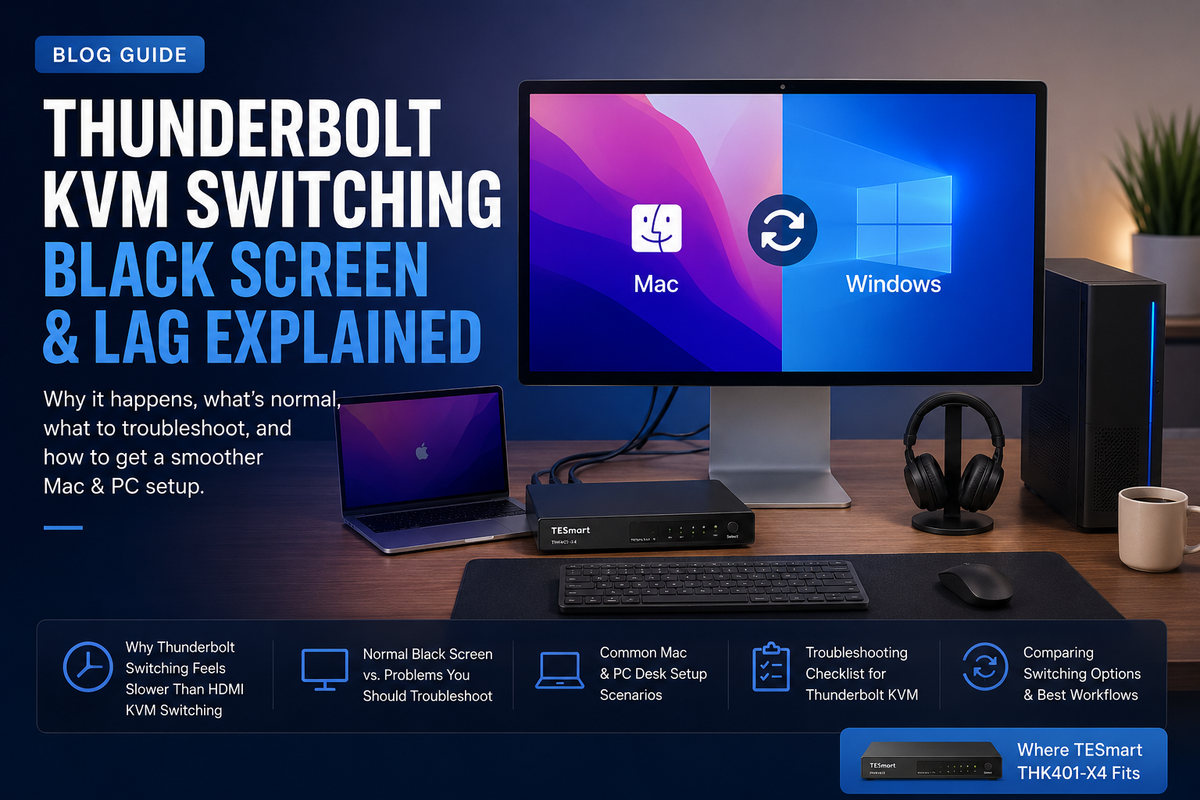
Quick Answer
A brief black screen can occur while a display reconnects to the newly selected computer. In an Apple Studio Display or another Thunderbolt display workflow, the system may need to restore video, USB data, audio devices, camera access, and wake state—not only the picture.
The behavior needs troubleshooting when the display never recovers, repeatedly shows no signal, works only after reconnecting a cable, or restores video while USB devices remain unavailable. Start by connecting the display directly to each computer. Then isolate the host cable, display cable, computer port, sleep state, KVM path, and shared USB devices in that order.
| What You See | Most Likely Area | First Test |
|---|---|---|
| Black screen, but keyboard and mouse still work | Video link, display detection, cable bandwidth, resolution, or wake state | Connect the display directly to the active computer and test a lower resolution or refresh rate. |
| Video returns, but USB, camera, speakers, or microphone do not | USB upstream path, device enumeration, hub layer, or operating-system device state | Disconnect nonessential USB devices and retest with only a basic keyboard and mouse. |
| The Mac fails only after sleep or lid closure | macOS wake behavior, clamshell conditions, power state, or display standby | Retest with the Mac awake, connected to power, and open. |
| Direct connection works, but the KVM path does not | Cable segment, adapter, dock, KVM port, firmware, or unsupported connection topology | Rebuild the shortest possible computer-to-KVM-to-display chain. |
Table of Contents
- Quick Answer
- Is the Black Screen Normal or Abnormal?
- Identify the Exact Symptom First
- Fix 1: Test Each Computer Directly
- Fix 2: Check Cables and Host Ports
- Fix 3: Isolate Mac Sleep and Wake Behavior
- Fix 4: Check Windows Power and USB Behavior
- Fix 5: Remove Docks, Hubs, and Adapters
- Fix 6: Separate Video Problems from USB Problems
- Fix 7: Test Resolution, Refresh Rate, and Display Detection
- Fix 8: Reset the Chain and Check Firmware
- Run a Direct-vs-KVM A/B Test
- When the KVM Is Not the Root Cause
- Where TESmart THK401-X4 Fits
- Related Guides
- FAQ
- Conclusion
Is the Black Screen Normal or Abnormal?
Switching a source interrupts the active connection. The new computer must detect the display, establish an output mode, and restore any devices that travel through the same connection. A short recovery period can therefore be expected.
The important distinction is whether the setup recovers on its own and returns to a usable state.
| Usually Expected | Needs Troubleshooting |
|---|---|
| A brief blank screen followed by a stable image | The display stays black or reports no signal |
| A short keyboard or mouse pause during source change | USB devices fail on every switch or require reconnection |
| Audio devices disappear and then return | Speakers, camera, or microphone remain missing after video returns |
| Longer recovery when the selected computer is asleep | The computer wakes only after unplugging the display or power cycling the chain |
| Different recovery behavior between macOS and Windows | Repeated disconnect loops, flicker, or unstable resolution after recovery |
Do not diagnose the setup by switching time alone. A slower but repeatable recovery is different from an unstable connection that never reaches a consistent video and USB state.

Identify the Exact Symptom First
“Black screen after switching” can describe several different failures. Before replacing cables or changing settings, record what still works. The working functions help identify which part of the chain failed.
Black Screen, but Keyboard and Mouse Still Work
This points first to the video path rather than the entire KVM. The selected computer may be active and receiving USB input while the display link is still training, the display is not being detected, or the selected output mode is outside the stable capability of the complete chain.
Check the host-to-KVM cable, KVM-to-display cable, active input, display wake state, resolution, refresh rate, and any video conversion between the computer and KVM.
Video Works, but USB, Camera, or Audio Is Missing
This suggests that the display path recovered but the USB device path did not. Apple Studio Display can expose more than a picture: its integrated devices and any peripherals connected through the setup may need to enumerate again on the newly selected computer.
Confirm that the USB upstream connection for that computer is present. Then test with only a wired keyboard and mouse before reconnecting storage, webcams, capture devices, audio interfaces, or additional hubs.
Only the Mac Fails After Sleep
A setup that works while the Mac is awake but fails after sleep should be treated as a wake-state problem first. Test whether the same Mac wakes the display reliably through a direct connection. Also compare an open, powered Mac with a closed-lid configuration.
If direct wake is already unreliable, changing the KVM will not correct the underlying host, cable, or display behavior.
Direct Connection Works, but the KVM Path Fails
This result narrows the fault to something added by the switching path. Replace one segment at a time: the host cable, the display cable, the KVM input, and any dock or adapter. Avoid changing all parts together because that prevents you from identifying the failed segment.

Fix 1: Test Each Computer Directly
Direct connection is the baseline for every later test. Connect the display to Computer A without the KVM, dock, hub, adapter, or extension cable. Confirm that video appears, the computer wakes the display, and the required USB or audio functions are available. Repeat the same test with Computer B.
The result changes the diagnosis:
- One computer fails directly: focus on that computer, its port, its cable, its output settings, or its sleep behavior.
- Both computers fail directly: check the display, shared cable, power state, or display firmware before testing the KVM.
- Both computers work directly: rebuild the KVM path with the fewest possible components and continue to Fix 2.
Do not skip this step. A switch cannot make an unsupported host port or unstable direct display connection reliable.
Fix 2: Check Cables and Host Ports
USB-C describes the connector, not the capabilities behind it. Two cables can have the same connectors while supporting very different combinations of charging, USB data, video, and Thunderbolt communication.
For a KVM setup compatible with Thunderbolt 4 laptops, confirm all three points:
- The host port: it must support the required display and data workflow.
- The host cable: it must support the required connection type and bandwidth, not charging alone.
- The display-side cable: it must match the display connection expected by the KVM and monitor.
Use short, known-good cables during diagnosis. Remove extension cables. If a replacement cable fixes the problem, test the original cable directly before concluding that the KVM input is defective.
On Windows desktops, do not assume that every USB-C port supports the same display path. Some systems use different controllers or require a specific motherboard port, graphics connection, add-in card, or firmware configuration.
Fix 3: Isolate Mac Sleep and Wake Behavior
Mac-related black screens often appear only after the computer or display enters a low-power state. Run the following tests separately:
- Keep the Mac awake and switch to it.
- Repeat with the Mac connected to external power.
- Repeat with the lid open.
- Let the display sleep while the Mac remains awake, then switch back.
- Let the Mac sleep, wake it first, and then switch.
- Compare every result with a direct display connection.
If the open and powered test works but the closed-lid test fails, review the conditions required for the Mac’s clamshell workflow. If the Mac fails to wake the display even when directly connected, troubleshoot macOS, the cable, and the display before returning to the KVM path.
Also check whether the display appears in macOS display settings after switching. A detected display with no image suggests a different problem from a display that is not detected at all.
Fix 4: Check Windows Power and USB Behavior
When the Windows computer restores video but not USB devices, check whether the keyboard, mouse, camera, audio device, or USB hub reappears in Device Manager. A device that disappears completely points to the upstream USB path. A device that remains listed with an error points to device state, driver, or power management.
For diagnosis:
- Test with a basic wired keyboard and mouse.
- Disconnect storage, webcams, capture cards, and audio interfaces.
- Disable unnecessary sleep during the test.
- Review USB power management or selective-suspend behavior if devices fail only after idle periods.
- Reconnect high-bandwidth USB devices one at a time after the base setup is stable.
If Windows is the only computer that fails, swap KVM inputs with a working computer. If the problem follows the computer, investigate the host. If it stays with the same KVM input, investigate that input, cable, and associated USB path.
Fix 5: Remove Docks, Hubs, and Adapters
A dock expands one computer; a KVM switches control between computers. Combining both can be valid, but every extra layer introduces another cable, controller, power state, and negotiation point.
Rebuild the connection in this order:
- Computer directly to KVM.
- KVM directly to display.
- Keyboard and mouse only.
- No extension cable.
- No dock, hub, converter, or USB daisy chain.
After the shortest chain works, add one component and repeat the same switch test. The first component that reintroduces the fault is the most useful lead.
Mac systems commonly require conversion when a KVM accepts only DisplayPort input because most Macs do not provide a native DisplayPort connector. In that situation, the adapter or dock becomes a required part of the chain and must explicitly support the intended video output. It should still be tested separately before the complete setup is judged.
Fix 6: Separate Video Problems from USB Problems
Do not treat a missing image and a missing keyboard as one symptom. A KVM can move video and USB through different internal paths, and one path can recover while the other does not.
| Test Result | What It Suggests | Next Action |
|---|---|---|
| USB works; video does not | The active computer and KVM input are selected, but the video path has not stabilized. | Check video cables, display detection, output mode, wake state, and conversion layers. |
| Video works; USB does not | The display path is stable, but USB upstream or device enumeration failed. | Check the computer’s USB upstream connection and test only a basic keyboard and mouse. |
| Neither video nor USB works | The wrong source may be selected, the host may be asleep, or the complete input path may be unavailable. | Confirm source selection, host power, host cable, and input mapping. |
| Video and USB cycle repeatedly | The chain may be renegotiating because of an unstable cable, power state, hub, adapter, or unsupported topology. | Return to the shortest chain and replace one segment at a time. |
Integrated display devices can also recover at different times. A picture may appear before the camera, speakers, microphone, or USB hub. Check each function independently instead of assuming that video recovery proves the full connection is stable.
Fix 7: Test Resolution, Refresh Rate, and Display Detection
A chain may work at a lower display mode but fail at the target resolution or refresh rate. This does not automatically identify the KVM as the failed component; the limit can come from the host output, cable, adapter, dock, display input, or the combination of those parts.
Use a controlled test:
- Set a conservative resolution and refresh rate.
- Confirm repeatable switching.
- Increase one display setting at a time.
- Retest after every change.
- Record the first mode where black screens, flicker, or no-signal behavior returns.
If a lower mode works consistently, inspect the entire bandwidth path. Also check whether the operating system still detects the display after a failed switch. Detection without an image can indicate link training or mode negotiation. No detection at all points more strongly toward cable, port, Hot Plug behavior, sleep state, or a disconnected path.
EDID-related behavior can affect how a computer remembers the display and selects a mode. However, EDID is not a universal explanation for every black screen. It is most relevant when the computer chooses the wrong resolution, rearranges the desktop, or repeatedly treats the display as newly connected.
Fix 8: Reset the Chain and Check Firmware
After isolating cables and settings, reset the connection in a controlled order:
- Shut down or fully wake the computers.
- Turn off the display and KVM.
- Disconnect nonessential USB devices.
- Reconnect the shortest verified cable path.
- Power the display and KVM.
- Start or wake the selected computer.
- Confirm video first, then reconnect USB devices one at a time.
Check the KVM manual and support page for model-specific firmware, input mapping, USB focus modes, or reset procedures. Firmware should be updated only with the file and instructions intended for the exact model and hardware revision.
If the setup works after a controlled reset but fails again after sleep, focus on power-state behavior rather than repeatedly replacing cables.
Run a Direct-vs-KVM A/B Test
A useful test does more than report “works” or “does not work.” Record which functions return, the order in which they return, and whether the result is repeatable. Do not use a universal “normal switching time”; different computers, displays, peripherals, and sleep states can produce different recovery behavior.
| Test | What to Record | How to Interpret the Result |
|---|---|---|
| Computer A directly connected | Video recovery, USB availability, audio, camera, wake from sleep | Establishes the host and display baseline. |
| Computer B directly connected | The same functions under the same display conditions | Shows whether the issue is host-specific. |
| Computer A through the KVM | Recovery order, failures, and whether the result repeats across several switches | Reveals what changes when the KVM path is added. |
| Computer B through the KVM | The same observations using the second input | Separates an input-specific issue from a host-specific issue. |
| Shortest chain vs. full desk chain | Effect of dock, hub, adapter, extension cable, and high-bandwidth USB devices | Identifies which added layer introduces instability. |
| Awake host vs. sleeping host | Whether failure appears only after idle, sleep, or lid closure | Separates switching behavior from wake-state behavior. |
When the KVM Is Not the Root Cause
A KVM may expose a weak point in the chain without causing it. The following results indicate that another component should be investigated first:
- The display fails when connected directly: troubleshoot the host, display, cable, or operating system.
- The problem follows one cable: replace or revalidate that cable.
- The problem appears only through a dock: verify the dock’s video mode, power, USB behavior, and compatibility.
- The problem appears only after sleep: investigate host wake and display standby behavior.
- The problem appears only at a higher display mode: check the bandwidth capability of every segment.
- The selected computer lacks the required port capability: a switch cannot add a protocol or video output the host does not provide.
Replacing the KVM makes sense only after the required topology is supported and the fault remains isolated to the switching path.

Where TESmart THK401-X4 Fits
The TESmart THK401-X4 is more suitable for a mixed Apple-display workstation than for a simple two-computer HDMI desk. Its connection structure is designed around one computer path compatible with Thunderbolt 4 laptops and three HDMI-based computer paths, allowing a MacBook or similar laptop to share one Apple Studio Display-centered workspace with desktops, consoles, mini PCs, or test systems.
This model should be considered after the direct-connection tests pass. Its role is to centralize switching and shared peripherals across supported input types. It is not a repair for an unsupported host port, an inadequate cable, unstable direct wake behavior, or an expectation of zero interruption while the display reconnects.
| Problem or Requirement | Can THK401-X4 Address It? | Reason |
|---|---|---|
| Repeatedly unplugging one Apple display between several computers | Yes, in a supported topology | It provides a central switching point for one compatible laptop path and three HDMI-based computer paths. |
| A MacBook plus several HDMI desktops or consoles sharing one display | Potentially | This mixed-input desk is the model’s main use case, but every source and required display function should be checked before purchase. |
| The Mac cannot wake the display during a direct connection | No | The host, operating system, cable, or display problem exists before the KVM is added. |
| A charge-only or insufficient USB-C cable is being used | No | The correct cable capability is still required. |
| Video works, but a specific camera, audio device, or USB peripheral does not | Depends on the device path | The upstream connection, USB enumeration, device bandwidth, and host support must be isolated. |
| Completely instant switching with no black screen | No guarantee | The newly selected computer and display still need to restore the active connection and devices. |
| A conventional HDMI monitor shared by two PCs | Usually unnecessary | A standard HDMI KVM may provide a simpler match for that connection structure. |
Compatible with Thunderbolt™ 4 Devices: Compatibility and Certification
THK401-X4 is designed for use with Thunderbolt™ 4 laptops and has been validated across common Apple-display workflows. It should be described as compatible with Thunderbolt™ 4 devices, not as an officially certified Thunderbolt product.
THK401-X4 is not yet Intel® certified for Thunderbolt™. Certification is currently in progress. Compatibility validation and official certification are different, so users should confirm the exact computer, display, cable, operating system, and required peripheral functions before purchase.
Related Guides
- How to Choose a KVM for Apple Studio Display
- How to Connect a Windows PC to Apple Studio Display
- Why Apple Studio Display Requires a Compatible Switching Path
These guides cover product selection and connection topology. The current article is intentionally focused on black screens, no-signal behavior, USB reconnection, and wake troubleshooting after a KVM source change.
FAQ
Why does my Apple Studio Display go black after KVM switching?
The selected computer must restore the display connection and may also need to detect USB, audio, camera, and other devices. A brief recovery can occur. Troubleshoot the setup when the display never returns, repeatedly disconnects, or requires cable reconnection.
What should I test first when a KVM switch shows no signal?
Connect the display directly to each computer. If direct connection fails, troubleshoot the host, cable, display, or operating system first. If direct connection works, rebuild the shortest computer-to-KVM-to-display path and add other components one at a time.
Why does video work while my keyboard, camera, or speakers do not?
Video and USB can recover through different paths. Check the USB upstream connection for the selected computer, remove extra hubs, and test with only a basic keyboard and mouse. Then reconnect other devices individually.
Why does the problem happen only after my Mac sleeps?
The issue may be related to macOS wake behavior, lid state, external power, display standby, or the order in which the host and display wake. Compare the same wake test through a direct connection before diagnosing the KVM.
Can a USB-C hub replace a KVM for sharing Apple Studio Display?
A hub usually expands one computer. It does not normally switch the complete display and peripheral path among several computers. The correct solution depends on the display connection, number of computers, input types, and required USB functions.
Can a standard HDMI KVM work with Apple Studio Display?
Apple Studio Display does not provide a native HDMI input. A standard HDMI KVM is therefore not a direct equivalent to a switching path designed around the display’s required connection. Adapter-based workflows must be evaluated for resolution, USB functions, wake behavior, and device detection.
Does a KVM compatible with Thunderbolt 4 devices eliminate every black screen?
No. It can organize the switching path, but the selected computer and display still need to reconnect. The practical goal is repeatable recovery, not a promise that every hardware combination will switch with no visible interruption.
How do I know whether the KVM or a cable is causing the problem?
Use the same computer and display for a direct test, then add the KVM with known-good short cables. Replace only one cable segment at a time. If the problem follows a cable, the cable is the stronger suspect. If it remains on one KVM input after host and cable swaps, investigate that input and its settings.
Conclusion
A black screen after KVM switching is not one single fault. The display path, USB upstream path, host wake state, cable capability, output mode, dock layers, and device enumeration can fail independently.
The fastest diagnosis starts with a direct connection and then adds one component at a time. Record whether video, keyboard, mouse, audio, camera, and other USB devices return—and whether the result changes when the computer is awake, asleep, open, or connected through a dock.
For a mixed desk built around Apple Studio Display, the TESmart THK401-X4 makes more sense when one compatible laptop path and several HDMI-based sources need to share the same display and peripherals. It should be selected because its input structure matches the desk, not as a substitute for fixing unsupported ports, inadequate cables, or unstable direct wake behavior.
:::
Share:
How to Share 3 DisplayPort Monitors Between 4 Computers: KVM Setup Guide
Best KVM for Mac: How to Choose a KVM Compatible with Thunderbolt 4 Workflows