

Table of Contents
- Introduction
- What Windows 11 Display Memory Is Designed to Do
- Why Monitor Layout Changes After Updates or KVM Switching
- What EDID Means in a KVM Switch Setup
- Ordinary Switch vs. KVM Without EDID vs. KVM With EDID Emulation
- How TESmart KVM Switches With EDID Help Multi-Monitor Desktops
- How to Choose the Right EDID KVM for Windows 11 Setups
- FAQ
- Conclusion
Introduction
Windows 11 multi-monitor problems often appear right after something changes: a system update, a graphics driver update, a new docking station, a cable swap, or a KVM switch added to the desk.
The symptoms are familiar. Windows move to the wrong screen. A dual-monitor layout becomes mirrored or compressed. One display turns black after switching back from another computer. Resolution, refresh rate, HDR settings, or monitor order may change even though the hardware looks the same.
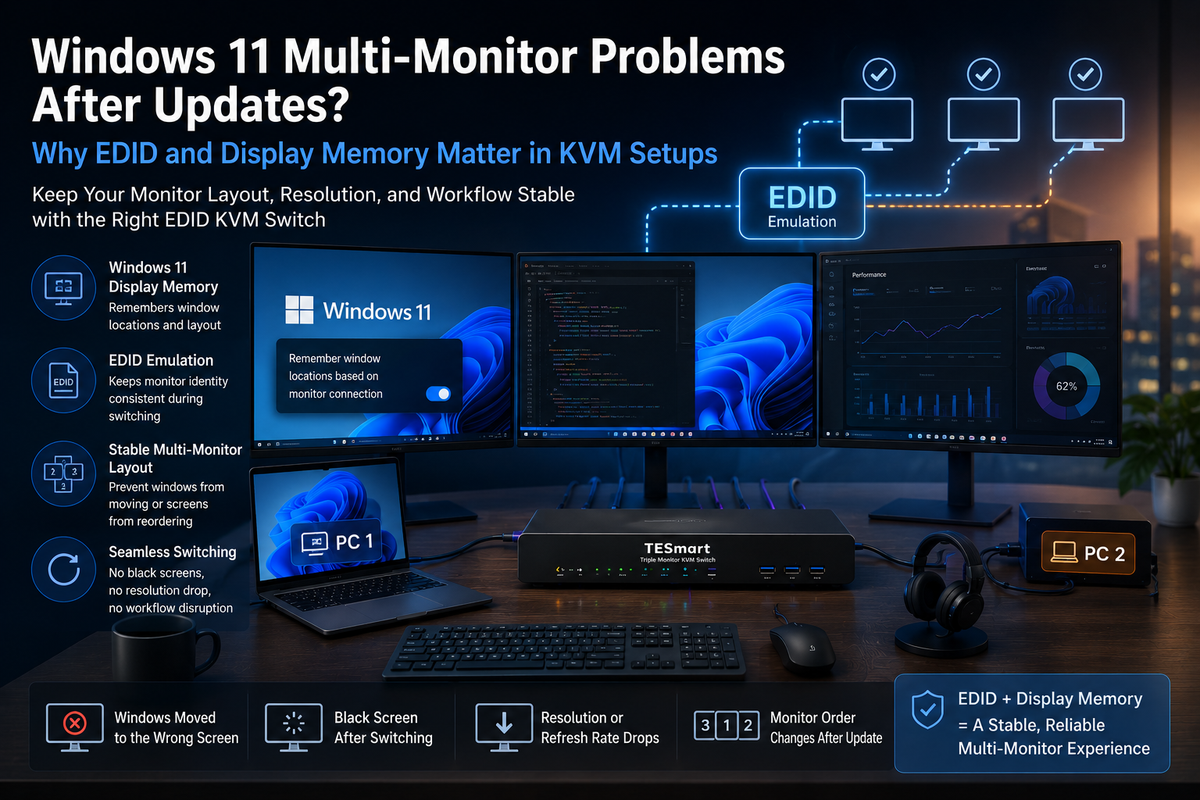
Windows 11 includes display memory features that are meant to improve this experience. Microsoft lists options such as “Remember window locations based on monitor connection” and “Minimize windows when a monitor is disconnected” in its multiple-display settings. These features can help, but they depend on one important condition: Windows must be able to recognize each monitor consistently.
In a direct single-PC setup, that may be simple. In a dual monitor KVM, triple monitor KVM, gaming PC plus work laptop setup, or Mac/Windows mixed workstation, the display path becomes more complex. Every switch event can cause the computer, GPU, monitor, and KVM to renegotiate the display connection.
This is where EDID in KVM switch design matters. EDID emulation and display memory are not magic fixes for every Windows 11 or graphics driver issue, but they are important mechanisms for helping systems maintain stable monitor identity during switching.

What Windows 11 Display Memory Is Designed to Do
Windows 11 display memory is designed to make multi-monitor use less frustrating. When a monitor is disconnected and later reconnected, Windows can try to restore the previous window positions and display arrangement instead of treating the setup as completely new.
For office users, developers, traders, creators, and IT professionals, this matters because a multi-display desktop is often organized by task. A code editor may stay on one screen, a browser on another, and communication tools on a third. When Windows 11 monitor rearranging happens, the user loses that structure.
However, the feature relies on monitor identity. Windows needs to know whether the display that came back is the same monitor as before. That identity is influenced by the monitor’s EDID, the GPU driver, the port used, the cable path, and any switching device between the computer and the monitor.
If the display path changes during a KVM switch event, Windows may interpret the monitor as disconnected, replaced, or reintroduced in a different order. That is why a monitor layout changes after update or after switching even when the physical screens have not moved.
Why Monitor Layout Changes After Updates or KVM Switching
Windows updates do not automatically “break” monitors. More often, an update changes part of the display environment that Windows uses to identify and manage displays. A graphics driver update, firmware change, display cache refresh, or power-management change can cause the system to renegotiate external monitors.
Graphics Drivers and Display Handshakes Can Change
When a Windows PC detects a monitor, the GPU and display exchange capability information. This process helps decide the available resolutions, refresh rates, color formats, HDR behavior, and display name.
After an update, the GPU driver may refresh how it reads or stores that information. In a simple setup, the user may not notice. In a KVM setup, especially one with multiple monitors and multiple computers, small differences in detection can lead to visible desktop changes.
KVM Switching Can Look Like a Disconnect
A basic switch may remove the active display path from one computer when it routes the monitor to another computer. To Windows, that can look similar to unplugging the monitor cable.
When the user switches back, Windows may need to detect the monitor again. If the EDID information is delayed, incomplete, or different from the previous detection event, Windows may move windows to the primary display, lower the resolution, reorder monitors, or treat one screen as missing.
Multi-Monitor Setups Multiply the Problem
A single monitor has one display identity to maintain. A dual monitor KVM has at least two. A triple monitor KVM has at least three. Each monitor may have a different resolution, refresh rate, orientation, input type, or position in Windows display settings.
If one monitor reconnects faster than another, Windows may temporarily rebuild the desktop around the screens it sees first. This is one reason users report that all windows jump to the main screen after switching back through a KVM.
Mixed Windows, Mac, Laptop, and Gaming PC Setups Add More Variables
A work laptop, desktop workstation, gaming PC, and MacBook may not handle the same monitor path identically. One system may use HDMI, another DisplayPort, and another USB-C through a dock or adapter.
Each layer can affect display negotiation. A dock, hub, USB-C to DisplayPort adapter, HDMI converter, or long cable can change how quickly the display is detected and what capabilities are reported.
What EDID Means in a KVM Switch Setup
EDID stands for Extended Display Identification Data. It is the information a monitor provides to a computer to describe what the display is and what it supports.
In practical terms, EDID helps the computer understand details such as:
- Monitor name and identity
- Supported resolutions
- Supported refresh rates
- Preferred timing
- Color and audio capability information, depending on the display
For Windows 11, the GPU driver, and the display subsystem, EDID is part of the evidence used to decide whether a monitor is the same screen as before. If EDID appears inconsistent during switching, Windows may rebuild the display layout.
This is why EDID in KVM switch design matters. A KVM switch with EDID emulation or EDID memory can help present more consistent monitor information to each connected computer, even when the active video path is switched away.
EDID does not override every Windows behavior, driver issue, cable limitation, or monitor firmware quirk. It is one important stability layer in a larger display chain.
Ordinary Switch vs. KVM Without EDID vs. KVM With EDID Emulation
Ordinary HDMI or DisplayPort Switch
An ordinary video switch is mainly designed to route video from one source to one display. It may be fine for simple use, such as switching a monitor between two casual devices.
However, it usually does not manage keyboard, mouse, USB peripherals, or display identity in a workstation-focused way. In multi-monitor setups, it may not help Windows maintain a stable desktop structure.
KVM Without EDID Management
A KVM switch adds keyboard, video, and mouse switching, which makes it more useful than a basic video switch. But not every KVM handles display identity the same way.
Without EDID emulation, a computer may lose the monitor information when another computer is selected. When switching back, Windows may detect the monitor again from scratch. This can contribute to Windows 11 monitor rearranging, black screens, reduced resolution, or changed display order.
KVM With EDID Emulation or Display Memory
A KVM switch with EDID emulation is designed to help maintain display identity during switching. Instead of allowing the monitor to appear fully disconnected from the inactive computer, the KVM can keep presenting stored display information.
For a dual monitor KVM or triple monitor KVM, this can help Windows systems recognize monitors more consistently. The result is often a more stable switching experience, with fewer cases of windows moving unexpectedly or monitors reappearing in the wrong order.
The exact behavior still depends on the computer, GPU, operating system, monitor, cable quality, selected KVM model, and display settings.

How TESmart KVM Switches With EDID Help Multi-Monitor Desktops
At TESmart, we design selected KVM switches with EDID emulation to help maintain monitor identity during switching. This is especially useful for users who move between a Windows 11 work laptop, desktop PC, gaming PC, and other systems on the same monitor setup.
The TESmart DKS, HKS, and HDK series include models built for different HDMI and DisplayPort workflows. Depending on the model, users can choose solutions for single-display, dual-monitor, triple-monitor, or multi-computer desktop control.
TESmart DKS Series: DisplayPort Workflows and Multi-Monitor Desks
The TESmart DKS series is more suitable for users whose setups are built around DisplayPort. This often includes desktop workstations, high-end GPUs, multi-monitor productivity desks, and users who care about stable monitor detection across multiple DisplayPort displays.
For users searching for a DisplayPort KVM with EDID, selected DKS models can help reduce display rearrangement in multi-monitor workflows. The right model depends on the number of computers, number of monitors, and the resolution or refresh-rate target of the full display chain.
TESmart HKS Series: HDMI-Based Multi-Computer Control
The TESmart HKS series fits users who need HDMI-based KVM switching for cleaner multi-computer control. This can include office PCs, laptops with HDMI output, test benches, and users moving beyond a simple HDMI switch.
For users who only need one shared monitor, selected HKS models may be a better fit than a larger multi-monitor KVM. For users who need dual or triple displays, it is important to choose a model that explicitly supports the required monitor count rather than assuming all KVMs handle multiple displays the same way.
TESmart HDK Series: HDMI KVM With EDID for Dual and Multi-Monitor Workflows
The TESmart HDK series is more suitable for HDMI-based workstations that need more than basic video switching. For users looking for an HDMI KVM with EDID, selected HDK models are designed to help Windows systems keep display information more consistent during switching.
This can be useful in dual-monitor desks, creator setups, IT workstations, and mixed laptop-plus-desktop environments where monitor layout stability matters.
What EDID Can and Cannot Do
EDID emulation can help reduce display identity changes, but it should not be treated as a universal fix for every Windows 11 multi-monitor problem.
It cannot guarantee that every graphics driver update, monitor firmware behavior, dock limitation, HDR mode, VRR mode, DSC path, or cable issue will disappear. For best results, users should still check the specific product specifications, use qualified cables, avoid unnecessary adapters, and confirm that each computer can output the required number of video signals.
How to Choose the Right EDID KVM for Windows 11 Setups
Before choosing a KVM switch, start with the actual desktop structure. Most Windows 11 multi-monitor problems become easier to understand once the signal path is clear.
1. Confirm the Number of Monitors
A dual monitor KVM is not the same as a triple monitor KVM. Each display usually needs its own video path from each computer to the KVM. If two computers need to share three monitors, each computer typically needs three compatible video outputs or a properly supported dock or adapter path.
2. Match HDMI or DisplayPort to the Real Hardware
Choose a DisplayPort KVM with EDID when the computers and monitors are built around DisplayPort. Choose an HDMI KVM with EDID when the display chain is HDMI-based.
Adapters can work in some setups, but they add another negotiation layer. When troubleshooting black screen or resolution issues, reducing adapter complexity is often one of the first practical steps.
3. Check Resolution and Refresh Rate Per Model
Do not assume every model in a series has the same resolution, refresh rate, HDR, VRR, or DSC behavior. Check the specific TESmart product specifications for the exact model, monitor count, and signal type.
The full chain must support the target display mode: GPU, cable, adapter, KVM, monitor input, and operating system settings.
4. Confirm Laptop Display Output Limits
Many Windows laptops support multiple external monitors, but the number and type of displays can depend on the laptop GPU, USB-C mode, dock, and firmware. Some laptops may support one external display directly but require a docking solution for more.
MacBook setups need extra attention because many models rely on USB-C or Thunderbolt-compatible ports rather than native DisplayPort outputs. If a DisplayPort KVM is used, a USB-C to DisplayPort cable or dock may be required, and that adapter path should be tested before finalizing the setup.
5. Use EDID Features Correctly
Some KVM switches allow EDID learning, EDID copy, or fixed EDID modes. The right setting depends on the monitor and the desired display mode.
If the system shows a black screen, drops to a lower resolution, or fails to detect one monitor, a practical troubleshooting path is to test direct connection first, then simplify the chain, then restore the KVM path with EDID configured according to the product manual.

FAQ
Why did my Windows 11 monitor layout change after an update?
A Windows update or graphics driver update can refresh how monitors are detected and stored. If the display identity changes because of EDID differences, port changes, docking behavior, or KVM switching, Windows may rebuild the layout and move windows to another screen.
Why do all my windows move to the main monitor after KVM switching?
This usually happens when Windows temporarily sees one or more monitors as disconnected. When the missing monitors return, Windows may not restore the previous layout if the display identity or connection timing appears different. A KVM with EDID emulation can help reduce this behavior by keeping monitor information more consistent.
What is EDID in a KVM switch?
EDID is display identification data that tells the computer what the monitor supports. In a KVM switch, EDID emulation or EDID memory helps the computer continue recognizing the monitor even when the active display path is switched to another computer.
Does EDID emulation fix all Windows 11 multi-monitor problems?
No. EDID emulation is an important stability mechanism, but it does not fix every driver, firmware, cable, dock, adapter, or monitor compatibility issue. It helps improve display identity consistency, which can reduce common problems such as monitor rearrangement, black screens after switching, and resolution changes.
Do I need a dual monitor KVM or triple monitor KVM?
Choose based on how many monitors each computer must use at the same time. If both computers need access to two displays, choose a dual monitor KVM. If both computers need access to three displays, choose a triple monitor KVM. Also confirm that each computer can output the required number of video signals.
Should I choose a DisplayPort KVM with EDID or an HDMI KVM with EDID?
Choose the interface that matches your computers and monitors with the fewest adapters. DisplayPort is common in desktop GPU and workstation setups. HDMI is common in laptops, office PCs, consoles, and many monitors. The right TESmart model depends on monitor count, computer count, resolution target, and the full display chain.
Conclusion
Windows 11 display memory is useful, but it works best when the operating system can consistently recognize each monitor. In KVM setups, that recognition can be disrupted by switching events, EDID changes, graphics driver updates, adapter behavior, or display handshake timing.
That is why EDID emulation and display memory matter in multi-monitor KVM setups. They help Windows PCs, work laptops, gaming PCs, and mixed desktop environments maintain more consistent monitor identity during switching.
For users dealing with Windows 11 multi-monitor problems, Windows 11 monitor rearranging, black screens after switching, or monitor layout changes after update, the next step is not simply buying any switch. The better approach is to choose a KVM that matches the number of computers, number of monitors, HDMI or DisplayPort signal path, and EDID stability needs.
Explore selected TESmart DKS, HKS, and HDK series KVM switches with EDID management to find the right fit for your dual-monitor, triple-monitor, or multi-computer workstation.
Share:
Thunderbolt 5 Dock vs KVM Switch: Why a Powerful Dock Still Does Not Switch Two Computers
How Do I Know If My Graphics Card Supports DSC?